

MSEide+MSEgui/es: what changed
Revision 1 to 2. Removed lines have a minus sign; added lines have a plus sign.
| Old | New | Line | |
|---|---|---|---|
| 1 | 1 | # Introducción | |
| 2 | 2 | ||
| 3 | 3 | MSEide es un sistema de desarrollo gráfico (GUI) de plataforma cruzada orientado a programadores de Pascal. Está completamente escrito en Pascal. MSEgui no aporta compatibilidad con la librería de componentes visuales (VCL). La librería de gráficos aporta un interface con win32 y X11. Hay que tener en cuenta que es un proyecto fruto del esfuerzo en casi su totalidad de una persona (Martin Schreiber), | |
| 4 | 4 | ||
| 5 | 5 | El IDE y GUI tienen un listado de muy buenas características: | |
| 6 | 6 | ||
| 7 | 7 | - La codificación de caracteres es UCS2. | |
| 8 | 8 | - Incluye utilidades de internalización. | |
| 9 | 9 | - Docking forms. | |
| 10 | 10 | - Embedded forms (similar to TFrame). | |
| 11 | 11 | - Visual form inheritance. | |
| 12 | 12 | - Enlaces a xlib y gdi32, no necesita de librerias de widgets externas. | |
| 13 | 13 | - Componentes de acceso a bases de datos y widgets de edición de datos. | |
| 14 | 14 | - Depuración integrada. | |
| 15 | 15 | - Integrated report designer. | |
| 16 | 16 | - Flexible and handy build system with switchable macros. | |
| 17 | 17 | - y más... | |
| 18 | 18 | ||
| 19 | 19 | ## Pero, ¿que acerca de Lazarus? | |
| 20 | 20 | ||
| 21 | 21 | [Lazarus](http://www.lazarus.freepascal.org) es un IDE que trata de aportar un alto grado de compatibilidad con código VCL, al tiemo que aporta un aspecto nativo en bastantes plataformas. La visualización nativa es muy importante para bastantes desarrolladores, pero combinada con la compatibilidad VCL hace necesarias interfaces complejas a los diferentes conjuntos de widgets nativos (GTK, Win32, Carbon, QT...). La continua evolución de este conjunto de widgets nativos (GTK1 -\> GTK2, Win32 -\> ?, , QT) conlleva un interminable conjunto de mantenimientos. | |
| 22 | 22 | ||
| 23 | 23 | [MSEide+MSEgui](http://sourceforge.net/projects/mseide-msegui/) neither features (or suffers :-) de compatibilidad VCL, no provee un aspecto nativo en las plataformas objetivo. La librería de gráficos provee un interface a Win32 y X11. La ventaja de la capa X11 es la inmediata disponibilidad de un largo y estable conjnto de plataformas a lo largo del tiempo. | |
| 24 | 24 | ||
| 25 | 25 | Estas diferentes finalidades de ambos proyecto hace que se adapten a las distintas necesidades de los programadores. | |
| 26 | 26 | ||
| 27 | 27 | ## ¿Porqué esta wiki? | |
| 28 | 28 | ||
| 29 | 29 | El diseño de MSE GUI es una fresca aproximación a los patrones de diseño GUI. Aporta bastantes características innovadoras para tareas típicas de un inteface gráfico de usuario (GUI). Siendo innovador, la librería MSE GUI difiere sustancialmente de VCL/LCL/CLX. Pasar de VCL a MSE puede suponer mucho más cambio que cambiar desde [[Code Conversion Guide|VCL o LCL]]. Estas páginas de la wiki tratan de mostrar facilmente los primeros pasos con esta prometedora (IDE & GUI) librería alternativa. | |
| 30 | 30 | ||
| 31 | 31 | # Instalación | |
| 32 | 32 | ||
| 33 | 33 | - Versión actual: 4.6.2 (03/11/2108). | |
| 34 | 34 | - Referencia autoritativa: [MSEide+MSEgui homepage](http://mseide-msegui.sourceforge.net/) con instrucciones de instalación. | |
| 35 | 35 | - Página principal cooperativa homepage: [MSEide+MSEgui](http://www.msegui.com/) | |
| 36 | 36 | - Descargas: [Sourceforge](http://sourceforge.net/projects/mseide-msegui/files/) | |
| 37 | 37 | - Trabajo en progreso: [git](https://gitlab.com/mseide-msegui/mseide-msegui) | |
| 38 | 38 | ||
| 39 | 39 | # Quick start | |
| 40 | 40 | ||
| 41 | 41 | ## Abriendo un proyecto | |
| 42 | 42 | ||
| 43 | 43 | Lanza el IDE y utiliza Project-\>Open para abrir la demo de msegui/apps/demo/demo.prj. El título del IDE refleja el proyecto que hemos abierto. Pulsa F9 y (si has seguido las instrucciones de instalación correctamente :-), disfruta de la velocidad de FPC+MSE. | |
| 44 | 44 | ||
| 45 | 45 | ## First RAD steps | |
| 46 | 46 | ||
| 47 | 47 | Close the running project. Use Project-\>Source to open the project source demo.pas. Ctrl-click on the parameter mainfo in the line | |
| 48 | 48 | ||
| 49 | 49 | `application.createform(tmainfo,mainfo);` | |
| 50 | 50 | ||
| 51 | 51 | to navigate to main.pas. Click on F12 to toggle between unit and form. Not everything will feel that familiar, because of that, these pages are written. Click on the button, this will auto raise the property editor (unusual but usefull). Let us add another button. Make the component palette visible if necessary (View-\>Toolbar-\>Component Palette). Select the tbutton on the widget page. Click on the form to create the button. Give it a caption in the usual way. Creating an event handler does not work with the usual double clicking on the onexecute property. Instead, you must select the onexecute property in the property editor, type the name of an event handler and press enter. The MSE RAD will create the handler and position the pointer on the definition. Use ctrl-shift-down arrow (or up) to navigate between implementation and definition. Just add some code like writeln('Hello world'); Hit F9. The writeln will end up in the target console window of MSE (not the console in which you started MSE). | |
| 52 | 52 | ||
| 53 | 53 | ## Adding a Main Menu | |
| 54 | 54 | ||
| 55 | 55 | ### Add Main Menu | |
| 56 | 56 | ||
| 57 | 57 | Add a tmainmenu component from the Gui component tab to your main form. Click on your mainform (mainfo), so that Object Inspector shows the properties of the mainform. Use the arrow next to the mainmenu property of the mainform, to select tmainmenu1 as the mainmenu of mainfo. | |
| 58 | 58 | ||
| 59 | 59 | ### Add Menu Items | |
| 60 | 60 | ||
| 61 | 61 | In the Object Inspector, expand the mainmenu branch. In this branch, open the menu property of mainmenu. Change the submenu.count of menu to 1 (or higher). Now expand the submenu.count property, which will show "Item 0". Expand "Item 0" and set the caption, for instance to "&File". Now you can repeat the same procedure one level deeper... Change the submenu.count property of "Item 0" to 1. Expand this last submenu.count property and set the caption of the new "Item 0", for instance to "E&xit". Hit F9 and your program should have a menu *F*ile with the entry E*x*it in it. | |
| 62 | 62 | ||
| 63 | 63 | Alternatively, in Object Inspector you may right click a submenu.count property, or an "Item n" property, which will reveal a context sensitive pop up menu. Use this pop up menu to insert, append or delete menu items. | |
| 64 | 64 | ||
| 65 | 65 | Once you have more than one submenu, you can use drag and drop to move the menu items ("Item n"). Start the drag mouse move on the "Item n" line. | |
| 66 | 66 | ||
| 67 | 67 | ## Crear un nuevo proyecto | |
| 68 | 68 | ||
| 69 | 69 | Para crear un nuevo projecto basado en una plantilla utilizar Project -\> New \> From Template. Para un nuevo proyecto GUI seleccionar "default.prj", y para un proyecto de consola seleccionar "console.prj". | |
| 70 | 70 | ||
| 71 | 71 | # El concepto | |
| 72 | 72 | ||
| 73 | 73 | MSEgui es una librería de programa escrita en Pascal, aporta los bloques de construcción para el desarrollo de programas con interface gráfico de usuario.<sup>1</sup> | |
| 74 | 74 | ||
| 75 | 75 | MSEide es el correspondiente entorno de desarrollo integrado (IDE) para la producción efectiva con Free Pascal y MSEgui. MSEide es también apropiado para el desarrollo de aplicaciones con gcc y microcontroladores. | |
| 76 | 76 | ||
| 77 | 77 | Actualmente MSEide+MSEgui corre bajo i386-linux, x86-64-linux, arm-linux, x86-64-freebsd, i386-win32 y x86-64-win64 mientras que los microprocesadores soportados son CPU32, ARM and AVR32. MSEgui es predominantemente una plataforma independiente. Se pueden añadir plataformas adicionales implementando los elementos dependientes del sistema. Los módulos dependientes del sistema de MSEgui se encuentran ubicados en subdirectorios dentro de lib/common/kernel. | |
| 78 | 78 | ||
| 79 | 79 | ## Principales finalidades del desarrollo | |
| 80 | 80 | ||
| 81 | 81 | - Una relevante incremento en la productividad. comparado con otros sistemas de desarrollo. | |
| 82 | 82 | - Idéntica apariencia y funcionalidad en todas las plataformas, sin adimentos medibles en el código de usuario. | |
| 83 | 83 | - La dependencia de librerias adicionales de mantiene al mínimo posible. | |
| 84 | 84 | - Ortogonalidad - debería haber la mínima interferencia posible entre los diferentes elementos de programa y tan pocos como sea posible a nivel de escepciones y casos especiales. | |
| 85 | 85 | - Elementos del interface gráfico de usuario (GUI) altamente parametrizados. | |
| 86 | 86 | - Trabajando con MSEide+MSEgui debería ser agradable. | |
| 87 | 87 | ||
| 88 | 88 | ## Architecture overview | |
| 89 | 89 | ||
| 90 | - | ||
| 90 | + | MSEgui no requiere de librerias de componentes externas - , se comunica directamente con el interface gráfico del sistema operativo. Con X11 a través de Xlib en Linux y con gdi32 bajo Windows. | |
| 91 | 91 | ||
| 92 | - | ||
| 92 | + | Para los elementos individuales del GUI no se necesitan recursos adicionales del sistema operativo - únicamente las ventanas principales son conocidas pore el sistema operativo. El procesado completo de los eventos externos (teclado, ratón, control del foco, ...) tiene lugar dentro de MSEgui a nivel de Pascal. | |
| 93 | 93 | ||
| 94 | - | ||
| 94 | + | La clase base para los elementos del GUI es un `twidget`. No hay distinción entre elementos gráficos simples y los que puedan recibir el foco, como es el caso en Delphi. Todos los widgets de MSEgui tienen a su disposición la funcionalidad completa de un `twidget`. | |
| 95 | 95 | ||
| 96 | 96 | Importantes característica de un `twidget` son: `twidget.frame` y `twidget.face`. Cuando no se utilizan frame o face se representan mediante un puntero NIL, de forma que no consuma recursos. | |
| 97 | 97 | ||
| 98 | - | ||
| 98 | + | `twidget.frame` es responsable del frame around del área de trabajo del elemento. La apariencia del frame es altamente ajustable - puede ser simle y rápidamente ser dibujable mediante un frame 3D, al tiempo que una compleja y lenta estructura basada en imágenes. Hay además otros elementos del frame que pueden construir barras de desplazamiento, pulsadores y etiquetas. | |
| 99 | 99 | ||
| 100 | - | ||
| 100 | + | `twidget.face` dibuja el fondo del área de trabajo de un elemento del escritorio del GUI - de forma que se pueden mostrar gradientes de color e imágenes de maneras diferentes, mientras que se permite también una transparecia parcial. | |
| 101 | 101 | ||
| 102 | - | ||
| 102 | + | Setting the properties of frame and face can be centralised by using `tframecomp` and `tfacecomp`, which can be selected into `tframe` and `tface` as templates. | |
| 103 | 103 | ||
| 104 | - | ||
| 104 | + | The next level of centralization is `tskincontroller`, through which program-wide settings can be made. In order to achieve that, `tskinkontroller` assigns to the GUI elements the appropriate `tframcomp` and `tfacecomp` templates. | |
| 105 | 105 | ||
| 106 | - | ||
| 106 | + | The control of the widget functions (focusin, focusout, ...) is done by virtual procedures and functions and not through messages. The MSEgui message function has other tasks. Also a Corba-style interface is used - for the safe connection between the various components and the automatic disconnection through destroy, a `tobjectlinker` is used. | |
| 107 | 107 | ||
| 108 | - | ||
| 108 | + | The type `msestring` is used in MSEgui for storing text. At the moment, msestring equals WideString. However, the reference counted FPC WideString (UnicodeString) is planned to be used under Windows, as soon as it becomes available in one of the future FPC releases. | |
| 109 | 109 | ||
| 110 | 110 | In text files the utf-8, ASCII or the local encoding is used - MSEide+MSEgui does not use utf-16 files. | |
| 111 | 111 | ||
| 112 | - | ||
| 112 | + | The MSEgui database components provide the conversion from the local encoding or the utf-8 (adjustable) to WideString for the data buffering. For file operations, a set of MSEgui's own functions with WideString interface exists. An MSEgui application can therefore work consistently with WideStrings, which is a significant relief for some tasks. | |
| 113 | 113 | ||
| 114 | - | ||
| 114 | + | Specialized data edit widgets for the basic data types (integer, real, tdatetime, ...) are available in MSEgui (`tintegeredit`, `trealedit`, `tdatetimeedit`, ...). The main event property of these widgets is `onsetvalue`, which can be used for reacting upon user input. | |
| 115 | 115 | ||
| 116 | 116 | The `t*edit` widgets can be inserted into a `twidgetgrid` and in that way form a column of the appropriate data format. | |
| 117 | 117 | ||
| 118 | - | ||
| 118 | + | For viewing and editing of data fields a `tdbwidgetgrid` togeather with a set of `tdb*editwidget`s can be used. Worth mentioning are also different lookup components and a `tlookupbuffer`, a fast associative data memory. | |
| 119 | 119 | ||
| 120 | - | ||
| 120 | + | The basic component of the MSEgui's database environment is `tmsebufdataset`, from which `tmsesqlquery` is derived. MSEgui DB is a fork of the FPC SQLDB system, where TBufDataset and large parts of TSQLQuery and the connection components have been completely rewritten. | |
| 121 | 121 | ||
| 122 | 122 | `tmsebufdataset` offers local indices, calculated and internalcalc-fields, a mode with an interrupted database connection, an in-memory mode where no database connectivity is necessary and can keep a local journal, in order to later reconect a previously disconnected database connection. `tmsebufdataset` stores texts as WideStrings of variable length. | |
| 123 | 123 | ||
| 124 | - | ||
| 124 | + | Further, there are SQL script components and `tsqlresult` for quick queries without the TDataset overhead. Persistent TField instances are either kept within `tmsesqlquery`, where they can be edited in the object inspector via `tmsesqlquery.controller.fields`, or they can be inserted into forms or modules as as individual components from the 'DBf' component palette. | |
| 125 | 125 | ||
| 126 | - | ||
| 126 | + | MSEide supports 'visual form inheritance', Submodule (Delphi TFrame equivalent) and allows the assignment of components of other forms or modules to component properties at design time. | |
| 127 | 127 | ||
| 128 | - | ||
| 128 | + | Internationalization is done via resource modules that are loadable at runtime. The MSEi18n, a tool that supports the import and export of texts in spreadsheet programs is available for editing - therefore facilitating a translation by nonprogrammers. | |
| 129 | 129 | ||
| 130 | 130 | <sup>1</sup>) This chapter is based on a translation of a German text provided by Martin Schreiber. | |
| 131 | 131 | ||
| 132 | 132 | # Tips: MSEide | |
| 133 | 133 | ||
| 134 | 134 | ## Larger fonts | |
| 135 | 135 | ||
| 136 | 136 | Some may find the standard menu font a bit small. The standard font for the main menu of an MSEgui application is the font defined by the stf_menu stock font. You can change a stock font value with a startup parameter, \<fontheight\> is given in pixels. | |
| 137 | 137 | ||
| 138 | 138 | `--FONTALIAS=<alias>,<fontname>[,<fontheight>[,<fontwidth>[,<options>]]]` | |
| 139 | 139 | ||
| 140 | 140 | So if you start the mseide like this, you can get a larger menu font: | |
| 141 | 141 | ||
| 142 | 142 | ` mseide --FONTALIAS=stf_menu,sans,16` | |
| 143 | 143 | ||
| 144 | 144 | In order to increase the base font size for all stock fonts use | |
| 145 | 145 | ||
| 146 | 146 | ` mseide --FONTALIAS=stf_default,,16` | |
| 147 | 147 | ||
| 148 | 148 | ## Shortcuts | |
| 149 | 149 | ||
| 150 | 150 | Common | |
| 151 | 151 | ||
| 152 | 152 | - **Ctrl+F4** - Close | |
| 153 | 153 | - **Ctrl+S** - Save | |
| 154 | 154 | - **Ctrl+E** - Select page | |
| 155 | 155 | - **F11** - Toggle Form/Inspector | |
| 156 | 156 | - **F12** - Toggle Form/Unit | |
| 157 | 157 | - **Shift+Ctrl+\[0..9\]** - Bookmark 0..9 | |
| 158 | 158 | - **Ctrl+\[0..9\]** - Go to bookmark 0..9 | |
| 159 | 159 | - **Ctrl+LeftClick** - Go to var(class, method, unit) declaration | |
| 160 | 160 | - **Shift+Ctrl+Up** - Go to method declaration | |
| 161 | 161 | - **Shift+Ctrl+Down** - Go to method implementation | |
| 162 | 162 | - **Shift+Ctrl+Space** - Show procedure header | |
| 163 | 163 | ||
| 164 | 164 | Debug | |
| 165 | 165 | ||
| 166 | 166 | - **F7** - Step | |
| 167 | 167 | - **F8** - Next | |
| 168 | 168 | - **F9** - Continue | |
| 169 | 169 | - **Shift+F7** - Finish | |
| 170 | 170 | - **Shift+Ctrl+F8** - Next instruction | |
| 171 | 171 | - **Shift+Ctrl+F7** - Step instruction | |
| 172 | 172 | - **F5** - Toggle breakpoint | |
| 173 | 173 | - **Shift+F5** - Toggle breakpoint enabled/disabled | |
| 174 | 174 | - **Ctrl+B** - Breakpoints on/off | |
| 175 | 175 | - **Ctrl+W** - Watches on/off | |
| 176 | 176 | ||
| 177 | 177 | Editor | |
| 178 | 178 | ||
| 179 | 179 | - **Ctrl+Z** - Undo | |
| 180 | 180 | - **Ctrl+X** - Cut | |
| 181 | 181 | - **Ctrl+C** - Copy | |
| 182 | 182 | - **Ctrl+V** - Paste | |
| 183 | 183 | - **Ctrl+F** - Find | |
| 184 | 184 | - **F3** - Search again | |
| 185 | 185 | - **Ctrl+L** - Go to line. | |
| 186 | 186 | - **Ctrl+I** - Indent block | |
| 187 | 187 | - **Ctrl+U** - Unindent | |
| 188 | 188 | ||
| 189 | 189 | ## Print from IDE | |
| 190 | 190 | ||
| 191 | 191 | You need the [ghostscript](http://ghostscript.com/awki) | |
| 192 | 192 | ||
| 193 | 193 | ## Recent opened files or projects | |
| 194 | 194 | ||
| 195 | 195 | The last opened projects are in the dropdown list of 'Project'-'Open'-'Name'. The last opened files are in the dropdown list of 'File'-'Open'-'Name'. | |
| 196 | 196 | ||
| 197 | 197 | ## Menu Editing | |
| 198 | 198 | ||
| 199 | 199 | - Use submenu.count to set the wanted menu items count. | |
| 200 | 200 | - Right click on submenu.count or on a menu item "Item X" to display a context-sensitive menu that allows to insert,append or delete a submenu entry | |
| 201 | 201 | - Use drag and drop on a submenu entry to move the the item in the array. | |
| 202 | 202 | ||
| 203 | 203 | ## New Panels in the IDE | |
| 204 | 204 | ||
| 205 | 205 | Example, you want to have the watch, stack and cpu window in a window: | |
| 206 | 206 | ||
| 207 | 207 | - select the menu item **View**-**Panels**-**New Panel**. | |
| 208 | 208 | - select the menu item **View**-**Watches**. | |
| 209 | 209 | - drag the Watches window by the grip (not the window title!) in the new panel. | |
| 210 | 210 | - same with Stack and CPU window. | |
| 211 | 211 | - to split horizontal drag one of the grip of the inserted widgets to the left border of the panel. | |
| 212 | 212 | - to split vertical drag one of the grip of the inserted widgets to the bottom border of the panel. | |
| 213 | 213 | - to use tabs drag one of the grip of the inserted widgets to the centre of the panel. | |
| 214 | 214 | ||
| 215 | 215 | ## Design Tab-Order | |
| 216 | 216 | ||
| 217 | 217 | Main way in **MSEide** is set the tab order after all widgets are placed in the form with the popup menu function "Set Tab Order". Select a widget in the container where you wish to set the tab oder, click right, click "Set Tab Order", click row 0, click "Start", click the widget in the container which should get tab order 0, click the widget which should get tab order 1.. | |
| 218 | 218 | ||
| 219 | 219 | An alternative is to drag and drop the rows to the desired position. The first row corresponds to the tab order 0 the second to the 1 and so on. | |
| 220 | 220 | ||
| 221 | 221 | ### Creating a new event handler | |
| 222 | 222 | ||
| 223 | 223 | Select the event you want in the **Object Inspector**, then type name of the new event handler. IDE create a new procedure(declaration and implementation) in the source code. If you double-click the name of the event handler in the **Object Inspector**, source editor opens with the cursor at begin of your handler implementation. | |
| 224 | 224 | ||
| 225 | 225 | # Tips: MSEgui | |
| 226 | 226 | ||
| 227 | 227 | ## Tabbed control | |
| 228 | 228 | ||
| 229 | 229 | - Put **ttabwidget** control on the form. Now you have container (*ttabwidget1*) for pages. | |
| 230 | 230 | - Put as many **ttabpage** controls on the *ttabwidget1* as tabs you want. | |
| 231 | 231 | ||
| 232 | 232 | ## Splitter | |
| 233 | 233 | ||
| 234 | 234 | We have two widgets (widgetLeft, widgetRight) and we need horizontal splitter between them. | |
| 235 | 235 | ||
| 236 | 236 | - Add TSplitter to form and resize it as you want. | |
| 237 | 237 | - Change the **linkleft** of *tsplitter1* to **widgetLeft** and **linkright** to **widgetRight**. At this step our widgets stick to splitter. | |
| 238 | 238 | - Change the **spo_hmove** to **True**. That's all. | |
| 239 | 239 | - If you want to save a proportion between width of *widgetLeft* and width of *widgetRight* when the main form is resized then change the **so_hprop** to **True**. | |
| 240 | 240 | - If you need the vertical splitter then use other properties **linktop**, **linkbottom**, **spo_vmove**, **spo_vprop**. | |
| 241 | 241 | ||
| 242 | 242 | ## Switch-off auto-scrolling of the form(widget) | |
| 243 | 243 | ||
| 244 | 244 | Change the **container - frame - sbhorz - options - sbo_showauto** property of the form to **False**. | |
| 245 | 245 | ||
| 246 | 246 | ## Read/write data in the twidgetgrid | |
| 247 | 247 | ||
| 248 | 248 | - **editwidget.value** -\> value of the actual row | |
| 249 | 249 | - **editwidget\[rowindex\]** or **editwidget.gridvalue\[rowindex\]** -\> value of the addressed row | |
| 250 | 250 | - **editwidget.gridvalues** the whole column as a dynamic array. | |
| 251 | 251 | ||
| 252 | 252 | ## First events | |
| 253 | 253 | ||
| 254 | 254 | **OnCreate** is called before loaded procedures of the components of the form are called, **OnLoaded** is called after loaded procedures of the components of the form are called. Many components do initializations in loaded procedures, event properties are inactive before procedure loaded of the component is called. | |
| 255 | 255 | ||
| 256 | 256 | ## MDI | |
| 257 | 257 | ||
| 258 | 258 | MDI - application can be created using TDockFormWidget or TDockPanel (as MDI-area) and TDockForm (as ancestor for you MDI-child window). There are examples: | |
| 259 | 259 | ||
| 260 | 260 | - How to use TDockForm with custom MDI-buttons <http://brefi.narod.ru/mdi_example2.tar.gz> or in *\$MSESOURCES/contributed/ivankob/examples* | |
| 261 | 261 | - Simple MDI-controller (create, switch, ... the child windows) <http://mihafpc.narod.ru/MDISample.tar.gz> or in *\$MSESOURCES/contributed/miha* | |
| 262 | 262 | ||
| 263 | 263 | ## Drawing | |
| 264 | 264 | ||
| 265 | 265 | ### Redraw form the additional thread | |
| 266 | 266 | ||
| 267 | 267 | Use a **tthreadcomp** (tab **Gui**) to do the long time procedure. If you need to access widgets and other gui variables from the additional thread, call **application.lock** before and **aplication.unlock** after accessing the main event thread elements. | |
| 268 | 268 | ||
| 269 | 269 | ### Force repaint | |
| 270 | 270 | ||
| 271 | 271 | - **twidget.invalidate** to invalidate an individual widget | |
| 272 | 272 | - **twidget.rootwidget.invalidate** to invalidate the window | |
| 273 | 273 | - **application.invalidate** to invalidate all windows (=forms) in the application | |
| 274 | 274 | ||
| 275 | 275 | ### Draw text | |
| 276 | 276 | ||
| 277 | 277 | There are two methods to draw texts in MSEgui: | |
| 278 | 278 | ||
| 279 | 279 | - Simple text positioning by baseline position of start of the first character with **tcanvas.drawstring**. | |
| 280 | 280 | - With the drawtext procedures of **msedrawstring.pas**. | |
| 281 | 281 | ||
| 282 | 282 | ### Widgets canvas | |
| 283 | 283 | ||
| 284 | 284 | No twidget has a canvas. The canvas used for painting is normally one of the canvas of twindow, it can also be an canvas of a tbitmap or a tprinter or... MSEgui uses one canvas to paint a whole window with all widgets. *tcanvas.font* is initialized by **twidget.getfont**, *canvas.color* by **twidget.actualcolor** before calling **twidget.dopaint**, see **twidget.paint** procedure in msegui.pas. | |
| 285 | 285 | ||
| 286 | 286 | ### Theming (Frames & Faces) | |
| 287 | 287 | ||
| 288 | 288 | Every twidget has a property **frame** and **face**. If they are deactivated (\<disabled\> in object inspector) they are only an nil pointer and need no more resources. Activate them by clicking on the ellipse button in the right object inspector column in the row face respective frame. | |
| 289 | 289 | ||
| 290 | 290 | The **face** property defines the background of the client area of the widget. | |
| 291 | 291 | ||
| 292 | 292 | It is a combination of a fade and a bitmap. Both of them can be semitransparent. The bitmap can be stretched and/or tiled. Example: you want to create a button with a fade as face. | |
| 293 | 293 | ||
| 294 | 294 | - place a *tbutton* on the form. | |
| 295 | 295 | - in object inspector activate property face. | |
| 296 | 296 | - set *face.fade.color.count* to 2. | |
| 297 | 297 | - click on the **+** at *color.count*. | |
| 298 | 298 | - in item 0 select cl_gray. | |
| 299 | 299 | - in item 1 select cl_ltgray, now you have a left to write fade from gray to light gray. | |
| 300 | 300 | - change *face.fade.direction* to *gd_up* or *gd_down*, you get a convex resp. concave fade. | |
| 301 | 301 | ||
| 302 | 302 | If you want, you can blend an additional structure over the fade: | |
| 303 | 303 | ||
| 304 | 304 | - select the wanted pattern image in *face.image*. | |
| 305 | 305 | - activate *face.image.alignment* al_tiled. | |
| 306 | 306 | - adjust *face.image.transparency* to your needs, \$000000 = opaque, \$ffffff = fully transparent. The number defines the transparency of the three color channels (\$RRGGBB). | |
| 307 | 307 | ||
| 308 | 308 | To centralise the face look use an **tfacecomp** (tab *Gui*) and select the facecomp in *template* of the *face* properties. | |
| 309 | 309 | ||
| 310 | 310 | The **frame** property defines the look of an additional frame around the component and shows a possible caption at the widget. Example: you want an lowered frame around and a caption right of the button. | |
| 311 | 311 | ||
| 312 | 312 | - activate property *frame*. | |
| 313 | 313 | - set *frame.levelo* to -1. | |
| 314 | 314 | - set *frame.leveli* to 1. | |
| 315 | 315 | - enter the caption text in *frame.caption*. | |
| 316 | 316 | - set *frame.captionpos* to cp_right. | |
| 317 | 317 | ||
| 318 | 318 | To centralise the frame look use an **tframecomp** (tab *Gui*) and select the framecomp in *template* of the *frame* properties. | |
| 319 | 319 | ||
| 320 | 320 | ### Desktop colors in the MSE application | |
| 321 | 321 | ||
| 322 | 322 | Default values of the mapped colors stored in the array **msegraphics.defaultmapped**. For change it's values you can use function **msegraphics.setcolormapvalue** [Win32 and KDE example](http://www.freepascal.org/wiki/index.php/User:Miha) (*\$MSESOURCES/contributed/miha/GuiStyle.pas*) | |
| 323 | 323 | ||
| 324 | 324 | # Aplicaciones de ejemplo y pantallazos | |
| 325 | 325 | ||
| 326 | 326 | ## Una aplicación utilizando Firebird | |
| 327 | 327 | ||
| 328 | 328 | Los siguientes pantallazos se han tomado desde una aplicación de bases de datos con Firebird que utiliza MSEgui. El programador indica que ha personalizado el aspecto y comportamiento de su aplicación en unos 30 minutos utilizando un tfacecomp y dos tframecomp y ha constatado que el aspecto y comportamiento es idéntico tanto en Linux como en Windows. | |
| 329 | 329 | ||
| 330 | - | ||
| 331 | - | ||
| 332 | - | ||
| 333 | - | ||
| 330 | + | 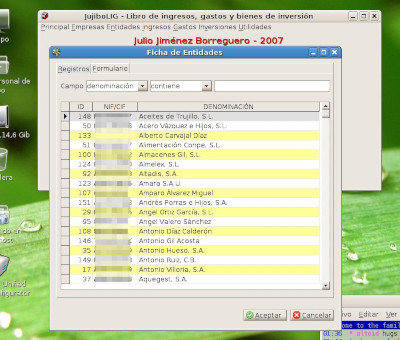 | |
| 334 | 331 | ||
| 335 | 332 | Versión utilizando Linux: 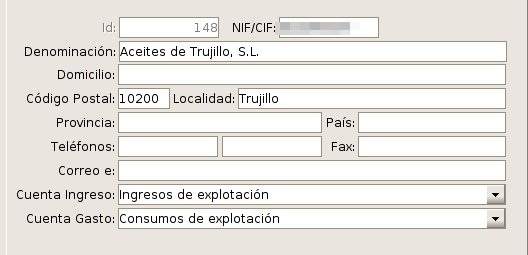 | |
| 336 | 333 | ||
| 337 | 334 | Versión utilizando Windows: 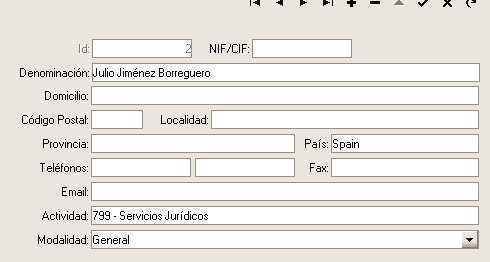 | |
| 338 | 335 | ||
| 339 | 336 | Versión utilizando Linux:  | |
| 340 | 337 | ||
| 341 | 338 | Versión utilizando Windows:  | |
| 342 | 339 | ||
| 343 | 340 | El reporte ha sido diseñado y renderizado con el diseñador y generador de reportes del MSEide+MSEgui embebido. | |
| 344 | 341 | ||
| 345 | - | ||
| 346 | - | ||
| 347 | - | ||
| 348 | - | ||
| 342 | + | 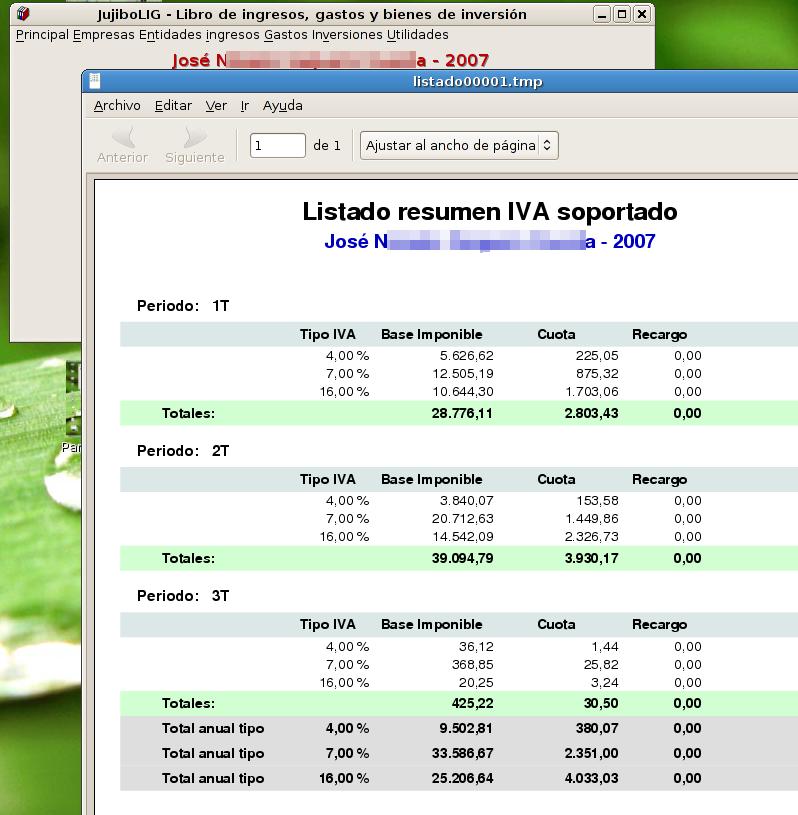 | |
| 349 | 343 | ||
| 350 | 344 | Dos forumularios MDI con frame fade y flat. | |
| 351 | 345 | ||
| 352 | - | ||
| 353 | - | ||
| 354 | - | ||
| 355 | - | ||
| 346 | + | 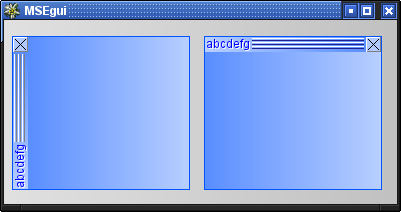 | |
| 356 | 347 | ||
| 357 | 348 | ## Un sistema embebido | |
| 358 | 349 | ||
| 359 | 350 | Un sistema embebido para aplicaciones médicas, en este caso esterilizadores steam, fue realizado con MSE-IDE & MSE-GUI con la unidad de conrol, nowadays además comunmente llamado "human machine interface", HMI. | |
| 360 | 351 | ||
| 361 | - | ||
| 362 | - | ||
| 363 | - | ||
| 364 | - | ||
| 352 | + | 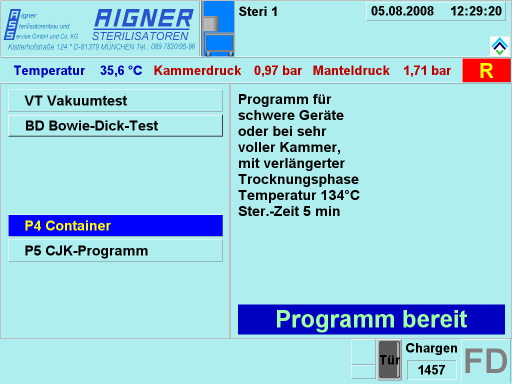 | |
| 365 | 353 | ||
| 366 | 354 | La unidad de control utiliza un panel táctil como display, por lo que todos los controles activos necesitan ser suficientemente largos para que el personal pueda manejarlos a mano facilmente. La pantalla principal consiste de unos pocos campos informativos que permiten seleccionar los procesos de esterilizado por meido de un menú consistente en varios componentes pulsadores con sus correspondientes nombres descriptivos junto con una breve descripción de su funcionalidad en un panel separado. La visibilidad de los pulsadores y sus captions se definen durante la carga del programa mediante un fichero de configuración. Los campos informativos muestran los valores de operación de los dispositivos en tiempo real utilizando un timer de sistema MSE para recolectar la información desde un PLC. | |
| 367 | 355 | ||
| 368 | - | ||
| 369 | - | ||
| 370 | 356 | 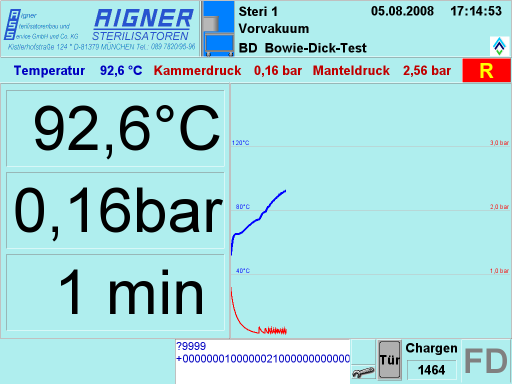 | |
| 371 | 357 | ||
| 372 | 358 | After processing has been started, the display is switched to a different format showing the operating values in large digits on some numeric display field components on the left and a graphical representation of the process history on the right, again both as real time "live displays". If the diagram curves would reach the right panel border, the diagram would change to a scrolling mode, always showing the current state at the extreme right.\ | |
| 373 | - | ||
| 359 | + | ||
| 374 | 360 | 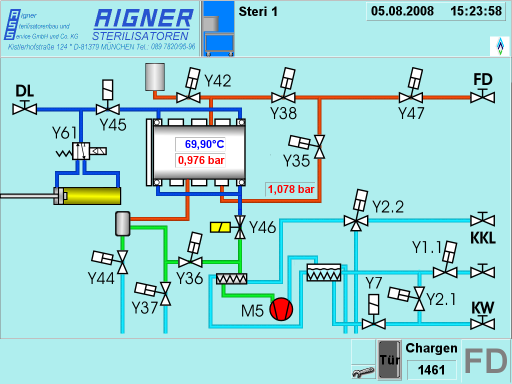 | |
| 375 | 361 | ||
| 376 | 362 | For diagnostic purposes, also a schematic state display is available. This shows a simplified schematic of the apparatus, along with real time animated symbols of the control elements, as there are valves and pumps, each displayed in a derived version of a timage component, created and placed dynamically on program load. Also shown are the most important process values as numerical displays, also dynamically placed. The schematic field really is the output of a separate program, running in parallel to the process display which provides the upper and lower parts of the screen display.\ | |
| 377 | - | ||
| 363 | + | ||
| 378 | 364 | 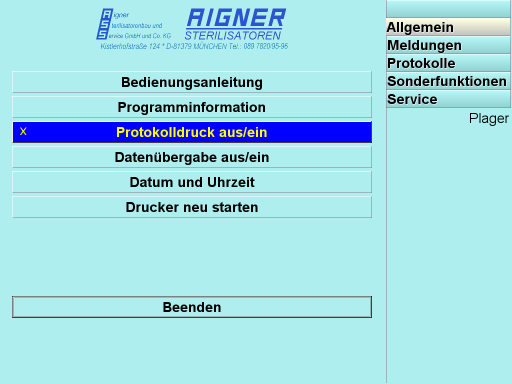 | |
| 379 | 365 | ||
| 380 | 366 | There is also a mode for setting several control and function parameters and to recall previous operational and diagnostic data. It is organised as a tabbed screen containing several run time parametrized menu pages and a couple of display field pages. Some of the pages allow access only after entering a pass code to prevent missuse of critical functions.\ | |
| 381 | - | ||
| 367 | + | ||
| 382 | 368 | 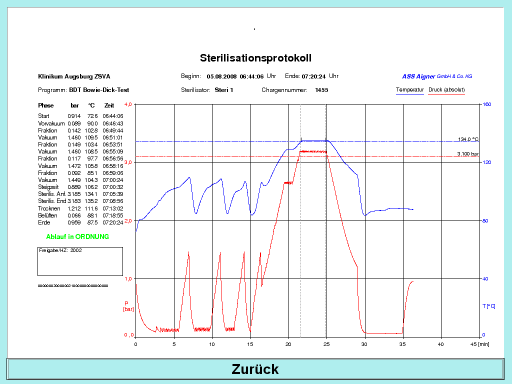 | |
| 383 | 369 | ||
| 384 | 370 | This is a screen displaying a graphical protocol of a previous process. The protocol is usually printed out immediately after termination, as required by the regulations. The printer output is generated as a postscript file, processed by ghostscript both for print out and for the on screen display shown, which uses the png format for loading into the display field.\ | |
| 385 | - | ||
| 371 | + | ||
| 386 | 372 | 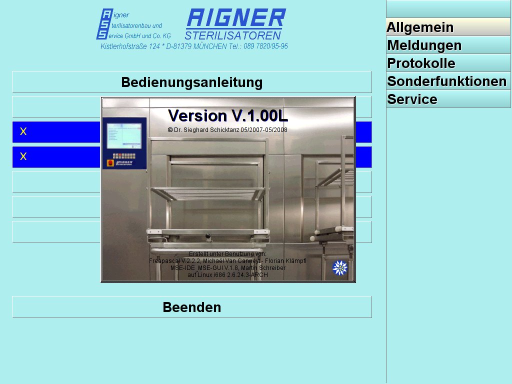 | |
| 387 | 373 | ||
| 388 | 374 | Of course, there is also an attribution display, showing program version, creator information and the tools used for the creation of the system, Free Pascal and MSE-IDE & MSE-GUI. As background, it uses a photography of one such apparatus as it is used in clinics displayed in an image component carrying several label fields used for the text. Above all of that sits a transparent button to close the picture. | |
| 389 | 375 | ||
| 390 | 376 | # Reference: MSEide | |
| 391 | 377 | ||
| 392 | 378 | - To move and resize components without gridsnap use shift+cursorkeys and ctrl+cursorkeys. | |
| 393 | 379 | - There are many possibilities with properties twidget.frame and twidget.face, for instance tiled semitransparent bitmaps and color fades (all twidget descendants have these properties!). | |
| 394 | 380 | ||
| 395 | 381 | For client area of forms use tmseform.container.frame and tmseform.container.face, tmseform has additionally onpaint to do custom drawing. | |
| 396 | 382 | ||
| 397 | 383 | You can write your own widgets and override procedure dopaint or use teventwidget with onpaint,onresize,onmouseevent,onkeydown,onkeyup... | |
| 398 | 384 | ||
| 399 | 385 | `How to convert filenames to windows format? `\ | |
| 400 | 386 | `Unit msefileutils: `\ | |
| 401 | 387 | `function tosysfilepath(const path: filenamety): filenamety; `\ | |
| 402 | 388 | `procedure tosysfilepath1(var path: filenamety); `\ | |
| 403 | 389 | `Converts to filename format of actual OS. `\ | |
| 404 | 390 | `function tomsefilepath(const path: filenamety): filenamety; `\ | |
| 405 | 391 | `procedure tomsefilepath1(var path: filenamety); `\ | |
| 406 | 392 | `Converts from filename format of actual OS.` | |
| 407 | 393 | ||
| 408 | 394 | `Where is the MDI ??? `\ | |
| 409 | 395 | `In MSEgui we have tdockform and tdockpanel for that purpose. `\ | |
| 410 | 396 | `Have a look at property dragdock.` | |
| 411 | 397 | ||
| 412 | 398 | ## MSEi18n | |
| 413 | 399 | ||
| 414 | 400 | # [[Reference: MSEgui]] | |
| 415 | 401 | ||
| 416 | 402 | [[Reference: MSEgui|On this page you can find a working in progress for documenting MSEGUI.]] | |
| 417 | 403 | ||
| 418 | 404 | # External links | |
| 419 | 405 | ||
| 420 | 406 | Website: <http://mseide-msegui.sourceforge.net/> | |
| 421 | 407 | ||
| 422 | 408 | Community website: <http://www.msegui.com> | |
| 423 | 409 | ||
| 424 | 410 | Unofficial incomplete help pages started from Z505 at: <http://z505.com/cgi-bin/mse/idx.cgi?file=generalindex> | |
| 425 | 411 | ||
| 426 | 412 | Read the beginner's tutorial (in Russian) at: <http://freepascal.ru/article/mse/20060108181639/> | |
| 427 | 413 | ||
| 428 | 414 | Also: "MSEide+MSEgui. Draw lesson." (in Russian) <http://freepascal.ru/article/mse/20060205191314/> | |
| 429 | 415 | ||
| 430 | 416 | You can also find an English translation here: <http://www.geocities.com/yetanothergeek/mseide-tutorial-en/> | |
| 431 | 417 | ||
| 432 | 418 | This page in Russian: <http://freepascal.ru/wiki/index.php/MSEide%26MSEgui> | |
| 433 | 419 | ||
| 434 | 420 | MSElang, the future compiler for the MSEide+MSEgui project <https://gitlab.com/mseide-msegui/mselang/wikis/home> | |
| 435 | 421 | ||
| 436 | 422 | ------------------------------------------------------------------------ | |
| 437 | 423 | ||
| 438 | 424 | --- | |
| 439 | 425 | *From the Free Pascal wiki, page "MSEide+MSEgui/es", as it stood on 2020-04-20 after a change by FTurtle, out of the wiki's dump of 2024-05-26. Copyright stays with the author who wrote it, according to the old wiki's [[Licensing]] page. If you have concerns about this material, [message the admin](/wiki-contact).* |