

lazarus pas2js integration: what changed
Revision 1 to 2. Removed lines have a minus sign; added lines have a plus sign.
| Old | New | Line | |
|---|---|---|---|
| 1 | 1 | # Lazarus pas2JS integration | |
| 2 | 2 | ||
| 3 | 3 | Requires **Lazarus 1.9+** and **pas2js** ([[pas2js|see here]]). Installation procedure: | |
| 4 | 4 | ||
| 5 | 5 | 1\. Click on menu Package - Install/Uninstall Packages | |
| 6 | 6 | ||
| 7 | 7 | ||
| 8 | 8 | 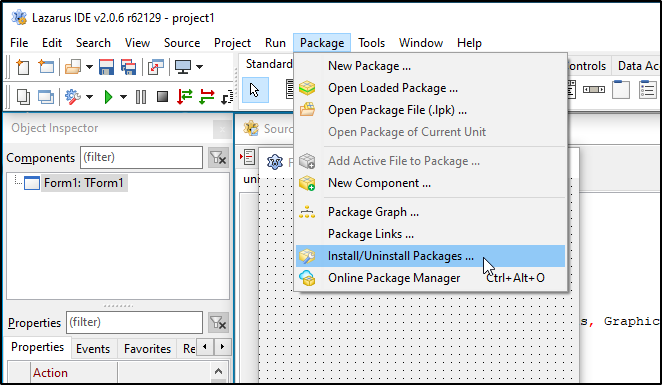 | |
| 9 | 9 | ||
| 10 | 10 | 2\. Choose the package **pas2jsdsgn** then restart the IDE. | |
| 11 | 11 | ||
| 12 | 12 | ||
| 13 | 13 |  | |
| 14 | 14 | ||
| 15 | 15 | The Lazarus [[pas2js]] integration has 3 parts to it: | |
| 16 | 16 | ||
| 17 | 17 | - [[lazarus pas2js integration|Global options]] | |
| 18 | 18 | - [[lazarus pas2js integration|Project wizards]] | |
| 19 | 19 | - [[lazarus pas2js integration|A debug window]] | |
| 20 | 20 | ||
| 21 | 21 | ## Global options | |
| 22 | 22 | ||
| 23 | 23 | In the Tools/Options... dialog, the Pas2JS section allows you to set some options that affect the IDE integration. It looks like this: | |
| 24 | 24 | ||
| 25 | 25 | 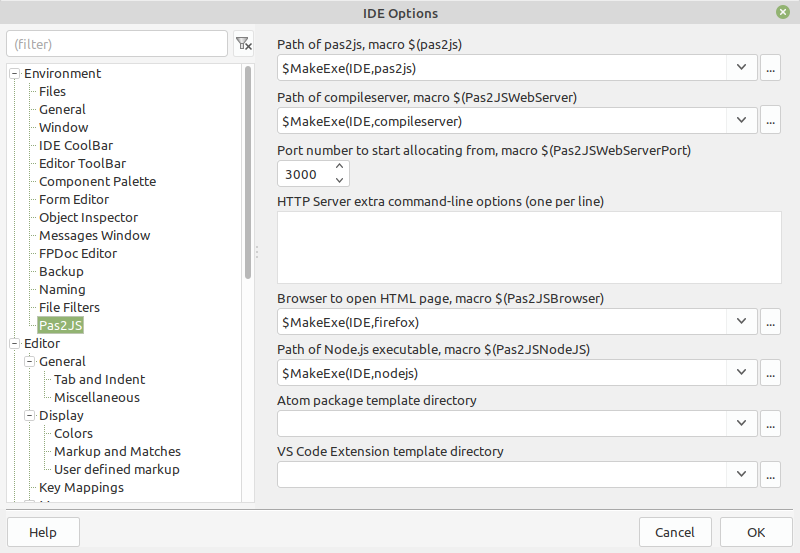 | |
| 26 | 26 | ||
| 27 | 27 | The following settings are available: | |
| 28 | 28 | ||
| 29 | 29 | Path of pas2js | |
| 30 | 30 | This is the compiler binary used when setting up a new project.\ | |
| 31 | 31 | It will be searched in the PATH if no absolute path is set. Corresponds to IDE macro *Pas2JSJS*. | |
| 32 | 32 | ||
| 33 | 33 | Change **Path of pas2js** to **C:\lazarus\pas2js\bin\win64-x86_64\pas2js.exe** | |
| 34 | 34 | ||
| 35 | 35 | Path of simpleserver (Lazarus 2.3+ configure this in *Simple Web Server*) | |
| 36 | 36 | This is the webserver that is started when a project is run that needs a webserver.\ | |
| 37 | 37 | This is by default the simpleserver application from the FPC project. The program can be found in the FPC sources in the directory *fpcsrc\packages\fcl-web\examples\simpleserver* and has to be compiled manually. | |
| 38 | 38 | ||
| 39 | 39 | You may also use any other webserver, as long as it accepts the -p option to set the path, and it serves files from the directory in which it was started. | |
| 40 | 40 | ||
| 41 | 41 | Change **\$MakeExe(IDE,simpleserver)** to **C:\lazarus\pas2js\bin\compileserver.exe** | |
| 42 | 42 | ||
| 43 | 43 | Port number to start allocating from | |
| 44 | 44 | Every time you create a new webserver project, a new port number is allocated for the webserver. (you can still edit this in the new project dialog). | |
| 45 | 45 | ||
| 46 | 46 | Browser to use when opening HTML page (Lazarus 2.3+ configure this in *Simple Web Server*) | |
| 47 | 47 | The IDE will use this browser to open your HTML page.\ | |
| 48 | 48 | It will be searched in the PATH if no absolute path is set. Corresponds to IDE macro *Pas2JSBrowser*. | |
| 49 | 49 | ||
| 50 | 50 | Node.js executable | |
| 51 | 51 | The IDE will use this Node.js executable to start a Node.js project.\ | |
| 52 | 52 | It will be searched in the PATH if no absolute path is set. Corresponds to IDE macro *Pas2JSNodeJS*. | |
| 53 | 53 | ||
| 54 | 54 | Electron executable (since Lazarus 2.3) | |
| 55 | 55 | The IDE will use the electron.exe to start an Electron project.\ | |
| 56 | 56 | It will be searched in the PATH if no absolute path is set. Corresponds to IDE macro *Pas2JSElectron*. | |
| 57 | 57 | ||
| 58 | 58 | Atom package template directory | |
| 59 | 59 | The IDE will use some files in this directory when creating an Atom package skeleton.\ | |
| 60 | 60 | There is no default for this. | |
| 61 | 61 | ||
| 62 | 62 | VS Code extension template directory | |
| 63 | 63 | The IDE will use some files in this directory when creating a VS Code extension skeleton.\ | |
| 64 | 64 | There is no default for this. | |
| 65 | 65 | ||
| 66 | 66 | ## Project Wizards | |
| 67 | 67 | ||
| 68 | 68 | The pas2js support is in the pas2jsdsgn.lpk package, which you can find in the components/pas2js directory. It registers 2 wizards in the 'New project' dialog: | |
| 69 | 69 | ||
| 70 | 70 | - Web Browser Application | |
| 71 | 71 | - Node.js Application | |
| 72 | 72 | ||
| 73 | 73 |  | |
| 74 | 74 | ||
| 75 | 75 | Besides creating an initial project source, both options will also | |
| 76 | 76 | ||
| 77 | 77 | - Set up the compiler command for compiling with pas2js | |
| 78 | 78 | - change the 'Run' command so the 'Run without debugging' option works: it will open a project in the browser or run it with nodejs. | |
| 79 | 79 | ||
| 80 | 80 | ## Web Browser application | |
| 81 | 81 | ||
| 82 | 82 | This wizard will ask for some options before generating a new project. The dialog is shown below. | |
| 83 | 83 | ||
| 84 | 84 | 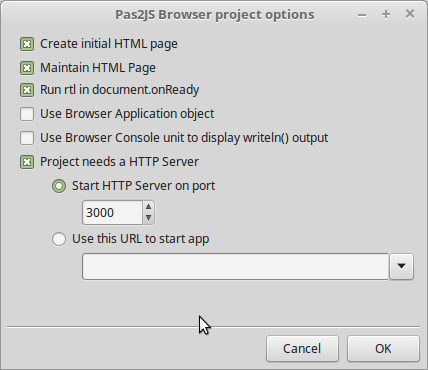 | |
| 85 | 85 | ||
| 86 | 86 | The following options are available: | |
| 87 | 87 | ||
| 88 | 88 | - **Create initial HTML page**. This is self-explanatory,\ | |
| 89 | 89 | the IDE will generate a template HTML page which includes all that is necessary to run the pas2js code.\ | |
| 90 | 90 | The page is included in the project description, so you can open and edit it from within the IDE. | |
| 91 | 91 | - **Maintain HTML page**.\ | |
| 92 | 92 | If you change the name of the project, the IDE will update the references in the HTML File.\ | |
| 93 | 93 | (all your changes will be lost) | |
| 94 | 94 | - **Run RTL when all page resources are fully loaded**: By default the script tag that starts the ball rolling will call `rtl.run()`.\ | |
| 95 | 95 | Checking this option changes the script, so the `rtl.run` is run in the HTML `document.onReady` event instead.\ | |
| 96 | 96 | This is necessary if your code contains startup code that references elements in the HTML.\ | |
| 97 | 97 | The elements will only be available after the onReady event. | |
| 98 | 98 | - **Let RTL show uncaught exceptions**: catch exceptions and show a dialog instead of normal browser behavior, which needs the developer tools to see an uncaught exception. | |
| 99 | 99 | - **Use Browser Console unit.**\ | |
| 100 | 100 | Checking this will simply include the browserconsole unit in the uses clause.\ | |
| 101 | 101 | This hooks into the system units writeln command: any output will be appended to the HTML.\ | |
| 102 | 102 | the generated HTML has a div with the correct ID to which the output is appended. | |
| 103 | 103 | - **Use Browser Application object.**\ | |
| 104 | 104 | This changes the code to use the `TBrowserApplication` object.\ | |
| 105 | 105 | This is a `TCustomApplication` descendent which offers support for query parameters etc. as if they were command-line parameters. | |
| 106 | 106 | - **Run webassembly program**\ | |
| 107 | 107 | - **Run**\ | |
| 108 | 108 | What to do on **Run** | |
| 109 | 109 | - **Start HTTP server on port**\ | |
| 110 | 110 | the IDE starts a browser at this port and opens a browser with the URL of the html file | |
| 111 | 111 | - **Use this URL to start application**\ | |
| 112 | 112 | the IDE opens a browser with this URL. | |
| 113 | 113 | - **Execute Run parameters**\ | |
| 114 | 114 | default Lazarus behavior | |
| 115 | 115 | ||
| 116 | 116 | ## Progressive Web Application | |
| 117 | 117 | ||
| 118 | 118 | Since Lazarus 2.3 and pas2js 2.2.1 | |
| 119 | 119 | ||
| 120 | 120 | The **PWA** is like a *Web Browser Application*, except this wizard creates two projects, the *'ServiceWorker.lpi* and *'YourPWA.lpi*, a project group, a manifest and some icons. After the options dialog it asks for the file name of the webapp program source filename (usually a *.lpr or *.pas). | |
| 121 | 121 | ||
| 122 | 122 | To run it you must compile both projects to create the two needed js files. The project group window helps you to switch easily and compile the projects. | |
| 123 | 123 | ||
| 124 | 124 | ## Electron Web Application | |
| 125 | 125 | ||
| 126 | 126 | Since Lazarus 2.3 and pas2js 2.2.1. | |
| 127 | 127 | ||
| 128 | 128 | See [[pas2js Electron Web Application]] | |
| 129 | 129 | ||
| 130 | 130 | The **Electron** web app is like a *Web Browser Application*, except this wizard creates three projects, the **preload.lpi**, the **render.lpi** and **YourApp.lpi**, and a project group. After the options dialog it asks for the file name of the webapp program source filename (usually a *.lpr or *.pas). | |
| 131 | 131 | ||
| 132 | 132 | To run it you must compile all three projects to create the three needed js files. The project group window helps you to switch easily and compile all projects. | |
| 133 | 133 | ||
| 134 | 134 | ## Atom package options | |
| 135 | 135 | ||
| 136 | 136 | 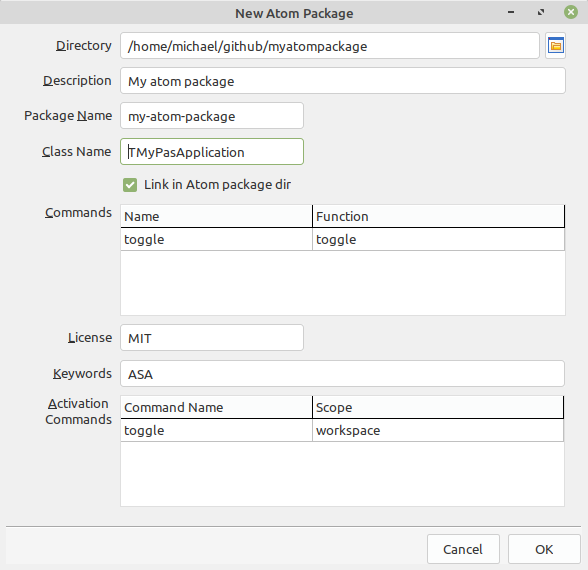 | |
| 137 | 137 | ||
| 138 | 138 | The New Atom Package wizard will create a template for an atom package. | |
| 139 | 139 | ||
| 140 | 140 | You must enter the following information: | |
| 141 | 141 | ||
| 142 | 142 | - Directory (it will be created if it does not exist) | |
| 143 | 143 | - A description | |
| 144 | 144 | - A package name (must contain letters and can contain dashes) | |
| 145 | 145 | - A package class name. This is the name of the application class. | |
| 146 | 146 | ||
| 147 | 147 | The following information is optional: | |
| 148 | 148 | ||
| 149 | 149 | - Commands: a series of command names and command functions. They will be inserted in the application class and code will be created to register them within atom. | |
| 150 | 150 | - License: The license to be used. This is inserted in the package.json file. | |
| 151 | 151 | - Keywords: Keywords to insert in the package.json file. | |
| 152 | 152 | - Activation commands: keystrokes and commands that activate the package. | |
| 153 | 153 | ||
| 154 | 154 | - The generated code can be configured, with the following files: | |
| 155 | 155 | ||
| 156 | - | ||
| 157 | - | ||
| 158 | - | ||
| 159 | - | ||
| 160 | - | ||
| 156 | + | ```text | |
| 157 | + | * glue.js contains the glue code for the Atom package. This is the file that starts the Atom package. | |
| 158 | + | * keymap.json contains the default JSON file with the keymap. | |
| 159 | + | * menu.json contains the default menu file with the menu entries. | |
| 160 | + | * package.less contains the default css file for your package. | |
| 161 | + | * project.lpr contains the default project code. | |
| 162 | + | ``` | |
| 161 | 163 | ||
| 162 | 164 | The location for the default files can be set in the global pas2js options dialog. | |
| 163 | 165 | ||
| 164 | 166 | In these files, the following placeholders will be substituted: | |
| 165 | 167 | ||
| 166 | 168 | - **%PACKAGENAME%** will be replaced with the package name. | |
| 167 | 169 | - **%PACKAGEPROJECTNAME%** will be replaced with the project file name. | |
| 168 | 170 | - **%PACKAGEHANDLERINTFS%** the line containing this will be removed and replaced with the declarations of command functions; | |
| 169 | 171 | - **%PACKAGEHANDLERINTFS%** the line containing this will be removed and replaced with the implementations of command functions; | |
| 170 | 172 | - **%PACKAGEHANDLERREGS%** the line containing this will be removed and replaced with the registration of command functions in Atom or VS Code; | |
| 171 | 173 | ||
| 172 | 174 | ## VS Code extension options | |
| 173 | 175 | ||
| 174 | 176 | 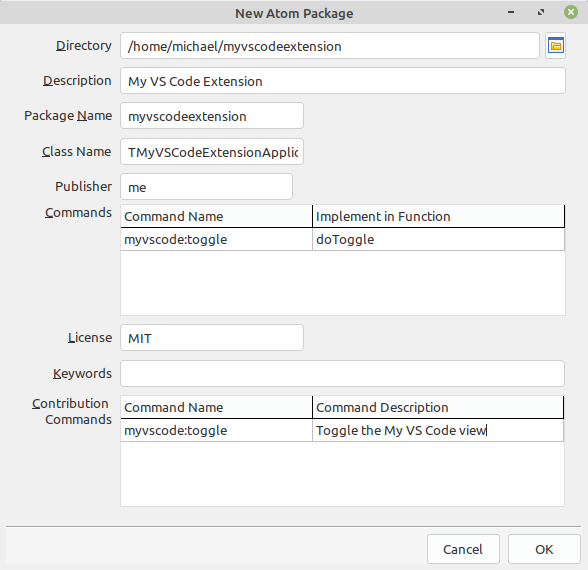 | |
| 175 | 177 | ||
| 176 | 178 | The New VS Code extension wizard will create a template for a VS Code extension. | |
| 177 | 179 | ||
| 178 | 180 | You must enter the following information: | |
| 179 | 181 | ||
| 180 | 182 | - Directory (it will be created if it does not exist) | |
| 181 | 183 | - A description | |
| 182 | 184 | - A package name (must contain letters and can contain dashes) | |
| 183 | 185 | - A publisher name (can only contain letters) | |
| 184 | 186 | - A package class name. This is the name of the application class. | |
| 185 | 187 | ||
| 186 | 188 | The following information is optional: | |
| 187 | 189 | ||
| 188 | 190 | - Commands: a series of command names and command functions that activate the package. | |
| 189 | 191 | - License: The license to be used. This is inserted in the package.json file. | |
| 190 | 192 | - Keywords: Keywords to insert in the package.json file. | |
| 191 | 193 | - Contribution commands: commands that activate the package. | |
| 192 | 194 | ||
| 193 | 195 | - The generated code can be configured, with the following files: | |
| 194 | 196 | ||
| 195 | - | ||
| 196 | - | ||
| 197 | - | ||
| 198 | - | ||
| 197 | + | ```text | |
| 198 | + | * glue.js contains the glue code for the Atom package. This is the file that starts the Atom package. | |
| 199 | + | * tasks.json contains the code to build the package in VS Code. You can add any commands you see fit. | |
| 200 | + | * launch.json contains the code to launch VS Code with the new package installed. | |
| 201 | + | * project.lpr contains the default project code. | |
| 202 | + | ``` | |
| 199 | 203 | ||
| 200 | 204 | The same substitutions as for the Atom package are made. | |
| 201 | 205 | ||
| 202 | 206 | The location for the default files can be set in the global pas2js options dialog. | |
| 203 | 207 | ||
| 204 | 208 | ## Project options | |
| 205 | 209 | ||
| 206 | 210 | You can change the settings chosen in the new project wizard in the Project Settings dialog. It also allows you to convert any existing (simple) project to a web application project. | |
| 207 | 211 | ||
| 208 | 212 | The project options are located at the bottom "Web Project (pas2js)' | |
| 209 | 213 | ||
| 210 | 214 | 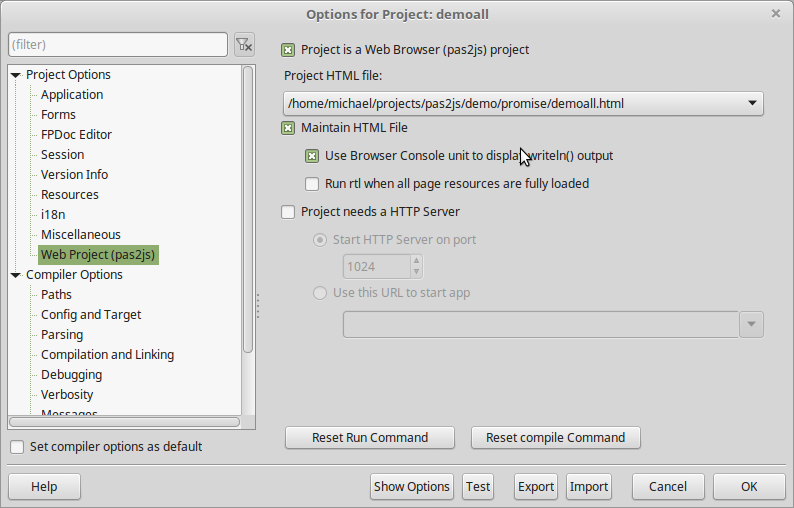 | |
| 211 | 215 | ||
| 212 | 216 | The checkbox at the top marks the project as web browser project. | |
| 213 | 217 | ||
| 214 | 218 | All other options have the same meaning as their counter parts in the 'New project' wizard. | |
| 215 | 219 | ||
| 216 | 220 | The \`\`\`Reset compile command\`\`\` and \`\`\`Reset run command\`\`\` set the respective commands to their default values. | |
| 217 | 221 | ||
| 218 | 222 | ## Debug window | |
| 219 | 223 | ||
| 220 | 224 | As you start projects from various directories, the IDE will start webservers as needed. After some time, there can be several webservers running. An overview of running webservers can be shown using the the View/Debug Windows/Pas2JS Webservers menu item. | |
| 221 | 225 | ||
| 222 | 226 | It shows a list of processes started by the IDE: | |
| 223 | 227 | ||
| 224 | 228 | 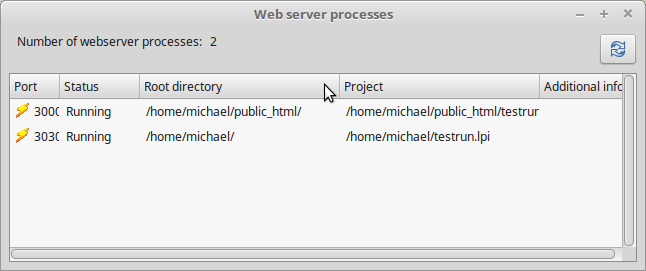 | |
| 225 | 229 | ||
| 226 | 230 | Support for stopping/starting processes will still be added, as well as statistics for number of requests etc. | |
| 227 | 231 | ||
| 228 | 232 | ## Navigation | |
| 229 | 233 | ||
| 230 | 234 | - Back to [[pas2js]] | |
| 231 | 235 | - Back to [[Pas2JS Version Changes]] | |
| 232 | 236 | ||
| 233 | 237 | --- | |
| 234 | 238 | *From the Free Pascal wiki, page "lazarus pas2js integration", as it stood on 2022-04-21 after a change by Mattias2, out of the wiki's dump of 2024-05-26. Copyright stays with the author who wrote it, according to the old wiki's [[Licensing]] page. If you have concerns about this material, [message the admin](/wiki-contact).* |