

Lazarus Tutorial/zh CN: what changed
Revision 2 to 3. Removed lines have a minus sign; added lines have a plus sign.
| Old | New | Line | |
|---|---|---|---|
| 1 | 1 | *这是Lazarus教程的起点。你可以自由地把自己的体会添加到这里。* | |
| 2 | 2 | ||
| 3 | 3 | ## 概述 | |
| 4 | 4 | ||
| 5 | 5 | Lazarus是一个自由并且开源的RAD(快速应用开发)开发工具,它基于同样自由开源的FreePascal(object pascal)编译器。Lazarus IDE([screenshot](http://lazarus-ccr.sourceforge.net/kbdata/lazide.jpg))可以创建独立的(原文是self-standing,我不确认是否准确)的图形或控制台程序,同时稳定并且富于特色.目前可以运行在Linux, FreeBSD和Win32平台下,同时提供可自定义的源代码编辑器,包含包管理器的可视化GUI设计环境,以及完整地集成在GUI环境中的调试器和FreePascal编译器。 | |
| 6 | 6 | ||
| 7 | 7 | ## 起点 - 你的第一个Lazarus程序! | |
| 8 | 8 | ||
| 9 | 9 | (感谢User:Kirkpatc) | |
| 10 | 10 | ||
| 11 | 11 | 首先,[[Installing Lazarus/zh CN|安装Lazarus]],然后运行Lazarus,当然还要确定你有可以使用的FreePascal编译器。 | |
| 12 | 12 | ||
| 13 | 13 | 桌面上将出现很多窗口:顶部是主菜单,左面是对象观察器,Lazarus源代码编辑器将占据大部分的桌面,而一个预置的Form1窗体将覆盖在源代码编辑器的上面。 | |
| 14 | 14 | ||
| 15 | 15 | 首先,如果你的Lazarus是全英文的,那么你可以通过主菜单上的Environment -\> Environment Options打开环境设置窗口,在Desktop标签下有Language选项,改成Chinese (zh_CN),确定后重新启动下Lazarus,绝大部分界面就是中文的了。 | |
| 16 | 16 | ||
| 17 | 17 | 注:对于linux用户,Lazarus的默认编译/安装很大可能是使用GTK1库(非常容易辩认...因为非常丑...),GTK1对于Unicode的支持不完善,无法显示中文,你可以使用GTK2重新编译Lazarus,具体方法请参照[[Quick start: Recompile the IDE]]。 | |
| 18 | 18 | ||
| 19 | 19 | 在顶部的主菜单上,菜单分隔线的下面有一排标签。如果Standard标签还未被选中,单击选中它。然后找到TButton图标(一个有OK字样的矩形),单击Tbutton图标,然后在Form1窗体上找个宽敞的地方单击一下。一个有着"Button1"标题的矩形按钮就出现了。重复一次,你将获得"Button2"按钮,建议你把它放到Button1的右面。 | |
| 20 | 20 | ||
| 21 | 21 | 现在单击Button1选中它,左侧的对象观察器上将出现Button1对象的所有属性。找到名为Caption的属性(你可以在"收藏夹"标签下更方便地找到它),现在这个属性的值是"Button1"。单击显示着"Button1"的方格,把里面"Button1"文本改成"Press",当你按下Enter(或者单击别的方格)后,你会看见Form1窗体上的Button1按钮上的文本变成了"Press"。然后找到对象观察器上的"事件"标签,你会看见可以给Button1关联很多事件(Event),包括OnClick,OnEnter,OnExit等等。选择OnClick右边的空白方格,将出现一个显示"..."(三个点,也就是省略号)的小方格,在这个方格上单击,你将自动跳转到源代码编辑器,同时你的光标会处于一段过程(procedure)代码中: | |
| 22 | 22 | ||
| 23 | - | ||
| 24 | - | ||
| 25 | - | ||
| 26 | - | ||
| 27 | - | ||
| 28 | - | ||
| 23 | + | ``` pascal | |
| 24 | + | procedure TForm1.Button1Click(Sender: TObject); | |
| 25 | + | begin | |
| 26 | + | {你的光标将位于这里,请输入后面的代码:} | |
| 27 | + | Button1.caption := 'Press again'; | |
| 28 | + | {源代码编辑器已经自动完成了这个过程的其他部分} | |
| 29 | + | end; | |
| 30 | + | ``` | |
| 29 | 31 | ||
| 30 | 32 | 按下F12选中Form1窗体。 | |
| 31 | 33 | ||
| 32 | 34 | 然后我们来编辑Button2的属性,将Caption修改为"Exit",然后选择OnClick事件,单击那个显示"..."的小方格,你又回到了源代码编辑器,光标位于另一段过程代码的中间: | |
| 33 | 35 | ||
| 34 | - | ||
| 35 | - | ||
| 36 | - | ||
| 37 | - | ||
| 38 | - | ||
| 36 | + | ``` pascal | |
| 37 | + | procedure TForm1.Button2Click(Sender: TObject); | |
| 38 | + | begin | |
| 39 | + | {输入:} | |
| 40 | + | Close; | |
| 41 | + | end; | |
| 42 | + | ``` | |
| 39 | 43 | ||
| 40 | 44 | 再次按下F12选中Form1窗体。现在可以尝试编译这个程序了。最简单的方法是在顶部主菜单中选择"运行",在弹出的子菜单中选择"运行"(你也可以使用快捷键F9)。如果一切顺利,你的程序将被编译执行。 | |
| 41 | 45 | ||
| 42 | 46 | 所有的编译信息都会出现在底部的"消息"窗口中。最终,一个没有刻度标记(编辑状态下才会出现)的Form1窗口将出现在屏幕上。这是你的应用程序的主窗口,它正等着你去按按钮(以及其他操作)。 | |
| 43 | 47 | ||
| 44 | 48 | 尝试下点击Press按钮,你会发现按钮的标签变成了"Press again"。之后你再怎么按,它依然显示"Press again"。 | |
| 45 | 49 | ||
| 46 | 50 | 现在点击Exit按钮,窗口将关闭,程序也就终止了。编辑状态下有着丑陋刻度标志的Form1又回到了屏幕上,准备接受更多的修改完善。 | |
| 47 | 51 | ||
| 48 | 52 | 现在你应该保存你的工作了(你应该经常这么做!),选择顶部主菜单上的" 工程 \> 保存工程 "来保存工程文件。 | |
| 49 | 53 | ||
| 50 | 54 | ### 第二步 | |
| 51 | 55 | ||
| 52 | 56 | 再次打开你保存的工程。 | |
| 53 | 57 | ||
| 54 | 58 | 在Form1窗体上选择Press按钮("Button1")。 | |
| 55 | 59 | ||
| 56 | 60 | 在"事件"标签中选择OnClick,点击出现的"..."方格,来回到源代码编辑器。 | |
| 57 | 61 | ||
| 58 | 62 | 按照下面的文本编辑你的代码: | |
| 59 | 63 | ||
| 60 | - | ||
| 61 | - | ||
| 62 | - | ||
| 63 | - | ||
| 64 | - | ||
| 65 | - | ||
| 66 | - | ||
| 67 | - | ||
| 68 | - | ||
| 69 | - | ||
| 70 | - | ||
| 71 | - | ||
| 72 | - | ||
| 64 | + | ``` pascal | |
| 65 | + | procedure TForm1.Button1Click(Sender: TObject); | |
| 66 | + | {这段代码使用了Button1的Tag属性,使Tag属性在0和1之间转换} | |
| 67 | + | begin | |
| 68 | + | if Button1.tag =0 then | |
| 69 | + | begin | |
| 70 | + | Button1.caption := 'Press again'; | |
| 71 | + | Button1.tag := 1 | |
| 72 | + | end else | |
| 73 | + | begin | |
| 74 | + | Button1.caption := 'Press'; | |
| 75 | + | Button1.tag := 0 | |
| 76 | + | end | |
| 77 | + | end; | |
| 78 | + | ``` | |
| 73 | 79 | ||
| 74 | 80 | 保存你的工作,重新编译并且运行,Press按钮的标签将会在点击时,在两个不同的文本间来回变换了 | |
| 75 | 81 | ||
| 76 | 82 | 然后,随便玩吧:\] | |
| 77 | 83 | ||
| 78 | 84 | 如果你准备编写控制或者基于文本的Pascal程序(例如你正在使用一份基本的Pascal指南,准备编写在控制台环境下运行的程序,以及为系统底层编程等等),你依然可以使用Lazarus编写,编译并且运行你的程序。Lazarus是一个理想的Pascal开发环境。具体请参照[[Console Mode Pascal]]. | |
| 79 | 85 | ||
| 80 | 86 | ### 第三步 常用调试方法 | |
| 81 | 87 | ||
| 82 | 88 | 新人学习不少需要调试的内容 | |
| 83 | 89 | ||
| 84 | 90 | 所以需要一些直接有效的打印出调试内容. | |
| 85 | 91 | ||
| 86 | 92 | 比如像VB 下的 Debug.print 可直接在立即窗口中打印出调试内容 | |
| 87 | 93 | ||
| 88 | 94 | 其实可以使用 | |
| 89 | 95 | ||
| 90 | - | ||
| 96 | + | ```text | |
| 97 | + | WriteLn('XXXX ', XXX); | |
| 98 | + | ``` | |
| 91 | 99 | ||
| 92 | - | ||
| 100 | + | ```text | |
| 101 | + | Write('XXXXXX'); | |
| 102 | + | ``` | |
| 93 | 103 | ||
| 94 | 104 | 但是在网上发现不少新人使用会弹出: **project project1 raised exception class 'EInOutError' with <message:file> not open** | |
| 95 | 105 | ||
| 96 | 106 | 异常通知 | |
| 97 | 107 | ||
| 98 | 108 | 只需要在文件头部加入预编译指令 | |
| 99 | 109 | ||
| 100 | - | ||
| 110 | + | ```text | |
| 111 | + | {$APPTYPE CONSOLE} | |
| 112 | + | ``` | |
| 101 | 113 | ||
| 102 | 114 | 这样调试时会弹出一个类dos对话框,输出调试的内容 | |
| 103 | 115 | ||
| 104 | 116 | ### 第四步 常用技巧 | |
| 105 | 117 | ||
| 106 | 118 | lazaurs的编辑器蛮强大的,支持代码补全,自动完成,模板编辑,多行缩进注释,选定代码后批量更改里面的单词! | |
| 107 | 119 | ||
| 108 | 120 | 1.代码补全 | |
| 109 | 121 | ||
| 110 | 122 | 按下键盘的Ctrl+W键!输入变量后按下这个键就OK啦~ | |
| 111 | 123 | ||
| 112 | 124 | 2.自动完成 | |
| 113 | 125 | ||
| 114 | 126 | 自动完成的快捷键大多数都冲突了,解决方法是打开 工具(T)-\>选项...-\>编辑器-\>键盘映射-\>CodeTools命令-\>标识符自动完成 上右键 编辑 ,然后根据实际情况修改吧,我的是再勾选Alt,也就是说,我的热键是Ctrl+Alt+Space!不懂的看图 | |
| 115 | 127 | ||
| 116 | 128 | 3.模板编辑 | |
| 117 | 129 | ||
| 118 | 130 | 这个也蛮简单,按下键盘的Ctrl+J,然后输入class,回车!是不是很酷! | |
| 119 | 131 | ||
| 120 | 132 | 4.多行缩进注释 | |
| 121 | 133 | ||
| 122 | 134 | 缩进的:向左 -\> Ctrl+U | |
| 123 | 135 | ||
| 124 | 136 | 向右 -\> Ctrl+I(选中多行代码更爽) | |
| 125 | 137 | ||
| 126 | 138 | 多行注释:Ctrl+/ | |
| 127 | 139 | ||
| 128 | 140 | 5.选定代码后批量更改里面的单词 先选中一行代码,然后点击编辑器左边显示行号左边的那支笔,看看图哦。 | |
| 129 | 141 | ||
| 130 | 142 | 这个时候你可以输入b,变量a就全部改为b,还可以按下tab跳到下一个单词。 | |
| 131 | 143 | ||
| 132 | 144 | 6.编辑器的高亮 | |
| 133 | 145 | ||
| 134 | - | ||
| 135 | - | ||
| 136 | - | ||
| 137 | - | ||
| 138 | - | ||
| 139 | - | ||
| 140 | - | ||
| 141 | - | ||
| 142 | - | ||
| 143 | - | ||
| 144 | - | ||
| 145 | - | ||
| 146 | - | ||
| 147 | - | ||
| 148 | - | ||
| 149 | - | ||
| 150 | - | ||
| 151 | - | ||
| 152 | - | ||
| 153 | - | ||
| 154 | - | ||
| 155 | - | ||
| 156 | - | ||
| 157 | - | ||
| 158 | - | ||
| 159 | - | ||
| 160 | - | ||
| 161 | - | ||
| 162 | - | ||
| 163 | - | ||
| 164 | - | ||
| 165 | - | ||
| 166 | - | ||
| 167 | - | ||
| 168 | - | ||
| 169 | - | ||
| 170 | - | ||
| 171 | - | ||
| 172 | - | ||
| 173 | - | ||
| 174 | - | ||
| 175 | - | ||
| 176 | - | ||
| 177 | - | ||
| 178 | - | ||
| 179 | - | ||
| 180 | - | ||
| 181 | - | ||
| 182 | - | ||
| 183 | - | ||
| 184 | - | ||
| 185 | - | ||
| 186 | - | ||
| 187 | - | ||
| 188 | - | ||
| 189 | - | ||
| 190 | - | ||
| 191 | - | ||
| 192 | - | ||
| 193 | - | ||
| 194 | - | ||
| 195 | - | ||
| 196 | - | ||
| 197 | - | ||
| 198 | - | ||
| 199 | - | ||
| 200 | - | ||
| 201 | - | ||
| 202 | - | ||
| 203 | - | ||
| 204 | - | ||
| 205 | - | ||
| 206 | - | ||
| 207 | - | ||
| 208 | - | ||
| 209 | - | ||
| 210 | - | ||
| 211 | - | ||
| 212 | - | ||
| 213 | - | ||
| 214 | - | ||
| 146 | + | ```text | |
| 147 | + | <?xml version="1.0"?> | |
| 148 | + | <CONFIG> | |
| 149 | + | <EditorOptions Version="9"> | |
| 150 | + | <Display DoNotWarnForFont="Ubuntu Mono" EditorFont="Ubuntu Mono" EditorFontSize="13"> | |
| 151 | + | <MarkupCurrentWord NoKeyword="False"/> | |
| 152 | + | </Display> | |
| 153 | + | <KeyMapping> | |
| 154 | + | <default Count="1"> | |
| 155 | + | <Version Value="6"/> | |
| 156 | + | <Item1 Name="Identifier completion"> | |
| 157 | + | <KeyA Default="False" Key1="32" Shift1="5"/> | |
| 158 | + | </Item1> | |
| 159 | + | </default> | |
| 160 | + | </KeyMapping> | |
| 161 | + | <CodeTools CodeTemplateFileName="/home/lht/.lazarus/lazarus.dci" CompletionLongLineHintTypeCompletionLongLineHintType="sclpExtendRightOnly" AutoDelayInMSec="104"/> | |
| 162 | + | <Mouse> | |
| 163 | + | <Default Version="1"/> | |
| 164 | + | </Mouse> | |
| 165 | + | <Color Version="9"> | |
| 166 | + | <LangObjectPascal Version="9"> | |
| 167 | + | <ColorScheme Value="Twilight"/> | |
| 168 | + | <SchemeTwilight> | |
| 169 | + | <Space Background="1973790" FrameColor="5000268" FrameStyle="slsDotted" FrameEdges="sfeBottom"/> | |
| 170 | + | <Number Foreground="7434751"/> | |
| 171 | + | <String Foreground="7337839"/> | |
| 172 | + | <Symbol Foreground="clYellow"/> | |
| 173 | + | <Comment Foreground="clSkyBlue" Style="fsItalic"/> | |
| 174 | + | <Assembler Foreground="11715098"/> | |
| 175 | + | <Directive Foreground="22015"/> | |
| 176 | + | <Case_label Foreground="16541892"/> | |
| 177 | + | <IDE_Directive Foreground="1478752"/> | |
| 178 | + | <Reserved_word Foreground="1023473"/> | |
| 179 | + | </SchemeTwilight> | |
| 180 | + | </LangObjectPascal> | |
| 181 | + | <Globals Version="9"> | |
| 182 | + | <SchemeTwilight> | |
| 183 | + | <ahaDefault Background="1973790"/> | |
| 184 | + | </SchemeTwilight> | |
| 185 | + | </Globals> | |
| 186 | + | <LangPython Version="9"> | |
| 187 | + | <SchemeTwilight> | |
| 188 | + | <Float Foreground="8345087"/> | |
| 189 | + | <Octal Foreground="16755455"/> | |
| 190 | + | <Number Foreground="8345087"/> | |
| 191 | + | <String Foreground="8388522"/> | |
| 192 | + | <Symbol Foreground="clYellow"/> | |
| 193 | + | <Comment Foreground="clSkyBlue"/> | |
| 194 | + | <Hexadecimal Foreground="8345087"/> | |
| 195 | + | <SyntaxError Foreground="16755285"/> | |
| 196 | + | <Documentation Foreground="16755370"/> | |
| 197 | + | <Reserved_word Foreground="43775"/> | |
| 198 | + | <Non_reserved_keyword Foreground="8366847"/> | |
| 199 | + | </SchemeTwilight> | |
| 200 | + | </LangPython> | |
| 201 | + | </Color> | |
| 202 | + | <Misc PasExtendedKeywordsMode="True"/> | |
| 203 | + | <General> | |
| 204 | + | <Editor TabIndent="True" TabWidth="2"/> | |
| 205 | + | </General> | |
| 206 | + | <DividerDraw> | |
| 207 | + | <LangObjectPascal> | |
| 208 | + | <TypeSect> | |
| 209 | + | <TopColor Value="9157119"/> | |
| 210 | + | </TypeSect> | |
| 211 | + | <TypeGVar> | |
| 212 | + | <TopColor Value="9157119"/> | |
| 213 | + | </TypeGVar> | |
| 214 | + | <TypeGStruct> | |
| 215 | + | <TopColor Value="9157119"/> | |
| 216 | + | </TypeGStruct> | |
| 217 | + | <TypeProc> | |
| 218 | + | <TopColor Value="9157119"/> | |
| 219 | + | </TypeProc> | |
| 220 | + | <TypeLStruct> | |
| 221 | + | <MaxDepth Value="1"/> | |
| 222 | + | <TopColor Value="9157119"/> | |
| 223 | + | </TypeLStruct> | |
| 224 | + | </LangObjectPascal> | |
| 225 | + | </DividerDraw> | |
| 226 | + | </EditorOptions> | |
| 227 | + | </CONFIG> | |
| 228 | + | ``` | |
| 215 | 229 | ||
| 216 | 230 | ## IDE窗口 | |
| 217 | 231 | ||
| 218 | 232 | 当你第一次运行Lazarus时,一系列独立的浮动窗口将出现在你的桌面上。 | |
| 219 | 233 | ||
| 220 | 234 | 首先,在桌面顶部有一个窗口,标题是**Lazarus vxxxx - project**。这是你工程的主要控制窗口,包括主菜单和组件面板。 | |
| 221 | 235 | ||
| 222 | 236 |  | |
| 223 | 237 | ||
| 224 | 238 | 标题栏下面是包括"文件""编辑""查找"等常见项目(以及Lazarus特有的一些项目)的主菜单。 | |
| 225 | 239 | ||
| 226 | 240 | 主菜单下面,组件面板的左侧是一组按钮,包括了主菜单中的常用项目,例如新建文件,保存等等。 | |
| 227 | 241 | ||
| 228 | 242 | 在这个窗口下面,左边是**对象查看器** | |
| 229 | 243 | ||
| 230 | 244 | 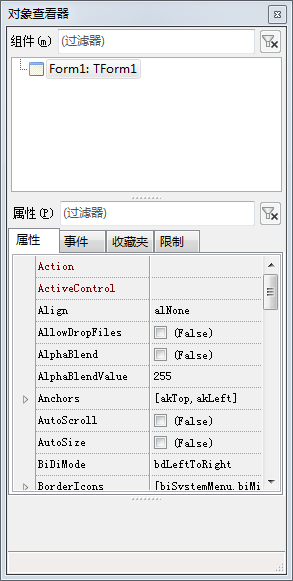 | |
| 231 | 245 | ||
| 232 | 246 | 右边是**源代码编辑器** | |
| 233 | 247 | ||
| 234 | 248 | 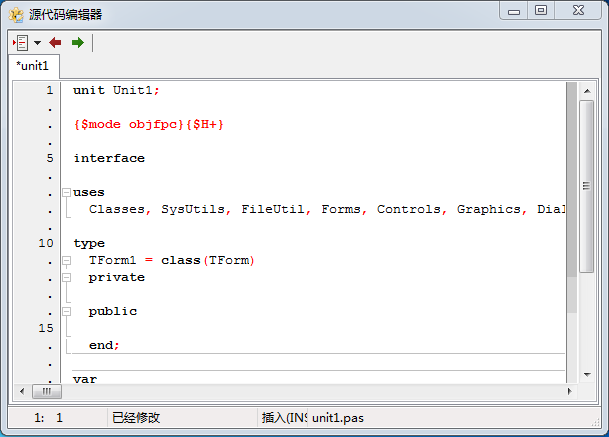 | |
| 235 | 249 | ||
| 236 | 250 | 也许会有一个小窗口覆盖在源代码编辑器上,是Lazarus预置的一个Form1窗体 | |
| 237 | 251 | ||
| 238 | 252 | 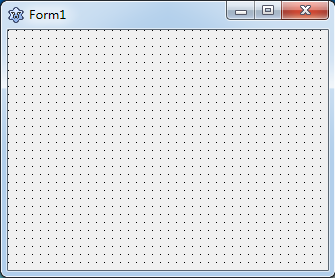 | |
| 239 | 253 | ||
| 240 | 254 | 如果你没有看见它,可以按下F12在源代码编辑器和窗体预览间来回切换。 | |
| 241 | 255 | ||
| 242 | 256 | 窗体预览展示了应用程序的图形界面,源代码编辑器则显示了应用程序所关联的Pascal代码。对象观察器则展示了组件的更多细节。 | |
| 243 | 257 | ||
| 244 | 258 | 当你创建一个新工程时(或者第一次运行Lazarus时),一个默认的窗体将被创建。这个窗体包含了一个带有刻度标尺(帮助你定位放置到窗体上的组件)的区域,以及包含常见的"最小化""最大化""关闭窗口"按钮的顶部标签。用鼠标点击这个窗体,左侧的对象观察器将显示这个窗体的属性。 | |
| 245 | 259 | ||
| 246 | 260 | 在你工作的时候,其他一些窗口也会出现: | |
| 247 | 261 | ||
| 248 | 262 | 包含你工程的一些细节,并且允许你从工程中添加或删除文件的**工程查看器**窗口 | |
| 249 | 263 | ||
| 250 | 264 | 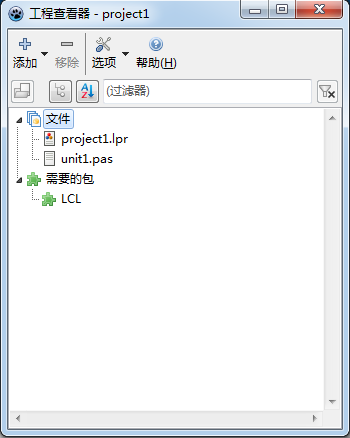 | |
| 251 | 265 | ||
| 252 | 266 | 以及显示编译信息,错误以及运行报告的**信息**窗口 | |
| 253 | 267 | ||
| 254 | 268 |  | |
| 255 | 269 | ||
| 256 | 270 | 如果你从一个终端窗口中运行Lazarus,那么这个原始的终端窗口将被保留,编译信息也会显示在这个终端窗口中。 | |
| 257 | 271 | ||
| 258 | 272 | ## 主菜单 | |
| 259 | 273 | ||
| 260 | 274 | 主菜单内容仔细的说明在这里:[[Main menu/zh CN]] | |
| 261 | 275 | ||
| 262 | 276 | ## IDE选项 | |
| 263 | 277 | ||
| 264 | 278 | 在Lazarus 1.0.14版中,通过"工具"-\>"选项",可以打开IDE设置窗口。 在这里你可以对环境、编译器、JCF格式设置、代码工具、代码管理器、调试器、帮助等信息配置。 | |
| 265 | 279 | ||
| 266 | 280 | 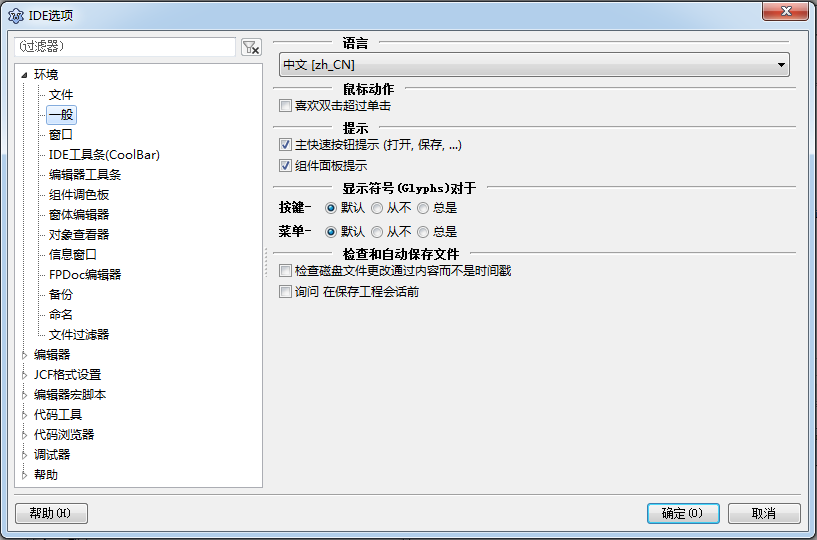 | |
| 267 | 281 | ||
| 268 | 282 | - **环境** | |
| 269 | 283 | - **文件**:最大记录工程数、文件数及设置Lazarus目录、编译器路径、FPC源代码目录、Make文件目录等等。 | |
| 270 | 284 | - **桌面**:设置IDE语言、自动保存信息等等。 | |
| 271 | 285 | - **窗口**:可对窗口位置、终端输出进行相应设置。 | |
| 272 | 286 | - **窗体编辑器**:对颜色、风格等设置。 | |
| 273 | 287 | - **对象查看器**:对颜色、速度等设置。 | |
| 274 | 288 | - **备份**:工程文件备份设置,其他文件备份设置。 | |
| 275 | 289 | - **命名**:对Pascal后缀、可疑文件动作、自动重命名Pascal文件为小写、单元被重命名,更新引用等等配置。 | |
| 276 | 290 | - **FPDoc编辑器**:配置FPDoc。 | |
| 277 | 291 | - **文件筛选**:对单元、工程、窗体、包、其他文件设置筛选器。 | |
| 278 | 292 | ||
| 279 | 293 | - **编辑器** | |
| 280 | 294 | - **普通**:允许设置撤销/重做次数、滚动方式、缩进与制表符、光标等设置。 | |
| 281 | 295 | - **显示**:设置边界和边缝及默认编辑器字体。 | |
| 282 | 296 | - **键盘映射**:快捷键设置。 | |
| 283 | 297 | - **鼠标**:对鼠标操作进行相应设置。 | |
| 284 | 298 | - **自动化功能**:对自动补充信息进行设置。 | |
| 285 | 299 | - **代码折叠**:对代码折叠相关进行配置。 | |
| 286 | 300 | - **隔离区绘制**:代码块间线条设置。 | |
| 287 | 301 | - **页和Windows**:暂无。 | |
| 288 | 302 | ||
| 289 | 303 | - **JCF格式设置** | |
| 290 | 304 | - **文件格式**:暂无。 | |
| 291 | 305 | - **obfuscate**:暂无。 | |
| 292 | 306 | - **clarify**:暂无。 | |
| 293 | 307 | - **preprocessor**:暂无。 | |
| 294 | 308 | ||
| 295 | 309 | - **代码工具** | |
| 296 | 310 | - **普通**:方法跳转、工程附加源文件路径等设置、pascal源文件缩进设置。 | |
| 297 | 311 | - **类完成**:类、方法部分插入方式及属性自动完成配置。 | |
| 298 | 312 | - **创建代码**:插入过程策略、新单元添加到uses部分等配置。 | |
| 299 | 313 | - **单词**:设置关键字策略、标识符规则及例外等。 | |
| 300 | 314 | - **分割行**:可设置最大行宽、不拆分前面、后面行的条件。 | |
| 301 | 315 | - **空格**:空格插入方式,在关键字、标识符等前或后插入空格。 | |
| 302 | 316 | - **标识符自动完成**:设置标识符自动完成条件,如添加分号时。 | |
| 303 | 317 | ||
| 304 | 318 | - **代码管理器** | |
| 305 | 319 | - **更新**:设置优先表现模式(分类、源代码),自动刷新条件及跟随光标。 | |
| 306 | 320 | - **种类**:设置只在类模式中使用变量、常量、引入、定义等。 | |
| 307 | 321 | - **代码观察器**:对代码观察器进行一些配置。 | |
| 308 | 322 | ||
| 309 | 323 | - **调试器** | |
| 310 | 324 | - **普通**:可设置调试器类型和路径调试器特殊选项等。 | |
| 311 | 325 | - **事件日志**:对消息窗口进行设置,如错误时显示的颜色等。 | |
| 312 | 326 | - **语言异常**:设置忽略哪些异常,如 中止、代码工具错误、Fopen错误。并允许添加忽略。 | |
| 313 | 327 | - **操作系统异常**:设置操作系统异常处理方式。 | |
| 314 | 328 | ||
| 315 | 329 | - **帮助** | |
| 316 | 330 | - **帮助选项**:设置FPC HTML文件路径、默认查看器等。 | |
| 317 | 331 | - **外部**:对外部程序进行配置,如Windows、PostgreSQL、Gtk2配置名称、单元文件及位置。并允许添加外部程序。 | |
| 318 | 332 | ||
| 319 | 333 | ## 按钮栏 | |
| 320 | 334 | ||
| 321 | 335 | 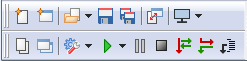 | |
| 322 | 336 | ||
| 323 | 337 | 在主编辑器窗口左侧小工具栏位置,(主菜单下方与左侧组件面板中),包含一组按钮: | |
| 324 | 338 | ||
| 325 | 339 | “新建单元”、“新建窗体”、“打开”、“保存”、“保存所有”、“新窗体”、“切换窗体/单元”、 | |
| 326 | 340 | ||
| 327 | 341 | “查看单元”、“查看窗体”、“运行”、“暂停”、“步进”、“下一步”、“运行,直到函数返回”。 | |
| 328 | 342 | ||
| 329 | 343 | ## 组件面板 | |
| 330 | 344 | ||
| 331 | 345 | 标签式工具栏里显示常用组件图标。 | |
| 332 | 346 | ||
| 333 | 347 | 每个选项卡使用一组不同的图标显示,选项卡组最左边的第一个图片(指向箭头),称为选择工具。 | |
| 334 | 348 | ||
| 335 | 349 | 如果你将鼠标悬停在组件面板中的图标上,将会显示该组件的提示信息。T意味着,Type类型,或者是Class组件。在窗体中,使用组件时,类将会添加到类型和接口处(通常作为TForm1一部分)。实例化处,添加到VAR部分(通常作为Form1变量)。任何方法,设计时要使用窗体或组件(程序或函数),将被放置在implementation部分。如果你要找出某一特定组件的属性,可以看组件的继承,之后检查其派生的基类型的属性。例如,你要了解TMaskEdit,可以查看TcustomMaskEdit。 | |
| 336 | 350 | ||
| 337 | 351 | **选项卡**(通过名称可以了解的其包含了哪些组件): | |
| 338 | 352 | ||
| 339 | 353 | - **[标准组件](http://lazarus-ccr.sourceforge.net/index.php?wiki=StdCtrls)** | |
| 340 | 354 | ||
| 341 | 355 |  | |
| 342 | 356 | ||
| 343 | 357 | ||
| 344 | 358 | *通常使用的组件:* [TMainMenu](http://lazarus-ccr.sourceforge.net/docs/lcl/menus/tmainmenu.html), [TPopupMenu](http://lazarus-ccr.sourceforge.net/docs/lcl/menus/tpopupmenu.html), [TButton](http://lazarus-ccr.sourceforge.net/docs/lcl/stdctrls/tbutton.html), [TLabel](http://lazarus-ccr.sourceforge.net/docs/lcl/stdctrls/tlabel.html), [TEdit](http://lazarus-ccr.sourceforge.net/docs/lcl/stdctrls/tedit.html), [TMemo](http://lazarus-ccr.sourceforge.net/docs/lcl/stdctrls/tmemo.html), [TToggleBox](http://lazarus-ccr.sourceforge.net/docs/lcl/stdctrls/ttogglebox.html), [TCheckBox](http://lazarus-ccr.sourceforge.net/docs/lcl/stdctrls/tcheckbox.html), [TRadioButton](http://lazarus-ccr.sourceforge.net/docs/lcl/stdctrls/tradiobutton.html), [TListBox](http://lazarus-ccr.sourceforge.net/docs/lcl/stdctrls/tlistbox.html), [TComboBox](http://lazarus-ccr.sourceforge.net/docs/lcl/stdctrls/tcombobox.html), [TScrollBar](http://lazarus-ccr.sourceforge.net/docs/lcl/stdctrls/tscrollbar.html), [TGroupBox](http://lazarus-ccr.sourceforge.net/docs/lcl/stdctrls/tgroupbox.html), [TStaticText](http://lazarus-ccr.sourceforge.net/docs/lcl/stdctrls/tstatictext.html), [TRadioGroup](http://lazarus-ccr.sourceforge.net/docs/lcl/extctrls/tradiogroup.html), [TCheckGroup](http://lazarus-ccr.sourceforge.net/docs/lcl/extctrls/tcheckgroup.html), [TPanel](http://lazarus-ccr.sourceforge.net/docs/lcl/extctrls/tpanel.html), [TActionList](http://lazarus-ccr.sourceforge.net/docs/lcl/actnlist/tactionlist.html) | |
| 345 | 359 | ||
| 346 | 360 | - **[更多组件](http://lazarus-ccr.sourceforge.net/index.php?wiki=ExtCtrls)** | |
| 347 | 361 | ||
| 348 | 362 |  | |
| 349 | 363 | ||
| 350 | 364 | ||
| 351 | 365 | *更多经常使用的组件:* [TBitBtn](http://lazarus-ccr.sourceforge.net/docs/lcl/buttons/tbitbtn.html), [TSpeedButton](http://lazarus-ccr.sourceforge.net/docs/lcl/buttons/tspeedbutton.html), [TImage](http://lazarus-ccr.sourceforge.net/docs/lcl/extctrls/timage.html), [TShape](http://lazarus-ccr.sourceforge.net/docs/lcl/extctrls/tshape.html), [TBevel](http://lazarus-ccr.sourceforge.net/docs/lcl/extctrls/tbevel.html), [TPaintBox](http://lazarus-ccr.sourceforge.net/docs/lcl/extctrls/tpaintbox.html), [TNotebook](http://lazarus-ccr.sourceforge.net/docs/lcl/extctrls/tnotebook.html), [TLabeledEdit](http://lazarus-ccr.sourceforge.net/docs/lcl/extctrls/tlabelededit.html), [TSplitter](http://lazarus-ccr.sourceforge.net/docs/lcl/extctrls/tsplitter.html), [TMaskEdit](http://lazarus-ccr.sourceforge.net/docs/lcl/maskedit/tmaskedit.html), [TCheckListBox](http://lazarus-ccr.sourceforge.net/docs/lcl/checklst/tchecklistbox.html), [TScrollBox](http://lazarus-ccr.sourceforge.net/docs/lcl/forms/tscrollbox.html), [TApplicationProperties](http://lazarus-ccr.sourceforge.net/docs/lcl/forms/tapplicationproperties.html), [TStringGrid](http://lazarus-ccr.sourceforge.net/docs/lcl/grids/tstringgrid.html), [TDrawGrid](http://lazarus-ccr.sourceforge.net/docs/lcl/grids/tdrawgrid.html), [TPairSplitter](http://lazarus-ccr.sourceforge.net/docs/lcl/pairsplitter/tpairsplitter.html) | |
| 352 | 366 | ||
| 353 | 367 | - **[公共组件](http://lazarus-ccr.sourceforge.net/index.php?wiki=ComCtrls)** | |
| 354 | 368 | ||
| 355 | 369 |  | |
| 356 | 370 | ||
| 357 | 371 | ||
| 358 | 372 | TTrackBar, TProgressBar, TTreeView, TListView, TStatusBar, TToolBar, TUpDown, TPageControl, TImageList | |
| 359 | 373 | ||
| 360 | 374 | - **[对话框组件](http://lazarus-ccr.sourceforge.net/index.php?wiki=DialogsTxt)** | |
| 361 | 375 | ||
| 362 | 376 |  | |
| 363 | 377 | ||
| 364 | 378 | ||
| 365 | 379 | TOpenDialog, TSaveDialog, TSelectDirectoryDialog, TColorDialog, TFontDialog, TOpenPictureDialog, TSavePictureDialog, TCalendarDialog, TCalculatorDialog | |
| 366 | 380 | ||
| 367 | 381 | 有几个有用的**[对话框](http://lazarus-ccr.sourceforge.net/index.php?wiki=DialogExamples)**,它不在组件面板中显示,但在你可在过程函数中直接调用。 | |
| 368 | 382 | ||
| 369 | 383 | 有关组件使用的例子,请参看\$LazarusPath/lazarus/examples目录。许多程序不使用IDE组件而直接使用对话框或其他组件的调色板,或者有一个单独的窗体定义文件:所有组件中,在Pascal主程序部分定义使用。 | |
| 370 | 384 | ||
| 371 | 385 | 一些示例,不马上使用的:你可能需要调整路径和文件(目录)的执行权限。如果你想直接编译示例,请确保对文件(目录)具有读取/写入/执行权限。 | |
| 372 | 386 | ||
| 373 | 387 | 请尝试运行**testall程序**,以查看可用组件和示例菜单,大多数的测试,可以确定你的环境是否能够正常使用这些组件! | |
| 374 | 388 | ||
| 375 | 389 | - **杂项组件** | |
| 376 | 390 | ||
| 377 | 391 |  | |
| 378 | 392 | ||
| 379 | 393 | ||
| 380 | 394 | [TColorButton](http://lazarus-ccr.sourceforge.net/index.php?wiki=DialogsTxt), TSpinEdit, TArrow, TCalendar, TEditButton, TFileNameEdit, TDirectoryEdit, TDateEdit, TCalcEdit, TFileListBox | |
| 381 | 395 | ||
| 382 | 396 | - **数据组件** | |
| 383 | 397 | ||
| 384 | 398 |  | |
| 385 | 399 | ||
| 386 | 400 | ||
| 387 | 401 | *数据组件,通常用于数据库:* TDBNavigation, TDBText, TDBEdit, TDBMemo, TDBImage, TDBListBox,TDBComboBox, TDBCheckBox, TDBRadioGroup, TDBCalendar, TDBGroupBox, TdbGrid | |
| 388 | 402 | ||
| 389 | 403 | - **数据访问组件** | |
| 390 | 404 | ||
| 391 | 405 |  | |
| 392 | 406 | ||
| 393 | 407 | ||
| 394 | 408 | TDatasource | |
| 395 | 409 | ||
| 396 | 410 | - **系统组件** | |
| 397 | 411 | ||
| 398 | 412 |  | |
| 399 | 413 | ||
| 400 | 414 | ||
| 401 | 415 | [TTimer](http://lazarus-ccr.sourceforge.net/index.php?wiki=ExtCtrls#TTimer), TIdleTimer, [[doc:fcl/process/tprocess.html|TProcess]] | |
| 402 | 416 | ||
| 403 | 417 | - **SynEdit(~~编辑器组件~~)** | |
| 404 | 418 | ||
| 405 | 419 |  | |
| 406 | 420 | ||
| 407 | 421 | ||
| 408 | 422 | *SynEdit是一个高级的文本编辑器控制,对Borland的Delphi,Kylix、C++Builder等支持语法高亮和代码自动完成,并支持输出为HTML、Tex和RTF。这是一个VCL/CLX控件,意味着,适用于Microsoft的Windows,没有信赖的运行库,SynEdit作为跨平台组件,也是Lazarus IDE中的编辑器组件。* 查看 [sourceforge上的synedit](http://synedit.sourceforge.net). TSynEdit, TSynAutoComplete, TSynExporterHTML, TSynMacroRecorder, TSynMemo, TSynPasSyn, TSynCppSyn, TSynJavaSyn, TSynPerlSyn, TSynHTMLSyn, TSynXMLSyn, TSynLFMSyn, TSynUNIXShellScriptSyn, TSynCssSyn, TSynPHPSyn, TSynTeXSyn, TSynSQLSyn, TSynMultiSyn | |
| 409 | 423 | ||
| 410 | 424 | 要使用调色板,必须存在窗体(如果没有,选择文件-\>新建窗体)。单击调色板中需要使用的控件,在窗体上单击,这时候,窗体上,将显示出来调色板组件;你可以调整它到合适的位置,通过属性可以显示外观。 | |
| 411 | 425 | ||
| 412 | 426 | 如果你想安装额外的组件,无论是你自己编写的,还是第三方的;完成后,将在组件面板中显示出来。 | |
| 413 | 427 | ||
| 414 | 428 | ## 如何使用通用控件 | |
| 415 | 429 | ||
| 416 | 430 | **StdCtrls**、**ComCtrls**和**ExtCtrls**包含了常用控件的构建形式及Lazarus应用程序中常用对象。 | |
| 417 | 431 | ||
| 418 | 432 | 许多控件应用程序开发人员都要使用,如**TButton**、**TMemo**、**TScrollBar**等等。声明的控件都继承自父类。 | |
| 419 | 433 | ||
| 420 | 434 | 使用这些控件时,你可以选择相应控件,在窗体上拖放就可以了。也可以使用代码创建,但是,在你不需要时,你需要销毁它。 | |
| 421 | 435 | ||
| 422 | 436 | #### 设置属性 | |
| 423 | 437 | ||
| 424 | 438 | 在窗体设计器上放置控件后,在对象检查器中,你可以设置控件属性或编写相应事件代码。 | |
| 425 | 439 | ||
| 426 | 440 | 如,你在窗体上放置了一个按钮(TButton),选择它,并移动它以改变位置,你会可以看到它的top和left值的变化。在对象观察器中Height、Width值分别代表其大小高度和宽度。 | |
| 427 | 441 | ||
| 428 | 442 | 此外,你可以使用代码来改变对象属性: | |
| 429 | 443 | ||
| 430 | 444 | `Form1.Button1.Height := 48;` | |
| 431 | 445 | ||
| 432 | 446 | 在FormCreate过程中书写上面的代码,程序运行时,将看到效果。 | |
| 433 | 447 | ||
| 434 | 448 | 总之,有三种方法,可以设置对象的属性: | |
| 435 | 449 | ||
| 436 | 450 | - 通过鼠标在窗体上调整 | |
| 437 | 451 | - 通过设置对象观察器中的值 | |
| 438 | 452 | - 通过代码来设置属性 | |
| 439 | 453 | ||
| 440 | 454 | #### 公共属性 | |
| 441 | 455 | ||
| 442 | 456 | 每个组件(控件)都有不同的属性,有某些是相同的,常见的,下面这介绍这些常用属性: | |
| 443 | 457 | ||
| 444 | 458 | 通过选择属性或关键字,在对象观察器或源代码编辑器中按`F1`来获得帮助。 | |
| 445 | 459 | ||
| 446 | 460 | 如果该页面上的属性描述不够,您可以通过选择继承列表中的链接或在对象声明中选择祖先类型来导航到相应的祖先类别描述。 | |
| 447 | 461 | ||
| 448 | - | ||
| 462 | + | ```text | |
| 463 | + | <caption><b>常用属性</b></caption> | |
| 464 | + | ``` | |
| 449 | 465 | ||
| 450 | 466 | 属性 | |
| 451 | 467 | ||
| 452 | 468 | 说明 | |
| 453 | 469 | ||
| 454 | 470 | 介绍 | |
| 455 | 471 | ||
| 456 | 472 | Action | |
| 457 | 473 | ||
| 458 | 474 | 行动 | |
| 459 | 475 | ||
| 460 | 476 | 与对象关联的主要动作或事件。如,在选择“退出”时,会导致“关闭”。 | |
| 461 | 477 | ||
| 462 | 478 | Align | |
| 463 | 479 | ||
| 464 | 480 | 对齐 | |
| 465 | 481 | ||
| 466 | 482 | 定义与父对象对齐方式。alTop:顶对齐;alBottom:底对齐;alLeft、alRight:左对齐和右对齐;alNone:无;alClient:占用父对象所有空间。 | |
| 467 | 483 | ||
| 468 | 484 | Anchor | |
| 469 | 485 | ||
| 470 | 486 | 锚 | |
| 471 | 487 | ||
| 472 | 488 | 用于保持控件的父控件;当父控件调试大小将调整与其距离。\[akBottom,akRight\]将保持固定在父控制右下角距离。 | |
| 473 | 489 | ||
| 474 | 490 | AutoSelect | |
| 475 | 491 | ||
| 476 | 492 | 自动选择 | |
| 477 | 493 | ||
| 478 | 494 | 为True时,控件在获取到焦点,或当按下`Enter`键时选择所有文本。 | |
| 479 | 495 | ||
| 480 | 496 | AutoSelected | |
| 481 | 497 | ||
| 482 | 498 | 自动选中 | |
| 483 | 499 | ||
| 484 | 500 | True表示编辑框或组合框控件刚刚执行了“自动选择”操作,因此随后的鼠标点击和按键操作将正常进行而不会选中文本。 | |
| 485 | 501 | ||
| 486 | 502 | BorderSpacing | |
| 487 | 503 | ||
| 488 | 504 | 边框间距 | |
| 489 | 505 | ||
| 490 | 506 | **锚定**控件与其父级之间的边缘空间。 | |
| 491 | 507 | ||
| 492 | 508 | Caption | |
| 493 | 509 | ||
| 494 | 510 | 标题 | |
| 495 | 511 | ||
| 496 | 512 | 设置显示内容,如按钮标题为“关闭”或“执行”。默认情况下,标题名称与Name属性值相同。 | |
| 497 | 513 | ||
| 498 | 514 | CharCase | |
| 499 | 515 | ||
| 500 | 516 | 字符显示 | |
| 501 | 517 | ||
| 502 | 518 | 设置字母在编辑控件中显示方式:Normal:正常(不改变字母大小写);ecLowerCase:转换为小写;ecUppercase:转换为大写。 | |
| 503 | 519 | ||
| 504 | 520 | Constraints | |
| 505 | 521 | ||
| 506 | 522 | 限制 | |
| 507 | 523 | ||
| 508 | 524 | 设置控件最大、小、高、宽度。如果调整控件大小,新的大小将在此范围内。You should take care when setting these options that they do not conflict with the Anchors and Align settings. | |
| 509 | 525 | ||
| 510 | 526 | Color | |
| 511 | 527 | ||
| 512 | 528 | 颜色 | |
| 513 | 529 | ||
| 514 | 530 | 设置控件的文本颜色。 | |
| 515 | 531 | ||
| 516 | 532 | Enabled | |
| 517 | 533 | ||
| 518 | 534 | 启用 | |
| 519 | 535 | ||
| 520 | 536 | 设置控制是否可用,如果为False,在窗体上显示为灰色。 | |
| 521 | 537 | ||
| 522 | 538 | Font | |
| 523 | 539 | ||
| 524 | 540 | 字体 | |
| 525 | 541 | ||
| 526 | 542 | 设置对象的字体信息,通常(+)号展开详细,如字体、字号、颜色等。 | |
| 527 | 543 | ||
| 528 | 544 | Hint | |
| 529 | 545 | ||
| 530 | 546 | 提示 | |
| 531 | 547 | ||
| 532 | 548 | 鼠标悬停在控件上时,弹出的提示信息。请注意ShowHint属性为True时才显示。 | |
| 533 | 549 | ||
| 534 | 550 | Items | |
| 535 | 551 | ||
| 536 | 552 | 项目 | |
| 537 | 553 | ||
| 538 | 554 | 包含的数据信息,如果文本行等。 | |
| 539 | 555 | ||
| 540 | 556 | Lines | |
| 541 | 557 | ||
| 542 | 558 | 列表 | |
| 543 | 559 | ||
| 544 | 560 | 字符串数组,包含单个数据,数组为索引从0开始,即\[0..numLines-1\]。 | |
| 545 | 561 | ||
| 546 | 562 | Name | |
| 547 | 563 | ||
| 548 | 564 | 名称 | |
| 549 | 565 | ||
| 550 | 566 | 设置控件的标识符。如TBitButton的实例,为Form1.BitBitton1、Form1.BitButton2等等,程序员应该使用见名真义的名称,如ExitButton(退出按钮)或OKButton(确定按钮)。 | |
| 551 | 567 | ||
| 552 | 568 | PopUpMenu | |
| 553 | 569 | ||
| 554 | 570 | 弹出式菜单 | |
| 555 | 571 | ||
| 556 | 572 | 设置在控件上右击时,弹出的菜单。 | |
| 557 | 573 | ||
| 558 | 574 | Position (or Top, Left) | |
| 559 | 575 | ||
| 560 | 576 | 位置 | |
| 561 | 577 | ||
| 562 | 578 | 设置控件位置。 | |
| 563 | 579 | ||
| 564 | 580 | ReadOnly | |
| 565 | 581 | ||
| 566 | 582 | 只读 | |
| 567 | 583 | ||
| 568 | 584 | 为True时,控件只能被读取,不能被更改。如Edit。 | |
| 569 | 585 | ||
| 570 | 586 | ShowHint | |
| 571 | 587 | ||
| 572 | 588 | 显示提示 | |
| 573 | 589 | ||
| 574 | 590 | 设置鼠标'悬停'在控件上时,是否显示提示信息。 | |
| 575 | 591 | ||
| 576 | 592 | Size (or Height and Width) | |
| 577 | 593 | ||
| 578 | 594 | 大小 | |
| 579 | 595 | ||
| 580 | 596 | 设置控件尺寸。 | |
| 581 | 597 | ||
| 582 | 598 | Style | |
| 583 | 599 | ||
| 584 | 600 | 样式 | |
| 585 | 601 | ||
| 586 | 602 | 样式的选项取决于所考虑的控件类型:例如,样式可以由TFormStyle、TBorderStyle、TButtonStyle等定义。 | |
| 587 | 603 | ||
| 588 | 604 | TabOrder | |
| 589 | 605 | ||
| 590 | 606 | Tab键顺序 | |
| 591 | 607 | ||
| 592 | 608 | 输入整数,设置`Tab`的顺序。 | |
| 593 | 609 | ||
| 594 | 610 | TabStop | |
| 595 | 611 | ||
| 596 | 612 | 制表位 | |
| 597 | 613 | ||
| 598 | 614 | 为False时,`Tab`将无法选中此控件,否则可以。 | |
| 599 | 615 | ||
| 600 | 616 | Text | |
| 601 | 617 | ||
| 602 | 618 | 文本 | |
| 603 | 619 | ||
| 604 | 620 | 字符串文本,表示该控件包含的数据。适用于Text、Memo、StringList类型。Most of the editing operations (such as **Select**, **Clear**, **Cut**, **Copy**) are performed in this part of the object, which holds the actual string being edited. If the control contains more than a single line of text, for example **TMemo** or **TComboBox**, then the textual elements are arranged as an array of strings (zero-indexed, ie numbered from \[0..numLines-1\]) in **Lines**. | |
| 605 | 621 | ||
| 606 | 622 | Visible | |
| 607 | 623 | ||
| 608 | 624 | 可见 | |
| 609 | 625 | ||
| 610 | 626 | 为True,在窗体中可以看到此控件,否则将隐藏。 | |
| 611 | 627 | ||
| 612 | 628 | WordWrap | |
| 613 | 629 | ||
| 614 | 630 | 自动换行 | |
| 615 | 631 | ||
| 616 | 632 | 为True时,文本内容将自动换行。 | |
| 617 | 633 | ||
| 618 | 634 | #### 事件动作 | |
| 619 | 635 | ||
| 620 | 636 | 许多行动通常列在“对象观察器”中的“事件”选项卡里。在列表中选择相应事件,在下拉列表中将会显示你已经定义的方法,并允许你对其关联。点击旁边的"..."按钮,将跳到源代码编辑器里,你在那里可以编写相应程序。 | |
| 621 | 637 | ||
| 622 | 638 | “事件“选项卡中,显示了当前控件支持的事件,像OnClick事件:鼠标点击事件;OnEntry:当获得焦点时;OnExit:当失去焦点时;或者你可以编写:OnChange:内容改变时;或OnScroll:在滚动条上操作时等等,根据你的需要来选择使用哪些事件进行哪些操作。 | |
| 623 | 639 | ||
| 624 | 640 | 在窗体设计器上右击控件 ,“创建默认的事件“也有相同的效果,通常是OnClick(点击)事件。之后在源代码编辑器里编写相应操作。 | |
| 625 | 641 | ||
| 626 | 642 | 在面向对象程序设计中,使用 TActionList 组件是为了集中处理许多常用的操作,把用户界面和应用逻辑分开,减少程序的代码行数,方便程序的维护和调试。它用于维护一系列动作列表,以供其他组件或控制所使用,如菜单和按钮。 | |
| 627 | 643 | ||
| 628 | - | ||
| 644 | + | ```text | |
| 645 | + | <caption><b>常用事件</b></caption> | |
| 646 | + | ``` | |
| 629 | 647 | ||
| 630 | 648 | 事件 | |
| 631 | 649 | ||
| 632 | 650 | 说明 | |
| 633 | 651 | ||
| 634 | 652 | 介绍 | |
| 635 | 653 | ||
| 636 | 654 | OnChange | |
| 637 | 655 | ||
| 638 | 656 | 改变事件 | |
| 639 | 657 | ||
| 640 | 658 | 当检测到任何更改(如鼠标移动、点击、按键、编辑文字、更改图片等)都将触发此事件。 | |
| 641 | 659 | ||
| 642 | 660 | OnClick | |
| 643 | 661 | ||
| 644 | 662 | 点击事件 | |
| 645 | 663 | ||
| 646 | 664 | 鼠标点击时触发此事件(点击,指的是鼠标左键点击),点击事件大多是控件默认的事件,如点击一个按钮、单选框或复选框。 | |
| 647 | 665 | ||
| 648 | 666 | 单击方法 | |
| 649 | 667 | ||
| 650 | 668 | Click | |
| 651 | 669 | ||
| 652 | 670 | 单击方法 | |
| 653 | 671 | ||
| 654 | 672 | 单击方法,在代码中模拟点击控件。一个程序可以调用相同代码的OnClick事件,通过点击激活其他事件。这个方法可以在程序启动时使用,而不是用户点击后再进行某些操作。 | |
| 655 | 673 | ||
| 656 | 674 | OnDragDrop | |
| 657 | 675 | ||
| 658 | 676 | 拖放事件 | |
| 659 | 677 | ||
| 660 | 678 | 拖放操作之前,即当鼠标选中某些信息(如文本)要移动到新位置时。 | |
| 661 | 679 | ||
| 662 | 680 | OnEditingDone | |
| 663 | 681 | ||
| 664 | 682 | 编辑完成事件 | |
| 665 | 683 | ||
| 666 | 684 | 当用户完成编辑/修改时,通常用来验证输入内容,如检测输入的文本是不是有效的IP地址。 | |
| 667 | 685 | ||
| 668 | 686 | OnEntry | |
| 669 | 687 | ||
| 670 | 688 | 获得焦点事件 | |
| 671 | 689 | ||
| 672 | 690 | 当控件获取到焦点时,触发此事件。 | |
| 673 | 691 | ||
| 674 | 692 | OnExit | |
| 675 | 693 | ||
| 676 | 694 | 移出事件 | |
| 677 | 695 | ||
| 678 | 696 | 当鼠标移出控件区域时触发此事件。 | |
| 679 | 697 | ||
| 680 | 698 | OnKeyPress | |
| 681 | 699 | ||
| 682 | 700 | 按键事件 | |
| 683 | 701 | ||
| 684 | 702 | 按键事件,当按下某键时,将触发此事件。不同于OnKeyDown:当按下但不松开某键时触发此事件。 | |
| 685 | 703 | ||
| 686 | 704 | OnKeyDown | |
| 687 | 705 | ||
| 688 | 706 | 按下键不松事件 | |
| 689 | 707 | ||
| 690 | 708 | 如果一个键被按下,但不松开,将触发此事件。 | |
| 691 | 709 | ||
| 692 | 710 | OnKeyUp | |
| 693 | 711 | ||
| 694 | 712 | 松开键事件 | |
| 695 | 713 | ||
| 696 | 714 | 松开按键时触发此事件。 | |
| 697 | 715 | ||
| 698 | 716 | OnMouseMove | |
| 699 | 717 | ||
| 700 | 718 | 鼠标移动事件 | |
| 701 | 719 | ||
| 702 | 720 | 当鼠标在控件上移动时触发此事件。 | |
| 703 | 721 | ||
| 704 | 722 | OnMouseDown | |
| 705 | 723 | ||
| 706 | 724 | 鼠标按下事件 | |
| 707 | 725 | ||
| 708 | 726 | 鼠标按下但不松开时触发此事件。 | |
| 709 | 727 | ||
| 710 | 728 | OnMouseUp | |
| 711 | 729 | ||
| 712 | 730 | 鼠标松开事件 | |
| 713 | 731 | ||
| 714 | 732 | 鼠标按下并松开时触发此事件。 | |
| 715 | 733 | ||
| 716 | 734 | OnResize | |
| 717 | 735 | ||
| 718 | 736 | 改变大小事件 | |
| 719 | 737 | ||
| 720 | 738 | 调整控件大小时触发此事件。 | |
| 721 | 739 | ||
| 722 | 740 | #### 构造和析构函数 | |
| 723 | 741 | ||
| 724 | 742 | 每个对象都有两个相关联的方法: | |
| 725 | 743 | ||
| 726 | 744 | - **构造函数**:在创建时,即分配对象所需内存和资源时。 | |
| 727 | 745 | - **析构函数**:在删除时,即释放分配对象所需内存和资源时。 | |
| 728 | 746 | ||
| 729 | 747 | 释放对象,你需要使用free方法,因为它会检测对象值是否为nil。如果你调用已经*销毁*的对象,它将产生一个错误。 | |
| 730 | 748 | ||
| 731 | 749 | *销毁*时,注意以下: | |
| 732 | 750 | ||
| 733 | 751 | - Declare **Destroy** with the override directive, because it is a virtual method. | |
| 734 | 752 | - Always call **'inherited Destroy;**' as the last thing on the destructor code. | |
| 735 | 753 | - Be aware that an **exception** may be raised on the **constructor** in case there is not enought memory to create an object, or something else goes wrong. If the **exception** is not handled inside the constructor, the object will be only partially built. In this case **Destroy** will be called when you weren't expecting it, so your destructor must check if the resources were really allocated before disposing of them. | |
| 736 | 754 | - Remember to call **Free** for all objects created on the constructor. | |
| 737 | 755 | ||
| 738 | 756 | ## 为窗体创建菜单 | |
| 739 | 757 | ||
| 740 | 758 | *TMainMenu*是大多都使用的;在窗体顶部会出现菜单栏,设计者可以定制不同的菜单项。*TPopupMenu*是一个与上下文相关的菜单。通常是在控件附近点击时弹出的。 | |
| 741 | 759 | ||
| 742 | 760 | 主菜单是非可视组件:也就是说,在组件面板中选择菜单图标,放置在窗体上,运行时不会被显示,你需要创建菜单项,像TPopupMenu菜单,你需要关联相应组件的PopupMenu属性。 | |
| 743 | 761 | ||
| 744 | 762 | 若要使用菜单编辑器:右击窗体上的菜单控件,在弹出的菜单中选择*(Menu Editor)菜单编辑器*,在弹出的窗口中,对菜单进行设置。 | |
| 745 | 763 | ||
| 746 | 764 | 默认将显示一个NewItem1菜单项,右击它,弹出的菜单中,你可以继续在其上面或下面添加菜单,也可以子菜单。在对象观察器中,设置菜单项属性。 | |
| 747 | 765 | ||
| 748 | 766 | 当然,你应该给菜单项起个有意义的名字,如File open(打开文件)、Close(关闭)等。 如果你想热键,即在菜单项后显示(&N),你只需要直接输入即可。当然,你也可以给菜单项关联快捷键,对象观察器中的ShortCut和ShortCutKey2属性,分别设置第1,2快捷键;如(复制,`Ctrl`+`C`;粘贴,`Ctrl`+`V`)。 | |
| 749 | 767 | ||
| 750 | 768 | 另外,如需要在菜单项间插入一条分隔线,只需要设置菜单项的Caption属性为**-**即可。 | |
| 751 | 769 | ||
| 752 | 770 | 你可以结合ActionList组件,对菜单各项的事件进行统一编写。 | |
| 753 | 771 | ||
| 754 | 772 | By default, a number of standard actions are pre-loaded from *StdActns* or, if DataAware controls are used, from *DBActns*. These actions can be chosen using the ActionList editor which appears when you right-click on the ActionList icon on the Form Designer. | |
| 755 | 773 | ||
| 756 | 774 | ## 调试器 | |
| 757 | 775 | ||
| 758 | - | ||
| 776 | + | ```text | |
| 777 | + | 待写。 | |
| 778 | + | ``` | |
| 759 | 779 | ||
| 760 | 780 | 更多 [:category: IDE Window - Debug](/wiki-category/IDE%20Window%20-%20Debug) | |
| 761 | 781 | ||
| 762 | 782 | ## Lazarus 文件 | |
| 763 | 783 | ||
| 764 | - | ||
| 765 | - | ||
| 784 | + | ```text | |
| 785 | + | (感谢 Kevin Whitefoot.) | |
| 786 | + | (Giuseppe Ridinò, User:Kirkpatc 和 Tom Lisjac 添加) | |
| 787 | + | ``` | |
| 766 | 788 | ||
| 767 | 789 | 当你保存时,实际上会保存两个文件: | |
| 768 | 790 | ||
| 769 | - | ||
| 791 | + | ```text | |
| 792 | + | xxx.pas 和 yyy.lpr | |
| 793 | + | ``` | |
| 770 | 794 | ||
| 771 | 795 | 不止这些,还有项目文件(lpr)、单元文件(pas),名称不能相同,否则Lazarus会覆盖掉原文件,在编辑器会因为无法找到指定文件而报错。 | |
| 772 | 796 | ||
| 773 | 797 | 所以,你需要保存为一个不重名的项目。 | |
| 774 | 798 | ||
| 775 | 799 | 这是我最终的文件列表: | |
| 776 | 800 | ||
| 777 | 801 | e:/lazarus/kj/lazhello: | |
| 778 | 802 | ||
| 779 | - | ||
| 780 | - | ||
| 781 | - | ||
| 782 | - | ||
| 783 | - | ||
| 784 | - | ||
| 785 | - | ||
| 786 | - | ||
| 787 | - | ||
| 803 | + | ```text | |
| 804 | + | total 4740 free 76500 | |
| 805 | + | -rwxrwxrwx 1 kjwh root 4618697 Mar 24 11:19 again.exe | |
| 806 | + | -rw-rw-rw- 1 kjwh root 3002 Mar 24 11:21 again.lpi | |
| 807 | + | -rw-rw-rw- 1 kjwh root 190 Mar 24 11:18 again.lpr | |
| 808 | + | -rw-rw-rw- 1 kjwh root 506 Mar 24 11:08 againu.lfm | |
| 809 | + | -rw-rw-rw- 1 kjwh root 679 Mar 24 11:08 againu.lrs | |
| 810 | + | -rw-rw-rw- 1 kjwh root 677 Mar 24 11:08 againu.pas | |
| 811 | + | -rw-rw-rw- 1 kjwh root 2124 Mar 24 11:08 againu.ppu | |
| 812 | + | -rwxrwxrwx 1 kjwh root 335 Mar 24 11:07 ppas.bat | |
| 813 | + | ``` | |
| 788 | 814 | ||
| 789 | 815 | Note that there are many more files than the two that I thought I was saving.(~~注意,好像是多了两个文件,我想是我存的吧。~~) | |
| 790 | 816 | ||
| 791 | 817 | 下面是对每个文件的简短介绍: | |
| 792 | 818 | ||
| 793 | 819 | **again.exe:** 二进制可执行文件,Win32中添加exe扩展名。linux没有。此文件在Linux上很大的原因是,加入了调试标记。 注意:在1.0.14版,可以勾选,“工程”-\>“工程选项”中的“编译选项”-\>“链接”:“从可执行程序中除去符号,可以减少程序体积(Strip Symbol)”;以减少程序体积。 | |
| 794 | 820 | ||
| 795 | 821 | **again.lpi:** 它以XML格式存储,是Lazarus项目的主要文件(项目信息);Delphi应用程序文件是.dpr。 | |
| 796 | 822 | ||
| 797 | 823 | **again.lpr:** 这是主程序的源代码文件,尽管使用了特定的扩展名,但它仍是正常的Pascal源文件。它有use部分,可以让编译器找到所需的单元。注意,程序名可以和该名称相同。 | |
| 798 | 824 | ||
| 799 | 825 | **againu.lfm:** 存储了Lazarus窗体布局信息;也包含了初始化部分的资源文件。Delphi的DFM文件可以转换为LFM格式:“工具“-\>“转换DFM文件为LFM文件”。 | |
| 800 | 826 | ||
| 801 | 827 | **againu.lrs:** 生成的资源文件。需要注意的是它不是Windows的资源文件。 | |
| 802 | 828 | ||
| 803 | 829 | **againu.pas:** The unit that contains the code for the form. 包含窗体代码的单元文件。 | |
| 804 | 830 | ||
| 805 | 831 | **againu.ppu:** 编译的单元文件。 | |
| 806 | 832 | ||
| 807 | 833 | **ppas.bat:** 一个简单的脚本,链接程序生成可执行文件。如果编译完成,将由编译器删除。 | |
| 808 | 834 | ||
| 809 | 835 | ## 原作者和变化 | |
| 810 | 836 | ||
| 811 | 837 | 这个页面来自 ~~[这里](http://lazarus-ccr.sourceforge.net/index.php?wiki=LazarusTutorial)~~(失效)。 | |
| 812 | 838 | ||
| 813 | 839 | - Created initial page and template. T. Lisjac - 11/04/2003 VlxAdmin | |
| 814 | 840 | - Inserted a note containing instructions for writing your first Lazarus Program. Suggest an administrator places it in the appropriate place on the Tutorial menu. 3/09/2004 User:Kirkpatc | |
| 815 | 841 | - Per above, moved Chris's writeup to the main body of the tutorial VlxAdmin | |
| 816 | 842 | - Began to insert text describing the Lazarus Editor - more to follow! 24 Mar 2004 User:Kirkpatc | |
| 817 | 843 | - Added some more to Lazarus Editor section of Tutorial. 25 Mar 2004 User:Kirkpatc | |
| 818 | 844 | - Added screenshots and revised some of the page formatting VlxAdmin 3/25/2004 | |
| 819 | 845 | - Moved some of kwhitefoot's comments into Tutorial section. Formatting not quite right, but have to go to bed now! 26 Mar 2004 User:Kirkpatc | |
| 820 | 846 | - Formatted, added credits and comments. Removed original notes. VlxAdmin 3/26/2004 | |
| 821 | 847 | - More material added to Editor section of tutorial. 26 Mar 2004 User:Kirkpatc | |
| 822 | 848 | - More material added describing the Main Menu. Renamed 'Hello World' to 'Getting Started' and moved it to nearer the top. 31 March 2004 User:Kirkpatc | |
| 823 | 849 | - Inserted section on Run sub-menu. Some general editing (eg ended each entry with a period to ensure consistency). 9 Apr 2004 User:Kirkpatc | |
| 824 | 850 | - Inserted a new section on How to get started with MySQL in FPC/Lazarus. 13 Apr 2004 User:Kirkpatc | |
| 825 | 851 | - Deleted the section on MySQL from here: it has been copied to Lazarus Database section of tutorial. 14 Apr 2004 User:Kirkpatc | |
| 826 | 852 | - Added some more to the description of the Editor Main Menu. 18 Apr 2004 User:Kirkpatc | |
| 827 | 853 | - Added section on Environment sub-menu. 19 Apr 2004 User:Kirkpatc | |
| 828 | 854 | - Added section on Components sub-menu. 4 May 2004 User:Kirkpatc | |
| 829 | 855 | - Adding Tools sub-menu description (incomplete). 7 May 2004 User:Kirkpatc | |
| 830 | 856 | - Added some screenshots to Menu descriptions. 9 May 2004 User:Kirkpatc | |
| 831 | 857 | - Fixed a bit in Environment Options - thanks VincentSnijders. 14 May 2004 User:Kirkpatc | |
| 832 | 858 | - More additions to Tools sub-menu. 19 May 2004 User:Kirkpatc | |
| 833 | 859 | - Added a section on the Button Bar and started work on The Component Palette. 20 May 2004 User:Kirkpatc | |
| 834 | 860 | - Posted a description file for the StdCtrls unit of the LCL, in the hope that people will add comments. 26 May 2004 User:Kirkpatc | |
| 835 | 861 | - Edited the StdCtrls file, removing a lot of repetitive material and doing some formatting. It is still far too long. 28 May 2004 User:Kirkpatc | |
| 836 | 862 | - Expanding on the Components Palette. 5 June 2004 User:Kirkpatc | |
| 837 | 863 | - Added a lot to the DialogExamples page. 10 June 2004 User:Kirkpatc | |
| 838 | 864 | - Considerable revision of the StdCtrls page, hopefully making it clearer and encouraging people to contribute - particularly in the 'Description' sections. 14 June 2004 User:Kirkpatc | |
| 839 | 865 | - Added pages for Menus and Dialogs units (linked to Component Palette description) - please feel free to add to these pages. 14 June 2004 User:Kirkpatc | |
| 840 | 866 | - Added page for Common Controls (linked to Component Palette). 16 June 2004 User:Kirkpatc | |
| 841 | 867 | - Added MaskEdit page (linked to Component Palette). 17 June 2004 User:Kirkpatc | |
| 842 | 868 | - Added Buttons, ExtCtrls pages (linked to Component Palette). 17 June 2004 User:Kirkpatc | |
| 843 | 869 | - Edited MainMenu component description page. 23 June 2004 User:Kirkpatc | |
| 844 | 870 | - Some additions to Common Controls. 28 June 2004 User:Kirkpatc | |
| 845 | 871 | - A new tutorial on Text-mode Pascal programming has been added. 5 July 2004 User:Kirkpatc | |
| 846 | 872 | - Minor changes to ComCtrls, ExtCtrls, Environment Menu. 10 July User:Kirkpatc | |
| 847 | 873 | - Added FormsTxt, component description page for Component Palette. 20 July 2004 User:Kirkpatc | |
| 848 | 874 | - Some corrections to ConsoleModePascal. 21 July 2004 User:Kirkpatc | |
| 849 | 875 | - Some small changes to ComponentPalette. 22 July 2004 User:Kirkpatc | |
| 850 | 876 | - Returned after a long absence! Changed link for component descriptions in StdCntls group of ComponentPalette to point directly at the Lazarus on-line help html pages. 25 Sept 2007 User: Kirkpatc | |
| 851 | 877 | - Uploaded some more up-to-date screenshots and fixed links in descriptions of the Menus. 2 October 2007 User: Kirkpatc | |
| 852 | 878 | - Fixed links for component descriptions in Extra Controls section of Component Palette. 2 October 2007 User: Kirkpatc | |
| 853 | 879 | - Uploaded some more up-to-date screenshots,and fix some more up-to-date item. 12 October 2018 User: robsean | |
| 854 | 880 | - Uploaded some more up-to-date screenshots,and fix some more up-to-date item. 15 February 2019 User: robsean | |
| 855 | 881 | ||
| 856 | 882 | --- | |
| 857 | 883 | *From the Free Pascal wiki, page "Lazarus Tutorial/zh CN", as it stood on 2023-03-31 after a change by Owenlmg, out of the wiki's dump of 2024-05-26. Copyright stays with the author who wrote it, according to the old wiki's [[Licensing]] page. If you have concerns about this material, [message the admin](/wiki-contact).* | |
| 858 | 884 | Category: zh |