

Lazarus Packages: what changed
Revision 1 to 2. Removed lines have a minus sign; added lines have a plus sign.
| Old | New | Line | |
|---|---|---|---|
| 1 | 1 | ## Overview of the Lazarus Package System | |
| 2 | 2 | ||
| 3 | 3 | For other meanings of **Package** in the combined FPC/Lazarus projects see [[packages(disambiguation)|Packages(disambiguation)]]. | |
| 4 | 4 | ||
| 5 | - | ||
| 6 | - | ||
| 7 | - | ||
| 8 | - | ||
| 5 | + | 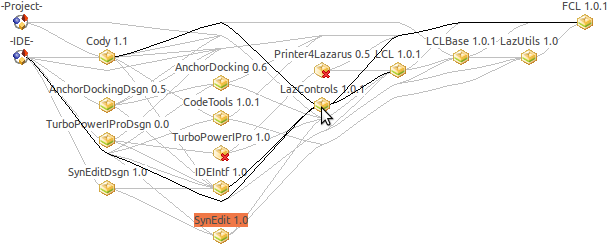 | |
| 9 | 6 | ||
| 10 | 7 | ## What is a Lazarus package? | |
| 11 | 8 | ||
| 12 | 9 | A Lazarus package is a collection of units and components, containing information how they can be compiled and how they can be used by projects or other packages or the IDE. The IDE automatically compiles packages if some of its files are modified. In contrast to Delphi, packages are not limited to libraries and they can be OS independent. ([[packages|Library Packages]] are specially compiled libraries used by applications, the IDE or both. Delphi/Library packages require in-compiler support, which FPC is not capable of at the moment and of course this magic is OS dependent.) | |
| 13 | 10 | ||
| 14 | 11 | Currently the [[Free Pascal]] compiler only supports static packages, not dynamic packages. Therefore you must compile and restart the IDE, each time a package is installed or uninstalled. | |
| 15 | 12 | ||
| 16 | 13 | A lazarus package is identified/distinguished by the name and its version. | |
| 17 | 14 | ||
| 18 | 15 | Packages are ideal for sharing code between projects. | |
| 19 | 16 | ||
| 20 | 17 | Here is a typical directory layout of a Lazarus package: | |
| 21 | 18 | ||
| 22 | 19 | /home/user/pascal/pkg1/ - an arbitrary directory, often it is named similar to the package name | |
| 23 | 20 | pkg1.lpk - the package file | |
| 24 | 21 | pkg1.pas - this unit is automatically created by the IDE and is only needed for compiling | |
| 25 | 22 | apackageunit.pas - your shared unit, choose a unique name that do not clash with other sources/packages | |
| 26 | 23 | aform.pas - your shared form | |
| 27 | 24 | aform.lfm - the form file of your shared form | |
| 28 | 25 | lib/i386-linux/ - the output directory of the package. The directory and its content is automatically created. | |
| 29 | 26 | pkg1.compiled - the state file containing the parameters how the package was compiled the last time. | |
| 30 | 27 | pkg1.ppu | |
| 31 | 28 | pkg1.o | |
| 32 | 29 | apackageunit.ppu | |
| 33 | 30 | apackageunit.o | |
| 34 | 31 | aform.ppu | |
| 35 | 32 | aform.o | |
| 36 | 33 | aform.lfm | |
| 37 | 34 | ||
| 38 | 35 | ## Coming from Delphi | |
| 39 | 36 | ||
| 40 | 37 | If you are familiar with Delphi packages then read the following paragraph, because there are some important differences between a Delphi and a Lazarus package. | |
| 41 | 38 | ||
| 42 | 39 | - Lazarus packages are not only a dynamic library. They are used to share units between projects and modularize big projects. | |
| 43 | 40 | - Sometimes the Delphi main file of a package is called "Package Project". This term makes no sense under Lazarus. | |
| 44 | 41 | - Many Delphi packages provide one "package project" per compiler version. This is hardly needed under Lazarus. But you can do that for Delphi compatibility. Lazarus packages have version information and projects can define that they require at least or at most a specific version of a package. Lazarus will automatically load the right version. | |
| 45 | 42 | - If a unit can not be found, under Delphi you are used to add the directory to the global search path. This has many drawbacks when sharing code. That's why this is not supported by Lazarus. Use packages instead. | |
| 46 | 43 | ||
| 47 | 44 | ## FAQ | |
| 48 | 45 | ||
| 49 | 46 | **Q:** Do I need to install a package?\ | |
| 50 | 47 | **A:** You **only** need to install a package, if it contains designtime items, like components for the IDE component palette. If you don't use those items, you don't need to install the package. If you only want to use a package in your project, don't install it. Use the project inspector and add a requirement. | |
| 51 | 48 | ||
| 52 | 49 | **Q:** I installed a package, but the IDE does not find the units\ | |
| 53 | 50 | **A:** Installing a package means that the package is integrated into the IDE, not in your project. These are separate things. To use a package in your project, use Project -\> Project Inspector -\> Add -\> New Requirement. And uninstall the package, if it does not contain any IDE goodies. | |
| 54 | 51 | ||
| 55 | 52 | ## Quick Start | |
| 56 | 53 | ||
| 57 | 54 | To see the packagesystem in action and to get used to it, do the following: | |
| 58 | 55 | ||
| 59 | 56 | ### Creating a new package | |
| 60 | 57 | ||
| 61 | 58 | - Package-\>New Package... or File-\>New... -\> Package -\> Package | |
| 62 | 59 | - A package editor opens | |
| 63 | 60 | ||
| 64 | - | ||
| 65 | - | ||
| 66 | - | ||
| 67 | - | ||
| 61 | + | 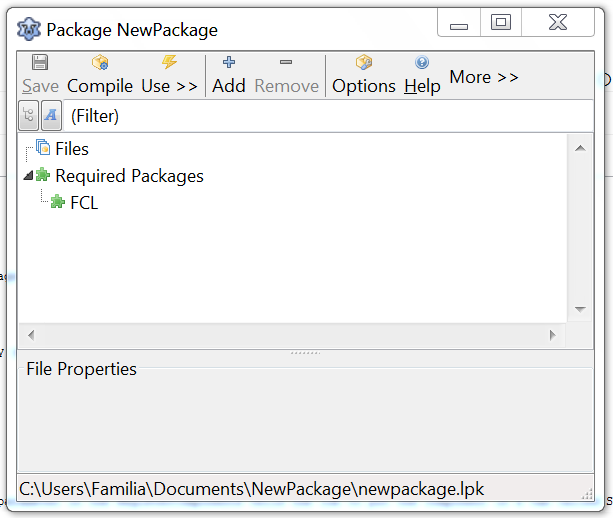 | |
| 68 | 62 | ||
| 69 | 63 | - A window titled "Save Package NewPackage 0.0(*.lpk)" opens. Choose a directory and a name for your new package. The name must be a valid Pascal identifier with the extension *.lpk*. | |
| 70 | 64 | - Use the *Save* button at the bottom right to save the package in the directory and name you've chosen. | |
| 71 | 65 | - Depending on your 'naming' setting in the 'environment options', the IDE will ask you to save the file lowercase. Say yes. | |
| 72 | 66 | ||
| 73 | 67 | Congratulations: You have just created your first package! | |
| 74 | 68 | ||
| 75 | 69 | ### Adding a new component | |
| 76 | 70 | ||
| 77 | 71 | - Use the Add button -\> New component | |
| 78 | 72 | - Choose a component in the ancestor type combobox. For instance: TBevel. | |
| 79 | 73 | - Click Ok | |
| 80 | 74 | - The file will be added to the package and opened in the editor | |
| 81 | 75 | - Install the package by clicking the 'install' button in the top of the package editor. | |
| 82 | 76 | - Lazarus will save the package and ask you, if the IDE should be rebuilt. Say yes. | |
| 83 | 77 | - The packages are statically linked, so a restart of the IDE is needed. | |
| 84 | 78 | - Restart Lazarus and see your new component in the component palette (For example: A TBevel1 will be on the 'Additional' page). | |
| 85 | 79 | - If you do not see your new component in the component palette, it is most likely that you are not running the re-compiled version of Lazarus. You can set where Lazarus builds to in: Tools -\> Options -\> Environment options -\> Files -\> Lazarus directory. Instead of calling lazarus directly, you also can use [[startlazarus]], which starts the newly created lazarus, for example the lazarus executable in the ~/.lazarus directory, if you don't have write access to the directory lazarus was installed into. | |
| 86 | 80 | ||
| 87 | 81 | Congratulations: You have just installed your first package with your first package component. | |
| 88 | 82 | ||
| 89 | 83 | ### Add a component icon | |
| 90 | 84 | ||
| 91 | 85 | Component icons can use Lazarus resources or FPC resources. | |
| 92 | 86 | ||
| 93 | 87 | #### Using Lazarus resources | |
| 94 | 88 | ||
| 95 | 89 | Also page exists here: [[How to add icons my package components]]. | |
| 96 | 90 | ||
| 97 | 91 | The idea is to create a png, convert that into a lrs include file using the [[lazres]] tool and include that. Since 0.9.29 there is a button on the new component page to do that automatically. | |
| 98 | 92 | ||
| 99 | 93 | Here are the details: | |
| 100 | 94 | ||
| 101 | 95 | - Size of PNG file should be 24x24 | |
| 102 | 96 | - Name of png must be the *class name* of the new component, case does not matter (e.g. *tmyComponent.png* for *TMyComponent*). | |
| 103 | 97 | ||
| 104 | 98 | To create the lrs file run (where *TMyComponent* is the class name of your component and *yourunit* is the unit name): | |
| 105 | 99 | ||
| 106 | 100 | `~/lazarus/tools/lazres yourunit.lrs TMyComponent.png` | |
| 107 | 101 | ||
| 108 | 102 | - You may need to compile *lazres* at first use. Simply open the *lazres.lpi* in the IDE and at the menu click run \> build. | |
| 109 | 103 | ||
| 110 | 104 | Hint: You can add more than one image to the lrs file by appending the image filename at the end. For example | |
| 111 | 105 | ||
| 112 | 106 | `~/lazarus/tools/lazres yourunit.lrs TMyComponent.png TMyOtherCom.png ...` | |
| 113 | 107 | ||
| 114 | 108 | Following is a sample of the resulting *yourunit.lrs* file. | |
| 115 | 109 | ||
| 116 | 110 | ``` pascal | |
| 117 | 111 | LazarusResources.Add('TMyComponent','PNG',[ | |
| 118 | 112 | #137'PNG'#13#10#26#10#0#0#0#13'IHDR'#0#0#0#24#0#0#0#24#8#2#0#0#0'o'#21#170#175 | |
| 119 | 113 | +#0#0#0#4'gAMA'#0#0#177#143#11#252'a'#5#0#0#0'|IDAT8O'#237#212#209#10#192' '#8 | |
| 120 | 114 | +#5'P'#247#231#251's'#215#138#133#164#166'\'#220#195'`'#209'c'#157'L'#173#131 | |
| 121 | 115 | +#153#169'd4'#168'dP'#137'r_'#235'5'#136'@Zmk'#16'd9'#144#176#232#164'1'#247 | |
| 122 | 116 | +'I'#8#160'IL'#206'C'#179#144#12#199#140'.'#134#244#141'~'#168#247#209'S~;'#29 | |
| 123 | 117 | +'V+'#196#201'^'#10#15#150'?'#255#18#227#206'NZ>42'#181#159#226#144#15'@'#201 | |
| 124 | 118 | +#148#168'e'#224'7f<@4'#130'u_YD'#23#213#131#134'Q]'#158#188#135#0#0#0#0'IEND' | |
| 125 | 119 | +#174'B`'#130 | |
| 126 | 120 | ]); | |
| 127 | 121 | ``` | |
| 128 | 122 | ||
| 129 | 123 | - Click the Add button again, goto the Add File tab and browse to the yourunit.lrs file and click Ok. This is needed, so that the IDE checks this file for changes and will recompile your package. | |
| 130 | 124 | ||
| 131 | 125 | - Add an include directive to yourunit: | |
| 132 | 126 | ||
| 133 | 127 | ``` pascal | |
| 134 | 128 | unit YourUnit; | |
| 135 | 129 | ... | |
| 136 | 130 | uses | |
| 137 | 131 | ..., LResources; | |
| 138 | 132 | ... | |
| 139 | 133 | implementation | |
| 140 | 134 | ... | |
| 141 | 135 | initialization | |
| 142 | 136 | {$I yourunit.lrs} | |
| 143 | 137 | end. | |
| 144 | 138 | ``` | |
| 145 | 139 | ||
| 146 | 140 | Note: You can include more than one lrs file, but each only once. | |
| 147 | 141 | ||
| 148 | 142 | - That's all. Compile or install your package | |
| 149 | 143 | ||
| 150 | 144 | #### Using FPC resources | |
| 151 | 145 | ||
| 152 | 146 | Create a 24x24 16 color bitmap for each component. This format won't support PNG files. Then create an rc file as follows: | |
| 153 | 147 | ||
| 154 | 148 | `TMYCOMPONENT1NAME BITMAP "pathtobitmap1//bitmap1.bmp"`\ | |
| 155 | 149 | `TMYCOMPONENT2NAME BITMAP "pathtobitmap2//bitmap2.bmp"`\ | |
| 156 | 150 | `....`\ | |
| 157 | 151 | `TMYCOMPONENTnNAME BITMAP "pathtobitmapn//bitmapn.bmp"` | |
| 158 | 152 | ||
| 159 | 153 | Note that double slashes (Linux) and double backslashes (Windows) are used in the bitmap path. It is advisable for the file's name to be the same as the package name with an extension of rc, ie MyPackageName.rc | |
| 160 | 154 | ||
| 161 | 155 | Let windres (Binutils) create the actual resource: | |
| 162 | 156 | ||
| 163 | 157 | `pathToWindres/windres -J rc -O res "MyPackageName.rc" "MyPackageName.dcr"` | |
| 164 | 158 | ||
| 165 | 159 | Alternatively, you can use the lazres tool to create a .res file: | |
| 166 | 160 | ||
| 167 | 161 | `pathToLazarus/tools/lazres MyPackageName.res bitmap.bmp bitmap_150.bmp bitmap_200.bmp` | |
| 168 | 162 | ||
| 169 | 163 | Add to the registration unit of the package {\$R *.dcr} or {\$R *.res} right after the implementation keyword, and compile/install the package. | |
| 170 | 164 | ||
| 171 | 165 | ### Creating a package for your common units | |
| 172 | 166 | ||
| 173 | 167 | Let's say you have some units, that you want to use in your projects. Put the units in a separate directory, for instance *C:\MySharedUnits*. | |
| 174 | 168 | ||
| 175 | 169 | - Package-\>New Package or File-\>New... -\> Package -\> Standard Package | |
| 176 | 170 | - A package editor opens | |
| 177 | 171 | - Use the Save button at top left. Choose *C:\MySharedUnits\MySharedUnits.lpk*. The package name must not conflict with any existing unit. | |
| 178 | 172 | - Depending on your 'naming' setting in the 'environment options', the IDE will ask you to save the file lowercase. Say *yes*. | |
| 179 | 173 | - Now you have a package with the name *MySharedUnits* stored as *C:\MySharedUnits\mysharedunits.lpk*. | |
| 180 | 174 | - Adding the units: *Add-\>Add Files-\>Add directory*. | |
| 181 | 175 | - A dialog will appear with the directory *C:\MySharedUnits* and some include and exclude filters. Click *Ok* to add all units. | |
| 182 | 176 | - The units will now be listed. Click *Add files to package*. | |
| 183 | 177 | - The files are now added to the package. Click *Save*. | |
| 184 | 178 | - If your units only require the standard FPC units you can now simply press *Compile*. Otherwise see below. | |
| 185 | 179 | ||
| 186 | 180 | ### Adding the LCL as dependency | |
| 187 | 181 | ||
| 188 | 182 | If your package contains forms or any other GUI LCL unit, then it requires the LCL package. | |
| 189 | 183 | ||
| 190 | 184 | - In the package editor of your package click *Add -\> New Requirement* | |
| 191 | 185 | - Choose as *package name* *LCL* | |
| 192 | 186 | - Click *Ok*. | |
| 193 | 187 | - The LCL is now added under Required Packages. Click *Save*. | |
| 194 | 188 | ||
| 195 | 189 | You can see the what the LCL does, by clicking in the package editor of your package *Compiler Options / Inherited*. | |
| 196 | 190 | ||
| 197 | 191 | If you only use non-GUI LCL components such as [[fileutil]], you can add a dependency to *LCLBase* | |
| 198 | 192 | ||
| 199 | 193 | ### Use your package in your project | |
| 200 | 194 | ||
| 201 | 195 | You need to add a dependency from the project to your new package. There are several ways to do this: | |
| 202 | 196 | ||
| 203 | 197 | - Open your package. For example via *Package / Open recent package*. On the package editor of your package click *More ... / Add to project*. | |
| 204 | 198 | - Or you can use the project inspector: | |
| 205 | 199 | - *Project / Project Inspector*. | |
| 206 | 200 | - Click on the *Add* button with the plus. | |
| 207 | 201 | - Select the page *New Requirement* | |
| 208 | 202 | - Choose as package name your package | |
| 209 | 203 | - Click Ok | |
| 210 | 204 | ||
| 211 | 205 | ## The IDE menu items for packages | |
| 212 | 206 | ||
| 213 | 207 | - Package -\> New Package **or** File-\>New... -\> Package -\> Standard Package | |
| 214 | 208 | - Creates a new package. | |
| 215 | 209 | - Project -\> Project Inspector | |
| 216 | 210 | - Here you can see, what packages are required by the currently open project. | |
| 217 | 211 | - You can add new dependencies and remove unneeded ones. | |
| 218 | 212 | - Run -\> Compiler options -\> Inherited | |
| 219 | 213 | - Here you can see what compiler options are inherited from which package. | |
| 220 | 214 | - Package | |
| 221 | 215 | - **Open package**: A dialog shows all open packages with their state. | |
| 222 | 216 | - **Open package file**: Open a .lpk file | |
| 223 | 217 | - **Open package of current unit**: Open the .lpk file, that belongs to the file in the source editor | |
| 224 | 218 | - **Open recent package**: Open a recently open package file (lpk file) | |
| 225 | 219 | - **Add active unit to a package**: Adds the unit in the source editor to a package | |
| 226 | 220 | - **Package Graph**: The package graph shows all open packages and their dependencies. | |
| 227 | 221 | - **Configure installed packages**: Edit the list of packages installed in the IDE. Install or uninstall several packages at once. | |
| 228 | 222 | ||
| 229 | 223 | ### Removing Packages | |
| 230 | 224 | ||
| 231 | 225 | - To remove installed components, on the IDE menu, click Package \> Configure installed packages. The following image shows the Installed Packages tool. | |
| 232 | 226 | ||
| 233 | - | ||
| 234 | - | ||
| 235 | - | ||
| 236 | - | ||
| 227 | + | 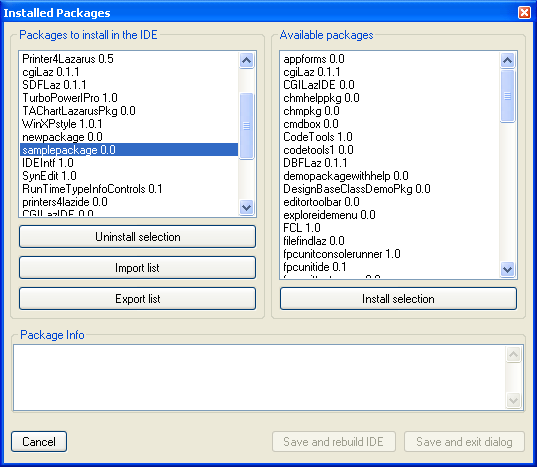 | |
| 237 | 228 | ||
| 238 | 229 | - Select the package you want to uninstall and click Uninstall selection. | |
| 239 | 230 | ||
| 240 | 231 | If something goes wrong with a package (for instance a package directory is deleted without first uninstalling it), Lazarus may not allow you to uninstall packages. To fix the problem, at the IDE menu click Tools \> Build Lazarus. Lazarus will rebuild all packages and restart. You should now be able to uninstall problematic packages. | |
| 241 | 232 | ||
| 242 | 233 | ## The theory | |
| 243 | 234 | ||
| 244 | 235 | Each Lazarus package has a .lpk file. A package is identified by its name and its version. The name must correspond to the lpk filename. For example: | |
| 245 | 236 | ||
| 246 | 237 | Name: Package1, Version: 1.0, Filename: /home/.../package1.lpk. | |
| 247 | 238 | ||
| 248 | 239 | - The IDE automatically creates the main source file (package1.pas). See below. The lpk file contains information about the required packages, the files it uses, how to compile them, and what is needed to use the package by other packages/projects. The directory where the lpk file is, is called the "package directory". | |
| 249 | 240 | - The IDE maintains a list of all package files (\<config directory\>/packagelinks.xml). Every time a package is opened in the IDE it will be added to this list. When a package is opened, the IDE automatically opens all required packages via this list. | |
| 250 | 241 | - Normally a package has a source directory with some pascal units. And normally the lpk file will be there too. A package has also an output directory. Default is the subdirectory 'lib/\$(TargetCPU)-\$(TargetOS)/' in the package directory. | |
| 251 | 242 | - Before a package is compiled the IDE checks all required packages and if they need update and have the auto update flag, they are compiled first. Then the IDE creates the package main source file. If the lpk file was package1.lpk, then the main source file is package1.pas. This file contains all units in the uses section plus a [[Register (package)|'Register' procedure]], which is called in the initialization section. | |
| 252 | 243 | ||
| 253 | 244 | For example: | |
| 254 | 245 | ||
| 255 | 246 | ``` pascal | |
| 256 | 247 | { This file was automatically created by Lazarus. Do not edit! | |
| 257 | 248 | This source is only used to compile and install | |
| 258 | 249 | the package GTKOpenGL 1.0. | |
| 259 | 250 | } | |
| 260 | 251 | unit GTKOpenGL; | |
| 261 | 252 | ||
| 262 | 253 | interface | |
| 263 | 254 | ||
| 264 | 255 | uses GTKGLArea, GTKGLArea_Int, NVGL, NVGLX, LazarusPackageIntf; | |
| 265 | 256 | ||
| 266 | 257 | implementation | |
| 267 | 258 | ||
| 268 | 259 | procedure Register; | |
| 269 | 260 | begin | |
| 270 | 261 | RegisterUnit('GTKGLArea', @GTKGLArea.Register); | |
| 271 | 262 | end; | |
| 272 | 263 | ||
| 273 | 264 | initialization | |
| 274 | 265 | RegisterPackage('GTKOpenGL', @Register); | |
| 275 | 266 | end. | |
| 276 | 267 | ``` | |
| 277 | 268 | ||
| 278 | 269 | - Then the compiler is called and the package is compiled to the output directory. | |
| 279 | 270 | - The IDE compares the current compiler options with the last one, which are stored in the .compiled file. If they differ the IDE cleans up the output directory and compiles the package with -B, telling the compiler to recompile everything it can. Differences in search paths and verbosity options do not trigger a clean up. Since 0.9.31 the IDE removes all files in the unit output directory on clean up if the output directory does not contain source files (listed in the package editor) and is not shared with required packages. | |
| 280 | 271 | - After compilation (successful or not) the state file is created. The state file is put into the output directory. It has the name \<packagename\>.compiled and contains the information, how the package was compiled and if the compilation succeeded. This state file is used by the IDE to check if update is needed and if a full recompile (-B) is needed. | |
| 281 | 272 | ||
| 282 | 273 | For example: gtkopengl.compiled: | |
| 283 | 274 | ||
| 284 | 275 | ``` xml | |
| 285 | 276 | <?xml version="1.0"?> | |
| 286 | 277 | <CONFIG> | |
| 287 | 278 | <Compiler Value="/usr/bin/ppc386" Date="781388725"/> | |
| 288 | 279 | <Params Value=" -Rintel -S2cgi -CD -Ch8000000 -OG1p1 | |
| 289 | 280 | -Tlinux -gl -vewnhi -l -Fu../../../lcl/units | |
| 290 | 281 | -Fu../../../lcl/units/gtk -Fu../../../packager/units | |
| 291 | 282 | -Fu. -FElib/ gtkopengl.pas"/> | |
| 292 | 283 | </CONFIG> | |
| 293 | 284 | ``` | |
| 294 | 285 | ||
| 295 | 286 | - The IDE opens all needed packages automatically. This means, it opens all installed packages, all packages marked for installation (auto install), all packages with an open Editor, all packages required by the project and all packages required by one of the other packages. Unneeded packages are automatically unloaded, when the IDE becomes idle. | |
| 296 | 287 | - The IDE never opens two packages with the same name at the same time. When the user opens another package file with the same name the IDE will ask if it should replace the old one. | |
| 297 | 288 | - The IDE maintains two extra sets of packages: The 'installed' packages and the 'auto install' packages. The auto install packages will be linked into the IDE on next compile. It creates two new files in the config directory: staticpackages.inc and idemake.cfg. Then it calls 'make ide OPT=@/path/to/your/config/idemake.cfg' to compile itself. | |
| 298 | 289 | ||
| 299 | 290 | ## Package states | |
| 300 | 291 | ||
| 301 | 292 | A package can have none, one or several of the following states: | |
| 302 | 293 | ||
| 303 | 294 | - **used** - a package can be **used** by a project or package, i.e. it is required and listed in Project inspector or Package Editor respectively. When you open a project or package all **used** packages are automatically **loaded** by the IDE. | |
| 304 | 295 | - **loaded** - When the IDE opens a .lpk file the package is loaded. The IDE knows its settings and files. The IDE automatically loads all **used** packages of a project and its **installed** packages. This does not load the package code, as the compiler and IDE do not support dynamic packages yet. | |
| 305 | 296 | - **marked for installation** - To run the package code inside the IDE, you need to rebuild the IDE and restart it. That means the first step is to **mark** the package **for installation**. Then rebuild the IDE and finally restart it. | |
| 306 | 297 | - **installed** - The compiled code of the package is loaded and registered in the currently running IDE. If the IDE was able to locate the .lpk file it will be **loaded**. | |
| 307 | 298 | - **uninstall on next start** - The package is **installed**, but will not be compiled into a new IDE. That means, when you rebuild the IDE and restart it, the package will no longer be **installed**. Keep in mind, that a package can be required indirectly by an installed package and thus will be installed as well. | |
| 308 | 299 | ||
| 309 | 300 | ## Hints and Tips | |
| 310 | 301 | ||
| 311 | 302 | Please add any hints, tips or gotchas here. | |
| 312 | 303 | ||
| 313 | 304 | - To rename a package, use 'save as'. | |
| 314 | 305 | - You can add to every dependency the default filename. For instance you provide an example project for your package. When another programmer opens your example for the first time, the IDE does not know where the lpk file is. Simply right click on the dependency in the project inspector and 'Store file name as default for this dependency'. The file name is stored relative to the project. You can do the same for package dependencies. | |
| 315 | 306 | - Use package: to use all units of the package in the project, enable the **Add package unit to uses section** on package editor / Options / Usage. When the package is added to a project, the lpr uses section is extended with the package main unit. For example if the package implements a new graphic type, it only has initialization sections, but the no project code use it directly. | |
| 316 | 307 | ||
| 317 | 308 | ## Adding existing components to a Package | |
| 318 | 309 | ||
| 319 | 310 | If you want to add a file that contains a component to an existing package, you can do the following: | |
| 320 | 311 | ||
| 321 | 312 | - Open the package file | |
| 322 | 313 | - Click on the 'Add' file to add a new item to the package. | |
| 323 | 314 | - Select the unit tab in the 'Add to package' dialog. | |
| 324 | 315 | - Choose the file to add. | |
| 325 | 316 | - Check the 'Has register procedure' if the unit contains a Register procedure. If you do not do this, the component(s) will not be shown on the component palette. | |
| 326 | 317 | - Click 'Add unit'. | |
| 327 | 318 | - Recompile and install the package. | |
| 328 | 319 | ||
| 329 | 320 | That's it. The component should now show on the component palette. | |
| 330 | 321 | ||
| 331 | 322 | ## Create a package with a unit that has the same name as the package | |
| 332 | 323 | ||
| 333 | 324 | Normally the IDE auto creates the registration code into a unit with the same name as the package. If you want to name your package the same as an existing unit, for example because the package has only one unit, then you need at least Lazarus 0.9.29 and use this: | |
| 334 | 325 | ||
| 335 | 326 | - Make a backup of your unit *mypackage.pas*. | |
| 336 | 327 | - Create the package *mypackage.lpk* normally and do not add the unit yet. | |
| 337 | 328 | - Add a new unit, for example *mypackageall.pas*. | |
| 338 | 329 | - Select the unit *mypackageall.pas* in the package editor and right click for the popup menu. | |
| 339 | 330 | - Change *File type* to *Main Unit*. | |
| 340 | 331 | - Now restore your unit *mypackage.pas* and add it to the package. | |
| 341 | 332 | ||
| 342 | 333 | ## File Type | |
| 343 | 334 | ||
| 344 | 335 | Select a file in the package editor, right click for the popup menu. File Type: | |
| 345 | 336 | ||
| 346 | 337 | - Unit - A .pas or .pp file (or .p in mode macpas) | |
| 347 | 338 | - Virtual Unit - Placeholder for a unit not in the package folders. For example the package FCL contains some virtual units for some FPC units. | |
| 348 | 339 | - Main Unit - this unit contains the autogenerated code to compile the package. There can only be one per package. | |
| 349 | 340 | - Issues xml file [[IDE Window: Restriction Browser|see here]] | |
| 350 | 341 | ||
| 351 | 342 | ## The Register procedure | |
| 352 | 343 | ||
| 353 | 344 | To show a component on the component palette, it must be registered in Lazarus. This is done in the 'Register' procedure. This is a procedure that must appear in the interface section of the unit it is in, and must issue one or more RegisterComponent calls, as well as install property and component editors for the components. | |
| 354 | 345 | ||
| 355 | 346 | One or more Register procedures can be present in a package: in the package editor, you must indicate the units that have a 'register' procedure, so Lazarus knows which procedures it must call when the package is installed. | |
| 356 | 347 | ||
| 357 | 348 | There are 2 ways to mark a unit as having a register procedure: | |
| 358 | 349 | ||
| 359 | 350 | - You can do this while adding the units to the package (see the 'Adding existing components to a package' section), | |
| 360 | 351 | - or you can select the unit in the package dialog, and set the 'Register' checkbox in the details panel. | |
| 361 | 352 | ||
| 362 | 353 | Do not forget to recompile and install the package after changing the properties. | |
| 363 | 354 | ||
| 364 | 355 | ## Search paths | |
| 365 | 356 | ||
| 366 | 357 | All search paths are stored relative to the directory of the .lpk file. If you use an absolute path you have either not understood packages or you don't care. | |
| 367 | 358 | ||
| 368 | 359 | Each package has two types of search paths: | |
| 369 | 360 | ||
| 370 | 361 | - Paths in the *Options / Compiler Options* are used to compile the package itself. | |
| 371 | 362 | - Paths in the [[IDE Window: Package Options|Options / Package Options / Usage]] are used by packages and projects that require this package. In other words these paths are added to the search paths of the project (or requiring package). Keep in mind that if project uses package A and that uses package B, the *Usage* options of B are appended to A **and** the project. | |
| 372 | 363 | ||
| 373 | 364 | Since 0.9.29 you can specify compiler options depending on the target platform. | |
| 374 | 365 | ||
| 375 | 366 | ## Your package provides a library, how to extend the linker search path in all your projects | |
| 376 | 367 | ||
| 377 | 368 | A package can define search paths that are added to packages and projects using it. See [[IDE Window: Package Options|Options / Package Options / Usage]]. | |
| 378 | 369 | ||
| 379 | 370 | ## Design Time vs Run Time package | |
| 380 | 371 | ||
| 381 | 372 | There are four different types of packages. | |
| 382 | 373 | ||
| 383 | 374 | 1. A **design and runtime** package can be installed in the IDE and can be used normally by projects. This is the default. | |
| 384 | 375 | 2. A **design time** package can be installed in the IDE and provides IDE extensions like new components, new file or project types, new menu items, new component or property editors, etc. Projects can use *design time* packages (i.e. they are listed in the project inspector requirements), but by default a design time package is not compiled into the project. That means project units cannot use units of the *design time* package. When a project uses such a package the IDE warns before opening a form of the project, so the user can install it first. To test a design time package outside the IDE you may want to use it in a test project. For this case you can change this in *Project Options / Miscellaneous / Use design time packages*. | |
| 385 | 376 | 3. A **run time** package can be used by projects. A user cannot install such a package directly (it is not listed). It cannot register things in the IDE. It can be used by *design time* packages, so it can be installed indirectly. | |
| 386 | 377 | 4. A **run time only** package can only be used by projects. It cannot be installed in the IDE, not even indirectly. For example if the package is incompatible with the core IDE packages like the LCL. Since 0.9.31. | |
| 387 | 378 | ||
| 388 | 379 | ### Typical scenario for a run time and design time package | |
| 389 | 380 | ||
| 390 | 381 | You have a component library called *Awesome* and you want to write some IDE editors for some special properties. For example a property editor for the property Datafile which shows a TOpenDialog to let the user select a file. You can put the components into one run time package named *AwesomeLaz.lpk*' and create another directory *design* for the design time package *AwesomeIDELaz.lpk*. Move all units containing the IDE editors and registering stuff into the *design* directory. Add a dependency in AwesomeIDELaz to AwesomeLaz. Make sure they do not share units or search paths. For an example see *components/turbopower_ipro/*: The run time package is *turbopoweripro.lpk* and the design time package is *design/turbopoweriprodsgn.lpk*. | |
| 391 | 382 | ||
| 392 | 383 | ### For Delphians: I can not install a run time package, why not? | |
| 393 | 384 | ||
| 394 | 385 | **Installing a package** means compiling the whole code into the IDE. A **run time** package does not contain code for the IDE or maybe even bites it. In order to use a package in your project, simply open the package, right click on the package editor for the popup menu and click **Add to project**. Alternatively you can use *View / Project Inspector*. The project inspector shows what packages are used by your project, you can add dependencies or delete them. | |
| 395 | 386 | ||
| 396 | 387 | ### Examples | |
| 397 | 388 | ||
| 398 | 389 | Example for extending the Usage / Units path. | |
| 399 | 390 | ||
| 400 | 391 | The tiOPF framework has the following directory layout, due to the fact that it compiles for FPC, Delphi 5-7, D2005 and D2006: | |
| 401 | 392 | ||
| 402 | 393 | Source <= full path \Programming\3rdParty\tiOPF\Source | |
| 403 | 394 | \Compilers | |
| 404 | 395 | \Delphi7 <= Delphi 7 package files live here | |
| 405 | 396 | \D2005 | |
| 406 | 397 | \FPC <= the tiOPF.lpk lived here | |
| 407 | 398 | \Core <= core unit files | |
| 408 | 399 | \Options <= optional unit file for extra features | |
| 409 | 400 | \GUI | |
| 410 | 401 | ||
| 411 | 402 | Using this example, the following paths are included in the "Options - Usage - Units" editbox: | |
| 412 | 403 | ||
| 413 | 404 | `"$(PkgOutDir);..\..\Core;..\..\Options;..\..\GUI" ` | |
| 414 | 405 | ||
| 415 | 406 | This search path will be added to whatever project uses this package. The default is \$(PkgOutDir), which would add only the ppu files to the project. Adding more search paths has the effect that the .pas source files are found by the compiler a second time - once when compiling the package and once when compiling your project. Since package and project use different settings the compiler might create a second version of the ppu, which is put into your project's output directory. Then you have two ppu for one unit and then you can get strange errors. To avoid the duplication disable the compilation of the package, by setting it to compile only manually. | |
| 416 | 407 | ||
| 417 | 408 | ## Platform specific units | |
| 418 | 409 | ||
| 419 | 410 | There are various ways to deal with separating platform-specific code: | |
| 420 | 411 | ||
| 421 | 412 | ### One unit per platform, several units with same name | |
| 422 | 413 | ||
| 423 | 414 | For example the unit *myconnect.pas* has two versions, one for Windows and one for Unix/Linux/macOS/BSD. The idea is to put the units into different sub directories and use macros in search paths. | |
| 424 | 415 | ||
| 425 | 416 | - Create two sub directories: **win** and **unix**. | |
| 426 | 417 | - Add to the package options / Compiler options / Paths / Other unit files the path **\$(SrcOS)**. SrcOS is a [[IDE Macros in paths and filenames|macro]], that translates to *win* under Windows and *unix* under Linux/macOS/BSD. | |
| 427 | 418 | - Create a new package unit (package / Add / New file / Pascal unit) and save it under **win/myconnect.pas**. | |
| 428 | 419 | - If the unit is not selected in the package editor, select it. | |
| 429 | 420 | - Disable **use unit**. | |
| 430 | 421 | - Create a second package unit (package / Add / New file / Pascal unit) and save it under **unix/myconnect.pas**. | |
| 431 | 422 | - Keep the **use unit** enabled. It should be used once. | |
| 432 | 423 | ||
| 433 | 424 | ### One unit for only one platform / conditional unit | |
| 434 | 425 | ||
| 435 | 426 | For example: the unit *mywin.pas* should only be used under Windows, i.e. it should only be used and compiled if the flag **Windows** is defined. | |
| 436 | 427 | ||
| 437 | 428 | The idea is to use the unit indirectly using IFDEFs. The following example shows how the unit **mywin.pas** is only used and compiled when the flag **Windows** is defined. | |
| 438 | 429 | ||
| 439 | 430 | - Create a new package unit (package / Add / New file / Pascal unit) and save it under **mywin.pas**. | |
| 440 | 431 | - If the unit is not selected in the package editor, select it. | |
| 441 | 432 | - Disable **use unit**. | |
| 442 | 433 | - Create a new package unit (package / Add / New file / Pascal unit) and save it under **mypkgcompile.pas**. | |
| 443 | 434 | - Add to the uses section of **mypkgcompile.pas**: | |
| 444 | 435 | ||
| 445 | 436 | ``` pascal | |
| 446 | 437 | uses | |
| 447 | 438 | Classes | |
| 448 | 439 | {$IFDEF Windows} | |
| 449 | 440 | ,mywin | |
| 450 | 441 | {$ENDIF} | |
| 451 | 442 | ; | |
| 452 | 443 | ``` | |
| 453 | 444 | ||
| 454 | 445 | Note: mypkgcompile will be compiled under all platforms. mywin will only be compiled under Windows. You don't need to use the unit mypkgcompile in your project. | |
| 455 | 446 | ||
| 456 | 447 | ## Different versions of a package | |
| 457 | 448 | ||
| 458 | 449 | If you work with different versions of a package, you can open at any time the other package file. The old package will be closed and the new one will be opened. Registered items will be transferred to the new package. For example the component palette still shows the components of the old package, with which the IDE was built. But right clicking on a component will show a menu item to open the recently used package. | |
| 459 | 450 | ||
| 460 | 451 | You can specify the minimum, maximum version required. When the project is opened and there are multiple .lpk files the IDE will automatically open the one with the right version. | |
| 461 | 452 | ||
| 462 | 453 | If you work with different projects that require different versions of a package (for example with different branches of the same package), you can define the preferred one in the dependencies. In the project inspector right click on the dependency and click on *Set file name as preferred for this dependency*. When the project is opened, the preferred package will be opened. If there is already a package with the same name it will be replaced. This feature exists since 0.9.29. | |
| 463 | 454 | ||
| 464 | - | ||
| 465 | - | ||
| 466 | - | ||
| 467 | - | ||
| 455 | + | 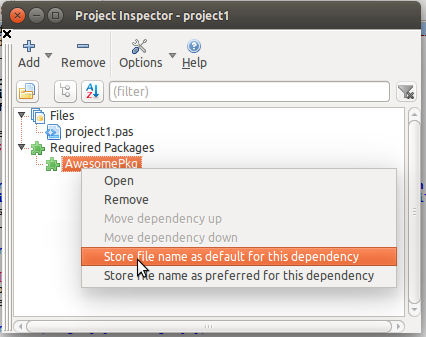 | |
| 468 | 456 | ||
| 469 | 457 | [[IDE Window: Project Inspector|Project Inspector]] | |
| 470 | 458 | ||
| 471 | 459 | ### Example library with multiple lpk | |
| 472 | 460 | ||
| 473 | 461 | A library has two lpk files, *main.lpk* and *sub.lpk*. *main* depends on *sub*. The library has two version *1.0* and *2.0*. | |
| 474 | 462 | ||
| 475 | 463 | trunk/ | |
| 476 | 464 | main.lpk version 2.0, requires sub | |
| 477 | 465 | sub.lpk version 2.0 | |
| 478 | 466 | fixes/ | |
| 479 | 467 | main.lpk version 1.0, requires sub | |
| 480 | 468 | sub.lpk version 1.0 | |
| 481 | 469 | ||
| 482 | 470 | When you open *main.lpk 1.0* for the first time, the IDE searches the package *sub* in its database and then it searches *sub.lpk* in the current folder. It finds *sub.lpk 1.0* and loads it. | |
| 483 | 471 | ||
| 484 | 472 | When you then open *main.lpk 2.0*, the IDE knows already a *sub.lpk*, the version 1.0 and loads it. It does not load the *sub.lpk 2.0*. | |
| 485 | 473 | ||
| 486 | 474 | There are two solutions: | |
| 487 | 475 | ||
| 488 | 476 | #### Using minimum, maximum version | |
| 489 | 477 | ||
| 490 | 478 | You can set for each dependency the minimum and maximum version. When you set the minimum and maximum version of the dependency the following will happen: The *main 1.0* and *sub 1.0* is open. You open *main 2.0* which requires *sub \>=2.0 and \<=2.0*. The IDE unloads *main 1.0*, loads *main 2.0*. The *sub 1.0* does not fit, so the IDE searches for *sub 2.0*. Again it first searches in its database and then in the current folder. It finds *sub.lpk* and loads *sub 2.0*. | |
| 491 | 479 | ||
| 492 | 480 | #### Using preferred file name | |
| 493 | 481 | ||
| 494 | 482 | If the two lpk files are always distributed together you can use instead of minimum and maximum versions the **preferred** option. Open from trunk the *main.lpk* and *sub.lpk* to make sure that the right versions are loaded. Then right click on the dependency from *main* to *sub* and choose *preferred file name*. The file name will appear to the right of the dependency. Repeat this step with the lpk files from version *2.0*. The IDE will now always open the right *sub.lpk*. | |
| 495 | 483 | ||
| 496 | 484 | ## Build modes | |
| 497 | 485 | ||
| 498 | 486 | You can add build modes to your package. See here for the various ways to achieve this: | |
| 499 | 487 | ||
| 500 | 488 | [[Macros and Conditionals|Build modes for packages]] | |
| 501 | 489 | ||
| 502 | 490 | ## Compiling a package via make | |
| 503 | 491 | ||
| 504 | 492 | The IDE can create a simple **Makefile** for a package via *Package editor / More ... / Create Makefile*. The IDE creates the file **Makefile.fpc** and calls **fpcmake**, which creates the Makefile. Since 0.9.29 the IDE also creates the file **Makefile.compiled**. If you are using a version control system like svn or git, add all three files to the repository: | |
| 505 | 493 | ||
| 506 | 494 | `Makefile`\ | |
| 507 | 495 | `Makefile.fpc`\ | |
| 508 | 496 | `Makefile.compiled` | |
| 509 | 497 | ||
| 510 | 498 | You can now run **make** (e.g. open a console, cd to the package directory with the Makefile) to compile the package. This will compile the package and after successful compilation copy the **Makefile.compiled** to the unit output directory. | |
| 511 | 499 | ||
| 512 | 500 | **Notes:** | |
| 513 | 501 | ||
| 514 | 502 | - The Makefile uses fixed paths, so it will **not** automatically adapt to changes as the IDE or lazbuild. | |
| 515 | 503 | - The IDE can recreate the Makefile on every compile. Enable the option *Package editor / Options / Compiler Options / Compilation / Create Makefile*. | |
| 516 | 504 | - The Makefile does not contain the logic for conditionals and build macros, it contains the settings at the time of creation. | |
| 517 | 505 | - The macros \$(TargetOS), \$(TargetCPU) and \$(LCLWidgetType) are replaced by %TargetOS%, %TargetCPU% and %LCLPlatform%. The Makefile has somelogic to set some default values. You can override them (e.g. make LCLPlatform=qt). | |
| 518 | 506 | - The Makefile.compiled file is copied by the Makefile after successful compilation to \<PkgOutDir\>/\<PkgName\>.compiled and is checked by the IDE (and lazbuild) if a package needs a recompile. For example the Lazarus binaries (Windows Installer, deb and rpm packages, OS X dmg package) are compiled via **make** and when the IDE is started and compiles a program it will not recompile used packages, unless the user set some extra flags. For example when the user changes the *IDEBuildOptions* via the *Configure Build Lazarus dialog* the IDE will detect the difference and recompile the package on next compile. | |
| 519 | 507 | - If you forget to add the Makefile.compiled to svn you will get on make the error: /bin/cp: cannot stat \`Makefile.compiled': No such file or directory | |
| 520 | 508 | ||
| 521 | 509 | ## Creating a closed sourced package | |
| 522 | 510 | ||
| 523 | 511 | Goal: you want to publish a package, but you want to keep the source closed. | |
| 524 | 512 | ||
| 525 | 513 | At the moment many IDE functions require the source; the IDE warns if the source of a unit is missing. Therefore you must publish the interface parts of the units, and the files the compiler creates (ppu and o files). | |
| 526 | 514 | ||
| 527 | 515 | Steps: | |
| 528 | 516 | ||
| 529 | 517 | - Create a copy of the package folder and change this copy as follows. | |
| 530 | 518 | - In the package editor / Options / IDE integration, set **Update / Rebuild** to **Manual compilation**. | |
| 531 | 519 | - Compile it once. | |
| 532 | 520 | - Delete the implementation sections of all units (i.e. everything after the implementation keyword of each unit including the initialization and finalization, only keeping the "end."). You can also remove the private section. | |
| 533 | 521 | - Optional: You can use the publish package tool (Package Editor / More... / Publish Package) to create a zip of the package. | |
| 534 | 522 | - You can delete the .compiled file, Makefile, rst files, lrt files. All other files in the output directory like .ppu, .o, .lfm files are needed by the compiler. The IDE needs the .lpk and the stripped .pas and .inc files. | |
| 535 | 523 | ||
| 536 | 524 | There is a command line utility **sourcecloser** which alters the lpk and removes implementation sections. You can find it under *lazarus/components/codetools/examples/sourcecloser.lpi*. | |
| 537 | 525 | ||
| 538 | 526 | See also: | |
| 539 | 527 | ||
| 540 | 528 | - this article about FPC closed source units: [[Releasing units without source code]] | |
| 541 | 529 | - Prezi: <http://prezi.com/vpuyxca-qboq/how-to-create-a-closed-source-package-with-lazarus/> | |
| 542 | 530 | ||
| 543 | 531 | ## Parallel Compilation | |
| 544 | 532 | ||
| 545 | 533 | The IDE and lazbuild compile packages in parallel (since 1.3). Each package is still compiled with one call of fpc (single threaded). | |
| 546 | 534 | ||
| 547 | 535 | You can set the maximum number of parallel processes in *Tools / Options / Messages Window*. By default it tries to guess the amount of cpu cores with the function *GetSystemThreadCount* in unit *UTF8Process*. | |
| 548 | 536 | ||
| 549 | 537 | ## See also | |
| 550 | 538 | ||
| 551 | 539 | - [[How To Write Lazarus Component]] - a tutorial about creating a new component. | |
| 552 | 540 | - [[Install IDE packages without the IDE]] | |
| 553 | 541 | ||
| 554 | 542 | --- | |
| 555 | 543 | *From the Free Pascal wiki, page "Lazarus Packages", as it stood on 2023-12-13 after a change by Coz, out of the wiki's dump of 2024-05-26. Copyright stays with the author who wrote it, according to the old wiki's [[Licensing]] page. If you have concerns about this material, [message the admin](/wiki-contact).* |