

Lazarus InstantSearch: what changed
Revision 1 to 2. Removed lines have a minus sign; added lines have a plus sign.
| Old | New | Line | |
|---|---|---|---|
| 1 | 1 | ## Intro | |
| 2 | 2 | ||
| 3 | 3 | The instantsearch package is a package to search within sources (or other sources of text) | |
| 4 | 4 | ||
| 5 | 5 | It provides an as-you-type search mechanism. See the 'View - Instantsearch' menu item (or CTRL-ALT-F). | |
| 6 | 6 | ||
| 7 | 7 | It uses [Manticore Search](https://manticoresearch.com/) to provide the search capabilities. Manticore search creates an index of the source files, which it then uses to provide you with search capabilities. | |
| 8 | 8 | ||
| 9 | 9 | ## Installation | |
| 10 | 10 | ||
| 11 | 11 | ### Install ManticoreSearch | |
| 12 | 12 | ||
| 13 | 13 | Before you can use Lazarus InstantSearch, you must have Manticore Search installed. It can be installed locally, or on another computer. | |
| 14 | 14 | ||
| 15 | 15 | To install Manticore search, please see the instructions at [1](https://manual.manticoresearch.com/Installation) | |
| 16 | 16 | ||
| 17 | 17 | ### Install InstantSearch | |
| 18 | 18 | ||
| 19 | 19 | Using the package menu, install the **lazinstantsearch** package. You will need to recompile the IDE. | |
| 20 | 20 | ||
| 21 | 21 | ### Configure instantsearch. | |
| 22 | 22 | ||
| 23 | 23 | After installing the package, before you can use instantsearch, it needs to be configured: at least the location of the manticore search engine must be specified. | |
| 24 | 24 | ||
| 25 | 25 | Using Tools - options, select the 'Instant Search' item under the Environment option group. | |
| 26 | 26 | ||
| 27 | 27 | ## Configuration | |
| 28 | 28 | ||
| 29 | 29 | The configuration is done using the 'Instant Search' item under the Environment option group. | |
| 30 | 30 | ||
| 31 | - | ||
| 32 | - | ||
| 33 | - | ||
| 34 | - | ||
| 31 | + | 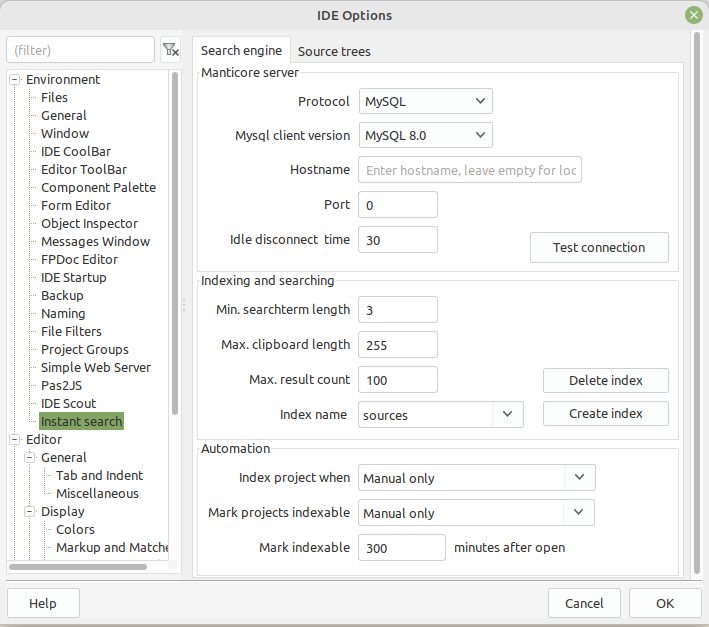 | |
| 35 | 32 | ||
| 36 | 33 | You must configure at least the following things: | |
| 37 | 34 | ||
| 38 | 35 | - Protocol - MySQL or HTTP | |
| 39 | 36 | - MySQL Client version - if you selected the MySQL protocol. | |
| 40 | 37 | ||
| 41 | 38 | You can leave hostname and port empty if you installed on the local machine using the default settings. | |
| 42 | 39 | ||
| 43 | 40 | Test the connection with the 'Test connection' button. | |
| 44 | 41 | ||
| 45 | 42 | If the connection is OK, set the index name to use, and use the 'Create Index' button to create the table used to store the search index. | |
| 46 | 43 | ||
| 47 | 44 | if the index already exists, you will be warned about this. | |
| 48 | 45 | ||
| 49 | 46 | When the index has been created (or was already created), the configuration dialog will check which source trees exist (normally none), and will offer to start indexing. This is done in the background. | |
| 50 | 47 | ||
| 51 | 48 | ### Configuring source trees | |
| 52 | 49 | ||
| 53 | 50 | By default, InstantSearch configures 4 source trees: | |
| 54 | 51 | ||
| 55 | 52 | - RTL : The RTL sources of FPC. | |
| 56 | 53 | - FCL : The packages sources of FPC. | |
| 57 | 54 | - Compiler : The FPC compiler sources | |
| 58 | 55 | - LCL : The lazarus LCL sources. | |
| 59 | 56 | ||
| 60 | 57 | You can define as much search trees as you want, using the buttons in the toolbar. You can use the buttons to refresh the indexes of a source tree. | |
| 61 | 58 | ||
| 62 | 59 | Note: when you change the source directory of FPC or rescan it, the RTL/FCL/Compiler trees will be re-indexed. | |
| 63 | 60 | ||
| 64 | - | ||
| 65 | - | ||
| 66 | - | ||
| 67 | - | ||
| 61 | + | 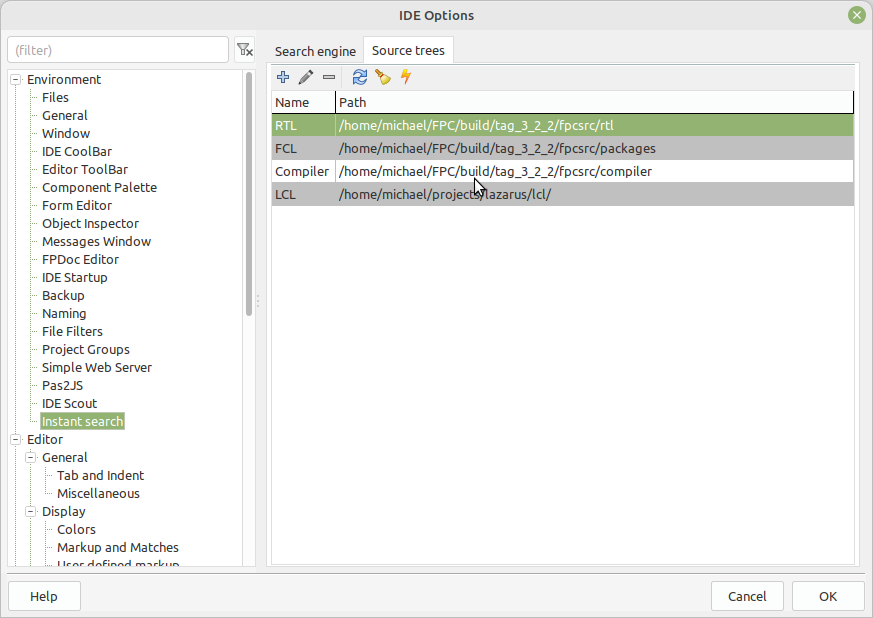 | |
| 68 | 62 | ||
| 69 | 63 | The 4 trees are configured and indexed automatically, a message will appear in the messages window when this happens. | |
| 70 | 64 | ||
| 71 | 65 | ### Indexing the current (active) project. | |
| 72 | 66 | ||
| 73 | 67 | The sources of the current project can also be searched, provided it has been indexed. This is a 2-step process: | |
| 74 | 68 | ||
| 75 | 69 | - Mark a project as indexable. This can be done using the \`\`Mark project as indexable\`\` | |
| 76 | 70 | ||
| 77 | 71 | ||
| 78 | 72 | popup menu item in the project inspector, or below the 'Project' menu in the main menu. | |
| 79 | 73 | ||
| 80 | 74 | - Actually index the project. The project is automatically indexed when you | |
| 81 | 75 | ||
| 82 | 76 | ||
| 83 | 77 | mark it as indexable. | |
| 84 | 78 | ||
| 85 | 79 | You can manually index a project at any time using the project menu item in the main menu, | |
| 86 | 80 | ||
| 87 | 81 | or the popup item. | |
| 88 | 82 | ||
| 89 | 83 | ## Searching | |
| 90 | 84 | ||
| 91 | 85 | To search, open the 'Instant search' window under 'View' (or press CTRL-Alt-F) | |
| 92 | 86 | ||
| 93 | 87 | If Instant Search was not not configured, you will get a warning and the IDE will offer to open the configuration dialog. | |
| 94 | 88 | ||
| 95 | 89 | The dialog will automatically copy the selection (provided it is not too big and does not contain CR/LF characters) to the search edit box and do a search with that. | |
| 96 | 90 | ||
| 97 | 91 | You can type in the search edit box at the top. As you type, the search results will be more refined or expanded. | |
| 98 | 92 | ||
| 99 | 93 | Each match is displayed with the line contents, and the filename+lineno. | |
| 100 | 94 | ||
| 101 | - | ||
| 102 | - | ||
| 103 | - | ||
| 104 | - | ||
| 95 | + | 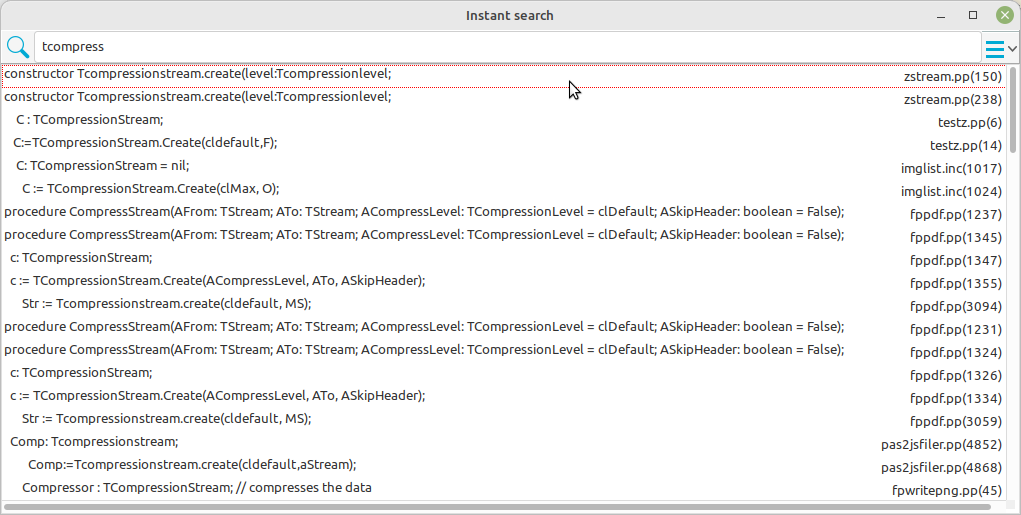 | |
| 105 | 96 | ||
| 106 | 97 | Double click one of the lines to open the file at the selected location. | |
| 107 | 98 | ||
| 108 | 99 | If you have too many matches, you can check or uncheck some of the source trees in the top-right search bar. | |
| 109 | 100 | ||
| 110 | 101 | --- | |
| 111 | 102 | *From the Free Pascal wiki, page "Lazarus InstantSearch", as it stood on 2023-04-19 after a change by Skalogryz, out of the wiki's dump of 2024-05-26. Copyright stays with the author who wrote it, according to the old wiki's [[Licensing]] page. If you have concerns about this material, [message the admin](/wiki-contact).* | |
| 112 | 103 | Category: Indexing |