

LazReport Documentation
Sent here from LazReport.
Deutsch · English · Español · Polski
Overview
LazReport is a group of components to add reporting capabilities to applications. It uses a visual designer to create banded reports and includes a report engine with previewer and an interpreter to run user scripts. The report designer can be invoked at runtime.
License
LazReport is based on FreeReport 2.32 and thanks to Fast Reports Inc. it's available under modified LGPL, the same license as the Lazarus LCL. See files lazreport/license.txt, license-rus.txt and license-lazreport.txt for details.
Authors
FreeReport was created for Fast Reports Inc.
LazReport initial port was made by Olivier Guilbaud.
Lazarus integration and fixes by Jesus Reyes A.
Many contributors, see lazreport/doc/contributors.txt file
Installation
To install LazReport in the Lazarus IDE:
- Open LazReport Package. Menu: Package->Open Package File (.lpk)...
- Open file components/lazreport/source/lazreport.lpk
- Install
The next time Lazarus is started, it should show a LazReport tab in the component palette.
Documentation
Developer's manual and User Guides specific for LazReport are yet to be written. In the mean time, most LazReport features are described in the FreeReport Developer's Manual (see components/lazreport/doc/fr_eng.odt (or fr_eng.pdf) in your Lazarus installation). Platform specific things described there like OLE objects are not implemented in LazReport, also some examples or pictures make reference to samples available only on Delphi.
Until LazReport documentation is elaborated, this Wiki page will be used as a documentation container; maybe in the future the missing documentation could be generated from here. Users are welcomed to add topics that they feel need to be documented.
Operators
The following operators are supported:
| Operator type | Operators |
|---|---|
| Logical | >, <, BUT, AND, NOT, =, < >, > =, < = |
| Mathematical||-, *, +, MOD, / |
Functions
The following functions are available for use:
Statistical functions
SUM(<X >)
Returns the sum of values represented by <X>, which is generally a data field.
AVG(<X >)
Returns the average of <X> values.
COUNT
Count the number of occurrences.
MIN(<X >)
Returns the lowest value of all values represented by <X>
MAX(<X >)
Returns the highest value of all values represented by <X>
Date functions
Note: December 2013: inspection of lr_pars source code seems to indicate these functions work with the current locale date format, which limits interoperability. To do: verify this; extend function with an extra format parameter which defaults to e.g. ISO8601
FORMATDATETIME(<X>, <Y >)
Returns <Y> TDateTime in format <X>. <X> uses the default syntax for Lazarus formats.
FORMATFLOAT(<X>, <Y >)
Returns the numeric value <Y> in format <X>. <X> uses the default syntax for Lazarus formats.
STRTODATE(<X >)
Returns the TDateTime(? not date?) representation of string < X >. < X > must be formatted correctly.
STRTOTIME(<X >)
Returns the TDateTime time part representation of string < X >. < X > must be formatted correctly.
String functions
LOWERCASE(<X >)
Returns lowercase <X>
UPPERCASE(<X >)
Returns uppercase <X>
NAMECASE(<X >)
Returns <X> with initial capitals
COPY(<X>, <Y>, <Z >)
Similar to Pascal Copy: returns string <X> from position < Y > for < Z > characters.
Numeric functions
FRAC(<X >)
Returns the decimal part of number < X >
INT(<X >)
Returns the integer part of number < X >
ROUND(<X >)
Returns the number < X > rounded to an integer (up? down? nearest integer? banker's rounding?)
STR(<X >)
Returns the string representation of number < X >
Logical/boolean functions
IF(<X>, <Y>, <Z>)
Returns < Y > if expression < X > is true. If false, returns < Z >.
Adding your own functions
Though it is probably not needed much, LazReport allows you to define your own functions. As mentioned, see LazReport Documentation#Documentation for an overview of existing functions.
To add your own functions:
Add template to definition file
Note: This was taken from the Delphi/FastReport/FreeReport tutorial in Portuguese. It should be verified and probably modified to work with current Lazarus/LazReport
You need to define your functions following the following template in the file FR.lng (is this still the correct name for Lazreprot?):
, FCT = CATEGORY|FCT (<X> <Y>, <z>)|Help
where:
- FCT is the function name.
- CATEGORY is the category name.
- FCT (<X> <Y>, <z>), is the layout of the required parameters, with a maximum of 3 parameters.
- Help Is a small help text which should allow the user to understand the purpose of the function.
- | is a separator.
Each parameter is separated by commas and can be an expression, a constant, a variable, a field or data. Alphanumeric type constants should be limited by a character. The variables are delimited by and.
Data fields are limited to the variables and have the following format:
Dataset_Name. "Field_Name"
Let's add the SQRT and POS functions by adding the following lines to FR.lng todo: still the same name?
SQRT = Mathematics and Trigonometry|SQRT(<X>)|Returns the square root of <X>
POS = Strings|POS(<X>,<Y>) Returns the position of string <X> within string <Y>
Add function source code
A function definition is nice, but we haven't specified how these functions work. Therefore, some source code to add the functions POS and SQRT below:
Unit FR_OGFct;

interface

implementation

uses FR_Pars, FR_Class; // Standard declarations needed for Lazreport!! Note: FR_pars etc? Are these names ok?

type
  // Our own functions are declared here.
  TfrOGFunctionLibrary = class(TfrFunctionLibrary)
  public
    constructor Create; override;
    procedure DoFunction(FNo:integer procedure;  p1, p2,
             p3:Variant; var valley:string); override;
             p3:Variant; var valley:string);
  end;

//**************************
// * TfrOGFunctionLibrary
constructor TfrOGFunctionLibrary.Create;
begin
  inherited Create;
  // Add our functions to the list of available functions:
  with List do
  begin
    Add('POS');
    Add('SQRT');
  end;
end;

Procedure TfrOGFunctionLibrary.DoFunction(FNo:Integer procedure;
  p1, p2, p3:Variant; Var valley:String); //valley?
Var
  Par1, Par2:  Varying;
  Result:  Variantying; //variantying? variant?
begin
  Try
    Case FNo of  //this is the index of the functions as added in the constructor
      0 :
        begin   // POS  function
          Par1:=VarToStr(Parser.Calc(p1));
          Par2:=VarToStr(Parser.Calc(P2));
          Result:=Pos(Par1,Par2);
        end;
      1 :  // SQRT function
        Result:=SQRT(Parser.Calc(P1));
    end;
  Except
    // String with error details
    Result:='Error in function '+List.Strings[FNo];
  end;
  Val:=VarToStr(Result); // Resulting string
end;

Procedure DoInit;
begin
  frRegisterFunctionLibrary(TfrOGFunctionLibrary);
end;
Save the report then File>List and this window will appear:
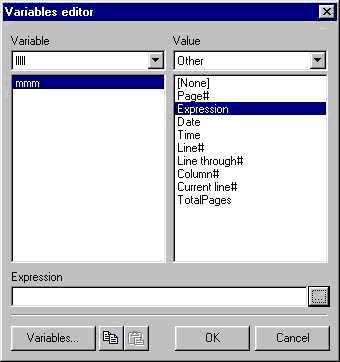
You may notice the appearance of a small (...) button, active only in the case of an expression. Click below to open the editor:
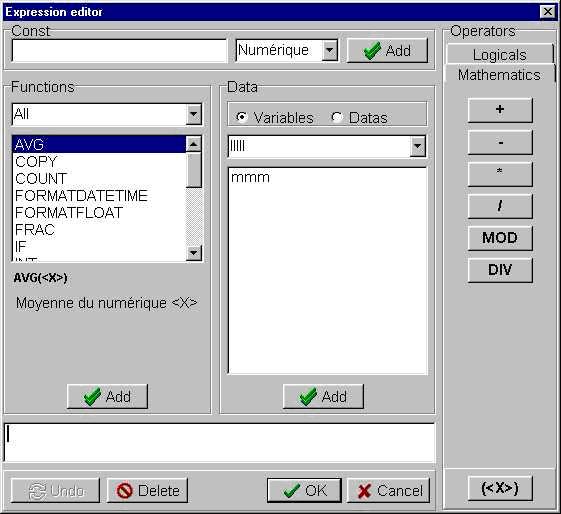
You may notice the similarity. If you click the Add button it will load the editor parameters:
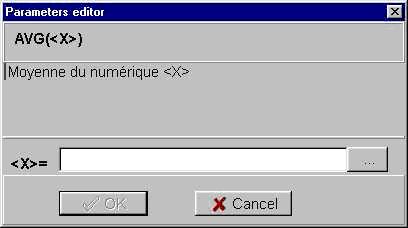
Depending on the number of parameters, you have more or less edit areas. The (...) button makes it possible to open the expression generator to set the parameter.
Export Filters
LazReport has the ability to save the report displayed in the preview window using a user-defined format. It has an extension mechanism with support for plugins that can be used to add any amount of export filters.
An export filter is a specially designed class which is registered in LazReport and allows you to save the report using one or more formats.
When LazReport is installed, it includes some filters ready for use, these are: TfrTextExportFilter for exporting report as plain text, TfrCSVExportFilter used for exporting the report as CSV format and TfrHTMExportFilter for exporting the report as simple html file. Also included are some packages that provide additional filters, these are (see Menu Package->Install/Uninstall Packages ...): lrCairoExport (components/lazreport/source/addons/cairoexport/lrCairoExport.lpk) which provides support for exporting to PDF and PS formats by using the Cairo Graphics Library and lr_extexp (components/lazreport/source/addons/imgexport/lr_extexp.lpk) with support for improved html export and some image formats like BMP, JPG and PNG. Also included in LazReport is the LazReportPDFExport (components/lazreport/source/addons/pdfexport/LazReportPDFExport.lpk) package, this package provides PDF export using PowerPDF which is available in Lazarus-CCR repository.
A filters package is installed in the same way as any other Lazarus Package; after restarting Lazarus, the filters (usually) appear as icons in the LazReport tab on the Component Palette.
An export filter is added to your application by simply dragging one of these icons to a form or data module where TfrReport component exists, this is automatically registered and remains ready to use.
This can also be done manually by including the export filter unit name in the Uses clause of the unit where TfrReport is used.
LazReport export filters are invoked using one of two ways:
- Save the report in the preview window. Using this method (pressing the Save button) when the Save As dialog is presented, the user can choose a format from the list of registered formats. The list is populated by all registered export filters.
- Through code using the TfrReport ExportTo method. See below for an example:
  if TheReport.PrepareReport then
    TheReport.ExportTo(TfrHTMExportFilter, 'exportedfile.html');
Where TheReport holds an instance of TfrReport component. In this sample a TfrHTMExportFilter is used to generate a file named 'exportedfile.html'. It's not necessary to prepare the report again if it has been prepared previously.
In order to use TfrHTMExportFilter the developer has to drag and drop an instance of the TfrHTMExportFilter component from the LazReport tab in the component palette to the form in the Form Designer. As an alternative the unit lr_e_htm.pas file can be added to the unit uses clause.
Since LazReport 0.9.6, export filters support has been enhanced: now export filters can take parameters which users can customize either by changing values directly or by presenting the end user some UI. In order to make changes in parameters, the developer can create an event handler for TfrReport.OnExportFilterSetup event, available by selecting the TfrReport component and selecting the Events tab in Object Inspector.
The OnExportFilterSetup (of type TExportFilterSetup) event handler takes an argument sender of type TfrExportFilter, in order to use this type, the lr_class.pas unit must be added to the unit uses clause. All ExportFilter clases share this event and the developer has to type-cast the sender argument to the desired export filter class, for example:
if sender is TfrHTMExportFilter then
begin
  TfrHTMExportFilter(sender).UseCSS := false;
end;
Below a description of available export filters.
TfrExportFilter
TfrExportFilter is the base class of all export filters, and defines two properties that can be modified by the developer in the OnExportFilterSetup event:
- BandTypes: TfrBandTypes. this is a set of band types, only bands included in this set are actually exported; the other bands on the report will be ignored. Using this property a developer could for example export only the master band content, leaving titles, headers and footers out of exported output by doing:
sender.BandTypes := [btMasterData];By default, all bands are processed but TfrCSVExportFilter changes this property to process only master header, column header and master data bands.
- UseProgressbar: boolean. This property enables or disables showing the progress bar while processing the export filter. This property is false by default.
TfrTextExportFilter
inheritance: TfrExportFilter <- TfrTextExportFilter
located in: components/lazreport/source/lr_e_txt.pas file included with the LazReport package.
TfrTextExportFilter is the base class of text based export filters. This export filter tries to make a text representation of a graphical report by fitting the original graphical coordinates into a more coarse grid where each unit is of "UsedFont" pixels, depending on the value of UsedFont value, the exported output may more or less represent the layout of objects in graphical report. Beside the properties inherited from TfrExportFilter class, TfrTextExportFilter define two more properties.
- UsedFont:integer. this property define the pixel dimensions on the output grid, objects on report are fitted into this grid by reclaculating each x and y position. The default value is 10, if user changes this value to 0 or less, LazReport will show automatically a dialog asking for the UsedFont value, if user enter a invalid value, a 10 value will be used. The 10 value is used because is the value that better fits the usual reports which are made with fonts 10-13 points.
- UseBOM:boolean. This property enable the inclusion of UTF-8 Byte Order Mark character at the start of text output (see BOM) needed by some editors/viewers, by default no BOM is used in exported output.
TfrCSVExportFilter
inheritance: TfrExportFilter <- TfrTextExportFilter <- TfrCSVExportFilter
located in: components/lazreport/source/lr_e_csv.pas file included in LazReport package.
This special text export filter produces Comma Separated Value output (actually any character can be used as separator), it differs from its ancestor in that it doesn't try to create text layout representation of graphical report, instead, for each record output it tries to guess the fields order from the source report, it then produce a list of fields using a separator defined by the user. Beside the properties inherited from its ancestor classes it defines some properties to customize the generated output.
- QuoteType:TfrQuoteType. This property controls whether the generated field value should be wrapped using specified quote char or not. Possible values are qtNone, qtQuoteChar and qtAutoQuote. With qtNone the field value is never wrapped, qtQuoteChar will use the character specified by property QuoteChar, any instance of QuoteChar already present in field value is duplicated. qtAutoQuote first try to find if any instance of separator or QuoteChar is already present in field value, if affirmative it behaves as if qtQuoteChar has been specified, on the contrary case, the field value is not wrapped just as if qtNone has been specified. QuoteType property is set to qtQuoteChar by default.
- QuoteChar:TUTF8Char. This holds the character to be used to wrap the field value in case of QuoteType of value qtQuoteChar has been specified or deduced if qtAutoQuote is set. Any instance of this character in the field value will be duplicated. by default QuoteChar is set to the " character.
- Separator:TUTF8Char. This is the character used to separate the fields in each record, by default is set to the ',' (COMMA) character but any UTF-8 valid character could be used. Some CSV files are actually TAB separated files, to get this, set Separator:=#9;
The CSV exporter do not use the inherited UsedFont property value so any value set will be ignored. With default property values, TfrCSVExportFilter will produce Excel compatible files, the only caveat is that Excel will not recognize the file as UTF-8 encoded. To force Excel to recognize the encoding automatically, set the property UseBOM to true.
TfrHTMExportFilter
inheritance: TfrExportFilter <- TfrTextExportFilter <- TfrHTMExportFilter.
Located in: components/lazreport/source/lr_e_htm.pas in LazReport package.
This special text export filter produces valid "HTML 4.01 Transitional" output. Currently it defines only one additional property.
- UseCSS:boolean. This property controls whether or not the produced output include CSS information, this property is set to true by default.
Scripting Language
A simple scripting language (interpreter) for a Pascal-like language is included in LazReport.
Some notes:
- the interpreter seems to expect semicolons after each line
- the interpreter cannot handle nested if statements
Example:
 if [[PAY]>0] then begin
 if[[LATE_FEE]=1] then Text:=[MSGL2];
 else Text:= [MSGL1];
 end;
The above won't compile, while this will:
 if[[LATE_FEE]=1] then Text:=[MSGL2]
 else Text:= [MSGL1];
Source: forum thread.
Examples
You can find some examples in your Lazarus installation under components\lazreport\samples.
Running total
To calculate the total for values of each page added to the total on the previous page, follow these steps:
- Make sure you have a report with a master data band connected to a dataset
- Place a text inside that band and double click to open its editor.
- In the editor, check the script option on the top left.
- In the script window, paste the following code
 IF [Line#] = 1 then RunTotal := [Dbf1."MTH_NO"]
 else RunTotal := RunTotal +[Dbf1."MTH_NO"];
of course you need to replace [dbf1."MTH_NO"] with your field, the one you want a running total.
- Click OK to save the changes.
- Reopen the editor by double clicking on the text object
- Click the "Variable" button.
- Select the fr variables category in the drop down combo.
- Double click the RunTotal variable to be placed on Memo.
- Click OK and then press Preview.
Source: Issue #17198
Tutorial
Please see LazReport Tutorial.
See also
Report Designer
- Menu: File->Save As ...
- Templates Notice:
- While saving the current report, the user can select an arbitrary directory in the Save As dialog, in the case of templates (.lrt extension), the selected directory is ignored. Templates are always stored in the Templates Directory. The Templates Directory value can be set by either changing the frTemplateDir global variable (lr_desgn.pas unit) or by setting the TemplateDir property in a TfrDesigner component. The TemplateDir property will overwrite the frTemplateDir global variable if both are used. The Templates Directory can be an absolute path or a relative to program path directory, if this directory do not exists, LazReport will try to create it on the first use. If the TemplateDir property or the frTempateDir variable are not set, LazReport will try to save the templates in the program directory.
- Binary templates format (.frt) is not recommended, as binary formats are hard to keep compatible with newer (or older) LazReport versions. If possible use .lrt file extension (XML file format).
- Templates Notice:
Quick Start
Report Records from a Dataset
In this sample we will design a report to print records from a dataset derived component (TDbf, TSQLQuery, TZTable, TZQuery, Etc.). First it's assumed that LazReport is already installed and the dataset component, called "Dbf1" here, is already configured and active.
- From LazReport tab, select TfrReport component and drop it in Form Designer, it will be named "frReport1".
- Drop a TfrDbDataset component, it will be named "frDbDataset1"
- Drop a TButton, it will be named Button1, change its name to "btnShowReport"
- With frDbDataset1 selected in Object Inspector select "Dbf1" for the "Dataset" property
- Now select frReport1 and using the same procedure link its "Dataset" property to "frDbDataset1":
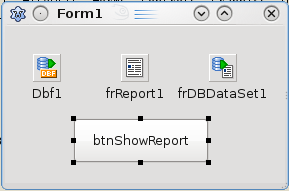
- Right Click frReport1 and select "Design Report" from the menu, LazReport report designer will appear.
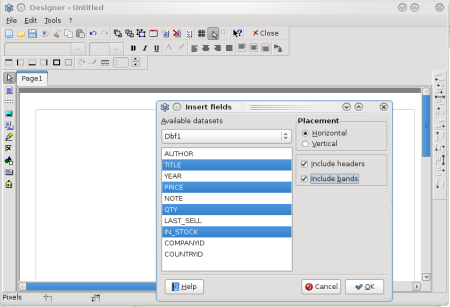
- From Designer window, select menu Tools->Tools->Insert DB Fields, Insert fields Dialog will appear.
- In field list select the fields you want in the report
- Check "Include Headers" and "Include Bands" options, the result should be something like this:
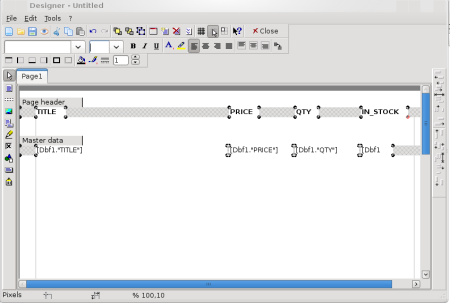
- Press the "Ok" button, LazReport will arrange bands and fields like this:
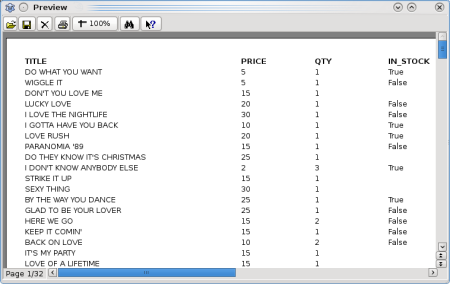
- Press the preview button
 , LazReport will then arrange things and show:
- Save the report with Menu File->Save, select the same directory as the current project and name it as listing1.lrf
- Close the report designer.
- Double click btnShowReport and type the following code:
 frReport1.LoadFromFile('listing1.lrf');
 frReport1.ShowReport;
Bug reports
Please report problems using the lazarus/freepascal bugtracker, project: "Lazarus Packages", Category "LazReport".
For patches, please submit a bug report and attach the patch to it.
From the Free Pascal wiki, page "LazReport Documentation", as it stood on 2022-02-05 after a change by Slawek, out of the wiki's dump of 2024-05-26. Copyright stays with the author who wrote it, according to the old wiki's Licensing page. If you have concerns about this material, message the admin.
Talk about this page
Nobody has opened a bench for this page yet. Sign in to open one.