

LazPaint Windows: what changed
Revision 1 to 2. Removed lines have a minus sign; added lines have a plus sign.
| Old | New | Line | |
|---|---|---|---|
| 1 | 1 | There are several floating windows giving easy access to the features of the program. | |
| 2 | 2 | ||
| 3 | 3 | **Windows can be shown and hidden using the View menu.** | |
| 4 | 4 | ||
| 5 | 5 | ### Layer stack window | |
| 6 | 6 | ||
| 7 | - | ||
| 8 | - | ||
| 9 | - | ||
| 10 | - | ||
| 11 | - | ||
| 12 | - | ||
| 13 | - | ||
| 14 | - | ||
| 15 | - | ||
| 16 | - | ||
| 17 | - | ||
| 18 | - | ||
| 19 | - | ||
| 20 | - | ||
| 7 | + | 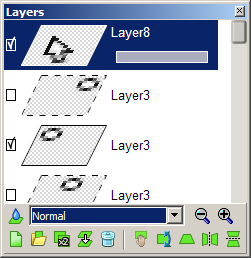 | |
| 21 | 8 | ||
| 22 | 9 | ||
| 23 | 10 | ||
| 24 | - | ||
| 25 | - | ||
| 26 | - | ||
| 27 | - | ||
| 28 | 11 | This window displays the layers of the current image. Each layer has a checkbox that determines if it is visible. When a layer is selected, it is possible to change its opacity using the opacity bar under the name of the layer. To rename a layer, simply click on its name. | |
| 29 | 12 | ||
| 30 | 13 | Under the stack is a toolbar. On the first line, a button allows to select the blend mode visually in another window. Otherwise, you can select blend modes that you have already used in a dropdown. The zooming buttons allow to zoom the layer stack for example if you want to see more details in the image. | |
| 31 | 14 | ||
| 32 | 15 | The second line of the toolbar allows to add a new layer, import from a file, duplicate a layer, merge two layers and delete a layer. It also allows to act on a particular layer: to move it, rotate it, transform it into a perspective and flip it horizontally or vertically. | |
| 33 | 16 | ||
| 34 | - | ||
| 35 | - | ||
| 36 | - | ||
| 37 | - | ||
| 38 | - | ||
| 39 | - | ||
| 40 | 17 | ### Color window | |
| 41 | 18 | ||
| 42 | - | ||
| 43 | - | ||
| 44 | - | ||
| 45 | - | ||
| 46 | - | ||
| 47 | - | ||
| 48 | 19 | The color window enables a quick access to colors. The color wheel on the right displays colors with a certain lightness. This lightness can be adjusted with the vertical bar (Light). There is another bar on the far right to choose the opacity of the color, the top of the bar being opaque. | |
| 49 | 20 | ||
| 50 | 21 | At the bottom of the window, the color is described using hexadecimal notation and CSS name if available. The letter "a" stands of alpha, i.e, the opacity of the color. | |
| 51 | 22 | ||
| 52 | - | ||
| 53 | - | ||
| 54 | - | ||
| 55 | - | ||
| 56 | 23 | ||
| 57 | 24 | ||
| 58 | - | ||
| 59 | - | ||
| 60 | - | ||
| 61 | - | ||
| 62 | - | ||
| 63 | - | ||
| 64 | - | ||
| 65 | - | ||
| 66 | - | ||
| 67 | - | ||
| 68 | - | ||
| 69 | - | ||
| 70 | - | ||
| 71 | - | ||
| 72 | - | ||
| 73 | - | ||
| 25 | + | 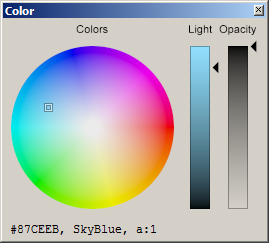 | |
| 74 | 26 | ||
| 75 | 27 | You can click on the color description a the bottom to type in the color you would like, either in hexadecimal or with a CSS name. The CSS notation rgb() is also accepted. | |
| 76 | 28 | ||
| 77 | - | ||
| 78 | - | ||
| 79 | - | ||
| 80 | - | ||
| 81 | 29 | ||
| 82 | 30 | ||
| 83 | - | ||
| 84 | - | ||
| 85 | - | ||
| 86 | - | ||
| 87 | - | ||
| 88 | - | ||
| 89 | - | ||
| 90 | - | ||
| 91 | - | ||
| 92 | - | ||
| 93 | - | ||
| 94 | - | ||
| 95 | - | ||
| 96 | - | ||
| 31 | + | 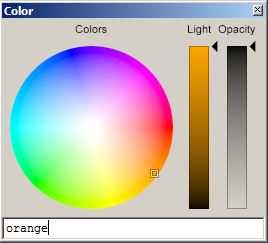 | |
| 97 | 32 | ||
| 98 | 33 | ### Toolbox window | |
| 99 | 34 | ||
| 100 | - | ||
| 101 | - | ||
| 102 | - | ||
| 103 | - | ||
| 35 | + | 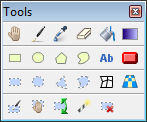 | |
| 104 | 36 | ||
| 105 | 37 | The toolbox contains both drawing tools and selection tools. Simply over with the mouse to have a hint about the tool. | |
| 106 | 38 | ||
| 107 | 39 | On the first line of the toolbox, you have: | |
| 108 | 40 | ||
| 109 | 41 | - the hand (moving where the image is displayed) | |
| 110 | 42 | - the pen (drawing with a rounded pen): select with in the main toolbar | |
| 111 | 43 | - the color picker | |
| 112 | 44 | - the eraser (erasing i.e. making transparent, or softening i.e. making blurry): select the mode you want from the main toolbar | |
| 113 | 45 | - the paint bucket (to fill an area): you can define the tolerance of the boundaries, as well as use the progressive flood fill mode or not. The progressive mode changes less and less the color as they become different from the initial color. | |
| 114 | 46 | - the gradient tool (select the gradient you would like in the main toolbar) | |
| 115 | 47 | ||
| 116 | 48 | The second line contains shapes to draw: rectangle, ellipse, polygon, curve, text and phong shaded shapes. Be sure to check all the options that appear in the main toolbar. | |
| 117 | 49 | ||
| 118 | 50 | The third line contains selection shapes and deformation tools. | |
| 119 | 51 | ||
| 120 | 52 | The final line contains actions on the selection: modify with the selection pen, move the selection, rotate it, use the magic wand selection and release the current selection. | |
| 121 | 53 | ||
| 122 | 54 | When you select a tool, its options appear in the main toolbar: | |
| 123 | 55 | ||
| 124 | - | ||
| 125 | - | ||
| 126 | - | ||
| 127 | - | ||
| 56 | + |  | |
| 128 | 57 | ||
| 129 | 58 | --- | |
| 130 | 59 | *From the Free Pascal wiki, page "LazPaint Windows", as it stood on 2017-03-16 after a change by Djzepi, out of the wiki's dump of 2024-05-26. Copyright stays with the author who wrote it, according to the old wiki's [[Licensing]] page. If you have concerns about this material, [message the admin](/wiki-contact).* |