

LazAutoUpdater: what changed
Revision 0 to 1. Removed lines have a minus sign; added lines have a plus sign.
Title: LazAutoUpdater
| Old | New | Line | |
|---|---|---|---|
| 1 | + | ## Summary | |
| 2 | + | ||
| 3 | + | - LazAutoUpdate is a visual drop-in component for the Lazarus/FPC IDE to make updating your application from an online source easier and smarter. | |
| 4 | + | - When making an app for distribution, coding an update process for users can be a bother, yet users appreciate the facility (so long as it's not forced on them!) and support is easier if you know that the user always has the most up-to-date version of your app. LazAutoUpdate is designed to integrate well with your SourceForge or GitHub version control ensuring a trouble-free experience for you and your users. | |
| 5 | + | - LazAutoUpdate downloads via a background thread so the user can continue using your app without interruption | |
| 6 | + | - This means for example, your app can 'check for updates' at startup without the app becoming unresponsive. | |
| 7 | + | - It is aimed at Lazarus Windows and Linux developers who host their project in SourceForge or GitHub. | |
| 8 | + | - Drop-in the component, set a couple of properties (your SourceForge project name, or some GitHub properties) and call one simple method: | |
| 9 | + | - **LazAutoUpdate.AutoUpdate** | |
| 10 | + | - You (the developer) have plenty of control over how the component behaves, yet it is simple to use. | |
| 11 | + | - End-users see the updating process as simple and transparent | |
| 12 | + | - Tested and developed in Windows 10 64/32-bit and Linux 64/32-bit | |
| 13 | + | ||
| 14 | + | 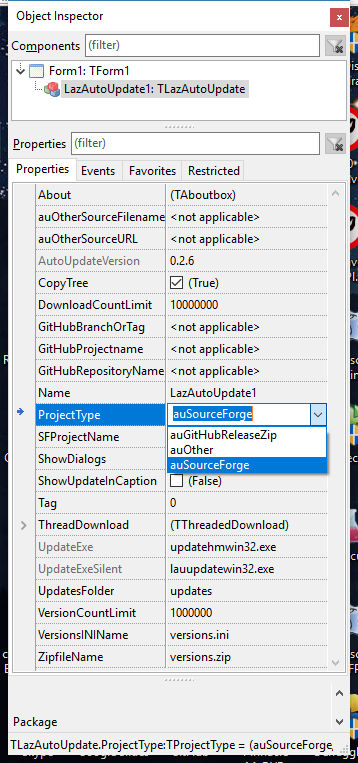 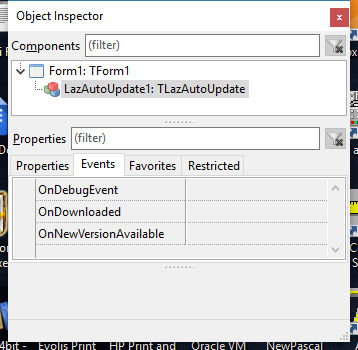 | |
| 15 | + | ||
| 16 | + | ------------------------------------------------------------------------ | |
| 17 | + | ||
| 18 | + | ## Download | |
| 19 | + | ||
| 20 | + | - LazAutoUpdate suite installer (Windows) or zip (Linux) can be downloaded from the [SourceForge project site](http://sourceforge.net/projects/lazautoupdate/) | |
| 21 | + | - The Lazarus OnlinePackager also contains LazAutoUpdate | |
| 22 | + | ||
| 23 | + | ------------------------------------------------------------------------ | |
| 24 | + | ||
| 25 | + | ## Installation | |
| 26 | + | ||
| 27 | + | - Download the Windows setup file or the linuxbinaries zip | |
| 28 | + | - Windows: Install, Linux: Unzip in a spare folder | |
| 29 | + | - Use the UpdatePack to make and distribute your update files | |
| 30 | + | - Use the LazAutoUpdate component to add update functionality to your Lazarus app | |
| 31 | + | - **You will need to distribute updatehm\<os\>(.exe) with your application for LazAutoUpdate to work correctly** | |
| 32 | + | - **Don't forget to set VersionInfo numbers in your Lazarus Project options** | |
| 33 | + | ||
| 34 | + | ------------------------------------------------------------------------ | |
| 35 | + | ||
| 36 | + | ## Example application | |
| 37 | + | ||
| 38 | + | - In the download package is the project 'TestApp' | |
| 39 | + | - Compile and run TestApp (remembering to compile+copy the appropriate console updater (updatehm_xxx) to the executable folder) | |
| 40 | + | - It should update itself 'out-of-the-box' | |
| 41 | + | - Check out the source code of TestApp to get an idea of how to use LazAutoUpdate to its full potential | |
| 42 | + | ||
| 43 | + | ------------------------------------------------------------------------ | |
| 44 | + | ||
| 45 | + | ## Internationalisation | |
| 46 | + | ||
| 47 | + | - i8n: LazAutoUpdate has a 'locale' folder with all the .po files needed for translation. The base language is English | |
| 48 | + | ||
| 49 | + | ------------------------------------------------------------------------ | |
| 50 | + | ||
| 51 | + | ## Use | |
| 52 | + | ||
| 53 | + | - Set a version number for your app in Project/Options/Versioninfo | |
| 54 | + | - Drop the component onto the main form of your application | |
| 55 | + | - Set the SFProjectName property to your SourceForge project name (the same text as appears in the URL for your project page) | |
| 56 | + | - or.. Set the GitHub properties: | |
| 57 | + | - GitHubProjectname: Username or Organisation | |
| 58 | + | - GitHubRepositoryName: Your project/repository | |
| 59 | + | - GitHubBranchOrTag: 'master' for the root or the GitHub Branch name **or** Tag name | |
| 60 | + | - In both cases set the UpdatesFolder to the location of your update files (you can leave it blank) | |
| 61 | + | - Use the UpdatePack to upload your app to the internet (SourceForge, GitHub etc) | |
| 62 | + | - **Then let the component take care of the details. Just use (perhaps as a Help menu item 'Check for updates')** | |
| 63 | + | ||
| 64 | + | ``` pascal | |
| 65 | + | LazAutoUpdate1.AutoUpdate; | |
| 66 | + | ``` | |
| 67 | + | ||
| 68 | + | - You don't want the user to close your application in the middle of an update! Use this code in the Form.CloseQuery handler: | |
| 69 | + | ||
| 70 | + | ``` pascal | |
| 71 | + | If LazAutoUpdate1.DownloadInProgress Then | |
| 72 | + | Begin | |
| 73 | + | CanClose := False; | |
| 74 | + | ShowMessage('Please wait. Download is still progress.'); | |
| 75 | + | End; | |
| 76 | + | ``` | |
| 77 | + | ||
| 78 | + | - After an update your app can show 'What's new' automatically. Put this line into your Form's OnShow event: | |
| 79 | + | ||
| 80 | + | ``` pascal | |
| 81 | + | LazAutoUpdate1.ShowWhatsNewIfAvailable; | |
| 82 | + | ``` | |
| 83 | + | ||
| 84 | + | - This gives you the 'bare bones' of the update code for your application. As you can see, it's all pretty automatic and simple. | |
| 85 | + | ||
| 86 | + | ### More control | |
| 87 | + | ||
| 88 | + | - Decide if you want your app to check for updates on startup. If so, in your form.activate handler: | |
| 89 | + | ||
| 90 | + | ``` pascal | |
| 91 | + | If LazAutoUpdate1.NewVersionAvailable Then | |
| 92 | + | MessageDlg(Application.Title, 'A new version of ' + Application.Title + | |
| 93 | + | ' is available.' + LineEnding + | |
| 94 | + | 'Click ''Check for new version'' in Help menu to update', mtConfirmation, | |
| 95 | + | [mbOK], 0); | |
| 96 | + | ``` | |
| 97 | + | ||
| 98 | + | - If you do not use the AutoUpdate method, you have control over the update process in stages via the functions: | |
| 99 | + | ||
| 100 | + | ``` pascal | |
| 101 | + | If LazAutoUpdate1.NewVersionAvailable then ..... else ... | |
| 102 | + | ``` | |
| 103 | + | ||
| 104 | + | ``` pascal | |
| 105 | + | If LazAutoUpdate1.DownloadNewVersion then ..... else ... | |
| 106 | + | ``` | |
| 107 | + | ||
| 108 | + | ``` pascal | |
| 109 | + | If LazAutoUpdate1.UpdateToNewVersion then ..... else ... | |
| 110 | + | ``` | |
| 111 | + | ||
| 112 | + | ### Debugging | |
| 113 | + | ||
| 114 | + | - If you set | |
| 115 | + | ||
| 116 | + | ``` pascal | |
| 117 | + | LazAutoUpdate1.DebugMode:=TRUE; | |
| 118 | + | ``` | |
| 119 | + | ||
| 120 | + | then you can use the built-in OnDebugEvent method to log activity: | |
| 121 | + | ||
| 122 | + | ``` pascal | |
| 123 | + | procedure TForm1.LazAutoUpdate1DebugEvent(Sender: TObject; lauMethodName, | |
| 124 | + | lauMessage: string); | |
| 125 | + | begin | |
| 126 | + | // Use TEventLog | |
| 127 | + | Logger.Info('('+lauMethodName+') - ' + lauMessage); | |
| 128 | + | end; | |
| 129 | + | ``` | |
| 130 | + | ||
| 131 | + | There are also events fired: OnDownloaded and OnNewVersionAvailable and the property LastError with info that you might use for debugging. | |
| 132 | + | ||
| 133 | + | ------------------------------------------------------------------------ | |
| 134 | + | ||
| 135 | + | ## Support | |
| 136 | + | ||
| 137 | + | - LazAutoUpdate is supported via the Lazarus forum [here](http://forum.lazarus.freepascal.org/index.php/topic,25444.0.html). | |
| 138 | + | ||
| 139 | + | ------------------------------------------------------------------------ | |
| 140 | + | ||
| 141 | + | ## License | |
| 142 | + | ||
| 143 | + | - LazaAutoUpdate: LGPLv2 (same as Lazarus components) | |
| 144 | + | - Update Pack: GPLv2 | |
| 145 | + | ||
| 146 | + | ------------------------------------------------------------------------ | |
| 147 | + | ||
| 148 | + | ## Deploying your Application with LazAutoUpdate | |
| 149 | + | ||
| 150 | + | - Use UpdatePack to manage the process. | |
| 151 | + | - UpdatePack is a GUI application that makes the update files accurately and quickly, and even gives you the corresponding LazAutoUpdate code for your app. | |
| 152 | + | - It uses 'profiles' that enable you to deploy future updates by simply updating the version number and clicking 'Create Update Pack'. | |
| 153 | + | - Your app users will benefit from having the latest version of your software always available | |
| 154 | + | - When testing, remember your testing app should be a lower version number than your 'update' app stored online :) | |
| 155 | + | - If you want to make up (or add to) the update zip yourself, it should contain the App **and** the text file 'whatsnew.txt' as a minimum. | |
| 156 | + | ||
| 157 | + | <figure> | |
| 158 | + | <img src="updatepack1.jpg" title="updatepack1.jpg" /> | |
| 159 | + | <figcaption>updatepack1.jpg</figcaption> | |
| 160 | + | </figure> | |
| 161 | + | ||
| 162 | + | <figure> | |
| 163 | + | <img src="updatepack2.jpg" title="updatepack2.jpg" /> | |
| 164 | + | <figcaption>updatepack2.jpg</figcaption> | |
| 165 | + | </figure> | |
| 166 | + | ||
| 167 | + | ------------------------------------------------------------------------ | |
| 168 | + | ||
| 169 | + | ## Using auOtherSourceFilename and auOtherSourceURL | |
| 170 | + | ||
| 171 | + | - When ProjectType is set to auOther, LazAutoUpdate will use these properties for all the Methods. See example application in the SVN archive. | |
| 172 | + | ||
| 173 | + | ------------------------------------------------------------------------ | |
| 174 | + | ||
| 175 | + | ## LazAutoUpdate Systray Application | |
| 176 | + | ||
| 177 | + | - This can be found in the /trayicon folder of the source. | |
| 178 | + | - When this is run, it sits in the system tray area and silently checks for updates via a schedule (developer and user configurable) | |
| 179 | + | - If it finds a new version it pops up a notification to the user to update: | |
| 180 | + | - If the app not running, the update is done silently in the background | |
| 181 | + | - If the app is running it closes it and then does the update. The app will then restart | |
| 182 | + | - Systray updater has a right-click menu: | |
| 183 | + | - Configure: | |
| 184 | + | - The user can edit the schedule - each app has a 'profile' | |
| 185 | + | - Runs at startup (Windows): | |
| 186 | + | - The systray loads silently at each Windows boot | |
| 187 | + | - Systray (lautraynotify) picks up entries from apps that use LazAutoupdate automatically, so it never needs to be configured - simply installed once and forgotten. | |
| 188 | + | - The schedule is flexible, from once every day to once every month | |
| 189 | + | - The UpdatePack takes care of producing the systray configuration file for your app. The default is to check every Monday at 9am. | |
| 190 | + | - The systray app works in both Windows and Linux - all you need to do is deploy it. | |
| 191 | + | ||
| 192 | + | ------------------------------------------------------------------------ | |
| 193 | + | ||
| 194 | + | ## Making a generic online installer/updater | |
| 195 | + | ||
| 196 | + | - Once a LazAutoUpdate component has been dropped onto a form, it can be used for multiple updates, downloads etc. (see '/testinstaller' in package source) | |
| 197 | + | - For a generic installer/updater you need to set: | |
| 198 | + | - VersionsINIFilename | |
| 199 | + | - ZipFilename | |
| 200 | + | - AppFileWithPath | |
| 201 | + | - AppVersion | |
| 202 | + | - By setting these properties dynamically (perhaps via a menu) you can enable the user to update multiple applications hosted on a SourceForge/GitHub project site (or any site using auOther settings - see above) | |
| 203 | + | ||
| 204 | + | - Here's example code to use LazAutoUpdate to download then run an application. | |
| 205 | + | - The zipped files for the application (including 'whatsnew.txt') and the file 'mywizzyapp.ini' are located in the /updates subdirectory of the SourceForge project 'mywizzy' | |
| 206 | + | - The executable 'updatehm(ostype)(.exe)' is in the same directory as your updater app | |
| 207 | + | - ostype=\[win32\|win64\|linux32\|linux64\] | |
| 208 | + | - Windows ext=(.exe) | |
| 209 | + | - The user would download a small InnoSetup installer with just the online installer/updater, which in turn would download application(s) and supporting files. | |
| 210 | + | - Of course, the "installer" could **be** your main application, with sister applications installable via a menu or some such. | |
| 211 | + | ||
| 212 | + | ``` pascal | |
| 213 | + | procedure TForm1.Button1Click(Sender: TObject); | |
| 214 | + | // Uses SysUtils,LazFileUtils,ulazautoupdate etc.. | |
| 215 | + | Var sDirectoryToInstallTo: string; | |
| 216 | + | begin | |
| 217 | + | sDirectoryToInstallTo := ProgramDirectory + 'installed'; | |
| 218 | + | Application.Title:='My whizzy app' | |
| 219 | + | LazAutoUpdate1.WorkingMode := lauInstall; | |
| 220 | + | LazAutoUpdate1.ProjectType := auSourceForge; | |
| 221 | + | LazAutoUpdate1.SFProjectname:='mywizzy'; | |
| 222 | + | LazAutoUpdate1.VersionsININame:='mywizzyapp.ini'; | |
| 223 | + | LazAutoUpdate1.ZipfileName:='mywizzyapp.zip'; | |
| 224 | + | LazAutoUpdate1.AppFileWithPath := sDirectoryToInstallTo + DirectorySeparator + 'mywizzyapp.exe'; | |
| 225 | + | // Our responsibility to make the folder | |
| 226 | + | if not DirectoryExistsUTF8(sDirectoryToInstallTo) then ForceDirectoriesUTF8(sDirectoryToInstallTo); | |
| 227 | + | LazAutoUpdate1.Appversion:='0.0.0.0'; | |
| 228 | + | If LazAutoUpdate1.DownloadNewVersion then | |
| 229 | + | begin | |
| 230 | + | If LazAutoUpdate1.UpdateToNewVersion then | |
| 231 | + | begin | |
| 232 | + | LazAutoUpdate1.ShortCut.Category := scUtility; | |
| 233 | + | LazAutoUpdate1.ShortCut.Target := LazAutoUpdate1.AppFileWithPath; | |
| 234 | + | LazAutoUpdate1.ShortCut.ShortcutName := Application.Title; | |
| 235 | + | LazAutoUpdate1.MakeShortCut; // makes a desktop shortcut and a Start menu entry in Windows | |
| 236 | + | end; | |
| 237 | + | end; | |
| 238 | + | end; | |
| 239 | + | ``` | |
| 240 | + | ||
| 241 | + | - You can then programatically run the installed app easily enough: | |
| 242 | + | ||
| 243 | + | ``` pascal | |
| 244 | + | // Uses asyncprocess | |
| 245 | + | procedure TForm1.RunInstalledApp; | |
| 246 | + | var | |
| 247 | + | AProcess: TAsyncProcess; | |
| 248 | + | begin | |
| 249 | + | if not FileExistsUTF8(LazAutoUpdate1.AppFileWithPath) then | |
| 250 | + | begin | |
| 251 | + | ShowMessageFmt('%s does not exist! Install it first.', | |
| 252 | + | [LazAutoUpdate1.AppFileWithPath]); | |
| 253 | + | Exit; | |
| 254 | + | end; | |
| 255 | + | AProcess := TAsyncProcess.Create(nil); | |
| 256 | + | try | |
| 257 | + | AProcess.Executable := LazAutoUpdate1.AppFileWithPath; | |
| 258 | + | AProcess.Execute; | |
| 259 | + | finally | |
| 260 | + | Aprocess.Free; | |
| 261 | + | end; | |
| 262 | + | end; | |
| 263 | + | ``` | |
| 264 | + | ||
| 265 | + | ------------------------------------------------------------------------ | |
| 266 | + | ||
| 267 | + | ## Public Methods List | |
| 268 | + | ||
| 269 | + | - Function NewVersionAvailable: Boolean; | |
| 270 | + | - Function DownloadNewVersion: Boolean; | |
| 271 | + | - Function UpdateToNewVersion: Boolean; | |
| 272 | + | - Procedure ShowWhatsNewIfAvailable; | |
| 273 | + | - Procedure AutoUpdate; | |
| 274 | + | - function AppIsActive | |
| 275 | + | - procedure ResetAppVersion; | |
| 276 | + | ||
| 277 | + | ------------------------------------------------------------------------ | |
| 278 | + | ||
| 279 | + | ## Non-published Properties list | |
| 280 | + | ||
| 281 | + | - GUIOnlineVersion: String | |
| 282 | + | - ReturnCode: Integer | |
| 283 | + | - DownloadInprogress: Boolean | |
| 284 | + | - AppFileWithPath: String | |
| 285 | + | - AppVersion: String | |
| 286 | + | - LastError: String; | |
| 287 | + | - DebugMode: boolean | |
| 288 | + | - LCLVersion: string | |
| 289 | + | - WidgetSet: string | |
| 290 | + | - FPCVersion: string | |
| 291 | + | - LastCompiled: string | |
| 292 | + | - TargetOS: string | |
| 293 | + | - WindowsAdminCheck: boolean | |
| 294 | + | ||
| 295 | + | ------------------------------------------------------------------------ | |
| 296 | + | ||
| 297 | + | ## Deploying multiple updates in a single project | |
| 298 | + | ||
| 299 | + | - By default, the ZipFilename is the same as your application, but you can set it to a unique value, and deploy it to your Online Files/updates irectory | |
| 300 | + | - Each application to be updated should have a unique name for the versions.ini file. Set the VersionsINIFilename property. | |
| 301 | + | ||
| 302 | + | ------------------------------------------------------------------------ | |
| 303 | + | ||
| 304 | + | ## In case the download takes to long | |
| 305 | + | ||
| 306 | + | - VersionCountLimit property determines how long LazAutoUpdate will check for a new version before timing out. | |
| 307 | + | - DownloadCountLimit property determines how long LazAutoUpdate will try downloading the new version before timing out. | |
| 308 | + | ||
| 309 | + | ------------------------------------------------------------------------ | |
| 310 | + | ||
| 311 | + | ## Versions.ini | |
| 312 | + | ||
| 313 | + | The format is as follows: | |
| 314 | + | ||
| 315 | + | `;LazAutoUpdate versions file`\ | |
| 316 | + | `[versions]`\ | |
| 317 | + | `GUI=0.0.2` | |
| 318 | + | ||
| 319 | + | - The file is small so that it is very quick to download | |
| 320 | + | ||
| 321 | + | ------------------------------------------------------------------------ | |
| 322 | + | ||
| 323 | + | ## Source Code and latest versions | |
| 324 | + | ||
| 325 | + | - [Project Page](https://sourceforge.net/projects/lazautoupdate/) | |
| 326 | + | - [SVN HTTP Checkout](https://svn.code.sf.net/p/lazarus-ccr/svn/components/lazautoupdate/latest_stable) | |
| 327 | + | ||
| 328 | + | ------------------------------------------------------------------------ | |
| 329 | + | ||
| 330 | + | ## Security | |
| 331 | + | ||
| 332 | + | ### Windows 10 | |
| 333 | + | ||
| 334 | + | - Windows 10 security will not allow a non-admin user to update applications from the internet (unless it's a Windows Store App). This is a sensible policy in my opinion, and LazAutoUpdate adheres to it. | |
| 335 | + | - If an 'ordinary user' tries to update an app using LazAutoUpdate, all will go smoothly until the final 'Update app' phase. At that point LazAutoUpdate will pop up a dialog informing the user that an administrator account is needed for the actual update. | |
| 336 | + | - For an 'admin user', LazAutoUpdate will pop up a UAC dialog (the same as any installer) and proceed upon clicking 'yes' to do the update. | |
| 337 | + | - If you wish to circumvent this (perhaps with a manifest) LazAutoUpdate has the public property 'WindowsAdminCheck' which you can set to FALSE and avoid the dialog. | |
| 338 | + | ||
| 339 | + | ### Linux | |
| 340 | + | ||
| 341 | + | - Linux will do the update without even showing the update console, and the user gets a seamless experience. | |
| 342 | + | ||
| 343 | + | ------------------------------------------------------------------------ | |
| 344 | + | ||
| 345 | + | ## Workflow | |
| 346 | + | ||
| 347 | + | (Technical explanation) | |
| 348 | + | ||
| 349 | + | The Lazarus Auto-Updater workflow for updating a running application is as follows: | |
| 350 | + | ||
| 351 | + | - App downloads a small 'version.ini' file from sourceforge or github with version info (it can do this at start-up) | |
| 352 | + | - App compares with its own internal version | |
| 353 | + | - If new version available | |
| 354 | + | - App deletes any contents of local /updates folder | |
| 355 | + | - App downloads then unzips it from the web into a local /updates folder | |
| 356 | + | - App uses TAsyncProcess to start the console updater.exe, passing it the name of the file to be updated in the command line | |
| 357 | + | - updater.exe copies a downloaded 'whatsnew.txt' into the App folder and enters Sleep for a few seconds | |
| 358 | + | - Meanwhile App has entered loop checking whether a 'whatsnew.txt' file has been copied into it's directory | |
| 359 | + | - App detects 'whatsnew.txt' and Closes. (in other words the TProcess has started successfully) | |
| 360 | + | - Updater copies /updates/UpdatedApp to App directory. | |
| 361 | + | - Updater uses TProcess to start the updated app | |
| 362 | + | - On Form.Show, App displays 'whatsnew.txt' then deletes it | |
| 363 | + | ||
| 364 | + | The User sees: | |
| 365 | + | ||
| 366 | + | - Dialog: 'There's a new version of xxx available. Would you like to download it?' Yes/No | |
| 367 | + | - If Yes clicked: | |
| 368 | + | - Download happens in the background (via a background thread) Optional 'download counter' is shown to indicate progress. | |
| 369 | + | - User is prevented from closing the app whilst the download is in progress (in Form.CloseQuery) | |
| 370 | + | - Dialog: 'The update is downloaded. Click OK to install it and restart xxx now' OK | |
| 371 | + | - User clicks OK | |
| 372 | + | - A console (DOS window in Windows) opens automatically and the Application closes. The console says 'Please wait updating xxx' | |
| 373 | + | - After a couple of seconds the console disappears, and the new version of the App starts | |
| 374 | + | - As soon as the main window is shown, a 'What's New' info box is shown with an OK button | |
| 375 | + | - User clicks OK button, and never sees the info again | |
| 376 | + | ||
| 377 | + | ------------------------------------------------------------------------ | |
| 378 | + | ||
| 379 | + | Minesadorada | |
| 380 | + | ||
| 381 | + | --- | |
| 382 | + | *From the Free Pascal wiki, page "LazAutoUpdater", as it stood on 2022-01-07 after a change by FTurtle, out of the wiki's dump of 2024-05-26. Copyright stays with the author who wrote it, according to the old wiki's [[Licensing]] page. If you have concerns about this material, [message the admin](/wiki-contact).* |