

LCL Tips: what changed
Revision 1 to 2. Removed lines have a minus sign; added lines have a plus sign.
| Old | New | Line | |
|---|---|---|---|
| 1 | 1 | ## Creating a GUI by code | |
| 2 | 2 | ||
| 3 | 3 | It is possible to create the [[Overview of Free Pascal and Lazarus|GUI]] (Graphical User Interface) code completely by pascal code in Lazarus. Everything accessible from the IDE is also accessible by code. The example program and unit files below (codegui.lpr and mainform.pas) give you a template you can adapt. The most important part is not forgetting to set the [[Parent]] property of the components. The creation of controls inside the form is best done in the constructor of the form: | |
| 4 | 4 | ||
| 5 | 5 | Main program file: | |
| 6 | 6 | ||
| 7 | 7 | ``` pascal | |
| 8 | 8 | program codedgui; | |
| 9 | 9 | ||
| 10 | 10 | {$MODE DELPHI}{$H+} | |
| 11 | 11 | ||
| 12 | 12 | uses | |
| 13 | 13 | Interfaces, Forms, StdCtrls, | |
| 14 | 14 | MainForm; | |
| 15 | 15 | ||
| 16 | 16 | var | |
| 17 | 17 | MyForm: TMyForm; | |
| 18 | 18 | begin | |
| 19 | 19 | Application.Initialize; | |
| 20 | 20 | Application.CreateForm(TMyForm, MyForm); | |
| 21 | 21 | Application.Run; | |
| 22 | 22 | end. | |
| 23 | 23 | ``` | |
| 24 | 24 | ||
| 25 | 25 | And a unit containing a form: | |
| 26 | 26 | ||
| 27 | 27 | ``` pascal | |
| 28 | 28 | unit mainform; | |
| 29 | 29 | ||
| 30 | 30 | {$MODE DELPHI}{$H+} | |
| 31 | 31 | ||
| 32 | 32 | interface | |
| 33 | 33 | ||
| 34 | 34 | uses Forms, StdCtrls; | |
| 35 | 35 | ||
| 36 | 36 | type | |
| 37 | 37 | TMyForm = class(TForm) | |
| 38 | 38 | public | |
| 39 | 39 | MyButton: TButton; | |
| 40 | 40 | procedure ButtonClick(ASender: TObject); | |
| 41 | 41 | constructor Create(AOwner: TComponent); override; | |
| 42 | 42 | end; | |
| 43 | 43 | ||
| 44 | 44 | implementation | |
| 45 | 45 | ||
| 46 | 46 | procedure TMyForm.ButtonClick(ASender:TObject); | |
| 47 | 47 | begin | |
| 48 | 48 | Close; | |
| 49 | 49 | end; | |
| 50 | 50 | ||
| 51 | 51 | constructor TMyForm.Create(AOwner: TComponent); | |
| 52 | 52 | begin | |
| 53 | 53 | inherited Create(AOwner); | |
| 54 | 54 | //Hint: FormCreate() is called BEFORE Create() ! | |
| 55 | 55 | //so You can also put this code into FormCreate() | |
| 56 | 56 | //(This is not the case when creating components ..) | |
| 57 | 57 | ||
| 58 | 58 | Position := poScreenCenter; | |
| 59 | 59 | Height := 400; | |
| 60 | 60 | Width := 400; | |
| 61 | 61 | ||
| 62 | 62 | VertScrollBar.Visible := False; | |
| 63 | 63 | HorzScrollBar.Visible := False; | |
| 64 | 64 | ||
| 65 | 65 | MyButton := TButton.Create(Self); | |
| 66 | 66 | with MyButton do | |
| 67 | 67 | begin | |
| 68 | 68 | Height := 30; | |
| 69 | 69 | Left := 100; | |
| 70 | 70 | Top := 100; | |
| 71 | 71 | Width := 100; | |
| 72 | 72 | Caption := 'Close'; | |
| 73 | 73 | OnClick := ButtonClick; | |
| 74 | 74 | Parent := Self; | |
| 75 | 75 | end; | |
| 76 | 76 | ||
| 77 | 77 | // Add other component creation and property setting code here | |
| 78 | 78 | end; | |
| 79 | 79 | ||
| 80 | 80 | end. | |
| 81 | 81 | ``` | |
| 82 | 82 | ||
| 83 | 83 | ## Create controls manually without overhead | |
| 84 | 84 | ||
| 85 | 85 | ### Set the Parent as last | |
| 86 | 86 | ||
| 87 | 87 | **For Delphians**: Contrary to Delphi the LCL (Lazarus Component Library) allows you to set nearly all properties in any order. For example under Delphi you cannot position a control if it has no parent. The LCL allows this and this feature can be used to reduce overhead. | |
| 88 | 88 | ||
| 89 | 89 | ``` pascal | |
| 90 | 90 | with TButton.Create(Form1) do begin | |
| 91 | 91 | // 1. creating a button sets the default size | |
| 92 | 92 | // 2. change position. No side effects, because Parent=nil | |
| 93 | 93 | SetBounds(10,10,Width,Height); | |
| 94 | 94 | // 3. change size depending on theme. Not yet, because Parent=nil | |
| 95 | 95 | AutoSize:=true; | |
| 96 | 96 | // 4. changing size because of AutoSize=true. Not yet, because Parent=nil | |
| 97 | 97 | Caption:='Ok'; | |
| 98 | 98 | // 5. Set Parent. Now all the above takes place, but in a single action. | |
| 99 | 99 | Parent:=Form1; | |
| 100 | 100 | end; | |
| 101 | 101 | ``` | |
| 102 | 102 | ||
| 103 | 103 | When a control has a Parent, then all properties take effect immediately. Without a Parent many properties do nothing more than store the value. And as soon as the Parent is set every property is applied. This is especially true for grand children: | |
| 104 | 104 | ||
| 105 | 105 | ``` pascal | |
| 106 | 106 | GroupBox1:=TGroupBox.Create(Self); | |
| 107 | 107 | with GroupBox1 do begin | |
| 108 | 108 | with TButton1.Create(Self) do begin | |
| 109 | 109 | AutoSize:=true; | |
| 110 | 110 | Caption:='Click me'; | |
| 111 | 111 | Parent:=GroupBox1; | |
| 112 | 112 | end; | |
| 113 | 113 | Parent:=Form1; | |
| 114 | 114 | end; | |
| 115 | 115 | Form1.Show; | |
| 116 | 116 | ``` | |
| 117 | 117 | ||
| 118 | 118 | Autosizing starts only after every parent is set up and the form becomes visible. | |
| 119 | 119 | ||
| 120 | 120 | ### Avoid early Handle creation | |
| 121 | 121 | ||
| 122 | 122 | As soon as the Handle of a TWinControl is created, every change of a property changes the visual thing (called the widget). Even if a control is not visible, when it has a Handle, changes are still expensive. | |
| 123 | 123 | ||
| 124 | 124 | ### Use SetBounds instead of Left, Top, Width, Height | |
| 125 | 125 | ||
| 126 | 126 | Instead of | |
| 127 | 127 | ||
| 128 | 128 | ``` pascal | |
| 129 | 129 | with Button1 do begin | |
| 130 | 130 | Left:=10; | |
| 131 | 131 | Top:=10; | |
| 132 | 132 | Width:=100; | |
| 133 | 133 | Height:=25; | |
| 134 | 134 | end; | |
| 135 | 135 | ``` | |
| 136 | 136 | ||
| 137 | 137 | Use | |
| 138 | 138 | ||
| 139 | 139 | ``` pascal | |
| 140 | 140 | with Button1 do begin | |
| 141 | 141 | SetBounds(10,10,100,25); | |
| 142 | 142 | end; | |
| 143 | 143 | ``` | |
| 144 | 144 | ||
| 145 | 145 | Left, Top, Width, Height are calling SetBounds. And every change of position or size invokes recalculation of all sibling controls and maybe recursively the parent and/or the grandchild controls. | |
| 146 | 146 | ||
| 147 | 147 | ## DisableAlign / EnableAlign | |
| 148 | 148 | ||
| 149 | 149 | When positioning many controls, it is a good idea to disable the recalculation of all auto sizing, aligning, anchoring. | |
| 150 | 150 | ||
| 151 | 151 | ``` pascal | |
| 152 | 152 | DisableAlign; | |
| 153 | 153 | try | |
| 154 | 154 | ListBox1.Width:=ClientWidth div 3; | |
| 155 | 155 | ListBox2.Width:=ClientWidth div 3; | |
| 156 | 156 | ListBox3.Width:=ClientWidth div 3; | |
| 157 | 157 | finally | |
| 158 | 158 | EnableAlign; | |
| 159 | 159 | end; | |
| 160 | 160 | ``` | |
| 161 | 161 | ||
| 162 | 162 | **Note**: Every DisableAlign call needs an EnableAlign call. For example if you call DisableAlign two times, you must call EnableAlign twice as well. | |
| 163 | 163 | ||
| 164 | 164 | **For Delphians**: This works recursively. That means DisableAlign stops aligning in all child and grandchild controls. | |
| 165 | 165 | ||
| 166 | 166 | ## Creating a non-rectangular window or control | |
| 167 | 167 | ||
| 168 | 168 | One can easily create non-rectangular windows or controls in Lazarus. For this, one can simply call TWinControl.SetShape, with the visible region as a parameter. Note that this will work for both windows and controls, as both TCustomForm and TCustomControl descend from TWinControl. One can also call the LCLIntf routine SetWindowRgn, which is completely equivalent to calling the SetShape method. | |
| 169 | 169 | ||
| 170 | 170 | Using SetWindowRgn the code will be similar to this: | |
| 171 | 171 | ||
| 172 | 172 | ``` pascal | |
| 173 | 173 | uses LCLIntf, LCLType; | |
| 174 | 174 | ||
| 175 | 175 | procedure TForm1.FormCreate(Sender: TObject); | |
| 176 | 176 | var | |
| 177 | 177 | MyRegion: HRGN; | |
| 178 | 178 | begin | |
| 179 | 179 | MyRegion := CreateRectRgn(0, 0, 100, 100); | |
| 180 | 180 | SetWindowRgn(Handle, MyRegion, True); | |
| 181 | 181 | DeleteObject(MyRegion); | |
| 182 | 182 | end; | |
| 183 | 183 | ``` | |
| 184 | 184 | ||
| 185 | 185 | An equivalent code, which uses a higher level TRegion object available in Lazarus 0.9.31+ (note that the previous way of doing things is still supported and will be in the future too), is: | |
| 186 | 186 | ||
| 187 | 187 | ``` pascal | |
| 188 | 188 | uses Graphics; | |
| 189 | 189 | ||
| 190 | 190 | procedure TForm1.FormCreate(Sender: TObject); | |
| 191 | 191 | var | |
| 192 | 192 | MyRegion: TRegion; | |
| 193 | 193 | begin | |
| 194 | 194 | MyRegion := TRegion.Create; | |
| 195 | 195 | try | |
| 196 | 196 | MyRegion.AddRectangle(0, 0, 100, 100); | |
| 197 | 197 | Self.SetShape(MyRegion); | |
| 198 | 198 | finally | |
| 199 | 199 | MyRegion.Free; | |
| 200 | 200 | end; | |
| 201 | 201 | end; | |
| 202 | 202 | ``` | |
| 203 | 203 | ||
| 204 | 204 | The result of this operation in a window in macOS using the Qt widgetset can be seen here: | |
| 205 | 205 | ||
| 206 | - | ||
| 207 | - | ||
| 208 | - | ||
| 209 | - | ||
| 206 | + | 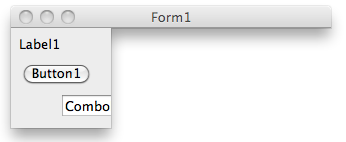 | |
| 210 | 207 | ||
| 211 | 208 | Note that SetShape can also accept a TBitmap to describe the transparent region. | |
| 212 | 209 | ||
| 213 | 210 | See also: | |
| 214 | 211 | ||
| 215 | 212 | - [[LCL Internals|LCL_Internals#Shaped_Windows]] | |
| 216 | 213 | ||
| 217 | 214 | Documentation entries: | |
| 218 | 215 | ||
| 219 | 216 | - <http://lazarus-ccr.sourceforge.net/docs/lcl/lclintf/setwindowrgn.html> | |
| 220 | 217 | - <http://lazarus-ccr.sourceforge.net/docs/lcl/controls/twincontrol.setshape.html> | |
| 221 | 218 | ||
| 222 | 219 | Limitations: | |
| 223 | 220 | ||
| 224 | 221 | In Gtk2 a region can only be set after a window is realized. Calling SetWindowRgn in the OnShow event handler doesn't work, the only way seems to be to call it from a timer set with interval 1, for example. Enable the timer in Form.OnShow and disable it in it's OnTimer handler. | |
| 225 | 222 | ||
| 226 | 223 | ## Simulating Mouse and Keyboard input | |
| 227 | 224 | ||
| 228 | 225 | It is very easy to simulate mouse and keyboard input in the LCL, just use the routines from the unit LCLMessageGlue like all widgetset interfaces do. This unit has routines like: | |
| 229 | 226 | ||
| 230 | 227 | ``` pascal | |
| 231 | 228 | unit LCLMessageGlue; | |
| 232 | 229 | ||
| 233 | 230 | function LCLSendMouseMoveMsg(const Target: TControl; XPos, YPos: smallint; | |
| 234 | 231 | ShiftState: TShiftState = []): PtrInt; | |
| 235 | 232 | function LCLSendMouseDownMsg(const Target: TControl; XPos, YPos: smallint; | |
| 236 | 233 | Button: TMouseButton; ShiftState: TShiftState = []): PtrInt; | |
| 237 | 234 | function LCLSendMouseUpMsg(const Target: TControl; XPos, YPos: smallint; | |
| 238 | 235 | Button: TMouseButton; ShiftState: TShiftState = []): PtrInt; | |
| 239 | 236 | function LCLSendMouseWheelMsg(const Target: TControl; XPos, YPos, WheelDelta: smallint; | |
| 240 | 237 | ShiftState: TShiftState = []): PtrInt; | |
| 241 | 238 | function LCLSendCaptureChangedMsg(const Target: TControl): PtrInt; | |
| 242 | 239 | function LCLSendSelectionChangedMsg(const Target: TControl): PtrInt; | |
| 243 | 240 | function LCLSendClickedMsg(const Target: TControl): PtrInt; | |
| 244 | 241 | function LCLSendMouseEnterMsg(const Target: TControl): PtrInt; | |
| 245 | 242 | function LCLSendMouseLeaveMsg(const Target: TControl): PtrInt; | |
| 246 | 243 | ... | |
| 247 | 244 | function LCLSendKeyDownEvent(const Target: TControl; var CharCode: word; | |
| 248 | 245 | KeyData: PtrInt; BeforeEvent, IsSysKey: boolean): PtrInt; | |
| 249 | 246 | function LCLSendKeyUpEvent(const Target: TControl; var CharCode: word; | |
| 250 | 247 | KeyData: PtrInt; BeforeEvent, IsSysKey: boolean): PtrInt; | |
| 251 | 248 | ``` | |
| 252 | 249 | ||
| 253 | 250 | ## Showing the Virtual Keyboard in Smartphones/tablets | |
| 254 | 251 | ||
| 255 | 252 | To show the virtual keyboard when a widget receives focus just add the csRequiresKeyboardInput ControlStyle: | |
| 256 | 253 | ||
| 257 | 254 | ``` pascal | |
| 258 | 255 | constructor TMyTextEditor.Create(AOwner : TComponent); | |
| 259 | 256 | begin | |
| 260 | 257 | inherited Create(AOwner); | |
| 261 | 258 | ControlStyle := ControlStyle + [csRequiresKeyboardInput]; | |
| 262 | 259 | ... | |
| 263 | 260 | end; | |
| 264 | 261 | ``` | |
| 265 | 262 | ||
| 266 | - | ||
| 267 | - | ||
| 268 | - | ||
| 269 | - | ||
| 263 | + | 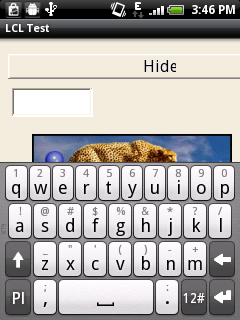 | |
| 270 | 264 | ||
| 271 | 265 | ## Iterating through all child controls of a TWinControl | |
| 272 | 266 | ||
| 273 | 267 | This is very easy, just use a loop to iterate over TWinControl.ControlCount and TWinControl.Controls\[Index\]. The index is zero based. | |
| 274 | 268 | ||
| 275 | 269 | ``` pascal | |
| 276 | 270 | procedure TWinControl.WriteLayoutDebugReport(const Prefix: string); | |
| 277 | 271 | var | |
| 278 | 272 | i: Integer; | |
| 279 | 273 | begin | |
| 280 | 274 | inherited WriteLayoutDebugReport(Prefix); | |
| 281 | 275 | for i:=0 to ControlCount-1 do | |
| 282 | 276 | Controls[i].WriteLayoutDebugReport(Prefix+' '); | |
| 283 | 277 | end; | |
| 284 | 278 | ``` | |
| 285 | 279 | ||
| 286 | 280 | ## Responding only once to an event | |
| 287 | 281 | ||
| 288 | 282 | Sometimes one wants an event handler to be called just once. Say, for example, that you want to do something only the first time a form is activated, once the form and all its controls are fully loaded (which might not be the case when OnCreate is fired). | |
| 289 | 283 | ||
| 290 | 284 | The solution is easy: simply set the corresponding property to Nil at the beginning of the handler: | |
| 291 | 285 | ||
| 292 | 286 | ``` pascal | |
| 293 | 287 | procedure TMyForm.FormActivate(const Sender: TObject); | |
| 294 | 288 | begin | |
| 295 | 289 | OnActivate := Nil; | |
| 296 | 290 | {... rest of the code here ...} | |
| 297 | 291 | end; | |
| 298 | 292 | ``` | |
| 299 | 293 | ||
| 300 | 294 | and the event handler won't be called again. | |
| 301 | 295 | ||
| 302 | 296 | --- | |
| 303 | 297 | *From the Free Pascal wiki, page "LCL Tips", as it stood on 2020-07-31 after a change by Trev, out of the wiki's dump of 2024-05-26. Copyright stays with the author who wrote it, according to the old wiki's [[Licensing]] page. If you have concerns about this material, [message the admin](/wiki-contact).* |