

Installing Lazarus on macOS: what changed
Revision 1 to 2. Removed lines have a minus sign; added lines have a plus sign.
| Old | New | Line | |
|---|---|---|---|
| 1 | 1 | Installing Lazarus on a Mac is not particularly difficult but it is critical that you do the install in the correct order. Skipping steps will almost certainly end in tears. In brief, here is what you need to do: | |
| 2 | 2 | ||
| 3 | 3 | 1. Download and install Xcode (optional depending on your needs - see below for details). | |
| 4 | 4 | 2. Install the global command line tools for Xcode. Definitely required. | |
| 5 | 5 | 3. Download and install the Free Pascal Compiler (FPC) binaries package and the FPC source package from the [Lazarus IDE file area](https://sourceforge.net/projects/lazarus/files/) (**Important** do this *before* you install the Lazarus IDE) | |
| 6 | 6 | 4. Download and install the Lazarus IDE from the [Lazarus IDE file area](https://sourceforge.net/projects/lazarus/files/) or, perhaps more useful, download and compile Lazarus source code, eg [Lazarus Fixes 3.0](https://gitlab.com/freepascal.org/lazarus/lazarus/-/tree/fixes_3_0?ref_type=heads) | |
| 7 | 7 | 5. Configure LLDB - the Apple supplied (and signed) debugger from within the Lazarus IDE. | |
| 8 | 8 | ||
| 9 | 9 | These steps are explained in more detail below. | |
| 10 | 10 | ||
| 11 | 11 | ## Installation | |
| 12 | 12 | ||
| 13 | 13 | The detailed instructions assume a recent version of macOS on your Mac, a recent version of Xcode and/or Xcode command line tools from Apple and a recent version of Lazarus. On the Legacy Information page, you will see older information that may be relevant if you are using older components. You can assist by replacing out of date information, either deleting it, or, if it may help someone working with a legacy project, moving it to the [[Legacy Information: Installing Lazarus on Mac|legacy information]] page. | |
| 14 | 14 | ||
| 15 | 15 | In general, this is about using both the **Carbon** and **Cocoa** Widget Sets. While Carbon was once seen as a little more stable, with the release Lazarus 2.0.8 the 64 bit Cocoa Widget Set has now surpassed Carbon and should be considered seriously for any new projects. Carbon was intentionally limited to 32 bits by Apple and you should be aware that it and the ability to run 32 bit executables have been removed completely from macOS 10.15 Catalina and later versions which now only support 64 bit executables using Cocoa. | |
| 16 | 16 | ||
| 17 | 17 | ### Step 1: Download Xcode (optional) | |
| 18 | 18 | ||
| 19 | 19 | Xcode is a 12GB download which will take up 16GB of disk space. You **only** need to download and install the full Xcode development environment **if** you need: | |
| 20 | 20 | ||
| 21 | 21 | - the SDKs for **iOS**, **iPadOS**, watchOS and tvOS; or | |
| 22 | 22 | - to validate and upload apps to the Mac App Store; or | |
| 23 | 23 | - to [[Notarization for macOS 10.14.5+|notarise]] apps for distribution outside of the Mac App Store. | |
| 24 | 24 | ||
| 25 | 25 | Xcode 11.3.1 for use on macOS 10.14 Mojave must now be installed by downloading it from [Apple Developer Connection](http://developer.apple.com/) (ADC), which requires free registration. Xcode 12.4.x for use on macOS 10.15 Catalina and later versions can be installed from the [Mac App store](https://apps.apple.com/us/genre/mac-developer-tools/id12002?mt=12). Note that you must first move any old Xcode versions from the Applications folder into the trash or rename the Xcode app (eg Xcode.app to Xcode_1014.app). You can then select which version of Xcode to use with the command line utility `xcode-select`. Open an Applications \> Utilities \> Terminal and type `man xcode-select` for this utility's manual page. | |
| 26 | 26 | ||
| 27 | 27 | **Older systems:** | |
| 28 | 28 | ||
| 29 | 29 | The Xcode developer tools can be installed from the original macOS installation disks or a newer copy downloaded from the [Apple Developer Connection](http://developer.apple.com/) (ADC), which requires free registration. Download the Xcode file, it will end up in your Downloads directory as a zip file. Click it. It is unarchived into your Downloads directory. You may be happy with it there but maybe not. Other users will see the path to it but be unable to use it. And it is untidy there. So I moved mine and then told xcode-select where it was moved to (in a terminal) - | |
| 30 | 30 | ||
| 31 | 31 | ``` bash | |
| 32 | 32 | mv Downloads/Xcode.app /Developer/. | |
| 33 | 33 | sudo xcode-select -s /Developer/Xcode.app/Contents/Developer | |
| 34 | 34 | ``` | |
| 35 | 35 | ||
| 36 | 36 | ### Step 2: Xcode Command Line Tools | |
| 37 | 37 | ||
| 38 | 38 | This is shown here as a separate step because it really is a separate step. Don't confuse these standalone command line tools with the internal Xcode command line tools that the Xcode GUI will tell you are already installed if you installed the full Xcode package in Step 1. FPC cannot use those Xcode internal command line tools without configuration changes (see [[Xcode]] for details). | |
| 39 | 39 | ||
| 40 | 40 | Do the following, it is quick and easy for all macOS versions up to and including Catalina 10.15: | |
| 41 | 41 | ||
| 42 | 42 | ``` bash | |
| 43 | 43 | sudo xcode-select --install | |
| 44 | 44 | sudo xcodebuild -license accept | |
| 45 | 45 | ``` | |
| 46 | 46 | ||
| 47 | 47 | For Big Sur 11.x and later, you only need to enter the first of the two commands above unless you have also installed the full Xcode package. If you have only installed the command line tools, you should omit entering the *xcodebuild* command. | |
| 48 | 48 | ||
| 49 | 49 | If you have problems installing the command line tools using this command line method (eg the installer freezes while "finding Software"), you can also download and install the command line tools package by logging in to the [Apple Developer Site](https://developer.apple.com/download/more/?=for%20Xcode) and downloading and installing the *Command Line Tools for Xcode* disk image. | |
| 50 | 50 | ||
| 51 | 51 | ### Step 3: FPC binaries and FPC source code | |
| 52 | 52 | ||
| 53 | 53 | > **Note:** For Apple Silicon/AArch64/M1 installations, if you are installing FPC 3.2.2 (with Lazarus 2.2.0 or later) you don't need to compile a native Apple Silicon version of FPC because FPC 3.2.2 for macOS is a universal binary containing both Intel and aarch64 executables. If you are installing a version of FPC earlier than 3.2.2, then please refer to [[macOS Big Sur changes for developers|these instructions]] for building a native Apple Silicon Free Pascal Compiler after installing the 64 bit Intel binary and source packages for FPC. | |
| 54 | 54 | ||
| 55 | 55 | Download and install the official FPC binaries package and the separate FPC source package from the [Lazarus IDE file area](https://sourceforge.net/projects/lazarus/files/). | |
| 56 | 56 | ||
| 57 | 57 | When you arrive at the Lazarus IDE file area: | |
| 58 | 58 | ||
| 59 | 59 | 1. Choose the correct version of your operating system. The vast majority of Mac users should now choose the 64 bit packages in the Lazarus macOS x86-64 directory. Every Mac computer since late 2006 has been 64 bit capable and Apple has completely dropped all 32 bit support from macOS 10.15 Catalina and beyond. | |
| 60 | 60 | ||
| 61 | 61 | 1. Choose the version of Lazarus you wish to install and you will be presented with the two FPC binary and source packages to download. | |
| 62 | 62 | ||
| 63 | 63 | These installation packages are built by the FPC/Lazarus developers and track formal releases. As these installation packages are not approved by Apple, you need to hold down the Control key, click the package and choose Open and confirm you want to install from an Unknown Developer. | |
| 64 | 64 | ||
| 65 | 65 | You might like to try a simple and quick test of FPC at this stage - [[Installing the Free Pascal Compiler|Testing FPC installation]]. | |
| 66 | 66 | ||
| 67 | 67 | ### Step 4: Binary Install of the Lazarus IDE | |
| 68 | 68 | ||
| 69 | 69 | It is critical that a compatible Free Pascal Compiler (FPC) and its source be installed *before you install* the Lazarus IDE. | |
| 70 | 70 | ||
| 71 | 71 | > **Note:** there are two versions of this step. The first is to install a binary package that someone else has already compiled for you. As Lazarus evolves, especially so on the Mac, that may be a confining limitation. The second approach is to compile your own, you already have FPC installed and obviously intend to compile your own project, why not do the same for Lazarus ? This will get you access to the newer bug fixes, LCL code in your own disk space (avoiding many "read only" errors) and give you control of whats happening. | |
| 72 | 72 | ||
| 73 | 73 | **Binary Install** Download and install the Lazarus IDE from the [Lazarus IDE file area](https://sourceforge.net/projects/lazarus/files/). When you arrive at that file area, choose the correct version of your operating system. The vast majority of Mac users should now choose the 64 bit packages in the Lazarus macOS x86-64 directory. Every Mac computer since late 2006 has been 64 bit capable. The fact that Apple has completely dropped all 32 bit support from macOS 10.15 Catalina (released in October 2019) is another reason to choose the 64 bit packages. | |
| 74 | 74 | ||
| 75 | 75 | **Source Install** For installing from source, please refer to the Installing Lazarus from Source instructions below to build a native Lazarus IDE. This applies to both x86_64 and Apple Silicon/aarch64 systems. You can use this approach to install a release version, a Fixes version or the development version, "main". | |
| 76 | 76 | ||
| 77 | 77 | ### Step 5: Configure the Debugger | |
| 78 | 78 | ||
| 79 | 79 | In versions of Lazarus 1.8.4 and earlier, you needed to use `gdb` as a debugger, slow to install and hard to sign. Since Lazarus 2.0.0 you can (and should) use `lldb`, a debugger provided by Apple, no signing required. | |
| 80 | 80 | ||
| 81 | 81 | Assuming you have installed what is necessary and started Lazarus, all that remains is configuring the debugger. If you don't do this now, Lazarus will try to use `gdb` and fail. | |
| 82 | 82 | ||
| 83 | 83 | - Lazarus version 2.2.0: First, click Lazarus \> Preferences \> Debugger - Debugger Backend; | |
| 84 | 84 | ||
| 85 | 85 | - Lazarus before version 2.2.0: First, click Tools \> Options \> Debugger. | |
| 86 | 86 | ||
| 87 | 87 | Top right of the window now open has a label, "Debugger type and path", you must set both the type and the path. Select the type "LLDB debugger (with fpdebug) (Beta)" and select or type the path `/usr/bin/lldb`. | |
| 88 | 88 | ||
| 89 | - | ||
| 90 | - | ||
| 91 | - | ||
| 92 | - | ||
| 89 | + | 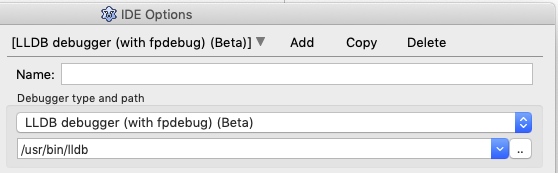 | |
| 93 | 90 | ||
| 94 | 91 | If "LLDB debugger (with fpdebug) (Beta)" is not shown in the selection list, see Installing LazDebuggerFpLLdb below. The XCode command line tools install `lldb` to the `/usr/bin` directory. Save those settings and you can now try to compile the almost nothing program that Lazarus has kindly provided for you (click the small green triangle near top left). | |
| 95 | 92 | ||
| 96 | 93 | Next you see a puzzling question, see image below. Choose a "Debug Format" from one of those offered - | |
| 97 | 94 | ||
| 98 | - | ||
| 99 | - | ||
| 100 | - | ||
| 101 | - | ||
| 95 | + |  | |
| 102 | 96 | ||
| 103 | 97 | Martin_fr, the person who has given us this interface between the Lazarus IDE and `lldb`, suggests you use **"dwarf3"**. Then, you need to enter your password, a macOS cuteness because one application appears to be interfering with another. In this case, that's fine! | |
| 104 | 98 | ||
| 105 | 99 | When running the debugger from time to time you will be asked for your password to allow debugging. This is for your own safety. | |
| 106 | 100 | ||
| 107 | 101 | #### Extra Information on using lldb | |
| 108 | 102 | ||
| 109 | 103 | A great deal of information about using lldb appears in [this forum thread](https://forum.lazarus.freepascal.org/index.php/topic,42869.0.html). Here are a few gems, again, from Martin_fr: | |
| 110 | 104 | ||
| 111 | 105 | In the unexpected case of problems, it may be worth trying "dwarf with sets" instead of just "dwarf3". | |
| 112 | 106 | ||
| 113 | 107 | The "debug info" setting only affects the units directly in your project. However, units in packages may have debug info too. This can be: | |
| 114 | 108 | ||
| 115 | 109 | - set per package | |
| 116 | 110 | - for many, but not all packages in the menu Tools \> Configure "Build Lazarus" | |
| 117 | 111 | - Project \> Project Options \> [[IDE Window: Compiler Options|Additions and Overrides]] | |
| 118 | 112 | ||
| 119 | 113 | If you change settings for a package, you might want to check which package you expect to step into when debugging. Packages you do not step into, do not need debug info. | |
| 120 | 114 | ||
| 121 | 115 | If you use a type from a package (such as TForm from LCL) it is enough that your unit (in which you declare the variable / must declare and use a variable to include the type) has debug info. Reducing the number of packages with debug info (including those that default to have debug info), can shorten the debuggers start-up time. | |
| 122 | 116 | ||
| 123 | 117 | Also it may be worth comparing (it has not been tested) the debuggers start up time for the same settings, only changing the checkbox "use external debug info". | |
| 124 | 118 | ||
| 125 | 119 | This needs to be only set in your project. If set in your project it will affect all packages. (If set in a package it should have no affect.) | |
| 126 | 120 | ||
| 127 | 121 | #### Installing LazDebuggerFpLLdb | |
| 128 | 122 | ||
| 129 | 123 | If you installed from source and used the bigide parameter to `make`, then the correct debugger will be installed, as a package, and ready to go. If, however, you installed in another way, it may, or may not be there. | |
| 130 | 124 | ||
| 131 | 125 | From the main IDE screen, click Packages-\>Install/UninstallPackages. Shown is two lists of packages, the list on the left is installed, the list on the right is available to install. Look for LazDebuggerFpLldb (exactly that, there are some similar named but less suitable packages). If it is on the right hand side, click it, press "Install Selection" and then "Save and rebuild IDE". This will take a little time, the IDE will shutdown and restart and all should be well. Now jump back up the page and continue configuring the debugger. | |
| 132 | 126 | ||
| 133 | 127 | ## Installing Lazarus from Source | |
| 134 | 128 | ||
| 135 | 129 | > **Note:** When building Lazarus from source, Apple very kindly add a quarantine attribute to your *.app files that ensures they will not run. **xattr -drv com.apple.quarantine *** will solve this for you. | |
| 136 | 130 | ||
| 137 | 131 | > **Note:** This process can be seen as an alternative to step 4 above, you still need to install Xcode Command Line Tools and Free Pascal Compiler and its Source. | |
| 138 | 132 | ||
| 139 | 133 | This chapter focuses of Fixes but the same process applies to Lazarus Main (ie the development version) and other branches or tags in gitlab. At present (November 2023) Fixes_3.0 makes sense and examples below assume that. Later, newer version numbers may be needed. | |
| 140 | 134 | ||
| 141 | 135 | There are a number of reasons why you may be better off building from Source (particularly, in this case, Fixes_3.0). | |
| 142 | 136 | ||
| 143 | 137 | - It gives you access to the 'newest and best' or, perhaps, the 'bleeding edge'. Fixes and main are not usually available as binary installs. | |
| 144 | 138 | - The MacOS side of Lazarus changes rapidly, this is particularly so with respect to the debugger and Apple Silicon / aarch64. At the time of writing, for example, Fixes_3.0 has improvements to the debugger that are not present in the 3.0 Release Candidates. | |
| 145 | 139 | - Fixes of any version is usually a safer and more stable option than the development branch, but still gets the new features much faster than the release version. | |
| 146 | 140 | - [[Lazarus 3.0 fixes branch|Fixes included in fixes 3.0]] | |
| 147 | 141 | ||
| 148 | 142 | #### Downloading Lazarus source | |
| 149 | 143 | ||
| 150 | 144 | As always, you have several choices when it comes to downloading Lazarus Source. | |
| 151 | 145 | ||
| 152 | 146 | - Browse to the [Lazarus source repository](https://gitlab.com/freepascal.org/lazarus/lazarus) and select the branch you are interested in. Download a zip or tar file. This is quick and (relatively) small and suits a 'one off' install. | |
| 153 | 147 | - Use git, its bigger and slower but a good solution if you are already a git user or expect to be sending in patches to contribute to Lazarus. In this case, you need main, Lazarus does not accept patches for other branches. Advantage of git (or svn) is that its easily and quickly updated and if you plan to track the frequent updates that happen (to non-release) versions its worthwhile. This wiki has good instructions on using [[FPC git|git]]. Typically `git clone `[`https://gitlab.com/freepascal.org/lazarus/lazarus.git`](https://gitlab.com/freepascal.org/lazarus/lazarus.git) to get Lazarus Main. | |
| 154 | 148 | - If you have wget installed and know the url you want, its all too easy. Some examples, firstly the current (Nov 2023) Fixes_3.0 and then main. | |
| 155 | 149 | ||
| 156 | 150 | ``` bash | |
| 157 | 151 | $> wget https://gitlab.com/freepascal.org/lazarus/lazarus/-/archive/fixes_3_0/lazarus-fixes_3_0.zip | |
| 158 | 152 | $> | |
| 159 | 153 | $> wget https://gitlab.com/freepascal.org/lazarus/lazarus/-/archive/main/lazarus-main.zip | |
| 160 | 154 | ``` | |
| 161 | 155 | ||
| 162 | 156 | The zip or tarballs are about 60Meg, git (or svn) bigger because they hold all the history as well. In all cases, ensure your source ends up in a directory by it self, remember you may end up with several installs so make a reasonable directory structure. This (very un Mac like) author keeps such things in (eg) \$HOME/bin/Lazarus/lazarus-fixes_3.0. | |
| 163 | 157 | ||
| 164 | 158 | #### Building source | |
| 165 | 159 | ||
| 166 | 160 | Assuming some things here, you may make different choices, adjust accordingly - | |
| 167 | 161 | ||
| 168 | 162 | - you have Lazarus Fixes source (from either tar, zip or git) | |
| 169 | 163 | - you have the directory structure mentioned above | |
| 170 | 164 | - you are using an x86_64 box (use CPU_TARGET=aarch64 otherwise) | |
| 171 | 165 | - you want to keep your Lazarus configs in their own specified place (essential if you will have multiple installs, a very good idea other wise). | |
| 172 | 166 | ||
| 173 | 167 | ``` bash | |
| 174 | 168 | $> cd bin/Lazarus/lazarus-fixes_3.0 | |
| 175 | 169 | $> make clean all LCL_PLATFORM=cocoa CPU_TARGET=x86_64 bigide | |
| 176 | 170 | //-wait some time... | |
| 177 | 171 | $> xattr -drv com.apple.quarantine * | |
| 178 | 172 | ``` | |
| 179 | 173 | ||
| 180 | 174 | If this is a rebuild and all you have downloaded is an update to a not too old version, you can restore your installed packages and configuration by using "make useride" after a successful "make clean ..." step, possibly even instead off if its recent enough. Does no harm if you fail. | |
| 181 | 175 | ||
| 182 | 176 | - The xattr command removes a quarantine attribute from your app directories kindly added by Apple to prevent them from working. | |
| 183 | 177 | ||
| 184 | 178 | - On older macOS versions supporting 32 bit applications, replace the above make line with "*make LCL_PLATFORM=carbon CPU_TARGET=i386 bigide* " and set up your project as mentioned in the Carbon and Cocoa section below. | |
| 185 | 179 | ||
| 186 | 180 | #### Setup a Config Directory Structure | |
| 187 | 181 | ||
| 188 | 182 | This step is not necessary if you will be happy with just this one Lazarus install. Lazarus will make a config directory if it needs to but will not make any directories about that. So, here we make a single directory to hold all our Lazarus configs. Before we do that, while we are still in the lazarus-fixes_3.0 directory, we create a lazarus.cfg file that will tell this Lazarus where to store its config. You do this only once for each Lazarus install. | |
| 189 | 183 | ||
| 190 | 184 | ``` bash | |
| 191 | 185 | $> cat > lazarus.cfg <enter> | |
| 192 | 186 | --pcp='~/bin/Lazarus/LazConfigs/lazarus-fixes_3.0 <enter> | |
| 193 | 187 | Press Ctrl D | |
| 194 | 188 | ||
| 195 | 189 | $> mkdir ../LazConfigs | |
| 196 | 190 | ``` | |
| 197 | 191 | ||
| 198 | 192 | #### Starting Lazarus | |
| 199 | 193 | ||
| 200 | 194 | You must start Lazarus using the "app bundle", that is, typically startlazarus.app or lazarus.app in this case. Don't use the lazarus or startlazarus binary, described in the Finder as 'unix binaries'. If you get that wrong, directly starting a Lazarus binary will result in no menu or mouse interaction. Its an Apple thing. | |
| 201 | 195 | ||
| 202 | 196 | - **From the command line** that means for example 'open lazarus.app'. You will probably cd to the directory containing the Lazarus install and just type `open ./lazarus.app` or, if you want pass the name of a Config Dir and start from anywhere, something like `open startlazarus.app --args "--pcp=~/bin/Lazarus/LazConfigs/lazarus-fixes_3.0"` | |
| 203 | 197 | - **Using the Finder** is, perhaps, a bit more "mac like". Navigate to the directory where your Lazarus install is, double click on the lazarus.app (or startlazarus.app) entry and all is good. However, by default, the Finder does not show the ".app" part of the name, its hard to tell the difference between "lazarus" and "lazarus.app". You want the one with a caricature of a leopard's face, Finder describes it as an Application. | |
| 204 | 198 | ||
| 205 | 199 | - Thirdly, depending on how you like to work, maybe **make a bash script to start Lazarus** ? Note I pass a parameter to define the config directory, that is unnecessary if you have put the suggested lazarus.cfg file in place. | |
| 206 | 200 | ||
| 207 | 201 | ``` bash | |
| 208 | 202 | #!/bin/bash | |
| 209 | 203 | LAZDIR="lazarus-fixes_3.0" | |
| 210 | 204 | cd ~/bin/Lazarus/"$LAZDIR" | |
| 211 | 205 | open ~/bin/lazarus/"$LAZDIR"/lazarus.app --args "--pcp=~/bin/Lazarus/LazConfigs/$LAZDIR" | |
| 212 | 206 | ``` | |
| 213 | 207 | ||
| 214 | 208 | ### What does the bigide make argument do? | |
| 215 | 209 | ||
| 216 | 210 | ### Managing your Config Directory | |
| 217 | 211 | ||
| 218 | 212 | Further up, in this section, we mentioned the Lazarus Config Directory. Maybe a few words about it here will help, especially if you are having some problems. | |
| 219 | 213 | ||
| 220 | 214 | - The config dir can have any name you like but, as is frequently the case with low level stuff, best not to have spaces in the directory name nor in the path to it. In practise, its a good idea to give the config dir a name that hints at the install of Lazarus that uses it. | |
| 221 | 215 | - The config dir can be anywhere you like as long as you have write access to it. | |
| 222 | 216 | - The config dir must be used by only one install of Lazarus. If you install a new version of Lazarus, not too far from your old one, Lazarus will offer to upgrade it but there is no going back to the old one. | |
| 223 | 217 | - The config dir holds a whole lot of information about what you are doing with Lazarus. For example, things you set when Lazarus first started up, Options such as tab spacing, where the help files are and, importantly, any package you may have installed. For users who have Lazarus (initially) installed in read only disk space, Lazarus keeps anything of itself that has been altered in the config dir too. (That's just one reason its better to build from source.) | |
| 224 | 218 | - Given the above point, if you remove the Lazarus Config Directory, its a bit like doing a factory reset on your smart phone. All your settings and additions will be discarded and Lazarus will startup fresh, will want to know where things like fps are, what debugger you are using etc, fortunately, new versions of lazarus are pretty good at finding sensible defaults, older version might need a bit of help. | |
| 225 | 219 | ||
| 226 | 220 | Ok, so, the Lazarus Config directory is clearly important and probably best not fiddled with by the inexperienced but it is a quite reasonable thing to just delete it to go (right) back to a known good install. | |
| 227 | 221 | ||
| 228 | 222 | - If you have **selected a config directory of your own** (with a lazarus.cfg file or a command line parameter) then you know where it is and you can delete it using either the Finder or Command Line. | |
| 229 | 223 | - If you have **allowed Lazarus to choose** where to put the config dir then Lazarus will make and use a directory called .lazarus in your home directory. The dot makes it a hidden directory, both the Finder and ls command will ignore it unless instructed to display hidden files. But you don't need to see it, you know it is in your home directory, delete it with - | |
| 230 | 224 | ||
| 231 | 225 | `rm -Rf ~/.lazarus <enter>` | |
| 232 | 226 | ||
| 233 | 227 | I am sure I don't need to be warn about the danger of the rm command but I will, be careful ! Never use `rm -Rf` without an explicit directory name to delete ! | |
| 234 | 228 | ||
| 235 | 229 | ## Installing non-release versions of FPC | |
| 236 | 230 | ||
| 237 | 231 | ## Cocoa 64 bit vs Carbon 32 bit | |
| 238 | 232 | ||
| 239 | 233 | Using the Apple 64 bit Cocoa framework is now undeniably the future on the Mac. The Apple 32 bit Carbon framework, while no longer being developed, works pretty much as expected, but you are advised to try Cocoa first because Apple dropped all support for 32 bit applications and the 32 bit Carbon framework in macOS 10.15 Catalina (October 2019). | |
| 240 | 234 | ||
| 241 | 235 | It is possible to build a Carbon version of the Lazarus IDE (unless you are running macOS 10.15 Catalina or later) and use that to generate Cocoa 64 bit binaries. | |
| 242 | 236 | ||
| 243 | 237 | To produce Cocoa applications in the Carbon or Cocoa IDE, you need to set the Target to the 64 bit processor and select the Cocoa widgetset: | |
| 244 | 238 | ||
| 245 | 239 | - Open your project with Lazarus and from the menu select Project \> Project Options | |
| 246 | 240 | - In the "Config and Target" panel set the "Target CPU family" to be "x86_64" (Intel) or "aarch64" (Apple M1) | |
| 247 | 241 | - In the "Config and Target" panel, if the "Current LCL widgetset" is not set to Cocoa, click "Select another LCL widgetset" which will take you to the "Additions and Overrides" panel where you can click on "Set LCLWidgetType" pulldown and set the value to "Cocoa" | |
| 248 | 242 | - Make sure under Tools \> Options (Lazarus \> Preferences in v2.2.0 and later) that "Compiler Executable" is set to "/usr/local/bin/fpc" to get 64 bit applications. | |
| 249 | 243 | - Now compile your project - and please feed back any problems you experience. | |
| 250 | 244 | ||
| 251 | 245 | ## FPC + Lazarus Compatibility Matrix | |
| 252 | 246 | ||
| 253 | 247 | Not every combination of Lazarus and Free Pascal is compatible with every installation of macOS. Please refer to the following table in order to find the correct version for your development environment: | |
| 254 | 248 | ||
| 255 | 249 | ## Known issues and solutions | |
| 256 | 250 | ||
| 257 | 251 | ### Lazarus IDE v2.2.0 - rebuilding issue | |
| 258 | 252 | ||
| 259 | - | ||
| 260 | - | ||
| 261 | 253 | Any attempt to rebuild the Lazarus IDE from within itself fails with permission errors because the files and directories are owned by a user with the id of 503 whereas most users will find that their id is 501. The solution is to open an Applications \> Utilities\> Terminal and: | |
| 262 | 254 | ||
| 263 | - | ||
| 264 | - | ||
| 265 | 255 | `cd /Applications`\ | |
| 266 | 256 | `sudo chown -R your_username Lazarus` | |
| 267 | 257 | ||
| 268 | 258 | ### Rebuilding errors do not happen on Intel computers | |
| 269 | 259 | ||
| 270 | 260 | The next error that occurs is that the resource compiler "fpcres" is not found. The solution is to create a `.fpc.cfg` (note the initial dot) file in your home directory and add these lines to it: | |
| 271 | 261 | ||
| 272 | 262 | `#include /etc/fpc.cfg`\ | |
| 273 | 263 | `-FD/usr/local/bin` | |
| 274 | 264 | ||
| 275 | 265 | so that "fpcres" can be found where it was installed. | |
| 276 | 266 | ||
| 277 | 267 | The next error complains of an unsupported target architecture `-Paarch64`, with the advice to invoke the "fpc" compiler driver instead - except that is what we are doing already. The solution is to go to Lazarus \> Preferences \> Compiler executable which is set to `/usr/local/bin/fpc` and change that to `/usr/local/lib/fpc/3.2.2/ppca64` instead. | |
| 278 | 268 | ||
| 279 | 269 | The IDE will now be successfully rebuilt but will not restart automatically. Trying to then start Lazarus from either the `startlazarus.app` icon or the `lazarus.app` icon in `/Applications/Lazarus` still results in the original Intel lazarus binary being launched. The correct aarch64 binary can be found in `~/.lazarus/bin/aarch64-darwin/lazarus`. So the final solution is to open an Application \> Utilities \> Terminal and: | |
| 280 | 270 | ||
| 281 | 271 | `mv /Applications/Lazarus/lazarus /Applications/Lazarus/lazarus.old`\ | |
| 282 | 272 | `mv ~/.lazarus/bin/aarch64-darwin/lazarus /Applications/Lazarus/` | |
| 283 | 273 | ||
| 284 | 274 | You can then start the IDE with either the `startLazarus.app` or `lazarus.app` icons. When you do restart lazarus, it is worth returning to the Lazarus \> Preferences \> Compiler executable which is set to `/usr/local/lib/fpc/3.2.2/ppca64` and changing it back to `/usr/local/bin/fpc` so that you can compile both aarch64 and Intel binaries to, for example, make a [[macOS Big Sur changes for developers|Universal Binary]] which will run on both Intel and aarch64 machines. | |
| 285 | 275 | ||
| 286 | - | ||
| 287 | - | ||
| 288 | - | ||
| 289 | - | ||
| 290 | 276 | ### Lazarus IDE - Unable to "run without debugging" | |
| 291 | 277 | ||
| 292 | - | ||
| 293 | - | ||
| 294 | 278 | If you are using the Lazarus IDE 2.0.10 and the *Run \> Run without debugging* menu option fails with a dialog similar to: | |
| 295 | 279 | ||
| 296 | - | ||
| 297 | - | ||
| 298 | - | ||
| 299 | 280 | <img src="run_dialog_fail.png" title="run_dialog_fail.png" width="350" /> | |
| 300 | - | ||
| 301 | - | ||
| 302 | 281 | ||
| 303 | 282 | then you need to patch the Lazarus 2.0.10 source code ([Issue \#37324](https://bugs.freepascal.org/view.php?id=37324) and [Issue \#36780](https://bugs.freepascal.org/view.php?id=36780)). Specifically, patch `../ide/main.pp` as below (unpatched lines shown first, patched lines shown second): | |
| 304 | 283 | ||
| 305 | 284 | ` 7243,7245c7243,7245`\ | |
| 306 | 285 | ` < if RunAppBundle`\ | |
| 307 | 286 | ` < and FileExistsUTF8(Process.Executable)`\ | |
| 308 | 287 | ` < and FileExistsUTF8('/usr/bin/open') then`\ | |
| 309 | 288 | ` ---`\ | |
| 310 | 289 | ` > if RunAppBundle then`\ | |
| 311 | 290 | ` > // and FileExistsUTF8(Process.Executable)`\ | |
| 312 | 291 | ` > //and FileExistsUTF8('/usr/bin/open') then` | |
| 313 | 292 | ||
| 314 | 293 | and recompile the Lazarus IDE. | |
| 315 | 294 | ||
| 316 | 295 | Alternatively, you can omit patching the source code and simply recompile Lazarus 2.0.10 with FPC 3.0.4. | |
| 317 | 296 | ||
| 318 | 297 | A similar patching exercise and recompiling, or simply recompiling with FPC 3.0.4, needs to be done for Lazarus 2.0.8 if it has been compiled with FPC 3.2.0. | |
| 319 | 298 | ||
| 320 | - | ||
| 321 | - | ||
| 322 | - | ||
| 323 | - | ||
| 324 | 299 | ### Upgrading from Mojave (10.14) to Catalina (10.15) | |
| 325 | 300 | ||
| 326 | - | ||
| 327 | - | ||
| 328 | 301 | - Run `sudo xcode-select --install` | |
| 329 | 302 | ||
| 330 | - | ||
| 331 | - | ||
| 332 | 303 | - To enable Lazarus to locate the `crt1.10.5.o` file change in `/etc/fpc.cfg` the -Fl behind "#ifdef cpux86_64" from | |
| 333 | 304 | ||
| 334 | 305 | `-Fl/Applications/Xcode.app/Contents/Developer/Toolchain...` | |
| 335 | 306 | ||
| 336 | 307 | to | |
| 337 | 308 | ||
| 338 | 309 | `-Fl/Applications/Xcode.app/Contents/Developer/Platforms/MacOSX.platform/Developer/SDKs/MacOSX.sdk/usr/lib/` | |
| 339 | 310 | ||
| 340 | - | ||
| 341 | - | ||
| 342 | - | ||
| 343 | - | ||
| 344 | 311 | ### Building the FPC compiler from Mojave (10.14) onwards | |
| 345 | 312 | ||
| 346 | - | ||
| 347 | - | ||
| 348 | 313 | - To find the crt1.10.5.o file when building a later Free Pascal Compiler version from source, you need to specify: | |
| 349 | 314 | ||
| 350 | - | ||
| 351 | - | ||
| 352 | 315 | ` OPT="-XR/Library/Developer/CommandLineTools/SDKs/MacOSX.sdk/"` | |
| 353 | 316 | ||
| 354 | 317 | on the make command line because FPC ignores the `/etc/fpc.cfg` configuration file during builds of itself. | |
| 355 | - | ||
| 356 | - | ||
| 357 | - | ||
| 358 | - | ||
| 359 | 318 | ||
| 360 | 319 | ### Mac Installation FAQ | |
| 361 | 320 | ||
| 362 | 321 | - See the [[Mac Installation FAQ]] for solutions to other common problems that may arise during (and after) installation of Lazarus and Free Pascal on macOS. | |
| 363 | 322 | ||
| 364 | 323 | ## Uninstalling Lazarus and Free Pascal | |
| 365 | 324 | ||
| 366 | 325 | Refer to [[Uninstalling Lazarus on macOS]] for uninstallation options. | |
| 367 | 326 | ||
| 368 | 327 | ## Legacy Information | |
| 369 | 328 | ||
| 370 | 329 | See [[Legacy Information: Installing Lazarus on Mac|Legacy Information]] for details of: | |
| 371 | 330 | ||
| 372 | 331 | - Installing Lazarus on Mac OS X 10.4 (Tiger), Mac OS X 10.5 (Leopard), OS X 10.8 (Mountain Lion) | |
| 373 | 332 | - Installing Lazarus 2.0.8, 2.0.10 with FPC 3.2.0 for macOS 10.10 and earlier | |
| 374 | 333 | - Installing Lazarus 2.0.8 with FPC 3.2.0 for macOS 10.11+ | |
| 375 | 334 | - Installing Lazarus on PowerPC-based Macs | |
| 376 | 335 | - Old Xcode versions | |
| 377 | 336 | - Installing the gdb debugger | |
| 378 | 337 | - Compatibility matrix for Lazarus 1.0.0 through 1.6.4 and FPC 2.6.0 through 3.0.2. | |
| 379 | 338 | ||
| 380 | 339 | ## See also | |
| 381 | 340 | ||
| 382 | 341 | - [[Xcode]]. | |
| 383 | 342 | - [[Other macOS installation options]]. | |
| 384 | 343 | - [[Multiple Lazarus|Installing multiple Lazarus versions]]. | |
| 385 | 344 | - [[Portal:Mac|Mac Portal]] for an overview of development for macOS with Lazarus and Free Pascal. | |
| 386 | 345 | - [[Mac Installation FAQ]] for solutions to the most frequent problems that may arise during (and after) installation of Lazarus and Free Pascal on macOS. | |
| 387 | 346 | ||
| 388 | 347 | ## External links | |
| 389 | 348 | ||
| 390 | 349 | - [Lazarus daily development version download](https://sourceforge.net/projects/macos-lazarus-snapshots/files/intel/) (Intel x86_64) | |
| 391 | 350 | - [Lazarus + FPC daily development version downloads](https://sourceforge.net/projects/macos-lazarus-snapshots/files/arm64/) (M1, ARM64, aarch64) | |
| 392 | 351 | - [GIT Succinctly](https://www.syncfusion.com/succinctly-free-ebooks/git) - Free Ebook (PDF, MOBI, EPUB) from SyncFusion. | |
| 393 | 352 | ||
| 394 | 353 | --- | |
| 395 | 354 | *From the Free Pascal wiki, page "Installing Lazarus on macOS", as it stood on 2023-11-12 after a change by Trev, out of the wiki's dump of 2024-05-26. Copyright stays with the author who wrote it, according to the old wiki's [[Licensing]] page. If you have concerns about this material, [message the admin](/wiki-contact).* |