

iPhone Laz Extension: what changed
Revision 1 to 2. Removed lines have a minus sign; added lines have a plus sign.
| Old | New | Line | |
|---|---|---|---|
| 1 | 1 | *(iOS only)* | |
| 2 | 2 | ||
| 3 | 3 | ### About | |
| 4 | 4 | ||
| 5 | 5 | *iPhone Laz extension* is Lazarus IDE extension that's designed to simplify iPhone applications development. | |
| 6 | 6 | ||
| 7 | 7 | Before you use the extension, it's recommended to learn the page about [[iPhone/iPod development]]. | |
| 8 | 8 | ||
| 9 | 9 | The extension does **NOT** provide another LCL WidgetSet (like Carbon or Cocoa) nor requires to use any. | |
| 10 | 10 | ||
| 11 | 11 | ### Author | |
| 12 | 12 | ||
| 13 | 13 | Dmitry 'skalogryz' Boyarintsev | |
| 14 | 14 | ||
| 15 | 15 | email: skalogryz dot lists at gmail dot com | |
| 16 | 16 | ||
| 17 | 17 | ### License | |
| 18 | 18 | ||
| 19 | 19 | [modified](http://svn.freepascal.org/svn/lazarus/trunk/COPYING.modifiedLGPL) [LGPL](http://svn.freepascal.org/svn/lazarus/trunk/COPYING.LGPL) (same as the FPC RTL and the Lazarus LCL). You can contact the author if the modified LGPL doesn't work with your project licensing. | |
| 20 | 20 | ||
| 21 | 21 | ### Download | |
| 22 | 22 | ||
| 23 | 23 | The latest stable release can be found at svn: | |
| 24 | 24 | ||
| 25 | - | ||
| 25 | + | ```text | |
| 26 | + | svn co https://lazarus-ccr.svn.sourceforge.net/svnroot/lazarus-ccr/components/iphonelazext | |
| 27 | + | ``` | |
| 26 | 28 | ||
| 27 | 29 | ### Change Log | |
| 28 | 30 | ||
| 29 | 31 | - Version 0.5 05 Jan 2010 | |
| 30 | 32 | - Version 0.7 Feb 2013 | |
| 31 | 33 | - Winter-Spring 2016 | |
| 32 | 34 | - added support for reading/writing Xcode project | |
| 33 | 35 | - reading/repopulating the list of uploaded files | |
| 34 | 36 | - initial support for sim debugging | |
| 35 | 37 | ||
| 36 | 38 | ### Dependencies / System Requirements | |
| 37 | 39 | ||
| 38 | 40 | - Lazarus 0.9.29 (SVN trunk) or higher. (for Project options integration) | |
| 39 | 41 | - Leopard 10.5 (Intel) + iPhoneSDK/Xcode 3.1 or higher | |
| 40 | 42 | - Snow Leopard 10.6 + iPhoneSDK/Xcode | |
| 41 | 43 | - FPC 2.4.0 (FPC 2.5.1 (or higher) with Objective-P syntax is recommended to use). | |
| 42 | 44 | - Since Apple doesn't provide any tools for development on other than macOS system, the package cannot (should not) be installed and used on Windows or Linux. | |
| 43 | 45 | ||
| 44 | 46 | Status: *Beta* | |
| 45 | 47 | ||
| 46 | 48 | ### Known Issues: | |
| 47 | 49 | ||
| 48 | 50 | - Project launched from Lazarus fails with an exception. It should be launched from the iPhone simulator | |
| 49 | 51 | - The project, using iPhoneAll unit, compiled for the simulator must use Smart Linking switch (-XX) | |
| 50 | 52 | - When application's title is changed (in Project options) a string is added to the main file | |
| 51 | 53 | ||
| 52 | 54 | ``` pascal | |
| 53 | 55 | Application.Title := 'MyApp'; | |
| 54 | 56 | ``` | |
| 55 | 57 | ||
| 56 | 58 | It must be deleted manually | |
| 57 | 59 | ||
| 58 | 60 | - XCode sometimes fails to debug the application on iDevice, though it's loaded successfully. Don't worry. Your application is still on the iDevice and ready to be tested. | |
| 59 | 61 | - *todo:* | |
| 60 | 62 | ||
| 61 | 63 | ### To do: | |
| 62 | 64 | ||
| 63 | 65 | - Improve debugging abilities | |
| 64 | 66 | ||
| 65 | 67 | ## Installation | |
| 66 | 68 | ||
| 67 | 69 | In order to develop for iPhone or iPod, you'll need arm FPC compiler with rtl and packages installed in the system. There're 2 ways to do it: built manually via SVN or installed from a special FPC arm package. Both ways are described [[iPhone/iPod development|here]]. | |
| 68 | 70 | ||
| 69 | 71 | You don't need to install ARM compiler or packages, if you're planning to use iPhone simulator only. | |
| 70 | 72 | ||
| 71 | 73 | - Get the package source via svn or download from Sourceforge | |
| 72 | 74 | - Open and install the package | |
| 73 | 75 | - You will find iPhone options group added to both Project and Environment options | |
| 74 | 76 | ||
| 75 | 77 | 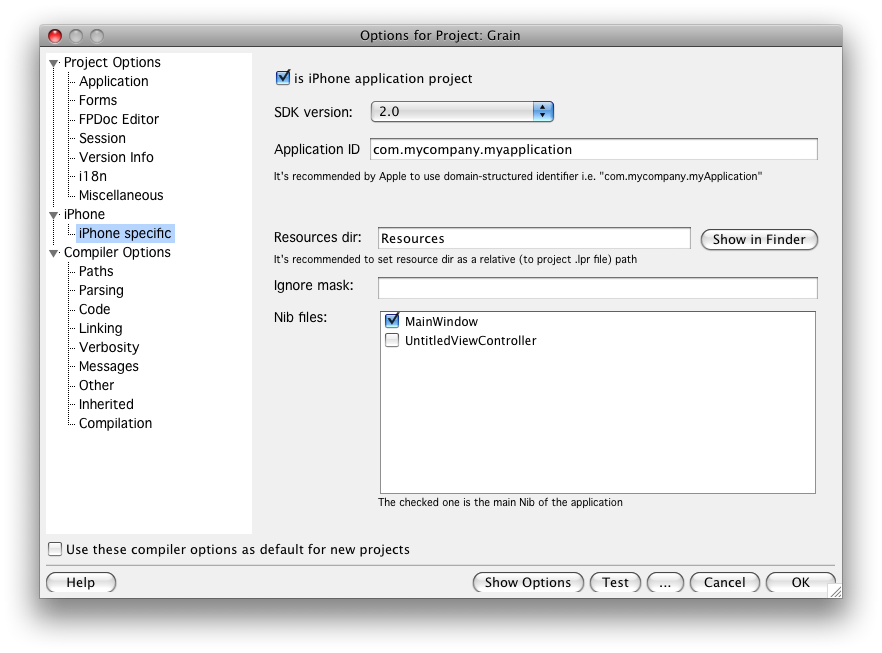 | |
| 76 | 78 | ||
| 77 | 79 | ## How to use | |
| 78 | 80 | ||
| 79 | 81 | ### Common usage | |
| 80 | 82 | ||
| 81 | 83 | - Mark a project as iPhone project (using Project menu -\> is iPhone project or Project Options -\> iPhone -\> is Phone project application) | |
| 82 | 84 | ||
| 83 | 85 | 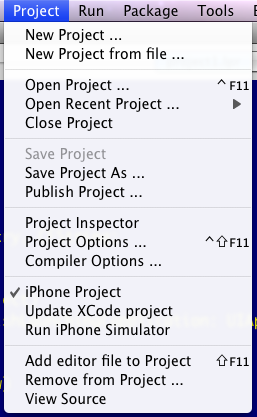 | |
| 84 | 86 | ||
| 85 | 87 | - To change the displayed name of the application you must change the application Title in Project Options. | |
| 86 | 88 | ||
| 87 | 89 | - You can also change the application icon in the same way | |
| 88 | 90 | ||
| 89 | 91 | ### iPhone Simulator | |
| 90 | 92 | ||
| 91 | 93 | - To install the application to iPhone simulator you need simply to build the project (ctrl+F9/cmd+B). | |
| 92 | 94 | ||
| 93 | 95 | The installation is always performed then you try to build the project. | |
| 94 | 96 | ||
| 95 | 97 | iPhone simulator apps require special environment, created by the simulator or they will fail with "trace error" if run in pure OSX. To make the simulator Run everytime you're running the application, select in menu "Run-\>Run parameters..." check "Use launching application" put there | |
| 96 | 98 | ||
| 97 | - | ||
| 99 | + | ```text | |
| 100 | + | '/Developer/Platforms/iPhoneSimulator.platform/Developer/Applications/iPhone Simulator.app/Contents/MacOS/iPhone Simulator' | |
| 101 | + | ``` | |
| 98 | 102 | ||
| 99 | 103 | Note: the location of iPhone simulator.app may vary, depending on the iPhone SDK installation path. | |
| 100 | 104 | ||
| 101 | 105 | It's not required, but you'll need to launch iPhoneSim manually otherwise. | |
| 102 | 106 | ||
| 103 | 107 | - After you build run the iPhone Simulator, your application should be on the one of the iPhone simulated pages. | |
| 104 | 108 | ||
| 105 | 109 | 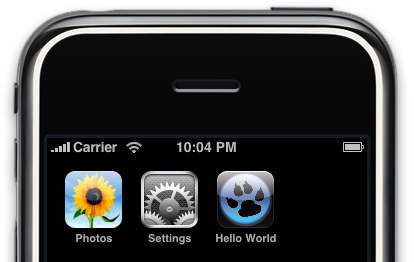 | |
| 106 | 110 | ||
| 107 | 111 | It's possible, that iPhone sim also starts the required application (as Xcode does), but this possibility is undocumented by Apple. You can use it on your own risk. Please refer to <http://github.com/jhaynie/iphonesim> | |
| 108 | 112 | ||
| 109 | 113 | ### Project to Xcode | |
| 110 | 114 | ||
| 111 | 115 | There's not way to install an application to iPhone, but using Xcode (or purchasing it via iTunes). (Jailbreaks have their own way, not used by the package). The package provides an utility to generate an Xcode project from Lazarus project. | |
| 112 | 116 | ||
| 113 | 117 | - Write the program (and test it on the Simulator, if necessary) | |
| 114 | 118 | - Select Project -\> Update XCode project. If not exists *xcode* directory is selected there you'll find xcode project. If project exists, it's configuration will be updated | |
| 115 | 119 | ||
| 116 | 120 | 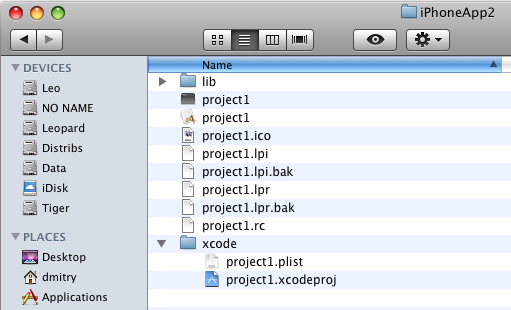 | |
| 117 | 121 | ||
| 118 | 122 | - Open the project (project1.xcodeproj on the screenshot) . Select iPhone device for as Active SDK. | |
| 119 | 123 | - You might need to specify Code identity in Build configuration (please, refer to iPhone Developer program portal) | |
| 120 | 124 | - Press Build and Go. This should build the application and install it to iPhone device. | |
| 121 | 125 | ||
| 122 | 126 | 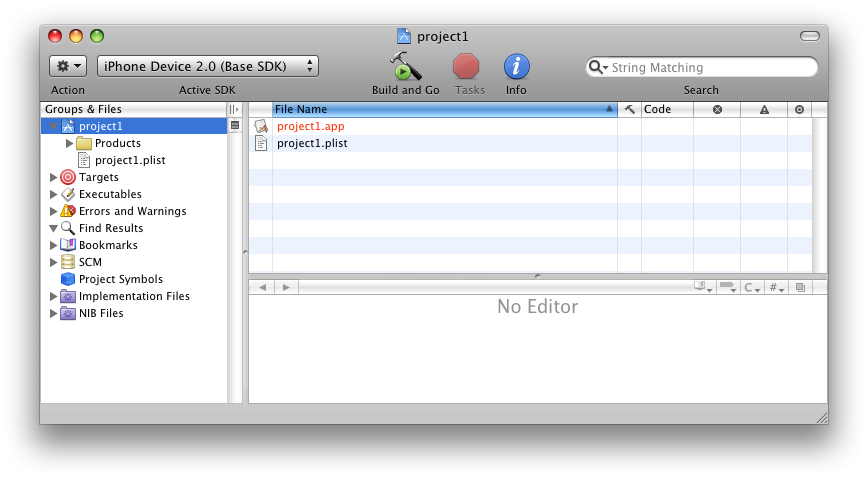 | |
| 123 | 127 | ||
| 124 | 128 | Note: | |
| 125 | 129 | ||
| 126 | 130 | - You'll need arm-darwin FPC compiler installed and configured. Any units or package used, must be compiled for arm-darwin target as well. | |
| 127 | 131 | - Created XCode project, is not flexible enough to build the project for iPhone Simulator, so make sure that iPhone OS is used as active SDK. | |
| 128 | 132 | ||
| 129 | 133 | ## Examples | |
| 130 | 134 | ||
| 131 | 135 | The extension also includes a few sample projects. (see *examples* dir at the iphonelazext directory) | |
| 132 | 136 | ||
| 133 | 137 | ### Hello World | |
| 134 | 138 | ||
| 135 | 139 | The sample requires a objective-p compiler with any version of iPhoneAll unit. | |
| 136 | 140 | ||
| 137 | 141 | The example has been written using iPhoneAll of this version (https://github.com/genericptr/iOS_8_0). | |
| 138 | 142 | ||
| 139 | 143 | The intent of the sample is to show how to go from Lazarus project to Xcode project. | |
| 140 | 144 | ||
| 141 | 145 | 0\. Install iPhone Laz Extension. Make sure you've FPC cross-compiler prepared. It's better to have it ready for all iOS targets (i386-iphonesim, x86_64-iphonesim, arm-darwin, aarch64-darwin). The compilation script will build both 32 and 64-bit targets. | |
| 142 | 146 | ||
| 143 | 147 | 1\. The example project in Lazarus | |
| 144 | 148 | ||
| 145 | 149 | 2\. Open Project Options | |
| 146 | 150 | ||
| 147 | 151 | 2.1 Compiler Options -\> "Paths": specify where iPhoneAll unit is located at "Other unit files (-Fu)" | |
| 148 | 152 | ||
| 149 | 153 | 2.2 Make sure -dIPHONEALL is present in "Custom Options" (thought it might not be needed for the version of iPhoneAll you're using) | |
| 150 | 154 | ||
| 151 | 155 | 2.3 in "iPhone Specific" section check the box "is iPhone application project" | |
| 152 | 156 | ||
| 153 | 157 | 2.4 Close the dialog by hitting "OK" | |
| 154 | 158 | ||
| 155 | 159 | 3\. in Project menu press "Update Xcode project" | |
| 156 | 160 | ||
| 157 | 161 | 4\. At the directory with the lazarus project a new "xcode" directory will created. Within the directory there should be "ihelloworld.xcodeproj" generated. Double-click on the bundle so Xcode will start. | |
| 158 | 162 | ||
| 159 | 163 | 5\. In Xcode. make sure you've a simulator selected as a target device. Hit "Play" icon (top-left side of the window) ( or through menu Product -\> Run ) | |
| 160 | 164 | ||
| 161 | 165 | 5.1 This should start compilation of the project. If no issues would be detected, the simulator will start. As soon as its booted Xcode will install the application and run it. | |
| 162 | 166 | ||
| 163 | 167 | 6\. An actual device. Plug your device via USB. | |
| 164 | 168 | ||
| 165 | 169 | 6.1 In "General" tab you should see a "warning sign" with "No identity or provisioning profile". "Fix issue" button should be availabe. | |
| 166 | 170 | ||
| 167 | 171 | 6.2 Hit the button. The Xcode should get you a certificate, so you'd be able to run the application on your device. | |
| 168 | 172 | ||
| 169 | 173 | 6.3 Select the device as run target (top-left side of the Xcode window). | |
| 170 | 174 | ||
| 171 | 175 | 6.4 Clear the project (Product -\> Clear) | |
| 172 | 176 | ||
| 173 | 177 | 6.5 Run the project (Product -\> Run) | |
| 174 | 178 | ||
| 175 | 179 | The result would look like: | |
| 176 | 180 | ||
| 177 | 181 | 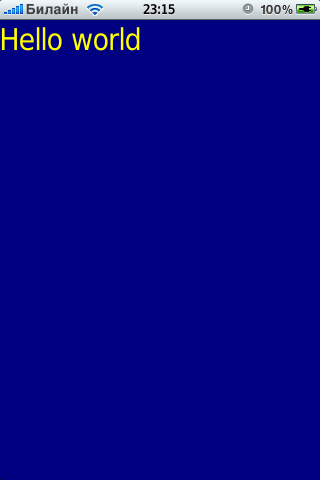 | |
| 178 | 182 | ||
| 179 | 183 | ### iArkanoid | |
| 180 | 184 | ||
| 181 | 185 | Written from scratch simple arkanoid game UIKit and GoreGraphics games for iPhone/iPod. | |
| 182 | 186 | ||
| 183 | 187 | 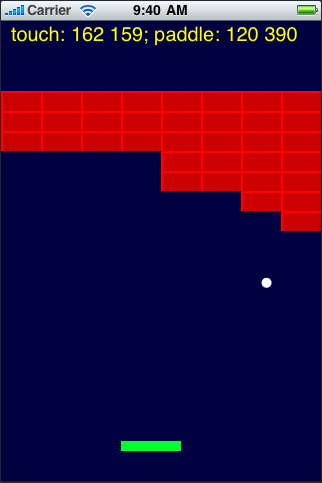 | |
| 184 | 188 | ||
| 185 | 189 | --- | |
| 186 | 190 | *From the Free Pascal wiki, page "iPhone Laz Extension", as it stood on 2019-12-22 after a change by Trev, out of the wiki's dump of 2024-05-26. Copyright stays with the author who wrote it, according to the old wiki's [[Licensing]] page. If you have concerns about this material, [message the admin](/wiki-contact).* | |
| 187 | 191 | Category: Lazarus IDE plugins | |
| 188 | 192 | Category: Lazarus-CCR | |
| 189 | 193 | Category: iOS | |
| 190 | 194 | Category: macOS |