

IDE tricks: what changed
Revision 1 to 2. Removed lines have a minus sign; added lines have a plus sign.
| Old | New | Line | |
|---|---|---|---|
| 1 | + | ## Contents | |
| 2 | + | ||
| 3 | + | * 1 Create a new file with Open file | |
| 4 | + | * 2 Customize new unit / form | |
| 5 | + | * 3 IDE macros | |
| 6 | + | * 4 IDE directives | |
| 7 | + | * 5 Getting the compiler command line parameters created by the IDE | |
| 8 | + | * 6 Closing all editor files except one | |
| 9 | + | * 7 Component palette | |
| 10 | + | * 7.1 Finding a component in the palette | |
| 11 | + | * 7.2 Open the package of a component in the palette | |
| 12 | + | * 7.3 Find the source declaration of a component in the palette | |
| 13 | + | * 7.4 My application freezes my Linux desktop while debugging | |
| 14 | + | * 7.5 Using a second X session | |
| 15 | + | * 7.6 Using VNC | |
| 16 | + | * 7.7 Debug the application on the second server | |
| 17 | + | * 8 Compiling the IDE fast | |
| 18 | + | * 9 DebugLn of the IDE or a LCL application | |
| 19 | + | * 10 Finding the source file of an IDE window | |
| 20 | + | * 11 Opening a Terminal Windows from the IDE | |
| 21 | + | * 12 Object Inspector: Events: Frames: Jump to the source of an inherited event | |
| 22 | + | * 13 Events (Method properties) in the Object Inspector | |
| 23 | + | ||
| 1 | 24 | ## Create a new file with Open file | |
| 2 | 25 | ||
| 3 | - | ||
| 26 | + | You can create a new file and save it, or you can create a new file with filename and file type in one step: Just open file (`Ctrl+o`) and select a nonexistent filename. For example: unit1.pas. The IDE will ask you if it should be created. | |
| 4 | 27 | ||
| 5 | 28 | ## Customize new unit / form | |
| 6 | 29 | ||
| 7 | - | ||
| 30 | + | Since 0.9.27 you can right click on the 'New unit' (New form) speedbutton and set the file type that should be created. You can register more file types via the IDEIntf or the project templates package. | |
| 8 | 31 | ||
| 9 | 32 | ## IDE macros | |
| 10 | 33 | ||
| 11 | 34 | [[IDE Macros in paths and filenames]] | |
| 12 | 35 | ||
| 13 | 36 | ## IDE directives | |
| 14 | 37 | ||
| 15 | 38 | [[IDE directives]] | |
| 16 | 39 | ||
| 17 | 40 | ## Getting the compiler command line parameters created by the IDE | |
| 18 | 41 | ||
| 19 | - | ||
| 42 | + | You can copy the parameters from Project -> Compiler Options -> Show Options. Here the paths are relative to the project directory. So in most cases you can copy them without adjusting. | |
| 20 | 43 | ||
| 21 | - | ||
| 44 | + | The parameters are also saved to the *.compiled file. For example if your project is called test1.lpi, then a test1.compiled is created. It is a simple text XML file, so you can just copy the options and adjust the paths to compile on another computer. The file is put into the same directory, where the executable is created. | |
| 22 | 45 | ||
| 23 | - | ||
| 46 | + | For packages this works the same. | |
| 24 | 47 | ||
| 25 | - | ||
| 48 | + | This way, you can compile your (hopefully working and bug free) code, outside of the Lazarus IDE. | |
| 26 | 49 | ||
| 27 | 50 | ## Closing all editor files except one | |
| 28 | 51 | ||
| 29 | - | ||
| 52 | + | Under GTK (available for Linux, macOS and FreeBSD) the source editor pages have a close button to the right of their page name. Press the `Ctrl` key while clicking on the button, closes all files except the clicked one. | |
| 30 | 53 | ||
| 31 | 54 | ## Component palette | |
| 32 | 55 | ||
| 33 | 56 | ### Finding a component in the palette | |
| 34 | 57 | ||
| 35 | - | ||
| 58 | + | You know the component name, or part of it, but you don't know on which page it was? This tool finds it: Right click on any component in the palette to open the popup menu. Select 'View all' from the menu; this will pop open a dialog(also you can achieve it by pressing `Ctrl+Alt+P`). Enter the (partial) component name in the 'Find' box to filter the list. | |
| 36 | 59 | ||
| 37 | 60 | ### Open the package of a component in the palette | |
| 38 | 61 | ||
| 39 | - | ||
| 62 | + | Right click on the component to open the popup menu, then choose open package. | |
| 40 | 63 | ||
| 41 | 64 | ### Find the source declaration of a component in the palette | |
| 42 | 65 | ||
| 43 | - | ||
| 66 | + | Right click on the component to open the popup menu, then choose open unit. | |
| 44 | 67 | ||
| 45 | 68 | ### My application freezes my Linux desktop while debugging | |
| 46 | 69 | ||
| 47 | - | ||
| 70 | + | X (your desktop) can freeze, when an application that grabbed the mouse is stopped by gdb (the debugger). | |
| 48 | 71 | ||
| 49 | 72 | ### Using a second X session | |
| 50 | 73 | ||
| 51 | - | ||
| 52 | - | ||
| 53 | - | ||
| 54 | - | ||
| 55 | - | ||
| 74 | + | You can start a second X by: | |
| 75 | + | ``` | |
| 76 | + | X :1 & | |
| 77 | + | ``` | |
| 56 | 78 | ||
| 57 | - | ||
| 79 | + | with `Ctrl-Alt-F7` you switch to :0 and with `Ctrl-Alt-F8` you switch to :1 after that you can start a second gnome session by: | |
| 80 | + | ``` | |
| 81 | + | gnome-session --display=:1 & | |
| 82 | + | ``` | |
| 58 | 83 | ||
| 59 | 84 | ### Using VNC | |
| 60 | 85 | ||
| 61 | - | ||
| 62 | - | ||
| 63 | - | ||
| 86 | + | You can use vncserver/client by installing tightvncserver or realvncserver. Start the server with: | |
| 87 | + | ``` | |
| 88 | + | vncserver :1 | |
| 89 | + | ``` | |
| 64 | 90 | ||
| 65 | - | ||
| 91 | + | AFAIK, a session is also started. You can connect to the vncserver with vncviewer. | |
| 66 | 92 | ||
| 67 | 93 | ### Debug the application on the second server | |
| 68 | 94 | ||
| 69 | - | ||
| 70 | - | ||
| 71 | - | ||
| 95 | + | In Lazarus, in the run parameters for your project, check "use display" and enter | |
| 96 | + | ``` | |
| 97 | + | :1 | |
| 98 | + | ``` | |
| 72 | 99 | ||
| 73 | - | ||
| 100 | + | Now your application will run on the second server, so when it is being debugged, only the second server will freeze (but that won't affect you since you are debugging on the first). | |
| 74 | 101 | ||
| 75 | 102 | ## Compiling the IDE fast | |
| 76 | 103 | ||
| 77 | - | ||
| 104 | + | Working on Lazarus itself means rebuilding the IDE many times. If you use the following tricks and have enough memory and a recent CPU, you should be able to recompile the IDE in a few seconds. | |
| 78 | 105 | ||
| 79 | - | ||
| 80 | - | ||
| 81 | - | ||
| 106 | + | * Put the Lazarus sources on a fast hard disk or solid state drive. Not on a slow network filesystem. | |
| 107 | + | * Install only needed packages. | |
| 108 | + | * Set USESVN2REVISIONINC=0 to skip the update of the revision.inc file. | |
| 82 | 109 | ||
| 83 | 110 | ## DebugLn of the IDE or a LCL application | |
| 84 | 111 | ||
| 85 | - | ||
| 112 | + | The IDE writes many useful hints via [[DebugLn]]. You can get these this way: | |
| 86 | 113 | ||
| 87 | - | ||
| 88 | - | ||
| 114 | + | * Windows: start Lazarus with the command line parameter _\--debug-log=filename.txt_. | |
| 115 | + | * Linux/FreeBSD/macOS/Solaris: just start Lazarus in a terminal. | |
| 89 | 116 | ||
| 90 | - | ||
| 117 | + | This is a general LCL feature. | |
| 91 | 118 | ||
| 92 | 119 | ## Finding the source file of an IDE window | |
| 93 | 120 | ||
| 94 | - | ||
| 95 | - | ||
| 96 | - | ||
| 97 | - | ||
| 121 | + | * Open the IDE window. | |
| 122 | + | * Press `Ctrl+Shift+F1` to open the help editor. | |
| 123 | + | * Remember the window classname. Close the window. | |
| 124 | + | * Use [[IDE Window: Find in files|Find In Files]] to find the source file of the class. | |
| 98 | 125 | ||
| 99 | 126 | ## Opening a Terminal Windows from the IDE | |
| 100 | 127 | ||
| 101 | - | ||
| 128 | + | Its often handy to be able to open a terminal in your current project's working directory. Maybe to use a revision control system like git or svn or for a host of other possible reasons. Here is how to add a menu item to Lazarus's Tool's menu. Thanks to taazz and other contributors to the [forum thread](<https://forum.lazarus.freepascal.org/index.php/topic,42151.msg294206.html#msg294206>). | |
| 102 | 129 | ||
| 103 | - | ||
| 104 | - | ||
| 105 | - | ||
| 106 | - | ||
| 107 | - | ||
| 130 | + | * Click Tools, Configure External Tools | |
| 131 | + | * Click 'Add' to add a new menu item (under Tools). | |
| 132 | + | * Set Title to (eg) "Open a Terminal" | |
| 133 | + | * Set Program File Name to the command on your system that opens a terminal, some suggestions below. | |
| 134 | + | * Set Parameters to what ever your terminal expects on the command line to open a specific directory and the Lazarus var that points there, $projPath(). | |
| 108 | 135 | ||
| 109 | - | ||
| 136 | + | Those last two vary quite a lot between systems, if you don't know the first, try looking at a list of running programs, the word 'terminal' is likely to feature. For the second, once you know the terminal's name, look up its man page or google. | |
| 110 | 137 | ||
| 111 | - | ||
| 138 | + | Some examples include - | |
| 112 | 139 | ||
| 113 | - | ||
| 114 | - | ||
| 115 | - | ||
| 116 | - | ||
| 117 | - | ||
| 118 | - | ||
| 119 | - | ||
| 120 | - | ||
| 140 | + | O.S. | Program File Name | Parameters | |
| 141 | + | ---|---|--- | |
| 142 | + | Ubuntu Mate | mate-terminal | \--tab --working-directory=$projPath() | |
| 143 | + | xfce | exo-open | \--launch TerminalEmulator --working-directory $ProjPath() | |
| 144 | + | KDE | konsole | \--working-dir $projPath() | |
| 145 | + | GNOME | gnome-terminal | \--working-directory $projPath() | |
| 146 | + | Mac (see below) | /User/$HOME/bin/ttab | cd $projPath() | |
| 147 | + | Windows | cmd.exe | /k cd "$ProjPath()" | |
| 148 | + | ||
| 149 | + | [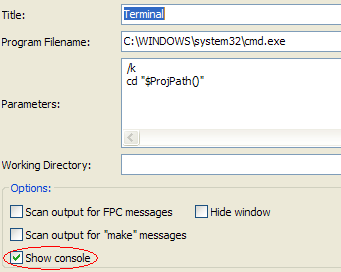](</File:ExtTool.PNG> "IDE Ext Tool") | |
| 121 | 150 | ||
| 122 | - | ||
| 151 | + | **On the Mac** , where everything is so much easier, all you have to do is: | |
| 123 | 152 | ||
| 124 | - | ||
| 125 | - | ||
| 126 | - | ||
| 127 | - | ||
| 153 | + | 1. Install <https://www.npmjs.com/package/ttab>, its only 665 lines, use the path you installed it to instead of the example shown in the table above. | |
| 154 | + | 2. Run it so you can tick its security to access the Accessibility feature. | |
| 155 | + | 3. Then set the Lazarus Tools settings as described. | |
| 156 | + | 4. Then, from within Lazarus, Tools->Open Terminal, then similar to 3) tick to allow Lazarus to access the Accessibility thingo. | |
| 128 | 157 | ||
| 129 | - | ||
| 158 | + | ||
| 159 | + | **On Windows** , its also necessary to tick the "Show Console" as shown in the image on the right: | |
| 130 | 160 | ||
| 161 | + | ||
| 162 | + | ||
| 131 | 163 | ## Object Inspector: Events: Frames: Jump to the source of an inherited event | |
| 132 | 164 | ||
| 133 | - | ||
| 165 | + | The [[IDE Window: Object Inspector|Object Inspector]] shows the events of inherited events as _ClassName.MethodName_. Double clicking will create a new event. `Ctrl+Mouse click` on the combobox will jump directly to the inherited method body, without creating a new method. | |
| 134 | 166 | ||
| 135 | 167 | ## Events (Method properties) in the Object Inspector | |
| 136 | 168 | ||
| 137 | - | ||
| 138 | - | ||
| 139 | - | ||
| 140 | - | ||
| 141 | - | ||
| 142 | - | ||
| 169 | + | Events (Method properties) are special properties, because they need as value a code address pointer, which does not exist at design time. That's why Lazarus uses the same trick as the Delphi IDE: Every method value can be type cast to **TMethod** , which contains _Data_ (the object or class pointer) and the _Code_ (the address pointer). At runtime both are set. But at design time the IDE sets Data to a special key value for its internal lookup table and sets Code to nil. This means: | |
| 143 | 170 | ||
| 144 | - | ||
| 171 | + | * At runtime when the program loads the .lfm file the real method (Data+Code) is used | |
| 172 | + | * At design time a method value can either be a real method (Data<>nil and Code<>nil) or a fake method (Data<>nil,Code=nil) | |
| 173 | + | * The compiler has for Delphi compatibility some specials about comparing method values. | |
| 174 | + | * The = and the <> operator only checks the Code, not the Data. | |
| 145 | 175 | ||
| 146 | - | ||
| 176 | + | Do not use: | |
| 177 | + | ``` | |
| 147 | 178 | if OnMyEvent = NewValue then exit; // wrong, because it compares only Code | |
| 148 | 179 | ``` | |
| 149 | 180 | ||
| 150 | - | ||
| 151 | - | ||
| 152 | - | ||
| 181 | + | Because this only compares the Code. Use instead | |
| 182 | + | ``` | |
| 153 | 183 | if CompareMem(@FOnMyEvent, @NewValue, SizeOf(TMethod)) then exit; // correct, checking both Data and Code | |
| 154 | 184 | ``` | |
| 155 | 185 | ||
| 156 | - | ||
| 157 | - | ||
| 158 | - | ||
| 186 | + | Here is an example where the = operator fails: | |
| 187 | + | ``` | |
| 159 | 188 | type | |
| 160 | - | ||
| 161 | - | ||
| 162 | - | ||
| 163 | - | ||
| 164 | - | ||
| 165 | - | ||
| 166 | - | ||
| 167 | - | ||
| 168 | - | ||
| 169 | - | ||
| 170 | - | ||
| 171 | - | ||
| 172 | - | ||
| 173 | - | ||
| 174 | - | ||
| 175 | - | ||
| 176 | - | ||
| 177 | - | ||
| 178 | - | ||
| 179 | - | ||
| 180 | - | ||
| 181 | - | ||
| 182 | - | ||
| 189 | + | TMyClass = class | |
| 190 | + | private | |
| 191 | + | FOnClick: TNotifyEvent; | |
| 192 | + | procedure SetOnClick(Value: TNotifyEvent); | |
| 193 | + | public | |
| 194 | + | procedure Click(Sender: TObject); | |
| 195 | + | property OnClick: TNotifyEvent read FOnClick write SetOnClick; | |
| 196 | + | end; | |
| 197 | + | ||
| 198 | + | procedure TMyClass.SetOnClick(Value: TNotifyEvent); | |
| 199 | + | begin | |
| 200 | + | if Value = FOnClick then exit; // bug, checks only for Code, not for data | |
| 201 | + | FOnClick := Value; | |
| 202 | + | end; | |
| 203 | + | ||
| 204 | + | var | |
| 205 | + | a, b: TMyClass; | |
| 206 | + | begin | |
| 207 | + | a := TMyClass.Create; | |
| 208 | + | b := TMyClass.Create; | |
| 209 | + | a.OnClick := @a.Click; | |
| 210 | + | a.OnClick := @b.Click; // same code, but different data, a.OnClick still points to @a.Click; | |
| 211 | + | end. | |
| 183 | 212 | ``` | |
| 184 | 213 | ||
| 185 | 214 | --- | |
| 186 | - | ||
| 215 | + | *From the Free Pascal wiki, page "IDE tricks", as the Internet Archive kept it on 2024-06-15. Copyright stays with the author who wrote it, according to the old wiki's [[Licensing]] page. If you have concerns about this material, [message the admin](/wiki-contact).* |