

IDE Window: Object Inspector: what changed
Revision 1 to 2. Removed lines have a minus sign; added lines have a plus sign.
| Old | New | Line | |
|---|---|---|---|
| 1 | - | ||
| 2 | - | ||
| 3 | - | ||
| 4 | - | ||
| 5 | - | ||
| 6 | - | ||
| 7 | - | ||
| 8 | - | ||
| 9 | - | ||
| 10 | - | ||
| 11 | - | ||
| 12 | - | ||
| 13 | - | ||
| 14 | - | ||
| 15 | - | ||
| 16 | - | ||
| 17 | - | ||
| 18 | 1 | # Object Inspector | |
| 19 | 2 | ||
| 20 | - | ||
| 3 | + | 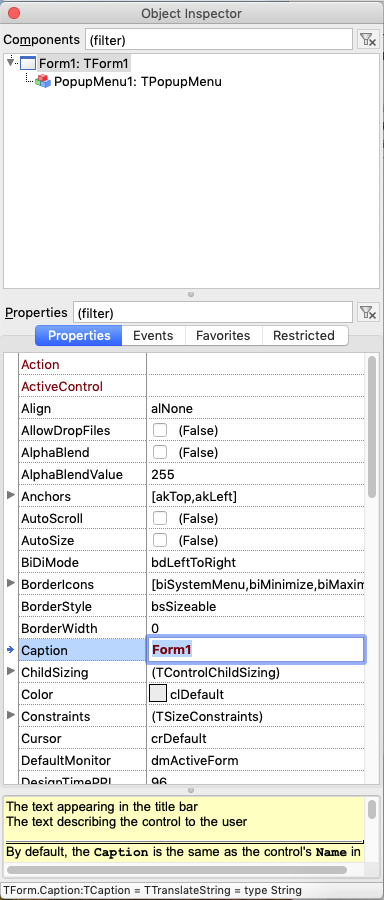 | |
| 21 | 4 | ||
| 22 | - | ||
| 5 | + | The "Object Inspector" window allows you to explore and edit the properties of objects. Objects here are TPersistent descendants like a TForm or a TButton or a TOpenDialog. | |
| 23 | 6 | ||
| 24 | - | ||
| 7 | + | On the top there is a tree showing the components of the currently edited designer form (or datamodule or frame or whatever). | |
| 25 | 8 | ||
| 26 | - | ||
| 9 | + | The biggest part of the Object Inspector are the 3 property grids called 'Properties', 'Events' and 'Favorites'. Each property grid show a subset of the published properties of the selected components. | |
| 27 | 10 | ||
| 28 | - | ||
| 11 | + | The Object Inspector is a useful tool for debugging your own programs. How to add the Object Inspector to your own programs is demonstrated in examples/objectinspector. | |
| 29 | 12 | ||
| 30 | 13 | # Keyboard Shortcuts | |
| 31 | 14 | ||
| 32 | - | ||
| 33 | - | ||
| 34 | - | ||
| 35 | - | ||
| 36 | - | ||
| 37 | - | ||
| 38 | - | ||
| 39 | - | ||
| 15 | + | | Shortcut | Description | | |
| 16 | + | |--------------|-------------------------| | |
| 17 | + | | Up, Down | Navigate rows | | |
| 18 | + | | Alt + Left | Collapse level | | |
| 19 | + | | Alt + Right | Expand level | | |
| 20 | + | | Ctrl + Enter | Cycle enumerated values | | |
| 40 | 21 | ||
| 41 | - | ||
| 42 | - | ||
| 43 | - | ||
| 44 | - | ||
| 45 | - | ||
| 46 | - | ||
| 47 | - | ||
| 48 | - | ||
| 49 | - | ||
| 50 | - | ||
| 51 | - | ||
| 52 | - | ||
| 53 | - | ||
| 22 | + | You can use keyboard for fast Property Name search and edit. | |
| 54 | 23 | ||
| 55 | - | ||
| 24 | + | Let's assume you want to modify Form's Caption and Width properties | |
| 56 | 25 | ||
| 26 | + | `- Click Form.`\ | |
| 27 | + | `- Go to Object inspector (caret is on Property Value column).`\ | |
| 28 | + | `- Press Tab to switch to Property Name column (caret will disappear from Value column).`\ | |
| 29 | + | `- Type "caption". Property row "Caption" will be found.`\ | |
| 30 | + | `- Press Tab or Enter to go to Property Value and edit it.` | |
| 31 | + | ||
| 32 | + | `- Press Tab to switch to Property Name column again.`\ | |
| 33 | + | `- Type "width". Width row will be found.`\ | |
| 34 | + | `- Press Tab or Enter and edit it.` | |
| 35 | + | ||
| 36 | + | If you misspelled property name you can press Esc and retype it. Or you can use Backspace to remove few last chars. | |
| 37 | + | ||
| 57 | 38 | # Object Inspector Popup Menu | |
| 58 | 39 | ||
| 59 | - | ||
| 40 | + | 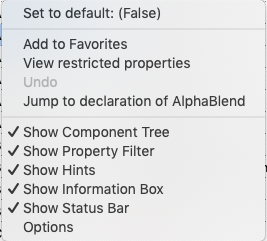 | |
| 60 | 41 | ||
| 61 | - | ||
| 42 | + | Right-click in the Properties tab of the Object Inspector to get the Object Inspector's Popup Menu. The items on the Popup Menu are described below. | |
| 62 | 43 | ||
| 63 | 44 | ## Set to default | |
| 64 | 45 | ||
| 65 | - | ||
| 66 | - | ||
| 67 | - | ||
| 68 | - | ||
| 46 | + | Set the property value to the default value. For example: | |
| 69 | 47 | ||
| 70 | - | ||
| 48 | + | ` property Position: TPosition read FPosition write SetPosition default poDesigned;` | |
| 71 | 49 | ||
| 72 | - | ||
| 50 | + | Here poDesigned is the default. | |
| 73 | 51 | ||
| 52 | + | Note: Not every property has a default value. Default values defined by the **stored** functions are ignored by this function. | |
| 53 | + | ||
| 74 | 54 | ## Add to Favorites | |
| 75 | 55 | ||
| 76 | - | ||
| 56 | + | Add the property to the Favorites tab of the Object Inspector. | |
| 77 | 57 | ||
| 78 | 58 | ## View restricted properties | |
| 79 | 59 | ||
| 80 | - | ||
| 60 | + | Opens the [[IDE Window: Restriction Browser|Restriction Browser]]. | |
| 81 | 61 | ||
| 82 | 62 | ## Undo | |
| 83 | 63 | ||
| 84 | - | ||
| 64 | + | Discard changes to the property edit field and restore the value of the current property. Do not confuse this with the value from the disk. | |
| 85 | 65 | ||
| 86 | 66 | ## Jump to declaration of... | |
| 87 | 67 | ||
| 88 | - | ||
| 68 | + | Jump to the source declaration of the property. This will be the last one. For example TForm.Left is published in the class TForm and defined in TControl. You can jump easily to the other declaration, by doing a find declaration on the name again and again, until you are the lowest definition (Alt+Up or Ctrl+LeftClick). You can jump back with Ctrl+H. | |
| 89 | 69 | ||
| 90 | 70 | ## Show Component Tree | |
| 91 | 71 | ||
| 92 | - | ||
| 72 | + | Show or hide the component tree at the top of the Object Inspector. | |
| 93 | 73 | ||
| 94 | 74 | ## Show Property Filter | |
| 95 | 75 | ||
| 96 | - | ||
| 76 | + | Show or hide the Properties (filter) edit field above the Properties tab of the Object Inspector. | |
| 97 | 77 | ||
| 98 | 78 | ## Show hints | |
| 99 | 79 | ||
| 100 | - | ||
| 80 | + | Enable or disable the showing of hints. Hints are shown, when the mouse stops for a few seconds over a property. | |
| 101 | 81 | ||
| 102 | 82 | ## Show Information Box | |
| 103 | 83 | ||
| 104 | - | ||
| 84 | + | Enable or disable the showing of the yellow background Information Box at the bottom of the Object Inspector. The Information Box describes the currently highlighted property and may contain links to related properties and the package to which the component belongs. If the box is not big enough to show the full description, it can be scrolled. | |
| 105 | 85 | ||
| 106 | 86 | ## Show Status Bar | |
| 107 | 87 | ||
| 108 | - | ||
| 88 | + | Enable or disable the showing of the Status Bar on the last line at the bottom of the Object Inspector. | |
| 109 | 89 | ||
| 110 | 90 | ## Options | |
| 111 | 91 | ||
| 112 | 92 | Configure some options of the Object Inspector including the colours used. | |
| 113 | 93 | ||
| 114 | 94 | --- | |
| 115 | - | ||
| 95 | + | *From the Free Pascal wiki, page "IDE Window: Object Inspector", as it stood on 2020-08-30 after a change by FTurtle, out of the wiki's dump of 2024-05-26. Copyright stays with the author who wrote it, according to the old wiki's [[Licensing]] page. If you have concerns about this material, [message the admin](/wiki-contact).* |