

IDE Window: Object Inspector/ja: what changed
Revision 1 to 2. Removed lines have a minus sign; added lines have a plus sign.
| Old | New | Line | |
|---|---|---|---|
| 1 | 1 | # オブジェクトインスペクタ | |
| 2 | 2 | ||
| 3 | 3 | 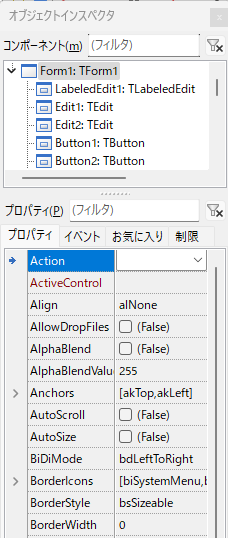 | |
| 4 | 4 | ||
| 5 | 5 | 「オブジェクトインスペクタ」ウィンドウを使うと、オブジェクトのプロパティを調査したり編集したりできる。ここで言うオブジェクトとは、TFormやTButton、TOpenDialogなどのTPersistentの派生である。 | |
| 6 | 6 | ||
| 7 | 7 | 上部には、現在編集中のデザイナフォーム(またはデータモジュール、フレームなど)のコンポーネントを表示するツリーがある。 | |
| 8 | 8 | ||
| 9 | 9 | オブジェクトインスペクタの大部分は、「Properties」、「Events」、「Favorites」と呼ばれる3つのプロパティグリッドで構成されている。各プロパティグリッドは、選択されたコンポーネントの公開プロパティのサブセットを表示する。 | |
| 10 | 10 | ||
| 11 | 11 | オブジェクトインスペクタは、自分のプログラムのデバッグに役立つツールである。自分のプログラムにオブジェクトインスペクタを追加する方法は、examples/objectinspectorで示されている。 | |
| 12 | 12 | ||
| 13 | 13 | # キーボードショートカット | |
| 14 | 14 | ||
| 15 | 15 | | ショートカット | 内容 | | |
| 16 | 16 | |----------------|----------------------| | |
| 17 | 17 | | Up, Down | 行の移動 | | |
| 18 | 18 | | Alt + Left | 配下の項目を隠す | | |
| 19 | 19 | | Alt + Right | 配下の項目を表示する | | |
| 20 | 20 | | Ctrl + Enter | 次の候補を表示 | | |
| 21 | 21 | ||
| 22 | 22 | キーボードを使用して、Propaty名の高速検索と編集を行うことができる。 例えば、、フォームのCaption(キャプション)とWidth(幅)のプロパティを変更したい場合の手順は以下の通りである: | |
| 23 | 23 | ||
| 24 | 24 | - フォームを選択する。 | |
| 25 | 25 | - オブジェクトインスペクタに移動する(Property値列に入力カーソルが表示される)。 | |
| 26 | 26 | - Tabキーを押してProperty名列に切り替える(入力カーソルが値列から消える)。 | |
| 27 | 27 | - 「caption」とタイプする。「Caption」Property行が検索されてフォーカスされる。 | |
| 28 | 28 | - TabまたはEnterキーを押して、プロパティ値を編集する。 | |
| 29 | 29 | - 再度、Tabキーを押してプロパティ名列に切り替える。 | |
| 30 | 30 | - 「width」とタイプします。「Width」行が検索される。 | |
| 31 | 31 | - TabまたはEnterキーを押して、値を編集する。 | |
| 32 | 32 | ||
| 33 | 33 | もしPropaty名を間違えてしまった場合、Escキーを押して入力をキャンセルし、再度タイプし直すことができる。または、Backspaceキーを使用して、最後の数文字を削除することも可能である。 | |
| 34 | 34 | ||
| 35 | 35 | # オブジェクトインスペクタのポップアップメニュー | |
| 36 | 36 | ||
| 37 | 37 | 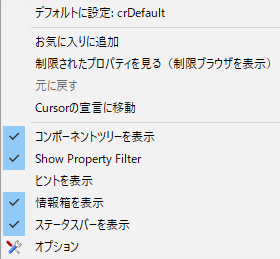 | |
| 38 | 38 | ||
| 39 | 39 | オブジェクトインスペクタのPropatyタブで右クリックすると、オブジェクトインスペクタのポップアップメニューが表示される。ポップアップメニューに含まれる項目は以下の通りである: | |
| 40 | 40 | ||
| 41 | 41 | ## デフォルトに設定 | |
| 42 | 42 | ||
| 43 | 43 | プロパティ値をデフォルトにする。例えば: | |
| 44 | 44 | ||
| 45 | - | ||
| 45 | + | ```text | |
| 46 | + | property Position: TPosition read FPosition write SetPosition default poDesigned; | |
| 47 | + | ``` | |
| 46 | 48 | ||
| 47 | 49 | ここで poDesigned がデフォルトである。 | |
| 48 | 50 | ||
| 49 | 51 | 注意: すべてのプロパティがデフォルト値を持っているわけではない。**stored**関数で定義されたデフォルト値はこの関数により無視される。 | |
| 50 | 52 | ||
| 51 | 53 | ## お気に入りに追加 | |
| 52 | 54 | ||
| 53 | 55 | Add the property to the Favorites tab of the Object Inspector. | |
| 54 | 56 | ||
| 55 | 57 | ## 制限されたプロパティを見る | |
| 56 | 58 | ||
| 57 | 59 | Opens the [[IDE Window: Restriction Browser|Restriction Browser]]. | |
| 58 | 60 | ||
| 59 | 61 | ## 元に戻す | |
| 60 | 62 | ||
| 61 | 63 | Discard changes to the property edit field and restore the value of the current property. Do not confuse this with the value from the disk. | |
| 62 | 64 | ||
| 63 | 65 | ## Cursorの宣言に移動 | |
| 64 | 66 | ||
| 65 | 67 | Jump to the source declaration of the property. This will be the last one. For example TForm.Left is published in the class TForm and defined in TControl. You can jump easily to the other declaration, by doing a find declaration on the name again and again, until you are the lowest definition (Alt+Up or Ctrl+LeftClick). You can jump back with Ctrl+H. | |
| 66 | 68 | ||
| 67 | 69 | ## コンポーネントツリーを表示 | |
| 68 | 70 | ||
| 69 | 71 | Show or hide the component tree at the top of the Object Inspector. | |
| 70 | 72 | ||
| 71 | 73 | ## Show Property Filter | |
| 72 | 74 | ||
| 73 | 75 | Show or hide the Properties (filter) edit field above the Properties tab of the Object Inspector. | |
| 74 | 76 | ||
| 75 | 77 | ## ヒントを表示 | |
| 76 | 78 | ||
| 77 | 79 | Enable or disable the showing of hints. Hints are shown, when the mouse stops for a few seconds over a property. | |
| 78 | 80 | ||
| 79 | 81 | ## 情報箱を表示 | |
| 80 | 82 | ||
| 81 | 83 | Enable or disable the showing of the yellow background Information Box at the bottom of the Object Inspector. The Information Box describes the currently highlighted property and may contain links to related properties and the package to which the component belongs. If the box is not big enough to show the full description, it can be scrolled. | |
| 82 | 84 | ||
| 83 | 85 | ## ステータスバーを表示 | |
| 84 | 86 | ||
| 85 | 87 | Enable or disable the showing of the Status Bar on the last line at the bottom of the Object Inspector. | |
| 86 | 88 | ||
| 87 | 89 | ## オプション | |
| 88 | 90 | ||
| 89 | 91 | Configure some options of the Object Inspector including the colours used. | |
| 90 | 92 | ||
| 91 | 93 | --- | |
| 92 | 94 | *From the Free Pascal wiki, page "IDE Window: Object Inspector/ja", as it stood on 2024-03-22 after a change by Ariben, out of the wiki's dump of 2024-05-26. Copyright stays with the author who wrote it, according to the old wiki's [[Licensing]] page. If you have concerns about this material, [message the admin](/wiki-contact).* |