

IDE Window: Messages: what changed
Revision 0 to 1. Removed lines have a minus sign; added lines have a plus sign.
Title: IDE Window: Messages
| Old | New | Line | |
|---|---|---|---|
| 1 | + | The Messages window contains the compiler messages. It can also contain codetools messages, or linker errors, etc.. | |
| 2 | + | ||
| 3 | + | 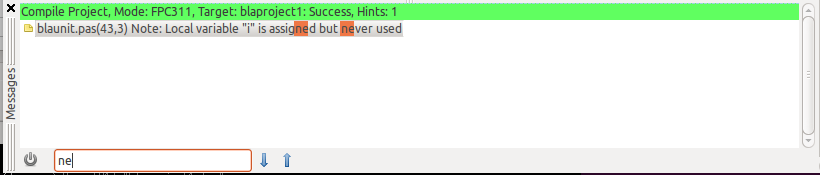 | |
| 4 | + | ||
| 5 | + | # Overview | |
| 6 | + | ||
| 7 | + | When compiling the Messages window is shown automatically. You can see messages appear briefly and vanishing. The IDE classifies the compiler messages. Messages like "compiling unit1.pas" are treated as "progress" lines. These are shown, but hidden as soon as the next messages is shown, so that only the important messages (e.g. hints, notes, warning, errors) are shown. You can choose what lines to show, see filtering below. | |
| 8 | + | ||
| 9 | + | Click on a message to jump to the position in the source editor. You can set whether a double click jumps or a single click in Tools -\> Options -\> Messages Window -\> Double click on messages jumps. | |
| 10 | + | ||
| 11 | + | When the IDE compiles a project it also compiles changed packages. In this case you see several blocks of messages, each having a header. The header is yellow while compiling, it turns green when compilation was successful, and turns red when there was an error. You can change the colors in the options. | |
| 12 | + | ||
| 13 | + | # Popup menu | |
| 14 | + | ||
| 15 | + | ## Find | |
| 16 | + | ||
| 17 | + | Shows a search function at the bottom of the Messages window. Click on the left button to hide the search. Edit the text to highlight all places containing the text and to jump to the first message (starting from the selected). Click on the arrows to jump to the next or previous place. | |
| 18 | + | ||
| 19 | + | ## Quick fixes | |
| 20 | + | ||
| 21 | + | Below **Find** there can be arbitrary quick fixes. These are added depending on the current message and what IDE add-ons you have installed. See [[Lazarus IDE Tools|Quick Fixes]]. | |
| 22 | + | ||
| 23 | + | ## About | |
| 24 | + | ||
| 25 | + | Shows a dialog containing information what task has created this output. For example a message from compiling a package gives the reason why the IDE needed to compile the package, the compiler path and parameters. | |
| 26 | + | ||
| 27 | + | ## Filter all messages of type | |
| 28 | + | ||
| 29 | + | This menu item only appears if the selected message has a type (e.g. a compiler note has, a header does not). Each compiler message has an ID, which can be hidden by passing -vmID to the compiler. Clicking on this option adds the flag to the compiler options. This requires a recompile to take effect. | |
| 30 | + | ||
| 31 | + | ## Filter non urgent messages | |
| 32 | + | ||
| 33 | + | Set the level when messages are shown. Levels are Warnings, Notes, Hints, Debug. You cannot hide errors. You can choose to not filter by urgency level by selecting "Filter none, do not filter by urgency". Default is to show all Hints and above. | |
| 34 | + | ||
| 35 | + | ## Filter hints without source position | |
| 36 | + | ||
| 37 | + | When enabled hides the messages without source position and urgency level below error. Errors and other important messages are always shown. Default is enabled. | |
| 38 | + | ||
| 39 | + | ## Switch filter settings | |
| 40 | + | ||
| 41 | + | This sub menu contains an Add item and your list of filter sets. You can store your current filter set by clicking on "Add filter...". For example you might want to create one set for showing all and one for showing only the important messages. | |
| 42 | + | ||
| 43 | + | ## Copy | |
| 44 | + | ||
| 45 | + | - Copy file name to clipboard - copy the file name of the selected message | |
| 46 | + | - Copy selected messages to clipboard - copy the full text of the selected message as shown in the Messages window | |
| 47 | + | - Copy all shown messages to clipboard - copy all text in the Messages window | |
| 48 | + | - Copy all original messages to clipboard - copy the original output of the compiler | |
| 49 | + | ||
| 50 | + | ## Save | |
| 51 | + | ||
| 52 | + | - Save shown messages to clipboard - save all text in the Messages window to a file of your choice | |
| 53 | + | - Save all original messages to clipboard - save the original output of the compiler to a file of your choice | |
| 54 | + | ||
| 55 | + | ## Help | |
| 56 | + | ||
| 57 | + | Show Help for the current message. For FPC messages it usually shows the note of the compiler errore.msg file. This can be overriden for each message with Edit Help. | |
| 58 | + | ||
| 59 | + | ## Edit Help | |
| 60 | + | ||
| 61 | + | Shows a dialog to edit the special help for FPC messages. | |
| 62 | + | ||
| 63 | + | 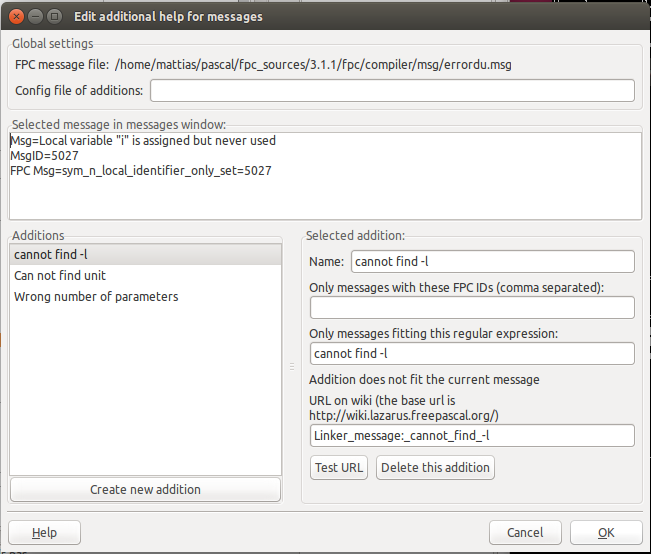 | |
| 64 | + | ||
| 65 | + | ## Clear | |
| 66 | + | ||
| 67 | + | Wipes out the Messages window clean. | |
| 68 | + | ||
| 69 | + | ## Options | |
| 70 | + | ||
| 71 | + | - **Windows stay on top** - enable to show the Messages window on top | |
| 72 | + | - **Filename style** - defines how source file names are shown | |
| 73 | + | - **Short, no path** - e.g. unit1.pas | |
| 74 | + | - **Relative** - relative to the working directory of the process, e.g. ../folder/unit1.pas | |
| 75 | + | - **Full** - e.g. /home/user/pascal/folder/unit1.pas | |
| 76 | + | - **Translate the English messages** - uses the FPC message file in **Tools / Options/ Files / Compiler messages language file** to show the messages in another language, e.g. *\$(FPCSrcDir)/compiler/msg/errordu.msg* for German. The translation is done during compile. Changing this setting does not change old messages in the Messages window. | |
| 77 | + | - **Show message type ID** - show the FPC message ID in brackets. | |
| 78 | + | - **More...** - shows the **Tool / Options / Messages Window** | |
| 79 | + | ||
| 80 | + | # Options | |
| 81 | + | ||
| 82 | + | 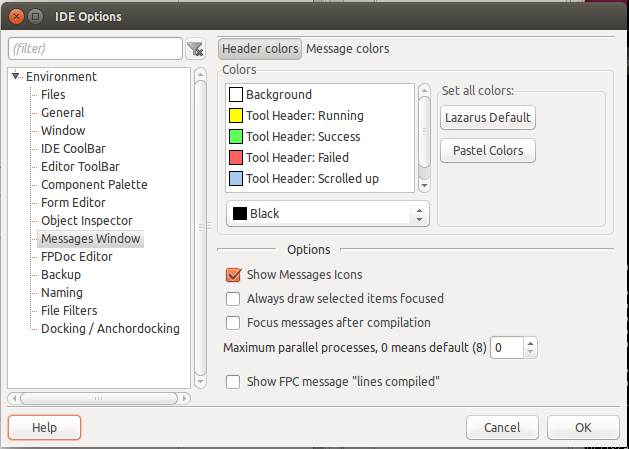 | |
| 83 | + | ||
| 84 | + | ## Colors | |
| 85 | + | ||
| 86 | + | - **Header colors**: | |
| 87 | + | - **Background** - the background color behind the text | |
| 88 | + | - **Tool Header: Running** - the background color of a header line, while the compiler is compiling. | |
| 89 | + | - **Tool Header: Success** - the background color of a header line, when the compiler successfully finished | |
| 90 | + | - **Tool Header: Failed** - the background color of a header line, when there was an error | |
| 91 | + | - **Tool Header: Scrolled up** - the lower background color of a header line, when the block was scrolled down and some messages of the block are hidden above. | |
| 92 | + | - **Text** - the default text color | |
| 93 | + | ||
| 94 | + | 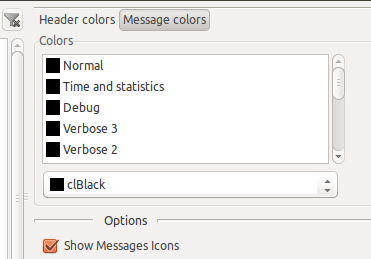 | |
| 95 | + | ||
| 96 | + | - **Message colors**: use these to override the default text color for each message urgency level (Hint, Warning, Error, etc...) | |
| 97 | + | ||
| 98 | + | ## Miscellaneous | |
| 99 | + | ||
| 100 | + | - **Show Messages Icons** - show an icon left of each message depending on urgency level (Hint, Warning, Error, etc...) | |
| 101 | + | - **Always draw selected items focused** - When enabled draw focused even if the Messages window does not have focus. | |
| 102 | + | - **Focus messages after compilation** - When compilation stops, focus the Messages window. | |
| 103 | + | - **Maximum parallel processes, 0 means default** - By default (0) the IDE guesses the number of cores and uses up to this number of parallel processes to compile. | |
| 104 | + | - **Show FPC message "lines compiled"** - By default this message is filtered. Enable to see this line, which basically gives you a footer for a successful built. | |
| 105 | + | ||
| 106 | + | # Notes and Tips | |
| 107 | + | ||
| 108 | + | - MacOS trackpad users: the Control + track pad click (right click or secondary click) does not work. Please use the two finger click, or whatever you set in System Preferences / Trackpad / Secondary click. | |
| 109 | + | ||
| 110 | + | --- | |
| 111 | + | *From the Free Pascal wiki, page "IDE Window: Messages", as it stood on 2024-03-08 after a change by Mattias2, out of the wiki's dump of 2024-05-26. Copyright stays with the author who wrote it, according to the old wiki's [[Licensing]] page. If you have concerns about this material, [message the admin](/wiki-contact).* |