

IDE Window: Find: what changed
Revision 0 to 1. Removed lines have a minus sign; added lines have a plus sign.
Title: IDE Window: Find
| Old | New | Line | |
|---|---|---|---|
| 1 | + | ## Navigation | |
| 2 | + | ||
| 3 | + | If this dialog is invoked by `CTRL`+`F` or `CMD`+`F`, or from the Lazarus IDE [[Main menu|Main Menu]] \> [[Main menu|Search]] \> Find menu item, then the replace option is disabled and the associated buttons are not visible. The replace options can be enabled by checking the "Replace with" checkbox. | |
| 4 | + | ||
| 5 | + | To search every file open in the editor, press `CTRL`+`SHIFT`+`F` or `CMD`+`SHIFT`+`F`, or from the Lazarus IDE [[Main menu|Main Menu]] \> [[Main menu|Search]] \> Find in files ... menu item, Lazarus will search all open files and present either a list of all occurrences of the search string in all files, or If there are no hits, a blank search result is returned. | |
| 6 | + | ||
| 7 | + | If this dialog is invoked by `CTRL`+`R` or `CMD`+`R`, or from the Lazarus IDE [[Main menu|Main Menu]] \> [[Main menu|Search]] \> Replace menu item, then the replace option will be enabled. | |
| 8 | + | ||
| 9 | + | If this dialog is invoked by `CTRL`+`SHIFT`+`R` or `CMD`+`SHIFT`+`R` (this feature is not available from the main menu), then the Replace in All Open Files option will be enabled. It will find every occurrence of the search string and allow either selecting specific entries in files, or all occurrences in all open files. | |
| 10 | + | ||
| 11 | + | 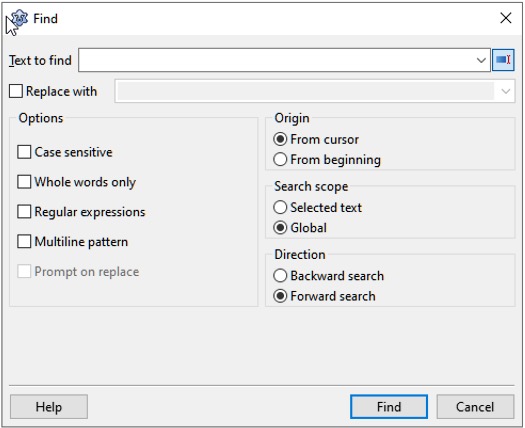 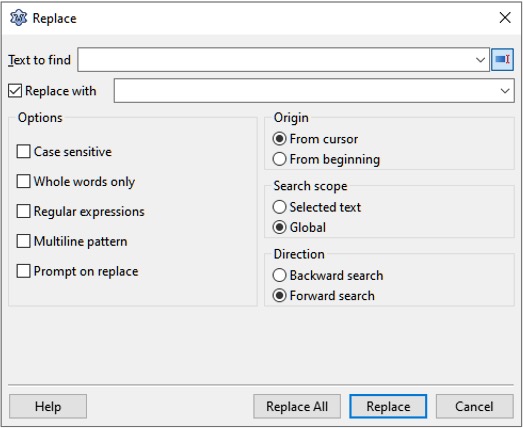 | |
| 12 | + | ||
| 13 | + | ## Usage | |
| 14 | + | ||
| 15 | + | - Text to find | |
| 16 | + | - Replace with | |
| 17 | + | ||
| 18 | + | These two fields contain the last searched text and replacement text (if any). `Down` will go back in history and `Up` will go forward in history and recall the previous search text and replacement text. | |
| 19 | + | ||
| 20 | + | > **Tip:** You can choose whether the Lazarus IDE starts the dialog with the word at the cursor in the source editor or with a blank field in [[Main menu|Main Menu]] \> [[Main menu|Tools]] \> [[IDE Window: IDE Options Dialog|Options]] \> [[IDE Window: Editor Options|Editor]] \> [[IDE Window: Editor Options General|General]] \> [[IDE Window: Editor Options General Misc|Miscellaneous]] \> Find text at cursor. | |
| 21 | + | ||
| 22 | + | ## Options | |
| 23 | + | ||
| 24 | + | - Case sensitive - distinguish lowercase and uppercase (eg **a** and **A**). | |
| 25 | + | - Whole words only - the found text must start at a word start and end at a word end. | |
| 26 | + | - Regular expressions - treat texts as [[IDE regular expressions]]. | |
| 27 | + | - Multi line - the search does not stop at line ends or in other words: the found text can contain multiple lines. You can paste/copy multiple lines from the source editor to the Find field and you will see the line endings. These line endings cannot be created by normal keys. When searching with regular expressions you can use `\`+`n` (backslash plus n) as marker for line end characters. This also activates "multi-line" reg-expression option: for example, reg-expression "begin.*Application" will find such text: | |
| 28 | + | ||
| 29 | + | ``` pascal | |
| 30 | + | begin | |
| 31 | + | Something; | |
| 32 | + | Application | |
| 33 | + | ``` | |
| 34 | + | ||
| 35 | + | - Prompt on replace - ask before replacing (only enabled if replacing). | |
| 36 | + | ||
| 37 | + | ## Origin | |
| 38 | + | ||
| 39 | + | - From Cursor - start search at the cursor. If direction is forward, it searches until the end of the file. | |
| 40 | + | - Entire Scope - start search at the text edge (at the beginning for forward search, at the end for backward search) | |
| 41 | + | ||
| 42 | + | ## Search Scope | |
| 43 | + | ||
| 44 | + | - Global - search in the whole file. | |
| 45 | + | - Selected Text - limit the search to the selected text. | |
| 46 | + | ||
| 47 | + | > **Tip:** To search multiple files at the same time, use [[Main menu|Main Menu]] \> [[Main menu|Search]] \> [[IDE Window: Find in files|Find in files]]. | |
| 48 | + | ||
| 49 | + | ## Direction | |
| 50 | + | ||
| 51 | + | - Forward search - search top to bottom. Each line is searched from left to right. | |
| 52 | + | - Backward search - search bottom to top. Each line is searched backward from left to right. | |
| 53 | + | ||
| 54 | + | --- | |
| 55 | + | *From the Free Pascal wiki, page "IDE Window: Find", as it stood on 2021-12-25 after a change by Rfc1394, out of the wiki's dump of 2024-05-26. Copyright stays with the author who wrote it, according to the old wiki's [[Licensing]] page. If you have concerns about this material, [message the admin](/wiki-contact).* |