

IDE Window: Environment Options: what changed
Revision 0 to 1. Removed lines have a minus sign; added lines have a plus sign.
Title: IDE Window: Environment Options
| Old | New | Line | |
|---|---|---|---|
| 1 | + | 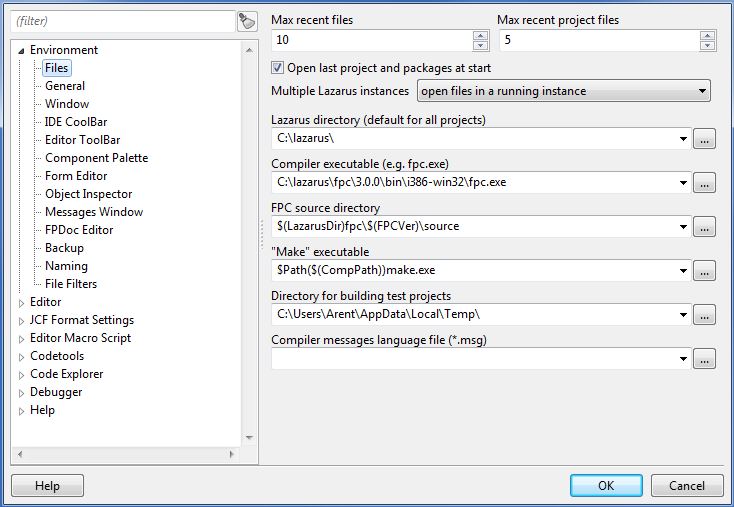 | |
| 2 | + | ||
| 3 | + | ## Files | |
| 4 | + | ||
| 5 | + | Max recent files | |
| 6 | + | ||
| 7 | + | The maximum number of items in the *open recent file* menu. | |
| 8 | + | ||
| 9 | + | Max recent project files | |
| 10 | + | ||
| 11 | + | The maximum number of items in the *open recent project* menu. | |
| 12 | + | ||
| 13 | + | Open last project on start | |
| 14 | + | ||
| 15 | + | Enable to automatically reopen the last edited project on IDE start | |
| 16 | + | ||
| 17 | + | Show compile dialog | |
| 18 | + | ||
| 19 | + | If enabled, you will see a compile 'progress' dialog appear while your project is being compiled. It will also show a summary of the total lines compiled, number of hints, warnings etc. | |
| 20 | + | ||
| 21 | + | Lazarus directory | |
| 22 | + | ||
| 23 | + | Set here the directory of the Lazarus source directory. The Lazarus source directory contains directories like 'ide', 'debugger', 'converter', 'components' and 'lcl'. It is used to find sources (.pas) of the LCL and components. | |
| 24 | + | ||
| 25 | + | Compiler path | |
| 26 | + | ||
| 27 | + | This must be the full filename of the used compiler. For example /usr/bin/ppc386 under Linux or /usr/local/bin/ppc386 (32 bit) or /usr/local/bin/ppcx64 (64 bit) under macOS or C:\pp\ppc386.exe under Windows. The filename depends on how the compiler was installed. | |
| 28 | + | ||
| 29 | + | FPC Source directory | |
| 30 | + | ||
| 31 | + | Set here the directory of the Free Pascal source directory. The source directory contains directories like 'compiler', 'packages', 'rtl' and 'fcl'. Typically under Linux/*BSD/MacOSX this is found at /usr/share/fpcsrc/. | |
| 32 | + | ||
| 33 | + | **Note**: Do not confuse this with the FPC unit/library directory (.../units/i386-win32/), that only contains the compiled .ppu files and has a totally different structure. | |
| 34 | + | ||
| 35 | + | Make path | |
| 36 | + | ||
| 37 | + | Set here the filename of the **make** tool. Leave blank to let the IDE use the default. The **make** tool is a utility used by many projects to help compiling big sources and is therefore installed on almost all Linux and macOS systems by default. The Lazarus Windows installer installs a version too. Under BSD use gmake. See here for more information [make](http://www.gnu.org/software/make/). | |
| 38 | + | ||
| 39 | + | Delphi installs a make executable too, which is incompatible with gnu make and which cannot be used for Lazarus. Don't leave this option blank if the make from Delphi os on the path. | |
| 40 | + | ||
| 41 | + | Directory for building test projects | |
| 42 | + | ||
| 43 | + | When a newly created project is not yet saved and you build it, the IDE saves the whole project into this directory and builds it there.\ | |
| 44 | + | ||
| 45 | + | ## General | |
| 46 | + | ||
| 47 | + | 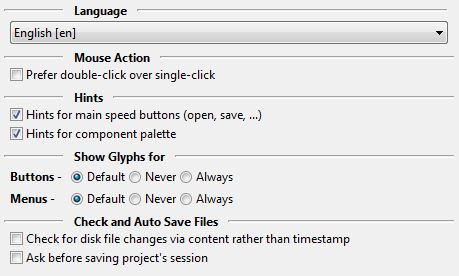 | |
| 48 | + | ||
| 49 | + | Language | |
| 50 | + | ||
| 51 | + | The language of all text of the IDE. You should restart the IDE to make sure all text is reloaded. | |
| 52 | + | ||
| 53 | + | Mouse Action | |
| 54 | + | ||
| 55 | + | - **Prefer double-click over single-click** (was "Double click on message jumps"). When enabled you must double click on a line in the message window (e.g. compiler messages). When disabled a single click is enough. | |
| 56 | + | ||
| 57 | + | Auto Save | |
| 58 | + | ||
| 59 | + | - **Ask before saving project's session** - When the project is closed the IDE asks to save changes. If only the session data (i.e. cursor positions and what files are open in the source editor) is changed and the session is saved to a separate lps file (not in the lpi file), then the IDE will not ask. | |
| 60 | + | ||
| 61 | + | Desktop files | |
| 62 | + | ||
| 63 | + | Load or save the environment options to/from a file. | |
| 64 | + | ||
| 65 | + | Check changes on disk with loading | |
| 66 | + | ||
| 67 | + | When the IDE checks if some editor files changed on disk it normally only compares the file date. To also load the file and compare the content, enable this option. | |
| 68 | + | ||
| 69 | + | Hints for component palette | |
| 70 | + | ||
| 71 | + | Show hints, when mouse is over the component palette. | |
| 72 | + | ||
| 73 | + | Hints for main speed buttons | |
| 74 | + | ||
| 75 | + | Show hints, when mouse is over the buttons of the main IDE bar window. (e.g. buttons for open, save) | |
| 76 | + | ||
| 77 | + | ## Window | |
| 78 | + | ||
| 79 | + | 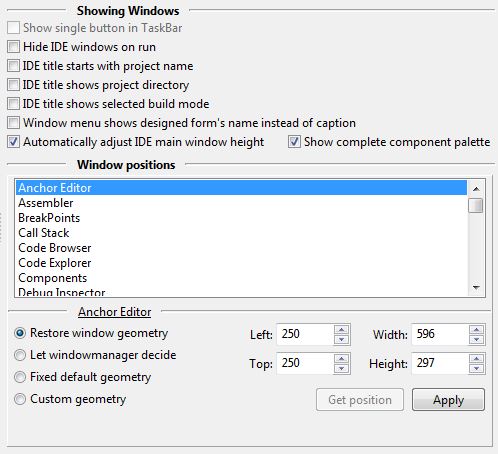 | |
| 80 | + | ||
| 81 | + | Hide IDE windows on run | |
| 82 | + | ||
| 83 | + | When running the project, all IDE windows are hidden and restored when program stops. | |
| 84 | + | ||
| 85 | + | Hide message icons | |
| 86 | + | ||
| 87 | + | Normally the **Messages** window prepends an icon to each message so you can quickly see what type it has or if the IDE can *quick fix* the message. If you don't want the icons, enable this option. | |
| 88 | + | ||
| 89 | + | IDE title starts with project name | |
| 90 | + | ||
| 91 | + | Normally the IDE uses as its caption in the taskbar (the panel at top or the bottom of your screen) *Lazarus IDE vX.Y.Z - project1*. Most taskbars are too short and you can only see *Lazarus ...*. Enable this to show the project name first. This can be useful when starting multiple instances of the IDE to work on several different projects at the same time. Since 0.9.29. | |
| 92 | + | ||
| 93 | + | Window positions | |
| 94 | + | ||
| 95 | + | Fine tune the positions of the IDE windows.\ | |
| 96 | + | ||
| 97 | + | ## IDE CoolBar | |
| 98 | + | ||
| 99 | + | 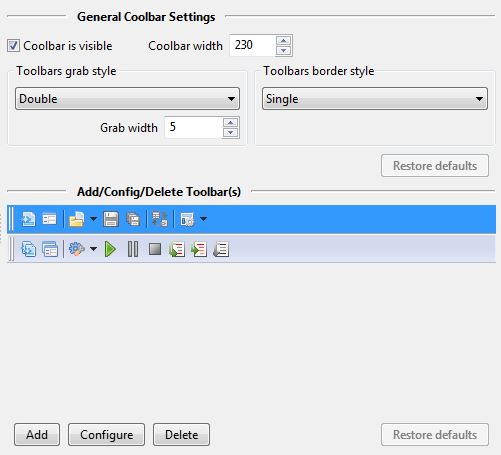 | |
| 100 | + | ||
| 101 | + | Coolbar is visible | |
| 102 | + | ||
| 103 | + | If this checkbox is ticked, then the coolbar will be displayed in the IDE. | |
| 104 | + | ||
| 105 | + | Coolbar width | |
| 106 | + | ||
| 107 | + | Sets the width of the coolbar. If you add more buttons, you will need to increase this value. | |
| 108 | + | ||
| 109 | + | Toolbar grab style | |
| 110 | + | ||
| 111 | + | Determines the style of the left-hand coolbar grabbers. | |
| 112 | + | ||
| 113 | + | Grab width | |
| 114 | + | ||
| 115 | + | Sets the width of the collbar grabbers. | |
| 116 | + | ||
| 117 | + | Toolbar border style | |
| 118 | + | ||
| 119 | + | Determines whether there is a line between toolbars (default). | |
| 120 | + | ||
| 121 | + | The **Restore defaults** button restores the above settings to their defaults. | |
| 122 | + | ||
| 123 | + | ------------------------------------------------------------------------ | |
| 124 | + | ||
| 125 | + | The **Add** button inserts a new toolbar. | |
| 126 | + | ||
| 127 | + | The [[IDE Window: Toolbar Config|Configure]] button allows you to add and remove items from a toolbar. | |
| 128 | + | ||
| 129 | + | The **Delete** button deletes the selected toolbar. | |
| 130 | + | ||
| 131 | + | The **Restore defaults** button restores the above settings to their defaults.\ | |
| 132 | + | ||
| 133 | + | ## Editor ToolBar | |
| 134 | + | ||
| 135 | + | 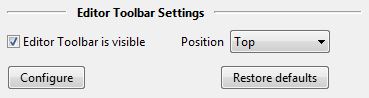\ | |
| 136 | + | ||
| 137 | + | ## Component Palette | |
| 138 | + | ||
| 139 | + | 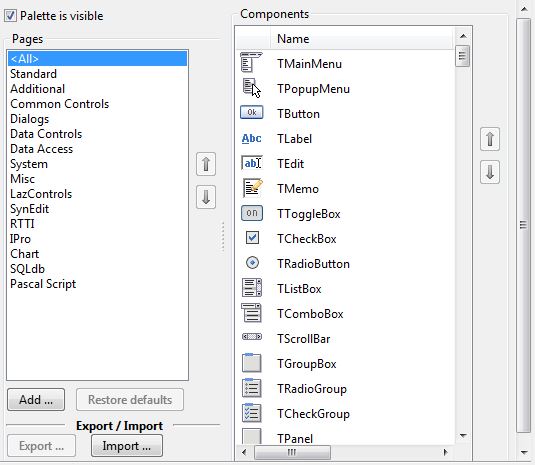\ | |
| 140 | + | ||
| 141 | + | ## Form Editor | |
| 142 | + | ||
| 143 | + | 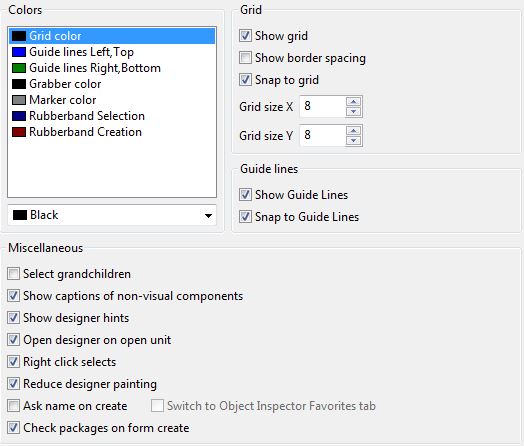 | |
| 144 | + | ||
| 145 | + | Colors | |
| 146 | + | ||
| 147 | + | - **Grid color** - the color of the grid points | |
| 148 | + | - **Grabber color** - the color of the 8 small boxes used to resize a selection of controls. | |
| 149 | + | - **Guide lines Left, Top** - the color for left, top aligned guide lines. | |
| 150 | + | - **Guide lines Right, Bottom** - the color for right, bottom aligned guide lines. | |
| 151 | + | - **Marker color** - the color of the 4 small boxes on each control in a multi selection. | |
| 152 | + | - **Rubberband selection** - the color of a selection rubber band: Left click on the designer form client area, then drag the mouse keeping pressed. Release the left button and all intersecting controls are selected. Pressing shift to add/remove from/to the current selection. | |
| 153 | + | - **Rubberband creation** - the color of a creation rubber band. Select a control in the component palette. Then drag a rectangle on a designer form. The new control will be created with this size. | |
| 154 | + | ||
| 155 | + | Grid | |
| 156 | + | ||
| 157 | + | - **Show grid** - show a grid of points on each designer window. All client areas, which accept controls have this grid. | |
| 158 | + | - **Show border spacing** - Show rectangles around each control showing the borderspacing. This is quite slow. | |
| 159 | + | - **Snap to grid** - When moving or resizing components on the designer round the movement to the nearest grid point. | |
| 160 | + | - **Grid Size X** - The horizontal distance of the grid points | |
| 161 | + | - **Grid Size Y** - The vertical distance of the grid points. | |
| 162 | + | ||
| 163 | + | Guide lines | |
| 164 | + | ||
| 165 | + | The guide lines are the lines, showing to which controls the current selection is currently aligned. | |
| 166 | + | ||
| 167 | + | - **Show Guide lLines** - paint guide lines | |
| 168 | + | - **Snap to Guide Lines** - snap to nearest guide line during moving/resizing of controls on the designer form. | |
| 169 | + | ||
| 170 | + | Miscellaneous | |
| 171 | + | ||
| 172 | + | - **Select grandchildren** - when multiple controls are selected by the “rubber band method” (dragging a rectangle) and the rubber band touches children of a control, i.e. grand children of the control where the drag started, then these controls will be included in the selection if this option is checked. | |
| 173 | + | - **Show captions of non-visual components** - Shows the component name of non-visual components along below their palette icon. | |
| 174 | + | - **Show designer hints** - Show hints of the component position and size, when mouse is over a control on a designer form. | |
| 175 | + | - **Open designer on open unit** - Automatically open the designer form, when opening a pascal unit file. Useful for newbies, so enabled on default. | |
| 176 | + | - **Right click selects** - right click selects and then shows the popup menu. | |
| 177 | + | - **Reduce designer painting** - the IDE will use smart InvaldidateRect calls instead of full redraws. This is faster, but does not work with all widgets of all widgetsets. Use this to reduce artefacts on the designer forms. | |
| 178 | + | - **Ask name on create** - Prompts for the component name and caption (if available) when a new component is dropped in the designer form. | |
| 179 | + | - **Switch to Object inspector Favorites tab** - Automatically switches to the object inspector’s Favorites tab when a new component is dropped on the form. This way the user sees only the most-often-used properties. Can only be changed when the option “Ask name on create” is checked. | |
| 180 | + | - **Check packages on form create** - | |
| 181 | + | ||
| 182 | + | ## Object Inspector | |
| 183 | + | ||
| 184 | + | 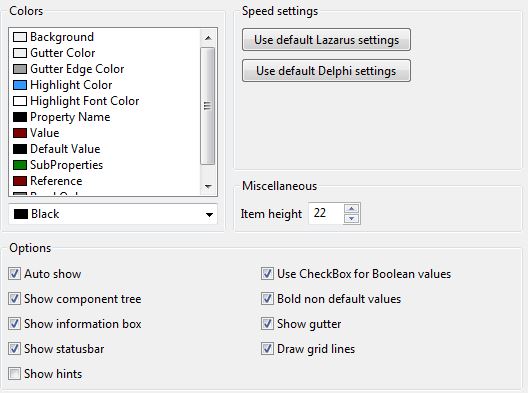 | |
| 185 | + | ||
| 186 | + | Colors | |
| 187 | + | ||
| 188 | + | Colors for various property items. | |
| 189 | + | ||
| 190 | + | Miscellaneous | |
| 191 | + | ||
| 192 | + | - Item Height - the default height of each property row. Not all widgetsets support resizing the edit and comboboxes. For example the win32 interface does not allow setting the combobox heights. | |
| 193 | + | ||
| 194 | + | Options | |
| 195 | + | ||
| 196 | + | - Auto show | |
| 197 | + | - Show component tree | |
| 198 | + | - Show information box | |
| 199 | + | - Show status bar | |
| 200 | + | - Show Hints - show hints in object Inspector when moving the mouse over a property row. | |
| 201 | + | - Bold non default values | |
| 202 | + | - Show gutter | |
| 203 | + | - Draw grid lines | |
| 204 | + | ||
| 205 | + | ## FPDoc Editor | |
| 206 | + | ||
| 207 | + | 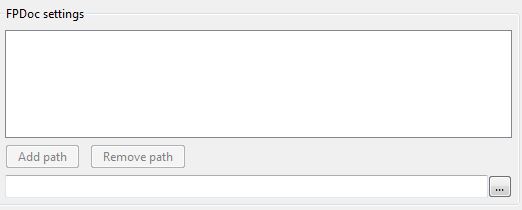 | |
| 208 | + | ||
| 209 | + | FPDoc files path | |
| 210 | + | ||
| 211 | + | Contains paths to FPDoc files with documentation for the units not documented in a project. You can also add paths to the RTL's (*.xml) documentations files, so that tooltip help works for both RTL code.\ | |
| 212 | + | ||
| 213 | + | ## Backup | |
| 214 | + | ||
| 215 | + | 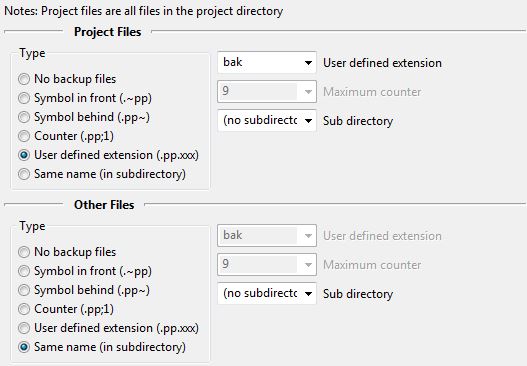 The IDE can create backup files each time it saves a file and an old file exists already. | |
| 216 | + | ||
| 217 | + | The options allow to setup the extension and place of backup files. | |
| 218 | + | ||
| 219 | + | **Hint**: Normally it is better to use a version control system like svn or cvs for backups and to disable backups here.\ | |
| 220 | + | ||
| 221 | + | ## Naming | |
| 222 | + | ||
| 223 | + | 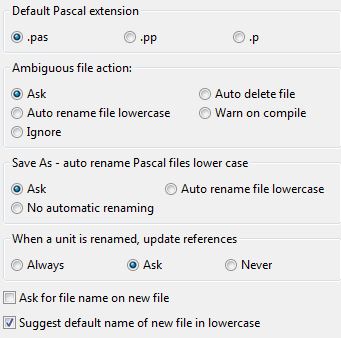 | |
| 224 | + | ||
| 225 | + | Default pascal extension | |
| 226 | + | ||
| 227 | + | Whenever the IDE creates a pascal unit, it uses this extension as default. The .pas is typical for Delphi users, while .pp is often used for FPC sources and .p is known on Mac computers. | |
| 228 | + | ||
| 229 | + | **Note**: Custom projects can create pascal sources with defined extension. The IDE will not override this. | |
| 230 | + | ||
| 231 | + | Ambiguous file action | |
| 232 | + | ||
| 233 | + | Before compile the IDE checks if there are ambiguous files. For example it checks if a unit exists twice in the unit path. The compiler will use the first it finds, which might not the intended thing and this gives strange errors. Here you can set the action, what should happen, if the IDE finds such a file. | |
| 234 | + | ||
| 235 | + | - Ask | |
| 236 | + | - Auto delete file | |
| 237 | + | - Auto rename lowercase | |
| 238 | + | - Warn on compile | |
| 239 | + | - Ignore | |
| 240 | + | ||
| 241 | + | Save as - auto rename pascal files lowercase | |
| 242 | + | ||
| 243 | + | Source code, that compiles on platforms with case sensitive filenames must make sure, that units are written correct. FPC searches first for the unit name with the uses case, then lowercase and finally uppercase. You can either make sure, that the case is written correct in all units, which is hard for windows users, as they don't need to. Or you can let the IDE save all new units lowercase. The source editor will show the unit name as written in the source code, so you see the right case in the IDE anyway. | |
| 244 | + | ||
| 245 | + | - Ask | |
| 246 | + | - Auto rename lowercase | |
| 247 | + | - no automatic renaming | |
| 248 | + | ||
| 249 | + | When a unit is renamed, update references | |
| 250 | + | ||
| 251 | + | - Always | |
| 252 | + | - Ask | |
| 253 | + | - Never | |
| 254 | + | ||
| 255 | + | ## File Filters | |
| 256 | + | ||
| 257 | + | 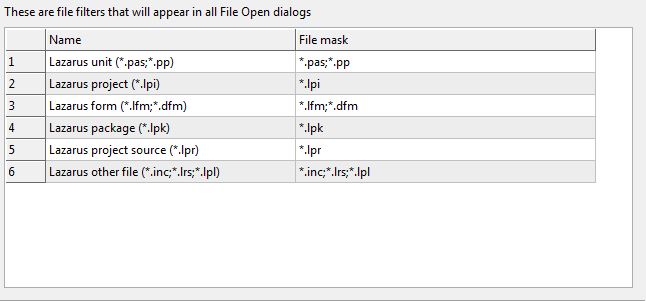 | |
| 258 | + | ||
| 259 | + | The **File / Open File** dialog has a list of filters, that can be configured here. Right click on the grid to add and remove items. (Since 0.9.31) | |
| 260 | + | ||
| 261 | + | The IDE always adds a few filters: | |
| 262 | + | ||
| 263 | + | - prepends a filter that sums up all filters | |
| 264 | + | - appends a filter for all file types of the open files in the source editor, that are not yet in the list. For example if you have a text.txt file open, this filter will contain a *.txt. | |
| 265 | + | - appends an any files filter (*.*) | |
| 266 | + | ||
| 267 | + | --- | |
| 268 | + | *From the Free Pascal wiki, page "IDE Window: Environment Options", as it stood on 2020-08-01 after a change by Trev, out of the wiki's dump of 2024-05-26. Copyright stays with the author who wrote it, according to the old wiki's [[Licensing]] page. If you have concerns about this material, [message the admin](/wiki-contact).* |