

IDE Window: Environment Options/fr: what changed
Revision 0 to 1. Removed lines have a minus sign; added lines have a plus sign.
Title: IDE Window: Environment Options/fr
| Old | New | Line | |
|---|---|---|---|
| 1 | + | ## Fichiers | |
| 2 | + | ||
| 3 | + | **Configuration-\>Options d'environnement** 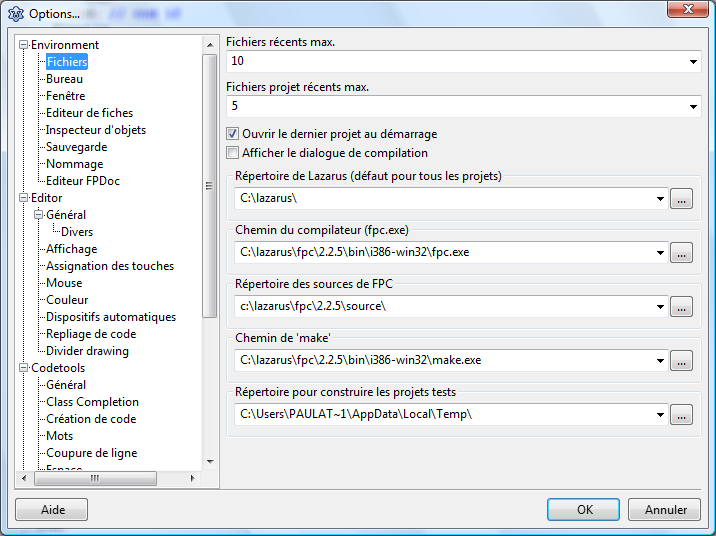 | |
| 4 | + | ||
| 5 | + | ### Fichiers récents max. | |
| 6 | + | ||
| 7 | + | Le nombre maximum d'éléments dans le menu *réouvrir...*. | |
| 8 | + | ||
| 9 | + | ### Fichiers projet récents max. | |
| 10 | + | ||
| 11 | + | Le nombre maximum d'éléments dans le menu *Réouvrir un projet...*. | |
| 12 | + | ||
| 13 | + | ### Ouvrir le dernier projet au démarrage | |
| 14 | + | ||
| 15 | + | Permet de réouvrir automatiquement le dernier projet édité au cours du lancement de l'IDE | |
| 16 | + | ||
| 17 | + | ### Afficher la boite de dialogue de compilation | |
| 18 | + | ||
| 19 | + | Permet d'afficher la boite de dialogue de compilation au cours du lancement de l'IDE | |
| 20 | + | ||
| 21 | + | ### Répertoire Lazarus | |
| 22 | + | ||
| 23 | + | Set here the directory of the Lazarus source directory. The Lazarus source directory contains directories like 'ide', 'debugger', 'converter', 'components' and 'lcl'. It is used to find sources (.pas) of the LCL and components. | |
| 24 | + | ||
| 25 | + | ### Compiler path | |
| 26 | + | ||
| 27 | + | This must be the full filename of the used compiler. For example /usr/bin/ppc386 under linux or /usr/bin/ppcppc under MacOSX or C:\pp\ppc386.exe under windows. The filename depends on how the compiler was installed. | |
| 28 | + | ||
| 29 | + | ### FPC Source directory | |
| 30 | + | ||
| 31 | + | Set here the directory of the FreePascal source directory. The source directory contains directories like 'compiler', 'packages', 'rtl' and 'fcl'. Typically this is under linux/bsd/macosx /usr/share/fpcsrc/. | |
| 32 | + | ||
| 33 | + | **Note**: Do not confuse this with the FPC unit/library directory (.../units/i386-win32/), that only contains the compiled .ppu files and has a totally different stucture. | |
| 34 | + | ||
| 35 | + | ### Make path | |
| 36 | + | ||
| 37 | + | Set here the filename of the **make** tool. Leave blank to let the IDE use the default. The **make** tool is a utility used by many projects to help compiling big sources and is therefore installed on almost all Linux and MacOSX systems by default. The Lazarus Windows installer installs a version too. Under BSD use gmake. See here for more information: [make](http://www.gnu.org/software/make/) | |
| 38 | + | ||
| 39 | + | ### Directory for building test projects | |
| 40 | + | ||
| 41 | + | When a newly created project is not yet saved and you build it, the IDE saves the whole project into this directory and builds it there. | |
| 42 | + | ||
| 43 | + | ## Desktop | |
| 44 | + | ||
| 45 | + | 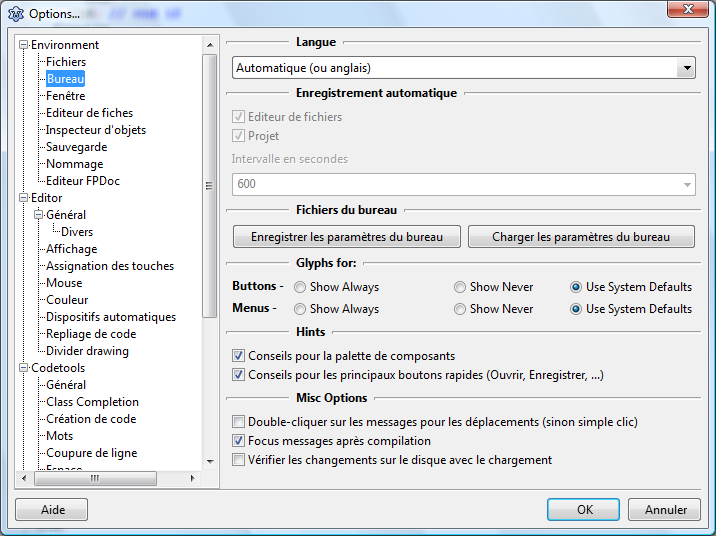 | |
| 46 | + | ||
| 47 | + | ### Language | |
| 48 | + | ||
| 49 | + | The language of all text of the IDE. You should restart the IDE to make sure all text is reloaded. | |
| 50 | + | ||
| 51 | + | ### Auto Save | |
| 52 | + | ||
| 53 | + | Not yet implemented. | |
| 54 | + | ||
| 55 | + | ### Desktop files | |
| 56 | + | ||
| 57 | + | Load or save the environment options to/from a file. | |
| 58 | + | ||
| 59 | + | ### Check changes on disk with loading | |
| 60 | + | ||
| 61 | + | When the IDE checks if some editor files changed on disk it normally only compares the file date. To also load the file and compare the content, enable this option. | |
| 62 | + | ||
| 63 | + | ### Hints for component palette | |
| 64 | + | ||
| 65 | + | Show hints, when mouse is over the component palette. | |
| 66 | + | ||
| 67 | + | ### Hints for main speed buttons | |
| 68 | + | ||
| 69 | + | Show hints, when mouse is over the buttons of the main IDE bar window. (e.g. buttons for open, save) | |
| 70 | + | ||
| 71 | + | ### Double click on message jumps | |
| 72 | + | ||
| 73 | + | When enabled you must double click on a line in the message window (e.g. compiler messages). When disabled a single click is enough. | |
| 74 | + | ||
| 75 | + | ## Windows | |
| 76 | + | ||
| 77 | + | 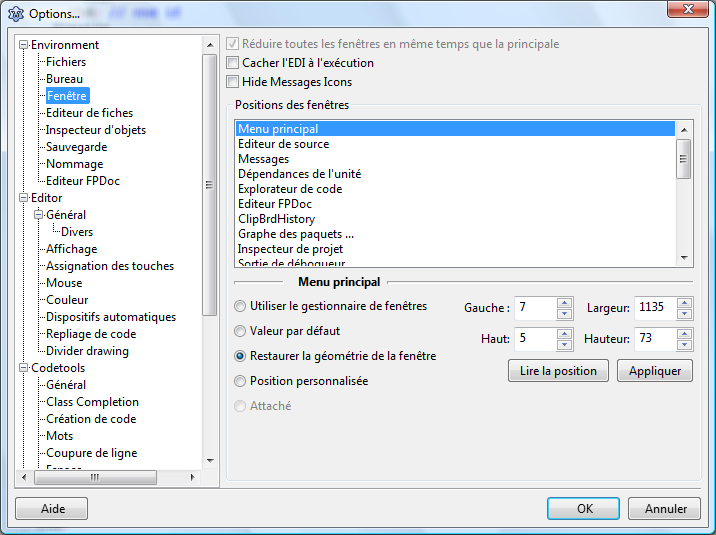 | |
| 78 | + | ||
| 79 | + | ### Minimize all on minimize all | |
| 80 | + | ||
| 81 | + | Not yet implemented. Some widget sets do this automatically. | |
| 82 | + | ||
| 83 | + | ### Hide IDE windows on run | |
| 84 | + | ||
| 85 | + | When running the project, all IDE windows are hidden and restored when program stops. | |
| 86 | + | ||
| 87 | + | ### Window positions | |
| 88 | + | ||
| 89 | + | Fine tune the positions of the IDE windows. | |
| 90 | + | ||
| 91 | + | ## Form Editor | |
| 92 | + | ||
| 93 | + | 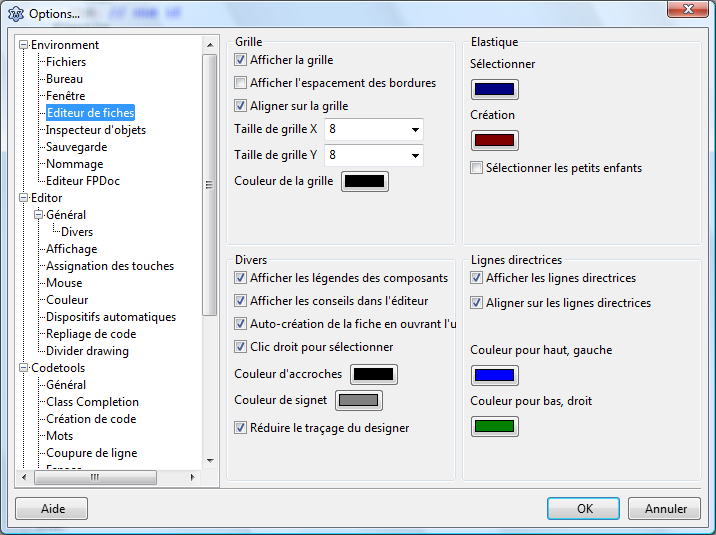 | |
| 94 | + | ||
| 95 | + | ### Grid | |
| 96 | + | ||
| 97 | + | - Show grid - show a grid of points on each designer window. All client areas, which accept controls have this grid. | |
| 98 | + | - Show border spacing - Show rectangles around each control showing the borderspacing. This is quite slow. | |
| 99 | + | - Snap to grid - When moving or resizing components on the designer round the movement to the nearest grid point. | |
| 100 | + | - Grid Size X - The step width in pixels for the grid. | |
| 101 | + | - Grid Size Y - The step height in pixels for the grid. | |
| 102 | + | - Grid color - the color of the grid points | |
| 103 | + | ||
| 104 | + | ### Rubber band | |
| 105 | + | ||
| 106 | + | - Selection - the color of a selection rubber band: Left click on the designer form client area, then drag the mouse keeping pressed. Release the left button and all intersecting controls are selected. Pressing shift to add/remove from/to the current selection. | |
| 107 | + | - Creation - the color of a creation rubber band. Select a control in the component palette. Then drag a rectangle on a designer form. The new control will be created with this size. | |
| 108 | + | ||
| 109 | + | ### Miscellaneous | |
| 110 | + | ||
| 111 | + | - Show component caption - Show hints of the component name and classname, when mouse is over a control on a designer form. | |
| 112 | + | - Show editor hints - Show hints of the component position and size, when mouse is over a control on a designer form. | |
| 113 | + | - Auto create form when opening unit - Automatically open the designer form, when opening a pascal unit file. Useful for newbies, so enabled on default. | |
| 114 | + | - Right click selects - right click selects and then shows the popup menu. | |
| 115 | + | - Grabber color - the color of the 8 small boxes used to resize a selection of controls. | |
| 116 | + | - Marker color - the color of the 4 small boxes on each control in a multi selection. | |
| 117 | + | - Reduce designer painting - the IDE will use smart InvaldidateRect calls instead of full redraws. This is faster, but does not work with all widgets of all widgetsets. Use this to reduce artefacts on the designer forms. | |
| 118 | + | ||
| 119 | + | ### Guide lines | |
| 120 | + | ||
| 121 | + | The guide lines are the lines, showing to which controls the current selection is currently aligned. | |
| 122 | + | ||
| 123 | + | - Show Guide lines - paint guide lines | |
| 124 | + | - Snap to Guide lines - snap to nearest guide line during moving/resizing of controls on the designer form. | |
| 125 | + | - color for left, top - the color for left, top aligned guide lines. | |
| 126 | + | - color for right, bottom - the color for right, bottom aligned guide lines. | |
| 127 | + | ||
| 128 | + | ## Object Inspector | |
| 129 | + | ||
| 130 | + | 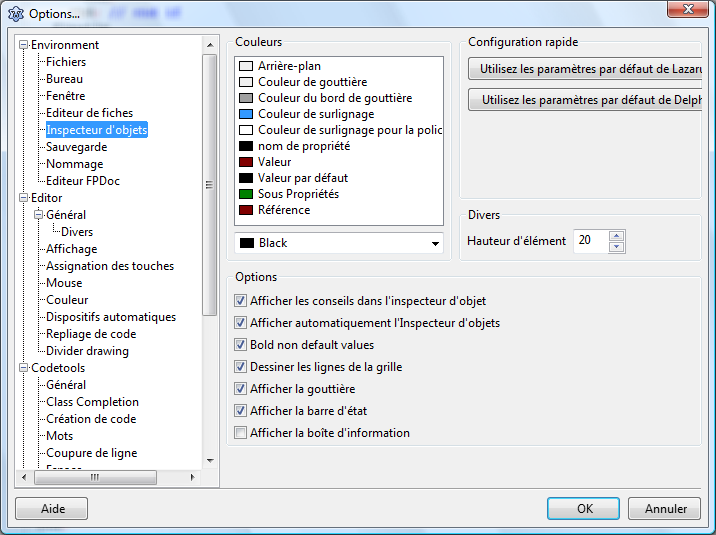 | |
| 131 | + | ||
| 132 | + | ### Colors | |
| 133 | + | ||
| 134 | + | Colors for various property items. | |
| 135 | + | ||
| 136 | + | ### Miscellaneous | |
| 137 | + | ||
| 138 | + | - Item Height - the default height of each property row. Not all widgetsets support resizing the edit and comboboxes. For example the win32 interface does not allow setting the combobox heights. | |
| 139 | + | - Show Hints in object Inspector - show hints, when moving the mouse over a property row. | |
| 140 | + | ||
| 141 | + | ## Backup | |
| 142 | + | ||
| 143 | + | 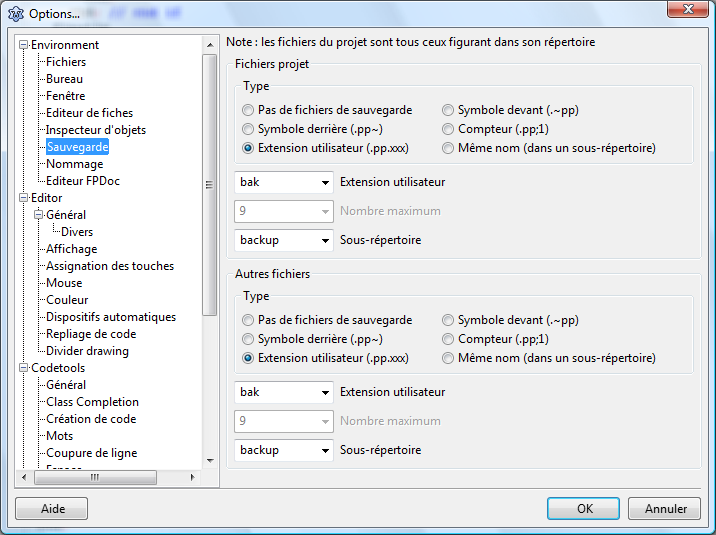 The IDE can create backup files each time it saves a file and an old file exists already. | |
| 144 | + | ||
| 145 | + | The options allow to setup the extension and place of backup files. | |
| 146 | + | ||
| 147 | + | **Hint**: Normally it is better to use a version control system like svn or cvs for backups and to disable backups here. | |
| 148 | + | ||
| 149 | + | ## Naming | |
| 150 | + | ||
| 151 | + | 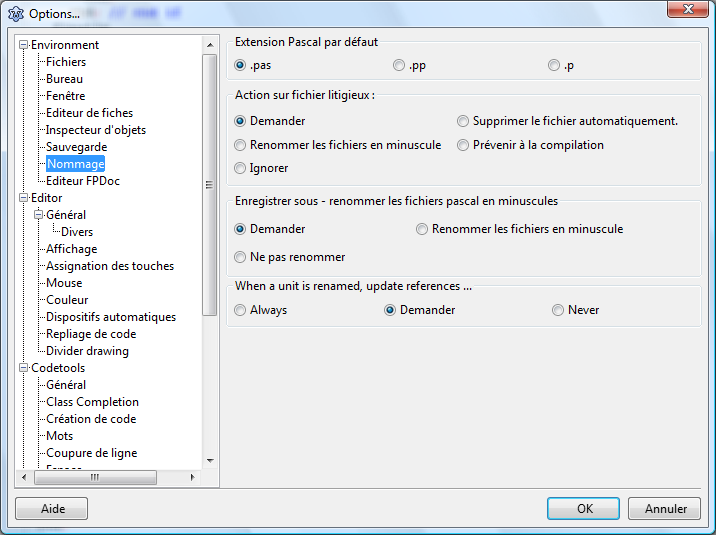 | |
| 152 | + | ||
| 153 | + | ### Default pascal extension | |
| 154 | + | ||
| 155 | + | Whenever the IDE creates a pascal unit, it uses this extension as default. The .pas is typical for Delphi users, while .pp is often used for FPC sources and .p is known on Mac computers. | |
| 156 | + | ||
| 157 | + | **Note**: Custom projects can create pascal sources with defined extension. The IDE will not override this. | |
| 158 | + | ||
| 159 | + | ### Ambigious file action | |
| 160 | + | ||
| 161 | + | Before compile the IDE checks if there are ambigious files. For example it checks if a unit exists twice in the unit path. The compiler will use the first it finds, which might not the intended thing and this gives strange errors. Here you can set the action, what should happen, if the IDE finds such a file. | |
| 162 | + | ||
| 163 | + | ### Save as - auto rename pascal files lowercase | |
| 164 | + | ||
| 165 | + | Source code, that compiles on platforms with case sensitive filenames must make sure, that units are written correct. FPC searches first for the unit name with the uses case, then lowercase and finally uppercase. You can either make sure, that the case is written correct in all units, which is hard for windows users, as they don't need to. Or you can let the IDE save all new units lowercase. The source editor will show the unit name as written in the source code, so you see the right case in the IDE anyway. | |
| 166 | + | ||
| 167 | + | ## LazDoc | |
| 168 | + | ||
| 169 | + |  | |
| 170 | + | ||
| 171 | + | --- | |
| 172 | + | *From the Free Pascal wiki, page "IDE Window: Environment Options/fr", as it stood on 2015-07-03 after a change by FTurtle, out of the wiki's dump of 2024-05-26. Copyright stays with the author who wrote it, according to the old wiki's [[Licensing]] page. If you have concerns about this material, [message the admin](/wiki-contact).* |