

IDE Window: Editor Options General: what changed
Revision 0 to 1. Removed lines have a minus sign; added lines have a plus sign.
Title: IDE Window: Editor Options General
| Old | New | Line | |
|---|---|---|---|
| 1 | + | This is part of the online help for the IDE. \ | |
| 2 | + | It describes the section: "Editor" / "General". You can open the described dialog in your IDE via:\ | |
| 3 | + | *The menu: "Tools" =\> "Options" / Editor options ... | |
| 4 | + | ||
| 5 | + | - The source-editor pop-up menu: "Editor properties ... | |
| 6 | + | ||
| 7 | + | Navigation\ | |
| 8 | + | ||
| 9 | + | - [[IDE Window: Editor Options|Editor Options]] Overview of all Editor Options | |
| 10 | + | ||
| 11 | + | ||
| 12 | + | ||
| 13 | + | - [[IDE Window: IDE Options Dialog|IDE Options]] Overview of all options for the IDE | |
| 14 | + | ||
| 15 | + | ------------------------------------------------------------------------ | |
| 16 | + | ||
| 17 | + | # Undo / Redo | |
| 18 | + | ||
| 19 | + | ### Undo after save | |
| 20 | + | ||
| 21 | + | Keep the Undo list on save. | |
| 22 | + | ||
| 23 | + | ### Group Undo | |
| 24 | + | ||
| 25 | + | When undoing/redoing actions, handle all continuous changes of the same kind in one call instead of undoing/redoing each command separately. | |
| 26 | + | ||
| 27 | + | ## Undo limit | |
| 28 | + | ||
| 29 | + | Maximum number of Undo steps. | |
| 30 | + | ||
| 31 | + | # Scrolling | |
| 32 | + | ||
| 33 | + | ### Scroll past end of file | |
| 34 | + | ||
| 35 | + | Allows to scroll the last line of your text to the top of the window. This will display blank lines. If this option is off, then the last line of text will be forced to the bottom line of the window. | |
| 36 | + | ||
| 37 | + | ### Scroll by one less | |
| 38 | + | ||
| 39 | + | Scrolling pages will scroll one line less than the amount of lines in the window. | |
| 40 | + | ||
| 41 | + | ### Half page scroll | |
| 42 | + | ||
| 43 | + | When scrolling with page-up and page-down commands, only scroll a half page at a time. | |
| 44 | + | ||
| 45 | + | ### Scroll Hint | |
| 46 | + | ||
| 47 | + | When activated and you scroll the editor page with the mouse of scrollbar thumb, a small hint window will appear in the top right indicating the line number at the top of the editor page. After scrolling, the hint window will automatically disappear after 1.5 seconds. | |
| 48 | + | ||
| 49 | + | # Indent and Tabs | |
| 50 | + | ||
| 51 | + | 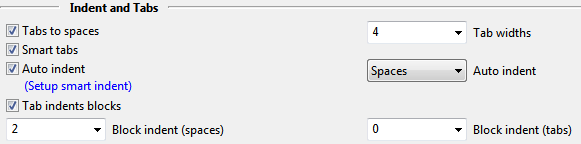 | |
| 52 | + | ||
| 53 | + | Some option for automatic indent can be found on the Codetools - General Settings page | |
| 54 | + | ||
| 55 | + | ### Tabs to spaces | |
| 56 | + | ||
| 57 | + | When editing lines the editor adds spaces instead of tabs. The rest of the lines will not be altered and already existing tabs are kept. To convert all tabs of a file select the whole file (Ctrl-A) and use Main menu / Edit/ tabs to spaces. | |
| 58 | + | ||
| 59 | + | ### Tab widths | |
| 60 | + | ||
| 61 | + | The width of on tab. A tab in the source ends at the next multiply of this (e.g. 4, 8, 12, 16, 20). If "Tabs to spaces" is used, then the `Tab` key will insert the amount of spaces needed to reach the next tab stop column. | |
| 62 | + | ||
| 63 | + | This setting does not apply if "Smart tabs" are active. | |
| 64 | + | ||
| 65 | + | ### Smart tabs | |
| 66 | + | ||
| 67 | + | The tab key will move forward to position below the start-position of the next word in the preceding line. | |
| 68 | + | ||
| 69 | + | If below the last word of the preceding line, then you move to the position below the end of the preceding line. If behind the last word of the preceding line, it uses the next line above that is longer than your current line. | |
| 70 | + | ||
| 71 | + | ### Auto indent | |
| 72 | + | ||
| 73 | + | When inserting new lines (e.g. through pressing Return or Enter key), the editor will indent the caret on the new line with the same amount of leading white space as the preceding line. | |
| 74 | + | ||
| 75 | + | This includes "auto un-intend": If the caret is located after the last whitespace of a continuous block of whitespaces at the beginning of a line, then pressing backspace will un-intend. This is done by looking for a start of line (indent) in the line(s) above the current line. For an line containing Whitespaces only (see trim-trailing-space modes) this happens if the caret is at the end of the line. | |
| 76 | + | ||
| 77 | + | ### Auto Indent (mode dropdown) | |
| 78 | + | ||
| 79 | + | "Auto Indent" can use several ways to indent the new line. Despite the name, this currently refers to what happens if you press `Enter` (and if you use the editors, not codetools indenter). | |
| 80 | + | ||
| 81 | + | - Spaces: Fill the beginning of the new line with spaces to match the desired position | |
| 82 | + | - Space/Tab: Copy the same mix of spaces and tabs as used in the previous line | |
| 83 | + | - Position only: Do not insert anything, position the caret past the end of line (even if this option is disabled). Spaces will be filled in, if something is typed | |
| 84 | + | - Tabs, then spaces: Fill indent with tabs, and use spaces if no exact match is possible | |
| 85 | + | - Tabs, cut off: Fill indent with tabs, and reduce indent if no exact match is possible | |
| 86 | + | ||
| 87 | + | ### Tab indents blocks | |
| 88 | + | ||
| 89 | + | When active `Tab` and `Shift`+`Tab` act as block indent, unindent when text is selected. | |
| 90 | + | ||
| 91 | + | ### Block indent (spaces/tabs) | |
| 92 | + | ||
| 93 | + | Specifies amount of spaces or tabs a block is indented/unindented. | |
| 94 | + | ||
| 95 | + | This applies to all block indent/unindent operations. They can be triggered by tab, if "Tab indents block" is on, or by any key assigned in the key setting (normally `Ctrl`+`I`) or the menu. | |
| 96 | + | ||
| 97 | + | See also: "Tab indent blocks". [1](http://bugs.freepascal.org/view.php?id=20256). | |
| 98 | + | ||
| 99 | + | # Cursor | |
| 100 | + | ||
| 101 | + | ### Keep cursor X position | |
| 102 | + | ||
| 103 | + | When moving through lines w/o Cursor Past EOL, keeps the X position of the cursor. | |
| 104 | + | ||
| 105 | + | ### Cursor skips selection | |
| 106 | + | ||
| 107 | + | When there is a selection and you press the left arrow, the cursor will go to the start of the selection. | |
| 108 | + | ||
| 109 | + | ### Cursor skips tabs | |
| 110 | + | ||
| 111 | + | When enabled, then the edit cursor will jump over a tab characters (the width of the tab character) in the source code, if you press the `left` or `right` arrow keys. If disabled, the cursor will move one space at a time - ignoring the tab characters in the source code. | |
| 112 | + | ||
| 113 | + | ### Persistent cursor | |
| 114 | + | ||
| 115 | + | Keep cursor blinking, even if editor lost focus. This is needed on some systems, where the focus messages do not work properly. | |
| 116 | + | ||
| 117 | + | ### Right mouse moves caret | |
| 118 | + | ||
| 119 | + | This entry no longer exists. Use the mouse configuration instead. [[IDE Window: Editor Options Mouse]] | |
| 120 | + | ||
| 121 | + | ### Always visible cursor | |
| 122 | + | ||
| 123 | + | Move cursor to be always visible when scrolling. I.e., if cursor is at the top of editor and you scroll editor down, cursor will move into new visible area. | |
| 124 | + | ||
| 125 | + | ### Home key jumps to nearest start | |
| 126 | + | ||
| 127 | + | Home key jumps to first non-space char, and then to line start. | |
| 128 | + | ||
| 129 | + | ### Caret past end of line | |
| 130 | + | ||
| 131 | + | Allows the cursor to go past the last character into the white space at the end of a line. | |
| 132 | + | ||
| 133 | + | ### End key jumps to nearest start | |
| 134 | + | ||
| 135 | + | End key jumps to visual line end (last none whitespace) if caret is before this point, then to end of line | |
| 136 | + | ||
| 137 | + | # Multi carets commands (Lazarus 1.5) | |
| 138 | + | ||
| 139 | + | [[SynEdit MultiCaret plugin]] | |
| 140 | + | ||
| 141 | + | ### Enable multi caret for column selection | |
| 142 | + | ||
| 143 | + | When selecting in column mode (normally with Alt modifier key), a caret is created in each line of the selection. Typing will insert/edit text on each line. | |
| 144 | + | ||
| 145 | + | ### Multi caret (column select) move with cursor | |
| 146 | + | ||
| 147 | + | By default any caret movement with the cursor keys (up/down/left/right/end/home) exits the multi caret mode. If this option is enabled carets will persist, and all follow the action given by the key. | |
| 148 | + | ||
| 149 | + | ### Multi caret move with cursor | |
| 150 | + | ||
| 151 | + | For multi carets not created by column selection (mouse or special key commands), if this option is enabled carets will follow the action given by cursor keys (up/down/left/right/end/home). If the option is disabled any caret movement with the cursor keys exits the multi caret mode. | |
| 152 | + | ||
| 153 | + | # Selection | |
| 154 | + | ||
| 155 | + | ### Persistent Selection | |
| 156 | + | ||
| 157 | + | A selection that does not become unselected, if the caret moves away, nor if the text is modified | |
| 158 | + | ||
| 159 | + | ### Overwrite Block | |
| 160 | + | ||
| 161 | + | If you start typing while a selection exists, the selected text will be overwritten. If the option is off, it will be unselected and the text be inserted behind. | |
| 162 | + | ||
| 163 | + | --- | |
| 164 | + | *From the Free Pascal wiki, page "IDE Window: Editor Options General", as it stood on 2021-01-30 after a change by FTurtle, out of the wiki's dump of 2024-05-26. Copyright stays with the author who wrote it, according to the old wiki's [[Licensing]] page. If you have concerns about this material, [message the admin](/wiki-contact).* |