

IDE Window: Editor Options/es: what changed
Revision 0 to 1. Removed lines have a minus sign; added lines have a plus sign.
Title: IDE Window: Editor Options/es
| Old | New | Line | |
|---|---|---|---|
| 1 | + | # Opciones del editor de código | |
| 2 | + | ||
| 3 | + | Las mútiples opciones de configuración del editor de código del IDE del Lazarus se agrupan en seis categorías, que tienen su correspondiente pestaña en la ventana de configuración. Vamos a verlas. (nota: desde la versión 9.26 la gestión de las opciones del editor y otras, ahora agrupadas en *Entorno -\> Options*, han variado de forma sustancial) | |
| 4 | + | ||
| 5 | + | ## General | |
| 6 | + | ||
| 7 | + | 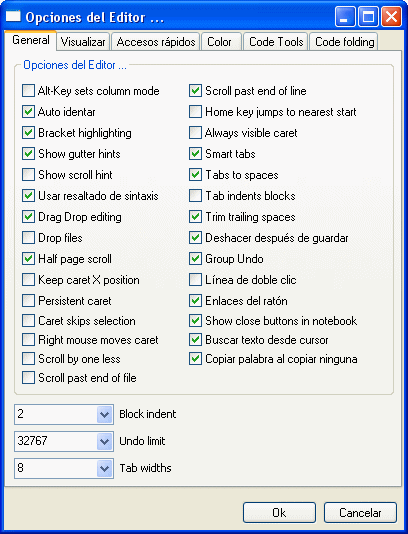 | |
| 8 | + | ||
| 9 | + | ### Elegir el modo de selección | |
| 10 | + | ||
| 11 | + | Existen dos formas de selección: Todos los caracteres entre Inicio y Fin; y, un área rectangular entre Inicio y Fin, es decir una serie de filas y columnas del código. Se puede alternar entre ambos modos pulsando 'Alt' y seleccionando con el ratón. En X esto no funciona, debido a que 'Alt + Botones del ratón' está habitualmente asignado a una tarea por el gestor de ventanas. Marcando la opción **Alt-Key sets column mode** se activa la posibilidad de seleccionar un área rectangular. | |
| 12 | + | ||
| 13 | + | ### Auto indentar | |
| 14 | + | ||
| 15 | + | Marcando esta opción el cursor, tras un retorno de carro, se situará automáticamente alineado con el principio de la línea precedente, poniendo los espacios blancos que sean necesarios para ello. | |
| 16 | + | ||
| 17 | + | ### Resaltar llave (*Bracket highlighting*) | |
| 18 | + | ||
| 19 | + | Activa la posibilidad de que, cuándo el cursor se encuentra justo delante o sobre una llave, se resalte la llave con la que se empareja. | |
| 20 | + | ||
| 21 | + | ### Show gutter hints (Mostrar consejos en la barra) | |
| 22 | + | ||
| 23 | + | Mostrar consejos cuando el ratón está sobre la barra en la parte izquierda del editor de código fuente. | |
| 24 | + | ||
| 25 | + | ### Show scroll hint | |
| 26 | + | ||
| 27 | + | Started, but not yet implemented: Shows a hint of the visible line numbers when scrolling vertically. | |
| 28 | + | ||
| 29 | + | ### Use syntax highlight | |
| 30 | + | ||
| 31 | + | Use syntax highlighting. | |
| 32 | + | ||
| 33 | + | ### Drag Drop editing | |
| 34 | + | ||
| 35 | + | Allows you to select a block of text and drag it within the document to another location. | |
| 36 | + | ||
| 37 | + | ### Drop files | |
| 38 | + | ||
| 39 | + | Not implemented yet: Allows the editor accept file drops. | |
| 40 | + | ||
| 41 | + | ### Half page scroll | |
| 42 | + | ||
| 43 | + | When scrolling with page-up and page-down commands, only scroll a half page at a time. | |
| 44 | + | ||
| 45 | + | ### Keep caret X position | |
| 46 | + | ||
| 47 | + | When moving through lines w/o Cursor Past EOL, keeps the X position of the cursor. | |
| 48 | + | ||
| 49 | + | ### Persistent caret | |
| 50 | + | ||
| 51 | + | Keep caret blinking, even if loosing focus. The is needed on some systems, where the focus messages do not work properly. | |
| 52 | + | ||
| 53 | + | ### Caret skips selection | |
| 54 | + | ||
| 55 | + | When there is a selection and you press the left arrow, the cursor will go to the start of the selection. | |
| 56 | + | ||
| 57 | + | ### Right mouse moves caret | |
| 58 | + | ||
| 59 | + | When clicking with the right mouse for a popup menu, move the cursor to that location. | |
| 60 | + | ||
| 61 | + | ### Scroll by one less | |
| 62 | + | ||
| 63 | + | Forces scrolling to be one less line. | |
| 64 | + | ||
| 65 | + | ### Scroll past end of file | |
| 66 | + | ||
| 67 | + | Allows the cursor to go past the end of file marker. | |
| 68 | + | ||
| 69 | + | ### Scroll past end of line | |
| 70 | + | ||
| 71 | + | Allows the cursor to go past the last character into the white space at the end of a line. | |
| 72 | + | ||
| 73 | + | ### Home key jumps to nearest start | |
| 74 | + | ||
| 75 | + | home key jumps to line start if nearer, similar to visual studio. | |
| 76 | + | ||
| 77 | + | ### Always visible caret | |
| 78 | + | ||
| 79 | + | Move caret to be always visible when scrolling. | |
| 80 | + | ||
| 81 | + | ### Smart tabs | |
| 82 | + | ||
| 83 | + | When tabbing, the cursor will go to the next non-white space character of the previous line. | |
| 84 | + | ||
| 85 | + | ### Tabs to spaces | |
| 86 | + | ||
| 87 | + | Converts a tab character to a specified number of space characters. | |
| 88 | + | ||
| 89 | + | ### Tab indents blocks | |
| 90 | + | ||
| 91 | + | When active \<Tab\> and \<Shift\>\<Tab\> act as block indent, unindent when text is selected. | |
| 92 | + | ||
| 93 | + | ### Trim trailing spaces | |
| 94 | + | ||
| 95 | + | Spaces at the end of lines will be trimmed and not saved. | |
| 96 | + | ||
| 97 | + | ### Undo after save | |
| 98 | + | ||
| 99 | + | Keep the Undo list on save. | |
| 100 | + | ||
| 101 | + | ### Group Undo | |
| 102 | + | ||
| 103 | + | When undoing/redoing actions, handle all continous changes of the same kind in one call instead undoing/redoing each command separately. | |
| 104 | + | ||
| 105 | + | ### Double click line | |
| 106 | + | ||
| 107 | + | Select line on double click. | |
| 108 | + | ||
| 109 | + | ### Mouse links | |
| 110 | + | ||
| 111 | + | Pressing Ctrl will highlight the word under the mouse cursor. | |
| 112 | + | ||
| 113 | + | ### Show close buttons in notebook | |
| 114 | + | ||
| 115 | + | Show a close button on each source editor tab. Not all widgetsets support this. At the moment only the gtk interface. | |
| 116 | + | ||
| 117 | + | ### Find text at cursor | |
| 118 | + | ||
| 119 | + | When invoking the 'Find' dialog, fetch the word at the cursor and put it into the Find field. | |
| 120 | + | ||
| 121 | + | ### Copy word on copy none | |
| 122 | + | ||
| 123 | + | If nothing is selected and user presses Copy (Ctrl-C), the editor selects the word and copy that. Same for cutting. | |
| 124 | + | ||
| 125 | + | ### Block indent | |
| 126 | + | ||
| 127 | + | Amount of spaces a block is indented. For example with Ctrl+I. | |
| 128 | + | ||
| 129 | + | ### Undo limit | |
| 130 | + | ||
| 131 | + | Maximum number of Undo steps. | |
| 132 | + | ||
| 133 | + | ### Tab widths | |
| 134 | + | ||
| 135 | + | Maximum spaces for Tab characters. | |
| 136 | + | ||
| 137 | + | ## Display | |
| 138 | + | ||
| 139 | + | ### Margin and gutter | |
| 140 | + | ||
| 141 | + | - Visible right margin - show the right margin line | |
| 142 | + | - Visible gutter - show the left bar | |
| 143 | + | - Show line numbers - show line numbers in the gutter | |
| 144 | + | - Right margin color and position in characters | |
| 145 | + | - Gutter color | |
| 146 | + | ||
| 147 | + | ### Default editor font | |
| 148 | + | ||
| 149 | + | - Font name - Can be as simple as 'courier' or as complicated as '-adobe-courier-medium-r-normal-*-*-140-*-*-*-*-iso10646-1' under gtk/X. | |
| 150 | + | - Editor font height. | |
| 151 | + | - Extra line spacing - extra space between lines in pixels. | |
| 152 | + | - Disable anti-aliasing. | |
| 153 | + | ||
| 154 | + | ## Key Mappings | |
| 155 | + | ||
| 156 | + | See [[Lazarus IDE Shortcuts]]. | |
| 157 | + | ||
| 158 | + | ### Filter | |
| 159 | + | ||
| 160 | + | At the top there is an edit field to set a text filter. You can type some letters and the tree will be updated to show only those keys which description contains the word. Set empty to show all. | |
| 161 | + | ||
| 162 | + | ### Tree of IDE shortcuts | |
| 163 | + | ||
| 164 | + | Here you can see all commands and shortcuts of the IDE. Click on one of the keys to popup a dialog to edit the shortcut. | |
| 165 | + | ||
| 166 | + | ### Find key combination | |
| 167 | + | ||
| 168 | + | Click on the button to show a dialog. Grab a key and press ok. The tree will then only show those keys that start with the shortcut. Select VK_UNKNOWN to show all. | |
| 169 | + | ||
| 170 | + | ### Choose scheme | |
| 171 | + | ||
| 172 | + | Load one of the predefined key mappings. This will replace **all** your shortcuts. | |
| 173 | + | ||
| 174 | + | ### Check consistency | |
| 175 | + | ||
| 176 | + | Search for double defined keys. | |
| 177 | + | ||
| 178 | + | ## Color | |
| 179 | + | ||
| 180 | + | This page allows to edit the syntax highlighters of the IDE. The main syntax highlighter is the Object Pascal highlighter. All other highlighters use those colors as default. | |
| 181 | + | ||
| 182 | + | ### Language | |
| 183 | + | ||
| 184 | + | Set here the highlighter you want to edit. | |
| 185 | + | ||
| 186 | + | ### Scheme | |
| 187 | + | ||
| 188 | + | The IDE has some predefined color schemes - sets of colors. Choose here one you like, then edit the single elements. | |
| 189 | + | ||
| 190 | + | ### File Extensions | |
| 191 | + | ||
| 192 | + | You can edit the file extensions for which the IDE uses this highlighter. | |
| 193 | + | ||
| 194 | + | ### Element | |
| 195 | + | ||
| 196 | + | This listbox contains all elements of the current highlighter. Choose which to edit. Or click on the preview below to select the element. | |
| 197 | + | ||
| 198 | + | ### Set element to default | |
| 199 | + | ||
| 200 | + | Load the default colors for this element from the current highlighter and scheme. | |
| 201 | + | ||
| 202 | + | ### Set all elements to default | |
| 203 | + | ||
| 204 | + | Load the default colors for the current highligher and scheme. | |
| 205 | + | ||
| 206 | + | ### Text attributes | |
| 207 | + | ||
| 208 | + | Check the 'Use default color' checkboxes to get the color button. Then click on the button to select a custom color. | |
| 209 | + | ||
| 210 | + | ## Code Tools | |
| 211 | + | ||
| 212 | + | ### Identifer Completion | |
| 213 | + | ||
| 214 | + | Start automatically the Identifier completion, when user types a point '.' and waits. | |
| 215 | + | ||
| 216 | + | ### Tooltip symbol Tools | |
| 217 | + | ||
| 218 | + | Show hints when moving the mouse over an identifier. While editing, this will do a Find Ddeclaration. During debugging this will do an Evaluate variable. | |
| 219 | + | ||
| 220 | + | ### Tooltip expression evaluation | |
| 221 | + | ||
| 222 | + | During debugging the tooltip hint will try to evaluate the expression at the cursor. | |
| 223 | + | ||
| 224 | + | ### Delay | |
| 225 | + | ||
| 226 | + | Set here the waiting period before the hint pops up. | |
| 227 | + | ||
| 228 | + | ## Code folding | |
| 229 | + | ||
| 230 | + | Mark blocks of code and let the user fold them. | |
| 231 | + | ||
| 232 | + | --- | |
| 233 | + | *From the Free Pascal wiki, page "IDE Window: Editor Options/es", as it stood on 2015-07-03 after a change by FTurtle, out of the wiki's dump of 2024-05-26. Copyright stays with the author who wrote it, according to the old wiki's [[Licensing]] page. If you have concerns about this material, [message the admin](/wiki-contact).* |