

IDE Window: Editor Macros: what changed
Revision 0 to 1. Removed lines have a minus sign; added lines have a plus sign.
Title: IDE Window: Editor Macros
| Old | New | Line | |
|---|---|---|---|
| 1 | + | - Lazarus 1.0 supports only macros entered via the keyboard | |
| 2 | + | - The Editor Macros window is available in release versions of Lazarus from 1.2.6 onwards. It is not available in the Lazarus 1.0 release. | |
| 3 | + | - See also [[Editor Macros PascalScript]] | |
| 4 | + | ||
| 5 | + | # Editor macros | |
| 6 | + | ||
| 7 | + | 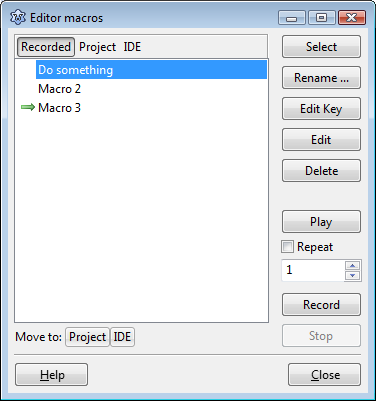 | |
| 8 | + | ||
| 9 | + | Lazarus lets you record an unlimited number of macros. The Editor macros dialog allows you to choose which recorded macro is currently played by the dialog's Play button (or by using the default shortcut key combination `Shift`+`Ctrl`+`P` when editing code). Recorded macros can be saved for future reuse by moving them to the project session's saved settings, or to the IDE configuration settings. | |
| 10 | + | ||
| 11 | + | > **Note:** When editing a macro and then **saving** it, this saves it to the project (or IDE options) in **memory**. You must then save the project to preserve the macro. (Options are saved, for instance, when the IDE is closed). If the project is not saved then changes such as newly recorded or edited macros are lost. | |
| 12 | + | ||
| 13 | + | ## Display | |
| 14 | + | ||
| 15 | + | All macros are displayed in one of 3 groupings: | |
| 16 | + | ||
| 17 | + | Recorded | |
| 18 | + | This lists newly recorded macros. These macros are not saved, and are lost when the IDE is closed. | |
| 19 | + | ||
| 20 | + | Project | |
| 21 | + | This lists macros you have opted to be saved with the project session. Each project can have its own set of macros.\ | |
| 22 | + | Note: If the project is configured not to save a session, then macros in this group are not saved, and will be lost when the project is closed. | |
| 23 | + | ||
| 24 | + | IDE | |
| 25 | + | This group lists all macros that will be saved with the IDE configuration settings. These macros are available to all projects. | |
| 26 | + | ||
| 27 | + | Macros can be moved between Project and IDE using the appropriate button. | |
| 28 | + | ||
| 29 | + | Macros may show a status icon: | |
| 30 | + | ||
| 31 | + |  | |
| 32 | + | Current macro. This can be set using the "Select" button. This is the macro that will be played when you use the keyboard shortcut (the default is \[Shift\]\[Ctrl\]\[P\]). | |
| 33 | + | ||
| 34 | + |  | |
| 35 | + | This macro is currently being recorded. | |
| 36 | + | ||
| 37 | + |  | |
| 38 | + | This macro is currently playing. | |
| 39 | + | ||
| 40 | + |  | |
| 41 | + | This macro is broken. This icon indicates that the macro could not be loaded from the configuration file, and so the macro cannot be used. (It will remain untouched in its broken form in the config file). | |
| 42 | + | ||
| 43 | + | ## The Interface of the Editor macros dialog | |
| 44 | + | ||
| 45 | + | Select | |
| 46 | + | Sets the current macro which will be used by the keyboard shortcut.\ | |
| 47 | + | The Play button is not affected by this. | |
| 48 | + | ||
| 49 | + | Rename... | |
| 50 | + | Rename the macro (Macro1, Macro2, etc., the default names assigned by the IDE, are almost completely uninformative, and should be changed to a suitable self-descriptive name such as AlignSelectedLinesAtColon). | |
| 51 | + | ||
| 52 | + | Edit Key | |
| 53 | + | Assign a key-combination for invoking the macro from the keyboard. | |
| 54 | + | ||
| 55 | + | Edit | |
| 56 | + | Edit the macro as source - a new tab is opened in the Source Editor where you can view the naming used by the macro recorder and edit the macro source as needed. | |
| 57 | + | ||
| 58 | + | Delete | |
| 59 | + | Delete the macro. | |
| 60 | + | ||
| 61 | + | Play | |
| 62 | + | Play the selected macro. This is the macro selected by clicking the list. Not the "current" macro. | |
| 63 | + | ||
| 64 | + | Repeat | |
| 65 | + | Sets how often the macro is played when the Play button is pressed. This setting affects only the Play button (the keyboard shortcut invokes only a single execution of the macro). | |
| 66 | + | ||
| 67 | + | Record | |
| 68 | + | Starts the recording of a new macro.\ | |
| 69 | + | During recording this button doubles as a pause/continue button, allowing you to pause or continue the macro recording.\ | |
| 70 | + | If anything was recorded, the new macro will be set as the "current" macro in the Source Editor. | |
| 71 | + | ||
| 72 | + | Stop | |
| 73 | + | This button ends the recording, and also allows you to interrupt and stop repeated play. In certain circumstances, it is possible to stop in the middle of a playing macro. | |
| 74 | + | ||
| 75 | + | Move to | |
| 76 | + | Project/Ide: These two buttons move the selected macro to the indicated group when you want to save the macro for future use. The buttons are enabled or disabled according to the possible action(s). | |
| 77 | + | ||
| 78 | + | # Invoking macros from the keyboard | |
| 79 | + | ||
| 80 | + | The Lazarus IDE sets up the following 2 keyboard shortcuts by default: | |
| 81 | + | ||
| 82 | + | - `Shift`+`Ctrl`+`P` Play the current macro | |
| 83 | + | - `Shift`+`Ctrl`+`R` Start/Stop recording a new macro | |
| 84 | + | ||
| 85 | + | ||
| 86 | + | During recording, the shortcut for Play can be used to Pause recording | |
| 87 | + | ||
| 88 | + | # Limitations | |
| 89 | + | ||
| 90 | + | - A macro can only be recorded from a single editor.\ | |
| 91 | + | A macro can be played in any editor window afterwards, but only in one editor window at a time. | |
| 92 | + | - Macros only record commands issued by keyboard, and certain menu commands.\ | |
| 93 | + | Changes caused by mouse buttons or movement (such as moving the caret or selecting text) are \[b\]not\[/b\] recorded. | |
| 94 | + | - Macros are restricted to the Editor. You cannot currently record actions made in the Form Designer. | |
| 95 | + | - Sometimes you may be able to record actions apart from the editing of text. However, this is not supported, and playback may not render the desired effects correctly (or at all). E.g. It is possible to record stepping in the debugger (F7,F8,F9), but on playback you may find some of the commands are skipped at random. | |
| 96 | + | ||
| 97 | + | --- | |
| 98 | + | *From the Free Pascal wiki, page "IDE Window: Editor Macros", as it stood on 2020-08-21 after a change by Martin, out of the wiki's dump of 2024-05-26. Copyright stays with the author who wrote it, according to the old wiki's [[Licensing]] page. If you have concerns about this material, [message the admin](/wiki-contact).* |