

IDE Window: Compiler Options: what changed
Revision 1 to 2. Removed lines have a minus sign; added lines have a plus sign.
| Old | New | Line | |
|---|---|---|---|
| 1 | 1 | ## Navigation | |
| 2 | 2 | ||
| 3 | 3 | [[Main menu|Main Menu]] \> [[Main menu|Project]] \> [[IDE Window: Project Options|Project Options ...]] \> Compiler Options | |
| 4 | 4 | ||
| 5 | 5 | ## Paths | |
| 6 | 6 | ||
| 7 | 7 | 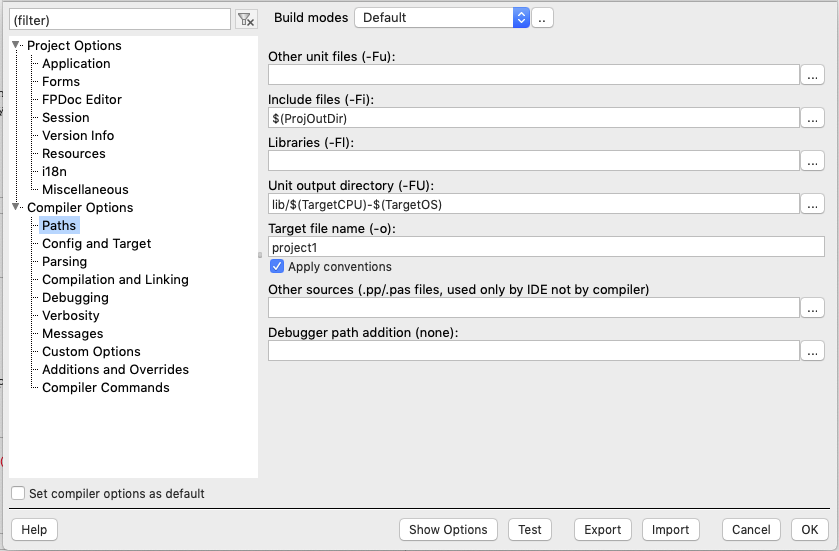 | |
| 8 | 8 | ||
| 9 | 9 | Here are the general rules about search paths: | |
| 10 | 10 | ||
| 11 | 11 | - Relative paths are expanded with the project or package directory (where the .lpi/.lpk file is located). | |
| 12 | 12 | - These paths are added to the search paths. They do not replace existing paths. | |
| 13 | 13 | - The IDE has one set of search paths for every package/project. That means each package can have different search paths than the active project.\ | |
| 14 | 14 | "set of search paths" refers to unit search path, include search path, sources search path, ... | |
| 15 | 15 | - Every directory in the unit search path of the project gets all the project search paths. | |
| 16 | 16 | - Every directory in the unit search path of the package gets all the package search paths. | |
| 17 | 17 | - Other directories get the project search paths. If the project search path contains the '.' the directory will see the project directory too. | |
| 18 | 18 | - Using "uses unitname in 'filename'" does not affect any search path. | |
| 19 | 19 | - If a package or project uses a package, it will inherit the *usage* search paths. You can see the inherited search paths in the Inherited page. | |
| 20 | 20 | - If you do not want to use a search path inherited from a used package you must change the compiler options of the used package. | |
| 21 | 21 | - Using the Lazarus package system, you hardly ever need to set search paths manually. | |
| 22 | 22 | - The Free Pascal Compiler has a configuration file of its own (default /etc/fpc.cfg) which defines a set of search paths to the FPC ppu files. For example to find the FPC units of the RTL or the FCL like 'classes', 'sysutils'. Do not add search paths to source files (.pas, .inc) in there. | |
| 23 | 23 | - Search paths are separated by a semicolon ';'. | |
| 24 | 24 | - Leading and trailing spaces are ignored and automatically removed by the IDE. The IDE normalizes search paths and appends the path delimiter (Windows: \\, all other: /). Search paths are automatically converted to the current operating system when opening an .lpi or .lpk file. | |
| 25 | 25 | - You can use macros. For example \$NameOnly(\$(ProjFile))-\$(TargetCPU). See [[IDE Macros in paths and filenames]]. | |
| 26 | 26 | ||
| 27 | 27 | **Wildcards** | |
| 28 | 28 | ||
| 29 | 29 | - The last part of a directory can be a wildcard * or **, so e.g. */path/**, but not */path/*/foo*, nor */path/foo**. | |
| 30 | 30 | - You can use a single star * at the end to search in all direct sub directories. For example *C:\project\\** will find *unit1.pas* in *C:\project\foo\unit1.pas* or *C:\project\bar\unit1.pas*, but not *C:\project\unit1.pas* nor *C:\project\foo\bar\unit1.pas*. (Since Lazarus 3.99.) | |
| 31 | 31 | - You can use a double star ** at the end to search in the directory and all sub directories. For example *C:\project\\*** will find *unit1.pas* in *C:\project\unit1.pas*, *C:\project\foo\unit1.pas*, and *C:\project\foo\bar\unit1.pas*. (Since Lazarus 3.99.) | |
| 32 | 32 | - You can add any number of wildcard search paths, e.g. 'src/*;tests/**;extra'. | |
| 33 | 33 | - Excludes: can be defined in *Tools / Environment / File Filters / Excludes for * and ***. Default is '.*;backup'. Excludes are case insensitive. | |
| 34 | 34 | ||
| 35 | 35 | ### Other Unit Files | |
| 36 | 36 | ||
| 37 | 37 | This is the search path for the Pascal units (.ppu, .pp, .pas, .p) of the project or package. See the title of the window to know which. This path is given to the Free Pascal Compiler which adds it to its Unit Path. | |
| 38 | 38 | ||
| 39 | 39 | - Adding and removing units to the project/package will automatically ask you to adjust the unit path. | |
| 40 | 40 | - This search path contains the directories of your project (or your package) that contain the .pas, .pp or .p files. | |
| 41 | 41 | - If you want to share some units between your projects, create a package for them. It's easy. | |
| 42 | 42 | ||
| 43 | 43 | > **Note:** Do not add directories of used Lazarus packages to this path. Otherwise FPC will rebuild the .ppu files of the package and put them into your project directory. You will end up with multiple .ppu versions and you will get strange 'Can not find unit' errors.\ | |
| 44 | 44 | > For example: Do not add any FPC or LCL source directory to this search path. | |
| 45 | 45 | ||
| 46 | 46 | ### Include Files | |
| 47 | 47 | ||
| 48 | 48 | This is the search path for the include files (eg .inc, .lrs files). This path is given to the Free Pascal Compiler, which adds it to its Include Path, which is used by include directives like {\$I filename.inc} or {\$INCLUDE filename.inc}. | |
| 49 | 49 | ||
| 50 | 50 | ### Other sources | |
| 51 | 51 | ||
| 52 | 52 | This is a search path for Pascal unit sources which is only used by the Lazarus IDE (not by the compiler). Normally you will leave this empty. It is only useful when you build the ppu files **without** Lazarus. | |
| 53 | 53 | ||
| 54 | 54 | Example: You have a directory with sources and another directory with the corresponding .ppu files and you can't or don't want to create a Lazarus package. You add the .ppu directory to the 'Other Unit Files' path and the .pas directory to the 'Other sources' path. This way the compiler will use the .ppu files and not try to rebuild them every time. Also, the IDE will find the sources and Find Declaration works. | |
| 55 | 55 | ||
| 56 | 56 | ### Libraries | |
| 57 | 57 | ||
| 58 | 58 | This is the search path for libraries (.dll or .so or .a files). These are only used in the compiling/linking phase; e.g. when running your application under the debugger, you need to make sure required libraries are present in the expected place (e.g. - depending on platform - executable directory, PATH, .so/.dylib search path). | |
| 59 | 59 | ||
| 60 | 60 | ### Unit output directory | |
| 61 | 61 | ||
| 62 | 62 | This is the directory where the compiler will put all output, like .ppu, .o, .rst files (it passes this to compiler switch **-FU**). If you are using the \$R directive for the lfm files, it will also copy the lfm files there. | |
| 63 | 63 | ||
| 64 | 64 | A popular usage example is an output directory named *units*, and then an extra sub-directory for the CPU and OS target. For example: | |
| 65 | 65 | ||
| 66 | - | ||
| 66 | + | ```text | |
| 67 | + | units/$(TargetCPU)-$(TargetOS) | |
| 68 | + | ``` | |
| 67 | 69 | ||
| 68 | 70 | Notes: | |
| 69 | 71 | ||
| 70 | 72 | - If the unit output directory is empty, Lazarus will **not** pass the **-FU** switch to the compiler. The compiler will then use the **-FE** switch. See [[IDE Window: Project Options|Project target file]] | |
| 71 | 73 | - Packages normally inherit their output directory to other packages via the 'usage' options. You do not need to add package paths manually to your project. | |
| 72 | 74 | - If the output directory of a package is empty, the macro \$(PkgOutDir) is too and will not be inherited to descending packages and projects. Use a dot '.' to define the current directory. | |
| 73 | 75 | ||
| 74 | 76 | ### Target file name | |
| 75 | 77 | ||
| 76 | 78 | Note: Only projects have this. This option is not available for packages. | |
| 77 | 79 | ||
| 78 | 80 | Set here the filename of the generated executable. If the file is relative it will be expanded with the project directory (where the .lpi file is). If no file is given the executable is put into the unit output directory and has the name of the main source file name (usually the .lpr file) without the extension. If no extension is given, the default extension for the platform is added (eg *.exe* for MS Windows, none for others). When a new project has not been saved yet and is built, the IDE saves the files to the tmp directory. The relative files are then relative to this directory. | |
| 79 | 81 | ||
| 80 | 82 | Lazarus passes the compiler switch: | |
| 81 | 83 | ||
| 82 | 84 | - **-o** to define the target file name. | |
| 83 | 85 | - **-FE** if the target file name is not in the project directory (where the .lpi file is located) | |
| 84 | 86 | - **-FU** if the unit output directory is not empty | |
| 85 | 87 | ||
| 86 | 88 | If the target file name is in another directory (not the directory of the .lpi file), Lazarus will pass the **-FE** switch to the compiler to make sure that the secondary files, like *.o* and *.rst* are put into the same directory. If you cleared the *unit output directory* then the IDE will not pass the **-FU** switch and the compiler will generate the *.ppu/.o* files of the units in the target directory too. | |
| 87 | 89 | ||
| 88 | 90 | If you cleared the *unit output directory* **and** your project target file is in the project directory, then neither **-FU** nor **-FE** is passed to the compiler, and the compiler will work in Delphi-compatible mode and generate the *.ppu/.o* file of each unit in the same directory as the unit. | |
| 89 | 91 | ||
| 90 | 92 | #### Apply Conventions | |
| 91 | 93 | ||
| 92 | 94 | Enable this to apply various naming conventions depending on the target platform. | |
| 93 | 95 | ||
| 94 | 96 | - Windows: If it is a program, it appends the '.exe' extension; if it is a library, it appends '.dll'. | |
| 95 | 97 | - Unix (eg Linux, FreeBSD, Darwin/macOS): If it is a library the name is lowercased and if the name does not start with 'lib' it prepends 'lib'. | |
| 96 | 98 | - Linux, FreeBSD: If it is a library it appends '.so'. | |
| 97 | 99 | - Darwin/macOS: If it is a library it appends '.dylib'. | |
| 98 | 100 | ||
| 99 | 101 | ### Examples | |
| 100 | 102 | ||
| 101 | 103 | | Unit output directory | Target file name | Generated options | Note | | |
| 102 | 104 | |----|----|----|----| | |
| 103 | 105 | | lib/\$(TargetCPU)-\$(TargetOS) | empty\|\|-FElib\x86_64-win64 -olib\x86_64-win64\project1.exe | all output files are put into *lib\x86_64-win64\* | | | |
| 104 | 106 | | lib | foo\|\|-FUlib -FE. -ofoo.exe | all unit output files like ppu and o are put into *lib\*, program output files are put into the base directory (where the lpi is) | | | |
| 105 | 107 | | lib | foo/bar\|\|-FUlib -FEfoo -ofoo\bar.exe | all unit output files like ppu and o are put into *lib\*, program output files are put into *foo* | | | |
| 106 | 108 | | empty | empty\|\|-oproject1.exe | ppu files are put to the *.pas* files, e.g. a *src\unit1.pas* creates a *src\unit1.ppu* | | | |
| 107 | 109 | | empty | foo\|\|-ofoo.exe | ppu files are put to the *.pas* files | | | |
| 108 | 110 | | empty | . (single dot and Apply conventions disabled) | | ppu files are put to the .pas files, output file is whatever the compiler's default is | | |
| 109 | 111 | ||
| 110 | 112 | ### Debugger path addition | |
| 111 | 113 | ||
| 112 | 114 | These directories are added to the search path of the IDE debugger, when it searches for sources (units and include files). | |
| 113 | 115 | ||
| 114 | 116 | ### LCL widget type (pre Lazarus 1.0) | |
| 115 | 117 | ||
| 116 | 118 | In older Lazarus releases: this is the used LCL widget set. Normally the default widget set is used. If you want to try another or you are cross compiling, select another widget set here. | |
| 117 | 119 | ||
| 118 | 120 | - The default widget set of a package is the widget set of the current project. | |
| 119 | 121 | - The default widget set of the current project depends on the current operating system. For example: win32 for windows 2000. | |
| 120 | 122 | - You should not set the widget set for a package, because then the project cannot override it. Only set it, if the package is part of a set of packages - one for each widget set. | |
| 121 | 123 | ||
| 122 | 124 | - In Lazarus 1.0, the "Select another LCL widget set (macro LCLWidgetType)" redirects you to the [[IDE Window: Compiler Options|Build Modes]] page, where you can add the macro **LCLWidgetType**. | |
| 123 | 125 | - In Lazarus 1.1, the "Select another LCL widget set (macro LCLWidgetType)" redirects you to the [[IDE Window: Compiler Options|Additions and Overrides]] page, where you can add an **IDE macro** **LCLWidgetType**. | |
| 124 | 126 | ||
| 125 | 127 | ## Config and Target | |
| 126 | 128 | ||
| 127 | 129 | 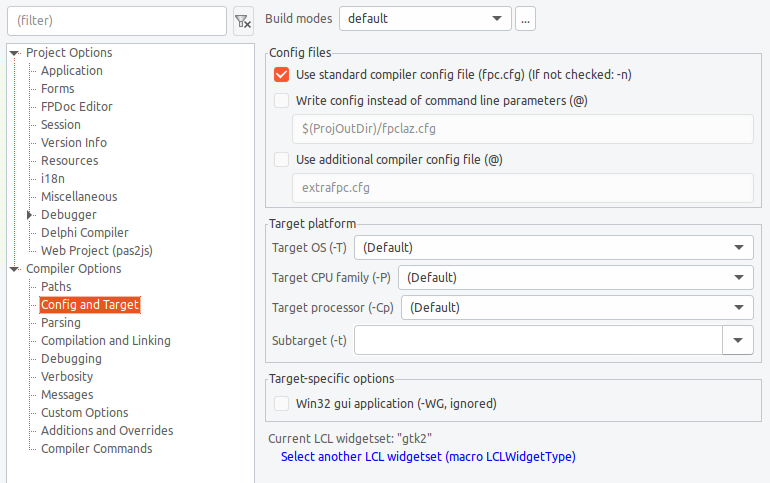 | |
| 128 | 130 | ||
| 129 | 131 | - **Write config instead of command line parameters (@)**: Instead of passing all project/package compiler options as command line parameters, Lazarus can write a config file. You can specify a filename or use the default. All parameters except @, -n, filename and the automatic -B are written to the config and a @filename.cfg is passed to the compiler. This option exists since 3.99. | |
| 130 | 132 | ||
| 131 | 133 | ## Build modes | |
| 132 | 134 | ||
| 133 | 135 | ### Adding, deleting, activating build modes | |
| 134 | 136 | ||
| 135 | 137 | Only projects have build modes. A package does not have build modes. Note: A project can apply build modes to the packages it depends on using 'Additions and Overrides' - see below. | |
| 136 | 138 | ||
| 137 | 139 | Build modes allow to define **sets of compiler options** and to quickly switch between these sets. For example you can define a *mode* for debugging which compiles your project with range checking, while your default mode does not. | |
| 138 | 140 | ||
| 139 | 141 | **Note:** If you want to pass some options depending on the platform, for example passing some extra linker options under OS X, please take a look at Build Macros. | |
| 140 | 142 | ||
| 141 | 143 | How to reach this dialog: Project / Project Options / Compiler Options. Make sure that "Build Modes" is enabled. | |
| 142 | 144 | ||
| 143 | 145 | 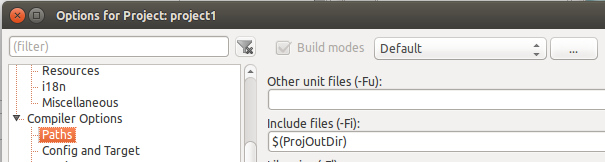 | |
| 144 | 146 | ||
| 145 | 147 | Click on the "..." button right to add/remove/rename build modes: | |
| 146 | 148 | ||
| 147 | 149 | 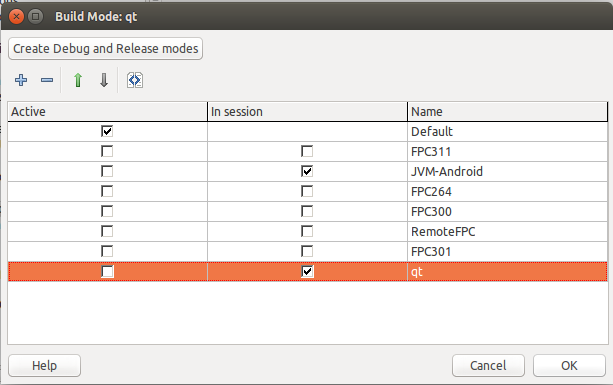 | |
| 148 | 150 | ||
| 149 | 151 | The grid contains the list of build modes with three columns. | |
| 150 | 152 | ||
| 151 | 153 | The first column shows which mode is currently active, it is checked. When you activate another mode, all compiler options pages will load the settings of the new mode, including the macro values on the build modes page. There is always only one mode active and you can only edit the properties of one mode at a time. Which mode is active is stored in the session file (lps). The default mode is the first mode. | |
| 152 | 154 | ||
| 153 | 155 | If your project stores the session in a separate lps file (see Project options / Session / Save session info in), you can store extra modes in the lps session file, so that each developer can have her own set of modes. In this case the second column shows where the mode is stored, in the lpi or the lps (in session). Keep in mind that the first mode is the default mode for the project, so it must be stored in the project, not in the session file. | |
| 154 | 156 | ||
| 155 | 157 | The last column is the name of the mode. It is an arbitrary string, so you can give it a short name or a whole sentence. | |
| 156 | 158 | ||
| 157 | 159 | - The **plus** button adds a new mode, by duplicating the currently active one and activates it. | |
| 158 | 160 | - The **minus** button delete the currently selected mode. There must be at least one mode. If you delete the first mode, which is the default mode, the second mode automatically becomes the default mode. | |
| 159 | 161 | - The **up**, **down** buttons allows to reorder the modes. | |
| 160 | 162 | - The **rightmost** button shows the differences between build modes. | |
| 161 | 163 | ||
| 162 | 164 | **Hint:**: Once you added another build mode there will be a new button in the IDE main bar to quickly switch the currently active mode. | |
| 163 | 165 | ||
| 164 | 166 | **Note:**: When opening a new project with an old IDE (\<0.9.31), you will only see the default mode. If you save the project with the old IDE you will loose all other modes, all macros and conditionals. | |
| 165 | 167 | ||
| 166 | 168 | *Build modes* exist since 0.9.31. | |
| 167 | 169 | ||
| 168 | 170 | ### Adding a release and debug build modes | |
| 169 | 171 | ||
| 170 | 172 | The most common task for projects will be adding a simple release and a simple debug build modes. Remember to always use the debug build mode, because debugging will not work in the release build mode, and then only use the release build mode in the final release of the application. | |
| 171 | 173 | ||
| 172 | 174 | 1. Go to Project / Project Options / Compiler Options | |
| 173 | 175 | 2. Enable "Build Modes" at the top. A selector for build modes and an edit button will appear. | |
| 174 | 176 | 3. Click on the button labelled "..." to open the build modes dialog. | |
| 175 | 177 | 4. Click on Create Debug and Release modes. This adds the two build modes "Debug" and "Release". | |
| 176 | 178 | 5. Close the dialog. | |
| 177 | 179 | ||
| 178 | 180 | 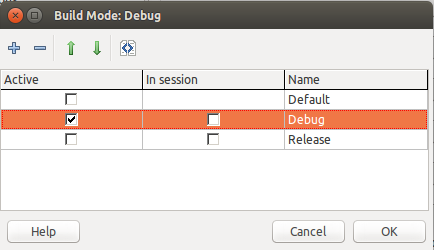 | |
| 179 | 181 | ||
| 180 | 182 | Every Build Mode is a complete set of compiler options. You can switch easily between your build modes either via the combobox at the top of the project options, or in the IDE main toolbar, with the arrow button right of the *Compile* button. | |
| 181 | 183 | ||
| 182 | 184 | 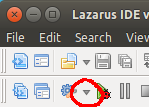 | |
| 183 | 185 | ||
| 184 | 186 | Once we select the *Debug* build mode, all configurations from the project options dialog will be specific to this build mode. Here is the default *Debugging* page in *Debug* mode: | |
| 185 | 187 | ||
| 186 | 188 | 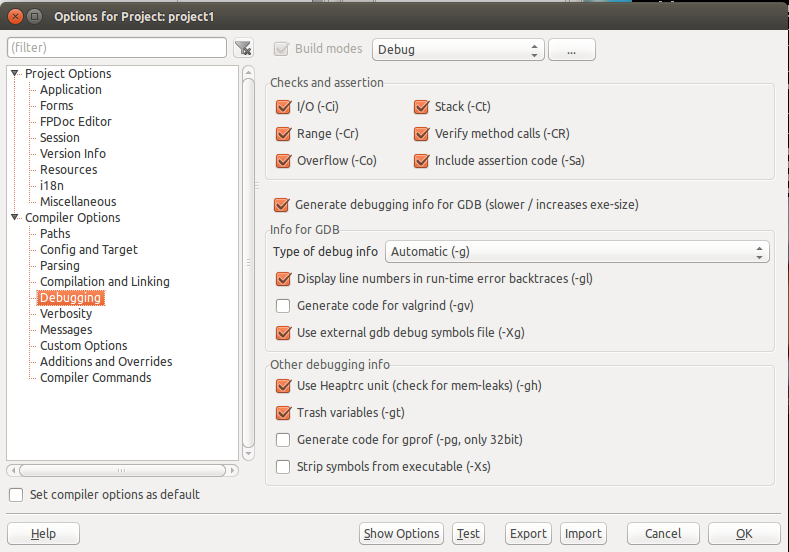 | |
| 187 | 189 | ||
| 188 | 190 | When we select the *Release* build mode, all configurations from the project options dialog will be specific to this build mode. Here is the default *Debugging* page in *Release* mode: | |
| 189 | 191 | ||
| 190 | 192 | 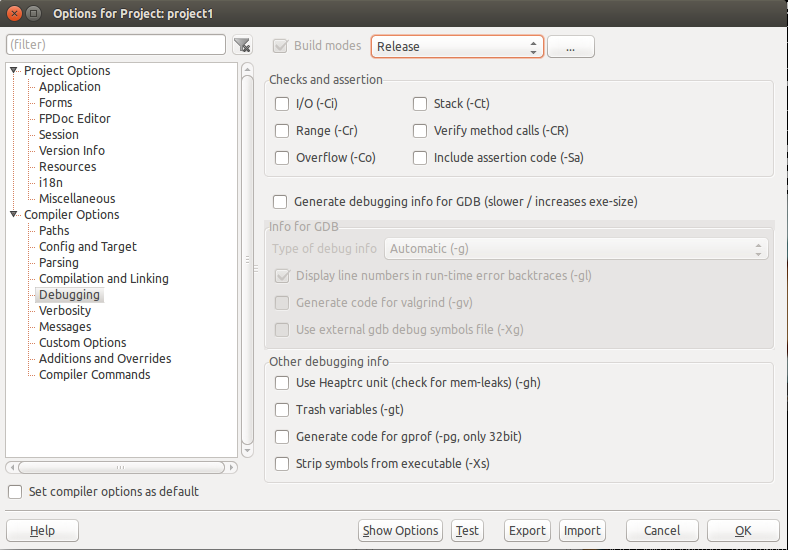 | |
| 191 | 193 | ||
| 192 | 194 | ### Selecting the active build mode | |
| 193 | 195 | ||
| 194 | 196 | One can select the currently active build mode either in the "Project Options" dialog or in the main IDE Window, in a special button with a drop down which will appear only if the project has more then 1 build mode, as one can see in this screenshot: | |
| 195 | 197 | ||
| 196 | 198 | 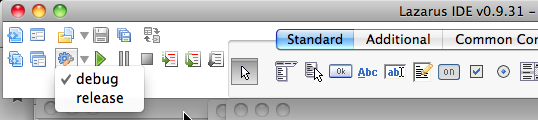 | |
| 197 | 199 | ||
| 198 | 200 | ### Project macros | |
| 199 | 201 | ||
| 200 | 202 | See [[IDE Window: Compiler Options|here]] for adding your own macros or defining the LCLWidgetType macro. | |
| 201 | 203 | ||
| 202 | 204 | ## Parsing | |
| 203 | 205 | ||
| 204 | 206 | 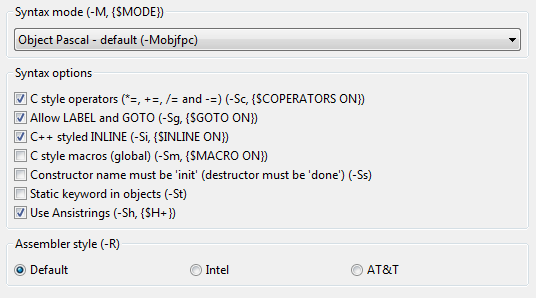 | |
| 205 | 207 | ||
| 206 | 208 | ### Syntax mode | |
| 207 | 209 | ||
| 208 | 210 | Choose the default [[Compiler Mode]]. If a unit does not contain a {\$mode somemode} directive, this is used as the default. | |
| 209 | 211 | ||
| 210 | 212 | ### Syntax Options | |
| 211 | 213 | ||
| 212 | 214 | See [FPC Programmer's guide](http://www.freepascal.org/docs-html/prog/prog.html). | |
| 213 | 215 | ||
| 214 | 216 | - C Style Operators (*=, +=, /= and -=) | |
| 215 | 217 | - Include Assertion Code | |
| 216 | 218 | - Allow LABEL and GOTO | |
| 217 | 219 | - C++ Styled [[Inline|INLINE]] | |
| 218 | 220 | - C Style Macros (global) | |
| 219 | 221 | - Constructor name must be **init** (destructor must be **done**) | |
| 220 | 222 | - Static Keyword in Objects | |
| 221 | 223 | - Use [[String|AnsiStrings]] | |
| 222 | 224 | ||
| 223 | 225 | ### Assembler style | |
| 224 | 226 | ||
| 225 | 227 | Sets the value of -R\<x\> option: | |
| 226 | 228 | ||
| 227 | 229 | - -Rdefault: use default assembler | |
| 228 | 230 | - -Ratt: use AT&T style assembler | |
| 229 | 231 | - -Rintel: use Intel style assembler | |
| 230 | 232 | ||
| 231 | 233 | ## Code | |
| 232 | 234 | ||
| 233 | 235 | ## Compilation and Linking | |
| 234 | 236 | ||
| 235 | 237 | 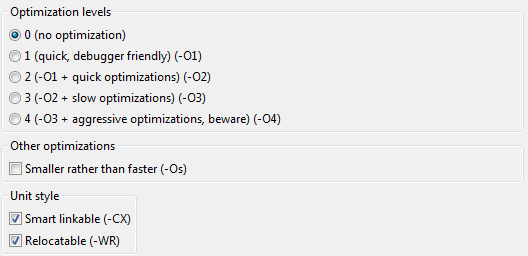 | |
| 236 | 238 | ||
| 237 | 239 | For debug settings, see [[Debugger Setup|Debugger_Setup#Project_Options]] | |
| 238 | 240 | ||
| 239 | 241 | ## Debugging | |
| 240 | 242 | ||
| 241 | 243 | 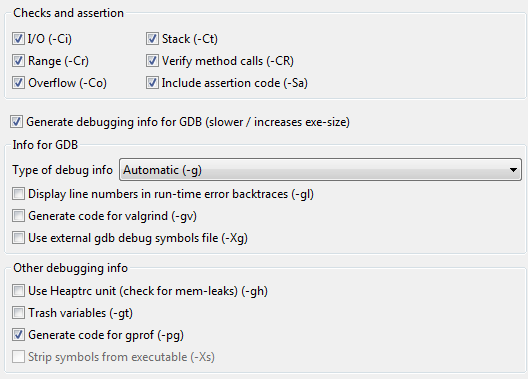 | |
| 242 | 244 | ||
| 243 | 245 | ## Verbosity | |
| 244 | 246 | ||
| 245 | 247 | 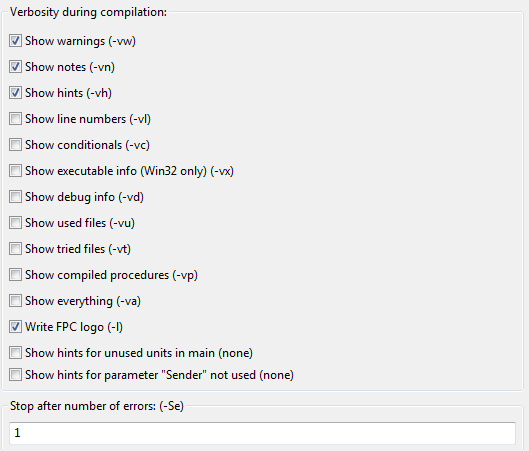 | |
| 246 | 248 | ||
| 247 | 249 | See [Free Pascal - Online documentation](http://www.freepascal.org/docs.html). Note that adding a lot of verbosity slows down the parsing of the compiler output much, even if most of the messages will be hidden in the messages view. | |
| 248 | 250 | ||
| 249 | 251 | ## Messages | |
| 250 | 252 | ||
| 251 | 253 | 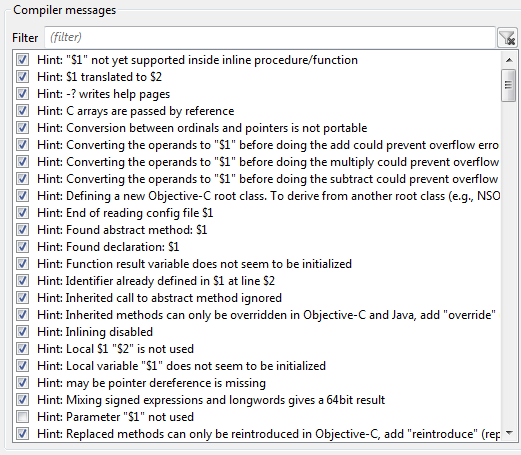 | |
| 252 | 254 | ||
| 253 | 255 | (Introduced in Lazarus 0.9.27 version) The page allows to control what compiler output Notes, Hints and Warnings are shown. The feature requires FP compiler to support -m switch (version 2.2.2 or higher). | |
| 254 | 256 | ||
| 255 | 257 | It's also possible to specify message Language file (file should be Utf-8 encoded), to see compiler messages translated, without need to modify fpc.cfg file. | |
| 256 | 258 | ||
| 257 | 259 | Samples of the messages translation file can be found at \${LazarusDir}/fpc/\${FPCTARGET}/msg, i.e. C:\Lazarus\fpc\2.2.3\msg | |
| 258 | 260 | ||
| 259 | 261 | ## Custom Options | |
| 260 | 262 | ||
| 261 | 263 | 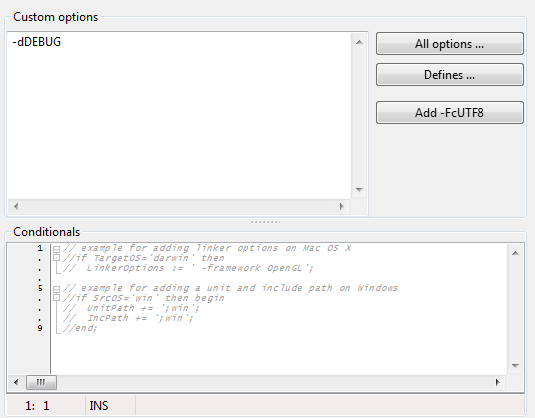 | |
| 262 | 264 | ||
| 263 | 265 | You'll typically define some compiler options here. For example you can define in a build mode something like: | |
| 264 | 266 | ||
| 265 | - | ||
| 267 | + | ```text | |
| 268 | + | -dRELEASE | |
| 269 | + | ``` | |
| 266 | 270 | ||
| 267 | 271 | Then in the build mode, only the code surrounded by the {\$IFDEF RELEASE} {\$ENDIF} will be compiled. This can be used as an alternative to the Macro system, particularly if you come from Delphi. | |
| 268 | 272 | ||
| 269 | 273 | Spaces at start and end are removed. Line breaks are replaced by a space before passing to the compiler. A leading space is added automatically. | |
| 270 | 274 | ||
| 271 | 275 | The IDE substitutes IDE macros in custom options and parses the options. Flags like -dRelease are passed to codetools, so the source editor knows them immediately. | |
| 272 | 276 | ||
| 273 | 277 | > **Warning:** Do not add the path options -Fu, -Fi, -Fl, -FU, -o. Use the fields on the page [[IDE Window: Compiler Options|Paths]] instead. The IDE ignores the paths in the custom options. It does not update them when you add or delete files or when you open the project on another host. | |
| 274 | 278 | ||
| 275 | 279 | ## Additions and Overrides | |
| 276 | 280 | ||
| 277 | 281 | The page "Additions and Overrides" exists since Lazarus v1.1. | |
| 278 | 282 | ||
| 279 | 283 | ### Overview | |
| 280 | 284 | ||
| 281 | 285 | The page contains a matrix of build options. | |
| 282 | 286 | ||
| 283 | 287 | 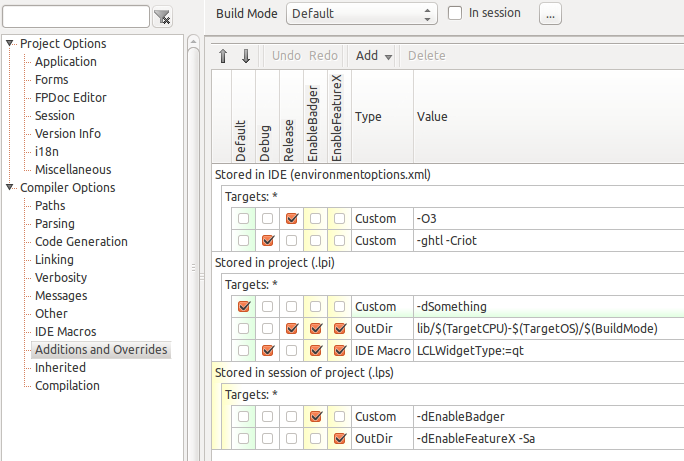 | |
| 284 | 288 | ||
| 285 | 289 | The settings "custom options", "output directory", and "IDE Macros" within any target can be switched on and off separately for each build mode. | |
| 286 | 290 | ||
| 287 | 291 | Thus, for each target, there is a Matrix of enabling check boxes. | |
| 288 | 292 | ||
| 289 | 293 | The vertical words in the header show all the Build Modes that are currently defined, and by this they denote the column in the matrices. | |
| 290 | 294 | ||
| 291 | 295 | At the right side of each row of any matrix, the description of the type (such as "Custom", "OutDir", or "IDE Macro" ) and the value of the option to be enabled, is given. | |
| 292 | 296 | ||
| 293 | 297 | ### Types of build options | |
| 294 | 298 | ||
| 295 | 299 | A build option can | |
| 296 | 300 | ||
| 297 | 301 | - set an **IDE macro**. The value must be of the form **MacroName:=Value**. For instance **LCLWidgetType:=qt**. You can use IDE macros in the value, but not in the name. | |
| 298 | 302 | - append some custom compiler options via **Custom** (e.g. append -O3). You do not need a leading space. That is added automatically. See the notes about [[IDE Window: Compiler Options|Custom options]]. | |
| 299 | 303 | - override the output directory (-FU) via **OutDir**. Note that when you use a relative directory like *lib/\$(TargetOS)* the working directory of the target is added, not the project directory. For example when the option overrides the output directory of the package *SynEdit*, then the output directory of synedit is changed to *\<lazarusdir\>/components/synedit/lib/\$(TargetOS)*. | |
| 300 | 304 | ||
| 301 | 305 | You can create a new option by clicking on the **Add** button above the matrix. You can change the type of an option at any time. | |
| 302 | 306 | ||
| 303 | 307 | ### Enabling build options in build modes | |
| 304 | 308 | ||
| 305 | 309 | An option can be enabled with the build modes of the project. You can enable the option only in one build mode or several of them. Each build option has a row in the matrix, each build mode has a column in the matrix. Each combination has a checkbox. Build options are applied from top to bottom. | |
| 306 | 310 | ||
| 307 | 311 | Note that enabling options in build modes of the session (stored in the .lps) does **not** alter the *lpi* file. This information is stored in the *lps* file. That's why these checkboxes have a yellow background. | |
| 308 | 312 | ||
| 309 | 313 | The currently active build mode and options have a green background. | |
| 310 | 314 | ||
| 311 | 315 | When you rename a build mode the enabled states of the lpi and lps options are migrated too. The enabled states of IDE options are *not* migrated. For example when an IDE option is enabled for mode *debug* and you rename the mode to *Test*, then the IDE option is still enabled for mode *debug* for other projects. | |
| 312 | 316 | ||
| 313 | 317 | ### Storage location of build options | |
| 314 | 318 | ||
| 315 | 319 | An option can be stored in | |
| 316 | 320 | ||
| 317 | 321 | - the project (.lpi) | |
| 318 | 322 | - the project session (.lps) | |
| 319 | 323 | - or in the IDE configuration (environmentoptions.xml), then it is available to all projects | |
| 320 | 324 | ||
| 321 | 325 | Build options are applied from top to bottom. That means first the options stored in the IDE, then the options stored in the .lpi and last the options stored in the session. | |
| 322 | 326 | ||
| 323 | 327 | You can move build options and whole targets via the Up and Down button above the matrix to other storage groups. | |
| 324 | 328 | ||
| 325 | 329 | **Note**: An option in the IDE configuration for mode *debug* is applied to **all** projects with this mode. For instance when you open a third party project having the build mode *debug* the option will be applied and there will be no warning. This might break the project. | |
| 326 | 330 | ||
| 327 | 331 | ### Targets of build options | |
| 328 | 332 | ||
| 329 | 333 | A build option can be applied to the project and/or to one or more packages. You can limit the scope of the build options to only apply to specific targets (project, packages). Build options are grouped by **Targets**. The **targets** are case insensitive and allow the asterisk "*" for any number of arbitrary characters and the question mark "?" for one arbitrary character. You can exclude targets by prepending a minus "-". To edit a target click behind the 'Targets:'. | |
| 330 | 334 | ||
| 331 | 335 | Examples of targets: | |
| 332 | 336 | ||
| 333 | 337 | - *****: The asterisk "*" means fits all. The option is applied to the project and all packages. This is the default. | |
| 334 | 338 | - **LCL,Lazutils**: Apply it only to package "LCL" and "LazUtils" | |
| 335 | 339 | - ***dsgn,-syneditdsgn**: Apply it to all packages ending with "dsgn", except "syneditdsgn". | |
| 336 | 340 | - **\#project**: This fits the project itself. The option is applied only to the project, not to the used packages. | |
| 337 | 341 | - **\#ide**: This fits the IDE. The option is applied only to the IDE, not to installed packages. | |
| 338 | 342 | ||
| 339 | 343 | You can have any number of targets. You can create a new target via the the **Add** button above the matrix. You can move targets via the up and down buttons to other storages. All build options of the target group are moved as well. | |
| 340 | 344 | ||
| 341 | 345 | ### Colors in the matrix | |
| 342 | 346 | ||
| 343 | 347 | - **Green**: currently active mode and options | |
| 344 | 348 | - **Yellow**: stored in session, not altering the lpi | |
| 345 | 349 | - **Red**: syntax error | |
| 346 | 350 | ||
| 347 | 351 | ### Examples for additions and overrides | |
| 348 | 352 | ||
| 349 | 353 | - Append compiler options to packages without touching the lpk. For example you can append range checking *-Cr* via **custom** option under **Targets: ***. | |
| 350 | 354 | - Changing the output directory of packages without touching the lpk. For example add a **OutDir** under **Targets: ***. | |
| 351 | 355 | - Define IDE macros only for some packages or only for the project. For example compile the LCL with flag **-dQT_NATIVE_DIALOGS**, add a new target **Targets: LCL**, then add a custom option. | |
| 352 | 356 | - Append compiler options to all projects with build mode "debug" by adding options to the IDE storage group. | |
| 353 | 357 | - Change the package(s) output directory for all projects with build mode "release". Add the build option to the options stored in the IDE. | |
| 354 | 358 | - Combine the above with sessions and you can alter third party projects and packages without touching them. | |
| 355 | 359 | ||
| 356 | 360 | #### Changing the LCLWidgetType in Version 1.1 and above | |
| 357 | 361 | ||
| 358 | 362 | This setting is only available when the project uses the package LCL. | |
| 359 | 363 | ||
| 360 | 364 | Go to Project \> Project Options \> Comiler Options \> Additions and Overrides \> Set "LCLWidgetType". | |
| 361 | 365 | ||
| 362 | 366 | 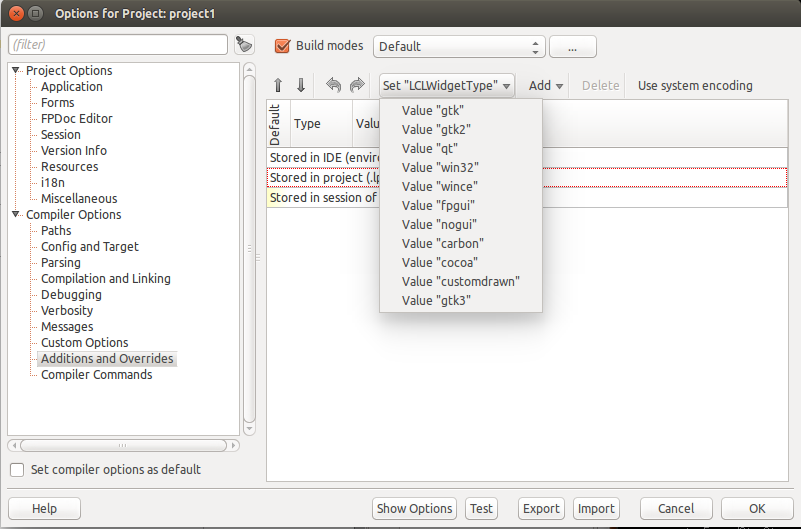 | |
| 363 | 367 | ||
| 364 | 368 | #### Add a flag to project and all packages | |
| 365 | 369 | ||
| 366 | 370 | Note: This modifies the project (.lpi). It does not alter the package files (.lpk), but it effects them when you build the project. It also effects building the IDE. | |
| 367 | 371 | ||
| 368 | 372 | Go to **Additions and Overrides**. Click on the **Add** button and select **Custom Option**: | |
| 369 | 373 | ||
| 370 | 374 | 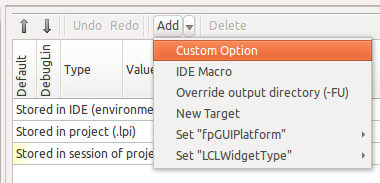 | |
| 371 | 375 | ||
| 372 | 376 | You should now see a "*Targets: **" and the new option. It is enabled for the currently active build mode and disabled for all other. The **Targets: *** means it applies to the project and all packages. | |
| 373 | 377 | ||
| 374 | 378 | 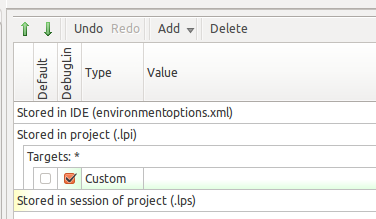 | |
| 375 | 379 | ||
| 376 | 380 | Click in the value cell behind the option and add your flag. For example: **-dSomeFlag**. | |
| 377 | 381 | ||
| 378 | 382 | 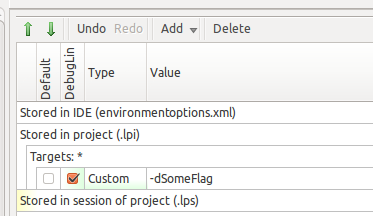 | |
| 379 | 383 | ||
| 380 | 384 | That's it. | |
| 381 | 385 | ||
| 382 | 386 | #### Add a flag to all projects and packages | |
| 383 | 387 | ||
| 384 | 388 | The flag from the previous paragraph is only active when the project is loaded. To set the flag for all projects, select the option and click on the **up** button (green arrow up). This moves the option to the "Stored in IDE" group. | |
| 385 | 389 | ||
| 386 | 390 | 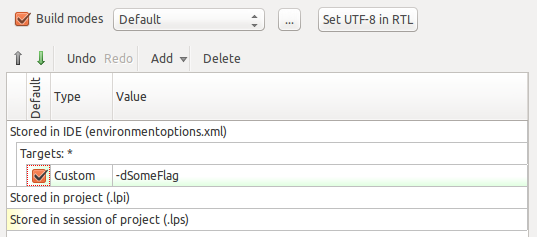 | |
| 387 | 391 | ||
| 388 | 392 | Note: The IDE uses the options of build mode "default". | |
| 389 | 393 | ||
| 390 | 394 | #### Change the output directory of project and all packages | |
| 391 | 395 | ||
| 392 | 396 | Go to **Additions and Overrides**. Click on the **Add** button and select **Output Directory (-FU)**. | |
| 393 | 397 | ||
| 394 | 398 | 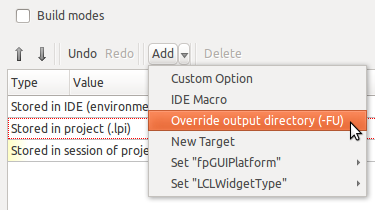 | |
| 395 | 399 | ||
| 396 | 400 | You should now see a "*Targets: **" and the new option "OutDir" with the default value **lib/\$(TargetCPU)-\$(TargetOS)/\$(BuildMode)**. It is enabled for the currently active build mode and disabled for all other. The **Targets: *** means it applies to the project and all packages. | |
| 397 | 401 | ||
| 398 | 402 | 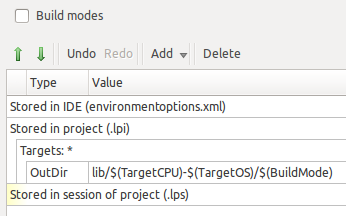 | |
| 399 | 403 | ||
| 400 | 404 | For example: Click in the value cell behind the option and change it to **lib/\$(FPCVer)/\$(TargetCPU)-\$(TargetOS)**. This will use different output directories for each Free Pascal compiler version. | |
| 401 | 405 | ||
| 402 | 406 | If you want to use the same output directories for all your projects, you can put the option under **Stored in IDE**. Click in the value cell of the OutDir option to select the row. Then use the *Up* (arrow up) button to move the option. | |
| 403 | 407 | ||
| 404 | 408 | If you want to apply the output directory to all packages, but not projects, change the **Targets** value from *** to **,-#project*. | |
| 405 | 409 | ||
| 406 | 410 | 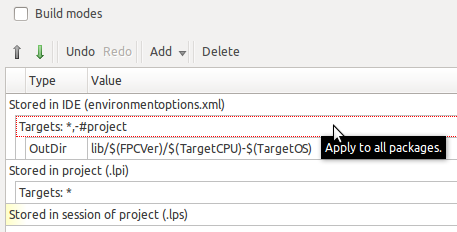 | |
| 407 | 411 | ||
| 408 | 412 | **Note:** If a package does not support your output directory, append to *Targets* value **-packagename**. For example: ***,-chmhelp**. | |
| 409 | 413 | ||
| 410 | 414 | If you want to put the package output files into sub directories of the project, change the OutDir to **\$(ProjPath)/lib/\$(PkgName)/\$(TargetCPU)-\$(TargetOS)/\$(BuildMode)**. Note the use of the macros *\$(ProjPath)* for the project directory and *\$(PkgName)* to give each package its own directory. | |
| 411 | 415 | ||
| 412 | 416 | 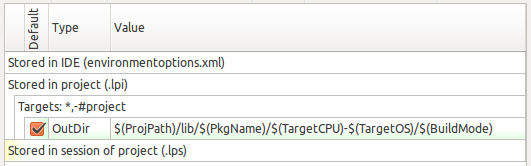 | |
| 413 | 417 | ||
| 414 | 418 | For example if your project directory is *C:\pascal\myapp* then the package LCL will be compiled into *C:\pascal\myapp\lib\LCL\i386-win32\default*. | |
| 415 | 419 | ||
| 416 | 420 | #### Add a flag to one package without altering the lpk itself | |
| 417 | 421 | ||
| 418 | 422 | This examples appends the option *-vm4104* to the package *lazreport*. | |
| 419 | 423 | ||
| 420 | 424 | - Go to **Additions and Overrides**. | |
| 421 | 425 | - Click on the **Add** button and select "New Target". A new row is inserted with "Targets: *" | |
| 422 | 426 | - Click on the new row right behind the "Targets:". The ***** is now editable. | |
| 423 | 427 | - Change it to the package name. In this example: *lazreport*. Press return or click on another row to finish editing. | |
| 424 | 428 | - When you move the mouse over the new row you should see the hint *Apply to all packages matching the name "lazreport"*. | |
| 425 | 429 | - Click on the **Add** button and select "Custom Option". A new row is inserted below the row *Targets: lazreport*. Note: You can move rows using the green arrows | |
| 426 | 430 | - Click in the new empty value and change its value to **-vm4104**. | |
| 427 | 431 | ||
| 428 | 432 | This option is stored in your current project (lpi) and is only added if you compile this project. If the option should be used with all your projects on your machine, use the green buttons to move the *Targets: lazeport* up to *Stored in IDE*. | |
| 429 | 433 | ||
| 430 | 434 | 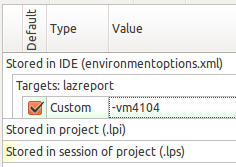 | |
| 431 | 435 | ||
| 432 | 436 | ## Compilation | |
| 433 | 437 | ||
| 434 | 438 | ## Compiler Commands | |
| 435 | 439 | ||
| 436 | 440 | 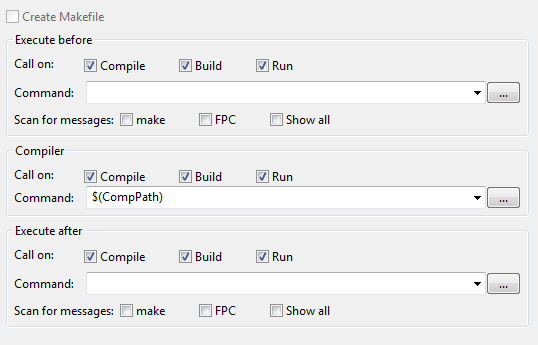 | |
| 437 | 441 | ||
| 438 | 442 | Create Makefile | |
| 439 | 443 | ||
| 440 | 444 | Enable this, if the IDE should create a Makefile and a Makefile.fpc before each build. This is currently only supported for packages, not for projects. | |
| 441 | 445 | ||
| 442 | 446 | Execute before | |
| 443 | 447 | Here, you can configure a command to execute before running the compiler. | |
| 444 | 448 | ||
| 445 | 449 | Call on | |
| 446 | 450 | ||
| 447 | 451 | - Compile - execute when normally compiling (F9). | |
| 448 | 452 | - Build - execute when rebuilding all. This could for example be a script to clean up. | |
| 449 | 453 | - Run - execute when quick compiling. When running a project, the IDE checks if rebuild is needed. If no rebuild is needed the IDE skips the compile step. Set this option to always execute the command, even if the compile step is skipped. | |
| 450 | 454 | ||
| 451 | 455 | scan for messages | |
| 452 | 456 | The IDE can parse and filter the output of the command and stop on errors. Check the boxes for which messages the IDE should watch. | |
| 453 | 457 | ||
| 454 | 458 | ### Compiler | |
| 455 | 459 | ||
| 456 | 460 | This is compiler path used by the project or package. Default is the macro \$(CompPath), which is replaced with the compiler filename in the environment options. | |
| 457 | 461 | ||
| 458 | 462 | ### Execute after | |
| 459 | 463 | ||
| 460 | 464 | Provide an (optional) command to execute after running the compiler. See above 'Execute before' for details. | |
| 461 | 465 | ||
| 462 | 466 | One handy usage might be to automatically copy your cross-compiled executable from your PC onto your target device, eg a Raspberry Pi: | |
| 463 | 467 | ||
| 464 | - | ||
| 468 | + | ```text | |
| 469 | + | scp "$TargetFile()" pi@raspberry:/home/pi/bin | |
| 470 | + | ``` | |
| 465 | 471 | ||
| 466 | 472 | (And yes, this works even without a password, if you create a key pair with ssh-keygen and then add it to your target's authorized_keys file via "ssh-copy-id \[remoteuser@\]remotehost"; for details see [here](https://www.debian.org/devel/passwordlessssh)) | |
| 467 | 473 | ||
| 468 | 474 | ## Inherited | |
| 469 | 475 | ||
| 470 | 476 | > **Note:** This was moved in Lazarus 1.1 to the [[IDE Window: Show Compiler Options|Show Compiler Options]] dialog. | |
| 471 | 477 | ||
| 472 | 478 | This page shows all the compiler options inherited from packages. Packages inherit options via their **usage** [[IDE Window: Package Options|options]]. | |
| 473 | 479 | ||
| 474 | 480 | The topmost node shows all inherited options, that is the sum of all used packages. | |
| 475 | 481 | ||
| 476 | 482 | The nodes below show the inherited options of each used package. | |
| 477 | 483 | ||
| 478 | 484 | You can see/edit the set the used packages for the project in the project inspector. You can see/edit the set of used packages for a package in the package editor. | |
| 479 | 485 | ||
| 480 | 486 | For information about packages in general see [[Lazarus Packages]]. | |
| 481 | 487 | ||
| 482 | 488 | ## Use these settings as default for new projects | |
| 483 | 489 | ||
| 484 | 490 | Check this checkbox and click Ok. The settings will be saved to *~/.lazarus/compileroptions.xml* (or whatever you have as primary config path). When you create a new project this file will be loaded to initialize the compiler options. This feature exists since 0.9.29. | |
| 485 | 491 | ||
| 486 | 492 | ## Buttons | |
| 487 | 493 | ||
| 488 | 494 | ### Test | |
| 489 | 495 | ||
| 490 | 496 | This will run various test and detects common configurations mistakes. FPC 3.2.0 will warn about some double units. The warnings are correct, but you can ignore them, if you don't use these units. | |
| 491 | 497 | ||
| 492 | 498 | ### Show Options | |
| 493 | 499 | ||
| 494 | 500 | Opens a dialog and shows the current compiler and command line parameters. | |
| 495 | 501 | ||
| 496 | 502 | ### Load/Save | |
| 497 | 503 | ||
| 498 | 504 | Opens a dialog to save and/or load the current compiler options from/to a xml file. | |
| 499 | 505 | ||
| 500 | 506 | ### Ok | |
| 501 | 507 | ||
| 502 | 508 | This will apply the changes and then exit the dialog. | |
| 503 | 509 | ||
| 504 | 510 | ### Cancel | |
| 505 | 511 | ||
| 506 | 512 | This will undo all changes and exit the dialog. | |
| 507 | 513 | ||
| 508 | 514 | ------------------------------------------------------------------------ | |
| 509 | 515 | ||
| 510 | 516 | ------------------------------------------------------------------------ | |
| 511 | 517 | ||
| 512 | 518 | ## IDE Macros | |
| 513 | 519 | ||
| 514 | 520 | 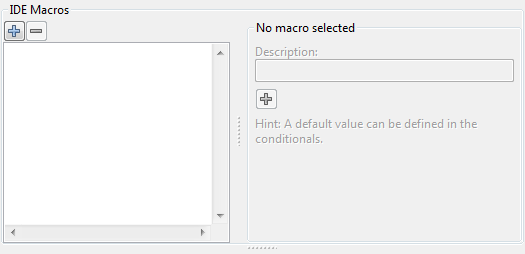 | |
| 515 | 521 | ||
| 516 | 522 | ### For 0.9.29 to 1.0.x | |
| 517 | 523 | ||
| 518 | 524 | This page allows to define your project/package specific macros and conditionals. The IDE already provides a lot of [[IDE Macros in paths and filenames|macros]]. You can add your own macros that are valid when the project/package is loaded. | |
| 519 | 525 | ||
| 520 | 526 | Conditionals allow to set macro values depending on target platform and other macros. For example you can add a linker option when compiling for Mac OS X. | |
| 521 | 527 | ||
| 522 | 528 | Use the left **+** button to add a new macro for the project/package. Select a macro and click on the middle **+** button to add a new possible value. The actual value of a macro is set in the conditionals below, or by the current project on the **build modes** page (IDE menu / Project / Project Options / Compiler options / Build Modes). To delete a value or a macro, select it and click on the **-** button. | |
| 523 | 529 | ||
| 524 | 530 | The conditionals use a scripting language similar to pascal and are edited in the text editor at the bottom of the page. Many short cuts work like in the source editor, including word/identifier completion (default: Ctrl+Space). | |
| 525 | 531 | ||
| 526 | 532 | For more details about build macros and conditionals see [[Macros and Conditionals]]. | |
| 527 | 533 | ||
| 528 | 534 | 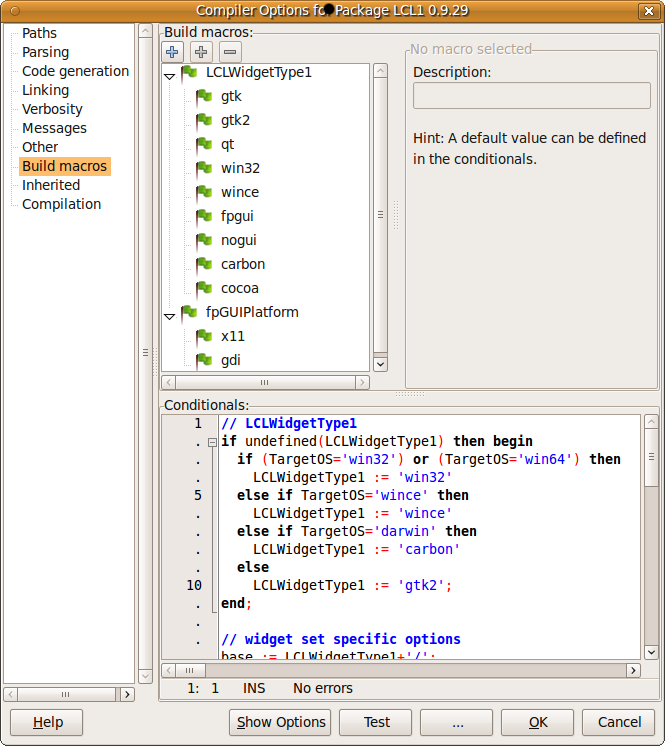 | |
| 529 | 535 | ||
| 530 | 536 | This page exists since version 0.9.29. | |
| 531 | 537 | ||
| 532 | 538 | ### For 1.1 and above | |
| 533 | 539 | ||
| 534 | 540 | This page is only available for packages. It lets packages define their own IDE macros. The IDE already provides a lot of [[IDE Macros in paths and filenames|macros]] itself. | |
| 535 | 541 | ||
| 536 | 542 | Use the left **+** button to add a new macro for the project/package. Select a macro and click on the middle **+** button to add a new possible value. The actual value of a macro is set in the conditionals below, or by the current project on the **build modes** page (IDE menu / Project / Project Options / Compiler options / Build Modes). To delete a value or a macro, select it and click on the **-** button. | |
| 537 | 543 | ||
| 538 | 544 | For more details about build macros and conditionals see [[Macros and Conditionals]]. | |
| 539 | 545 | ||
| 540 | 546 | ## Other | |
| 541 | 547 | ||
| 542 | 548 | See [Free Pascal - Online documentation](http://www.freepascal.org/docs.html) | |
| 543 | 549 | ||
| 544 | 550 | You'll typically define some compiler options here. For example you can define in a build mode something like: | |
| 545 | 551 | ||
| 546 | 552 | ```text | |
| 547 | 553 | -dRELEASE | |
| 548 | 554 | ``` | |
| 549 | 555 | ||
| 550 | 556 | Then in the build mode, only the code surrounded by the {\$IFDEF RELEASE} {\$ENDIF} will be compiled. This can be used alternatively to the Macro system, particularly if you come from Delphi. | |
| 551 | 557 | ||
| 552 | 558 | Spaces at start and end are removed. Line breaks are replaced by a space before passing to the compiler. A leading space is added automatically. | |
| 553 | 559 | ||
| 554 | 560 | The IDE substitutes IDE macros in custom options and parses the options. Flags like -dRelease are passed to codetools, so the source editor knows them immediately. | |
| 555 | 561 | ||
| 556 | 562 | > **Warning:** Do not add the path options -Fu, -Fi, -Fl, -FU, -o. Use the fields on the page [[IDE Window: Compiler Options|Paths]] instead. The IDE ignores the paths in the custom options. It does not update them, when you add or delete files or when you open the project on another host. | |
| 557 | 563 | ||
| 558 | 564 | Clicking the **All options...** button allows you to set FPC options easily: 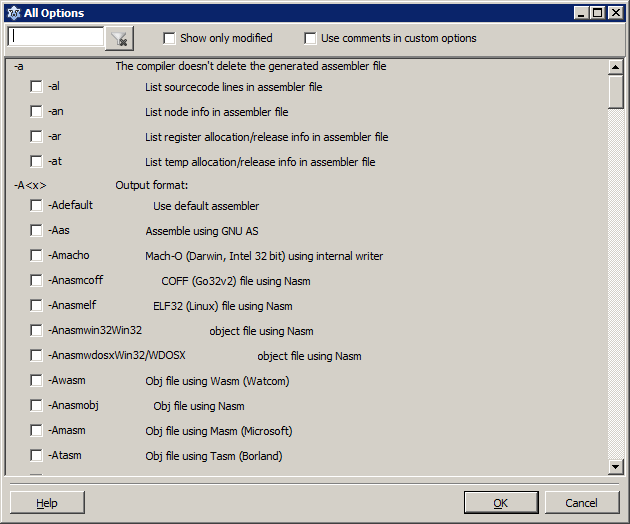 | |
| 559 | 565 | ||
| 560 | 566 | --- | |
| 561 | 567 | *From the Free Pascal wiki, page "IDE Window: Compiler Options", as it stood on 2024-03-10 after a change by GrahameGrieve, out of the wiki's dump of 2024-05-26. Copyright stays with the author who wrote it, according to the old wiki's [[Licensing]] page. If you have concerns about this material, [message the admin](/wiki-contact).* |