

How To Write Lazarus Component: what changed
Revision 1 to 2. Removed lines have a minus sign; added lines have a plus sign.
| Old | New | Line | |
|---|---|---|---|
| 1 | 1 | This is a guide on how to build components. | |
| 2 | 2 | ||
| 3 | 3 | ## Step 1: Create the package | |
| 4 | 4 | ||
| 5 | 5 | - On the Lazarus IDE menu, click **Package \> New Package** to run the Package Manager. | |
| 6 | 6 | ||
| 7 | - | ||
| 8 | - | ||
| 9 | - | ||
| 10 | - | ||
| 7 | + |  | |
| 11 | 8 | ||
| 12 | 9 | - A **Save** file dialog will appear. Chose a folder and a file name and press save. If the IDE prompts for using lowercase filenames press 'yes'. | |
| 13 | 10 | ||
| 14 | 11 | - Congratulations: You have just created your first package! | |
| 15 | 12 | ||
| 16 | - | ||
| 17 | - | ||
| 18 | - | ||
| 19 | - | ||
| 13 | + | 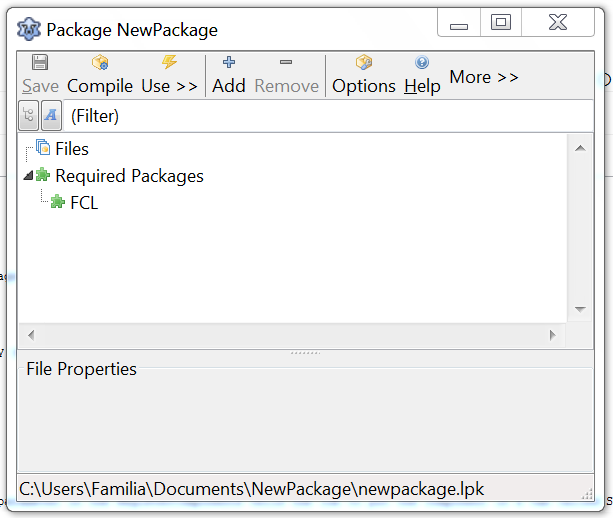 | |
| 20 | 14 | ||
| 21 | 15 | ## Step 2: Create the unit | |
| 22 | 16 | ||
| 23 | 17 | You can create a new unit or use an existing file. Both options are described below. | |
| 24 | 18 | ||
| 25 | 19 | ### Create a new unit | |
| 26 | 20 | ||
| 27 | 21 | - Use the **Add button \> New component**. | |
| 28 | 22 | ||
| 29 | - | ||
| 30 | - | ||
| 31 | - | ||
| 32 | - | ||
| 23 | + | 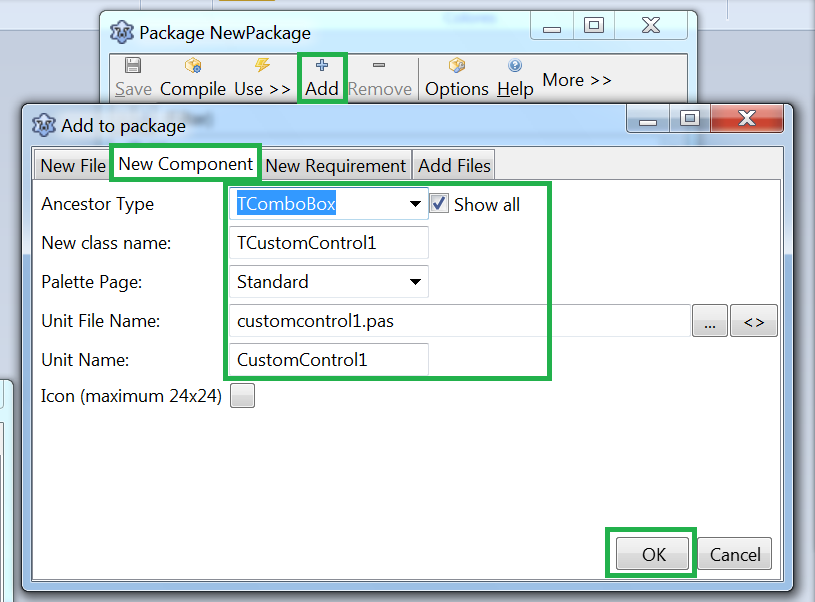 | |
| 33 | 24 | ||
| 34 | 25 | - Choose a component like TComboBox. | |
| 35 | 26 | - Choose *customcontrol1.pas* as **Unit File Name** and *CustomControl1* as **Unit Name**. | |
| 36 | 27 | - You can now give to the component a icon and determine on which palette the component should appear later in the Lazarus-IDE. | |
| 37 | 28 | - Click **Create New Component**. | |
| 38 | 29 | ||
| 39 | 30 | ``` pascal | |
| 40 | 31 | unit CustomControl1; | |
| 41 | 32 | ||
| 42 | 33 | {$mode objfpc}{$H+} | |
| 43 | 34 | ||
| 44 | 35 | interface | |
| 45 | 36 | ||
| 46 | 37 | uses | |
| 47 | 38 | Classes, SysUtils, LResources, Forms, Controls, Graphics, Dialogs, StdCtrls; | |
| 48 | 39 | ||
| 49 | 40 | type | |
| 50 | 41 | TCustomControl1 = class(TComboBox) | |
| 51 | 42 | private | |
| 52 | 43 | { Private declarations } | |
| 53 | 44 | protected | |
| 54 | 45 | { Protected declarations } | |
| 55 | 46 | public | |
| 56 | 47 | { Public declarations } | |
| 57 | 48 | published | |
| 58 | 49 | { Published declarations } | |
| 59 | 50 | end; | |
| 60 | 51 | ||
| 61 | 52 | procedure Register; | |
| 62 | 53 | ||
| 63 | 54 | implementation | |
| 64 | 55 | ||
| 65 | 56 | procedure Register; | |
| 66 | 57 | begin | |
| 67 | 58 | RegisterComponents('Standard', [TCustomControl1]); | |
| 68 | 59 | end; | |
| 69 | 60 | ||
| 70 | 61 | end. | |
| 71 | 62 | ``` | |
| 72 | 63 | ||
| 73 | 64 | - Now add the code for your component. Resist the temptation to install the new component into the IDE at this early stage. It is very likely that the new component is still buggy. Since the new component will become a part of the IDE it can crash the IDE, it may even be possible that the IDE does not start any more. Test your component excessively. | |
| 74 | 65 | - When the component is tested as much as possible install the package by clicking opening the package in "Package" \> "Install/uninstall packages", click the "Compile" button at the top of the package editor, and then **Use -\> Install**: | |
| 75 | 66 | ||
| 76 | - | ||
| 77 | - | ||
| 78 | - | ||
| 79 | - | ||
| 67 | + | 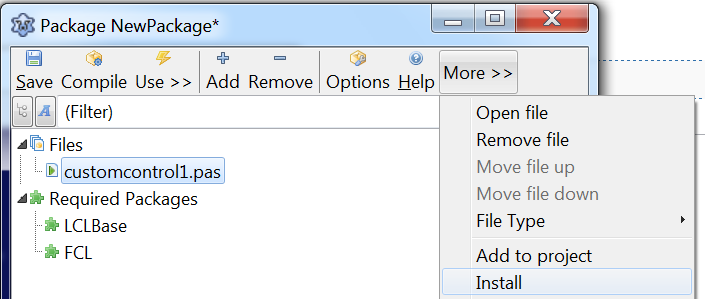 | |
| 80 | 68 | ||
| 81 | 69 | - Now the IDE will ask you, if the IDE should be rebuilt. Say yes. | |
| 82 | 70 | ||
| 83 | - | ||
| 84 | - | ||
| 85 | - | ||
| 86 | - | ||
| 71 | + | 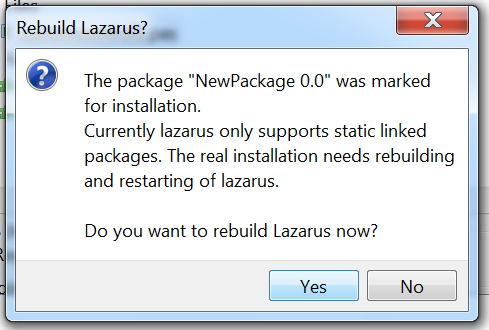 | |
| 87 | 72 | ||
| 88 | 73 | - Lazarus automatically restarts and you can see your new component in the component palette. Congratulations: you have just installed your first package with your first package component. | |
| 89 | 74 | ||
| 90 | - | ||
| 91 | - | ||
| 92 | - | ||
| 93 | - | ||
| 75 | + |  | |
| 94 | 76 | ||
| 95 | 77 | > **Note:** If you do not see your new component in the component palette, it is most likely that you are not running the re-compiled version of Lazarus. You can set where Lazarus builds to using Tools -\> Options -\> Files -\> Lazarus directory. | |
| 96 | 78 | > | |
| 97 | 79 | > Instead of calling Lazarus directly, you also can use startlazarus, which starts the newly created Lazarus, for example the Lazarus executable in the ~/.lazarus directory, if you don't have write access to the directory Lazarus was installed into. | |
| 98 | 80 | ||
| 99 | 81 | > **Note:** If things go wrong because the new component is still buggy and Lazarus cannot be started again you delete the new lazarus.exe and rename the backup copy of the previous version, lazarus.old.exe, back to lazarus.exe. | |
| 100 | 82 | ||
| 101 | 83 | ### Add an existing unit | |
| 102 | 84 | ||
| 103 | 85 | If you already had a unit you can add it to the package: | |
| 104 | 86 | ||
| 105 | - | ||
| 106 | - | ||
| 107 | - | ||
| 108 | - | ||
| 87 | + | 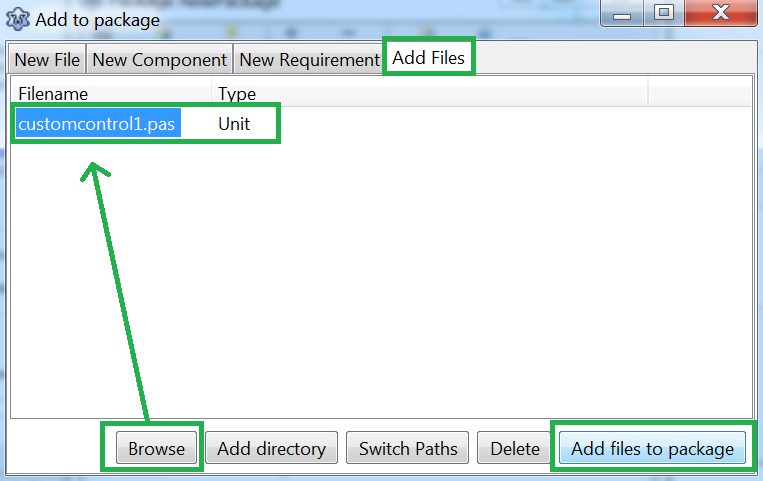 | |
| 109 | 88 | ||
| 110 | 89 | - Click the **Add** button, go to the **Add Files** tab. At the Unit file name, browse to your existing file. Click **Add files to package**. If the package manager complains that the unit is not in the unit path, click yes to add the directory to the unit path. | |
| 111 | 90 | - Click the **Add** button again, go to the **Add Files** tab, browse to the *.lrs* file and click OK (See Step 3 about creating this icon file). | |
| 112 | 91 | - Click the **Add** button again, go to the **New Requirement** tab. In the Package name select **LCL** and click OK. | |
| 113 | 92 | ||
| 114 | 93 | The end result should look like this: | |
| 115 | 94 | ||
| 116 | - | ||
| 117 | - | ||
| 118 | - | ||
| 119 | - | ||
| 95 | + | 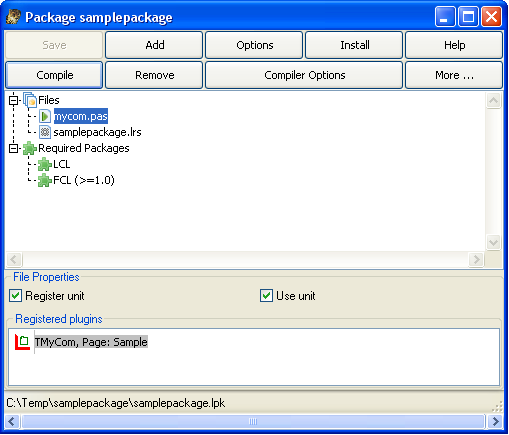 | |
| 120 | 96 | ||
| 121 | 97 | - Click under the Files tree in the Package Manager. In the File Properties, make sure *Register unit* is checked. | |
| 122 | 98 | - Click the Options button. Select the IDE Integration tab. In Package Type, make sure Designtime and Runtime is selected. | |
| 123 | 99 | - Click the Compile button to check to see that the files compile without errors. | |
| 124 | 100 | - Click the Install button. Lazarus will rebuild and restart automatically. | |
| 125 | 101 | ||
| 126 | 102 | The component is created and ready to be used: | |
| 127 | 103 | ||
| 128 | - | ||
| 129 | - | ||
| 130 | - | ||
| 131 | - | ||
| 104 | + |  | |
| 132 | 105 | ||
| 133 | 106 | ## Step 3: Create icons for the package | |
| 134 | 107 | ||
| 135 | 108 | Each component which should have an icon on the component palette requires images files packaged to a resource file. It is highly recommended to create the images as PNG files with alpha channel. The images should be 24x24 pixels in size. However, since Lazarus 1.8+ supports scaling of the icons at higher screen resolutions, you should also create images at 36x36 and 48x48 pixels which will be displayed at 150% and 200% resolutions, respectively). All images must have the same filename as the component, and the for extra-resolution images the appendices "_150" and "_200" must be added to the base filename to indicate the scaling factor. As an example, if your component is called `TMySuperEdit` you should prepare images named as `tmysuperedit.png`, `tmysuperedit_150.png`, and `tmysuperedit_200.png`. To simplify art work, it is recommended to draw the images as SVG vector images from which the destination sizes can be exported. | |
| 136 | 109 | ||
| 137 | 110 | FPC is capable of using standard resource files `.rc` or compiled resources `.res` since fpc version 2.6. See [[Lazarus Resources|Lazarus_Resources#FPC_resources]] | |
| 138 | 111 | ||
| 139 | 112 | The `.lrs`: see below. | |
| 140 | 113 | ||
| 141 | 114 | ### Using the Lazarus Image Editor | |
| 142 | 115 | ||
| 143 | 116 | You can use [[Lazarus Image Editor]] to create the icons in .lrs format. | |
| 144 | 117 | ||
| 145 | 118 | ### Using lazres | |
| 146 | 119 | ||
| 147 | 120 | `lazres` is usually located in the Lazarus tools directory. | |
| 148 | 121 | ||
| 149 | 122 | You may need to compile [[lazres]] at first use. Simply open the *lazres.lpi* in the IDE and click **run \> build** in the menu. | |
| 150 | 123 | ||
| 151 | 124 | **Create lrs file** | |
| 152 | 125 | ||
| 153 | 126 | To create the lrs file run: | |
| 154 | 127 | ||
| 155 | 128 | `~/lazarus/tools/lazres samplepackage.lrs TMyCom.png` | |
| 156 | 129 | ||
| 157 | 130 | or, if high-resolution images are available | |
| 158 | 131 | ||
| 159 | 132 | `~/lazarus/tools/lazres samplepackage.lrs TMyCom.png TMyCom_150.pgn TMyCom_200.png` | |
| 160 | 133 | ||
| 161 | 134 | Where | |
| 162 | 135 | ||
| 163 | 136 | - *samplepackage* is the name of your package | |
| 164 | 137 | - *TMyCom* is the name of your component! The name of the image must match the name of your component! | |
| 165 | 138 | ||
| 166 | 139 | You can add more than one image to the lrs file by appending the image file name at the end. Eg. ~/lazarus/tools/lazres samplepackage.lrs TMyCom.png TMyOtherCom.png ... | |
| 167 | 140 | ||
| 168 | 141 | **Sample** | |
| 169 | 142 | ||
| 170 | 143 | Following is a sample of the resulting *samplepackage.lrs* file. | |
| 171 | 144 | ||
| 172 | 145 | LazarusResources.Add('TMyCom','PNG',[ | |
| 173 | 146 | #137'PNG'#13#10#26#10#0#0#0#13'IHDR'#0#0#0#24#0#0#0#24#8#2#0#0#0'o'#21#170#175 | |
| 174 | 147 | +#0#0#0#4'gAMA'#0#0#177#143#11#252'a'#5#0#0#0'|IDAT8O'#237#212#209#10#192' '#8 | |
| 175 | 148 | +#5'P'#247#231#251's'#215#138#133#164#166'\'#220#195'`'#209'c'#157'L'#173#131 | |
| 176 | 149 | +#153#169'd4'#168'dP'#137'r_'#235'5'#136'@Zmk'#16'd9'#144#176#232#164'1'#247 | |
| 177 | 150 | +'I'#8#160'IL'#206'C'#179#144#12#199#140'.'#134#244#141'~'#168#247#209'S~;'#29 | |
| 178 | 151 | +'V+'#196#201'^'#10#15#150'?'#255#18#227#206'NZ>42'#181#159#226#144#15'@'#201 | |
| 179 | 152 | +#148#168'e'#224'7f<@4'#130'u_YD'#23#213#131#134'Q]'#158#188#135#0#0#0#0'IEND' | |
| 180 | 153 | +#174'B`'#130 | |
| 181 | 154 | ]); | |
| 182 | 155 | ||
| 183 | 156 | Make sure to include your resource file in your new component source by adding the following at the bottom your component's unit and including "LResources" in the uses clause | |
| 184 | 157 | ||
| 185 | 158 | ``` pascal | |
| 186 | 159 | initialization | |
| 187 | 160 | {$I samplepackage.lrs} | |
| 188 | 161 | ``` | |
| 189 | 162 | ||
| 190 | 163 | **Create res file** | |
| 191 | 164 | ||
| 192 | 165 | lazres can also create a compiled resource file, just specify a file with the .res extension, e.g.: | |
| 193 | 166 | ||
| 194 | 167 | `~/lazarus/tools/lazres samplepackage.`**`res`**` TMyCom.png` | |
| 195 | 168 | ||
| 196 | 169 | or, with high-res icons: | |
| 197 | 170 | ||
| 198 | 171 | `~/lazarus/tools/lazres samplepackage.`**`res`**` TMyCom.png TMyCom_150.png TMyCom_200.png` | |
| 199 | 172 | ||
| 200 | 173 | In this case, instead of including the lrs file in the initialization section, just include the resource file anywhere in your component source file | |
| 201 | 174 | ||
| 202 | 175 | ``` pascal | |
| 203 | 176 | {$R samplepackage.res} | |
| 204 | 177 | ``` | |
| 205 | 178 | ||
| 206 | 179 | ### Using glazres | |
| 207 | 180 | ||
| 208 | 181 | **GLazRes** is the graphical version of `lazres` that can assemble files into a Lazarus resource file (.lrs). It can be found in the tools directory of a Lazarus installation. | |
| 209 | 182 | ||
| 210 | 183 | ## Recompiling Packages | |
| 211 | 184 | ||
| 212 | 185 | You need to rebuild the package every time you make changes to the *mycom.pas* file. To rebuild the package, open the *samplepackage.lpk* file in the Package Manager and click the Install button. | |
| 213 | 186 | ||
| 214 | 187 | ## Removing Packages | |
| 215 | 188 | ||
| 216 | 189 | - To remove installed components: on the IDE menu, click Package \> Configure installed packages. The following image shows the Installed Packages tool. | |
| 217 | 190 | ||
| 218 | 191 | 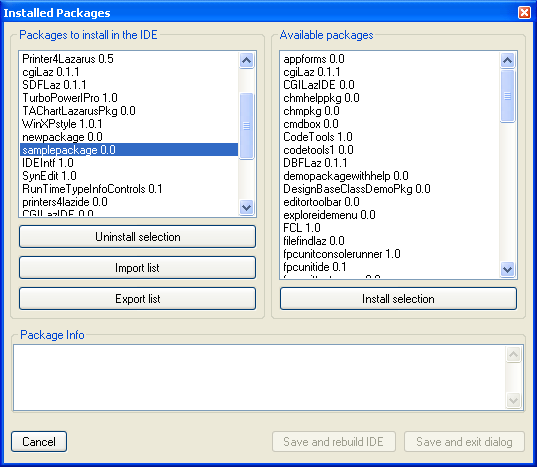 | |
| 219 | 192 | ||
| 220 | 193 | - Select the package you want to uninstall and click Uninstall selection. | |
| 221 | 194 | ||
| 222 | 195 | If something goes wrong with a package (e.g. package directory is deleted without first uninstalling it), Lazarus may not allow you to uninstall packages. To fix the problem, at the IDE menu click Tools \> Build Lazarus. Lazarus will rebuild all packages and restart. You should now be able to uninstall problematic packages. | |
| 223 | 196 | ||
| 224 | 197 | ## Enhancing mycom.pas | |
| 225 | 198 | ||
| 226 | 199 | - The code in *mycom.pas* above gives you the basics on what you need to create a component. The following is an enhanced version with some tips on how to write procedures and events for components. | |
| 227 | 200 | - The *OnChange2* shows how to create events | |
| 228 | 201 | - The *OnSample* shows how to create custom events | |
| 229 | 202 | - *MyText* and *MyText2* shows different ways to write properties. | |
| 230 | 203 | - You can use TComboBox instead of TCustomComboBox as the base class, which publishes all properties as TComboBox. | |
| 231 | 204 | - If TCustomComboBox is used as the base class, you'll notice a lot of properties and events will be missing in the IDE Object Inspector. To add those properties and events, just copy and paste the properties as listed below *// properties from TComboBox*. These list of properties can be got from the TComboBox declaration in the StdCtrls unit. Omit any property which you want to handle yourself. | |
| 232 | 205 | ||
| 233 | 206 | ``` pascal | |
| 234 | 207 | unit mycom; | |
| 235 | 208 | ||
| 236 | 209 | {$mode objfpc}{$H+} | |
| 237 | 210 | ||
| 238 | 211 | interface | |
| 239 | 212 | ||
| 240 | 213 | uses | |
| 241 | 214 | Classes, SysUtils, StdCtrls, Forms, Dialogs, | |
| 242 | 215 | LCLType,LCLIntf,lresources,LCLProc; | |
| 243 | 216 | ||
| 244 | 217 | type | |
| 245 | 218 | ||
| 246 | 219 | TSampleEvent = procedure(MyText: String) of Object; | |
| 247 | 220 | ||
| 248 | 221 | TMyCom = class (TCustomComboBox) | |
| 249 | 222 | private | |
| 250 | 223 | FMyText: String; | |
| 251 | 224 | FOnChange2: TNotifyEvent; | |
| 252 | 225 | FOnSample: TSampleEvent; | |
| 253 | 226 | public | |
| 254 | 227 | constructor Create(TheOwner: TComponent); override; | |
| 255 | 228 | procedure CreateWnd; override; | |
| 256 | 229 | procedure Change; override; | |
| 257 | 230 | protected | |
| 258 | 231 | function GetMyText2: String; | |
| 259 | 232 | procedure SetMyText2(MyText: String); | |
| 260 | 233 | published | |
| 261 | 234 | property MyText: String read FMyText write FMyText; | |
| 262 | 235 | property MyText2: String read GetMyText2 write SetMyText2; | |
| 263 | 236 | property OnChange2: TNotifyEvent read FOnChange2 write FOnChange2; | |
| 264 | 237 | property OnSample: TSampleEvent read FOnSample write FOnSample; | |
| 265 | 238 | ||
| 266 | 239 | // properties from TComboBox | |
| 267 | 240 | property Align; | |
| 268 | 241 | property Anchors; | |
| 269 | 242 | property ArrowKeysTraverseList; | |
| 270 | 243 | property AutoComplete; | |
| 271 | 244 | property AutoCompleteText; | |
| 272 | 245 | property AutoDropDown; | |
| 273 | 246 | property AutoSelect; | |
| 274 | 247 | property AutoSize; | |
| 275 | 248 | property BidiMode; | |
| 276 | 249 | property BorderSpacing; | |
| 277 | 250 | property CharCase; | |
| 278 | 251 | property Color; | |
| 279 | 252 | property Ctl3D; | |
| 280 | 253 | property Constraints; | |
| 281 | 254 | property DragCursor; | |
| 282 | 255 | property DragMode; | |
| 283 | 256 | property DropDownCount; | |
| 284 | 257 | property Enabled; | |
| 285 | 258 | property Font; | |
| 286 | 259 | property ItemHeight; | |
| 287 | 260 | property ItemIndex; | |
| 288 | 261 | property Items; | |
| 289 | 262 | property ItemWidth; | |
| 290 | 263 | property MaxLength; | |
| 291 | 264 | property OnChange; | |
| 292 | 265 | property OnChangeBounds; | |
| 293 | 266 | property OnClick; | |
| 294 | 267 | property OnCloseUp; | |
| 295 | 268 | property OnContextPopup; | |
| 296 | 269 | property OnDblClick; | |
| 297 | 270 | property OnDragDrop; | |
| 298 | 271 | property OnDragOver; | |
| 299 | 272 | property OnDrawItem; | |
| 300 | 273 | property OnEndDrag; | |
| 301 | 274 | property OnDropDown; | |
| 302 | 275 | property OnEditingDone; | |
| 303 | 276 | property OnEnter; | |
| 304 | 277 | property OnExit; | |
| 305 | 278 | property OnGetItems; | |
| 306 | 279 | property OnKeyDown; | |
| 307 | 280 | property OnKeyPress; | |
| 308 | 281 | property OnKeyUp; | |
| 309 | 282 | property OnMeasureItem; | |
| 310 | 283 | property OnMouseDown; | |
| 311 | 284 | property OnMouseMove; | |
| 312 | 285 | property OnMouseUp; | |
| 313 | 286 | property OnStartDrag; | |
| 314 | 287 | property OnSelect; | |
| 315 | 288 | property OnUTF8KeyPress; | |
| 316 | 289 | property ParentBidiMode; | |
| 317 | 290 | property ParentColor; | |
| 318 | 291 | property ParentCtl3D; | |
| 319 | 292 | property ParentFont; | |
| 320 | 293 | property ParentShowHint; | |
| 321 | 294 | property PopupMenu; | |
| 322 | 295 | property ReadOnly; | |
| 323 | 296 | property ShowHint; | |
| 324 | 297 | property Sorted; | |
| 325 | 298 | property Style; | |
| 326 | 299 | property TabOrder; | |
| 327 | 300 | property TabStop; | |
| 328 | 301 | property Text; | |
| 329 | 302 | property Visible; | |
| 330 | 303 | end; | |
| 331 | 304 | ||
| 332 | 305 | procedure Register; | |
| 333 | 306 | ||
| 334 | 307 | implementation | |
| 335 | 308 | ||
| 336 | 309 | procedure Register; | |
| 337 | 310 | begin | |
| 338 | 311 | RegisterComponents('Sample',[TMyCom]); | |
| 339 | 312 | end; | |
| 340 | 313 | ||
| 341 | 314 | constructor TMyCom.Create(TheOwner: TComponent); | |
| 342 | 315 | begin | |
| 343 | 316 | inherited Create(TheOwner); | |
| 344 | 317 | Self.Style := csDropDownList; | |
| 345 | 318 | end; | |
| 346 | 319 | ||
| 347 | 320 | procedure TMyCom.CreateWnd; | |
| 348 | 321 | begin | |
| 349 | 322 | inherited CreateWnd; | |
| 350 | 323 | Items.Assign(Screen.Fonts); | |
| 351 | 324 | end; | |
| 352 | 325 | ||
| 353 | 326 | procedure TMyCom.Change; | |
| 354 | 327 | begin | |
| 355 | 328 | inherited; | |
| 356 | 329 | if Assigned(FOnChange2) then FOnChange2(Self); | |
| 357 | 330 | if Assigned(FOnSample) then FOnSample(FMyText); | |
| 358 | 331 | end; | |
| 359 | 332 | ||
| 360 | 333 | function TMyCom.GetMyText2: String; | |
| 361 | 334 | begin | |
| 362 | 335 | Result:=FMyText; | |
| 363 | 336 | end; | |
| 364 | 337 | ||
| 365 | 338 | procedure TMyCom.SetMyText2(MyText: String); | |
| 366 | 339 | begin | |
| 367 | 340 | FMyText:=MyText; | |
| 368 | 341 | end; | |
| 369 | 342 | ||
| 370 | 343 | initialization | |
| 371 | 344 | {$I samplepackage.lrs} | |
| 372 | 345 | ||
| 373 | 346 | end. | |
| 374 | 347 | ``` | |
| 375 | 348 | ||
| 376 | 349 | Also you will notice that some undeclared and possibly unwanted elements exist in the IDE Object Inspector. To remove those of them, which you do not need, you can redeclare them in the *Published* section as simple variables. For example: | |
| 377 | 350 | ||
| 378 | 351 | ``` pascal | |
| 379 | 352 | Published | |
| 380 | 353 | ... | |
| 381 | 354 | property Height: Integer; | |
| 382 | 355 | property Width: Integer; | |
| 383 | 356 | ... | |
| 384 | 357 | ``` | |
| 385 | 358 | ||
| 386 | 359 | ## Using embedded (visual) components | |
| 387 | 360 | ||
| 388 | 361 | It's possible to use standard components embedded in your own components (look for example at TLabeledEdit or TButtonPanel). | |
| 389 | 362 | ||
| 390 | 363 | Let's say you want to create a custom panel with a TLabel on it. With the steps described above the base package and source files can be created. Now do the following to add a TLabel to the component: | |
| 391 | 364 | ||
| 392 | 365 | - Add a private attribute for the label component (FEmbeddedLabel: TLabel;). | |
| 393 | 366 | - Add a published read-only property for the label component (property EmbeddedLabel: TLabel read FEmbeddedLabel;) | |
| 394 | 367 | - Create the label in the component's (overridden) constructor (FEmbeddedLabel := TLabel.Create(self); ) | |
| 395 | 368 | - Set the parent of the component (FEmbeddedLabel.Parent := self;) | |
| 396 | 369 | - If the component to be embedded is not a 'subcomponent' by default (like TBoundLabel, TPanelBitBtn etc) then add the call to SetSubComponent. This is necessary for the IDE so it knows that it has to store the properties of the embedded component as well. TLabel is not a subcomponent by default so the call to the method must be added (FEmbeddedLabel.SetSubComponent(true);). | |
| 397 | 370 | ||
| 398 | 371 | To sum it up you would get something like this (only the essential parts are shown): | |
| 399 | 372 | ||
| 400 | 373 | ``` pascal | |
| 401 | 374 | TEnhancedPanel = class(TCustomControl) | |
| 402 | 375 | private | |
| 403 | 376 | { The new attribute for the embedded label } | |
| 404 | 377 | FEmbeddedLabel: TLabel; | |
| 405 | 378 | ||
| 406 | 379 | public | |
| 407 | 380 | { The constructor must be overriden so the label can be created } | |
| 408 | 381 | constructor Create(AOwner: TComponent); override; | |
| 409 | 382 | ||
| 410 | 383 | published | |
| 411 | 384 | { Make the label visible in the IDE } | |
| 412 | 385 | property EmbeddedLabel: TLabel read FEmbeddedLabel; | |
| 413 | 386 | end; | |
| 414 | 387 | ||
| 415 | 388 | implementation | |
| 416 | 389 | ||
| 417 | 390 | constructor TEnhancedPanel.Create(AOwner: TComponent); | |
| 418 | 391 | begin | |
| 419 | 392 | inherited Create(AOwner); | |
| 420 | 393 | ||
| 421 | 394 | // Set default width and height | |
| 422 | 395 | with GetControlClassDefaultSize do | |
| 423 | 396 | SetInitialBounds(0, 0, CX, CY); | |
| 424 | 397 | ||
| 425 | 398 | // Add the embedded label | |
| 426 | 399 | FEmbeddedLabel := TLabel.Create(Self); // Add the embedded label | |
| 427 | 400 | FEmbeddedLabel.Parent := self; // Show the label in the panel | |
| 428 | 401 | FEmbeddedLabel.SetSubComponent(true); // Tell the IDE to store the modified properties | |
| 429 | 402 | FLabel.Name := 'EmbeddedLabel'; | |
| 430 | 403 | FLabel.Caption := 'Howdy World!'; | |
| 431 | 404 | ||
| 432 | 405 | // Make sure the embedded label can not be selected/deleted within the IDE | |
| 433 | 406 | FLabel.ControlStyle := FLabel.ControlStyle - [csNoDesignSelectable]; | |
| 434 | 407 | ||
| 435 | 408 | // Set other properties if necessary | |
| 436 | 409 | //... | |
| 437 | 410 | ||
| 438 | 411 | end; | |
| 439 | 412 | ``` | |
| 440 | 413 | ||
| 441 | 414 | The reference for Delphi (Embarcadero): [Creating a Styled FireMonkey Component by Extending an Existing Component](https://docwiki.embarcadero.com/RADStudio/Alexandria/en/Creating_a_Styled_FireMonkey_Component_by_Extending_an_Existing_Component) | |
| 442 | 415 | ||
| 443 | 416 | ## Using custom paint procedure | |
| 444 | 417 | ||
| 445 | 418 | You can always subclass a component inside your program. For example, this implements a custom Paint procedure to a TLabel: | |
| 446 | 419 | ||
| 447 | 420 | ``` pascal | |
| 448 | 421 | type | |
| 449 | 422 | TMyLabel = class(TLabel) | |
| 450 | 423 | protected | |
| 451 | 424 | procedure Paint; override; | |
| 452 | 425 | end; | |
| 453 | 426 | {...} | |
| 454 | 427 | implementation | |
| 455 | 428 | {...} | |
| 456 | 429 | procedure TMyLabel.Paint; | |
| 457 | 430 | begin | |
| 458 | 431 | // your code to implement Paint, for example | |
| 459 | 432 | Canvas.TextOut(0,0,Caption); | |
| 460 | 433 | end; | |
| 461 | 434 | ``` | |
| 462 | 435 | ||
| 463 | 436 | Now you can create a MyLabel inside your program, at run time, with that overridden Paint procedure instead of the standard one. | |
| 464 | 437 | ||
| 465 | 438 | For most components, and for most methods, it would be recommendable to call inherited procedure inside it: | |
| 466 | 439 | ||
| 467 | 440 | ``` pascal | |
| 468 | 441 | procedure TMyLabel.Paint; | |
| 469 | 442 | begin | |
| 470 | 443 | ||
| 471 | 444 | inherited Paint; ///////////////////// | |
| 472 | 445 | ||
| 473 | 446 | // your code to implement Paint, for example | |
| 474 | 447 | Canvas.TextOut(0,0,Caption); | |
| 475 | 448 | end; | |
| 476 | 449 | ``` | |
| 477 | 450 | ||
| 478 | 451 | However, inherited behavior is not desirable in this case, since the second writing action would overlap the first (inherited) one. | |
| 479 | 452 | ||
| 480 | 453 | ## Integrating the component with the IDE | |
| 481 | 454 | ||
| 482 | 455 | ### Property editors | |
| 483 | 456 | ||
| 484 | 457 | Property editors provide custom dialogs to edit properties in the object inspector. For most properties, like strings, string lists, images, enumerated types and others, there are already default property editors, but if a custom component has a special kind of property it may require a custom dialog to edit the property. | |
| 485 | 458 | ||
| 486 | 459 | Each property editor is a class, which should descend from TPropertyEditor or one of its descendents and implement methods from this base class. They should be registered in the 'Register' procedure by using the function RegisterPropertyEditor from the unit PropEdits. It is a standard to name property editors with the property name followed by 'Property', for example TFieldProperty for the property editor of the TField property. | |
| 487 | 460 | ||
| 488 | 461 | ``` pascal | |
| 489 | 462 | TPropertyEditor = class | |
| 490 | 463 | public | |
| 491 | 464 | function AllEqual: Boolean; Virtual; | |
| 492 | 465 | function AutoFill: Boolean; Virtual; | |
| 493 | 466 | procedure Edit; Virtual; // Activated by double-clicking the property value | |
| 494 | 467 | procedure ShowValue; Virtual; // Activated by control-clicking the property value | |
| 495 | 468 | function GetAttributes: TPropertyAttributes; Virtual; | |
| 496 | 469 | function GetEditLimit: Integer; Virtual; | |
| 497 | 470 | function GetName: ShortString; Virtual; | |
| 498 | 471 | procedure GetProperties(Proc: TGetPropEditProc); Virtual; | |
| 499 | 472 | function GetHint(HintType: TPropEditHint; x, y: integer): String; Virtual; | |
| 500 | 473 | function GetDefaultValue: AnsiString; Virtual; | |
| 501 | 474 | procedure GetValues(Proc: TGetStrProc); Virtual; | |
| 502 | 475 | procedure SetValue(const NewValue: AnsiString); Virtual; | |
| 503 | 476 | procedure UpdateSubProperties; Virtual; | |
| 504 | 477 | function SubPropertiesNeedsUpdate: Boolean; Virtual; | |
| 505 | 478 | function IsDefaultValue: Boolean; Virtual; | |
| 506 | 479 | function IsNotDefaultValue: Boolean; Virtual; | |
| 507 | 480 | // ... shortened | |
| 508 | 481 | end; | |
| 509 | 482 | ``` | |
| 510 | 483 | ||
| 511 | 484 | A good example for a property editor is the TFont property editor. | |
| 512 | 485 | ||
| 513 | 486 | One of the most common cases for property editors is properties which are classes. Because classes have many fields and can have a variety of formats, it's not possible for Lazarus to have the object inspector edit field able to edit it, like is done for strings and numeric types. | |
| 514 | 487 | ||
| 515 | 488 | For classes, a convention is to have the value field show permanently the name of the class in parentheses, for example "(TFont)" and the "..." button shows a dialog to edit this class. This behaviour, except for the dialog, is implemented by a standard property editor for classes called TClassPropertyEditor, which can be inherited from when writing property editors for classes: | |
| 516 | 489 | ||
| 517 | 490 | ``` pascal | |
| 518 | 491 | TClassPropertyEditor = class(TPropertyEditor) | |
| 519 | 492 | public | |
| 520 | 493 | constructor Create(Hook: TPropertyEditorHook; APropCount: Integer); Override; | |
| 521 | 494 | function GetAttributes: TPropertyAttributes; Override; | |
| 522 | 495 | procedure GetProperties(Proc: TGetPropEditProc); Override; | |
| 523 | 496 | function GetValue: AnsiString; Override; | |
| 524 | 497 | property SubPropsTypeFilter: TTypeKinds Read FSubPropsTypeFilter | |
| 525 | 498 | Write SetSubPropsTypeFilter | |
| 526 | 499 | Default tkAny; | |
| 527 | 500 | end; | |
| 528 | 501 | ``` | |
| 529 | 502 | ||
| 530 | 503 | Going back to the TFont example, inheriting from TClassPropertyEditor already offers part of the desired behavior and then the TFontPropertyEditor class only needs to implement showing the dialog in the Edit method and set the attributes for the editor: | |
| 531 | 504 | ||
| 532 | 505 | ``` pascal | |
| 533 | 506 | TFontPropertyEditor = class(TClassPropertyEditor) | |
| 534 | 507 | public | |
| 535 | 508 | procedure Edit; Override; | |
| 536 | 509 | function GetAttributes: TPropertyAttributes; Override; | |
| 537 | 510 | end; | |
| 538 | 511 | ||
| 539 | 512 | procedure TFontPropertyEditor.Edit; | |
| 540 | 513 | var | |
| 541 | 514 | FontDialog: TFontDialog; | |
| 542 | 515 | begin | |
| 543 | 516 | FontDialog := TFontDialog.Create(NIL); | |
| 544 | 517 | try | |
| 545 | 518 | FontDialog.Font := TFont(GetObjectValue(TFont)); | |
| 546 | 519 | FontDialog.Options := FontDialog.Options + [fdShowHelp, fdForceFontExist]; | |
| 547 | 520 | if FontDialog.Execute then SetPtrValue(FontDialog.Font); | |
| 548 | 521 | finally | |
| 549 | 522 | FontDialog.Free; | |
| 550 | 523 | end; | |
| 551 | 524 | end; | |
| 552 | 525 | ||
| 553 | 526 | function TFontPropertyEditor.GetAttributes: TPropertyAttributes; | |
| 554 | 527 | begin | |
| 555 | 528 | Result := [paMultiSelect, paSubProperties, paDialog, paReadOnly]; | |
| 556 | 529 | end; | |
| 557 | 530 | ``` | |
| 558 | 531 | ||
| 559 | 532 | The reference for Delphi (Embarcadero): [Creating a Component Editor and a Property Editor for FireMonkey Components](https://docwiki.embarcadero.com/RADStudio/Alexandria/en/Creating_a_Component_Editor_and_a_Property_Editor_for_FireMonkey_Components) | |
| 560 | 533 | ||
| 561 | 534 | ### Component editors | |
| 562 | 535 | ||
| 563 | 536 | Component editors control the behavior of right-clicking and double clicking components in the form designer. | |
| 564 | 537 | ||
| 565 | 538 | Each component editor is a class, which should descend from TComponentEditor or one of its descendents and implement methods from this base class. They should be registered in the 'Register' procedure by using the function RegisterComponentEditor from the unit ComponentEditors. It is a standard to name component editors with the component name followed by 'Editor', for example TStringGridComponentEditor for the property editor of the TStringGrid component. Although user component editors should be based in TComponentEditor, most of its methods are actually from an ancestor, so it is necessary to also know TBaseComponentEditor: | |
| 566 | 539 | ||
| 567 | 540 | ``` pascal | |
| 568 | 541 | TBaseComponentEditor = class | |
| 569 | 542 | protected | |
| 570 | 543 | public | |
| 571 | 544 | constructor Create(AComponent: TComponent; | |
| 572 | 545 | ADesigner: TComponentEditorDesigner); Virtual; | |
| 573 | 546 | procedure Edit; Virtual; Abstract; | |
| 574 | 547 | procedure ExecuteVerb(Index: Integer); Virtual; Abstract; | |
| 575 | 548 | function GetVerb(Index: Integer): String; Virtual; Abstract; | |
| 576 | 549 | function GetVerbCount: Integer; Virtual; Abstract; | |
| 577 | 550 | procedure PrepareItem(Index: Integer; const AnItem: TMenuItem); Virtual; Abstract; | |
| 578 | 551 | procedure Copy; Virtual; Abstract; | |
| 579 | 552 | function IsInInlined: Boolean; Virtual; Abstract; | |
| 580 | 553 | function GetComponent: TComponent; Virtual; Abstract; | |
| 581 | 554 | function GetDesigner: TComponentEditorDesigner; Virtual; Abstract; | |
| 582 | 555 | function GetHook(out Hook: TPropertyEditorHook): Boolean; Virtual; Abstract; | |
| 583 | 556 | procedure Modified; Virtual; Abstract; | |
| 584 | 557 | end; | |
| 585 | 558 | ``` | |
| 586 | 559 | ||
| 587 | 560 | The most important method of a component editor is Edit, which is called when the component is double clicked. When the context menu for the component is invoked the GetVerbCount and GetVerb methods are called to build the menu. If one of the verbs (which means menu items in this case) are selected, ExecuteVerb is called. There is a default component editor (TDefaultEditor) which implements Edit to search the properties of the component for the most appropriate one to be edited. It usually chooses an event, which is edited by adding it's skeleton code in the code editor and setting the cursor to be in place to add code for it. | |
| 588 | 561 | ||
| 589 | 562 | Other important methods from TBaseComponentEditor are: | |
| 590 | 563 | ||
| 591 | 564 | - **ExecuteVerb(Index)** - Executes one of the extra menu items placed on the right-click popup menu; | |
| 592 | 565 | - **GetVerb** – To return the name of each extra popup menu item. Note that it is the responsibility of the component editor to place special menu item caption characters like & to create a keyboard accelerator and "-" to create a separator; | |
| 593 | 566 | - **GetVerbCount** – Returns the amount of items to be added to the popup menu. The index for the routines GetVerb and ExecuteVerb is zero based, going from 0 to GetVerbCount – 1; | |
| 594 | 567 | - **PrepareItem** – Called for each verb after the menu item was created. Allows the menu item to be customized such as by adding subitems, adding a checkbox or even hiding it by setting Visible to false; | |
| 595 | 568 | - **Copy** - Called when the component is being copied to the clipboard. The component data for use by Lazarus will always be added and cannot be modified. This method is instead for adding a different kind of clipboard information to paste the component in other applications, but which won't affect the Lazarus paste. | |
| 596 | 569 | ||
| 597 | 570 | A simple and interesting example is the TCheckListBox component editor which creates a dialog to edit. More convenient than implementing all methods from TBaseComponentEditor is inheriting from TComponentEditor, and this is what TCheckListBoxEditor does. This base class adds empty implementations for most methods and some default ones for others. For Edit it calls ExecuteVerb(0), so if the first item will be identical to the double-click action, which is a convention for editor, there is no need to implement Edit. This basic action for the double-click and first menu item is often a dialog, and for TCheckListBox this is also done: | |
| 598 | 571 | ||
| 599 | 572 | ``` pascal | |
| 600 | 573 | TCheckListBoxComponentEditor = class(TComponentEditor) | |
| 601 | 574 | protected | |
| 602 | 575 | procedure DoShowEditor; | |
| 603 | 576 | public | |
| 604 | 577 | procedure ExecuteVerb(Index: Integer); override; | |
| 605 | 578 | function GetVerb(Index: Integer): String; override; | |
| 606 | 579 | function GetVerbCount: Integer; override; | |
| 607 | 580 | end; | |
| 608 | 581 | ||
| 609 | 582 | procedure TCheckGroupComponentEditor.DoShowEditor; | |
| 610 | 583 | var | |
| 611 | 584 | Dlg: TCheckGroupEditorDlg; | |
| 612 | 585 | begin | |
| 613 | 586 | Dlg := TCheckGroupEditorDlg.Create(NIL); | |
| 614 | 587 | try | |
| 615 | 588 | // .. shortened | |
| 616 | 589 | Dlg.ShowModal; | |
| 617 | 590 | // .. shortened | |
| 618 | 591 | finally | |
| 619 | 592 | Dlg.Free; | |
| 620 | 593 | end; | |
| 621 | 594 | end; | |
| 622 | 595 | ||
| 623 | 596 | procedure TCheckGroupComponentEditor.ExecuteVerb(Index: Integer); | |
| 624 | 597 | begin | |
| 625 | 598 | case Index of | |
| 626 | 599 | 0: DoShowEditor; | |
| 627 | 600 | end; | |
| 628 | 601 | end; | |
| 629 | 602 | ||
| 630 | 603 | function TCheckGroupComponentEditor.GetVerb(Index: Integer): String; | |
| 631 | 604 | begin | |
| 632 | 605 | Result := 'CheckBox Editor...'; | |
| 633 | 606 | end; | |
| 634 | 607 | ||
| 635 | 608 | function TCheckGroupComponentEditor.GetVerbCount: Integer; | |
| 636 | 609 | begin | |
| 637 | 610 | Result := 1; | |
| 638 | 611 | end; | |
| 639 | 612 | ``` | |
| 640 | 613 | ||
| 641 | 614 | ## Design-time component debugging | |
| 642 | 615 | ||
| 643 | 616 | To catch design-time-errors in a (newly created) *dbgcomponent*: | |
| 644 | 617 | ||
| 645 | 618 | - open project `C:\lazarus\ide\lazarus.lpi`; | |
| 646 | 619 | - run project; | |
| 647 | 620 | - set breakpoint in *dbgcomponent* in main (1st) app; | |
| 648 | 621 | - use *dbgcomponent* pascal code in second app; | |
| 649 | 622 | - step through design-time component code in debug-session; do whatever is necessary; | |
| 650 | 623 | ||
| 651 | 624 | ## See also | |
| 652 | 625 | ||
| 653 | 626 | - [[Extending the IDE]] | |
| 654 | 627 | - [[Lazarus Packages]] - A guide for creating a package under Lazarus | |
| 655 | 628 | - [[Components and Code examples]] | |
| 656 | 629 | - [[Lazarus Components]] | |
| 657 | 630 | - [[IDE Window: Add to Package]] | |
| 658 | 631 | - [[IDE Window: Create new package component]] | |
| 659 | 632 | ||
| 660 | 633 | You can post questions regarding this page [here](http://forum.lazarus.freepascal.org/index.php/topic,5789.0.html) | |
| 661 | 634 | ||
| 662 | 635 | --- | |
| 663 | 636 | *From the Free Pascal wiki, page "How To Write Lazarus Component", as it stood on 2023-11-07 after a change by Ernesto, out of the wiki's dump of 2024-05-26. Copyright stays with the author who wrote it, according to the old wiki's [[Licensing]] page. If you have concerns about this material, [message the admin](/wiki-contact).* | |
| 664 | 637 | Category: Code | |
| 665 | 638 | Category: Component Creation | |
| 666 | 639 | Category: Lazarus | |
| 667 | 640 | Category: Packages | |
| 668 | 641 | Category: Tutorials |