

fpCEF3
Deutsch · English
Description
Chromium is an open source project (from Google) to create a browser for different platforms. Among other things the browser Chrome is based on it.
The Chromium Embedded Framework (CEF) is an open source framework for embedding Chromium into user applications. It can be used on Linux, macOS and Windows in 32 and 64 bit versions. Originally there were two versions of CEF, CEF1 and CEF3, but CEF1 is no longer maintained.
CEF can be used in Delphi via the Delphi Chromium Embedded Framework (DCEF3). For Lazarus/Free Pascal there is the equivalent framework fpCEF3 (or alternative CEF4Delphi with examples for Lazarus including newest versions of Chromium Embedded Framework).
Installation
Besides the Lazarus package, the CEF framework itself is needed. It is important to use the correct version of the CEF framework for the fpCEF release used. Further specific installation instructions can be found on Github: https://github.com/dliw/fpCEF3
The latest release and its corresponding CEF version can be found on 1
CEF releases can be found on https://cef-builds.spotifycdn.com/index.html (use the version filter or click "Show more builds" to find the release)
Download Package
fpCEF3 with Git
git://github.com/dliw/fpCEF3.git
You can also download a zipped package:
Package Installation
After downloading of package fpCEF3, it can be installed in Lazarus:
- Start Lazarus and open main menu Package -> Open package file (.lpk)...
- Select the file cef3.lpk in the fpCEF3 subdirectory Component
- The package editing window will open
- Click on Compile, the package will be compiled
- Click on Use...-> Install and confirm the dialog window with Yes
- Lazarus is now compiling and create a new tab Chromium in the component palette
Download Framework CEF3
You can now download the framework and made the libraries available for a particular project. You can download it from the following pages:
https://cefbuilds.com
http://www.magpcss.net/cef_downloads (or a older version from here)
Note: Make sure to use the correct framework version for the fpCEF version! See Installation
Usage
Minimal example
A minimal example with a simple browser is created.
Windows
The CEF libraries are needed for loading, so it makes sense to create a new project folder, to save the project and the libraries in it together.
- Create a new directory for the project to a location of your choice such as C:\SimpleBrowser
- Copy the complete CEF3 directory Resources to C:\SimpleBrowser
- Copy the contents of the CEF3 directory Release in the directory C:\SimpleBrowser
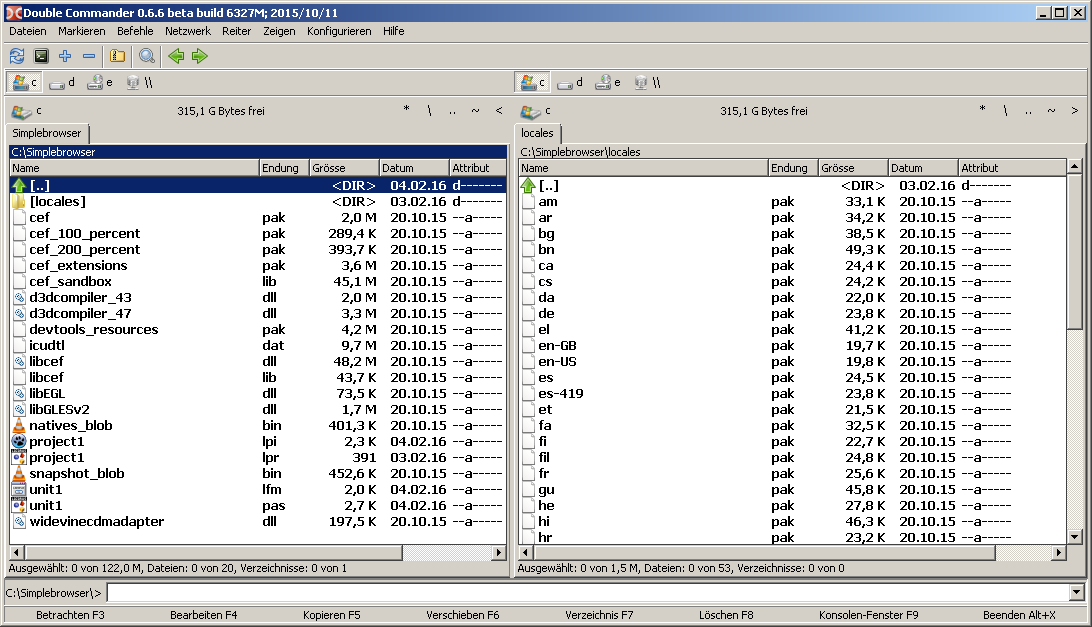
The files (libcef.dll, natives_blob.bin, icudtl.dat etc.) are in the same directory as the project and the directory locales in C:\SimpleBrowser\locales.
To prevent misunderstands, here is a picture how the file and directory structure of the Simplebrowser should look:\
 \
Now build the project with Lazarus
- Create a new empty GUI application
- Save the project in the directory you specify for Windows (e.g. under C:\SimpleBrowser)
- Drop a
TEditButtonon the form - With Object Inspector set the
NametoedtURL,AlignonalTopandButtonCaptiontogo - Put a
TChromiumon the form and set theNametoChromiumand itsAligntoalClient - Create the
OnButtonClickevent handler for the TEditButtonedtURL. Select theOnButtonClickin the Object Inspector tabeventsand click on the button [...] - Write following code (chromium should open at each click the URL in the text box):
procedure TForm1.edtURLClick(Sender: TObject);
begin
  Chromium.Load(UTF8Decode(edtURL.Text));
end;Chromiummust be initialized at the start of the program, you can do this with theOnCreateevent handler of the form:
procedure TForm1.FormCreate(Sender: TObject);
var
  PrjPath: ustring;
  Lang, FallbackLang: string;
begin
  PrjPath := UTF8Decode(GetCurrentDir + PathDelim);
  CefLocalesDirPath := PrjPath + 'locales';
  GetLanguageIDs(Lang, FallbackLang);
  CefLocale := UTF8Decode(FallbackLang);
  edtURL.Text:='http://www.lazarus-ide.org/';
end;- If a identifier wouldn't be found, you have to put some units to the uses clause. These units should be in there:
uses
sysutils, Forms, EditBtn, cef3lcl, cef3intf, cef3types, cef3lib, gettext;- Run your program, if all goes well it might look like:
\
Show URL of loaded page
Based on Minimal example
- Create the
OnLoadEndevent handler forChromium - Write following code (URL should be updated after any browsing):
procedure TForm1.ChromiumLoadEnd(Sender: TObject; const Browser: ICefBrowser;
  const Frame: ICefFrame; httpStatusCode: Integer);
begin
  edtURL.Text:=UTF8Encode(Browser.MainFrame.Url);
end;
Allow downloading of files
- Create the
OnBeforeDownloadevent handler forChromiumand write in it:
procedure TForm1.ChromiumBeforeDownload(Sender: TObject;
  const Browser: ICefBrowser; const downloadItem: ICefDownloadItem;
  const suggestedName: ustring; const callback: ICefBeforeDownloadCallback);
begin
  callback.Cont(suggestedName, True);
end;
Printing per code
- Add a
TButtonon your form and write in itsOnClickevent handler:
procedure TForm1.Button1Click(Sender: TObject);
begin
  Chromium.Browser.Host.Print;
end;
Creating a pdf
- Add a
TSaveDialogon your form - Add a
TButtonon your form and write in itsOnClickevent handler:
procedure TForm1.Button1Click(Sender: TObject);
var
  CefPdfPrintSettings: TCefPdfPrintSettings;
  EmptyCefStringUtf16: TCefStringUtf16;
begin
  SaveDialog1.DefaultExt := 'pdf';
  SaveDialog1.Filter     := 'Portable Document Format (pdf)|*.pdf';
  if SaveDialog1.Execute then
  begin
    FillByte(EmptyCefStringUtf16, SizeOf(EmptyCefStringUtf16), 0);

    CefPdfPrintSettings.backgrounds_enabled := 1;
    CefPdfPrintSettings.header_footer_enabled := 0;
    CefPdfPrintSettings.header_footer_title := EmptyCefStringUtf16;
    CefPdfPrintSettings.header_footer_url := EmptyCefStringUtf16;
    CefPdfPrintSettings.landscape := 0;
    CefPdfPrintSettings.margin_bottom := 0;
    CefPdfPrintSettings.margin_left := 0;
    CefPdfPrintSettings.margin_right := 0;
    CefPdfPrintSettings.margin_top := 0;
    CefPdfPrintSettings.margin_type := PDF_PRINT_MARGIN_DEFAULT;
    CefPdfPrintSettings.page_height := 0;
    CefPdfPrintSettings.page_width := 0;
    CefPdfPrintSettings.selection_only := 0;

    Chromium.Browser.Host.PrintToPdf(UTF8Decode(SaveDialog1.FileName), CefPdfPrintSettings, Nil);
  end;
end;
The description of the TCefPdfPrintSettings you will find by the declaration of the TCefPdfPrintSettings
Known Problems
- If your program doesn't start, maybe a Antivirus program prevent this.
- If your program start but your TChromium window keeps empty, maybe a firewall block it (see Chromium Embedded Framework for Free Pascal (fpCEF3) BRUNCH 2556).
- If your file structure isn't correct (see Minimal example) and therefore some libraries wouldn't be found, you can get optical errors (see Fpcef red borders in the browser).
Further Information
From the Free Pascal wiki, page "fpCEF3", as it stood on 2021-01-15 after a change by Michael.vanham, out of the wiki's dump of 2024-05-26. Copyright stays with the author who wrote it, according to the old wiki's Licensing page. If you have concerns about this material, message the admin.
Talk about this page
Nobody has opened a bench for this page yet. Sign in to open one.