

FPSpreadsheet/pl: what changed
Revision 2 to 3. Removed lines have a minus sign; added lines have a plus sign.
| Old | New | Line | |
|---|---|---|---|
| 1 | 1 | > **Warning:** **Ta strona została przetłumaczona w dniu 2021-01-27 i może nie być aktualna. Dlatego skorzystaj także z witryny angielskiej** | |
| 2 | 2 | ||
| 3 | 3 | Biblioteka fpSpreadsheet oferuje wygodny sposób generowania i czytania arkuszy kalkulacyjnych w różnych formatach. Biblioteka jest napisana w bardzo elastyczny sposób, z możliwością łatwego rozszerzenia do obsługi dowolnej liczby formatów. | |
| 4 | 4 | ||
| 5 | 5 | Zrzut ekranu spready demo programu dostarczonego z fpspreadsheet przedstawiający plik XLS: | |
| 6 | 6 | ||
| 7 | 7 | > **Note:** **Możesz także pobrać program spready demo za pomocą komendy: svn checkout <http://svn.code.sf.net/p/lazarus-ccr/svn/applications/spready>** | |
| 8 | 8 | ||
| 9 | 9 | 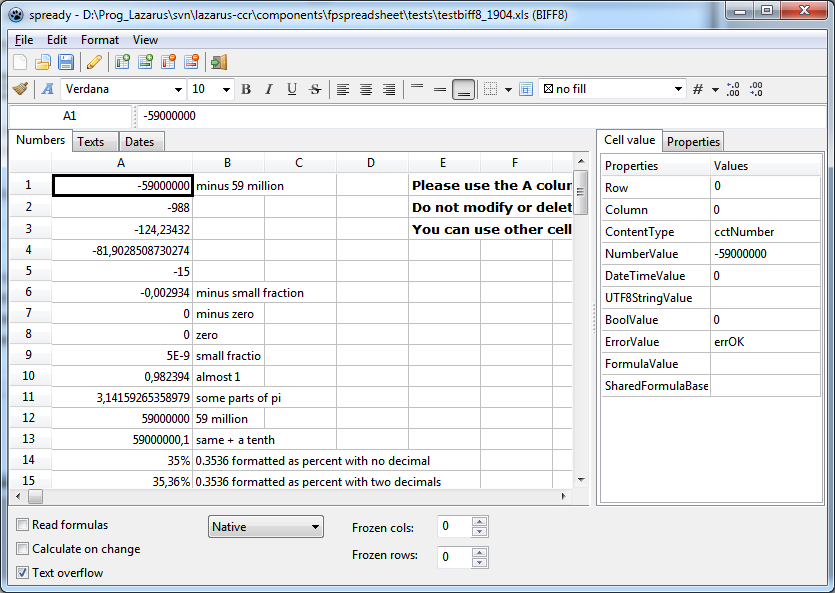 | |
| 10 | 10 | ||
| 11 | 11 | ## Dokumentacja | |
| 12 | 12 | ||
| 13 | 13 | Ta strona wiki zawiera najnowszą wersję development/trunk FPSpreadsheet dostępną za pośrednictwem subversion. Zobacz sekcję Wersje stabilne aby zapoznać się z dokumentacją dotyczącą stabilnej wersji, którą możesz także pobrać. | |
| 14 | 14 | ||
| 15 | 15 | ## API Documentation | |
| 16 | 16 | ||
| 17 | 17 | ### Dokumentacja API | |
| 18 | 18 | ||
| 19 | 19 | Plik pomocy w formacie CHM można znaleźć w folderze *docs* pakietu instalacyjnego FPSpreadsheet. Jeśli jeszcze nie zainstalowałeś pakietu, wykonaj następujące czynności: [<http://svn.code.sf.net/p/lazarus-ccr/svn/components/fpspreadsheet/docs/fpspreadsheet-api.chm>](http://svn.code.sf.net/p/lazarus-ccr/svn/components/fpspreadsheet/docs/fpspreadsheet-api.chm) aby pobrać *fpspreadsheet-api.chm*. | |
| 20 | 20 | ||
| 21 | 21 | Drugi plik CHM dostępny w folderze *docs*, *fpspreadsheet-wiki.chm*, to migawka stron wiki związanych z FPSpreadsheet, spakowana w pojedynczy plik pomocy. | |
| 22 | 22 | ||
| 23 | 23 | ### Podstawy | |
| 24 | 24 | ||
| 25 | 25 | Najmniejsze elementy w arkuszu kalkulacyjnym to **cells** (komórki) zawierające dane. Komórki mogą zawierać różne typy danych, takie jak ciągi, liczby, daty, godziny, wartości logiczne lub formuły. Ponadto komórki mogą zawierać informacje o formatowaniu, tj. Styl czcionki, kolor tła, wyrównanie tekstu itp. | |
| 26 | 26 | ||
| 27 | 27 | Komórki są ułożone w strukturę przypominającą siatkę, zwaną **worksheet** (arkuszem roboczym) lub **spreadsheet** (arkuszem kalkulacyjnym), składającą się z **rows** (wierszy) i **columns** (kolumn). Każda komórka ma unikalny adres podany w indeksie wiersza i kolumny. | |
| 28 | 28 | ||
| 29 | 29 | Arkusze są połączone w **workbook** (skoroszyt), który reprezentuje dokument aplikacji arkusza kalkulacyjnego. Skoroszyt przechowuje również informacje, które są potrzebne dla wszystkich arkuszy roboczych, tj. lista czcionek, listy formatu komórek i liczb itp. | |
| 30 | 30 | ||
| 31 | 31 | FPSpreadsheet ma tę samą strukturę - zawiera `TCell`, `TsWorksheet` i `TsWorkbook`. | |
| 32 | 32 | ||
| 33 | 33 | #### Skoroszyt | |
| 34 | 34 | ||
| 35 | 35 | Klasa `TsWorkbook` jest główną klasą widoczną dla użytkownika. Zapewnia metody odczytu danych i zapisywania do plików. Wszechstronna struktura biblioteki zapewnia dostęp do różnych popularnych formatów plików, takich jak Excel *.xls* lub *.xlsx*, a także OpenOffice/LibreOffice *.ods*. | |
| 36 | 36 | ||
| 37 | 37 | Format pliku jest określony przez typ `TsSpreadsheetFormat` zdefiniowany w module `fpstypes` | |
| 38 | 38 | ||
| 39 | 39 | ``` pascal | |
| 40 | 40 | type | |
| 41 | 41 | TsSpreadsheetFormat = (sfExcel2, sfExcel5, sfExcel8, sfExcelXML, sfOOXML, | |
| 42 | 42 | sfOpenDocument, sfCSV, sfHTML, sfWikiTable_Pipes, sfWikiTable_WikiMedia, sfUser); | |
| 43 | 43 | ``` | |
| 44 | 44 | ||
| 45 | 45 | gdzie: | |
| 46 | 46 | ||
| 47 | 47 | - `sfExcel2`, `sfExcel5`, `sfExcel8` oznacza wersje binarnego formatu xls używanego przez program Excel („BIFF” = „Binary Interchange File Format”), przy czym `sfExcel8` jest najnowszym formatem. | |
| 48 | 48 | ||
| 49 | 49 | - `sfOOXML` odpowiada nowszemu formatowi xlsx wprowadzonemu przez Excel2007 | |
| 50 | 50 | - `sfExcelXML` to format xml, który został wprowadzony przez Microsoft w Office XP i 2003. Niezbyt popularny. | |
| 51 | 51 | - `sfOpenDocument` to format arkusza kalkulacyjnego używany przez OpenOffice/LibreOffice; Domyślnie pliki mają rozszerzenie *.ods*. | |
| 52 | 52 | - `sfCSV` odnosi się do plików tekstowych rozdzielanych przecinkami (domyślne rozszerzenie *.csv*); mogą one być czytelne dla dowolnego edytora tekstu i dla wszystkich arkuszy kalkulacyjnych, ale nie zawierają informacji o formatowaniu. | |
| 53 | 53 | - `sfHTML` oznacza standardowy format HTML używany w przeglądarkach internetowych. | |
| 54 | 54 | - `sfWikiTable_Pipes` i `sfWikiTable_WikiMedia` to format używany przez tabele w witrynach wiki. | |
| 55 | 55 | - `sfUser` jest potrzebny do zarejestrowania formatu zdefiniowanego przez użytkownika. Nie ma planów wdrożenia „starych” formatów plików, takich jak Excel3.0/4.0 czy Lotus. Możliwe jest jednak utworzenie własnych klas czytania i pisania, aby rozszerzyć funkcjonalność FPSpreadsheet - zobacz sekcję poniżej o Dodawanie nowych formatów plików | |
| 56 | 56 | ||
| 57 | 57 | Podczas stosowania FPSpreadsheet pierwszym zadaniem jest utworzenie instancji skoroszytu: | |
| 58 | 58 | ||
| 59 | 59 | ``` pascal | |
| 60 | 60 | var | |
| 61 | 61 | MyWorkbook: TsWorkbook; | |
| 62 | 62 | begin | |
| 63 | 63 | MyWorkbook := TsWorkbook.Create; | |
| 64 | 64 | ... | |
| 65 | 65 | ``` | |
| 66 | 66 | ||
| 67 | 67 | Czytanie plików arkuszy kalkulacyjnych odbywa się (między innymi) metodami skoroszytowymi | |
| 68 | 68 | ||
| 69 | 69 | - `procedure ReadFromFile(AFileName: string):`\ | |
| 70 | 70 | Czyta plik o podanej nazwie i automatycznie rozpoznaje poprawny format pliku. | |
| 71 | 71 | - `procedure ReadFromFile(AFileName: string; AFormat: TsSpreadsheetFormat):`\ | |
| 72 | 72 | Odczytuje plik, ale zakłada, że format pliku jest określony przez `AFormat`. | |
| 73 | 73 | ||
| 74 | 74 | Do zapisywania do pliku można użyć następujących metod skoroszytu: | |
| 75 | 75 | ||
| 76 | 76 | - `procedure WriteToFile(const AFileName: string; const AFormat: TsSpreadsheetFormat; const AOverwriteExisting: Boolean = False)`:\ | |
| 77 | 77 | Zapisuje skoroszyt do podanego pliku przy użyciu podanego formatu arkusza kalkulacyjnego. Jeśli plik już istnieje, zostanie on automatycznie nadpisany, jeśli `AOverwriteExisting` ma wartość `true`: | |
| 78 | 78 | - `procedure WriteToFile(const AFileName: String; const AOverwriteExisting: Boolean = False)`:\ | |
| 79 | 79 | tak samo, ale format pliku jest określany na podstawie podanego rozszerzenia pliku (w przypadku xls Excela używana jest najnowsza wersja `sfExcel8`). | |
| 80 | 80 | ||
| 81 | 81 | Po wywołaniu tych metod warto przyjrzeć się właściwości `ErrorMsg` skoroszytu, w której gromadzone są komunikaty z powodu błędów lub ostrzeżeń, które mogły wystąpić podczas odczytu/zapisu. Ta właściwość zwraca wielowierszowy ciąg, który jest najlepiej wyświetlany w komponencie memo; jeśli wszystko było w porządku, jest to pusty ciąg. | |
| 82 | 82 | ||
| 83 | 83 | Uwaga: PSpreadsheets zapewnia wyspecjalizowane moduły do odczytu i zapisu w każdym formacie pliku. Te moduły nie są dostępne automatycznie, musisz je jawnie dodać do klauzuli **uses**. FPSpreadsheet zgłosi „nieobsługiwany format pliku”, jeśli nie zostanie znaleziony żaden pasujący moduł do odczytu/zapisu. Oto lista nazw takich modułów: | |
| 84 | 84 | ||
| 85 | 85 | - *xlsbiff2*, *xlsbiff5* i *xlsbiff8* la binarnych formatów plików xls odpowiednio `sfExcel2`, `sfExcel5` i `sfExcel8`, | |
| 86 | 86 | - *xlsxOOXML* dla formatu pliku xlsx `sfOOXML` programu Excel 2007 i nowszych, | |
| 87 | 87 | - *xlsXML* dla formatu xml programów Excel XP i 2003, | |
| 88 | 88 | - *fpsopendocument* dla formatu pliku `sfOpenDocument` programów OpenOffice/LibreOffice, | |
| 89 | 89 | - *fpsCSV* dla plików tekstowych z wartościami oddzielonymi przecinkami (csv), | |
| 90 | 90 | - *fpsHTML* dla plików HTML, | |
| 91 | 91 | - *wikitables* dla `sfWikiTable_Pipes` i `sfWikiTable_WikiMedia`, | |
| 92 | 92 | - lub po prostu dodaj *fpsallformats*, aby uzyskać obsługę odczytu/zapisu dla wszystkich obsługiwanych formatów plików. | |
| 93 | 93 | ||
| 94 | 94 | #### Arkusz roboczy | |
| 95 | 95 | ||
| 96 | 96 | Skoroszyt zawiera listę instancji `TsWorksheet`. Odpowiadają one zakładkom, które widzisz w programie Excel lub Open/LibreOffice. Podczas czytania pliku arkusza kalkulacyjnego poszczególne arkusze są tworzone automatycznie zgodnie z zawartością pliku. Kiedy arkusz kalkulacyjny jest tworzony ręcznie, aby zapisać go w pliku, arkusz roboczy musi zostać utworzony przez *dodanie* go do skoroszytu: | |
| 97 | 97 | ||
| 98 | 98 | ``` pascal | |
| 99 | 99 | var | |
| 100 | 100 | MyWorkbook: TsWorkbook; | |
| 101 | 101 | MyWorksheet: TsWorksheet; | |
| 102 | 102 | begin | |
| 103 | 103 | MyWorkbook := TsWorkbook.Create; | |
| 104 | 104 | MyWorksheet := MyWorkbook.AddWorksheet('My_Table'); | |
| 105 | 105 | // 'My_Table' to „nazwa” arkusza | |
| 106 | 106 | ... | |
| 107 | 107 | ``` | |
| 108 | 108 | ||
| 109 | 109 | Dostęp do już istniejących arkuszy roboczych można uzyskać przy użyciu metod `TsWorkbook` | |
| 110 | 110 | ||
| 111 | 111 | - `function GetFirstWorksheet: TsWorksheet`: pobiera pierwszy arkusz ze skoroszytu. | |
| 112 | 112 | - `function GetWorksheetByIndex(AIndex: Cardinal): TsWorksheet`: zwraca arkusz z podanym indeksem (począwszy od 0). | |
| 113 | 113 | - `function GetWorksheetByName(AName: String): TsWorksheet`: zwraca arkusz o podanej nazwie, która była używana podczas dodawania arkusza. | |
| 114 | 114 | ||
| 115 | 115 | Liczbę już istniejących arkuszy można sprawdzić wywołując metodę `GetWorksheetCount`. | |
| 116 | 116 | ||
| 117 | 117 | #### Komórka | |
| 118 | 118 | ||
| 119 | 119 | Wreszcie arkusz roboczy zapewnia dostęp do komórek. Nowo utworzony arkusz, jak w powyższym przykładzie, jest pusty i nie zawiera żadnych komórek. Komórki są dodawane przez przypisanie do nich danych lub atrybutów za pomocą jednej z metod `WriteXXXX` arkusza. Jak już wspomniano, komórka jest adresowana przez indeks wiersza i kolumny, do których należy. Jak zwykle, indeksy wierszy i kolumn zaczynają się od 0. W związku z tym komórka „A1” należy do wiersza 0 i kolumny 0. Należy zauważyć, że indeksy wierszy i kolumn są zawsze podawane w tej kolejności, która *różni się od konwencji stosowanej w* `TStringGrid`. Poniższy przykład tworzy komórkę pod adresem A1 i umieszcza w niej liczbę `1.0`. | |
| 120 | 120 | ||
| 121 | 121 | ``` pascal | |
| 122 | 122 | var | |
| 123 | 123 | MyWorkbook: TsWorkbook; | |
| 124 | 124 | MyWorksheet: TsWorksheet; | |
| 125 | 125 | begin | |
| 126 | 126 | MyWorkbook := TsWorkbook.Create; | |
| 127 | 127 | MyWorksheet := MyWorkbook.AddWorksheet('My_Table'); | |
| 128 | 128 | MyWorksheet.WriteNumber(0, 0, 1.0); //„A1” ma rząd=0 i kolumnę=0 | |
| 129 | 129 | ... | |
| 130 | 130 | ``` | |
| 131 | 131 | ||
| 132 | 132 | Możliwy jest również bezpośredni dostęp do komórek za pomocą metod skoroszytu `FindCell(ARow, ACol)` lub `GetCell(ARow, ACol)`. Obie funkcje istnieją również w wersji przeciążonej, do której można przekazać adres komórki w notacji Excela: `FindCell(ACellStr: String)` lub `GetCell(ACellStr: String)`. Należy pamiętać, że te funkcje zwracają wskaźnik `pointer` do danej komórki (typ `PCell`). Nie zapomnij odwołać się do wskaźników! Różnica między `FindCell` i `GetCell` polega na tym, że pierwsza zwraca wartość `nil`, jeśli komórka jeszcze nie istnieje, a druga tworzy pustą komórkę w tym przypadku. | |
| 133 | 133 | ||
| 134 | 134 | ``` pascal | |
| 135 | 135 | if MyWorksheet.FindCell('A1') = nil then | |
| 136 | 136 | WriteLn('Komórka A1 nie istnieje.'); | |
| 137 | 137 | ``` | |
| 138 | 138 | ||
| 139 | 139 | ##### Podstawowy rekord TCell | |
| 140 | 140 | ||
| 141 | 141 | Oto deklaracja typu danych komórki: | |
| 142 | 142 | ||
| 143 | 143 | ``` pascal | |
| 144 | 144 | type | |
| 145 | 145 | TCell = record | |
| 146 | 146 | { Lokalizacja komórki } | |
| 147 | 147 | Worksheet: TsWorksheet; | |
| 148 | 148 | Col: Cardinal; // od zera | |
| 149 | 149 | Row: Cardinal; // od zera | |
| 150 | 150 | ||
| 151 | 151 | { Indeks formatu zapisu } | |
| 152 | 152 | FormatIndex: Integer; | |
| 153 | 153 | ||
| 154 | 154 | { Flagi stanu } | |
| 155 | 155 | Flags: TsCellFlags; // (cfHasComment, cfMerged, cfHyperlink, ...) | |
| 156 | 156 | ||
| 157 | 157 | { Zawartość komórki } | |
| 158 | 158 | UTF8StringValue: String; // ciąg nie może być częścią rekordu wariantowego | |
| 159 | 159 | case ContentType: TCellContentType of // który musi znajdować się na końcu deklaracji | |
| 160 | 160 | cctEmpty : (); // nie ma żadnych danych | |
| 161 | 161 | cctFormula : (); // UTF8StringValue znajduje się poza rekordem wariantowym | |
| 162 | 162 | cctNumber : (Numbervalue: Double); | |
| 163 | 163 | cctUTF8String : (); // FormulaValue znajduje się poza rekordem wariantowym | |
| 164 | 164 | cctDateTime : (DateTimevalue: TDateTime); | |
| 165 | 165 | cctBool : (BoolValue: boolean); | |
| 166 | 166 | cctError : (ErrorValue: TsErrorValue); | |
| 167 | 167 | end; | |
| 168 | 168 | PCell = ^TCell; | |
| 169 | 169 | ``` | |
| 170 | 170 | ||
| 171 | 171 | Pole `ContentType` wskazuje, jaki typ danych jest przechowywany w komórce: | |
| 172 | 172 | ||
| 173 | 173 | ``` pascal | |
| 174 | 174 | type | |
| 175 | 175 | TCellContentType = (cctEmpty, cctFormula, cctNumber, cctUTF8String, cctDateTime, cctBool, cctError); | |
| 176 | 176 | ``` | |
| 177 | 177 | ||
| 178 | 178 | Zgodnie z tym polem odpowiednie dane można znaleźć w polach | |
| 179 | 179 | ||
| 180 | 180 | - `NumberValue` (dla `ContentType=cctNumber`), lub | |
| 181 | 181 | - `UTF8StringValue` (dla `ContentType=cctUTF8String`), lub | |
| 182 | 182 | - `DateTimeValue` (dla `ContentType=cctDateTime`), lub | |
| 183 | 183 | - `BoolValue` (dla `ContentType=cctBool`), tj. `TRUE` lub `FALSE`, lub | |
| 184 | 184 | - `ErrorValue` (dla `ContentType=cctError`). | |
| 185 | 185 | ||
| 186 | 186 | Ze względu na użycie rekordu wariantu większość z tych wartości zachodzi na siebie, tj. modyfikacja `NumberValue` wpływa również na inne wartości. Dlatego zawsze bierz pod uwagę wartość `ContentType` podczas bezpośredniego dostępu do rekordu `TCell` (metody arkusza omówione poniżej uwzględniają to automatycznie). | |
| 187 | 187 | ||
| 188 | 188 | Pole `Flags` mówi, czy z komórką są powiązane dodatkowe dane, które nie są zawarte w rekordzie komórki, zwykle w celu zaoszczędzenia pamięci: | |
| 189 | 189 | ||
| 190 | 190 | ``` pascal | |
| 191 | 191 | type | |
| 192 | 192 | TsCellFlag = (cfHasComment, cfHyperlink, cfMerged, cfHasFormula, cf3dFormula); | |
| 193 | 193 | TsCellFlags = set of TsCellFlag; | |
| 194 | 194 | ``` | |
| 195 | 195 | ||
| 196 | 196 | - `cfHasComment`: Rekord komentarza można znaleźć w `Comments` arkusza. | |
| 197 | 197 | - `cfHyperlink`: Komórka zawiera hiperłącze przechowywane w `Hyperlinks` arkusza. | |
| 198 | 198 | - `cfMerged`: Komórka należy do scalonego bloku i rozciąga się na kilka komórek. | |
| 199 | 199 | - `cfHasFormula`: Komórka jest powiązana z formułą, która jest przechowywana w `Formulas` arkusza. | |
| 200 | 200 | - `cf3dFormula`: Formuła skojarzona z komórką zawierającą elementy odwołujące się do innych arkuszy tego samego skoroszytu. | |
| 201 | 201 | ||
| 202 | 202 | > **Note:** Po obliczeniu formuły lub po odczytaniu pliku, formuła komórki w `ContentType` jest konwertowana na wynik. Wówczas obecność formuły można wykryć tylko przez wywołanie funkcji `HasFormula(cell)` dla odpytywanej komórki (`cell: PCell`) w module *fpsUtils*; ta funkcja sprawdza obecność elementu `cfHasFormula` we flagach komórki. | |
| 203 | 203 | ||
| 204 | 204 | ##### Jak dodawać i czytać dane do/z komórki | |
| 205 | 205 | ||
| 206 | 206 | Dodawanie wartości do komórki jest najłatwiejsze przy użyciu jednej z metod arkusza `WriteXXXX`. Najważniejsze z nich to: | |
| 207 | 207 | ||
| 208 | 208 | ``` pascal | |
| 209 | 209 | type | |
| 210 | 210 | TsWorksheet = class | |
| 211 | 211 | ... | |
| 212 | 212 | { Zapisywanie wartości walutowych } | |
| 213 | 213 | function WriteCurrency(ARow, ACol: Cardinal; AValue: Double; | |
| 214 | 214 | ANumFormat: TsNumberFormat = nfCurrency; ADecimals: Integer = 2; | |
| 215 | 215 | ACurrencySymbol: String = '?'; APosCurrFormat: Integer = -1; | |
| 216 | 216 | ANegCurrFormat: Integer = -1): PCell; overload; | |
| 217 | 217 | procedure WriteCurrency(ACell: PCell; AValue: Double; | |
| 218 | 218 | ANumFormat: TsNumberFormat = nfCurrency; ADecimals: Integer = -1; | |
| 219 | 219 | ACurrencySymbol: String = '?'; APosCurrFormat: Integer = -1; | |
| 220 | 220 | ANegCurrFormat: Integer = -1); overload; | |
| 221 | 221 | function WriteCurrency(ARow, ACol: Cardinal; AValue: Double; | |
| 222 | 222 | ANumFormat: TsNumberFormat; ANumFormatString: String): PCell; overload; | |
| 223 | 223 | procedure WriteCurrency(ACell: PCell; AValue: Double; | |
| 224 | 224 | ANumFormat: TsNumberFormat; ANumFormatString: String); overload; | |
| 225 | 225 | ||
| 226 | 226 | { Zapisywanie wartości daty/czasu } | |
| 227 | 227 | function WriteDateTime(ARow, ACol: Cardinal; AValue: TDateTime): PCell; overload; | |
| 228 | 228 | procedure WriteDateTime(ACell: PCell; AValue: TDateTime); overload; | |
| 229 | 229 | function WriteDateTime(ARow, ACol: Cardinal; AValue: TDateTime; | |
| 230 | 230 | ANumFormat: TsNumberFormat; ANumFormatStr: String = ''): PCell; overload; | |
| 231 | 231 | procedure WriteDateTime(ACell: PCell; AValue: TDateTime; | |
| 232 | 232 | ANumFormat: TsNumberFormat; ANumFormatStr: String = ''); overload; | |
| 233 | 233 | function WriteDateTime(ARow, ACol: Cardinal; AValue: TDateTime; | |
| 234 | 234 | ANumFormatStr: String): PCell; overload; | |
| 235 | 235 | procedure WriteDateTime(ACell: PCell; AValue: TDateTime; | |
| 236 | 236 | ANumFormatStr: String); overload; | |
| 237 | 237 | ||
| 238 | 238 | { Zapisywanie wartości liczbowych } | |
| 239 | 239 | function WriteNumber(ARow, ACol: Cardinal; ANumber: double): PCell; overload; | |
| 240 | 240 | procedure WriteNumber(ACell: PCell; ANumber: Double); overload; | |
| 241 | 241 | function WriteNumber(ARow, ACol: Cardinal; ANumber: double; | |
| 242 | 242 | ANumFormat: TsNumberFormat; ADecimals: Byte = 2): PCell; overload; | |
| 243 | 243 | procedure WriteNumber(ACell: PCell; ANumber: Double; | |
| 244 | 244 | ANumFormat: TsNumberFormat; ADecimals: Byte = 2); overload; | |
| 245 | 245 | function WriteNumber(ARow, ACol: Cardinal; ANumber: double; | |
| 246 | 246 | ANumFormat: TsNumberFormat; ANumFormatString: String): PCell; overload; | |
| 247 | 247 | procedure WriteNumber(ACell: PCell; ANumber: Double; | |
| 248 | 248 | ANumFormat: TsNumberFormat; ANumFormatString: String); overload; | |
| 249 | 249 | ||
| 250 | 250 | { Zapisywanie ciągów typu string } | |
| 251 | 251 | function WriteText(ARow, ACol: Cardinal; AText: ansistring; | |
| 252 | 252 | ARichTextParams: TsRichTextParams = nil): PCell; overload; | |
| 253 | 253 | procedure WriteText(ACell: PCell; AText: String; | |
| 254 | 254 | ARichTextparams: TsRichTextParams = nil); overload; | |
| 255 | 255 | ||
| 256 | 256 | // stare metody typu string, jak "WriteUTF8Text" są teraz przestarzałe | |
| 257 | 257 | ... | |
| 258 | 258 | ``` | |
| 259 | 259 | ||
| 260 | 260 | Niektóre z tych metod istnieją w przeciążonych wersjach, w których parametry formatowania komórki można dodać razem z wartością komórki. Odpowiednio jak do zapisu, istnieje również kilka metod arkusza `worksheet` do odczytu wartości komórek: | |
| 261 | 261 | ||
| 262 | 262 | ``` pascal | |
| 263 | 263 | type | |
| 264 | 264 | TsWorksheet = class | |
| 265 | 265 | ... | |
| 266 | 266 | { Odczytywanie zawartości komórki jako ciągu } | |
| 267 | 267 | function ReadAsText(ARow, ACol: Cardinal): string; overload; | |
| 268 | 268 | function ReadAsText(ACell: PCell): string; overload; | |
| 269 | 269 | function ReadAsText(ACell: PCell; AFormatSettings: TFormatSettings): string; overload; | |
| 270 | 270 | ||
| 271 | 271 | { Odczytywanie zawartości komórki jako liczby } | |
| 272 | 272 | function ReadAsNumber(ARow, ACol: Cardinal): Double; overload; | |
| 273 | 273 | function ReadAsNumber(ACell: PCell): Double; overload; | |
| 274 | 274 | function ReadNumericValue(ACell: PCell; out AValue: Double): Boolean; | |
| 275 | 275 | ||
| 276 | 276 | { Odczytywanie zawartości komórki jako wartości daty/czasu } | |
| 277 | 277 | function ReadAsDateTime(ARow, ACol: Cardinal; out AResult: TDateTime): Boolean; overload; | |
| 278 | 278 | function ReadAsDateTime(ACell: PCell; out AResult: TDateTime): Boolean; overload; | |
| 279 | 279 | ... | |
| 280 | 280 | ``` | |
| 281 | 281 | ||
| 282 | 282 | ##### Indeks do formatu komórki | |
| 283 | 283 | ||
| 284 | 284 | `FormatIndex` jest to indeks rekordu formatu komórki. Opisuje on atrybuty formatowania komórki. Te rekordy są zbierane przez wewnętrzną listę skoroszytu i są zdefiniowane w następujący sposób: | |
| 285 | 285 | ||
| 286 | 286 | ``` pascal | |
| 287 | 287 | type | |
| 288 | 288 | TsCellFormat = record | |
| 289 | 289 | FontIndex: Integer; | |
| 290 | 290 | TextRotation: TsTextRotation; | |
| 291 | 291 | HorAlignment: TsHorAlignment; | |
| 292 | 292 | VertAlignment: TsVertAlignment; | |
| 293 | 293 | Border: TsCellBorders; | |
| 294 | 294 | BorderStyles: TsCellBorderStyles; | |
| 295 | 295 | Background: TsFillPattern; | |
| 296 | 296 | NumberFormatIndex: Integer; | |
| 297 | 297 | NumberFormat: TsNumberFormat; | |
| 298 | 298 | NumberFormatStr: String; | |
| 299 | 299 | BiDiMode: TsBiDiMode; // bdDefault, bdLTR {kierunek pisania od lewej do prawej}, bdRTL {od prawej do lewej) | |
| 300 | 300 | Protection: TsCellProtection; // cpLockCell, cpHideFormulas | |
| 301 | 301 | UsedFormattingFields: TsUsedFormattingFields; | |
| 302 | 302 | //uffTextRotation, uffFont, uffBold, uffBorder, uffBackground, uffNumberFormat, uffWordWrap, uffHorAlign, uffVertAlign, uffBiDi | |
| 303 | 303 | end; | |
| 304 | 304 | ``` | |
| 305 | 305 | ||
| 306 | 306 | - `FontIndex`: czcionka tekstu jako określenie indeksu na liście czcionek skoroszytu | |
| 307 | 307 | - `TextRotation`: określa, czy tekst komórki jest zapisywany poziomo czy pionowo | |
| 308 | 308 | - `HorAlignment`: tekst wyrównany do lewej, wyśrodkowany w poziomie lub wyrównany do prawej | |
| 309 | 309 | - `VertAlignment`: tekst wyrównany do góry, na dole lub wyśrodkowany w pionie | |
| 310 | 310 | - `Border`: zestaw flag wskazujących, że - jeśli są ustawione - linia graniczna jest rysowana przy lewej, górnej, prawej lub dolnej krawędzi komórki. Linie są rysowane zgodnie ze standardami `BorderStyles`, które określają styl linii i kolor obramowania. | |
| 311 | 311 | - `Background`: rekord określający wypełnienie tła komórki (styl wzoru, kolor wzoru i kolor tła - patrz rozdział na temat tła komórki poniżej). | |
| 312 | 312 | - `NumberFormat` i `NumberFormatStr` określają sposób formatowania wartości liczbowych lub daty/czasu (np. liczba miejsc dziesiętnych, długi lub krótki format daty itp.). | |
| 313 | 313 | - Podczas formatowania komórki uwzględniane są tylko te atrybuty formatu, dla których flaga jest ustawiona w `UsedFormattingFields`. Jeśli flaga nie jest dołączona, odpowiedni atrybut jest ignorowany i zastępowany jego wartością domyślną. | |
| 314 | 314 | ||
| 315 | 315 | Aby określić format dla danej komórki, wywołaj odpowiednią metodę arkusza `WriteXXXX`, aby pobrać format wywołaj `ReadXXXX`. Te metody zwykle pobierają wskaźnik do komórki jako parametr, ale istnieją również przeciążone wersje, które akceptują indeks wierszy i kolumn. Ponadto style formatowania można również zastosować bezpośrednio do komórki za pomocą [[Helper types|rekordu pomocniczego]] zaimplementowanego w module *fpsCell*. | |
| 316 | 316 | ||
| 317 | 317 | Aby uzyskać bardziej szczegółowy opis, zobacz formatowanie komórek poniżej. | |
| 318 | 318 | ||
| 319 | 319 | #### Kolumny i wiersze | |
| 320 | 320 | ||
| 321 | 321 | Rekordy kolumn i wierszy są dodawane do każdej kolumny i wiersza o właściwościach innych niż domyślne: | |
| 322 | 322 | ||
| 323 | 323 | ``` pascal | |
| 324 | 324 | type | |
| 325 | 325 | TCol = record | |
| 326 | 326 | Col: Cardinal; | |
| 327 | 327 | Width: Single; | |
| 328 | 328 | ColWidthType: TsColWidthType; // = (cwtDefault, cwtCustom) | |
| 329 | 329 | FormatIndex: Integer; | |
| 330 | 330 | Options: TsColRowOptions; // set of [croHidden, croPageBreak] | |
| 331 | 331 | end; | |
| 332 | 332 | PCol = ^TCol; | |
| 333 | 333 | ||
| 334 | 334 | TRow = record | |
| 335 | 335 | Row: Cardinal; | |
| 336 | 336 | Height: Single; | |
| 337 | 337 | RowHeightType: TsRowHeightType; // = (rhtDefault, rhtCustom, rhtAuto) | |
| 338 | 338 | FormatIndex: Integer; | |
| 339 | 339 | Options: TsColRowOptions; // set of [croHidden, croPageBreak] | |
| 340 | 340 | Hidden: Boolean; | |
| 341 | 341 | PageBreak: Boolean; | |
| 342 | 342 | end; | |
| 343 | 343 | PRow = ^TRow; | |
| 344 | 344 | ``` | |
| 345 | 345 | ||
| 346 | 346 | ##### Szerokość kolumny / wysokość wiersza | |
| 347 | 347 | ||
| 348 | 348 | **Szerokość kolumn** i **Wysokość wierszy** można określić w różnych jednostkach zdefiniowanych przez typ `TsSizeUnits = (suChars, suLines, suMillimeters, suCentimeters, suPoints, suInches)`. `suChars` odnosi się do znaków liczby `0` mieszczących się w szerokości kolumny - w ten sposób Excel definiuje szerokości kolumn. `suLines` to liczba linii tekstu mieszczących się na wysokości wiersza. Obie jednostki są oparte na rozmiarze znaku domyślnej czcionki skoroszytu. Pozostałe jednostki to konwencjonalne jednostki długości fizycznej (1 cm = 10 mm, 1 cal = 25,4 mm = 72 punkty). Akceptowane są wartości ułamkowe. Skoroszyt i arkusze robocze przechowują wewnętrznie długości w milimetrach (`MyWorkbook.Units`). | |
| 349 | 349 | ||
| 350 | 350 | Aplikacje pakietu Office zazwyczaj automatycznie dostosowują wysokość wierszy zgodnie z czcionką lub rotacją tekstu w zawartości komórki. Ten przypadek jest identyfikowany przez `RowHeightType` o wartości `rhtAuto`. Ponieważ arkusz nie może bardzo dokładnie obliczyć rozmiaru tekstu, automatyczne wysokości wierszy nie są zapisywane przez FPSpreadsheet; są one zastępowane przez **domyślną wysokość wiersza**. Domyślna wysokość wiersza jest również używana, jeśli wiersz jest pusty, tj. gdy nie zawiera żadnych komórek danych. Jej wartość można zmienić, wywołując metodę `WriteDefaultRowHeight()` arkusza lub używając właściwości arkusza `DefaultRowHeight`. W `WriteDefaultRowHeight()` jednostki muszą być określone, podczas gdy w `DefaultRowHeight` zakłada się, że są to linie. Podobnie, **domyślną szerokość kolumny** można określić za pomocą funkcji `WriteDefaultColWidth()` lub właściwości `DefaultColWidth` (w znakach). | |
| 351 | 351 | ||
| 352 | 352 | W celu przekroczenia automatycznych i domyślnych wysokości wierszy wywołaj metodę arkusza `WriteRowHeight()`. Te rekordy wierszy są identyfikowane przez `RowHeightType` o wartości `rhtCustom`. W ten sam sposób szerokość kolumn można ustawić na określoną wartość, wywołując `WriteColWidth()`. `ColWidthType` tych kolumn to `cwtCustom`. | |
| 353 | 353 | ||
| 354 | 354 | Wysokość/szerokość konkretnego wiersza/kolumny można pobrać za pomocą metod `GetRowHeight` lub `GetColWidth`. Zwróć uwagę, że te metody zwracają domyślne wysokości wierszy/szerokości kolumn, jeśli nie ma rekordów `TRow`/`TCol`. | |
| 355 | 355 | ||
| 356 | 356 | ``` pascal | |
| 357 | 357 | type TsWorksheet = class | |
| 358 | 358 | ... | |
| 359 | 359 | { Ustaw wysokość wiersza } | |
| 360 | 360 | procedure WriteRowHeight(ARowIndex: Cardinal; AHeight: Single; AUnits: TsSizeUnits); | |
| 361 | 361 | { Ustaw szerokość kolumny } | |
| 362 | 362 | procedure WriteColWidth(AColIndex: Cardinal; AWidth: Single; AUnits: TsSizeUnits); | |
| 363 | 363 | { Ustaw domyślną wysokość wiersza } | |
| 364 | 364 | procedure WriteDefaultRowHeight(AHeight: Single; AUnits: TsSizeUnits); | |
| 365 | 365 | { Ustaw domyślną szerokość kolumny } | |
| 366 | 366 | procedure WriteDefaultColWidth(AWidth: Single; AUnits: TsSizeUnits); | |
| 367 | 367 | ||
| 368 | 368 | { Zwróć wysokość wiersza } | |
| 369 | 369 | function GetRowHeight(ARowIndex: Cardinal; AUnits: TsSizeUnits): Single; | |
| 370 | 370 | { Zwróć szerokość kolumny } | |
| 371 | 371 | function GetColWidth(AColIndex: Cardinal; AUnits: TsSizeUnits): Single; | |
| 372 | 372 | { Zwróć domyślną wysokość wiersza } | |
| 373 | 373 | function ReadDefaultRowHeight(AUnits: TsSizeUnits): Single; | |
| 374 | 374 | { Zwróć domyślną szerokość kolumny } | |
| 375 | 375 | function ReadDefaultColWidth(AUnits: TsSizeUnits): Single; | |
| 376 | 376 | ||
| 377 | 377 | property DefaultRowHeight: Single; // w liniach tekstu | |
| 378 | 378 | property DefaultColWidht: Single; // w liczbie znaków | |
| 379 | 379 | ``` | |
| 380 | 380 | ||
| 381 | 381 | Istnieją również przeciążone wersje tych metod, które nie wymagają parametru `AUnits`. W tym przypadku wysokości wierszy są określane jako liczba linii tekstu, a szerokości kolumn są określane jako liczba znaków. Zauważ, że te warianty pochodzą z poprzednich wersji i są teraz przestarzałe. | |
| 382 | 382 | ||
| 383 | 383 | ##### Formaty kolumn i wierszy | |
| 384 | 384 | ||
| 385 | 385 | Element `FormatIndex` formatu rekordów wierszy i kolumn ma zastosowanie do całego wiersza lub całej kolumny. Razem z komórkami te formaty są przechowywane jako rekordy `TsCellFormat` na wewnętrznej liście skoroszytów. `FormatIndex` jest indeksem właściwości formatu na tej liście. Zobacz szczegóły w sekcji Formatowanie komórek. **Formaty wierszy i kolumn** są stosowane głównie do pustych komórek, ale po dodaniu nowej komórki automatycznie otrzyma ona format wiersza lub kolumny. (Jeśli zarówno wiersz, jak i kolumna mają różne formaty, zostanie użyty format wiersza). | |
| 386 | 386 | ||
| 387 | 387 | Tutaj jest lista metod arkusza dostępna dla formatowania kolumn i wierszy: | |
| 388 | 388 | ||
| 389 | 389 | ``` Pascal | |
| 390 | 390 | type TsWorksheet = class | |
| 391 | 391 | // Przypisuje format do kolumny lub wiersza | |
| 392 | 392 | procedure WriteColFormatIndex(ACol: Cardinal; AFormatIndex: Integer); | |
| 393 | 393 | procedure WriteRowFormatIndex(ARow: Cardinal; AFormatIndex: Integer); | |
| 394 | 394 | ||
| 395 | 395 | // Odczytuje format kolumny lub wiersza | |
| 396 | 396 | function GetColFormatIndex(ACol: Cardinal): Integer; | |
| 397 | 397 | function GetRowFormatIndex(ARow: Cardinal): Integer; | |
| 398 | 398 | ||
| 399 | 399 | // Zwraca czcionkę przypisaną do kolumny lub wiersza | |
| 400 | 400 | function ReadColFont(ACol: PCol): TsFont; | |
| 401 | 401 | function ReadRowFont(ARow: PRow): TsFont; | |
| 402 | 402 | ||
| 403 | 403 | // Sprawdza, czy jakakolwiek kolumna lub wiersz ma specjalny format | |
| 404 | 404 | function HasRowFormats: Boolean; | |
| 405 | 405 | function HasColFormats: Boolean; | |
| 406 | 406 | ``` | |
| 407 | 407 | ||
| 408 | 408 | ##### Hidden columns / rows | |
| 409 | 409 | ||
| 410 | 410 | Adding the flag `croHidden` to the row's or column's `Options` hides the row or column in the Office application (or in TsWorksheetGrid). The following worksheet methods are helpers to handle **row/column visibility**: | |
| 411 | 411 | ||
| 412 | 412 | ``` pascal | |
| 413 | 413 | type TsWorksheet = class | |
| 414 | 414 | ... | |
| 415 | 415 | { Hide column/row } | |
| 416 | 416 | procedure HideCol(ACol: Cardinal); | |
| 417 | 417 | procedure HideRow(ARow: Cardinal); | |
| 418 | 418 | ||
| 419 | 419 | { Show a previously hidden column/row } | |
| 420 | 420 | procedure ShowCol(ACol: Cardinal); | |
| 421 | 421 | procedure ShowRow(ARow: Cardinal); | |
| 422 | 422 | ||
| 423 | 423 | { Check whether column/row is hidden } | |
| 424 | 424 | function ColHidden(ACol: Cardinal): Boolean; | |
| 425 | 425 | function RowHidden(ARow: Cardinal): Boolean; | |
| 426 | 426 | ``` | |
| 427 | 427 | ||
| 428 | 428 | ##### Page breaks | |
| 429 | 429 | ||
| 430 | 430 | The flag `croPageBreak` can be added to the row's or column's `Options` in order to force a **page break** before the corresponding row or column when the worksheet is printed by the Office applications. Note that FPSpreadsheet itself does not support printing. The following worksheet methods help with page breaks: | |
| 431 | 431 | ||
| 432 | 432 | ``` pascal | |
| 433 | 433 | type TsWorksheet = class | |
| 434 | 434 | ... | |
| 435 | 435 | { Enforce a page break before the specified column/row } | |
| 436 | 436 | procedure AddPageBreakToCol(ACol: Cardinal); | |
| 437 | 437 | procedure AddPageBreakToRow(ARow: Cardinal); | |
| 438 | 438 | ||
| 439 | 439 | { Removes a page break previously added to a column/row } | |
| 440 | 440 | procedure RemovePageBreakFromCol(ACol: Cardinal); | |
| 441 | 441 | procedure RemovePageBreakFromRow(ARow: Cardinal); | |
| 442 | 442 | ||
| 443 | 443 | { Checks whether a page break is forced before the specified column/row } | |
| 444 | 444 | function IsPageBreakCol(ACol: Cardinal): Boolean; | |
| 445 | 445 | function IsPageBreakRow(ARow: Cardinal): Boolean; | |
| 446 | 446 | ``` | |
| 447 | 447 | ||
| 448 | 448 | #### Events | |
| 449 | 449 | ||
| 450 | 450 | Worksheets and workbooks fire a series of events such as OnChangeCell, OnChangeFont, etc. The events usually are intended for interaction with the [[FPSpreadsheet tutorial: Writing a mini spreadsheet application|visual spreadsheet controls]]. If you need to attach your own handlers you should make sure that the original handler is called, at least in a gui program using the spreadsheet controls. Or you use the events provided by the visual controls themselves, e.g. [[TsWorksheetGrid|WorksheetGrid]]`.OnEditingDone` instead of `WorksheetGrid.Worksheet.OnChangeCell`. | |
| 451 | 451 | ||
| 452 | 452 | ### Formulas | |
| 453 | 453 | ||
| 454 | 454 | Two kinds of formulas are supported by FPSpreadsheet: | |
| 455 | 455 | ||
| 456 | 456 | - **String formulas**: These are written in strings just like in the office applications, for example `"=ROUND(A1+B1,0)"`. They are used internally in the files of Open/LibreOffice and Excel *.xlsx*. | |
| 457 | 457 | - **RPN formulas** are used internally by the binary *.xls* Excel files. They are written in Reverse Polish Notation (RPN), for example: `A1, B1, Add, 0, ROUND`. If a spreadsheet containing formulas is to be saved in a binary Excel format, the RPN formulas required are generated automatically. | |
| 458 | 458 | ||
| 459 | 459 | FPSpreadsheet can convert between string and rpn formulas. Formulas in both types can be calculated. | |
| 460 | 460 | ||
| 461 | 461 | In older versions of FPSpreadsheet, formulas were stored directly in the cell record. This was given up to have parsed formulas available for faster calculation. The formulas are stored in the tree `Formulas` of the worksheet. The formula record contains the row and column index of the cell to which the formula belongs, the string representation of the formula, as well as the parser tree for quick evaluation. | |
| 462 | 462 | ||
| 463 | 463 | FPSpreadsheet supports the majority of the formulas provided by the common spreadsheet applications. However, when reading a file created by these applications, there is always a chance that an unsupported formula is contained. To avoid crashing of fpspreadsheet, reading of formulas is disabled by default; the cell displays only the result of the formula written by the Office application. To activate reading of formulas add the element `boReadformulas` to the workbook's `Options` before opening the file. If an error occurs in this case the reader normally catches the exception, writes the exception message into the workbook's errorlog and continues reading. If you want reading to stop you must add the `boAbortReadingOnFormulaError` to the workbook `Options`. | |
| 464 | 464 | ||
| 465 | 465 | Formulas can link to data in other sheets of the same workbook ("3d formulas") by applying the Excel syntax (see below). External links to spreadsheets in other files are not supported. | |
| 466 | 466 | ||
| 467 | 467 | Calculation of formulas is normally not needed when a file is written by FPSpreadsheet for opening in an Office application because that automatically calculates the formula results. If the same file, however, is openend by an application based on FPSpreadsheet the calculated cells would be empty because the formulas are not automatically calculated by default. To activate calculation of formulas before writing a spreadsheet to file you have to add the option `boCalcBeforeSaving` to the workbook's `Options`. | |
| 468 | 468 | ||
| 469 | 469 | If FPSpreadshet is used in an interactive application (such as the *spready* demo found in the *examples* folder of the FPSpreadsheet installation) it is desirable to calculate formulas automatically whenever formula strings or cell values are changed by the user. This can be achieved by the option `boAutoCalc` in the workbook's `Options`. | |
| 470 | 470 | ||
| 471 | 471 | The most general setting regarding formulas, therefore, is | |
| 472 | 472 | ||
| 473 | 473 | ``` pascal | |
| 474 | 474 | MyWorkbook.Options := MyWorkbook.Options + [boReadFormulas, boCalcBeforeSaving, boAutoCalc]; | |
| 475 | 475 | ``` | |
| 476 | 476 | ||
| 477 | 477 | Calculation of formulas can be triggered manually by calling the method `CalcFormulas` of the worksheet or workbook. The latter is absolutely required when the workbook contains 3d formulas where the result of one cell can affect cells in other sheets. If there are only within-sheet formulas then the worksheet's `CalcFormulas` is sufficient. | |
| 478 | 478 | ||
| 479 | 479 | #### String formulas | |
| 480 | 480 | ||
| 481 | 481 | String formulas are written in the same way as in the Office applications. The worksheet method for creating a string formula is `WriteFormula`: | |
| 482 | 482 | ||
| 483 | 483 | ``` pascal | |
| 484 | 484 | var | |
| 485 | 485 | MyWorksheet: TsWorksheet; | |
| 486 | 486 | //... | |
| 487 | 487 | MyWorksheet.WriteFormula(0, 1, '=ROUND(A1+B2+1.215,0)'); | |
| 488 | 488 | // By default, use dot as decimal and comma as list separator! | |
| 489 | 489 | ``` | |
| 490 | 490 | ||
| 491 | 491 | A few notes on **syntax**: | |
| 492 | 492 | ||
| 493 | 493 | - The leading `=` character which identifies formulas in the Office applications is not absolutely necessary here and can be dropped. The formula is stored in the cell record without it. | |
| 494 | 494 | - The case of the formula name is ignored. | |
| 495 | 495 | - Spaces can be added for better readability, but they will be lost when saving. | |
| 496 | 496 | - Strings must be enclosed in double quotes. | |
| 497 | 497 | - The corner points of a cell range must be separated by a colon (":"), e.g. `A1:C3`. Unordered ranges will be rearranged when the formula is parsed, i.e. `C3:A1` becomes `A1:C3`. | |
| 498 | 498 | - Links to other worksheets must follow the Excel syntax which separates the sheetname and cell address by a "!". An single cell, for example, can be linked by `Sheet1!A1`. An range of sheets must be placed before the cell or cell range, e.g. `Sheet1:Sheet2!A1:C3`. Note that the Open/LibreOffice syntax with a separating point and reference to the corner points of the 3d box (i.e., `Sheet1.A1:Sheet2.C3`) is not supported. Note also that the worksheet(s) to which the formula links must exist at the time when the formula is added; otherwise the link will be replaced by the error code `#REF!`, and the formula will not be usable even if the missing sheet is added later. | |
| 499 | 499 | - Normally, floating point numbers must be entered with a dot as decimal separator, and a comma must be used to separate function arguments. | |
| 500 | 500 | - Setting the optional parameter `ALocalized` of the worksheet methods `WriteFormula` to `TRUE`, however, allows to use localized decimal and list separators taken from the workbook's `FormatSettings` - see *spready* demo. | |
| 501 | 501 | ||
| 502 | 502 | ``` pascal | |
| 503 | 503 | var | |
| 504 | 504 | MyWorksheet: TsWorksheet; | |
| 505 | 505 | //... | |
| 506 | 506 | MyWorksheet.WriteFormula(0, 1, '=ROUND(A1+B2+1,215;0)', true); | |
| 507 | 507 | // Because of the "true" the formula parser accepts the comma as decimal and the | |
| 508 | 508 | // semicolon as list separator if the workbook's FormatSettings are set up like this. | |
| 509 | 509 | ``` | |
| 510 | 510 | ||
| 511 | 511 | Use the worksheet methods `ReadFormula` or `ReadFormulaAsString` to retrieve the string formula assigned to the cell. The pointer to the cell must be given as a parameter. The latter function accepts an additional (boolean) parameter `ALocalized` to use the decimal and list separators of the workbook's `FormatSettings` for creation of the formula string. | |
| 512 | 512 | ||
| 513 | 513 | ``` pascal | |
| 514 | 514 | var | |
| 515 | 515 | MyWorksheet: TsWorksheet; | |
| 516 | 516 | cell: PCell; | |
| 517 | 517 | //... | |
| 518 | 518 | cell := MyWorksheet.FindCell(0, 1); | |
| 519 | 519 | WriteLn('The formula in internal format is ', MyworkSheet.ReadFormula(cell)); | |
| 520 | 520 | WriteLn('The localized formula is ', MyWorksheet.ReadFormulaAsString(cell, true)); | |
| 521 | 521 | //------------------------------------------------------------------- | |
| 522 | 522 | // For the previous example, this will result in the following output | |
| 523 | 523 | The formula in internal format is ROUND(A1+B2+1.215,0) | |
| 524 | 524 | The localized formula is ROUND(A1+B2+1,215;0) | |
| 525 | 525 | ``` | |
| 526 | 526 | ||
| 527 | 527 | #### RPN formulas | |
| 528 | 528 | ||
| 529 | 529 | At application level, string formulas are mainly used, and RPN formulas are of little practical importance. Therefore, documentation of RPN formulas has been removed from this main FPSpreadsheet wiki and can be found in the article [[RPN Formulas in FPSpreadsheet|"RPN Formulas in FPSpreadsheet"]]. | |
| 530 | 530 | ||
| 531 | 531 | #### Shared formulas and array formulas | |
| 532 | 532 | ||
| 533 | 533 | - **Shared formulas** are only supported for reading (from Excel files). | |
| 534 | 534 | - **Array formulas** are not supported, currently. | |
| 535 | 535 | ||
| 536 | 536 | #### List of built-in formulas | |
| 537 | 537 | ||
| 538 | 538 | FPSpreadsheet supports more than 80 built-in formulas. In order not to blow up this wiki page too much documentation of these formulas has been moved to the [[FPSpreadsheet: List of formulas|separate document "List of formulas"]]. | |
| 539 | 539 | ||
| 540 | 540 | To learn more about the functions available, look at file *testcases_calcrpnformula.inc* in the *tests* folder of the FPSpreadsheet installation where every function is included with at least one sample. | |
| 541 | 541 | ||
| 542 | 542 | #### Extending FPSpreadsheet by user-defined formulas | |
| 543 | 543 | ||
| 544 | 544 | Although the built-in formulas cover most of the applications there may be a need to access a formula which is available in the Office application, but not in FPSpreadsheet. For this reason, the library supports a registration mechanism which allows to add user-defined functions to the spreadsheets. This can be done by calling the procedure `RegisterFunction` from the unit *fpsExprParser*: | |
| 545 | 545 | ||
| 546 | 546 | ``` pascal | |
| 547 | 547 | procedure RegisterFunction(const AName: ShortString; const AResultType: Char; | |
| 548 | 548 | const AParamTypes: String; const AExcelCode: Integer; ACallBack: TsExprFunctionCallBack); overload; | |
| 549 | 549 | ||
| 550 | 550 | procedure RegisterFunction(const AName: ShortString; const AResultType: Char; | |
| 551 | 551 | const AParamTypes: String; const AExcelCode: Integer; ACallBack: TsExprEventCallBack); overload; | |
| 552 | 552 | ``` | |
| 553 | 553 | ||
| 554 | 554 | - `AName` specifies the name under which the function will be called in the spreadsheet. It must match the name of the formula in the Office application. | |
| 555 | 555 | - `AResultType` is a character which identifies the data type of the function result: | |
| 556 | 556 | - `'F'` - floating point number | |
| 557 | 557 | - `'I'` - integer | |
| 558 | 558 | - `'D'` - date/time | |
| 559 | 559 | - `'B'` - boolean | |
| 560 | 560 | - `'S'` - string | |
| 561 | 561 | - `'C'` - cell address, e.g. 'A1' | |
| 562 | 562 | - `'R'` - cell range address, e.g. 'A1:C3' | |
| 563 | 563 | - `AParamTypes` is a string in which each character identifies the data type of the corresponding argument. In addition to the list shown above the following symbols can be used: | |
| 564 | 564 | - `'?'` - any type | |
| 565 | 565 | - `'+'` - must be the last character. It means that the preceding character is repeated indefinitely. This allows for an arbitrary argument count. Please note, however, that Excel supports only up to 30 arguments. | |
| 566 | 566 | - lowercase `'f', 'i', 'd', 'b', 's'` indicate optional parameters of the type explained above. Of course, uppercase symbols cannot follow lower-case symbols. | |
| 567 | 567 | - `AExcelCode` is the identifier of the function in xls files. See "OpenOffice Documentation of the Microsoft Excel File Format", section 3.11, for a list. | |
| 568 | 568 | - `ACallback` identifies which function is called by FPSpreadsheet for calculation of the formula. It can either be a procedure or an event handler. | |
| 569 | 569 | ||
| 570 | 570 | ``` pascal | |
| 571 | 571 | type | |
| 572 | 572 | TsExprFunctionCallBack = procedure (var Result: TsExpressionResult; const Args: TsExprParameterArray); | |
| 573 | 573 | TsExprFunctionEvent = procedure (var Result: TsExpressionResult; const Args: TsExprParameterArray) of object; | |
| 574 | 574 | ``` | |
| 575 | 575 | ||
| 576 | 576 | The `TsExpressionResult` is a variant record containing result or argument data of several types: | |
| 577 | 577 | ||
| 578 | 578 | ``` pascal | |
| 579 | 579 | type | |
| 580 | 580 | TsResultType = (rtEmpty, rtBoolean, rtInteger, rtFloat, rtDateTime, rtString, | |
| 581 | 581 | rtCell, rtCellRange, rtError, rtAny); | |
| 582 | 582 | ||
| 583 | 583 | TsExpressionResult = record | |
| 584 | 584 | Worksheet : TsWorksheet; | |
| 585 | 585 | ResString : String; | |
| 586 | 586 | case ResultType : TsResultType of | |
| 587 | 587 | rtEmpty : (); | |
| 588 | 588 | rtError : (ResError : TsErrorValue); | |
| 589 | 589 | rtBoolean : (ResBoolean : Boolean); | |
| 590 | 590 | rtInteger : (ResInteger : Int64); | |
| 591 | 591 | rtFloat : (ResFloat : TsExprFloat); | |
| 592 | 592 | rtDateTime : (ResDateTime : TDatetime); | |
| 593 | 593 | rtCell : (ResRow, ResCol : Cardinal); | |
| 594 | 594 | rtCellRange : (ResCellRange : TsCellRange); | |
| 595 | 595 | rtString : (); | |
| 596 | 596 | end; | |
| 597 | 597 | ||
| 598 | 598 | TsExprParameterArray = array of TsExpressionResult; | |
| 599 | 599 | ``` | |
| 600 | 600 | ||
| 601 | 601 | As an example we show here the code for the `CONCATENATE()` formula which joins two or more strings: | |
| 602 | 602 | ||
| 603 | 603 | ``` pascal | |
| 604 | 604 | const | |
| 605 | 605 | INT_EXCEL_SHEET_FUNC_CONCATENATE = 336; | |
| 606 | 606 | ... | |
| 607 | 607 | RegisterFunction('CONCATENATE', 'S', 'S+', INT_EXCEL_SHEET_FUNC_CONCATENATE, @fpsCONCATENATE); | |
| 608 | 608 | ||
| 609 | 609 | procedure fpsCONCATENATE(var Result: TsExpressionResult; const Args: TsExprParameterArray); | |
| 610 | 610 | // CONCATENATE( text1, text2, ... text_n ) | |
| 611 | 611 | var | |
| 612 | 612 | s: String; | |
| 613 | 613 | i: Integer; | |
| 614 | 614 | begin | |
| 615 | 615 | s := ''; | |
| 616 | 616 | for i:=0 to Length(Args)-1 do | |
| 617 | 617 | begin | |
| 618 | 618 | if Args[i].ResultType = rtError then | |
| 619 | 619 | begin | |
| 620 | 620 | Result := ErrorResult(Args[i].ResError); | |
| 621 | 621 | exit; | |
| 622 | 622 | end; | |
| 623 | 623 | s := s + ArgToString(Args[i]); | |
| 624 | 624 | // "ArgToString" simplifies getting the string from a TsExpressionResult as | |
| 625 | 625 | // a string may be contained in the ResString and in the ResCell fields. | |
| 626 | 626 | // There is such a function for each basic data type. | |
| 627 | 627 | end; | |
| 628 | 628 | Result := StringResult(s); | |
| 629 | 629 | // "StringResult" stores the string s in the ResString field of the | |
| 630 | 630 | // TsExpressionResult and sets the ResultType to rtString. | |
| 631 | 631 | // There is such a function for each basic data type. | |
| 632 | 632 | end; | |
| 633 | 633 | ``` | |
| 634 | 634 | ||
| 635 | 635 | There is a worked-out example (*demo_formula_func.pas*) in the folder *examples/other* of the FPSpreadsheet installation. In this demo, four financial functions (`FV()`, `PV()`, `PMT()`, `RATE()`) are added to FPSpreadsheet. | |
| 636 | 636 | ||
| 637 | 637 | #### Unsupported formulas | |
| 638 | 638 | ||
| 639 | 639 | Sometimes it is required to create files for the Office applications with formulas not supported by fpspreadsheet. This is possible to some extent when the workbook option `boIgnoreFormulas` is active. Then any arbitrary formula can be written to a cell, and the formula is not checked and not evaluated. The workbook can be written to an .ods or .xlsx file. The old xls file format cannot be used because the formula would have to be parsed to create the rpn formula needed. | |
| 640 | 640 | ||
| 641 | 641 | In folder *examples/other* you can find the sample project *demo_ignore_formula* which creates an ods file with references to another data file - external references normally are not supported by fpspreadsheet, and thus the ignore-formulas workaround must be used. Note that this example does not work with xlsx because Excel writes information on the external links to separate xml files within the xlsx container. | |
| 642 | 642 | ||
| 643 | 643 | ### Cell formatting | |
| 644 | 644 | ||
| 645 | 645 | #### Number and date/time formats | |
| 646 | 646 | ||
| 647 | 647 | Numbers and date/time values can be displayed in a variety of formats. In FPSpreadsheet this can be achieved in two ways: | |
| 648 | 648 | ||
| 649 | 649 | - using **built-in number formats** by specifiying a value for the `NumberFormat` of the cell | |
| 650 | 650 | - using a custom **format string**. | |
| 651 | 651 | ||
| 652 | 652 | Number formats can be specified by these worksheet methods: | |
| 653 | 653 | ||
| 654 | 654 | ``` pascal | |
| 655 | 655 | type | |
| 656 | 656 | TsWorksheet = class | |
| 657 | 657 | public | |
| 658 | 658 | // Set number formats alone | |
| 659 | 659 | function WriteNumberFormat(ARow, ACol: Cardinal; ANumberFormat: TsNumberFormat; | |
| 660 | 660 | const AFormatString: String = ''): PCell; overload; | |
| 661 | 661 | procedure WriteNumberFormat(ACell: PCell; ANumberFormat: TsNumberFormat; | |
| 662 | 662 | const AFormatString: String = ''); overload; | |
| 663 | 663 | ||
| 664 | 664 | function WriteNumberFormat(ARow, ACol: Cardinal; ANumFormat: TsNumberFormat; | |
| 665 | 665 | ADecimals: Integer; ACurrencySymbol: String = ''; APosCurrFormat: Integer = -1; | |
| 666 | 666 | ANegCurrFormat: Integer = -1): PCell; overload; | |
| 667 | 667 | procedure WriteNumberFormat(ACell: PCell; ANumFormat: TsNumberFormat; | |
| 668 | 668 | ADecimals: Integer; ACurrencySymbol: String = ''; | |
| 669 | 669 | APosCurrFormat: Integer = -1; ANegCurrFormat: Integer = -1); overload; | |
| 670 | 670 | ||
| 671 | 671 | function WriteFractionFormat(ARow, ACol: Cardinal; AMixedFraction: Boolean; | |
| 672 | 672 | ANumeratorDigits, ADenominatorDigits: Integer): PCell; overload; | |
| 673 | 673 | procedure WriteFractionFormat(ACell: PCell; AMixedFraction: Boolean; | |
| 674 | 674 | ANumeratorDigits, ADenominatorDigits: Integer); overload; | |
| 675 | 675 | ||
| 676 | 676 | // Set date/time formats alone | |
| 677 | 677 | function WriteDateTimeFormat(ARow, ACol: Cardinal; ANumberFormat: TsNumberFormat; | |
| 678 | 678 | const AFormatString: String = ''): PCell; overload; | |
| 679 | 679 | procedure WriteDateTimeFormat(ACell: PCell; ANumberFormat: TsNumberFormat; | |
| 680 | 680 | const AFormatString: String = ''); overload; | |
| 681 | 681 | ||
| 682 | 682 | // Set cell values and number formats in one call | |
| 683 | 683 | ||
| 684 | 684 | // number values | |
| 685 | 685 | function WriteNumber(ARow, ACol: Cardinal; ANumber: double; | |
| 686 | 686 | AFormat: TsNumberFormat = nfGeneral; ADecimals: Byte = 2; | |
| 687 | 687 | ACurrencySymbol: String = ''): PCell; overload; | |
| 688 | 688 | procedure WriteNumber(ACell: PCell; ANumber: Double; AFormat: TsNumberFormat = nfGeneral; | |
| 689 | 689 | ADecimals: Byte = 2; ACurrencySymbol: String = ''); overload; | |
| 690 | 690 | function WriteNumber(ARow, ACol: Cardinal; ANumber: double; | |
| 691 | 691 | AFormat: TsNumberFormat; AFormatString: String): PCell; overload; | |
| 692 | 692 | procedure WriteNumber(ACell: PCell; ANumber: Double; | |
| 693 | 693 | AFormat: TsNumberFormat; AFormatString: String); overload; | |
| 694 | 694 | ||
| 695 | 695 | // date/time values | |
| 696 | 696 | function WriteDateTime(ARow, ACol: Cardinal; AValue: TDateTime; | |
| 697 | 697 | AFormat: TsNumberFormat = nfShortDateTime; AFormatStr: String = ''): PCell; overload; | |
| 698 | 698 | procedure WriteDateTime(ACell: PCell; AValue: TDateTime; | |
| 699 | 699 | AFormat: TsNumberFormat = nfShortDateTime; AFormatStr: String = ''); overload; | |
| 700 | 700 | function WriteDateTime(ARow, ACol: Cardinal; AValue: TDateTime; | |
| 701 | 701 | AFormatStr: String): PCell; overload; | |
| 702 | 702 | procedure WriteDateTime(ACell: PCell; AValue: TDateTime; | |
| 703 | 703 | AFormatStr: String); overload; | |
| 704 | 704 | ||
| 705 | 705 | // currency values | |
| 706 | 706 | function WriteCurrency(ARow, ACol: Cardinal; AValue: Double; | |
| 707 | 707 | AFormat: TsNumberFormat = nfCurrency; ADecimals: Integer = 2; | |
| 708 | 708 | ACurrencySymbol: String = '?'; APosCurrFormat: Integer = -1; | |
| 709 | 709 | ANegCurrFormat: Integer = -1): PCell; overload; | |
| 710 | 710 | procedure WriteCurrency(ACell: PCell; AValue: Double; | |
| 711 | 711 | AFormat: TsNumberFormat = nfCurrency; ADecimals: Integer = -1; | |
| 712 | 712 | ACurrencySymbol: String = '?'; APosCurrFormat: Integer = -1; | |
| 713 | 713 | ANegCurrFormat: Integer = -1); overload; | |
| 714 | 714 | function WriteCurrency(ARow, ACol: Cardinal; AValue: Double; | |
| 715 | 715 | AFormat: TsNumberFormat; AFormatString: String): PCell; overload; | |
| 716 | 716 | procedure WriteCurrency(ACell: PCell; AValue: Double; | |
| 717 | 717 | AFormat: TsNumberFormat; AFormatString: String); overload; | |
| 718 | 718 | ... | |
| 719 | 719 | ``` | |
| 720 | 720 | ||
| 721 | 721 | ##### Built-in number formats | |
| 722 | 722 | ||
| 723 | 723 | The **built-in formats** are defined by the enumeration `TsNumberFormat`. In spite of its name, the elements cover both number and date/time values: | |
| 724 | 724 | ||
| 725 | 725 | ``` pascal | |
| 726 | 726 | type | |
| 727 | 727 | TsNumberFormat = ( | |
| 728 | 728 | // general-purpose for all numbers | |
| 729 | 729 | nfGeneral, | |
| 730 | 730 | // numbers | |
| 731 | 731 | nfFixed, nfFixedTh, nfExp, nfPercentage, nfFraction, | |
| 732 | 732 | // currency | |
| 733 | 733 | nfCurrency, nfCurrencyRed, | |
| 734 | 734 | // dates and times | |
| 735 | 735 | nfShortDateTime, nfShortDate, nfLongDate, nfShortTime, nfLongTime, | |
| 736 | 736 | nfShortTimeAM, nfLongTimeAM, nfDayMonth, nfMonthYear, nfTimeInterval, | |
| 737 | 737 | // other (using format string) | |
| 738 | 738 | nfCustom); | |
| 739 | 739 | ``` | |
| 740 | 740 | ||
| 741 | 741 | - **nfGeneral** corresponds to the default formatting showing as many decimals as possible (the number `3.141592654` would be unchanged.) | |
| 742 | 742 | - **nfFixed** limits the decimals. The number of decimal places has to be specified in the call to `WriteNumber`. Example: with 2 decimals, the number `3.141592654` becomes `3.14`. | |
| 743 | 743 | - **nfFixedTh**: similar to `nfFixed`, but adds a thousand separator when the number is displayed as a string: The number `3.141592654` would remain like in the previous example because it is too small to show thousand separators. But the number `314159.2654` would become `314,159.26`, for 2 decimals. | |
| 744 | 744 | - **nfExp** selects exponential presentation, i.e. splits off the exponent. The parameter `ADecimals` in `WriteNumber` determines how many decimal places are used. (The number `3.141592654` becomes `3.14E+00` in case of two decimals). | |
| 745 | 745 | - **nfPercentage** displays the number as a percentage. This means that the value is multiplied by 100, and a percent sign is added. Again, specify in `ADecimals` how many decimal places are to be shown. (The number `3.141592654` is displayed as `314.92%`, in case of 2 decimals). | |
| 746 | 746 | - **nfFraction** presents a number as a fraction. Details (mixed fraction?, maximum digit count for numerator or denominator) for can be specified in the worksheet method `WriteFractionFormat`. | |
| 747 | 747 | - **nfCurrency** displays the number together with a currency symbol, and there are special rules how to display negative values (in brackets, or minus sign before or after the number). The FormatSettings of the workbook are used to define the currency sign and the way numbers are displayed (`FormatSettings.CurrencyString` for the currency symbol, `FormatSettings.CurrencyFormat` for positive, `FormatSettings.NegCurrFormat` for negative values). These settings can be overridden by specifying them in the call to `WriteCurrency` directly. | |
| 748 | 748 | - **nfCurrendyRed** like `nfCurrency`, in addition negative values are displayed in red. | |
| 749 | 749 | - **nfShortDateTime** presents the DateTimeValue of the cell in "short date/time format", i.e. days + two digit months + two digit year + hours + minutes, no seconds. The order of the date parts is taken from the workbook's `FormatSettings`. This applies also to the other date/time formats. | |
| 750 | 750 | - **nfShortDate** creates a date string showing day + two-digit month + two-digit year | |
| 751 | 751 | - **nfShortTime** creates a time string showing hours + minutes. | |
| 752 | 752 | - **nfLongTime**, similar, but includes seconds as well | |
| 753 | 753 | - **nfShortTimeAM**, similar to `nfShortTime`, but uses the AM/PM time format, i.e. hours go up to 12, and AM or PM is added to specify morning or evening/afternoon. | |
| 754 | 754 | - **nfLongTimeAM**, like `nfShortTimeAM`, but includes seconds | |
| 755 | 755 | - **nfTimeInterval**, like `nfLongTime`, but there can be more than 24 hours. The interval can also be expressed in minutes or seconds, if the format strings `[n]:ss`, or `[s]`, respectively, are used. | |
| 756 | 756 | - **nfCustom** allows to specify a dedicated formatting string. | |
| 757 | 757 | ||
| 758 | 758 | As already noted the workbook has a property `FormatSettings` which provides additional information to control the resulting formatting. This is essentially a copy of the `DefaultFormatSettings` declared in the *sysutils* unit (the elements `LongDateFormat` and `ShortDateFormat` are slightly modified to better match the default settings in the main spreadsheet applications). The main purpose of the `FormatSettings` is to add a simple way of localization to the number formats. | |
| 759 | 759 | ||
| 760 | 760 | ##### Number format strings | |
| 761 | 761 | ||
| 762 | 762 | In addition to these pre-defined formats, more specialized formatting can be achieved by using the format constant `nfCustom` along with a dedicated **format string**. The format string is constructed according to Excel syntax which is close to the syntax of fpc's `FormatFloat` and `FormatDateTime` commands (accepted as well, see the online-help for these functions). | |
| 763 | 763 | ||
| 764 | 764 | Here is a basic list of the symbols used: | |
| 765 | 765 | ||
| 766 | - | ||
| 767 | - | ||
| 768 | - | ||
| 769 | - | ||
| 770 | - | ||
| 771 | - | ||
| 772 | - | ||
| 773 | - | ||
| 774 | - | ||
| 775 | - | ||
| 776 | - | ||
| 777 | - | ||
| 778 | - | ||
| 779 | - | ||
| 780 | - | ||
| 781 | - | ||
| 782 | - | ||
| 783 | - | ||
| 784 | - | ||
| 785 | - | ||
| 786 | - | ||
| 787 | - | ||
| 788 | - | ||
| 789 | - | ||
| 790 | - | ||
| 791 | - | ||
| 792 | - | ||
| 793 | - | ||
| 794 | - | ||
| 795 | - | ||
| 796 | - | ||
| 797 | - | ||
| 798 | - | ||
| 799 | - | ||
| 800 | - | ||
| 801 | - | ||
| 802 | - | ||
| 803 | - | ||
| 804 | - | ||
| 805 | - | ||
| 806 | - | ||
| 807 | - | ||
| 808 | - | ||
| 809 | - | ||
| 810 | - | ||
| 811 | - | ||
| 812 | - | ||
| 813 | - | ||
| 814 | - | ||
| 815 | - | ||
| 816 | - | ||
| 817 | - | ||
| 818 | - | ||
| 819 | - | ||
| 820 | - | ||
| 821 | - | ||
| 822 | - | ||
| 823 | - | ||
| 824 | - | ||
| 825 | - | ||
| 826 | - | ||
| 827 | - | ||
| 828 | - | ||
| 829 | - | ||
| 830 | - | ||
| 831 | - | ||
| 832 | - | ||
| 833 | - | ||
| 834 | - | ||
| 835 | - | ||
| 836 | - | ||
| 837 | - | ||
| 838 | - | ||
| 839 | - | ||
| 840 | - | ||
| 841 | - | ||
| 842 | - | ||
| 843 | - | ||
| 766 | + | | Symbol | Meaning | Format string: Number --> Output string | | |
| 767 | + | |---|---|---| | |
| 768 | + | | `General` | Displays all decimal places of the number | `'General'`: · 1.2345678 --> `'1.2345678'` | | |
| 769 | + | | `0` | Displays insignificant zeros if a number has less digits than there are zeros in the format. If used for decimal places then the number is rounded to as many decimal places as 0s are found. | `'000'`: 1 --> `'001'` · `'0.0'`: 1 --> `'1.0'` · `'0.0'`: 1.2345678 --> `'1.2'` | | |
| 770 | + | | `*` | Like "0" above, but does not display insignificant zeros. | `'0.*'`: 1 --> `'1.'` · `'0.*'`: 1.2345678 --> `'1.2'` | | |
| 771 | + | | `?` | Like "0" above, but insignificant zeros are replaced by space characters. Good for aligning decimal points and fractions | `'??0'`: 1 --> `' 1'` · `'0.0??'`: 1 --> `'1.0 '` | | |
| 772 | + | | `.` | Decimal separator; will be replaced by the value used in the `DecimalSeparator` of the workbook's `FormatSettings` | `'0.00'`: 8.9 --> `'8.90'` | | |
| 773 | + | | `,` | Thousand separator; will be replaced by the value used in the `ThousandSeparator` of the workbook's `FormatSettings`. If at the end of a number formatting sequence the displayed value is divided by 1000. | `'#,##0.00'`: 1200 --> `'1,200.00'` · `'0.00,'`: 1200 --> `'1.20'` | | |
| 774 | + | | `E+`, `e+` | Displays a number in exponential format. The digits used for the exponent are defined by the number of zeros added the this symbol. The sign of the exponent is shown for positive and negative exponents. | `'0.00E+00'`: 1200 --> `1.20E+03` | | |
| 775 | + | | `E-`, `e-` | Displays a number in exponential format. The digits used for the exponent are defined by the number of zeros added the this symbol. The sign of the exponent is shown only for negative exponents. | `'0.00e-000'`: 1200 --> `1.20e003` | | |
| 776 | + | | `%` | Displays the number as a "percentage", i.e. the number is multiplied by 100 and a `%` sign is added. | `'0.0%'`: 0.75 --> `75.0%` | | |
| 777 | + | | `/` | This symbol has two meanings: if the cell represents a "number" then the slash indicates formatting as fraction, place holders for numerator and denominator must follow. If the cell represents a "date/time" then the slash indicates the date separator which will be replaced by the `DateSeparator` of the workbook's `FormatSettings` | `'#/#'`: 1.5 --> `'3/2'` · `'# #/#'`: 1.5 --> `'1 1/2'` · `'# #/16'`: 1.5 --> `'1 8/16'` · also: see date/time examples below | | |
| 778 | + | | `:` | Separator between hours, minutes and seconds of a date/time value. Will be replaced by the `TimeSeparator` of the workbook's `FormatSettings`. | see examples below | | |
| 779 | + | | `yyyy` | Place holder for the year of a date/time value. The year is displayed as a four-digit number. | `'yyyy/mm/dd'`: · Jan 3, 2012 --> `'2012-01-03'` · In this example, the `DateSeparator` is a dash character (`-`). | | |
| 780 | + | | `yy` | Place holder for the year of a date/time value. The year is displayed as a two-digit number. | `'yy/mm/dd'`: · Jan 3, 2012 --> `'12-01-03'` | | |
| 781 | + | | `m` | Place holder for the month of a date/time value. The month is shown as a number without extra digits. · Please note that the `m` code can also be interpreted as the "minutes" of a time value (see below). | `'yyyy/m/dd'`: · Jan 3, 2012 --> `'2012-1-03'` | | |
| 782 | + | | `mm` | Place holder for the month of a date/time value. The month is shown as a two-digit number, i.e. a leading zero is added for January to September. · Please note that the `mm` code can also be interpreted as the "minutes" of a time value (see below). | `'yyyy/mm/dd'`: · Jan 3, 2012 --> `'2012-01-03'` | | |
| 783 | + | | `mmm` | Place holder for the month of a date/time value. The month is displayed by its abbreviated name. | `'yyyy/mmm/dd'`: · Jan 3, 2012 --> `'2012-Jan-03'` | | |
| 784 | + | | `mmmm` | Place holder for the month of a date/time value. The month is displayed by its full name. | `'yyyy/mmm/dd'`: · Jan 3, 2012 --> `'2012-January-03'` | | |
| 785 | + | | `d` | Place holder for the day of a date/time value to be displayed as a number. The day is displayed as a simple number, without adding a leading zero. | `'yyyy/mm/d'`: · Jan 3, 2012 --> `'2012-01-3'` | | |
| 786 | + | | `dd` | Place holder for the day of a date/time value to be displayed as a number. `dd` adds a leading zero to single-digit day numbers. | `'yyyy/mm/dd'`: · Jan 3, 2012 --> `'2012-01-03'` | | |
| 787 | + | | `ddd` | Place holder for the day of a date/time value. The day is displayed as its abbreviated name. | `'dddd, yyyy/mm/ddd'`: · Jan 03, 2012 --> `'Tue 2012-01-03'` | | |
| 788 | + | | `dddd` | Place holder for the day of a date/time value. The day is displayed as its full name. | `'dddd, yyyy/mmmm/dd'`: · Jan 03, 2012 --> `'Tuesday 2012-01-03'` | | |
| 789 | + | | `h` | Place holder of the hour part of a date/time value. The hour is displayed as a simple number, without adding a leading zero. | `'h:mm'`: · 0.25 --> `'6:00'` | | |
| 790 | + | | `hh` | Place holder of the hour part of a date/time value. The hour is displayed with a leading zero if the hour is less than 10. | `'hh:mm'`: · 0.25 --> `'06:00'` | | |
| 791 | + | | `[hh]`, or `[h]` | Displays elapsed time such that the hour part can become greater than 23 | `'[h]:mm'`: · 1.25 --> `'30:00'` | | |
| 792 | + | | `m` | Place holder of the minutes part of a date/time value. The minutes are shown as a simple number without adding a leading zero. Note that if the `m` codes are surrounded by date symbols (`y`, `d`) then they are interpreted as "month". | `'h:m'`: · 0.25 --> `'6:0'` | | |
| 793 | + | | `mm` | Place holder of the minutes part of a date/time value. Single-digit minutes are displayed with a leading zero. Note that if the `mm` code is surrounded by date symbols (`y`, `d`) then it is interpreted as "month". | `'h:mm'`: · 0.25 --> `'6:00'` | | |
| 794 | + | | `[mm]`, or `[m]` | Displays elapsed time such that the minute part can become greater than 59 | `'[mm]:ss'`: · 1.25 --> `'1800:00'` | | |
| 795 | + | | `s` | Place holder of the seconds part of a date/time value. The seconds are displayed as a simple number, without adding a leading zero. | `'hh:mm:s'`: · 0.25 --> `'06:00:0'` | | |
| 796 | + | | `ss` | Place holder of the seconds part of a date/time value. Single-digit seconds are displayed with a leading zero. | `'hh:mm:ss'`: · 0.25 --> `'06:00:00'` | | |
| 797 | + | | `[ss]`, or `[s]` | Displays elapsed time such that the seconds part can become greater than 59 | `'[ss]'`: · 1.25 --> `'108000'` | | |
| 798 | + | | `AM/PM`, `am/pm`, `A/P`, or `a/p` | Displays the time in the 12-hour format. | `'hh:mm:ss AM/PM'`: · 0.25 --> `'6:00:00 AM'` | | |
| 799 | + | | `"` | The text enclosed by quotation marks is inserted into the formatted strings literally. | `'yyyy"/"mm"/"dd'`: · Jan 3, 2012 --> `'2012/01/03'` (i.e. the `/` is not replaced by the `DateSeparator` of the workbook). | | |
| 800 | + | | `\` | The next character of the format string appears in the result string literally. The `\` itself does not show up. | `'yyyy\/mm\/dd'`: · Jan 3, 2012 --> `'2012/01/03'` | | |
| 801 | + | | `;` | A format string can contain up to three sections separated by the semicolon. The first section is used for positive numbers, the second section for negative numbers, and the third section for zero numbers. If the third section is missing then a zero value is formatted as specified in the first section. If the second section is missing as well then all values are formatted according to the first section. | `'"#,##0"$"';-#,##0"$";"-"'`: · 1200 --> `'1,200$'` · -1200 --> `'1,200$'` · 0 --> `'-'` | | |
| 802 | + | | `(`, and `)` | Sometimes used for currency values to indicate negative numbers, instead of minus sign | `'#,##0"$";(#,##0)"$"'`: · -1200 --> `'(1200)$'` | | |
| 803 | + | | `[red]` | The formatted string is displayed in the specified color. Instead of `[red]`, you can use accordingly `[black]`, `[white]`, `[green]`, `[blue]`, `[magenta]`, `[yellow]`, or `[cyan]`. Often used to highlight negative currency values. | `'"$" #,##0.00;[red]("$" #,##0.00)'`: · -1200 --> '`($ 1200.00)`' | | |
| 844 | 804 | ||
| 845 | 805 | #### Colors | |
| 846 | 806 | ||
| 847 | 807 | FPSpreadsheet supports colors for text, cell background, and cell borders. The basic EGA colors are declared in unit *fpstypes* as constants: | |
| 848 | 808 | ||
| 849 | 809 | 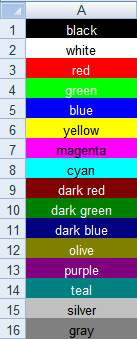 | |
| 850 | 810 | ||
| 851 | 811 | ``` pascal | |
| 852 | 812 | type | |
| 853 | 813 | TsColor = DWORD; | |
| 854 | 814 | ||
| 855 | 815 | const | |
| 856 | 816 | scBlack = $00000000; | |
| 857 | 817 | scWhite = $00FFFFFF; | |
| 858 | 818 | scRed = $000000FF; | |
| 859 | 819 | scGreen = $0000FF00; | |
| 860 | 820 | scBlue = $00FF0000; | |
| 861 | 821 | scYellow = $0000FFFF; | |
| 862 | 822 | scMagenta = $00FF00FF; | |
| 863 | 823 | scCyan = $00FFFF00; | |
| 864 | 824 | scDarkRed = $00000080; | |
| 865 | 825 | scDarkGreen = $00008000; | |
| 866 | 826 | scDarkBlue = $00800000; | |
| 867 | 827 | scOlive = $00008080; | |
| 868 | 828 | scPurple = $00800080; | |
| 869 | 829 | scTeal = $00808000; | |
| 870 | 830 | scSilver = $00C0C0C0; | |
| 871 | 831 | scGray = $00808080; | |
| 872 | 832 | scGrey = scGray; // redefine to allow different spelling | |
| 873 | 833 | ||
| 874 | 834 | // Identifier for undefined color | |
| 875 | 835 | scNotDefined = $40000000; | |
| 876 | 836 | ||
| 877 | 837 | // Identifier for transparent color | |
| 878 | 838 | scTransparent = $20000000; | |
| 879 | 839 | ``` | |
| 880 | 840 | ||
| 881 | 841 | The `TsColor` represents the **rgb value** of a color, a single byte being used for the red, green, and blue components. The resulting number is in little endian notation, i.e. the red value comes first in memory: `$00BBGGRR`. (This is directly compatible with the color values as defined in the *graphics* unit.) | |
| 882 | 842 | ||
| 883 | 843 | The high order byte is usually zero but is used internally to identify special color values, such as for undefined or transparent colors. | |
| 884 | 844 | ||
| 885 | 845 | > **Note:** In older versions of the library colors were defined as indexes into a color palette. **THIS IS NO LONGER WORKING.** | |
| 886 | 846 | ||
| 887 | 847 | Unit *fpsutils* contains some useful functions for **modification of colors**: | |
| 888 | 848 | ||
| 889 | 849 | - `function GetColorName(AColor: TsColor): String;`\ | |
| 890 | 850 | returns the name of the colors defined above, or a string showing the rgb components for other colors. | |
| 891 | 851 | - `function HighContrastColor(AColor: TsColor): TsColor;`\ | |
| 892 | 852 | returns `scBlack` for a "bright", `scWhite` for a "dark" input color. | |
| 893 | 853 | - `function TintedColor(AColor: TsColor; tint: Double): TsColor;`\ | |
| 894 | 854 | brightens or darkens a color by applying a factor `tint = -1..+1`, where `-1` means "100% darken", `+1` means "100% brighten", and `0` means "no change". The hue of the color is preserved. | |
| 895 | 855 | ||
| 896 | 856 | #### Cell background | |
| 897 | 857 | ||
| 898 | 858 | The cell background can be filled by predefined patterns which are identified by the record `TsFillPattern`: | |
| 899 | 859 | ||
| 900 | 860 | ``` pascal | |
| 901 | 861 | type | |
| 902 | 862 | TsFillPattern = record | |
| 903 | 863 | Style: TsFillStyle; // fill style pattern as defined below | |
| 904 | 864 | FgColor: TsColor; // forground color of the fill pattern | |
| 905 | 865 | BgColor: TsColor; // background color of the fill pattern | |
| 906 | 866 | end; | |
| 907 | 867 | ||
| 908 | 868 | TsFillStyle = (fsNoFill, fsSolidFill, fsGray75, fsGray50, fsGray25, fsGray12, fsGray6, | |
| 909 | 869 | fsStripeHor, fsStripeVert, fsStripeDiagUp, fsStripeDiagDown, | |
| 910 | 870 | fsThinStripeHor, fsThinStripeVert, fsThinStripeDiagUp, fsThinStripeDiagDown, | |
| 911 | 871 | fsHatchDiag, fsThinHatchDiag, fsThickHatchDiag, fsThinHatchHor); | |
| 912 | 872 | ``` | |
| 913 | 873 | ||
| 914 | 874 | - Use the worksheet method `WriteBackground` to assign a fill pattern to a specific cell. Besides the cell address, this method requires the type of the fill pattern (`TsFillStyle`), and the foreground and background colors as specified by their `TsColor` values. | |
| 915 | 875 | - The fill pattern of a particular cell can be retrieved by calling the workbook method `ReadBackground`. | |
| 916 | 876 | - The simplified method `WriteBackgroundColor` can be used to achieve a uniform background color. | |
| 917 | 877 | - **Limitations:** | |
| 918 | 878 | - OpenDocument files support only uniform fills. The background color is a mixture of the foreground and background rgb components in a ratio defined by the fill pattern. | |
| 919 | 879 | - BIFF2 files support only a 12.5% black-and-white shaded pattern. | |
| 920 | 880 | ||
| 921 | 881 | ``` pascal | |
| 922 | 882 | type | |
| 923 | 883 | TsWorksheet = class | |
| 924 | 884 | public | |
| 925 | 885 | function WriteBackground(ARow, ACol: Cardinal; AStyle: TsFillStyle; APatternColor, ABackgroundColor: TsColor): PCell; overload; | |
| 926 | 886 | procedure WriteBackground(ACell: PCell; AStyle: TsFillStyle; APatternColor, ABackgroundColor: TsColor); overload; | |
| 927 | 887 | ||
| 928 | 888 | function WriteBackgroundColor(ARow, ACol: Cardinal; AColor: TsColor): PCell; overload; | |
| 929 | 889 | procedure WriteBackgroundColor(ACell: PCell; AColor: TsColor); overload; | |
| 930 | 890 | ||
| 931 | 891 | function ReadBackground(ACell: PCell): TsFillPattern; | |
| 932 | 892 | function ReadBackgroundColor(ACell: PCell): TsColor; overload; | |
| 933 | 893 | // ... | |
| 934 | 894 | end; | |
| 935 | 895 | ||
| 936 | 896 | var | |
| 937 | 897 | cell: PCell; | |
| 938 | 898 | ... | |
| 939 | 899 | // Example 1: Assign a pattern of thin, horizontal, yellow stripes on a blue background to empty cell A1 (row 0, column 0) | |
| 940 | 900 | MyWorksheet.WriteBackground(0, 0, fsThinStripeHor, scYellow, scBlue); | |
| 941 | 901 | ||
| 942 | 902 | // Example 2: Uniform gray background color of cell B1 (row 0, column 1) containing the number 3.14 | |
| 943 | 903 | cell := MyWorksheet.WriteNumber(0, 1, 3.14); | |
| 944 | 904 | MyWorksheet.WriteBackgroundColor(cell, clSilver); | |
| 945 | 905 | ``` | |
| 946 | 906 | ||
| 947 | 907 | #### Cell borders | |
| 948 | 908 | ||
| 949 | 909 | Cells can be emphasized by drawing border lines along their edges or diagonal lines. There are four borders plus two diagonals enumerated in the data type `TsCellBorder`: | |
| 950 | 910 | ||
| 951 | 911 | ``` pascal | |
| 952 | 912 | type | |
| 953 | 913 | TsCellBorder = (cbNorth, cbWest, cbEast, cbSouth, dbDiagUp, dbDiagDown); | |
| 954 | 914 | TsCellBorders = set of TsCellBorder; | |
| 955 | 915 | ``` | |
| 956 | 916 | ||
| 957 | 917 | In order to show a border line add the corresponding border to the cell's set `Borders` (type `TsCellBorders`, see above). In this way, each cell edge can be handled separately. Use the worksheet method `WriteBorders` for this purpose. This example adds top and bottom borders to the edges A1 and B1: | |
| 958 | 918 | ||
| 959 | 919 | ``` pascal | |
| 960 | 920 | MyWorksheet.WriteBorders(0, 0, [cbNorth, cbSouth]); // A1: row 0, column 0 | |
| 961 | 921 | MyWorksheet.WriteBorders(0, 1, [cbNorth, cbSourth]); // B1: row 0, column 1 | |
| 962 | 922 | ``` | |
| 963 | 923 | ||
| 964 | 924 | Lines usually are drawn as thin, solid, black lines. But it is possible to modify **line style** and **color** of each line. For this purpose, the cell provides an array of `TsCellBorderStyle` records: | |
| 965 | 925 | ||
| 966 | 926 | ``` pascal | |
| 967 | 927 | type | |
| 968 | 928 | TsLineStyle = (lsThin, lsMedium, lsDashed, lsDotted, lsThick, lsDouble, lsHair, | |
| 969 | 929 | lsMediumDash, lsDashDot, lsMediumDashDot, lsDashDotDot, lsMediumDashDotDot, lsSlantDashDot); | |
| 970 | 930 | ||
| 971 | 931 | TsCellBorderStyle = record | |
| 972 | 932 | LineStyle: TsLineStyle; | |
| 973 | 933 | Color: TsColor; | |
| 974 | 934 | end; | |
| 975 | 935 | ||
| 976 | 936 | TsCellBorderStyles = array[TsCellBorder] of TsCellBorderStyle; | |
| 977 | 937 | ||
| 978 | 938 | TsWorksheet = class | |
| 979 | 939 | public | |
| 980 | 940 | function WriteBorderStyle(ARow, ACol: Cardinal; ABorder: TsCellBorder; AStyle: TsCellBorderStyle): PCell; overload; | |
| 981 | 941 | procedure WriteBorderStyle(ACell: PCell; ABorder: TsCellBorder; AStyle: TsCellBorderStyle); overload; | |
| 982 | 942 | ||
| 983 | 943 | function WriteBorderStyle(ARow, ACol: Cardinal; ABorder: TsCellBorder; ALineStyle: TsLineStyle; AColor: TsColor): PCell; overload; | |
| 984 | 944 | procedure WriteBorderStyle(ACell: PCell; ABorder: TsCellBorder; ALineStyle: TsLineStyle; AColor: TsColor); overload; | |
| 985 | 945 | ||
| 986 | 946 | function WriteBorderColor(ARow, ACol: Cardinal; ABorder: TsCellBorder; AColor: TsColor): PCell; overload; | |
| 987 | 947 | proceure WriteBorderColor(ACell: PCell; ABorder: TsCellBorder; AColor: TsColor): PCell; overload; | |
| 988 | 948 | ||
| 989 | 949 | function WriteBorderLineStyle(ARow, ACol: Cardinal; ABorder: TsCellBorder; ALineStyle: TsLineStyle): PCell; overload; | |
| 990 | 950 | procedure WriteBorderLineStyle(ACell: PCell; ABorder: TsCellBorder; ALineStyle: TsLineStyle): PCell; overload; | |
| 991 | 951 | ||
| 992 | 952 | function WriteBorderStyles(ARow, ACol: Cardinal; const AStyles: TsCellBorderStyles): PCell; overload; | |
| 993 | 953 | procedure WriteBorderStyles(ACell: PCell; const AStyles: TsCellBorderStyles); overload; | |
| 994 | 954 | ||
| 995 | 955 | function WriteBorders(ARow, ACol: Cardinal; ABorders: TsCellBorders): PCell; overload | |
| 996 | 956 | procedure WriteBorders(ACell: PCell; ABorders: TsCellBorders); overload | |
| 997 | 957 | ||
| 998 | 958 | function ReadCellBorders(ACell: PCell): TsCellBorders; | |
| 999 | 959 | function ReadCellBorderStyle(ACell: PCell; ABorder: TsCellBorder): TsCellBorderStyle; | |
| 1000 | 960 | function ReadCellBorderStyles(ACell: PCell): TsCellBorderStyles; | |
| 1001 | 961 | ... | |
| 1002 | 962 | end; | |
| 1003 | 963 | ``` | |
| 1004 | 964 | ||
| 1005 | 965 | The style of a given cell border can be specified by the following methods provided by the worksheet: | |
| 1006 | 966 | ||
| 1007 | 967 | - **WriteBorderStyle** assigns a cell border style record to one border of the cell. There are two overloaded versions of this method: one takes an entire `TsCellBorderStyle` record, the other one takes the individual record elements. | |
| 1008 | 968 | - **WriteBorderColor** changes the color of a given border without affecting the line style of this border. | |
| 1009 | 969 | - **WriteBorderLineStyle** sets the line style of the border only, but leaves the color unchanged. | |
| 1010 | 970 | - **WriteBorderStyles** sets the border style of all borders of a given cell at once. Useful for copying border styles from one cell to other cells. | |
| 1011 | 971 | ||
| 1012 | 972 | This example adds a thin black border to the top, and a thick blue border to the bottom of cells A1 and B1: | |
| 1013 | 973 | ||
| 1014 | 974 | ``` pascal | |
| 1015 | 975 | var | |
| 1016 | 976 | cellA1, cellB1: PCell; | |
| 1017 | 977 | ... | |
| 1018 | 978 | cellA1 := MyWorksheet.WriteBorders(0, 0, [cbNorth, cbSouth]); // cell A1: row 0, column 0 | |
| 1019 | 979 | MyWorksheet.WriteBorderStyle(cellA1, cbNorth, lsThin, scBlack); | |
| 1020 | 980 | MyWorksheet.WriteBorderStyle(cellA1, cbSouth, lsThick, scBlue); | |
| 1021 | 981 | ||
| 1022 | 982 | cellB1 := MyWorksheet.WriteBorders(0, 1, [cbNorth, cbSouth]); // cell B1: row 0, column 1 | |
| 1023 | 983 | MyWorksheet.WriteBorderStyles(cellB1, cellA1^.BorderStyles); // copy all border styles from cell A1 to B1 | |
| 1024 | 984 | ``` | |
| 1025 | 985 | ||
| 1026 | 986 | > **Note:** Diagonal lines are not supported by *sfExcel2* and *sfExcel5* - they are just omitted. *sfExcel8* and *sfOOXML* use the same linestyle and color for both diagonals; when writing the border style of the diagonal-up line is assumed to be valid also for the diagonal-down line. Some writers do not support all the line styles of the `TsLineStyle` enumeration. In this case, appropriate replacement line styles are used. | |
| 1027 | 987 | ||
| 1028 | 988 | #### Fonts | |
| 1029 | 989 | ||
| 1030 | 990 | The cell text can displayed in various fonts. For this purpose, the workbook provides a list of `TsFont` items: | |
| 1031 | 991 | ||
| 1032 | 992 | ``` pascal | |
| 1033 | 993 | type | |
| 1034 | 994 | TsFont = class | |
| 1035 | 995 | FontName: String; | |
| 1036 | 996 | Size: Single; | |
| 1037 | 997 | Style: TsFontStyles; | |
| 1038 | 998 | Color: TsColor; | |
| 1039 | 999 | Position: TsFontPosition; | |
| 1040 | 1000 | end; | |
| 1041 | 1001 | ``` | |
| 1042 | 1002 | ||
| 1043 | 1003 | - The **FontName** corresponds to the name of the font as used by the operational system. In Windows, an example would be "Times New Roman". | |
| 1044 | 1004 | - The **FontSize** is given in "points", i.e. units 1/72 inch which are commonly used in Office applications. | |
| 1045 | 1005 | - The **FontStyle** is a set of the items `fssBold`, `fssItalic`, `fssStrikeout`, and `fssUnderline` which form the enumeration type `TsFontStyle`. The "normal" font corresponds to an empty set. | |
| 1046 | 1006 | - The **Color** determines the foreground color of the text characters given in rgb presentation as discussed above. | |
| 1047 | 1007 | - The **Position** is either `fpNormal`, `fpSuperscript`, or `fpSubscript` and indicates whether the font size should be decreased by about 1/3 and the characters should be displaced up (superscript) or down (subscript). | |
| 1048 | 1008 | ||
| 1049 | 1009 | Every cell is provided with an **index into the font list**. | |
| 1050 | 1010 | ||
| 1051 | 1011 | In order to assign a particular font to a cell, use one of the following methods of `TsSpreadsheet`: | |
| 1052 | 1012 | ||
| 1053 | 1013 | ``` pascal | |
| 1054 | 1014 | type | |
| 1055 | 1015 | TsSpreadsheet = class | |
| 1056 | 1016 | public | |
| 1057 | 1017 | function WriteFont(ARow, ACol: Cardinal; const AFontName: String; | |
| 1058 | 1018 | AFontSize: Single; AFontStyle: TsFontStyles; AFontColor: TsColor): Integer; overload; | |
| 1059 | 1019 | procedure WriteFont(ARow, ACol: Cardinal; AFontIndex: Integer); overload; | |
| 1060 | 1020 | function WriteFontColor(ARow, ACol: Cardinal; AFontColor: TsColor): Integer; | |
| 1061 | 1021 | function WriteFontSize(ARow, ACol: Cardinal; ASize: Integer): Integer; | |
| 1062 | 1022 | function WriteFontStyle(ARow, ACol: Cardinal; AStyle: TsFontStyles): Integer; | |
| 1063 | 1023 | // plus: overloaded versions accepting a pointer to a cell record instead of the row and column index as parameter | |
| 1064 | 1024 | // ... | |
| 1065 | 1025 | end; | |
| 1066 | 1026 | ``` | |
| 1067 | 1027 | ||
| 1068 | 1028 | - **WriteFont** assigns a font to the cell. If the font does not yet exist in the font list a new entry is created. The function returns the index of the font in the font list. In addition, there is an overloaded version which only takes the font index as a parameter. | |
| 1069 | 1029 | - **WriteFontColor** replaces the color of the font that is currently assigned to the cell by a new one. Again, a new font list item is created if the font with the new color does not yet exist. The function returns the index of the font in the list. | |
| 1070 | 1030 | - **WriteFontSize** replaces the size of the currently used font of the cell. | |
| 1071 | 1031 | - **WriteFontStyle** replaces the style (normal, bold, italic, etc.) of the currently used cell font. | |
| 1072 | 1032 | ||
| 1073 | 1033 | The workbook's font list contains at least one item which is the **default font** for cells with unmodified fonts. By default, this is 10-point "Arial". Use the workbook method `SetDefaultFont` to assign a different font to the first list item. | |
| 1074 | 1034 | ||
| 1075 | 1035 | The font at a given index of the font list can be looked up by calling the workbook function `GetFont`. The count of available fonts is returned by `GetFontCount`. | |
| 1076 | 1036 | ||
| 1077 | 1037 | Here is an **example** which decreases the size of all 10-point "Arial" fonts to 9-point: | |
| 1078 | 1038 | ||
| 1079 | 1039 | ``` pascal | |
| 1080 | 1040 | var | |
| 1081 | 1041 | i: Integer; | |
| 1082 | 1042 | font: TsFont; | |
| 1083 | 1043 | begin | |
| 1084 | 1044 | for i := 0 to MyWorkbook.GetFontCount-1 do | |
| 1085 | 1045 | begin | |
| 1086 | 1046 | font := MyWorkbook.GetFont(i); | |
| 1087 | 1047 | if (font.FontName = 'Arial') and (font.Size = 10.0) then | |
| 1088 | 1048 | font.Size := 9.0; | |
| 1089 | 1049 | end; | |
| 1090 | 1050 | end; | |
| 1091 | 1051 | ``` | |
| 1092 | 1052 | ||
| 1093 | 1053 | #### Rich-text formatting | |
| 1094 | 1054 | ||
| 1095 | 1055 | In addition to using a specific font for each cell it is also possible to specify particular font attributes for individual characters or groups of characters in each cell text. Following the Excel notation, we call this feature **Rich-text formatting** (although is has nothing in common with the "rich-text" file format). | |
| 1096 | 1056 | ||
| 1097 | 1057 | For this purpose, unit *fpstypes* declares the type `TsRichTextParams` which is an array of `TsRichTextParam` records: | |
| 1098 | 1058 | ||
| 1099 | 1059 | ``` pascal | |
| 1100 | 1060 | type | |
| 1101 | 1061 | TsRichTextParam = record | |
| 1102 | 1062 | FontIndex: Integer; | |
| 1103 | 1063 | FirstIndex: Integer; | |
| 1104 | 1064 | end; | |
| 1105 | 1065 | ||
| 1106 | 1066 | TsRichTextParams = array of TsRichTextParam; | |
| 1107 | 1067 | ``` | |
| 1108 | 1068 | ||
| 1109 | 1069 | `FontIndex` refers to the index of the font in the workbook's FontList to be used for formatting of the characters beginning at the index `FirstIndex`. Being a string character index the `FirstIndex` is 1-based. | |
| 1110 | 1070 | ||
| 1111 | 1071 | There are two ways to add "rich-text" formatting to a cell text: | |
| 1112 | 1072 | ||
| 1113 | 1073 | - Embed corresponding HTML format codes into the cell text. This can be done using the method `WriteTextAsHTML` of the worksheet. In order to add the text "Area (m<sup>2</sup>)" to cell A1, pass the following HTML-coded string to this function | |
| 1114 | 1074 | ||
| 1115 | 1075 | ``` pascal | |
| 1116 | 1076 | MyWorksheet.WriteTextAsHTML(0, 0, 'Area (m<sup>2</sup>'); | |
| 1117 | 1077 | ``` | |
| 1118 | 1078 | ||
| 1119 | 1079 | - Alternatively, the standard text writing method, `WriteText` can be called with an additional parameter specifiying the rich-text formatting parameters to be used directly: | |
| 1120 | 1080 | ||
| 1121 | 1081 | ``` pascal | |
| 1122 | 1082 | var | |
| 1123 | 1083 | richTextParams: TsRichTextParams; | |
| 1124 | 1084 | fnt: TsFont; | |
| 1125 | 1085 | cell: PCell; | |
| 1126 | 1086 | begin | |
| 1127 | 1087 | SetLength(rtp, 2); | |
| 1128 | 1088 | cell := MyWorksheet.GetFont(0, 0); | |
| 1129 | 1089 | fnt := MyWorksheet.ReadCellFont(cell); | |
| 1130 | 1090 | richTextParams[0].FirstIndex := 8; // The superscript groups begins with "2" which is the (1-based) character #8 of the cell text. | |
| 1131 | 1091 | richTextParams[0].FontIndex := MyWorkbook.AddFont(fnt.FontName, fnt.Size, fnt.Style, fnt.Color, fpSuperscript); | |
| 1132 | 1092 | richTextParams[1].FirstIndex := 9; // Normal font again beginning with character #9. | |
| 1133 | 1093 | richTextParams[1].FontIndex := MyWorksheet.ReadCellFontIndex(0, 0); | |
| 1134 | 1094 | MyWorksheet.WriteUTF8Text(cell, 'Area (m2)', richTextParams); | |
| 1135 | 1095 | end; | |
| 1136 | 1096 | ``` | |
| 1137 | 1097 | ||
| 1138 | 1098 | Use the worksheet method `DeleteRichTextParams` to remove rich-text formatting from a previously formatted cell. | |
| 1139 | 1099 | ||
| 1140 | 1100 | > **Note:** If the cell is supposed to have a font different from the worksheet's default font then this font must be written to the cell **before** writing the rich-text formatted text. Otherwise the font in the unformatted regions will not be up-to-date. | |
| 1141 | 1101 | ||
| 1142 | 1102 | #### Text rotation | |
| 1143 | 1103 | ||
| 1144 | 1104 | Usually text is displayed in the cells horizontally. However, it is also possible to rotate it by 90 degrees in clockwise or counterclockwise directions. In addition, there is also an option to stack horizontal characters vertically above each other. | |
| 1145 | 1105 | ||
| 1146 | 1106 | If you need this feature use the worksheet method `WriteTextRotation` and specify the text direction by an element of the enumeration type `TsTextRotation`: | |
| 1147 | 1107 | ||
| 1148 | 1108 | ``` pascal | |
| 1149 | 1109 | type | |
| 1150 | 1110 | TsTextRotation = (trHorizontal, rt90DegreeClockwiseRotation, | |
| 1151 | 1111 | rt90DegreeCounterClockwiseRotation, rtStacked); | |
| 1152 | 1112 | ||
| 1153 | 1113 | TsWorksheet = class | |
| 1154 | 1114 | public | |
| 1155 | 1115 | function WriteTextRotation(ARow, ACol: Cardinal; ARotation: TsTextRotation): PCell; overload; | |
| 1156 | 1116 | procedure WriteTextRotation(ACell: PCell; ARotation: TsTextRotation); overload; | |
| 1157 | 1117 | ||
| 1158 | 1118 | function ReadTextRotation(ACell: PCell): TsTextRotation; | |
| 1159 | 1119 | // ... | |
| 1160 | 1120 | end; | |
| 1161 | 1121 | ||
| 1162 | 1122 | // example for counter-clockwise rotated text in cell A1: | |
| 1163 | 1123 | WriteTextRotation(0, 0, rt90DegreeCounterClockwizeRotation); | |
| 1164 | 1124 | ``` | |
| 1165 | 1125 | ||
| 1166 | 1126 | > **Warning:** Finer degrees of rotation which may be supported by some spreadsheet file formats are ignored. | |
| 1167 | 1127 | ||
| 1168 | 1128 | #### Text alignment | |
| 1169 | 1129 | ||
| 1170 | 1130 | By default, cell texts are aligned to the left and bottom edges of the cell, except for numbers which are right-aligned. This behavior can be changed by using the worksheet methods `WriteHorAlignment` and `WriteVertAlignment`: | |
| 1171 | 1131 | ||
| 1172 | 1132 | ``` pascal | |
| 1173 | 1133 | type | |
| 1174 | 1134 | TsHorAlignment = (haDefault, haLeft, haCenter, haRight); | |
| 1175 | 1135 | TsVertAlignment = (vaDefault, vaTop, vaCenter, vaBottom); | |
| 1176 | 1136 | ||
| 1177 | 1137 | TsWorkbook = class | |
| 1178 | 1138 | public | |
| 1179 | 1139 | function WriteHorAlignment(ARow, ACol: Cardinal; AValue: TsHorAlignment): PCell; overload; | |
| 1180 | 1140 | procedure WriteHorAlignment(ACell: PCell; AValue: TsHorAlignment); overload; | |
| 1181 | 1141 | function ReadHorAlignment(ACell: PCell): TsHorAlignment; | |
| 1182 | 1142 | ||
| 1183 | 1143 | function WriteVertAlignment(ARow, ACol: Cardinal; AValue: TsVertAlignment): PCell; overload; | |
| 1184 | 1144 | procedure WriteVertAlignment(ACell: PCell; AValue: TsVertAlignment); overload; | |
| 1185 | 1145 | function ReadVertAlignment(ACell: PCell): TsVertAlignment; | |
| 1186 | 1146 | // ... | |
| 1187 | 1147 | end; | |
| 1188 | 1148 | ||
| 1189 | 1149 | // Example: Center the text in cell A1 both horizontally and vertically | |
| 1190 | 1150 | MyWorkbook.WriteHorAlignment(0, 0, haCenter); | |
| 1191 | 1151 | MyWorkbook.WriteVertAlignment(0, 0, vaCenter); | |
| 1192 | 1152 | ``` | |
| 1193 | 1153 | ||
| 1194 | 1154 | #### Word wrap | |
| 1195 | 1155 | ||
| 1196 | 1156 | Text which is longer than the width of a cell can wrap into several lines by calling the method `WriteWordwrap` of the spreadsheet: | |
| 1197 | 1157 | ||
| 1198 | 1158 | ``` pascal | |
| 1199 | 1159 | type | |
| 1200 | 1160 | TsWorksheet = class | |
| 1201 | 1161 | public | |
| 1202 | 1162 | function WriteWordwrap(ARow, ACol: Cardinal; AValue: Boolean): PCell; overload; | |
| 1203 | 1163 | procedure WriteWordwrap(ACell: PCell; AValue: Boolean); overload; | |
| 1204 | 1164 | function ReadWordwrap(ACell: PCell): Boolean; | |
| 1205 | 1165 | //... | |
| 1206 | 1166 | end; | |
| 1207 | 1167 | ||
| 1208 | 1168 | // Example: activate wordwrap in cell A1 | |
| 1209 | 1169 | MyWorksheet.WriteWordwrap(0, 0, true); | |
| 1210 | 1170 | ``` | |
| 1211 | 1171 | ||
| 1212 | 1172 | #### Merged cells | |
| 1213 | 1173 | ||
| 1214 | 1174 | Like the Office applications, FPSpreadsheet supports also to feature of merging cells to a single large cell which is often used as a common header above simlar columns. Simply call `MergeCells` and pass a parameter to specify the cell range to be merged, either an Excel range string (such as `A1:D5`), or the first and last rows and columns: | |
| 1215 | 1175 | ||
| 1216 | 1176 | ``` pascal | |
| 1217 | 1177 | MyWorksheet.MergeCells('A1:D5'); | |
| 1218 | 1178 | // or: MyWorksheet.MergeCells(0, 0, 4, 3); // first row, first column, last row, last column | |
| 1219 | 1179 | ``` | |
| 1220 | 1180 | ||
| 1221 | 1181 | The content and format displayed for a merged range is taken from the upper left corner of the range, cell `A1` in above example. This cell is called the `MergeBase` in the library. Except for this corner cell, there must not be any other cells in the range. If there are their contents and format will be hidden. | |
| 1222 | 1182 | ||
| 1223 | 1183 | In order to break up a merged range back up into individual cells, use the command `Unmerge` and pass any cell that is within the merged range: | |
| 1224 | 1184 | ||
| 1225 | 1185 | ``` pascal | |
| 1226 | 1186 | MyWorksheet.UnmergeCells('B1'); | |
| 1227 | 1187 | // or: MyWorksheet.UnmergeCells(0, 1); // row, column of any cell within the range | |
| 1228 | 1188 | ``` | |
| 1229 | 1189 | ||
| 1230 | 1190 | Merged cells can be read from/written to all file formats except for `sfCSV`, `sfExcel2` and `sfExcel5` which do not support this feature natively. | |
| 1231 | 1191 | ||
| 1232 | 1192 | The information which cells are merged is stored in an internal list. Unlike in earlier versions it is no longer possible to access the `MergeBase` from the cell directly. Use the following functions to extract information on merged cells: | |
| 1233 | 1193 | ||
| 1234 | 1194 | ``` pascal | |
| 1235 | 1195 | var | |
| 1236 | 1196 | cell, base: PCell; | |
| 1237 | 1197 | r1,c1,r2,c2: Cardinal; | |
| 1238 | 1198 | ... | |
| 1239 | 1199 | cell := MyWorksheet.FindCell('B1'); | |
| 1240 | 1200 | if MyWorksheet.IsMerged(cell) then | |
| 1241 | 1201 | begin | |
| 1242 | 1202 | WriteLn('Cell B1 is merged.'); | |
| 1243 | 1203 | ||
| 1244 | 1204 | MyWorksheet.FindMergedRange(cell, r1, c1, r2, c2); | |
| 1245 | 1205 | WriteLn('The merged range is ' + GetCellRangeString(r1, c1, r2, c2)); | |
| 1246 | 1206 | ||
| 1247 | 1207 | base := MyWorksheet.FindMergeBase(cell); | |
| 1248 | 1208 | WriteLn('The merge base is cell ' + GetCellString(base^.Row, base^.Col)); | |
| 1249 | 1209 | end; | |
| 1250 | 1210 | ``` | |
| 1251 | 1211 | ||
| 1252 | 1212 | #### Cell protection | |
| 1253 | 1213 | ||
| 1254 | 1214 | This is described in a separate section below. | |
| 1255 | 1215 | ||
| 1256 | 1216 | ### Additional data | |
| 1257 | 1217 | ||
| 1258 | 1218 | #### Cell comments | |
| 1259 | 1219 | ||
| 1260 | 1220 | Comments can be attached to any cell by calling | |
| 1261 | 1221 | ||
| 1262 | 1222 | ``` pascal | |
| 1263 | 1223 | MyWorksheet.WriteComment(0, 0, 'This is a comment for cell A1'); | |
| 1264 | 1224 | ``` | |
| 1265 | 1225 | ||
| 1266 | 1226 | They are stored in an internal list of the worksheet. Use the corresponding worksheet methods to access comments: | |
| 1267 | 1227 | ||
| 1268 | 1228 | - If you want to know whether a particular cell contains a comment call the worksheet method `HasComment(cell)`. | |
| 1269 | 1229 | - For retrieving a cell comment use the method `ReadComment(cell)`, or its overloaded companion `ReadComment(ARow, ACol)`. | |
| 1270 | 1230 | - The total number of comments can be retrieved from `worksheet.Comments.Count`. | |
| 1271 | 1231 | ||
| 1272 | 1232 | #### Hyperlinks | |
| 1273 | 1233 | ||
| 1274 | 1234 | Hyperlinks can be attached to cells in order to link cells to other documents or other cells in the same workbook. The general syntax for creating hyperlinks is | |
| 1275 | 1235 | ||
| 1276 | 1236 | ``` pascal | |
| 1277 | 1237 | procedure TWorksheet.WriteHyperlink(ARow, ACol: Cardinal; ATarget: String; ATooltip: String = ''); | |
| 1278 | 1238 | ``` | |
| 1279 | 1239 | ||
| 1280 | 1240 | - The hyperlink target, passed as parameter `ATarget`, must be a fully qualified [URI (Uniform resource identifier)](http://en.wikipedia.org/wiki/Uniform_Resource_Identifier) consisting of a protocol phrase (e.g., [`http://`](http://), [`file:///`](file:///), `mailto:`, etc.) followed by specific information such as web URL, filename, or e-mail address and an optional bookmark identification separated by the character `'#'`. An exception are internal hyperlinks which enable to jump to a cell in the current workbook; they consist of the optional worksheet name and the cell address separated by the character `'!'`. | |
| 1281 | 1241 | - The optional `Tooltip` parameter is evaluated by Excel to display it in a hint window if the mouse if above the hyperlink. | |
| 1282 | 1242 | ||
| 1283 | 1243 | > **Note:** Hyperlinks can be added to empty cells or to cells with content. In the latter case, the displayed content is not changed by the hyperlink; in the former case the cell is converted to a label cell showing the hyperlink target. Be aware that OpenOffice/LibreOffice only does accept hyperlinks with non-text cells. | |
| 1284 | 1244 | ||
| 1285 | 1245 | **Examples:** | |
| 1286 | 1246 | ||
| 1287 | 1247 | ``` pascal | |
| 1288 | 1248 | // Open the web site www.google.com | |
| 1289 | 1249 | MyWorksheet.WriteText(0, 0, 'Open google'); | |
| 1290 | 1250 | MyWorksheet.WriteHyperlink(0, 0, 'http://www.google.com'); | |
| 1291 | 1251 | ||
| 1292 | 1252 | // Open the local file with the absolute path "C:\readme.txt" (assuming Windows) | |
| 1293 | 1253 | MyWorksheet.WriteHyperlink(1, 0, 'file:///c:\readme.txt'); | |
| 1294 | 1254 | ||
| 1295 | 1255 | // Open the mail client to send a mail | |
| 1296 | 1256 | MyWorksheet.WriteText('Send mail'); | |
| 1297 | 1257 | MyWorksheet.WriteHyperlink(3, 0, 'mailto:somebody@gmail.com?subject=Test'); | |
| 1298 | 1258 | ||
| 1299 | 1259 | // Jump to a particular cell | |
| 1300 | 1260 | MyWorksheet.WriteText(5, 0, 'Jump to cell A10 on sheet2'); | |
| 1301 | 1261 | MyWorksheet.WriteHyperlink(5, 0, '#Sheet2!A10'); | |
| 1302 | 1262 | ||
| 1303 | 1263 | // Jump to cell A10 on the current sheet and display a popup hint | |
| 1304 | 1264 | MyWorksheet.WriteHyperlink(5, 0, '#A10', 'Go to cell A10'); | |
| 1305 | 1265 | ``` | |
| 1306 | 1266 | ||
| 1307 | 1267 | > **Note:** FPSpreadsheet does not "follow" the links, it only provides a mechanism to get access to the link data. TsWorksheetGrid from the *laz_fpspreadsheet_visual* package, however, fires the event `OnClickHyperlink` if a cell with an external hyperlink is clicked for fractions of a second. In the corresponding event handler, you can, for example, load a target spreadsheet, or open a web browser to display the linked web site. If the link is an internal link to another cell within the same workbook then the grid jumps to the related cell. | |
| 1308 | 1268 | ||
| 1309 | 1269 | #### Images | |
| 1310 | 1270 | ||
| 1311 | 1271 | FPSpreadsheet supports embedding of images in worksheets. Use one of the worksheet methods `WriteImage()` to add an image to the worksheet: | |
| 1312 | 1272 | ||
| 1313 | 1273 | ``` pascal | |
| 1314 | 1274 | MyWorksheet.WriteImage(row, col, filename, offsetX, offsetY, scaleX, scaleY); | |
| 1315 | 1275 | MyWorksheet.WriteImage(row, col, stream, offsetX, offsetY, scaleX, scaleY); | |
| 1316 | 1276 | MyWorksheet.WriteImage(row, col, imageindex, offsetX, offsetY, scaleX, scaleY); | |
| 1317 | 1277 | ``` | |
| 1318 | 1278 | ||
| 1319 | 1279 | The upper/left corner of the image is placed at the upper/left corner of the cell in the specified row and column. The floating point parameters `offsetX`, `offsetY`, `scaleX` and `scaleY` are optional: they define an offset of this image anchor point from the cell corner and a magnification factor. The path to the image file is given as parameter `filename`. Alternatively, overloaded versions can be used which accept a stream in place of the file name or an image index in the workbook's EmbeddedObj list - use `MyWorkbook.FindEmbeddedObj(filename)` to get this index for a previously loaded image file. | |
| 1320 | 1280 | ||
| 1321 | 1281 | Note that FPSpreadsheet needs to know the image type for successfull picture import. Currently, the types *png*, *jpg*, *tiff*, *bmp*, *gif*, *svg*, *wmf*, *emf*, and *pcx* are supported (Excel2007 cannot read imported *svg* and *pcx* images). Other formats can be registered by writing a function which determines the image size and pixel density, and by registering the new format using the procedure `RegisterImageType` - see unit *fpsImages* for examples: | |
| 1322 | 1282 | ||
| 1323 | 1283 | ``` pascal | |
| 1324 | 1284 | type | |
| 1325 | 1285 | TsImageType = integer; | |
| 1326 | 1286 | TGetImageSizeFunc = function (AStream: TStream; out AWidth, AHeight: DWord; out dpiX, dpiY: Double): Boolean; | |
| 1327 | 1287 | ||
| 1328 | 1288 | function RegisterImageType(AMimeType, AExtension: String; AGetImageSize: TGetImageSizeFunc): TsImageType; | |
| 1329 | 1289 | ``` | |
| 1330 | 1290 | ||
| 1331 | 1291 | Due to differences in row height and column width calculation between FPSpreadsheet and Office applications it is not possible to position images correctly. If exact image positions are important you should follow these rules: | |
| 1332 | 1292 | ||
| 1333 | 1293 | - Predefine the widths of all columns at least up to the one containing the right edge of the image. | |
| 1334 | 1294 | - Predefine the heights of all rows at least up to the one containing the lower edge of the image. | |
| 1335 | 1295 | - If the workbook is to be saved in OpenDocument format add the image after changing column widths and row heights because ods anchors the image to the sheet, not to the cell (like Excel and FPSpreadsheet). | |
| 1336 | 1296 | - If the exact size of the image is important make sure that it fits into a single cell. | |
| 1337 | 1297 | ||
| 1338 | 1298 | ### Sorting | |
| 1339 | 1299 | ||
| 1340 | 1300 | Cells in a worksheet can be sorted for a variety of criteria by calling the `Sort` method of the worksheet. This method takes a `TsSortParams` record and the edges of the cell rectangle to be sorted as parameters; in an overloaded version, the cell rectangle can also be specified by means of an Excel-type range string (e.g. `'A1:G10'`): | |
| 1341 | 1301 | ||
| 1342 | 1302 | ``` pascal | |
| 1343 | 1303 | type | |
| 1344 | 1304 | TsWorksheet = class | |
| 1345 | 1305 | // ... | |
| 1346 | 1306 | procedure Sort(const ASortParams: TsSortParams; | |
| 1347 | 1307 | ARowFrom, AColFrom, ARowTo, AColTo: Cardinal); overload; | |
| 1348 | 1308 | procedure Sort(ASortParams: TsSortParams; ARange: String); overload; | |
| 1349 | 1309 | // ... | |
| 1350 | 1310 | end; | |
| 1351 | 1311 | ``` | |
| 1352 | 1312 | ||
| 1353 | 1313 | The sorting criteria are defined by a record of type `TsSortParams`: | |
| 1354 | 1314 | ||
| 1355 | 1315 | ``` pascal | |
| 1356 | 1316 | type | |
| 1357 | 1317 | TsSortParams = record | |
| 1358 | 1318 | SortByCols: Boolean; | |
| 1359 | 1319 | Priority: TsSortPriority; // spNumAlpha ("Numbers first"), or spAlphaNum ("Text first") | |
| 1360 | 1320 | Keys: TsSortKeys; | |
| 1361 | 1321 | end; | |
| 1362 | 1322 | ||
| 1363 | 1323 | TsSortKey = record | |
| 1364 | 1324 | ColRowIndex: Integer; | |
| 1365 | 1325 | Options: TsSortOptions; // set of [spDescending, spCaseInsensitive] | |
| 1366 | 1326 | end; | |
| 1367 | 1327 | ``` | |
| 1368 | 1328 | ||
| 1369 | 1329 | - The boolean value `SortByCols` determines wether sorting occurs along columns (`true`) or rows (`false`). The `ColRowIndex` specified in the sorting keys, accordingly, corresponds to a column or row index, respectively (see below). | |
| 1370 | 1330 | - `Priority` determines in mixed content cell ranges whether an ascending sort puts numerical values in front of text values or not. Empty cells are always moved to the end of the sorted column or row. In Excel, the priority is "numbers first" (`spNumAlpha`). | |
| 1371 | 1331 | - The array `Keys` specifies multiple sorting parameters. They consist of the index of the column or row to be sorted (`ColRowIndex`) and a set of `Options` for sorting direction (`spoDescending`) and character case (`spCaseInsensitive`). If `Options` is empty, cell comparison is case-sensitive, and cells are arranged in ascending order. If two cells are found to be "equal" on the basis of the first key (`sortParams.Keys[0]`) comparison proceeds with the next conditions in the `Keys` array until a difference is found or all conditions are used up. | |
| 1372 | 1332 | ||
| 1373 | 1333 | `InitSortParams` is a handy utility to initialize the sorting parameters: | |
| 1374 | 1334 | ||
| 1375 | 1335 | ``` pascal | |
| 1376 | 1336 | function InitSortParams(ASortByCols: Boolean = true; ANumSortKeys: Integer = 1; | |
| 1377 | 1337 | ASortPriority: TsSortPriority = spNumAlpha): TsSortParams; | |
| 1378 | 1338 | ``` | |
| 1379 | 1339 | ||
| 1380 | 1340 | The next code fragment shows a typical sorting call: | |
| 1381 | 1341 | ||
| 1382 | 1342 | ``` pascal | |
| 1383 | 1343 | var | |
| 1384 | 1344 | sortParams: TsSortParams; | |
| 1385 | 1345 | begin | |
| 1386 | 1346 | sortParams := InitSortParams(true, 2); // sorting along columns, 2 sorting keys | |
| 1387 | 1347 | ||
| 1388 | 1348 | // primary sorting key: column 3, ascending, case-insensitive | |
| 1389 | 1349 | sortParams.Keys[0].ColRowIndex := 3; | |
| 1390 | 1350 | sortParams.Keys[0].Options := [ssoCaseInsensitive]; | |
| 1391 | 1351 | ||
| 1392 | 1352 | // secondary sorting key: colum 1, descending | |
| 1393 | 1353 | sortParams.Keys[1].ColRowIndex := 1; | |
| 1394 | 1354 | sortParams.Keys[1].Options := [ssoDescending]; | |
| 1395 | 1355 | ||
| 1396 | 1356 | // The sorted block extends between cells A1 (row=0, col=0) and F10 (row=9, col=5) | |
| 1397 | 1357 | MyWorksheet.Sort(sortParams, 0, 0, 9, 5); | |
| 1398 | 1358 | // or: MyWorksheet.Sort(sortParams, 'A1:F10'); | |
| 1399 | 1359 | end; | |
| 1400 | 1360 | ``` | |
| 1401 | 1361 | ||
| 1402 | 1362 | ### Searching and replacing | |
| 1403 | 1363 | ||
| 1404 | 1364 | Unit *fpsSearch* implements a **search engine** which can be used to look for specific cell content within a workbook, or to replace the found cell content by some other string. | |
| 1405 | 1365 | ||
| 1406 | 1366 | **Example:** | |
| 1407 | 1367 | ||
| 1408 | 1368 | ``` pascal | |
| 1409 | 1369 | uses | |
| 1410 | 1370 | fpsTypes, fpSpreadsheet, fpsUtils, fpsSearch, fpsAllFormats; | |
| 1411 | 1371 | var | |
| 1412 | 1372 | MyWorkbook: TsWorkbook; | |
| 1413 | 1373 | foundWorksheet: TsWorksheet; | |
| 1414 | 1374 | foundRow, foundCol: Cardinal; | |
| 1415 | 1375 | MySearchParams: TsSearchParams; | |
| 1416 | 1376 | begin | |
| 1417 | 1377 | MyWorkbook := TsWorkbook.Create; | |
| 1418 | 1378 | try | |
| 1419 | 1379 | MyWorkbook.ReadFromFile(AFileName); | |
| 1420 | 1380 | ||
| 1421 | 1381 | // Specify search criteria | |
| 1422 | 1382 | MySearchParams.SearchText := 'Hallo'; | |
| 1423 | 1383 | MySearchParams.Options := [soEntireDocument]; | |
| 1424 | 1384 | MySearchParams.Within := swWorkbook; | |
| 1425 | 1385 | ||
| 1426 | 1386 | // or: MySearchParaams := InitSearchParams('Hallo', [soEntireDocument], swWorkbook); | |
| 1427 | 1387 | ||
| 1428 | 1388 | // Create search engine and execute search | |
| 1429 | 1389 | with TsSearchEngine.Create(MyWorkbook) do begin | |
| 1430 | 1390 | if FindFirst(MySearchParams, foundWorksheet, foundRow, foundCol) then begin | |
| 1431 | 1391 | WriteLn('First "', MySearchparams.SearchText, '" found in cell ', GetCellString(foundRow, foundCol), ' of worksheet ', foundWorksheet.Name); | |
| 1432 | 1392 | while FindNext(MySeachParams, foundWorksheet, foundRow, foundCol) do | |
| 1433 | 1393 | WriteLn('Next "', MySearchParams.SearchText, '" found in cell ', GetCellString(foundRow, foundCol), ' of worksheet ', foundWorksheet.Name); | |
| 1434 | 1394 | end; | |
| 1435 | 1395 | Free; | |
| 1436 | 1396 | end; | |
| 1437 | 1397 | finally | |
| 1438 | 1398 | MyWorkbook.Free; | |
| 1439 | 1399 | end; | |
| 1440 | 1400 | end; | |
| 1441 | 1401 | ``` | |
| 1442 | 1402 | ||
| 1443 | 1403 | The search engine provides two methods for **searching**: `FindFirst` and `FindNext`. They are very similar, they only differ in where the search begins. In case of `FindFirst`, the starting cell is determined from the `Options` described below. In case of `FindNext` the search begins at the cell adjacent to the previously found cell. Both methods return the worksheet and row and column indexes of the cell in which the search text is found. If the search is not successful then the function result is `FALSE`, and the `foundWorksheet` is nil. It is clear that the `foundWorksheet` cannot be used for anything else while the search is running. | |
| 1444 | 1404 | ||
| 1445 | 1405 | The record `TsSearchParams` specifies the criteria used for searching: | |
| 1446 | 1406 | ||
| 1447 | 1407 | ``` pascal | |
| 1448 | 1408 | type | |
| 1449 | 1409 | TsSearchParams = record | |
| 1450 | 1410 | SearchText: String; | |
| 1451 | 1411 | Options: TsSearchOptions; | |
| 1452 | 1412 | Within: TsSearchWithin; | |
| 1453 | 1413 | end; | |
| 1454 | 1414 | ``` | |
| 1455 | 1415 | ||
| 1456 | 1416 | Besides the text to be searched (`SearchText`) it provides a set of options to narrow the search: | |
| 1457 | 1417 | ||
| 1458 | 1418 | - `soCompareEntireCell`: Compares the `SearchText` with the entire cell content. If not contained in the `Options` then the cell text is compared only partially. | |
| 1459 | 1419 | - `soMatchCase`: Perform a case-sensitive search | |
| 1460 | 1420 | - `soRegularExpr`: The `SearchText` is considered as a regular expression | |
| 1461 | 1421 | - `soAlongRows`: The search engine proceeds first along the rows. If not contained in the `Options` then the search proceeds along the columns. | |
| 1462 | 1422 | - `soBackward`: The search begins at the end of the document, or runs backward from the active cell. If not contained in the `Options` then the search starts at the beginning of the document, or runs forward from the active cell. | |
| 1463 | 1423 | - `soWrapDocument`: If a search has reached the end of the document the search is resumed at its beginning (or vice versa, if `soBackward` is used). | |
| 1464 | 1424 | - `soEntireDocument`: Search begins at the first cell (or last cell if `soBackward` is used). If not contained in the `Options` then the search begins at the active cell of the worksheet. Ignored by `FindNext`. | |
| 1465 | 1425 | ||
| 1466 | 1426 | The record field `Within` identifies the part of the spreadsheet to be searched: | |
| 1467 | 1427 | ||
| 1468 | 1428 | - `swWorkbook`: The entire workbook is searched. If the search phrase is not found on the first worksheet (or last worksheet if `soBackward` is used) then the search continues with the next (previous) sheet. | |
| 1469 | 1429 | - `swWorksheet`: The search is limited to the currently active worksheet | |
| 1470 | 1430 | - `swColumn`: Search is restricted to the column of the active cell | |
| 1471 | 1431 | - `swRow`: Search is restricted to the row of the active cell. | |
| 1472 | 1432 | ||
| 1473 | 1433 | The search params record can be initialized by calling `InitSearchParams` (in unit *fpsutils*) with the record elements as optional parameters. Use the methods `Workbook.ActiveWorksheet` and `Worksheet.SelectCell(ARow, ACol)` to define the active worksheet and the position of the active cell, respectively, if needed by the search. | |
| 1474 | 1434 | ||
| 1475 | 1435 | In addition to searching the search engine can also be used for **replacing** the found text by another string. Call the functions `ReplaceFirst` or `ReplaceNext` for this purpose. They act like their `FindXXXX` counterparts, therefore, they require a `TsSearchParams` record to specify the search criteria. But in addition to searching, these functions also perform the text replacement according to the specification in a `TsReplaceParams` record: | |
| 1476 | 1436 | ||
| 1477 | 1437 | ``` pascal | |
| 1478 | 1438 | type | |
| 1479 | 1439 | TsReplaceParams = record | |
| 1480 | 1440 | ReplaceText: String; | |
| 1481 | 1441 | Options: TsReplaceOptions; | |
| 1482 | 1442 | end; | |
| 1483 | 1443 | ``` | |
| 1484 | 1444 | ||
| 1485 | 1445 | The `ReplaceText` identifies the string which will replace the found text pattern. The `Options` define a set of criteria how the replacement is done: | |
| 1486 | 1446 | ||
| 1487 | 1447 | - `roReplaceEntirecell`: Replaces the entire cell text by the `ReplaceText`. If not contained in the `Options` then only the part matching the `SearchText` is replaced. | |
| 1488 | 1448 | - `roReplaceAll`: Performs the replacement in all found cells (i.e., simply call `ReplaceFirst` to replace all automatically). | |
| 1489 | 1449 | - `roConfirm`: Calls an event handler for the `OnConfirmReplacement` event in which the user must specify whether the replacement is to be performed or not. Note that this event handler is mandatory if `roConfirm` is set. | |
| 1490 | 1450 | ||
| 1491 | 1451 | Use the function `InitReplaceParams` (in unit *fpsutils*) to initialize the replace parameters record with the provided (but optional) values. | |
| 1492 | 1452 | ||
| 1493 | 1453 | ### Column and row operations | |
| 1494 | 1454 | ||
| 1495 | 1455 | The worksheet provides these methods for inserting, deleting, hiding or unhiding columns and rows: | |
| 1496 | 1456 | ||
| 1497 | 1457 | ``` pascal | |
| 1498 | 1458 | type | |
| 1499 | 1459 | TsWorksheet = class | |
| 1500 | 1460 | ... | |
| 1501 | 1461 | procedure DeleteCol(ACol: Cardinal); | |
| 1502 | 1462 | procedure DeleteRow(ARow: Cardinal); | |
| 1503 | 1463 | ||
| 1504 | 1464 | procedure InsertCol(ACol: Cardinal); | |
| 1505 | 1465 | procedure InsertRow(ARow: Cardinal); | |
| 1506 | 1466 | ||
| 1507 | 1467 | procedure RemoveCol(ACol: Cardinal); | |
| 1508 | 1468 | procedure RemoveRow(ARow: Cardinal); | |
| 1509 | 1469 | ||
| 1510 | 1470 | procedure RemoveAllCols; | |
| 1511 | 1471 | procedure RemoveAllRows | |
| 1512 | 1472 | ||
| 1513 | 1473 | procedure HideCol(ACol: Cardinal); | |
| 1514 | 1474 | procedure HideRow(ARow: Cardinal); | |
| 1515 | 1475 | ||
| 1516 | 1476 | procedure ShowCol(ACol: Cardinal); | |
| 1517 | 1477 | procedure ShowRow(ARow: Cardinal); | |
| 1518 | 1478 | ||
| 1519 | 1479 | function ColHidden(ACol: Cardinal): Boolean; | |
| 1520 | 1480 | function RowHidden(ARow: Cardinal): Boolean; | |
| 1521 | 1481 | ``` | |
| 1522 | 1482 | ||
| 1523 | 1483 | - When a column or row is **deleted** by `DeleteCol` or `DeleteRow`, any data assigned to this column or row are removed, i., cells, comments, hyperlinks, TCol or TRow records. Data at the right of or below the deleted column/row move to the left or up. | |
| 1524 | 1484 | ||
| 1525 | 1485 | - `RemoveCol` and `RemoveRow`, in contract, **remove** only the column or row record, i.e. reset column width and row height to their default values. Cell, comment, and hyperlink data are not affected. | |
| 1526 | 1486 | ||
| 1527 | 1487 | - `RemoveAllCols` **removes all** column records, i.e. resets all column widths; `RemoveAllRows` does the same with the row records and row heights. | |
| 1528 | 1488 | ||
| 1529 | 1489 | - A column or row is **inserted** before the index specified as parameter of the `InsertXXX` method. | |
| 1530 | 1490 | ||
| 1531 | 1491 | ### Page layout | |
| 1532 | 1492 | ||
| 1533 | 1493 | #### General | |
| 1534 | 1494 | ||
| 1535 | 1495 | So far, FPSpreadsheet does not support printing of worksheets, but the Office applications do, and they provide a section of information in their files for this purpose. In FPSpreadsheets this information is available in the `TsPageLayout` class which belongs to the `TsWorksheet` data structure. Its properties and methods combine the most important features from the Excel and OpenDocument worlds. | |
| 1536 | 1496 | ||
| 1537 | 1497 | ``` pascal | |
| 1538 | 1498 | type | |
| 1539 | 1499 | TsPageOrientation = (spoPortrait, spoLandscape); | |
| 1540 | 1500 | ||
| 1541 | 1501 | TsPrintOption = (poPrintGridLines, poPrintHeaders, poPrintPagesByRows, | |
| 1542 | 1502 | poMonochrome, poDraftQuality, poPrintCellComments, poDefaultOrientation, | |
| 1543 | 1503 | poUseStartPageNumber, poCommentsAtEnd, poHorCentered, poVertCentered, | |
| 1544 | 1504 | poDifferentOddEven, poDifferentFirst, poFitPages); | |
| 1545 | 1505 | ||
| 1546 | 1506 | TsPrintOptions = set of TsPrintOption; | |
| 1547 | 1507 | ||
| 1548 | 1508 | TsHeaderFooterSectionIndex = (hfsLeft, hfsCenter, hfsRight); | |
| 1549 | 1509 | ||
| 1550 | 1510 | TsCellRange = record | |
| 1551 | 1511 | Row1, Col1, Row2, Col2: Cardinal; | |
| 1552 | 1512 | end; | |
| 1553 | 1513 | ||
| 1554 | 1514 | TsPageLayout = class | |
| 1555 | 1515 | ... | |
| 1556 | 1516 | public | |
| 1557 | 1517 | ... | |
| 1558 | 1518 | { Methods } | |
| 1559 | 1519 | // embedded header/footer images | |
| 1560 | 1520 | procedure AddHeaderImage(AHeaderIndex: Integer; | |
| 1561 | 1521 | ASection: TsHeaderFooterSectionIndex; const AFilename: String); | |
| 1562 | 1522 | procedure AddFooterImage(AFooterIndex: Integer; | |
| 1563 | 1523 | ASection: TsHeaderFooterSectionIndex; const AFilename: String); | |
| 1564 | 1524 | procedure GetImageSections(out AHeaderTags, AFooterTags: String); | |
| 1565 | 1525 | function HasHeaderFooterImages: Boolean; | |
| 1566 | 1526 | ||
| 1567 | 1527 | // Repeated rows and columns | |
| 1568 | 1528 | function HasRepeatedCols: Boolean; | |
| 1569 | 1529 | function HasRepeatedRows: Boolean; | |
| 1570 | 1530 | procedure SetRepeatedCols(AFirstCol, ALastCol: Cardinal); | |
| 1571 | 1531 | procedure SetRepeatedRows(AFirstRow, ALastRow: Cardinal); | |
| 1572 | 1532 | ||
| 1573 | 1533 | // print ranges | |
| 1574 | 1534 | function AddPrintRange(ARow1, ACol1, ARow2, ACol2: Cardinal): Integer; overload; | |
| 1575 | 1535 | function AddPrintRange(const ARange: TsCellRange): Integer; overload; | |
| 1576 | 1536 | function GetPrintRange(AIndex: Integer): TsCellRange; | |
| 1577 | 1537 | function NumPrintRanges: Integer; | |
| 1578 | 1538 | procedure RemovePrintRange(AIndex: Integer); | |
| 1579 | 1539 | ||
| 1580 | 1540 | { Properties } | |
| 1581 | 1541 | property Orientation: TsPageOrientation read FOrientation write FOrientation; | |
| 1582 | 1542 | property PageWidth: Double read FPageWidth write FPageWidth; | |
| 1583 | 1543 | property PageHeight: Double read FPageHeight write FPageHeight; | |
| 1584 | 1544 | property LeftMargin: Double read FLeftMargin write FLeftMargin; | |
| 1585 | 1545 | property RightMargin: Double read FRightMargin write FRightMargin; | |
| 1586 | 1546 | property TopMargin: Double read FTopMargin write FTopMargin; | |
| 1587 | 1547 | property BottomMargin: Double read FBottomMargin write FBottomMargin; | |
| 1588 | 1548 | property HeaderMargin: Double read FHeaderMargin write FHeaderMargin; | |
| 1589 | 1549 | property FooterMargin: Double read FFooterMargin write FFooterMargin; | |
| 1590 | 1550 | property StartPageNumber: Integer read FStartPageNumber write SetStartPageNumber; | |
| 1591 | 1551 | property ScalingFactor: Integer read FScalingFactor write SetScalingFactor; | |
| 1592 | 1552 | property FitHeightToPages: Integer read FFitHeightToPages write SetFitHeightToPages; | |
| 1593 | 1553 | property FitWidthToPages: Integer read FFitWidthToPages write SetFitWidthToPages; | |
| 1594 | 1554 | property Copies: Integer read FCopies write FCopies; | |
| 1595 | 1555 | property Options: TsPrintOptions read FOptions write FOptions; | |
| 1596 | 1556 | property Headers[AIndex: Integer]: String read GetHeaders write SetHeaders; | |
| 1597 | 1557 | property Footers[AIndex: Integer]: String read GetFooters write SetFooters; | |
| 1598 | 1558 | property RepeatedCols: TsRowColRange read FRepeatedCols; | |
| 1599 | 1559 | property RepeatedRows: TsRowColRange read FRepeatedRows; | |
| 1600 | 1560 | property PrintRange[AIndex: Integer]: TsCellRange read GetPrintRange; | |
| 1601 | 1561 | property FooterImages[ASection: TsHeaderFooterSectionIndex]: TsHeaderFooterImage read GetFooterImages; | |
| 1602 | 1562 | property HeaderImages[ASection: TsHeaderFooterSectionIndex]: TsHeaderFooterImage read GetHeaderImages; | |
| 1603 | 1563 | end; | |
| 1604 | 1564 | ||
| 1605 | 1565 | TsWorksheet = class | |
| 1606 | 1566 | ... | |
| 1607 | 1567 | public | |
| 1608 | 1568 | property PageLayout: TsPageLayout; | |
| 1609 | 1569 | ... | |
| 1610 | 1570 | end; | |
| 1611 | 1571 | ``` | |
| 1612 | 1572 | ||
| 1613 | 1573 | > **Note:** The fact that the `PageLayout` belongs to the worksheet indicates that there can be several page layouts in the same workbook, one for each worksheet. | |
| 1614 | 1574 | ||
| 1615 | 1575 | - **Orientation** defines the orientation of the printed paper, either portrait or landscape. | |
| 1616 | 1576 | ||
| 1617 | 1577 | - **Page width** and **page height** refer to the standard orientation of the paper, usually portrait orientation. | |
| 1618 | 1578 | ||
| 1619 | 1579 | - **Left**, **top**, **right** and **bottom margins** are self-explanatory and are given in millimeters. | |
| 1620 | 1580 | ||
| 1621 | 1581 | - **HeaderMargin** is understood - like in Excel - as the distance between the paper top edge and the top of the header, and **TopMargin** correspondingly is the distance between the top paper edge and the top of the first table row, i.e. if the header contains several line breaks it can reach into the the table part of the print-out. This is different from OpenDocument files where the header can grow accordingly. | |
| 1622 | 1582 | ||
| 1623 | 1583 | - **StartPageNumber** should be altered if the print-out should not begin with page 1. This setting requires to add the option `poUseStartPageNumber` to the PageLayout's `Options` - but this is normally done automatically. | |
| 1624 | 1584 | ||
| 1625 | 1585 | - The **ScalingFactor** is given in percent and can be used to reduce the number of printed pages. Modifying this property clear the option `poFitToPages` from the PageLayout's `Options`. | |
| 1626 | 1586 | ||
| 1627 | 1587 | - Alternatively to ScalingFactor, you can also use **FitHeightToPages** or **FitWidthToPages**. The option `poFitToPages` must be active in order to override the `ScalingFactor`setting. `FitHeightToPages` specifies the number of pages onto which the entire height of the printed worksheet should fit. Accordingly, `FitWidthToPages` can be used to define the number of pages on which the entire width of the worksheet has to fit. The value `0` has the special meaning of "use as many pages as needed". In this way, the setting "Fit all columns on one page" of Excel, for example, can be achieved by this code: | |
| 1628 | 1588 | ||
| 1629 | 1589 | ``` pascal | |
| 1630 | 1590 | MyWorksheet.PageLayout.Options := MyWorksheet.PageLayout.Options + [poFitPages]; | |
| 1631 | 1591 | MyWorksheet.PageLayout.FitWidthToPages := 1; // all columns on one page width | |
| 1632 | 1592 | MyWorksheet.PageLayout.FitHeightToPages := 0; // use as many pages as needed | |
| 1633 | 1593 | ``` | |
| 1634 | 1594 | ||
| 1635 | 1595 | - **Header rows and columns repeated on every printed page** can be defined by the `RepeatedCols` and `RepeatedRows` records; their elements `FirstIndex` and `LastIndex` refer to the indexes of the first and last column or row, respectively, to be repeated. Use the methods `SetRepeatedCols` and `SetRepeatedRows` to define these numbers. Note that the second parameter for the last index can be omitted to use only a single header row or column. | |
| 1636 | 1596 | ||
| 1637 | 1597 | - **Print ranges** or **print areas** (using Excel terminology) can be used to restrict printing only to a range of cells. Use the methods `AddPrintRange` to define a cell range for printing: specify the indexes of the left column, top row, right column and bottom row of the range to be printed. A worksheet can contain several print ranges. | |
| 1638 | 1598 | ||
| 1639 | 1599 | - **Copies** specifies how often the worksheet will be printed. | |
| 1640 | 1600 | ||
| 1641 | 1601 | - The **Options** define further printing properties, their names are self-explaining. They were defined according to Excel files, some of them do not exist in ODS files and are ignored there. | |
| 1642 | 1602 | ||
| 1643 | 1603 | #### Headers and footers | |
| 1644 | 1604 | ||
| 1645 | 1605 | **Header and footer texts** can be composed of left-aligned, centered and right-aligned strings. Add the symbol `&L` to indicate that the following string is to be printed as the left-aligned part; use `&C` accordingly for the centered and `&R` for the right-aligned parts. There are other symbols which will be replaced by their counterparts during printing: | |
| 1646 | 1606 | ||
| 1647 | 1607 | - `&L`: begins the **left-aligned section** of a header or a footer text definition | |
| 1648 | 1608 | - `&C`: begins the **centered section** of a header or a footer text definition | |
| 1649 | 1609 | - `&R`: begins the **right-aligned section** of a header or a footer text definition | |
| 1650 | 1610 | - `&P`: **page number** | |
| 1651 | 1611 | - `&N`: **page count** | |
| 1652 | 1612 | - `&D`: current **date** of printing | |
| 1653 | 1613 | - `&T`: current **time** of printing | |
| 1654 | 1614 | - `&A`: **worksheet name** | |
| 1655 | 1615 | - `&F`: **file name** without path | |
| 1656 | 1616 | - `&P`: **file path** without file name | |
| 1657 | 1617 | - `&G`: embedded **image** - use the methods `AddHeaderImage` or `AddFooterImage` to specify the image file; this also appends the `&G` to the other codes of the current header/footer section. Note that not all image types known by the Office application may be accepted. Currently the image can be *jpeg*, *png*, *gif*, *bmp*, *tiff*, *pcx*, *svg*, *wmf* or *emf*. | |
| 1658 | 1618 | - `&B`: **bold** on/off | |
| 1659 | 1619 | - `&I`: **italic** on/off | |
| 1660 | 1620 | - `&U`: **underlining** on/off | |
| 1661 | 1621 | - `&E`: **double-underlining** on/off | |
| 1662 | 1622 | - `&S`: **strike-out** on/off | |
| 1663 | 1623 | - `&H`: **shadow** on/off | |
| 1664 | 1624 | - `&O`: **outline** on/off | |
| 1665 | 1625 | - `&X`: **superscript** on/off | |
| 1666 | 1626 | - `&Y`: **subscript** on/off | |
| 1667 | 1627 | - `&"font"`: begin using of the **font** with the specified name, e.g. `&"Arial"` | |
| 1668 | 1628 | - `&number`: begin using of the specified **font size** (in points), e.g. `&16` | |
| 1669 | 1629 | - `&Krrggbb`: switch to the **font color** specified to the binary value of the specified color, e.g. use `&KFF0000` for red. | |
| 1670 | 1630 | ||
| 1671 | 1631 | The arrays `Headers[]`/`Footers[]` provide space for usage of three different headers or footers: | |
| 1672 | 1632 | ||
| 1673 | 1633 | - `Headers[0]` refers to the header used on the **first page** only, similarly for `Footers[0]`. Instead of index `0` you can use the constant `HEADER_FOOTER_INDEX_FIRST`. Leave this string empty if there is no special first-page header/footer. | |
| 1674 | 1634 | - `Headers[1]` refers to the header on pages with **odd page numbers**, similarly for `Footers[1]`. Instead of index `1` you may want to use the constant `HEADER_FOOTER_INDEX_ODD`. | |
| 1675 | 1635 | - `Headers[2]` refers to the header on lages with **even page nubmers**, similarly for `Footers[2]`. Instead of index `2` you may want to use the constant `HEADER_FOOTER_INDEX_EVEN`. | |
| 1676 | 1636 | ||
| 1677 | 1637 | Leave the strings at index 0 and 2 empty if the print-out should always have the same header/footer. You can use the constant `HEADER_FOOTER_INDEX_ALL` for better clarity. Example: | |
| 1678 | 1638 | ||
| 1679 | 1639 | ``` pascal | |
| 1680 | 1640 | MyWorksheet.PageLayout.Headers[HEADER_FOOTER_INDEX_ALL] := '&C&D &T'; // centered "date time" on all pages as header | |
| 1681 | 1641 | MyWorksheet.PageLayout.Footers[HEADER_FOOTER_INDEX_ODD] := '&RPage &P of &N'; // right-aligned "Page .. of ..." on odd pages as footer | |
| 1682 | 1642 | MyWorksheet.PageLayout.Footers[HEADER_FOOTER_INDEX_EVEN] := '&LPage &P of &N'; // dto, but left-aligned on even pages | |
| 1683 | 1643 | ``` | |
| 1684 | 1644 | ||
| 1685 | 1645 | ### Protection | |
| 1686 | 1646 | ||
| 1687 | 1647 | In the Office applications, workbooks can be protected from unintentional changes by the user. fpspreadsheet is able to read and write the data structures related to protection, but does not enforce them. This means, for example, that cells can be modified by the user although the worksheet is specified as being locked. | |
| 1688 | 1648 | ||
| 1689 | 1649 | Protection is handled at three levels: workbook protection, worksheet protection and cell protection. | |
| 1690 | 1650 | ||
| 1691 | 1651 | #### Workbook protection | |
| 1692 | 1652 | ||
| 1693 | 1653 | `TsWorkbook` contains a set of workbook or document protection options: | |
| 1694 | 1654 | ||
| 1695 | 1655 | - `bpLockRevision`: specifies that the workbook is locked for revisions | |
| 1696 | 1656 | - `bpLockStructure`: if this option is set then worksheets in the workbook cannot be moved, deleted, hidden, unhidden, or renamed, and new worksheets cannot be inserted. | |
| 1697 | 1657 | - `bpLockWindows`: indicates that the workbook windows in the Office application are locked. Windows are the same size and position each time the workbook is opened by the Office application. | |
| 1698 | 1658 | ||
| 1699 | 1659 | In relation to workbook protection is the worksheet option `soPanesProtection` which prevents the panes of a worksheet from being modified if the workbook is protected. | |
| 1700 | 1660 | ||
| 1701 | 1661 | Depending on the file format, only some of these options might be supported. In these cases, the non-supported options are commonly accepted default values. | |
| 1702 | 1662 | ||
| 1703 | 1663 | #### Worksheet protection | |
| 1704 | 1664 | ||
| 1705 | 1665 | `TsWorksheet` houses a similar set of protection options. Whenever an option is included in the set `Protection` of the workbook the corresponding action is not allowed and locked: | |
| 1706 | 1666 | ||
| 1707 | 1667 | - `spCells`: the cells in the sheet are protected. It depends on the level of cell protection whether a particular cell can be changed or not. By default, no cell can be changed. | |
| 1708 | 1668 | - `spDeleteColumns`: deleting of columns is not be allowed | |
| 1709 | 1669 | - `spDeleteRows`: it is not possible to delete rows | |
| 1710 | 1670 | - `spFormatCells`: formatting of cells is not allowed | |
| 1711 | 1671 | - `spFormatColumns`: columns cannot be formatted. | |
| 1712 | 1672 | - `spFormatRows`: rows cannot be formatted | |
| 1713 | 1673 | - `spInsertColumns`: it is not allowed to insert columns | |
| 1714 | 1674 | - `spInsertRows`: rows cannot be inserted | |
| 1715 | 1675 | - `spInsertHyperlinks`: it is not possible to insert new hyperlinks | |
| 1716 | 1676 | - `spSort`: the worksheet is not allowed to be sorted. | |
| 1717 | 1677 | - `spSelectLockedCells`: Cells which are locked cannot be selected any more. | |
| 1718 | 1678 | - `spSelectUnlockedCells`: Even cells which are unlocked cannot be selected. Together with `spSelectLockedCells` this means that the selection in the worksheet is frozen. | |
| 1719 | 1679 | ||
| 1720 | 1680 | These levels of protection become active if the option `soProtected` is added to the worksheet's `Options`, or by calling the worksheet method `Protect(true)`. | |
| 1721 | 1681 | ||
| 1722 | 1682 | #### Cell protection | |
| 1723 | 1683 | ||
| 1724 | 1684 | Cell protection becomes active when the worksheet protection is enabled. It is controlled by a set of `TsCellProtection` elements which belong to the cell format record: | |
| 1725 | 1685 | ||
| 1726 | 1686 | - `cpLockCell`: This option determines whether cell content can be modified by the user. Since it is on by default cells of a protected worksheet normally cannot be edited. In order to unlock some cells for user input the option `cpLockCell` must be removed from the protection of these cells. | |
| 1727 | 1687 | - `cpHideFormulas`: prevents formulas from being shown in the Office application. | |
| 1728 | 1688 | ||
| 1729 | 1689 | Cell protection can be changed by calling the worksheet method `WriteCellProtection`. Conversely, `ReadCellProtection` can be used to retrieve the protection state of a particular cell: | |
| 1730 | 1690 | ||
| 1731 | 1691 | ``` pascal | |
| 1732 | 1692 | // query and modifiy the protection state of cell A1 (row=0, col=0) | |
| 1733 | 1693 | var | |
| 1734 | 1694 | cell: PCell; | |
| 1735 | 1695 | cellprot: TsCellProtections; | |
| 1736 | 1696 | ... | |
| 1737 | 1697 | // Find the cell | |
| 1738 | 1698 | cell := worksheet.FindCell(0, 0); | |
| 1739 | 1699 | // query cell protection | |
| 1740 | 1700 | cellprot := worksheet.ReadCellProtection(cell); | |
| 1741 | 1701 | // Unlock the cell for editing, don't change the visibility of formulas | |
| 1742 | 1702 | worksheet.WriteCellProtection(cell, cellprot - [cpLockCell]); | |
| 1743 | 1703 | // Hide formula of the cell and unlock the cell. | |
| 1744 | 1704 | worksheet.WriteCellProtection(cell, [cpHideFormulas]); | |
| 1745 | 1705 | ``` | |
| 1746 | 1706 | ||
| 1747 | 1707 | #### Passwords | |
| 1748 | 1708 | ||
| 1749 | 1709 | Workbook and worksheet protection can be secured by passwords. Note that these passwords do not encrypt the file (except for workbook protection in Excel 2007). In the Office applications the user must enter this password to turn off protection or to change protection items. The encrypted password is stored in the `CryptoInfo` record of the wordbook and the worksheets, respectively: | |
| 1750 | 1710 | ||
| 1751 | 1711 | ``` pascal | |
| 1752 | 1712 | type | |
| 1753 | 1713 | TsCryptoInfo = record | |
| 1754 | 1714 | PasswordHash: String; | |
| 1755 | 1715 | Algorithm: TsCryptoAlgorithm; // caExcel, caSHA1, caSHA256, etc. | |
| 1756 | 1716 | SaltValue: String; | |
| 1757 | 1717 | SpinCount: Integer; | |
| 1758 | 1718 | end; | |
| 1759 | 1719 | ``` | |
| 1760 | 1720 | ||
| 1761 | 1721 | > **Warning:** FPSpreadsheet does not perform any hashing calculations, the `CryptoInfo` record is just passed through from reading to writing. This causes problems when different file formats are involved in reading and writing. It is attempted to detect **incompatible combinations**. In these cases, the **password protection is removed**, and an error is logged by the workbook. | |
| 1762 | 1722 | ||
| 1763 | 1723 | ### Loading and saving | |
| 1764 | 1724 | ||
| 1765 | 1725 | #### Adding new file formats | |
| 1766 | 1726 | ||
| 1767 | 1727 | FPSpreadsheet is open to any spreadsheet file format. In addition to the built-in file formats which are specified by one of the `sfXXXX` declarations, it is possible to provide dedicated reader and writer units to get access to special file formats. | |
| 1768 | 1728 | ||
| 1769 | 1729 | - Write a unit implementing a reader and a writer for the new file format. They must inherit from the basic `TsCustomSpreadReader` and `TsCustomWriter`, respectively, - both are implemented in unit *fpsReaderWriter* -, or from one of the more advanced ones belonging to the built-in file formats. | |
| 1770 | 1730 | - Register the new reader/writer by calling the function `RegisterSpreadFileFormat` in the `initialization` section of this unit (implemented in unit *fpsRegFileFormats*): | |
| 1771 | 1731 | ||
| 1772 | 1732 | ``` pascal | |
| 1773 | 1733 | function RegisterSpreadFormat(AFormat: TsSpreadsheetFormat; AReaderClass: TsSpreadReaderClass; AWriterClass: TsSpreadWriterClass; | |
| 1774 | 1734 | AFormatName, ATechnicalName: String; const AFileExtensions: array of String): TsSpreadFormatID; | |
| 1775 | 1735 | ``` | |
| 1776 | 1736 | ||
| 1777 | 1737 | - `AFormat` must have the value `sfUser` to register an external file format. | |
| 1778 | 1738 | - `AReaderClass` is the class of the reader (or nil, if reading functionality is not implemented). | |
| 1779 | 1739 | - `AWriterClass` is the class of the writer (or nil, if writing functionality is not implemented). | |
| 1780 | 1740 | - `AFormatName` defines the name of the format as used for example in the filter list of file-open dialogs. | |
| 1781 | 1741 | - `ATechnicalName` defines a shorter format name. | |
| 1782 | 1742 | - `AFileExtensions` is an array of file extensions used in the files. The first array element denotes the default extension. The extensions must begin with a period as in `.xls`. | |
| 1783 | 1743 | - The registration function returns a numerical value (`TsSpreadFormatID`) which can be used as format identifier in the workbook reading and writing functions which exist in overloaded version accepting a numerical value for the format specifier. In contract to the built-in formats the FormatID is negative. | |
| 1784 | 1744 | - Finally, in your application, add the new unit to the `uses` clause. This will call the registrations function when the unit is loaded and make the new file format available to FPSpreadsheet. | |
| 1785 | 1745 | ||
| 1786 | 1746 | #### Stream selection | |
| 1787 | 1747 | ||
| 1788 | 1748 | Workbooks are loaded and saved by means of the `ReadFromFile` and `WriteToFile` methods, respectively (or by their stream counterparts, `ReadFromStream` and `WriteToStream`). | |
| 1789 | 1749 | ||
| 1790 | 1750 | By default, the data files are accessed by means of **memory streams** which yields the fastest access to the files. In case of very large files (e.g. tens of thousands of rows), however, the system may run out of memory. There are two methods to defer the memory overflow by some extent. | |
| 1791 | 1751 | ||
| 1792 | 1752 | - Add the element `boBufStream` to the workbook's `Options`. In this case, a **"buffered" stream** is used for accessing the data. This kind of stream holds a memory buffer of a given size and swaps data to file if the buffer becomes too small. | |
| 1793 | 1753 | - Add the element `boFileStream` to the workbook's `Options`. This option avoids memory streams altogether and creates temporary **files** if needed. This is, however, the slowest method of data access. | |
| 1794 | 1754 | - If both options are set then `boBufStream` is ignored. | |
| 1795 | 1755 | - In practice, however, the effect of the selected streams is not very large if memory is to be saved. | |
| 1796 | 1756 | ||
| 1797 | 1757 | #### Virtual mode | |
| 1798 | 1758 | ||
| 1799 | 1759 | Beyond the transient memory usage during reading/writing the main memory consumptions originates in the internal structure of FPSpreadsheet which holds all data in memory. To overcome this limitation, a "virtual mode" has been introduced. In this mode, data are received from a data source (such as a database table) and are passed through to the writer without being collected in the worksheet. It is clear that data loaded in virtual mode cannot be displayed in the visual controls. Virtual mode is good for conversion between different data formats. | |
| 1800 | 1760 | ||
| 1801 | 1761 | These are the steps required to use this mode: | |
| 1802 | 1762 | ||
| 1803 | 1763 | - Activate virtual mode by adding the option `boVirtualMode` to the `Options` of the workbook. | |
| 1804 | 1764 | - Tell the spreadsheet writer how many rows and columns are to be written. The corresponding worksheet properties are `VirtualRowCount` and `VirtualColCount`. | |
| 1805 | 1765 | - Write an event handler for the event `OnWriteCellData` of the worksheet. This handler gets the index of row and column of the cell currently being saved. You have to return the value which will be saved in this cell. You can also specify a template cell that physically exists in the workbook from which the formatting style is copied to the destination cell. Please be aware that when exporting a database, you are responsible for advancing the dataset pointer to the next database record when writing of a row is complete. | |
| 1806 | 1766 | - Call the `WriteToFile` method of the workbook. | |
| 1807 | 1767 | ||
| 1808 | 1768 | Virtual mode also works for reading spreadsheet files. | |
| 1809 | 1769 | ||
| 1810 | 1770 | The folder *example/other* contains a worked out sample project demonstrating virtual mode using random data. More realistic database examples are in *example/db_import_export* and in the chapter on converting a large database table using virtual mode. | |
| 1811 | 1771 | ||
| 1812 | 1772 | ### Dataset export | |
| 1813 | 1773 | ||
| 1814 | 1774 | FPC contains a set of units that allow you to export datasets to various formats (XML, SQL statements, DBF files,...). There is a master package that allows you to choose an export format at design time or run time (Lazarus package lazdbexport). | |
| 1815 | 1775 | ||
| 1816 | 1776 | FPSpreadsheet has `TFPSExport` which plugs into this system. It allows you to export the contents of a dataset to a new spreadsheet (*.xls*, *.xlsx*, *.ods*, wikitable format) file into a table on the first sheet by default. In addition, if `MultipleSheets` is set to `TRUE` it is possible to combine several sheets into individual worksheets in the same file. You can optionally include the field names as header cells on the first row using the `HeaderRow` properties in the export settings. The export component tries to find the number format of the cells according to the dataset field types. | |
| 1817 | 1777 | ||
| 1818 | 1778 | For more complicated exports, you need to manually code a solution (see examples below) but for simple data transfer/dynamic exports at user request, this unit will probably be sufficient. | |
| 1819 | 1779 | ||
| 1820 | 1780 | A simple example of how this works: | |
| 1821 | 1781 | ||
| 1822 | 1782 | ``` pascal | |
| 1823 | 1783 | uses | |
| 1824 | 1784 | ... | |
| 1825 | 1785 | fpsexport | |
| 1826 | 1786 | ... | |
| 1827 | 1787 | var | |
| 1828 | 1788 | Exp: TFPSExport; | |
| 1829 | 1789 | ExpSettings: TFPSExportFormatSettings; | |
| 1830 | 1790 | TheDate: TDateTime; | |
| 1831 | 1791 | begin | |
| 1832 | 1792 | FDataset.First; //assume we have a dataset called FDataset | |
| 1833 | 1793 | Exp := TFPSExport.Create(nil); | |
| 1834 | 1794 | ExpSettings := TFPSExportFormatSettings.Create(true); | |
| 1835 | 1795 | try | |
| 1836 | 1796 | ExpSettings.ExportFormat := efXLS; // choose file format | |
| 1837 | 1797 | ExpSettings.HeaderRow := true; // include header row with field names | |
| 1838 | 1798 | Exp.FormatSettings := ExpSettings; // apply settings to export object | |
| 1839 | 1799 | Exp.Dataset:=FDataset; // specify source | |
| 1840 | 1800 | Exp.FileName := 'c:\temp\datadump.xls'; | |
| 1841 | 1801 | Exp.Execute; // run the export | |
| 1842 | 1802 | finally | |
| 1843 | 1803 | Exp.Free; | |
| 1844 | 1804 | ExpSettings.Free; | |
| 1845 | 1805 | end; | |
| 1846 | 1806 | ``` | |
| 1847 | 1807 | ||
| 1848 | 1808 | #### Export to DBF | |
| 1849 | 1809 | ||
| 1850 | 1810 | You can save the information from Excel to dbf rather easily. Here is the example from forum. Please note that this example is supposed to work with Win1251 encoding by default. To get more information please refer to this thread [1](http://forum.lazarus.freepascal.org/index.php/topic,41636.0.html) | |
| 1851 | 1811 | ||
| 1852 | 1812 | ``` pascal | |
| 1853 | 1813 | procedure TForm1.ExportToDBF(AWorksheet: TsWorksheet; AFileName: String); | |
| 1854 | 1814 | var | |
| 1855 | 1815 | i: Integer; | |
| 1856 | 1816 | f: TField; | |
| 1857 | 1817 | r, c: Cardinal; | |
| 1858 | 1818 | cell: PCell; | |
| 1859 | 1819 | begin | |
| 1860 | 1820 | DbfGlobals.DefaultCreateCodePage := 1251; //default encoding of the dbf | |
| 1861 | 1821 | DbfGlobals.DefaultOpenCodePage := 1251; //default encoding of the dbf | |
| 1862 | 1822 | if Dbf1.Active then Dbf1.Close; | |
| 1863 | 1823 | if FileExists(AFileName) then DeleteFile(AFileName); | |
| 1864 | 1824 | ||
| 1865 | 1825 | Dbf1.FilePathFull := ExtractFilePath(AFileName); | |
| 1866 | 1826 | Dbf1.TableName := ExtractFileName(AFileName); | |
| 1867 | 1827 | Dbf1.TableLevel := 25; // DBase IV: 4 - most widely used; or 25 = FoxPro supports nfCurrency | |
| 1868 | 1828 | Dbf1.LanguageID := $C9; //russian language by default | |
| 1869 | 1829 | Dbf1.FieldDefs.Clear; | |
| 1870 | 1830 | //below are the fields in excel | |
| 1871 | 1831 | Dbf1.FieldDefs.Add('fam', ftString); | |
| 1872 | 1832 | //add other fields you want to save | |
| 1873 | 1833 | ||
| 1874 | 1834 | Dbf1.CreateTable; | |
| 1875 | 1835 | Dbf1.Open; | |
| 1876 | 1836 | ||
| 1877 | 1837 | for f in Dbf1.Fields do | |
| 1878 | 1838 | f.OnGetText := @DbfGetTextHandler; | |
| 1879 | 1839 | ||
| 1880 | 1840 | // Skip row 0 which contains the headers | |
| 1881 | 1841 | for r := 1 to AWorksheet.GetLastRowIndex do begin | |
| 1882 | 1842 | Dbf1.Append; | |
| 1883 | 1843 | for c := 0 to Dbf1.FieldDefs.Count-1 do begin | |
| 1884 | 1844 | f := Dbf1.Fields[c]; | |
| 1885 | 1845 | cell := AWorksheet.FindCell(r, c); | |
| 1886 | 1846 | if cell = nil then | |
| 1887 | 1847 | f.Value := NULL | |
| 1888 | 1848 | else | |
| 1889 | 1849 | case cell^.ContentType of | |
| 1890 | 1850 | cctUTF8String: f.AsString := UTF8ToCP1251(cell^.UTF8StringValue); | |
| 1891 | 1851 | cctNumber: f.AsFloat := cell^.NumberValue; | |
| 1892 | 1852 | cctDateTime: f.AsDateTime := cell^.DateTimeValue; | |
| 1893 | 1853 | else f.AsString := UTF8ToCP1251(AWorksheet.ReadAsText(cell)); | |
| 1894 | 1854 | end; | |
| 1895 | 1855 | end; | |
| 1896 | 1856 | Dbf1.Post; | |
| 1897 | 1857 | end; | |
| 1898 | 1858 | end; | |
| 1899 | 1859 | ||
| 1900 | 1860 | //This procedure is called so the text in the cells could be correctly dispayed on WorkSheetGrid on the form, otherwise '?' symbols showing | |
| 1901 | 1861 | procedure TForm1.DbfGetTextHandler(Sender: TField; var AText: string; DisplayText: Boolean); | |
| 1902 | 1862 | begin | |
| 1903 | 1863 | if DisplayText then | |
| 1904 | 1864 | AText := CP1251ToUTF8(Sender.AsString); | |
| 1905 | 1865 | end; | |
| 1906 | 1866 | ``` | |
| 1907 | 1867 | ||
| 1908 | 1868 | ## Visual controls for FPSpreadsheet | |
| 1909 | 1869 | ||
| 1910 | 1870 | The package **laz_fpspreadsheet_visual** implements a series of controls which simiplify creation of visual GUI applications: | |
| 1911 | 1871 | ||
| 1912 | 1872 | - **TsWorkwookSource** links the controls to a workbook and notifies the controls of changes in the workbook. | |
| 1913 | 1873 | - **[[TsWorksheetGrid]]** implements a grid control with editing and formatting capabilities; it can be applied in a similar way to TStringGrid. | |
| 1914 | 1874 | - **TsWorkbookTabControl** provides a tab sheet for each worksheet of the workbook. It is the ideal container for a [[TsWorksheetGrid]]. | |
| 1915 | 1875 | - **TsWorksheetIndicator**: a combobox which lists all worksheets of the workbook. | |
| 1916 | 1876 | - **TsCellEdit** corresponds to the editing line in Excel or Open/LibreOffice. Direct editing in the grid, however, is possible as well. | |
| 1917 | 1877 | - **TsCellIndicator** displays the name of the currently selected cell; it can be used for navigation purposes by entering a cell address string. | |
| 1918 | 1878 | - **TsCellCombobox** offers to pick cell properties for a selection of formatting attributes: font name, font size, font color, background color. | |
| 1919 | 1879 | - **TsSpreadsheetInspector** is a tool mainly for debugging; it displays various properties of workbook, worksheet, cell value and cell formatting, similar to the ObjectInspector of Lazarus. It is read-only, though. | |
| 1920 | 1880 | - Various standard actions are provided in the unit **fpsActions**. Applied to menu or toolbar, they simplify typical formatting and editing tasks without having to write a line of code. | |
| 1921 | 1881 | - **TsWorkbookChartSource** interfaces a workbook with the [[TAChart]] library. It defines the cell ranges from which a Chart series can get its data. There is also an older component, [[TsWorksheetChartSource]], which requires all cells to be from the same worksheet. For this reason, it has not been fully integrated into the environment of FPSpreadsheet controls and will be removed from the library in the future. | |
| 1922 | 1882 | ||
| 1923 | 1883 | See the [[FPSpreadsheet tutorial: Writing a mini spreadsheet application]] for more information and a tutorial, and see demo projects for examples of the application of these components. | |
| 1924 | 1884 | ||
| 1925 | 1885 | ## Examples | |
| 1926 | 1886 | ||
| 1927 | 1887 | Please see [[FPSpreadsheet: Examples]] for a variety of code examples. | |
| 1928 | 1888 | ||
| 1929 | 1889 | ## Download | |
| 1930 | 1890 | ||
| 1931 | 1891 | ### Subversion | |
| 1932 | 1892 | ||
| 1933 | 1893 | You can download FPSpreadsheet using the subversion software and the following command line: | |
| 1934 | 1894 | ||
| 1935 | 1895 | ``` bash | |
| 1936 | 1896 | svn checkout https://svn.code.sf.net/p/lazarus-ccr/svn/components/fpspreadsheet fpspreadsheet | |
| 1937 | 1897 | ``` | |
| 1938 | 1898 | ||
| 1939 | 1899 | #### SVN change log | |
| 1940 | 1900 | ||
| 1941 | 1901 | - Implementation of conditional formats for ods, xlsx and Excel xml. | |
| 1942 | 1902 | - Implementation of meta data for ods, xlsx and Excel xml. | |
| 1943 | 1903 | ||
| 1944 | 1904 | #### Incompatible changes | |
| 1945 | 1905 | ||
| 1946 | 1906 | - Removed the deprecated worksheet properties DefaultRowHeight and DefaultColWidth. Use the corresponding Read/Write routines instead (ReadDefaultColWidth(units), WriteDefaultColWidth(units)). | |
| 1947 | 1907 | ||
| 1948 | 1908 | ### Stable releases | |
| 1949 | 1909 | ||
| 1950 | 1910 | You can find all releases of FPSpreadsheet on [sourceforge](https://sourceforge.net/projects/lazarus-ccr/files/FPSpreadsheet/). | |
| 1951 | 1911 | ||
| 1952 | 1912 | #### Version 1.12 | |
| 1953 | 1913 | ||
| 1954 | 1914 | ###### Change log (with respect to v1.10x) | |
| 1955 | 1915 | ||
| 1956 | 1916 | - **Hide** (and unhide) rows and columns. | |
| 1957 | 1917 | - Enforce **Page breaks** before rows and columns during printing by the Office applications. | |
| 1958 | 1918 | - Full support (reading and writing) of the **ExcelXML** xml format (Excel 2003 and XP). | |
| 1959 | 1919 | - Support of the color of worksheet tabs (Worksheet.TabColor) in xls biff8, xlsx and ods formats. The property is ignored by the visual WorkbookTabControl, though. | |
| 1960 | 1920 | - Add TsWorksheetIndicator to visual controls. | |
| 1961 | 1921 | ||
| 1962 | 1922 | #### Version 1.10.1 | |
| 1963 | 1923 | ||
| 1964 | 1924 | This is the latest stable release. | |
| 1965 | 1925 | ||
| 1966 | 1926 | ###### Change log (with respect to v1.8x) | |
| 1967 | 1927 | ||
| 1968 | 1928 | - **Workbook, worksheet and cell protection** (read/write in BIFF2/BIFF5/BIFF8/OOXML/ODS, write in ExcelXML). | |
| 1969 | 1929 | - New package **laz_fpspreadsheet_crypto** to decipher the encryption for worksheet-protection in xls files. Requires DCPcrypt. | |
| 1970 | 1930 | - TsWorksheetGrid can **display embedded images**. | |
| 1971 | 1931 | - **Drag and drop** in TsWorksheetGrid | |
| 1972 | 1932 | - New, **highDPI-aware** component palette icons. | |
| 1973 | 1933 | - New workbook optiond **boAbortReadingOnFormulaError** and **boIgnoreFormulas**. | |
| 1974 | 1934 | - Formulas with **references to other sheets**, i.e. `'=Sheet1!A1+Sheet2!A2'` | |
| 1975 | 1935 | ||
| 1976 | 1936 | ###### Incompatible changes | |
| 1977 | 1937 | ||
| 1978 | 1938 | - The field **FormulaValue** has been removed from the cell record. The cell formula now can be retrieved by calling `Worksheet.ReadFormula(cell)`. | |
| 1979 | 1939 | ||
| 1980 | 1940 | #### Version 1.8 | |
| 1981 | 1941 | ||
| 1982 | 1942 | ###### Change log (with respect to v1.6x) | |
| 1983 | 1943 | ||
| 1984 | 1944 | - **"Rich-text" formatting** of label cells, i.e. assignment different fonts to groups of characters within the cell text. For this purpose, HTML codes (such as `<B>...</B>`) can be embedded in the cell text to identify the parts with different font (--\> `TsWorksheet.WriteTextAsHTML`). | |
| 1985 | 1945 | - **Searching** for cells with specified content in worksheet or workbook. | |
| 1986 | 1946 | - Support for reading and writing of **HTML format** | |
| 1987 | 1947 | - Support for writing of the **ExcelXML format** (Excel XP and 2003) | |
| 1988 | 1948 | - Ability to use **user-provided file reader/writer classes** to extend FPSpreadsheet to new file formats. | |
| 1989 | 1949 | - Readers and writers now support all the **line styles** of Excel8 and OOXML. | |
| 1990 | 1950 | - xls, xlsx and ods readers/writers now support the **active worksheet** and **selected cell**. | |
| 1991 | 1951 | - Ability to write to/read from the system's **clipboard** for copy & paste using the visual controls. | |
| 1992 | 1952 | - Support for **print ranges** and **repeated header rows and columns** in the Office applications. | |
| 1993 | 1953 | - Support for **embedded images** (currently only writing to xlsx and ods, no reading). | |
| 1994 | 1954 | - Improved compatibility of **TsWorksheetGrid** with TStringGrid (`Cells[Col,Row]` property). Standalone application as an advanced StringGrid replacement. | |
| 1995 | 1955 | - Support for **Right-to-left mode** in TsWorksheetGrid. In addition to the system-wide RTL mode, there are also parameters `BiDiMode` in the Worksheet and cells allowing to controls text direction at worksheet and cell level individually, like in Excel or LibreOffice Calc. | |
| 1996 | 1956 | - Support of several **units** for specification of column widths and row heights. | |
| 1997 | 1957 | - The library now supports **localization** using po files. Translations are welcome. | |
| 1998 | 1958 | - **Zoom factor** read and written by the worksheet, and applied by the TsWorksheetGrid. | |
| 1999 | 1959 | - Support of **column and row formats** | |
| 2000 | 1960 | - Support of **hidden** worksheets | |
| 2001 | 1961 | ||
| 2002 | 1962 | ###### Incompatible changes | |
| 2003 | 1963 | ||
| 2004 | 1964 | - VirtualMode was changed in order to be able to treat worksheets of the same workbook differently. `VirtualRowCount` and `VirtualColCount` are now properties of the worksheet, and similarly, the event handler `OnWriteCellData`. In older versions, these properties had belonged to the workbook. | |
| 2005 | 1965 | - The worksheet methods `ReadAsUTF8Text` and `WriteUTF8Text` have been renamed to `ReadAsText` and `WriteText`, respectively. The old ones are still available and marked as deprecated; they will be removed in later versions. | |
| 2006 | 1966 | - The public properties of `TsWorksheetGrid` using a `TRect` as parameter were modified to use the Left, Top, Right, Bottom values separately. | |
| 2007 | 1967 | - The `PageLayout` is a class now, no longer a record. As a consequence, some array properties cannot be set directly any more, use the corresponding methods instead. | |
| 2008 | 1968 | - Most of the predefined color constants were marked as deprecated; only the basic EGA colors will remain. | |
| 2009 | 1969 | - Unit fpsNumFormatParser is integrated in fpsNumFormat. Old code which "uses" fpsNumFormatParser must "use" fpsNumFormat now. | |
| 2010 | 1970 | - The source files of the laz_fpspreadsheet, laz_fpspreadsheet_visual and laz_fpspreadsheetexport_visual packages have been moved to separate folders in order to resolve some occasional compilation issues. Projects which do not use the packages but the path to the sources must adapt the paths. | |
| 2011 | 1971 | ||
| 2012 | 1972 | #### Version 1.6 | |
| 2013 | 1973 | ||
| 2014 | 1974 | ###### Change log (with respect to v1.4.x) | |
| 2015 | 1975 | ||
| 2016 | 1976 | - TsWorkbookChartSource is a new component which facilitates creation of charts from non-contiguous spreadsheet data in various worksheets. It interfaces to a workbook via tha WorkbookSource component. In the long run, it will replace the older TsWorksheetChartSource which required contiguous x/y data blocks in the same worksheet. | |
| 2017 | 1977 | - Major reconstruction of the cell record resulting in strong reduction of memory consumption per cell (from about 160 bytes per cell down to about 50) | |
| 2018 | 1978 | - Implementation of a record helper for the TCell which simplifies cell formatting (no need to set a bit in UsedFormattingFields any more, automatic notification of visual controls) | |
| 2019 | 1979 | - Comments in cells | |
| 2020 | 1980 | - Background fill patterns | |
| 2021 | 1981 | - Hyperlinks | |
| 2022 | 1982 | - Enumerators for worksheet's internal AVLTrees for faster iteration using a for-in loop. | |
| 2023 | 1983 | - Formatting of numbers as fractions. | |
| 2024 | 1984 | - Improved number format parser for better recognition of Excel-like number formats. | |
| 2025 | 1985 | - Page layout (page margins, headers, footer, used for only when printing in the Office applications - no direct print support in fpspreadsheet!) | |
| 2026 | 1986 | - Improved color management: no more palettes, but direct rgb colors. More pre-defined colors. | |
| 2027 | 1987 | - A snapshot of the wiki documentation is added to the library as chm help file. | |
| 2028 | 1988 | ||
| 2029 | 1989 | ###### Incompatible changes | |
| 2030 | 1990 | ||
| 2031 | 1991 | - All type declarations and constants are moved from fpspreadsheet.pas to the new unit **fpstypes.pas**. Therefore, most probably, this unit has to be added to the uses clause. | |
| 2032 | 1992 | - Because fpspreadsheet supports now **background** fill patterns the cell property `BackgroundColor` has been replaced by `Background`. Similarly, the `UsedFormattingFields` flag `uffBackgroundColor` is called `uffBackground` now. | |
| 2033 | 1993 | - Another `UsedFormattingFields` flag has been dropped: **`uffBold`**. It is from the early days of fpspreadsheet and has become obsolete since the introduction of full font support. For achieving a bold type-face, now call `MyWorksheet.WriteFont(row, col, BOLD_FONTINDEX)`, or `Myworksheet.WriteFontStyle(row, col, [fssBold])`. | |
| 2034 | 1994 | - **Iteration through cells** using the worksheet methods `GetFirstCell` and `GetNextCell` has been removed - it failed if another iteration of this kind was called within the loop. Use the new for-in syntax instead. | |
| 2035 | 1995 | - Support for **shared formulas** has been reduced. The field `SharedFormulaBase` has been deleted from the TCell record, and methods related to shared formulas have been removed from TsWorksheet. Files containing shared formulas can still be read, the shared formulas are converted to multiple normal formulas. | |
| 2036 | 1996 | - The **color palettes** of previous versions have been abandoned. `TsColor` is now a `DWord` representing the rgb components of a color (just like TColor does in the *graphics* unit), it is not an index into a color palette any more. The values of pre-defined colors, therefore, have changed, their names, however, are still existing. The workbook functions for palette access have become obsolete and were removed. | |
| 2037 | 1997 | ||
| 2038 | 1998 | #### Version 1.4 | |
| 2039 | 1999 | ||
| 2040 | 2000 | ###### Change log (with respect to v1.2.x) | |
| 2041 | 2001 | ||
| 2042 | 2002 | - Full support for **string formulas**; calculation of RPN and string formulas for all built-in formulas either directly or by means of registration mechanism. Calculation occurs when a workbook is saved (activate workbook option `boCalcBeforeSaving`) or when cell content changes (active workbook option `boAutoCalc`). | |
| 2043 | 2003 | - **Shared formulas** (reading for sfExcel5, sfExcel8, sfOOXML; writing for sfExcel2, sfExcel5, sfExcel8). | |
| 2044 | 2004 | - Significant **speed-up** of writing of large spreadsheets for the xml-based formats (ods and xlsx), speed up for biff2; **speedtest demo** program | |
| 2045 | 2005 | - **VirtualMode** allowing to read and write very large spreadsheet files without loading entire document representation into memory. Formatting of cells in VirtualMode. | |
| 2046 | 2006 | - Demo program for database export using virtual mode and TFPSExport. | |
| 2047 | 2007 | - Added db export unit allowing programmatic exporting datasets using **TFPSExport**. Similar export units are e.g. [[fpdbfexport]], [[fpXMLXSDExport]]. | |
| 2048 | 2008 | - Reader for **xlsx** files, now fully supporting the same features as the other readers. | |
| 2049 | 2009 | - Reader/writer for **CSV files** based on [[CsvDocument]]. | |
| 2050 | 2010 | - **Wikitables writer** supports now most of the fpspreadsheet formatting options (background color, font style, font color, text alignment, cell borders/line styles/line colors, merged cells, column widths, row heights); new "wikitablemaker" demo | |
| 2051 | 2011 | - **Insertion and deletion of rows and columns** into a worksheet containing data. | |
| 2052 | 2012 | - Implementation of **sorting** of a worksheet. | |
| 2053 | 2013 | - Support of **diagonal "border" lines** | |
| 2054 | 2014 | - **Logging of non-fatal error messages** during reading/writing (TsWorksheet.ErrorMsg) | |
| 2055 | 2015 | - **Merged** cells | |
| 2056 | 2016 | - **Registration** of currency strings for automatic conversion of strings to **currency values** | |
| 2057 | 2017 | - A set of **visual controls** (TsWorkbookSource, TsWorkbookTabControl, TsSpreadsheetInspector, TsCellEdit, TsCellIndicator, TsCellCombobox, in addition to the already-existing TsWorksheetGrid) and pre-defined standard actions to facilitate [[FPSpreadsheet tutorial: Writing a mini spreadsheet application|creation of GUI applications]]. | |
| 2058 | 2018 | - **Overflow cells** in TsWorksheetGrid: label cells with text longer than the cell width extend into the neighboring cell(s). | |
| 2059 | 2019 | ||
| 2060 | 2020 | ###### Incompatible changes | |
| 2061 | 2021 | ||
| 2062 | 2022 | - The option `soCalcBeforeSaving` now belongs to the workbook, no longer to the worksheet, and has been renamed to `boCalcBeforeSaving` (it controls automatic calculation of formulas when a workbook is saved). | |
| 2063 | 2023 | - The workbook property `ReadFormulas` is replaced by the option flag `boReadFormulas`. This means that you have to add this flag to the workbook's `Options` in order to activate reading of formulas. | |
| 2064 | 2024 | - With full support of string formulas some features related to RPN formulas were removed: | |
| 2065 | 2025 | - The field `RPNFormulaResult` of TCell was dropped, as well as the element `cctRPNFormula` in the `TsContentType` set. | |
| 2066 | 2026 | - Sheet function identifiers were removed from the `TsFormulaElement` set, which was truncated after `fekParen`. | |
| 2067 | 2027 | - To identify a sheet function, its name must be passed to the function `RPNFunc` (instead of using the now removed `fekXXXX` token). In the array notation of the RPN formula, a sheet function is identified by the new token `fekFunc`. | |
| 2068 | 2028 | - The calling convention for registering user-defined functions was modified. It now also requires the Excel ID of the function (see "OpenOffice Documentation of Microsoft Excel Files", section 3.11, or unit *xlsconst* containing all token up to ID 200 and some above). | |
| 2069 | 2029 | - Code related to RPN formulas was moved to a separate unit, `fpsRPN`. Add this unit to the uses clause if you need RPN features. | |
| 2070 | 2030 | ||
| 2071 | 2031 | #### Wiki documentation of old releases | |
| 2072 | 2032 | ||
| 2073 | 2033 | This wiki page is work in progress and updated whenever a new feature is added; therefore, its state corresponds to the svn trunk version of the package. If you work with an older stable version please use these "historic" wiki versions: | |
| 2074 | 2034 | ||
| 2075 | 2035 | - Version 1.12: \[<http://wiki.lazarus.freepascal.org/index.php?title=FPSpreadsheet&oldid=118771> <https://wiki.lazarus.freepascal.org/index.php?title=FPSpreadsheet&oldid=136886>} | |
| 2076 | 2036 | - Version 1.10.1: [<http://wiki.lazarus.freepascal.org/index.php?title=FPSpreadsheet&oldid=118771>](http://wiki.lazarus.freepascal.org/index.php?title=FPSpreadsheet&oldid=118771) | |
| 2077 | 2037 | - Version 1.10: [wiki.lazarus.freepascal.org/index.php?title=FPSpreadsheet&oldid=118441](http://wiki.lazarus.freepascal.org/index.php?title=FPSpreadsheet&oldid=118441) | |
| 2078 | 2038 | - Version 1.8: [wiki.lazarus.freepascal.org/index.php?title=FPSpreadsheet&oldid=107616](http://wiki.lazarus.freepascal.org/index.php?title=FPSpreadsheet&oldid=107616) | |
| 2079 | 2039 | - Version 1.6.2: [wiki.lazarus.freepascal.org/index.php?title=FPSpreadsheet&oldid=100723](http://wiki.lazarus.freepascal.org/index.php?title=FPSpreadsheet&oldid=100723) | |
| 2080 | 2040 | - Version 1.6: [wiki.lazarus.freepascal.org/index.php?title=FPSpreadsheet&oldid=91469](http://wiki.lazarus.freepascal.org/index.php?title=FPSpreadsheet&oldid=91469) | |
| 2081 | 2041 | - Version 1.4: [wiki.lazarus.freepascal.org/index.php?title=FPSpreadsheet&oldid=85299](http://wiki.lazarus.freepascal.org/index.php?title=FPSpreadsheet&oldid=85299) | |
| 2082 | 2042 | - Version 1.2 and 1.2.1: [wiki.lazarus.freepascal.org/index.php?title=FPSpreadsheet&oldid=81375](http://wiki.lazarus.freepascal.org/index.php?title=FPSpreadsheet&oldid=81375) | |
| 2083 | 2043 | ||
| 2084 | 2044 | ## Installation | |
| 2085 | 2045 | ||
| 2086 | 2046 | - If you only need non-GUI components: in Lazarus: Package/Open Package File, select **laz_fpspreadsheet.lpk**, click Compile. Now the package is known to Lazarus (and should e.g. show up in Package/Package Links). Now you can add a dependency on `laz_fpspreadsheet` in your project options and `fpspreadsheet` to the uses clause of the project units that need to use it. | |
| 2087 | 2047 | - If you also want GUI components ([[TsWorksheetGrid]] and [[TsWorksheetChartSource]]): Package/Open Package File, select **laz_fpspreadsheet_visual.lpk**, click Compile, then click Use, Install and follow the prompts to rebuild Lazarus with the new package. Drop needed grid/chart components on your forms as usual. | |
| 2088 | 2048 | - If you want to have a GUI component for dataset export: Package/Open Package File, select **laz_fpspreadsheetexport_visual.lpk**, click Compile, then click, Use, Install and follow the prompts to rebuild Lazarus with the new package. Drop needed export components from the **Data Export** tab on your forms as usual. | |
| 2089 | 2049 | - FPSpreadsheet is developed with the latest stable fpc version (currently fpc 3.0.2). We only occasionally check older versions. | |
| 2090 | 2050 | - The basic spreadsheet functionality works with Lazarus versions back to version 1.0. Some visual controls or demo programs, however, require newer versions. Please update your Lazarus if you have an older version and experience problems. | |
| 2091 | 2051 | ||
| 2092 | 2052 | ### Compiler options | |
| 2093 | 2053 | ||
| 2094 | 2054 | Here is a list of **conditional defines** which can be activated in order to tweak some operating modes of the packages and/or make it compilable with older Lazarus/FPC versions: | |
| 2095 | 2055 | ||
| 2096 | 2056 | - `FPS_DONT_USE_CLOCALE`: In Unix systems, the unit `clocale` is automatically added to the uses clause of *fpspreadsheet.pas*. This unit sets up localization settings needed for locale-dependent number and date/time formats. However, this adds a dependence on the C library to the package [2](http://lazarus-ccr.sourceforge.net/docs/rtl/clocale/index.html). If this is not wanted, define `FPS_DONT_USE_CLOCALE`. | |
| 2097 | 2057 | - `FPS_VARISBOOL`: fpspreadsheet requires the function VarIsBool which was introduced by fpc 2.6.4. If an older FPC versions is used define `FPS_VARISBOOL`. Keep undefined for the current FPC version. | |
| 2098 | 2058 | - `FPS_LAZUTF8`: fpspreadsheet requires some functions from the unit LazUTF8 which were introduced by Lazarus 1.2. If an older Lazarus version is used define `FPS_LAZUTF8`. Keep undefined for the current Lazarus version. | |
| 2099 | 2059 | ||
| 2100 | 2060 | All these defines are collected in the include file *fps.inc*. | |
| 2101 | 2061 | ||
| 2102 | 2062 | ## Support and Bug Reporting | |
| 2103 | 2063 | ||
| 2104 | 2064 | The recommended place to discuss FPSpreadsheet and obtain support is asking in the [Lazarus Forum](http://forum.lazarus.freepascal.org/index.php?board=49.0). | |
| 2105 | 2065 | ||
| 2106 | 2066 | Bug reports should be sent to the [Lazarus/Free Pascal Bug Tracker](http://bugs.freepascal.org/); please specify the "Lazarus-CCR" project. | |
| 2107 | 2067 | ||
| 2108 | 2068 | ## Current Progress | |
| 2109 | 2069 | ||
| 2110 | 2070 | ### Progress by supported cell content | |
| 2111 | 2071 | ||
| 2112 | - | ||
| 2113 | - | ||
| 2114 | - | ||
| 2115 | - | ||
| 2116 | - | ||
| 2117 | - | ||
| 2118 | - | ||
| 2119 | - | ||
| 2120 | - | ||
| 2121 | - | ||
| 2122 | - | ||
| 2123 | - | ||
| 2124 | - | ||
| 2125 | - | ||
| 2126 | - | ||
| 2127 | - | ||
| 2128 | - | ||
| 2129 | - | ||
| 2130 | - | ||
| 2131 | - | ||
| 2072 | + | | Format | Multiple · sheets | Unicode | Reader · support | Writer · support | Text | Number | String · Formula | RPN · Formula | 3D cell · references | Date/Time | Comments | Hyperlinks | Images +++ | Protection | Conditional · formats | | |
| 2073 | + | |---|---|---|---|---|---|---|---|---|---|---|---|---|---|---|---| | |
| 2074 | + | | CSV files | No | Yes + | Working ++ | Working ++ | Working ++ | Working ++ | N/A | N/A | N/A | Working ++ | N/A | N/A | N/A | N/A | N/A | | |
| 2075 | + | | Excel 2.x | No | No * | Working ** | Working | Working | Working | Working | Working *** | N/A | Working | Working | N/A | N/A | Working | N/A | | |
| 2076 | + | | Excel 5.0 (Excel 5.0 and 95) | Yes | No * | Working ** | Working | Working | Working | Working | Working *** | Working | Working | Working | N/A | N/A | Working | N/A | | |
| 2077 | + | | Excel 8.0 (Excel 97- 2003) | Yes | Yes | Working ** | Working | Working | Working | Working | Working *** | Working | Working | Reading only | Working | Not working | Working | Not working | | |
| 2078 | + | | Excel 2003/XML | Yes | Yes | Working ** | Working | Working | Working | Working *** | Working | Working | Working | Working | Working | N/A | Working | Working | | |
| 2079 | + | | Excel OOXML | Yes | Yes | Working ** | Working | Working | Working | Working *** | Working | Working | Working | Working | Working | Writing only | Working | Working ++++ | | |
| 2080 | + | | OpenDocument | Yes | Yes | Working ** | Working | Working | Working | Working *** | Working | Working | Working | Working | Working | Working | Working | Working | | |
| 2081 | + | | HTML | No | Yes | Working ++ | Working ++ | Working ++ | Working ++ | N/A | N/A | N/A | Working ++ | N/A | Working | Not working | N/A | N/A | | |
| 2082 | + | | Wikitable files (Mediawiki) | No | Yes | planned | Working ++ | Working ++ | Working ++ | N/A | N/A | N/A | Working ++ | N/A | N/A | Not working | N/A | N/A | | |
| 2132 | 2083 | ||
| 2133 | 2084 | (+) Depends on file.\ | |
| 2134 | 2085 | (++) No "true" number format support because the file does not containg number formatting information. But the number format currently used in the spreadsheet understood.\ | |
| 2135 | 2086 | (+++) Only very basic image support: no transformations, no cropping, no image manipulation.\ | |
| 2136 | 2087 | (++++) Extended OOXML formatting options not supported.\ | |
| 2137 | 2088 | (*) In formats which don't support Unicode the data is stored by default as ISO 8859-1 (Latin 1). You can change the encoding in TsWorkbook.Encoding. Note that FPSpreadsheet offers UTF-8 read and write routines, but the data might be converted to ISO when reading or writing to the disk. Be careful that characters which don't fit selected encoding will be lost in those operations. The remarks here are only valid for formats which don't support Unicode.\ | |
| 2138 | 2089 | (**) Some cell could be returned blank due to missing or non ready implemented number and text formats.\ | |
| 2139 | 2090 | (***) This is the format in which the formulas are written to file (determined by design of the file format).\ | |
| 2140 | 2091 | (****) Writing of all formats is supported. Some rare custom formats, however, may not be recognized correctly. BIFF2 supports only built-in formats by design. | |
| 2141 | 2092 | ||
| 2142 | 2093 | ### Progress of the formatting options | |
| 2143 | 2094 | ||
| 2144 | 2095 | The following formatting options are available: | |
| 2145 | 2096 | ||
| 2146 | - | ||
| 2147 | - | ||
| 2148 | - | ||
| 2149 | - | ||
| 2150 | - | ||
| 2151 | - | ||
| 2152 | - | ||
| 2153 | - | ||
| 2154 | - | ||
| 2155 | - | ||
| 2156 | - | ||
| 2157 | - | ||
| 2158 | - | ||
| 2159 | - | ||
| 2160 | - | ||
| 2161 | - | ||
| 2162 | - | ||
| 2163 | - | ||
| 2164 | - | ||
| 2165 | - | ||
| 2166 | - | ||
| 2167 | - | ||
| 2168 | - | ||
| 2169 | - | ||
| 2170 | - | ||
| 2171 | - | ||
| 2172 | - | ||
| 2173 | - | ||
| 2174 | - | ||
| 2175 | - | ||
| 2176 | - | ||
| 2177 | - | ||
| 2178 | - | ||
| 2179 | - | ||
| 2180 | - | ||
| 2181 | - | ||
| 2182 | - | ||
| 2183 | - | ||
| 2184 | - | ||
| 2185 | - | ||
| 2097 | + | | Format | Text · alignment | Text · rotation | Font | Rich · text | Border | Color · support | Back · ground | Word · wrap | Col&Row · size | Number · format | Merged · cells | Page · layout | Print · ranges | Header/footer · images | Column/row · format | Hide · cols/rows | Page · breaks | | |
| 2098 | + | |---|---|---|---|---|---|---|---|---|---|---|---|---|---|---|---|---|---| | |
| 2099 | + | | CSV files | N/A | N/A | N/A | N/A | N/A | N/A | N/A | N/A | N/A | N/A | N/A | N/A | N/A | N/A | N/A | N/A | N/A | | |
| 2100 | + | | Excel 2.x | Working * | N/A | Working | N/A | Working | Working | Working** | N/A | Working | Working | N/A | Working | N/A | N/A | Working | N/A | Working | | |
| 2101 | + | | Excel 5.0 · (Excel 5.0 and 95) | Working | Working | Working | Working | Working | Working | Working | Working | Working | Working | N/A | Working | Working | N/A | Working | Working | Working | | |
| 2102 | + | | Excel 8.0 · (Excel 97 - XP) | Working | Working | Working | Working | Working | Working | Working | Working | Working | Working | Working | Working | Working | Not working | Working | Working | Working | | |
| 2103 | + | | Excel 2003/XML | Working | Working | Working | Working | Working | Working | Working | Working | Working | Working | Working | Working | Working | N/A | Working | Wworking | Working | | |
| 2104 | + | | Excel OOXML (xlsx) | Working | Working | Working | Working | Working | Working | Working | Working | Working | Working | Working | Working | Working | Writing only | Working | Working | Working | | |
| 2105 | + | | OpenDocument | Working | Working | Working | Working | Working | Working | Working*** | Working | Working | Working | Working | Working | Working | Working | Working | Working | | | |
| 2106 | + | | HTML (+) | Working | bugs | Working | Working | bugs | Working | Working | Writing only | Writing only | N/A | Working | N/A | N/A | Not working | Writing only | to be done | N/A | | |
| 2107 | + | | Wikitable (Mediawiki) | Writing only | N/A | Writing only | Not working | Writing only | Writing only | | Writing only | Writing only | N/A | Writing only | N/A | N/A | Not working | Writing only | to be done | N/A | | |
| 2186 | 2108 | ||
| 2187 | 2109 | (N/A) Feature is not available for this format intrinsically.\ | |
| 2188 | 2110 | (*) BIFF2 supports only horizontal text alignment, vertical alignment is ignored.\ | |
| 2189 | 2111 | (**) BIFF2 does not support a background color; a dotted black&white background is used instead.\ | |
| 2190 | 2112 | (***) OpenDocument supports only uniform backgrounds; a fill color interpolated between foreground and background colors is written instead.\ | |
| 2191 | 2113 | (****) Only uniform background color, no fill styles.\ | |
| 2192 | 2114 | (+) HTML reader does not support styles. Since the writer does use styles these files are not read back correctly. | |
| 2193 | 2115 | ||
| 2194 | 2116 | ### Progress of workbook/worksheet user-interface options | |
| 2195 | 2117 | ||
| 2196 | 2118 | Some additional options were added to interface the file contents with the `TsWorksheetGrid`: | |
| 2197 | 2119 | ||
| 2198 | 2120 | | Format | Hide grid lines | Hide headers | Frozen Panes | Active sheet/cell | Zooming | BiDi mode | Tab color | | |
| 2199 | 2121 | |----|----|----|----|----|----|----|----| | |
| 2200 | 2122 | | Excel 2.x | Working | Working | not working | N/A | N/A | N/A | N/A | | |
| 2201 | 2123 | | Excel 5.0 (Excel 5.0 and 95) | Working | Working | Working | Working | Working | N/A | N/A | | |
| 2202 | 2124 | | Excel 8.0 (Excel 97 - XP) | Working | Working | Working | Working | Working | Working | Working | | |
| 2203 | 2125 | | Excel2003/XML | Working | Working | Working | Working | Working \|\| class="working\|Working | N/A | | | |
| 2204 | 2126 | | Excel OOXML | Working | Working | Working | Working | Working | Working | Working | | |
| 2205 | 2127 | | OpenDocument | Working | Working | Working | Working | Working | Working | Working | | |
| 2206 | 2128 | | HTML | Writing only | Writing only | N/A | N/A | N/A | not working | N/A | | |
| 2207 | 2129 | ||
| 2208 | 2130 | ### To do list | |
| 2209 | 2131 | ||
| 2210 | 2132 | Note: this list is provisional, maintained by developers and can change without notice. If you are interested in contributing, please feel free to get in touch and submit a patch - thanks! | |
| 2211 | 2133 | ||
| 2212 | 2134 | - Find out why BIFF2 files are corrupt when saved with frozen rows/cols activated. | |
| 2213 | 2135 | - Add row and column formats | |
| 2214 | 2136 | - Add reading support for wikitable (Mediawiki) files | |
| 2215 | 2137 | - xls reader crashes for some incorrectly written xls files (which Excel can read), see [<http://forum.lazarus.freepascal.org/index.php/topic,25624.0.html>](http://forum.lazarus.freepascal.org/index.php/topic,25624.0.html). | |
| 2216 | 2138 | - Improve color support: due to palette support colors may change from file to file currently. | |
| 2217 | 2139 | - Add embedded images. | |
| 2218 | 2140 | - Fix writing of cell comments to BIFF8 files. | |
| 2219 | 2141 | ||
| 2220 | 2142 | **Long-term:** | |
| 2221 | 2143 | ||
| 2222 | 2144 | - Provide a more common user interface to fpspreadsheet (setter/getter and properties instead of Read*/Write* methods, MyWorksheet.Cells\[ARow, ACol\]), make TCell a class, avoid the pointers PCell. | |
| 2223 | 2145 | - Store formatting in a format list of the workbook, not in the cell, to reduce memory usage. | |
| 2224 | 2146 | - Use BIFF8 file-wide string storage instead of storing strings in cells (should reduce memory usage in case of many duplicate strings) | |
| 2225 | 2147 | - Redo ooxml and ods readers based upon SAX/TXmlReader instead of DOM to reduce memory usage of large files. | |
| 2226 | 2148 | - Add an fpspreadsheetexport unit and component on "Data Export" tab similar to [[fpdbfexport]] FPSpreadsheetexport demo preferably with all export formats component. Find a way to register export format to all formats (look into how lazreport pdf export performs a similar procedure). | |
| 2227 | 2149 | ||
| 2228 | 2150 | ## Changelog | |
| 2229 | 2151 | ||
| 2230 | 2152 | Changes in the development version that have not yet been released are already documented on this page. | |
| 2231 | 2153 | ||
| 2232 | 2154 | - 2 June 2020:\ | |
| 2233 | 2155 | **Version 1.12** based on revision 7479 | |
| 2234 | 2156 | - 13 August 2018:\ | |
| 2235 | 2157 | **Version 1.10.1** bug fix release, based on revision 6598. | |
| 2236 | 2158 | ||
| 2237 | 2159 | - 6 July 2018:\ | |
| 2238 | 2160 | **Version 1.10** release, based on svn revision 6547. | |
| 2239 | 2161 | - 16 June 2017:\ | |
| 2240 | 2162 | **Version 1.8.3**. Fixes compilation with Lazarus 1.8. New, highDPI-aware component palette icons | |
| 2241 | 2163 | - 11 April 2017:\ | |
| 2242 | 2164 | **Version 1.8.2**, based on svn revision 5832. Fixes writing distorted images due to incorrect row height calculation. | |
| 2243 | 2165 | - 2 March 2017:\ | |
| 2244 | 2166 | **Version 1.8**, based on svn revision 5781. | |
| 2245 | 2167 | - 13 April 2016:\ | |
| 2246 | 2168 | **Version 1.6.2** released, based on svn revision 4619. Fixes integer overflow in formulas ([Issue \#29999](https://bugs.freepascal.org/view.php?id=29999)). | |
| 2247 | 2169 | - 28 June 2015:\ | |
| 2248 | 2170 | **Version 1.6** released, based on svn release 4106. Improved memory consumption, comments, hyperlinks, background fill patterns, cell enumerator, fraction number format, page layout, modified color management, offline wiki version included. | |
| 2249 | 2171 | - 13 March 2015:\ | |
| 2250 | 2172 | **Version 1.4.3** released. Fixes formula calculation in worksheet grid. | |
| 2251 | 2173 | - 31 January 2015:\ | |
| 2252 | 2174 | **Version 1.4.2** released. Fixes incomplete reading of ods files with repeated cells ([Issue \#0027389](https://bugs.freepascal.org/view.php?id=0027389)) | |
| 2253 | 2175 | - 26 January 2015:\ | |
| 2254 | 2176 | **Version 1.4.1** released. A bugfix release for 1.4 that fixes incorrect streaming of TsWorksheetGrid and reading errors of biff5 and biff8 readers. | |
| 2255 | 2177 | - 31 December 2014:\ | |
| 2256 | 2178 | **Version 1.4** released (based on subversion revision 3856 with full formula support, xlsx reader, csv reader and writer, wikitables writer, speed enhancement, virtual mode, db export component, row and column insertion/deletion, sorting, merged cells, visual controls in addition to (improved) fpspreadsheet grid. | |
| 2257 | 2179 | - 3 September 2014:\ | |
| 2258 | 2180 | **Version 1.2.1** released. This is a bugfix release for 1.2 that fixes a bug in spreadsheetGrid ([Issue \#26521](https://bugs.freepascal.org/view.php?id=26521)) | |
| 2259 | 2181 | - 26 June 2014:\ | |
| 2260 | 2182 | **Version 1.2** released (based on subversion revision 3241) with fpsgrid improvements, date/time cell support for .xls, .ods, vastly improved cell formatting support, improved formula support, unit tests. | |
| 2261 | 2183 | - Jan 2013:\ | |
| 2262 | 2184 | **Version 1.1** released with all improvements up to revision 2621 | |
| 2263 | 2185 | - Nov 2011:\ | |
| 2264 | 2186 | Released **version 1.0**, which includes OO XML generation support with bold formatting supported and also a lot of improvements from the last years | |
| 2265 | 2187 | - Jan 2009:\ | |
| 2266 | 2188 | Implemented a cross-platform support for OLE file. Now Excel 5.0 files can be created in any operating system. Adds read support for Excel 2.1 | |
| 2267 | 2189 | - Feb 2008:\ | |
| 2268 | 2190 | **Initial commit** to lazarus-ccr with write support for Excel 2.1, Excel 5.0 (Windows only) and experimental OOXML and OpenDocument | |
| 2269 | 2191 | ||
| 2270 | 2192 | ## License | |
| 2271 | 2193 | ||
| 2272 | 2194 | LGPL with static linking exception. This is the same license as is used in the Lazarus Component Library. | |
| 2273 | 2195 | ||
| 2274 | 2196 | ## References | |
| 2275 | 2197 | ||
| 2276 | 2198 | ### Wiki links | |
| 2277 | 2199 | ||
| 2278 | 2200 | - [[Office Automation]] | |
| 2279 | 2201 | - [[CsvDocument]] | |
| 2280 | 2202 | - [[FPSpreadsheet: Examples]] | |
| 2281 | 2203 | - [[RPN Formulas in FPSpreadsheet|RPN formulas in FPSpreadsheet]] | |
| 2282 | 2204 | - [[FPSpreadsheet: List of formulas]] | |
| 2283 | 2205 | - [[FPSpreadsheet tutorial: Writing a mini spreadsheet application]] | |
| 2284 | 2206 | ||
| 2285 | 2207 | ### External Links | |
| 2286 | 2208 | ||
| 2287 | 2209 | - [Microsoft OLE Document Format](http://sc.openoffice.org/compdocfileformat.pdf) | |
| 2288 | 2210 | - [Excel file format description](http://sc.openoffice.org/excelfileformat.pdf) | |
| 2289 | 2211 | - Excel xls and PowerPoint ppt file dumper written in Python - very handy to list all contents of BIFF files (e.g. ./xls-dump.py file.xls) - [<http://cgit.freedesktop.org/libreoffice/contrib/mso-dumper/>](http://cgit.freedesktop.org/libreoffice/contrib/mso-dumper/). A similar application is the "BIFFExplorer" which can be found in the *applications* folder of ccr. | |
| 2290 | 2212 | - Icons used in the demo programs: | |
| 2291 | 2213 | - [silk icons](http://www.famfamfam.com/lab/icons/silk/) | |
| 2292 | 2214 | - [fugue icons](http://p.yusukekamiyamane.com/) | |
| 2293 | 2215 | ||
| 2294 | 2216 | --- | |
| 2295 | 2217 | *From the Free Pascal wiki, page "FPSpreadsheet/pl", as it stood on 2021-08-14 after a change by FTurtle, out of the wiki's dump of 2024-05-26. Copyright stays with the author who wrote it, according to the old wiki's [[Licensing]] page. If you have concerns about this material, [message the admin](/wiki-contact).* |