

FPSpreadsheet/es: what changed
Revision 0 to 1. Removed lines have a minus sign; added lines have a plus sign.
Title: FPSpreadsheet/es
| Old | New | Line | |
|---|---|---|---|
| 1 | + | El contenido que sigue a continuación es una traducción de la versión en inglés como fuente primaria, por lo que ante la duda aconsejo visitar esa página. Procuraré manter el contenido actualizado/sincronizado. Ultima fecha edición 21/septiembre/2016. | |
| 2 | + | ||
| 3 | + | La librería fpSpreadsheet ofrece un modo práctico de generar y leer documentos spreadsheet (hosas de cálculo) en varios formatos. Está escrita en una manera muy flexible, capaz de ser extendida para soportar cualquier número de formatos facilmente. | |
| 4 | + | ||
| 5 | + | Aquí se muestra un pantallazo del programa de demo "spready" que viene con fpspreadsheet, que muestra un fichero XLS. | |
| 6 | + | ||
| 7 | + | [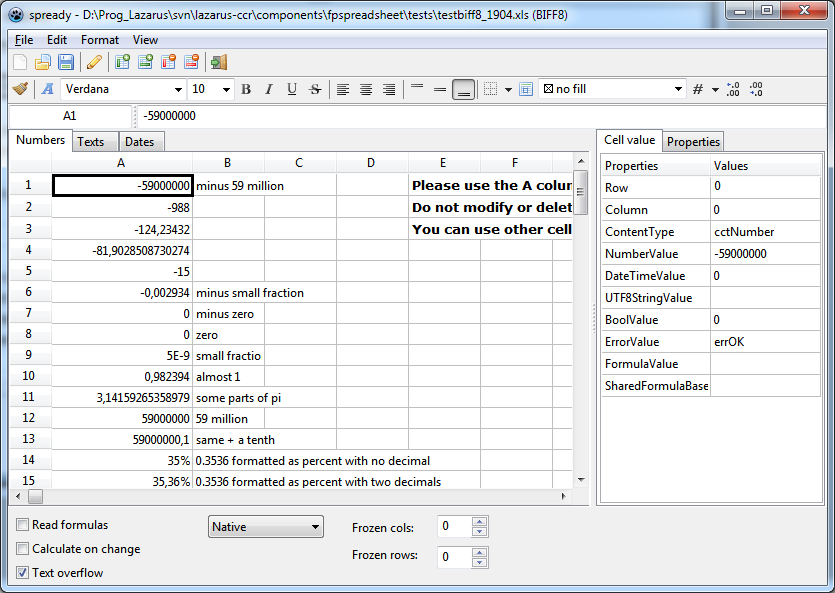](</File:fpsgrid.png>) | |
| 8 | + | ||
| 9 | + | ||
| 10 | + | ||
| 11 | + | ## Contents | |
| 12 | + | ||
| 13 | + | * 1 Documentación | |
| 14 | + | * 2 Documentación API | |
| 15 | + | * 2.1 Referencia de la API | |
| 16 | + | * 2.2 Conceptos básicos | |
| 17 | + | * 2.2.1 Workbook | |
| 18 | + | * 2.2.2 Worksheet | |
| 19 | + | * 2.2.3 Celda (cell) | |
| 20 | + | * 2.2.4 Columns and rows | |
| 21 | + | * 2.3 Formulas | |
| 22 | + | * 2.3.1 String formulas | |
| 23 | + | * 2.3.2 RPN formulas | |
| 24 | + | * 2.3.3 Shared formulas and array formulas | |
| 25 | + | * 2.3.4 List of built-in formulas | |
| 26 | + | * 2.3.5 Extending FPSpreadsheet by user-defined formulas | |
| 27 | + | * 2.4 Cell formatting | |
| 28 | + | * 2.4.1 Number and date/time formats | |
| 29 | + | * 2.4.1.1 Built-in number formats | |
| 30 | + | * 2.4.1.2 Number format strings | |
| 31 | + | * 2.4.2 Colores | |
| 32 | + | * 2.4.3 Cell background | |
| 33 | + | * 2.4.4 Cell borders | |
| 34 | + | * 2.4.5 Fonts | |
| 35 | + | * 2.4.6 Rich-text formatting | |
| 36 | + | * 2.4.7 Text rotation | |
| 37 | + | * 2.4.8 Text alignment | |
| 38 | + | * 2.4.9 Word wrap | |
| 39 | + | * 2.4.10 Merged cells | |
| 40 | + | * 2.5 Additional data | |
| 41 | + | * 2.5.1 Cell comments | |
| 42 | + | * 2.5.2 Hyperlinks | |
| 43 | + | * 2.5.3 Images | |
| 44 | + | * 2.6 Sorting | |
| 45 | + | * 2.7 Searching and replacing | |
| 46 | + | * 2.8 Column and row operations | |
| 47 | + | * 2.9 Page layout | |
| 48 | + | * 2.9.1 General | |
| 49 | + | * 2.9.2 Headers and footers | |
| 50 | + | * 2.10 Loading and saving | |
| 51 | + | * 2.10.1 Adding new file formats | |
| 52 | + | * 2.10.2 Stream selection | |
| 53 | + | * 2.10.3 Virtual mode | |
| 54 | + | * 2.11 Dataset export | |
| 55 | + | * 3 Visual controls for FPSpreadsheet | |
| 56 | + | * 4 Examples | |
| 57 | + | * 4.1 Units | |
| 58 | + | * 4.2 Excel 5 example | |
| 59 | + | * 4.3 Opening an existing spreadsheet | |
| 60 | + | * 4.4 Writing a spreadsheet to file based on extension | |
| 61 | + | * 4.5 Iterating through all Worksheets | |
| 62 | + | * 4.6 Iteration through cells | |
| 63 | + | * 4.7 Converting a database to a spreadsheet | |
| 64 | + | * 4.8 Converting a large database table to a spreadsheet using virtual mode | |
| 65 | + | * 4.9 Converting between two spreadsheet formats | |
| 66 | + | * 4.10 Reading and writing of CSV files | |
| 67 | + | * 4.11 Sample projects in the fpspreadsheet installation folder | |
| 68 | + | * 5 Download | |
| 69 | + | * 5.1 Subversion | |
| 70 | + | * 5.1.1 SVN change log | |
| 71 | + | * 5.1.2 Incompatible changes | |
| 72 | + | * 5.1.3 To do list | |
| 73 | + | * 5.2 Stable releases | |
| 74 | + | * 5.2.1 Version 1.6 | |
| 75 | + | * 5.2.1.1 Change log (with respect to v1.4.x) | |
| 76 | + | * 5.2.1.2 Incompatible changes | |
| 77 | + | * 5.2.2 Version 1.4 | |
| 78 | + | * 5.2.2.1 Change log (with respect to v1.2.x) | |
| 79 | + | * 5.2.2.2 Incompatible changes | |
| 80 | + | * 5.2.3 Wiki documentation of old releases | |
| 81 | + | * 6 Instalación | |
| 82 | + | * 6.1 Compiler options | |
| 83 | + | * 7 Soporte y reporte de errores | |
| 84 | + | * 8 Current Progress | |
| 85 | + | * 8.1 Progress by supported cell content | |
| 86 | + | * 8.2 Progreso de las opciones de formateado | |
| 87 | + | * 8.3 Progreso del las opciones del interface de usuario para workbook/worksheet | |
| 88 | + | * 9 Log de cambios | |
| 89 | + | * 10 Licencia | |
| 90 | + | * 11 Referencias | |
| 91 | + | * 11.1 Enlaces Wiki | |
| 92 | + | * 11.2 Enlaces externos | |
| 93 | + | ||
| 94 | + | ## Documentación | |
| 95 | + | ||
| 96 | + | Esta página wiki cubre las últimas versión de desarrollo/trunk de FPSpreadsheet disponibles vía subversin. Por favor mira la sección Stable releases para la documentación de la versión estable que puedes descargar. | |
| 97 | + | ||
| 98 | + | ## Documentación API | |
| 99 | + | ||
| 100 | + | ### Referencia de la API | |
| 101 | + | ||
| 102 | + | Hay disponible un fichero de ayuda en formato CHM dentro de la carpeta _docs_ al descomprimir el paquete descargado (e.g. \fpspreadsheet-1.6.2\docs). Si todavía no has instalado el paquete sigue: <http://lazarus-ccr.svn.sourceforge.net/viewvc/lazarus-ccr/components/fpspreadsheet/docs/fpspreadsheet-api.chm> para _fpspreadsheet-api.chm_. | |
| 103 | + | ||
| 104 | + | Hay también disponible un segundo fichero CHM de ayuda en la misma carpeta _docs_ , _fpspreadsheet-wiki.chm_ , que es una instantanea de las páginas wiki relativas a FPSpreadsheet. | |
| 105 | + | ||
| 106 | + | ### Conceptos básicos | |
| 107 | + | ||
| 108 | + | Las entidades más pequeñas en un spreadsheet son las **cells** (celdas), las cuales contienen datos. Las celdas (Cells) pueden contener varios tipos de datos, tales como cadenas, números, fechas, horas, valores booleanos o fórmulas. Adicionalmente, las celdas pueden contener información de formato, i.e. estilo de fuente, color de fondo, alineación de texto, etc. | |
| 109 | + | ||
| 110 | + | Las celdas están dispuestas en una estructura a modo de cuadrícula o rejilla llamada **worksheet** , or **spreadsheet** consistente en **rows** (filas) y **columns** (columnas). Cada celda tiene una dirección única dada por el índice de fila y columna. | |
| 111 | + | ||
| 112 | + | Las Worksheets (hojas del libro de trabajo) se ponen juntas para formar un **workbook** (libro de trabajo), el cual representa el documento de la aplicación spreadsheet (hoja de cálculo). El workbook almacena además la información de todos los worksheets, i.e. listado de fuentes, listados de formato de número, etc. | |
| 113 | + | ||
| 114 | + | FPSpreadsheet sigue la misma estructura - hay un `TCell`, un `TsWorksheet`, y un `TsWorkbook`. | |
| 115 | + | ||
| 116 | + | #### Workbook | |
| 117 | + | ||
| 118 | + | La clase `TsWorkbook` es la clase principal visible para el usuario. Provee métodos de lectura y escritura a ficheros. La estructura versátil de la librería provee acceso a una variedad de formatos de fichero populares tales como Excel _.xls_ o _.xlsx_ , así como de OpenOffice/LibreOffice _.ods_. | |
| 119 | + | ||
| 120 | + | El formato de fichero se especifica mediante el tipo `TsSpreadsheetFormat` definido en la unit `fpstypes` | |
| 121 | + | ``` | |
| 122 | + | type | |
| 123 | + | TsSpreadsheetFormat = (sfExcel2, sfExcel5, sfExcel8, sfExcelXML, sfOOXML, | |
| 124 | + | sfOpenDocument, sfCSV, sfHTML, sfWikiTable_Pipes, sfWikiTable_WikiMedia, sfUser); | |
| 125 | + | ``` | |
| 126 | + | ||
| 127 | + | Donde: | |
| 128 | + | ||
| 129 | + | * `sfExcel2, sfExcel5, sfExcel8` soporta versiones del formato binario xls utilizado por Excel ("BIFF" = "Binary Interchange File Format / Formato de Fichero de Intercambio Binario") siendo `sfExcel8` el más moderno. | |
| 130 | + | * `sfOOXLM` Corresponde al formato más actual xlsx introducido para Excel2007. | |
| 131 | + | * `sfExcelXML` es el formato xml que fué introducido por Microsoft con Office XP/2003. No muy popular. | |
| 132 | + | * `sfOpenDocument` es el formato spreadsheet utilizado por OpenOffice/LibreOffice. | |
| 133 | + | * `sfCSV` referido a ficheros de texto conteniendo valores delimitados por comas; es entendido por cualquier editor de texto y por todos los programas de hojas de cálculo (spreadsheet), pero no contienen información de formateado. | |
| 134 | + | * `sfHTML` denota el formato estandar HTML tal como se utiliza en visores web. | |
| 135 | + | * `sfWikiTable_Pipes` y `sfWikiTable_WikiMedia` es el formato utilizado por las tablas de los sitios web en formato wiki. | |
| 136 | + | * `sfUser` se necesita para registrar un formato definido por el usuario. No hay planes de implementar formatos de fichero antiguos tales como Excel3.0/4.0 o Lotus. Es posible sin embargo aportar tus propias clases de lectura y escritura para extender la funcionalidad de FPSpreadsheet - Ver la sección más abajo sobre Añadiendo nuevos formatos de fichero | |
| 137 | + | ||
| 138 | + | Cuando se aplica un fpspreadsheet la primera tarea es crear una instancia de **workbook** : | |
| 139 | + | ``` | |
| 140 | + | var | |
| 141 | + | MyWorkbook: TsWorkbook; | |
| 142 | + | begin | |
| 143 | + | MyWorkbook := TsWorkbook.Create; | |
| 144 | + | ... | |
| 145 | + | ``` | |
| 146 | + | ||
| 147 | + | La lectura de ficheros spreadsheets se realiza (entre otros) por los siguientes métodos de **workbook** : | |
| 148 | + | ||
| 149 | + | * `procedure ReadFromFile(AFileName: string):` | |
| 150 | + | Lee el fichero especificado y determina automáticamente su formato correcto. | |
| 151 | + | * `procedure ReadFromFile(AFileName: string; AFormat: TsSpreadsheetFormat):` | |
| 152 | + | Lee el fichero, pero asume que su formato viene especificado en `AFormat`. | |
| 153 | + | ||
| 154 | + | Se pueden utilizar los siguientes métodos de workbook para salvar a fichero: | |
| 155 | + | ||
| 156 | + | * `procedure WriteToFile(const AFileName: string; const AFormat: TsSpreadsheetFormat; const AOverwriteExisting: Boolean = False)`: | |
| 157 | + | Escribe un **workbook** al fichero dado utilizando el formato dado a spreadsheet. En caso de que el fichero ya exista entonces se sobreescribe automáticamente si `AOverwriteExisting` vale `true`: | |
| 158 | + | * `procedure WriteToFile(const AFileName: String; const AOverwriteExisting: Boolean = False)`: | |
| 159 | + | mismo, pero el formato de fichero se determina a partir de la extensión dada (en el caso de Excel con extensión xls y para la versión más reciente se utiliza `sfExcel8`). | |
| 160 | + | ||
| 161 | + | Después de llamar a estos métodos es conveniente revisar la propiedad `ErrorMsg` de workbook para verificar si existen mensajes de error o advertencias generadas durante el proceso de lectura o escritura. Esta propiedad retorna cadenas multi-línea por lo que se mostrarán mejor en un componente tipo memo; en caso de que el proceso de lectura o escritura se realice correctamente entonces nos retornará una cadena vacía. | |
| 162 | + | ||
| 163 | + | **Note:** FPSpreadsheets provee units especializadas para la lectura / escritura de cada formato de fichero. Estas unidades no se aplican automáticamente, deben ser añadidas explícitamente a la claúsula uses. FPSpreadsheet will complain about "unsupported file format" si no encuentra la lectura / escritura solicitada. Aquí se muestra un listado de los nombres de las units. | |
| 164 | + | ||
| 165 | + | * _xlsbiff2_ , _xlsbiff5_ y _xlsbiff8_ para el formato de fichero binario correspondiente a xls `sfExcel2`, `sfExcel5` y `sfExcel8`, respectivamente, | |
| 166 | + | * _xlsOOXML_ para el formato de fichero xlsx `sfOOXML` o Excel 2007 y posteriores, | |
| 167 | + | * _xlsXML_ para el formato de fichero xml de Excel XP/2003, | |
| 168 | + | * _fpsopendocument_ para el formato de fichero `sfOpenDocument` de OpenOffice/LibreOffice, | |
| 169 | + | * _fpsCSV_ para ficheros de texto con valores separados por comas (csv), | |
| 170 | + | * _fpsHTML_ para fichero HTML, | |
| 171 | + | * _wikitables_ para `sfWikiTable_Pipes` y `sfWikiTable_WikiMedia`, | |
| 172 | + | * o, simplemente añade _fpsallformats_ para tener soporte de lectura / escritura para todos los tipos de formato soportados. | |
| 173 | + | ||
| 174 | + | #### Worksheet | |
| 175 | + | ||
| 176 | + | El workbook contiene un listado de instancias `TsWorksheet`. Estas corresponde con las solapas (tabs) que puedes ver en Excel o en OpenOffice/LibreOffice. Cuando se realiza la lectura de un fichero spreadsheet (hoja de cálculo) entonces se crean automáticamente las hojas del libro (worksheets) de acuerdo al contenido del fichero. Cuando se crea una hoja de cálculo manualmente para guardarlo en un fichero, entonces hay que crear un worksheet añadiendolo al libro: | |
| 177 | + | ``` | |
| 178 | + | var | |
| 179 | + | MyWorkbook: TsWorkbook; | |
| 180 | + | MyWorksheet: TsWorksheet; | |
| 181 | + | begin | |
| 182 | + | MyWorkbook := TsWorkbook.Create; | |
| 183 | + | MyWorksheet := MyWorkbook.AddWorksheet('My_Table'); | |
| 184 | + | // 'My_Table' is the "name" of the worksheet | |
| 185 | + | ... | |
| 186 | + | ``` | |
| 187 | + | ||
| 188 | + | Already existing worksheets can be accessed by using the `TsWorkbook` methods | |
| 189 | + | ||
| 190 | + | * `function GetFirstWorksheet: TsWorksheet`: retrieves the first worksheet of the workbook. | |
| 191 | + | * `function GetWorksheetByIndex(AIndex: Cardinal): TsWorksheet`: returns the worksheet with the given index (starting at 0). | |
| 192 | + | * `function GetWorksheetByName(AName: String): TsWorksheet`: returns the worksheet with the given name which was used when the worksheet was added. | |
| 193 | + | ||
| 194 | + | La cuenta de los worksheets que contiene se puede consultar llamando a `GetWorksheetCount`. | |
| 195 | + | ||
| 196 | + | #### Celda (cell) | |
| 197 | + | ||
| 198 | + | El worksheet, finalmente, permite acceder a las celdas. Un worksheet creado de cero, como en el ejemplo mostrado, se encuentra vacío y no contiene celdas. Las celdas se añaden mediante la asignación de datos o atributos utilizando métodos `WriteXXXX` del worksheet. Como ya se ha mencionado, la celda "A1" pertenece a la fila 0, columna 0 (row 0, col 0). Debe tenerse en cuenta que el índice de fila y columna siempre se especifican en este orden, lo cual es "diferente de la convención de" `TStringGrid`. El siguiente ejemplo crea una celda en la dirección A1 y le asigna el número `1.0`. | |
| 199 | + | ||
| 200 | + | ||
| 201 | + | ||
| 202 | + | ``` | |
| 203 | + | var | |
| 204 | + | MyWorkbook: TsWorkbook; | |
| 205 | + | MyWorksheet: TsWorksheet; | |
| 206 | + | begin | |
| 207 | + | MyWorkbook := TsWorkbook.Create; | |
| 208 | + | MyWorksheet := MyWorkbook.AddWorksheet('Mi_Tabla'); | |
| 209 | + | MyWorksheet.WriteNumber(0, 0, 1.0); // "A1" tiene row=0 y col=0 | |
| 210 | + | ... | |
| 211 | + | ``` | |
| 212 | + | ||
| 213 | + | Además es posible acceder a las celdas directamente por medio de los métodos `FindCell(ARow, ACol)` o `GetCell(ARow, ACol)` del workbook. Ambas funciones existen además en la versión overloaded en la cual la dirección de la celda se puede pasar en notación Excel: `FindCell(ACellStr: String)` o `GetCell(ACellStr: String)`. Por favor, estar al tanto de que estas funciones retornan un `puntero` al dato de la celda (tipo `PCell`). ¡ No olvidarse de dereferenciar los punteros !. La diferencia entre `FindCell` y `GetCell` es que la modalidad uno retorna `nil`, si la celda no existe todavía, mientras que la última crea en este caso una celda vacía. | |
| 214 | + | ``` | |
| 215 | + | if MyWorksheet.FindCell('A1') = nil then | |
| 216 | + | WriteLn('Cell A1 does not exist.'); | |
| 217 | + | ``` | |
| 218 | + | ||
| 219 | + | This is the declaration of the cell's data type: | |
| 220 | + | ``` | |
| 221 | + | type | |
| 222 | + | TCell = record | |
| 223 | + | { Location of the cell } | |
| 224 | + | Worksheet: TsWorksheet; | |
| 225 | + | Col: Cardinal; // zero-based | |
| 226 | + | Row: Cardinal; // zero-based | |
| 227 | + | ||
| 228 | + | { Index of format record } | |
| 229 | + | FormatIndex: Integer; | |
| 230 | + | ||
| 231 | + | { Status flags } | |
| 232 | + | Flags: TsCellFlags; // (cfHasComment, cfMerged, cfHyperlink, ...) | |
| 233 | + | ||
| 234 | + | { Cell content } | |
| 235 | + | UTF8StringValue: String; // strings cannot be part of a variant record | |
| 236 | + | FormulaValue: String; | |
| 237 | + | case ContentType: TCellContentType of // must be at the end of the declaration | |
| 238 | + | cctEmpty : (); // has no data at all | |
| 239 | + | cctFormula : (); // UTF8StringValue is outside the variant record | |
| 240 | + | cctNumber : (Numbervalue: Double); | |
| 241 | + | cctUTF8String : (); // FormulaValue is outside the variant record | |
| 242 | + | cctDateTime : (DateTimevalue: TDateTime); | |
| 243 | + | cctBool : (BoolValue: boolean); | |
| 244 | + | cctError : (ErrorValue: TsErrorValue); | |
| 245 | + | end; | |
| 246 | + | PCell = ^TCell; | |
| 247 | + | ``` | |
| 248 | + | ||
| 249 | + | The field `ContentType` indicates which data type is stored in the cell: | |
| 250 | + | ``` | |
| 251 | + | type | |
| 252 | + | TCellContentType = (cctEmpty, cctFormula, cctNumber, cctUTF8String, cctDateTime, cctBool, cctError); | |
| 253 | + | ``` | |
| 254 | + | ||
| 255 | + | According to this field the corresponding data can be found in the fields | |
| 256 | + | ||
| 257 | + | * `FormulaValue` (for `ContentType=cctFormula`), | |
| 258 | + | * `NumberValue` (for `ContentType=cctNumber`), or | |
| 259 | + | * `UTF8StringValue` (for `ContentType=cctUTF8String`), or | |
| 260 | + | * `DateTimeValue` (for `ContentType=cctDateTime`), or | |
| 261 | + | * `BoolValue` (for `ContentType=cctBool`), i.e. `TRUE` or `FALSE`, or | |
| 262 | + | * `ErrorValue` (for `ContentType=cctError`). | |
| 263 | + | ||
| 264 | + | Due to usage of a variant record most of these values are overlapping, i.e. modification of `NumberValue` affects also the other values. Therefore, always respect the `ContentType` when accessing the `TCell` record directly (the worksheet methods discussed below consider this automatically). | |
| 265 | + | ||
| 266 | + |  **Nota:** After calculation of a formula or after reading of a file, the `ContentType` of the formula cell is converted to that of the result. Then the presence of a formula can only be detetected from the `FormulaValue` string (or call `HasFormula(cell)` of unit _fpsUtils_). | |
| 267 | + | ||
| 268 | + | Adding values to a cell is most easily accompished by using one of the `WriteXXXX` methods of the worksheet. The most important ones are: | |
| 269 | + | ``` | |
| 270 | + | type | |
| 271 | + | TsWorksheet = class | |
| 272 | + | ... | |
| 273 | + | { Writing of currency values } | |
| 274 | + | function WriteCurrency(ARow, ACol: Cardinal; AValue: Double; | |
| 275 | + | ANumFormat: TsNumberFormat = nfCurrency; ADecimals: Integer = 2; | |
| 276 | + | ACurrencySymbol: String = '?'; APosCurrFormat: Integer = -1; | |
| 277 | + | ANegCurrFormat: Integer = -1): PCell; overload; | |
| 278 | + | procedure WriteCurrency(ACell: PCell; AValue: Double; | |
| 279 | + | ANumFormat: TsNumberFormat = nfCurrency; ADecimals: Integer = -1; | |
| 280 | + | ACurrencySymbol: String = '?'; APosCurrFormat: Integer = -1; | |
| 281 | + | ANegCurrFormat: Integer = -1); overload; | |
| 282 | + | function WriteCurrency(ARow, ACol: Cardinal; AValue: Double; | |
| 283 | + | ANumFormat: TsNumberFormat; ANumFormatString: String): PCell; overload; | |
| 284 | + | procedure WriteCurrency(ACell: PCell; AValue: Double; | |
| 285 | + | ANumFormat: TsNumberFormat; ANumFormatString: String); overload; | |
| 286 | + | ||
| 287 | + | { Writing of date/time values } | |
| 288 | + | function WriteDateTime(ARow, ACol: Cardinal; AValue: TDateTime): PCell; overload; | |
| 289 | + | procedure WriteDateTime(ACell: PCell; AValue: TDateTime); overload; | |
| 290 | + | function WriteDateTime(ARow, ACol: Cardinal; AValue: TDateTime; | |
| 291 | + | ANumFormat: TsNumberFormat; ANumFormatStr: String = ''): PCell; overload; | |
| 292 | + | procedure WriteDateTime(ACell: PCell; AValue: TDateTime; | |
| 293 | + | ANumFormat: TsNumberFormat; ANumFormatStr: String = ''); overload; | |
| 294 | + | function WriteDateTime(ARow, ACol: Cardinal; AValue: TDateTime; | |
| 295 | + | ANumFormatStr: String): PCell; overload; | |
| 296 | + | procedure WriteDateTime(ACell: PCell; AValue: TDateTime; | |
| 297 | + | ANumFormatStr: String); overload; | |
| 298 | + | ||
| 299 | + | { Writing of number values } | |
| 300 | + | function WriteNumber(ARow, ACol: Cardinal; ANumber: double): PCell; overload; | |
| 301 | + | procedure WriteNumber(ACell: PCell; ANumber: Double); overload; | |
| 302 | + | function WriteNumber(ARow, ACol: Cardinal; ANumber: double; | |
| 303 | + | ANumFormat: TsNumberFormat; ADecimals: Byte = 2): PCell; overload; | |
| 304 | + | procedure WriteNumber(ACell: PCell; ANumber: Double; | |
| 305 | + | ANumFormat: TsNumberFormat; ADecimals: Byte = 2); overload; | |
| 306 | + | function WriteNumber(ARow, ACol: Cardinal; ANumber: double; | |
| 307 | + | ANumFormat: TsNumberFormat; ANumFormatString: String): PCell; overload; | |
| 308 | + | procedure WriteNumber(ACell: PCell; ANumber: Double; | |
| 309 | + | ANumFormat: TsNumberFormat; ANumFormatString: String); overload; | |
| 310 | + | ||
| 311 | + | { Writing of string values } | |
| 312 | + | function WriteText(ARow, ACol: Cardinal; AText: ansistring; | |
| 313 | + | ARichTextParams: TsRichTextParams = nil): PCell; overload; | |
| 314 | + | procedure WriteText(ACell: PCell; AText: String; | |
| 315 | + | ARichTextparams: TsRichTextParams = nil); overload; | |
| 316 | + | ||
| 317 | + | // the old string methods "WriteUTF8Text" are deprecated now | |
| 318 | + | ... | |
| 319 | + | ``` | |
| 320 | + | ||
| 321 | + | Some of these methods exist in overloaded versions in which cell formatting parameters can be added together with the cell value. Correspondingly to writing, there is also a number of `worksheet` methods for reading the cell values: | |
| 322 | + | ``` | |
| 323 | + | type | |
| 324 | + | TsWorksheet = class | |
| 325 | + | ... | |
| 326 | + | { Reading cell content as a string } | |
| 327 | + | function ReadAsText(ARow, ACol: Cardinal): string; overload; | |
| 328 | + | function ReadAsText(ACell: PCell): string; overload; | |
| 329 | + | function ReadAsText(ACell: PCell; AFormatSettings: TFormatSettings): string; overload; | |
| 330 | + | ||
| 331 | + | { Reading cell content as a number } | |
| 332 | + | function ReadAsNumber(ARow, ACol: Cardinal): Double; overload; | |
| 333 | + | function ReadAsNumber(ACell: PCell): Double; overload; | |
| 334 | + | function ReadNumericValue(ACell: PCell; out AValue: Double): Boolean; | |
| 335 | + | ||
| 336 | + | { Reading cell content as a date/time value } | |
| 337 | + | function ReadAsDateTime(ARow, ACol: Cardinal; out AResult: TDateTime): Boolean; overload; | |
| 338 | + | function ReadAsDateTime(ACell: PCell; out AResult: TDateTime): Boolean; overload; | |
| 339 | + | ... | |
| 340 | + | ``` | |
| 341 | + | ||
| 342 | + | `FormatIndex` is the index of the cell format record. It describes the formatting attributes of a cell. These records are collected by an internal list of the workbook and are defined like this: | |
| 343 | + | ``` | |
| 344 | + | type | |
| 345 | + | TsCellFormat = record | |
| 346 | + | FontIndex: Integer; | |
| 347 | + | TextRotation: TsTextRotation; | |
| 348 | + | HorAlignment: TsHorAlignment; | |
| 349 | + | VertAlignment: TsVertAlignment; | |
| 350 | + | Border: TsCellBorders; | |
| 351 | + | BorderStyles: TsCellBorderStyles; | |
| 352 | + | Background: TsFillPattern; | |
| 353 | + | NumberFormat: TsNumberFormat; | |
| 354 | + | NumberFormatStr: String; | |
| 355 | + | UsedFormattingFields: TsUsedFormattingFields; | |
| 356 | + | //uffTextRotation, uffFont, uffBold, uffBorder, uffBackground, uffNumberFormat, uffWordWrap, uffHorAlign, uffVertAlign | |
| 357 | + | end; | |
| 358 | + | ``` | |
| 359 | + | ||
| 360 | + | * `FontIndex`: text font by specifying the index in the workbook's font list | |
| 361 | + | * `TextRotation`: specifies whether the cell text is written horizontally or vertically | |
| 362 | + | * `HorAlignment`: left-aligned, horizontally centered, or right-aligned text | |
| 363 | + | * `VertAlignment`: top, bottom or vertically centered text | |
| 364 | + | * `Border`: a set of flags indicating that - if set - a border line is drawn at the left, top, right, or bottom cell edge. The lines are drawn according to the `BorderStyles` which define the linestyle and color of the border. | |
| 365 | + | * `Background`: a record defining the background fill of a cell (pattern style, pattern color, and background color - see chapter on cell background below). | |
| 366 | + | * `NumberFormat` and `NumberFormatStr` specify how number or date/time values are formatted (e.g., number of decimal places, long or short date format, etc.). | |
| 367 | + | * Only those format attributes for which a flag is set in the `UsedFormattingFields` are considered when formatting a cell. If a flag is not included then the corresponding attribute is ignored and replaced by its default value. | |
| 368 | + | ||
| 369 | + | For specifying a format for a given cell call the corresponding the worksheet method `WriteXXXX`, for retrieving a format call `ReadXXXX`. These methods usually get a pointer to the cell as a parameter, but there are also overloaded versions which accept the row and column index. Moreover, formatting styles can also be applied directly to the cell by using a record helper implemented in unit _fpsCell_. | |
| 370 | + | ||
| 371 | + | See cell formatting below for a more detailed description. | |
| 372 | + | ||
| 373 | + | #### Columns and rows | |
| 374 | + | ||
| 375 | + | Column and row records are added for each column and row having a non-default size: | |
| 376 | + | ``` | |
| 377 | + | type | |
| 378 | + | TCol = record | |
| 379 | + | Col: Cardinal; | |
| 380 | + | Width: Single; | |
| 381 | + | end; | |
| 382 | + | PCol = ^TCol; | |
| 383 | + | ||
| 384 | + | TRow = record | |
| 385 | + | Row: Cardinal; | |
| 386 | + | Height: Single; | |
| 387 | + | end; | |
| 388 | + | PRow = ^TRow; | |
| 389 | + | ``` | |
| 390 | + | ||
| 391 | + | **Column widths** and **row heights** can be specified in a variety of units defined by the type `TsSizeUnits = (suChars, suLines, suMillimeters, suCentimeters, suPoints, suInches)`. `suChars` refers to the count of `0` characters fitting into the column width - this is the way how Excel defines column widths. `suLines` is the number of lines fitting into the row height. Both units are based on the character size of the workbook's default font. The other units are conventional physical length units (1 cm = 10 mm, 1 inch = 25.4 mm = 72 pt). Fractional values are accepted. The workbook and worksheets store lengths internally in millimeters (`MyWorkbook.Units`). | |
| 392 | + | ||
| 393 | + | The Office applications usually adjust the row heights automatically according to the font or text rotation of the cell content, and empty rows have a predefined default row height. In order to overrun this and to set a predefined row height use the worksheet method `WriteRowHeight`. In the same way the width of columns can be set to a specific value by calling `WriteColWidth`. The height/width of a particular row/column can be retrieved by means of the methods `GetRowHeight` or `GetColHeight`. Note that these methods return the default row heights/column widths if there are no `TRow`/`TCol` records. | |
| 394 | + | ``` | |
| 395 | + | type TsWorksheet = class | |
| 396 | + | ... | |
| 397 | + | { Set row height } | |
| 398 | + | procedure WriteRowHeight(ARowIndex: Cardinal; AHeight: Single; AUnits: TsSizeUnits); | |
| 399 | + | { Set column width } | |
| 400 | + | procedure WriteColWidth(AColIndex: Cardinal; AWidth: Single; AUnits: TsSizeUnits); | |
| 401 | + | { Set default row height } | |
| 402 | + | procedure WriteDefaultRowHeight(AHeight: Single; AUnits: TsSizeUnits); | |
| 403 | + | {Set default cokumn width } | |
| 404 | + | procedure WriteDefaultColWidth(AWidth: Single; AUnits: TsSizeUnits); | |
| 405 | + | ||
| 406 | + | { Return row height } | |
| 407 | + | function GetRowHeight(ARowIndex: Cardinal; AUnits: TsSizeUnits): Single; | |
| 408 | + | { Return column width } | |
| 409 | + | function GetColWidth(AColIndex: Cardinal; AUnits: TsSizeUnits): Single; | |
| 410 | + | { Return default row height } | |
| 411 | + | function ReadDefaultRowHeight(AUnits: TsSizeUnits): Single; | |
| 412 | + | { Return default column width } | |
| 413 | + | function ReadDefaultColWidth(AUnits: TsSizeUnits): Single; | |
| 414 | + | ||
| 415 | + | property DefaultRowHeight: Single; | |
| 416 | + | property DefaultColWidht: Single; | |
| 417 | + | ``` | |
| 418 | + | ||
| 419 | + | There are also overloaded versions of these methods which do not require the `AUnits` parameter. In this case, row heights are defined in terms of line count, and column widthts are defined in terms of character count. Note that these variants are from previos versions and are deprecated now. | |
| 420 | + | ||
| 421 | + | The **default row height** and **default column width** is used unless a specific value is assigned to individual rows or columns. The property `DefaultRowHeight` expects the value to be in line count, and `DefaultColWidth` expects it to be in "0" character count. Other size units can be applied if using the corresponding WriteXXXX and ReadXXXX methods. | |
| 422 | + | ||
| 423 | + | ### Formulas | |
| 424 | + | ||
| 425 | + | Two kinds of formulas are supported by FPSpreadsheet: | |
| 426 | + | ||
| 427 | + | * **String formulas** : These are written in strings just like in the office applications, for example `"=ROUND(A1+B1,0)"`. They are used internally in the files of Open/LibreOffice and Excel _.xlsx_. | |
| 428 | + | * **RPN formulas** are used internally by the binary _.xls_ Excel files. They are written in Reverse Polish Notation (RPN), for example: `A1, B1, Add, 0, ROUND`. | |
| 429 | + | ||
| 430 | + | The current trunk version of FPSpreadsheet can convert between string and rpn formulas. Formulas in both types can be calculated. The cell record stores the string formula in the field `FormulaValue`. If a spreadsheet containing formulas is to be saved in a binary Excel format, the RPN formulas required are generated automatically. | |
| 431 | + | ||
| 432 | + | FPSpreadsheet supports the majority of the formulas provided by the common spreadsheet applications. However, when reading a file created by these applications, there is always a chance that an unsupported formula is contained. To avoid crashing of fpspreadsheet, reading of formulas is disabled by default; the cell displays only the result of the formula written by the Office application. To activate reading of formulas add the element `boReadformulas` to the workbook's `Options` before opening the file. | |
| 433 | + | ||
| 434 | + | Calculation of formulas is normally not needed when a file is written by FPSpreadsheet for opening in an Office application because that automatically calculates the formula results. If the same file, however, is openend by an application based on FPSpreadsheet the calculated cells would be empty because the formulas are not automatically calculated by default. To activate calculation of formulas before writing a spreadsheet to file you have to add the option `boCalcBeforeSaving` to the workbook's `Options`. | |
| 435 | + | ||
| 436 | + | If FPSpreadshet is used in an interactive application (such as the _spready_ demo found in the _examples_ folder of the FPSpreadsheet installation) it is desirable to calculate formulas automatically whenever formula strings or cell values are changed by the user. This can be achieved by the option `boAutoCalc` in the workbook's `Options`. | |
| 437 | + | ||
| 438 | + | The most general setting regarding formulas, therefore, is | |
| 439 | + | ``` | |
| 440 | + | MyWorkbook.Options := MyWorkbook.Options + [boReadFormulas, boCalcBeforeSaving, boAutoCalc]; | |
| 441 | + | ``` | |
| 442 | + | ||
| 443 | + | #### String formulas | |
| 444 | + | ||
| 445 | + | String formulas are written in the same way as in the Office applications. The worksheet method for creating a string formula is `WriteFormula`: | |
| 446 | + | ``` | |
| 447 | + | var | |
| 448 | + | MyWorksheet: TsWorksheet; | |
| 449 | + | //... | |
| 450 | + | MyWorksheet.WriteFormula(0, 1, '=ROUND(A1+B2+1.215,0)'); | |
| 451 | + | // By default, use dot as decimal and comma as list separator! | |
| 452 | + | ``` | |
| 453 | + | ||
| 454 | + | A few notes on **syntax** : | |
| 455 | + | ||
| 456 | + | * The leading `=` character which identifies formulas in the Office applications is not absolutely necessary here and can be dropped. The formula is stored in the cell record without it. | |
| 457 | + | * The case of the formula name is ignored. | |
| 458 | + | * Spaces can be added for better readability, but they will be lost when saving. | |
| 459 | + | * Strings must be enclosed in double quotes. | |
| 460 | + | * Normally, floating point numbers must be entered with a dot as decimal separator, and a comma must be used to separate function arguments. | |
| 461 | + | * Setting the optional parameter `ALocalized` of the worksheet methods `WriteFormula` to `TRUE`, however, allows to use localized decimal and list separators taken from the workbook's `FormatSettings` \- see _spready_ demo. | |
| 462 | + | ||
| 463 | + | ``` | |
| 464 | + | var | |
| 465 | + | MyWorksheet: TsWorksheet; | |
| 466 | + | //... | |
| 467 | + | MyWorksheet.WriteFormula(0, 1, '=ROUND(A1+B2+1,215;0)', true); | |
| 468 | + | // Because of the "true" the formula parser accepts the comma as decimal and the | |
| 469 | + | // semicolon as list separator if the workbook's FormatSettings are set up like this. | |
| 470 | + | ``` | |
| 471 | + | ||
| 472 | + | #### RPN formulas | |
| 473 | + | ||
| 474 | + | At application level, string formulas are mainly used, and RPN formulas are of little practical importance. Therefore, documentation of RPN formulas has been removed from this main FPSpreadsheet wiki and can be found in the article [[RPN Formulas in FPSpreadsheet|"RPN Formulas in FPSpreadsheet"]]. | |
| 475 | + | ||
| 476 | + | #### Shared formulas and array formulas | |
| 477 | + | ||
| 478 | + | * **Shared formulas** are only supported for reading (from Excel files). | |
| 479 | + | * **Array formulas** are not supported, currently. | |
| 480 | + | ||
| 481 | + | #### List of built-in formulas | |
| 482 | + | ||
| 483 | + | FPSpreadsheet supports more than 80 built-in formulas. In order not to blow up this wiki page too much documentation of these formulas has been moved to the [[FPSpreadsheet: List of formulas|separate document "List of formulas"]]. | |
| 484 | + | ||
| 485 | + | To learn more about the functions available, look at file _testcases_calcrpnformula.inc_ in the _tests_ folder of the FPSpreadsheet installation where every function is included with at least one sample. | |
| 486 | + | ||
| 487 | + | #### Extending FPSpreadsheet by user-defined formulas | |
| 488 | + | ||
| 489 | + | Although the built-in formulas cover most of the applications there may be a need to access a formula which is available in the Office application, but not in FPSpreadsheet. For this reason, the library supports a registration mechanism which allows to add user-defined functions to the spreadsheets. This can be done by calling the procedure `RegisterFunction` from the unit _fpsExprParser_ : | |
| 490 | + | ``` | |
| 491 | + | procedure RegisterFunction(const AName: ShortString; const AResultType: Char; | |
| 492 | + | const AParamTypes: String; const AExcelCode: Integer; ACallBack: TsExprFunctionCallBack); overload; | |
| 493 | + | ||
| 494 | + | procedure RegisterFunction(const AName: ShortString; const AResultType: Char; | |
| 495 | + | const AParamTypes: String; const AExcelCode: Integer; ACallBack: TsExprEventCallBack); overload; | |
| 496 | + | ``` | |
| 497 | + | ||
| 498 | + | * `AName` specifies the name under which the function will be called in the spreadsheet. It must match the name of the formula in the Office application. | |
| 499 | + | * `AResultType` is a character which identifies the data type of the function result: | |
| 500 | + | * `'F'` \- floating point number | |
| 501 | + | * `'I'` \- integer | |
| 502 | + | * `'D'` \- date/time | |
| 503 | + | * `'B'` \- boolean | |
| 504 | + | * `'S'` \- string | |
| 505 | + | * `AParamTypes` is a string in which each character identifies the data type of the corresponding argument. In addition to the list shown above the following symbols can be used: | |
| 506 | + | * `'?'` \- any type | |
| 507 | + | * `'+'` \- must be the last character. It means that the preceding character is repeated indefinitely. This allows for an arbitrary argument count. Please note, however, that Excel supports only up to 30 arguments. | |
| 508 | + | * lowercase `'f', 'i', 'd', 'b', 's'` indicate optional parameters of the type explained above. Of course, uppercase symbols cannot follow lower-case symbols. | |
| 509 | + | * `AExcelCode` is the identifier of the function in xls files. See "OpenOffice Documentation of the Microsoft Excel File Format", section 3.11, for a list. | |
| 510 | + | * `ACallback` identifies which function is called by FPSpreadsheet for calculation of the formula. It can either be a procedure or an event handler. | |
| 511 | + | ||
| 512 | + | ``` | |
| 513 | + | type | |
| 514 | + | TsExprFunctionCallBack = procedure (var Result: TsExpressionResult; const Args: TsExprParameterArray); | |
| 515 | + | TsExprFunctionEvent = procedure (var Result: TsExpressionResult; const Args: TsExprParameterArray) of object; | |
| 516 | + | ``` | |
| 517 | + | ||
| 518 | + | The `TsExpressionResult` is a variant record containing result or argument data of several types: | |
| 519 | + | ``` | |
| 520 | + | type | |
| 521 | + | TsResultType = (rtEmpty, rtBoolean, rtInteger, rtFloat, rtDateTime, rtString, | |
| 522 | + | rtCell, rtCellRange, rtError, rtAny); | |
| 523 | + | ||
| 524 | + | TsExpressionResult = record | |
| 525 | + | Worksheet : TsWorksheet; | |
| 526 | + | ResString : String; | |
| 527 | + | case ResultType : TsResultType of | |
| 528 | + | rtEmpty : (); | |
| 529 | + | rtError : (ResError : TsErrorValue); | |
| 530 | + | rtBoolean : (ResBoolean : Boolean); | |
| 531 | + | rtInteger : (ResInteger : Int64); | |
| 532 | + | rtFloat : (ResFloat : TsExprFloat); | |
| 533 | + | rtDateTime : (ResDateTime : TDatetime); | |
| 534 | + | rtCell : (ResRow, ResCol : Cardinal); | |
| 535 | + | rtCellRange : (ResCellRange : TsCellRange); | |
| 536 | + | rtString : (); | |
| 537 | + | end; | |
| 538 | + | ||
| 539 | + | TsExprParameterArray = array of TsExpressionResult; | |
| 540 | + | ``` | |
| 541 | + | ||
| 542 | + | As an example we show here the code for the `CONCATENATE()` formula which joins two or more strings: | |
| 543 | + | ``` | |
| 544 | + | const | |
| 545 | + | INT_EXCEL_SHEET_FUNC_CONCATENATE = 336; | |
| 546 | + | ... | |
| 547 | + | RegisterFunction('CONCATENATE', 'S', 'S+', INT_EXCEL_SHEET_FUNC_CONCATENATE, @fpsCONCATENATE); | |
| 548 | + | ||
| 549 | + | procedure fpsCONCATENATE(var Result: TsExpressionResult; const Args: TsExprParameterArray); | |
| 550 | + | // CONCATENATE( text1, text2, ... text_n ) | |
| 551 | + | var | |
| 552 | + | s: String; | |
| 553 | + | i: Integer; | |
| 554 | + | begin | |
| 555 | + | s := ''; | |
| 556 | + | for i:=0 to Length(Args)-1 do | |
| 557 | + | begin | |
| 558 | + | if Args[i].ResultType = rtError then | |
| 559 | + | begin | |
| 560 | + | Result := ErrorResult(Args[i].ResError); | |
| 561 | + | exit; | |
| 562 | + | end; | |
| 563 | + | s := s + ArgToString(Args[i]); | |
| 564 | + | // "ArgToString" simplifies getting the string from a TsExpressionResult as | |
| 565 | + | // a string may be contained in the ResString and in the ResCell fields. | |
| 566 | + | // There is such a function for each basic data type. | |
| 567 | + | end; | |
| 568 | + | Result := StringResult(s); | |
| 569 | + | // "StringResult" stores the string s in the ResString field of the | |
| 570 | + | // TsExpressionResult and sets the ResultType to rtString. | |
| 571 | + | // There is such a function for each basic data type. | |
| 572 | + | end; | |
| 573 | + | ``` | |
| 574 | + | ||
| 575 | + | There is a worked-out example (_demo_formula_func.pas_) in the folder _examples/other_ of the FPSpreadsheet installation. In this demo, four financial functions (`FV()`, `PV()`, `PMT()`, `RATE()`) are added to FPSpreadsheet. | |
| 576 | + | ||
| 577 | + | ### Cell formatting | |
| 578 | + | ||
| 579 | + | #### Number and date/time formats | |
| 580 | + | ||
| 581 | + | Numbers and date/time values can be displayed in a variety of formats. In FPSpreadsheet this can be achieved in two ways: | |
| 582 | + | ||
| 583 | + | * using **built-in number formats** by specifiying a value for the `NumberFormat` of the cell | |
| 584 | + | * using a custom **format string**. | |
| 585 | + | ||
| 586 | + | Number formats can be specified by these worksheet methods: | |
| 587 | + | ``` | |
| 588 | + | type | |
| 589 | + | TsWorksheet = class | |
| 590 | + | public | |
| 591 | + | // Set number formats alone | |
| 592 | + | function WriteNumberFormat(ARow, ACol: Cardinal; ANumberFormat: TsNumberFormat; | |
| 593 | + | const AFormatString: String = ''): PCell; overload; | |
| 594 | + | procedure WriteNumberFormat(ACell: PCell; ANumberFormat: TsNumberFormat; | |
| 595 | + | const AFormatString: String = ''); overload; | |
| 596 | + | ||
| 597 | + | function WriteNumberFormat(ARow, ACol: Cardinal; ANumFormat: TsNumberFormat; | |
| 598 | + | ADecimals: Integer; ACurrencySymbol: String = ''; APosCurrFormat: Integer = -1; | |
| 599 | + | ANegCurrFormat: Integer = -1): PCell; overload; | |
| 600 | + | procedure WriteNumberFormat(ACell: PCell; ANumFormat: TsNumberFormat; | |
| 601 | + | ADecimals: Integer; ACurrencySymbol: String = ''; | |
| 602 | + | APosCurrFormat: Integer = -1; ANegCurrFormat: Integer = -1); overload; | |
| 603 | + | ||
| 604 | + | function WriteFractionFormat(ARow, ACol: Cardinal; AMixedFraction: Boolean; | |
| 605 | + | ANumeratorDigits, ADenominatorDigits: Integer): PCell; overload; | |
| 606 | + | procedure WriteFractionFormat(ACell: PCell; AMixedFraction: Boolean; | |
| 607 | + | ANumeratorDigits, ADenominatorDigits: Integer); overload; | |
| 608 | + | ||
| 609 | + | // Set date/time formats alone | |
| 610 | + | function WriteDateTimeFormat(ARow, ACol: Cardinal; ANumberFormat: TsNumberFormat; | |
| 611 | + | const AFormatString: String = ''): PCell; overload; | |
| 612 | + | procedure WriteDateTimeFormat(ACell: PCell; ANumberFormat: TsNumberFormat; | |
| 613 | + | const AFormatString: String = ''); overload; | |
| 614 | + | ||
| 615 | + | ||
| 616 | + | // Set cell values and number formats in one call | |
| 617 | + | ||
| 618 | + | // number values | |
| 619 | + | function WriteNumber(ARow, ACol: Cardinal; ANumber: double; | |
| 620 | + | AFormat: TsNumberFormat = nfGeneral; ADecimals: Byte = 2; | |
| 621 | + | ACurrencySymbol: String = ''): PCell; overload; | |
| 622 | + | procedure WriteNumber(ACell: PCell; ANumber: Double; AFormat: TsNumberFormat = nfGeneral; | |
| 623 | + | ADecimals: Byte = 2; ACurrencySymbol: String = ''); overload; | |
| 624 | + | function WriteNumber(ARow, ACol: Cardinal; ANumber: double; | |
| 625 | + | AFormat: TsNumberFormat; AFormatString: String): PCell; overload; | |
| 626 | + | procedure WriteNumber(ACell: PCell; ANumber: Double; | |
| 627 | + | AFormat: TsNumberFormat; AFormatString: String); overload; | |
| 628 | + | ||
| 629 | + | // date/time values | |
| 630 | + | function WriteDateTime(ARow, ACol: Cardinal; AValue: TDateTime; | |
| 631 | + | AFormat: TsNumberFormat = nfShortDateTime; AFormatStr: String = ''): PCell; overload; | |
| 632 | + | procedure WriteDateTime(ACell: PCell; AValue: TDateTime; | |
| 633 | + | AFormat: TsNumberFormat = nfShortDateTime; AFormatStr: String = ''); overload; | |
| 634 | + | function WriteDateTime(ARow, ACol: Cardinal; AValue: TDateTime; | |
| 635 | + | AFormatStr: String): PCell; overload; | |
| 636 | + | procedure WriteDateTime(ACell: PCell; AValue: TDateTime; | |
| 637 | + | AFormatStr: String); overload; | |
| 638 | + | ||
| 639 | + | // currency values | |
| 640 | + | function WriteCurrency(ARow, ACol: Cardinal; AValue: Double; | |
| 641 | + | AFormat: TsNumberFormat = nfCurrency; ADecimals: Integer = 2; | |
| 642 | + | ACurrencySymbol: String = '?'; APosCurrFormat: Integer = -1; | |
| 643 | + | ANegCurrFormat: Integer = -1): PCell; overload; | |
| 644 | + | procedure WriteCurrency(ACell: PCell; AValue: Double; | |
| 645 | + | AFormat: TsNumberFormat = nfCurrency; ADecimals: Integer = -1; | |
| 646 | + | ACurrencySymbol: String = '?'; APosCurrFormat: Integer = -1; | |
| 647 | + | ANegCurrFormat: Integer = -1); overload; | |
| 648 | + | function WriteCurrency(ARow, ACol: Cardinal; AValue: Double; | |
| 649 | + | AFormat: TsNumberFormat; AFormatString: String): PCell; overload; | |
| 650 | + | procedure WriteCurrency(ACell: PCell; AValue: Double; | |
| 651 | + | AFormat: TsNumberFormat; AFormatString: String); overload; | |
| 652 | + | ... | |
| 653 | + | ``` | |
| 654 | + | ||
| 655 | + | ##### Built-in number formats | |
| 656 | + | ||
| 657 | + | Los **formatos internos** están definidos por la enumeración `TsNumberFormat`. A pesar de su nombre, los elementos cubren tanto valores de número como la fecha/hora: | |
| 658 | + | ``` | |
| 659 | + | type | |
| 660 | + | TsNumberFormat = ( | |
| 661 | + | // De propósito general para todos los números. | |
| 662 | + | nfGeneral, | |
| 663 | + | // numbers | |
| 664 | + | nfFixed, nfFixedTh, nfExp, nfPercentage, nfFraction, | |
| 665 | + | // currency | |
| 666 | + | nfCurrency, nfCurrencyRed, | |
| 667 | + | // dates and times | |
| 668 | + | nfShortDateTime, nfShortDate, nfLongDate, nfShortTime, nfLongTime, | |
| 669 | + | nfShortTimeAM, nfLongTimeAM, nfDayMonth, nfMonthYear, nfTimeInterval, | |
| 670 | + | // other (using format string) | |
| 671 | + | nfCustom); | |
| 672 | + | ``` | |
| 673 | + | ||
| 674 | + | * **nfGeneral** corresponde al formato por defecto mostrando tantos decimales como es posible (el número `3.141592654` would be unchanged.) | |
| 675 | + | * **nfFixed** limita los decimales. El número de posiciones decimales se tiene que especificar en la llamada a `WriteNumber`. Example: with 2 decimals, the number `3.141592654` becomes `3.14`. | |
| 676 | + | * **nfFixedTh** : similar a `nfFixed`, pero añade un separador de miles cuando el número se muestra como una cadena: The number `3.141592654` would remain like in the previous example because it is too small to show thousand separators. But the number `314159.2654` would become `314,159.26`, for 2 decimals. | |
| 677 | + | * **nfExp** selects exponential presentation, i.e. splits off the exponent. The parameter `ADecimals` in `WriteNumber` determines how many decimal places are used. (The number `3.141592654` becomes `3.14E+00` in case of two decimals). | |
| 678 | + | * **nfPercentage** displays the number as a percentage. This means that the value is multiplied by 100, and a percent sign is added. Again, specify in `ADecimals` how many decimal places are to be shown. (The number `3.141592654` is displayed as `314.92%`, in case of 2 decimals). | |
| 679 | + | * **nfFraction** presents a number as a fraction. Details (mixed fraction?, maximum digit count for numerator or denominator) for can be specified in the worksheet method `WriteFractionFormat`. | |
| 680 | + | * **nfCurrency** displays the number together with a currency symbol, and there are special rules how to display negative values (in brackets, or minus sign before or after the number). The FormatSettings of the workbook are used to define the currency sign and the way numbers are displayed (`FormatSettings.CurrencyString` for the currency symbol, `FormatSettings.CurrencyFormat` for positive, `FormatSettings.NegCurrFormat` for negative values). These settings can be overridden by specifying them in the call to `WriteCurrency` directly. | |
| 681 | + | * **nfCurrendyRed** like `nfCurrency`, in addition negative values are displayed in red. | |
| 682 | + | * **nfShortDateTime** presents the DateTimeValue of the cell in "short date/time format", i.e. days + two digit months + two digit year + hours + minutes, no seconds. The order of the date parts is taken from the workbook's `FormatSettings`. This applies also to the other date/time formats. | |
| 683 | + | * **nfShortDate** creates a date string showing day + two-digit month + two-digit year | |
| 684 | + | * **nfShortTime** creates a time string showing hours + minutes. | |
| 685 | + | * **nfLongTime** , similar, but includes seconds as well | |
| 686 | + | * **nfShortTimeAM** , similar to `nfShortTime`, but uses the AM/PM time format, i.e. hours go up to 12, and AM or PM is added to specify morning or evening/afternoon. | |
| 687 | + | * **nfLongTimeAM** , like `nfShortTimeAM`, but includes seconds | |
| 688 | + | * **nfTimeInterval** , like `nfLongTime`, but there can be more than 24 hours. The interval can also be expressed in minutes or seconds, if the format strings `[n]:ss`, or `[s]`, respectively, are used. | |
| 689 | + | * **nfCustom** allows to specify a dedicated formatting string. | |
| 690 | + | ||
| 691 | + | As already noted the workbook has a property `FormatSettings` which provides additional information to control the resulting formatting. This is essentially a copy of the `DefaultFormatSettings` declared in the _sysutils_ unit (the elements `LongDateFormat` and `ShortDateFormat` are slightly modified to better match the default settings in the main spreadsheet applications). The main purpose of the `FormatSettings` is to add a simple way of localization to the number formats. | |
| 692 | + | ||
| 693 | + | ##### Number format strings | |
| 694 | + | ||
| 695 | + | In addition to these pre-defined formats, more specialized formatting can be achieved by using the format constant `nfCustom` along with a dedicated **format string**. The format string is constructed according to Excel syntax which is close to the syntax of fpc's `FormatFloat` and `FormatDateTime` commands (accepted as well, see the online-help for these functions). | |
| 696 | + | ||
| 697 | + | Here is a basic list of the symbols used: | |
| 698 | + | ||
| 699 | + | Symbol | Meaning | Format string: Number --> Output string | |
| 700 | + | ---|---|--- | |
| 701 | + | `General` | Displays all decimal places of the number | `'General'`: | |
| 702 | + | 1.2345678 --> `'1.2345678'` | |
| 703 | + | `0` | Displays insignificant zeros if a number has less digits than there are zeros in the format. If used for decimal places then the number is rounded to as many decimal places as 0s are found. | `'000'`: 1 --> `'001'` | |
| 704 | + | `'0.0'`: 1 --> `'1.0'` | |
| 705 | + | `'0.0'`: 1.2345678 --> `'1.2'` | |
| 706 | + | `*` | Like "0" above, but does not display insignificant zeros. | `'0.*'`: 1 --> `'1.'` | |
| 707 | + | `'0.*'`: 1.2345678 --> `'1.2'` | |
| 708 | + | `?` | Like "0" above, but insignificant zeros are replaced by space characters. Good for aligning decimal points and fractions | `'??0'`: 1 --> `' 1'` | |
| 709 | + | `'0.0??'`: 1 --> `'1.0 '` | |
| 710 | + | `.` | Decimal separator; will be replaced by the value used in the `DecimalSeparator` of the workbook's `FormatSettings` | `'0.00'`: 8.9 --> `'8.90'` | |
| 711 | + | `,` | Thousand separator; will be replaced by the value used in the `ThousandSeparator` of the workbook's `FormatSettings`. If at the end of a number formatting sequence the displayed value is divided by 1000. | `'#,##0.00'`: 1200 --> `'1,200.00'` | |
| 712 | + | `'0.00,'`: 1200 --> `'1.20'` | |
| 713 | + | `E+`, `e+` | Displays a number in exponential format. The digits used for the exponent are defined by the number of zeros added the this symbol. The sign of the exponent is shown for positive and negative exponents. | `'0.00E+00'`: 1200 --> `1.20E+03` | |
| 714 | + | `E-`, `e-` | Displays a number in exponential format. The digits used for the exponent are defined by the number of zeros added the this symbol. The sign of the exponent is shown only for negative exponents. | `'0.00e-000'`: 1200 --> `1.20e003` | |
| 715 | + | `%` | Displays the number as a "percentage", i.e. the number is multiplied by 100 and a `%` sign is added. | `'0.0%'`: 0.75 --> `75.0%` | |
| 716 | + | `/` | This symbol has two meanings: if the cell represents a "number" then the slash indicates formatting as fraction, place holders for numerator and denominator must follow. If the cell represents a "date/time" then the slash indicates the date separator which will be replaced by the `DateSeparator` of the workbook's `FormatSettings` | `'#/#'`: 1.5 --> `'3/2'` | |
| 717 | + | `'# #/#'`: 1.5 --> `'1 1/2'` | |
| 718 | + | `'# #/16'`: 1.5 --> `'1 8/16'` | |
| 719 | + | also: see date/time examples below | |
| 720 | + | `:` | Separator between hours, minutes and seconds of a date/time value. Will be replaced by the `TimeSeparator` of the workbook's `FormatSettings`. | see examples below | |
| 721 | + | `yyyy` | Place holder for the year of a date/time value. The year is displayed as a four-digit number. | `'yyyy/mm/dd'`: | |
| 722 | + | Jan 3, 2012 --> `'2012-01-03'` | |
| 723 | + | In this example, the `DateSeparator` is a dash character (`-`). | |
| 724 | + | `yy` | Place holder for the year of a date/time value. The year is displayed as a two-digit number. | `'yy/mm/dd'`: | |
| 725 | + | Jan 3, 2012 --> `'12-01-03'` | |
| 726 | + | `m` | Place holder for the month of a date/time value. The month is shown as a number without extra digits. | |
| 727 | + | Please note that the `m` code can also be interpreted as the "minutes" of a time value (see below). | `'yyyy/m/dd'`: | |
| 728 | + | Jan 3, 2012 --> `'2012-1-03'` | |
| 729 | + | `mm` | Place holder for the month of a date/time value. The month is shown as a two-digit number, i.e. a leading zero is added for January to September. | |
| 730 | + | Please note that the `mm` code can also be interpreted as the "minutes" of a time value (see below). | `'yyyy/mm/dd'`: | |
| 731 | + | Jan 3, 2012 --> `'2012-01-03'` | |
| 732 | + | `mmm` | Place holder for the month of a date/time value. The month is displayed by its abbreviated name. | `'yyyy/mmm/dd'`: | |
| 733 | + | Jan 3, 2012 --> `'2012-Jan-03'` | |
| 734 | + | `mmmm` | Place holder for the month of a date/time value. The month is displayed by its full name. | |
| 735 | + | | `'yyyy/mmm/dd'`: | |
| 736 | + | Jan 3, 2012 --> `'2012-January-03'` | |
| 737 | + | `d` | Place holder for the day of a date/time value to be displayed as a number. The day is displayed as a simple number, without adding a leading zero. | `'yyyy/mm/d'`: | |
| 738 | + | Jan 3, 2012 --> `'2012-01-3'` | |
| 739 | + | `dd` | Place holder for the day of a date/time value to be displayed as a number. `dd` adds a leading zero to single-digit day numbers. | `'yyyy/mm/dd'`: | |
| 740 | + | Jan 3, 2012 --> `'2012-01-03'` | |
| 741 | + | `ddd` | Place holder for the day of a date/time value. The day is displayed as its abbreviated name. | `'dddd, yyyy/mm/ddd'`: | |
| 742 | + | Jan 03, 2012 --> `'Tue 2012-01-03'` | |
| 743 | + | `dddd` | Place holder for the day of a date/time value. The day is displayed as its full name. | `'dddd, yyyy/mmmm/dd'`: | |
| 744 | + | Jan 03, 2012 --> `'Tuesday 2012-01-03'` | |
| 745 | + | `h` | Place holder of the hour part of a date/time value. The hour is displayed as a simple number, without adding a leading zero. | `'h:mm'`: | |
| 746 | + | 0.25 --> `'6:00'` | |
| 747 | + | `hh` | Place holder of the hour part of a date/time value. The hour is displayed with a leading zero if the hour is less than 10. | `'hh:mm'`: | |
| 748 | + | 0.25 --> `'06:00'` | |
| 749 | + | `[hh]`, or `[h]` | Displays elapsed time such that the hour part can become greater than 23 | `'[h]:mm'`: | |
| 750 | + | 1.25 --> `'30:00'` | |
| 751 | + | `m` | Place holder of the minutes part of a date/time value. The minutes are shown as a simple number without adding a leading zero. Note that if the `m` codes are surrounded by date symbols (`y`, `d`) then they are interpreted as "month". | `'h:m'`: | |
| 752 | + | 0.25 --> `'6:0'` | |
| 753 | + | `mm` | Place holder of the minutes part of a date/time value. Single-digit minutes are displayed with a leading zero. Note that if the `mm` code is surrounded by date symbols (`y`, `d`) then it is interpreted as "month". | `'h:mm'`: | |
| 754 | + | 0.25 --> `'6:00'` | |
| 755 | + | `[mm]`, or `[m]` | Displays elapsed time such that the minute part can become greater than 59 | `'[mm]:ss'`: | |
| 756 | + | 1.25 --> `'1800:00'` | |
| 757 | + | `s` | Place holder of the seconds part of a date/time value. The seconds are displayed as a simple number, without adding a leading zero. | `'hh:mm:s'`: | |
| 758 | + | 0.25 --> `'06:00:0'` | |
| 759 | + | `ss` | Place holder of the seconds part of a date/time value. Single-digit seconds are displayed with a leading zero. | `'hh:mm:ss'`: | |
| 760 | + | 0.25 --> `'06:00:00'` | |
| 761 | + | `[ss]`, or `[s]` | Displays elapsed time such that the seconds part can become greater than 59 | `'[ss]'`: | |
| 762 | + | 1.25 --> `'108000'` | |
| 763 | + | `AM/PM`, `am/pm`, `A/P`, or `a/p` | Displays the time in the 12-hour format. | `'hh:mm:ss AM/PM'`: | |
| 764 | + | 0.25 --> `'6:00:00 AM'` | |
| 765 | + | `"` | The text enclosed by quotation marks is inserted into the formatted strings literally. | `'yyyy"/"mm"/"dd'`: | |
| 766 | + | Jan 3, 2012 --> `'2012/01/03'` (i.e. the `/` is not replaced by the `DateSeparator` of the workbook). | |
| 767 | + | `\` | The next character of the format string appears in the result string literally. The `\` itself does not show up. | `'yyyy\/mm\/dd'`: | |
| 768 | + | Jan 3, 2012 --> `'2012/01/03'` | |
| 769 | + | `;` | A format string can contain up to three sections separated by the semicolon. The first section is used for positive numbers, the second section for negative numbers, and the third section for zero numbers. If the third section is missing then a zero value is formatted as specified in the first section. If the second section is missing as well then all values are formatted according to the first section. | `'"#,##0"$"';-#,##0"$";"-"'`: | |
| 770 | + | 1200 --> `'1,200$'` | |
| 771 | + | -1200 --> `'1,200$'` | |
| 772 | + | 0 --> `'-'` | |
| 773 | + | `(`, and `)` | Sometimes used for currency values to indicate negative numbers, instead of minus sign | `'#,##0"$";(#,##0)"$"'`: | |
| 774 | + | -1200 --> `'(1200)$'` | |
| 775 | + | `[red]` | The formatted string is displayed in the specified color. Instead of `[red]`, you can use accordingly `[black]`, `[white]`, `[green]`, `[blue]`, `[magenta]`, `[yellow]`, or `[cyan]`. Often used to highlight negative currency values. | `'"$" #,##0.00;[red]("$" #,##0.00)'`: | |
| 776 | + | -1200 --> '`($ 1200.00)`' | |
| 777 | + | ||
| 778 | + | #### Colores | |
| 779 | + | ||
| 780 | + | FPSpreadsheet soporta colores de texto, fondo de celda y bordes de celda. En la unit _fpstypes_ se declaran los colores EGA básicos como constantes. | |
| 781 | + | ||
| 782 | + | [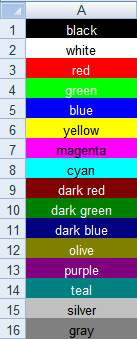](</File:DefaultPalette.png> "Predefined colors") | |
| 783 | + | ``` | |
| 784 | + | type | |
| 785 | + | TsColor = DWORD; // ts = text style color | |
| 786 | + | ||
| 787 | + | const | |
| 788 | + | scBlack = $00000000; // Negro | |
| 789 | + | scWhite = $00FFFFFF; // Blanco | |
| 790 | + | scRed = $000000FF; // Rojo | |
| 791 | + | scGreen = $0000FF00; // Verde | |
| 792 | + | scBlue = $00FF0000; // Azul | |
| 793 | + | scYellow = $0000FFFF; // Amarillo | |
| 794 | + | scMagenta = $00FF00FF; // Magenta | |
| 795 | + | scCyan = $00FFFF00; // Cian | |
| 796 | + | scDarkRed = $00000080; // Rojo oscuro | |
| 797 | + | scDarkGreen = $00008000; // Verde oscuro | |
| 798 | + | scDarkBlue = $00800000; // Azul oscuro | |
| 799 | + | scOlive = $00008080; // Oliva | |
| 800 | + | scPurple = $00800080; // Púrpura | |
| 801 | + | scTeal = $00808000; // Verde azulado | |
| 802 | + | scSilver = $00C0C0C0; // Plateado | |
| 803 | + | scGray = $00808080; // Gris | |
| 804 | + | scGrey = scGray; // redefine to allow different spelling | |
| 805 | + | ||
| 806 | + | // Identificador para color no definido | |
| 807 | + | scNotDefined = $40000000; | |
| 808 | + | ||
| 809 | + | // Identifier for transparent color | |
| 810 | + | scTransparent = $20000000; | |
| 811 | + | ``` | |
| 812 | + | ||
| 813 | + | El `TsColor` representa el **valor rgb (red,green,blue)** de un color, un solo byte utilizado para el rojo (red), otro para el verde (green), y otro para el azul(blue). El número resultante tiene notación little endian, i.e. el valor rojo va primero en memoria: `$00BBGGRR`. (Esto es directamente compatible con los valores de color tales como están definidos en la unit _graphics_). | |
| 814 | + | ||
| 815 | + | The high order byte is usually zero but is used internally to identify special color values, such as for undefined or transparent colors. | |
| 816 | + | ||
| 817 | + |  **Nota:** In older versions of the library colors were defined as indexes into a color palette. **THIS IS NO LONGER WORKING.** | |
| 818 | + | ||
| 819 | + | Unit _fpsutils_ contains some useful functions for **modification of colors** : | |
| 820 | + | ||
| 821 | + | * `function GetColorName(AColor: TsColor): String;` | |
| 822 | + | returns the name of the colors defined above, or a string showing the rgb components for other colors. | |
| 823 | + | * `function HighContrastColor(AColor: TsColor): TsColor;` | |
| 824 | + | returns `scBlack` for a "bright", `scWhite` for a "dark" input color. | |
| 825 | + | * `function TintedColor(AColor: TsColor; tint: Double): TsColor;` | |
| 826 | + | brightens or darkens a color by applying a factor `tint = -1..+1`, where `-1` means "100% darken", `+1` means "100% brighten", and `0` means "no change". The hue of the color is preserved. | |
| 827 | + | ||
| 828 | + | #### Cell background | |
| 829 | + | ||
| 830 | + | The cell background can be filled by predefined patterns which are identified by the record `TsFillPattern`: | |
| 831 | + | ``` | |
| 832 | + | type | |
| 833 | + | TsFillPattern = record | |
| 834 | + | Style: TsFillStyle; // fill style pattern as defined below | |
| 835 | + | FgColor: TsColor; // forground color of the fill pattern | |
| 836 | + | BgColor: TsColor; // background color of the fill pattern | |
| 837 | + | end; | |
| 838 | + | ||
| 839 | + | TsFillStyle = (fsNoFill, fsSolidFill, fsGray75, fsGray50, fsGray25, fsGray12, fsGray6, | |
| 840 | + | fsStripeHor, fsStripeVert, fsStripeDiagUp, fsStripeDiagDown, | |
| 841 | + | fsThinStripeHor, fsThinStripeVert, fsThinStripeDiagUp, fsThinStripeDiagDown, | |
| 842 | + | fsHatchDiag, fsThinHatchDiag, fsThickHatchDiag, fsThinHatchHor); | |
| 843 | + | ``` | |
| 844 | + | ||
| 845 | + | * Use the worksheet method `WriteBackground` to assign a fill pattern to a specific cell. Besides the cell address, this method requires the type of the fill pattern (`TsFillStyle`), and the foreground and background colors as specified by their `TsColor` values. | |
| 846 | + | * The fill pattern of a particular cell can be retrieved by calling the workbook method `ReadBackground`. | |
| 847 | + | * The simplified method `WriteBackgroundColor` can be used to achieve a uniform background color. | |
| 848 | + | * **Limitations:** | |
| 849 | + | * OpenDocument files support only uniform fills. The background color is a mixture of the foreground and background rgb components in a ratio defined by the fill pattern. | |
| 850 | + | * BIFF2 files support only a 12.5% black-and-white shaded pattern. | |
| 851 | + | ||
| 852 | + | ``` | |
| 853 | + | type | |
| 854 | + | TsWorksheet = class | |
| 855 | + | public | |
| 856 | + | function WriteBackground(ARow, ACol: Cardinal; AStyle: TsFillStyle; APatternColor, ABackgroundColor: TsColor): PCell; overload; | |
| 857 | + | procedure WriteBackground(ACell: PCell; AStyle: TsFillStyle; APatternColor, ABackgroundColor: TsColor); overload; | |
| 858 | + | ||
| 859 | + | function WriteBackgroundColor(ARow, ACol: Cardinal; AColor: TsColor): PCell; overload; | |
| 860 | + | procedure WriteBackgroundColor(ACell: PCell; AColor: TsColor); overload; | |
| 861 | + | ||
| 862 | + | function ReadBackground(ACell: PCell): TsFillPattern; | |
| 863 | + | function ReadBackgroundColor(ACell: PCell): TsColor; overload; | |
| 864 | + | // ... | |
| 865 | + | end; | |
| 866 | + | ||
| 867 | + | var | |
| 868 | + | cell: PCell; | |
| 869 | + | ... | |
| 870 | + | // Example 1: Assign a pattern of thin, horizontal, yellow stripes on a blue background to empty cell A1 (row 0, column 0) | |
| 871 | + | MyWorksheet.WriteBackground(0, 0, fsThinStripeHor, scYellow, scBlue); | |
| 872 | + | ||
| 873 | + | // Example 2: Uniform gray background color of cell B1 (row 0, column 1) containing the number 3.14 | |
| 874 | + | cell := MyWorksheet.WriteNumber(0, 1, 3.14); | |
| 875 | + | MyWorksheet.WriteBackgroundColor(cell, clSilver); | |
| 876 | + | ``` | |
| 877 | + | ||
| 878 | + | #### Cell borders | |
| 879 | + | ||
| 880 | + | Cells can be emphasized by drawing border lines along their edges or diagonal lines. There are four borders plus two diagonals enumerated in the data type `TsCellBorder`: | |
| 881 | + | ``` | |
| 882 | + | type | |
| 883 | + | TsCellBorder = (cbNorth, cbWest, cbEast, cbSouth, dbDiagUp, dbDiagDown); | |
| 884 | + | TsCellBorders = set of TsCellBorder; | |
| 885 | + | ``` | |
| 886 | + | ||
| 887 | + | In order to show a border line add the corresponding border to the cell's set `Borders` (type `TsCellBorders`, see above). In this way, each cell edge can be handled separately. Use the worksheet method `WriteBorders` for this purpose. This example adds top and bottom borders to the edges A1 and B1: | |
| 888 | + | ``` | |
| 889 | + | MyWorksheet.WriteBorders(0, 0, [cbNorth, cbSouth]); // A1: row 0, column 0 | |
| 890 | + | MyWorksheet.WriteBorders(0, 1, [cbNorth, cbSourth]); // B1: row 0, column 1 | |
| 891 | + | ``` | |
| 892 | + | ||
| 893 | + | Lines usually are drawn as thin, solid, black lines. But it is possible to modify **line style** and **color** of each line. For this purpose, the cell provides an array of `TsCellBorderStyle` records: | |
| 894 | + | ``` | |
| 895 | + | type | |
| 896 | + | TsLineStyle = (lsThin, lsMedium, lsDashed, lsDotted, lsThick, lsDouble, lsHair, | |
| 897 | + | lsMediumDash, lsDashDot, lsMediumDashDot, lsDashDotDot, lsMediumDashDotDot, lsSlantDashDot); | |
| 898 | + | ||
| 899 | + | TsCellBorderStyle = record | |
| 900 | + | LineStyle: TsLineStyle; | |
| 901 | + | Color: TsColor; | |
| 902 | + | end; | |
| 903 | + | ||
| 904 | + | TsCellBorderStyles = array[TsCellBorder] of TsCellBorderStyle; | |
| 905 | + | ||
| 906 | + | TsWorksheet = class | |
| 907 | + | public | |
| 908 | + | function WriteBorderStyle(ARow, ACol: Cardinal; ABorder: TsCellBorder; AStyle: TsCellBorderStyle): PCell; overload; | |
| 909 | + | procedure WriteBorderStyle(ACell: PCell; ABorder: TsCellBorder; AStyle: TsCellBorderStyle); overload; | |
| 910 | + | ||
| 911 | + | function WriteBorderStyle(ARow, ACol: Cardinal; ABorder: TsCellBorder; ALineStyle: TsLineStyle; AColor: TsColor): PCell; overload; | |
| 912 | + | procedure WriteBorderStyle(ACell: PCell; ABorder: TsCellBorder; ALineStyle: TsLineStyle; AColor: TsColor); overload; | |
| 913 | + | ||
| 914 | + | function WriteBorderColor(ARow, ACol: Cardinal; ABorder: TsCellBorder; AColor: TsColor): PCell; overload; | |
| 915 | + | proceure WriteBorderColor(ACell: PCell; ABorder: TsCellBorder; AColor: TsColor): PCell; overload; | |
| 916 | + | ||
| 917 | + | function WriteBorderLineStyle(ARow, ACol: Cardinal; ABorder: TsCellBorder; ALineStyle: TsLineStyle): PCell; overload; | |
| 918 | + | procedure WriteBorderLineStyle(ACell: PCell; ABorder: TsCellBorder; ALineStyle: TsLineStyle): PCell; overload; | |
| 919 | + | ||
| 920 | + | function WriteBorderStyles(ARow, ACol: Cardinal; const AStyles: TsCellBorderStyles): PCell; overload; | |
| 921 | + | procedure WriteBorderStyles(ACell: PCell; const AStyles: TsCellBorderStyles); overload; | |
| 922 | + | ||
| 923 | + | function WriteBorders(ARow, ACol: Cardinal; ABorders: TsCellBorders): PCell; overload | |
| 924 | + | procedure WriteBorders(ACell: PCell; ABorders: TsCellBorders); overload | |
| 925 | + | ||
| 926 | + | function ReadCellBorders(ACell: PCell): TsCellBorders; | |
| 927 | + | function ReadCellBorderStyle(ACell: PCell; ABorder: TsCellBorder): TsCellBorderStyle; | |
| 928 | + | function ReadCellBorderStyles(ACell: PCell): TsCellBorderStyles; | |
| 929 | + | ... | |
| 930 | + | end; | |
| 931 | + | ``` | |
| 932 | + | ||
| 933 | + | The style of a given cell border can be specified by the following methods provided by the worksheet: | |
| 934 | + | ||
| 935 | + | * **WriteBorderStyle** assigns a cell border style record to one border of the cell. There are two overloaded versions of this method: one takes an entire `TsCellBorderStyle` record, the other one takes the individual record elements. | |
| 936 | + | * **WriteBorderColor** changes the color of a given border without affecting the line style of this border. | |
| 937 | + | * **WriteBorderLineStyle** sets the line style of the border only, but leaves the color unchanged. | |
| 938 | + | * **WriteBorderStyles** sets the border style of all borders of a given cell at once. Useful for copying border styles from one cell to other cells. | |
| 939 | + | ||
| 940 | + | This example adds a thin black border to the top, and a thick blue border to the bottom of cells A1 and B1: | |
| 941 | + | ``` | |
| 942 | + | var | |
| 943 | + | cellA1, cellB1: PCell; | |
| 944 | + | ... | |
| 945 | + | cellA1 := MyWorksheet.WriteBorders(0, 0, [cbNorth, cbSouth]); // cell A1: row 0, column 0 | |
| 946 | + | MyWorksheet.WriteBorderStyle(cellA1, cbNorth, lsThin, scBlack); | |
| 947 | + | MyWorksheet.WriteBorderStyle(cellA1, cbSouth, lsThick, scBlue); | |
| 948 | + | ||
| 949 | + | cellB1 := MyWorksheet.WriteBorders(0, 1, [cbNorth, cbSouth]); // cell B1: row 0, column 1 | |
| 950 | + | MyWorksheet.WriteBorderStyles(cellB1, cellA1^.BorderStyles); // copy all border styles from cell A1 to B1 | |
| 951 | + | ``` | |
| 952 | + | ||
| 953 | + |  **Nota:** Diagonal lines are not supported by _sfExcel2_ and _sfExcel5_ \- they are just omitted. _sfExcel8_ and _sfOOXML_ use the same linestyle and color for both diagonals; when writing the border style of the diagonal-up line is assumed to be valid also for the diagonal-down line. Some writers do not support all the line styles of the `TsLineStyle` enumeration. In this case, appropriate replacement line styles are used. | |
| 954 | + | ||
| 955 | + | #### Fonts | |
| 956 | + | ||
| 957 | + | The cell text can displayed in various fonts. For this purpose, the workbook provides a list of `TsFont` items: | |
| 958 | + | ``` | |
| 959 | + | type | |
| 960 | + | TsFont = class | |
| 961 | + | FontName: String; | |
| 962 | + | Size: Single; | |
| 963 | + | Style: TsFontStyles; | |
| 964 | + | Color: TsColor; | |
| 965 | + | Position: TsFontPosition; | |
| 966 | + | end; | |
| 967 | + | ``` | |
| 968 | + | ||
| 969 | + | * The **FontName** corresponds to the name of the font as used by the operational system. In Windows, an example would be "Times New Roman". | |
| 970 | + | * The **FontSize** is given in "points", i.e. units 1/72 inch which are commonly used in Office applications. | |
| 971 | + | * The **FontStyle** is a set of the items `fssBold`, `fssItalic`, `fssStrikeout`, and `fssUnderline` which form the enumeration type `TsFontStyle`. The "normal" font corresponds to an empty set. | |
| 972 | + | * The **Color** determines the foreground color of the text characters given in rgb presentation as discussed above. | |
| 973 | + | * The **Position** is either `fpNormal`, `fpSuperscript`, or `fpSubscript` and indicates whether the font size should be decreased by about 1/3 and the characters should be displaced up (superscript) or down (subscript). | |
| 974 | + | ||
| 975 | + | Every cell is provided with an **index into the font list**. | |
| 976 | + | ||
| 977 | + | In order to assign a particular font to a cell, use one of the following methods of `TsSpreadsheet`: | |
| 978 | + | ``` | |
| 979 | + | type | |
| 980 | + | TsSpreadsheet = class | |
| 981 | + | public | |
| 982 | + | function WriteFont(ARow, ACol: Cardinal; const AFontName: String; | |
| 983 | + | AFontSize: Single; AFontStyle: TsFontStyles; AFontColor: TsColor): Integer; overload; | |
| 984 | + | procedure WriteFont(ARow, ACol: Cardinal; AFontIndex: Integer); overload; | |
| 985 | + | function WriteFontColor(ARow, ACol: Cardinal; AFontColor: TsColor): Integer; | |
| 986 | + | function WriteFontSize(ARow, ACol: Cardinal; ASize: Integer): Integer; | |
| 987 | + | function WriteFontStyle(ARow, ACol: Cardinal; AStyle: TsFontStyles): Integer; | |
| 988 | + | // plus: overloaded versions accepting a pointer to a cell record instead of the row and column index as parameter | |
| 989 | + | // ... | |
| 990 | + | end; | |
| 991 | + | ``` | |
| 992 | + | ||
| 993 | + | * **WriteFont** assigns a font to the cell. If the font does not yet exist in the font list a new entry is created. The function returns the index of the font in the font list. In addition, there is an overloaded version which only takes the font index as a parameter. | |
| 994 | + | * **WriteFontColor** replaces the color of the font that is currently assigned to the cell by a new one. Again, a new font list item is created if the font with the new color does not yet exist. The function returns the index of the font in the list. | |
| 995 | + | * **WriteFontSize** replaces the size of the currently used font of the cell. | |
| 996 | + | * **WriteFontStyle** replaces the style (normal, bold, italic, etc.) of the currently used cell font. | |
| 997 | + | ||
| 998 | + | The workbook's font list contains at least one item which is the **default font** for cells with unmodified fonts. By default, this is 10-point "Arial". Use the workbook method `SetDefaultFont` to assign a different font to the first list item. | |
| 999 | + | ||
| 1000 | + | The font at a given index of the font list can be looked up by calling the workbook function `GetFont`. The count of available fonts is returned by `GetFontCount`. | |
| 1001 | + | ||
| 1002 | + | Here is an **example** which decreases the size of all 10-point "Arial" fonts to 9-point: | |
| 1003 | + | ``` | |
| 1004 | + | var | |
| 1005 | + | i: Integer; | |
| 1006 | + | font: TsFont; | |
| 1007 | + | begin | |
| 1008 | + | for i := 0 to MyWorkbook.GetFontCount-1 do | |
| 1009 | + | begin | |
| 1010 | + | font := MyWorkbook.GetFont(i); | |
| 1011 | + | if (font.FontName = 'Arial') and (font.Size = 10.0) then | |
| 1012 | + | font.Size := 9.0; | |
| 1013 | + | end; | |
| 1014 | + | end; | |
| 1015 | + | ``` | |
| 1016 | + | ||
| 1017 | + | #### Rich-text formatting | |
| 1018 | + | ||
| 1019 | + | In addition to using a specific font for each cell it is also possible to specify particular font attributes for individual characters or groups of characters in each cell text. Following the Excel notation, we call this feature **Rich-text formatting** (although is has nothing in common with the "rich-text" file format). | |
| 1020 | + | ||
| 1021 | + | For this purpose, unit _fpstypes_ declares the type `TsRichTextParams` which is an array of `TsRichTextParam` records: | |
| 1022 | + | ``` | |
| 1023 | + | type | |
| 1024 | + | TsRichTextParam = record | |
| 1025 | + | FontIndex: Integer; | |
| 1026 | + | FirstIndex: Integer; | |
| 1027 | + | end; | |
| 1028 | + | ||
| 1029 | + | TsRichTextParams = array of TsRichTextParam; | |
| 1030 | + | ``` | |
| 1031 | + | ||
| 1032 | + | `FontIndex` refers to the index of the font in the workbook's FontList to be used for formatting of the characters beginning at the index `FirstIndex`. Being a string character index the `FirstIndex` is 1-based. | |
| 1033 | + | ||
| 1034 | + | There are two ways to add "rich-text" formatting to a cell text: | |
| 1035 | + | ||
| 1036 | + | * Embed corresponding HTML format codes into the cell text. This can be done using the method `WriteTextAsHTML` of the worksheet. In order to add the text "Area (m2)" to cell A1, pass the following HTML-coded string to this function | |
| 1037 | + | ||
| 1038 | + | ``` | |
| 1039 | + | MyWorksheet.WriteTextAsHTML(0, 0, 'Area (m<sup>2</sup>'); | |
| 1040 | + | ``` | |
| 1041 | + | ||
| 1042 | + | * Alternatively, the standard text writing method, `WriteText` can be called with an additional parameter specifiying the rich-text formatting parameters to be used directly: | |
| 1043 | + | ||
| 1044 | + | ``` | |
| 1045 | + | var | |
| 1046 | + | richTextParams: TsRichTextParams; | |
| 1047 | + | fnt: TsFont; | |
| 1048 | + | begin | |
| 1049 | + | SetLength(rtp, 2); | |
| 1050 | + | fnt := MyWorksheet.ReadCellFont(0, 0); | |
| 1051 | + | richTextParams[0].FirstIndex := 8; // The superscript groups begins with "2" which is the (1-based) character #8 of the cell text. | |
| 1052 | + | richTextParams[0].FontIndex := MyWorkbook.AddFont(fnt.FontName, fnt.Size, fnt.Style, fnt.Color, fpSuperscript); | |
| 1053 | + | richTextParams[1].FirstIndex := 9; // Normal font again beginning with character #9. | |
| 1054 | + | richTextParams[1].FontIndex := MyWorksheet.ReadCellFontIndex(0, 0); | |
| 1055 | + | MyWorksheet.WriteUTF8Text(0, 0, 'Area (m2)', richTextParams); | |
| 1056 | + | end; | |
| 1057 | + | ``` | |
| 1058 | + | ||
| 1059 | + | Use the worksheet method `DeleteRichTextParams` to remove rich-text formatting from a previously formatted cell. | |
| 1060 | + | ||
| 1061 | + |  **Nota:** If the cell is supposed to have a font different from the worksheet's default font then this font must be written to the cell **before** writing the rich-text formatted text. Otherwise the font in the unformatted regions will not be up-to-date. | |
| 1062 | + | ||
| 1063 | + | #### Text rotation | |
| 1064 | + | ||
| 1065 | + | Usually text is displayed in the cells horizontally. However, it is also possible to rotate it by 90 degrees in clockwise or counterclockwise directions. In addition, there is also an option to stack horizontal characters vertically above each other. | |
| 1066 | + | ||
| 1067 | + | If you need this feature use the worksheet method `WriteTextRotation` and specify the text direction by an element of the enumeration type `TsTextRotation`: | |
| 1068 | + | ``` | |
| 1069 | + | type | |
| 1070 | + | TsTextRotation = (trHorizontal, rt90DegreeClockwiseRotation, | |
| 1071 | + | rt90DegreeCounterClockwiseRotation, rtStacked); | |
| 1072 | + | ||
| 1073 | + | TsWorksheet = class | |
| 1074 | + | public | |
| 1075 | + | function WriteTextRotation(ARow, ACol: Cardinal; ARotation: TsTextRotation): PCell; overload; | |
| 1076 | + | procedure WriteTextRotation(ACell: PCell; ARotation: TsTextRotation); overload; | |
| 1077 | + | ||
| 1078 | + | function ReadTextRotation(ACell: PCell): TsTextRotation; | |
| 1079 | + | // ... | |
| 1080 | + | end; | |
| 1081 | + | ||
| 1082 | + | // example for counter-clockwise rotated text in cell A1: | |
| 1083 | + | WriteTextRotation(0, 0, rt90DegreeCounterClockwizeRotation); | |
| 1084 | + | ``` | |
| 1085 | + | ||
| 1086 | + | [](</File:Warning-icon.png>) | |
| 1087 | + | ||
| 1088 | + | **Warning:** Finer degrees of rotation which may be supported by some spreadsheet file formats are ignored. | |
| 1089 | + | ||
| 1090 | + | #### Text alignment | |
| 1091 | + | ||
| 1092 | + | By default, cell texts are aligned to the left and bottom edges of the cell, except for numbers which are right-aligned. This behavior can be changed by using the worksheet methods `WriteHorAlignment` and `WriteVertAlignment`: | |
| 1093 | + | ``` | |
| 1094 | + | type | |
| 1095 | + | TsHorAlignment = (haDefault, haLeft, haCenter, haRight); | |
| 1096 | + | TsVertAlignment = (vaDefault, vaTop, vaCenter, vaBottom); | |
| 1097 | + | ||
| 1098 | + | TsWorkbook = class | |
| 1099 | + | public | |
| 1100 | + | function WriteHorAlignment(ARow, ACol: Cardinal; AValue: TsHorAlignment): PCell; overload; | |
| 1101 | + | procedure WriteHorAlignment(ACell: PCell; AValue: TsHorAlignment); overload; | |
| 1102 | + | function ReadHorAlignment(ACell: PCell): TsHorAlignment; | |
| 1103 | + | ||
| 1104 | + | function WriteVertAlignment(ARow, ACol: Cardinal; AValue: TsVertAlignment): PCell; overload; | |
| 1105 | + | procedure WriteVertAlignment(ACell: PCell; AValue: TsVertAlignment); overload; | |
| 1106 | + | function ReadVertAlignment(ACell: PCell): TsVertAlignment; | |
| 1107 | + | // ... | |
| 1108 | + | end; | |
| 1109 | + | ||
| 1110 | + | // Example: Center the text in cell A1 both horizontally and vertically | |
| 1111 | + | MyWorkbook.WriteHorAlignment(0, 0, haCenter); | |
| 1112 | + | MyWorkbook.WriteVertAlignment(0, 0, vaCenter); | |
| 1113 | + | ``` | |
| 1114 | + | ||
| 1115 | + | #### Word wrap | |
| 1116 | + | ||
| 1117 | + | Text which is longer than the width of a cell can wrap into several lines by calling the method `WriteWordwrap` of the spreadsheet: | |
| 1118 | + | ``` | |
| 1119 | + | type | |
| 1120 | + | TsWorksheet = class | |
| 1121 | + | public | |
| 1122 | + | function WriteWordwrap(ARow, ACol: Cardinal; AValue: Boolean): PCell; overload; | |
| 1123 | + | procedure WriteWordwrap(ACell: PCell; AValue: Boolean); overload; | |
| 1124 | + | function ReadWordwrap(ACell: PCell): Boolean; | |
| 1125 | + | //... | |
| 1126 | + | end; | |
| 1127 | + | ||
| 1128 | + | // Example: activate wordwrap in cell A1 | |
| 1129 | + | MyWorksheet.WriteWordwrap(0, 0, true); | |
| 1130 | + | ``` | |
| 1131 | + | ||
| 1132 | + | #### Merged cells | |
| 1133 | + | ||
| 1134 | + | Like the Office applications, FPSpreadsheet supports also to feature of merging cells to a single large cell which is often used as a common header above simlar columns. Simply call `MergeCells` and pass a parameter to specify the cell range to be merged, either an Excel range string (such as `A1:D5`), or the first and last rows and columns: | |
| 1135 | + | ``` | |
| 1136 | + | MyWorksheet.MergeCells('A1:D5'); | |
| 1137 | + | // or: MyWorksheet.MergeCells(0, 0, 4, 3); // first row, first column, last row, last column | |
| 1138 | + | ``` | |
| 1139 | + | ||
| 1140 | + | The content and format displayed for a merged range is taken from the upper left corner of the range, cell `A1` in above example. This cell is called the `MergeBase` in the library. Except for this corner cell, there must not be any other cells in the range. If there are their contents and format will be hidden. | |
| 1141 | + | ||
| 1142 | + | In order to break up a merged range back up into individual cells, use the command `Unmerge` and pass any cell that is within the merged range: | |
| 1143 | + | ``` | |
| 1144 | + | MyWorksheet.UnmergeCells('B1'); | |
| 1145 | + | // or: MyWorksheet.UnmergeCells(0, 1); // row, column of any cell within the range | |
| 1146 | + | ``` | |
| 1147 | + | ||
| 1148 | + | Merged cells can be read from/written to all file formats except for `sfCSV`, `sfExcel2` and `sfExcel5` which do not support this feature natively. | |
| 1149 | + | ||
| 1150 | + | The information which cells are merged is stored in an internal list. Unlike in earlier versions it is no longer possible to access the `MergeBase` from the cell directly. Use the following functions to extract information on merged cells: | |
| 1151 | + | ``` | |
| 1152 | + | var | |
| 1153 | + | cell, base: PCell; | |
| 1154 | + | r1,c1,r2,c2: Cardinal; | |
| 1155 | + | ... | |
| 1156 | + | cell := MyWorksheet.FindCell('B1'); | |
| 1157 | + | if MyWorksheet.IsMerged(cell) then | |
| 1158 | + | begin | |
| 1159 | + | WriteLn('Cell B1 is merged.'); | |
| 1160 | + | ||
| 1161 | + | MyWorksheet.FindMergedRange(cell, r1, c1, r2, c2); | |
| 1162 | + | WriteLn('The merged range is ' + GetCellRangeString(r1, c1, r2, c2)); | |
| 1163 | + | ||
| 1164 | + | base := MyWorksheet.FindMergeBase(cell); | |
| 1165 | + | WriteLn('The merge base is cell ' + GetCellString(base^.Row, base^.Col)); | |
| 1166 | + | end; | |
| 1167 | + | ``` | |
| 1168 | + | ||
| 1169 | + | ### Additional data | |
| 1170 | + | ||
| 1171 | + | #### Cell comments | |
| 1172 | + | ||
| 1173 | + | Comments can be attached to any cell by calling | |
| 1174 | + | ``` | |
| 1175 | + | MyWorksheet.WriteComment(0, 0, 'This is a comment for cell A1'); | |
| 1176 | + | ``` | |
| 1177 | + | ||
| 1178 | + | They are stored in an internal list of the worksheet. Use the corresponding worksheet methods to access comments: | |
| 1179 | + | ||
| 1180 | + | * If you want to know whether a particular cell contains a comment call the worksheet method `HasComment(cell)`. | |
| 1181 | + | * For retrieving a cell comment use the method `ReadComment(cell)`, or its overloaded companion `ReadComment(ARow, ACol)`. | |
| 1182 | + | * The total number of comments can be retrieved from `worksheet.Comments.Count`. | |
| 1183 | + | ||
| 1184 | + | #### Hyperlinks | |
| 1185 | + | ||
| 1186 | + | Hyperlinks can be attached to cells in order to link cells to other documents or other cells in the same workbook. The general syntax for creating hyperlinks is | |
| 1187 | + | ``` | |
| 1188 | + | procedure TWorksheet.WriteHyperlink(ARow, ACol: Cardinal; ATarget: String; ATooltip: String = ''); | |
| 1189 | + | ``` | |
| 1190 | + | ||
| 1191 | + | * The hyperlink target, passed as parameter `ATarget`, must be a fully qualified [URI (Uniform resource identifier)](<http://en.wikipedia.org/wiki/Uniform_Resource_Identifier>) consisting of a protocol phrase (e.g., `http://`, `file:///`, `mailto:`, etc.) followed by specific information such as web URL, filename, or e-mail address and an optional bookmark identification separated by the character `'#'`. An exception are internal hyperlinks which enable to jump to a cell in the current workbook; they consist of the optional worksheet name and the cell address separated by the character `'!'`. | |
| 1192 | + | * The optional `Tooltip` parameter is evaluated by Excel to display it in a hint window if the mouse if above the hyperlink. | |
| 1193 | + | ||
| 1194 | + |  **Nota:** Hyperlinks can be added to empty cells or to cells with content. In the latter case, the displayed content is not changed by the hyperlink; in the former case the cell is converted to a label cell showing the hyperlink target. Be aware that OpenOffice/LibreOffice only does accept hyperlinks with non-text cells. | |
| 1195 | + | ||
| 1196 | + | **Examples:** | |
| 1197 | + | ``` | |
| 1198 | + | // Open the web site www.google.com | |
| 1199 | + | MyWorksheet.WriteText(0, 0, 'Open google'); | |
| 1200 | + | MyWorksheet.WriteHyperlink(0, 0, 'http://www.google.com'); | |
| 1201 | + | ||
| 1202 | + | // Open the local file with the absolute path "C:\readme.txt" (assuming Windows) | |
| 1203 | + | MyWorksheet.WriteHyperlink(1, 0, 'file:///c:\readme.txt'); | |
| 1204 | + | ||
| 1205 | + | // Open the mail client to send a mail | |
| 1206 | + | MyWorksheet.WriteText('Send mail'); | |
| 1207 | + | MyWorksheet.WriteHyperlink(3, 0, 'mailto:somebody@gmail.com?subject=Test'); | |
| 1208 | + | ||
| 1209 | + | // Jump to a particular cell | |
| 1210 | + | MyWorksheet.WriteText(5, 0, 'Jump to cell A10 on sheet2'); | |
| 1211 | + | MyWorksheet.WriteHyperlink(5, 0, '#Sheet2!A10'); | |
| 1212 | + | ||
| 1213 | + | // Jump to cell A10 on the current sheet and display a popup hint | |
| 1214 | + | MyWorksheet.WriteHyperlink(5, 0, '#A10', 'Go to cell A10'); | |
| 1215 | + | ``` | |
| 1216 | + | ||
| 1217 | + |  **Nota:** FPSpreadsheet does not "follow" the links, it only provides a mechanism to get access to the link data. TsWorksheetGrid from the _laz_fpspreadsheet_visual_ package, however, fires the event `OnClickHyperlink` if a cell with an external hyperlink is clicked for fractions of a second. In the corresponding event handler, you can, for example, load a target spreadsheet, or open a web browser to display the linked web site. If the link is an internal link to another cell within the same workbook then the grid jumps to the related cell. | |
| 1218 | + | ||
| 1219 | + | #### Images | |
| 1220 | + | ||
| 1221 | + | FPSpreadsheet supports embedding of images in worksheets. Use one of the worksheet methods `WriteImage()` to add an image to the worksheet: | |
| 1222 | + | ``` | |
| 1223 | + | MyWorksheet.WriteImage(row, col, filename, offsetX, offsetY, scaleX, scaleY); | |
| 1224 | + | MyWorksheet.WriteImage(row, col, stream, offsetX, offsetY, scaleX, scaleY); | |
| 1225 | + | MyWorksheet.WriteImage(row, col, imageindex, offsetX, offsetY, scaleX, scaleY); | |
| 1226 | + | ``` | |
| 1227 | + | ||
| 1228 | + | The upper/left corner of the image is placed at the upper/left corner of the cell in the specified row and column. The floating point parameters `offsetX`, `offsetY`, `scaleX` and `scaleY` are optional: they define an offset of this image anchor point from the cell corner and a magnification factor. The path to the image file is given as parameter `filename`. Alternatively, overloaded versions can be used which accept a stream in place of the file name or an image index in the workbook's EmbeddedObj list - use `MyWorkbook.FindEmbeddedObj(filename)` to get this index for a previously loaded image file. | |
| 1229 | + | ||
| 1230 | + | Note that FPSpreadsheet needs to know the image type for successfull picture import. Currently, the types _png_ , _jpg_ , _tiff_ , _bmp_ , _gif_ , _svg_ , _wmf_ , _emf_ , and _pcx_ are supported (Excel2007 cannot read imported _svg_ and _pcx_ images). Other formats can be registered by writing a function which determines the image size and pixel density, and by registering the new format using the procedure `RegisterImageType` \- see unit _fpsImages_ for examples: | |
| 1231 | + | ``` | |
| 1232 | + | type | |
| 1233 | + | TsImageType = integer; | |
| 1234 | + | TGetImageSizeFunc = function (AStream: TStream; out AWidth, AHeight: DWord; out dpiX, dpiY: Double): Boolean; | |
| 1235 | + | ||
| 1236 | + | function RegisterImageType(AMimeType, AExtension: String; AGetImageSize: TGetImageSizeFunc): TsImageType; | |
| 1237 | + | ``` | |
| 1238 | + | ||
| 1239 | + | Due to differences in row height and column width calculation between FPSpreadsheet and Office applications it is not possible to position images correctly. If exact image positions are important you should follow these rules: | |
| 1240 | + | ||
| 1241 | + | * Predefine the widths of all columns at least up to the one containing the right edge of the image. | |
| 1242 | + | * Predefine the heights of all rows at least up to the one containing the lower edge of the image. | |
| 1243 | + | * If the workbook is to be saved in OpenDocument format add the image after changing column widths and row heights because ods anchors the image to the sheet, not to the cell (like Excel and FPSpreadsheet). | |
| 1244 | + | * If the exact size of the image is important make sure that it fits into a single cell. | |
| 1245 | + | ||
| 1246 | + | ### Sorting | |
| 1247 | + | ||
| 1248 | + | Cells in a worksheet can be sorted for a variety of criteria by calling the `Sort` method of the worksheet. This method takes a `TsSortParams` record and the edges of the cell rectangle to be sorted as parameters; in an overloaded version, the cell rectangle can also be specified by means of an Excel-type range string (e.g. `'A1:G10'`): | |
| 1249 | + | ``` | |
| 1250 | + | type | |
| 1251 | + | TsWorksheet = class | |
| 1252 | + | // ... | |
| 1253 | + | procedure Sort(const ASortParams: TsSortParams; | |
| 1254 | + | ARowFrom, AColFrom, ARowTo, AColTo: Cardinal); overload; | |
| 1255 | + | procedure Sort(ASortParams: TsSortParams; ARange: String); overload; | |
| 1256 | + | // ... | |
| 1257 | + | end; | |
| 1258 | + | ``` | |
| 1259 | + | ||
| 1260 | + | The sorting criteria are defined by a record of type `TsSortParams`: | |
| 1261 | + | ``` | |
| 1262 | + | type | |
| 1263 | + | TsSortParams = record | |
| 1264 | + | SortByCols: Boolean; | |
| 1265 | + | Priority: TsSortPriority; // spNumAlpha ("Numbers first"), or spAlphaNum ("Text first") | |
| 1266 | + | Keys: TsSortKeys; | |
| 1267 | + | end; | |
| 1268 | + | ||
| 1269 | + | TsSortKey = record | |
| 1270 | + | ColRowIndex: Integer; | |
| 1271 | + | Options: TsSortOptions; // set of [spDescending, spCaseInsensitive] | |
| 1272 | + | end; | |
| 1273 | + | ``` | |
| 1274 | + | ||
| 1275 | + | * The boolean value `SortByCols` determines wether sorting occurs along columns (`true`) or rows (`false`). The `ColRowIndex` specified in the sorting keys, accordingly, corresponds to a column or row index, respectively (see below). | |
| 1276 | + | * `Priority` determines in mixed content cell ranges whether an ascending sort puts numerical values in front of text values or not. Empty cells are always moved to the end of the sorted column or row. In Excel, the priority is "numbers first" (`spNumAlpha`). | |
| 1277 | + | * The array `Keys` specifies multiple sorting parameters. They consist of the index of the column or row to be sorted (`ColRowIndex`) and a set of `Options` for sorting direction (`spoDescending`) and character case (`spCaseInsensitive`). If `Options` is empty, cell comparison is case-sensitive, and cells are arranged in ascending order. If two cells are found to be "equal" on the basis of the first key (`sortParams.Keys[0]`) comparison proceeds with the next conditions in the `Keys` array until a difference is found or all conditions are used up. | |
| 1278 | + | ||
| 1279 | + | `InitSortParams` is a handy utility to initialize the sorting parameters: | |
| 1280 | + | ``` | |
| 1281 | + | function InitSortParams(ASortByCols: Boolean = true; ANumSortKeys: Integer = 1; | |
| 1282 | + | ASortPriority: TsSortPriority = spNumAlpha): TsSortParams; | |
| 1283 | + | ``` | |
| 1284 | + | ||
| 1285 | + | The next code fragment shows a typical sorting call: | |
| 1286 | + | ``` | |
| 1287 | + | var | |
| 1288 | + | sortParams: TsSortParams; | |
| 1289 | + | begin | |
| 1290 | + | sortParams := InitSortParams(true, 2); // sorting along columns, 2 sorting keys | |
| 1291 | + | ||
| 1292 | + | // primary sorting key: column 3, ascending, case-insensitive | |
| 1293 | + | sortParams.Keys[0].ColRowIndex := 3; | |
| 1294 | + | sortParams.Keys[0].Options := [ssoCaseInsensitive]; | |
| 1295 | + | ||
| 1296 | + | // secondary sorting key: colum 1, descending | |
| 1297 | + | sortParams.Keys[1].ColRowIndex := 1; | |
| 1298 | + | sortParams.Keys[1].Options := [ssoDescending]; | |
| 1299 | + | ||
| 1300 | + | // The sorted block extends between cells A1 (row=0, col=0) and F10 (row=9, col=5) | |
| 1301 | + | MyWorksheet.Sort(sortParams, 0, 0, 9, 5); | |
| 1302 | + | // or: MyWorksheet.Sort(sortParams, 'A1:F10'); | |
| 1303 | + | end; | |
| 1304 | + | ``` | |
| 1305 | + | ||
| 1306 | + | ||
| 1307 | + | ||
| 1308 | + | ### Searching and replacing | |
| 1309 | + | ||
| 1310 | + | Unit _fpsSearch_ implements a **search engine** which can be used to look for specific cell content within a workbook, or to replace the found cell content by some other string. | |
| 1311 | + | ||
| 1312 | + | **Example:** | |
| 1313 | + | ``` | |
| 1314 | + | var | |
| 1315 | + | MyWorkbook: TsWorkbook; | |
| 1316 | + | MyWorksheet: TsWorksheet; | |
| 1317 | + | MyRow, MyCol: Cardinal; | |
| 1318 | + | MySearchParams: TsSearchParams; | |
| 1319 | + | begin | |
| 1320 | + | MyWorkbook := TsWorkbook.Create; | |
| 1321 | + | try | |
| 1322 | + | MyWorkbook.ReadFromFile(AFileName); | |
| 1323 | + | ||
| 1324 | + | // Specify search criteria | |
| 1325 | + | MySearchParams.SearchText := 'Hallo'; | |
| 1326 | + | MySearchParams.Options := [soEntireDocument]; | |
| 1327 | + | ||
| 1328 | + | // Create search engine and execute search | |
| 1329 | + | with TSearchEngine.Create(MyWorkbook) do begin | |
| 1330 | + | if FindFirst(MySearchParams, MyWorksheet, MyRow, MyCol) then begin | |
| 1331 | + | WriteLn('First "', MySearchparams.SearchText, '" found in cell ', GetCellString(MyRow, MyCol)); | |
| 1332 | + | while FindNext(MySeachParams, MyWorksheet, myRow, MyCol) do | |
| 1333 | + | WriteLn('Next "', MySearchParams.SearchText, '" found in cell ', GetCellString(MyRow, MyCol)); | |
| 1334 | + | end; | |
| 1335 | + | Free; | |
| 1336 | + | end; | |
| 1337 | + | finally | |
| 1338 | + | MyWorkbook.Free; | |
| 1339 | + | end; | |
| 1340 | + | end; | |
| 1341 | + | ``` | |
| 1342 | + | ||
| 1343 | + | The search engine provides two methods for **searching** : `FindFirst` and `FindNext`. They are very similar, they only differ in where the search begins. In case of `FindFirst`, the starting cell is determined from the `Options` described below. In case of `FindNext` the search begins at the cell adjacent to the previously found cell. Both methods return the worksheet and row and column indexes of the cell in which the search text is found. If the search is not successful then the function result is `FALSE`. | |
| 1344 | + | ||
| 1345 | + | The record `TsSearchParams` specifies the criteria used for searching: | |
| 1346 | + | ``` | |
| 1347 | + | type | |
| 1348 | + | TsSearchParams = record | |
| 1349 | + | SearchText: String; | |
| 1350 | + | Options: TsSearchOptions; | |
| 1351 | + | Within: TsSearchWithin; | |
| 1352 | + | end; | |
| 1353 | + | ``` | |
| 1354 | + | ||
| 1355 | + | Besides the text to be searched (`SearchText`) it provides a set of options to narrow the search: | |
| 1356 | + | ||
| 1357 | + | * `soCompareEntireCell`: Compares the `SearchText` with the entire cell content. If not contained in the `Options` then the cell text is compared only partially. | |
| 1358 | + | * `soMatchCase`: Perform a case-sensitive search | |
| 1359 | + | * `soRegularExpr`: The `SearchText` is considered as a regular expression | |
| 1360 | + | * `soAlongRows`: The search engine proceeds first along the rows. If not contained in the `Options` then the search proceeds along the columns. | |
| 1361 | + | * `soBackward`: The search begins at the end of the document, or runs backward from the active cell. If not contained in the `Options` then the search starts at the beginning of the document, or runs forward from the active cell. | |
| 1362 | + | * `soWrapDocument`: If a search has reached the end of the document the search is resumed at its beginning (or vice versa, if `soBackward` is used). | |
| 1363 | + | * `soEntireDocument`: Search begins at the first cell (or last cell if `soBackward` is used). If not contained in the `Options` then the search begins at the active cell of the worksheet. Ignored by `FindNext`. | |
| 1364 | + | ||
| 1365 | + | The record field `Within` identifies the part of the spreadsheet to be searched: | |
| 1366 | + | ||
| 1367 | + | * `swWorkbook`: The entire workbook is searched. If the search phrase is not found on the first worksheet (or last worksheet if `soBackward` is used) then the search continues with the next (previous) sheet. | |
| 1368 | + | * `swWorksheet`: The search is limited to the currently active worksheet | |
| 1369 | + | * `swColumn`: Search is restricted to the column of the active cell | |
| 1370 | + | * `swRow`: Search is restricted to the row of the active cell. | |
| 1371 | + | ||
| 1372 | + | In addition to searching the search engine can also be used for **replacing** the found text by another string. Call the functions `ReplaceFirst` or `ReplaceNext` for this purpose. They act like their `FindXXXX` counterparts, therefore, they require a `TsSearchParams` record to specify the search criteria. But in addition to searching, these functions also perform the text replacement according to the specification in a `TsReplaceParams` record: | |
| 1373 | + | ``` | |
| 1374 | + | type | |
| 1375 | + | TsReplaceParams = record | |
| 1376 | + | ReplaceText: String; | |
| 1377 | + | Options: TsReplaceOptions; | |
| 1378 | + | end; | |
| 1379 | + | ``` | |
| 1380 | + | ||
| 1381 | + | The `ReplaceText` identifies the string which will replace the found text pattern. The `Options` define a set of criteria how the replacement is done: | |
| 1382 | + | ||
| 1383 | + | * `roReplaceEntirecell`: Replaces the entire cell text by the `ReplaceText`. If not contained in the `Options` then only the part matching the `SearchText` is replaced. | |
| 1384 | + | * `roReplaceAll`: Performs the replacement in all found cells (i.e., simply call `ReplaceFirst` to replace all automatically). | |
| 1385 | + | * `roConfirm`: Calls an event handler for the `OnConfirmReplacement` event in which the user must specify whether the replacement is to be performed or not. Note that this event handler is mandatory if `roConfirm` is set. | |
| 1386 | + | ||
| 1387 | + | ### Column and row operations | |
| 1388 | + | ||
| 1389 | + | The worksheet provides these methods for inserting and deleting columns a row: | |
| 1390 | + | ``` | |
| 1391 | + | type | |
| 1392 | + | TsWorksheet = class | |
| 1393 | + | ... | |
| 1394 | + | procedure DeleteCol(ACol: Cardinal); | |
| 1395 | + | procedure DeleteRow(ARow: Cardinal); | |
| 1396 | + | ||
| 1397 | + | procedure InsertCol(ACol: Cardinal); | |
| 1398 | + | procedure InsertRow(ARow: Cardinal); | |
| 1399 | + | ||
| 1400 | + | procedure RemoveCol(ACol: Cardinal); | |
| 1401 | + | procedure RemoveRow(ARow: Cardinal); | |
| 1402 | + | ||
| 1403 | + | procedure RemoveAllCols; | |
| 1404 | + | procedure RemoveAllRows | |
| 1405 | + | ``` | |
| 1406 | + | ||
| 1407 | + | * When a column or row is **deleted** by `DeleteCol</t> or `DeleteRow`, any data assigned to this column or row are removed, i., cells, comments, hyperlinks, TCol or TRow records. Data at the right of or below the deleted column/row move to the left or up.` | |
| 1408 | + | ||
| 1409 | + | ` | |
| 1410 | + | ||
| 1411 | + | * `RemoveCol` and `RemoveRow`, in contract, **remove** only the column or row record, i.e. reset column width and row height to their default values. Cell, comment, and hyperlink data are not affected. | |
| 1412 | + | ||
| 1413 | + | `` | |
| 1414 | + | ||
| 1415 | + | * `RemoveAllCols` **removes all** column records, i.e. resets all column widths; `RemoveAllRows` does the same with the row records and row heights. | |
| 1416 | + | ||
| 1417 | + | `` | |
| 1418 | + | ||
| 1419 | + | * A column or row is **inserted** before the index specified as parameter of the `InsertXXX` method. | |
| 1420 | + | ||
| 1421 | + | `` | |
| 1422 | + | ||
| 1423 | + | ### Page layout | |
| 1424 | + | ||
| 1425 | + | `` | |
| 1426 | + | ||
| 1427 | + | #### General | |
| 1428 | + | ||
| 1429 | + | `` | |
| 1430 | + | ||
| 1431 | + | So far, FPSpreadsheet does not support printing of worksheets, but the Office applications do, and they provide a section of information in their files for this purpose. In FPSpreadsheets this information is available in the `TsPageLayout` class which belongs to the `TsWorksheet` data structure. Its properties and methods combine the most important features from the Excel and OpenDocument worlds. | |
| 1432 | + | ||
| 1433 | + | `` | |
| 1434 | + | ``` | |
| 1435 | + | type | |
| 1436 | + | TsPageOrientation = (spoPortrait, spoLandscape); | |
| 1437 | + | ||
| 1438 | + | TsPrintOption = (poPrintGridLines, poPrintHeaders, poPrintPagesByRows, | |
| 1439 | + | poMonochrome, poDraftQuality, poPrintCellComments, poDefaultOrientation, | |
| 1440 | + | poUseStartPageNumber, poCommentsAtEnd, poHorCentered, poVertCentered, | |
| 1441 | + | poDifferentOddEven, poDifferentFirst, poFitPages); | |
| 1442 | + | ||
| 1443 | + | TsPrintOptions = set of TsPrintOption; | |
| 1444 | + | ||
| 1445 | + | TsHeaderFooterSectionIndex = (hfsLeft, hfsCenter, hfsRight); | |
| 1446 | + | ||
| 1447 | + | TsCellRange = record | |
| 1448 | + | Row1, Col1, Row2, Col2: Cardinal; | |
| 1449 | + | end; | |
| 1450 | + | ||
| 1451 | + | TsPageLayout = class | |
| 1452 | + | ... | |
| 1453 | + | public | |
| 1454 | + | ... | |
| 1455 | + | { Methods } | |
| 1456 | + | // embedded header/footer images | |
| 1457 | + | procedure AddHeaderImage(AHeaderIndex: Integer; | |
| 1458 | + | ASection: TsHeaderFooterSectionIndex; const AFilename: String); | |
| 1459 | + | procedure AddFooterImage(AFooterIndex: Integer; | |
| 1460 | + | ASection: TsHeaderFooterSectionIndex; const AFilename: String); | |
| 1461 | + | procedure GetImageSections(out AHeaderTags, AFooterTags: String); | |
| 1462 | + | function HasHeaderFooterImages: Boolean; | |
| 1463 | + | ||
| 1464 | + | // Repeated rows and columns | |
| 1465 | + | function HasRepeatedCols: Boolean; | |
| 1466 | + | function HasRepeatedRows: Boolean; | |
| 1467 | + | procedure SetRepeatedCols(AFirstCol, ALastCol: Cardinal); | |
| 1468 | + | procedure SetRepeatedRows(AFirstRow, ALastRow: Cardinal); | |
| 1469 | + | ||
| 1470 | + | // print ranges | |
| 1471 | + | function AddPrintRange(ARow1, ACol1, ARow2, ACol2: Cardinal): Integer; overload; | |
| 1472 | + | function AddPrintRange(const ARange: TsCellRange): Integer; overload; | |
| 1473 | + | function GetPrintRange(AIndex: Integer): TsCellRange; | |
| 1474 | + | function NumPrintRanges: Integer; | |
| 1475 | + | procedure RemovePrintRange(AIndex: Integer); | |
| 1476 | + | ||
| 1477 | + | { Properties } | |
| 1478 | + | property Orientation: TsPageOrientation read FOrientation write FOrientation; | |
| 1479 | + | property PageWidth: Double read FPageWidth write FPageWidth; | |
| 1480 | + | property PageHeight: Double read FPageHeight write FPageHeight; | |
| 1481 | + | property LeftMargin: Double read FLeftMargin write FLeftMargin; | |
| 1482 | + | property RightMargin: Double read FRightMargin write FRightMargin; | |
| 1483 | + | property TopMargin: Double read FTopMargin write FTopMargin; | |
| 1484 | + | property BottomMargin: Double read FBottomMargin write FBottomMargin; | |
| 1485 | + | property HeaderMargin: Double read FHeaderMargin write FHeaderMargin; | |
| 1486 | + | property FooterMargin: Double read FFooterMargin write FFooterMargin; | |
| 1487 | + | property StartPageNumber: Integer read FStartPageNumber write SetStartPageNumber; | |
| 1488 | + | property ScalingFactor: Integer read FScalingFactor write SetScalingFactor; | |
| 1489 | + | property FitHeightToPages: Integer read FFitHeightToPages write SetFitHeightToPages; | |
| 1490 | + | property FitWidthToPages: Integer read FFitWidthToPages write SetFitWidthToPages; | |
| 1491 | + | property Copies: Integer read FCopies write FCopies; | |
| 1492 | + | property Options: TsPrintOptions read FOptions write FOptions; | |
| 1493 | + | property Headers[AIndex: Integer]: String read GetHeaders write SetHeaders; | |
| 1494 | + | property Footers[AIndex: Integer]: String read GetFooters write SetFooters; | |
| 1495 | + | property RepeatedCols: TsRowColRange read FRepeatedCols; | |
| 1496 | + | property RepeatedRows: TsRowColRange read FRepeatedRows; | |
| 1497 | + | property PrintRange[AIndex: Integer]: TsCellRange read GetPrintRange; | |
| 1498 | + | property FooterImages[ASection: TsHeaderFooterSectionIndex]: TsHeaderFooterImage read GetFooterImages; | |
| 1499 | + | property HeaderImages[ASection: TsHeaderFooterSectionIndex]: TsHeaderFooterImage read GetHeaderImages; | |
| 1500 | + | end; | |
| 1501 | + | ||
| 1502 | + | TsWorksheet = class | |
| 1503 | + | ... | |
| 1504 | + | public | |
| 1505 | + | property PageLayout: TsPageLayout; | |
| 1506 | + | ... | |
| 1507 | + | end; | |
| 1508 | + | ``` | |
| 1509 | + | ||
| 1510 | + | `` | |
| 1511 | + | ||
| 1512 | + |  **Nota:** The fact that the `PageLayout` belongs to the worksheet indicates that there can be several page layouts in the same workbook, one for each worksheet. | |
| 1513 | + | ||
| 1514 | + | `` | |
| 1515 | + | ||
| 1516 | + | * **Orientation** defines the orientation of the printed paper, either portrait or landscape. | |
| 1517 | + | ||
| 1518 | + | `` | |
| 1519 | + | ||
| 1520 | + | * **Page width** and **page height** refer to the standard orientation of the paper, usually portrait orientation. | |
| 1521 | + | ||
| 1522 | + | `` | |
| 1523 | + | ||
| 1524 | + | * **Left** , **top** , **right** and **bottom margins** are self-explanatory and are given in millimeters. | |
| 1525 | + | ||
| 1526 | + | `` | |
| 1527 | + | ||
| 1528 | + | * **HeaderMargin** is understood - like in Excel - as the distance between the paper top edge and the top of the header, and **TopMargin** correspondingly is the distance between the top paper edge and the top of the first table row, i.e. if the header contains several line breaks it can reach into the the table part of the print-out. This is different from OpenDocument files where the header can grow accordingly. | |
| 1529 | + | ||
| 1530 | + | `` | |
| 1531 | + | ||
| 1532 | + | * **StartPageNumber** should be altered if the print-out should not begin with page 1. This setting requires to add the option `poUseStartPageNumber` to the PageLayout's `Options` - but this is normally done automatically. | |
| 1533 | + | ||
| 1534 | + | `` | |
| 1535 | + | ||
| 1536 | + | * The **ScalingFactor** is given in percent and can be used to reduce the number of printed pages. Modifying this property clear the option `poFitToPages` from the PageLayout's `Options`. | |
| 1537 | + | ||
| 1538 | + | `` | |
| 1539 | + | ||
| 1540 | + | * Alternatively to ScalingFactor, you can also use **FitHeightToPages** or **FitWidthToPages**. The option `poFitToPages` must be active in order to override the `ScalingFactor`setting. `FitHeightToPages` specifies the number of pages onto which the entire height of the printed worksheet should fit. Accordingly, `FitWidthToPages` can be used to define the number of pages on which the entire width of the worksheet has to fit. The value `0` has the special meaning of "use as many pages as needed". In this way, the setting "Fit all columns on one page" of Excel, for example, can be achieved by this code: | |
| 1541 | + | ||
| 1542 | + | `` | |
| 1543 | + | ``` | |
| 1544 | + | MyWorksheet.PageLayout.Options := MyWorksheet.PageLayout.Options + [poFitPages]; | |
| 1545 | + | MyWorksheet.PageLayout.FitWidthToPages := 1; // all columns on one page width | |
| 1546 | + | MyWorksheet.PageLayout.FitHeightToPages := 0; // use as many pages as needed | |
| 1547 | + | ``` | |
| 1548 | + | ||
| 1549 | + | `` | |
| 1550 | + | ||
| 1551 | + | * **Header rows and columns repeated on every printed page** can be defined by the `RepeatedCols` and `RepeatedRows` records; their elements `FirstIndex` and `LastIndex` refer to the indexes of the first and last column or row, respectively, to be repeated. Use the methods `SetRepeatedCols` and `SetRepeatedRows` to define these numbers. Note that the second parameter for the last index can be omitted to use only a single header row or column. | |
| 1552 | + | ||
| 1553 | + | `` | |
| 1554 | + | ||
| 1555 | + | * **Print ranges** or **print areas** (using Excel terminology) can be used to restrict printing only to a range of cells. Use the methods `AddPrintRange` to define a cell range for printing: specify the indexes of the left column, top row, right column and bottom row of the range to be printed. A worksheet can contain several print ranges. | |
| 1556 | + | ||
| 1557 | + | `` | |
| 1558 | + | ||
| 1559 | + | * **Copies** specifies how often the worksheet will be printed. | |
| 1560 | + | ||
| 1561 | + | `` | |
| 1562 | + | ||
| 1563 | + | * The **Options** define further printing properties, their names are self-explaining. They were defined according to Excel files, some of them do not exist in ODS files and are ignored there. | |
| 1564 | + | ||
| 1565 | + | `` | |
| 1566 | + | ||
| 1567 | + | #### Headers and footers | |
| 1568 | + | ||
| 1569 | + | `` | |
| 1570 | + | ||
| 1571 | + | **Header and footer texts** can be composed of left-aligned, centered and right-aligned strings. Add the symbol `&L` to indicate that the following string is to be printed as the left-aligned part; use `&C` accordingly for the centered and `&R` for the right-aligned parts. There are other symbols which will be replaced by their counterparts during printing: | |
| 1572 | + | ||
| 1573 | + | `` | |
| 1574 | + | ||
| 1575 | + | * `&L`: begins the **left-aligned section** of a header or a footer text definition | |
| 1576 | + | * `&C`: begins the **centered section** of a header or a footer text definition | |
| 1577 | + | * `&R`: begins the **right-aligned section** of a header or a footer text definition | |
| 1578 | + | * `&P`: **page number** | |
| 1579 | + | * `&N`: **page count** | |
| 1580 | + | * `&D`: current **date** of printing | |
| 1581 | + | * `&T`: current **time** of printing | |
| 1582 | + | * `&A`: **worksheet name** | |
| 1583 | + | * `&F`: **file name** without path | |
| 1584 | + | * `&P`: **file path** without file name | |
| 1585 | + | * `&G`: embedded **image** - use the methods `AddHeaderImage` or `AddFooterImage` to specify the image file; this also appends the `&G` to the other codes of the current header/footer section. Note that not all image types known by the Office application may be accepted. Currently the image can be _jpeg_ , _png_ , _gif_ , _bmp_ , _tiff_ , _pcx_ , _svg_ , _wmf_ or _emf_. | |
| 1586 | + | * `&B`: **bold** on/off | |
| 1587 | + | * `&I`: **italic** on/off | |
| 1588 | + | * `&U`: **underlining** on/off | |
| 1589 | + | * `&E`: **double-underlining** on/off | |
| 1590 | + | * `&S`: **strike-out** on/off | |
| 1591 | + | * `&H`: **shadow** on/off | |
| 1592 | + | * `&O`: **outline** on/off | |
| 1593 | + | * `&X`: **superscript** on/off | |
| 1594 | + | * `&Y`: **subscript** on/off | |
| 1595 | + | * `&"font"`: begin using of the **font** with the specified name, e.g. `&"Arial"` | |
| 1596 | + | * `&number`: begin using of the specified **font size** (in points), e.g. `&16` | |
| 1597 | + | * `&Krrggbb`: switch to the **font color** specified to the binary value of the specified color, e.g. use `&KFF0000` for red. | |
| 1598 | + | ||
| 1599 | + | `` | |
| 1600 | + | ||
| 1601 | + | The arrays `Headers[]`/`Footers[]` provide space for usage of three different headers or footers: | |
| 1602 | + | ||
| 1603 | + | `` | |
| 1604 | + | ||
| 1605 | + | * `Headers[0]` refers to the header used on the **first page** only, similarly for `Footers[0]`. Instead of index `0` you can use the constant `HEADER_FOOTER_INDEX_FIRST`. Leave this string empty if there is no special first-page header/footer. | |
| 1606 | + | * `Headers[1]` refers to the header on pages with **odd page numbers** , similarly for `Footers[1]`. Instead of index `1` you may want to use the constant `HEADER_FOOTER_INDEX_ODD`. | |
| 1607 | + | * `Headers[2]` refers to the header on lages with **even page nubmers** , similarly for `Footers[2]`. Instead of index `2` you may want to use the constant `HEADER_FOOTER_INDEX_EVEN`. | |
| 1608 | + | ||
| 1609 | + | `` | |
| 1610 | + | ||
| 1611 | + | Leave the strings at index 0 and 2 empty if the print-out should always have the same header/footer. You can use the constant `HEADER_FOOTER_INDEX_ALL` for better clarity. Example: | |
| 1612 | + | ||
| 1613 | + | `` | |
| 1614 | + | ``` | |
| 1615 | + | MyWorksheet.PageLayout.Headers[HEADER_FOOTER_INDEX_ALL] := '&C&D &T'; // centered "date time" on all pages as header | |
| 1616 | + | MyWorksheet.PageLayout.Footers[HEADER_FOOTER_INDEX_ODD] := '&RPage &P of &N'; // right-aligned "Page .. of ..." on odd pages as footer | |
| 1617 | + | MyWorksheet.PageLayout.Footers[HEADER_FOOTER_INDEX_EVEN] := '&LPage &P of &N'; // dto, but left-aligned on even pages | |
| 1618 | + | ``` | |
| 1619 | + | ||
| 1620 | + | `` | |
| 1621 | + | ||
| 1622 | + | ### Loading and saving | |
| 1623 | + | ||
| 1624 | + | `` | |
| 1625 | + | ||
| 1626 | + | #### Adding new file formats | |
| 1627 | + | ||
| 1628 | + | `` | |
| 1629 | + | ||
| 1630 | + | FPSpreadsheet is open to any spreadsheet file format. In addition to the built-in file formats which are specified by one of the `sfXXXX` declarations, it is possible to provide dedicated reader and writer units to get access to special file formats. | |
| 1631 | + | ||
| 1632 | + | `` | |
| 1633 | + | ||
| 1634 | + | * Write a unit implementing a reader and a writer for the new file format. They must inherit from the basic `TsCustomSpreadReader` and `TsCustomWriter`, respectively, - both are implemented in unit _fpsReaderWriter_ -, or from one of the more advanced ones belonging to the built-in file formats. | |
| 1635 | + | * Register the new reader/writer by calling the function `RegisterSpreadFileFormat` in the `initialization` section of this unit (implemented in unit _fpsRegFileFormats_): | |
| 1636 | + | ||
| 1637 | + | `` | |
| 1638 | + | ``` | |
| 1639 | + | function RegisterSpreadFormat(AFormat: TsSpreadsheetFormat; AReaderClass: TsSpreadReaderClass; AWriterClass: TsSpreadWriterClass; | |
| 1640 | + | AFormatName, ATechnicalName: String; const AFileExtensions: array of String): TsSpreadFormatID; | |
| 1641 | + | ``` | |
| 1642 | + | ||
| 1643 | + | `` | |
| 1644 | + | ||
| 1645 | + | * `AFormat` must have the value `sfUser` to register an external file format. | |
| 1646 | + | * `AReaderClass` is the class of the reader (or nil, if reading functionality is not implemented). | |
| 1647 | + | * `AWriterClass` is the class of the writer (or nil, if writing functionality is not implemented). | |
| 1648 | + | * `AFormatName` defines the name of the format as used for example in the filter list of file-open dialogs. | |
| 1649 | + | * `ATechnicalName` defines a shorter format name. | |
| 1650 | + | * `AFileExtensions` is an array of file extensions used in the files. The first array element denotes the default extension. The extensions must begin with a period as in `.xls`. | |
| 1651 | + | * The registration function returns a numerical value (`TsSpreadFormatID`) which can be used as format identifier in the workbook reading and writing functions which exist in overloaded version accepting a numerical value for the format specifier. In contract to the built-in formats the FormatID is negative. | |
| 1652 | + | * Finally, in your application, add the new unit to the `uses` clause. This will call the registrations function when the unit is loaded and make the new file format available to FPSpreadsheet. | |
| 1653 | + | ||
| 1654 | + | `` | |
| 1655 | + | ||
| 1656 | + | #### Stream selection | |
| 1657 | + | ||
| 1658 | + | `` | |
| 1659 | + | ||
| 1660 | + | Workbooks are loaded and saved by means of the `ReadFromFile` and `WriteToFile` methods, respectively (or by their stream counterparts, `ReadFromStream` and `WriteToStream`). | |
| 1661 | + | ||
| 1662 | + | By default, the data files are accessed by means of **memory streams** which yields the fastest access to the files. In case of very large files (e.g. tens of thousands of rows), however, the system may run out of memory. There are two methods to defer the memory overflow by some extent. | |
| 1663 | + | ||
| 1664 | + | `` | |
| 1665 | + | ||
| 1666 | + | * Add the element `boBufStream` to the workbook's `Options`. In this case, a **"buffered" stream** is used for accessing the data. This kind of stream holds a memory buffer of a given size and swaps data to file if the buffer becomes too small. | |
| 1667 | + | * Add the element `boFileStream` to the workbook's `Options`. This option avoids memory streams altogether and creates temporary **files** if needed. This is, however, the slowest method of data access. | |
| 1668 | + | * If both options are set then `boBufStream` is ignored. | |
| 1669 | + | * In practice, however, the effect of the selected streams is not very large if memory is to be saved. | |
| 1670 | + | ||
| 1671 | + | `` | |
| 1672 | + | ||
| 1673 | + | #### Virtual mode | |
| 1674 | + | ||
| 1675 | + | `` | |
| 1676 | + | ||
| 1677 | + | Beyond the transient memory usage during reading/writing the main memory consumptions originates in the internal structure of FPSpreadsheet which holds all data in memory. To overcome this limitation, a "virtual mode" has been introduced. In this mode, data are received from a data source (such as a database table) and are passed through to the writer without being collected in the worksheet. It is clear that data loaded in virtual mode cannot be displayed in the visual controls. Virtual mode is good for conversion between different data formats. | |
| 1678 | + | ||
| 1679 | + | These are the steps required to use this mode: | |
| 1680 | + | ||
| 1681 | + | `` | |
| 1682 | + | ||
| 1683 | + | * Activate virtual mode by adding the option `boVirtualMode` to the `Options` of the workbook. | |
| 1684 | + | * Tell the spreadsheet writer how many rows and columns are to be written. The corresponding worksheet properties are `VirtualRowCount` and `VirtualColCount`. | |
| 1685 | + | * Write an event handler for the event `OnWriteCellData` of the worksheet. This handler gets the index of row and column of the cell currently being saved. You have to return the value which will be saved in this cell. You can also specify a template cell that physically exists in the workbook from which the formatting style is copied to the destination cell. Please be aware that when exporting a database, you are responsible for advancing the dataset pointer to the next database record when writing of a row is complete. | |
| 1686 | + | * Call the `WriteToFile` method of the workbook. | |
| 1687 | + | ||
| 1688 | + | `` | |
| 1689 | + | ||
| 1690 | + | Virtual mode also works for reading spreadsheet files. | |
| 1691 | + | ||
| 1692 | + | The folder _example/other_ contains a worked out sample project demonstrating virtual mode using random data. More realistic database examples are in _example/db_import_export_ and in the chapter on converting a large database table using virtual mode. | |
| 1693 | + | ||
| 1694 | + | `` | |
| 1695 | + | ||
| 1696 | + | ### Dataset export | |
| 1697 | + | ||
| 1698 | + | `` | |
| 1699 | + | ||
| 1700 | + | FPC contains a set of units that allow you to export datasets to various formats (XML, SQL statements, DBF files,...). There is a master package that allows you to choose an export format at design time or run time (Lazarus package lazdbexport). | |
| 1701 | + | ||
| 1702 | + | FPSpreadsheet has `TFPSExport` which plugs into this system. It allows you to export the contents of a dataset to a new spreadsheet (_.xls_ , _.xlsx_ , _.ods_ , wikitable format) file into a table on the first sheet by default. In addition, if `MultipleSheets` is set to `TRUE` it is possible to combine several sheets into individual worksheets in the same file. You can optionally include the field names as header cells on the first row using the `HeaderRow` properties in the export settings. The export component tries to find the number format of the cells according to the dataset field types. | |
| 1703 | + | ||
| 1704 | + | For more complicated exports, you need to manually code a solution (see examples below) but for simple data transfer/dynamic exports at user request, this unit will probably be sufficient. | |
| 1705 | + | ||
| 1706 | + | A simple example of how this works: | |
| 1707 | + | ||
| 1708 | + | `` | |
| 1709 | + | ``` | |
| 1710 | + | uses | |
| 1711 | + | ... | |
| 1712 | + | fpsexport | |
| 1713 | + | ... | |
| 1714 | + | var | |
| 1715 | + | Exp: TFPSExport; | |
| 1716 | + | ExpSettings: TFPSExportFormatSettings; | |
| 1717 | + | TheDate: TDateTime; | |
| 1718 | + | begin | |
| 1719 | + | FDataset.First; //assume we have a dataset called FDataset | |
| 1720 | + | Exp := TFPSExport.Create(nil); | |
| 1721 | + | ExpSettings := TFPSExportFormatSettings.Create(true); | |
| 1722 | + | try | |
| 1723 | + | ExpSettings.ExportFormat := efXLS; // choose file format | |
| 1724 | + | ExpSettings.HeaderRow := true; // include header row with field names | |
| 1725 | + | Exp.FormatSettings := ExpSettings; // apply settings to export object | |
| 1726 | + | Exp.Dataset:=FDataset; // specify source | |
| 1727 | + | Exp.FileName := 'c:\temp\datadump.xls'; | |
| 1728 | + | Exp.Execute; // run the export | |
| 1729 | + | finally | |
| 1730 | + | Exp.Free; | |
| 1731 | + | ExpSettings.Free; | |
| 1732 | + | end; | |
| 1733 | + | ``` | |
| 1734 | + | ||
| 1735 | + | `` | |
| 1736 | + | ||
| 1737 | + | ## Visual controls for FPSpreadsheet | |
| 1738 | + | ||
| 1739 | + | `` | |
| 1740 | + | ||
| 1741 | + | The package **laz_fpspreadsheet_visual** implements a series of controls which simiplify creation of visual GUI applications: | |
| 1742 | + | ||
| 1743 | + | `` | |
| 1744 | + | ||
| 1745 | + | * **TsWorkwookSource** links the controls to a workbook and notifies the controls of changes in the workbook. | |
| 1746 | + | * **[[TsWorksheetGrid]]** implements a grid control with editing and formatting capabilities; it can be applied in a similar way to TStringGrid. | |
| 1747 | + | * **TsWorkbookTabControl** provides a tab sheet for each worksheet of the workbook. It is the ideal container for a [[TsWorksheetGrid]]. | |
| 1748 | + | * **TsCellEdit** corresponds to the editing line in Excel or Open/LibreOffice. Direct editing in the grid, however, is possible as well. | |
| 1749 | + | * **TsCellIndicator** displays the name of the currently selected cell; it can be used for navigation purposes by entering a cell address string. | |
| 1750 | + | * **TsCellCombobox** offers to pick cell properties for a selection of formatting attributes: font name, font size, font color, background color. | |
| 1751 | + | * **TsSpreadsheetInspector** is a tool mainly for debugging; it displays various properties of workbook, worksheet, cell value and cell formatting, similar to the ObjectInspector of Lazarus. It is read-only, though. | |
| 1752 | + | * Various standard actions are provided in the unit **fpsActions**. Applied to menu or toolbar, they simplify typical formatting and editing tasks without having to write a line of code. | |
| 1753 | + | * **TsWorkbookChartSource** interfaces a workbook with the [[TAChart]] library. It defines the cell ranges from which a Chart series can get its data. There is also an older component, [[TsWorksheetChartSource]], which requires all cells to be from the same worksheet. For this reason, it has not been fully integrated into the environment of FPSpreadsheet controls and will be removed from the library in the future. | |
| 1754 | + | ||
| 1755 | + | `` | |
| 1756 | + | ||
| 1757 | + | See the [[FPSpreadsheet tutorial: Writing a mini spreadsheet application]] for more information and a tutorial, and see demo projects for examples of the application of these components. | |
| 1758 | + | ||
| 1759 | + | `` | |
| 1760 | + | ||
| 1761 | + | ## Examples | |
| 1762 | + | ||
| 1763 | + | `` | |
| 1764 | + | ||
| 1765 | + | To create a project which uses the fpspreadsheet library, add the fpspreadsheet_pkg package to it's Lazarus project, or add the base directory of fpspreadsheet to you compiler options if using another IDE. | |
| 1766 | + | ||
| 1767 | + | `` | |
| 1768 | + | ||
| 1769 | + | ### Units | |
| 1770 | + | ||
| 1771 | + | `` | |
| 1772 | + | ||
| 1773 | + | The entire FPSpreadsheet package consists of several units. A spreadsheet application typically "uses" the following units: | |
| 1774 | + | ||
| 1775 | + | `` | |
| 1776 | + | ||
| 1777 | + | * _fpspreadsheet_ : implements **TsWorkbook** and **TsWorksheet** and the **basic file reading/writing methods** | |
| 1778 | + | * _fpstypes_ : declares most of the **data types** and **constants** used throughout the package. **Note:** in older versions these declarations were contained in fpspreadsheet.pas. | |
| 1779 | + | * the unit(s) implementing the reader/writer for a given **file format** , e.g. _xlsbiff8_ for binary Excel files. If the application will be able to handle all formats "use" the unit _fpsallformats_. | |
| 1780 | + | ||
| 1781 | + | `` | |
| 1782 | + | ||
| 1783 | + | The next units are required only occasionally: | |
| 1784 | + | ||
| 1785 | + | `` | |
| 1786 | + | ||
| 1787 | + | * _fpsutils_ : a collection of **utility functions** that are occasionally needed (e.g. conversion of col/row indexes to Excel-like cell address string). | |
| 1788 | + | * _fpscell_ : this unit is required if you use **direct cell formatting** (e.g. `cell^.BackgroundColor := scYellow`) instead of calling the corresponding worksheet method (`MyWorksheet.WriteBackgroundColor(cell, scYellow)`, in this example). | |
| 1789 | + | * _fpsnumformat_ : collects all utility functions related to **number formats**. | |
| 1790 | + | ||
| 1791 | + | `` | |
| 1792 | + | ||
| 1793 | + | All other units are probably not needed at the application level. In case of the **visual spreadsheet controls** , the needed units usually are inserted at design-time automatically. | |
| 1794 | + | ||
| 1795 | + | `` | |
| 1796 | + | ||
| 1797 | + | ### Excel 5 example | |
| 1798 | + | ||
| 1799 | + | `` | |
| 1800 | + | ||
| 1801 | + | Note: at least with fpspreadsheet from trunk (development version), this example requires (at least) Lazarus _avglvltree.pas, lazutf8.pas, asiancodepagefunctions.inc, asiancodepages.inc_ and _lconvencoding.pas_ (in the _$(LazarusDir)\components\lazutils\_ directory) | |
| 1802 | + | ||
| 1803 | + | `` | |
| 1804 | + | ``` | |
| 1805 | + | { | |
| 1806 | + | excel5demo.dpr | |
| 1807 | + | ||
| 1808 | + | Demonstrates how to write an Excel 5.x file using the fpspreadsheet library | |
| 1809 | + | ||
| 1810 | + | You can change the output format by changing the OUTPUT_FORMAT constant | |
| 1811 | + | ||
| 1812 | + | AUTHORS: Felipe Monteiro de Carvalho | |
| 1813 | + | } | |
| 1814 | + | program excel5demo; | |
| 1815 | + | ||
| 1816 | + | {$mode delphi}{$H+} | |
| 1817 | + | ||
| 1818 | + | uses | |
| 1819 | + | Classes, SysUtils, fpstypes, fpspreadsheet, fpsallformats, laz_fpspreadsheet; | |
| 1820 | + | ||
| 1821 | + | const | |
| 1822 | + | OUTPUT_FORMAT = sfExcel5; | |
| 1823 | + | ||
| 1824 | + | var | |
| 1825 | + | MyWorkbook: TsWorkbook; | |
| 1826 | + | MyWorksheet: TsWorksheet; | |
| 1827 | + | MyFormula: TsRPNFormula; | |
| 1828 | + | MyDir: string; | |
| 1829 | + | begin | |
| 1830 | + | // Initialization | |
| 1831 | + | MyDir := ExtractFilePath(ParamStr(0)); | |
| 1832 | + | ||
| 1833 | + | // Create the spreadsheet | |
| 1834 | + | MyWorkbook := TsWorkbook.Create; | |
| 1835 | + | try | |
| 1836 | + | MyWorksheet := MyWorkbook.AddWorksheet('My Worksheet'); | |
| 1837 | + | ||
| 1838 | + | // Write some number cells | |
| 1839 | + | MyWorksheet.WriteNumber(0, 0, 1.0); | |
| 1840 | + | MyWorksheet.WriteNumber(0, 1, 2.0); | |
| 1841 | + | MyWorksheet.WriteNumber(0, 2, 3.0); | |
| 1842 | + | MyWorksheet.WriteNumber(0, 3, 4.0); | |
| 1843 | + | ||
| 1844 | + | // Write the formula E1 = A1 + B1 | |
| 1845 | + | MyWorksheet.WriteFormula(0, 4, 'A1+B1'); | |
| 1846 | + | ||
| 1847 | + | // Creates a new worksheet | |
| 1848 | + | MyWorksheet := MyWorkbook.AddWorksheet('My Worksheet 2'); | |
| 1849 | + | ||
| 1850 | + | // Write some string cells | |
| 1851 | + | MyWorksheet.WriteText(0, 0, 'First'); | |
| 1852 | + | MyWorksheet.WriteText(0, 1, 'Second'); | |
| 1853 | + | MyWorksheet.WriteText(0, 2, 'Third'); | |
| 1854 | + | MyWorksheet.WriteText(0, 3, 'Fourth'); | |
| 1855 | + | ||
| 1856 | + | // Save the spreadsheet to a file | |
| 1857 | + | MyWorkbook.WriteToFile(MyDir + 'test' + STR_EXCEL_EXTENSION, OUTPUT_FORMAT); | |
| 1858 | + | finally | |
| 1859 | + | MyWorkbook.Free; | |
| 1860 | + | end; | |
| 1861 | + | end. | |
| 1862 | + | ``` | |
| 1863 | + | ||
| 1864 | + | `` | |
| 1865 | + | ||
| 1866 | + | ### Opening an existing spreadsheet | |
| 1867 | + | ||
| 1868 | + | `` | |
| 1869 | + | ||
| 1870 | + | To open a spreadsheet while specifying a particular format to use use `ReadFromFile` with two parameters: | |
| 1871 | + | ||
| 1872 | + | `` | |
| 1873 | + | ``` | |
| 1874 | + | MyWorkbook.ReadFromFile(AFileName, sfExcel5); | |
| 1875 | + | ``` | |
| 1876 | + | ||
| 1877 | + | `` | |
| 1878 | + | ||
| 1879 | + | It is also possible to call `ReadFromFile` with only one parameter, the filename. Then the workbook will use the extension to auto-detect the file format. In case of the ambiguous extension _.xls_ (Excel 2-8) it will simply try various possibilities until one works. Although typical fingerprint byte patterns are checked now it is still possible that an exception will be raised for each incorrect format if run from the IDE at designtime; this does not occur at runtime. | |
| 1880 | + | ||
| 1881 | + | `` | |
| 1882 | + | ``` | |
| 1883 | + | MyWorkbook.ReadFromFile(AFileName); | |
| 1884 | + | ``` | |
| 1885 | + | ||
| 1886 | + | `` | |
| 1887 | + | ||
| 1888 | + | ### Writing a spreadsheet to file based on extension | |
| 1889 | + | ||
| 1890 | + | `` | |
| 1891 | + | ||
| 1892 | + | Similar to the `ReadFromFile` routine, there is also a `WriteToFile` procedure to determine the spreadsheet's type based on the filename suffix. It uses the `GetFormatFromFileName` routine in the previous section's code, so the actual code is simple. However, it will always write files with a given extension using the latest format that uses that extension (e.g. Excel _.xls_ files will be written as `sfExcel8`), so if you want to write them in an earlier format, you have to use the base routine. | |
| 1893 | + | ||
| 1894 | + | As above, this code patches the _fpspreadsheet.pas_ unit. | |
| 1895 | + | ||
| 1896 | + | `` | |
| 1897 | + | ``` | |
| 1898 | + | procedure TsWorkbook.WriteToFile(const AFileName: string; const AOverwriteExisting: Boolean = False); overload; | |
| 1899 | + | var SheetType: TsSpreadsheetFormat; | |
| 1900 | + | begin | |
| 1901 | + | if getFormatFromFileName(AFileName, SheetType) then | |
| 1902 | + | WriteToFile(AFileName, SheetType, AOverwriteExisting) | |
| 1903 | + | else raise Exception.Create(Format( | |
| 1904 | + | '[TsWorkbook.WriteToFile] Attempted to save a spreadsheet by extension, but the extension %s is invalid.', [ExtractFileExt(AFileName)])); | |
| 1905 | + | end; | |
| 1906 | + | ``` | |
| 1907 | + | ||
| 1908 | + | `` | |
| 1909 | + | ||
| 1910 | + | ### Iterating through all Worksheets | |
| 1911 | + | ||
| 1912 | + | `` | |
| 1913 | + | ``` | |
| 1914 | + | var | |
| 1915 | + | MyWorkbook: TsWorkbook; | |
| 1916 | + | MyWorksheet: TsWorksheet; | |
| 1917 | + | i: Integer; | |
| 1918 | + | begin | |
| 1919 | + | // Here load MyWorkbook from a file or build it | |
| 1920 | + | ||
| 1921 | + | for i := 0 to MyWorkbook.GetWorksheetCount() - 1 do | |
| 1922 | + | begin | |
| 1923 | + | MyWorksheet := MyWorkbook.GetWorksheetByIndex(i); | |
| 1924 | + | // Do something with MyWorksheet | |
| 1925 | + | end; | |
| 1926 | + | ``` | |
| 1927 | + | ||
| 1928 | + | `` | |
| 1929 | + | ||
| 1930 | + | ### Iteration through cells | |
| 1931 | + | ||
| 1932 | + | `` | |
| 1933 | + | ||
| 1934 | + | The first idea is to use a simple **for-to** loop: | |
| 1935 | + | ||
| 1936 | + | `` | |
| 1937 | + | ``` | |
| 1938 | + | var | |
| 1939 | + | MyWorksheet: TsWorksheet; | |
| 1940 | + | col, row: Cardinal; | |
| 1941 | + | cell: PCell; | |
| 1942 | + | begin | |
| 1943 | + | for row:=0 to MyWorksheet.GetLastRowIndex do | |
| 1944 | + | for col := 0 to MyWorksheet.GetLastColIndex do | |
| 1945 | + | begin | |
| 1946 | + | cell := MyWorksheet.FindCell(row, col); | |
| 1947 | + | WriteLn(MyWorksheet.ReadAsUTF8Text(cell)); | |
| 1948 | + | end; | |
| 1949 | + | end; | |
| 1950 | + | ``` | |
| 1951 | + | ||
| 1952 | + | `` | |
| 1953 | + | ||
| 1954 | + | `FindCell` initiates a search for a cell independently of the previously found cell. Cells, however, are are organized interally in a sorted tree structure, and each cell "knows" its previous and next neighbors. Moreover, `FindCell` wastes time on searching for non-existing cells in case of sparsely-occupied worksheets. In general, it is more efficient to use the **for-in** syntax which takes advantage of the internal tree structure by means of special **enumerators**. Note that there are also dedicated enumerators for searching along rows, columns or in cell ranges: | |
| 1955 | + | ||
| 1956 | + | `` | |
| 1957 | + | ``` | |
| 1958 | + | var | |
| 1959 | + | MyWorksheet: TsWorksheet; | |
| 1960 | + | cell: PCell; | |
| 1961 | + | begin | |
| 1962 | + | // Search in all cells | |
| 1963 | + | for cell in Myworksheet.Cells do | |
| 1964 | + | WriteLn(MyWorksheet.ReadAsText(cell)); | |
| 1965 | + | ||
| 1966 | + | // Search in column 0 only | |
| 1967 | + | for cell in MyWorksheet.Cells.GetColEnumerator(0) do | |
| 1968 | + | WriteLn(MyWorksheet.ReadAsText(cell)); | |
| 1969 | + | ||
| 1970 | + | // Search in row 2 only | |
| 1971 | + | for cell in MyWorksheet.Cells.GetRowEnumerator(2) do | |
| 1972 | + | WriteLn(MyWorksheet.ReadAsText(cell)); | |
| 1973 | + | ||
| 1974 | + | // Search in range A1:C2 only (rows 0..1, columns 0..2) | |
| 1975 | + | for cell in MyWorksheet.Cells.GetRangeEnumerator(0, 0, 1, 2) do | |
| 1976 | + | WriteLn(MyWorksheet.ReadAsText(cell)); | |
| 1977 | + | end; | |
| 1978 | + | ``` | |
| 1979 | + | ||
| 1980 | + | `` | |
| 1981 | + | ||
| 1982 | + | ### Converting a database to a spreadsheet | |
| 1983 | + | ||
| 1984 | + | `` | |
| 1985 | + | ||
| 1986 | + | The easiest solution is to use the DatasetExport component. | |
| 1987 | + | ||
| 1988 | + | If you need to have more control over the process, use something like: | |
| 1989 | + | ||
| 1990 | + | `` | |
| 1991 | + | ``` | |
| 1992 | + | program db5xls; | |
| 1993 | + | ||
| 1994 | + | {$mode delphi}{$H+} | |
| 1995 | + | ||
| 1996 | + | uses | |
| 1997 | + | Classes, SysUtils, | |
| 1998 | + | // add database units | |
| 1999 | + | fpstypes, fpspreadsheet, fpsallformats; | |
| 2000 | + | ||
| 2001 | + | const OUTPUT_FORMAT = sfExcel5; | |
| 2002 | + | ||
| 2003 | + | var | |
| 2004 | + | MyWorkbook: TsWorkbook; | |
| 2005 | + | MyWorksheet: TsWorksheet; | |
| 2006 | + | MyDatabase: TSdfDataset; | |
| 2007 | + | MyDir: string; | |
| 2008 | + | i, j: Integer; | |
| 2009 | + | begin | |
| 2010 | + | // Initialization | |
| 2011 | + | MyDir := ExtractFilePath(ParamStr(0)); | |
| 2012 | + | ||
| 2013 | + | // Open the database | |
| 2014 | + | MyDatabase := TSdfDataset.Create; | |
| 2015 | + | MyDatabase.Filename := 'test.dat'; | |
| 2016 | + | // Add table description here | |
| 2017 | + | MyDatabase.Active := True; | |
| 2018 | + | ||
| 2019 | + | // Create the spreadsheet | |
| 2020 | + | MyWorkbook := TsWorkbook.Create; | |
| 2021 | + | MyWorksheet := MyWorkbook.AddWorksheet('My Worksheet'); | |
| 2022 | + | ||
| 2023 | + | // Write the field names | |
| 2024 | + | for i := 0 to MyDatabase.Fields.Count - 1 do | |
| 2025 | + | MyWorksheet.WriteText(0, i, MyDatabase.Fields[i].FieldName); | |
| 2026 | + | ||
| 2027 | + | // Write all cells to the worksheet | |
| 2028 | + | MyDatabase.First; | |
| 2029 | + | j := 0; | |
| 2030 | + | while not MyDatabase.EOF do | |
| 2031 | + | begin | |
| 2032 | + | for i := 0 to MyDatabase.Fields.Count - 1 do | |
| 2033 | + | MyWorksheet.WriteText(j + 1, i, MyDatabase.Fields[i].AsString); | |
| 2034 | + | ||
| 2035 | + | MyDatabase.Next; | |
| 2036 | + | Inc(j); | |
| 2037 | + | end; | |
| 2038 | + | ||
| 2039 | + | // Close the database | |
| 2040 | + | MyDatabase.Active := False; | |
| 2041 | + | MyDatabase.Free; | |
| 2042 | + | ||
| 2043 | + | // Save the spreadsheet to a file | |
| 2044 | + | MyWorkbook.WriteToFile(MyDir + 'test' + STR_EXCEL_EXTENSION, OUTPUT_FORMAT); | |
| 2045 | + | MyWorkbook.Free; | |
| 2046 | + | end. | |
| 2047 | + | ``` | |
| 2048 | + | ||
| 2049 | + | `` | |
| 2050 | + | ||
| 2051 | + | ### Converting a large database table to a spreadsheet using virtual mode | |
| 2052 | + | ||
| 2053 | + | `` | |
| 2054 | + | ||
| 2055 | + |  **Nota:** The example program in _examples\db_import_export_ shows a demonstration of using virtual mode to export datasets to spreadsheet files. | |
| 2056 | + | ||
| 2057 | + | `` | |
| 2058 | + | ||
| 2059 | + | We want to write a large database table to a spreadsheet file. The first row of the spreadsheet is to show the field names in bold type face and with a gray background. | |
| 2060 | + | ||
| 2061 | + | Normally, FPSpreadsheet would load the entire representation of the spreadsheet into memory, so we'll use virtual mode to minimize memory usage. | |
| 2062 | + | ||
| 2063 | + | `` | |
| 2064 | + | ``` | |
| 2065 | + | type | |
| 2066 | + | TDataProvider = class; | |
| 2067 | + | ||
| 2068 | + | var | |
| 2069 | + | MyWorkbook: TsWorkbook; | |
| 2070 | + | MyWorksheet: TsWorksheet; | |
| 2071 | + | MyDatabase: TSdfDataset; | |
| 2072 | + | MyDir: string; | |
| 2073 | + | MyHeaderTemplateCell: PCell; | |
| 2074 | + | DataProvider: TDataProvider; | |
| 2075 | + | ||
| 2076 | + | // Implement TDataProvider here - see below... | |
| 2077 | + | ||
| 2078 | + | begin | |
| 2079 | + | // Initialization | |
| 2080 | + | MyDir := ExtractFilePath(ParamStr(0)); | |
| 2081 | + | ||
| 2082 | + | // Open the database | |
| 2083 | + | MyDatabase := TSdfDataset.Create; | |
| 2084 | + | try | |
| 2085 | + | MyDatabase.Filename := 'test.dat'; | |
| 2086 | + | // Add table description here | |
| 2087 | + | MyDatabase.Active := True; | |
| 2088 | + | ||
| 2089 | + | // Create the spreadsheet | |
| 2090 | + | MyWorkbook := TsWorkbook.Create; | |
| 2091 | + | try | |
| 2092 | + | MyWorksheet := MyWorkbook.AddWorksheet('My Worksheet'); | |
| 2093 | + | ||
| 2094 | + | // Create the template cell for the header line, we want the | |
| 2095 | + | // header in bold type-face and gray background color | |
| 2096 | + | // The template cell can be anywhere in the workbook, let's just select cell A1. | |
| 2097 | + | MyWorksheet.WriteFontStyle(0, 0, [fssBold]); | |
| 2098 | + | MyWorksheet.WriteBackgroundColor(0, 0, scGray); | |
| 2099 | + | // We'll need this cell again and again, so let's save the pointer to it in a variable | |
| 2100 | + | MyHeaderTemplateCell := MyWorksheet.Find(0, 0); | |
| 2101 | + | ||
| 2102 | + | // Enter virtual mode | |
| 2103 | + | MyWorkbook.Options := MyWorkbook.Options + [boVirtualMode]; | |
| 2104 | + | ||
| 2105 | + | // Define number of columns - we want a column for each field | |
| 2106 | + | MyWorksheet.VirtualColCount := MyDatabase.FieldCount; | |
| 2107 | + | ||
| 2108 | + | // Define number of rows - we want every record, plus 1 row for the title row | |
| 2109 | + | MyWorksheet.VirtualRowCount := MyDatabase.RecordCount + 1; | |
| 2110 | + | ||
| 2111 | + | // Link the event handler which passes data from database to spreadsheet writer | |
| 2112 | + | MyWorksheet.OnWriteCellData := @DataProvider.WriteCellData; | |
| 2113 | + | ||
| 2114 | + | // Write all cells to an Excel8 file | |
| 2115 | + | // The data to be written are specified in the OnWriteCellData event handler. | |
| 2116 | + | MyWorkbook.WriteToFile(MyDir + 'test.xls', sfExcel8); | |
| 2117 | + | ||
| 2118 | + | finally | |
| 2119 | + | // Clean-up | |
| 2120 | + | MyWorkbook.Free; | |
| 2121 | + | end; | |
| 2122 | + | ||
| 2123 | + | finally | |
| 2124 | + | // Close the database & clean-up | |
| 2125 | + | MyDatabase.Active := False; | |
| 2126 | + | MyDatabase.Free; | |
| 2127 | + | end; | |
| 2128 | + | ||
| 2129 | + | end. | |
| 2130 | + | ``` | |
| 2131 | + | ||
| 2132 | + | `` | |
| 2133 | + | ||
| 2134 | + | What is left is to write the event handler for `OnWriteCellData`. For the command-line program above we setup a particular data provider class (in a gui program the event handler can also be a method of any form): | |
| 2135 | + | ||
| 2136 | + | `` | |
| 2137 | + | ``` | |
| 2138 | + | type | |
| 2139 | + | TDataProvider = class | |
| 2140 | + | procedure WriteCellData(Sender: TsWorksheet; ARow, ACol: Cardinal; var AValue: variant; var AStyleCell: PCell); | |
| 2141 | + | end; | |
| 2142 | + | ||
| 2143 | + | procedure TDataProvider.WriteCellData(Sender: TsWorksheet; ARow, ACol: Cardinal; AValue: variant; var: AStyleCell: PCell); | |
| 2144 | + | begin | |
| 2145 | + | // Let's handle the header row first: | |
| 2146 | + | if ARow = 0 then begin | |
| 2147 | + | // The value to be written to the spreadsheet is the field name. | |
| 2148 | + | AValue := MyDatabase.Fields[ACol].FieldName; | |
| 2149 | + | // Formatting is defined in the HeaderTemplateCell. | |
| 2150 | + | AStyleCell := MyHeaderTemplateCell; | |
| 2151 | + | // Move to first record | |
| 2152 | + | MyDatabase.First; | |
| 2153 | + | end else begin | |
| 2154 | + | // The value to be written to the spreadsheet is the record value in the field corresponding to the column. | |
| 2155 | + | // No special requirements on formatting --> leave AStyleCell at its default (nil). | |
| 2156 | + | AValue := MyDatabase.Fields[ACol].AsVariant; | |
| 2157 | + | // Advance database cursor if last field of record has been written | |
| 2158 | + | if ACol = MyDatabase.FieldCount-1 then MyDatabase.Next; | |
| 2159 | + | end; | |
| 2160 | + | end; | |
| 2161 | + | ``` | |
| 2162 | + | ||
| 2163 | + | `` | |
| 2164 | + | ||
| 2165 | + | ### Converting between two spreadsheet formats | |
| 2166 | + | ||
| 2167 | + | `` | |
| 2168 | + | ``` | |
| 2169 | + | program ods2xls; | |
| 2170 | + | ||
| 2171 | + | {$mode delphi}{$H+} | |
| 2172 | + | ||
| 2173 | + | uses | |
| 2174 | + | Classes, SysUtils, | |
| 2175 | + | fpstypes, fpspreadsheet, fpsallformats, fpspreadsheet_pkg; | |
| 2176 | + | ||
| 2177 | + | const | |
| 2178 | + | INPUT_FORMAT = sfOpenDocument; | |
| 2179 | + | OUTPUT_FORMAT = sfExcel8; | |
| 2180 | + | ||
| 2181 | + | var | |
| 2182 | + | MyWorkbook: TsWorkbook; | |
| 2183 | + | MyDir: string; | |
| 2184 | + | begin | |
| 2185 | + | // Initialization | |
| 2186 | + | MyDir := ExtractFilePath(ParamStr(0)); | |
| 2187 | + | ||
| 2188 | + | // Convert the spreadsheet | |
| 2189 | + | MyWorkbook := TsWorkbook.Create; | |
| 2190 | + | try | |
| 2191 | + | MyWorkbook.ReadFromFile(MyDir + 'test.ods', INPUT_FORMAT); | |
| 2192 | + | MyWorkbook.WriteToFile(MyDir + 'test.xls', OUTPUT_FORMAT); | |
| 2193 | + | finally | |
| 2194 | + | MyWorkbook.Free; | |
| 2195 | + | end; | |
| 2196 | + | end. | |
| 2197 | + | ``` | |
| 2198 | + | ||
| 2199 | + | `` | |
| 2200 | + | ||
| 2201 | + | ### Reading and writing of CSV files | |
| 2202 | + | ||
| 2203 | + | `` | |
| 2204 | + | ||
| 2205 | + | CSV files (CSV = comma-separated values) are plain text files without metadata. Therefore, additional information for correct reading of writing from/to a worksheet is required. The global record `CSVParams` makes available fundamental settings for this purpose: | |
| 2206 | + | ||
| 2207 | + | `` | |
| 2208 | + | ``` | |
| 2209 | + | type | |
| 2210 | + | CSVParams: TsCSVParams = record // W = writing, R = reading, RW = reading/writing | |
| 2211 | + | SheetIndex: Integer; // W: Index of the sheet to be written | |
| 2212 | + | LineEnding: TsCSVLineEnding; // W: Specification for line ending to be written | |
| 2213 | + | Delimiter: Char; // RW: Column delimiter | |
| 2214 | + | QuoteChar: Char; // RW: Character for quoting texts | |
| 2215 | + | Encoding: String; // RW: Encoding of file | |
| 2216 | + | DetectContentType: Boolean; // R: try to convert strings to content types | |
| 2217 | + | NumberFormat: String; // W: if empty write numbers like in sheet, otherwise use this format | |
| 2218 | + | AutoDetectNumberFormat: Boolean; // R: automatically detects decimal/thousand separator used in numbers | |
| 2219 | + | TrueText: String; // RW: String for boolean TRUE | |
| 2220 | + | FalseText: String; // RW: String for boolean FALSE | |
| 2221 | + | FormatSettings: TFormatSettings; // RW: add'l parameters for conversion | |
| 2222 | + | end; | |
| 2223 | + | ``` | |
| 2224 | + | ||
| 2225 | + | `` | |
| 2226 | + | ||
| 2227 | + | This record contains fields which are evaluated for reading only, writing only, or for both - see the attached comments. | |
| 2228 | + | ||
| 2229 | + | A common situation is to read a file using a number decimal separator which is different from the system's decimal separator: Suppose you are on a European system in which the decimal separator is a comma, but the csv file to be read originates from a machine which uses a decimal point. And suppose also, that the file contains tab characters as column separator instead of the default comma. In this case, simply set the `CSVParams.FormatSettings.DecimalSeparator` to `'.'`, and the `CSVParams.Delimiter` to `#9` (TAB character) before reading the file: | |
| 2230 | + | ||
| 2231 | + | `` | |
| 2232 | + | ``` | |
| 2233 | + | uses | |
| 2234 | + | fpstypes, fpspreadsheet, fpscsv; | |
| 2235 | + | var | |
| 2236 | + | MyWorkbook: TsWorkbook; | |
| 2237 | + | begin | |
| 2238 | + | CSVParams.FormatSettings.DecimalSeparator := '.'; | |
| 2239 | + | CSVParams.Delimiter := #9; | |
| 2240 | + | MyWorkbook := TsWorkbook.Create; | |
| 2241 | + | try | |
| 2242 | + | MyWorkbook.ReadFromFile('machine-data.csv', sfCSV); | |
| 2243 | + | finally | |
| 2244 | + | MyWorkbook.Free; | |
| 2245 | + | end; | |
| 2246 | + | end; | |
| 2247 | + | ``` | |
| 2248 | + | ||
| 2249 | + | `` | |
| 2250 | + | ||
| 2251 | + |  **Nota:** If you want to give the user the possibility to interactively modify the `CSVParams` record have a look at the unit _scsvparamsform.pas_ of the _spready_ demo which provides a ready-to-use dialog. | |
| 2252 | + | ||
| 2253 | + | `` | |
| 2254 | + | ||
| 2255 | + | ### Sample projects in the fpspreadsheet installation folder | |
| 2256 | + | ||
| 2257 | + | `` | |
| 2258 | + | ||
| 2259 | + | A bunch of sample projects accompanies the FPSpreadsheet installation. They can be found in the folder "examples". Here is a brief description of these sample projects | |
| 2260 | + | ||
| 2261 | + | `` | |
| 2262 | + | ||
| 2263 | + | * **db_import_export** is an example showing how to export a large database table to a spreadsheet file using virtual mode or **TFPSExport**. It also shows importing the spreadsheet into a database using virtual mode. | |
| 2264 | + | * **fpsspeedtest** compares the effect of file format and various reading/writing parameters on the speed of writing and reading very large spreadsheet files. Again, please run the write test first which create the test files used for the read test. | |
| 2265 | + | * Folder **read_write** : | |
| 2266 | + | * **excel2demo** contains command-line programs for writing and reading Excel 2.x xls files. Please run the write demo before the read demo so the required spreadsheet file is generated. | |
| 2267 | + | * **excel5demo** , like excel2demo, but for Excel 5 xls files. | |
| 2268 | + | * **excel8demo** , like excel2demo, but for Excel 97-2003 xls files. | |
| 2269 | + | * **csvdemo** , like excel2demo, but for CSV files. | |
| 2270 | + | * **htmldemo** , like excel2demo, but for HTML file (currently writing only). | |
| 2271 | + | * **ooxmldemo** , like excel2demo, but for the new Excel xlsx files. | |
| 2272 | + | * **opendocdemo** , like excel2demo, but for OpenOffice/LibreOffice ods files | |
| 2273 | + | * **wikitabledemo** , like excel2demo, but for wiki table files. Note that the write example currently writes a format that the read example cannot understand. | |
| 2274 | + | * **other** : simple commandline programs showing various aspects of the fpspreadsheet package. Have a look at _readme.txt_ for more details. | |
| 2275 | + | * Folder **visual** : | |
| 2276 | + | * **fpschart** shows the application of the [[TsWorksheetChartSource]] and TsWorkbookChartSource and the interaction with the [[TAChart]] plotting package. | |
| 2277 | + | * **fpsctrls** and **visual/fpsctrls_no_install** create a GUI spreadsheet application with a minimum amount of written code; the latter demo is good for testing because it does not require installation of the FPSpreadsheet packages. Step-by-step instructions on how _fpsctrls_ is made can be found in the [[FPSpreadsheet tutorial: Writing a mini spreadsheet application|FSpreadsheet tutorial]]. | |
| 2278 | + | * **fpsgrid** and **visual/fpsgrid_no_install** show the basic application of the [[TsWorksheetGrid]] without using the TsWorkbookSource component; the latter demo does not require installation of any FPSpreadsheet package. | |
| 2279 | + | * **spready** : an extended application of the [[TsWorksheetGrid]] showing spreadsheet files with formatting, editing of cells, etc. Note that this demo can be simplified by taking advantage of the FPSpreadsheet controls. | |
| 2280 | + | * **wikitablemaker** is a small application for creation of code to be used for tables on wiki pages. Type the data into a [[TsWorksheetGrid]] (or load an existing spreadsheet file), go to page "Code" to see the generated wiki code, click "Copy to clipboard" and paste the code into the wiki page. | |
| 2281 | + | ||
| 2282 | + | `` | |
| 2283 | + | ||
| 2284 | + | ## Download | |
| 2285 | + | ||
| 2286 | + | `` | |
| 2287 | + | ||
| 2288 | + | ### Subversion | |
| 2289 | + | ||
| 2290 | + | `` | |
| 2291 | + | ||
| 2292 | + | You can download FPSpreadsheet using the subversion software and the following command line: | |
| 2293 | + | ||
| 2294 | + | `` | |
| 2295 | + | ``` | |
| 2296 | + | svn checkout svn://svn.code.sf.net/p/lazarus-ccr/svn/components/fpspreadsheet fpspreadsheet | |
| 2297 | + | ``` | |
| 2298 | + | ||
| 2299 | + | `` | |
| 2300 | + | ||
| 2301 | + | #### SVN change log | |
| 2302 | + | ||
| 2303 | + | `` | |
| 2304 | + | ||
| 2305 | + | * **"Rich-text" formatting** of label cells, i.e. assignment different fonts to groups of characters within the cell text. For this purpose, HTML codes (such as `<B>...</B>`) can be embedded in the cell text to identify the parts with different font (--> `TsWorksheet.WriteTextAsHTML`). | |
| 2306 | + | * **Searching** for cells with specified content in worksheet or workbook. | |
| 2307 | + | * Support for reading and writing of **HTML format** | |
| 2308 | + | * Support for writing of the **ExcelXML format** (Excel XP and 2003) | |
| 2309 | + | * Ability to use **user-provided file reader/writer classes** to extend FPSpreadsheet to new file formats. | |
| 2310 | + | * Readers and writers now support all the **line styles** of Excel8 and OOXML. | |
| 2311 | + | * xls, xlsx and ods readers/writers now support the **active worksheet** and **selected cell**. | |
| 2312 | + | * Ability to write to/read from the system's **clipboard** for copy & paste using the visual controls. | |
| 2313 | + | * Support for **print ranges** and **repeated header rows and columns** in the Office applications. | |
| 2314 | + | * Support for **embedded images** (currently only writing to xlsx and ods, no reading). | |
| 2315 | + | * Improved compatibility of **TsWorksheetGrid** with TStringGrid (`Cells[Col,Row]` property). Standalone application as an advanced StringGrid replacement. | |
| 2316 | + | * Support for **Right-to-left mode** in TsWorksheetGrid. In addition to the system-wide RTL mode, there are also parameters `BiDiMode` in the Worksheet and cells allowing to controls text direction at worksheet and cell level individually, like in Excel or LibreOffice Calc. | |
| 2317 | + | * Support of several **units** for specification of column widths and row heights. | |
| 2318 | + | * The library now supports **localization** using po files. Translations are welcome. | |
| 2319 | + | ||
| 2320 | + | `` | |
| 2321 | + | ||
| 2322 | + | #### Incompatible changes | |
| 2323 | + | ||
| 2324 | + | `` | |
| 2325 | + | ||
| 2326 | + | * VirtualMode was changed in order to be able to treat worksheets of the same workbook differently. `VirtualRowCount` and `VirtualColCount` are now properties of the worksheet, and similarly, the event handler `OnWriteCellData`. In older versions, these properties had belonged to the workbook. | |
| 2327 | + | * The worksheet methods `ReadAsUTF8Text` and `WriteUTF8Text` have been renamed to `ReadAsText` and `WriteText`, respectively. The old ones are still available and marked as deprecated; they will be removed in later versions. | |
| 2328 | + | * The public properties of `TsWorksheetGrid` using a `TRect` as parameter were modified to use the Left, Top, Right, Bottom values separately. | |
| 2329 | + | * The `PageLayout` is a class now, no longer a record. As a consequence, some array properties cannot be set directly any more, use the corresponding methods instead. | |
| 2330 | + | * Most of the predefined color constants were marked as deprecated; only the basic EGA colors will remain. | |
| 2331 | + | ||
| 2332 | + | `` | |
| 2333 | + | ||
| 2334 | + | #### To do list | |
| 2335 | + | ||
| 2336 | + | `` | |
| 2337 | + | ||
| 2338 | + | Note: this list is provisional, maintained by developers and can change without notice. If you are interested in contributing, please feel free to get in touch and submit a patch - thanks! | |
| 2339 | + | ||
| 2340 | + | `` | |
| 2341 | + | ||
| 2342 | + | * Find out why BIFF2 files are corrupt when saved with frozen rows/cols activated. | |
| 2343 | + | * Find out how to write more than 21 number formats to a BIFF2 file (Office 97 can do this). | |
| 2344 | + | * Add row and column formats | |
| 2345 | + | * Add reading support for wikitable (Mediawiki) files | |
| 2346 | + | * xls reader crashes for some incorrectly written xls files (which Excel can read), see <http://forum.lazarus.freepascal.org/index.php/topic,25624.0.html>. | |
| 2347 | + | * ~~Improve color support: due to palette support colors may change from file to file currently.~~ | |
| 2348 | + | * Add embedded images. | |
| 2349 | + | * Fix writing of cell comments to BIFF8 files. | |
| 2350 | + | ||
| 2351 | + | `` | |
| 2352 | + | ||
| 2353 | + | **Long-term:** | |
| 2354 | + | ||
| 2355 | + | `` | |
| 2356 | + | ||
| 2357 | + | * Provide a more common user interface to fpspreadsheet (setter/getter and properties instead of Read*/Write* methods, MyWorksheet.Cells[ARow, ACol]), make TCell a class, avoid the pointers PCell. | |
| 2358 | + | * ~~Store formatting in a format list of the workbook, not in the cell, to reduce memory usage.~~ | |
| 2359 | + | * Use BIFF8 file-wide string storage instead of storing strings in cells (should reduce memory usage in case of many duplicate strings) | |
| 2360 | + | * Redo ooxml and ods readers based upon SAX/TXmlReader instead of DOM to reduce memory usage of large files. | |
| 2361 | + | * ~~Add an fpspreadsheetexport unit and component on "Data Export" tab similar to[[fpdbfexport]] FPSpreadsheetexport demo preferably with all export formats component.~~ Find a way to register export format to all formats (look into how lazreport pdf export performs a similar procedure). | |
| 2362 | + | ||
| 2363 | + | `` | |
| 2364 | + | ||
| 2365 | + | ### Stable releases | |
| 2366 | + | ||
| 2367 | + | `` | |
| 2368 | + | ||
| 2369 | + | You can find all releases of FPSpreadsheet on [sourceforge](<https://sourceforge.net/projects/lazarus-ccr/files/FPSpreadsheet/>). | |
| 2370 | + | ||
| 2371 | + | `` | |
| 2372 | + | ||
| 2373 | + | #### Version 1.6 | |
| 2374 | + | ||
| 2375 | + | `` | |
| 2376 | + | ||
| 2377 | + | The latest stable release is version 1.6.2. | |
| 2378 | + | ||
| 2379 | + | `` | |
| 2380 | + | ||
| 2381 | + | ##### Change log (with respect to v1.4.x) | |
| 2382 | + | ||
| 2383 | + | `` | |
| 2384 | + | ||
| 2385 | + | * TsWorkbookChartSource is a new component which facilitates creation of charts from non-contiguous spreadsheet data in various worksheets. It interfaces to a workbook via tha WorkbookSource component. In the long run, it will replace the older TsWorksheetChartSource which required contiguous x/y data blocks in the same worksheet. | |
| 2386 | + | * Major reconstruction of the cell record resulting in strong reduction of memory consumption per cell (from about 160 bytes per cell down to about 50) | |
| 2387 | + | * Implementation of a record helper for the TCell which simplifies cell formatting (no need to set a bit in UsedFormattingFields any more, automatic notification of visual controls) | |
| 2388 | + | * Comments in cells | |
| 2389 | + | * Background fill patterns | |
| 2390 | + | * Hyperlinks | |
| 2391 | + | * Enumerators for worksheet's internal AVLTrees for faster iteration using a for-in loop. | |
| 2392 | + | * Formatting of numbers as fractions. | |
| 2393 | + | * Improved number format parser for better recognition of Excel-like number formats. | |
| 2394 | + | * Page layout (page margins, headers, footer, used for only when printing in the Office applications - no direct print support in fpspreadsheet!) | |
| 2395 | + | * Improved color management: no more palettes, but direct rgb colors. More pre-defined colors. | |
| 2396 | + | * A snapshot of the wiki documentation is added to the library as chm help file. | |
| 2397 | + | ||
| 2398 | + | `` | |
| 2399 | + | ||
| 2400 | + | ##### Incompatible changes | |
| 2401 | + | ||
| 2402 | + | `` | |
| 2403 | + | ||
| 2404 | + | * All type declarations and constants are moved from fpspreadsheet.pas to the new unit **fpstypes.pas**. Therefore, most probably, this unit has to be added to the uses clause. | |
| 2405 | + | * Because fpspreadsheet supports now **background** fill patterns the cell property `BackgroundColor` has been replaced by `Background`. Similarly, the `UsedFormattingFields` flag `uffBackgroundColor` is called `uffBackground` now. | |
| 2406 | + | * Another `UsedFormattingFields` flag has been dropped: **`uffBold`**. It is from the early days of fpspreadsheet and has become obsolete since the introduction of full font support. For achieving a bold type-face, now call `MyWorksheet.WriteFont(row, col, BOLD_FONTINDEX)`, or `Myworksheet.WriteFontStyle(row, col, [fssBold])`. | |
| 2407 | + | * **Iteration through cells** using the worksheet methods `GetFirstCell` and `GetNextCell` has been removed - it failed if another iteration of this kind was called within the loop. Use the new `for-in` syntax instead. | |
| 2408 | + | * Support for **shared formulas** has been reduced. The field `SharedFormulaBase` has been deleted from the TCell record, and methods related to shared formulas have been removed from TsWorksheet. Files containing shared formulas can still be read, the shared formulas are converted to multiple normal formulas. | |
| 2409 | + | * The **color palettes** of previous versions have been abandoned. `TsColor` is now a `DWord` representing the rgb components of a color (just like TColor does in the _graphics_ unit), it is not an index into a color palette any more. The values of pre-defined colors, therefore, have changed, their names, however, are still existing. The workbook functions for palette access have become obsolete and were removed. | |
| 2410 | + | ||
| 2411 | + | `` | |
| 2412 | + | ||
| 2413 | + | #### Version 1.4 | |
| 2414 | + | ||
| 2415 | + | `` | |
| 2416 | + | ||
| 2417 | + | ##### Change log (with respect to v1.2.x) | |
| 2418 | + | ||
| 2419 | + | `` | |
| 2420 | + | ||
| 2421 | + | * Full support for **string formulas** ; calculation of RPN and string formulas for all built-in formulas either directly or by means of registration mechanism. Calculation occurs when a workbook is saved (activate workbook option `boCalcBeforeSaving`) or when cell content changes (active workbook option `boAutoCalc`). | |
| 2422 | + | * **Shared formulas** (reading for sfExcel5, sfExcel8, sfOOXML; writing for sfExcel2, sfExcel5, sfExcel8). | |
| 2423 | + | * Significant **speed-up** of writing of large spreadsheets for the xml-based formats (ods and xlsx), speed up for biff2; **speedtest demo** program | |
| 2424 | + | * **VirtualMode** allowing to read and write very large spreadsheet files without loading entire document representation into memory. Formatting of cells in VirtualMode. | |
| 2425 | + | * Demo program for database export using virtual mode and TFPSExport. | |
| 2426 | + | * Added db export unit allowing programmatic exporting datasets using **TFPSExport**. Similar export units are e.g. [[fpdbfexport]], [[fpXMLXSDExport]]. | |
| 2427 | + | * Reader for **xlsx** files, now fully supporting the same features as the other readers. | |
| 2428 | + | * Reader/writer for **CSV files** based on [[CsvDocument]]. | |
| 2429 | + | * **Wikitables writer** supports now most of the fpspreadsheet formatting options (background color, font style, font color, text alignment, cell borders/line styles/line colors, merged cells, column widths, row heights); new "wikitablemaker" demo | |
| 2430 | + | * **Insertion and deletion of rows and columns** into a worksheet containing data. | |
| 2431 | + | * Implementation of **sorting** of a worksheet. | |
| 2432 | + | * Support of **diagonal "border" lines** | |
| 2433 | + | * **Logging of non-fatal error messages** during reading/writing (TsWorksheet.ErrorMsg) | |
| 2434 | + | * **Merged** cells | |
| 2435 | + | * **Registration** of currency strings for automatic conversion of strings to **currency values** | |
| 2436 | + | * A set of **visual controls** (TsWorkbookSource, TsWorkbookTabControl, TsSpreadsheetInspector, TsCellEdit, TsCellIndicator, TsCellCombobox, in addition to the already-existing TsWorksheetGrid) and pre-defined standard actions to facilitate [[FPSpreadsheet tutorial: Writing a mini spreadsheet application|creation of GUI applications]]. | |
| 2437 | + | * **Overflow cells** in TsWorksheetGrid: label cells with text longer than the cell width extend into the neighboring cell(s). | |
| 2438 | + | ||
| 2439 | + | `` | |
| 2440 | + | ||
| 2441 | + | ##### Incompatible changes | |
| 2442 | + | ||
| 2443 | + | `` | |
| 2444 | + | ||
| 2445 | + | * The option `soCalcBeforeSaving` now belongs to the workbook, no longer to the worksheet, and has been renamed to `boCalcBeforeSaving` (it controls automatic calculation of formulas when a workbook is saved). | |
| 2446 | + | * The workbook property `ReadFormulas` is replaced by the option flag `boReadFormulas`. This means that you have to add this flag to the workbook's `Options` in order to activate reading of formulas. | |
| 2447 | + | * With full support of string formulas some features related to RPN formulas were removed: | |
| 2448 | + | * The field `RPNFormulaResult` of TCell was dropped, as well as the element `cctRPNFormula` in the `TsContentType` set. | |
| 2449 | + | * Sheet function identifiers were removed from the `TsFormulaElement` set, which was truncated after `fekParen`. | |
| 2450 | + | * To identify a sheet function, its name must be passed to the function `RPNFunc` (instead of using the now removed `fekXXXX` token). In the array notation of the RPN formula, a sheet function is identified by the new token `fekFunc`. | |
| 2451 | + | * The calling convention for registering user-defined functions was modified. It now also requires the Excel ID of the function (see "OpenOffice Documentation of Microsoft Excel Files", section 3.11, or unit _xlsconst_ containing all token up to ID 200 and some above). | |
| 2452 | + | * Code related to RPN formulas was moved to a separate unit, `fpsRPN`. Add this unit to the uses clause if you need RPN features. | |
| 2453 | + | ||
| 2454 | + | `` | |
| 2455 | + | ||
| 2456 | + | #### Wiki documentation of old releases | |
| 2457 | + | ||
| 2458 | + | `` | |
| 2459 | + | ||
| 2460 | + | This wiki page is work in progress and updated whenever a new feature is added; therefore, its state corresponds to the svn trunk version of the package. If you work with an older stable version please use these "historic" wiki versions: | |
| 2461 | + | ||
| 2462 | + | `` | |
| 2463 | + | ||
| 2464 | + | * Version 1.4: [wiki.lazarus.freepascal.org/index.php?title=FPSpreadsheet&oldid=85299](<http://wiki.lazarus.freepascal.org/index.php?title=FPSpreadsheet&oldid=85299>) | |
| 2465 | + | * Version 1.2 and 1.2.1: [wiki.lazarus.freepascal.org/index.php?title=FPSpreadsheet&oldid=81375](<http://wiki.lazarus.freepascal.org/index.php?title=FPSpreadsheet&oldid=81375>) | |
| 2466 | + | ||
| 2467 | + | `` | |
| 2468 | + | ||
| 2469 | + | ## Instalación | |
| 2470 | + | ||
| 2471 | + | `` | |
| 2472 | + | ||
| 2473 | + | * Si únicamente necesitas componentes no gráficos: en Lazarus: Paquete -> Abrir Archivo de Paquete (.lpk)...-> Seleccionar **laz_fpspreadsheet.lpk** y hacer Click en [**Compilar**]. Con esto ahora el paquete es reconocible por Lazarus (y debería por ejemplo mostrarse en Paquetes/Enlaces de Paquete. Ya se puede añadir por tanto una dependencia en `laz_fpspreadsheet` dentro de tus opciones de proyecto y `fpspreadsheet` a la claúsula **uses** de las units del proyecto en las que se necesita utilizar. | |
| 2474 | + | * If you also want GUI components ([[TsWorksheetGrid]] and [[TsWorksheetChartSource]]): Package/Open Package File, select **laz_fpspreadsheet_visual.lpk** , click Compile, then click Use, Install and follow the prompts to rebuild Lazarus with the new package. Drop needed grid/chart components on your forms as usual. | |
| 2475 | + | * If you want to have a GUI component for dataset export: Package/Open Package File, select **laz_fpspreadsheetexport_visual.lpk** , click Compile, then click, Use, Install and follow the prompts to rebuild Lazarus with the new package. Drop needed export components from the **Data Export** tab on your forms as usual. | |
| 2476 | + | * FPSpreadsheet is developed with the latest stable fpc version (currently fpc 2.6.4). We only occasionally check older versions. | |
| 2477 | + | * The basic spreadsheet functionality works with Lazarus versions back to version 1.0. Some visual controls or demo programs, however, require newer versions. Please update your Lazarus if you have an older version and experience problems. | |
| 2478 | + | ||
| 2479 | + | `` | |
| 2480 | + | ||
| 2481 | + | ### Compiler options | |
| 2482 | + | ||
| 2483 | + | `` | |
| 2484 | + | ||
| 2485 | + | Here is a list of **conditional defines** which can be activated in order to tweak some operating modes of the packages and/or make it compilable with older Lazarus/FPC versions: | |
| 2486 | + | ||
| 2487 | + | `` | |
| 2488 | + | ||
| 2489 | + | * `FPS_DONT_USE_CLOCALE`: In Unix systems, the unit `clocale` is automatically added to the uses clause of _fpspreadsheet.pas_. This unit sets up localization settings needed for locale-dependent number and date/time formats. However, this adds a dependence on the C library to the package [[1]](<http://lazarus-ccr.sourceforge.net/docs/rtl/clocale/index.html>). If this is not wanted, define `FPS_DONT_USE_CLOCALE`. | |
| 2490 | + | * `FPS_VARISBOOL`: fpspreadsheet requires the function VarIsBool which was introduced by fpc 2.6.4. If an older FPC versions is used define `FPS_VARISBOOL`. Keep undefined for the current FPC version. | |
| 2491 | + | * `FPS_LAZUTF8`: fpspreadsheet requires some functions from the unit LazUTF8 which were introduced by Lazarus 1.2. If an older Lazarus version is used define `FPS_LAZUTF8`. Keep undefined for the current Lazarus version. | |
| 2492 | + | ||
| 2493 | + | `` | |
| 2494 | + | ||
| 2495 | + | All these defines are collected in the include file _fps.inc_. | |
| 2496 | + | ||
| 2497 | + | `` | |
| 2498 | + | ||
| 2499 | + | ## Soporte y reporte de errores | |
| 2500 | + | ||
| 2501 | + | `` | |
| 2502 | + | ||
| 2503 | + | El lugar reconmendado para discusión y soporte sobre FPSpreadsheet es consultado en el [foro de Lazarus](<http://forum.lazarus.freepascal.org/index.php?board=49.0>). | |
| 2504 | + | ||
| 2505 | + | Los reportes de error deben enviarse a [Seguimiento de errores de Lazarus/Free Pascal](<http://bugs.freepascal.org/>); por favor, especificar el proyecto "Lazarus-CCR". | |
| 2506 | + | ||
| 2507 | + | `` | |
| 2508 | + | ||
| 2509 | + | ## Current Progress | |
| 2510 | + | ||
| 2511 | + | `` | |
| 2512 | + | ||
| 2513 | + | ### Progress by supported cell content | |
| 2514 | + | ||
| 2515 | + | `` Format | Multiple | |
| 2516 | + | sheets | Unicode | Reader | |
| 2517 | + | support | Writer | |
| 2518 | + | support | Text | Number | String | |
| 2519 | + | Formula | RPN | |
| 2520 | + | Formula | Date/Time | Comments | Hyperlinks | Images +++ | |
| 2521 | + | ---|---|---|---|---|---|---|---|---|---|---|---|--- | |
| 2522 | + | CSV files | No | Yes + | Working ++ | Working ++ | Working ++ | Working ++ | N/A | N/A | Working ++ | N/A | N/A | N/A | |
| 2523 | + | Excel 2.x | No | No * | Working ** | Working | Working | Working | Working | Working *** | Working **** | Working | N/A | N/A | |
| 2524 | + | Excel 5.0 (Excel 5.0 and 95) | Yes | No * | Working ** | Working | Working | Working | Working | Working *** | Working **** | Working | N/A | N/A | |
| 2525 | + | Excel 8.0 (Excel 97- 2003) | Yes | Yes | Working ** | Working | Working | Working | Working | Working *** | Working **** | Reading only | Working | Not working | |
| 2526 | + | Microsoft OOXML | Yes | Yes | Working ** | Working | Working | Working | Working *** | Working | Working **** | Working | Working | Writing only | |
| 2527 | + | OpenDocument | Yes | Yes | Working ** | Working | Working | Working | Working *** | Working | Working **** | Working | Working | Working | |
| 2528 | + | HTML | No | Yes | Working ++ | Working ++ | Working ++ | Working ++ | N/A | N/A | Working ++ | N/A | Working | Not working | |
| 2529 | + | Wikitable files (Mediawiki) | No | Yes | planned | Working ++ | Working ++ | Working ++ | N/A | N/A | Working ++ | N/A | N/A | Not working | |
| 2530 | + | `` | |
| 2531 | + | ||
| 2532 | + | (+) Depends on file. | |
| 2533 | + | (++) No "true" number format support because the file does not containg number formatting information. But the number format currently used in the spreadsheet understood. | |
| 2534 | + | (+++) Only very basic image support: no transformations, no cropping, no image manipulation. | |
| 2535 | + | (*) In formats which don't support Unicode the data is stored by default as ISO 8859-1 (Latin 1). You can change the encoding in TsWorkbook.Encoding. Note that FPSpreadsheet offers UTF-8 read and write routines, but the data might be converted to ISO when reading or writing to the disk. Be careful that characters which don't fit selected encoding will be lost in those operations. The remarks here are only valid for formats which don't support Unicode. | |
| 2536 | + | (**) Some cell could be returned blank due to missing or non ready implemented number and text formats. | |
| 2537 | + | (***) This is the format in which the formulas are written to file (determined by design of the file format). | |
| 2538 | + | (****) Writing of all formats is supported. Some rare custom formats, however, may not be recognized correctly. BIFF2 supports only built-in formats by design. | |
| 2539 | + | ||
| 2540 | + | `` | |
| 2541 | + | ||
| 2542 | + | ### Progreso de las opciones de formateado | |
| 2543 | + | ||
| 2544 | + | `` | |
| 2545 | + | ||
| 2546 | + | Quite some formatting options are available: | |
| 2547 | + | ||
| 2548 | + | ||
| 2549 | + | ||
| 2550 | + | `` Formato | Alineación | |
| 2551 | + | de texto | Rotación | |
| 2552 | + | de texto | Font | Texto | |
| 2553 | + | enriquecido | Borde | Soporte | |
| 2554 | + | de color | Fondo | Word | |
| 2555 | + | wrap | Tamaño | |
| 2556 | + | Col&Row | Formato | |
| 2557 | + | numeros | Unir | |
| 2558 | + | celdas | Distribución | |
| 2559 | + | página | Imprimirt | |
| 2560 | + | rangos | Encabezado/pie página | |
| 2561 | + | images | |
| 2562 | + | ---|---|---|---|---|---|---|---|---|---|---|---|---|---|--- | |
| 2563 | + | CSV files | N/A | N/A | N/A | N/A | N/A | N/A | N/A | N/A | N/A | N/A | N/A | N/A | N/A | N/A | |
| 2564 | + | Excel 2.x | Funciona * | N/A | Funciona | N/A | Funciona | Funciona | Funciona** | N/A | Funciona | Funciona | N/A | Funciona | N/A | N/A | |
| 2565 | + | Excel 5.0 (Excel 5.0 and 95) | Funciona | Funciona | Funciona | Funciona | Funciona | Funciona | Funciona | Funciona | Funciona | Funciona | N/A | Funciona | Funciona | N/A | |
| 2566 | + | Excel 8.0 (Excel 97 - XP) | Funciona | Funciona | Funciona | Funciona | Funciona | Funciona | Funciona | Funciona | Funciona | Funciona | Funciona | Funciona | Funciona | No funciona | |
| 2567 | + | Microsoft OOXML (xlsx) | Funciona | Funciona | Funciona | Funciona | Funciona | Funciona | Funciona | Funciona | Funciona | Funciona | Funciona | Funciona | Funciona | Writing only | |
| 2568 | + | OpenDocument | Funciona | Funciona | Funciona | Funciona | Funciona | Funciona | Funciona*** | Funciona | Funciona | Funciona | Funciona | Funciona | Funciona | Funciona | |
| 2569 | + | HTML | Funciona | Errores | Funciona | Funciona | Errores | Funciona | Funciona **** | Writing only | Writing only | N/A | Funciona | N/A | N/A | No funciona | |
| 2570 | + | Wikitable (Mediawiki) | Funciona | N/A | Funciona | No funciona | Funciona | Funciona | | Funciona | Funciona | N/A | Funciona | N/A | N/A | No funciona | |
| 2571 | + | `` | |
| 2572 | + | ||
| 2573 | + | (N/A) Característica no disponible intrínsecamente para este formato. | |
| 2574 | + | (*) BIFF2 soporta solamente alineación horizontal de texto, la alineación vertical se ignora. | |
| 2575 | + | (**) BIFF2 no soporta color de fondo; en su lugar se utiliza un fondo punteado en blanco y negro. | |
| 2576 | + | (***) OpenDocument soporta únicamente fondos uniformes; en su lugar se escribe un color de relleno interpolado entre foreground y background. | |
| 2577 | + | (****) Únicamente color de fondo uniforme, sin estilos de relleno. | |
| 2578 | + | ||
| 2579 | + | `` | |
| 2580 | + | ||
| 2581 | + | ### Progreso del las opciones del interface de usuario para workbook/worksheet | |
| 2582 | + | ||
| 2583 | + | `` | |
| 2584 | + | ||
| 2585 | + | Se han añadido algunas opciones al interface de contenidos de fichero de `TsWorksheetGrid`: | |
| 2586 | + | ||
| 2587 | + | `` Formato | Ocultar líneas de la grid | Ocultar cabeceras | Inmovilizar paneles | sheet/cell activa | Modo BiDi | |
| 2588 | + | ---|---|---|---|---|--- | |
| 2589 | + | Excel 2.x | Funciona | Funciona | No Funciona | N/A | N/A | |
| 2590 | + | Excel 5.0 (Excel 5.0 and 95) | Funciona | Funciona | Funciona | Funciona | N/A | |
| 2591 | + | Excel 8.0 (Excel 97 - XP) | Funciona | Funciona | Funciona | Funciona | Funciona | |
| 2592 | + | Microsoft OOXML | Funciona | Funciona | Funciona | Funciona | Funciona | |
| 2593 | + | OpenDocument | Funciona | Funciona | Funciona | Funciona | Funciona | |
| 2594 | + | HTML | Solo escritura | Solo escritura | N/A | N/A | No Funciona | |
| 2595 | + | `` | |
| 2596 | + | ||
| 2597 | + | ## Log de cambios | |
| 2598 | + | ||
| 2599 | + | `` | |
| 2600 | + | ||
| 2601 | + | Changes in the development version that have not yet been released are already documented on this page. | |
| 2602 | + | ||
| 2603 | + | `` | |
| 2604 | + | ||
| 2605 | + | * 13 April 2016: | |
| 2606 | + | **Version 1.6.2** released, basado en svn revision 4619. Corrige el desbordamiento de enteros en las fórmulas ([Issue #29999](<https://bugs.freepascal.org/view.php?id=29999>)). | |
| 2607 | + | * 28 June 2015: | |
| 2608 | + | **Version 1.6** released, based on svn release 4106. Consumo de memoria mejorado, comentarios, hiperenlaces, patrones de relleno de fondo, enumerador de celda, fraction number format, page layout, modified color management, versión fuera de línea de la wiki. | |
| 2609 | + | * 13 March 2015: | |
| 2610 | + | **Version 1.4.3** released. Corrige el cálculo de fórmula en una grid del worksheet. | |
| 2611 | + | * 31 January 2015: | |
| 2612 | + | **Version 1.4.2** released. Corrige la lectura incompleta de ficheros ods con celdas repetidas ([Issue #0027389](<https://bugs.freepascal.org/view.php?id=0027389>)) | |
| 2613 | + | * 26 January 2015: | |
| 2614 | + | **Version 1.4.1** released. A bugfix release para 1.4 que corrige el streaming incorrecto de TsWorksheetGrid y los errores de lectura para lectores biff5 y biff8. | |
| 2615 | + | * 31 December 2014: | |
| 2616 | + | **Version 1.4** released (based on subversion revision 3856 with full formula support, lector de xlsx, lectura y escritura de csv, wikitables writer, speed enhancement, virtual mode, db export component, row and column insertion/deletion, ordenación, fusión de celdas, controles visuales en adición a la grid de (mejorado) fpspreadsheet. | |
| 2617 | + | * 3 September 2014: | |
| 2618 | + | **Version 1.2.1** released. This is a bugfix release for 1.2 that fixes a bug in spreadsheetGrid ([Issue #26521](<https://bugs.freepascal.org/view.php?id=26521>)) | |
| 2619 | + | * 26 June 2014: | |
| 2620 | + | **Version 1.2** released (based on subversion revision 3241) with fpsgrid improvements, soporte en la celda para fecha/hora para .xls, .ods, vasta mejora en el soporte de formateado de celda, soporte mejorado de fórmulas, tests de la unit. | |
| 2621 | + | * Jan 2013: | |
| 2622 | + | **Version 1.1** released with all improvements up to revision 2621 | |
| 2623 | + | * Nov 2011: | |
| 2624 | + | Released **version 1.0** , which includes OO XML generation support with bold formatting supported and also a lot of improvements from the last years | |
| 2625 | + | * Jan 2009: | |
| 2626 | + | Implemented a cross-platform support for OLE file. Now Excel 5.0 files can be created in any operating system. Adds read support for Excel 2.1 | |
| 2627 | + | * Feb 2008: | |
| 2628 | + | **Initial commit** to lazarus-ccr con soporte de escritura para Excel 2.1, Excel 5.0 (Windows solamente) y experimental para OOXML y OpenDocument. | |
| 2629 | + | ||
| 2630 | + | `` | |
| 2631 | + | ||
| 2632 | + | ## Licencia | |
| 2633 | + | ||
| 2634 | + | `` | |
| 2635 | + | ||
| 2636 | + | LGPL with static linking exception. Es el mismo tipo de licecia que el utilizado por la librería de componentes de Lazarus. | |
| 2637 | + | ||
| 2638 | + | `` | |
| 2639 | + | ||
| 2640 | + | ## Referencias | |
| 2641 | + | ||
| 2642 | + | `` | |
| 2643 | + | ||
| 2644 | + | ### Enlaces Wiki | |
| 2645 | + | ||
| 2646 | + | `` | |
| 2647 | + | ||
| 2648 | + | * [[Office Automation]] | |
| 2649 | + | * [[CsvDocument]] | |
| 2650 | + | * [[RPN Formulas in FPSpreadsheet|RPN formulas in FPSpreadsheet]] | |
| 2651 | + | * [[FPSpreadsheet: List of formulas]] | |
| 2652 | + | * [[FPSpreadsheet tutorial: Writing a mini spreadsheet application]] | |
| 2653 | + | ||
| 2654 | + | `` | |
| 2655 | + | ||
| 2656 | + | ### Enlaces externos | |
| 2657 | + | ||
| 2658 | + | `` | |
| 2659 | + | ||
| 2660 | + | * [Microsoft OLE Document Format](<http://sc.openoffice.org/compdocfileformat.pdf>) | |
| 2661 | + | ||
| 2662 | + | `` | |
| 2663 | + | ||
| 2664 | + | * [Excel file format description](<http://sc.openoffice.org/excelfileformat.pdf>) | |
| 2665 | + | ||
| 2666 | + | `` | |
| 2667 | + | ||
| 2668 | + | * Excel xls and PowerPoint ppt file dumper written in Python - very handy to list all contents of BIFF files (e.g. ./xls-dump.py file.xls) - <http://cgit.freedesktop.org/libreoffice/contrib/mso-dumper/>. A similar application is the "BIFFExplorer" which can be found in the _applications_ folder of ccr. | |
| 2669 | + | ||
| 2670 | + | `` | |
| 2671 | + | ||
| 2672 | + | * Iconos utilizados en los programas de demostración: | |
| 2673 | + | ||
| 2674 | + | `` | |
| 2675 | + | ||
| 2676 | + | * * [silk icons](<http://www.famfamfam.com/lab/icons/silk/>) | |
| 2677 | + | * [fugue icons](<http://p.yusukekamiyamane.com/>) | |
| 2678 | + | ||
| 2679 | + | ` | |
| 2680 | + | ||
| 2681 | + | --- | |
| 2682 | + | *From the Free Pascal wiki, page "FPSpreadsheet/es", as the Internet Archive kept it on 2025-04-18. Copyright stays with the author who wrote it, according to the old wiki's [[Licensing]] page. If you have concerns about this material, [message the admin](/wiki-contact).* |