

FPReport Designer
The FPReport Visual report designer
The FPReport visual report designer has the following features:
- Design a report from scratch using a visual editor.
- Define variables
- Load/Save report to/from a JSON file
- Connect data to the report
:* CSV data
:* JSON data
:* SQLDB data
:* DBF Data
- Preview data
- Export data to known exporters (PDF, Image, HTML)
The following is how it will look when working on a report:
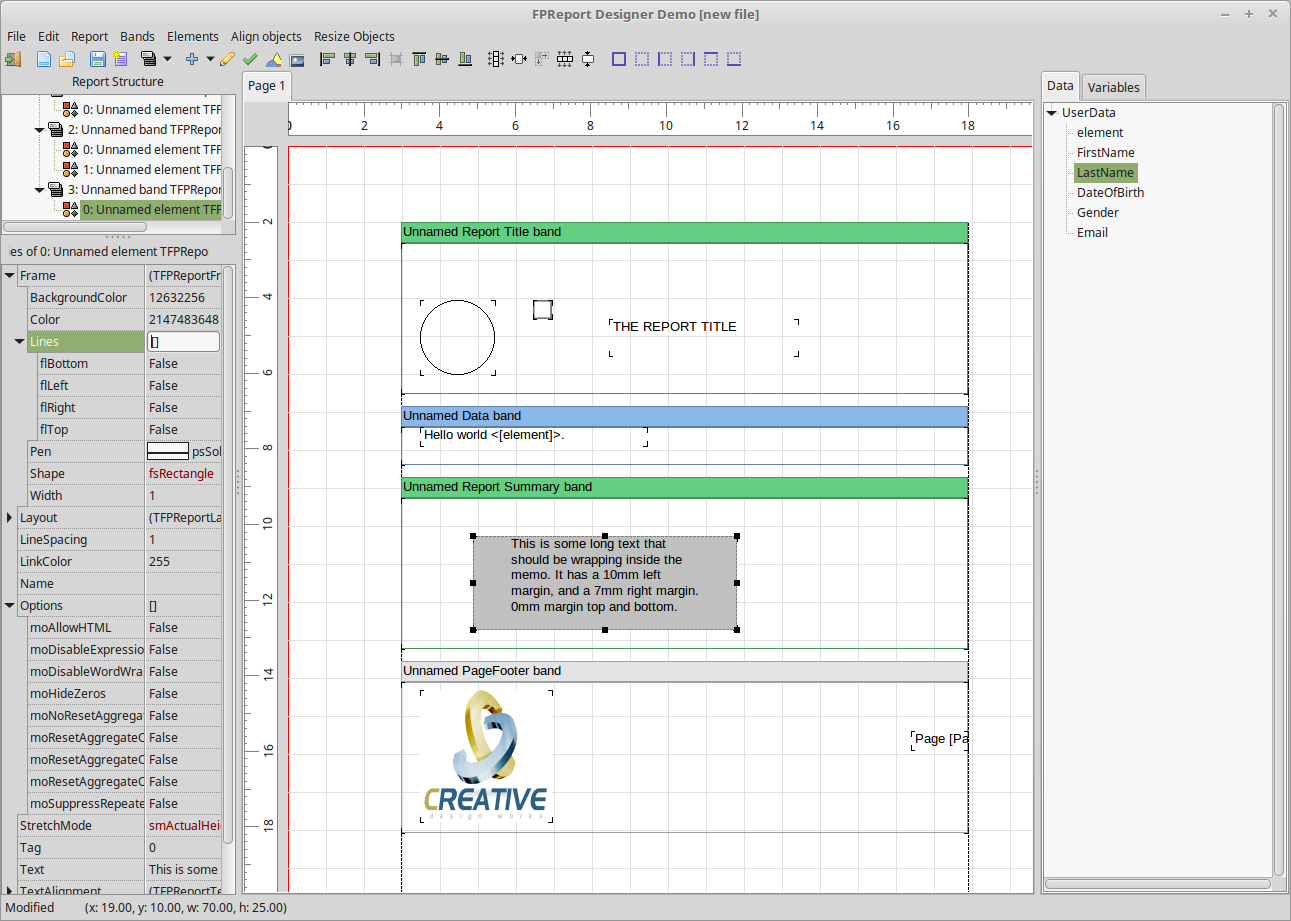
usage
The Visual report designer is intended to be intuitive, and as such does not require a lot of explanation
- To add a data field to a band: drag and drop ot from the data tree view no the right.
- Same for functions
- ctrl-drag will create a selection rectangle
- shift-click can be used to select multiple elements
- Move the selection using arrow keys (shift to use bigger step)
- Resize the selection using ctrl-arrow keys (shift to use bigger step)
Quick explanation of the menu
File
The file menu starts a new report or loads/saves a report from disk.
- New - speaks for itself
- Open report - load a JSON file with a report from disk.
- Save Report - save report to a JSON file.
- Quit - exit the report designer
Edit
- Delete - delete the selection
Copy & Paste are in the works.
Report
- Add Page : Add a new page to the report.
- Properties: set author, 2-pass, title.
- Report data : To manage data sources.
- Variables: define variables which can be used in expressions
Bands
This can be used to add various types of bands to the report.
Elements
The elements menu can be used to add various types of elements to the report. Currently the following types are supported:
- Memo
- Shape
- Image
- Checkbox
Align objects
When multiple objects are selected, this menu can be used to align them:
- Align will show the align dialog
- All other elements just perform the requested alignment on the selection
Resize objects
When multiple objects are selected, this menu can be used to resize them:
- Resize dialog will show the resize dialog
- All other elements just perform the requested resize operation on the selection.
Data
The Report - report data menu can be used to define data sources for the report
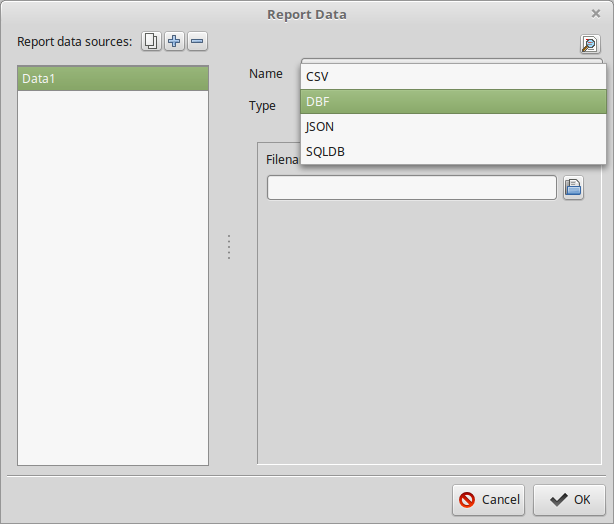
The left side shows a list of available data sources.
The buttons above the list will (from left to right):
- Clone the currently selected data source.
- Add a new data source.
- Delete the currently selected data source.
At the right, the configuration details of the data source are shown. This means the name, and type of data.
Depending on the type, more details can be configured.
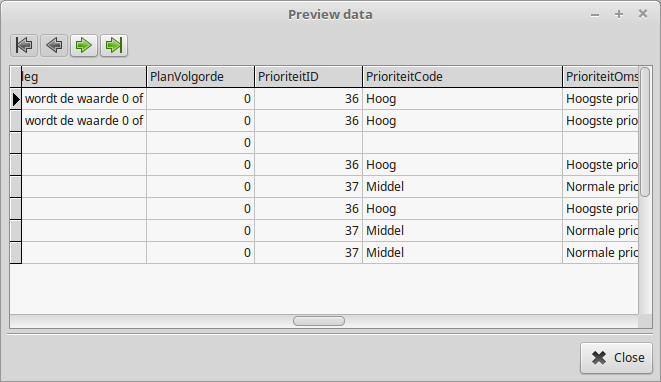
The "preview" button at the top right can be used to show the dataset in a grid:
DBF
Only the filename can be set for a DBF data source.
CSV
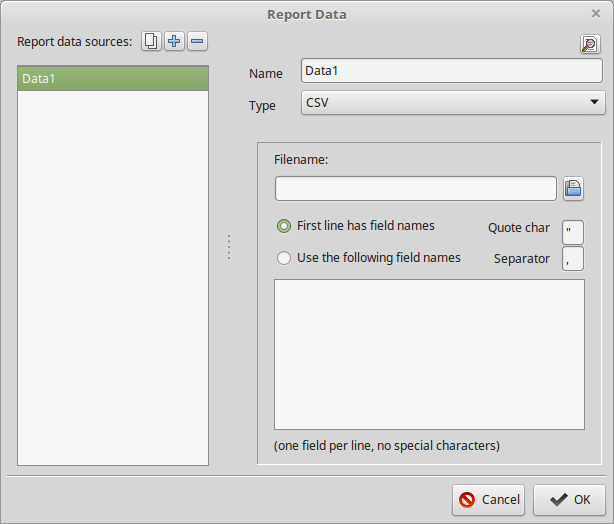
For CSV data, some more details can be set:
- FileName
- Quote character for string fields
- separator character between fields
- First line contanins fieldsnames:
if checked, the first line of the CSV file is expected to contain the field names.
- Use the following field names:
If checked, the first line is expected to contain data, and the names of the fields must be entered, one per line, in the memo below the radiobutton.
JSON
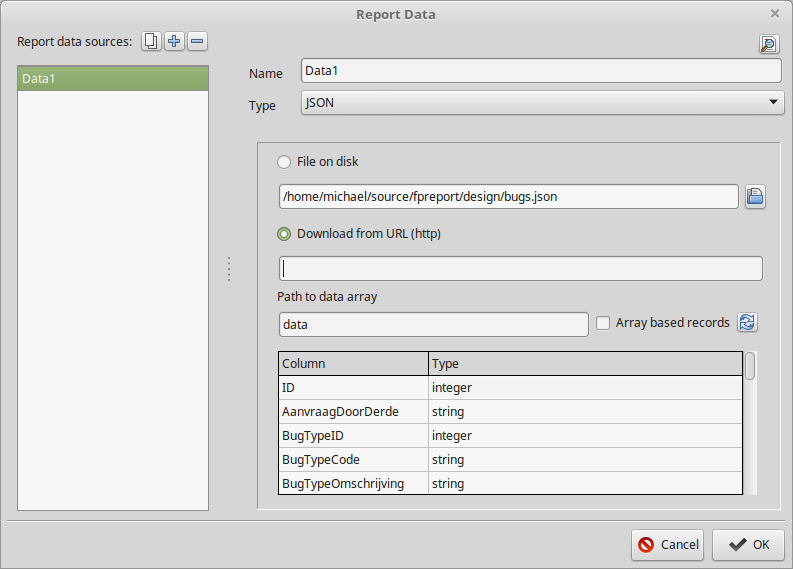
For JSON data, there are 2 possibilities for the data source:
- A file on disk
- A URL
Depending on what is chosen, the dialog will load the file from the indicated file or download it from the URL.
The following options are still possible:
- Path to data array.
If the data is not an array, but the actuall data is in some sub-element of the data, then here a path can be entered.
The designer will make an intelligent guess at where the data is, when the file/url is opened
- Array based records
By default, the JSON support expects an array of objects. An array of arrays is also supported.
The grid below allows to enter the data type for each of the fields.
The designer will make an intelligent guess based on the first row in the array, but e.g. null fields will not be detected correctly.
valid types are string, integer, float and boolean
SQLDB
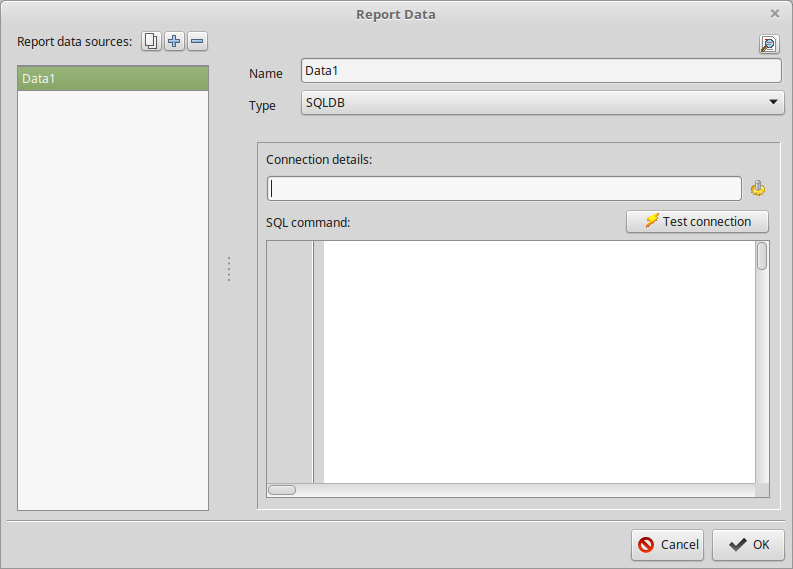
Any database reachable by SQLDB can be used as a data source for a report. The configuration needs 2 things:
- Connection details. These must be entered using the button, which opens the connection editor dialog
- SQL Command. Here an SQL Select command can be entered.
- The "Test connection" button can be used to verify that the connection is reachable.
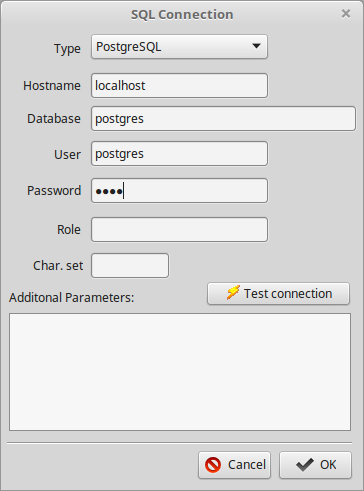
The connection editor allows to edit the connection settings as they exist in SQLDB:
- Type: the list depends on the compiled-in SQLDB connections
- Hostname: SQL server hostname
- Database: DatabaseName
- user: username for connection
- Password: password of the user
- Role: user role
- chr.set: character set (UTF8 is recommended)
- Additional parameters:
here, additional connection-specific parameters can be entered (port no. etc)
Again, there is a button to test the connection.
From the Free Pascal wiki, page "FPReport Designer", as it stood on 2018-03-08 after a change by Djzepi, out of the wiki's dump of 2024-05-26. Copyright stays with the author who wrote it, according to the old wiki's Licensing page. If you have concerns about this material, message the admin.
Talk about this page
Nobody has opened a bench for this page yet. Sign in to open one.