

Eye-Candy Controls: what changed
Revision 1 to 2. Removed lines have a minus sign; added lines have a plus sign.
| Old | New | Line | |
|---|---|---|---|
| 1 | 1 | **Eye Candy Controls** (shortly ECControls or EC-Controls) are set of visual controls written for Lazarus. Their design is based on Themes, therefore their look is very native everywhere, no matter what widgetset you use. | |
| 2 | 2 | ||
| 3 | 3 | Each release is announced on Lazarus Forum in section Third Party Announcements. | |
| 4 | 4 | ||
| 5 | 5 | There are always attached files `README.txt` (list of all known issues) and `CHANGELOG.txt` (list of all changes from previous release). | |
| 6 | 6 | ||
| 7 | 7 | License | |
| 8 | 8 | ||
| 9 | 9 | GNU Lesser General Public License 2.0 with linking exception (a.k.a. Modified LGPL). Each file of EC-Controls contains license header. Also, files `COPYING.modifiedLGPL.txt` and `COPYING.LGPL.txt` are bundled to each archive. | |
| 10 | 10 | ||
| 11 | 11 | Author | |
| 12 | 12 | ||
| 13 | 13 | All components are written by Blaazen. Copyright notice and real name are mentioned in the header of each unit. You can contact author on Lazarus Forum (nickname: Blaazen) in any thread about EC-Controls (email author). If you are logged in to the forum, you can get author's e-mail or send him private message. | |
| 14 | 14 | ||
| 15 | 15 | Credits: | |
| 16 | 16 | ||
| 17 | 17 | Alignment of composite components (TECSpinEdit, TECSpinPosition, TECEditBtn, TECColorBtn, TECComboBtn, TECColorCombo) is based on idea of Flávio published on mailing list [1](http://lists.lazarus.freepascal.org/pipermail/lazarus/2013-March/079971.html) | |
| 18 | 18 | ||
| 19 | 19 | [[TBaseScrollControl]] class is based on [TScrollingControl](https://github.com/theo222/lazarus-thumbviewer/blob/master/scrollingcontrol.pas) by Theo. | |
| 20 | 20 | ||
| 21 | 21 | Download | |
| 22 | 22 | ||
| 23 | 23 | - Latest release: 0.9.60 on 02-May 2023 (without demos); UltraShare is out of order. This release was tested with Lazarus 2.3. | |
| 24 | 24 | - Latest release: 0.9.58 on 16-th April 2022 (without demos); UltraShare is out of order. This release was tested with Lazarus 2.3 | |
| 25 | 25 | - Previous release: 0.9.44 on 1-st June 2020 (including demos); UltraShare is out of order. This release was tested with Lazarus 2.1 | |
| 26 | 26 | - Previous release: 0.9.30 on 9-th March 2018 (including demos); UltraShare is out of order. This release was tested with Lazarus 1.9 and 1.8 | |
| 27 | 27 | - Previous release: 0.9.24.6 on 24-th October 2017 (without demos); TECGrid is *Release candidate*; UltraShare is out of order | |
| 28 | 28 | - Previous release: 0.9.20 on 31-th July 2017 (without demos) | |
| 29 | 29 | - Previous release: 0.9.6 on 24-th May 2016 (including demos) | |
| 30 | 30 | - SourceForge: <https://sourceforge.net/projects/eccontrols/> | |
| 31 | 31 | - UltraShare: <http://ultrashare.net/hosting/fl/8c275ee97f> (direct link to 0.9.6 released on 24-th May 2016; including demos) | |
| 32 | 32 | - UltraShare: <http://ultrashare.net/hosting/fl/a8838060fb> (direct link to 0.9.4.16 released on 9-th April 2016; without demos) | |
| 33 | 33 | - UltraShare: <http://ultrashare.net/hosting/fl/f523032cb4> (direct link to 0.9.4.14 released on 6-th April 2016; without demos) | |
| 34 | 34 | ||
| 35 | 35 | UltraShare is alternative because SourceForge is blocked in some countries. New releases are always announced in the Third Party section of the Lazarus Forum. | |
| 36 | 36 | ||
| 37 | 37 | Install to Lazarus | |
| 38 | 38 | ||
| 39 | 39 | Open menu `Package => Open package File (*.lpk) ...` and select file `eccontrols.lpk`. Click `Compile` (wait a while) and then `Use >> Install`. Lazarus will ask you "Do you want to rebuild Lazarus now?". Click `Yes` to install the package. | |
| 40 | 40 | ||
| 41 | 41 | ## Components | |
| 42 | 42 | ||
| 43 | 43 | EC-Controls are installed to the tab EC-C on the Lazarus component palette. | |
| 44 | 44 | ||
| 45 | - | ||
| 46 | - | ||
| 47 | - | ||
| 48 | - | ||
| 45 | + |  | |
| 49 | 46 | ||
| 50 | 47 | New images (from version 0.9.24.6). Resource files (*.lrs) also contains _150 and _200 images for Hi-DPI desktops. | |
| 51 | 48 | ||
| 52 | - | ||
| 53 | - | ||
| 54 | - | ||
| 55 | - | ||
| 49 | + |  | |
| 56 | 50 | ||
| 57 | 51 | Components below are listed in order of their appearance on the component palette. All screenshots are taken from KDE4 or Plasma5 (Lazarus+Qt). | |
| 58 | 52 | ||
| 59 | 53 | ### Visual | |
| 60 | 54 | ||
| 61 | 55 | #### TECBevel | |
| 62 | 56 | ||
| 63 | 57 | An alternative to [[TBevel]]. | |
| 64 | 58 | ||
| 65 | - | ||
| 66 | - | ||
| 67 | - | ||
| 68 | - | ||
| 59 | + | 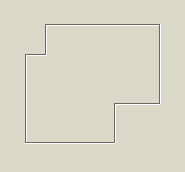 | |
| 69 | 60 | ||
| 70 | 61 | [[TECBevel]] can draw non-rectangular shapes or non-straight lines. | |
| 71 | 62 | ||
| 72 | 63 | #### TECLink | |
| 73 | 64 | ||
| 74 | 65 | [[TECLink]] provides a weblink. The same links are well known from web-browsers. | |
| 75 | 66 | ||
| 76 | - | ||
| 77 | - | ||
| 78 | - | ||
| 79 | - | ||
| 67 | + |  | |
| 80 | 68 | ||
| 81 | 69 | A label which changes its look when hovered by mouse (by default becomes underlined and blue). | |
| 82 | 70 | ||
| 83 | 71 | It can open URL in default browser, default mail client, file in associated application or just trigger OnClick event. | |
| 84 | 72 | ||
| 85 | 73 | #### TECImageMenu | |
| 86 | 74 | ||
| 87 | 75 | A vertical menu with images. Similar component is frequently used in KDE4 applications and Outlook97 | |
| 88 | 76 | ||
| 89 | - | ||
| 90 | - | ||
| 91 | - | ||
| 92 | - | ||
| 77 | + | 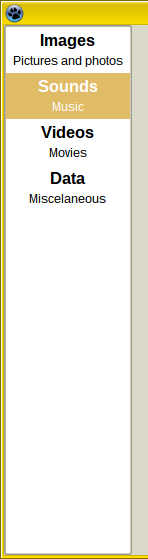 | |
| 93 | 78 | ||
| 94 | 79 | [[TECImageMenu]] can have focus and can be reached by Tab key (when `TabStop = True`, which is default). Can be controlled by mouse, by keyboard or by code. | |
| 95 | 80 | ||
| 96 | 81 | Mouse | |
| 97 | 82 | ||
| 98 | 83 | - Simply left-click on menu item. | |
| 99 | 84 | - Middle-click or right-click selects an item but does not click. | |
| 100 | 85 | - Mouse wheel moves the selection and does not click. | |
| 101 | 86 | ||
| 102 | 87 | Keyboard | |
| 103 | 88 | ||
| 104 | 89 | - Space nad Enter: click on the selected item. | |
| 105 | 90 | - Arrow Up, Arrow Down, Page Up, Page Down, Home and End: moves the selection but does not click. | |
| 106 | 91 | - Acceleration key (Alt + Key) selects and clicks the relevant item (menu doesn't need to be focused).. | |
| 107 | 92 | ||
| 108 | 93 | #### TECSpinBtns | |
| 109 | 94 | ||
| 110 | 95 | An advanced alternative to [[TUpDown]]. | |
| 111 | 96 | ||
| 112 | - | ||
| 113 | - | ||
| 114 | - | ||
| 115 | - | ||
| 97 | + | 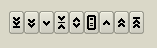 | |
| 116 | 98 | ||
| 117 | 99 | [[TECSpinBtns]] is based on double precision variables. | |
| 118 | 100 | ||
| 119 | 101 | TECSpinBtns cannot have focus. Can be controlled by mouse or by code. | |
| 120 | 102 | ||
| 121 | 103 | Mouse | |
| 122 | 104 | ||
| 123 | 105 | TECSpinBtns consists from 9 small buttons. | |
| 124 | 106 | ||
| 125 | 107 | - Left-click on BtnMin, BtnBigDec, BtnDec, BtnMiddle, BtnMenu, BtnInc, BtnBigInc and BtnMax sets the Value to Min, decreases Value by PageSize, decreases Value by Increment, sets Value to Middle, triggers OnMenuClick event, increases Value by Increment, increases Value by PageSize and sets Value to Max respectively. | |
| 126 | 108 | - Middle-click sets Value to Middle or triggers OnMenuClick - depends on MenuControl property. Other mouse buttons can be used for dragging too, depends on DragControl property. Dragging mainly depends on properties: DragOrientation, MouseIncrementX, MouseIncrementY, MouseStepPixelsX, MouseStepPixelsY and Reversed. | |
| 127 | 109 | ||
| 128 | 110 | Code | |
| 129 | 111 | ||
| 130 | 112 | Simply by assigning any floating-point value to property Value: | |
| 131 | 113 | ||
| 132 | 114 | `Value := 10.5;` | |
| 133 | 115 | ||
| 134 | 116 | If the value is out of range (lesser than Min or greater than Max) then Value will be Min or Max. | |
| 135 | 117 | ||
| 136 | 118 | Precendence of drawing: | |
| 137 | 119 | ||
| 138 | 120 | 1. The highest precedence has the OnDrawGlyph event. | |
| 139 | 121 | 2. The second is Caption. It should be short (one or two characters). | |
| 140 | 122 | 3. The third is image from Images. Images must be assigned and ImageIndex must be greater or equal to zero and lesser than Images.Count | |
| 141 | 123 | 4. When the OnDrawGlyph is not assigned, Caption is empty string and ImageIndex is -1 then built-in glyph is used. There is five sets of styles, they can be selected with GlyphStyle property. | |
| 142 | 124 | ||
| 143 | 125 | #### TECSpinEdit | |
| 144 | 126 | ||
| 145 | 127 | An advanced alternative to TSpinEdit and TFloatSpinEdit. It is [[TEdit]] joined together with TECSpinBtns. | |
| 146 | 128 | ||
| 147 | - | ||
| 148 | - | ||
| 149 | - | ||
| 150 | - | ||
| 129 | + | 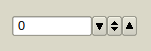 | |
| 151 | 130 | ||
| 152 | 131 | [[TECSpinEdit]] can have focus and can be reached by Tab key (when `TabStop = True`, which is default). Can be controlled by mouse, by keyboard or by code. | |
| 153 | 132 | ||
| 154 | 133 | ||
| 155 | 134 | Mouse | |
| 156 | 135 | ||
| 157 | 136 | See [[TECSpinBtns]]. | |
| 158 | 137 | ||
| 159 | 138 | Keyboard | |
| 160 | 139 | ||
| 161 | 140 | (line-edit must be focused) | |
| 162 | 141 | ||
| 163 | 142 | Text value can typed in to the line-edit directly. If entered value is lesser than TECSpinBtnsPlus.MinInEdit or greater than TECSpinBtnsPlus.MaxInEdit then the value will be changed to fit these bounds. Change of Value is done in OnEditingDone event. | |
| 164 | 143 | ||
| 165 | 144 | - Arrow Up/Down do click on BtnInc/BtnDec*. | |
| 166 | 145 | - PgUp/PgDn do click on BtnBigInc/BtnBigDec*. | |
| 167 | 146 | - Ctrl + Home/End do click on BtnMax/BtnMin*. | |
| 168 | 147 | - Ctrl + Space do click BtnMiddle. | |
| 169 | 148 | - Ctrl + Enter do click on BtnMenu. | |
| 170 | 149 | ||
| 171 | 150 | *) valid for Reversed = False. For Reversed = True works oppositely. | |
| 172 | 151 | ||
| 173 | 152 | Code | |
| 174 | 153 | ||
| 175 | 154 | Simply by assigning any floating-point value to property Value: | |
| 176 | 155 | ||
| 177 | 156 | `Value := 10.5;` | |
| 178 | 157 | ||
| 179 | 158 | If the value is out of range (lesser than Min or greater than Max) then Value will be Min or Max. | |
| 180 | 159 | ||
| 181 | 160 | #### TECSwitch | |
| 182 | 161 | ||
| 183 | 162 | An alternative to TCheckBox. Similar component exists in GTk3. | |
| 184 | 163 | ||
| 185 | - | ||
| 186 | - | ||
| 187 | - | ||
| 188 | - | ||
| 164 | + | 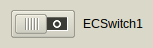 | |
| 189 | 165 | ||
| 190 | 166 | [[TECSwitch]] can have focus and can be reached by Tab key (when `TabStop = True`, which is default). Can be controlled by mouse, by keyboard or by code. | |
| 191 | 167 | ||
| 192 | 168 | Mouse | |
| 193 | 169 | ||
| 194 | 170 | - Left-click on switch area (out of knob) will change the State*. | |
| 195 | 171 | - Left-click on the knob and holding the left-mouse button down will capture mouse and knob can be moved even if the mouse-cursor leaves the area of the switch. | |
| 196 | 172 | ||
| 197 | 173 | Keyboard | |
| 198 | 174 | ||
| 199 | 175 | - Space or Enter changes the State* (only when focused). | |
| 200 | 176 | - Acceleration key (Alt + Key) changes the State* (doesn't need to be focused). | |
| 201 | 177 | ||
| 202 | 178 | Code | |
| 203 | 179 | ||
| 204 | 180 | Simply by assigning any State* or Checked property: | |
| 205 | 181 | ||
| 206 | 182 | `Checked := True; //False`\ | |
| 207 | 183 | `State := cbChecked; //cbGrayed, cbUnchecked` | |
| 208 | 184 | ||
| 209 | 185 | *) Property State is always changed from checked to unchecked, from grayed to unchecked or from unchecked to checked. | |
| 210 | 186 | ||
| 211 | 187 | #### TECSpeedBtn | |
| 212 | 188 | ||
| 213 | 189 | A button with some advanced features and built-in glyphs. An alternative to TSpeedButton and TToggleBox. | |
| 214 | 190 | ||
| 215 | - | ||
| 216 | - | ||
| 217 | - | ||
| 218 | - | ||
| 191 | + |  | |
| 219 | 192 | ||
| 220 | 193 | [[TECSpeedBtn]] cannot have focus. | |
| 221 | 194 | ||
| 222 | 195 | Features and differences from [[TSpeedButton]]: | |
| 223 | 196 | ||
| 224 | 197 | - TSpeedButton has property Glyph: TBitmap. TECSpeedBtn has properties ImageIndex: Integer and Images: [[TImageList]] instead. | |
| 225 | 198 | - TECSpeedBtn has property Delay and built-in timer. Therefore it can work as a delay-button (Delay\>0) or toggle-box (Delay\<0). | |
| 226 | 199 | - TECSpeedBtn has more than 80 built-in glyph (painted via [[TCanvas]] helper). Glyphs can be various for checked and unchecked state. | |
| 227 | 200 | - Similarly to TSpeedButton, TECSpeedBtn has properties GroupIndex, Checked and AllowAllUp so buttons can be grouped to radio-group. | |
| 228 | 201 | - TECSpeedBtn cannot obtain focus but can be pressed by acceleration key (Alt+ \[underlined key\]). | |
| 229 | 202 | - TECSpeedBtn can be linked with [[TAction]] too. | |
| 230 | 203 | ||
| 231 | 204 | Precendence of drawing: | |
| 232 | 205 | ||
| 233 | 206 | 1. The highest precedence has the OnDrawGlyph event. | |
| 234 | 207 | 2. The second is Caption and image from Images. Images must be assigned and at least on of ImageIndex and ImageIndexChecked must be greater or equal to zero and lesser than Images.Count. | |
| 235 | 208 | 3. When the OnDrawGlyph is not assigned and both ImageIndex and ImageIndexChecked are -1 then built-in glyph is used (properties GlyphDesign and GlyphDesignChecked). When ImageIndex is valid Image and ImageIndexChecked is -1 or only GlyphDesign is some glyph and GlyphDesignChecked is egdNone then ImageIndex or GlyphDesign is used for checked state too (and vice versa). | |
| 236 | 209 | ||
| 237 | 210 | #### TECBitBtn | |
| 238 | 211 | ||
| 239 | 212 | The same as TECSpeedBtn but derived from TCustomControl, therefore it can have focus. An alternative to TBitBtn and TToggleBox. | |
| 240 | 213 | ||
| 241 | - | ||
| 242 | - | ||
| 243 | - | ||
| 244 | - | ||
| 214 | + | 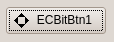 | |
| 245 | 215 | ||
| 246 | 216 | #### TECEditBtn | |
| 247 | 217 | ||
| 248 | 218 | An alternative to [[TEditButton]]. It is [[TEdit]] joined together with [[TECSpeedBtn]]. | |
| 249 | 219 | ||
| 250 | - | ||
| 251 | - | ||
| 252 | - | ||
| 253 | - | ||
| 220 | + | 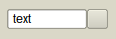 | |
| 254 | 221 | ||
| 255 | 222 | #### TECColorBtn | |
| 256 | 223 | ||
| 257 | 224 | Visual component for selecting color. Line edit displays color code in various formats and associated button triggers color dialog. | |
| 258 | 225 | ||
| 259 | - | ||
| 260 | - | ||
| 261 | - | ||
| 262 | - | ||
| 226 | + | 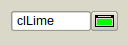 | |
| 263 | 227 | ||
| 264 | 228 | Color of the glyph on the button corresponds with the color in the line-edit. | |
| 265 | 229 | ||
| 266 | 230 | Property Text is not published. If Text is changed via code, EditingDone must be called to validate the change. | |
| 267 | 231 | ||
| 268 | 232 | #### TECComboBtn | |
| 269 | 233 | ||
| 270 | 234 | A combobox with associated button. It is [[TComboBox]] joined together with [[TECSpeedBtn]]. | |
| 271 | 235 | ||
| 272 | - | ||
| 273 | - | ||
| 274 | - | ||
| 275 | - | ||
| 236 | + | 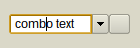 | |
| 276 | 237 | ||
| 277 | 238 | #### TECColorCombo | |
| 278 | 239 | ||
| 279 | 240 | Visual component for selecting color. Combobox contains colors in various formats and associated button triggers color dialog. | |
| 280 | 241 | ||
| 281 | - | ||
| 282 | - | ||
| 283 | - | ||
| 284 | - | ||
| 242 | + | 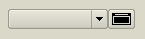 | |
| 285 | 243 | ||
| 286 | 244 | Color of the glyph on the button corresponds with the color selected in the combobox. | |
| 287 | 245 | ||
| 288 | 246 | Property Text is not published. If Text is changed via code, Validate must be called to validate the change. | |
| 289 | 247 | ||
| 290 | 248 | #### TECHeader | |
| 291 | 249 | ||
| 292 | 250 | An alternative to [[THeader]]. | |
| 293 | 251 | ||
| 294 | - | ||
| 295 | - | ||
| 296 | - | ||
| 297 | - | ||
| 252 | + |  | |
| 298 | 253 | ||
| 299 | 254 | Main feature is ability to have columns aligned to the left and to the right at a time. This components is designed for TECCheckListBox. | |
| 300 | 255 | ||
| 301 | 256 | #### TECCheckListBox | |
| 302 | 257 | ||
| 303 | 258 | An alternative to [[TCheckListBox]]. | |
| 304 | 259 | ||
| 305 | - | ||
| 306 | - | ||
| 307 | - | ||
| 308 | - | ||
| 260 | + | 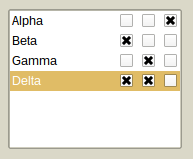 | |
| 309 | 261 | ||
| 310 | 262 | Can have multiple checkable columns. | |
| 311 | 263 | ||
| 312 | 264 | Currently, property Sorted is not supported. | |
| 313 | 265 | ||
| 314 | 266 | #### TECSlider | |
| 315 | 267 | ||
| 316 | 268 | An advanced alternative to [[TTrackBar]]. | |
| 317 | 269 | ||
| 318 | - | ||
| 319 | - | ||
| 320 | - | ||
| 321 | - | ||
| 270 | + | 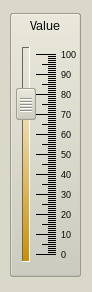 | |
| 322 | 271 | ||
| 323 | 272 | TECSlider can have focus and can be reached by Tab key (when `TabStop = True`, which is default). | |
| 324 | 273 | ||
| 325 | 274 | TECSlider is based on double precision variables. TECSlider can be controlled by mouse, by keyboard or by code. | |
| 326 | 275 | ||
| 327 | 276 | Mouse | |
| 328 | 277 | ||
| 329 | 278 | - Left-click on Slider area (out of Knob) will move the knob by PageSize (or less, if mouse cursor is nearer). | |
| 330 | 279 | - Double-click or Middle-click will move the knob immediately to the mouse cursor (or to the Min/Max, if click is done out of groove and scale area). | |
| 331 | 280 | - Left-click on the knob and holding the left-mouse button down will capture mouse and knob can be moved even if the mouse-cursor leaves the area of the slider. | |
| 332 | 281 | - Mouse wheel moves knob up/down regardless of the Reversed property. In case of horizontal slider rolling up/down moves knob to the left/right, again, regardless of the Reversed property. | |
| 333 | 282 | ||
| 334 | 283 | The increment is: | |
| 335 | 284 | ||
| 336 | 285 | - Mouse wheel: Increment*Mouse.WheelScrollLines | |
| 337 | 286 | - Ctrl + mouse wheel: Increment. | |
| 338 | 287 | ||
| 339 | 288 | Keyboard | |
| 340 | 289 | ||
| 341 | 290 | - Space: moves knob to the middle of the groove or to the ProgressMiddlePos in case of ProgressFromMiddle = True | |
| 342 | 291 | - 0-9: moves the knob to position which is the integer multiplier of the PageSize (i.e. 0, 10, ..., 90 for PageSize = 10). | |
| 343 | 292 | - PgUp: decreases Position by PageSize | |
| 344 | 293 | - PgUp: increases Position by PageSize | |
| 345 | 294 | - Home: moves the Knob to Min | |
| 346 | 295 | - End: moves the Knob to Max | |
| 347 | 296 | - +: increases Position by Increment | |
| 348 | 297 | - -: decreases Position by Increment | |
| 349 | 298 | - Ctrl + ArrowUp: decreases* Position by Increment | |
| 350 | 299 | - Ctrl + ArrowLeft: decreases* Position by Increment | |
| 351 | 300 | - Ctrl + ArrowDown: increases* Position by Increment | |
| 352 | 301 | - Ctrl + ArrowRight: increases* Position by Increment | |
| 353 | 302 | ||
| 354 | 303 | *) valid for `Reversed = False`. When `Reversed = True` works oppositely. | |
| 355 | 304 | ||
| 356 | 305 | Code | |
| 357 | 306 | ||
| 358 | 307 | Simply by assigning any floating-point value to property Position: | |
| 359 | 308 | ||
| 360 | 309 | `Position := 10.5; ` | |
| 361 | 310 | ||
| 362 | 311 | If the value is out of range (lesser than Min or greater than Max) then Position will be Min or Max. | |
| 363 | 312 | ||
| 364 | 313 | #### TECProgressBar | |
| 365 | 314 | ||
| 366 | 315 | An advanced alternative to [[TProgressBar]]. | |
| 367 | 316 | ||
| 368 | - | ||
| 369 | - | ||
| 370 | - | ||
| 371 | - | ||
| 317 | + |  | |
| 372 | 318 | ||
| 373 | 319 | TECProgressBar is based on double precision variables. TECProgressBar cannot have focus. It can be controlled by code only. | |
| 374 | 320 | ||
| 375 | 321 | #### TECPositionBar | |
| 376 | 322 | ||
| 377 | 323 | An alternative to [[TTrackBar]] or [[TScrollBar]]. Similar components are used in [[Blender]] (3D graphics software). | |
| 378 | 324 | ||
| 379 | - | ||
| 380 | - | ||
| 381 | - | ||
| 382 | - | ||
| 325 | + |  | |
| 383 | 326 | ||
| 384 | 327 | [[TECPositionBar]] cannot have focus and is based on double precision variables. TECPositionBar can be controlled by mouse or by code. | |
| 385 | 328 | ||
| 386 | 329 | Mouse | |
| 387 | 330 | ||
| 388 | 331 | - Left-click will set the position immediately to the mouse cursor (or to the Min/Max, if click is done out of groove and scale area). | |
| 389 | 332 | - Middle-click: moves knob to the middle of the groove or to the ProgressMiddlePos in case of ProgressFromMiddle = True | |
| 390 | 333 | - Left-click on the end of the progress on and holding the left-mouse button down will capture mouse and position can be moved even if the mouse cursor leaves the area of a position bar. | |
| 391 | 334 | - Dragging is affected by MouseDragPixels (alone left mouse button) and MouseDragPixelsFine (Ctrl + left mouse button). Deafult values are 1 and 10, i.e. progress will change by one pixel when mouse cursor moves by one pixel (or by 10 pixels in case of dragging with Ctrl key pressed). | |
| 392 | 335 | - Mouse wheel moves knob up/down regardless of the Reversed property. In case of horizontal slider rolling up/down moves knob to the left/right, again, regardless of the Reversed property. | |
| 393 | 336 | ||
| 394 | 337 | The increment is: | |
| 395 | 338 | ||
| 396 | 339 | - Mouse wheel: MouseDragPixels*Mouse.WheelScrollLines | |
| 397 | 340 | - Ctrl + mouse wheel: (MouseDragPixels/MouseDragPixelsFine)*Mouse.WheelScrollLines | |
| 398 | 341 | ||
| 399 | 342 | Code | |
| 400 | 343 | ||
| 401 | 344 | Simply by assigning any floating-point value to property Position: | |
| 402 | 345 | ||
| 403 | 346 | `Position := 10.5; ` | |
| 404 | 347 | ||
| 405 | 348 | If the value is out of range (lesser than Min or greater than Max) then Position will be Min or Max. | |
| 406 | 349 | ||
| 407 | 350 | #### TECSpinPosition | |
| 408 | 351 | ||
| 409 | 352 | An alternative to [[TTrackBar]] or [[TScrollBar]]. Similar components are used in Krita (2D graphics software). | |
| 410 | 353 | ||
| 411 | - | ||
| 412 | - | ||
| 413 | - | ||
| 414 | - | ||
| 354 | + |  | |
| 415 | 355 | ||
| 416 | 356 | #### TECRuler | |
| 417 | 357 | ||
| 418 | 358 | An advanced ruler. | |
| 419 | 359 | ||
| 420 | - | ||
| 421 | - | ||
| 422 | - | ||
| 423 | - | ||
| 360 | + | 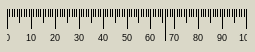 | |
| 424 | 361 | ||
| 425 | 362 | [[TECRuler]] cannot have focus. It just displays scale. Can have fixed or movable pointer optionally. | |
| 426 | 363 | ||
| 427 | 364 | #### TECRadioGroup | |
| 428 | 365 | ||
| 429 | 366 | An alternative to TRadioGroup. | |
| 430 | 367 | ||
| 431 | - | ||
| 432 | - | ||
| 433 | - | ||
| 434 | - | ||
| 368 | + | 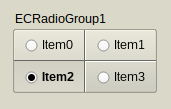 | |
| 435 | 369 | ||
| 436 | 370 | [[TECRadioGroup]] can have focus and can be reached by Tab key (when `TabStop = True`, which is not default). Can be controlled by mouse, by keyboard or by code. | |
| 437 | 371 | ||
| 438 | 372 | Mouse | |
| 439 | 373 | ||
| 440 | 374 | - Left-click on any item (out of knob) changes its Checked property to True (or to False if this item is already checked*). | |
| 441 | 375 | - Left-click on the TECRadioGroup out of items sets focus to component only. | |
| 442 | 376 | ||
| 443 | 377 | Keyboard | |
| 444 | 378 | ||
| 445 | 379 | - 0: deselects all* | |
| 446 | 380 | - 1-9: selects (or deselects*) item 1-9 | |
| 447 | 381 | - Acceleration key (Alt + Key) changes the Checked property to True or False* (radio group doesn't have to be focused). | |
| 448 | 382 | ||
| 449 | 383 | *) Depends whether egoAllowAllUp is in Options. | |
| 450 | 384 | ||
| 451 | 385 | Code | |
| 452 | 386 | ||
| 453 | 387 | Simply by assigning any ItemIndex or Items\[\].Checked property: | |
| 454 | 388 | ||
| 455 | 389 | `ItemIndex := 1; //selects the second item`\ | |
| 456 | 390 | `Items[1].Checked := False; //deselects the second item, regardless of the egoAllowAllUp in Options` | |
| 457 | 391 | ||
| 458 | 392 | #### TECCheckGroup | |
| 459 | 393 | ||
| 460 | 394 | An alternative to TCheckGroup. | |
| 461 | 395 | ||
| 462 | - | ||
| 463 | - | ||
| 464 | - | ||
| 465 | - | ||
| 396 | + | 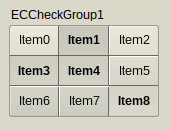 | |
| 466 | 397 | ||
| 467 | 398 | TECCheckGroup can have focus and can be reached by Tab key (when `TabStop = True`, which is not default). Can be controlled by mouse, by keyboard or by code. | |
| 468 | 399 | ||
| 469 | 400 | Mouse | |
| 470 | 401 | ||
| 471 | 402 | - Left-click on any item (out of knob) changes its Checked property to True (or to False if this item is already checked*). | |
| 472 | 403 | - Left-click on the TECCheckGroup out of items sets focus to component only. | |
| 473 | 404 | ||
| 474 | 405 | Keyboard | |
| 475 | 406 | ||
| 476 | 407 | - 0: deselects all* | |
| 477 | 408 | - 1-9: selects (or deselects*) item 1-9 | |
| 478 | 409 | - Acceleration key (Alt + Key) changes the Checked property to True/False* (check group doesn't have to be focused). | |
| 479 | 410 | ||
| 480 | 411 | *) Depends whether egoAllowAllUp is in Options. | |
| 481 | 412 | ||
| 482 | 413 | Code | |
| 483 | 414 | ||
| 484 | 415 | Simply by assigning any Checked\[\] or Items\[\].Checked property: | |
| 485 | 416 | ||
| 486 | 417 | `Checked[1] := True; //selects the second item`\ | |
| 487 | 418 | `Items[1].Checked := False; //deselects the second item, regardless of the egoAllowAllUp in Options.` | |
| 488 | 419 | ||
| 489 | 420 | #### TECTabCtrl | |
| 490 | 421 | ||
| 491 | 422 | See: [[TECTabCtrl]] | |
| 492 | 423 | ||
| 493 | 424 | #### TECAccordion | |
| 494 | 425 | ||
| 495 | 426 | [[TECAccordion]] is a side menu, works similarly to [[TPageControl]]. | |
| 496 | 427 | ||
| 497 | - | ||
| 498 | - | ||
| 499 | - | ||
| 500 | - | ||
| 428 | + | 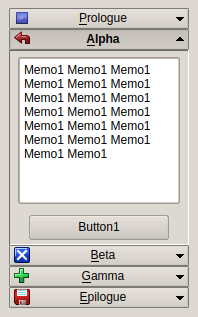 | |
| 501 | 429 | ||
| 502 | 430 | TECAccordion can have focus and can be reached by Tab key (when `TabStop = True`, which is not default). Can be controlled by mouse, by keyboard or by code. | |
| 503 | 431 | ||
| 504 | 432 | Mouse | |
| 505 | 433 | ||
| 506 | 434 | Left-click on any item opens/closes it. | |
| 507 | 435 | ||
| 508 | 436 | Keyboard | |
| 509 | 437 | ||
| 510 | 438 | Acceleration key (Alt + Key) changes the item (component doesn't have to be focused). | |
| 511 | 439 | ||
| 512 | 440 | Code | |
| 513 | 441 | ||
| 514 | 442 | Simply by setting ItemIndex property. | |
| 515 | 443 | ||
| 516 | 444 | #### TECTriangle | |
| 517 | 445 | ||
| 518 | 446 | A balance of three values. This is not a color picker! | |
| 519 | 447 | ||
| 520 | - | ||
| 521 | - | ||
| 522 | - | ||
| 523 | - | ||
| 448 | + | 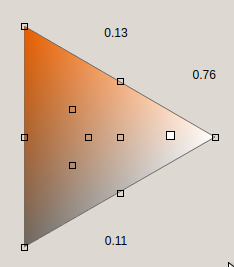 | |
| 524 | 449 | ||
| 525 | 450 | [[TECTriangle]] cannot have focus and cannot be reached by Tab key. Can be controlled by mouse only. | |
| 526 | 451 | ||
| 527 | 452 | Mouse | |
| 528 | 453 | ||
| 529 | 454 | - Left-click on triangle area. | |
| 530 | 455 | - Left-click and hold the pointer can drag. | |
| 531 | 456 | - Left-click on a mark sets more exact value, for example \[0,333..., 0.333..., 0.333...\]. | |
| 532 | 457 | - Mouse wheel can roll the pointer up and down. | |
| 533 | 458 | ||
| 534 | 459 | Code | |
| 535 | 460 | ||
| 536 | 461 | By calling overloaded SetValues method. Parameters can be 1) X and Y coordinates or 2) "Top" and "Bottom" values (the thirds value "Side" is calculated so the sum of the values is always equal to 1). | |
| 537 | 462 | ||
| 538 | 463 | #### TECGrid | |
| 539 | 464 | ||
| 540 | 465 | See: [[TECGrid]] | |
| 541 | 466 | ||
| 542 | 467 | #### TECLightView | |
| 543 | 468 | ||
| 544 | 469 | See: [[TECLightView]] | |
| 545 | 470 | ||
| 546 | 471 | #### TECConfCurve | |
| 547 | 472 | ||
| 548 | 473 | Component for Configuration. | |
| 549 | 474 | ||
| 550 | - | ||
| 551 | - | ||
| 552 | - | ||
| 553 | - | ||
| 475 | + | 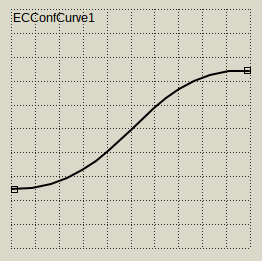 | |
| 554 | 476 | ||
| 555 | 477 | User can configure polyline or Bezier curve with multiple points. | |
| 556 | 478 | ||
| 557 | 479 | Can be aligned with vertical and/or horizontal ruler (TECRuler). | |
| 558 | 480 | ||
| 559 | 481 | See ECConfCurve-Demo. | |
| 560 | 482 | ||
| 561 | 483 | #### TECScheme | |
| 562 | 484 | ||
| 563 | 485 | An advanced component for configuration of general scheme. | |
| 564 | 486 | ||
| 565 | - | ||
| 566 | - | ||
| 567 | - | ||
| 568 | - | ||
| 487 | + | 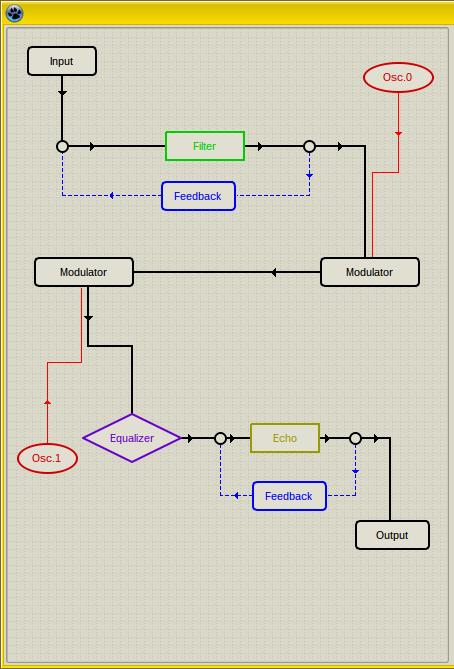 | |
| 569 | 488 | ||
| 570 | 489 | User can add multiple blocks and connect them. | |
| 571 | 490 | ||
| 572 | 491 | This component is highly configurable. See SchemeDesigner and ECSchemeDesc bundled with EC-Controls. | |
| 573 | 492 | ||
| 574 | 493 | ### Non-visual components | |
| 575 | 494 | ||
| 576 | 495 | #### TECSpinController | |
| 577 | 496 | ||
| 578 | 497 | Designed for controlling properties of multiple TECSpinBtns and TECSpinEdit. | |
| 579 | 498 | ||
| 580 | - | ||
| 581 | - | ||
| 582 | - | ||
| 583 | - | ||
| 499 | + |  | |
| 584 | 500 | ||
| 585 | 501 | [[TECSpinBtns]] and [[TECSpinEdit]] have properties Controller. When some SpinController is assigned to this property then this Controller can change selected properties of all assigned TECSpinEdits and TECSpinBtns at a time. Adjustable properties are - for example - TimerDelay, TimerRepeat, widths of individual buttons, GlyphsStyle and others. | |
| 586 | 502 | ||
| 587 | 503 | Project can have multiple SpinControllers. | |
| 588 | 504 | ||
| 589 | 505 | #### TECTimer | |
| 590 | 506 | ||
| 591 | 507 | An advanced timer. | |
| 592 | 508 | ||
| 593 | - | ||
| 594 | - | ||
| 595 | - | ||
| 596 | - | ||
| 509 | + |  | |
| 597 | 510 | ||
| 598 | 511 | Main feature is that the first interval (property Delay) can differ from all following intervals (property Repeat). | |
| 599 | 512 | ||
| 600 | 513 | ### Other parts of EC-Controls | |
| 601 | 514 | ||
| 602 | 515 | #### Class TECScale | |
| 603 | 516 | ||
| 604 | 517 | A scale. It is not a component but can draw itself to any canvas. | |
| 605 | 518 | ||
| 606 | 519 | This class is used in TECRuler, TECSlider, TECProgressBar, TECPositionBar and TECSpinPosition. | |
| 607 | 520 | ||
| 608 | 521 | See demo ECScale-Demo. | |
| 609 | 522 | ||
| 610 | 523 | #### Unit ECTypes | |
| 611 | 524 | ||
| 612 | 525 | Base types and classes for Eye Candy Controls (EC-C). | |
| 613 | 526 | ||
| 614 | 527 | If you use EC-Controls in your project you may need to add this unit to your **uses** section. | |
| 615 | 528 | ||
| 616 | 529 | This unit contains many declarations, color-conversion routines and base classes, for example TBaseScrollControl. | |
| 617 | 530 | ||
| 618 | 531 | #### TBaseScrollControl | |
| 619 | 532 | ||
| 620 | 533 | is base class for scrolling components (TECScheme is its descendant). | |
| 621 | 534 | ||
| 622 | 535 | You can derive your own scrolling component from TBaseScrollControl. [[TECScheme]] and [[TECGrid]] are based on this class. | |
| 623 | 536 | ||
| 624 | 537 | ## Demos | |
| 625 | 538 | ||
| 626 | 539 | EC-Controls come with several demos. If some of following demos is missing in archive, it may mean that there were no changes and the demo was not included. In that case use the demo from previous release. | |
| 627 | 540 | ||
| 628 | 541 | #### ECC-Demo | |
| 629 | 542 | ||
| 630 | 543 | This demo shows all EC-Controls in various configurations. | |
| 631 | 544 | ||
| 632 | 545 | #### ECScale-Demo | |
| 633 | 546 | ||
| 634 | 547 | This demo shows how you can use [[TECScale]] in our own visual component. | |
| 635 | 548 | ||
| 636 | 549 | #### ECConfCurve-Demo | |
| 637 | 550 | ||
| 638 | 551 | This demo shows capabilities of [[TECConfCurve]]. | |
| 639 | 552 | ||
| 640 | 553 | #### ECSchemeDesc | |
| 641 | 554 | ||
| 642 | 555 | This demo shows how you can create descendant component from [[TCustomECScheme]]. | |
| 643 | 556 | ||
| 644 | 557 | #### SchemeDesigner | |
| 645 | 558 | ||
| 646 | 559 | SchemeDesigner is more than a demo. It shows you how you can create TECScheme configurator in your own application but it can be also used to create your own configurations and store them in *.xml format. | |
| 647 | 560 | ||
| 648 | 561 | --- | |
| 649 | 562 | *From the Free Pascal wiki, page "Eye-Candy Controls", as it stood on 2023-05-02 after a change by Blaazen, out of the wiki's dump of 2024-05-26. Copyright stays with the author who wrote it, according to the old wiki's [[Licensing]] page. If you have concerns about this material, [message the admin](/wiki-contact).* |