

Developing with Graphics: what changed
Revision 1 to 2. Removed lines have a minus sign; added lines have a plus sign.
| Old | New | Line | |
|---|---|---|---|
| 1 | 1 | This page describes the basic classes and techniques regarding drawing graphics with Lazarus. Other more specific topics are in separate articles. | |
| 2 | 2 | ||
| 3 | 3 | ## Libraries | |
| 4 | 4 | ||
| 5 | 5 | [[Graphics libraries]] - here you can see the main graphic libraries you can use to develop. | |
| 6 | 6 | ||
| 7 | 7 | ## Introduction to the Graphics model of the LCL | |
| 8 | 8 | ||
| 9 | 9 | The Lazarus Component Library (LCL) provides two kinds of drawing class: Native classes and non-native classes. Native graphics classes are the most traditional way of drawing graphics in the LCL and are also the most important one, while the non-native classes are complementary, but also very important. The native classes are mostly located in the unit **Graphics** of the LCL. These classes are: [[TBitmap]], [[TCanvas]], [[TFont]], [[TBrush]], [[TPen]], [[TPortableNetworkGraphic]], etc. | |
| 10 | 10 | ||
| 11 | 11 | TCanvas is a class capable of executing drawings. It cannot exist alone and must either be attached to something visible (or at least which may possibly be visible), such as a visual control descending from TControl, or be attached to an off-screen buffer from a TRasterImage descendent (TBitmap is the most commonly used). TFont, TBrush and TPen describe how the drawing of various operations will be executed in the Canvas. | |
| 12 | 12 | ||
| 13 | 13 | TRasterImage (usually used via its descendant TBitmap) is a memory area reserved for drawing graphics, but it is created for maximum compatibility with the native Canvas and therefore in LCL-Gtk2 in X11 it is located in the X11 server, which makes pixel access via the Pixels property extremely slow. In Windows it is very fast because Windows allows creating a locally allocated image which can receive drawings from a Windows Canvas. | |
| 14 | 14 | ||
| 15 | 15 | Besides these there are also non-native drawing classes located in the units: | |
| 16 | 16 | ||
| 17 | 17 | - **graphtype**: [[TRawImage]] is the storage and description of a memory area which contains an image. | |
| 18 | 18 | - **intfgraphics**: [[TLazIntfImage]] is an image which attaches itself to a TRawImage and takes care of converting between TFPColor and the real pixel format of the TRawImage. | |
| 19 | 19 | - **lazcanvas**: [[TLazCanvas]] is a non-native Canvas which can draw to an image in a TLazIntfImage. | |
| 20 | 20 | ||
| 21 | 21 | The main difference between the native classes and the non-native ones is that the native ones do not perform exactly the same in all platforms, because the drawing is done by the underlying platform itself. The speed and also the exact final result of the image drawing can have differences. The non-native classes are guaranteed to perform exactly the same drawing in all platforms with a pixel level precision and they all perform reasonably fast in all platforms. | |
| 22 | 22 | ||
| 23 | 23 | In the widgetset LCL-CustomDrawn the native classes are implemented using the non-native ones. | |
| 24 | 24 | ||
| 25 | 25 | All of these classes will be better described in the sections below. | |
| 26 | 26 | ||
| 27 | 27 | ## Working with TBitmap and other TGraphic descendents | |
| 28 | 28 | ||
| 29 | 29 | The TBitmap object stores a bitmap where you can draw before showing it to the screen. When you create a bitmap, you must specify the height and width, otherwise it will be zero and nothing will be drawn. And in general all other TRasterImage descendents provide the same capabilities. One should use the one which matches the format desired for output/input from the disk or TBitmap in case disk operations will not be performed as well as for the Windows Bitmap (*.bmp) format. | |
| 30 | 30 | ||
| 31 | 31 | ### Loading/Saving an image from/to the disk | |
| 32 | 32 | ||
| 33 | 33 | To load an image from the disk use [TGraphic.LoadFromFile](http://lazarus-ccr.sourceforge.net/docs/lcl/graphics/tgraphic.loadfromfile.html) and to save it to another disk file use [TGraphic.SaveToFile](http://lazarus-ccr.sourceforge.net/docs/lcl/graphics/tgraphic.savetofile.html). Use the appropriate TGraphic descendent which matches the format expected. See [[Developing with Graphics|Developing_with_Graphics#Image_formats]] for a list of available image format classes. | |
| 34 | 34 | ||
| 35 | 35 | ``` pascal | |
| 36 | 36 | var | |
| 37 | 37 | MyBitmap: TBitmap; | |
| 38 | 38 | begin | |
| 39 | 39 | MyBitmap := TBitmap.Create; | |
| 40 | 40 | try | |
| 41 | 41 | // Load from disk | |
| 42 | 42 | MyBitmap.LoadFromFile(MyEdit.Text); | |
| 43 | 43 | ||
| 44 | 44 | // Here you can use MyBitmap.Canvas to read/write to/from the image | |
| 45 | 45 | ||
| 46 | 46 | // Write back to another disk file | |
| 47 | 47 | MyBitmap.SaveToFile(MyEdit2.Text); | |
| 48 | 48 | finally | |
| 49 | 49 | MyBitmap.Free; | |
| 50 | 50 | end; | |
| 51 | 51 | end; | |
| 52 | 52 | ``` | |
| 53 | 53 | ||
| 54 | 54 | When using any other format the process is completely identical, just use the adequate class. For example, for PNG images: | |
| 55 | 55 | ||
| 56 | 56 | ``` pascal | |
| 57 | 57 | var | |
| 58 | 58 | MyPNG: TPortableNetworkGraphic; | |
| 59 | 59 | begin | |
| 60 | 60 | MyPNG := TPortableNetworkGraphic.Create; | |
| 61 | 61 | try | |
| 62 | 62 | // Load from disk | |
| 63 | 63 | MyPNG.LoadFromFile(MyEdit.Text); | |
| 64 | 64 | ||
| 65 | 65 | // Here you can use MyPNG.Canvas to read/write to/from the image | |
| 66 | 66 | ||
| 67 | 67 | // Write back to another disk file | |
| 68 | 68 | MyPNG.SaveToFile(MyEdit2.Text); | |
| 69 | 69 | finally | |
| 70 | 70 | MyPNG.Free; | |
| 71 | 71 | end; | |
| 72 | 72 | end; | |
| 73 | 73 | ``` | |
| 74 | 74 | ||
| 75 | 75 | If you do not know beforehand the format of the image, use TPicture which will determine the format based in the file extension. Note that TPicture does not support all formats supported by Lazarus, as of Lazarus 0.9.31 it supports BMP, PNG, JPEG, Pixmap and PNM while Lazarus also supports ICNS and other formats: | |
| 76 | 76 | ||
| 77 | 77 | ``` pascal | |
| 78 | 78 | var | |
| 79 | 79 | MyPicture: TPicture; | |
| 80 | 80 | begin | |
| 81 | 81 | MyPicture := TPicture.Create; | |
| 82 | 82 | try | |
| 83 | 83 | // Load from disk | |
| 84 | 84 | MyPicture.LoadFromFile(MyEdit.Text); | |
| 85 | 85 | ||
| 86 | 86 | // Here you can use MyPicture.Graphic.Canvas to read/write to/from the image | |
| 87 | 87 | ||
| 88 | 88 | // Write back to another disk file | |
| 89 | 89 | MyPicture.SaveToFile(MyEdit2.Text); | |
| 90 | 90 | finally | |
| 91 | 91 | MyPicture.Free; | |
| 92 | 92 | end; | |
| 93 | 93 | end; | |
| 94 | 94 | ``` | |
| 95 | 95 | ||
| 96 | 96 | The canvas of a form cannot be saved directly into a file and must fist be copied into an appropriate image. The following procedure copies a rectangle of the form's canvas into a .PNG file (which compresses text and graphs with good quality). If you wish to copy into a .JPG file (ideal for compressing photographs) instead of TPortableNetworkGraphic use tJPEGimage. If you wish to copy into a .BMP file (which does not compress the canvas) instead of TPortableNetworkGraphic use tBitmap: | |
| 97 | 97 | ||
| 98 | 98 | ``` pascal | |
| 99 | 99 | procedure saveCanvasToPNGfile(fromCanvas:tCanvas;left,bottom,right,top:integer;toFileName:string); //left,bottom,right,top define the rectangle of the canvas to be save into disk | |
| 100 | 100 | var rectangleFrom,rectangleTo: TRect; | |
| 101 | 101 | myImage: TPortableNetworkGraphic; //use tJPEGimage to create JPGfile, or tBitmap to create BMP file | |
| 102 | 102 | begin | |
| 103 | 103 | rectangleFrom:=rect(left,bottom,right,top); | |
| 104 | 104 | rectangleTo:=rect(0,0,right-left+1,top-bottom+1); | |
| 105 | 105 | myImage:=tPortableNetworkGraphic.create; | |
| 106 | 106 | myImage.width:=right-left+1; | |
| 107 | 107 | myImage.height:=top-bottom+1; | |
| 108 | 108 | myImage.canvas.copyRect(rectangleTo,fromCanvas,rectangleFrom); | |
| 109 | 109 | myImage.SaveToFile(toFileName); | |
| 110 | 110 | myImage.free; | |
| 111 | 111 | end; | |
| 112 | 112 | ``` | |
| 113 | 113 | ||
| 114 | 114 | ### Additional file formats for TImage | |
| 115 | 115 | ||
| 116 | 116 | You can add additional file format support by adding the [[fcl-image]] fpread* and/or fpwrite* units to your uses clause. In this way, you can e.g. add support for TIFF for TImage | |
| 117 | 117 | ||
| 118 | 118 | ### Indirect pixel access | |
| 119 | 119 | ||
| 120 | 120 | Color for pixels can be simply read or written using TBitmap.Canvas.Pixels property. Access using Pixels property is generally slow as lot of internal management operations need to be done on each execution. This can be speed up little bit be enclosing access to Pixels with TBitmap BeginUpdate and EndUpdate. | |
| 121 | 121 | ||
| 122 | 122 | ### Direct pixel access | |
| 123 | 123 | ||
| 124 | 124 | To do directly access the pixels of bitmaps one can use: | |
| 125 | 125 | ||
| 126 | 126 | - TBitmap.ScanLine - which needs to be enclosed in BeginUpdate and EndUpdate. It uses internally same assess as with RAWImage so access needs to respect internal color channels structure according TRAWImage.Description. | |
| 127 | 127 | - TBitmap.RAWImage - allows to directly access bitmap internal memory. Color channels can be swapped for some platforms so ReadChannels and WriteChannels need to be used to convert pixel color to TColor or TFPColor correctly. Or pixel data can be accessed directly with respect to TRAWImage.Description. | |
| 128 | 128 | - external libraries - see [[Graphics libraries]] | |
| 129 | 129 | - use the Lazarus native TLazIntfImage. | |
| 130 | 130 | - implement custom optimized bitmap structure. For a comparison of pixel access methods, see [[Fast direct pixel access|fast direct pixel access]]. | |
| 131 | 131 | ||
| 132 | 132 | On some Lazarus widgetsets (notably LCL-Gtk2), the bitmap data is not stored in memory location which can be accessed by the application and in general the LCL native interfaces draw only through native Canvas routines, so each SetPixel / GetPixel operation involves a slow call to the native Canvas API. In LCL-CustomDrawn this is not the case since the bitmap is locally stored for all backends and SetPixel / GetPixel is fast. For obtaining a solution which works in all widgetsets one should use TLazIntfImage. As Lazarus is meant to be platform independent and work in gtk2. There is a GetDataLineStart function, equivalent to Scanline, but only available for memory images like [[Developing with Graphics|TLazIntfImage]] which internally uses TRawImage. | |
| 133 | 133 | ||
| 134 | 134 | ### Drawing color transparent bitmaps | |
| 135 | 135 | ||
| 136 | 136 | Bitmap files (*.bmp) usually do not store any information about transparency. However, a feature, implemented already in Lazarus 0.9.11, is "color transparency": This means that one particular color is defined to be transparent and is not painted. This common trick is applied when the `Transparent` property of the bitmap instance is set to `true`. Usually the color in the bottom-left corner of the bitmap will be taken to be the transparent color unless the property `TransparentColor` is set to another color value. | |
| 137 | 137 | ||
| 138 | 138 | The following example loads a bitmap from a resource named 'FOLDER_OPEN', selects a color to be transparent (clFuchsia) and then draws it to the form's Canvas in its `OnPaint` event. The assignment of the `TransparentColor` can be omitted if the bottom/left pixel does already contain the transparent color. In any case, it is highly recommended to change the `Transparent` property to `true` at the end of the assignment sequence. | |
| 139 | 139 | ||
| 140 | 140 | ``` pascal | |
| 141 | 141 | procedure TForm1.FormPaint(Sender: TObject); | |
| 142 | 142 | var | |
| 143 | 143 | bmp: TBitmap; | |
| 144 | 144 | begin | |
| 145 | 145 | bmp := TBitmap.Create; | |
| 146 | 146 | try | |
| 147 | 147 | bmp.LoadFromResourceName(HINSTANCE, 'FOLDER_OPEN'); | |
| 148 | 148 | bmp.TransparentColor := clFuchsia; | |
| 149 | 149 | bmp.Transparent := true; | |
| 150 | 150 | Canvas.Draw(8, 8, bmp); | |
| 151 | 151 | finally | |
| 152 | 152 | bmp.Free; | |
| 153 | 153 | end; | |
| 154 | 154 | end; | |
| 155 | 155 | ``` | |
| 156 | 156 | ||
| 157 | 157 | ### Drawing alpha-channel transparent bitmaps | |
| 158 | 158 | ||
| 159 | 159 | Descendants of TGraphic using a 32-bit-per-pixel pixelformat can have an "alpha" channel besides the normal red, green and blue color channels. This additional channel is used to provide transparency information in a gradual way. alpha=0 means "fully transparent", alpha=255 means "fully opaque", but any intermediate states are possible as well. bmp files usually do not come in this format, but the `TPortableNetworkGraphic` class (file extension: .png) is a very prominent example of an image format supporting an alpha channel by default. In the next code sample, we load a png file from the Lazarus images folder and draw it on the form in a transparent way: | |
| 160 | 160 | ||
| 161 | 161 | ``` pascal | |
| 162 | 162 | procedure TForm1.FormPaint(Sender: TObject); | |
| 163 | 163 | var | |
| 164 | 164 | png: TCustomBitmap; | |
| 165 | 165 | begin | |
| 166 | 166 | png := TPortableNetworkGraphic.Create; | |
| 167 | 167 | try | |
| 168 | 168 | png.LoadFromFile(LazarusDir + 'images/actions/execute.png'); | |
| 169 | 169 | Canvas.Draw(8, 8, png); | |
| 170 | 170 | finally | |
| 171 | 171 | png.Free; | |
| 172 | 172 | end; | |
| 173 | 173 | end; | |
| 174 | 174 | ``` | |
| 175 | 175 | ||
| 176 | 176 | Note that the transparency-related settings discussed in the previous section are ignored this way. | |
| 177 | 177 | ||
| 178 | 178 | ### Taking a screenshot of the screen | |
| 179 | 179 | ||
| 180 | 180 | Since Lazarus 0.9.16 you can use LCL to take screenshots of the screen in a cross-platform way. The following example code does it: | |
| 181 | 181 | ||
| 182 | 182 | ``` pascal | |
| 183 | 183 | uses Graphics, LCLIntf, LCLType; | |
| 184 | 184 | ... | |
| 185 | 185 | var | |
| 186 | 186 | MyBitmap: TBitmap; | |
| 187 | 187 | ScreenDC: HDC; | |
| 188 | 188 | begin | |
| 189 | 189 | MyBitmap := TBitmap.Create; | |
| 190 | 190 | ScreenDC := GetDC(0); | |
| 191 | 191 | MyBitmap.LoadFromDevice(ScreenDC); | |
| 192 | 192 | ReleaseDC(0, ScreenDC); | |
| 193 | 193 | ... | |
| 194 | 194 | ``` | |
| 195 | 195 | ||
| 196 | 196 | Taking a screen shot but excluding your application from the screenshot: | |
| 197 | 197 | ||
| 198 | 198 | ``` pascal | |
| 199 | 199 | uses | |
| 200 | 200 | Graphics, LCLIntf, LCLType, ...; | |
| 201 | 201 | ||
| 202 | 202 | procedure TForm1.Button1Click(Sender: TObject); | |
| 203 | 203 | var | |
| 204 | 204 | ScreenDC: HDC; | |
| 205 | 205 | LocalBitmap: TBitmap; | |
| 206 | 206 | begin | |
| 207 | 207 | Hide; | |
| 208 | 208 | Application.ProcessMessages; | |
| 209 | 209 | LocalBitmap := TBitmap.Create; | |
| 210 | 210 | ScreenDC := GetDC(0); | |
| 211 | 211 | try | |
| 212 | 212 | LocalBitmap.LoadFromDevice(ScreenDC); | |
| 213 | 213 | LocalBitmap.SaveToFile('screenshot.bmp'); | |
| 214 | 214 | finally | |
| 215 | 215 | LocalBitmap.Free; | |
| 216 | 216 | ReleaseDC(0, ScreenDC); | |
| 217 | 217 | Show; | |
| 218 | 218 | end; | |
| 219 | 219 | end; | |
| 220 | 220 | ``` | |
| 221 | 221 | ||
| 222 | 222 | ## Working with TLazIntfImage, TRawImage and TLazCanvas | |
| 223 | 223 | ||
| 224 | 224 | TLazIntfImage is a non-native equivalent of TRasterImage (more commonly utilized in the form of it's descendent TBitmap). The first thing to be aware about this class is that unlike TBitmap it will not automatically allocate a memory area for the bitmap, one should first initialize a memory area and then give it to the TLazIntfImage. Right after creating a TLazIntfImage one should either connect it to a TRawImage or load it from a TBitmap. | |
| 225 | 225 | ||
| 226 | 226 | TRawImage is of the type object and therefore does not need to be created nor freed. It can either allocate the image memory itself when one calls TRawImage.CreateData or one can pass a memory block allocated for examply by a 3rd party library such as the Windows API of the Cocoa Framework from Mac OS X and pass the information of the image in TRawImage.Description, TRawImage.Data and TRawImage.DataSize. Instead of attaching it to a RawImage one could also load it from a TBitmap which will copy the data from the TBitmap and won't be syncronized with it afterwards. The TLazCanvas cannot exist alone and must always be attached to a TLazIntfImage. | |
| 227 | 227 | ||
| 228 | 228 | The example below shows how to choose a format for the data and ask the TRawImage to create it for us and then we attach it to a TLazIntfImage and then attach a TLazCanvas to it: | |
| 229 | 229 | ||
| 230 | 230 | ``` pascal | |
| 231 | 231 | uses graphtype, intfgraphics, lazcanvas; | |
| 232 | 232 | ||
| 233 | 233 | var | |
| 234 | 234 | AImage: TLazIntfImage; | |
| 235 | 235 | ACanvas: TLazCanvas; | |
| 236 | 236 | lRawImage: TRawImage; | |
| 237 | 237 | begin | |
| 238 | 238 | lRawImage.Init; | |
| 239 | 239 | lRawImage.Description.Init_BPP32_A8R8G8B8_BIO_TTB(AWidth, AHeight); | |
| 240 | 240 | lRawImage.CreateData(True); | |
| 241 | 241 | AImage := TLazIntfImage.Create(0,0); | |
| 242 | 242 | AImage.SetRawImage(lRawImage); | |
| 243 | 243 | ACanvas := TLazCanvas.Create(AImage); | |
| 244 | 244 | ``` | |
| 245 | 245 | ||
| 246 | 246 | ### Initializing a TLazIntfImage | |
| 247 | 247 | ||
| 248 | 248 | One cannot simply create an instance of TLazIntfImage and start using it. It needs to add a storage to it. There are 3 ways to do this: | |
| 249 | 249 | ||
| 250 | 250 | 1\. Attach it to a TRawImage | |
| 251 | 251 | ||
| 252 | 252 | 2\. Load it from a TBitmap. Note that it will copy the memory of the TBitmap so it won't remain connected to it. | |
| 253 | 253 | ||
| 254 | 254 | ``` pascal | |
| 255 | 255 | SrcIntfImg:=TLazIntfImage.Create(0,0); | |
| 256 | 256 | SrcIntfImg.LoadFromBitmap(ABitmap.Handle,ABitmap.MaskHandle); | |
| 257 | 257 | ``` | |
| 258 | 258 | ||
| 259 | 259 | 3\. Load it from a raw image description, like this: | |
| 260 | 260 | ||
| 261 | 261 | ``` pascal | |
| 262 | 262 | IntfImg := TLazIntfImage.Create(0,0); | |
| 263 | 263 | IntfImg.DataDescription:=GetDescriptionFromDevice(0); | |
| 264 | 264 | IntfImg.SetSize(10,10); | |
| 265 | 265 | ``` | |
| 266 | 266 | ||
| 267 | 267 | The 0 device in **GetDescriptionFromDevice(0)** uses the current screen format. | |
| 268 | 268 | ||
| 269 | 269 | ### TLazIntfImage.LoadFromFile | |
| 270 | 270 | ||
| 271 | 271 | Here is an example how to load an image directly into a TLazIntfImage. It initializes the TLazIntfImage to a 32bit RGBA format. Keep in mind that this is probably not the native format of your screen. | |
| 272 | 272 | ||
| 273 | 273 | ``` pascal | |
| 274 | 274 | uses LazLogger, Graphics, IntfGraphics, GraphType; | |
| 275 | 275 | procedure TForm1.FormCreate(Sender: TObject); | |
| 276 | 276 | var | |
| 277 | 277 | AImage: TLazIntfImage; | |
| 278 | 278 | lRawImage: TRawImage; | |
| 279 | 279 | begin | |
| 280 | 280 | // create a TLazIntfImage with 32 bits per pixel, alpha 8bit, red 8 bit, green 8bit, blue 8bit, | |
| 281 | 281 | // Bits In Order: bit 0 is pixel 0, Top To Bottom: line 0 is top | |
| 282 | 282 | lRawImage.Init; | |
| 283 | 283 | lRawImage.Description.Init_BPP32_A8R8G8B8_BIO_TTB(0,0); | |
| 284 | 284 | lRawImage.CreateData(false); | |
| 285 | 285 | AImage := TLazIntfImage.Create(0,0); | |
| 286 | 286 | try | |
| 287 | 287 | AImage.SetRawImage(lRawImage); | |
| 288 | 288 | // Load an image from disk. | |
| 289 | 289 | // It uses the file extension to select the right registered image reader. | |
| 290 | 290 | // The AImage will be resized to the width, height of the loaded image. | |
| 291 | 291 | AImage.LoadFromFile('lazarus/examples/openglcontrol/data/texture1.png'); | |
| 292 | 292 | debugln(['TForm1.FormCreate ',AImage.Width,' ',AImage.Height]); | |
| 293 | 293 | finally | |
| 294 | 294 | AImage.Free; | |
| 295 | 295 | end; | |
| 296 | 296 | end; | |
| 297 | 297 | ``` | |
| 298 | 298 | ||
| 299 | 299 | ### Loading a TLazIntfImage into a TImage | |
| 300 | 300 | ||
| 301 | 301 | The pixel data of a **TImage** is the **TImage.Picture** property, which is of type *TPicture*. **TPicture** is a multi format container containing one of several common image formats like Bitmap, Icon, Jpeg or PNG . Usually you will use the *TPicture.Bitmap* to load a **TLazIntfImage**: | |
| 302 | 302 | ||
| 303 | 303 | ``` pascal | |
| 304 | 304 | Image1.Picture.Bitmap.LoadFromIntfImage(IntfImg); | |
| 305 | 305 | ``` | |
| 306 | 306 | ||
| 307 | 307 | **Notes:** | |
| 308 | 308 | ||
| 309 | 309 | - To load a **color-transparent** TLazIntfImage you have to set the **Image1.Transparent** to true. In "color-transparency", one color (usually the one of the pixel (0,0)) is declared to be transparent and is not drawn. This must be distinguished from "alpha-channel" transparency where a fourth channel is added to RGB images to describe the transparency of each pixel. See the next section for an example. | |
| 310 | 310 | - TImage uses the screen format. If the TLazIntfImage has a different format then the pixels will be converted. Hint: You can use **IntfImg.DataDescription:=GetDescriptionFromDevice(0);** to initialize the TLazIntfImage with the screen format. | |
| 311 | 311 | ||
| 312 | 312 | ### Creating and drawing a transparent bitmap for a TImage | |
| 313 | 313 | ||
| 314 | 314 | "Transparency" in this section is understood as "alpha-channel transparency" where an additional color channel defines the transparency of each pixel. Usually, 24-bits-per-pixel images are extended to 32 bits-per-pixel to provide the alpha channel. | |
| 315 | 315 | ||
| 316 | 316 | In the following example we draw some semi-transparent shapes on a transparent image which then is displayed on a TImage component. A `TBitmap` is created for this purpose as buffer for the image. We activate its alpha channel by setting it `Pixelformat` to `pf32Bit` so that semi-transparent drawing is possible. Drawing itself it done on a `TLazIntfImage` and a `TLazCanvas` which give an easy access to the underlying fcl-image features, but simultaneously provide an easy interface to the LCL class `TBitmap`: | |
| 317 | 317 | ||
| 318 | 318 | ``` pascal | |
| 319 | 319 | uses | |
| 320 | 320 | fpImage, fpCanvas, IntfGraphics, LazCanvas; | |
| 321 | 321 | ||
| 322 | 322 | procedure TForm1.Button1Click(Sender: TObject); | |
| 323 | 323 | var | |
| 324 | 324 | bmp: TBitmap; | |
| 325 | 325 | img: TLazIntfImage; | |
| 326 | 326 | cnv: TLazCanvas; | |
| 327 | 327 | begin | |
| 328 | 328 | bmp := TBitmap.Create; | |
| 329 | 329 | try | |
| 330 | 330 | bmp.PixelFormat := pf32Bit; // IMPORTANT! | |
| 331 | 331 | bmp.SetSize(Image1.Width, Image1.Height); | |
| 332 | 332 | img := bmp.CreateIntfImage; | |
| 333 | 333 | try | |
| 334 | 334 | cnv := TLazCanvas.Create(img); | |
| 335 | 335 | try | |
| 336 | 336 | cnv.DrawingMode := dmAlphaBlend; // This activates the alpha-blend mode. | |
| 337 | 337 | ||
| 338 | 338 | // Background | |
| 339 | 339 | cnv.Pen.Style := psClear; | |
| 340 | 340 | cnv.Brush.FPColor := colTransparent; | |
| 341 | 341 | cnv.FillRect(0, 0, img.Width, img.Height); | |
| 342 | 342 | ||
| 343 | 343 | // Yellow opaque rectangle | |
| 344 | 344 | cnv.Brush.FPColor := FPColor($FFFF, $FFFF, 0); | |
| 345 | 345 | cnv.Rectangle(10, 10, 190, 100); | |
| 346 | 346 | ||
| 347 | 347 | // Overlapping semi-transparent red circle | |
| 348 | 348 | cnv.Brush.FPColor := FPColor($FFFF, 0, 0, $4000); | |
| 349 | 349 | cnv.Ellipse(60, 60, 140, 140); | |
| 350 | 350 | ||
| 351 | 351 | // Overlapping semi-transparent blue circle | |
| 352 | 352 | cnv.Brush.FPColor := FPColor(0, 0, $FFFF, $8000); | |
| 353 | 353 | cnv.Ellipse(0, 100, 100, 200); | |
| 354 | 354 | finally | |
| 355 | 355 | cnv.Free; | |
| 356 | 356 | end; | |
| 357 | 357 | ||
| 358 | 358 | bmp.LoadFromIntfImage(img); | |
| 359 | 359 | Image1.Picture.Assign(bmp); | |
| 360 | 360 | finally | |
| 361 | 361 | img.Free; | |
| 362 | 362 | end; | |
| 363 | 363 | finally | |
| 364 | 364 | bmp.Free; | |
| 365 | 365 | end; | |
| 366 | 366 | end; | |
| 367 | 367 | ``` | |
| 368 | 368 | ||
| 369 | 369 | ### Fading example | |
| 370 | 370 | ||
| 371 | 371 | A fading example with TLazIntfImage | |
| 372 | 372 | ||
| 373 | 373 | ``` pascal | |
| 374 | 374 | { This code has been taken from the $LazarusPath/examples/lazintfimage/fadein1.lpi project. } | |
| 375 | 375 | uses LCLType, // HBitmap type | |
| 376 | 376 | IntfGraphics, // TLazIntfImage type | |
| 377 | 377 | fpImage; // TFPColor type | |
| 378 | 378 | ... | |
| 379 | 379 | procedure TForm1.FadeIn(ABitMap: TBitMap); | |
| 380 | 380 | var | |
| 381 | 381 | SrcIntfImg, TempIntfImg: TLazIntfImage; | |
| 382 | 382 | ImgHandle,ImgMaskHandle: HBitmap; | |
| 383 | 383 | FadeStep: Integer; | |
| 384 | 384 | px, py: Integer; | |
| 385 | 385 | CurColor: TFPColor; | |
| 386 | 386 | TempBitmap: TBitmap; | |
| 387 | 387 | begin | |
| 388 | 388 | SrcIntfImg:=TLazIntfImage.Create(0,0); | |
| 389 | 389 | SrcIntfImg.LoadFromBitmap(ABitmap.Handle,ABitmap.MaskHandle); | |
| 390 | 390 | TempIntfImg:=TLazIntfImage.Create(0,0); | |
| 391 | 391 | TempIntfImg.LoadFromBitmap(ABitmap.Handle,ABitmap.MaskHandle); | |
| 392 | 392 | TempBitmap:=TBitmap.Create; | |
| 393 | 393 | for FadeStep:=1 to 32 do begin | |
| 394 | 394 | for py:=0 to SrcIntfImg.Height-1 do begin | |
| 395 | 395 | for px:=0 to SrcIntfImg.Width-1 do begin | |
| 396 | 396 | CurColor:=SrcIntfImg.Colors[px,py]; | |
| 397 | 397 | CurColor.Red:=(CurColor.Red*FadeStep) shr 5; | |
| 398 | 398 | CurColor.Green:=(CurColor.Green*FadeStep) shr 5; | |
| 399 | 399 | CurColor.Blue:=(CurColor.Blue*FadeStep) shr 5; | |
| 400 | 400 | TempIntfImg.Colors[px,py]:=CurColor; | |
| 401 | 401 | end; | |
| 402 | 402 | end; | |
| 403 | 403 | TempIntfImg.CreateBitmaps(ImgHandle,ImgMaskHandle,false); | |
| 404 | 404 | TempBitmap.Handle:=ImgHandle; | |
| 405 | 405 | TempBitmap.MaskHandle:=ImgMaskHandle; | |
| 406 | 406 | Canvas.Draw(0,0,TempBitmap); | |
| 407 | 407 | end; | |
| 408 | 408 | SrcIntfImg.Free; | |
| 409 | 409 | TempIntfImg.Free; | |
| 410 | 410 | TempBitmap.Free; | |
| 411 | 411 | end; | |
| 412 | 412 | ``` | |
| 413 | 413 | ||
| 414 | 414 | ### Image format specific example | |
| 415 | 415 | ||
| 416 | 416 | If you know that the TBitmap is using blue 8bit, green 8bit, red 8bit you can directly access the bytes, which is somewhat faster: | |
| 417 | 417 | ||
| 418 | 418 | ``` pascal | |
| 419 | 419 | uses LCLType, // HBitmap type | |
| 420 | 420 | IntfGraphics, // TLazIntfImage type | |
| 421 | 421 | fpImage; // TFPColor type | |
| 422 | 422 | ... | |
| 423 | 423 | type | |
| 424 | 424 | TRGBTripleArray = array[0..32767] of TRGBTriple; | |
| 425 | 425 | PRGBTripleArray = ^TRGBTripleArray; | |
| 426 | 426 | ||
| 427 | 427 | procedure TForm1.FadeIn2(aBitMap: TBitMap); | |
| 428 | 428 | var | |
| 429 | 429 | IntfImg1, IntfImg2: TLazIntfImage; | |
| 430 | 430 | ImgHandle,ImgMaskHandle: HBitmap; | |
| 431 | 431 | FadeStep: Integer; | |
| 432 | 432 | px, py: Integer; | |
| 433 | 433 | CurColor: TFPColor; | |
| 434 | 434 | TempBitmap: TBitmap; | |
| 435 | 435 | Row1, Row2: PRGBTripleArray; | |
| 436 | 436 | begin | |
| 437 | 437 | IntfImg1:=TLazIntfImage.Create(0,0); | |
| 438 | 438 | IntfImg1.LoadFromBitmap(aBitmap.Handle,aBitmap.MaskHandle); | |
| 439 | 439 | ||
| 440 | 440 | IntfImg2:=TLazIntfImage.Create(0,0); | |
| 441 | 441 | IntfImg2.LoadFromBitmap(aBitmap.Handle,aBitmap.MaskHandle); | |
| 442 | 442 | ||
| 443 | 443 | TempBitmap:=TBitmap.Create; | |
| 444 | 444 | ||
| 445 | 445 | //with Scanline-like | |
| 446 | 446 | for FadeStep:=1 to 32 do begin | |
| 447 | 447 | for py:=0 to IntfImg1.Height-1 do begin | |
| 448 | 448 | Row1 := IntfImg1.GetDataLineStart(py); //like Delphi TBitMap.ScanLine | |
| 449 | 449 | Row2 := IntfImg2.GetDataLineStart(py); //like Delphi TBitMap.ScanLine | |
| 450 | 450 | for px:=0 to IntfImg1.Width-1 do begin | |
| 451 | 451 | Row2^[px].rgbtRed:= (FadeStep * Row1^[px].rgbtRed) shr 5; | |
| 452 | 452 | Row2^[px].rgbtGreen := (FadeStep * Row1^[px].rgbtGreen) shr 5; // Fading | |
| 453 | 453 | Row2^[px].rgbtBlue := (FadeStep * Row1^[px].rgbtBlue) shr 5; | |
| 454 | 454 | end; | |
| 455 | 455 | end; | |
| 456 | 456 | IntfImg2.CreateBitmaps(ImgHandle,ImgMaskHandle,false); | |
| 457 | 457 | ||
| 458 | 458 | TempBitmap.Handle:=ImgHandle; | |
| 459 | 459 | TempBitmap.MaskHandle:=ImgMaskHandle; | |
| 460 | 460 | Canvas.Draw(0,0,TempBitmap); | |
| 461 | 461 | end; | |
| 462 | 462 | ||
| 463 | 463 | IntfImg1.Free; | |
| 464 | 464 | IntfImg2.Free; | |
| 465 | 465 | TempBitmap.Free; | |
| 466 | 466 | end; | |
| 467 | 467 | ``` | |
| 468 | 468 | ||
| 469 | 469 | ### Conversion between TLazIntfImage and TBitmap | |
| 470 | 470 | ||
| 471 | 471 | Since Lazarus has no TBitmap.ScanLines property, the best way to access the pixels of an image in a fast way for both reading and writing is by using TLazIntfImage. The TBitmap can be converted to a TLazIntfImage by using TBitmap.CreateIntfImage() and after modifying the pixels it can be converted back to a TBitmap by using TBitmap.LoadFromIntfImage(); Here's the sample on how to create TLazIntfImage from TBitmap, modify it and then go back to the TBitmap. | |
| 472 | 472 | ||
| 473 | 473 | ``` pascal | |
| 474 | 474 | uses | |
| 475 | 475 | ...GraphType, IntfGraphics, LCLType, LCLProc, LCLIntf ... | |
| 476 | 476 | ||
| 477 | 477 | procedure TForm1.Button4Click(Sender: TObject); | |
| 478 | 478 | var | |
| 479 | 479 | b: TBitmap; | |
| 480 | 480 | t: TLazIntfImage; | |
| 481 | 481 | begin | |
| 482 | 482 | b := TBitmap.Create; | |
| 483 | 483 | try | |
| 484 | 484 | b.LoadFromFile('test.bmp'); | |
| 485 | 485 | t := b.CreateIntfImage; | |
| 486 | 486 | ||
| 487 | 487 | // Read and/or write to the pixels | |
| 488 | 488 | t.Colors[10,20] := colGreen; | |
| 489 | 489 | ||
| 490 | 490 | b.LoadFromIntfImage(t); | |
| 491 | 491 | finally | |
| 492 | 492 | t.Free; | |
| 493 | 493 | b.Free; | |
| 494 | 494 | end; | |
| 495 | 495 | end; | |
| 496 | 496 | ``` | |
| 497 | 497 | ||
| 498 | 498 | ### Using the non-native StretchDraw from LazCanvas | |
| 499 | 499 | ||
| 500 | 500 | Just like TCanvas.StretchDraw there is TLazCanvas.StretchDraw but you need to specify the interpolation which you desire to use. The interpolation which provides a Windows-like StretchDraw with a very sharp result (the opposite of anti-aliased) can be added with: | |
| 501 | 501 | ||
| 502 | 502 | `TLazCanvas.Interpolation := TFPSharpInterpolation.Create;` | |
| 503 | 503 | ||
| 504 | 504 | There are other interpolations available in the unit fpcanvas. | |
| 505 | 505 | ||
| 506 | 506 | ``` pascal | |
| 507 | 507 | uses | |
| 508 | 508 | intfgraphics, lazcanvas; | |
| 509 | 509 | ||
| 510 | 510 | procedure TForm1.StretchDrawBitmapToBitmap(SourceBitmap, DestBitmap: TBitmap; DestWidth, DestHeight: integer); | |
| 511 | 511 | var | |
| 512 | 512 | DestIntfImage, SourceIntfImage: TLazIntfImage; | |
| 513 | 513 | DestCanvas: TLazCanvas; | |
| 514 | 514 | begin | |
| 515 | 515 | // Prepare the destination | |
| 516 | 516 | DestIntfImage := TLazIntfImage.Create(0, 0); | |
| 517 | 517 | try | |
| 518 | 518 | DestIntfImage.LoadFromBitmap(DestBitmap.Handle, 0); | |
| 519 | 519 | DestCanvas := TLazCanvas.Create(DestIntfImage); | |
| 520 | 520 | try | |
| 521 | 521 | //Prepare the source | |
| 522 | 522 | SourceIntfImage := TLazIntfImage.Create(0, 0); | |
| 523 | 523 | try | |
| 524 | 524 | SourceIntfImage.LoadFromBitmap(SourceBitmap.Handle, 0); | |
| 525 | 525 | // Execute the stretch draw via TFPSharpInterpolation | |
| 526 | 526 | DestCanvas.Interpolation := TFPSharpInterpolation.Create; | |
| 527 | 527 | try | |
| 528 | 528 | DestCanvas.StretchDraw(0, 0, DestWidth, DestHeight, SourceIntfImage); | |
| 529 | 529 | // Reload the image into the TBitmap | |
| 530 | 530 | DestBitmap.LoadFromIntfImage(DestIntfImage); | |
| 531 | 531 | finally | |
| 532 | 532 | DestCanvas.Interpolation.Free; | |
| 533 | 533 | end; | |
| 534 | 534 | finally | |
| 535 | 535 | SourceIntfImage.Free; | |
| 536 | 536 | end; | |
| 537 | 537 | finally | |
| 538 | 538 | DestCanvas.Free; | |
| 539 | 539 | end; | |
| 540 | 540 | finally | |
| 541 | 541 | DestIntfImage.Free; | |
| 542 | 542 | end; | |
| 543 | 543 | end; | |
| 544 | 544 | ||
| 545 | 545 | procedure TForm1.FormPaint(Sender: TObject); | |
| 546 | 546 | var | |
| 547 | 547 | Bmp, DestBitmap: TBitmap; | |
| 548 | 548 | begin | |
| 549 | 549 | // Prepare the destination | |
| 550 | 550 | DestBitmap := TBitmap.Create; | |
| 551 | 551 | try | |
| 552 | 552 | DestBitmap.SetSize(100, 100); | |
| 553 | 553 | // Create and draw the source bitmap: a small red rectangle | |
| 554 | 554 | Bmp := TBitmap.Create; | |
| 555 | 555 | try | |
| 556 | 556 | Bmp.SetSize(10, 10); | |
| 557 | 557 | Bmp.Canvas.Pen.Color := clBlack; | |
| 558 | 558 | Bmp.Canvas.Brush.Color := clRed; | |
| 559 | 559 | Bmp.Canvas.Rectangle(0, 0, 10, 10); | |
| 560 | 560 | Canvas.Draw(10, 10, Bmp); | |
| 561 | 561 | // Stretch-draw the source bitmap onto the destination bitmap canvas | |
| 562 | 562 | StretchDrawBitmapToBitmap(Bmp, DestBitmap, 100, 100); | |
| 563 | 563 | Canvas.Draw(100, 100, DestBitmap); | |
| 564 | 564 | finally | |
| 565 | 565 | Bmp.Free; | |
| 566 | 566 | end; | |
| 567 | 567 | finally | |
| 568 | 568 | DestBitmap.Free; | |
| 569 | 569 | end; | |
| 570 | 570 | end; | |
| 571 | 571 | ``` | |
| 572 | 572 | ||
| 573 | 573 | ### Clipping | |
| 574 | 574 | ||
| 575 | 575 | #### Clipping by a rectangle | |
| 576 | 576 | ||
| 577 | 577 | Anything outside the specified `ClipRect` of the canvas is removed when `Clipping` is true: | |
| 578 | 578 | ||
| 579 | - | ||
| 580 | - | ||
| 581 | - | ||
| 582 | - | ||
| 579 | + | 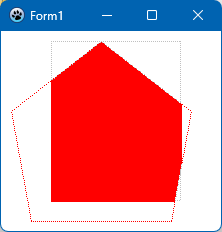 | |
| 583 | 580 | ||
| 584 | 581 | ``` Pascal | |
| 585 | 582 | uses | |
| 586 | 583 | FPImage, IntfGraphics, LazCanvas; | |
| 587 | 584 | ||
| 588 | 585 | procedure TForm1.FormPaint(Sender: TObject); | |
| 589 | 586 | var | |
| 590 | 587 | bmp: TBitmap; | |
| 591 | 588 | img: TLazIntfImage; | |
| 592 | 589 | cnv: TLazCanvas; | |
| 593 | 590 | Rc: TRect; | |
| 594 | 591 | polyPts: array[0..4] of TPoint = ( | |
| 595 | 592 | (x:100;y:10), (x:190;y:80), (x:170;y:190), (x:30;y:190), (x:10;y:80) | |
| 596 | 593 | ); | |
| 597 | 594 | begin | |
| 598 | 595 | // Buffer bitmap | |
| 599 | 596 | bmp := TBitmap.Create; | |
| 600 | 597 | try | |
| 601 | 598 | bmp.SetSize(Width, Height); | |
| 602 | 599 | img := bmp.CreateIntfImage; | |
| 603 | 600 | try | |
| 604 | 601 | cnv := TLazCanvas.Create(img); | |
| 605 | 602 | try | |
| 606 | 603 | cnv.Brush.FPColor := colWhite; | |
| 607 | 604 | cnv.Clear; | |
| 608 | 605 | ||
| 609 | 606 | // To better understand what is removed, we draw the outline of the | |
| 610 | 607 | // polygon to be clipped | |
| 611 | 608 | cnv.Pen.Style := psDot; | |
| 612 | 609 | cnv.Pen.FPColor := colRed; | |
| 613 | 610 | cnv.Polygon(polyPts); | |
| 614 | 611 | ||
| 615 | 612 | // Define the clipping rectangle | |
| 616 | 613 | Rc := Rect(50, 10, 180, 170); | |
| 617 | 614 | // To understand where the clipping rectangle is we draw its outline | |
| 618 | 615 | cnv.Brush.Style := bsClear; | |
| 619 | 616 | cnv.Pen.FPColor := colSilver; | |
| 620 | 617 | cnv.Rectangle(Rc); | |
| 621 | 618 | ||
| 622 | 619 | // Activate clipping | |
| 623 | 620 | cnv.ClipRect := Rc; | |
| 624 | 621 | cnv.Clipping := true; | |
| 625 | 622 | ||
| 626 | 623 | // Draw the polygon to be clipped | |
| 627 | 624 | cnv.Brush.Style := bsSolid; | |
| 628 | 625 | cnv.Brush.FPColor := colRed; | |
| 629 | 626 | cnv.Polygon(polyPts); | |
| 630 | 627 | finally | |
| 631 | 628 | cnv.Free; | |
| 632 | 629 | end; | |
| 633 | 630 | bmp.LoadFromIntfImage(img); | |
| 634 | 631 | Canvas.Draw(0, 0, bmp); | |
| 635 | 632 | finally | |
| 636 | 633 | img.Free; | |
| 637 | 634 | end; | |
| 638 | 635 | finally | |
| 639 | 636 | bmp.Free; | |
| 640 | 637 | end; | |
| 641 | 638 | end; | |
| 642 | 639 | ``` | |
| 643 | 640 | ||
| 644 | 641 | #### Clipping by a region | |
| 645 | 642 | ||
| 646 | 643 | For more complex clipping `TLazCanvas` provides several kinds of "regions". Pixels are drawn only when they are inside the parts added to the region. `TLazCanvas` supports rectangular, elliptical and polygonal parts. In the following example, a region is created which contains an ellipse and a rectangle. Clipping is activated by using this region in the `SetLazClipRegion()` method of the `LazCanvas`: | |
| 647 | 644 | ||
| 648 | - | ||
| 649 | - | ||
| 650 | - | ||
| 651 | - | ||
| 645 | + | 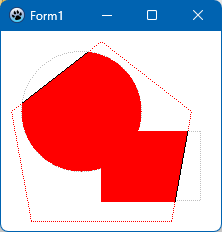 | |
| 652 | 646 | ||
| 653 | 647 | ``` Pascal | |
| 654 | 648 | uses | |
| 655 | 649 | FPImage, FPCanvas, IntfGraphics, LazCanvas, LazRegions; | |
| 656 | 650 | ||
| 657 | 651 | procedure TForm1.FormPaint(Sender: TObject); | |
| 658 | 652 | var | |
| 659 | 653 | bmp: TBitmap; | |
| 660 | 654 | img: TLazIntfImage; | |
| 661 | 655 | cnv: TLazCanvas; | |
| 662 | 656 | rgn: TLazRegion; | |
| 663 | 657 | Rc1, Rc2: TRect; | |
| 664 | 658 | polyPts: array[0..4] of TPoint = ( | |
| 665 | 659 | (x:100;y:10), (x:190;y:80), (x:170;y:190), (x:30;y:190), (x:10;y:80) | |
| 666 | 660 | ); | |
| 667 | 661 | begin | |
| 668 | 662 | // Buffer bitmap | |
| 669 | 663 | bmp := TBitmap.Create; | |
| 670 | 664 | try | |
| 671 | 665 | bmp.SetSize(ClientWidth, ClientHeight); | |
| 672 | 666 | img := bmp.CreateIntfImage; | |
| 673 | 667 | try | |
| 674 | 668 | cnv := TLazCanvas.Create(img); | |
| 675 | 669 | cnv.Brush.FPColor := colWhite; | |
| 676 | 670 | cnv.Clear; | |
| 677 | 671 | ||
| 678 | 672 | // To better understand what is clipped, draw the outline of the polygon | |
| 679 | 673 | // to be clipped | |
| 680 | 674 | cnv.Pen.Style := psDot; | |
| 681 | 675 | cnv.Pen.FPColor := colRed; | |
| 682 | 676 | cnv.Brush.Style := bsClear; | |
| 683 | 677 | cnv.Polygon(polyPts); | |
| 684 | 678 | ||
| 685 | 679 | // ... and we draw the outline of the parts in the clipping region: | |
| 686 | 680 | // We clip by an elliptical region... | |
| 687 | 681 | Rc1 := Rect(20, 20, 140, 140); | |
| 688 | 682 | cnv.Pen.FPColor := colSilver; | |
| 689 | 683 | cnv.Ellipse(Rc1); | |
| 690 | 684 | // ... and by a rectangular region | |
| 691 | 685 | Rc2 := Rect(100, 100, 200, 170); | |
| 692 | 686 | cnv.Rectangle(Rc2); | |
| 693 | 687 | ||
| 694 | 688 | // Create the clipping region | |
| 695 | 689 | rgn := TLazRegion.Create; | |
| 696 | 690 | try | |
| 697 | 691 | // Show pixels that are inside the ellipse... | |
| 698 | 692 | rgn.AddEllipse(Rc1.Left, Rc1.Top, Rc1.Right, Rc1.Bottom); | |
| 699 | 693 | // ... and the rectangle. | |
| 700 | 694 | rgn.AddRectangle(Rc2); | |
| 701 | 695 | // Activate the clip region | |
| 702 | 696 | cnv.SetLazClipRegion(rgn); | |
| 703 | 697 | ||
| 704 | 698 | // Draw the polygon to be clipped | |
| 705 | 699 | cnv.Brush.FPColor := colRed; | |
| 706 | 700 | cnv.Brush.Style := bsSolid; | |
| 707 | 701 | cnv.Pen.Style := psSolid; | |
| 708 | 702 | cnv.Pen.FPColor := colBlack; | |
| 709 | 703 | cnv.Polygon(polyPts); | |
| 710 | 704 | finally | |
| 711 | 705 | cnv.Free; | |
| 712 | 706 | end; | |
| 713 | 707 | ||
| 714 | 708 | // Draw the buffer bitmap in the Paintbox | |
| 715 | 709 | bmp.LoadFromIntfImage(img); | |
| 716 | 710 | Canvas.Draw(0, 0, bmp); | |
| 717 | 711 | finally | |
| 718 | 712 | img.Free; | |
| 719 | 713 | end; | |
| 720 | 714 | finally | |
| 721 | 715 | bmp.Free; | |
| 722 | 716 | end; | |
| 723 | 717 | end; | |
| 724 | 718 | ``` | |
| 725 | 719 | ||
| 726 | 720 | ## Motion Graphics - How to Avoid flickering | |
| 727 | 721 | ||
| 728 | 722 | Many programs draw their output to the GUI as 2D graphics. If those graphics need to change quickly you will soon face a problem: quickly changing graphics often flicker on the screen. This happens when users sometimes see the whole images and sometimes only when it is partially drawn. It occurs because the painting process requires time. | |
| 729 | 723 | ||
| 730 | 724 | How can you avoid the flickering and get the best drawing speed? Of course you could work with hardware acceleration using OpenGL, but this approach is quite heavy for small programs or old computers. | |
| 731 | 725 | ||
| 732 | 726 | Another solution is drawing to a TCanvas. If you need help with OpenGL, take a look at the example that comes with Lazarus. You can also use A.J. Venter's gamepack, which provides a double-buffered canvas and a sprite component. | |
| 733 | 727 | ||
| 734 | 728 | A brief and very helpful article on avoiding flicker can be found at <http://delphi.about.com/library/bluc/text/uc052102g.htm>. Although written for Delphi, the techniques work well with Lazarus. | |
| 735 | 729 | ||
| 736 | 730 | Now we will examine the options we have for drawing to a Canvas: | |
| 737 | 731 | ||
| 738 | 732 | - Draw to a TImage | |
| 739 | 733 | - Draw on the OnPaint event of the form, a TPaintBox or another control | |
| 740 | 734 | - Create a custom control which draws itself | |
| 741 | 735 | - Using A.J. Venter's gamepack | |
| 742 | 736 | ||
| 743 | 737 | ### Draw to a TImage | |
| 744 | 738 | ||
| 745 | 739 | A TImage consists of 2 parts: A TGraphic, usually a TBitmap, holding the persistent picture and the visual area, which is repainted on every OnPaint. Resizing the TImage does **not** resize the bitmap. The graphic (or bitmap) is accessible via Image1.Picture.Graphic (or Image1.Picture.Bitmap). The canvas is Image1.Picture.Bitmap.Canvas. The canvas of the visual area of a TImage is only accessible during Image1.OnPaint via Image1.Canvas. | |
| 746 | 740 | ||
| 747 | 741 | **Important**: Never use the OnPaint of the Image1 event to draw to the graphic/bitmap of a TImage. The graphic of a TImage is buffered so all you need to do is draw to it from anywhere and the change is there forever. However, if you are constantly redrawing, the image will flicker. In this case you can try the other options. Drawing to a TImage is considered slower then the other approaches. | |
| 748 | 742 | ||
| 749 | 743 | #### Resizing the bitmap of a TImage | |
| 750 | 744 | ||
| 751 | 745 | > **Note:** Do not use this during OnPaint. | |
| 752 | 746 | ||
| 753 | 747 | ``` pascal | |
| 754 | 748 | with Image1.Picture.Bitmap do begin | |
| 755 | 749 | Width:=100; | |
| 756 | 750 | Height:=120; | |
| 757 | 751 | end; | |
| 758 | 752 | ``` | |
| 759 | 753 | ||
| 760 | 754 | Same in one step: | |
| 761 | 755 | ||
| 762 | 756 | ``` pascal | |
| 763 | 757 | with Image1.Picture.Bitmap do begin | |
| 764 | 758 | SetSize(100, 120); | |
| 765 | 759 | end; | |
| 766 | 760 | ``` | |
| 767 | 761 | ||
| 768 | 762 | #### Painting on the bitmap of a TImage | |
| 769 | 763 | ||
| 770 | 764 | > **Note:** Do not use this during OnPaint. | |
| 771 | 765 | ||
| 772 | 766 | ``` pascal | |
| 773 | 767 | with Image1.Picture.Bitmap.Canvas do begin | |
| 774 | 768 | // fill the entire bitmap with red | |
| 775 | 769 | Brush.Color := clRed; | |
| 776 | 770 | FillRect(0, 0, Width, Height); | |
| 777 | 771 | end; | |
| 778 | 772 | ``` | |
| 779 | 773 | ||
| 780 | 774 | > **Note:** Inside of Image1.OnPaint the Image1.Canvas points to the volatile visible area. Outside of Image1.OnPaint the Image1.Canvas points to Image1.Picture.Bitmap.Canvas. | |
| 781 | 775 | ||
| 782 | 776 | Another example: | |
| 783 | 777 | ||
| 784 | 778 | ``` pascal | |
| 785 | 779 | procedure TForm1.BitBtn1Click(Sender: TObject); | |
| 786 | 780 | var | |
| 787 | 781 | x, y: Integer; | |
| 788 | 782 | begin | |
| 789 | 783 | // Draws the backgroung | |
| 790 | 784 | MyImage.Canvas.Pen.Color := clWhite; | |
| 791 | 785 | MyImage.Canvas.Rectangle(0, 0, Image.Width, Image.Height); | |
| 792 | 786 | ||
| 793 | 787 | // Draws squares | |
| 794 | 788 | MyImage.Canvas.Pen.Color := clBlack; | |
| 795 | 789 | for x := 1 to 8 do | |
| 796 | 790 | for y := 1 to 8 do | |
| 797 | 791 | MyImage.Canvas.Rectangle(Round((x - 1) * Image.Width / 8), Round((y - 1) * Image.Height / 8), | |
| 798 | 792 | Round(x * Image.Width / 8), Round(y * Image.Height / 8)); | |
| 799 | 793 | end; | |
| 800 | 794 | ``` | |
| 801 | 795 | ||
| 802 | 796 | #### Painting on the volatile visual area of the TImage | |
| 803 | 797 | ||
| 804 | 798 | You can only paint on this area during OnPaint. OnPaint is eventually called automatically by the LCL when the area was invalidated. You can invalidate the area manually with Image1.Invalidate. This will not immediately call OnPaint and you can call Invalidate as many times as you want. | |
| 805 | 799 | ||
| 806 | 800 | ``` pascal | |
| 807 | 801 | procedure TForm.Image1Paint(Sender: TObject); | |
| 808 | 802 | begin | |
| 809 | 803 | // paint a line | |
| 810 | 804 | Canvas.Pen.Color := clRed; | |
| 811 | 805 | Canvas.Line(0, 0, Width, Height); | |
| 812 | 806 | end; | |
| 813 | 807 | ``` | |
| 814 | 808 | ||
| 815 | 809 | ### Draw on the OnPaint event | |
| 816 | 810 | ||
| 817 | 811 | In this case all the drawing has to be done on the OnPaint event of the form, or of another control. The drawing isn't buffered like in the TImage, and it needs to be fully redrawn in each call of the OnPaint event handler. | |
| 818 | 812 | ||
| 819 | 813 | ``` pascal | |
| 820 | 814 | procedure TForm.Form1Paint(Sender: TObject); | |
| 821 | 815 | begin | |
| 822 | 816 | // paint a line | |
| 823 | 817 | Canvas.Pen.Color := clRed; | |
| 824 | 818 | Canvas.Line(0, 0, Width, Height); | |
| 825 | 819 | end; | |
| 826 | 820 | ``` | |
| 827 | 821 | ||
| 828 | 822 | ### Create a custom control which draws itself | |
| 829 | 823 | ||
| 830 | 824 | Creating a custom control has the advantage of structuring your code and you can reuse the control. This approach is very fast, but it can still generate flickering if you don't draw to a TBitmap first and then draw to the canvas. On this case there is no need to use the OnPaint event of the control. | |
| 831 | 825 | ||
| 832 | 826 | Here is an example custom control: | |
| 833 | 827 | ||
| 834 | 828 | ``` pascal | |
| 835 | 829 | uses | |
| 836 | 830 | Classes, SysUtils, Controls, Graphics, LCLType; | |
| 837 | 831 | ||
| 838 | 832 | type | |
| 839 | 833 | TMyDrawingControl = class(TCustomControl) | |
| 840 | 834 | public | |
| 841 | 835 | procedure EraseBackground(DC: HDC); override; | |
| 842 | 836 | procedure Paint; override; | |
| 843 | 837 | end; | |
| 844 | 838 | ||
| 845 | 839 | implementation | |
| 846 | 840 | ||
| 847 | 841 | procedure TMyDrawingControl.EraseBackground(DC: HDC); | |
| 848 | 842 | begin | |
| 849 | 843 | // Uncomment this to enable default background erasing | |
| 850 | 844 | //inherited EraseBackground(DC); | |
| 851 | 845 | end; | |
| 852 | 846 | ||
| 853 | 847 | procedure TMyDrawingControl.Paint; | |
| 854 | 848 | var | |
| 855 | 849 | x, y: Integer; | |
| 856 | 850 | Bitmap: TBitmap; | |
| 857 | 851 | begin | |
| 858 | 852 | Bitmap := TBitmap.Create; | |
| 859 | 853 | try | |
| 860 | 854 | // Initializes the Bitmap Size | |
| 861 | 855 | Bitmap.Height := Height; | |
| 862 | 856 | Bitmap.Width := Width; | |
| 863 | 857 | ||
| 864 | 858 | // Draws the background | |
| 865 | 859 | Bitmap.Canvas.Pen.Color := clWhite; | |
| 866 | 860 | Bitmap.Canvas.Rectangle(0, 0, Width, Height); | |
| 867 | 861 | ||
| 868 | 862 | // Draws squares | |
| 869 | 863 | Bitmap.Canvas.Pen.Color := clBlack; | |
| 870 | 864 | for x := 1 to 8 do | |
| 871 | 865 | for y := 1 to 8 do | |
| 872 | 866 | Bitmap.Canvas.Rectangle(Round((x - 1) * Width / 8), Round((y - 1) * Height / 8), | |
| 873 | 867 | Round(x * Width / 8), Round(y * Height / 8)); | |
| 874 | 868 | ||
| 875 | 869 | Canvas.Draw(0, 0, Bitmap); | |
| 876 | 870 | finally | |
| 877 | 871 | Bitmap.Free; | |
| 878 | 872 | end; | |
| 879 | 873 | ||
| 880 | 874 | inherited Paint; | |
| 881 | 875 | end; | |
| 882 | 876 | ``` | |
| 883 | 877 | ||
| 884 | 878 | and how we create it on the form: | |
| 885 | 879 | ||
| 886 | 880 | ``` pascal | |
| 887 | 881 | procedure TMyForm.FormCreate(Sender: TObject); | |
| 888 | 882 | begin | |
| 889 | 883 | MyDrawingControl := TMyDrawingControl.Create(Self); | |
| 890 | 884 | MyDrawingControl.Height := 400; | |
| 891 | 885 | MyDrawingControl.Width := 500; | |
| 892 | 886 | MyDrawingControl.Top := 0; | |
| 893 | 887 | MyDrawingControl.Left := 0; | |
| 894 | 888 | MyDrawingControl.Parent := Self; | |
| 895 | 889 | MyDrawingControl.DoubleBuffered := True; | |
| 896 | 890 | end; | |
| 897 | 891 | ``` | |
| 898 | 892 | ||
| 899 | 893 | It is destroyed automatically, because we use Self as owner. | |
| 900 | 894 | ||
| 901 | 895 | Setting Top and Left to zero is not necessary, since this is the standard position, but is done so to reinforce where the control will be put. | |
| 902 | 896 | ||
| 903 | 897 | "MyDrawingControl.Parent := Self;" is very important and you won't see your control if you don't do so. | |
| 904 | 898 | ||
| 905 | 899 | "MyDrawingControl.DoubleBuffered := True;" is required to avoid flickering on Windows. It has no effect on gtk. | |
| 906 | 900 | ||
| 907 | 901 | ## Image formats | |
| 908 | 902 | ||
| 909 | 903 | Here is a table with the correct class to use for each image format. | |
| 910 | 904 | ||
| 911 | 905 | | Format | Image class | Unit | | |
| 912 | 906 | |--------------------------------|-------------------------|----------| | |
| 913 | 907 | | Cursor (cur) | TCursor | Graphics | | |
| 914 | 908 | | Bitmap (bmp) | TBitmap | Graphics | | |
| 915 | 909 | | Windows icon (ico) | TIcon | Graphics | | |
| 916 | 910 | | Mac OS X icon (icns) | TicnsIcon | Graphics | | |
| 917 | 911 | | Pixmap (xpm) | TPixmap | Graphics | | |
| 918 | 912 | | Portable Network Graphic (png) | TPortableNetworkGraphic | Graphics | | |
| 919 | 913 | | JPEG (jpg, jpeg) | TJpegImage | Graphics | | |
| 920 | 914 | | PNM (pnm) | TPortableAnyMapGraphic | Graphics | | |
| 921 | 915 | | Tiff (tif, tiff) | TTiffImage | Graphics | | |
| 922 | 916 | ||
| 923 | 917 | See also the list of [[fcl-image|fcl-image supported formats]]. | |
| 924 | 918 | ||
| 925 | 919 | ### Converting formats | |
| 926 | 920 | ||
| 927 | 921 | Sometimes it is necessary to convert one graphic type to another. One of the ways is to convert a graphic to intermediate format, and then convert it to TBitmap. Most of the formats can create an image from TBitmap. | |
| 928 | 922 | ||
| 929 | 923 | Converting Bitmap to PNG and saving it to a file: | |
| 930 | 924 | ||
| 931 | 925 | ``` pascal | |
| 932 | 926 | procedure SaveToPng(const bmp: TBitmap; PngFileName: String); | |
| 933 | 927 | var | |
| 934 | 928 | png : TPortableNetworkGraphic; | |
| 935 | 929 | begin | |
| 936 | 930 | png := TPortableNetworkGraphic.Create; | |
| 937 | 931 | try | |
| 938 | 932 | png.Assign(bmp); | |
| 939 | 933 | png.SaveToFile(PngFileName); | |
| 940 | 934 | finally | |
| 941 | 935 | png.Free; | |
| 942 | 936 | end; | |
| 943 | 937 | end; | |
| 944 | 938 | ``` | |
| 945 | 939 | ||
| 946 | 940 | ## Pixel Formats | |
| 947 | 941 | ||
| 948 | 942 | ### TColor | |
| 949 | 943 | ||
| 950 | 944 | The internal pixel format for TColor in the LCL is the XXBBGGRR format, which matches the native Windows format and is opposite to most other libraries, which use AARRGGBB. The XX part is used to identify if the color is a fixed color, which case XX should be 00 or if it is an index to a system color. There is no space reserved for an alpha channel. | |
| 951 | 945 | ||
| 952 | 946 | To convert from separate RGB channels to TColor use: | |
| 953 | 947 | ||
| 954 | 948 | ``` pascal | |
| 955 | 949 | RGBToColor(RedVal, GreenVal, BlueVal); | |
| 956 | 950 | ``` | |
| 957 | 951 | ||
| 958 | 952 | To get each channel of a TColor variable use the Red, Green and Blue functions: | |
| 959 | 953 | ||
| 960 | 954 | ``` pascal | |
| 961 | 955 | RedVal := Red(MyColor); | |
| 962 | 956 | GreenVal := Green(MyColor); | |
| 963 | 957 | BlueVal := Blue(MyColor); | |
| 964 | 958 | ``` | |
| 965 | 959 | ||
| 966 | 960 | ### TFPColor | |
| 967 | 961 | ||
| 968 | 962 | TFPColor uses the AARRGGBB format common to most libraries, but it uses 16-bits for the depth of each color channel, totaling 64-bits per pixel, which is unusual. This does not necessarily mean that images will consume that much memory, however. Images created using TRawImage+TLazIntfImage can have any internal storage format and then on drawing operations TFPColor is converted to this internal format. | |
| 969 | 963 | ||
| 970 | 964 | The unit Graphics provides routines to convert between TColor and TFPColor: | |
| 971 | 965 | ||
| 972 | 966 | ``` pascal | |
| 973 | 967 | function FPColorToTColorRef(const FPColor: TFPColor): TColorRef; | |
| 974 | 968 | function FPColorToTColor(const FPColor: TFPColor): TColor; | |
| 975 | 969 | function TColorToFPColor(const c: TColorRef): TFPColor; overload; | |
| 976 | 970 | function TColorToFPColor(const c: TColor): TFPColor; overload; // does not work on system color | |
| 977 | 971 | ``` | |
| 978 | 972 | ||
| 979 | 973 | ## Drawing with fcl-image | |
| 980 | 974 | ||
| 981 | 975 | You can draw images which won't be displayed in the screen without the LCL, by just using fcl-image directly. For example a program running on a webserver without X11 could benefit from not having a visual library as a dependency. FPImage (alias fcl-image) is a very generic image and drawing library written completely in Pascal. In fact the LCL uses FPImage too for all the loading and saving from/to files and implements the drawing function through calls to the widgetset (winapi, gtk, carbon, ...). Fcl-image on the other hand also has drawing routines. | |
| 982 | 976 | ||
| 983 | 977 | For more information, please read the article about [[fcl-image]]. | |
| 984 | 978 | ||
| 985 | 979 | ## Common OnPaint Error | |
| 986 | 980 | ||
| 987 | 981 | A common error that causes many false bug reports is to call an OnPaint event for one object from another object. When using the LCL, this may work in GTK2 and Windows but will probably fail with Qt, Carbon and Cocoa. It is not normally necessary to call Invalidate. However, it may sometimes be needed in the Button1Click procedure. | |
| 988 | 982 | ||
| 989 | 983 | This is bad: | |
| 990 | 984 | ||
| 991 | 985 | ``` pascal | |
| 992 | 986 | procedure TForm1.Button1Click(Sender: TObject); | |
| 993 | 987 | begin | |
| 994 | 988 | Shape1Paint(Self); // Call Shape1 OnPaint event | |
| 995 | 989 | Shape1.Invalidate; // Invoke actual painting | |
| 996 | 990 | ||
| 997 | 991 | //more code for Button1 | |
| 998 | 992 | end; | |
| 999 | 993 | ``` | |
| 1000 | 994 | ||
| 1001 | 995 | This is good: | |
| 1002 | 996 | ||
| 1003 | 997 | ``` pascal | |
| 1004 | 998 | procedure TForm1.Button1Click(Sender: TObject); | |
| 1005 | 999 | begin | |
| 1006 | 1000 | //code for Button1 | |
| 1007 | 1001 | //set some condition | |
| 1008 | 1002 | Shape1.Invalidate; // May be necessary on some occasions | |
| 1009 | 1003 | end; | |
| 1010 | 1004 | ||
| 1011 | 1005 | // Shape1Paint should be attached to the OnPaint event of shape object ! | |
| 1012 | 1006 | procedure TForm1.Shape1Paint(Sender: TObject); | |
| 1013 | 1007 | begin | |
| 1014 | 1008 | if some_condition then | |
| 1015 | 1009 | with Shape1.Canvas do | |
| 1016 | 1010 | begin | |
| 1017 | 1011 | //lots of stuff | |
| 1018 | 1012 | end; | |
| 1019 | 1013 | end; | |
| 1020 | 1014 | ``` | |
| 1021 | 1015 | ||
| 1022 | 1016 | ## Some useful examples | |
| 1023 | 1017 | ||
| 1024 | 1018 | ### Example 1: Drawing on loaded JPEG with TImage | |
| 1025 | 1019 | ||
| 1026 | 1020 | Add procedure LoadAndDraw to the public section of your form, and paste next code to implemantation section: | |
| 1027 | 1021 | ||
| 1028 | 1022 | ``` pascal | |
| 1029 | 1023 | procedure TForm1.LoadAndDraw(const sFileName: String); | |
| 1030 | 1024 | var | |
| 1031 | 1025 | jpg: TPicture; | |
| 1032 | 1026 | begin | |
| 1033 | 1027 | jpg := TPicture.Create; | |
| 1034 | 1028 | try | |
| 1035 | 1029 | jpg.LoadFromFile(sFileName); | |
| 1036 | 1030 | ||
| 1037 | 1031 | Image.Picture.Bitmap.SetSize(jpg.Width, jpg.Height); | |
| 1038 | 1032 | Image.Picture.Bitmap.Canvas.Draw(0, 0, jpg.Bitmap); | |
| 1039 | 1033 | ||
| 1040 | 1034 | Image.Picture.Bitmap.Canvas.Pen.Color := clRed; | |
| 1041 | 1035 | Image.Picture.Bitmap.Canvas.Line(0, 0, 140, 140); | |
| 1042 | 1036 | finally | |
| 1043 | 1037 | jpg.Free; | |
| 1044 | 1038 | end; | |
| 1045 | 1039 | end; | |
| 1046 | 1040 | ``` | |
| 1047 | 1041 | ||
| 1048 | 1042 | ### Example 2: Drawing on controls of Form | |
| 1049 | 1043 | ||
| 1050 | 1044 | 1\) Create a New project - Application, add to uses section next modules if needed: Types, Controls, Graphics. | |
| 1051 | 1045 | ||
| 1052 | 1046 | 2\) Place on form Button1, GroupBox1 and RadioGroup1 | |
| 1053 | 1047 | ||
| 1054 | 1048 | 3\) Place on GroupBox1 one more button - Button2 | |
| 1055 | 1049 | ||
| 1056 | 1050 | 4\) Your TForm1.Create should looks like: | |
| 1057 | 1051 | ||
| 1058 | 1052 | ``` pascal | |
| 1059 | 1053 | procedure TForm1.FormCreate(Sender: TObject); | |
| 1060 | 1054 | var | |
| 1061 | 1055 | i: Integer; | |
| 1062 | 1056 | begin | |
| 1063 | 1057 | for i := 0 to Self.ControlCount - 1 do | |
| 1064 | 1058 | RadioGroup1.Items.AddObject(Controls[i].Name, Controls[i]); | |
| 1065 | 1059 | ||
| 1066 | 1060 | RadioGroup1.Items.AddObject(Button2.Name,Button2); | |
| 1067 | 1061 | end; | |
| 1068 | 1062 | ``` | |
| 1069 | 1063 | ||
| 1070 | 1064 | 5\) For RadioGroup1 create handler of OnSelectionChanged event: | |
| 1071 | 1065 | ||
| 1072 | 1066 | ``` pascal | |
| 1073 | 1067 | procedure TForm1.RadioGroup1SelectionChanged(Sender: TObject); | |
| 1074 | 1068 | begin | |
| 1075 | 1069 | Self.Repaint; | |
| 1076 | 1070 | end; | |
| 1077 | 1071 | ``` | |
| 1078 | 1072 | ||
| 1079 | 1073 | 6\) Add to public section of your form procedure HighlightControl: | |
| 1080 | 1074 | ||
| 1081 | 1075 | ``` pascal | |
| 1082 | 1076 | procedure TForm1.HighlightControl(AControl: TControl); | |
| 1083 | 1077 | var | |
| 1084 | 1078 | R: Types.TRect; | |
| 1085 | 1079 | aCC: TControlCanvas; | |
| 1086 | 1080 | begin | |
| 1087 | 1081 | R := AControl.BoundsRect; | |
| 1088 | 1082 | InflateRect(R, 2, 2); // make rect a bit bigger then control | |
| 1089 | 1083 | aCC := TControlCanvas.Create; | |
| 1090 | 1084 | aCC.Control := AControl.Parent; | |
| 1091 | 1085 | aCC.Pen.Color := clGreen; | |
| 1092 | 1086 | aCC.Pen.Width := 5; | |
| 1093 | 1087 | aCC.Pen.Style := psSolid; | |
| 1094 | 1088 | aCC.Brush.Style := bsClear; | |
| 1095 | 1089 | aCC.Rectangle(R); | |
| 1096 | 1090 | aCC.free; | |
| 1097 | 1091 | end; | |
| 1098 | 1092 | ``` | |
| 1099 | 1093 | ||
| 1100 | 1094 | ## See also | |
| 1101 | 1095 | ||
| 1102 | 1096 | - [[Fast direct pixel access]] | |
| 1103 | 1097 | ||
| 1104 | 1098 | ### 2D drawing | |
| 1105 | 1099 | ||
| 1106 | 1100 | - [[ZenGL]] - cross-platform game development library using OpenGL. | |
| 1107 | 1101 | - [[BGRABitmap]] - Drawing shapes and bitmaps with transparency, direct access to pixels, etc. | |
| 1108 | 1102 | - [[LazRGBGraphics]] - A package for fast in memory image processing and pixel manipulations (like scan line). | |
| 1109 | 1103 | - [[fpvectorial]] - Offers support to read, modify and write vectorial images. | |
| 1110 | 1104 | - [[Double Gradient]] - Draw 'double gradient' & 'n gradient' bitmaps easy. | |
| 1111 | 1105 | - [[Gradient Filler]] - TGradientFiller is the best way to create custom n gradients in Lazarus. | |
| 1112 | 1106 | - [[PascalMagick]] - an easy to use API for interfacing with [ImageMagick](http://www.imagemagick.org), a multiplatform free software suite to create, edit, and compose bitmap images. | |
| 1113 | 1107 | - [[Sample Graphics]] - graphics gallery created with Lazarus and drawing tools | |
| 1114 | 1108 | - [[Fast direct pixel access]] - speed comparison of some methods for direct bitmap pixel access | |
| 1115 | 1109 | - [AggPas](http://www.crossgl.com/aggpas/) - AggPas is an Object Pascal native port of the Anti-Grain Geometry library. It is fast and very powerful with anti-aliased drawing and subpixel accuracy. You can think of AggPas as of a rendering engine that produces pixel images in memory from some vectorial data. Both Lazarus and [[fpGUI]] bundle AggPas. | |
| 1116 | 1110 | ||
| 1117 | 1111 | ### 3D drawing | |
| 1118 | 1112 | ||
| 1119 | 1113 | - [[OpenGL]] - OpenGL (Open Graphics Library) is a cross-platform API for producing 3D computer graphics. | |
| 1120 | 1114 | - [[GLScene]] - A port of the 3D visual OpenGL graphics Library [GLScene](http://www.glscene.org). | |
| 1121 | 1115 | - [[Metal Framework|macOS Metal Framework]] - Render advanced 3D graphics and perform data-parallel computations using graphics processors. | |
| 1122 | 1116 | - [[Castle Game Engine]] - An open-source cross-platform 3D and 2D game engine ([official website](https://castle-engine.io/)). | |
| 1123 | 1117 | ||
| 1124 | 1118 | ### Charts | |
| 1125 | 1119 | ||
| 1126 | 1120 | - [[TAChart]] - Charting component for Lazarus | |
| 1127 | 1121 | - [[PlotPanel]] - A plotting and charting component for animated graphs | |
| 1128 | 1122 | - [[Perlin Noise]] - An article about using Perlin Noise on LCL applications. | |
| 1129 | 1123 | ||
| 1130 | 1124 | --- | |
| 1131 | 1125 | *From the Free Pascal wiki, page "Developing with Graphics", as it stood on 2024-05-23 after a change by Wp, out of the wiki's dump of 2024-05-26. Copyright stays with the author who wrote it, according to the old wiki's [[Licensing]] page. If you have concerns about this material, [message the admin](/wiki-contact).* |