

Daemons and Services: what changed
Revision 1 to 2. Removed lines have a minus sign; added lines have a plus sign.
| Old | New | Line | |
|---|---|---|---|
| 1 | 1 | ## What are daemons, services and agents? | |
| 2 | 2 | ||
| 3 | 3 | Unix *daemons* and Windows *services* are system-wide programs running without user interaction; macOS *agents* are per user programs (cf system-wide daemons) that may or may not run without user interaction. Although the nomenclature differs, their function is similar: for example **www** or **ftp** servers are called daemons under Linux and services under Windows. Because they do not interact with the user directly, they close their stdin, stdout, stderr descriptors at start. | |
| 4 | 4 | ||
| 5 | 5 | With Free Pascal and Lazarus it is possible to write these daemons/services in a platform-independent manner using the Lazarus lazdaemon package. To avoid name conflicts with the Delphi components these classes are called 'daemons'. | |
| 6 | 6 | ||
| 7 | 7 | > **Note:** This page focuses on Windows and Linux. To read about Lazarus and macOS "Agents", please refer to [[macOS daemons and agents]]. | |
| 8 | 8 | ||
| 9 | 9 | ## Creating a Service/Daemon (using Lazarus and visual Components) | |
| 10 | 10 | ||
| 11 | 11 | > **Note:** The complete sample source code for this wiki page is available via the link at the end of this wiki page. | |
| 12 | 12 | ||
| 13 | 13 | ### Prerequisite: Install the LazDaemon package | |
| 14 | 14 | ||
| 15 | 15 | Before you can start creating a daemon using the Lazarus IDE, you must install the LazDaemon package either via "Components" - "Configure installed packages" or by installing the lpk file directly from .../lazarus/components/daemon/lazdaemon.lpk. The package installs some new components and menu items in the IDE. | |
| 16 | 16 | ||
| 17 | - | ||
| 18 | - | ||
| 19 | - | ||
| 20 | - | ||
| 17 | + | 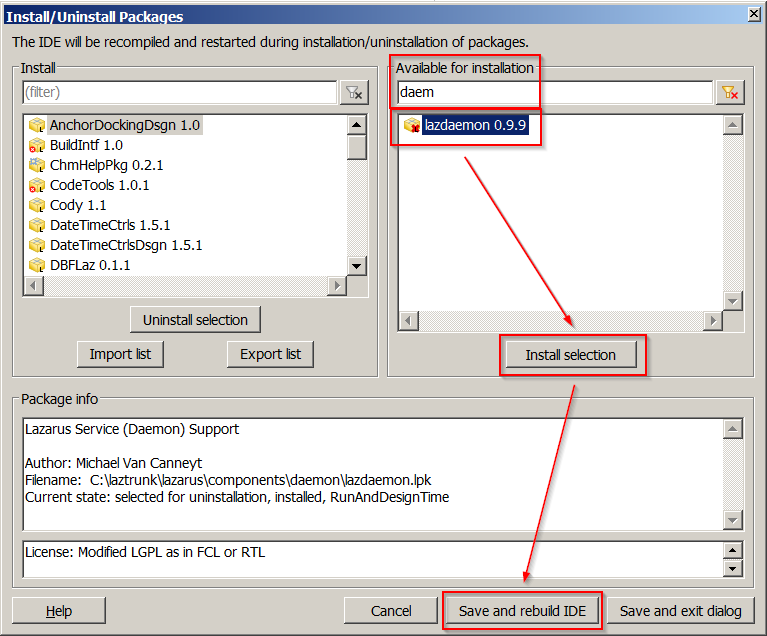 | |
| 21 | 18 | ||
| 22 | 19 | Due to the way packages work in Lazarus, you need to "Save and rebuild the IDE" to install the LazDaemon package. | |
| 23 | 20 | ||
| 24 | 21 | ### Creating and using scaffolded Daemon Project Files | |
| 25 | 22 | ||
| 26 | 23 | After having installed the LazDaemon package, from the "Project" - "New Project" Menu, pick "Daemon (service) application)". | |
| 27 | 24 | ||
| 28 | - | ||
| 29 | - | ||
| 30 | - | ||
| 31 | - | ||
| 25 | + | 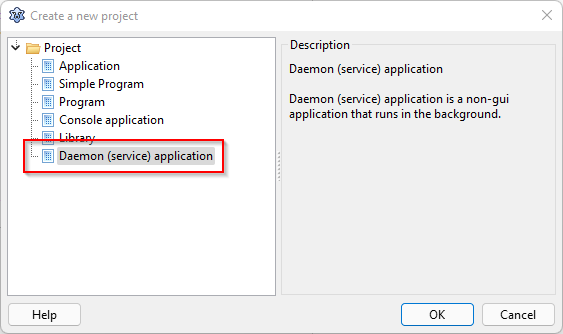 | |
| 32 | 26 | ||
| 33 | 27 | This will automatically create two units, one for a TDaemon descendant ("DaemonUnit"), and one for a TDaemonMapper descendant ("DaemonMapperUnit"), and a main project file ("TestDaemon.lpr"). This file needs a little change to work: | |
| 34 | 28 | ||
| 35 | 29 | ``` pascal | |
| 36 | 30 | Program TestDaemon; | |
| 37 | 31 | ||
| 38 | 32 | Uses | |
| 39 | 33 | ||
| 40 | 34 | // This is the scaffolded code, needs modification like shown below, | |
| 41 | 35 | // since UseCThreads is usually not definied, and is not needed here | |
| 42 | 36 | // {$IFDEF UNIX}{$IFDEF UseCThreads} | |
| 43 | 37 | // CThreads, | |
| 44 | 38 | // {$ENDIF}{$ENDIF} | |
| 45 | 39 | ||
| 46 | 40 | {$IFDEF UNIX} | |
| 47 | 41 | CThreads, | |
| 48 | 42 | {$ENDIF} | |
| 49 | 43 | DaemonApp, lazdaemonapp, daemonmapperunit, DaemonUnit | |
| 50 | 44 | { add your units here }; | |
| 51 | 45 | ||
| 52 | 46 | {$R *.res} | |
| 53 | 47 | ||
| 54 | 48 | begin | |
| 55 | 49 | Application.Initialize; | |
| 56 | 50 | Application.Run; | |
| 57 | 51 | end. | |
| 58 | 52 | ``` | |
| 59 | 53 | ||
| 60 | 54 | > **Warning:** The scaffolded .lpr file contains an additional {\$IFDEF UseCThreads} ... {\$ENDIF} clause (commented out in the sample above), which has been observed not to work, unless additional measures are taken to define UseCThreads. You can remove the conditional entirely or comment it out, like shown in the above .lpr sample, or add a -dUseCThreads option when you compile your daemon on Linux. Windows services are not affected. | |
| 61 | 55 | ||
| 62 | 56 | Despite that daemons don't have a GUI, both the DaemonApp and the DaemonMapper unit have support for the Lazarus Form Editor. This way you get a familiar GUI to populate the various properties of the daemon and the mapper class. Of course, if you prefer, you can initialize all properties in code as well like shown below. | |
| 63 | 57 | ||
| 64 | 58 | Both the scaffolded DaemonApp and the DaemonMapper unit contain a superfluous "var" definition (var DaemonMapper1: TDaemonMapper1; var Daemon1: TDaemon1;). Those are actually never used by the running daemon, they remain uninitialized, trying to access them results in an access violation fatal error. If you have a closer look at how daemon applications work internally you'll see that the code relies solely on the types (TDaemonMapper1, TDaemon), the vars can be ignored or removed entirely. | |
| 65 | 59 | ||
| 66 | 60 | The code provided by the TDaemon class does mainly respond to the various service control messages sent by the OS. The TDaemonMapper contains data structures describing the service. Both classes need to be registered with the daemon application framework, they will be used internally to configure the daemon when it starts. In this code sample registration is done in the "Initialization" section of each unit. | |
| 67 | 61 | ||
| 68 | 62 | The main "Application" object for a service-style application is introduced by putting a reference to DaemonApp into the uses section of each unit. In a daemon application, "Application" provides the complete service framework including advanced features like install and uninstall support, and logging. For the "worker" part of the daemon you are supposed to create a thread of its own, see sample code below, don't try to use the "Execute" method provided by the TDaemon class. | |
| 69 | 63 | ||
| 70 | 64 | ### Populating the DaemonMapper Class | |
| 71 | 65 | ||
| 72 | 66 | For the moment let's just fill some basic properties to get things going. Note that the DaemonClassName must exactly match with what you have defined in the DaemonClass unit. | |
| 73 | 67 | ||
| 74 | - | ||
| 75 | - | ||
| 76 | - | ||
| 77 | - | ||
| 68 | + | 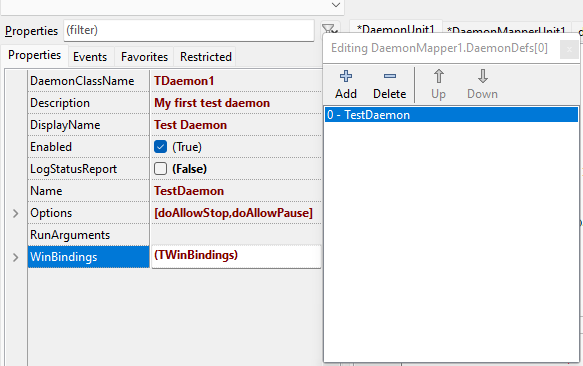 | |
| 78 | 69 | ||
| 79 | 70 | > **Note:** For cross-platform programmers: In Unix everything is case-sensitive, using lowercase is common use, so you may cause some confusion if you define a mixed-case service name like shown in the above sample. | |
| 80 | 71 | ||
| 81 | 72 | Maybe have a short look into the WinBindings property, which lets you configure various service properties for use by the Windows Service Manager, like service start type and service user account. While not used for this basic demo daemon, setting those options properly is important for a real life daemon application. WinBindings doesn't have any effect on Linux, see the section about install and uninstall support for Linux on how to achieve the same for Linux by setting options in the systemd "unit" (.service) file. | |
| 82 | 73 | ||
| 83 | 74 | ### Writing the Daemon Methods | |
| 84 | 75 | ||
| 85 | 76 | TDaemons support the following methods: | |
| 86 | 77 | ||
| 87 | 78 | | Method/Event | Description | | |
| 88 | 79 | |----|----| | |
| 89 | 80 | | `OnStart` | Called when daemon should start. This method must return immediately with *OK:=True*. | | |
| 90 | 81 | | `OnStop` | Called when daemon should stop. This method must return immediately with *OK:=True*. | | |
| 91 | 82 | | `OnShutDown` | Called when daemon should be killed, because the system shuts down. This method must stop the daemon immediately and return with *OK:=True*. This is not triggered under Linux. Linux simply kills the daemon process. | | |
| 92 | 83 | | `OnPause` | Called when daemon should pause. This method must return immediately with *OK:=True*. Under Linux this is not triggered, instead the kernel stops the whole daemon on STOP. | | |
| 93 | 84 | | `OnContinue` | Called when daemon should continue after a pause. This method must return immediately with *OK:=True*. Under Linux this is not triggered. | | |
| 94 | 85 | | `OnExecute` | Do not use this property to implement the working code, use a worker task like shown in the code sample. | | |
| 95 | 86 | | `BeforeInstall` | Called before service installation. | | |
| 96 | 87 | | `AfterInstall` | Called after (successful) service installation. | | |
| 97 | 88 | | `BeforeUninstall` | Called before service de-installation. | | |
| 98 | 89 | | `AfterUninstall` | Called after successful service de-installation. | | |
| 99 | 90 | | | | | |
| 100 | 91 | ||
| 101 | 92 | The following code snippets show all the major event handlers necessary to successfully implement a simple daemon. They have been tested on Windows 7/10/11 and several Linux distros (Debian 10.8 and Ubuntu 20.04.3). | |
| 102 | 93 | ||
| 103 | 94 | Some handy helper functions have been offloaded into separate units, so they do not obfuscate the daemon core code: | |
| 104 | 95 | ||
| 105 | 96 | - FileLoggerUnit: a thread safe log to file helper. It is required because the control signal receiver included in the TDaemon application and the service's working code need to be implemented as separate threads, otherwise the daemon will not respond to control signals while the service worker code runs. So in any daemon there are at least two tasks involved, which could create a clash when accessing the log file simultaneously. See the Lazarus wiki [[Multithreaded Application Tutorial]] for details about how to serialize accesses to a single resource by using a TRTLCriticalSection to make the code thread-safe. The FileLoggerUnit code does always write the log into the program directory, please make sure the daemon has write access permissions. The code writes one file per day, the filename contains the creation date. If you need a more sophisticated logger, consider using the [[LazLogger]] unit. | |
| 106 | 97 | - [DaemonWorkerThread](https://gitlab.com/freepascal.org/lazarus/lazarus/-/tree/main/examples/TDaemon): a TThread descendant class to hold the daemon "worker" code. See the Lazarus wiki [[Multithreaded Application Tutorial]] for details about the TThread.Execute method containing the inevitable "while not terminated" loop. There is nothing special with a worker thread initiated by a TDaemon, it's just a simple thread like any other. | |
| 107 | 98 | - [DaemonSystemdInstallerUnit](https://gitlab.com/freepascal.org/lazarus/lazarus/-/tree/main/examples/TDaemon): a unit which tries to provide support for the -install and -uninstall command line parameters for Linux. Adds systemd/systemctl support by writing an appropriate control file to /lib/systemd/system. | |
| 108 | 99 | ||
| 109 | 100 | ### Daemon Start/Stop Signal Handler | |
| 110 | 101 | ||
| 111 | 102 | ``` Pascal | |
| 112 | 103 | // --------------------- | |
| 113 | 104 | // Start and Stop signal | |
| 114 | 105 | // --------------------- | |
| 115 | 106 | ||
| 116 | 107 | procedure TDaemon1.DataModuleStart(Sender: TCustomDaemon; var OK: Boolean); | |
| 117 | 108 | begin | |
| 118 | 109 | LogToFile(Format('Daemon received start signal, PID:%d', [GetProcessID])); | |
| 119 | 110 | // Create a suspended worker thread - see DaemonWorkerThread unit | |
| 120 | 111 | FDaemonWorkerThread := TDaemonWorkerThread.Create; | |
| 121 | 112 | // Parametrize it | |
| 122 | 113 | FDaemonWorkerThread.FreeOnTerminate := False; | |
| 123 | 114 | // Start the worker | |
| 124 | 115 | FDaemonWorkerThread.Start; | |
| 125 | 116 | OK := True; | |
| 126 | 117 | end; | |
| 127 | 118 | ||
| 128 | 119 | procedure TDaemon1.DataModuleStop(Sender: TCustomDaemon; var OK: Boolean); | |
| 129 | 120 | begin | |
| 130 | 121 | LogToFile('Daemon received stop signal'); | |
| 131 | 122 | // stop and terminate the worker | |
| 132 | 123 | if assigned(FDaemonWorkerThread) then | |
| 133 | 124 | begin | |
| 134 | 125 | FDaemonWorkerThread.Terminate; | |
| 135 | 126 | // Wait for the thread to terminate. | |
| 136 | 127 | FDaemonWorkerThread.WaitFor; | |
| 137 | 128 | FreeAndNil(FDaemonWorkerThread); | |
| 138 | 129 | end; | |
| 139 | 130 | LogToFile('Daemon stopped'); | |
| 140 | 131 | OK := True; | |
| 141 | 132 | end; | |
| 142 | 133 | ``` | |
| 143 | 134 | ||
| 144 | 135 | These handlers deal with the start and stop signals issued by the operating system. If the daemon starts, DataModuleStart fires and we spawn the "worker" thread found in the DaemonWorkerThread unit, see the TDeamonWorkerThread.Execute method to find the actual working code of our daemon. To understand the thread code, refer to the [[Multithreaded Application Tutorial]] wiki page and to the documentation of TThread. | |
| 145 | 136 | ||
| 146 | 137 | > **Warning:** To implement the daemon worker code, one might consider to implement a handler for the "execute" method found in TDaemon. This does not work well, especially not on WIndows. Execute does not run as a separate thread, while it executes the daemon stops handling control messages. The daemon will start and run fine, but if you try to stop/pause/resume it using the Windows Service Manager or the sc command, the daemon will not respond and appear to hang. | |
| 147 | 138 | ||
| 148 | 139 | ### Daemon Shutdown Handler | |
| 149 | 140 | ||
| 150 | 141 | This Windows-only handler is called when the daemon is to be stopped because of an operating system shutdown. If we do not handle the event, Windows will simply forcefully kill the daemon process, potentially corrupting open files. For this simple demo service one can simply call the DataModuleStop event handler, executing the same code like a normal service stop. On Linux this handler is not supported, Linux will instead directly call the stop handler. | |
| 151 | 142 | ||
| 152 | 143 | ``` Pascal | |
| 153 | 144 | procedure TDaemon1.DataModuleShutDown(Sender: TCustomDaemon); | |
| 154 | 145 | // Supported on Windows systems only | |
| 155 | 146 | begin | |
| 156 | 147 | self.Stop; // On shutdown, we trigger the stop handler. This will do nicely for this demo | |
| 157 | 148 | LogToFile('Daemon received shutdown signal'); | |
| 158 | 149 | end; | |
| 159 | 150 | ``` | |
| 160 | 151 | ||
| 161 | 152 | ### Install and Uninstall for Linux (systemd) | |
| 162 | 153 | ||
| 163 | 154 | The built-in install and uninstall support (-install and -uninstall command line parameters) is implemented in LazDaemon applications for Windows only. Here is a simple code sample showing how to make custom handlers for install and uninstall events to add a similiar functionality for Linux. | |
| 164 | 155 | ||
| 165 | 156 | ``` Pascal | |
| 166 | 157 | // -------------------------------- | |
| 167 | 158 | // Installation and De-Installation | |
| 168 | 159 | // -------------------------------- | |
| 169 | 160 | ||
| 170 | 161 | procedure TDaemon1.DataModuleAfterInstall(Sender: TCustomDaemon); | |
| 171 | 162 | ||
| 172 | 163 | var | |
| 173 | 164 | isInstalled: boolean = True; | |
| 174 | 165 | FilePath: string; | |
| 175 | 166 | ||
| 176 | 167 | begin | |
| 177 | 168 | LogToFile('Daemon installing'); | |
| 178 | 169 | {$IFDEF UNIX} | |
| 179 | 170 | FilePath := GetSystemdControlFilePath(Self.Definition.Name); | |
| 180 | 171 | isInstalled := CreateSystemdControlFile(self, FilePath); | |
| 181 | 172 | if not isInstalled then | |
| 182 | 173 | LogToFile('Error creating systemd control file: ' + FilePath); | |
| 183 | 174 | {$ENDIF} | |
| 184 | 175 | if isInstalled then | |
| 185 | 176 | LogToFile('Daemon installed'); | |
| 186 | 177 | end; | |
| 187 | 178 | ||
| 188 | 179 | procedure TDaemon1.DataModuleBeforeUnInstall(Sender: TCustomDaemon); | |
| 189 | 180 | var | |
| 190 | 181 | isUnInstalled: boolean = True; | |
| 191 | 182 | FilePath: string; | |
| 192 | 183 | ||
| 193 | 184 | begin | |
| 194 | 185 | LogToFile('Daemon uninstalling'); | |
| 195 | 186 | {$IFDEF UNIX} | |
| 196 | 187 | FilePath := GetSystemdControlFilePath(Self.Definition.Name); | |
| 197 | 188 | isUnInstalled := RemoveSystemdControlFile(FilePath); | |
| 198 | 189 | if not isUninstalled then | |
| 199 | 190 | LogToFile('Error removing systemd control file: ' + FilePath); | |
| 200 | 191 | {$ENDIF} | |
| 201 | 192 | if isUninstalled then | |
| 202 | 193 | LogToFile('Daemon uninstalled'); | |
| 203 | 194 | end; | |
| 204 | 195 | ``` | |
| 205 | 196 | ||
| 206 | 197 | These Unix/Linux-only handlers utilize the routines in DaemonSystemdInstallerUnit to write a systemd control file (.service file) for our service to /lib/systemd/system, so the daemon can be controlled using the systemctl command. On uninstall, the .service file ist deleted. | |
| 207 | 198 | ||
| 208 | 199 | If you don't specify a user account in the .service file, systemd will run the daemon as root. Running a daemon as "root" (Linux) or "LocalSystem" (Windows) is, for security reasons, considered bad practice, and can, amongst many other obstacles, hamper debugging the running daemon. Consider to add a line | |
| 209 | 200 | ||
| 210 | 201 | ``` Pascal | |
| 211 | 202 | [...] | |
| 212 | 203 | f.WriteString('Service', 'Type', 'simple'); | |
| 213 | 204 | f.WriteString('Service', 'User', '...'); // insert a service account here, otherwise the daemon will run as root | |
| 214 | 205 | f.WriteString('Service', 'ExecStart', Application.ExeName + ' -r'); | |
| 215 | 206 | [...] | |
| 216 | 207 | ``` | |
| 217 | 208 | ||
| 218 | 209 | in the DaemonSystemdInstallerUnit.CreateSystemdControlFile code. | |
| 219 | 210 | ||
| 220 | 211 | > **Note:** At runtime you'll find all the TDaemonMapper and especially the TDaemonMapper.WinBindings settings in the "self.Definition" and "self.Definition.WinBindings" structures. If you prefer, you may consider using some of them to populate settings in the .service file. | |
| 221 | 212 | ||
| 222 | 213 | For a comprehensive guide on all settings available in a systemd .service file (sometimes called a systemd "unit file") please see the documentation of your Linux distribution. | |
| 223 | 214 | ||
| 224 | 215 | ### Daemon Worker Thread | |
| 225 | 216 | ||
| 226 | 217 | At the core of every daemon there is a piece of code which does the actual work, I named it the "worker" thread. It needs to be a separate thread, because in the background the daemon is supposed to continue to listen for control messages and process them. Creation and destruction of the thread can be seen in the above samples for TDaemon.DataModuleStart and TDaemon.DataModuleStop handlers. | |
| 227 | 218 | ||
| 228 | 219 | ``` Pascal | |
| 229 | 220 | procedure TDaemonWorkerThread.Execute; | |
| 230 | 221 | ||
| 231 | 222 | var | |
| 232 | 223 | i: integer; | |
| 233 | 224 | ||
| 234 | 225 | begin | |
| 235 | 226 | LogToFile('Daemon worker thread executing'); | |
| 236 | 227 | while not Terminated do | |
| 237 | 228 | begin | |
| 238 | 229 | // placeholder, put your actual service code here | |
| 239 | 230 | // ... | |
| 240 | 231 | LogToFile('Daemon worker thread running'); | |
| 241 | 232 | // Thread- and CPUload friendly 5s delay loop | |
| 242 | 233 | for i := 1 to 50 do | |
| 243 | 234 | begin | |
| 244 | 235 | if Terminated then break; | |
| 245 | 236 | Sleep(100); | |
| 246 | 237 | end; | |
| 247 | 238 | // ... | |
| 248 | 239 | // ---------------------------------------- | |
| 249 | 240 | end; | |
| 250 | 241 | LogToFile('Daemon worker thread terminated'); | |
| 251 | 242 | end; | |
| 252 | 243 | ``` | |
| 253 | 244 | ||
| 254 | 245 | This "worker" doesn't do much, it loops until terminated and writes a message into the log every 5 seconds. | |
| 255 | 246 | ||
| 256 | 247 | For your own daemon functionality, replace the code between "..." and "..." with your own. | |
| 257 | 248 | ||
| 258 | 249 | The inner loop of a TThread.Execute method must be layed out in a way so it checks the "Terminated" flag frequently. The flag is set by the TThread.Terminate method which is called to gracefully end a thread execution, like it can be seen in the above TDaemon.DataModuleStop sample. There is more info about TThreads available in the [[Multithreaded Application Tutorial]] wiki. | |
| 259 | 250 | ||
| 260 | 251 | To keep the sample demo code simple, it does not handle runtime errors in any way. Errors in the logging unit will be dropped silently, all other runtime errors in the daemon will crash the daemon. Please refer to the wiki page about [[Exceptions]] to read more about catching and handling exceptions in general, and see the documentation on TThread.HandleException to read more about how to properly catch and forward an exception within the execute method of a worker thread. | |
| 261 | 252 | ||
| 262 | 253 | ### Initializing TDaemon Properties in Code | |
| 263 | 254 | ||
| 264 | 255 | If you prefer not to use the Lazarus IDE and its Forms Editor to populate your TDaemon and TDeamonMapper properties, you can do it all in code as well. If you want to go this route, note that your project must not be based on the LCL/Forms like other applications, but on DaemonApp. Failing this will make the code fail with numerous stream loading errors. | |
| 265 | 256 | ||
| 266 | 257 | Working with TDaemon (The event driven approach to program a daemon) has already been described in the above sections, the only real difference is that you will assign the event handlers in the application code like so: | |
| 267 | 258 | ||
| 268 | 259 | ``` Pascal | |
| 269 | 260 | TDaemon1 = class(TDaemon) | |
| 270 | 261 | {...} | |
| 271 | 262 | procedure DataModuleStart(Sender: TCustomDaemon; var OK: Boolean); // sample event handler event | |
| 272 | 263 | {...} | |
| 273 | 264 | public | |
| 274 | 265 | constructor Create(AOwner: TComponent); override; // overwrite the constructor to initialize the event handlers | |
| 275 | 266 | end; | |
| 276 | 267 | ||
| 277 | 268 | {...} | |
| 278 | 269 | ||
| 279 | 270 | constructor TDaemon1.Create(AOwner: TComponent); | |
| 280 | 271 | begin | |
| 281 | 272 | inherited Create(AOwner); | |
| 282 | 273 | {...} | |
| 283 | 274 | onStart := @DataModuleStart; // assign the sample event handler code | |
| 284 | 275 | {...} | |
| 285 | 276 | end; | |
| 286 | 277 | ``` | |
| 287 | 278 | ||
| 288 | 279 | Follow the same strategy with TDaemonMapper to populate the Mapper. | |
| 289 | 280 | ||
| 290 | 281 | > **Note:** If you prefer an OOP based approach using inheritance to customize the daemon- and the mapper class you can do this as well, inherit your own daemon from TCustomDaemon and your own mapper from TCustomDaemonMapper, and overwrite the various virtual functions in the "Protected" section as needed | |
| 291 | 282 | ||
| 292 | 283 | Here is an excerpt from the DaemonApp unit showing the available properties: | |
| 293 | 284 | ||
| 294 | 285 | ``` Pascal | |
| 295 | 286 | TCustomDaemon = Class(TDataModule) | |
| 296 | 287 | private | |
| 297 | 288 | ||
| 298 | 289 | [...] | |
| 299 | 290 | ||
| 300 | 291 | Protected | |
| 301 | 292 | Function Start : Boolean; virtual; | |
| 302 | 293 | Function Stop : Boolean; virtual; | |
| 303 | 294 | Function Pause : Boolean; virtual; | |
| 304 | 295 | Function Continue : Boolean; virtual; | |
| 305 | 296 | Function Execute : Boolean; virtual; | |
| 306 | 297 | Function ShutDown : Boolean; virtual; | |
| 307 | 298 | Function Install : Boolean; virtual; | |
| 308 | 299 | Function UnInstall: boolean; virtual; | |
| 309 | 300 | ||
| 310 | 301 | [...] | |
| 311 | 302 | ``` | |
| 312 | 303 | ||
| 313 | 304 | ## Creating a Service/Daemon (in Code only) | |
| 314 | 305 | ||
| 315 | 306 | > **Note:** The complete sample source code for this wiki page is available via the link at the end of this wiki page. | |
| 316 | 307 | ||
| 317 | 308 | TestDaemonCodeOnly is a demo project utilizing the TCustomDaemon and TCustomDaemonMapper classes, and it works without the Lazarus IDE. It does therefore not need any Lazarus specific helper files like .lpr or .lfm, and can be maintained using any plain text editor. The programming paradigm used is not event-driven like in GUI centric code, but works based on OOP and inheritance. The helper units providing file logging, a daemon worker thread and support for systemd -install and -uninstall for Linux are the same as in the above GUI sample. | |
| 318 | 309 | ||
| 319 | 310 | Support for -install and -uninstall for Linux is provided by the same DaemonSystemdInstallerUnit as used above. Windows service installation and uninstallation is already built-in in the DaemonApp unit. The TDaemonMapper class provides the WinBindings property to configure the service for Windows, on Linux this property is not used and has no effect. The code provided in the DeamonSystemdInstallerUnit provides similar functionality for Linux/systemd/systemctl. | |
| 320 | 311 | ||
| 321 | 312 | The -run parameter is not supported on Windows, Windows has its own facilities (the Windows Service Control Manager or the "sc" command line tool) to control services. | |
| 322 | 313 | ||
| 323 | 314 | The daemon code needs to be implemented in multiple threads, one for handling the daemon control messages and a separate thread for the daemon "worker" code. Just overwriting the TCustomDaemon.Execute method won't work well, since while the daemon loops in the "TDaemon.Execute" method it will not handle control messages. It will therefore appear to hang in the Service Control Manager and refuse to respond to sc commands. The "worker" thread code is identical with what's required in the above GUI sample, and implemented in the DaemonWorkerThread unit. | |
| 324 | 315 | ||
| 325 | 316 | The absence of a GUI and console requires the use of a logging facility. The TCustomDaemon object provides a logging facility (through the EventLog property), but that is not thread-safe. The FileLoggerUnit provides a simple thread-safe log to file facility. For more sophisticated logging, consider to use the [[LazLogger]] unit. | |
| 326 | 317 | ||
| 327 | 318 | > **Warning:** The logfile created by the FileLoggerUnit is written to the program directory, please ensure that the dameon has write access to it. | |
| 328 | 319 | ||
| 329 | 320 | For more detailed informations about multithreading and how to make code thread-safe through the use of CriticalSections see the [[Multithreaded Application Tutorial]]. | |
| 330 | 321 | ||
| 331 | 322 | ``` Pascal | |
| 332 | 323 | program TestDaemonCodeOnly; | |
| 333 | 324 | ||
| 334 | 325 | {$mode objfpc}{$H+} | |
| 335 | 326 | ||
| 336 | 327 | uses | |
| 337 | 328 | {$IFDEF UNIX} | |
| 338 | 329 | cthreads, | |
| 339 | 330 | {$ENDIF} | |
| 340 | 331 | Classes, | |
| 341 | 332 | SysUtils, | |
| 342 | 333 | { you can add units after this } | |
| 343 | 334 | DaemonApp, | |
| 344 | 335 | FileLoggerUnit, // Thread safe file logger | |
| 345 | 336 | DaemonWorkerThread, // a TThread descendant to do the daemon's work | |
| 346 | 337 | DaemonSystemdInstallerUnit; // -install and -uninstall support for Linux/systemd | |
| 347 | 338 | ||
| 348 | 339 | // ------------------------------------------------------------------ | |
| 349 | 340 | // TDaemonMapper: This class type defines the settings for the daemon | |
| 350 | 341 | // ------------------------------------------------------------------ | |
| 351 | 342 | ||
| 352 | 343 | type | |
| 353 | 344 | TDaemonMapper1 = class(TCustomDaemonMapper) | |
| 354 | 345 | public | |
| 355 | 346 | constructor Create(AOwner: TComponent); override; | |
| 356 | 347 | end; | |
| 357 | 348 | ||
| 358 | 349 | constructor TDaemonMapper1.Create(AOwner: TComponent); | |
| 359 | 350 | ||
| 360 | 351 | begin | |
| 361 | 352 | inherited Create(AOwner); | |
| 362 | 353 | with TDaemonDef(self.DaemonDefs.Add) do | |
| 363 | 354 | begin | |
| 364 | 355 | DaemonClassName := 'TDaemon1'; // This must exactly match the daemon class | |
| 365 | 356 | Name := 'TestDaemonCodeOnly'; // Service name | |
| 366 | 357 | DisplayName := 'Test Daemon (CodeOnly)'; // Service display name | |
| 367 | 358 | Description := 'Lazarus Daemons and Services Wiki Demo Service (Created in Code only)'; | |
| 368 | 359 | Options := [doAllowStop, doAllowPause]; | |
| 369 | 360 | WinBindings.StartType := stManual; // stBoot, stSystem, stAuto, stManual, stDisabled | |
| 370 | 361 | WinBindings.ServiceType := stWin32; | |
| 371 | 362 | end; | |
| 372 | 363 | end; | |
| 373 | 364 | ||
| 374 | 365 | // ------------------------------------------------------------------- | |
| 375 | 366 | // TDaemon: This class type definies the daemon task and handles the | |
| 376 | 367 | // events triggered by the Windows/Linux Service Manager | |
| 377 | 368 | // ------------------------------------------------------------------- | |
| 378 | 369 | ||
| 379 | 370 | type | |
| 380 | 371 | ||
| 381 | 372 | { TDaemon1 } | |
| 382 | 373 | ||
| 383 | 374 | TDaemon1 = class(TCustomDaemon) | |
| 384 | 375 | private | |
| 385 | 376 | FDaemonWorkerThread: TDaemonWorkerThread; | |
| 386 | 377 | public | |
| 387 | 378 | function Start: boolean; override; // start the daemon worker thread | |
| 388 | 379 | function Stop: boolean; override; // stop the daemon worker thread | |
| 389 | 380 | function Pause: boolean; override; // pause the daemon worker thread (Windows only) | |
| 390 | 381 | function Continue: boolean; override; // resume the daemon worker thread (Windows only) | |
| 391 | 382 | function ShutDown: boolean; override; // stop the daemon worker thread because of OS shutdown | |
| 392 | 383 | function Install: boolean; override; // added -install suppport for Linux | |
| 393 | 384 | function UnInstall: boolean; override; // added -uninstall suppport for Linux | |
| 394 | 385 | end; | |
| 395 | 386 | ||
| 396 | 387 | { TDaemon1 } | |
| 397 | 388 | ||
| 398 | 389 | // ------------------------------------------------ | |
| 399 | 390 | // Daemon start and stop signal | |
| 400 | 391 | // ------------------------------------------------ | |
| 401 | 392 | ||
| 402 | 393 | function TDaemon1.Start: boolean; | |
| 403 | 394 | begin | |
| 404 | 395 | // Create a suspended worker thread - see DaemonWorkerThread unit | |
| 405 | 396 | FDaemonWorkerThread := TDaemonWorkerThread.Create; | |
| 406 | 397 | // Parametrize it | |
| 407 | 398 | FDaemonWorkerThread.FreeOnTerminate := False; | |
| 408 | 399 | // Start the worker | |
| 409 | 400 | FDaemonWorkerThread.Start; | |
| 410 | 401 | LogToFile(Format('TDaemon1: service %s started, PID=%d', [self.Definition.Name, GetProcessID])); | |
| 411 | 402 | Result := True; | |
| 412 | 403 | end; | |
| 413 | 404 | ||
| 414 | 405 | function TDaemon1.Stop: boolean; | |
| 415 | 406 | begin | |
| 416 | 407 | // stop and terminate the worker | |
| 417 | 408 | if assigned(FDaemonWorkerThread) then | |
| 418 | 409 | begin | |
| 419 | 410 | FDaemonWorkerThread.Terminate; | |
| 420 | 411 | // Wait for the thread to terminate. | |
| 421 | 412 | FDaemonWorkerThread.WaitFor; | |
| 422 | 413 | FreeAndNil(FDaemonWorkerThread); | |
| 423 | 414 | end; | |
| 424 | 415 | Result := True; | |
| 425 | 416 | LogToFile(Format('TDaemon1: service %s stopped', [self.Definition.Name])); | |
| 426 | 417 | end; | |
| 427 | 418 | ||
| 428 | 419 | // ------------------------------------------------ | |
| 429 | 420 | // Daemon pause and continue signal (Windows only) | |
| 430 | 421 | // ------------------------------------------------ | |
| 431 | 422 | ||
| 432 | 423 | function TDaemon1.Pause: boolean; | |
| 433 | 424 | begin | |
| 434 | 425 | FDaemonWorkerThread.Suspend; // deprecated, yet still working | |
| 435 | 426 | LogToFile(Format('TDaemon1: service %s paused', [self.Definition.Name])); | |
| 436 | 427 | Result := True; | |
| 437 | 428 | end; | |
| 438 | 429 | ||
| 439 | 430 | function TDaemon1.Continue: boolean; | |
| 440 | 431 | ||
| 441 | 432 | begin | |
| 442 | 433 | LogToFile(Format('TDaemon1: service %s continuing', [self.Definition.Name])); | |
| 443 | 434 | FDaemonWorkerThread.Resume; // deprecated, yet still working | |
| 444 | 435 | Result := True; | |
| 445 | 436 | end; | |
| 446 | 437 | ||
| 447 | 438 | // -------------------------------------------------------------- | |
| 448 | 439 | // Daemon stop on operating system shutdown signal (Windows only) | |
| 449 | 440 | // -------------------------------------------------------------- | |
| 450 | 441 | ||
| 451 | 442 | function TDaemon1.ShutDown: boolean; | |
| 452 | 443 | begin | |
| 453 | 444 | Result := self.Stop; // On shutdown, we trigger the stop handler. This will do nicely for this demo | |
| 454 | 445 | LogToFile(Format('TDaemon1: service %s shutdown', [self.Definition.Name])); | |
| 455 | 446 | end; | |
| 456 | 447 | ||
| 457 | 448 | // ----------------------------------------------------------------------------------------- | |
| 458 | 449 | // Daemon install and uninstall helpers for Linux, Windows is already built in TCustomDaemon | |
| 459 | 450 | // ----------------------------------------------------------------------------------------- | |
| 460 | 451 | ||
| 461 | 452 | function TDaemon1.Install: boolean; | |
| 462 | 453 | ||
| 463 | 454 | var | |
| 464 | 455 | FilePath: string; | |
| 465 | 456 | ||
| 466 | 457 | begin | |
| 467 | 458 | Result := False; | |
| 468 | 459 | {$IFDEF WINDOWS} | |
| 469 | 460 | Result := inherited Install; | |
| 470 | 461 | {$ELSE} | |
| 471 | 462 | {$IFDEF UNIX} | |
| 472 | 463 | FilePath := GetSystemdControlFilePath(Self.Definition.Name); | |
| 473 | 464 | LogToFile(Format('TDaemon1: installing control file: %s',[FilePath])); | |
| 474 | 465 | Result := CreateSystemdControlFile(self, FilePath); | |
| 475 | 466 | if not Result then | |
| 476 | 467 | LogToFile('TDaemon1: Error creating systemd control file: ' + FilePath); | |
| 477 | 468 | {$ENDIF} | |
| 478 | 469 | {$ENDIF} | |
| 479 | 470 | LogToFile(Format('TDaemon1: service %s installed: %s', [self.Definition.Name, BoolToStr(Result, 'ok', 'failure')])); | |
| 480 | 471 | end; | |
| 481 | 472 | ||
| 482 | 473 | function TDaemon1.UnInstall: boolean; | |
| 483 | 474 | ||
| 484 | 475 | var | |
| 485 | 476 | FilePath: string; | |
| 486 | 477 | ||
| 487 | 478 | begin | |
| 488 | 479 | Result := False; | |
| 489 | 480 | {$IFDEF WINDOWS} | |
| 490 | 481 | Result := inherited UnInstall; | |
| 491 | 482 | {$ELSE} | |
| 492 | 483 | {$IFDEF UNIX} | |
| 493 | 484 | FilePath := GetSystemdControlFilePath(Self.Definition.Name); | |
| 494 | 485 | Result := RemoveSystemdControlFile(FilePath); | |
| 495 | 486 | if not Result then | |
| 496 | 487 | LogToFile('TDaemon1: Error removing systemd control file: ' + FilePath); | |
| 497 | 488 | {$ENDIF} | |
| 498 | 489 | {$ENDIF} | |
| 499 | 490 | LogToFile(Format('TDaemon1: service %s uninstalled: %s', [self.Definition.Name, BoolToStr(Result, 'ok', 'failure')])); | |
| 500 | 491 | end; | |
| 501 | 492 | ||
| 502 | 493 | // --------------------- | |
| 503 | 494 | // Daemon main init code | |
| 504 | 495 | // --------------------- | |
| 505 | 496 | ||
| 506 | 497 | begin | |
| 507 | 498 | RegisterDaemonClass(TDaemon1); | |
| 508 | 499 | RegisterDaemonMapper(TDaemonMapper1); | |
| 509 | 500 | Application.Run; | |
| 510 | 501 | end. | |
| 511 | 502 | ``` | |
| 512 | 503 | ||
| 513 | 504 | ## Daemon/Service Installation | |
| 514 | 505 | ||
| 515 | 506 | ### Windows | |
| 516 | 507 | ||
| 517 | 508 | You can install the service from any elevated command prompt by starting the executable with the -install parameter. | |
| 518 | 509 | ||
| 519 | 510 | Open a terminal with elevated privileges (run as administrator), navigate to the directory where you compiled your test application into, and try the following commands: | |
| 520 | 511 | ||
| 521 | - | ||
| 522 | 512 | <thead> | |
| 523 | - | ||
| 524 | - | ||
| 525 | - | ||
| 526 | - | ||
| 513 | + | ||
| 527 | 514 | </thead> | |
| 528 | 515 | <tbody> | |
| 529 | - | ||
| 530 | - | ||
| 531 | - | ||
| 532 | - | ||
| 533 | - | ||
| 534 | - | ||
| 535 | - | ||
| 536 | - | ||
| 537 | - | ||
| 538 | - | ||
| 539 | - | ||
| 516 | + | ||
| 540 | 517 | when the machine boots</td> | |
| 541 | - | ||
| 542 | - | ||
| 543 | - | ||
| 544 | - | ||
| 545 | - | ||
| 546 | - | ||
| 547 | - | ||
| 548 | - | ||
| 549 | - | ||
| 550 | - | ||
| 551 | - | ||
| 552 | - | ||
| 553 | - | ||
| 518 | + | ||
| 554 | 519 | </tbody> | |
| 555 | - | ||
| 556 | 520 | ||
| 557 | - | ||
| 558 | - | ||
| 559 | - | ||
| 560 | - | ||
| 521 | + | 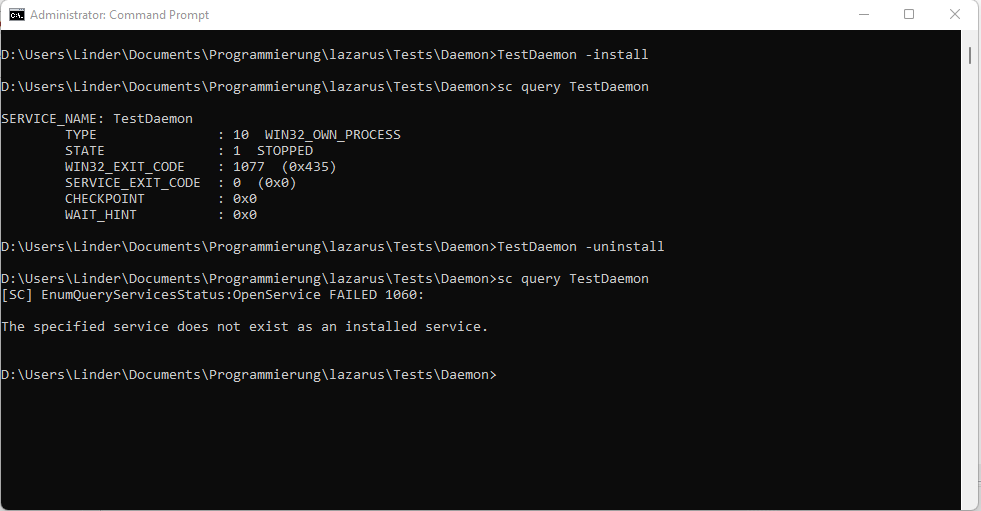 | |
| 561 | 522 | ||
| 562 | 523 | After successful installation you can control the service either via the sc command line, or by GUI using the "Services" management console. Recent Windows Versions do also have a basic service control facility on the "Services" tab of the Task Manager. | |
| 563 | 524 | ||
| 564 | 525 | The most important sc commands to control a service after installation are: | |
| 565 | 526 | ||
| 566 | 527 | | Command | Description | | |
| 567 | 528 | |-----------------------|-------------------------| | |
| 568 | 529 | | `sc start TestDaemon` | start the service | | |
| 569 | 530 | | `sc query TestDaemon` | query the service state | | |
| 570 | 531 | | `sc stop TestDaemon` | stop the service | | |
| 571 | 532 | ||
| 572 | 533 | You may also use the Windows service control manager console. | |
| 573 | 534 | ||
| 574 | - | ||
| 575 | - | ||
| 576 | - | ||
| 577 | - | ||
| 535 | + | 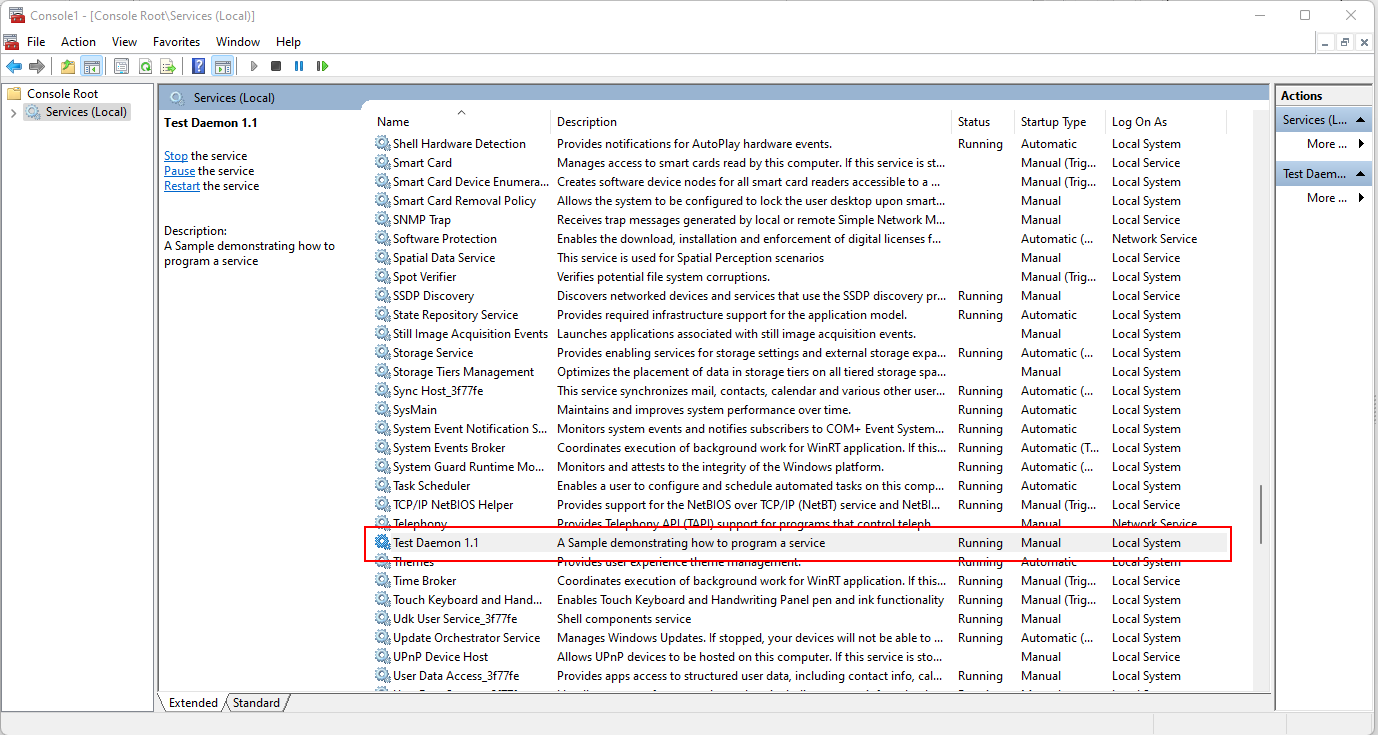 | |
| 578 | 536 | ||
| 579 | 537 | > **Note:** Most Windows service properties, like autostart on boot or usage of a specific service account, can be set via the TDaemonMapper1.WinBindings property in the DaemonMapperUnit1 file. | |
| 580 | 538 | ||
| 581 | 539 | ### Linux | |
| 582 | 540 | ||
| 583 | 541 | Unlike for Windows, the TDaemonApp application does not have any support for an automated installation, since under Linux/Unix there is a wide variety of service control subsystems. You can implement your own installation scripts in the install and uninstall handlers of the TCustomDaemon object, like shown for systemd support in the above code sample. If you follow that route, installation and de-installation is essentially the same like on Windows. | |
| 584 | 542 | ||
| 585 | 543 | You can install and uninstall the service from a terminal by starting the executable with sudo and the -install or -uninstall parameter: | |
| 586 | 544 | ||
| 587 | - | ||
| 588 | 545 | <thead> | |
| 589 | - | ||
| 590 | - | ||
| 591 | - | ||
| 592 | - | ||
| 546 | + | ||
| 593 | 547 | </thead> | |
| 594 | 548 | <tbody> | |
| 595 | - | ||
| 596 | - | ||
| 597 | - | ||
| 598 | - | ||
| 599 | - | ||
| 600 | - | ||
| 601 | - | ||
| 602 | - | ||
| 603 | - | ||
| 604 | - | ||
| 605 | - | ||
| 549 | + | ||
| 606 | 550 | when the machine boots</td> | |
| 607 | - | ||
| 608 | - | ||
| 609 | - | ||
| 610 | - | ||
| 551 | + | ||
| 611 | 552 | when the machine boots</td> | |
| 612 | - | ||
| 553 | + | ||
| 613 | 554 | </tbody> | |
| 614 | - | ||
| 615 | 555 | ||
| 616 | 556 | After successful installation you can control the service using the systemctl command | |
| 617 | 557 | ||
| 618 | 558 | | Command | Description | | |
| 619 | 559 | |-------------------------------|-------------------------| | |
| 620 | 560 | | `systemctl start TestDaemon` | start the service | | |
| 621 | 561 | | `systemctl status TestDaemon` | query the service state | | |
| 622 | 562 | | `systemctl stop TestDaemon` | stop the service | | |
| 623 | 563 | ||
| 624 | - | ||
| 625 | - | ||
| 626 | - | ||
| 627 | - | ||
| 564 | + | 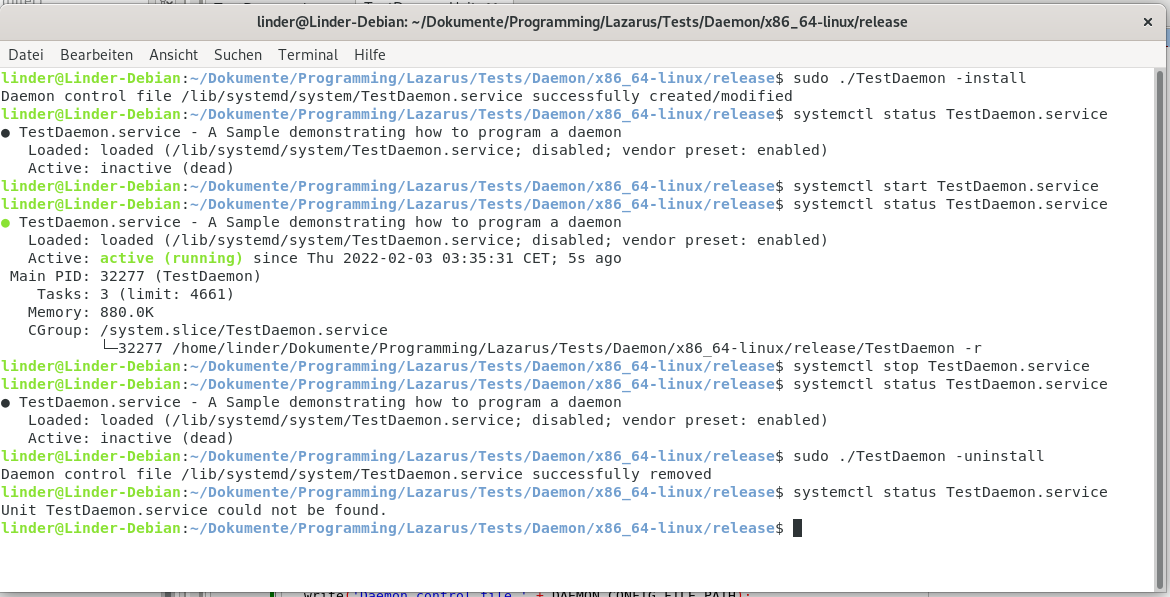 | |
| 628 | 565 | ||
| 629 | 566 | The code in DaemonSystemdInstallerUnit.CreateSystemdControlFile triggered by the -install command line parameter reads the most basic properties of the TDaemonMapper class and writes a simple systemd .service file into the /lib/systemd/system directory to put your daemon under control of systemd. If you prefer to do it manually, you may use any text editor to create your own file following this template: | |
| 630 | 567 | ||
| 631 | 568 | ``` ini | |
| 632 | 569 | [Unit] | |
| 633 | 570 | Description=Long description of your application | |
| 634 | 571 | After=network.target | |
| 635 | 572 | ||
| 636 | 573 | [Service] | |
| 637 | 574 | Type=simple | |
| 638 | 575 | User=name_of_a_service_user_account | |
| 639 | 576 | ExecStart=complete_path_and_file_name -r | |
| 640 | 577 | RemainAfterExit=yes | |
| 641 | 578 | TimeoutSec=25 | |
| 642 | 579 | ||
| 643 | 580 | [Install] | |
| 644 | 581 | WantedBy=multi-user.target | |
| 645 | 582 | ``` | |
| 646 | 583 | ||
| 647 | 584 | - Edit the following values | |
| 648 | 585 | - Description - Long Description of your service application | |
| 649 | 586 | - ExecStart - complete-path_and_file_name is the name of your compiled service application with its complete path | |
| 650 | 587 | - User - specify an service user account here, if omitted the daemon will run as root, running a daemon as root is strongly discouraged | |
| 651 | 588 | ||
| 652 | 589 | - Save the file | |
| 653 | 590 | - Navigate to /lib/systemd/system/ | |
| 654 | 591 | - Name the file the name_of_your_service.service | |
| 655 | 592 | ||
| 656 | 593 | Many more entries in the .service file created by DaemonSystemdInstallerUnit.CreateSystemdControlFile are available to customize how systemd controls your daemon, please see the the systemd "unit" file reference of your Linux distribution. | |
| 657 | 594 | ||
| 658 | 595 | ## Reading the Log File | |
| 659 | 596 | ||
| 660 | 597 | This is a sample log file showing the daemon's internals while running, it was created on Windows, but will look exactly the same on Linux. | |
| 661 | 598 | ||
| 662 | - | ||
| 663 | - | ||
| 664 | - | ||
| 665 | - | ||
| 599 | + | 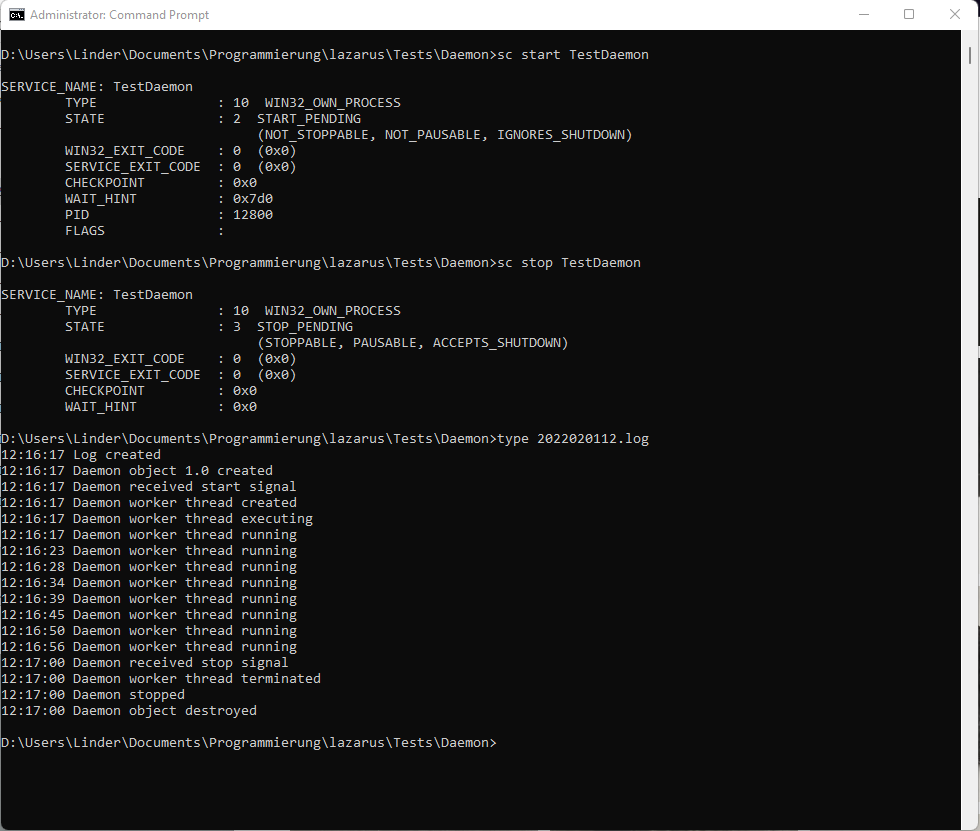 | |
| 666 | 600 | ||
| 667 | 601 | > **Warning:** The FileLoggerUnit does always log into the program directory, please make sure the daemon has write access permissions to it. | |
| 668 | 602 | ||
| 669 | 603 | ## Debugging a Daemon/Service | |
| 670 | 604 | ||
| 671 | 605 | Debugging a daemon is not as straightforward as debugging a normal application, since a running daemon does usually have neither a GUI nor a console, and its run/stop state is usually managed by the operating system. Windows and Linux require different approaches to debugging, especially to the way you initiate a debugging session. Once you have attached the debugger to the daemon and hit your first breakpoint, things work just with any other application, and you may control the debugger directly from your Lazarus GUI and the daemon source code. | |
| 672 | 606 | ||
| 673 | 607 | As a prerequisite, you need to compile your service/daemon using a "debug" configuration, so debug code gets inserted and a matching debug symbol file (.dbg) file is created. | |
| 674 | 608 | ||
| 675 | 609 | ### Windows | |
| 676 | 610 | ||
| 677 | 611 | The debugging strategy on Windows depends on what portion of the code you need to examine: | |
| 678 | 612 | ||
| 679 | 613 | \- If you need to debug -install or -uninstall, set "Run" - "Run Parameters" in the Lazarus GUI to -install or -uninstall, set your breakpoints, and start the code \[F9\]. | |
| 680 | 614 | ||
| 681 | 615 | \- If you need to debug the service worker code, start the service via the operating system (sc command or Windows Service Manager), determine the Process ID (PID), and then choose "Run" - "Attach to Program". Once attached, the debugger will automatically halt at a predefined temporary breakpoint in ntdll.dll!DbgUserBreakPoint, and the service will be looping somewhere within the worker code. After setting your breakpoints and watches in the worker code, resume your debugging by running the code using \[F9\]. | |
| 682 | 616 | ||
| 683 | - | ||
| 684 | - | ||
| 685 | - | ||
| 686 | - | ||
| 617 | + | .png "2022-02-21_21_25_22-Lazarus_IDE_v2.2.0_-_Daemon_application_(debugging_...).png") | |
| 687 | 618 | ||
| 688 | 619 | > **Warning:** The "Pause" button in the Lazarus symbol bar does not seem to work when debugging a running process remotely, it will hang the debugger if pressed. Use "Run" \[F9\] to resume debugging after a breakpoint. | |
| 689 | 620 | ||
| 690 | 621 | \- If you need to debug the create or start handlers, or any other piece in code which might have already been executed before you had a chance to "Attach to program" you can make your code wait until a debugger is attached by inserting the following line in your code: | |
| 691 | 622 | ||
| 692 | 623 | ``` Pascal | |
| 693 | 624 | // This code will loop until a debugger is attached | |
| 694 | 625 | While not IsDebuggerPresent do sleep(100); // will loop until a debugger is attached | |
| 695 | 626 | // ... put a breakpoint somewhere after the loop to catch the code as soon as it leaves the loop | |
| 696 | 627 | ``` | |
| 697 | 628 | ||
| 698 | - | ||
| 699 | - | ||
| 700 | - | ||
| 701 | - | ||
| 629 | + | .png "2022-02-21_21_36_38-Lazarus_IDE_v2.2.0_-_Daemon_application_(debugging_...).png") | |
| 702 | 630 | ||
| 703 | 631 | After attaching the debugger and pressing \[F9\] the daemon will stop right at the breakpoint. | |
| 704 | 632 | ||
| 705 | 633 | > **Note:** The -run parameter supported by Linux is not available on Windows. You must use the Windows Service Control Manager to start and stop the service. To attach the debugger to the then running process you need to run the Lazarus IDE with Administrative Prvilege (elevated), otherwise you will get Error 5 (access denied) when trying to attach to the service. If you are running Lazarus elevated, and nevertheless have difficulties attaching to your service ("Access denied" or "Run" - "Attach to program" is grayed out) make sure you have set the debugger in "Project" - "Project Settings" - "Debugger" properly, most likely you will need "Gdb (Gnu Debugger)". | |
| 706 | 634 | ||
| 707 | 635 | ### Linux | |
| 708 | 636 | ||
| 709 | 637 | Linux is propably somewhat easier to debug, since you can execute your daemon like every other program from within the Lazarus IDE, if you enter -run into "Command line parameters" in the "Run" - "Run Parameters" menu. Keep in mind though, that many problems originate from security restrictions enforced by the operating system. Many of those restrictions are not applied when the daemon is run in user context. | |
| 710 | 638 | ||
| 711 | - | ||
| 712 | - | ||
| 713 | - | ||
| 714 | - | ||
| 639 | + | 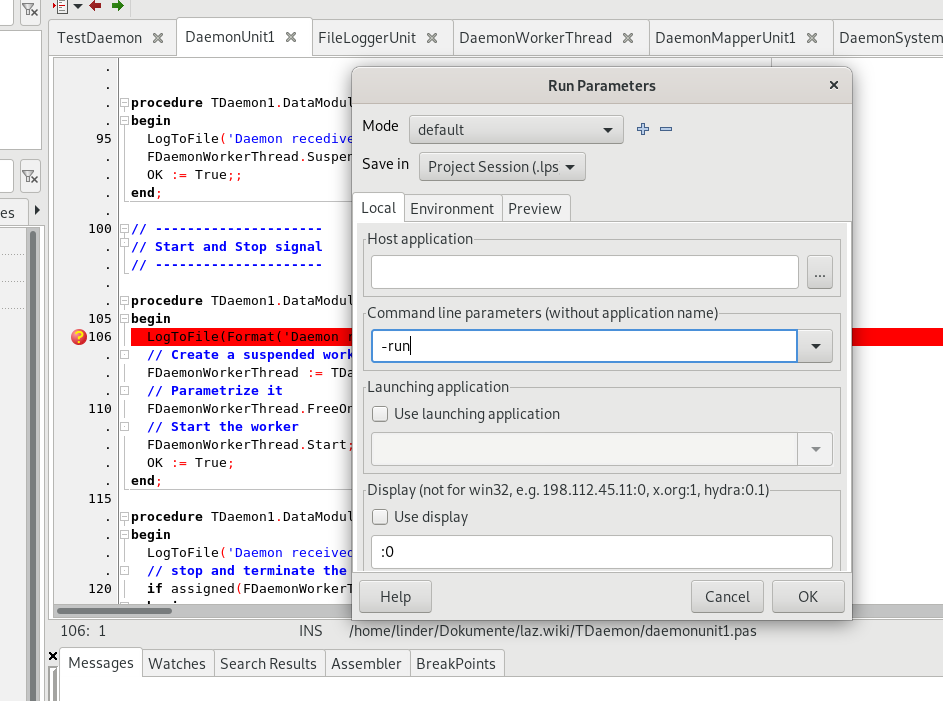 | |
| 715 | 640 | ||
| 716 | 641 | Now you can start the daemon using \[F9\] like any normal application and debug it. | |
| 717 | 642 | ||
| 718 | - | ||
| 719 | - | ||
| 720 | - | ||
| 721 | - | ||
| 643 | + | 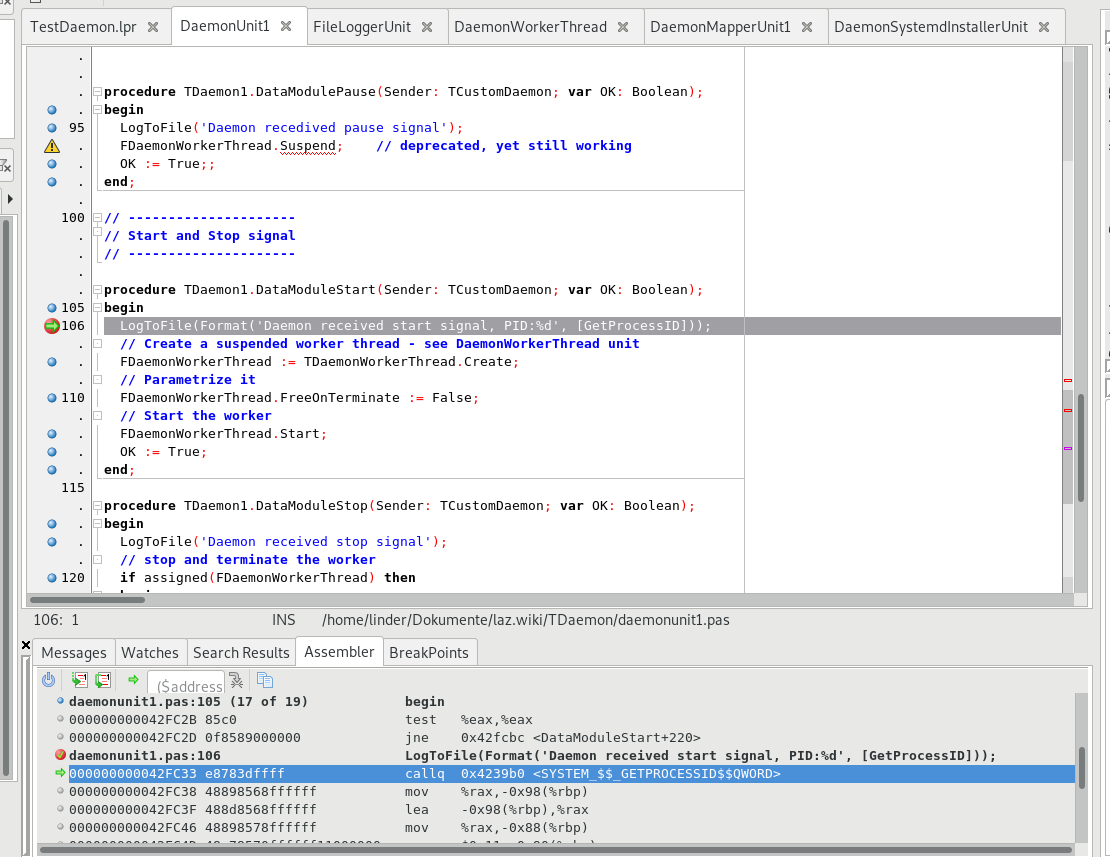 | |
| 722 | 644 | ||
| 723 | 645 | If you do, for instance because you suspect a problem with service specific restrictions, need to attach the debugger to the already running daemon, you can do so using "Run" - "Attach to Program", if you have configured the daemon to run under a specific user account instead of root. See the chapter above about Linux install and uninstall support on how to add an appropriate option to the .service file. | |
| 724 | 646 | ||
| 725 | 647 | Unfortunately there isn't such a handy "IsDebuggerPresent" call available like under Windows, but the following trick works nicely. | |
| 726 | 648 | ||
| 727 | 649 | ``` Pascal | |
| 728 | 650 | procedure WaitForDebugger; | |
| 729 | 651 | ||
| 730 | 652 | var | |
| 731 | 653 | SetMeValue:boolean=false; | |
| 732 | 654 | ||
| 733 | 655 | begin | |
| 734 | 656 | // Linux trick: attach the debugger, and change SetMeValue to true | |
| 735 | 657 | while not SetMeValue do | |
| 736 | 658 | sleep(100); // put a breakpoint here | |
| 737 | 659 | end; | |
| 738 | 660 | ``` | |
| 739 | 661 | ||
| 740 | 662 | Put a breakpoint into the line with the "sleep" command. Once the daemon is started using systemctl, execution it will be halted at your breakpoint in the while loop. Now you can attach the debugger to the PID you got from systemctl status, put a watch (\[Ctrl-F5\]) on the "SetMeValue" variable and then use the Evaluate/Modify context menu to change the value of the "SetMeValue" variable from "false" to "true", and resume program execution (\[F9\]). The execution will immedately leave the while loop and run to the next breakpoint. | |
| 741 | 663 | ||
| 742 | 664 | ## Known problems | |
| 743 | 665 | ||
| 744 | 666 | ### Permission related Problems | |
| 745 | 667 | ||
| 746 | 668 | While you can do most of the development of the core daemon code under a user account and from within an IDE (Lazarus), the live daemon will most likely run "in the background" under a different context. Nowadays operating systems do, for security reasons, run daemons in more or less restricted environments. Because a daemon does have neither a terminal nor a GUI to show any messages, debugging such issues can be hard. Unfortunately there is no common recipe which resolves all service related problems in all operating systems supported by FPC/Lazarus, as the strategy behind restricting service code is vastly different between Windows, Linux and macOS, and it is even changing between different versions of the same operating system, with the more recent versions trending to be more restrictive than their predecessors. | |
| 747 | 669 | ||
| 748 | 670 | If you make the transition from running the daemon code under your developer account to "go live" and test the daemon running under a service user account oder under "Localsystem" or "root" (which, btw, is considered bad security practice since many years), take the time to study the security related documentations of your operating system and find out which restrictions and other specialities apply if code runs in the background. | |
| 749 | 671 | ||
| 750 | 672 | > **Note:** See the section above about debugging daemons running in the background by attaching the debugger to the running code. Make your daemon, once the daemon is started by the operating system, wait until the debugger is attached. From there you can then observe the execution and detect restrictions related exceptions and other security/background operation related nastinesses. | |
| 751 | 673 | ||
| 752 | 674 | ### Exception EStreamError: "no streaming method available" | |
| 753 | 675 | ||
| 754 | 676 | ```text | |
| 755 | 677 | Exception at 0041A30E: EStreamError: | |
| 756 | 678 | Failed to initialize component class "TDaemon1": No streaming method available. | |
| 757 | 679 | ``` | |
| 758 | 680 | ||
| 759 | 681 | You have included visual components (which require initalization by a built-in resource stream created by the .lfm file in GUI applications) in a code-only daemon project. If you decide to create the daemon in code, you may neither include the LazDaemon package, nor add the "LazDaemonApp" to the uses section. If you do, your project will compile fine, but if you start the exe you get the above error. | |
| 760 | 682 | ||
| 761 | 683 | ### Several "Stream Read" and "Unkown Properties" errors ... | |
| 762 | 684 | ||
| 763 | 685 | ... when loading a daemon project through the Lazarus IDE. | |
| 764 | 686 | ||
| 765 | 687 | Most likely you try to open a TDaemon (GUI component) based project, but you haven't yet installed the LazDaemon package. | |
| 766 | 688 | ||
| 767 | 689 | Abort all loading errors, and install the LazDaemon package using the Lazarus Package Manager like described above. After Lazarus has re-compiled, the daemon project should re-load and compile without problems. | |
| 768 | 690 | ||
| 769 | - | ||
| 770 | - | ||
| 771 | - | ||
| 772 | - | ||
| 691 | + | 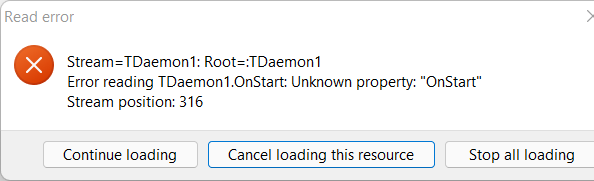 | |
| 773 | 692 | ||
| 774 | - | ||
| 775 | - | ||
| 776 | - | ||
| 777 | - | ||
| 693 | + | 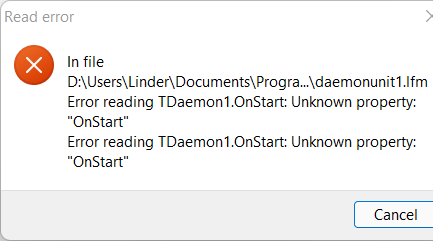 | |
| 778 | 694 | ||
| 779 | 695 | ### Lazarus IDE suggests to clear invalid properties from the .lpm file | |
| 780 | 696 | ||
| 781 | 697 | This is another issue which was observed when you try to open a TDaemon (GUI) based project, but you haven't yet installed the LazDaemon package. | |
| 782 | 698 | ||
| 783 | - | ||
| 784 | - | ||
| 785 | - | ||
| 786 | - | ||
| 699 | + | 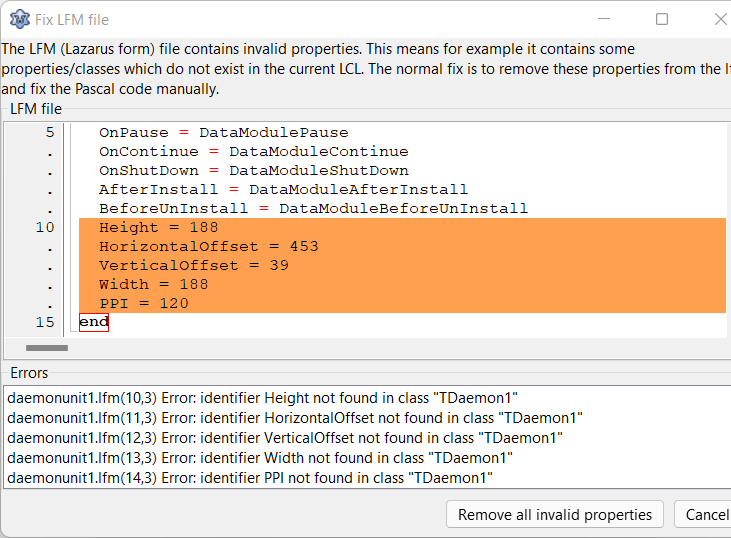 | |
| 787 | 700 | ||
| 788 | 701 | Abort all loading errors, and install the LazDaemon package using the Lazarus Package Manager like described above. After Lazarus has re-compiled itself, the daemon project should re-load and compile without problems. | |
| 789 | 702 | ||
| 790 | 703 | ### The Daemon won't start on Unix because of missing threading support | |
| 791 | 704 | ||
| 792 | 705 | The code compiles fine, but if you try to run the daemon using a console and the -run parameter, you get a message saying something like "no thread support compiled in". If you try to start the dameon through systemctl, you won't see any message, it simply won't seem to run. You can use "systemctl status" to see the last error caused by the daemon, this will reveal the same crash infos like starting it using -run. | |
| 793 | 706 | ||
| 794 | 707 | `This binary has no thread support compiled in. Recompile the application with a thread-driver in the program uses clause before other units using thread. Runtime error 232 at ...`\ | |
| 795 | 708 | `...`\ | |
| 796 | 709 | `No heap dump by heaptrc unit Exitcode = 232` | |
| 797 | 710 | ||
| 798 | 711 | Most likely you compiled your project without support for the CThreads library (not required on Windows). See the above project lpr file sample code and the notes about "UseCThreads". The short of it is to go to the .lpr file and remove the {\$IFDEF UseCThreads} ... {\$ENDIF} around the "uses CThreads" statement, so the CThreads library gets linked into your code on Linux. On Windows this library is not required. | |
| 799 | 712 | ||
| 800 | 713 | ### Debugging Issues observed on Windows | |
| 801 | 714 | ||
| 802 | 715 | The "Pause" button in the Lazarus symbol bar activates, if a breakpoint is hit, but it does not seem to work when debugging a running process remotely, debugging will hang if the button is pressed. Use "Run" \[F9\] instead to resume debugging after a breakpoint. | |
| 803 | 716 | ||
| 804 | 717 | To attach the debugger to the running daemon process you need to run the Lazarus IDE with Administrative Prvilege (elevated), otherwise you will get "Error 5 (access denied)" when trying to attach the debugger. | |
| 805 | 718 | ||
| 806 | 719 | If all debugging selections in the "Run" menu are unavailable (grayed), navigate to "Project" - "Project Options" - "Debugger" and set the "Debugger Backend" to "Gdb \[GNU debugger (gdb)\]". It has been observed that this setting may get messed up if you copy the project source files from one computer / Lazarus installation over to a different one. | |
| 807 | 720 | ||
| 808 | 721 | ### Debugging Issues observed on Linux | |
| 809 | 722 | ||
| 810 | 723 | Using "Attach to program" to debug a running daemon via process ID (PID) does not seem to work, you get an error "Debugger Error" ... "Attach failed". One reason may be that you haven't specified a user in the service control file, and thus the service runs as "root", which hampers debugging. Besides of running the service using a dedicated service user account, as a workaround, consider to start debugging by loading the daemon from within Lazarus using "Run" - "Run Parameters" and entering the -run command line parameter. This way debugging does work, but note that the code runs in a different context (user instead of system- or service user account), which may change it's behaviour because of permission related issues. | |
| 811 | 724 | ||
| 812 | 725 | ### Daemons have no Access to Network- and Cloud Drives (Onedrive, Dropbox) | |
| 813 | 726 | ||
| 814 | 727 | When choosing the directory for storing the daemon executable (which is by default also used for logging), keep in mind that once the daemon runs in the background it does usually run under the context of a system- or service account. User-specific virtual drives created in one user's account are usually available neither to other user accounts nor to the system account. If you run the daemon from a networked/cloud drive, it is likely that the daemon won't start, since the OS will not be able to find the executable, and that write attempts to the log will fail, since by default the log file is written where the executable is. This may be confusing, since -install and -uninstall will likely work and log fine, because they are usually executed by hand and thus run in your user's context. | |
| 815 | 728 | ||
| 816 | 729 | ### Specifying a Service User Account does not work on Linux | |
| 817 | 730 | ||
| 818 | 731 | If you start the daemon and check which account it runs under, it appears to run as root, despite you have specified a different account in your systemd .service file. | |
| 819 | 732 | ||
| 820 | 733 | There are (unconfirmed) reports around that (on some versions of Linux?) in the .service file controlling the systemd the "User" entry must appear before the "ExecStart" entry to work properly, like shown in the code samples in the sections about Linux install and uninstall support. | |
| 821 | 734 | ||
| 822 | 735 | ### System Codepage / UTF-8 | |
| 823 | 736 | ||
| 824 | 737 | \[Old content, needs verfification 3/2022, may be obsolete\] A LazDeamon project is working with default, not UTF-8, codepage. The *-dDisableUTF8RTL* mode has to be activated with *Project Options ...* -\> *Compiler Options* -\> *Additions and Overrides* -\> *Use system encoding*. | |
| 825 | 738 | ||
| 826 | 739 | ## \[Some historical contents - needs to be verified and integrated or removed\] | |
| 827 | 740 | ||
| 828 | 741 | \[Old content, needs verfification 3/2022, may be obsolete\] | |
| 829 | 742 | ||
| 830 | 743 | ### Linux (only for older Debian) | |
| 831 | 744 | ||
| 832 | 745 | Download, configure, and "Save As" - the sample script located at Web Archive: [1](https://web.archive.org/web/20130209102726/http://aurawin.com/lazarus/debian-service.sh) (The original link is dead for a long time). | |
| 833 | 746 | ||
| 834 | 747 | - SVC_ALIAS is the long description of your application | |
| 835 | 748 | - SVC_FILENAME is the actual file name of your compiled service application | |
| 836 | 749 | - SVC_DIR is the place your you copied the service application | |
| 837 | 750 | - SVC_SERVICE_SCRIPT is the final name of the service.sh when you "Save As" the customized debian-service.sh script. | |
| 838 | 751 | ||
| 839 | 752 | Place your script in the /etc/init.d/ folder | |
| 840 | 753 | ||
| 841 | 754 | start the service by running "sudo service Name_Of_Your_Script start" | |
| 842 | 755 | ||
| 843 | 756 | > **Note:** sudo has some variations, e.g.: | |
| 844 | 757 | > | |
| 845 | 758 | > \ | |
| 846 | 759 | > `sudo -s #`\ | |
| 847 | 760 | > \ | |
| 848 | 761 | > `sudo -H #`\ | |
| 849 | 762 | > \ | |
| 850 | 763 | > `sudo -i #`\ | |
| 851 | 764 | > \ | |
| 852 | 765 | > `sudo su #`\ | |
| 853 | 766 | > \ | |
| 854 | 767 | > `sudo sh #` | |
| 855 | 768 | ||
| 856 | 769 | In order to auto-run the service at startup you can try update-rc.d or else will need a third party tool that will do this. | |
| 857 | 770 | ||
| 858 | 771 | Option 1 | |
| 859 | 772 | ||
| 860 | 773 | ``` bash | |
| 861 | 774 | sudo update-rc.d Name_Of_Your_Script defaults | |
| 862 | 775 | ``` | |
| 863 | 776 | ||
| 864 | 777 | Option 2 | |
| 865 | 778 | ||
| 866 | 779 | ``` bash | |
| 867 | 780 | sudo apt-get install chkconfig | |
| 868 | 781 | sudo chkconfig --add Name_Of_Your_Script | |
| 869 | 782 | sudo chkconfig --level 2345 Name_Of_Your_Script on | |
| 870 | 783 | ``` | |
| 871 | 784 | ||
| 872 | 785 | ## See also | |
| 873 | 786 | ||
| 874 | 787 | - [GitHub Repository](https://github.com/arminlinder/Lazarus-FPC-Wiki-Code-Samples/zipball/master/) Complete demo project sample code (.zip) | |
| 875 | 788 | - [[macOS daemons and agents]] - macOS native agents using launchd | |
| 876 | 789 | - [[ServiceManager]] Example for the Free Pascal unit for managing Windows services | |
| 877 | 790 | - [Taming the daemon: PDF by Michaël Van Canneyt](https://www.freepascal.org/~michael/articles/daemons/daemons.pdf) | |
| 878 | 791 | - [[Docker Containerization]] - Containerization as a means to create daemons / services | |
| 879 | 792 | - [[UniqueInstance]] | |
| 880 | 793 | ||
| 881 | 794 | --- | |
| 882 | 795 | *From the Free Pascal wiki, page "Daemons and Services", as it stood on 2022-12-29 after a change by Alextp, out of the wiki's dump of 2024-05-26. Copyright stays with the author who wrote it, according to the old wiki's [[Licensing]] page. If you have concerns about this material, [message the admin](/wiki-contact).* |