

Custom Drawn Interface/Using the Android SDK, Emulator and Phones: what changed
Revision 1 to 2. Removed lines have a minus sign; added lines have a plus sign.
| Old | New | Line | |
|---|---|---|---|
| 1 | 1 | *(Android only)* | |
| 2 | 2 | ||
| 3 | 3 | Go back to [[Custom Drawn Interface/Android]] | |
| 4 | 4 | ||
| 5 | 5 | ## Using the Android SDK | |
| 6 | 6 | ||
| 7 | 7 | Downloading and installing the Android SDK is easy. One just needs to following this link: <http://developer.android.com/sdk/index.html> | |
| 8 | 8 | ||
| 9 | 9 | ### How to configure Ant | |
| 10 | 10 | ||
| 11 | 11 | When issuing 'ant debug' to build and Android project one might receive a lot of errors about missing dependencies. In Linux those can be solved by installing packages which have these dependencies, and that will change from distribution to distribution. | |
| 12 | 12 | ||
| 13 | 13 | #### Configuring Ant in Mandriva Linux | |
| 14 | 14 | ||
| 15 | 15 | These errors: | |
| 16 | 16 | ||
| 17 | 17 | ``` bash | |
| 18 | 18 | /usr/bin/build-classpath: error: Could not find jaxp_parser_impl Java extension for this JVM | |
| 19 | 19 | /usr/bin/build-classpath: error: Could not find xml-commons-apis Java extension for this JVM | |
| 20 | 20 | ``` | |
| 21 | 21 | ||
| 22 | 22 | Can be fixed, respectively, with: | |
| 23 | 23 | ||
| 24 | 24 | ``` bash | |
| 25 | 25 | urpmi xerces-j2 | |
| 26 | 26 | urpmi xml-commons-jaxp | |
| 27 | 27 | ``` | |
| 28 | 28 | ||
| 29 | 29 | #### Generic Ant errors | |
| 30 | 30 | ||
| 31 | 31 | This error: | |
| 32 | 32 | ||
| 33 | 33 | ``` bash | |
| 34 | 34 | /home/felipe/Programas/lazarus-ccr/examples/androidlcl/android/build.xml:46: taskdef class com.android.ant.SetupTask cannot be found | |
| 35 | 35 | ``` | |
| 36 | 36 | ||
| 37 | 37 | Means that you need to update the Paths in your project files to correctly point to the SDK. | |
| 38 | 38 | ||
| 39 | 39 | ### Recognition of devices under Linux | |
| 40 | 40 | ||
| 41 | 41 | Unlike in Windows, where one needs to install a new set of drivers for nearly every phone, in Linux the Android devices are recognized as generic Android devices (regardless of being a phone, a tablet or a notebook) and they are ready to be used without installing additional drivers. One issue, however, that often appears is that devices are not fully recognized automatically and one receives the error message "?????? no permissions". In this case the command adb devices will look like this: | |
| 42 | 42 | ||
| 43 | 43 | ``` bash | |
| 44 | 44 | [felipe@localhost ~]$ cd Programas/android-sdk-linux_x86/tools/ | |
| 45 | 45 | [felipe@localhost tools]$ ./adb devices | |
| 46 | 46 | List of devices attached | |
| 47 | 47 | ???????????? no permissions | |
| 48 | 48 | ``` | |
| 49 | 49 | ||
| 50 | 50 | To solve this issue one can proceed with the following steps: | |
| 51 | 51 | ||
| 52 | 52 | **Step 1** - First read the tag of the device using lsusb run as root (or sudo): | |
| 53 | 53 | ||
| 54 | 54 | ``` bash | |
| 55 | 55 | [root@localhost Programas]# lsusb | |
| 56 | 56 | Bus 001 Device 001: ID 1d6b:0002 Linux Foundation 2.0 root hub | |
| 57 | 57 | Bus 001 Device 003: ID 04e8:681c Samsung Electronics Co., Ltd | |
| 58 | 58 | Bus 002 Device 001: ID 1d6b:0001 Linux Foundation 1.1 root hub | |
| 59 | 59 | Bus 003 Device 001: ID 1d6b:0002 Linux Foundation 2.0 root hub | |
| 60 | 60 | Bus 004 Device 001: ID 1d6b:0001 Linux Foundation 1.1 root hub | |
| 61 | 61 | Bus 005 Device 001: ID 1d6b:0001 Linux Foundation 1.1 root hub | |
| 62 | 62 | Bus 006 Device 001: ID 1d6b:0001 Linux Foundation 1.1 root hub | |
| 63 | 63 | Bus 007 Device 001: ID 1d6b:0001 Linux Foundation 1.1 root hub | |
| 64 | 64 | Bus 008 Device 001: ID 1d6b:0001 Linux Foundation 1.1 root hub | |
| 65 | 65 | ``` | |
| 66 | 66 | ||
| 67 | 67 | The tag in this case is **04e8** | |
| 68 | 68 | ||
| 69 | 69 | **Step 2** - Now, still as root, edit the file /etc/udev/rules.d/51-android.rules | |
| 70 | 70 | ||
| 71 | 71 | If the file doesn't exist yet, then create it. Add the following line to the file: | |
| 72 | 72 | ||
| 73 | 73 | SUBSYSTEM=="usb|usb_device", SYSFS{idVendor}=="04e8", SYMLINK+="android_adb", MODE="0666" | |
| 74 | 74 | ||
| 75 | 75 | Change the ID to correspond to the id of your device. | |
| 76 | 76 | ||
| 77 | 77 | **Step 3** - Restart the linux usb service (udev) | |
| 78 | 78 | ||
| 79 | 79 | In Ubuntu this can be done with: sudo services udev restart | |
| 80 | 80 | ||
| 81 | 81 | In Mandriva udev doesn't appear as a service, so the only way to get things working for me was restarting the computer. | |
| 82 | 82 | ||
| 83 | 83 | After doing this, the device should be fully recognized and "adb devices" as well as "adb logcat" should work. | |
| 84 | 84 | ||
| 85 | 85 | ``` bash | |
| 86 | 86 | [felipe@localhost tools]$ ./adb devices | |
| 87 | 87 | * daemon not running. starting it now on port 5037 * | |
| 88 | 88 | * daemon started successfully * | |
| 89 | 89 | List of devices attached | |
| 90 | 90 | 1000c31696b6 device | |
| 91 | 91 | ``` | |
| 92 | 92 | ||
| 93 | 93 | ## Using the Emulator | |
| 94 | 94 | ||
| 95 | 95 | ### Installing the Emulator | |
| 96 | 96 | ||
| 97 | 97 | ### Building an emulator image with sdcard support | |
| 98 | 98 | ||
| 99 | 99 | Step 1: Run the application C:\Program Files\android-sdk-windows\tools\android.bat | |
| 100 | 100 | ||
| 101 | 101 | Step 2: Create a new image, by clicking the New button as in the image below. | |
| 102 | 102 | ||
| 103 | - | ||
| 104 | - | ||
| 105 | - | ||
| 106 | - | ||
| 103 | + | 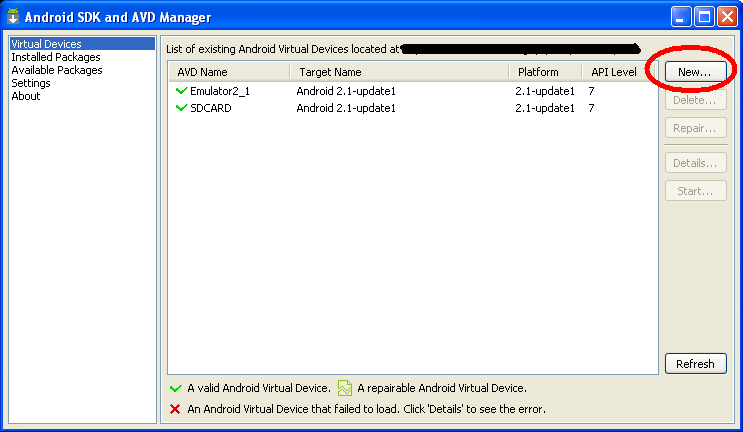 | |
| 107 | 104 | ||
| 108 | 105 | Step 3: Set the name and properties of the image, the size of the SDCard and add hardware support for the sdcard, as seen on the image below. | |
| 109 | 106 | ||
| 110 | - | ||
| 111 | - | ||
| 112 | - | ||
| 113 | - | ||
| 107 | + | 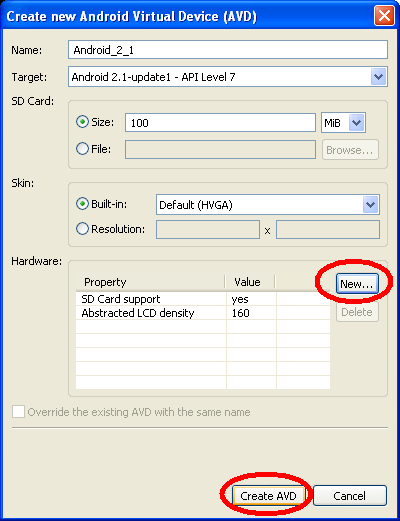 | |
| 114 | 108 | ||
| 115 | 109 | ### Running an emulator image | |
| 116 | 110 | ||
| 117 | 111 | Step 1: Run the application C:\Program Files\android-sdk-windows\tools\android.bat | |
| 118 | 112 | ||
| 119 | 113 | Step 2: Select the image | |
| 120 | 114 | ||
| 121 | 115 | Step 3: Click on the "start" button, as seen below. | |
| 122 | 116 | ||
| 123 | - | ||
| 124 | - | ||
| 125 | - | ||
| 126 | - | ||
| 117 | + | 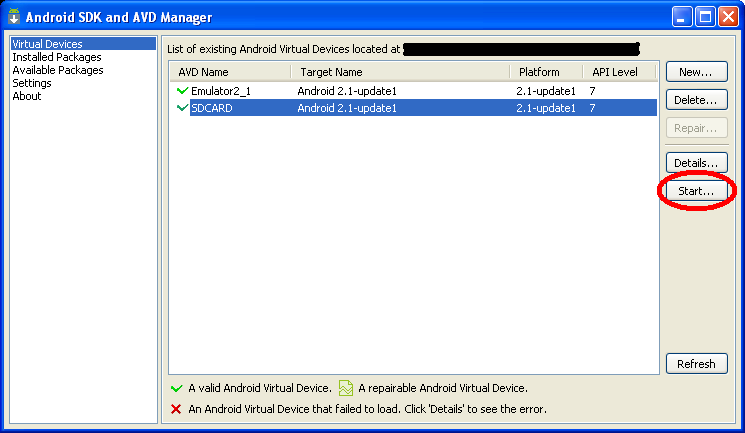 | |
| 127 | 118 | ||
| 128 | 119 | ### Copying files to the emulator | |
| 129 | 120 | ||
| 130 | 121 | You can use a script similar to this one to copy files from your hard-drive to the emulator. Notice that the image must be running and that it must have sdcard support built inside itself. | |
| 131 | 122 | ||
| 132 | 123 | ```dos | |
| 133 | 124 | c: | |
| 134 | 125 | cd "Program Files" | |
| 135 | 126 | cd android-sdk-windows | |
| 136 | 127 | cd tools | |
| 137 | 128 | adb push C:\Mypath\Somefile.extension /sdcard | |
| 138 | 129 | pause | |
| 139 | 130 | ``` | |
| 140 | 131 | ||
| 141 | 132 | ### Installing applications in the emulator | |
| 142 | 133 | ||
| 143 | 134 | Android apps should be packaged in the Android .apk file format. For more information about how to create an .apk file that you can install on an emulator/device instance, see Android Asset Packaging Tool (aapt). After packing a file, it can be installed in the emulator by using the following adb call: | |
| 144 | 135 | ||
| 145 | 136 | ```dos | |
| 146 | 137 | c: | |
| 147 | 138 | cd "Program Files" | |
| 148 | 139 | cd android-sdk-windows | |
| 149 | 140 | cd tools | |
| 150 | 141 | adb install C:\Mypath\MyApp.apk | |
| 151 | 142 | pause | |
| 152 | 143 | ``` | |
| 153 | 144 | ||
| 154 | 145 | ## Using the phones | |
| 155 | 146 | ||
| 156 | 147 | Installing the drivers and getting a reliable way to transfer executables and debug software with all the different Android phone can be a challenge in itself. | |
| 157 | 148 | ||
| 158 | 149 | ### Installing a File Manager | |
| 159 | 150 | ||
| 160 | 151 | Astonishingly, Android phones don't come with a file manager o.O One can however simply download one from the Android Market. I suggest the following instructions: | |
| 161 | 152 | ||
| 162 | 153 | 1\. Connect the phone to a WiFi or Mobile network | |
| 163 | 154 | ||
| 164 | 155 | 2\. Click in the "Market" icon in one of the Android desktops. It will be necessary to log into a Google Account to access it. | |
| 165 | 156 | ||
| 166 | 157 | 3\. Click the search button and type "oi" | |
| 167 | 158 | ||
| 168 | 159 | 4\. Locate and install the "OI File Manager" which is Free | |
| 169 | 160 | ||
| 170 | 161 | ### Samsung Galaxy S | |
| 171 | 162 | ||
| 172 | 163 | The first thing to do when using Samsung Galaxy S is not believing the Samsung instructions. They will say that one should install Kies, their horribly crappy PC suite which is 130MB large and fails to install because the first thing that it does is failing to connect to a server in Korea to download even more files. Instead of doing this, following these instructions: | |
| 173 | 164 | ||
| 174 | 165 | 1\. Go in the phone menu Settings -\> About Phone -\> USB settings. Change from "KIES" to "Mass storage" | |
| 175 | 166 | ||
| 176 | 167 | 2\. Download and install 19 MB of Samsung USB drivers from: <http://drivers.softpedia.com/dyn-postdownload.php?p=96692&t=4&i=1> | |
| 177 | 168 | ||
| 178 | 169 | 3\. Connect the cable of the phone | |
| 179 | 170 | ||
| 180 | 171 | 4\. Drag the top menu of the phone down and mount the sdcard | |
| 181 | 172 | ||
| 182 | 173 | --- | |
| 183 | 174 | *From the Free Pascal wiki, page "Custom Drawn Interface/Using the Android SDK, Emulator and Phones", as it stood on 2015-01-05 after a change by Jwdietrich, out of the wiki's dump of 2024-05-26. Copyright stays with the author who wrote it, according to the old wiki's [[Licensing]] page. If you have concerns about this material, [message the admin](/wiki-contact).* | |
| 184 | 175 | Category: Android | |
| 185 | 176 | Category: Custom Drawn |