

Custom Drawn Interface/Android: what changed
Revision 2 to 3. Removed lines have a minus sign; added lines have a plus sign.
| Old | New | Line | |
|---|---|---|---|
| 1 | - | ||
| 1 | + | [](</File:Android_robot.svg>) | |
| 2 | 2 | ||
| 3 | - | ||
| 3 | + | This article applies to [Android](</Category:Android> "Category:Android") only. | |
| 4 | 4 | ||
| 5 | + | See also: [[Multiplatform Programming Guide]] | |
| 6 | + | ||
| 7 | + | [](</File:Warning-icon.png>) | |
| 8 | + | ||
| 9 | + | **Warning:** THIS INFORMATION IS DATED AND NEEDS UPDATING | |
| 10 | + | ||
| 11 | + | │ **English (en)** │ **[[Custom Drawn Interface/Android/es|español (es)]]** │ **[[Custom Drawn Interface/Android/ja|日本語 (ja)]]** │ **[[Custom Drawn Interface/Android/ru|русский (ru)]]** │ | |
| 12 | + | **** | |
| 13 | + | ||
| 5 | 14 | Go back to [[Custom Drawn Interface]] | |
| 6 | 15 | ||
| 16 | + | ## Contents | |
| 17 | + | ||
| 18 | + | * 1 Architecture | |
| 19 | + | * 2 Roadmap | |
| 20 | + | * 3 Using the Android SDK, Emulator and Phones | |
| 21 | + | * 4 Android Programming | |
| 22 | + | * 5 Configuring the Free Pascal Compiler for Android | |
| 23 | + | * 5.1 Use the ready Virtual Box Image with FPC and Lazarus | |
| 24 | + | * 5.2 Building the compiler yourself in Windows | |
| 25 | + | * 5.3 Using the pre-compiled compiler in Windows | |
| 26 | + | * 5.4 Building the compiler yourself in Linux | |
| 27 | + | * 5.5 Using the pre-compiled compiler in Linux | |
| 28 | + | * 6 Install the Java JDK and the Android SDK and NDK | |
| 29 | + | * 7 Compiling the example LCL Android Application | |
| 30 | + | * 8 How to create an LCL Android Application | |
| 31 | + | * 8.1 Step 1 - Creating the LPI | |
| 32 | + | * 8.2 Step 2 - Building the library | |
| 33 | + | * 8.3 Step 3 - Create the Android project structure | |
| 34 | + | * 8.4 Step 4 - Creating the APK package | |
| 35 | + | * 8.4.1 Step 4 - Creating the APK package in Linux | |
| 36 | + | * 8.4.2 Step 4 - Creating the APK package in Windows | |
| 37 | + | * 8.5 Building an LCL Android application with debug info | |
| 38 | + | * 9 Oh no! My LCL Android application doesn't work | |
| 39 | + | * 9.1 The Pascal executable was compiled for a wrong architecture, operating system and/or widgetset | |
| 40 | + | * 9.2 My Pascal application crashed. How to get a stacktrace? | |
| 41 | + | * 9.3 The indispensable build options | |
| 42 | + | * 9.4 Wrong package name | |
| 43 | + | * 10 Free Pascal Bugs on Android Support | |
| 44 | + | * 10.1 FPC4Android Branches | |
| 45 | + | * 10.1.1 FPC4Android 2.5.1 | |
| 46 | + | * 10.1.2 FPC4Android 2.6.1 | |
| 47 | + | * 11 Android SDK and NDK bugs | |
| 48 | + | * 11.1 Android NDK for Windows broken linker | |
| 49 | + | * 11.2 Error while calling DX: Trouble processing: bad class file magic (cafebabe) | |
| 50 | + | * 12 Development Notes | |
| 51 | + | * 12.1 The mysterious JNI Crash (SIGILL - illegal instruction) | |
| 52 | + | * 12.2 NDK Libraries available in Android 2.2 (API level 8) | |
| 53 | + | * 12.3 Native text drawing | |
| 54 | + | * 12.4 Flood of garbage collector messages when the caret is visible | |
| 55 | + | * 12.5 Why the caret of a TEdit keeps blinking after clicking on the form | |
| 56 | + | * 12.6 Android ComboBox | |
| 57 | + | * 12.7 Using the Native ListView Dialog | |
| 58 | + | * 12.8 LazDeviceAPIs | |
| 59 | + | ||
| 7 | 60 | ## Architecture | |
| 8 | 61 | ||
| 9 | - | ||
| 62 | + | LCL-CustomDrawn-Android utilizes a minimal Java application which communicates with our Pascal library and sends all events to it and also obeys commands from it. The communication is done via JNI as supported by Google. The controls are not native, instead they are all drawing using TRawImage+TLazIntfImage+TLazCanvas and events and the painting are clipped using LazRegions. The drawing itself is done in Pascal using jnigraphics to draw on a Bitmap Java object which is then drawn by the minimal Java activity on a SurfaceView. | |
| 10 | 63 | ||
| 11 | - | ||
| 64 | + | Our previous and short-lived attempt to write an LCL Interface for Android (LCL-Android) utilized a non-standard method of using native executables which communicated with a Java machine via Pipes. This method was abandoned because it was considered unsupported by Google. It is considered obsolete and people should use LCL-CustomDrawn-Android instead. This older interface was documented in [[Android Interface]]. | |
| 12 | 65 | ||
| 13 | 66 | ## Roadmap | |
| 14 | 67 | ||
| 15 | - | ||
| 68 | + | Part 1, until March 2012: | |
| 16 | 69 | ||
| 17 | - | ||
| 18 | - | ||
| 19 | - | ||
| 20 | - | ||
| 21 | - | ||
| 22 | - | ||
| 23 | - | ||
| 24 | - | ||
| 25 | - | ||
| 26 | - | ||
| 27 | - | ||
| 28 | - | ||
| 29 | - | ||
| 70 | + | 1. ~~Build the set of[[Lazarus Custom Drawn Controls]]~~ | |
| 71 | + | 2. ~~Initial bindings for the Android APIs~~ | |
| 72 | + | 3. ~~Create an application to automatically generate the bindings~~ | |
| 73 | + | 4. ~~Start the new widgetset~~ | |
| 74 | + | 5. ~~Implement support for JNI~~ | |
| 75 | + | 6. ~~Merge the Lazarus Custom Drawn Controls into the LCL and use them to implement all basic controls~~ | |
| 76 | + | 7. ~~Add text support for Android~~ | |
| 77 | + | 8. ~~Implement basic window client area scrolling~~ | |
| 78 | + | 9. Add mobile emulator for desktop platforms | |
| 79 | + | 10. Improve the mobile scrolling | |
| 80 | + | 11. ~~Add text support in X11~~ | |
| 81 | + | 12. ~~Add DPI awareness and adaptation in the LCL~~ | |
| 82 | + | 13. ~~Add non-native text support via pasfreetype~~ | |
| 30 | 83 | ||
| 31 | - | ||
| 84 | + | Part 2: April, May, June 2012: | |
| 32 | 85 | ||
| 33 | - | ||
| 34 | - | ||
| 35 | - | ||
| 36 | - | ||
| 37 | - | ||
| 38 | - | ||
| 39 | - | ||
| 40 | - | ||
| 41 | - | ||
| 42 | - | ||
| 43 | - | ||
| 44 | - | ||
| 86 | + | 1. ~~TButton improve the Android visual~~ | |
| 87 | + | 2. TBitBtn | |
| 88 | + | 3. ~~TRadioButton finish the native look~~ | |
| 89 | + | 4. Calendar dialog -> Problematic as the LCL has no calendar dialog, it just opens a normal form and puts a calendar on it, so we need a TCDCalendar widget | |
| 90 | + | 5. MaskEdit | |
| 91 | + | 6. ~~Improve TComboBox~~ | |
| 92 | + | 7. TMemo | |
| 93 | + | 8. TListView as a list with columns | |
| 94 | + | 9. ~~TMainMenu~~ | |
| 95 | + | 10. Database with sqlite | |
| 96 | + | 11. Barcode reading | |
| 97 | + | 12. Windows add-on installer | |
| 45 | 98 | ||
| 46 | 99 | ## Using the Android SDK, Emulator and Phones | |
| 47 | 100 | ||
| 48 | 101 | [[Custom Drawn Interface/Using the Android SDK, Emulator and Phones]] | |
| 49 | 102 | ||
| 50 | 103 | ## Android Programming | |
| 51 | 104 | ||
| 52 | - | ||
| 105 | + | See [[Android Programming]], also includes caracteristics of the various phones relevant for programming. | |
| 53 | 106 | ||
| 54 | 107 | ## Configuring the Free Pascal Compiler for Android | |
| 55 | 108 | ||
| 56 | - | ||
| 57 | - | ||
| 58 | - | ||
| 59 | - | ||
| 109 | + | NOTE: | |
| 110 | + | --- | |
| 111 | + | The cross-compiler instructions below are probably obsolete, since support for the [[Android|Android target]] is present in the trunk (development) version 2.7.1 of FPC. Here are up to date instructions: [[Android|building a cross-compiler for Android target]]. | |
| 112 | + | ||
| 60 | 113 | ### Use the ready Virtual Box Image with FPC and Lazarus | |
| 61 | 114 | ||
| 62 | - | ||
| 115 | + | The fastest way to configure Free Pascal and Lazarus for Android development is simply using a pre-configured virtual machine image which already includes Mageia Linux 1, KDE, Lazarus 0.9.31, Subversion, Free Pascal for both x86-linux and arm-linux (targetting Android), the Android SDK, the Android NDK, Java, Ant, Gtk2 and all it's development packages, the GNU debugger (GDB), subversion and everything else necessary for building Android applications with Lazarus. | |
| 63 | 116 | ||
| 64 | - | ||
| 117 | + | The download like for the virtual machine image is: <https://sourceforge.net/projects/p-tools/files/Lazarus_for_Android_VM_Image/snapshot_30_dez_2011/> (warning: the VirtualBox image was created using the Mac OS X default Zip utility and not all zip applications can handle it. The Mac OS X default zip application can, and [PeaZip](<https://peazip.github.io/>) too and [WinRAR](<http://win-rar.com/download.html>) too. Both 7-Zip and the Windows 7 default unzipper fail. | |
| 65 | 118 | ||
| 66 | - | ||
| 119 | + | The virtual machine image is composed by two files: “Android Devel VM.vbox” and “Android Devel VM.hdd”. Both need to be located in the same folder and also note that the source forge download is a zipped file, so it needs to be unzipped. After unzipping the VM image has 5,2GB. To use this virtual machine one should install Virtual Box and then use it to open the .vbox file. Then one can already use this Linux virtual machine to build Android applications. The process of building an application involves first opening Lazarus and building the application in Lazarus, for example the example project available on ~/Programas/lazarus/example/androidlcl/ and then going into the Linux terminal, navigating to ~/Programas/lazarus/example/androidlcl/android and issuing the command “ant debug” which will generate the APK file in ~/Programas/ lazarus/example/androidlcl/android/bin/LCLExample-debug.apk. There are two users in the virtual machine: “root” and “pascaldev” and both of them use the password “root”. | |
| 67 | 120 | ||
| 68 | - | ||
| 121 | + | Note that the virtual machine contains the Lazarus source code from when it was created, but one can also use svn update to get the latest code. Note that this involves some risks, however, as the trunk version might ocasionally contain problems. | |
| 69 | 122 | ||
| 70 | 123 | ### Building the compiler yourself in Windows | |
| 71 | 124 | ||
| 72 | - | ||
| 73 | - | ||
| 74 | - | ||
| 125 | + | **Step 1** \- Install the Android SDK and NDK | |
| 75 | 126 | ||
| 76 | - | ||
| 127 | + | Download from Google and install both the SDK and the NDK for Windows. | |
| 77 | 128 | ||
| 78 | - | ||
| 129 | + | Check your path to the binutils installed by the NDK. For example, for NDK r7 installed in C:\Programas\android-ndk-r7\ the path is C:\Programas\android-ndk-r7\toolchains\arm-linux-androideabi-4.4.3\prebuilt\windows\bin | |
| 79 | 130 | ||
| 80 | - | ||
| 131 | + | Also check your path to the libraries installed by the NDK. For example, for NDK r7 installed in C:\Programas\android-ndk-r7\ the path is C:\Programas\android-ndk-r7\platforms\android-8\arch-arm\usr | |
| 81 | 132 | ||
| 82 | - | ||
| 133 | + | **Step 2** \- Download FPC 2.5.1 from January 19th | |
| 83 | 134 | ||
| 84 | - | ||
| 135 | + | Create a folder to store the FPC trunk source code and checkout revision 16790 | |
| 85 | 136 | ||
| 86 | - | ||
| 137 | + | Or if you want support for database and many other nice fixes use the branch fpc4android from here: | |
| 87 | 138 | ||
| 88 | - | ||
| 139 | + | svn co <https://p-tools.svn.sourceforge.net/svnroot/p-tools/fpc4android> fpc4android | |
| 89 | 140 | ||
| 90 | - | ||
| 141 | + | **Step 3** \- Install FPC 2.4.4 | |
| 91 | 142 | ||
| 92 | - | ||
| 143 | + | An easy way to obtain a good FPC 2.4.4 is installing Lazarus 0.9.30.2. For example, let's say you install this Lazarus version in C:\Programas\lazarusfpc244 | |
| 93 | 144 | ||
| 94 | - | ||
| 145 | + | **Step 4** \- Create the build script and built it | |
| 95 | 146 | ||
| 96 | - | ||
| 147 | + | Create the output directory, for example: C:\Programas\fpcandroid\output | |
| 97 | 148 | ||
| 98 | - | ||
| 149 | + | Next create a file called build.bat in the fpc root folder, in our example C:\Programas\fpcandroid and copy to it: | |
| 150 | + | ``` | |
| 151 | + | SET PATH=C:\Programas\lazarusfpc244\fpc\2.4.4\bin\i386-win32\ | |
| 99 | 152 | make crossinstall CPU_TARGET=arm OS_TARGET=linux CROSSBINDIR=C:\Programas\android-ndk-r7\toolchains\arm-linux-androideabi-4.4.3\prebuilt\windows\bin OPT=-dFPC_ARMEL BINUTILSPREFIX=arm-linux-androideabi- INSTALL_PREFIX=C:\Programas\fpcandroid\output | |
| 100 | 153 | pause | |
| 154 | + | ``` | |
| 101 | 155 | ||
| 102 | - | ||
| 156 | + | Next run this batch script and you should have FPC installed into C:\Programas\fpcandroid\output | |
| 103 | 157 | ||
| 104 | - | ||
| 158 | + | **Step 5** \- Copy some cross-binutils into the bin dir | |
| 105 | 159 | ||
| 106 | - | ||
| 160 | + | You now should have a FPC binary in C:\Programas\fpcandroid\output\bin\i386-win32 | |
| 107 | 161 | ||
| 108 | - | ||
| 162 | + | Now get these 3 files: | |
| 109 | 163 | ||
| 110 | - | ||
| 164 | + | C:\Programas\android-ndk-r7\toolchains\arm-linux-androideabi-4.4.3\prebuilt\windows\bin\arm-linux-androideabi-as.exe C:\Programas\android-ndk-r7\toolchains\arm-linux-androideabi-4.4.3\prebuilt\windows\bin\arm-linux-androideabi-ld.exe C:\Programas\android-ndk-r7\toolchains\arm-linux-androideabi-4.4.3\prebuilt\windows\bin\arm-linux-androideabi-strip.exe | |
| 111 | 165 | ||
| 112 | - | ||
| 166 | + | And copy and then rename to have: | |
| 113 | 167 | ||
| 114 | - | ||
| 168 | + | C:\Programas\fpcandroid\output\bin\i386-win32\arm-linux-as.exe C:\Programas\fpcandroid\output\bin\i386-win32\arm-linux-ld.exe C:\Programas\fpcandroid\output\bin\i386-win32\arm-linux-strip.exe | |
| 115 | 169 | ||
| 116 | - | ||
| 170 | + | **Step 6** \- Merge this into a Lazarus FPC setup | |
| 117 | 171 | ||
| 118 | - | ||
| 172 | + | Let's say you have the following Lazarus C:\Programas\lazarus31 with the following fpc installed inside it: C:\Programas\lazarus31\fpc\2.6.1\bin\i386-win32 and C:\Programas\lazarus31\fpc\2.6.1\units\ | |
| 119 | 173 | ||
| 120 | - | ||
| 174 | + | Now create a directory C:\Programas\lazarus31\fpc\2.5.1\units\arm-linux and copy C:\Programas\fpcandroid\output\units\arm-linux there | |
| 121 | 175 | ||
| 122 | - | ||
| 176 | + | Copy all .exe files from C:\Programas\fpcandroid\output\bin\i386-win32\ into C:\Programas\lazarus31\fpc\2.6.1\bin\i386-win32 | |
| 123 | 177 | ||
| 124 | - | ||
| 178 | + | (! copy the exe-files to FPC 2.6.1 !) | |
| 125 | 179 | ||
| 126 | - | ||
| 180 | + | Now you can already build the example project androidlcltest.lpi using the Windows-Release build mode | |
| 127 | 181 | ||
| 128 | 182 | ### Using the pre-compiled compiler in Windows | |
| 129 | 183 | ||
| 130 | - | ||
| 184 | + | **Step 1** \- Download and unzip the pre-compiled compiler | |
| 131 | 185 | ||
| 132 | 186 | The download is available here: <https://sourceforge.net/projects/p-tools/files/Free%20Pascal%20for%20ARM/Windows/> | |
| 133 | 187 | ||
| 134 | - | ||
| 188 | + | **Step 2** \- Merge it into the FPC installation | |
| 135 | 189 | ||
| 136 | - | ||
| 190 | + | Let's say you have the following Lazarus C:\Programas\lazarus31 with the following fpc installed inside it: C:\Programas\lazarus31\fpc\2.6.1\bin\i386-win32 and C:\Programas\lazarus31\fpc\2.6.1\units\ | |
| 137 | 191 | ||
| 138 | - | ||
| 192 | + | Now create a directory C:\Programas\lazarus31\fpc\2.5.1\units\arm-linx and copy fpc4android_2_5_1_26_mar_2012\units\arm-linux there | |
| 139 | 193 | ||
| 140 | - | ||
| 194 | + | Copy all .exe files from fpc4android_2_5_1_26_mar_2012\bin\i386-win32\ into C:\Programas\lazarus31\fpc\2.6.1\bin\i386-win32 (the version here should be of the installed Windows compiler, not the version of the cross-compiler, so might be 2.6.0 or 2.7.1 or something else) | |
| 141 | 195 | ||
| 142 | - | ||
| 196 | + | **Step 3** \- Install the Java JDK and the Android SDK and NDK | |
| 143 | 197 | ||
| 144 | - | ||
| 198 | + | If you haven't done so already, then install the Java JDK and the Android SDK and NDK. I recommend the JDK 6 (JDK 7 doesnt work!), latest SDK and the NDK version 7. The Windows NDK 7b has a serious bug: [[1]](<https://groups.google.com/group/android-ndk/browse_thread/thread/d8c88bd58ad6df87/5396d1223f0c65b1?hl=pl&lnk=gst&q=Felipe+Monteiro+de+Carvalho#5396d1223f0c65b1>) Some people also report that 7c works fine, and I tested that 8c works fine. | |
| 145 | 199 | ||
| 146 | - | ||
| 147 | - | ||
| 148 | - | ||
| 200 | + | * Java JDK (!WARNING! Download JDK version 6! Version 7 does not work!!!): <http://www.oracle.com/technetwork/java/javase/downloads/index.html> | |
| 201 | + | * Android SDK Download (!WARNING! Instead of clicking in the first download link that you see, go to "Use an existing IDE"!): <http://developer.android.com/sdk/index.html> !WARNING! The SDKs r21 and superior removed the nice apkbuilder.bat script which is utilized in our build system in Windows. If you want to use our Windows build scripts, download the SDK r20 from this link: <http://dl.google.com/android/installer_r20-windows.exe> | |
| 202 | + | * Android NDK version 7 download link: <http://dl.google.com/android/ndk/android-ndk-r7-windows.zip> | |
| 149 | 203 | ||
| 150 | 204 | Now you can already build the example project androidlcltest.lpi using the Windows-Release build mode and these instructions: [[Custom Drawn Interface/Android|Custom Drawn Interface/Android#Compiling_the_example_LCL_Android_Application]] | |
| 151 | 205 | ||
| 152 | 206 | ### Building the compiler yourself in Linux | |
| 153 | 207 | ||
| 154 | - | ||
| 208 | + | See [[Setup Cross Compile For ARM]] and make sure to use the option OPT="-dFPC_ARMEL" for building the compiler. | |
| 155 | 209 | ||
| 156 | 210 | ### Using the pre-compiled compiler in Linux | |
| 157 | 211 | ||
| 158 | - | ||
| 212 | + | A pre-compiled compiler is provided for convenience for users. The following steps were tested in Mandriva Linux 2010.0 and 2010.1: | |
| 159 | 213 | ||
| 160 | 214 | **Required Environment** | |
| 161 | 215 | ||
| 162 | - | ||
| 216 | + | * The latest stable FPC installed in the system via the RPM / DEB / TAR package | |
| 163 | 217 | ||
| 164 | - | ||
| 218 | + | **Step 1** \- Install the cross-binutils | |
| 165 | 219 | ||
| 166 | 220 | For Mandriva Linux the RPM package containing arm-linux-as, arm-linux-ld, etc, which are the cross-binutils can be found here: <http://rpm.pbone.net/index.php3/stat/4/idpl/14252825/dir/mandriva_2010/com/cross-arm-binutils-2.20.51.0.4-2mnb2.i586.rpm.html> | |
| 167 | 221 | ||
| 168 | - | ||
| 169 | - | ||
| 170 | - | ||
| 171 | - | ||
| 172 | - | ||
| 222 | + | Just download the RPM package and install it using: | |
| 223 | + | ``` | |
| 224 | + | rpm -ivh cross-arm-binutils-2.20.51.0.4-2mnb2.i586.rpm | |
| 225 | + | ``` | |
| 173 | 226 | ||
| 174 | - | ||
| 227 | + | In Mandriva Linux 2010.0 the dependencies won't match, as the package is for 2010.1, but one can simply ignore this problem and it works fine using --nodeps: | |
| 228 | + | ``` | |
| 229 | + | rpm -ivh --nodeps cross-arm-binutils-2.20.51.0.4-2mnb2.i586.rpm | |
| 230 | + | ``` | |
| 175 | 231 | ||
| 176 | 232 | For other distributions use the corresponding package, or else read the instructions for building the cross-binutils yourself at [[Setup Cross Compile For ARM]] | |
| 177 | 233 | ||
| 178 | - | ||
| 179 | - | ||
| 180 | - | ||
| 181 | - | ||
| 182 | - | ||
| 183 | - | ||
| 184 | - | ||
| 185 | - | ||
| 186 | - | ||
| 234 | + | **Step 2** \- Configure the cross-binutils | |
| 187 | 235 | ||
| 188 | - | ||
| 189 | - | ||
| 236 | + | The assembler needs a parameter to tell it which ARM ABI to use. A choice which works good is EABI-5, which is compatible with all Android devices available as of Jan 2011. To set this, we will rename the original assembler and substitute it with a shell script which passes the desired parameter. These commands will do it: | |
| 237 | + | ``` | |
| 238 | + | su | |
| 239 | + | mv /usr/bin/arm-linux-as /usr/bin/arm-linux-as_org | |
| 240 | + | gedit /usr/bin/arm-linux-as | |
| 241 | + | ``` | |
| 190 | 242 | ||
| 191 | - | ||
| 243 | + | Now paste into the editor this code: | |
| 244 | + | ``` | |
| 245 | + | #!/bin/sh | |
| 246 | + | /usr/bin/arm-linux-as_org -meabi=5 $@ | |
| 247 | + | ``` | |
| 192 | 248 | ||
| 193 | - | ||
| 249 | + | And don't forget to then make it executable: | |
| 250 | + | ``` | |
| 251 | + | chmod 755 /usr/bin/arm-linux-as | |
| 252 | + | ``` | |
| 194 | 253 | ||
| 195 | - | ||
| 254 | + | **Step 3** \- Install the Free Pascal Cross-Compiler | |
| 196 | 255 | ||
| 197 | 256 | At this point the pre-compiled FPC can be download from here: <http://sourceforge.net/projects/p-tools/files/Free%20Pascal%20for%20ARM/> | |
| 198 | 257 | ||
| 199 | - | ||
| 200 | - | ||
| 201 | - | ||
| 202 | - | ||
| 203 | - | ||
| 204 | - | ||
| 205 | - | ||
| 206 | - | ||
| 207 | - | ||
| 208 | - | ||
| 209 | - | ||
| 210 | - | ||
| 211 | - | ||
| 258 | + | Then use these commands to install the pre-compiled Free Pascal cross-compiler into /usr: | |
| 259 | + | ``` | |
| 260 | + | [felipe@localhost Programas]$ ls -l | |
| 261 | + | total 20664 | |
| 262 | + | -rw-rw-r-- 1 felipe felipe 17098552 2010-10-25 08:17 fpc-2.5.1.arm-linux.tar.gz | |
| 263 | + | [felipe@localhost Programas]$ su | |
| 264 | + | Password: | |
| 265 | + | [root@localhost Programas]# cp fpc-2.5.1.arm-linux.tar.gz /usr/ | |
| 266 | + | [root@localhost Programas]# cd /usr/ | |
| 267 | + | [root@localhost usr]# tar -xvf fpc-2.5.1.arm-linux.tar.gz | |
| 268 | + | [root@localhost usr]# ln -s /usr/lib/fpc/2.5.1/ppcrossarm /usr/bin/ppcrossarm | |
| 269 | + | ``` | |
| 212 | 270 | ||
| 213 | - | ||
| 271 | + | **Step 4** \- Verify if your Cross-Compiler works | |
| 214 | 272 | ||
| 215 | - | ||
| 273 | + | If you made no errors in the previous steps, it should work, so try to call it like this: | |
| 274 | + | ``` | |
| 275 | + | [felipe@localhost Programas]$ /usr/bin/ppcrossarm | |
| 276 | + | ``` | |
| 216 | 277 | ||
| 217 | - | ||
| 278 | + | If this command works and fpc shows its options, then you configured the cross-compiler correctly, if not, then try to find out if your symbolic link points to a correct location with this command: | |
| 218 | 279 | ||
| 219 | - | ||
| 280 | + | [felipe@localhost Programas]$ ls -ls /usr/bin/ppc* | |
| 220 | 281 | ||
| 221 | - | ||
| 282 | + | Now we are ready to compile Android applications using the Lazarus IDE! Configuring the fpc.cfg file isn't necessary, the old compiler will automatically find the new compiler and it's object files. | |
| 222 | 283 | ||
| 223 | 284 | ## Install the Java JDK and the Android SDK and NDK | |
| 224 | 285 | ||
| 225 | - | ||
| 286 | + | If you haven't done so already, then install the Java JDK and the Android SDK and NDK. I recommend the JDK 6 (JDK 7 doesnt work!), latest SDK and the NDK version 7. The Windows NDK 7b has a serious bug: [[2]](<https://groups.google.com/group/android-ndk/browse_thread/thread/d8c88bd58ad6df87/5396d1223f0c65b1?hl=pl&lnk=gst&q=Felipe+Monteiro+de+Carvalho#5396d1223f0c65b1>) Some people also report that 7c works fine, and I tested that 8c works fine. | |
| 226 | 287 | ||
| 227 | - | ||
| 228 | - | ||
| 229 | - | ||
| 288 | + | * Java JDK (Choose version 6!): <http://www.oracle.com/technetwork/java/javase/downloads/index.html> | |
| 289 | + | * Android SDK Download (Choose Use an existing IDE!): <http://developer.android.com/sdk/index.html> | |
| 290 | + | * Android NDK version 7 download link: <http://dl.google.com/android/ndk/android-ndk-r7-windows.zip> | |
| 230 | 291 | ||
| 231 | 292 | Now you can already build the example project androidlcltest.lpi using the Windows-Release build mode and these instructions: [[Custom Drawn Interface/Android|Custom Drawn Interface/Android#Compiling_the_example_LCL_Android_Application]] | |
| 232 | 293 | ||
| 233 | 294 | ## Compiling the example LCL Android Application | |
| 234 | 295 | ||
| 235 | 296 | **Step 1 - Download the source code** | |
| 236 | 297 | ||
| 237 | - | ||
| 298 | + | The source code of the example is located inside the Lazarus sources in lazarus/examples/androidlcl/androidlcltest.lpi | |
| 238 | 299 | ||
| 239 | 300 | **Step 2 - Make sure you have the Java JDK and the Android SDK and NDK installed** | |
| 240 | 301 | ||
| 241 | 302 | Read here: [[Custom Drawn Interface/Android|Custom_Drawn_Interface/Android#Install_the_Java_JDK_and_the_Android_SDK_and_NDK]] | |
| 242 | 303 | ||
| 243 | 304 | **Step 3 - Build the project using the Lazarus IDE** | |
| 244 | 305 | ||
| 245 | - | ||
| 306 | + | Configuring Lazarus itself to use the new compiler should not normally be necessary because fpc should be able to find the symlink created, but if you have trouble in this part you can try to hard code the compiler path to use the new crosscompiler. To hardcode the compiler path in cause of trouble go to the menu "Tools->Options" and change the "Compiler Path" to "/usr/bin/ppcrossarm" | |
| 246 | 307 | ||
| 247 | - | ||
| 308 | + | But it is necessary to configure the LPI file to build the example. Open the Project Options dialog of the androidlcltest.lpi project and go to the section Paths and change the libraries path to reflect the correct paths of where your Android NDK was installed and where your jnigraphics.so, libc.so, etc, libraries are located for your target Android API level. For LCL-CustomDrawn-Android API level 8 is the best choice, because it supports Android 2.2+ like the LCL. The image below shows where to configure this: | |
| 248 | 309 | ||
| 249 | - | ||
| 310 | + | [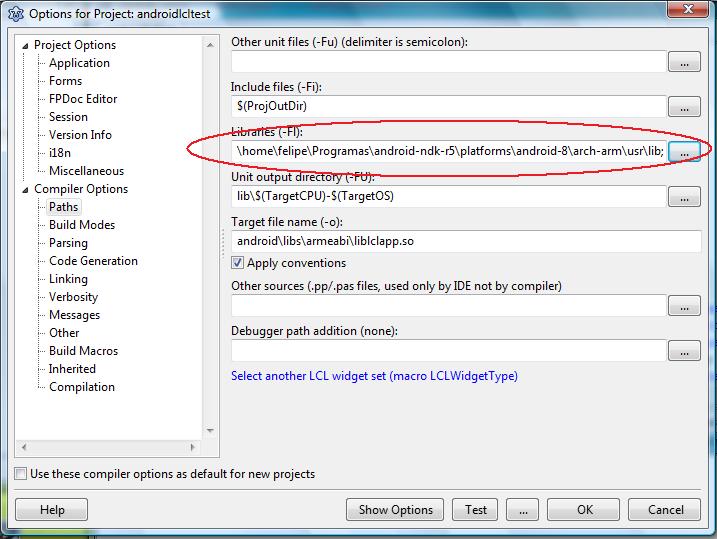](</File:Configure_androidlcl_libraries.jpg>) | |
| 250 | 311 | ||
| 251 | - | ||
| 312 | + | The actual lazarus release contains a error, they create a .so.so - file instead of a .so - file. So you have to change this manually in lazarus. | |
| 252 | 313 | ||
| 253 | 314 | **Step 4 - Build the APK** | |
| 254 | 315 | ||
| 255 | 316 | If you are using Windows, use these instructions to build the APK: [[Custom Drawn Interface/Android|Custom Drawn Interface/Android#Step_4_-_Creating_the_APK_package_in_Windows]] | |
| 256 | 317 | ||
| 257 | - | ||
| 258 | - | ||
| 259 | - | ||
| 318 | + | If you are using Linux follow these instructions instead: Before going to the command line to build the APK open the file lazarus/examples/androidlcl/android/local.properties and change it to reflect your Android SDK path. The file says you should not modify it, but ignore that and modify it anyway. Here is how the file looks like: | |
| 319 | + | ``` | |
| 320 | + | # This file is automatically generated by Android Tools. | |
| 260 | 321 | # Do not modify this file -- YOUR CHANGES WILL BE ERASED! | |
| 261 | 322 | # | |
| 262 | 323 | # This file must *NOT* be checked in Version Control Systems, | |
| 263 | 324 | # as it contains information specific to your local configuration. | |
| 264 | - | ||
| 325 | + | ||
| 265 | 326 | # location of the SDK. This is only used by Ant | |
| 266 | 327 | # For customization when using a Version Control System, please read the | |
| 267 | 328 | # header note. | |
| 268 | 329 | sdk.dir=/home/felipe/Programas/android-sdk-linux | |
| 269 | - | ||
| 270 | - | ||
| 330 | + | ``` | |
| 271 | 331 | ||
| 272 | - | ||
| 273 | - | ||
| 332 | + | After configuring that one, go to the command line and issue these commands: | |
| 333 | + | ``` | |
| 334 | + | cd lazarus/examples/androidlcl/android | |
| 335 | + | ant debug | |
| 336 | + | ``` | |
| 274 | 337 | ||
| 275 | - | ||
| 338 | + | The APK will be located in lazarus/examples/androidlcl/android/bin | |
| 276 | 339 | ||
| 277 | 340 | **Step 5 - Install the APK in your phone and run it** | |
| 278 | 341 | ||
| 279 | - | ||
| 342 | + | You can install via ADB or by copying the file to the sdcard. You should see this: | |
| 280 | 343 | ||
| 281 | - | ||
| 344 | + | [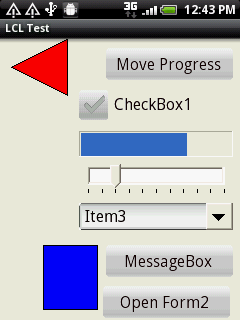](</File:lcl_android_30_mar.png>) | |
| 282 | 345 | ||
| 283 | 346 | ## How to create an LCL Android Application | |
| 284 | 347 | ||
| 285 | - | ||
| 348 | + | To create a new LCL-CustomDrawn-Android application simply copy all of the file structure and build and java files from the example project called "androidlcl". This example can be obtained from the Lazarus source tree in lazarus/examples/androidlcl | |
| 286 | 349 | ||
| 287 | - | ||
| 350 | + | Then you will need to modify the build files to change them to your new project name and your new Java package name. | |
| 288 | 351 | ||
| 289 | 352 | ### Step 1 - Creating the LPI | |
| 290 | 353 | ||
| 291 | - | ||
| 354 | + | You need a separate LPI at the moment for the Android version of the application but all the rest of the code can be shared. Create it using the template for a "Library" and then adapt the code from the example located in the lazarus source code in lazarus/examples/androidlcl | |
| 292 | 355 | ||
| 293 | - | ||
| 356 | + | You need to adapt the exported JNI method names to your Android Package Name. | |
| 294 | 357 | ||
| 295 | 358 | ### Step 2 - Building the library | |
| 296 | 359 | ||
| 297 | - | ||
| 360 | + | First of all, build the Pascal executable without debug information. This debug information is not so useful in Android and makes the executable much bigger. Open the menu Project->Project Options and set the build mode, widgetset, architecture and operating system targets, as shown in these screenshots: | |
| 298 | 361 | ||
| 299 | - | ||
| 362 | + | [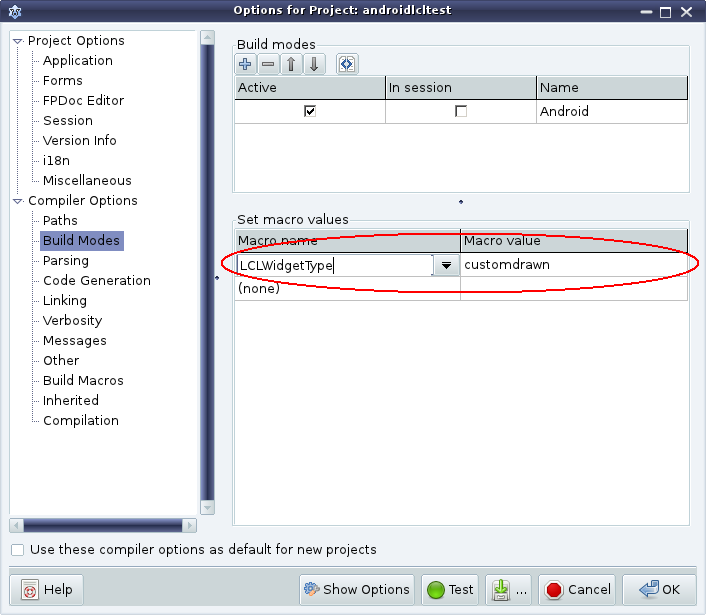](</File:Android_project_options_1.png>) | |
| 300 | 363 | ||
| 301 | - | ||
| 364 | + | [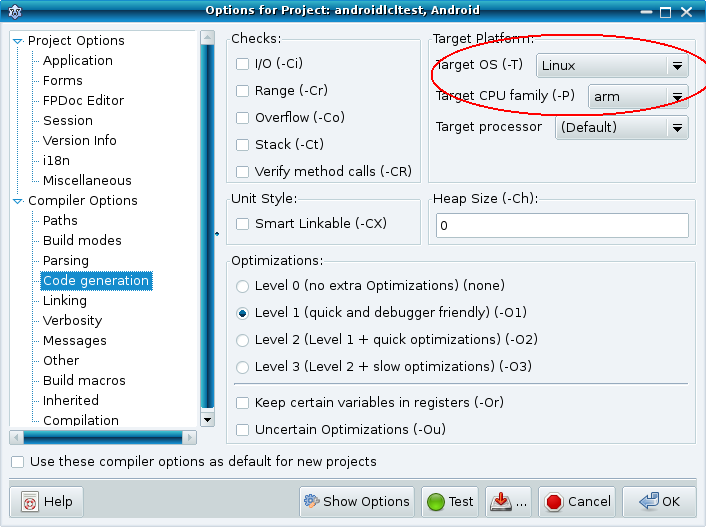](</File:Android_project_options_2.png>) | |
| 302 | 365 | ||
| 303 | - | ||
| 366 | + | [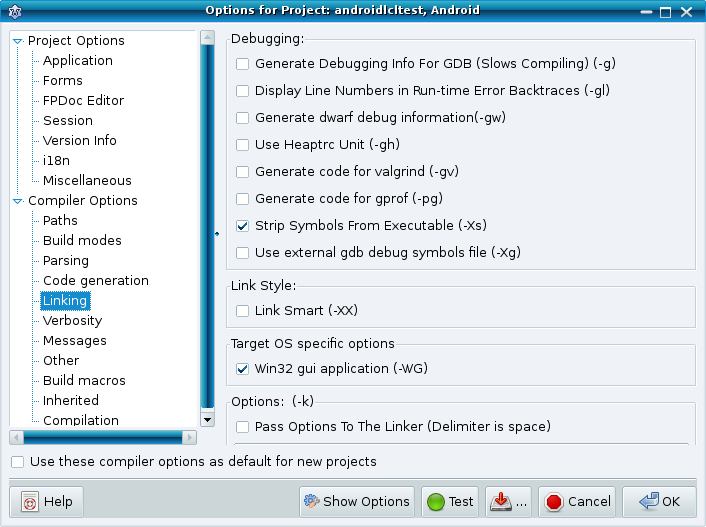](</File:Android_project_options_3.png>) | |
| 304 | 367 | ||
| 305 | 368 | ### Step 3 - Create the Android project structure | |
| 306 | 369 | ||
| 307 | - | ||
| 370 | + | Besides the LCL project building, such as configuring a proper LPI and having a library main project file, one also needs to add all of the android project structure. Simply copy from the example project in lazarus/examples/androidlcl and adapt it to the new project. Things to change are the path to the SDK, the package name. The package name needs to be updated in the build files, in the directory structure android/src/packagename, in the activity java source code and also in the main library pascal source in the exports section. | |
| 308 | 371 | ||
| 309 | 372 | ### Step 4 - Creating the APK package | |
| 310 | 373 | ||
| 311 | 374 | #### Step 4 - Creating the APK package in Linux | |
| 312 | 375 | ||
| 313 | - | ||
| 376 | + | To create the APK package in Linux simply go to the directory "android" inside the project folder and issue the command "ant debug". The package will be in android/bin/MyProject.apk | |
| 314 | 377 | ||
| 315 | - | ||
| 378 | + | ` cd myproject/android ant debug ` | |
| 316 | 379 | ||
| 317 | - | ||
| 380 | + | Ant and all dependencies must be installed using the package management of your linux distribution. | |
| 318 | 381 | ||
| 319 | 382 | #### Step 4 - Creating the APK package in Windows | |
| 320 | 383 | ||
| 321 | - | ||
| 322 | - | ||
| 323 | - | ||
| 324 | - | ||
| 325 | - | ||
| 326 | - | ||
| 327 | - | ||
| 328 | - | ||
| 329 | - | ||
| 330 | - | ||
| 331 | - | ||
| 332 | - | ||
| 333 | - | ||
| 334 | - | ||
| 335 | - | ||
| 336 | - | ||
| 337 | - | ||
| 338 | - | ||
| 339 | - | ||
| 340 | - | ||
| 341 | - | ||
| 342 | - | ||
| 343 | - | ||
| 344 | - | ||
| 345 | - | ||
| 346 | - | ||
| 347 | - | ||
| 348 | - | ||
| 349 | - | ||
| 350 | - | ||
| 351 | - | ||
| 352 | - | ||
| 353 | - | ||
| 354 | - | ||
| 355 | - | ||
| 356 | - | ||
| 357 | - | ||
| 358 | - | ||
| 359 | - | ||
| 360 | - | ||
| 361 | - | ||
| 362 | - | ||
| 363 | - | ||
| 364 | - | ||
| 365 | - | ||
| 366 | - | ||
| 367 | - | ||
| 368 | - | ||
| 369 | - | ||
| 370 | - | ||
| 371 | - | ||
| 372 | - | ||
| 373 | - | ||
| 374 | - | ||
| 375 | - | ||
| 376 | - | ||
| 377 | - | ||
| 378 | - | ||
| 379 | - | ||
| 380 | - | ||
| 381 | - | ||
| 382 | - | ||
| 383 | - | ||
| 384 | - | ||
| 385 | - | ||
| 384 | + | **Pre-requisites** : | |
| 386 | 385 | ||
| 387 | - | ||
| 388 | - | ||
| 386 | + | * Java JDK installed: <http://www.oracle.com/technetwork/java/javase/downloads/index.html> | |
| 387 | + | * Android SDK Installed | |
| 389 | 388 | ||
| 390 | - | ||
| 391 | - | ||
| 389 | + | **Instructions** : | |
| 392 | 390 | ||
| 393 | - | ||
| 394 | - | ||
| 391 | + | In Windows we provide a APK build system which uses only the tools provided in the Android SDK and therefore does not require ANT. | |
| 395 | 392 | ||
| 396 | - | ||
| 397 | - | ||
| 393 | + | First it is necessary to create a debug key to use. To do this use this script: | |
| 394 | + | ``` | |
| 395 | + | lazarus/examples/androidlcl/android/generate_debug_key.bat | |
| 396 | + | ``` | |
| 398 | 397 | ||
| 399 | - | ||
| 400 | - | ||
| 401 | - | ||
| 402 | - | ||
| 403 | - | ||
| 398 | + | which can be copied from the example application to your own project folder. | |
| 404 | 399 | ||
| 405 | - | ||
| 406 | - | ||
| 400 | + | it contains following: | |
| 401 | + | ``` | |
| 402 | + | REM Adjust these paths to yours | |
| 403 | + | SET PATH=C:\Programme\Android\android-sdk\tools;C:\Programme\Android\android-sdk\platform-tools\;C:\Programme\Java\jdk1.6.0_38\bin | |
| 404 | + | SET APP_NAME=androidlcltest | |
| 405 | + | SET ANDROID_HOME=C:\Programme\Android\android-sdk | |
| 406 | + | SET APK_SDK_PLATFORM=C:\Programme\Android\android-sdk\platforms\android-9 | |
| 407 | + | SET APK_PROJECT_PATH=C:\Programme\lazarus\examples\androidlcl\android | |
| 408 | + | ||
| 409 | + | mkdir bin | |
| 410 | + | ||
| 411 | + | keytool --help | |
| 412 | + | ||
| 413 | + | keytool -genkey -v -keystore bin\LCLDebugKey.keystore -alias LCLDebugKey -keyalg RSA -validity 10000 | |
| 414 | + | ||
| 415 | + | REM call and pause together allow us to see the results in the end | |
| 416 | + | pause | |
| 417 | + | ``` | |
| 407 | 418 | ||
| 408 | - | ||
| 409 | - | ||
| 419 | + | You have to fix everything after SET to your own paths. Don't forget adjusting the android version from APK_SDK_PLATFORM! | |
| 410 | 420 | ||
| 411 | - | ||
| 412 | - | ||
| 421 | + | After generating the key, use the other script: | |
| 422 | + | ``` | |
| 423 | + | lazarus/examples/androidlcl/android/build_debug_apk.bat | |
| 424 | + | ``` | |
| 413 | 425 | ||
| 414 | - | ||
| 415 | - | ||
| 426 | + | To build the APK file. Also remember to edit this batch file to reflect your paths. | |
| 416 | 427 | ||
| 417 | - | ||
| 418 | - | ||
| 428 | + | This script contains the following: | |
| 429 | + | ``` | |
| 430 | + | REM Adjust these paths to yours | |
| 431 | + | SET PATH=C:\Programme\Android\android-sdk\tools;C:\Programme\Android\android-sdk\platform-tools\;C:\Programme\Java\jdk1.6.0_38\bin | |
| 432 | + | SET APP_NAME=androidlcltest | |
| 433 | + | SET ANDROID_HOME=C:\Programme\Android\android-sdk | |
| 434 | + | SET APK_SDK_PLATFORM=C:\Programme\Android\android-sdk\platforms\android-9 | |
| 435 | + | SET APK_PROJECT_PATH=C:\lazarus\examples\androidlcl\android | |
| 436 | + | ||
| 437 | + | REM Create necessary directory Structure | |
| 438 | + | mkdir bin | |
| 439 | + | mkdir bin\classes | |
| 440 | + | mkdir gen | |
| 441 | + | mkdir gen\com | |
| 442 | + | mkdir gen\com\pascal | |
| 443 | + | mkdir gen\com\pascal\lcltest | |
| 444 | + | mkdir raw | |
| 445 | + | mkdir raw\lib | |
| 446 | + | mkdir raw\lib\armeabi | |
| 447 | + | ||
| 448 | + | REM Cleanup | |
| 449 | + | del bin\%APP_NAME%.ap_ | |
| 450 | + | del bin\%APP_NAME%.apk | |
| 451 | + | del raw\lib\armeabi\*.so | |
| 452 | + | ||
| 453 | + | REM More directory preparation | |
| 454 | + | copy libs\armeabi\*.so raw\lib\armeabi\ | |
| 455 | + | ||
| 456 | + | REM Resource compilation | |
| 457 | + | call aapt p -v -f -M AndroidManifest.xml -F bin\%APP_NAME%.ap_ -I %APK_SDK_PLATFORM%\android.jar -S res -m -J gen raw | |
| 458 | + | ||
| 459 | + | REM Java compiler | |
| 460 | + | call javac -verbose -classpath %APK_SDK_PLATFORM%\android.jar -d bin\classes src\com\pascal\lcltest\LCLActivity.java | |
| 461 | + | ||
| 462 | + | REM DX to convert the java bytecode to dalvik bytecode | |
| 463 | + | call dx --dex --verbose --output=%APK_PROJECT_PATH%\bin\classes.dex %APK_PROJECT_PATH%\bin\classes | |
| 464 | + | ||
| 465 | + | REM It seams that dx calls echo off | |
| 466 | + | @echo on | |
| 467 | + | REM Now build the unsigned APK | |
| 468 | + | del %APK_PROJECT_PATH%\bin\%APP_NAME%-unsigned.apk | |
| 469 | + | call apkbuilder %APK_PROJECT_PATH%\bin\%APP_NAME%-unsigned.apk -v -u -z %APK_PROJECT_PATH%\bin\%APP_NAME%.ap_ -f %APK_PROJECT_PATH%\bin\classes.dex | |
| 470 | + | ||
| 471 | + | REM Generating on the fly a debug key | |
| 472 | + | rem keytool -genkey -v -keystore bin\LCLDebugKey.keystore -alias LCLDebugKey -keyalg RSA -validity 10000 -dname NAME -storepass senhas -keypass senhas | |
| 473 | + | ||
| 474 | + | REM Signing the APK with a debug key | |
| 475 | + | del bin\%APP_NAME%-unaligned.apk | |
| 476 | + | ``` | |
| 477 | + | ``` | |
| 478 | + | REM Change keypass and storepass pw here| and here| | |
| 479 | + | jarsigner -verbose -keystore bin\LCLDebugKey.keystore -keypass senhas -storepass senhas -signedjar bin\%APP_NAME%-unaligned.apk bin\%APP_NAME%-unsigned.apk LCLDebugKey | |
| 480 | + | ||
| 481 | + | REM Align the final APK package | |
| 482 | + | zipalign -v 4 bin\%APP_NAME%-unaligned.apk bin\%APP_NAME%.apk | |
| 483 | + | ||
| 484 | + | REM call and pause together allow us to see the results in the end | |
| 485 | + | pause | |
| 486 | + | ``` | |
| 419 | 487 | ||
| 420 | - | ||
| 488 | + | Don't forget changing the set-variables in the top AND change the pw (see above where). | |
| 421 | 489 | ||
| 422 | 490 | ### Building an LCL Android application with debug info | |
| 423 | 491 | ||
| 424 | - | ||
| 492 | + | It is useful to add another Android build mode which has debug info. Use all of the same options as shown above, except for the debug information: | |
| 425 | 493 | ||
| 426 | - | ||
| 494 | + | [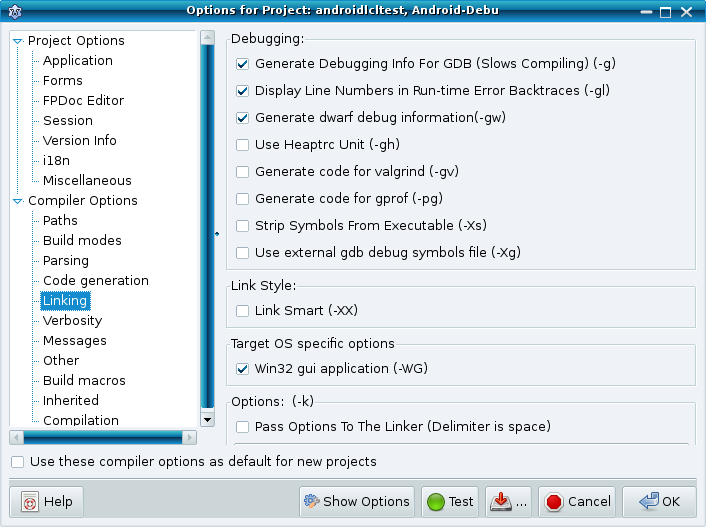](</File:Android_project_options_4.png>) | |
| 427 | 495 | ||
| 428 | 496 | ## Oh no! My LCL Android application doesn't work | |
| 429 | 497 | ||
| 430 | - | ||
| 431 | - | ||
| 432 | - | ||
| 498 | + | There are various reasons why the app may not work. The most important thing to do when an app doesn't work is to open the logcat and see what the log says. This can be done by running this command line command: | |
| 499 | + | ``` | |
| 433 | 500 | ./adb logcat | |
| 434 | 501 | ``` | |
| 435 | 502 | ||
| 436 | - | ||
| 503 | + | And then test one of the hypotheses in the next subsections. | |
| 437 | 504 | ||
| 438 | 505 | ### The Pascal executable was compiled for a wrong architecture, operating system and/or widgetset | |
| 439 | 506 | ||
| 440 | - | ||
| 441 | - | ||
| 442 | - | ||
| 507 | + | This is the leading cause of executables not running. Always verify that you compiled the program to the "android" widgetset, "linux" operating system and "arm" architecture. This is done by going into the menu Project->Project Options. Then set these in the dialog all options as explained in this section: | |
| 443 | 508 | ||
| 444 | - | ||
| 509 | + | [How_to_build_an_LCL_Android_application](</index.php?title=How_to_build_an_LCL_Android_application&action=edit&redlink=1> "How to build an LCL Android application \(page does not exist\)") | |
| 445 | 510 | ||
| 446 | - | ||
| 511 | + | To check if you library is arm-linux or not, execute the following commands: | |
| 512 | + | ``` | |
| 447 | 513 | cd libs/armeabi | |
| 448 | - | ||
| 449 | - | ||
| 450 | - | ||
| 514 | + | ls -l | |
| 515 | + | file liblclapp.so | |
| 516 | + | ldd liblclapp.so | |
| 451 | 517 | ``` | |
| 452 | 518 | ||
| 453 | - | ||
| 519 | + | If it mentions anything like 80386 or gtk, then your program was compiled for linux-x86 and gtk2, not for Android like it should. | |
| 454 | 520 | ||
| 455 | 521 | ### My Pascal application crashed. How to get a stacktrace? | |
| 456 | 522 | ||
| 457 | - | ||
| 523 | + | If a Pascal application crashes you should use the command "adb logcat" to obtain the stack | |
| 458 | 524 | ||
| 459 | - | ||
| 525 | + | Read also this thread in the Google NDK group about converting addresses to lines: <http://groups.google.com/group/android-ndk/msg/2ed2286e85f4ccdd>? | |
| 460 | 526 | ||
| 461 | 527 | ### The indispensable build options | |
| 462 | 528 | ||
| 463 | - | ||
| 464 | - | ||
| 465 | - | ||
| 466 | - | ||
| 467 | - | ||
| 529 | + | * -Xd This build option is indispensable when cross-compiling from x86-linux to Android or else FPC will try to link the application against for example /usr/lib/libc.so instead of the libc.so in the NDK, even if you specify a -Fl library path | |
| 530 | + | * -CpARMV6 This build option is indispensable because code generated for older ARM versions is unsupported by Android and might crash in some devices. See <http://groups.google.com/group/android-ndk/browse_thread/thread/ba542483f062a828> | |
| 531 | + | * -dAndroid in the package LCLBase.lpk | |
| 532 | + | * -Parm -Tlinux for the process and target operating system | |
| 533 | + | * -Fl should contain the path to the NDK directory with the target link shared object, such as libc.so, liblog.so, libjni.so, etc | |
| 468 | 534 | ||
| 469 | 535 | ### Wrong package name | |
| 470 | 536 | ||
| 471 | - | ||
| 472 | - | ||
| 473 | - | ||
| 474 | - | ||
| 475 | - | ||
| 537 | + | If you change the package name of the project, then you need to adapt the main project file to inform the widgetset of the change. In the example project this is done in the main project file, androidlcltest.lpr in this part: | |
| 538 | + | ``` | |
| 539 | + | CDWidgetset.ActivityClassName := 'com/pascal/lcltest/LCLActivity'; | |
| 540 | + | ``` | |
| 476 | 541 | ||
| 477 | - | ||
| 542 | + | If your new package name is com.pascal.myapp, then you should change the command above to this: | |
| 543 | + | ``` | |
| 544 | + | CDWidgetset.ActivityClassName := 'com/pascal/myapp/LCLActivity'; | |
| 545 | + | ``` | |
| 478 | 546 | ||
| 479 | 547 | ## Free Pascal Bugs on Android Support | |
| 480 | 548 | ||
| 481 | - | ||
| 549 | + | The following summarizes the state of Android Support in Free Pascal: | |
| 482 | 550 | ||
| 483 | - | ||
| 484 | - | ||
| 485 | - | ||
| 551 | + | * The pre-compiled snapshot for x86-linux -> Android is known to work very well and it was built on 19th January 2011: <https://sourceforge.net/projects/p-tools/files/Free%20Pascal%20for%20ARM/> | |
| 552 | + | * On February this revision [http://svn.freepascal.org/cgi-bin/viewvc.cgi?view=rev&revision=16981](<http://svn.freepascal.org/cgi-bin/viewvc.cgi?view=rev&revision=16981>) introduced this bug: <http://mantis.freepascal.org/view.php?id=18833> | |
| 553 | + | * In the end of 2011 this revision [http://svn.freepascal.org/cgi-bin/viewvc.cgi?view=rev&revision=19036](<http://svn.freepascal.org/cgi-bin/viewvc.cgi?view=rev&revision=19036>) broke linking Android projects | |
| 486 | 554 | ||
| 487 | 555 | We are in contact with FPC developers to fix the situation as can be seen in: <http://mantis.freepascal.org/view.php?id=20726> | |
| 488 | 556 | ||
| 489 | 557 | ### FPC4Android Branches | |
| 490 | 558 | ||
| 491 | - | ||
| 559 | + | Because of FPC bugs related to Android support I have rolled my own branches. | |
| 492 | 560 | ||
| 493 | 561 | #### FPC4Android 2.5.1 | |
| 494 | 562 | ||
| 495 | - | ||
| 563 | + | FPC4Android 2.5.1 has the following fixes applied to it: | |
| 496 | 564 | ||
| 497 | 565 | <http://bugs.freepascal.org/view.php?id=21208> <http://bugs.freepascal.org/view.php?id=21341> <http://bugs.freepascal.org/view.php?id=19559> | |
| 498 | 566 | ||
| 499 | - | ||
| 567 | + | And I have created a pre-compiled x86-linux -> android-arm cross-compiler and hosted it here (it is the -v2 cross-compiler); | |
| 500 | 568 | ||
| 501 | 569 | <https://sourceforge.net/projects/p-tools/files/Free%20Pascal%20for%20ARM/> | |
| 502 | 570 | ||
| 503 | - | ||
| 504 | - | ||
| 505 | - | ||
| 571 | + | To download the source execute: | |
| 572 | + | ``` | |
| 573 | + | svn co <https://p-tools.svn.sourceforge.net/svnroot/p-tools/fpc4android> fpc4android | |
| 574 | + | ``` | |
| 506 | 575 | ||
| 507 | 576 | #### FPC4Android 2.6.1 | |
| 508 | 577 | ||
| 509 | - | ||
| 510 | - | ||
| 511 | - | ||
| 578 | + | This branch is not finished, it lacks patches to fix Android support, patches are welcome. SVN link: | |
| 579 | + | ``` | |
| 580 | + | svn co <https://p-tools.svn.sourceforge.net/svnroot/p-tools/fpc4android_2_6> fpc4android_2_6 | |
| 581 | + | ``` | |
| 512 | 582 | ||
| 513 | 583 | ## Android SDK and NDK bugs | |
| 514 | 584 | ||
| 515 | 585 | ### Android NDK for Windows broken linker | |
| 516 | 586 | ||
| 517 | - | ||
| 587 | + | The linker in android-ndk-r7b (path C:\Programas\android-ndk-r7\toolchains\arm-linux-androideabi-4.4.3\prebuilt\windows\bin\arm-linux-androideabi-ld.exe) crashes for no reason while linking LCL apps =( The linker from android-ndk-r7 and r5 work correctly. | |
| 518 | 588 | ||
| 519 | 589 | See <http://groups.google.com/group/android-ndk/browse_thread/thread/d8c88bd58ad6df87> | |
| 520 | 590 | ||
| 521 | 591 | ### Error while calling DX: Trouble processing: bad class file magic (cafebabe) | |
| 522 | 592 | ||
| 523 | - | ||
| 524 | - | ||
| 525 | - | ||
| 593 | + | If while using the build script you get the following errors: | |
| 594 | + | ``` | |
| 595 | + | D:\djsystem\djpalm\android>call dx --dex --verbose --output=D:\djsystem\djpalm\a | |
| 526 | 596 | ndroid\bin\classes.dex D:\djsystem\djpalm\android\bin\classes | |
| 527 | 597 | processing D:\djsystem\djpalm\android\bin\classes\.\com\pascal\djpalm\LCLActivit | |
| 528 | 598 | y$1.class... | |
| 529 | - | ||
| 599 | + | ||
| 530 | 600 | trouble processing: | |
| 531 | 601 | bad class file magic (cafebabe) or version (0033.0000) | |
| 532 | 602 | ...while parsing com/pascal/djpalm/LCLActivity$1.class | |
| 533 | 603 | ...while processing com/pascal/djpalm/LCLActivity$1.class | |
| 534 | 604 | processing D:\djsystem\djpalm\android\bin\classes\.\com\pascal\djpalm\LCLActivit | |
| 535 | 605 | y$2.class... | |
| 536 | - | ||
| 606 | + | ||
| 537 | 607 | trouble processing: | |
| 538 | 608 | bad class file magic (cafebabe) or version (0033.0000) | |
| 539 | 609 | ...while parsing com/pascal/djpalm/LCLActivity$2.class | |
| 540 | 610 | ...while processing com/pascal/djpalm/LCLActivity$2.class | |
| 541 | 611 | processing D:\djsystem\djpalm\android\bin\classes\.\com\pascal\djpalm\LCLActivit | |
| 542 | 612 | y$3.class... | |
| 613 | + | ``` | |
| 543 | 614 | ||
| 544 | - | ||
| 615 | + | This probably means that you are using JDK 7. Unfortunatelly the current Android SDK r20 is not compatible with JDK 7, only with JDK 5 and 6. Please install JDK 6 and use that instead. See: | |
| 545 | 616 | ||
| 546 | - | ||
| 547 | - | ||
| 617 | + | * <http://stackoverflow.com/questions/8538891/bad-class-file-magic-when-using-dx-bat> | |
| 618 | + | * <http://www.oracle.com/technetwork/java/javase/downloads/jdk6-downloads-1637591.html> | |
| 548 | 619 | ||
| 549 | 620 | ## Development Notes | |
| 550 | 621 | ||
| 551 | 622 | ### The mysterious JNI Crash (SIGILL - illegal instruction) | |
| 552 | 623 | ||
| 553 | 624 | See the thread: <http://groups.google.com/group/android-ndk/browse_thread/thread/ba542483f062a828> | |
| 554 | 625 | ||
| 555 | - | ||
| 626 | + | The problem was that vm^^.GetEnv would crash in HTC Wildfire, Alcatel and in the emulator with SIGILL but not in Xperia Mini, HTC Desire HD, Motorola Atrix and other smartphones. | |
| 556 | 627 | ||
| 557 | - | ||
| 628 | + | The answer was that one needs to specify -CpARMV6 when building because older instructions might fail in some devices. Also try restarting the emulator or running on a different device. | |
| 558 | 629 | ||
| 559 | 630 | ### NDK Libraries available in Android 2.2 (API level 8) | |
| 560 | 631 | ||
| 561 | - | ||
| 632 | + | LCL-CustomDrawn targets Android 2.2+ and in this API level the following libraries are supported by the NDK: | |
| 562 | 633 | ||
| 563 | - | ||
| 564 | - | ||
| 565 | - | ||
| 566 | - | ||
| 567 | - | ||
| 568 | - | ||
| 569 | - | ||
| 570 | - | ||
| 571 | - | ||
| 572 | - | ||
| 634 | + | 1. libc.so | |
| 635 | + | 2. libdl.so (linker) | |
| 636 | + | 3. OpenGL ES 1 | |
| 637 | + | 4. OpenGL ES 2 | |
| 638 | + | 5. libjnigraphics.so | |
| 639 | + | 6. liblog.so | |
| 640 | + | 7. libm.so | |
| 641 | + | 8. libz.so | |
| 642 | + | 9. libthread_db.so | |
| 643 | + | 10. libstdc++.so | |
| 573 | 644 | ||
| 574 | - | ||
| 645 | + | LCL-CustomDrawn-Android uses libjnigraphics.so and liblog.so at the moment. | |
| 575 | 646 | ||
| 576 | 647 | ### Native text drawing | |
| 577 | 648 | ||
| 578 | - | ||
| 649 | + | Native text drawing is a bit convoluted in Android and the documentation is quite bad too. Some gotchas already found: | |
| 579 | 650 | ||
| 580 | - | ||
| 581 | - | ||
| 651 | + | * It draws text starting on a Y coordinate which represents the baseline, which is the bottom of strings like "abc", but not the bottom of strings like "qg". See <http://code.google.com/p/android/issues/detail?id=393> | |
| 652 | + | * There is no documentation about what the size in Paint.setTextSize represents. Some people say it is pixels, but to me it looks something else because it seams to differ across devices. | |
| 582 | 653 | ||
| 583 | - | ||
| 654 | + | But there are also good things about it: | |
| 584 | 655 | ||
| 585 | - | ||
| 586 | - | ||
| 656 | + | * It can draw on a transparent bitmap and use alpha transparency to implement anti-aliasing and subpixel rendering. The text gets quite beaultiful. | |
| 657 | + | * It can draw on the ARGB 32-bits non-premultiplied format which is a pretty good one | |
| 587 | 658 | ||
| 588 | 659 | ### Flood of garbage collector messages when the caret is visible | |
| 589 | 660 | ||
| 590 | - | ||
| 591 | - | ||
| 592 | - | ||
| 661 | + | Something like this: | |
| 662 | + | ``` | |
| 663 | + | D/dalvikvm( 6364): GC_EXTERNAL_ALLOC freed 188 objects / 6664 bytes in 94ms | |
| 593 | 664 | D/dalvikvm( 6364): GC_EXTERNAL_ALLOC freed 170 objects / 6160 bytes in 78ms | |
| 594 | 665 | D/dalvikvm( 6364): GC_EXTERNAL_ALLOC freed 162 objects / 5904 bytes in 82ms | |
| 595 | 666 | D/dalvikvm( 6364): GC_EXTERNAL_ALLOC freed 162 objects / 5856 bytes in 78ms | |
| 596 | 667 | D/dalvikvm( 6364): GC_EXTERNAL_ALLOC freed 162 objects / 5872 bytes in 80ms | |
| 597 | 668 | D/dalvikvm( 2825): GC_EXPLICIT freed 371 objects / 18480 bytes in 91ms | |
| 598 | 669 | D/dalvikvm( 6364): GC_EXTERNAL_ALLOC freed 162 objects / 5896 bytes in 78ms | |
| 599 | 670 | D/dalvikvm( 6364): GC_EXTERNAL_ALLOC freed 162 objects / 5896 bytes in 78ms | |
| 600 | 671 | D/dalvikvm( 6364): GC_EXTERNAL_ALLOC freed 162 objects / 5896 bytes in 81ms | |
| 601 | 672 | D/dalvikvm( 6364): GC_EXTERNAL_ALLOC freed 162 objects / 5920 bytes in 78ms | |
| 602 | 673 | D/dalvikvm( 6364): GC_EXTERNAL_ALLOC freed 162 objects / 5920 bytes in 83ms | |
| 674 | + | ``` | |
| 603 | 675 | ||
| 604 | - | ||
| 676 | + | In my investigation this happens probably because the TCDEdit will request a full control invalidate on each timer tick, which currently will main a full form invalidate, so the GC needs to collect the bitmaps and other paint objects when painting that often. | |
| 605 | 677 | ||
| 606 | 678 | ### Why the caret of a TEdit keeps blinking after clicking on the form | |
| 607 | 679 | ||
| 608 | - | ||
| 680 | + | When clicking on the form the LCL focus will refuse to move from the Edit to the Form because this behavior seems to be hard coded in the LCL, although maybe we might change this for Android. So even while we set focus into the form, the LCL refuses to do that and keeps its focus in the Edit, thus we have a focus mismatch. This might eventually be fixed in the future. | |
| 609 | 681 | ||
| 610 | 682 | ### Android ComboBox | |
| 611 | 683 | ||
| 612 | - | ||
| 613 | - | ||
| 614 | - | ||
| 684 | + | For adding Android combobox support a new method was added to LCLIntf along with a global variable to store the callback of this dialog: | |
| 685 | + | ``` | |
| 615 | 686 | var | |
| 616 | - | ||
| 617 | - | ||
| 618 | - | ||
| 687 | + | OnShowSelectItemDialogResult: TOnShowSelectItemDialogResult; | |
| 688 | + | ||
| 689 | + | function ShowSelectItemDialog(const AItems: TStrings): Boolean; override; | |
| 619 | 690 | ``` | |
| 620 | 691 | ||
| 621 | - | ||
| 692 | + | This method will run a native item selection dialog, if the platform has one, or result false without doing anything otherwise. | |
| 622 | 693 | ||
| 623 | - | ||
| 694 | + | [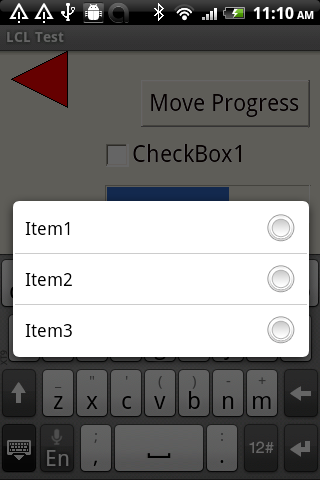](</File:Android_combobox.png>) | |
| 624 | 695 | ||
| 625 | 696 | ### Using the Native ListView Dialog | |
| 626 | 697 | ||
| 627 | - | ||
| 628 | - | ||
| 629 | - | ||
| 630 | - | ||
| 631 | - | ||
| 632 | - | ||
| 633 | - | ||
| 634 | - | ||
| 635 | - | ||
| 698 | + | To allow the user to select items from a list more easily we offer a routine which launch dialog with the native ListView. | |
| 699 | + | ``` | |
| 636 | 700 | {$ifdef LCLCustomDrawn} | |
| 637 | - | ||
| 638 | - | ||
| 639 | - | ||
| 640 | - | ||
| 641 | - | ||
| 642 | - | ||
| 643 | - | ||
| 644 | - | ||
| 645 | - | ||
| 646 | - | ||
| 647 | - | ||
| 701 | + | uses customdrawnint, lclintf; | |
| 702 | + | {$endif} | |
| 703 | + | ||
| 704 | + | procedure TForm2.Button3Click(Sender: TObject); | |
| 705 | + | begin | |
| 706 | + | {$ifdef LCLCustomDrawn} | |
| 707 | + | LCLIntf.OnListViewDialogResult := @MyOnListViewDialogResult; | |
| 708 | + | CDWidgetSet.ShowListViewDialog('Dialog Title', | |
| 709 | + | ['Title1', 'Title2', 'Title3', 'Title4', 'Title5', 'Title6'], | |
| 710 | + | ['Descr1', 'Descr2', 'Descr3', 'Descr4', 'Descr5', 'Descr6']); | |
| 711 | + | {$endif} | |
| 712 | + | end; | |
| 713 | + | ||
| 714 | + | procedure TForm2.MyOnListViewDialogResult(ASelectedItem: Integer); | |
| 715 | + | begin | |
| 716 | + | DebugLn(Format('[MyOnListViewDialogResult] ASelectedItem=%d', [ASelectedItem])); | |
| 717 | + | end; | |
| 648 | 718 | ``` | |
| 649 | 719 | ||
| 650 | - | ||
| 651 | - | ||
| 652 | - | ||
| 720 | + | LCLIntf.OnListViewDialogResult will be called with the selected item, with a zero-based index, or -1 if the dialog was cancelled by the user. One way to cancel the dialog is when the user pressed the back button. | |
| 653 | 721 | ||
| 654 | - | ||
| 722 | + | Note that there are 2 more parameters in the end of this routine with default values, which allow choosing the color for the odd and the other for the even rows. The color is an integer of 32-bits in the ARGB format, don't use TColor here! | |
| 723 | + | ``` | |
| 655 | 724 | procedure TCDWidgetSet.ShowListViewDialog(ATitle: string; ATitles, | |
| 656 | - | ||
| 657 | - | ||
| 725 | + | ADescriptions: array of string; | |
| 726 | + | AColorOddRow: jint = $ff292C29; AColorEvenRow: jint = $ff424542); | |
| 658 | 727 | ``` | |
| 659 | 728 | ||
| 660 | - | ||
| 729 | + | [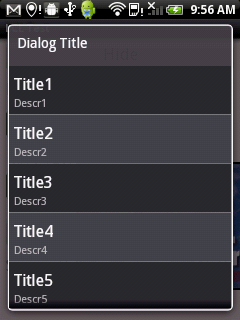](</File:Android_ListView.png>) | |
| 661 | 730 | ||
| 662 | 731 | ### LazDeviceAPIs | |
| 663 | 732 | ||
| 664 | 733 | See: [[LazDeviceAPIs]] | |
| 665 | 734 | ||
| 666 | 735 | --- | |
| 667 | - | ||
| 668 | - | ||
| 669 | - | ||
| 736 | + | *From the Free Pascal wiki, page "Custom Drawn Interface/Android", as the Internet Archive kept it on 2023-01-28. Copyright stays with the author who wrote it, according to the old wiki's [[Licensing]] page. If you have concerns about this material, [message the admin](/wiki-contact).* |