

Custom Drawn Interface/Android/ru: what changed
Revision 2 to 3. Removed lines have a minus sign; added lines have a plus sign.
| Old | New | Line | |
|---|---|---|---|
| 1 | 1 | Вернуться к [[Custom Drawn Interface]] | |
| 2 | 2 | ||
| 3 | 3 | ## Архитектура | |
| 4 | 4 | ||
| 5 | 5 | LCL-CustomDrawn-Android использует маленькое Java приложение, которое сообщается с нашей Pascal библиотекой, отправляет ей все события и выполняет все команды от неё. Общение обеспечивается JNI, так как Google поддерживает это. Элементы управления не являются родными, вместо этого они нарисованы в TRawImage+TLazIntfImage+TLazCanvas и события, и рисование сокращается с помощью LazRegions. Рисование делается в Pascal, используя jnigraphics для рисования на Bitmap Java объекте, что в последствии сокращает активность Java на внешнем виде. | |
| 6 | 6 | ||
| 7 | 7 | Наши предыдущие и недолгая попытка написать LCL интерфейс для Android (LCL-Android), который использовал не стандартный метод использования родной исполняемой системы, чтобы сообщаться с Java при помощи "труб". Мы отказались от этой системы, потому что это было не продумано и не поддерживалось Google. Это считается устаревшим и люди должны вместо этого использовать LCL-CustomDrawn-Android. Этот старый интерфейс был описан в [[Android Interface]]. | |
| 8 | 8 | ||
| 9 | 9 | ## Roadmap | |
| 10 | 10 | ||
| 11 | 11 | 1. Build the set of [[Lazarus Custom Drawn Controls]] | |
| 12 | 12 | 2. Initial bindings for the Android APIs | |
| 13 | 13 | 3. Create an application to automatically generate the bindings | |
| 14 | 14 | 4. Start the new widgetset | |
| 15 | 15 | 5. Implement support for JNI | |
| 16 | 16 | 6. Merge the Lazarus Custom Drawn Controls into the LCL and use them to implement all basic controls | |
| 17 | 17 | 7. Add text support for Android | |
| 18 | 18 | 8. Implement basic window client area scrolling | |
| 19 | 19 | 9. Add mobile emulator for desktop platforms | |
| 20 | 20 | 10. Improve the mobile scrolling | |
| 21 | 21 | 11. Add text support in X11 | |
| 22 | 22 | 12. Add DPI awareness and adaptation in the LCL | |
| 23 | 23 | 13. Add non-native text support via pasfreetype | |
| 24 | 24 | ||
| 25 | 25 | ## Использование Android SDK, эмулятора и телефона | |
| 26 | 26 | ||
| 27 | 27 | [[Android Interface/Using the Android SDK, Emulator and Phones/ru]] | |
| 28 | 28 | ||
| 29 | 29 | ## Программирование для Андроид | |
| 30 | 30 | ||
| 31 | 31 | Смотрите раздел [[Android Programming/ru]], который также включает в себя важные для программирования особенности телефонов. | |
| 32 | 32 | ||
| 33 | 33 | ## Настройка Free Pascal Compiler для Android | |
| 34 | 34 | ||
| 35 | 35 | ### Используйте готовый образ Virtual Box с FPC и Lazarus | |
| 36 | 36 | ||
| 37 | 37 | Самый быстрый способ настройки Free Pascal и Lazarus для разработки под Андроид - просто использовать заранее настроенный образ для виртуальной машины который уже содержит Mageia Linux 1, KDE, Lazarus 0.9.31, Subversion, Free Pascal для обоих Linux: x86-linux и arm-linux (targetting Android), Android SDK, Android NDK, Java, Ant, Gtk2, и все его разрабатываемые пакеты, GNU debugger (GDB) и все остальное необходимое для создания приложений для Андроид в Lazarus. | |
| 38 | 38 | ||
| 39 | 39 | Загрузить образ виртуальной машины: <https://sourceforge.net/projects/p-tools/files/Lazarus_for_Android_VM_Image/snapshot_30_dez_2011/> | |
| 40 | 40 | ||
| 41 | 41 | Образ виртуальной машины состоит из двух файлов: “Android Devel VM.vbox” и “Android Devel VM.hdd”. Оба файла должны находиться в одной папке и следует отметить то, что source forge архив и его надо разархивировать. После распаковки образ будет весить 5,2GB. Для использования этой виртуальной машины, нужно установить Virtual Box и при помощи этой программы открыть .vbox файл. После этого можно использовать эту Linux виртуальную машину для создания Android приложений. Процесс создания приложения включает в себя первое открытие Lazarus и создания приложения в Lazarus, примеры проектов доступны в ~/Programas/lazarus/example/androidlcl/ и после идите в терминал linux и перейдите в ~/Programas/lazarus/example/androidlcl/android и выполните команду “ant debug”, которая генерирует APK файл в ~/Programas/ lazarus/example/androidlcl/android/bin/LCLExample-debug.apk. Виртуальная машина имеет два пользователя: “root” и “pascaldev” и у обоих из них пароль: “root”. | |
| 42 | 42 | ||
| 43 | 43 | Обратим внимание, что виртуальная машина уже имеет встроенный код приложения Lazarus, но также можно это приложение обновить. Но это предполагает определенный риск т.к. версия из интернета может содержать проблемы. | |
| 44 | 44 | ||
| 45 | 45 | ### Как самому сделать компилятор в Windows? | |
| 46 | 46 | ||
| 47 | 47 | **Шаг 1** -Установить Android SDK и NDK | |
| 48 | 48 | ||
| 49 | 49 | Загрузите с сайта Google и установите SDK и NDK для Windows. | |
| 50 | 50 | ||
| 51 | 51 | Проверьте путь к binutils в установленном NDK. Например для NDK r7 установленном в C:\Programas\android-ndk-r7\\ путь будет такой: C:\Programas\android-ndk-r7\toolchains\arm-linux-androideabi-4.4.3\prebuilt\windows\bin | |
| 52 | 52 | ||
| 53 | 53 | Также проверьте путь к библиотекам NDK. Например, для NDK r7 установленном в C:\Programas\android-ndk-r7\\ путь будут такой: C:\Programas\android-ndk-r7\platforms\android-8\arch-arm\usr | |
| 54 | 54 | ||
| 55 | 55 | **Шаг 2** - Скачайте FPC 2.5.1 от 19 января. Создайте каталог для хранения исходного кода FPC и з Create a folder to store the FPC trunk source code and создайте рабочую копию ревизии 16790 | |
| 56 | 56 | ||
| 57 | 57 | **Шаг 3** - Установите FPC 2.4.4 | |
| 58 | 58 | ||
| 59 | 59 | Самый простой способ получить хороший FPC 2.4.4 это установить Lazarus 0.9.30.2. Для примера, предположим что вы установили эту версию в C:\Programas\lazarusfpc244 | |
| 60 | 60 | ||
| 61 | 61 | **Шаг 4** - Создание скрипта и его написание | |
| 62 | 62 | ||
| 63 | 63 | Создайте выходную папку, например: C:\Programas\fpcandroid\output | |
| 64 | 64 | ||
| 65 | 65 | Далее создайте файл, называющийся "build.bat"(без кавычек) в корневой папке FPC, например C:\Programas\fpcandroid и скопируйте в неё: | |
| 66 | 66 | ||
| 67 | 67 | SET PATH=C:\Programas\lazarusfpc244\fpc\2.4.4\bin\i386-win32\ | |
| 68 | 68 | make crossinstall CPU_TARGET=arm OS_TARGET=linux CROSSBINDIR=C:\Programas\android-ndk-r7\toolchains\arm-linux-androideabi-4.4.3\prebuilt\windows\bin OPT=-dFPC_ARMEL BINUTILSPREFIX=arm-linux-androideabi- INSTALL_PREFIX=C:\Programas\fpcandroid\output | |
| 69 | 69 | pause | |
| 70 | 70 | ||
| 71 | 71 | Далее, запустите этот файл, и вы должны иметь FPC установлен в C:\Programas\fpcandroid\output | |
| 72 | 72 | ||
| 73 | 73 | **Шаг 5** - Скопируйте некоторые cross-binutils в bin | |
| 74 | 74 | ||
| 75 | 75 | Вы должны иметь FPC bin'овские файлы in C:\Programas\fpcandroid\output\bin\i386-win32 | |
| 76 | 76 | ||
| 77 | 77 | Теперь возьмите 3 файла: | |
| 78 | 78 | ||
| 79 | 79 | C:\Programas\android-ndk-r7\toolchains\arm-linux-androideabi-4.4.3\prebuilt\windows\bin\arm-linux-androideabi-as.exe C:\Programas\android-ndk-r7\toolchains\arm-linux-androideabi-4.4.3\prebuilt\windows\bin\arm-linux-androideabi-ld.exe C:\Programas\android-ndk-r7\toolchains\arm-linux-androideabi-4.4.3\prebuilt\windows\bin\arm-linux-androideabi-strip.exe | |
| 80 | 80 | ||
| 81 | 81 | Скопируйте и переименуйте файлы: | |
| 82 | 82 | ||
| 83 | 83 | C:\Programas\fpcandroid\output\bin\i386-win32\arm-linux-as.exe C:\Programas\fpcandroid\output\bin\i386-win32\arm-linux-ld.exe C:\Programas\fpcandroid\output\bin\i386-win32\arm-linux-strip.exe | |
| 84 | 84 | ||
| 85 | 85 | **Шаг 6** - Соедините в настройках Lazarus FPC | |
| 86 | 86 | ||
| 87 | 87 | Допустим, у вас есть следующий Lazarus C:\Programas\lazarus31 с установленным внутри FPC: C:\Programas\lazarus31\fpc\2.5.1\bin\i386-win32 и C:\Programas\lazarus31\fpc\2.5.1\units\\ | |
| 88 | 88 | ||
| 89 | 89 | Сейчас скопируйте C:\Programas\fpcandroid\output\units\arm-linux в C:\Programas\lazarus31\fpc\2.5.1\units\\ | |
| 90 | 90 | ||
| 91 | 91 | Скопируйте все .exe файлы из C:\Programas\fpcandroid\output\bin\i386-win32\\ в C:\Programas\lazarus31\fpc\2.5.1\bin\i386-win32 | |
| 92 | 92 | ||
| 93 | 93 | Сейчас Вы можете собрать пример проекта androidlcltest.lpi используя режим Windows-Release build | |
| 94 | 94 | ||
| 95 | 95 | ### Создание вашего компилятора в Linux | |
| 96 | 96 | ||
| 97 | 97 | Просмотрите [[Setup Cross Compile For ARM]] и убедитесь, что используете опцию OPT="-dFPC_ARMEL" для создания компилятора. | |
| 98 | 98 | ||
| 99 | 99 | ### Использование пре-компилятора в Linux | |
| 100 | 100 | ||
| 101 | 101 | Пре-компилятор был сделан для удобства пользователей. Следующие шаги были испытаны в Mandriva Linux 2010.0 и 2010.1: | |
| 102 | 102 | ||
| 103 | 103 | **Необходимые окружающие среды** | |
| 104 | 104 | ||
| 105 | 105 | - Последняя и стабильная FPC, установленная с помощью RPM / DEB / TAR пакетов | |
| 106 | 106 | ||
| 107 | 107 | **Step 1** - Install the cross-binutils | |
| 108 | 108 | ||
| 109 | 109 | For Mandriva Linux the RPM package containing arm-linux-as, arm-linux-ld, etc, which are the cross-binutils can be found here: <http://rpm.pbone.net/index.php3/stat/4/idpl/14252825/dir/mandriva_2010/com/cross-arm-binutils-2.20.51.0.4-2mnb2.i586.rpm.html> | |
| 110 | 110 | ||
| 111 | 111 | Just download the RPM package and install it using: | |
| 112 | 112 | ||
| 113 | - | ||
| 113 | + | ```text | |
| 114 | + | rpm -ivh cross-arm-binutils-2.20.51.0.4-2mnb2.i586.rpm | |
| 115 | + | ``` | |
| 114 | 116 | ||
| 115 | 117 | In Mandriva Linux 2010.0 the dependencies won't match, as the package is for 2010.1, but one can simply ignore this problem and it works fine using --nodeps: | |
| 116 | 118 | ||
| 117 | - | ||
| 119 | + | ```text | |
| 120 | + | rpm -ivh --nodeps cross-arm-binutils-2.20.51.0.4-2mnb2.i586.rpm | |
| 121 | + | ``` | |
| 118 | 122 | ||
| 119 | 123 | For other distributions use the corresponding package, or else read the instructions for building the cross-binutils yourself at [[Setup Cross Compile For ARM]] | |
| 120 | 124 | ||
| 121 | 125 | **Step 2** - Configure the cross-binutils | |
| 122 | 126 | ||
| 123 | 127 | The assembler needs a parameter to tell it which ARM ABI to use. A choice which works good is EABI-5, which is compatible with all Android devices available as of Jan 2011. To set this, we will rename the original assembler and substitute it with a shell script which passes the desired parameter. These commands will do it: | |
| 124 | 128 | ||
| 125 | - | ||
| 126 | - | ||
| 127 | - | ||
| 129 | + | ```text | |
| 130 | + | su | |
| 131 | + | mv /usr/bin/arm-linux-as /usr/bin/arm-linux-as_org | |
| 132 | + | gedit /usr/bin/arm-linux-as | |
| 133 | + | ``` | |
| 128 | 134 | ||
| 129 | 135 | Now paste into the editor this code: | |
| 130 | 136 | ||
| 131 | - | ||
| 132 | - | ||
| 137 | + | ```text | |
| 138 | + | #!/bin/sh | |
| 139 | + | /usr/bin/arm-linux-as_org -meabi=5 $@ | |
| 140 | + | ``` | |
| 133 | 141 | ||
| 134 | 142 | And don't forget to then make it executable: | |
| 135 | 143 | ||
| 136 | - | ||
| 144 | + | ```text | |
| 145 | + | chmod 755 /usr/bin/arm-linux-as | |
| 146 | + | ``` | |
| 137 | 147 | ||
| 138 | 148 | **Step 3** - Install the Free Pascal Cross-Compiler | |
| 139 | 149 | ||
| 140 | 150 | At this point the pre-compiled FPC can be download from here: <http://sourceforge.net/projects/p-tools/files/Free%20Pascal%20for%20ARM/> | |
| 141 | 151 | ||
| 142 | 152 | Then use these commands to install the pre-compiled Free Pascal cross-compiler into /usr: | |
| 143 | 153 | ||
| 144 | - | ||
| 145 | - | ||
| 146 | - | ||
| 147 | - | ||
| 148 | - | ||
| 149 | - | ||
| 150 | - | ||
| 151 | - | ||
| 152 | - | ||
| 154 | + | ```text | |
| 155 | + | [felipe@localhost Programas]$ ls -l | |
| 156 | + | total 20664 | |
| 157 | + | -rw-rw-r-- 1 felipe felipe 17098552 2010-10-25 08:17 fpc-2.5.1.arm-linux.tar.gz | |
| 158 | + | [felipe@localhost Programas]$ su | |
| 159 | + | Password: | |
| 160 | + | [root@localhost Programas]# cp fpc-2.5.1.arm-linux.tar.gz /usr/ | |
| 161 | + | [root@localhost Programas]# cd /usr/ | |
| 162 | + | [root@localhost usr]# tar -xvf fpc-2.5.1.arm-linux.tar.gz | |
| 163 | + | [root@localhost usr]# ln -s /usr/lib/fpc/2.5.1/ppcrossarm /usr/bin/ppcrossarm | |
| 164 | + | ``` | |
| 153 | 165 | ||
| 154 | 166 | **Step 4** - Verify if your Cross-Compiler works | |
| 155 | 167 | ||
| 156 | 168 | If you made no errors in the previous steps, it should work, so try to call it like this: | |
| 157 | 169 | ||
| 158 | - | ||
| 170 | + | ```text | |
| 171 | + | [felipe@localhost Programas]$ /usr/bin/ppcrossarm | |
| 172 | + | ``` | |
| 159 | 173 | ||
| 160 | 174 | If this command works and fpc shows its options, then you configured the cross-compiler correctly, if not, then try to find out if your symbolic link points to a correct location with this command: | |
| 161 | 175 | ||
| 162 | 176 | \[felipe@localhost Programas\]\$ ls -ls /usr/bin/ppc* | |
| 163 | 177 | ||
| 164 | 178 | Now we are ready to compile Android applications using the Lazarus IDE! Configuring the fpc.cfg file isn't necessary, the old compiler will automatically find the new compiler and it's object files. | |
| 165 | 179 | ||
| 166 | 180 | ## Компиляция примера LCL Android приложения | |
| 167 | 181 | ||
| 168 | 182 | **Шаг 1 - Загрузите исходный код** | |
| 169 | 183 | ||
| 170 | 184 | Исходный код примера находится внутри Lazarus источник в lazarus/examples/androidlcl/androidlcltest.lpi | |
| 171 | 185 | ||
| 172 | 186 | **Шаг 2 - Сборка проекта с использованием Lazarus IDE** | |
| 173 | 187 | ||
| 174 | 188 | Configuring Lazarus itself to use the new compiler should not normally be necessary because fpc should be able to find the symlink created, but if you have trouble in this part you can try to hard code the compiler path to use the new crosscompiler. To hardcode the compiler path in cause of trouble go to the menu "Tools-\>Options" and change the "Compiler Path" to "/usr/bin/ppcrossarm" | |
| 175 | 189 | ||
| 176 | 190 | But it is necessary to configure the LPI file to build the example. Open the Project Options dialog of the androidlcltest.lpi project and go to the section Paths and change the libraries path to reflect the correct paths of where your Android NDK was installed and where your jnigraphics.so, libc.so, etc, libraries are located for your target Android API level. For LCL-CustomDrawn-Android API level 8 is the best choice, because it supports Android 2.2+ like the LCL. The image bellow shows where to configure this: | |
| 177 | 191 | ||
| 178 | 192 | 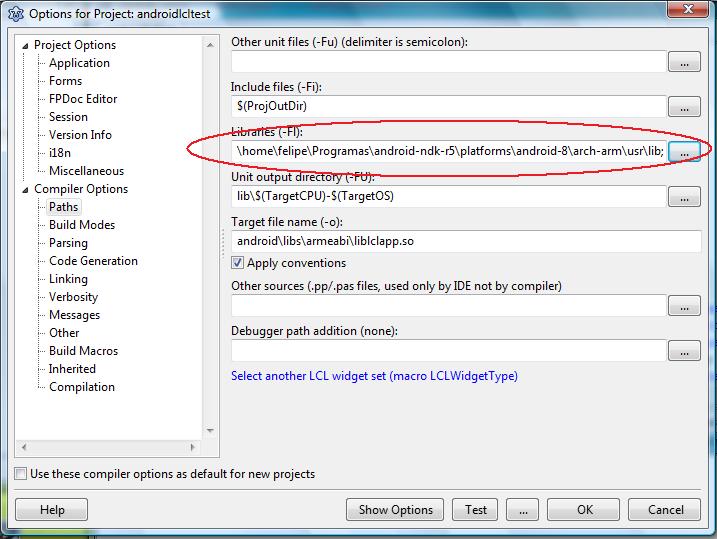 | |
| 179 | 193 | ||
| 180 | 194 | **Step 3 - Build the APK** | |
| 181 | 195 | ||
| 182 | 196 | Before going to the command line to build the APK open the file lazarus/examples/androidlcl/android/local.properties and change it to reflect your Android SDK path. The file says you should not modify it, but ignore that and modify it anyway. Here is how the file looks like: | |
| 183 | 197 | ||
| 184 | 198 | # This file is automatically generated by Android Tools. | |
| 185 | 199 | # Do not modify this file -- YOUR CHANGES WILL BE ERASED! | |
| 186 | 200 | # | |
| 187 | 201 | # This file must *NOT* be checked in Version Control Systems, | |
| 188 | 202 | # as it contains information specific to your local configuration. | |
| 189 | 203 | ||
| 190 | 204 | # location of the SDK. This is only used by Ant | |
| 191 | 205 | # For customization when using a Version Control System, please read the | |
| 192 | 206 | # header note. | |
| 193 | 207 | sdk.dir=/home/felipe/Programas/android-sdk-linux | |
| 194 | 208 | ||
| 195 | 209 | After configuring that one, go to the command line and issue these commands: | |
| 196 | 210 | ||
| 197 | - | ||
| 198 | - | ||
| 211 | + | ```text | |
| 212 | + | cd lazarus/examples/androidlcl/android | |
| 213 | + | ant debug | |
| 214 | + | ``` | |
| 199 | 215 | ||
| 200 | 216 | The APK will be located in lazarus/examples/androidlcl/android/bin | |
| 201 | 217 | ||
| 202 | 218 | **Step 4 - Install the APK in your phone and run it** | |
| 203 | 219 | ||
| 204 | 220 | You can install via ADB or by copying the file to the sdcard. You should see this: | |
| 205 | 221 | ||
| 206 | 222 | 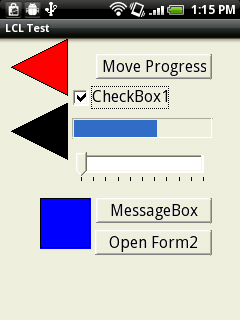 | |
| 207 | 223 | ||
| 208 | 224 | ## How to create an LCL Android Application | |
| 209 | 225 | ||
| 210 | 226 | To create a new LCL-CustomDrawn-Android application simply copy all of the file structure and build and java files from the example project called "androidlcl". This example can be obtained from the Lazarus source tree in lazarus/examples/androidlcl | |
| 211 | 227 | ||
| 212 | 228 | Then you will need to modify the build files to change them to your new project name and your new Java package name. | |
| 213 | 229 | ||
| 214 | 230 | ### Step 1 - Creating the LPI | |
| 215 | 231 | ||
| 216 | 232 | You need a separate LPI at the moment for the Android version of the application but all the rest of the code can be shared. Create it using the template for a "Library" and then adapt the code from the example located in the lazarus source code in lazarus/examples/androidlcl | |
| 217 | 233 | ||
| 218 | 234 | You need to adapt the exported JNI method names to your Android Package Name. | |
| 219 | 235 | ||
| 220 | 236 | ### Step 2 - Building the library | |
| 221 | 237 | ||
| 222 | 238 | First of all, build the Pascal executable without debug information. This debug information is not so useful in Android and makes the executable much bigger. Open the menu Project-\>Project Options and set the build mode, widgetset, architecture and operating system targets, as shown in these screenshots: | |
| 223 | 239 | ||
| 224 | 240 | 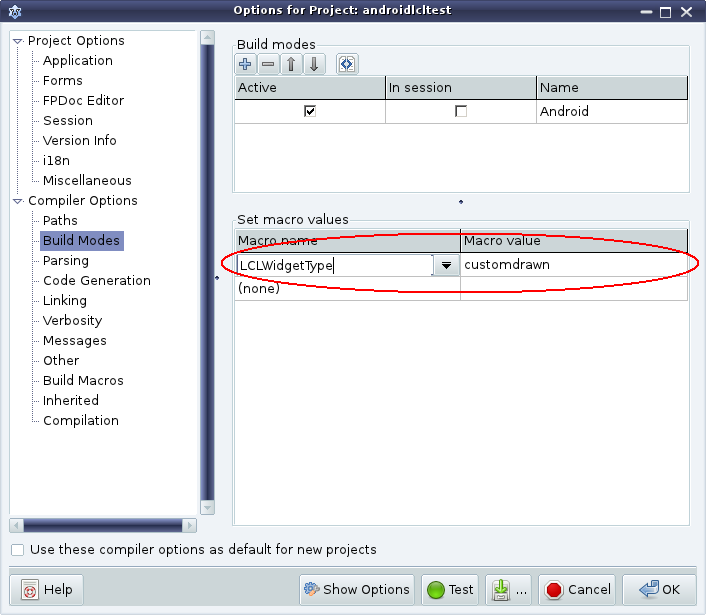 | |
| 225 | 241 | ||
| 226 | 242 | 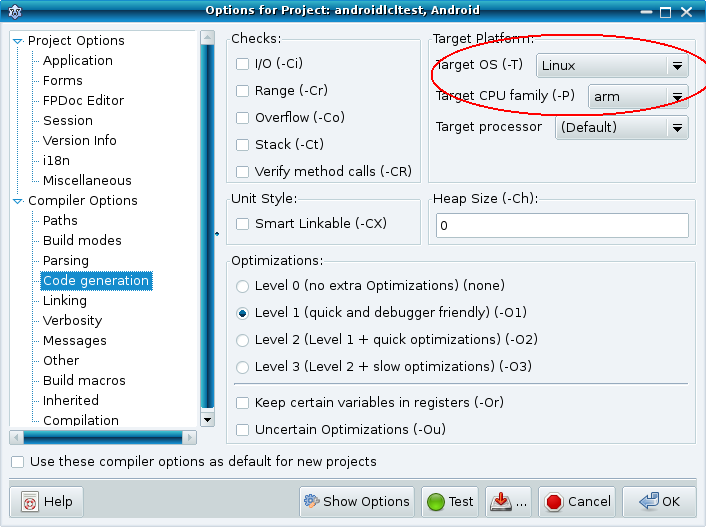 | |
| 227 | 243 | ||
| 228 | 244 | 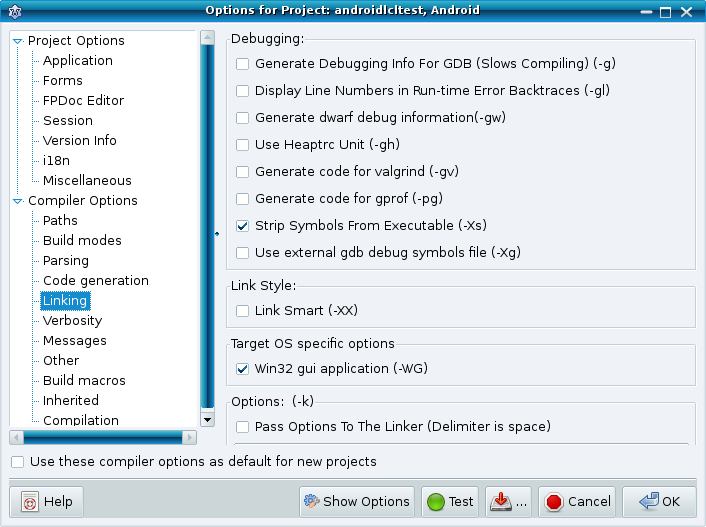 | |
| 229 | 245 | ||
| 230 | 246 | ### Step 3 - Create the Android project structure | |
| 231 | 247 | ||
| 232 | 248 | Besides the LCL project building, such as configuring a proper LPI and having a library main project file, one also needs to add all of the android project structure. Simply copy from the example project in lazarus/examples/androidlcl and adapt it to the new project. Things to change are the path to the SDK, the package name. The package name needs to be updated in the build files, in the directory structure android/src/packagename, in the activity java source code and also in the main library pascal source in the exports section. | |
| 233 | 249 | ||
| 234 | 250 | ### Building an LCL Android application with debug info | |
| 235 | 251 | ||
| 236 | 252 | It is useful to add another Android build mode which has debug info. Use all of the same options as shown above, except for the debug information: | |
| 237 | 253 | ||
| 238 | 254 | 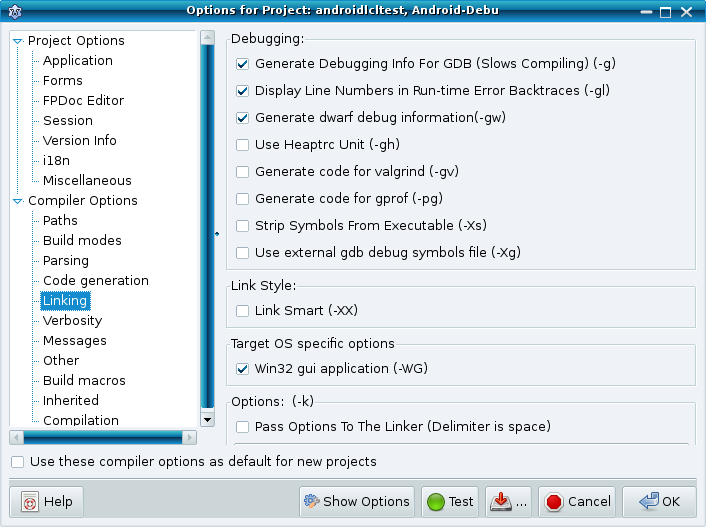 | |
| 239 | 255 | ||
| 240 | 256 | ## Oh no! My LCL Android application doesn't work | |
| 241 | 257 | ||
| 242 | 258 | There are various reasons why the app may not work. The most important thing to do when an app doesn't work is to open the logcat and see what the log says. This can be done by running this command line command: | |
| 243 | 259 | ||
| 244 | - | ||
| 260 | + | ```text | |
| 261 | + | ./adb logcat | |
| 262 | + | ``` | |
| 245 | 263 | ||
| 246 | 264 | And then test one of the hipotesis in the next subsections. | |
| 247 | 265 | ||
| 248 | 266 | ### The Pascal executable was compiled for a wrong architecture, operating system and/or widgetset | |
| 249 | 267 | ||
| 250 | 268 | This is the leading cause of executables not running. Always verify that you compiled the program to the "android" widgetset, "linux" operating system and "arm" architecture. This is done by going into the menu Project-\>Project Options. Then set these in the dialog all options as explained in this section: | |
| 251 | 269 | ||
| 252 | 270 | [[How to build an LCL Android application]] | |
| 253 | 271 | ||
| 254 | 272 | To check if you library is arm-linux or not, execute the following commands: | |
| 255 | 273 | ||
| 256 | - | ||
| 257 | - | ||
| 258 | - | ||
| 259 | - | ||
| 274 | + | ```text | |
| 275 | + | cd libs/armeabi | |
| 276 | + | ls -l | |
| 277 | + | file liblclapp.so | |
| 278 | + | ldd liblclapp.so | |
| 279 | + | ``` | |
| 260 | 280 | ||
| 261 | 281 | If it mentions anything like 80386 or gtk, then your program was compiled for linux-x86 and gtk2, not for Android like it should. | |
| 262 | 282 | ||
| 263 | 283 | ### My Pascal application crashed. How to get a stacktrace? | |
| 264 | 284 | ||
| 265 | 285 | If a Pascal application crashes you should use the command "adb logcat" to obtain the stack | |
| 266 | 286 | ||
| 267 | 287 | ### The indispensable build options | |
| 268 | 288 | ||
| 269 | 289 | - -Xd This build option is indispensable when cross-compiling from x86-linux to Android or else FPC will try to link the application against for example /usr/lib/libc.so instead of the libc.so in the NDK, even if you specify a -Fl library path | |
| 270 | 290 | - -CpARMV6 This build option is indispensable because code generated for older ARM versions is unsupported by Android and might crash in some devices. See <http://groups.google.com/group/android-ndk/browse_thread/thread/ba542483f062a828> | |
| 271 | 291 | - -dAndroid in the package LCLBase.lpk | |
| 272 | 292 | - -Parm -Tlinux for the process and target operating system | |
| 273 | 293 | - -Fl should contain the path to the NDK directory with the target link shared object, such as libc.so, liblog.so, libjni.so, etc | |
| 274 | 294 | ||
| 275 | 295 | ## Free Pascal Bugs on Android Support | |
| 276 | 296 | ||
| 277 | 297 | The following summarizes the state of Android Support in Free Pascal: | |
| 278 | 298 | ||
| 279 | 299 | - The pre-compiled snapshot for x86-linux -\> Android is known to work very well and it was built on 19th January 2011: <https://sourceforge.net/projects/p-tools/files/Free%20Pascal%20for%20ARM/> | |
| 280 | 300 | - On February this revision <http://svn.freepascal.org/cgi-bin/viewvc.cgi?view=rev&revision=16981> introduced this bug: <http://mantis.freepascal.org/view.php?id=18833> | |
| 281 | 301 | - In the end of 2011 this revision <http://svn.freepascal.org/cgi-bin/viewvc.cgi?view=rev&revision=19036> broke linking Android projects | |
| 282 | 302 | ||
| 283 | 303 | We are in contact with FPC developers to fix the situation as can be seen in: <http://mantis.freepascal.org/view.php?id=20726> | |
| 284 | 304 | ||
| 285 | 305 | ## Development Notes | |
| 286 | 306 | ||
| 287 | 307 | ### The misterious JNI Crash | |
| 288 | 308 | ||
| 289 | 309 | See the thread: <http://groups.google.com/group/android-ndk/browse_thread/thread/ba542483f062a828> | |
| 290 | 310 | ||
| 291 | 311 | The problem was that vm^^.GetEnv would crash in HTC Wildfire, Alcatel and in the emulator with SIGILL but not in Xperia Mini, HTC Desire HD, Motorola Atrix and other smartphones. | |
| 292 | 312 | ||
| 293 | 313 | The answer was that one needs to specify -CpARMV6 when building because older instructions might fail in some devices | |
| 294 | 314 | ||
| 295 | 315 | ### NDK Libraries available in Android 2.2 (API level 8) | |
| 296 | 316 | ||
| 297 | 317 | LCL-CustomDrawn targets Android 2.2+ and in this API level the following libraries are supported by the NDK: | |
| 298 | 318 | ||
| 299 | 319 | 1. libc.so | |
| 300 | 320 | 2. libdl.so (linker) | |
| 301 | 321 | 3. OpenGL ES 1 | |
| 302 | 322 | 4. OpenGL ES 2 | |
| 303 | 323 | 5. libjnigraphics.so | |
| 304 | 324 | 6. liblog.so | |
| 305 | 325 | 7. libm.so | |
| 306 | 326 | 8. libz.so | |
| 307 | 327 | 9. libthread_db.so | |
| 308 | 328 | 10. libstdc++.so | |
| 309 | 329 | ||
| 310 | 330 | LCL-CustomDrawn-Android uses libjnigraphics.so and liblog.so at the moment. | |
| 311 | 331 | ||
| 312 | 332 | ### Native text drawing | |
| 313 | 333 | ||
| 314 | 334 | Native text drawing is a bit convoluted in Android and the documentation is quite bad too. Some gotchas already found: | |
| 315 | 335 | ||
| 316 | 336 | - It draws text starting on a Y coordinate which represents the baseline, which is the bottom of strings like "abc", but not the bottom of strings like "qg". See <http://code.google.com/p/android/issues/detail?id=393> | |
| 317 | 337 | - There is no documentation about what the size in Paint.setTextSize represents. Some people say it is pixels, but to me it looks something else because it seams to differ across devices. | |
| 318 | 338 | ||
| 319 | 339 | But there are also good things about it: | |
| 320 | 340 | ||
| 321 | 341 | - It can draw on a transparent bitmap and use alpha transparency to implement anti-aliasing and subpixel rendering. The text gets quite beaultiful. | |
| 322 | 342 | - It can draw on the ARGB 32-bits non-premultiplied format which is a pretty good one | |
| 323 | 343 | ||
| 324 | 344 | ### Flood of garbage collector messages when the caret is visible | |
| 325 | 345 | ||
| 326 | 346 | Something like this: | |
| 327 | 347 | ||
| 328 | 348 | D/dalvikvm( 6364): GC_EXTERNAL_ALLOC freed 188 objects / 6664 bytes in 94ms | |
| 329 | 349 | D/dalvikvm( 6364): GC_EXTERNAL_ALLOC freed 170 objects / 6160 bytes in 78ms | |
| 330 | 350 | D/dalvikvm( 6364): GC_EXTERNAL_ALLOC freed 162 objects / 5904 bytes in 82ms | |
| 331 | 351 | D/dalvikvm( 6364): GC_EXTERNAL_ALLOC freed 162 objects / 5856 bytes in 78ms | |
| 332 | 352 | D/dalvikvm( 6364): GC_EXTERNAL_ALLOC freed 162 objects / 5872 bytes in 80ms | |
| 333 | 353 | D/dalvikvm( 2825): GC_EXPLICIT freed 371 objects / 18480 bytes in 91ms | |
| 334 | 354 | D/dalvikvm( 6364): GC_EXTERNAL_ALLOC freed 162 objects / 5896 bytes in 78ms | |
| 335 | 355 | D/dalvikvm( 6364): GC_EXTERNAL_ALLOC freed 162 objects / 5896 bytes in 78ms | |
| 336 | 356 | D/dalvikvm( 6364): GC_EXTERNAL_ALLOC freed 162 objects / 5896 bytes in 81ms | |
| 337 | 357 | D/dalvikvm( 6364): GC_EXTERNAL_ALLOC freed 162 objects / 5920 bytes in 78ms | |
| 338 | 358 | D/dalvikvm( 6364): GC_EXTERNAL_ALLOC freed 162 objects / 5920 bytes in 83ms | |
| 339 | 359 | ||
| 340 | 360 | In my investigation this happens probably because the TCDEdit will request a full control invalidate on each timer tick, which currently will main a full form invalidate, so the GC needs to collect the bitmaps and other paint objects when painting that often. | |
| 341 | 361 | ||
| 342 | 362 | ### Why the caret of a TEdit keeps blinking after clicking on the form | |
| 343 | 363 | ||
| 344 | 364 | When clicking on the form the LCL focus will refuse to move from the Edit to the Form because this behavior seams to be hard coded in the LCL, although maybe we might change this for Android. So even while we set focus into the form, the LCL refuses to do that and keeps its focus in the Edit, thus we have a focus missmatch. This might eventually be fixed in the future. | |
| 345 | 365 | ||
| 346 | 366 | --- | |
| 347 | 367 | *From the Free Pascal wiki, page "Custom Drawn Interface/Android/ru", as it stood on 2015-05-14 after a change by FTurtle, out of the wiki's dump of 2024-05-26. Copyright stays with the author who wrote it, according to the old wiki's [[Licensing]] page. If you have concerns about this material, [message the admin](/wiki-contact).* | |
| 348 | 368 | Category: Android/ru | |
| 349 | 369 | Category: Custom Drawn/ru | |
| 350 | 370 | Category: Russian | |
| 351 | 371 | Category: Russian (unfinished translation) |