

CudaText: what changed
Revision 1 to 2. Removed lines have a minus sign; added lines have a plus sign.
| Old | New | Line | |
|---|---|---|---|
| 1 | 1 | CudaText documentation subpages [[CudaText API|API]] | [[CudaText VS other editors|Comparisons with other text editors]] | [[CudaText plugins|Plugins]] | [[CudaText/LSP Client|LSP Client]] | [[CudaText files formats|Supported file formats]] | |
| 2 | 2 | ---|---|---|---|--- | |
| 3 | 3 | External Links | [project homepage](<https://cudatext.github.io/>) | [_downloads_](<https://sourceforge.net/projects/cudatext/files/release/>) | [github repository](<https://github.com/Alexey-T/CudaText>) | [_other required lazarus packages_](<https://github.com/Alexey-T>) | |
| 4 | 4 | ---|---|---|---|--- | |
| 5 | 5 | ||
| 6 | 6 | **CudaText** is a cross-platform text editor, written in Object Pascal language using the Lazarus IDE, with a focus on performance and a broad featureset, which includes: | |
| 7 | 7 | ||
| 8 | 8 | * Syntax highlighting for 300+ languages | |
| 9 | 9 | * Multi-carets, multi-selections | |
| 10 | 10 | * Code folding | |
| 11 | 11 | * Code-tree (list of functions/classes/etc., if lexer-supported) | |
| 12 | 12 | * Search/replace with regular expressions | |
| 13 | 13 | ||
| 14 | 14 | * Command palette | |
| 15 | 15 | * Configuration files in JSON | |
| 16 | 16 | * Interface- and syntax-themes | |
| 17 | 17 | * Support for many encodings | |
| 18 | 18 | * Based on the [[ATSynEdit]] engine | |
| 19 | 19 | * Extensibility via Python add-ons, e.g. [LSP](<http://www.wikipedia.org/wiki/Language_Server_Protocol> "wikipedia:Language Server Protocol") support | |
| 20 | 20 | ||
| 21 | 21 | * Built-in HTML and CSS auto-completion | |
| 22 | 22 | * HTML tag completion with `⭾ Tab` | |
| 23 | 23 | * HTML tooltips on mouse-over | |
| 24 | 24 | * Hex color code underlining | |
| 25 | 25 | * Viewer for picture files (jpeg, png, gif, bmp, ico, webp) | |
| 26 | 26 | ||
| 27 | 27 | [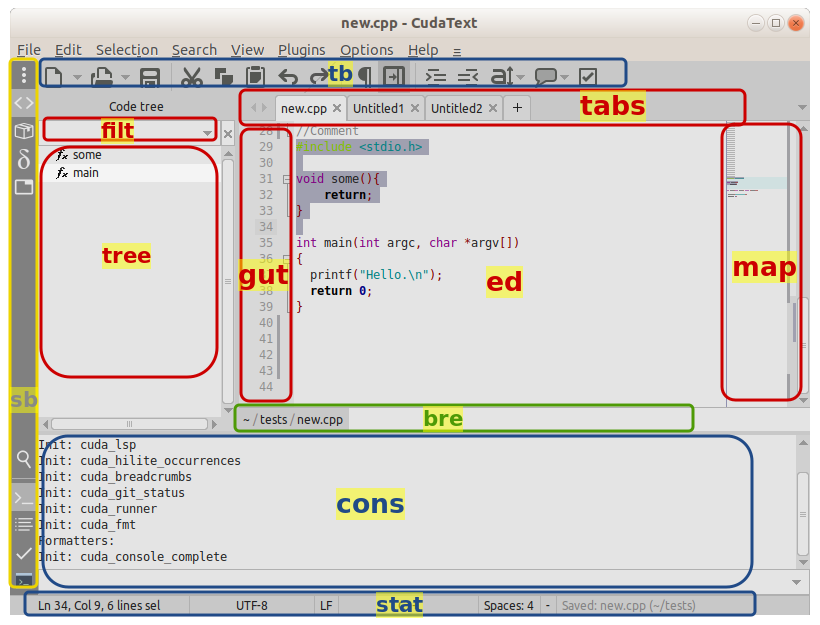](</File:cudatext-ui-elements.png> "CudaText UI Elements") | |
| 28 | 28 | ||
| 29 | - | ||
| 30 | - | ||
| 31 | - | ||
| 32 | - | ||
| 33 | - | ||
| 34 | - | ||
| 35 | - | ||
| 36 | - | ||
| 37 | - | ||
| 38 | - | ||
| 39 | - | ||
| 40 | - | ||
| 41 | - | ||
| 42 | - | ||
| 43 | - | ||
| 44 | - | ||
| 45 | - | ||
| 46 | - | ||
| 47 | - | ||
| 48 | - | ||
| 49 | - | ||
| 50 | - | ||
| 51 | - | ||
| 52 | - | ||
| 53 | - | ||
| 54 | - | ||
| 55 | - | ||
| 56 | - | ||
| 57 | - | ||
| 58 | - | ||
| 59 | - | ||
| 60 | - | ||
| 61 | - | ||
| 62 | - | ||
| 63 | - | ||
| 64 | - | ||
| 65 | - | ||
| 66 | - | ||
| 67 | - | ||
| 68 | - | ||
| 69 | - | ||
| 70 | - | ||
| 71 | - | ||
| 72 | - | ||
| 73 | - | ||
| 74 | - | ||
| 75 | - | ||
| 76 | - | ||
| 77 | - | ||
| 78 | - | ||
| 79 | - | ||
| 80 | - | ||
| 81 | - | ||
| 82 | - | ||
| 83 | - | ||
| 84 | - | ||
| 85 | - | ||
| 86 | - | ||
| 87 | - | ||
| 88 | - | ||
| 89 | - | ||
| 90 | - | ||
| 91 | - | ||
| 92 | - | ||
| 93 | - | ||
| 94 | - | ||
| 95 | - | ||
| 96 | - | ||
| 97 | - | ||
| 98 | - | ||
| 99 | - | ||
| 100 | - | ||
| 101 | - | ||
| 102 | - | ||
| 103 | - | ||
| 104 | - | ||
| 105 | - | ||
| 106 | - | ||
| 107 | - | ||
| 108 | - | ||
| 109 | - | ||
| 110 | - | ||
| 111 | - | ||
| 112 | - | ||
| 113 | - | ||
| 114 | - | ||
| 115 | - | ||
| 116 | - | ||
| 117 | - | ||
| 118 | - | ||
| 119 | - | ||
| 120 | - | ||
| 121 | - | ||
| 122 | - | ||
| 123 | - | ||
| 124 | - | ||
| 125 | - | ||
| 126 | - | ||
| 127 | - | ||
| 128 | - | ||
| 129 | - | ||
| 130 | - | ||
| 131 | - | ||
| 132 | - | ||
| 133 | - | ||
| 134 | - | ||
| 135 | - | ||
| 136 | - | ||
| 137 | - | ||
| 138 | - | ||
| 139 | - | ||
| 140 | - | ||
| 141 | - | ||
| 142 | - | ||
| 143 | - | ||
| 144 | - | ||
| 145 | - | ||
| 146 | - | ||
| 147 | - | ||
| 148 | - | ||
| 149 | - | ||
| 150 | - | ||
| 151 | - | ||
| 152 | - | ||
| 153 | - | ||
| 154 | - | ||
| 155 | - | ||
| 156 | - | ||
| 157 | - | ||
| 158 | - | ||
| 159 | - | ||
| 160 | - | ||
| 161 | - | ||
| 162 | - | ||
| 163 | - | ||
| 164 | - | ||
| 165 | - | ||
| 166 | - | ||
| 167 | - | ||
| 168 | - | ||
| 169 | - | ||
| 170 | - | ||
| 171 | - | ||
| 172 | - | ||
| 173 | - | ||
| 174 | - | ||
| 175 | - | ||
| 176 | - | ||
| 177 | - | ||
| 178 | - | ||
| 179 | - | ||
| 180 | - | ||
| 181 | - | ||
| 182 | - | ||
| 183 | - | ||
| 184 | - | ||
| 185 | - | ||
| 186 | - | ||
| 187 | - | ||
| 188 | - | ||
| 189 | - | ||
| 190 | - | ||
| 191 | - | ||
| 192 | - | ||
| 193 | - | ||
| 194 | - | ||
| 195 | - | ||
| 196 | - | ||
| 197 | - | ||
| 198 | - | ||
| 199 | - | ||
| 200 | - | ||
| 201 | - | ||
| 202 | - | ||
| 203 | - | ||
| 204 | - | ||
| 205 | - | ||
| 206 | - | ||
| 207 | - | ||
| 208 | - | ||
| 209 | - | ||
| 210 | - | ||
| 211 | - | ||
| 212 | - | ||
| 213 | - | ||
| 214 | - | ||
| 215 | - | ||
| 216 | - | ||
| 217 | - | ||
| 218 | - | ||
| 219 | - | ||
| 220 | - | ||
| 221 | - | ||
| 222 | - | ||
| 223 | - | ||
| 224 | - | ||
| 225 | - | ||
| 226 | - | ||
| 227 | - | ||
| 228 | - | ||
| 229 | - | ||
| 230 | - | ||
| 231 | - | ||
| 232 | - | ||
| 233 | - | ||
| 234 | - | ||
| 235 | - | ||
| 236 | - | ||
| 237 | - | ||
| 238 | - | ||
| 239 | - | ||
| 240 | - | ||
| 241 | - | ||
| 242 | - | ||
| 243 | - | ||
| 244 | - | ||
| 245 | - | ||
| 246 | - | ||
| 247 | - | ||
| 248 | - | ||
| 249 | - | ||
| 250 | - | ||
| 251 | - | ||
| 252 | - | ||
| 253 | - | ||
| 254 | - | ||
| 255 | - | ||
| 256 | - | ||
| 257 | - | ||
| 258 | - | ||
| 259 | - | ||
| 260 | - | ||
| 261 | - | ||
| 262 | - | ||
| 263 | - | ||
| 264 | - | ||
| 265 | - | ||
| 266 | - | ||
| 267 | - | ||
| 268 | - | ||
| 269 | - | ||
| 270 | - | ||
| 271 | - | ||
| 272 | - | ||
| 273 | - | ||
| 274 | - | ||
| 275 | - | ||
| 276 | - | ||
| 277 | - | ||
| 278 | - | ||
| 279 | - | ||
| 280 | - | ||
| 281 | - | ||
| 282 | - | ||
| 283 | - | ||
| 284 | - | ||
| 285 | - | ||
| 286 | - | ||
| 287 | - | ||
| 288 | - | ||
| 289 | - | ||
| 290 | - | ||
| 291 | - | ||
| 292 | - | ||
| 293 | - | ||
| 294 | - | ||
| 295 | - | ||
| 296 | - | ||
| 297 | - | ||
| 298 | - | ||
| 299 | - | ||
| 300 | - | ||
| 301 | - | ||
| 302 | - | ||
| 303 | - | ||
| 304 | - | ||
| 305 | - | ||
| 306 | - | ||
| 307 | - | ||
| 308 | - | ||
| 309 | - | ||
| 310 | - | ||
| 311 | - | ||
| 312 | - | ||
| 313 | - | ||
| 314 | - | ||
| 315 | - | ||
| 316 | - | ||
| 317 | - | ||
| 318 | - | ||
| 319 | - | ||
| 320 | - | ||
| 321 | - | ||
| 322 | - | ||
| 323 | - | ||
| 324 | - | ||
| 325 | - | ||
| 326 | - | ||
| 327 | - | ||
| 328 | - | ||
| 329 | - | ||
| 330 | - | ||
| 331 | - | ||
| 332 | - | ||
| 333 | - | ||
| 334 | - | ||
| 335 | - | ||
| 336 | - | ||
| 337 | - | ||
| 338 | - | ||
| 339 | - | ||
| 340 | - | ||
| 341 | - | ||
| 342 | - | ||
| 343 | - | ||
| 344 | - | ||
| 345 | - | ||
| 346 | - | ||
| 347 | - | ||
| 348 | - | ||
| 349 | - | ||
| 350 | - | ||
| 351 | - | ||
| 352 | - | ||
| 353 | - | ||
| 354 | - | ||
| 355 | - | ||
| 356 | - | ||
| 357 | - | ||
| 358 | - | ||
| 359 | - | ||
| 360 | - | ||
| 361 | - | ||
| 362 | - | ||
| 363 | - | ||
| 364 | - | ||
| 365 | - | ||
| 366 | - | ||
| 367 | - | ||
| 368 | - | ||
| 369 | - | ||
| 370 | - | ||
| 371 | - | ||
| 372 | - | ||
| 373 | - | ||
| 374 | - | ||
| 375 | - | ||
| 376 | - | ||
| 377 | - | ||
| 378 | - | ||
| 379 | - | ||
| 380 | - | ||
| 381 | - | ||
| 382 | - | ||
| 383 | - | ||
| 384 | - | ||
| 385 | - | ||
| 386 | - | ||
| 387 | - | ||
| 388 | - | ||
| 389 | - | ||
| 390 | - | ||
| 391 | - | ||
| 392 | - | ||
| 393 | - | ||
| 394 | - | ||
| 395 | - | ||
| 396 | - | ||
| 397 | - | ||
| 398 | - | ||
| 399 | - | ||
| 400 | - | ||
| 401 | - | ||
| 402 | - | ||
| 403 | - | ||
| 404 | - | ||
| 405 | - | ||
| 406 | - | ||
| 407 | - | ||
| 408 | - | ||
| 409 | - | ||
| 410 | - | ||
| 411 | - | ||
| 412 | - | ||
| 413 | - | ||
| 414 | - | ||
| 415 | - | ||
| 416 | - | ||
| 417 | - | ||
| 418 | - | ||
| 419 | - | ||
| 420 | - | ||
| 421 | - | ||
| 422 | - | ||
| 423 | - | ||
| 424 | - | ||
| 425 | - | ||
| 426 | - | ||
| 427 | - | ||
| 428 | - | ||
| 429 | - | ||
| 430 | - | ||
| 431 | - | ||
| 432 | - | ||
| 433 | - | ||
| 434 | - | ||
| 435 | - | ||
| 436 | - | ||
| 437 | - | ||
| 438 | - | ||
| 439 | - | ||
| 440 | - | ||
| 441 | - | ||
| 442 | - | ||
| 443 | - | ||
| 444 | - | ||
| 445 | - | ||
| 446 | - | ||
| 447 | - | ||
| 448 | - | ||
| 449 | - | ||
| 450 | - | ||
| 451 | - | ||
| 452 | - | ||
| 453 | - | ||
| 454 | - | ||
| 455 | - | ||
| 456 | - | ||
| 457 | - | ||
| 458 | - | ||
| 459 | - | ||
| 460 | - | ||
| 461 | - | ||
| 462 | - | ||
| 463 | - | ||
| 464 | - | ||
| 465 | - | ||
| 466 | - | ||
| 467 | - | ||
| 468 | - | ||
| 469 | - | ||
| 470 | - | ||
| 471 | - | ||
| 472 | - | ||
| 473 | - | ||
| 474 | - | ||
| 475 | - | ||
| 476 | - | ||
| 477 | - | ||
| 478 | - | ||
| 479 | - | ||
| 480 | - | ||
| 481 | - | ||
| 482 | - | ||
| 483 | - | ||
| 484 | - | ||
| 485 | - | ||
| 486 | - | ||
| 487 | - | ||
| 488 | - | ||
| 489 | - | ||
| 490 | - | ||
| 491 | - | ||
| 492 | - | ||
| 493 | - | ||
| 494 | - | ||
| 495 | - | ||
| 496 | - | ||
| 497 | - | ||
| 498 | - | ||
| 499 | - | ||
| 500 | - | ||
| 501 | - | ||
| 502 | - | ||
| 503 | - | ||
| 504 | - | ||
| 505 | - | ||
| 506 | - | ||
| 507 | - | ||
| 508 | - | ||
| 509 | - | ||
| 510 | - | ||
| 511 | - | ||
| 512 | - | ||
| 513 | - | ||
| 514 | - | ||
| 515 | - | ||
| 516 | - | ||
| 517 | - | ||
| 518 | - | ||
| 519 | - | ||
| 520 | - | ||
| 521 | - | ||
| 522 | - | ||
| 523 | - | ||
| 524 | - | ||
| 525 | - | ||
| 526 | - | ||
| 527 | - | ||
| 528 | - | ||
| 529 | - | ||
| 530 | - | ||
| 531 | - | ||
| 532 | - | ||
| 533 | - | ||
| 534 | - | ||
| 535 | - | ||
| 536 | - | ||
| 537 | - | ||
| 538 | - | ||
| 539 | - | ||
| 540 | - | ||
| 541 | - | ||
| 542 | - | ||
| 543 | - | ||
| 544 | - | ||
| 545 | - | ||
| 546 | - | ||
| 547 | - | ||
| 548 | - | ||
| 549 | - | ||
| 550 | - | ||
| 551 | - | ||
| 552 | - | ||
| 553 | - | ||
| 554 | - | ||
| 555 | - | ||
| 556 | - | ||
| 557 | - | ||
| 558 | - | ||
| 559 | - | ||
| 560 | - | ||
| 561 | - | ||
| 562 | - | ||
| 563 | - | ||
| 564 | - | ||
| 565 | - | ||
| 566 | - | ||
| 567 | - | ||
| 568 | - | ||
| 569 | - | ||
| 570 | - | ||
| 571 | - | ||
| 572 | - | ||
| 573 | - | ||
| 574 | - | ||
| 575 | - | ||
| 576 | - | ||
| 577 | - | ||
| 578 | - | ||
| 579 | - | ||
| 580 | - | ||
| 581 | - | ||
| 582 | - | ||
| 583 | - | ||
| 584 | - | ||
| 585 | - | ||
| 586 | - | ||
| 587 | - | ||
| 588 | - | ||
| 589 | - | ||
| 590 | - | ||
| 591 | - | ||
| 592 | - | ||
| 593 | - | ||
| 594 | - | ||
| 595 | - | ||
| 596 | - | ||
| 597 | - | ||
| 598 | - | ||
| 599 | - | ||
| 600 | - | ||
| 601 | - | ||
| 602 | - | ||
| 603 | - | ||
| 604 | - | ||
| 605 | - | ||
| 606 | - | ||
| 607 | - | ||
| 608 | - | ||
| 609 | - | ||
| 610 | - | ||
| 611 | - | ||
| 612 | - | ||
| 613 | - | ||
| 614 | - | ||
| 615 | - | ||
| 616 | - | ||
| 617 | - | ||
| 618 | - | ||
| 619 | - | ||
| 620 | - | ||
| 621 | - | ||
| 622 | - | ||
| 623 | - | ||
| 624 | - | ||
| 625 | - | ||
| 626 | - | ||
| 627 | - | ||
| 628 | - | ||
| 629 | - | ||
| 630 | - | ||
| 631 | - | ||
| 632 | - | ||
| 633 | - | ||
| 634 | - | ||
| 635 | - | ||
| 636 | - | ||
| 637 | - | ||
| 638 | - | ||
| 639 | - | ||
| 640 | - | ||
| 641 | - | ||
| 642 | - | ||
| 643 | - | ||
| 644 | - | ||
| 645 | - | ||
| 646 | - | ||
| 647 | - | ||
| 648 | - | ||
| 649 | - | ||
| 650 | - | ||
| 651 | - | ||
| 652 | - | ||
| 653 | - | ||
| 654 | - | ||
| 655 | - | ||
| 656 | - | ||
| 657 | - | ||
| 658 | - | ||
| 659 | - | ||
| 660 | - | ||
| 661 | - | ||
| 662 | - | ||
| 663 | - | ||
| 664 | - | ||
| 665 | - | ||
| 666 | - | ||
| 667 | - | ||
| 668 | - | ||
| 669 | - | ||
| 670 | - | ||
| 671 | - | ||
| 672 | - | ||
| 673 | - | ||
| 674 | - | ||
| 675 | - | ||
| 676 | - | ||
| 677 | - | ||
| 678 | - | ||
| 679 | - | ||
| 680 | - | ||
| 681 | - | ||
| 682 | - | ||
| 683 | - | ||
| 684 | - | ||
| 685 | - | ||
| 686 | - | ||
| 687 | - | ||
| 688 | - | ||
| 689 | - | ||
| 690 | - | ||
| 691 | - | ||
| 692 | - | ||
| 693 | - | ||
| 694 | - | ||
| 695 | - | ||
| 696 | - | ||
| 697 | - | ||
| 698 | - | ||
| 699 | - | ||
| 700 | - | ||
| 701 | - | ||
| 702 | - | ||
| 703 | - | ||
| 704 | - | ||
| 705 | - | ||
| 706 | - | ||
| 707 | - | ||
| 708 | - | ||
| 709 | - | ||
| 710 | - | ||
| 711 | - | ||
| 712 | - | ||
| 713 | - | ||
| 714 | - | ||
| 715 | - | ||
| 716 | - | ||
| 717 | - | ||
| 718 | - | ||
| 719 | - | ||
| 720 | - | ||
| 721 | - | ||
| 722 | - | ||
| 723 | - | ||
| 724 | - | ||
| 725 | - | ||
| 726 | - | ||
| 727 | - | ||
| 728 | - | ||
| 729 | - | ||
| 730 | - | ||
| 731 | - | ||
| 732 | - | ||
| 733 | - | ||
| 734 | - | ||
| 735 | - | ||
| 736 | - | ||
| 737 | - | ||
| 738 | - | ||
| 739 | - | ||
| 740 | - | ||
| 741 | - | ||
| 742 | - | ||
| 743 | - | ||
| 744 | - | ||
| 745 | - | ||
| 746 | - | ||
| 747 | - | ||
| 748 | - | ||
| 749 | - | ||
| 750 | - | ||
| 751 | - | ||
| 752 | - | ||
| 753 | - | ||
| 754 | - | ||
| 755 | - | ||
| 756 | - | ||
| 757 | - | ||
| 758 | - | ||
| 759 | - | ||
| 760 | - | ||
| 761 | - | ||
| 762 | - | ||
| 763 | - | ||
| 764 | - | ||
| 765 | - | ||
| 766 | - | ||
| 767 | - | ||
| 768 | - | ||
| 769 | - | ||
| 770 | - | ||
| 771 | - | ||
| 772 | - | ||
| 773 | - | ||
| 774 | - | ||
| 775 | - | ||
| 776 | - | ||
| 777 | - | ||
| 778 | - | ||
| 779 | - | ||
| 780 | - | ||
| 781 | - | ||
| 782 | - | ||
| 783 | - | ||
| 784 | - | ||
| 785 | - | ||
| 786 | - | ||
| 787 | - | ||
| 788 | - | ||
| 789 | - | ||
| 790 | - | ||
| 791 | - | ||
| 792 | - | ||
| 793 | - | ||
| 794 | - | ||
| 795 | - | ||
| 796 | - | ||
| 797 | - | ||
| 798 | - | ||
| 799 | - | ||
| 800 | - | ||
| 801 | - | ||
| 802 | - | ||
| 803 | - | ||
| 804 | - | ||
| 805 | - | ||
| 806 | - | ||
| 807 | - | ||
| 808 | - | ||
| 809 | - | ||
| 810 | - | ||
| 811 | - | ||
| 812 | - | ||
| 813 | - | ||
| 814 | - | ||
| 815 | - | ||
| 816 | - | ||
| 817 | - | ||
| 818 | - | ||
| 819 | - | ||
| 820 | - | ||
| 821 | - | ||
| 822 | - | ||
| 823 | - | ||
| 824 | - | ||
| 825 | - | ||
| 826 | - | ||
| 827 | - | ||
| 828 | - | ||
| 829 | - | ||
| 830 | - | ||
| 831 | - | ||
| 832 | - | ||
| 833 | - | ||
| 834 | - | ||
| 835 | - | ||
| 836 | - | ||
| 837 | - | ||
| 838 | - | ||
| 839 | - | ||
| 840 | - | ||
| 841 | - | ||
| 842 | - | ||
| 843 | - | ||
| 844 | - | ||
| 845 | - | ||
| 846 | - | ||
| 847 | - | ||
| 848 | - | ||
| 849 | - | ||
| 850 | - | ||
| 851 | - | ||
| 852 | - | ||
| 853 | - | ||
| 854 | - | ||
| 855 | - | ||
| 856 | - | ||
| 857 | - | ||
| 858 | - | ||
| 859 | - | ||
| 860 | - | ||
| 861 | - | ||
| 862 | - | ||
| 863 | - | ||
| 864 | - | ||
| 865 | - | ||
| 866 | - | ||
| 867 | - | ||
| 868 | - | ||
| 869 | - | ||
| 870 | - | ||
| 871 | - | ||
| 872 | - | ||
| 873 | - | ||
| 874 | - | ||
| 875 | - | ||
| 876 | - | ||
| 877 | - | ||
| 878 | - | ||
| 879 | - | ||
| 880 | - | ||
| 881 | - | ||
| 882 | - | ||
| 883 | - | ||
| 884 | - | ||
| 885 | - | ||
| 886 | - | ||
| 887 | - | ||
| 888 | - | ||
| 889 | - | ||
| 890 | - | ||
| 891 | - | ||
| 892 | - | ||
| 893 | - | ||
| 894 | - | ||
| 895 | - | ||
| 896 | - | ||
| 897 | - | ||
| 898 | - | ||
| 899 | - | ||
| 900 | - | ||
| 901 | - | ||
| 902 | - | ||
| 903 | - | ||
| 904 | - | ||
| 905 | - | ||
| 906 | - | ||
| 907 | - | ||
| 908 | - | ||
| 909 | - | ||
| 910 | - | ||
| 911 | - | ||
| 912 | - | ||
| 913 | - | ||
| 914 | - | ||
| 915 | - | ||
| 916 | - | ||
| 917 | - | ||
| 918 | - | ||
| 919 | - | ||
| 920 | - | ||
| 921 | - | ||
| 922 | - | ||
| 923 | - | ||
| 924 | - | ||
| 925 | - | ||
| 926 | - | ||
| 927 | - | ||
| 928 | - | ||
| 929 | - | ||
| 930 | - | ||
| 931 | - | ||
| 932 | - | ||
| 933 | - | ||
| 934 | - | ||
| 935 | - | ||
| 936 | - | ||
| 937 | - | ||
| 938 | - | ||
| 939 | - | ||
| 940 | - | ||
| 941 | - | ||
| 942 | - | ||
| 943 | - | ||
| 944 | - | ||
| 945 | - | ||
| 946 | - | ||
| 947 | - | ||
| 948 | - | ||
| 949 | - | ||
| 950 | - | ||
| 951 | - | ||
| 952 | - | ||
| 953 | - | ||
| 954 | - | ||
| 955 | - | ||
| 956 | - | ||
| 957 | - | ||
| 958 | - | ||
| 959 | - | ||
| 960 | - | ||
| 961 | - | ||
| 962 | - | ||
| 963 | - | ||
| 964 | - | ||
| 965 | - | ||
| 966 | - | ||
| 967 | - | ||
| 968 | - | ||
| 969 | - | ||
| 970 | - | ||
| 971 | - | ||
| 972 | - | ||
| 973 | - | ||
| 974 | - | ||
| 975 | - | ||
| 976 | - | ||
| 977 | - | ||
| 978 | - | ||
| 979 | - | ||
| 980 | - | ||
| 981 | - | ||
| 982 | - | ||
| 983 | - | ||
| 984 | - | ||
| 985 | - | ||
| 986 | - | ||
| 987 | - | ||
| 988 | - | ||
| 989 | - | ||
| 990 | - | ||
| 991 | - | ||
| 992 | - | ||
| 993 | - | ||
| 994 | - | ||
| 995 | - | ||
| 996 | - | ||
| 997 | - | ||
| 998 | - | ||
| 999 | - | ||
| 1000 | - | ||
| 1001 | - | ||
| 1002 | - | ||
| 1003 | - | ||
| 1004 | - | ||
| 1005 | - | ||
| 1006 | - | ||
| 1007 | - | ||
| 1008 | - | ||
| 1009 | - | ||
| 1010 | - | ||
| 1011 | - | ||
| 1012 | - | ||
| 1013 | - | ||
| 1014 | - | ||
| 1015 | - | ||
| 1016 | - | ||
| 1017 | - | ||
| 1018 | - | ||
| 1019 | - | ||
| 1020 | - | ||
| 1021 | - | ||
| 1022 | - | ||
| 1023 | - | ||
| 1024 | - | ||
| 1025 | - | ||
| 1026 | - | ||
| 1027 | - | ||
| 1028 | - | ||
| 1029 | - | ||
| 1030 | - | ||
| 1031 | - | ||
| 1032 | - | ||
| 1033 | - | ||
| 1034 | - | ||
| 1035 | - | ||
| 1036 | - | ||
| 1037 | - | ||
| 1038 | - | ||
| 1039 | - | ||
| 1040 | - | ||
| 1041 | - | ||
| 1042 | - | ||
| 1043 | - | ||
| 1044 | - | ||
| 1045 | - | ||
| 1046 | - | ||
| 1047 | - | ||
| 1048 | - | ||
| 1049 | - | ||
| 1050 | - | ||
| 1051 | - | ||
| 1052 | - | ||
| 1053 | - | ||
| 1054 | - | ||
| 1055 | - | ||
| 1056 | - | ||
| 1057 | - | ||
| 1058 | - | ||
| 1059 | - | ||
| 1060 | - | ||
| 1061 | - | ||
| 1062 | - | ||
| 1063 | - | ||
| 1064 | - | ||
| 1065 | - | ||
| 1066 | - | ||
| 1067 | - | ||
| 1068 | - | ||
| 1069 | - | ||
| 1070 | - | ||
| 1071 | - | ||
| 1072 | - | ||
| 1073 | - | ||
| 1074 | - | ||
| 1075 | - | ||
| 1076 | - | ||
| 1077 | - | ||
| 1078 | - | ||
| 1079 | - | ||
| 1080 | - | ||
| 1081 | - | ||
| 1082 | - | ||
| 1083 | - | ||
| 1084 | - | ||
| 1085 | - | ||
| 1086 | - | ||
| 1087 | - | ||
| 1088 | - | ||
| 1089 | - | ||
| 1090 | - | ||
| 1091 | - | ||
| 1092 | - | ||
| 1093 | - | ||
| 1094 | - | ||
| 1095 | - | ||
| 1096 | - | ||
| 1097 | - | ||
| 1098 | - | ||
| 1099 | - | ||
| 1100 | - | ||
| 1101 | - | ||
| 1102 | - | ||
| 1103 | - | ||
| 1104 | - | ||
| 1105 | - | ||
| 1106 | - | ||
| 1107 | - | ||
| 1108 | - | ||
| 1109 | - | ||
| 1110 | - | ||
| 1111 | - | ||
| 1112 | - | ||
| 1113 | - | ||
| 1114 | - | ||
| 1115 | - | ||
| 1116 | - | ||
| 1117 | - | ||
| 1118 | - | ||
| 1119 | - | ||
| 1120 | - | ||
| 1121 | - | ||
| 1122 | - | ||
| 1123 | - | ||
| 1124 | - | ||
| 1125 | - | ||
| 1126 | - | ||
| 1127 | - | ||
| 1128 | - | ||
| 1129 | - | ||
| 1130 | - | ||
| 1131 | - | ||
| 1132 | - | ||
| 1133 | - | ||
| 1134 | - | ||
| 1135 | - | ||
| 1136 | - | ||
| 1137 | - | ||
| 1138 | - | ||
| 1139 | - | ||
| 1140 | - | ||
| 1141 | - | ||
| 1142 | - | ||
| 1143 | - | ||
| 1144 | - | ||
| 1145 | - | ||
| 1146 | - | ||
| 1147 | - | ||
| 1148 | - | ||
| 1149 | - | ||
| 1150 | - | ||
| 1151 | - | ||
| 1152 | - | ||
| 1153 | - | ||
| 1154 | - | ||
| 1155 | - | ||
| 1156 | - | ||
| 1157 | - | ||
| 1158 | - | ||
| 1159 | - | ||
| 1160 | - | ||
| 1161 | - | ||
| 1162 | - | ||
| 1163 | - | ||
| 1164 | - | ||
| 1165 | - | ||
| 1166 | - | ||
| 1167 | - | ||
| 1168 | - | ||
| 1169 | - | ||
| 1170 | - | ||
| 1171 | - | ||
| 1172 | - | ||
| 1173 | - | ||
| 1174 | - | ||
| 1175 | - | ||
| 1176 | - | ||
| 1177 | - | ||
| 1178 | - | ||
| 1179 | - | ||
| 1180 | - | ||
| 1181 | - | ||
| 1182 | - | ||
| 1183 | - | ||
| 1184 | - | ||
| 1185 | - | ||
| 1186 | - | ||
| 1187 | - | ||
| 1188 | - | ||
| 1189 | - | ||
| 1190 | - | ||
| 1191 | - | ||
| 1192 | - | ||
| 1193 | - | ||
| 1194 | - | ||
| 1195 | - | ||
| 1196 | - | ||
| 1197 | - | ||
| 1198 | - | ||
| 1199 | - | ||
| 1200 | - | ||
| 1201 | - | ||
| 1202 | - | ||
| 1203 | - | ||
| 1204 | - | ||
| 1205 | - | ||
| 1206 | - | ||
| 1207 | - | ||
| 1208 | - | ||
| 1209 | - | ||
| 1210 | - | ||
| 1211 | - | ||
| 1212 | - | ||
| 1213 | - | ||
| 1214 | - | ||
| 1215 | - | ||
| 1216 | - | ||
| 1217 | - | ||
| 1218 | - | ||
| 1219 | - | ||
| 1220 | - | ||
| 1221 | - | ||
| 1222 | - | ||
| 1223 | - | ||
| 1224 | - | ||
| 1225 | - | ||
| 1226 | - | ||
| 1227 | - | ||
| 1228 | - | ||
| 1229 | - | ||
| 1230 | - | ||
| 1231 | - | ||
| 1232 | - | ||
| 1233 | - | ||
| 1234 | - | ||
| 1235 | - | ||
| 1236 | - | ||
| 1237 | - | ||
| 1238 | - | ||
| 1239 | - | ||
| 1240 | - | ||
| 1241 | - | ||
| 1242 | - | ||
| 1243 | - | ||
| 1244 | - | ||
| 1245 | - | ||
| 1246 | - | ||
| 1247 | - | ||
| 1248 | - | ||
| 1249 | - | ||
| 1250 | - | ||
| 1251 | - | ||
| 1252 | - | ||
| 1253 | - | ||
| 1254 | - | ||
| 1255 | - | ||
| 1256 | - | ||
| 1257 | - | ||
| 1258 | - | ||
| 1259 | - | ||
| 1260 | - | ||
| 1261 | - | ||
| 1262 | - | ||
| 1263 | - | ||
| 1264 | - | ||
| 1265 | - | ||
| 1266 | - | ||
| 1267 | - | ||
| 1268 | - | ||
| 1269 | - | ||
| 1270 | - | ||
| 1271 | - | ||
| 1272 | - | ||
| 1273 | - | ||
| 1274 | - | ||
| 1275 | - | ||
| 1276 | - | ||
| 1277 | - | ||
| 1278 | - | ||
| 1279 | - | ||
| 1280 | - | ||
| 1281 | - | ||
| 1282 | - | ||
| 1283 | - | ||
| 1284 | - | ||
| 1285 | - | ||
| 1286 | - | ||
| 1287 | - | ||
| 1288 | - | ||
| 1289 | - | ||
| 1290 | - | ||
| 1291 | - | ||
| 1292 | - | ||
| 1293 | - | ||
| 1294 | - | ||
| 1295 | - | ||
| 1296 | - | ||
| 1297 | - | ||
| 1298 | - | ||
| 1299 | - | ||
| 1300 | - | ||
| 1301 | - | ||
| 1302 | - | ||
| 1303 | - | ||
| 1304 | - | ||
| 1305 | - | ||
| 1306 | - | ||
| 1307 | - | ||
| 1308 | - | ||
| 1309 | - | ||
| 1310 | - | ||
| 1311 | - | ||
| 1312 | - | ||
| 1313 | - | ||
| 1314 | - | ||
| 1315 | - | ||
| 1316 | - | ||
| 1317 | - | ||
| 1318 | - | ||
| 1319 | - | ||
| 1320 | - | ||
| 1321 | - | ||
| 1322 | - | ||
| 1323 | - | ||
| 1324 | - | ||
| 1325 | - | ||
| 1326 | - | ||
| 1327 | - | ||
| 1328 | - | ||
| 1329 | - | ||
| 1330 | - | ||
| 1331 | - | ||
| 1332 | - | ||
| 1333 | - | ||
| 1334 | - | ||
| 1335 | - | ||
| 1336 | - | ||
| 1337 | - | ||
| 1338 | - | ||
| 1339 | - | ||
| 1340 | - | ||
| 1341 | - | ||
| 1342 | - | ||
| 1343 | - | ||
| 1344 | - | ||
| 1345 | - | ||
| 1346 | - | ||
| 1347 | - | ||
| 1348 | - | ||
| 1349 | - | ||
| 1350 | - | ||
| 1351 | - | ||
| 1352 | - | ||
| 1353 | - | ||
| 1354 | - | ||
| 1355 | - | ||
| 1356 | - | ||
| 1357 | - | ||
| 1358 | - | ||
| 1359 | - | ||
| 1360 | - | ||
| 1361 | - | ||
| 1362 | - | ||
| 1363 | - | ||
| 1364 | - | ||
| 1365 | - | ||
| 1366 | - | ||
| 1367 | - | ||
| 1368 | - | ||
| 1369 | - | ||
| 1370 | - | ||
| 1371 | - | ||
| 1372 | - | ||
| 1373 | - | ||
| 1374 | - | ||
| 1375 | - | ||
| 1376 | - | ||
| 1377 | - | ||
| 1378 | - | ||
| 1379 | - | ||
| 1380 | - | ||
| 1381 | - | ||
| 1382 | - | ||
| 1383 | - | ||
| 1384 | - | ||
| 1385 | - | ||
| 1386 | - | ||
| 1387 | - | ||
| 1388 | - | ||
| 1389 | - | ||
| 1390 | - | ||
| 1391 | - | ||
| 1392 | - | ||
| 1393 | - | ||
| 1394 | - | ||
| 1395 | - | ||
| 1396 | - | ||
| 1397 | - | ||
| 1398 | - | ||
| 1399 | - | ||
| 1400 | - | ||
| 1401 | - | ||
| 1402 | - | ||
| 1403 | - | ||
| 1404 | - | ||
| 1405 | - | ||
| 1406 | - | ||
| 1407 | - | ||
| 1408 | - | ||
| 1409 | - | ||
| 1410 | - | ||
| 1411 | - | ||
| 1412 | - | ||
| 1413 | - | ||
| 1414 | - | ||
| 1415 | - | ||
| 1416 | - | ||
| 1417 | - | ||
| 1418 | - | ||
| 1419 | - | ||
| 1420 | - | ||
| 1421 | - | ||
| 1422 | - | ||
| 1423 | - | ||
| 1424 | - | ||
| 1425 | - | ||
| 1426 | - | ||
| 1427 | - | ||
| 1428 | - | ||
| 1429 | - | ||
| 1430 | - | ||
| 1431 | - | ||
| 1432 | - | ||
| 1433 | - | ||
| 1434 | - | ||
| 1435 | - | ||
| 1436 | - | ||
| 1437 | - | ||
| 1438 | - | ||
| 1439 | - | ||
| 1440 | - | ||
| 1441 | - | ||
| 1442 | - | ||
| 1443 | - | ||
| 1444 | - | ||
| 1445 | - | ||
| 1446 | - | ||
| 1447 | - | ||
| 1448 | - | ||
| 1449 | - | ||
| 1450 | - | ||
| 1451 | - | ||
| 1452 | - | ||
| 1453 | - | ||
| 1454 | - | ||
| 1455 | - | ||
| 1456 | - | ||
| 1457 | - | ||
| 1458 | - | ||
| 1459 | - | ||
| 1460 | - | ||
| 1461 | - | ||
| 1462 | - | ||
| 1463 | - | ||
| 1464 | - | ||
| 1465 | - | ||
| 1466 | - | ||
| 1467 | - | ||
| 1468 | - | ||
| 1469 | - | ||
| 1470 | - | ||
| 1471 | - | ||
| 1472 | - | ||
| 1473 | - | ||
| 1474 | - | ||
| 1475 | - | ||
| 1476 | - | ||
| 1477 | - | ||
| 1478 | - | ||
| 1479 | - | ||
| 1480 | - | ||
| 1481 | - | ||
| 1482 | - | ||
| 1483 | - | ||
| 1484 | - | ||
| 1485 | - | ||
| 1486 | - | ||
| 1487 | - | ||
| 1488 | - | ||
| 1489 | - | ||
| 1490 | - | ||
| 1491 | - | ||
| 1492 | - | ||
| 1493 | - | ||
| 1494 | - | ||
| 1495 | - | ||
| 1496 | - | ||
| 1497 | - | ||
| 1498 | - | ||
| 1499 | - | ||
| 1500 | - | ||
| 1501 | - | ||
| 1502 | - | ||
| 1503 | - | ||
| 1504 | - | ||
| 1505 | - | ||
| 1506 | - | ||
| 1507 | - | ||
| 1508 | - | ||
| 1509 | - | ||
| 1510 | - | ||
| 1511 | - | ||
| 1512 | - | ||
| 1513 | - | ||
| 1514 | - | ||
| 1515 | - | ||
| 1516 | - | ||
| 1517 | - | ||
| 1518 | - | ||
| 1519 | - | ||
| 1520 | - | ||
| 1521 | - | ||
| 1522 | - | ||
| 1523 | - | ||
| 1524 | - | ||
| 1525 | - | ||
| 1526 | - | ||
| 1527 | - | ||
| 1528 | - | ||
| 1529 | - | ||
| 1530 | - | ||
| 1531 | - | ||
| 1532 | - | ||
| 1533 | - | ||
| 1534 | - | ||
| 1535 | - | ||
| 1536 | - | ||
| 1537 | - | ||
| 1538 | - | ||
| 1539 | - | ||
| 1540 | - | ||
| 1541 | - | ||
| 1542 | - | ||
| 1543 | - | ||
| 1544 | - | ||
| 1545 | - | ||
| 1546 | - | ||
| 1547 | - | ||
| 1548 | - | ||
| 1549 | - | ||
| 1550 | - | ||
| 1551 | - | ||
| 1552 | - | ||
| 1553 | - | ||
| 1554 | - | ||
| 1555 | - | ||
| 1556 | - | ||
| 1557 | - | ||
| 1558 | - | ||
| 1559 | - | ||
| 1560 | - | ||
| 1561 | - | ||
| 1562 | - | ||
| 1563 | - | ||
| 1564 | - | ||
| 1565 | - | ||
| 1566 | - | ||
| 1567 | - | ||
| 1568 | - | ||
| 1569 | - | ||
| 1570 | - | ||
| 1571 | - | ||
| 1572 | - | ||
| 1573 | - | ||
| 1574 | - | ||
| 1575 | - | ||
| 1576 | - | ||
| 1577 | - | ||
| 1578 | - | ||
| 1579 | - | ||
| 1580 | - | ||
| 1581 | - | ||
| 1582 | - | ||
| 1583 | - | ||
| 1584 | - | ||
| 1585 | - | ||
| 1586 | - | ||
| 1587 | - | ||
| 1588 | - | ||
| 1589 | - | ||
| 1590 | - | ||
| 1591 | - | ||
| 1592 | - | ||
| 1593 | - | ||
| 1594 | - | ||
| 1595 | - | ||
| 1596 | - | ||
| 1597 | - | ||
| 1598 | - | ||
| 1599 | - | ||
| 1600 | - | ||
| 1601 | - | ||
| 1602 | - | ||
| 1603 | - | ||
| 1604 | - | ||
| 1605 | - | ||
| 1606 | - | ||
| 1607 | - | ||
| 1608 | - | ||
| 1609 | - | ||
| 1610 | - | ||
| 1611 | - | ||
| 1612 | - | ||
| 1613 | - | ||
| 1614 | - | ||
| 1615 | - | ||
| 1616 | - | ||
| 1617 | - | ||
| 1618 | - | ||
| 1619 | - | ||
| 1620 | - | ||
| 1621 | - | ||
| 1622 | - | ||
| 1623 | - | ||
| 1624 | - | ||
| 1625 | - | ||
| 1626 | - | ||
| 1627 | - | ||
| 1628 | - | ||
| 1629 | - | ||
| 1630 | - | ||
| 1631 | - | ||
| 1632 | - | ||
| 1633 | - | ||
| 1634 | - | ||
| 1635 | - | ||
| 1636 | - | ||
| 1637 | - | ||
| 1638 | - | ||
| 1639 | - | ||
| 1640 | - | ||
| 1641 | - | ||
| 1642 | - | ||
| 1643 | - | ||
| 1644 | - | ||
| 1645 | - | ||
| 1646 | - | ||
| 1647 | - | ||
| 1648 | - | ||
| 1649 | - | ||
| 1650 | - | ||
| 1651 | - | ||
| 1652 | - | ||
| 1653 | - | ||
| 1654 | - | ||
| 1655 | - | ||
| 1656 | - | ||
| 1657 | - | ||
| 1658 | - | ||
| 1659 | - | ||
| 1660 | - | ||
| 1661 | - | ||
| 1662 | - | ||
| 1663 | - | ||
| 1664 | - | ||
| 1665 | - | ||
| 1666 | - | ||
| 1667 | - | ||
| 1668 | - | ||
| 1669 | - | ||
| 1670 | - | ||
| 1671 | - | ||
| 1672 | - | ||
| 1673 | - | ||
| 1674 | - | ||
| 1675 | - | ||
| 1676 | - | ||
| 1677 | - | ||
| 1678 | - | ||
| 1679 | - | ||
| 1680 | - | ||
| 1681 | - | ||
| 1682 | - | ||
| 1683 | - | ||
| 1684 | - | ||
| 1685 | - | ||
| 1686 | - | ||
| 1687 | - | ||
| 1688 | - | ||
| 1689 | - | ||
| 1690 | - | ||
| 1691 | - | ||
| 1692 | - | ||
| 1693 | - | ||
| 1694 | - | ||
| 1695 | - | ||
| 1696 | - | ||
| 1697 | - | ||
| 1698 | - | ||
| 1699 | - | ||
| 1700 | - | ||
| 1701 | - | ||
| 1702 | - | ||
| 1703 | - | ||
| 1704 | - | ||
| 1705 | - | ||
| 1706 | - | ||
| 1707 | - | ||
| 1708 | - | ||
| 1709 | - | ||
| 1710 | - | ||
| 1711 | - | ||
| 1712 | - | ||
| 1713 | - | ||
| 1714 | - | ||
| 1715 | - | ||
| 1716 | - | ||
| 1717 | - | ||
| 1718 | - | ||
| 1719 | - | ||
| 1720 | - | ||
| 1721 | - | ||
| 1722 | - | ||
| 1723 | - | ||
| 1724 | - | ||
| 1725 | - | ||
| 1726 | - | ||
| 1727 | - | ||
| 1728 | - | ||
| 1729 | - | ||
| 1730 | - | ||
| 1731 | - | ||
| 1732 | - | ||
| 1733 | - | ||
| 1734 | - | ||
| 1735 | - | ||
| 1736 | - | ||
| 1737 | - | ||
| 1738 | - | ||
| 1739 | - | ||
| 1740 | - | ||
| 1741 | - | ||
| 1742 | - | ||
| 1743 | - | ||
| 1744 | - | ||
| 1745 | - | ||
| 1746 | - | ||
| 1747 | - | ||
| 1748 | - | ||
| 1749 | - | ||
| 1750 | - | ||
| 1751 | - | ||
| 1752 | - | ||
| 1753 | - | ||
| 1754 | - | ||
| 1755 | - | ||
| 1756 | - | ||
| 1757 | - | ||
| 1758 | - | ||
| 1759 | - | ||
| 1760 | - | ||
| 1761 | - | ||
| 1762 | - | ||
| 1763 | - | ||
| 1764 | - | ||
| 1765 | - | ||
| 1766 | - | ||
| 1767 | - | ||
| 1768 | - | ||
| 1769 | - | ||
| 1770 | - | ||
| 1771 | - | ||
| 1772 | - | ||
| 1773 | - | ||
| 1774 | - | ||
| 1775 | - | ||
| 1776 | - | ||
| 1777 | - | ||
| 1778 | - | ||
| 1779 | - | ||
| 1780 | - | ||
| 1781 | - | ||
| 1782 | - | ||
| 1783 | - | ||
| 1784 | - | ||
| 1785 | - | ||
| 1786 | - | ||
| 1787 | - | ||
| 1788 | - | ||
| 1789 | - | ||
| 1790 | - | ||
| 1791 | - | ||
| 1792 | - | ||
| 1793 | - | ||
| 1794 | - | ||
| 1795 | - | ||
| 1796 | - | ||
| 1797 | - | ||
| 1798 | - | ||
| 1799 | - | ||
| 1800 | - | ||
| 1801 | - | ||
| 1802 | - | ||
| 1803 | - | ||
| 1804 | - | ||
| 1805 | - | ||
| 1806 | - | ||
| 1807 | - | ||
| 1808 | - | ||
| 1809 | - | ||
| 1810 | - | ||
| 1811 | - | ||
| 1812 | - | ||
| 1813 | - | ||
| 1814 | - | ||
| 1815 | - | ||
| 1816 | - | ||
| 1817 | - | ||
| 1818 | - | ||
| 1819 | - | ||
| 1820 | - | ||
| 1821 | - | ||
| 1822 | - | ||
| 1823 | - | ||
| 1824 | - | ||
| 1825 | - | ||
| 1826 | - | ||
| 1827 | - | ||
| 1828 | - | ||
| 1829 | - | ||
| 1830 | - | ||
| 1831 | - | ||
| 1832 | - | ||
| 1833 | - | ||
| 1834 | - | ||
| 1835 | - | ||
| 1836 | - | ||
| 1837 | - | ||
| 1838 | - | ||
| 1839 | - | ||
| 1840 | - | ||
| 1841 | - | ||
| 1842 | - | ||
| 1843 | - | ||
| 1844 | - | ||
| 1845 | - | ||
| 1846 | - | ||
| 1847 | - | ||
| 1848 | - | ||
| 1849 | - | ||
| 1850 | - | ||
| 1851 | - | ||
| 1852 | - | ||
| 1853 | - | ||
| 1854 | - | ||
| 1855 | - | ||
| 1856 | - | ||
| 1857 | - | ||
| 1858 | - | ||
| 1859 | - | ||
| 1860 | - | ||
| 1861 | - | ||
| 1862 | - | ||
| 1863 | - | ||
| 1864 | - | ||
| 1865 | - | ||
| 1866 | - | ||
| 1867 | - | ||
| 1868 | - | ||
| 1869 | - | ||
| 1870 | - | ||
| 1871 | - | ||
| 1872 | - | ||
| 1873 | - | ||
| 1874 | - | ||
| 1875 | - | ||
| 1876 | - | ||
| 1877 | - | ||
| 1878 | - | ||
| 1879 | - | ||
| 1880 | - | ||
| 1881 | - | ||
| 1882 | - | ||
| 1883 | - | ||
| 1884 | - | ||
| 1885 | - | ||
| 1886 | - | ||
| 1887 | - | ||
| 1888 | - | ||
| 1889 | - | ||
| 1890 | - | ||
| 1891 | - | ||
| 1892 | - | ||
| 1893 | - | ||
| 1894 | - | ||
| 1895 | - | ||
| 1896 | - | ||
| 1897 | - | ||
| 1898 | - | ||
| 1899 | - | ||
| 1900 | - | ||
| 1901 | - | ||
| 1902 | - | ||
| 1903 | - | ||
| 1904 | - | ||
| 1905 | - | ||
| 1906 | - | ||
| 1907 | - | ||
| 1908 | - | ||
| 1909 | - | ||
| 1910 | - | ||
| 1911 | - | ||
| 1912 | - | ||
| 1913 | - | ||
| 1914 | - | ||
| 1915 | - | ||
| 1916 | - | ||
| 1917 | - | ||
| 1918 | - | ||
| 1919 | - | ||
| 1920 | - | ||
| 1921 | - | ||
| 1922 | - | ||
| 1923 | - | ||
| 1924 | - | ||
| 1925 | - | ||
| 1926 | - | ||
| 1927 | - | ||
| 1928 | - | ||
| 1929 | - | ||
| 1930 | - | ||
| 1931 | - | ||
| 1932 | - | ||
| 1933 | - | ||
| 1934 | - | ||
| 1935 | - | ||
| 1936 | - | ||
| 1937 | - | ||
| 1938 | - | ||
| 1939 | - | ||
| 1940 | - | ||
| 1941 | - | ||
| 1942 | - | ||
| 1943 | - | ||
| 1944 | - | ||
| 1945 | - | ||
| 1946 | - | ||
| 1947 | - | ||
| 1948 | - | ||
| 1949 | - | ||
| 1950 | - | ||
| 1951 | - | ||
| 1952 | - | ||
| 1953 | - | ||
| 1954 | - | ||
| 1955 | - | ||
| 1956 | - | ||
| 1957 | - | ||
| 1958 | - | ||
| 1959 | - | ||
| 1960 | - | ||
| 1961 | - | ||
| 1962 | - | ||
| 1963 | - | ||
| 1964 | - | ||
| 1965 | - | ||
| 1966 | - | ||
| 1967 | - | ||
| 1968 | - | ||
| 1969 | - | ||
| 1970 | - | ||
| 1971 | - | ||
| 1972 | - | ||
| 1973 | - | ||
| 1974 | - | ||
| 1975 | - | ||
| 1976 | - | ||
| 1977 | - | ||
| 1978 | - | ||
| 1979 | - | ||
| 1980 | - | ||
| 1981 | - | ||
| 1982 | - | ||
| 1983 | - | ||
| 1984 | - | ||
| 1985 | - | ||
| 1986 | - | ||
| 1987 | - | ||
| 1988 | - | ||
| 1989 | - | ||
| 1990 | - | ||
| 1991 | - | ||
| 1992 | - | ||
| 1993 | - | ||
| 1994 | - | ||
| 1995 | - | ||
| 1996 | - | ||
| 1997 | - | ||
| 1998 | - | ||
| 1999 | - | ||
| 2000 | - | ||
| 2001 | - | ||
| 2002 | - | ||
| 2003 | - | ||
| 2004 | - | ||
| 2005 | - | ||
| 2006 | - | ||
| 2007 | - | ||
| 2008 | - | ||
| 2009 | - | ||
| 2010 | - | ||
| 2011 | - | ||
| 2012 | - | ||
| 2013 | - | ||
| 2014 | - | ||
| 2015 | - | ||
| 2016 | - | ||
| 2017 | - | ||
| 2018 | - | ||
| 2019 | - | ||
| 2020 | - | ||
| 2021 | - | ||
| 2022 | - | ||
| 2023 | - | ||
| 2024 | - | ||
| 2025 | - | ||
| 2026 | - | ||
| 2027 | - | ||
| 2028 | - | ||
| 2029 | - | ||
| 2030 | - | ||
| 2031 | - | ||
| 2032 | - | ||
| 2033 | - | ||
| 2034 | - | ||
| 2035 | - | ||
| 2036 | - | ||
| 2037 | - | ||
| 2038 | - | ||
| 2039 | - | ||
| 2040 | - | ||
| 2041 | - | ||
| 2042 | - | ||
| 2043 | - | ||
| 2044 | - | ||
| 2045 | - | ||
| 2046 | - | ||
| 2047 | - | ||
| 2048 | - | ||
| 2049 | - | ||
| 2050 | - | ||
| 2051 | - | ||
| 2052 | - | ||
| 2053 | - | ||
| 2054 | - | ||
| 2055 | - | ||
| 2056 | - | ||
| 2057 | - | ||
| 2058 | - | ||
| 2059 | - | ||
| 2060 | - | ||
| 2061 | - | ||
| 2062 | - | ||
| 2063 | - | ||
| 2064 | - | ||
| 2065 | - | ||
| 2066 | - | ||
| 2067 | - | ||
| 2068 | - | ||
| 2069 | - | ||
| 2070 | - | ||
| 2071 | - | ||
| 2072 | - | ||
| 2073 | - | ||
| 2074 | - | ||
| 2075 | - | ||
| 2076 | - | ||
| 2077 | - | ||
| 2078 | - | ||
| 2079 | - | ||
| 2080 | - | ||
| 2081 | - | ||
| 2082 | - | ||
| 2083 | - | ||
| 2084 | - | ||
| 2085 | - | ||
| 2086 | - | ||
| 2087 | - | ||
| 2088 | - | ||
| 2089 | - | ||
| 2090 | - | ||
| 2091 | - | ||
| 2092 | - | ||
| 2093 | - | ||
| 2094 | - | ||
| 2095 | - | ||
| 2096 | - | ||
| 2097 | - | ||
| 2098 | - | ||
| 2099 | - | ||
| 2100 | - | ||
| 2101 | - | ||
| 2102 | - | ||
| 2103 | - | ||
| 2104 | - | ||
| 2105 | - | ||
| 2106 | - | ||
| 2107 | - | ||
| 2108 | - | ||
| 2109 | - | ||
| 2110 | - | ||
| 2111 | - | ||
| 2112 | - | ||
| 2113 | - | ||
| 2114 | - | ||
| 2115 | - | ||
| 2116 | - | ||
| 2117 | - | ||
| 2118 | - | ||
| 2119 | - | ||
| 2120 | - | ||
| 2121 | - | ||
| 2122 | - | ||
| 2123 | - | ||
| 2124 | - | ||
| 2125 | - | ||
| 2126 | - | ||
| 2127 | - | ||
| 2128 | - | ||
| 2129 | - | ||
| 2130 | - | ||
| 2131 | - | ||
| 2132 | - | ||
| 2133 | - | ||
| 2134 | - | ||
| 2135 | - | ||
| 2136 | - | ||
| 2137 | - | ||
| 2138 | - | ||
| 2139 | - | ||
| 2140 | - | ||
| 2141 | - | ||
| 2142 | - | ||
| 2143 | - | ||
| 2144 | - | ||
| 2145 | - | ||
| 2146 | - | ||
| 2147 | - | ||
| 2148 | - | ||
| 2149 | - | ||
| 2150 | - | ||
| 2151 | - | ||
| 2152 | - | ||
| 2153 | - | ||
| 2154 | - | ||
| 2155 | - | ||
| 2156 | - | ||
| 2157 | - | ||
| 2158 | - | ||
| 2159 | - | ||
| 2160 | - | ||
| 2161 | - | ||
| 2162 | - | ||
| 2163 | - | ||
| 2164 | - | ||
| 2165 | - | ||
| 2166 | - | ||
| 2167 | - | ||
| 2168 | - | ||
| 2169 | - | ||
| 2170 | - | ||
| 2171 | - | ||
| 2172 | - | ||
| 2173 | - | ||
| 2174 | - | ||
| 2175 | - | ||
| 2176 | - | ||
| 2177 | - | ||
| 2178 | - | ||
| 2179 | - | ||
| 2180 | - | ||
| 2181 | - | ||
| 2182 | - | ||
| 2183 | - | ||
| 2184 | - | ||
| 2185 | - | ||
| 2186 | - | ||
| 2187 | - | ||
| 2188 | - | ||
| 2189 | - | ||
| 2190 | - | ||
| 2191 | - | ||
| 2192 | - | ||
| 2193 | - | ||
| 2194 | - | ||
| 2195 | - | ||
| 2196 | - | ||
| 2197 | - | ||
| 2198 | - | ||
| 2199 | - | ||
| 2200 | - | ||
| 2201 | - | ||
| 2202 | - | ||
| 2203 | - | ||
| 2204 | - | ||
| 2205 | - | ||
| 2206 | - | ||
| 2207 | - | ||
| 2208 | - | ||
| 2209 | - | ||
| 2210 | - | ||
| 2211 | - | ||
| 2212 | - | ||
| 2213 | - | ||
| 2214 | - | ||
| 2215 | - | ||
| 2216 | - | ||
| 2217 | - | ||
| 2218 | - | ||
| 2219 | - | ||
| 2220 | - | ||
| 2221 | - | ||
| 2222 | - | ||
| 2223 | - | ||
| 2224 | - | ||
| 2225 | - | ||
| 2226 | - | ||
| 2227 | - | ||
| 2228 | - | ||
| 2229 | - | ||
| 2230 | - | ||
| 2231 | - | ||
| 2232 | - | ||
| 2233 | - | ||
| 2234 | - | ||
| 2235 | - | ||
| 2236 | - | ||
| 2237 | - | ||
| 2238 | - | ||
| 2239 | - | ||
| 2240 | - | ||
| 2241 | - | ||
| 2242 | - | ||
| 2243 | - | ||
| 2244 | - | ||
| 2245 | - | ||
| 2246 | - | ||
| 2247 | - | ||
| 2248 | - | ||
| 2249 | - | ||
| 2250 | - | ||
| 2251 | - | ||
| 2252 | - | ||
| 2253 | - | ||
| 2254 | - | ||
| 2255 | - | ||
| 2256 | - | ||
| 2257 | - | ||
| 2258 | - | ||
| 2259 | - | ||
| 2260 | - | ||
| 2261 | - | ||
| 2262 | - | ||
| 2263 | - | ||
| 2264 | - | ||
| 2265 | - | ||
| 2266 | - | ||
| 2267 | - | ||
| 2268 | - | ||
| 2269 | - | ||
| 2270 | - | ||
| 2271 | - | ||
| 2272 | - | ||
| 2273 | - | ||
| 2274 | - | ||
| 2275 | - | ||
| 2276 | - | ||
| 2277 | - | ||
| 2278 | - | ||
| 2279 | - | ||
| 2280 | - | ||
| 2281 | - | ||
| 2282 | - | ||
| 2283 | - | ||
| 2284 | - | ||
| 2285 | - | ||
| 2286 | - | ||
| 2287 | - | ||
| 2288 | - | ||
| 2289 | - | ||
| 2290 | - | ||
| 2291 | - | ||
| 2292 | - | ||
| 2293 | - | ||
| 2294 | - | ||
| 2295 | - | ||
| 2296 | - | ||
| 2297 | - | ||
| 2298 | - | ||
| 2299 | - | ||
| 2300 | - | ||
| 2301 | - | ||
| 2302 | - | ||
| 2303 | - | ||
| 2304 | - | ||
| 2305 | - | ||
| 2306 | - | ||
| 2307 | - | ||
| 2308 | - | ||
| 2309 | - | ||
| 2310 | - | ||
| 2311 | - | ||
| 2312 | - | ||
| 2313 | - | ||
| 2314 | - | ||
| 2315 | - | ||
| 2316 | - | ||
| 2317 | - | ||
| 2318 | - | ||
| 2319 | - | ||
| 2320 | - | ||
| 2321 | - | ||
| 2322 | - | ||
| 2323 | - | ||
| 2324 | - | ||
| 2325 | - | ||
| 2326 | - | ||
| 2327 | - | ||
| 2328 | - | ||
| 2329 | - | ||
| 2330 | - | ||
| 2331 | - | ||
| 2332 | - | ||
| 2333 | - | ||
| 2334 | - | ||
| 2335 | - | ||
| 2336 | - | ||
| 2337 | - | ||
| 2338 | - | ||
| 2339 | - | ||
| 2340 | - | ||
| 2341 | - | ||
| 2342 | - | ||
| 2343 | - | ||
| 2344 | - | ||
| 2345 | - | ||
| 2346 | - | ||
| 2347 | - | ||
| 2348 | - | ||
| 2349 | - | ||
| 2350 | - | ||
| 2351 | - | ||
| 2352 | - | ||
| 2353 | - | ||
| 2354 | - | ||
| 2355 | - | ||
| 2356 | - | ||
| 2357 | - | ||
| 2358 | - | ||
| 2359 | - | ||
| 2360 | - | ||
| 2361 | - | ||
| 2362 | - | ||
| 2363 | - | ||
| 2364 | - | ||
| 2365 | - | ||
| 2366 | - | ||
| 2367 | - | ||
| 2368 | - | ||
| 2369 | - | ||
| 2370 | - | ||
| 29 | + | **ed** | |
| 30 | + | ||
| 31 | + | Main editor field. | |
| 32 | + | ||
| 33 | + | **gut** | |
| 34 | + | ||
| 35 | + | Gutter, contains several columns for the active editor: bookmark icons, line numbers, folding icons, line-state marks. | |
| 36 | + | ||
| 37 | + | **tabs** | |
| 38 | + | ||
| 39 | + | UI-tabs, to switch between different documents. | |
| 40 | + | ||
| 41 | + | **map** | |
| 42 | + | ||
| 43 | + | Mini-map (left side), which is shown here together with micro-map (thin bar on the right side). | |
| 44 | + | ||
| 45 | + | **tree** | |
| 46 | + | ||
| 47 | + | Code-tree, shows 'symbols' from the active document (functions, classes, structs etc) in the tree view. | |
| 48 | + | ||
| 49 | + | **filt** | |
| 50 | + | ||
| 51 | + | Filtering input field for the code-tree. Leaves only those items which contain entered text. | |
| 52 | + | ||
| 53 | + | **tb** | |
| 54 | + | ||
| 55 | + | Toolbar: buttons for some commands. Hidden by default. Configurable via plugin Config Toolbar. | |
| 56 | + | ||
| 57 | + | **sb** | |
| 58 | + | ||
| 59 | + | Sidebar. Vertical bar with buttons to activate different parts of the **side panel** : Code-Tree (built-in), Project Manager (plugin), Snippet Panel (plugin) etc. Sidebar buttons on the bottom half activate parts of the **bottom (horizontal) panel** : Console panel, Output panel etc. Plugins can add buttons to sidebar, for example the bottom black icon is the ExTerminal plugin. | |
| 60 | + | ||
| 61 | + | **cons** | |
| 62 | + | ||
| 63 | + | Console. One of the bottom panels. You can activate others (Output and Validate panels) via sidebar. | |
| 64 | + | ||
| 65 | + | **stat** | |
| 66 | + | ||
| 67 | + | Statusbar. Has several cells to show some current states. | |
| 68 | + | ||
| 69 | + | **bre** | |
| 70 | + | ||
| 71 | + | Breadcrumb bar, clickable filepath entries provided by an optional [plugin](<https://github.com/CudaText-addons/cuda_breadcrumbs>) available in the Addons Manager. | |
| 72 | + | ||
| 73 | + | ## Configuration | |
| 74 | + | ||
| 75 | + | The CudaText configuration system uses JSON files: call menu item "Options | Settings - default" and you'll see the default configuration file `default.json`. Copy lines from this file to the file `user.json` displayed by selecting the menu item "Options | Settings - user" and edit the values there to customize your user configuration. The `user.json` is the actual configuration file, the default configuration is provided solely to use as a reference. | |
| 76 | + | ||
| 77 | + |  **Note:** You can copy the JSON comments from the default file into your user configuration, too. In the user config, include useful lines inside the curly braces `{ }`, this is JSON formatting. Trailing commas on the final key:value pair before a closing brace (`}`) are allowed here. | |
| 78 | + | ||
| 79 | + | **Default config** | |
| 80 | + | ||
| 81 | + | File `settings_default/default.json`, can be opened via menu item "Options | Settings - default". CudaText doesn't use this file, it's only for user reference. CudaText only opens this file by the command, and this file is parsed by plugin "Options Editor Lite". | |
| 82 | + | ||
| 83 | + | **Hotkeys (keyboard shortcuts) config** | |
| 84 | + | ||
| 85 | + | File `settings/keys.json`. Special dialog allows to change all hotkeys in CudaText. You should not edit this file directly, without using the dialog. Dialog is called from "View | Command palette" by pressing `F9`. Dialog allows to set primary+secondary hotkeys for any command (except dynamically added commands which, for example, change current lexer). | |
| 86 | + | ||
| 87 | + | **Plugin configs** | |
| 88 | + | ||
| 89 | + | Files `settings/cuda_*`. Plugins store their settings in there, and files can be in any format (most commonly JSON or INI). Good quality plugins provide menu items in "Options | Settings - plugins" to open their config file, or to show configuration dialog. | |
| 90 | + | ||
| 91 | + | **History files** | |
| 92 | + | ||
| 93 | + | Files `settings/history*.json`. Don't edit them. Mentioned here because sometimes users need to delete their history files (dialog positions, recent files list etc, recent search strings etc). | |
| 94 | + | ||
| 95 | + | **User config** | |
| 96 | + | ||
| 97 | + | File `settings/user.json`. Can be opened via menu item "Options | Settings - user". | |
| 98 | + | ||
| 99 | + | **User lexer-specific configs** | |
| 100 | + | ||
| 101 | + | Files `settings/lexer NNN.json`. It is layer which is read after user config, when user activates some lexer. E.g. if you open C file, config file `lexer C.json` is read. You should not write `ui_` options to lexer-specific configuration files (they may produce weird effects when changing lexers), and some other global options. | |
| 102 | + | ||
| 103 | + | * For (None) lexer, config file is named `lexer -.json`. | |
| 104 | + | * For lite lexers, configuration filenames are appended with a circumflex, e.g. `lexer XML ^.json` | |
| 105 | + | ||
| 106 | + | **Default lexer-specific configs** | |
| 107 | + | ||
| 108 | + | Files `settings_default/lexer NNN.json`. It is layer which is read after user config, but before lexer specific config. CudaText provides several such files, with useful defaults. | |
| 109 | + | ||
| 110 | + | **Lexer-specific hotkeys configs** | |
| 111 | + | ||
| 112 | + | Files `settings/keys lexer NNN.json`. Each such config contains hotkeys for one lexer only. | |
| 113 | + | ||
| 114 | + | ### File types | |
| 115 | + | ||
| 116 | + | _Example configuration blocks in_ `user.json` { … "detect": { "*.mht": "HTML", "myconfig.conf": "Nginx", ".profile": "Bash script", }, … } | |
| 117 | + | --- | |
| 118 | + | { … "detect_line": { "<html.*": "HTML", "<!DOCTYPE.*": "HTML", "<\\\?xml.*": "XML", }, … } | |
| 119 | + | ||
| 120 | + | The key:value pairs in the `"detect"` object in `user.json` specify mappings from filename to lexer name. | |
| 121 | + | ||
| 122 | + | * Each key name represents a single mask or several ';'-separated masks. Masks can be "foo", "*foo", "foo*", "*.foo", "*.foo.bar" etc. | |
| 123 | + | * Each key value must map to a lexer name. A value of `-` prevents all automatic lexer activation. | |
| 124 | + | ||
| 125 | + | Another method to specify these mappings is the "Lexer properties" dialog where you can add extension or name+extension assignments to a specific lexer, however it has limitations; notably, since it saves the custom mappings to the lexer file itself (located in `data/lexlib/lexername.lcf`), those settings will be erased upon re-installation of the lexer or (if it is among the preinstalled lexers) updating to a new version of CudaText. | |
| 126 | + | ||
| 127 | + | ### Language detection by first line regex | |
| 128 | + | ||
| 129 | + | The key:value pairs in the `"detect_line"` object in `user.json` create rule definitions that trigger lexer activation based on the contents of the first line of a file. | |
| 130 | + | ||
| 131 | + | * Key name: A case-sensitive (you can use the `(?i)` modifier to disable case-sensitivity) regular expression evaluated using the first line of the file. Note that this is a regular expression using syntax similar to [PCRE](<http://www.wikipedia.org/wiki/Perl_Compatible_Regular_Expressions> "wikipedia:Perl Compatible Regular Expressions"), so for example the `#` character must be escaped with a backslash, and instead of a simple `*` filemask, you must use `.*`. Also note that the current implementation cannot handle forward slashes "/" well, so escape them or use a `.` wildcard instead. | |
| 132 | + | * Key value: Lexer name. As noted earlier, a value of `-` means "don't activate a lexer". | |
| 133 | + | ||
| 134 | + | CudaText has several default values: | |
| 135 | + | ``` | |
| 136 | + | "<\?xml .+": "XML", | |
| 137 | + | "\#!\/bin\/(ba)?sh": "Bash script", | |
| 138 | + | "\#!\/usr\/bin\/env (ba)?sh": "Bash script", | |
| 139 | + | "\#!\/usr\/bin\/env python\d*": "Python", | |
| 140 | + | "\#!.*\b(node|js|bun|osascript\s+-l\s+JavaScript)": "JavaScript", | |
| 141 | + | ``` | |
| 142 | + | ||
| 143 | + | ### Plugins menu custom groupings | |
| 144 | + | ``` | |
| 145 | + | { | |
| 146 | + | … | |
| 147 | + | "plugin_groups": { | |
| 148 | + | "CSS .+": "Web", | |
| 149 | + | "HTML .+": "Web", | |
| 150 | + | "JS .+": "Web", | |
| 151 | + | "Config.+": "Config", | |
| 152 | + | "Option.+": "Config", | |
| 153 | + | }, | |
| 154 | + | … | |
| 155 | + | } | |
| 156 | + | ``` | |
| 157 | + | ||
| 158 | + | The "plugin_groups" object in `user.json` allows configuring custom groupings in the Plugins menu, e.g. putting all "HTML …" and "CSS …" menu items into a "Web" submenu. For example: | |
| 159 | + | ||
| 160 | + | * Key name: A regular expression for the top level of the menu name, e.g. if the menu name in a plugin's `install.inf` is `CSS Utils\Misc\Action`, the top level is `CSS Utils`. | |
| 161 | + | * Key value: The group name; the `\` character provides the ability make nested sub-menus. | |
| 162 | + | ||
| 163 | + | ### Location of 'settings', 'py', 'data' folders | |
| 164 | + | ||
| 165 | + | CudaText distributions are portable, if the executable file is located near the "data" sub-folder. So the distribution for Windows is portable (executable "cudatext.exe" is located near "data"), and distributions from .xz archives are portable too. | |
| 166 | + | ||
| 167 | + | Not portable CudaText: | |
| 168 | + | ||
| 169 | + | * Linux: .deb package, which installs binary file to `/usr/bin/cudatext` and several data folders to `/usr/share/cudatext`. | |
| 170 | + | * macOS: package, which installs to the "Applications" system folder. | |
| 171 | + | * Haiku. | |
| 172 | + | ||
| 173 | + | For not portable usage, folder "settings" is created here: | |
| 174 | + | ||
| 175 | + | * Linux, *BSD, Solaris: `~/.config/cudatext`, or `${XDG_CONFIG_HOME}/cudatext` if that environment variable is set | |
| 176 | + | * macOS: `~/Library/Application Support/CudaText` | |
| 177 | + | * Haiku: `/boot/home/config/settings/cudatext` | |
| 178 | + | ||
| 179 | + | ## Command line flags/arguments | |
| 180 | + | ||
| 181 | + | Usage: | |
| 182 | + | ``` | |
| 183 | + | cudatext [ flag … ] filename … | |
| 184 | + | ``` | |
| 185 | + | ||
| 186 | + | Supported flags: | |
| 187 | + | ||
| 188 | + | **`-h`/`--help`** | |
| 189 | + | ||
| 190 | + | Show command-line help and exit. | |
| 191 | + | ||
| 192 | + | **`-v`/`--version`** | |
| 193 | + | ||
| 194 | + | Show application version and exit. | |
| 195 | + | ||
| 196 | + | **`-z= value`** | |
| 197 | + | ||
| 198 | + | Open files from command-line in internal viewer, using given viewer mode: | |
| 199 | + | ||
| 200 | + | * `-z=text` — Text mode with variable line length, single-byte encodings | |
| 201 | + | * `-z=binary` — Text mode with fixed line length, single-byte encodings | |
| 202 | + | * `-z=hex` — Hexadecimal mode, single-byte encodings | |
| 203 | + | * `-z=unicode` — Text mode with variable line length, UTF-16 LE/BE encodings | |
| 204 | + | * `-z=uhex` — Hexadecimal mode, UTF-16 LE/BE encodings | |
| 205 | + | ||
| 206 | + | **`-r`** | |
| 207 | + | ||
| 208 | + | Open files from command-line in read-only mode. | |
| 209 | + | ||
| 210 | + | **`-n`** | |
| 211 | + | ||
| 212 | + | Ignore option "ui_one_instance", and open new app window. | |
| 213 | + | ||
| 214 | + | **`-nsl`** | |
| 215 | + | ||
| 216 | + | Don't load last session on start. | |
| 217 | + | ||
| 218 | + | **`-nss`** | |
| 219 | + | ||
| 220 | + | Don't save last session on exit. | |
| 221 | + | ||
| 222 | + | **`-ns`** | |
| 223 | + | ||
| 224 | + | Shortcut to "-nsl" together with "-nss". | |
| 225 | + | ||
| 226 | + | **`-nh`** | |
| 227 | + | ||
| 228 | + | Don't load saved file history (caret, selection, scroll position, etc.). | |
| 229 | + | ||
| 230 | + | **`-nn`** | |
| 231 | + | ||
| 232 | + | Don't suggest to create new file if command-line filename is not found. | |
| 233 | + | ||
| 234 | + | **`-e= value`** | |
| 235 | + | ||
| 236 | + | Open all files from command-line in given encoding. | |
| 237 | + | ||
| 238 | + | **`-el`** | |
| 239 | + | ||
| 240 | + | Show possible encoding names and exit. | |
| 241 | + | ||
| 242 | + | **`-s= folder`** | |
| 243 | + | ||
| 244 | + | Specify full path of the "settings" folder, which contains all configuration files. | |
| 245 | + | ||
| 246 | + | **`-i`** | |
| 247 | + | ||
| 248 | + | Read the contents of stdin to a new document (Linux-only). It can be used in a Linux shell like: `ls -l | cudatext -i` | |
| 249 | + | ||
| 250 | + | **`-verbose`** | |
| 251 | + | ||
| 252 | + | Copy Python messages from Console panel to stdout (Linux-only). | |
| 253 | + | ||
| 254 | + | **`-id= name`** | |
| 255 | + | ||
| 256 | + | Set a "group" for single-instance mode, so that an instance of "group1" will not interfere with instances of "group2". The default id is `cudatext.0`. Note: this switch is not supported on Windows. | |
| 257 | + | ||
| 258 | + | **`-w= left|top|width|height`** | |
| 259 | + | ||
| 260 | + | Set the position/size of the main window. Up to 4 numbers can be specified, and any number can be skipped to keep its previous value. | |
| 261 | + | ||
| 262 | + | **`-c= cuda_module,method_name`** | |
| 263 | + | ||
| 264 | + | Run the specified command plugin on startup. The command plugin is only applied to the currently active editor tab, so make sure you don't pass multiple filenames in the command line, and that the current session doesn't have multiple files. It is often used along with the `-n` and/or `-ns` flags. Need to learn the name of a "cuda_module"? It is the name of subfolder under the "py" folder. Likewise, to discover the "method_name" look for the value of the `method=` key in the `py/cuda_module/install.inf` file. | |
| 265 | + | ||
| 266 | + | **`-p= cuda_module#param1#param2…`** | |
| 267 | + | ||
| 268 | + | Run the specified plugin, and pass to its "on_cli" event the specified param strings. The number of params must be expected by the plugin, e.g. the Differ plugin supports "on_cli" and expects two filenames. If params contain spaces, you must double-quote that entire command-line flag beginning with -p, as in `"-p=…"`. | |
| 269 | + | ||
| 270 | + | **Notes:** | |
| 271 | + | ||
| 272 | + | * Filenames can be passed with suffix (at the end of each filename) specifying the line/column numbers for the initial placement of the caret: `@line` or `@line@column` | |
| 273 | + | * Folders can be specified too, they will be opened as a "project" in the Project Manager. | |
| 274 | + | * Project files (`*.cuda-proj`) can be loaded from the command line. | |
| 275 | + | * Non-existing filename can be specified, CudaText will ask if you wish to create the file. | |
| 276 | + | * File masks with the `*` wildcard are supported, e.g. `cudatext test/t*.htm*` will work. | |
| 277 | + | * Zip filenames can be specified, if they are zipped CudaText add-ons (zip file must contain "install.inf" in proper format). | |
| 278 | + | ||
| 279 | + | On macOS, you cannot run "cudatext" from the Terminal out of the box, but you can create an alias "cudatext" like this: `alias cudatext=open\ /Applications/CudaText.app\ --args` | |
| 280 | + | ||
| 281 | + | ## Mouse shortcuts | |
| 282 | + | ||
| 283 | + |  **Note:** For macOS, use the `Cmd ⌘` key instead of the `Ctrl` key in all of the mouse shortcuts listed below. | |
| 284 | + | ||
| 285 | + | [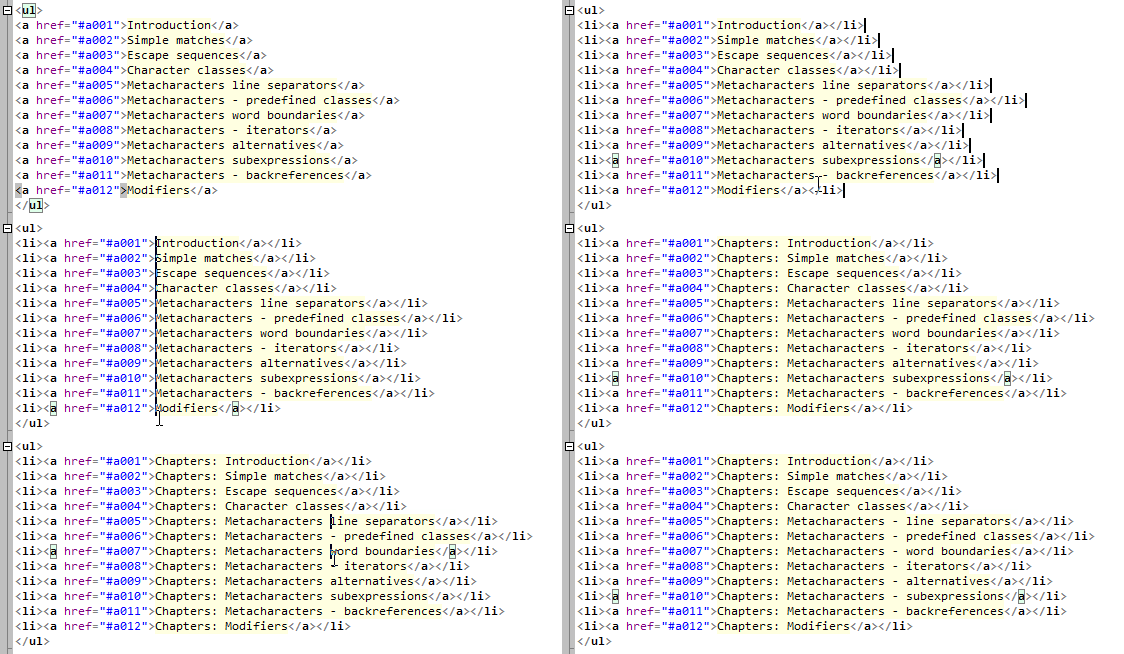](</File:atsynedit-carets.gif>) | |
| 286 | + | ||
| 287 | + | [](</File:atsynedit-carets.gif> "Enlarge") | |
| 288 | + | ||
| 289 | + | Multi-carets in action | |
| 290 | + | ||
| 291 | + | ### Multi-carets | |
| 292 | + | ||
| 293 | + | Multi-carets are several carets at once. All carets work together for many editing commands: caret moving, text typing, deleting, selection with keyboard. | |
| 294 | + | ||
| 295 | + | * `Ctrl`+Left click - Add/remove caret. | |
| 296 | + | * `Ctrl`+Middle click - Add/remove caret. | |
| 297 | + | * `Ctrl`+Left click and drag - Add caret with selection. | |
| 298 | + | * `Ctrl`+`⇧ Shift`+Left click - Add column of vertically-aligned carets, from the previous caret position to the clicked line. | |
| 299 | + | ||
| 300 | + | Dragging | |
| 301 | + | ||
| 302 | + | * `⎇ Alt`+drag - Make **column selection**. | |
| 303 | + | * Drag on Gutter line numbers - Select text by entire lines. | |
| 304 | + | * Double left-click and immediately drag - Select text by words. | |
| 305 | + | ||
| 306 | + | Clicks | |
| 307 | + | ||
| 308 | + | * Double left-click - Select clicked word; this behavior can be customized as described in **§ How to select extra symbols by double-click** using the `nonword_chars` option. | |
| 309 | + | * Triple left-click - Select entire line (block is limited by newline characters). | |
| 310 | + | * Middle-click - Configurable by option `mouse_middle_click`, choices are: | |
| 311 | + | ||
| 312 | + | 0. **(0)** Nothing. | |
| 313 | + | 1. **(1)** Start "browser scrolling" mode: circle mark appears and mouse moving around this mark auto-scrolls text in 4 directions; speed of scrolling depends on distance of cursor from circle mark (any click to turn off). | |
| 314 | + | 2. **(2)** Paste from clipboard. This mimics Linux apps behaviour. | |
| 315 | + | 3. **(3)** Call "Go to definition" command. | |
| 316 | + | ||
| 317 | + | * Click on Back/Forward mouse buttons - These clicks do nothing by default, but they produce keyboard actions BrowserBack/BrowserForward (extended keys on Windows keyboards), and so they can be assigned in the hotkeys setup dialog (`F9` in the Command Palette). For example, `Ctrl`+Back produces `Ctrl`+BrowserBack keyboard action. | |
| 318 | + | ||
| 319 | + | Miscellaneous | |
| 320 | + | ||
| 321 | + | * `⇧ Shift`+`⎇ Alt`+Left-click - Make vertical (column) selection, from the first caret to the clicked position. | |
| 322 | + | * `⇧ Shift`+Scroll mouse wheel - Scroll text horizontally. | |
| 323 | + | * `Ctrl`+Scroll mouse wheel (with option `mouse_wheel_zoom: true`) - Zoom text in/out. | |
| 324 | + | * `Ctrl`+Scroll mouse wheel (in the picture viewer) - Zoom picture in/out. | |
| 325 | + | * `⇧ Shift`+Left-click on gutter line number - Select lines, from first caret position to the index of clicked line. | |
| 326 | + | ||
| 327 | + | Drag-drop of selected text block | |
| 328 | + | ||
| 329 | + | * Dragging inside single document: if `Ctrl` is pressed during the drop (you should press `Ctrl` after dragging is started), block will be copied (not moved) to the pointed position. | |
| 330 | + | * Dragging to a different document (see **§ Groups of tabs**): if `Ctrl` is pressed during the drop, block will be moved (otherwise it will be copied). | |
| 331 | + | ||
| 332 | + | The command "Go to definition" can be called by different mouse shortcuts: by `Ctrl`+`⎇ Alt`+Left-click (default), `⎇ Alt`+Left-click, etc.; this depends on the `mouse_goto_definition` option. | |
| 333 | + | ||
| 334 | + | ## Multi-selections | |
| 335 | + | ||
| 336 | + | [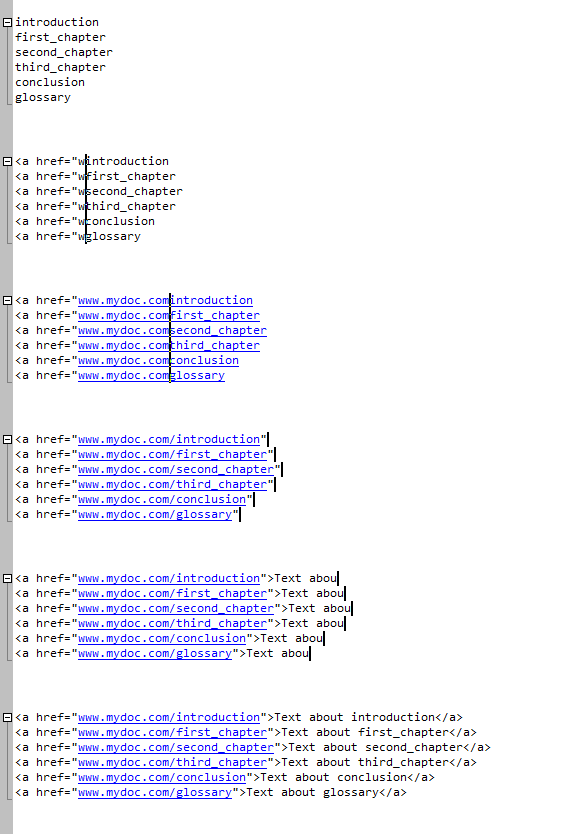](</File:atsynedit-sel.gif>) | |
| 337 | + | ||
| 338 | + | [](</File:atsynedit-sel.gif> "Enlarge") | |
| 339 | + | ||
| 340 | + | Multi-selection feature | |
| 341 | + | ||
| 342 | + | If you place a caret with `Ctrl`+Left-click, the caret has no selection, whereas if you add a caret with `Ctrl`+Drag, the caret will have a selection. You can add selections to carets later, by `⇧ Shift`+`◀`/`▲`/`▼`/`▶`/`Home`/`End`, etc. | |
| 343 | + | ||
| 344 | + | Multi-selections are handled specially on copy/paste. If you copy selections, then move carets, then paste, paste will insert clipboard lines into carets: line-1 at caret-1, line-2 at caret-2 etc (only if carets count equals to lines count in clipboard, otherwise result is different). | |
| 345 | + | ||
| 346 | + | ### Commands with selections | |
| 347 | + | ||
| 348 | + | Clipboard commands work with multi-carets and multi-selections the special way. Also "Delete char" commands (`Del ⌦`/`⌫ Backspace` keys) works the special way. | |
| 349 | + | ||
| 350 | + | Command | Behaviour with no selections | Behaviour with at least one selection | |
| 351 | + | ---|---|--- | |
| 352 | + | Copy to clipboard | Copies entire lines, containing carets. Ignores multiple carets on a same line. | Copies only selections text. Ignores carets without selections. | |
| 353 | + | Cut to clipboard | Similarly to "Copy" without selections. | Similarly to "Copy" with selections. | |
| 354 | + | Paste from clipboard | First, selections are cleared (deleted). Then, command pastes text into each caret position. Special case is when clipboard lines count equals to carets count - in this case, first line is inserted at first caret, second line is inserted at 2nd caret, etc. | |
| 355 | + | Delete char left (Backspace) / Delete char right | Deletes one char at each caret position. | Deletes only selections text. Ignores carets without selections. | |
| 356 | + | ||
| 357 | + | ## Lexers | |
| 358 | + | ||
| 359 | + | [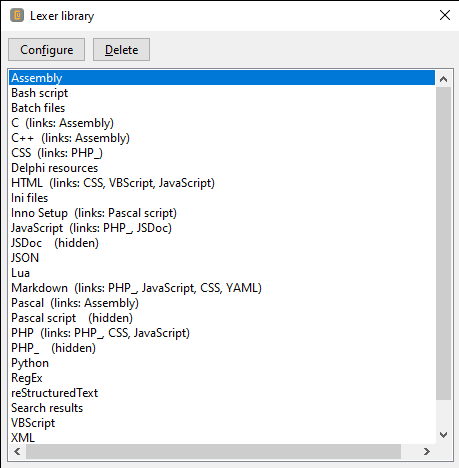](</File:cudatext-lexer-library.png>) | |
| 360 | + | ||
| 361 | + | [](</File:cudatext-lexer-library.png> "Enlarge") | |
| 362 | + | ||
| 363 | + | CudaText lexer library | |
| 364 | + | ||
| 365 | + | Syntax highlighters in CudaText are called _lexers_ , and are compatible with the SynWrite editor (which is frozen). The Lexer engine itself is borrowed from [EControl.ru](<http://www.econtrol.ru/syntedit.html>), with modifications by Alexey Torgashin. The primary modification is the addition of support for folding code blocks in Python and other languages with indentation-based folding, while others include the porting from Delphi to Free Pascal along with various optimizations. EControl.ru's original lexer engine is closed source, but CudaText's version is open source, with the permission from EControl.ru. | |
| 366 | + | ||
| 367 | + | * The **Lexer properties** dialog provides access to the configurable properties of the current lexer (selected via the status bar). Those properties are: lexer name, file types, commenting style, token colors, font styles (bold/italic/underline) and token borders. | |
| 368 | + | * The **Lexer library** dialog shows a list of the installed lexers, which reside in the folder `data/lexlib`. This dialog has the following hotkeys: | |
| 369 | + | ||
| 370 | + | **`Enter ⏎`** | |
| 371 | + | ||
| 372 | + | same as "Configure" button | |
| 373 | + | ||
| 374 | + | **`Del ⌦`** | |
| 375 | + | ||
| 376 | + | same as "Delete" button | |
| 377 | + | ||
| 378 | + | **`Esc`** | |
| 379 | + | ||
| 380 | + | closes the dialog | |
| 381 | + | ||
| 382 | + | [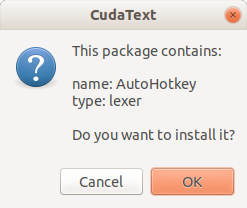](</File:cudatext-zip-install-prompt.png>) | |
| 383 | + | ||
| 384 | + | [](</File:cudatext-zip-install-prompt.png> "Enlarge") | |
| 385 | + | ||
| 386 | + | Add-on ZIP file install dialog | |
| 387 | + | ||
| 388 | + | ### Lexers on SourceForge | |
| 389 | + | ||
| 390 | + | CudaText installs with a limited set of lexers. All other lexers are available as [individual downloads hosted on cudatext.sf.net](<https://sourceforge.net/projects/cudatext/files/addons/lexers/>) or collectively as part of the [complete add-ons package](<https://sourceforge.net/projects/cudatext/files/addons_all/>), too. | |
| 391 | + | ||
| 392 | + | To install "lexer.*.zip" (or any add-on ZIP file) in CudaText: open this ZIP file via "File / Open", CudaText will suggest to install it. | |
| 393 | + | ||
| 394 | + | ### List of lexers | |
| 395 | + | ||
| 396 | + | The following lexers (counting only important ones) exist for CudaText. They are available through the Addons Manager's **Install…** command. | |
| 397 | + | ||
| 398 | + | All these lexers, and preinstalled lexers, are published in the repository: <https://github.com/CudaText-addons/CudaText-lexers> . This link may be needed for people wanting to make 'Pull Requests' in Git. | |
| 399 | + | ||
| 400 | + | * [1C:Enterprise script](<https://1c-dn.com/1c_enterprise/1c_programming_language/>) | |
| 401 | + | * [ABAP](<https://learning.sap-press.com/abap>) | |
| 402 | + | * [Abaqus Keywords](<https://www.3ds.com/products-services/simulia/products/abaqus/>) | |
| 403 | + | * [abc notation](<https://abcnotation.com/>) | |
| 404 | + | * [ActionScript](<https://help.adobe.com/en_US/as3/learn/index.html>) | |
| 405 | + | * [ACUCOBOL](<https://www.microfocus.com/en-us/products/acucobol-gt/overview>) | |
| 406 | + | * [Ada](<http://www.ada-auth.org/standards/rm12_w_tc1/html/RM-TTL.html>) | |
| 407 | + | * [Adept](<https://www.met.reading.ac.uk/clouds/adept>) | |
| 408 | + | * [Amazon Ion](<https://amazon-ion.github.io/ion-docs/>) | |
| 409 | + | * [AMPL](<https://ampl.com/>) | |
| 410 | + | * [AngelScript](<https://www.angelcode.com/angelscript/>) | |
| 411 | + | * [ANTLR](<https://www.antlr.org/>) | |
| 412 | + | * [APDL](<https://www.ansys.com/blog/what-is-apdl>) | |
| 413 | + | * [AppleScript](<https://developer.apple.com/library/archive/documentation/AppleScript/Conceptual/AppleScriptLangGuide/introduction/ASLR_intro.html>) | |
| 414 | + | * [Arduino](<https://www.arduino.cc/reference/en/>) | |
| 415 | + | * [AsciiDoc](<https://asciidoc.org/>) | |
| 416 | + | * [Assembly (ASM)](<http://www.wikipedia.org/wiki/Assembly_language> "wikipedia:Assembly language"): | |
| 417 | + | * [ARM Assembly (armasm)](<https://developer.arm.com/documentation/102438/0100/Learning-about-assembly-language>) | |
| 418 | + | * [STM32 ARM Assembly](<https://blog.st.com/stdevcon18-stm32-embedded-systems-assembly/>) | |
| 419 | + | * [AVR Assembly (AVRASM2)](<https://ww1.microchip.com/downloads/en/DeviceDoc/40001917A.pdf>) | |
| 420 | + | * [Dalvik bytecode (Smali)](<https://source.android.com/docs/core/runtime/dalvik-bytecode>) | |
| 421 | + | * [Flat Assembly (fasm)](<https://flatassembler.net/>) | |
| 422 | + | * [Game Boy/GB Color Assembly (RGBDS)](<https://rgbds.gbdev.io/>) | |
| 423 | + | * [GNU Assembly (as/gas)](<https://sourceware.org/binutils/docs-2.41/as.html>) | |
| 424 | + | * [JWasm Assembly](<https://www.japheth.de/JWasm/Manual.html>) | |
| 425 | + | * [Microsoft Macro Assembler x86/x64 (MASM)](<https://learn.microsoft.com/en-us/cpp/assembler/masm/microsoft-macro-assembler-reference?view=msvc-170>) | |
| 426 | + | * [MIPS Assembly](<https://web.cse.ohio-state.edu/~crawfis.3/cse675-02/Slides/MIPS%20Instruction%20Set.pdf>) | |
| 427 | + | * [Motorola 68000 Assembly](<http://68k.hax.com/>) | |
| 428 | + | * [Netwide Assembly x86 (NASM)](<https://www.nasm.us/>) | |
| 429 | + | * [PowerPC Assembly](<http://wikibooks.org/wiki/PowerPC_Assembly> "wikibooks:PowerPC Assembly") | |
| 430 | + | * [RISC-V Assembly](<http://www.wikipedia.org/wiki/RISC-V_assembly_language> "wikipedia:RISC-V assembly language") | |
| 431 | + | * [SHARC DSP Assembly](<https://www.analog.com/media/en/dsp-documentation/processor-manuals/236999443isr_21xxx.pdf>) | |
| 432 | + | * [SPARC Assembly](<http://wikibooks.org/wiki/SPARC_Assembly> "wikibooks:SPARC Assembly") | |
| 433 | + | * [Z80 Assembly (SjASM)](<https://xl2s.tk/sjasmmanual.html>) | |
| 434 | + | * [Astro](<https://astro.build/>) | |
| 435 | + | * [Asymptote](<http://www.wikipedia.org/wiki/Asymptote_\(vector_graphics_language\)> "wikipedia:Asymptote \(vector graphics language\)") | |
| 436 | + | * [AutoHotkey](<https://www.autohotkey.com/docs/v2/Language.htm>) | |
| 437 | + | * [AutoIt](<http://www.wikipedia.org/wiki/AutoIt> "wikipedia:AutoIt") | |
| 438 | + | * [Automake](<http://www.wikipedia.org/wiki/Automake> "wikipedia:Automake") | |
| 439 | + | * [Automation Basic (B&R Automation Studio)](<https://www.br-automation.com/en-us/products/software/additional-information/programming/#c56724>) | |
| 440 | + | * [AviSynth](<http://avisynth.nl/index.php/The_full_AviSynth_grammar>) | |
| 441 | + | * [AWK](<http://www.wikipedia.org/wiki/AWK> "wikipedia:AWK") | |
| 442 | + | * [Ballerina](<http://www.wikipedia.org/wiki/Ballerina_\(programming_language\)> "wikipedia:Ballerina \(programming language\)") | |
| 443 | + | * [Bash shell](<http://www.wikipedia.org/wiki/Bash_\(Unix_shell\)> "wikipedia:Bash \(Unix shell\)") | |
| 444 | + | * [Batch file](<http://www.wikipedia.org/wiki/Batch_file> "wikipedia:Batch file") | |
| 445 | + | * [Bazel configuration (bazelrc)](<https://bazel.build/run/bazelrc>) | |
| 446 | + | * [BibTeX](<http://www.wikipedia.org/wiki/BibTeX> "wikipedia:BibTeX") | |
| 447 | + | * [Bicep (Azure Resource Manager)](<https://learn.microsoft.com/en-us/azure/azure-resource-manager/bicep/file>) | |
| 448 | + | * [Blueprint (GTK 4 UI compiler)](<https://gnome.pages.gitlab.gnome.org/blueprint-compiler/>) | |
| 449 | + | * [Bohemia Real Virtuality (SQF)](<https://community.bistudio.com/wiki/SQF_Syntax>) | |
| 450 | + | * [Boo](<http://www.wikipedia.org/wiki/Boo_\(programming_language\)> "wikipedia:Boo \(programming language\)") | |
| 451 | + | * [Brainfuck](<http://www.wikipedia.org/wiki/Brainfuck> "wikipedia:Brainfuck") | |
| 452 | + | * [C](<http://www.wikipedia.org/wiki/C_\(programming_language\)> "wikipedia:C \(programming language\)") | |
| 453 | + | * [C++](<http://www.wikipedia.org/wiki/C%2B%2B> "wikipedia:C++") | |
| 454 | + | * [C#](<http://www.wikipedia.org/wiki/C_Sharp_\(programming_language\)> "wikipedia:C Sharp \(programming language\)") | |
| 455 | + | * [C3](<https://c3-lang.org/>) | |
| 456 | + | * [Caffe (prototxt)](<https://caffe.berkeleyvision.org/>) | |
| 457 | + | * [Cangjie](<http://www.wikipedia.org/wiki/Cangjie_\(programming_language\)> "wikipedia:Cangjie \(programming language\)") | |
| 458 | + | * [Carbon](<http://www.wikipedia.org/wiki/Carbon_\(programming_language\)> "wikipedia:Carbon \(programming language\)") | |
| 459 | + | * [Clarion](<http://www.wikipedia.org/wiki/Clarion_\(programming_language\)> "wikipedia:Clarion \(programming language\)") | |
| 460 | + | * Clavier | |
| 461 | + | * [Clipper](<http://www.wikipedia.org/wiki/Clipper_\(programming_language\)> "wikipedia:Clipper \(programming language\)") | |
| 462 | + | * [Clojure](<http://www.wikipedia.org/wiki/Clojure> "wikipedia:Clojure") | |
| 463 | + | * [CMake](<http://www.wikipedia.org/wiki/CMake> "wikipedia:CMake") | |
| 464 | + | * [COBOL](<http://www.wikipedia.org/wiki/COBOL> "wikipedia:COBOL") | |
| 465 | + | * [CodeVisionAVR](<https://www.codevision.be/>) | |
| 466 | + | * [CoffeeScript](<http://www.wikipedia.org/wiki/CoffeeScript> "wikipedia:CoffeeScript") | |
| 467 | + | * [ColdFusion markup](<http://www.wikipedia.org/wiki/ColdFusion_Markup_Language> "wikipedia:ColdFusion Markup Language") | |
| 468 | + | * [Conditional Random Fields (CRF)](<http://www.wikipedia.org/wiki/Conditional_random_field> "wikipedia:Conditional random field") | |
| 469 | + | * [Crystal](<http://www.wikipedia.org/wiki/Crystal_\(programming_language\)> "wikipedia:Crystal \(programming language\)") | |
| 470 | + | * [CSS](<http://www.wikipedia.org/wiki/CSS> "wikipedia:CSS") | |
| 471 | + | * [CUDA C++](<https://docs.nvidia.com/cuda/cuda-programming-guide/02-basics/intro-to-cuda-cpp.html>) | |
| 472 | + | * [CUE](<https://cuelang.org/>) | |
| 473 | + | * [Cue sheet](<http://www.wikipedia.org/wiki/Cue_sheet_\(computing\)> "wikipedia:Cue sheet \(computing\)") | |
| 474 | + | * [Colecovision BASIC {CVBasic)](<https://nanochess.org/cvbasic.html>) | |
| 475 | + | * [D](<https://dlang.org/>) | |
| 476 | + | * [Dafny](<https://dafny.org/>) | |
| 477 | + | * [Dart](<https://dart.dev/>) | |
| 478 | + | * [Delphi resources](<https://www.delphibasics.info/home/delphibasicssnippets/usingresourcefileswithdelphi>) | |
| 479 | + | * [Dhall](<https://dhall-lang.org/>) | |
| 480 | + | * [Dictu](<https://dictu-lang.com/>) | |
| 481 | + | * [Diff / Patch files](<http://www.wikipedia.org/wiki/diff#Default_output_format> "wikipedia:diff") | |
| 482 | + | * [Dockerfile](<https://docs.docker.com/build/concepts/dockerfile/>) | |
| 483 | + | * [DOORS Extension Language (DXL)](<http://www.wikipedia.org/wiki/DOORS_Extension_Language> "wikipedia:DOORS Extension Language") | |
| 484 | + | * [Eiffel](<http://www.wikipedia.org/wiki/Eiffel_\(programming_language\)> "wikipedia:Eiffel \(programming language\)") | |
| 485 | + | * [Elixir](<https://elixir-lang.org/>) | |
| 486 | + | * [Elm](<https://elm-lang.org/>) | |
| 487 | + | * [.env files](<https://www.dotenv.org/docs>) | |
| 488 | + | * [Erlang](<https://www.erlang.org/>) | |
| 489 | + | * [Embedded Lua templates](<https://github.com/leafo/etlua>) | |
| 490 | + | * [Euphoria](<http://www.wikipedia.org/wiki/Euphoria_\(programming_language\)> "wikipedia:Euphoria \(programming language\)") | |
| 491 | + | * F# | |
| 492 | + | * Factor | |
| 493 | + | * Falcon | |
| 494 | + | * Fish | |
| 495 | + | * FIX Message (Financial Information eXchange) | |
| 496 | + | * foobar2000 title formatting (it's for Mp3tag too) | |
| 497 | + | * Forth | |
| 498 | + | * Fortran | |
| 499 | + | * FoxPro | |
| 500 | + | * FreeBASIC | |
| 501 | + | * Futhark | |
| 502 | + | * G-code (this is "lite" lexer) | |
| 503 | + | * GAMS | |
| 504 | + | * GDScript | |
| 505 | + | * [Gel Schema Definition Language (EdgeQL)](<https://docs.geldata.com/learn/schema>) | |
| 506 | + | * Gemini (web pages) | |
| 507 | + | * Gherkin (Cucumber; Behat) | |
| 508 | + | * GHS.com MULTI IDE (3 lexers) | |
| 509 | + | * Gleam | |
| 510 | + | * GLSL | |
| 511 | + | * GNU linker | |
| 512 | + | * Gnuplot | |
| 513 | + | * Go | |
| 514 | + | * Gold Parser | |
| 515 | + | * Grails Server Pages (GSP) | |
| 516 | + | * Graphviz DOT | |
| 517 | + | * GraphQL | |
| 518 | + | * Great Cow Basic | |
| 519 | + | * Groovy (Gradle) | |
| 520 | + | * Grub4Dos | |
| 521 | + | * Haml | |
| 522 | + | * Harbour | |
| 523 | + | * Hare | |
| 524 | + | * Haskell | |
| 525 | + | * Haxe | |
| 526 | + | * HCL (HashiCorp Configuration Language) | |
| 527 | + | * Heta | |
| 528 | + | * [HiveQL (Apache Hive)](<https://cwiki.apache.org/confluence/display/Hive/LanguageManual>) | |
| 529 | + | * HJSON | |
| 530 | + | * HLSL | |
| 531 | + | * HTML | |
| 532 | + | * HTML Diafan | |
| 533 | + | * HTML Django DTL | |
| 534 | + | * HTML Embedded JS | |
| 535 | + | * HTML Handlebars | |
| 536 | + | * HTML Laravel Blade | |
| 537 | + | * HTML Liquid | |
| 538 | + | * HTML Mustache | |
| 539 | + | * HTML Ruby-ERB | |
| 540 | + | * HTML Smarty | |
| 541 | + | * [httpd.conf (Apache HTTP Server)](<https://httpd.apache.org/docs/2.4/configuring.html>) | |
| 542 | + | * Huawei VRP | |
| 543 | + | * IDL files | |
| 544 | + | * IDL language | |
| 545 | + | * Informix 4GL | |
| 546 | + | * Ini files | |
| 547 | + | * Inno Setup | |
| 548 | + | * Intel HEX | |
| 549 | + | * Intel ISPC (Implicit SPMD Program Compiler) | |
| 550 | + | * Janet | |
| 551 | + | * Jasmine JVM Assembler | |
| 552 | + | * Java | |
| 553 | + | * Java Velocity | |
| 554 | + | * JavaScript | |
| 555 | + | * JavaScript Babel/React JSX | |
| 556 | + | * JCL | |
| 557 | + | * Jinja2 | |
| 558 | + | * JQ | |
| 559 | + | * JSON | |
| 560 | + | * [Bitsquid Simplified JSON (SJSON)](<https://bitsquid.blogspot.com/2009/10/simplified-json-notation.html>) | |
| 561 | + | * Jsonnet | |
| 562 | + | * Julia | |
| 563 | + | * Just | |
| 564 | + | * [KDL](<https://kdl.dev/>) | |
| 565 | + | * Kivy | |
| 566 | + | * KiXtart | |
| 567 | + | * Koka | |
| 568 | + | * Kontakt Script Processor (KSP) | |
| 569 | + | * Kotlin | |
| 570 | + | * languageONE | |
| 571 | + | * LaTeX | |
| 572 | + | * Lean | |
| 573 | + | * LESS | |
| 574 | + | * Lisp | |
| 575 | + | * [Common Lisp](<http://www.wikipedia.org/wiki/Common_Lisp> "wikipedia:Common Lisp") | |
| 576 | + | * LiveCode script | |
| 577 | + | * Log files | |
| 578 | + | * Logstash DSL | |
| 579 | + | * Lola-2 | |
| 580 | + | * LS-DYNA | |
| 581 | + | * Lua | |
| 582 | + | * [M4](<http://www.wikipedia.org/wiki/m4_\(computer_language\)> "wikipedia:m4 \(computer language\)") | |
| 583 | + | * Macro Scheduler script | |
| 584 | + | * Makefile | |
| 585 | + | * Markdown | |
| 586 | + | * MATLAB | |
| 587 | + | * Maya | |
| 588 | + | * MDX (Markdown with JSX) | |
| 589 | + | * MediaWiki | |
| 590 | + | * Meson | |
| 591 | + | * Metafont | |
| 592 | + | * MIB files | |
| 593 | + | * MikroTik Script | |
| 594 | + | * MiniZinc | |
| 595 | + | * Modelica | |
| 596 | + | * Modula-2 | |
| 597 | + | * Modula-3 | |
| 598 | + | * Mojo | |
| 599 | + | * Monkey | |
| 600 | + | * MoonBit | |
| 601 | + | * MS Visual Studio Solution | |
| 602 | + | * MusicBrainz Picard Tagger Script | |
| 603 | + | * MySQL | |
| 604 | + | * Nelua | |
| 605 | + | * Nemerle | |
| 606 | + | * Nginx | |
| 607 | + | * Nim | |
| 608 | + | * Nix | |
| 609 | + | * nnCron | |
| 610 | + | * NSIS | |
| 611 | + | * NSL Assembler | |
| 612 | + | * Oberon (and Component Pascal) | |
| 613 | + | * Objeck | |
| 614 | + | * Objective-C | |
| 615 | + | * OCaml | |
| 616 | + | * Odin | |
| 617 | + | * OpenCL | |
| 618 | + | * OpenEdge | |
| 619 | + | * OpenSCAD | |
| 620 | + | * Org-mode | |
| 621 | + | * P4 (Programming Protocol-independent Packet Processors) | |
| 622 | + | * Papyrus (for Skyrim game) | |
| 623 | + | * Parser3 | |
| 624 | + | * Pascal | |
| 625 | + | * Pawn | |
| 626 | + | * PECmd script | |
| 627 | + | * Perforce Jam | |
| 628 | + | * Perl | |
| 629 | + | * PHP | |
| 630 | + | * PICL | |
| 631 | + | * [Pig Latin (Apache Pig)](<https://pig.apache.org/docs/r0.17.0/start.html#pl-statements>) | |
| 632 | + | * Pike | |
| 633 | + | * Pixilang | |
| 634 | + | * PKGBUILD | |
| 635 | + | * Pkl | |
| 636 | + | * PL/SQL | |
| 637 | + | * PlantUML | |
| 638 | + | * Pony | |
| 639 | + | * PostScript | |
| 640 | + | * Power Query M | |
| 641 | + | * PowerShell | |
| 642 | + | * Prolog | |
| 643 | + | * Properties | |
| 644 | + | * Protocol Buffers | |
| 645 | + | * Pug (previosly named "Jade") | |
| 646 | + | * Puppet | |
| 647 | + | * PureBasic | |
| 648 | + | * PureScript | |
| 649 | + | * PyMOL | |
| 650 | + | * Pyret | |
| 651 | + | * Python | |
| 652 | + | * [Cython](<https://cython.org/>) | |
| 653 | + | * QML (Qt Modeling Language) | |
| 654 | + | * R | |
| 655 | + | * R Markdown | |
| 656 | + | * Racket | |
| 657 | + | * Rainmeter | |
| 658 | + | * Ragel | |
| 659 | + | * Raku | |
| 660 | + | * Razor | |
| 661 | + | * ReasonML | |
| 662 | + | * Red | |
| 663 | + | * ReScript | |
| 664 | + | * reStructuredText | |
| 665 | + | * Rexx | |
| 666 | + | * Ring | |
| 667 | + | * Roc | |
| 668 | + | * [Rocq Prover](<http://www.wikipedia.org/wiki/Rocq> "wikipedia:Rocq") | |
| 669 | + | * RON | |
| 670 | + | * RPG/IV | |
| 671 | + | * RTF (Rich Text) | |
| 672 | + | * Ruby | |
| 673 | + | * Rust | |
| 674 | + | * Sass | |
| 675 | + | * Scala | |
| 676 | + | * Scheme | |
| 677 | + | * Scilab | |
| 678 | + | * SCSS | |
| 679 | + | * SFZ Format | |
| 680 | + | * Singularity | |
| 681 | + | * Slim | |
| 682 | + | * Smalltalk | |
| 683 | + | * Snowflake SQL | |
| 684 | + | * Solidity (Ethereum) | |
| 685 | + | * Specman | |
| 686 | + | * SPICE (PSpice, HSPICE) | |
| 687 | + | * SPIR | |
| 688 | + | * SQL (normal and "lite" lexers available) | |
| 689 | + | * Squirrel | |
| 690 | + | * SRT Subtitles | |
| 691 | + | * Standard ML | |
| 692 | + | * STAR (Self-defining Text Archive and Retrieval) (this is "lite" lexer) | |
| 693 | + | * Stata | |
| 694 | + | * Strace | |
| 695 | + | * Structured Text (IEC 61131-3) | |
| 696 | + | * Stylus | |
| 697 | + | * Svelte | |
| 698 | + | * Swift | |
| 699 | + | * SystemTap | |
| 700 | + | * T-SQL | |
| 701 | + | * TAGML | |
| 702 | + | * TakeCommand | |
| 703 | + | * Tcl/Tk | |
| 704 | + | * Textile | |
| 705 | + | * ToDo (for plugin "Plain Tasks") | |
| 706 | + | * Todo.txt (format from todotxt.org) | |
| 707 | + | * TOML | |
| 708 | + | * Tree | |
| 709 | + | * Twig | |
| 710 | + | * TypeScript | |
| 711 | + | * Typst | |
| 712 | + | * Umka | |
| 713 | + | * V | |
| 714 | + | * Vala | |
| 715 | + | * VBScript | |
| 716 | + | * Verilog HDL | |
| 717 | + | * VHDL | |
| 718 | + | * Vimscript | |
| 719 | + | * Virgil | |
| 720 | + | * Visual Basic | |
| 721 | + | * Visual dBase | |
| 722 | + | * VRML | |
| 723 | + | * Vue | |
| 724 | + | * WGSL | |
| 725 | + | * WikidPad (normal and "lite" lexers available) | |
| 726 | + | * WinBuilder script | |
| 727 | + | * Windows Resource Script | |
| 728 | + | * Wolfram | |
| 729 | + | * Wren | |
| 730 | + | * WSH script | |
| 731 | + | * XML | |
| 732 | + | * XSLT | |
| 733 | + | * Yacc (Bison) | |
| 734 | + | * YAML | |
| 735 | + | * ZenScript (MineTweaker) | |
| 736 | + | * Zephir | |
| 737 | + | * Zig | |
| 738 | + | * Ziggy | |
| 739 | + | ||
| 740 | + | ### Lexers modification and creation | |
| 741 | + | ||
| 742 | + | [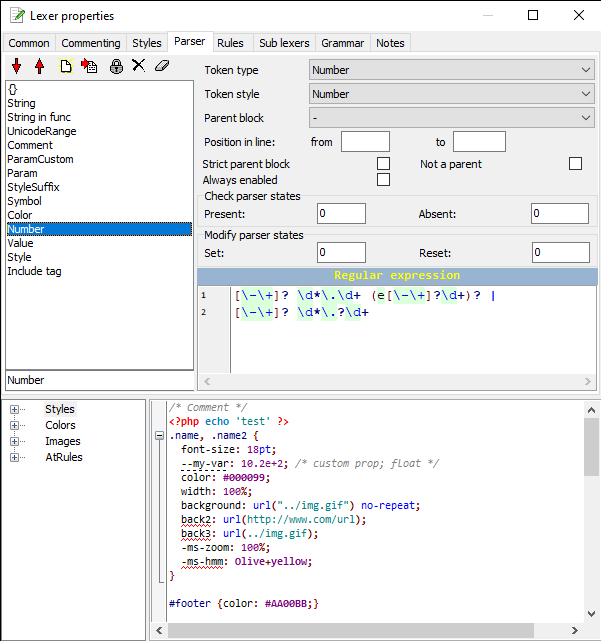](</File:cudatext-lexer-editor-dlg.png>) | |
| 743 | + | ||
| 744 | + | [](</File:cudatext-lexer-editor-dlg.png> "Enlarge") | |
| 745 | + | ||
| 746 | + | Screenshot of SynWrite's "Lexer properties" dialog | |
| 747 | + | ||
| 748 | + | You can modify/create lexers. But not in CudaText. Install [SynWrite](<https://cudatext.github.io/synwrite/>) (Windows program, which can be run under Wine on Linux). There, you have lexer editor dialog. | |
| 749 | + | ||
| 750 | + | * First, install your lexer to SynWrite. From the lexer's .zip package, copy files lexername.lcf and lexername.cuda-lexmap into SynWrite's "data\lexlib" folder. | |
| 751 | + | * In SynWrite, call "Lexer properties" dialog and edit all you need. | |
| 752 | + | * In SynWrite, install "ExLexer" addon. Then call "ExLexer" from the "Plugins" menu, choose needed lexer to export. You will have exported .zip file. | |
| 753 | + | * In CudaText open this .zip file, confirm installation of lexer. | |
| 754 | + | ||
| 755 | + | ### Lexers editing - styles only | |
| 756 | + | ||
| 757 | + | For full-featured lexer editing, you must use SynWrite as described in the topic above. CudaText itself allows to edit only lexer styles, ie colors/ borders/ font-style (bold/italic/strikeout) of lexer styles. How to do that: | |
| 758 | + | ||
| 759 | + | * Activate some lexer for the current document. | |
| 760 | + | * Call CudaText menu "Options / Lexers / Lexer properties", dialog "Lexer properties" will open. | |
| 761 | + | * In the "Lexer properties" dialog, activate "Styles" tab, it has UI to customize styles in the active lexer. This UI is enabled only when lexer themes are Off, ie option `"ui_lexer_themes":false`. | |
| 762 | + | ||
| 763 | + | By default that option is On so UI is disabled. If you enable the UI, you can customize all lexer styles. Configuration will be saved to the files "settings/*.cuda-lexops". These files are auto-loaded by CudaText on start. | |
| 764 | + | ||
| 765 | + | ### How to setup styles of hidden sublexer | |
| 766 | + | ||
| 767 | + | Some lexers are distributed in packages together with sub-lexer, and sub-lexer is hidden. Example: "HTML Django" with sub-lexer "HTML Django internal" (the second one isn't visible in the Lexers menu, so it's called hidden). Users, which have option "ui_lexer_themes" off, want to configure styles of all lexers. How to access hidden ones? | |
| 768 | + | ||
| 769 | + | * Open "Lexer library" dialog (menu: Options / Lexer / Lexer library). | |
| 770 | + | * In dialog, focus needed lexer, press "Configure" button | |
| 771 | + | * Dialog "Lexer properties" will open for selected lexer | |
| 772 | + | * In dialog's "Styles" tab, configure all you need | |
| 773 | + | ||
| 774 | + | You can change visibility of lexer in SynWrite lexer editor (the checkbox will write line "Internal = True" at the end of .lcf file). | |
| 775 | + | ||
| 776 | + | ### How to create distributive of new lexer | |
| 777 | + | ||
| 778 | + | In SynWrite, you've created .lcf file in folder SynWrite/Data/LexLib. If you configured "Commenting" options, also file .cuda-lexmap is created. Now you need to create .zip installation of lexer, for both editors: SynWrite, CudaText. | |
| 779 | + | ||
| 780 | + | * In lexer file, replace system colors to usual colors: replace "clWindowText" to "clBlack" (clWindowText may be light on CudaText on Linux); replace "clInfoText" and "clInfoBk" too. | |
| 781 | + | * In SynWrite, in Addon Manager, install plugin "ExLexer". | |
| 782 | + | * In SynWrite, run menu item "Plugins / ExLexer", to create .zip for your lexer. | |
| 783 | + | * In CudaText, open this new zip file, this installs lexer to CudaText. | |
| 784 | + | * In CudaText, activate your lexer, dialog should show: "Lexer style mapping". Fill items in this dialog. | |
| 785 | + | * In CudaText, test this "lexer style map" in action: open file with your lexer active, and activate "default" UI theme, then activate "sub" UI theme. Main themes must show nice colors in your syntax file. Call dialog "Options / Lexers / Lexer style mapping" to fix colors. | |
| 786 | + | * In prev step, you configured .cuda-lexmap file, in folder CudaText/data/lexlib. Copy this file to zip installation of your lexer. | |
| 787 | + | * Zip must contain: install.inf, .lcf file(s), .cuda-lexmap file per each lexer. | |
| 788 | + | ||
| 789 | + | You can place file(s) "lexer LexerName.json" into zip archive, per each lexer in zip archive. These JSON files will be installed to the folder "settings_default" of CudaText. Ie, these are lexer-specific configs for lexers. Some lexers do this already: Lua, Pascal, PHP, Ruby, TypeScript. | |
| 790 | + | ||
| 791 | + | ### Lite lexers | |
| 792 | + | ||
| 793 | + | Lite lexers are lexers is special format (internally it's JSON file), with very limited features. They don't support code-tree, folding, don't support multi-line comments, don't have rich highlighting (e.g. background highlight of string `12+$var` with additional highlight for 12 and $var inside). And they don't keep tokens information in memory (positions of found tokens in text). Lite lexers process only lines visible on screen, not all document lines. So, they work fast for any file size. | |
| 794 | + | ||
| 795 | + | Limitation: on lines longer than 4K chars, only first 4K chars have the syntax highlighting. | |
| 796 | + | ||
| 797 | + | Lite lexers have the " ^" suffix in name. You can activate lite lexers from the usual lexers menu. Several lite lexers are preinstalled: | |
| 798 | + | ||
| 799 | + | * Ini files ^ | |
| 800 | + | * JSON ^ | |
| 801 | + | * Log files ^ | |
| 802 | + | * SQL ^ | |
| 803 | + | * XML ^ | |
| 804 | + | ||
| 805 | + | Lite lexers are automatically activated for big files, when file size is bigger than option "ui_max_size_lexer". For example, for small sized JSON files normal "JSON" lexer is activated, but for huge JSON files - lite lexer "JSON ^" is automatically activated. Lite lexers are activated for small files, if normal lexer for file-extension is not found. For example, "SQL ^" is used for small SQL files, because "normal" SQL lexer is not preinstalled. | |
| 806 | + | ||
| 807 | + | How to change styles in lite lexers? For example, "Log files ^" uses styles "Id"/"Id2", and you want to change that? It's easy: | |
| 808 | + | ||
| 809 | + | * open the file: [CudaText]/data/lexliblite/Log files.cuda-litelexer | |
| 810 | + | * find and edit styles names | |
| 811 | + | * all possible styles are listed in the CudaText dialog "Options / Themes / Settings - theme - syntax..." | |
| 812 | + | ||
| 813 | + | Here is short description of file fields, on the example file "data/lexliblite/Ini files.cuda-litelexer": | |
| 814 | + | ``` | |
| 815 | + | { | |
| 816 | + | "about": "INI lexer by Alexey Torgashin", | |
| 817 | + | "files": "*.ini;*.dsk;*.dti;*.dof;*.inf;*.lng;*.srv;*.reg;*.sas;*.cfg;*.desktop", | |
| 818 | + | "cmt_line": ";", | |
| 819 | + | "case_sens": true, | |
| 820 | + | "consider_spaces": true, | |
| 821 | + | "rules": { | |
| 822 | + | "cmt": { | |
| 823 | + | "regex": "^\\s*[;\\#].*", | |
| 824 | + | "style": "Comment" | |
| 825 | + | }, | |
| 826 | + | ... | |
| 827 | + | "val": { | |
| 828 | + | "regex": "\\w+", | |
| 829 | + | "style": "Id" | |
| 830 | + | } | |
| 831 | + | } | |
| 832 | + | } | |
| 833 | + | ``` | |
| 834 | + | ||
| 835 | + | * "about": Info about file's author. | |
| 836 | + | * "files": One or several file masks, separated by ";". | |
| 837 | + | * "cmd_line": Single-line comment chars. Used by "Comments" plugin when you call commands of this plugin. | |
| 838 | + | * "case_sens": Boolean flag for case-sensitivity for RegEx-rules listed below in that file. | |
| 839 | + | * "consider_spaces": Boolean flag which enables to parse spaces/tabs between words by RegEx-rules. Otherwise, parser will skip spaces/tabs silently. | |
| 840 | + | * "rules": Dictionary with parser rules, which must have one or more dictionaries with any names but fixed contents: | |
| 841 | + | * "regex": RegEx (ie regular expression) of the rule. | |
| 842 | + | * "style": Style name, to color that rule results. Possible values are listed in the CudaText dialog "Options / Themes / Settings - theme - syntax..." | |
| 843 | + | ||
| 844 | + | ### Differences in lexer support in CudaText/SynWrite | |
| 845 | + | ||
| 846 | + | * SynWrite supports "lexer grammar", while CudaText does not support "grammar" anymore. | |
| 847 | + | * SynWrite lexers need constructs like \x0D\x0A or \z (to catch any line-break: LF, CRLF, CR), while CudaText lexers are OK with simple \n (because internal buffer always has LF separator). | |
| 848 | + | * Some lexers need to find equal identifiers at begin/end of blocks: HTML, Bash, others. Bash lexer needs extended feature: to see NAME and 'NAME' and "NAME" as equal identifiers (word and quoted word). Only CudaText has this extended feature, not SynWrite. | |
| 849 | + | * For CudaText you must avoid "system colors" in lexer styles (e.g. "window background", "window text", "hint background"), because OS'es have different system colors. | |
| 850 | + | * SynWrite lexer settings are not used in CudaText: | |
| 851 | + | * Option "Restart analysis from the line start" has no effect, it is forced to On in CudaText | |
| 852 | + | * Default style | |
| 853 | + | * Selection mark style | |
| 854 | + | * Search mark style | |
| 855 | + | * Current line style | |
| 856 | + | * Collapse mark style | |
| 857 | + | * Character set | |
| 858 | + | * Multiline border | |
| 859 | + | * Options in groups "Syntax tree decoration", "Pen" | |
| 860 | + | ||
| 861 | + | ### How to make editor re-scan entire document on editing | |
| 862 | + | ||
| 863 | + | The question makes sense, because when user types the block ending (e.g. "}" in C syntax), editor re-scans the document from the last changed line, and cannot detect that new block is just appeared. | |
| 864 | + | ||
| 865 | + | Find the lexer file, .lcf file in the folder data/lexlib. This file has the ending with "end", before "end" you see several lexer settings. You can add there: | |
| 866 | + | ``` | |
| 867 | + | FullRefreshSize = 5000 | |
| 868 | + | ``` | |
| 869 | + | ||
| 870 | + | Insert it near the end of file, like here: | |
| 871 | + | ``` | |
| 872 | + | FullRefreshSize = 5000 | |
| 873 | + | Charset = DEFAULT_CHARSET | |
| 874 | + | end | |
| 875 | + | ``` | |
| 876 | + | ||
| 877 | + | This tells lexer to re-scan entire document, on editing in any document place, when document size is less than 5000 chars. | |
| 878 | + | ||
| 879 | + | ### How to support Spell Checker in lexer | |
| 880 | + | ||
| 881 | + | Plugin "Spell Checker" checks text, which is inside "strings" and "comments". So you must configure lexer and set there, which lexer elements (tokens) are "strings" and "comments". It is options in the "Lexer properties" dialog of SynWrite, in the "Commenting" tab of dialog. You can change these options without SynWrite too - they are in the "data/lexlib/LexerName.cuda-lexmap" file, both options are comma-separated names of lexer styles. | |
| 882 | + | ||
| 883 | + | For example, let's see XML lexer. Spell Checker must handle these styles: | |
| 884 | + | ||
| 885 | + | * style applied to XML/HTML comments | |
| 886 | + | * style applied to quoted strings in XML tags | |
| 887 | + | * style applied to usual text out of angle brackets | |
| 888 | + | ||
| 889 | + | If you see lexer config in SynWrite, you will find that we need styles "Comment", "Text" and "Tag val". So we specify in the file "data/lexlib/XML.cuda-lexmap": | |
| 890 | + | ``` | |
| 891 | + | [comments] | |
| 892 | + | styles_cmt=Comment | |
| 893 | + | styles_str=Text,Tag val | |
| 894 | + | ``` | |
| 895 | + | ||
| 896 | + | ## Fenced code-blocks | |
| 897 | + | ||
| 898 | + | [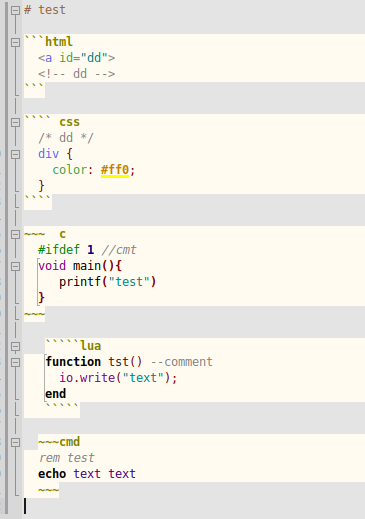](</File:cudatext-fenced-blocks.png>) [](</File:cudatext-fenced-blocks.png> "Enlarge")Fenced code blocks | |
| 899 | + | --- | |
| 900 | + | ||
| 901 | + | This is the feature of Markdown syntax: fenced code blocks. Blocks begin with: | |
| 902 | + | ||
| 903 | + | * start of line | |
| 904 | + | * optional spaces | |
| 905 | + | * 3 or more backtick-chars (also tilde-chars are allowed) | |
| 906 | + | * optional spaces | |
| 907 | + | * lexer alias like "cpp" or "cs" | |
| 908 | + | * optional spaces | |
| 909 | + | * end of line. | |
| 910 | + | ||
| 911 | + | Blocks end with: | |
| 912 | + | ||
| 913 | + | * start of line | |
| 914 | + | * optional spaces | |
| 915 | + | * 3 or more backtick-chars (also tilde-chars are allowed) | |
| 916 | + | * optional spaces | |
| 917 | + | * end of line. | |
| 918 | + | ||
| 919 | + | The beginning and ending sequences are tokenized as single token. | |
| 920 | + | ||
| 921 | + | CudaText has the file which lists the supported lexer aliases: data/lexlib/aliases.ini. The file was compiled from [this document](<https://github.com/highlightjs/highlight.js/blob/main/SUPPORTED_LANGUAGES.md>). Lexer alias will be resolved to the actual lexer name, only if that lexer is installed, otherwise you won't see an error, but block will not be syntax-highlighted. | |
| 922 | + | ||
| 923 | + | **Limitations:** | |
| 924 | + | ||
| 925 | + | * Markdown standard tells that the beginning backticks must match the ending backticks, it must be the same amount of backticks. (And the same is valid for tildes.) This is currently not supported in CudaText. | |
| 926 | + | * Python Markdown description tells that the lexer alias may be replaced with the curly-brackets construct like "{ .lang }" or "{ .lang .foo .bar }" or even "{ #someid .lang .foo .bar }". This is currently not supported in CudaText. | |
| 927 | + | * The similar feature of the reStructuredText, as [documented here](<https://pandemic-overview.readthedocs.io/en/latest/myGuides/reStructuredText-Source-Code.html>), is not supported. | |
| 928 | + | ||
| 929 | + | **Note about SQL blocks.** | |
| 930 | + | ||
| 931 | + | CudaText has lexer preinstalled, it's lite lexer "SQL ^", and it cannot be used here, because lite lexer cannot be called from normal lexer. But you can install (from "Plugins / Addons Manager") normal lexers: SQL; T-SQL (T-SQL has it's own alias "tsql"). Just install one of them, and it will be used for SQL blocks. | |
| 932 | + | ||
| 933 | + | **Note about Typst lexer.** | |
| 934 | + | ||
| 935 | + | This lexer also supports fenced code blocks but it has its own independent rules of sub-lexers. It means Typst lexer does not rely on CudaText special code to search for sub-lexers. It has own rules. For example, for sub-lexer 'Bash script', Typst has such RegEx to search for block beginning: | |
| 936 | + | ``` | |
| 937 | + | `{3,}(shell-script|sh|bash|zsh)\b | |
| 938 | + | ``` | |
| 939 | + | ||
| 940 | + | and such RegEx to search for block ending: | |
| 941 | + | ``` | |
| 942 | + | `{3,}(?!\w) | |
| 943 | + | ``` | |
| 944 | + | ||
| 945 | + | ## Dynamic highlight | |
| 946 | + | ||
| 947 | + | [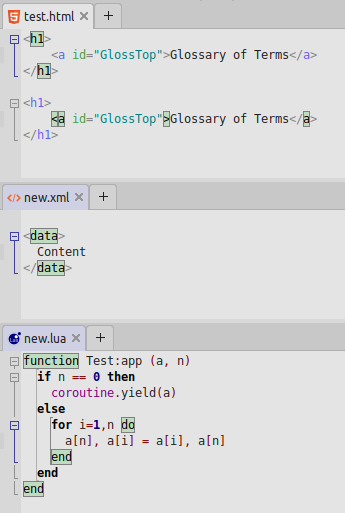](</File:cudatext-dynamic-hi.png>) [](</File:cudatext-dynamic-hi.png> "Enlarge")Dynamic highlighting for HTML/XML/Lua | |
| 948 | + | --- | |
| 949 | + | ||
| 950 | + | Dynamic highlight is controlled by option "dynamic_highlight". Option allows the caret-dependant highlighting only in documents which have not more than N (option value) lines. This limitation is useful because dynamic highlight makes lexer parsing slower. | |
| 951 | + | ||
| 952 | + | Feature enables to highlight some 'tokens' dynamically (with default greenish background color), when caret changes position. It works only when lexer is configured to use this feature. These lexers in the CudaText distro use it: | |
| 953 | + | ||
| 954 | + | * HTML, PHP, XML: opening tag and corresponding closing tag are highlighted, when caret is over one of them | |
| 955 | + | * CSS: rule highlights {} block with different background color, when caret is inside that block | |
| 956 | + | * Bash: block edge tokens are highlighted when caret is inside the block: 'if'/'fi', 'case'/'esac', 'do'/'done' | |
| 957 | + | * Lua: block edge tokens are highlighted when caret is inside the block: 'function'/'end', 'if'/'end', 'do'/'end' | |
| 958 | + | ||
| 959 | + | **Examples:** | |
| 960 | + | ||
| 961 | + | * On the HTML example editor, 2 fragments have dynamic highlighting (because of 2 multi-carets). First caret is placed inside tag 'h1' but before tag 'a'. Second caret is placed inside tag 'a'. So second caret enables dynamic highlight of angle brackets too, not only of a tag. | |
| 962 | + | * On the XML example editor, lexer highligts 'data' tag, surrounding the caret. | |
| 963 | + | * On the Lua example editor, lexer highlights 2 nested blocks, surrounding the caret: function/end and do/end. | |
| 964 | + | ||
| 965 | + | In the old times, dynamic highlight was also utilized in Pascal lexer to highlight tokens 'begin'/'end' when caret is inside the block. Later Pascal lexer was simplified and setting was removed. Few other lexers from Addons Manager also utilize this feature. | |
| 966 | + | ||
| 967 | + | It is possible to detect if some lexer utilizes this feature. Look inside LexerName.lcf file, find there "DynHighlight" parameter. Two typical configurations allow dynamic highlight: | |
| 968 | + | ||
| 969 | + | HTML, PHP, Lua: | |
| 970 | + | ``` | |
| 971 | + | DynHighlight = dhBound | |
| 972 | + | HighlightPos = cpRange | |
| 973 | + | ``` | |
| 974 | + | ||
| 975 | + | CSS: | |
| 976 | + | ``` | |
| 977 | + | DynHighlight = dhRange | |
| 978 | + | HighlightPos = cpRange | |
| 979 | + | ``` | |
| 980 | + | ||
| 981 | + | ## Folding | |
| 982 | + | ||
| 983 | + | [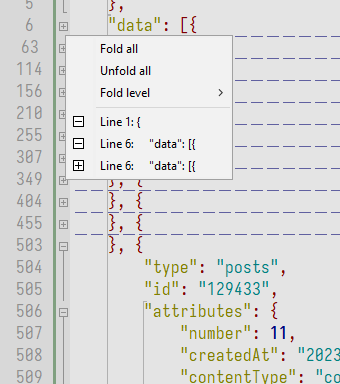](</File:cudatext-folding-gutter-ctx-menu.png>) [](</File:cudatext-folding-gutter-ctx-menu.png> "Enlarge")Code folding context menu, accessed from the gutter | |
| 984 | + | --- | |
| 985 | + | ||
| 986 | + | "Folding" is the feature allowing to collapse (ie fold) multi-line blocks of code. Collapsed block usually shows the rectangle-like mark on the first line, and other block lines become fully hidden. Collapsed block can start from any column, but it consumes entire next lines. App shows special column in the "gutter" (vertical band with line numbers), with plus/minus icons - click on these icons collapses/uncollapses the corresponding block. Folding rules, about what blocks can be folded, are configured in the lexer file. | |
| 987 | + | ||
| 988 | + | There are several options to customize related functionality: to find them all, call menu item "Plugins / Options Editor Lite" and enter the dialog filter string "fold". | |
| 989 | + | ||
| 990 | + | Folded blocks can be shown in few different ways, see the option "fold_style": | |
| 991 | + | ||
| 992 | + | * rectangle-mark at the beginning of the range (maybe after some text in the line) | |
| 993 | + | * rectangle-mark after the end of the first line of the range | |
| 994 | + | * "− − −" dashed line below the first line of the range | |
| 995 | + | ||
| 996 | + | Clicks on the first partially folded line: | |
| 997 | + | ||
| 998 | + | * Click on the rectangle-mark does not unfold the block, because double-click must be handled. Double-click on the rectangle-mark selects the entire block (even if it's folded and user cannot see the selection). | |
| 999 | + | * When option "fold_style" has value 0 to 2, clicking of the first partially folded line (out of rectangle-mark) unfolds the block. When "fold_style" has another value, click does not unfold the block, and user can mouse-select some part of the line. | |
| 1000 | + | ||
| 1001 | + | To select an entire folded block by keyboard, place the caret right before the beginning of the block, and press Shift+Down. Ie, make selection to the beginning of the next _unfolded_ line. | |
| 1002 | + | ||
| 1003 | + | ### Gutter folding right-click menu | |
| 1004 | + | ||
| 1005 | + | Gutter's folding band supports right-click menu. It gives commands to fold/unfold all blocks which touch the right-clicked editor line. When it can be useful? For example, you have JSON file with line: | |
| 1006 | + | ``` | |
| 1007 | + | "data": [{ | |
| 1008 | + | ``` | |
| 1009 | + | ||
| 1010 | + | Here you have outer block (square brackets) with inner block (curly brackets). Click on folding icon will fold the outer block. What if you want to fold the inner block? Right-click on gutter's folding band, and you will see the popup menu with menu items: | |
| 1011 | + | ``` | |
| 1012 | + | Line 6: "data": [{ | |
| 1013 | + | Line 6: "data": [{ | |
| 1014 | + | ``` | |
| 1015 | + | ||
| 1016 | + | Clicking the first item will fold/unfold the outer block, clicking the second item will fold/unfold the inner block. | |
| 1017 | + | ||
| 1018 | + | ### Excluding of last line from folding | |
| 1019 | + | ||
| 1020 | + | Lexer JSON has special behaviour of folding, for such situations: | |
| 1021 | + | ``` | |
| 1022 | + | [ | |
| 1023 | + | { | |
| 1024 | + | 1: 2 | |
| 1025 | + | }, { | |
| 1026 | + | 3: 4 | |
| 1027 | + | }, { | |
| 1028 | + | 5: 6 | |
| 1029 | + | } | |
| 1030 | + | ] | |
| 1031 | + | ``` | |
| 1032 | + | ||
| 1033 | + | Try to fold first 2 blocks in this example. You see that last line of block is excluded from folding, it is a feature. | |
| 1034 | + | ||
| 1035 | + | Auto-excluding of last line works automatically. But for rare cases, it is needed to disable it. For example, Rainmeter lexer: its folding rules fits the criteria of last line excluding, but it is bad for the user. So last line excluding must be disabled manually for Rainmeter lexer. Setting exists in the file "data/lexlib/*.cuda-lexmap": | |
| 1036 | + | ``` | |
| 1037 | + | [op] | |
| 1038 | + | fold_exclude_line=0 | |
| 1039 | + | ``` | |
| 1040 | + | ||
| 1041 | + | ### Automatic folding of comments | |
| 1042 | + | ||
| 1043 | + | [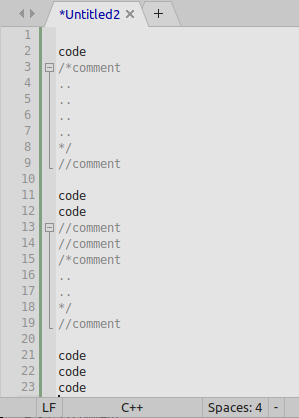](</File:cudatext-fold-comments.png>) [](</File:cudatext-fold-comments.png> "Enlarge")Auto-folding of comments | |
| 1044 | + | --- | |
| 1045 | + | ||
| 1046 | + | There is an option "auto_fold_comments" (default is 0 - it's turned off) which allows to automatically create folding ranges from N (or more) consecutive lines, which are all "syntax comments" and/or "syntax strings". This works for both line-comments and stream-comments, they can be even mixed (one comment after another without blank lines in between, but not for several stream-comments on a single line). This works for multi-line string literals and for single-line string literals (single-line literals can go one after another without symbols in between, which is rarely supported by languages, but it occurs sometimes). | |
| 1047 | + | ||
| 1048 | + | Which lexer literals are "comment"/"string"? This is setting of lexer, it is stored in the data/lexlib/*.cuda-lexmap file like this: | |
| 1049 | + | ``` | |
| 1050 | + | [comments] | |
| 1051 | + | styles_cmt=Comment,Comment doc | |
| 1052 | + | styles_str=Text,Tag string | |
| 1053 | + | ``` | |
| 1054 | + | ||
| 1055 | + | There is also per-lexer setting to disable auto-folding for lexer, in the file "data/lexlib/*.cuda-lexmap": | |
| 1056 | + | ``` | |
| 1057 | + | [op] | |
| 1058 | + | auto_fold=0 | |
| 1059 | + | ``` | |
| 1060 | + | ||
| 1061 | + | This setting is present for lexers: | |
| 1062 | + | ||
| 1063 | + | * Markdown | |
| 1064 | + | * reStructuredText | |
| 1065 | + | * MediaWiki | |
| 1066 | + | * WikidPad | |
| 1067 | + | * Textile | |
| 1068 | + | ||
| 1069 | + | ie for all lexers which support built-in Pascal tree-helpers. Because Pascal tree-helpers make folding ranges which conflict with auto-folding ranges. | |
| 1070 | + | ||
| 1071 | + | ## Encodings | |
| 1072 | + | ||
| 1073 | + | You can change encoding of document by clicking on statusbar item, or by using menu "File / Encoding". Menu will give list of encodings. Menu gives 2 sub-menus: | |
| 1074 | + | ||
| 1075 | + | * "Reload as": Reload file in given encoding from disk. | |
| 1076 | + | * "Convert to": Change encoding in memory only (this doesn't save the file). | |
| 1077 | + | ||
| 1078 | + | Possible encoding names for command-line usage: | |
| 1079 | + | ||
| 1080 | + | * utf8 | |
| 1081 | + | * utf8_bom | |
| 1082 | + | * utf16le | |
| 1083 | + | * utf16le_bom | |
| 1084 | + | * utf16be | |
| 1085 | + | * utf16be_bom | |
| 1086 | + | * utf32le | |
| 1087 | + | * utf32le_bom | |
| 1088 | + | * utf32be | |
| 1089 | + | * utf32be_bom | |
| 1090 | + | * cp1250 | |
| 1091 | + | * cp1251 | |
| 1092 | + | * cp1252 | |
| 1093 | + | * cp1253 | |
| 1094 | + | * cp1254 | |
| 1095 | + | * cp1255 | |
| 1096 | + | * cp1256 | |
| 1097 | + | * cp1257 | |
| 1098 | + | * cp1258 | |
| 1099 | + | ||
| 1100 | + | * cp437 | |
| 1101 | + | * cp850 | |
| 1102 | + | * cp852 | |
| 1103 | + | * cp861 | |
| 1104 | + | * cp865 | |
| 1105 | + | * cp866 | |
| 1106 | + | * cp874 | |
| 1107 | + | * shift-jis | |
| 1108 | + | * gbk | |
| 1109 | + | * cns | |
| 1110 | + | * uhc | |
| 1111 | + | * big5 | |
| 1112 | + | * gb2312 | |
| 1113 | + | * euc-kr | |
| 1114 | + | ||
| 1115 | + | * iso-8859-1 | |
| 1116 | + | * iso-8859-2 | |
| 1117 | + | * iso-8859-3 | |
| 1118 | + | * iso-8859-4 | |
| 1119 | + | * iso-8859-5 | |
| 1120 | + | * iso-8859-7 | |
| 1121 | + | * iso-8859-9 | |
| 1122 | + | * iso-8859-10 | |
| 1123 | + | * iso-8859-13 | |
| 1124 | + | * iso-8859-14 | |
| 1125 | + | * iso-8859-15 | |
| 1126 | + | * iso-8859-16 | |
| 1127 | + | * mac | |
| 1128 | + | * koi8r | |
| 1129 | + | * koi8u | |
| 1130 | + | * koi8ru | |
| 1131 | + | ||
| 1132 | + | ## Line ends | |
| 1133 | + | ||
| 1134 | + | All major types of line-ends are supported: | |
| 1135 | + | ||
| 1136 | + | * CR LF (usual for Windows) | |
| 1137 | + | * LF (usual for Linux and Unix) | |
| 1138 | + | * CR (usual for Mac OS 9, now almost not used) | |
| 1139 | + | ||
| 1140 | + | Mixed line-ends (LF with CR with CR LF) in one document are supported. Because of this feature, CudaText saves binary files to disk without corrupting them. To see mixed line-ends, use application option "unprinted_content", which can show text marks ("lf" etc) at line-ends. | |
| 1141 | + | ||
| 1142 | + | Commands: | |
| 1143 | + | ||
| 1144 | + | * To change line-ends for all lines in the current document, click statusbar cell for line-ends, menu will appear. You need to save file then. Changed line-ends can be undone via "Undo". Also 3 commands are available in the Command Palette. | |
| 1145 | + | * To change line-ends for individial lines, use 3 commands in the Command Palette: "change line ends, for line(s) with caret: CR LF / LF / CR". | |
| 1146 | + | ||
| 1147 | + | # Additional indentation on Enter | |
| 1148 | + | ||
| 1149 | + | Some languages need that after pressing Enter, you make the additional indentation on the next line. For example, Python: it needs additional indentation after "def name():" and in some other cases. CudaText solves this via option "indent_auto_rule". Option must contain the regular expression which will be tested against the line on which you press Enter. CudaText ships predefined setting "indent_auto_rule" for several lexers: look at files "settings_default/lexer *.json". | |
| 1150 | + | ||
| 1151 | + | Example for Nim lexer. It needs indentation when you press Enter on a line ending with "=" or ":". And on a line with keywords "let", "var", "import". So write to the lexer-specific config "settings/lexer Nim.json": | |
| 1152 | + | ``` | |
| 1153 | + | { | |
| 1154 | + | "indent_auto_rule": "^\\s*(let|var|import)$|.+[=:]$", | |
| 1155 | + | } | |
| 1156 | + | ``` | |
| 1157 | + | ||
| 1158 | + | Note for C-like lexers. Pressing Enter when caret is inside {} brackets (just after the brackets auto-pairing) - this is handled by CudaText specially, no option is needed here. | |
| 1159 | + | ||
| 1160 | + | # Groups of tabs | |
| 1161 | + | ||
| 1162 | + | "Groups" are sets of ui-tabs, where each ui-tab has attached editor control. By default only the first group is shown. Totally 6 "fixed" groups (located in the main app window) + 3 "floating" groups can be shown. Menu item "Split" allows to choose grouping mode: | |
| 1163 | + | ||
| 1164 | + | * One group | |
| 1165 | + | * 2 groups: vertically or horizontally | |
| 1166 | + | * 3 groups: vertically, horizontally or 1+2 | |
| 1167 | + | * 4 groups: vertically, horizontally or grid | |
| 1168 | + | * 6 groups: vertically, horizontally or grid | |
| 1169 | + | ||
| 1170 | + | First group cannot be empty, at least one tab exists in it. Other groups can be empty: on closing last tab, if it's active, the first group activates. | |
| 1171 | + | ||
| 1172 | + | * You can drag-drop tabs from any group to any other visible group (drop only on tabs area). | |
| 1173 | + | * You can move tabs to other groups (by group number or to the next/previous), using commands in tab headers context menu. | |
| 1174 | + | * In grouping modes "2 groups" and "1+2" there's a context menu for splitter, to choose splitting 50/50, 40/60 etc. | |
| 1175 | + | * On changing grouping mode, tabs from disappearing group(s) are moved to still visible group. | |
| 1176 | + | ||
| 1177 | + | 3 "floating" groups are available, besides 6 "fixed" groups, they are inside separate windows (so can be moved to separate monitor). To move some ui-tab to floating group, call context menu over ui-tab title, choose menu item "Move tab to group / Floating n" (n = 1, 2, 3). | |
| 1178 | + | ||
| 1179 | + | If a "floating" group is focused, you should not click main window's menu items to perform commands. Instead, call commands by hotkeys. By clicking on the main window (for example: on the code-tree, when code-tree is in the main window), you move the focus to the "fixed" group and editor command will execute for the "fixed" group. | |
| 1180 | + | ||
| 1181 | + | # Auto-completion | |
| 1182 | + | ||
| 1183 | + | Command "auto-completion menu" (default hotkey: Ctrl+Space) shows auto-completion listbox. | |
| 1184 | + | ||
| 1185 | + | Command "go to definition" (default activation: see #Mouse_shortcuts), jumps to the declaration of the identifier under first caret. | |
| 1186 | + | ||
| 1187 | + | "Go to definition" and "auto-completion menu" require installed plugin (for example, "LSP Client" with configuration file "settings/lsp_xxxx.json"). If you did not install plugin yet - "go to defintion" does nothing, showing the error "No goto-definition plugin installed for this lexer" in the bottom statusbar. | |
| 1188 | + | ||
| 1189 | + | ## IntelliSense | |
| 1190 | + | ||
| 1191 | + | Intelligent completion is supported via plugins. For the 2021 year, such plugins exist: | |
| 1192 | + | ||
| 1193 | + | * [[CudaText plugins|LSP Client]] \- supports Microsoft LSP protocol, for lot of languages. Plugin was tested to work good with servers: Python, C++, C#, CSS/SCSS/LESS, JavaScript/TypeScript, Go, Rust. | |
| 1194 | + | ||
| 1195 | + | And specialized plugins: | |
| 1196 | + | ||
| 1197 | + | * for Python lexer - "Python IntelliSense" | |
| 1198 | + | * for HTML lexer - "HTML Completion", gives additional completion for "id" and "class" names | |
| 1199 | + | * for AutoIt lexer - "AutoIt Helper" | |
| 1200 | + | * for SPIR lexer - "SPIR Helper" | |
| 1201 | + | ||
| 1202 | + | In the case of files without lexer, consider to use plugins "Complete From Text" and "Intext Complete". They suggest completions from all words from the current document (or all opened documents, by option). | |
| 1203 | + | ||
| 1204 | + | ## Static auto-completion files | |
| 1205 | + | ||
| 1206 | + | Some lexers (e.g. PHP, Pascal, Clojure) provide .acp files, which are fixed set of special words, to show in completion listbox. This is very simple completion, which ignores current context, it only suggests matching strings for the word (or string) under caret. These .acp files are stored in the folder "data/autocomplete". | |
| 1207 | + | ||
| 1208 | + | ## Special HTML auto-completion | |
| 1209 | + | ||
| 1210 | + | Lexer HTML (and lexers with "HTML" in name, see the option "autocomplete_html_lexers") has its special logic, which is built-in in CudaText. It uses data files in the folder "data/autocompletespec" plus built-in code. | |
| 1211 | + | ||
| 1212 | + | Note: what is "tag", "attribute", "value" below? HTML lines has the form like: | |
| 1213 | + | ``` | |
| 1214 | + | <tag attribute1="value1" attribute2="value2" ...> some text </tag> | |
| 1215 | + | ``` | |
| 1216 | + | ||
| 1217 | + | Completion listbox shows different information depending on context: | |
| 1218 | + | ||
| 1219 | + | * Caret is on empty space or after "<". Listbox shows list of tags. | |
| 1220 | + | * Caret is on tag name (opening or closing). Listbox shows list of tags (beginning with typed tag). | |
| 1221 | + | * Caret is after opening tag, before closing bracket, on empty space. Listbox shows list of tag's attributes. | |
| 1222 | + | * Caret is on tag's attribute, before "=". Listbox shows list of attributes (beginning with typed attribute). | |
| 1223 | + | * Caret is after tag's attribute, after "=". Listbox shows list of possible values of attribute, for fixed set of values. | |
| 1224 | + | * Caret is inside attribute's quoted value. Possible cases: | |
| 1225 | + | * Some tag/attribute with fixed set of values. Listbox shows list of possible values (beginning with typed value). | |
| 1226 | + | * Tag A, attribute HREF. Listbox shows list of folders and all files (all files can be hyper-linked). | |
| 1227 | + | * Tag LINK, attribute HREF. Listbox shows list of folders and CSS files. | |
| 1228 | + | * Tag SCRIPT, attribute SRC. Listbox shows list of folders and JS files. | |
| 1229 | + | * Tag IMG/INPUT, attribute SRC. Listbox shows list of folders and picture files. | |
| 1230 | + | * Tag FRAME/IFRAME, attribute SRC. Listbox shows list of folders and HTML/PHP/ASP files. | |
| 1231 | + | * Tag AUDIO, attribute SRC. Listbox shows list of folders and audio files (HTML supports few extensions). | |
| 1232 | + | * Tag VIDEO, attribute SRC. Listbox shows list of folders and video files (HTML supports few extensions). | |
| 1233 | + | * Tag SOURCE, attribute SRC. Listbox shows list of folders and audio+video files (code doesn't detect the outer tag: audio, video etc). | |
| 1234 | + | * Caret is after '&' char with optional word-chars after '&'. Listbox shows HTML entities. | |
| 1235 | + | ||
| 1236 | + | [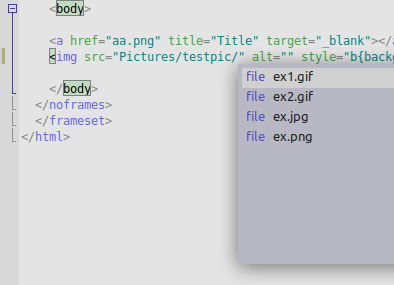](</File:cudatext-complete-pics.png>) | |
| 1237 | + | ||
| 1238 | + | About folders/filenames completion. Listbox items list depends on part of the quoted value before the caret. Folder/file names are taken from the folder/subfolder/up-folder of the current editor's document. Some examples, where caret is shown as "|". | |
| 1239 | + | ||
| 1240 | + | * Value "|end": All filenames. | |
| 1241 | + | * Value "ab|end": Filenames beginning with "ab". | |
| 1242 | + | * Value "bar/foo/|end": All filenames, from subfolder "bar/foo". | |
| 1243 | + | * Value "../foo/bar/ab|end": Filenames beginning with "ab", from relative folder "../foo/bar". | |
| 1244 | + | ||
| 1245 | + | [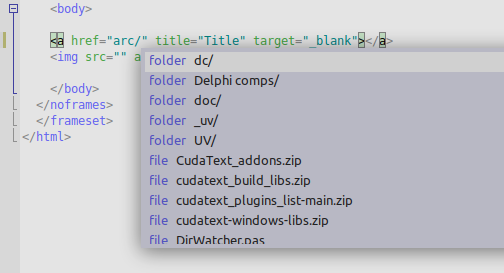](</File:cudatext-complete-filenames.png>) | |
| 1246 | + | ||
| 1247 | + | To use auto-completion of CLASS= and ID= names (ie suggest mentioned names for partially typed names), you need the plugin "HTML Completion". | |
| 1248 | + | ||
| 1249 | + | ## Special CSS auto-completion | |
| 1250 | + | ||
| 1251 | + | Lexer CSS (see the option "autocomplete_css_lexers") has its special logic, which is built-in CudaText. It uses data files in the folder "data/autocompletespec". Several possible cases are handled: | |
| 1252 | + | ||
| 1253 | + | 1) Caret is inside {} brackets: | |
| 1254 | + | ||
| 1255 | + | * Caret is on CSS property name. Listbox shows list of properties (beginning with the typed value). | |
| 1256 | + | * Caret is after CSS property and ":". If that CSS property has fixed set of values, listbox shows list of those values (beginning with the typed value). | |
| 1257 | + | * Special case is "custom CSS properties", which start with double dashes, like "--my-var1". App supports completion of these names, when caret in inside "var()" function. App searches for all custom properties names mentioned in the current document. | |
| 1258 | + | ||
| 1259 | + | 2) Caret is outside of {} brackets: | |
| 1260 | + | ||
| 1261 | + | * Caret is after tag name with char "@". Listbox shows list of CSS at-rules. | |
| 1262 | + | * Caret is after tag name with char ":". Listbox shows list of CSS pseudo-elements, beginning with ":" and "::". | |
| 1263 | + | ||
| 1264 | + | 3) Caret is in URL specifier (which is used to specify relative filename of a picture): | |
| 1265 | + | ``` | |
| 1266 | + | url(path|) | |
| 1267 | + | url("path|") | |
| 1268 | + | url('path|') | |
| 1269 | + | ``` | |
| 1270 | + | ||
| 1271 | + | Listbox shows folder/file names, if "path" lefter than the caret contains valid partial path. Slashes must be forward ones. For example, url("./|") shows folders/files from the document's folder. For example, url("subdir/|") shows files/folders from the subfolder "subdir". | |
| 1272 | + | ||
| 1273 | + | ## File URI auto-completion | |
| 1274 | + | ||
| 1275 | + | File URI is file path in the form like 'file://localhost/dir/filename' or 'file:///dir/filename' (host name 'localhost' is often missed). On Windows URI can look like 'file:///c:/dir/filename'. | |
| 1276 | + | ||
| 1277 | + | CudaText supports auto-completion for file URIs, when caret is on 'dir/filename' part, and file path exists on local user's PC. | |
| 1278 | + | ||
| 1279 | + | [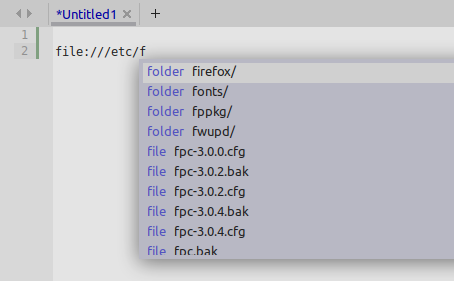](</File:cudatext-complete-fileuri.png>) | |
| 1280 | + | ||
| 1281 | + | Auto-completion behaviour for this case is described in the topic about HTML completion, see "folders/filenames completion". | |
| 1282 | + | ||
| 1283 | + | # Code-Tree | |
| 1284 | + | ||
| 1285 | + | Code-tree is treeview UI control which shows list of document's 'symbols': classes/functions/structs/etc, from the lexer (only if lexer supports this). To show code-tree, activate the side-panel (default hotkey: F12). Many lexers support code-tree: most C-based, HTML, XML, CSS, JS etc. Example of tree for Pascal: | |
| 1286 | + | ||
| 1287 | + | [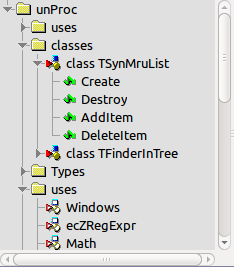](</File:atsynedit_tree.png>) | |
| 1288 | + | ||
| 1289 | + | * Double-click on a tree node moves caret to its text. | |
| 1290 | + | * Tree is filled after few seconds after file opening (search for options ui_tree* to change this pause). | |
| 1291 | + | * When you move caret, tree shows tree node for caret position, after a pause (search for options ui_tree* to change this). | |
| 1292 | + | ||
| 1293 | + | Code-tree has the "filter" input field: when not empty, code-tree shows only items containing the filter text. This field also supports filtering by few **space-separated words**. There is also **Shift+Enter hotkey** in the filter field: it adds current filter string to the drop-down combobox history. Last entered filter strings are saved/restored to/from sessions. | |
| 1294 | + | ||
| 1295 | + | Code-tree has the context menu with items: | |
| 1296 | + | ||
| 1297 | + | * "Fold all" | |
| 1298 | + | * "Unfold all" | |
| 1299 | + | * "Fold level", 2 to 9 | |
| 1300 | + | * "Sorted": to toggle the alphabetical sorted mode of the tree | |
| 1301 | + | ||
| 1302 | + | Code-tree for CSS lexer has additional feature: in the "Colors" node, it shows colored preview-squares for HTML color-tokens - #AABBCC / #ABC / rgb(...) / rgba(...) / hsl(...) / hsla(...). | |
| 1303 | + | ||
| 1304 | + | [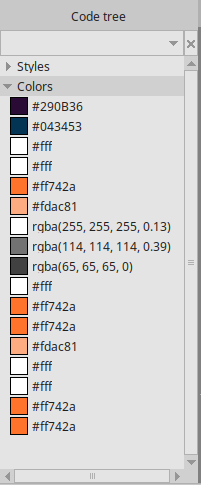](</File:cudatext-tree-css-colors.png>) | |
| 1305 | + | ||
| 1306 | + | # Console panel | |
| 1307 | + | ||
| 1308 | + | Panel is called by key Ctrl+tilde (Ctrl+`). It has read-only memo with output and edit field. You can type Python commands in the edit field, they will run and show output in the memo. E.g. enter "print(10+12)" and you'll see output "22". Can enter complex commands: e.g. "for i in range(10): print(i)". | |
| 1309 | + | ||
| 1310 | + | [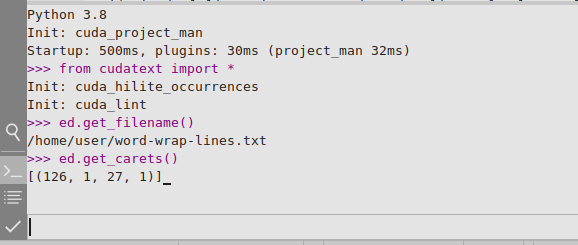](</File:cudatext-console.png>) | |
| 1311 | + | ||
| 1312 | + | * If you enter command beginning with "=", then it's the same as you enterted "print()". E.g. command "=10+12" will give "22". | |
| 1313 | + | * If you end command with ";", it won't be added to dropdown history. | |
| 1314 | + | * Double-click on memo lines: | |
| 1315 | + | * If line starts with ">>>", it repeats the old command (after ">>>" symbols). | |
| 1316 | + | * For other lines, it runs "Navigate" context-menu command. | |
| 1317 | + | ||
| 1318 | + | You can enter commands from CudaText API. Example clears all bookmarks and sets bookmark on line 11 (these are several commands, run one by one): | |
| 1319 | + | ``` | |
| 1320 | + | from cudatext import * | |
| 1321 | + | ed.bookmark(BOOKMARK_CLEAR_ALL, 0) | |
| 1322 | + | ed.bookmark(BOOKMARK_SET, 10) | |
| 1323 | + | ``` | |
| 1324 | + | ||
| 1325 | + | ## How to use Console as calculator | |
| 1326 | + | ||
| 1327 | + | Call Console panel with Ctrl+` (Ctrl+tilde). In its input field, enter valid Python expressions with leading "=" char. To use "sin", "cos", "pi" etc, first enter command "from math import *". | |
| 1328 | + | ||
| 1329 | + | Example of 3 entered lines and their log in console: | |
| 1330 | + | ``` | |
| 1331 | + | >>> from math import * | |
| 1332 | + | >>> =pi | |
| 1333 | + | 3.141592653589793 | |
| 1334 | + | >>> =100/5+2 | |
| 1335 | + | 22.0 | |
| 1336 | + | ``` | |
| 1337 | + | ||
| 1338 | + | # Command Palette | |
| 1339 | + | ||
| 1340 | + | Command Palette is a dialog which shows all embedded and external (plugin) commands in a single list. To call it, use hotkey Ctrl+Shift+P (or alias hotkey F1). To configure hotkey for some command in Palette, focus this command in listbox and press F9 - additional dialog will appear. CudaText remembers last chosen listbox item in the history file. | |
| 1341 | + | ||
| 1342 | + | Command Palette (and menu-like dialog in Python API) has the filter field. Filter supports fuzzy search, if the option "ui_listbox_fuzzy" is on. "Fuzzy" means that filter leaves only those listbox items, which contain all filter chars in ascending order. Example of fuzzy matches: | |
| 1343 | + | ||
| 1344 | + | * "fop" matches "file: open file" | |
| 1345 | + | * "gttb" matches "goto text begin" | |
| 1346 | + | ||
| 1347 | + | If option is off, filter uses normal search. "Normal" means that filter leaves only those listbox items, which contain all words from the filter (in any order). | |
| 1348 | + | ||
| 1349 | + | Filter field can find hotkeys too. Enter only hotkey substring, with first "@" char. E.g. "@ho" finds "Ctrl+Home". This search is not fuzzy. | |
| 1350 | + | ||
| 1351 | + | Command Palette lists all internal CudaText commands, all plugin commands (prefixed with "plugin:"), all lexers (prefixed with "lexer:"), and currently opened files (prefixed with "opened file:"). Filter field allows to type hash symbol "#" followed by a letter, to make filtering by category: | |
| 1352 | + | ||
| 1353 | + | * #p - plugins | |
| 1354 | + | * #l - lexers | |
| 1355 | + | * #f - opened files | |
| 1356 | + | * #r - recently used files | |
| 1357 | + | ||
| 1358 | + | You can type those "hash tags" at begin or end of the field, even without separating space. E.g. "bar#p" will show only plugin commands containing "bar", "#f.md" will show only Markdown files (with .md extension). | |
| 1359 | + | ||
| 1360 | + | # Regular expressions | |
| 1361 | + | ||
| 1362 | + | Lexer parser uses EControl regex engine. You use this regex syntax only in the "Lexer Properties" dialog in SynWrite, not in the CudaText normal usage. EControl regex has custom features: | |
| 1363 | + | ||
| 1364 | + | * class \A: begin of the document | |
| 1365 | + | * class \Z: end of the document | |
| 1366 | + | * class \l: Unicode word-char except the underscore char | |
| 1367 | + | * class \L: inversion to \l | |
| 1368 | + | * lookahead/lookbehind can find match of variable length | |
| 1369 | + | * modifier (?r): \w catches all Unicode letters too | |
| 1370 | + | * modifier (?g): greedy | |
| 1371 | + | ||
| 1372 | + | CudaText search/replace uses [TRegExpr engine](<https://regex.sorokin.engineer/en/latest/regular_expressions.html>) (by Sorokin, later improved by Alexey Torgashin). | |
| 1373 | + | ||
| 1374 | + | * To refer to regex groups in the regular expression itself, in the "Find what" field, use syntax \1 ... \9 and \0 for entire match. | |
| 1375 | + | * To perform replacements with groups, in the "Replace with" field, use syntax $1 ... $9 and $0 for entire match. To use group 1 with following "00", use this: ${1}00. | |
| 1376 | + | ||
| 1377 | + | ## Change case on replaces | |
| 1378 | + | ||
| 1379 | + | With regex, you can change case of found fragments, use modifiers in replace-with field: | |
| 1380 | + | ||
| 1381 | + | * \l - First char to lower | |
| 1382 | + | * \L - All chars to lower | |
| 1383 | + | * \u - First char to upper | |
| 1384 | + | * \U - All chars to upper | |
| 1385 | + | ||
| 1386 | + | E.g. if found a word, use replace-with field "\L$0" to change word to lowercase (here $0 is group 0, found text). | |
| 1387 | + | ||
| 1388 | + | Modifiers affect only element after them, element is: | |
| 1389 | + | ||
| 1390 | + | * one char (not string), so "\Uabc" and "\uabc" give same result "Abc" (only one char changed), | |
| 1391 | + | * or group $0 ... $9, so modifier changes case of this group (not only one char). | |
| 1392 | + | ||
| 1393 | + | # Output/Validate panels | |
| 1394 | + | ||
| 1395 | + | Output and Validate panels are embedded in the bottom panel, they can be shown by clicking their icons in the lower part of the sidebar. These panels allow to highlight (e.g. in blue) lines which match some RegEx. RegEx must be set by plugins which need that. | |
| 1396 | + | ||
| 1397 | + | * Plugin "External Tools" highlights the resulting lines in the Output panel, by setting the RegEx from the user tool's properties. | |
| 1398 | + | * Plugin "HTML Tidy" uses Validate panel and sets RegEx for HTML Tidy resulting lines. | |
| 1399 | + | ||
| 1400 | + | Double-click is reserved in the Output/Validate panels - it is busy here for navigation from the clicked position to the source code. For example, "External Tools" plugin tries to perform this navigation when you double-click lines (even not highlighted lines). | |
| 1401 | + | ||
| 1402 | + | These panels have hotkeys: | |
| 1403 | + | ||
| 1404 | + | * Up/Down/PgUp/PgDown/Home/End: Move selection in list | |
| 1405 | + | * Enter: Try to navigate to source file, like double-click | |
| 1406 | + | * Esc: Focus the editor | |
| 1407 | + | * Ctrl+Del: Clear the entire list | |
| 1408 | + | * Ctrl+C: Copy to clipboard entire list | |
| 1409 | + | * Ctrl+D: Copy to clipboard selected line | |
| 1410 | + | ||
| 1411 | + | # Dialog Find/Replace | |
| 1412 | + | ||
| 1413 | + | Find/Replace dialog has hotkeys, which work only when this dialog is focused. Hotkeys can be customized via options "find_hotkey_xxxx". | |
| 1414 | + | ||
| 1415 | + | * Alt+Enter: Find first | |
| 1416 | + | * Enter: Find next / Replace next (depends of focused input) | |
| 1417 | + | * Shift+Enter: Find previous | |
| 1418 | + | * Ctrl+Enter: Add new line in multi-line input (multi-line mode is activated by "+" button) | |
| 1419 | + | * Ctrl+Alt+Z: Replace and find next | |
| 1420 | + | * Ctrl+Alt+Shift+Z: Replace and don't find next | |
| 1421 | + | * Ctrl+Alt+A: Replace all occurrences | |
| 1422 | + | * Ctrl+Alt+O: Count all occurrences | |
| 1423 | + | * Ctrl+Alt+E: Select all occurrences | |
| 1424 | + | * Ctrl+Alt+K: Mark all occurrences (with markers) | |
| 1425 | + | * Ctrl+Alt+Q: Extract all RegEx matches | |
| 1426 | + | * and hotkeys to toggle search/replace options (case sensitive, reg.ex., whole words etc) | |
| 1427 | + | * additional not customizable hotkey Ctrl+Down: when input field (find-what or replace-with) is focused, hotkey copies the "find-what" text to "replace-with". | |
| 1428 | + | ||
| 1429 | + | [](</File:cudatext-find-dlg.png>) | |
| 1430 | + | ||
| 1431 | + | Toggle-buttons have hotkeys too. Hover mouse over them to see floating tooltips about button functions. | |
| 1432 | + | ||
| 1433 | + | Toggle-buttons, ie options, are: | |
| 1434 | + | ||
| 1435 | + | **Toggle-button ".*"** | |
| 1436 | + | ||
| 1437 | + | Use "regular expressions" engine. | |
| 1438 | + | ||
| 1439 | + | **Toggle-button "aA"** | |
| 1440 | + | ||
| 1441 | + | Case sensitive search: "a" will be different from "A". | |
| 1442 | + | ||
| 1443 | + | **Toggle-button "w"** | |
| 1444 | + | ||
| 1445 | + | Search for whole words only, ie both sides of found match must be "word boundaries". | |
| 1446 | + | ||
| 1447 | + | **Toggle-button "O"** | |
| 1448 | + | ||
| 1449 | + | Wrapped search: search from beginning after reaching the end (with forward search), and search from end after reaching the beginning (with backward search). | |
| 1450 | + | ||
| 1451 | + | **Toggle-button "[..]"** | |
| 1452 | + | ||
| 1453 | + | Search in selection only. | |
| 1454 | + | ||
| 1455 | + | **Toggle-button "+"** | |
| 1456 | + | ||
| 1457 | + | Toggle multi-line mode for both dialog input fields. To add a newline in multi-line fields, press Ctrl+Enter. | |
| 1458 | + | ||
| 1459 | + | **Toggle-button "*"** | |
| 1460 | + | ||
| 1461 | + | Choose allowed syntax elements: Any / Only comments / Only strings / Only comments+strings / etc. This feature must be supported by lexer (and some lexers are limited, support only "comments" or only "strings" syntax elements). Syntax element is detected from left edge position of a found match. | |
| 1462 | + | ||
| 1463 | + | **Toggle-button "Hi"** | |
| 1464 | + | ||
| 1465 | + | Highlight all matches for the current search options. Matches are highlighted in the current editor, with the rounded borders, using the color of "SeparLine" syntax theme item. Editor auto-scrolls to the first found match (pretty much like ST3 editor). The limitation of this feature: a highlighted match has the single font color for the entire match, so if a match lays over several syntax tokens (e.g. number, dot, normal word), the entire match will have the single font color anyway. | |
| 1466 | + | ||
| 1467 | + | **Toggle-button "Im"** | |
| 1468 | + | ||
| 1469 | + | Immediate search, ie find-as-you-type. When checked, each typing in the "Find what" field finds next match in the editor (or the first match, if input was empty before typing). | |
| 1470 | + | ||
| 1471 | + | Toggle-buttons for "replace" mode: | |
| 1472 | + | ||
| 1473 | + | **Toggle-button "?!"** | |
| 1474 | + | ||
| 1475 | + | Show confirmation on each replace. | |
| 1476 | + | ||
| 1477 | + | **Toggle-button "$0"** | |
| 1478 | + | ||
| 1479 | + | "RegEx substitute for 'Replace with'". Activates "substitute" for replace-action. When option is off, the replate-with field is taken literally, without interpreting special constructs. When option is on, the replace-with field is processed for special constructs: | |
| 1480 | + | ||
| 1481 | + | * $0: Text of the whole found match | |
| 1482 | + | * $1 ... $9: Text of the found RegEx group with the index 1...9 | |
| 1483 | + | * \n: NL char | |
| 1484 | + | * \r: CR char | |
| 1485 | + | * \t: TAB char | |
| 1486 | + | * \f: FF char | |
| 1487 | + | * \a: BEL char | |
| 1488 | + | * \e: ESC char | |
| 1489 | + | * \xNN, \x{NNNN}: hex code of char | |
| 1490 | + | * \l: lower case of one char | |
| 1491 | + | * \L: lower case of all text | |
| 1492 | + | * \u: upper case of one char | |
| 1493 | + | * \U: upper case of all text | |
| 1494 | + | ||
| 1495 | + | **Toggle-button "AB"** | |
| 1496 | + | ||
| 1497 | + | Preserve case on replacement. Mimics logic in VS Code program: | |
| 1498 | + | ||
| 1499 | + | * If the original string contains only upper-case or only lower-case characters, the result will be either all upper-case or all lower-case characters: | |
| 1500 | + | * "ABCDE" -> replace with "xyz" -> "XYZ" (preserving all upper-case); | |
| 1501 | + | * "abcde" -> replace with "xYz" -> "xyz" (preserving all lower-case). | |
| 1502 | + | * The case of the first character in the original string is always preserved: | |
| 1503 | + | * if it is upper-case, the first character in the result will be upper-case; | |
| 1504 | + | * if it is lower-case, the first character in the result will be lower-case. | |
| 1505 | + | * "Abcde" -> replace with "xyz" -> "Xyz" (preserving the first upper-case); | |
| 1506 | + | * "abcde" -> replace with "Xyz" -> "xyz" (preserving the first lower-case). | |
| 1507 | + | * In case of a mixed-case original string, the result follows the case of characters in the replacing string, excluding the very first character of the original string that always preserves its original case. | |
| 1508 | + | * "ABcde" -> replace with "xyZ" -> "XyZ" (preserving the first upper-case); | |
| 1509 | + | * "abCDE" -> replace with "XYz" -> "xYz" (preserving the first lower-case). | |
| 1510 | + | ||
| 1511 | + | Action buttons in dialog: | |
| 1512 | + | ||
| 1513 | + | **Button "| <"** | |
| 1514 | + | ||
| 1515 | + | Starts the search from document beginning, ignoring the caret position. | |
| 1516 | + | ||
| 1517 | + | **Button " >"** | |
| 1518 | + | ||
| 1519 | + | Finds next match, ie continues search forward. | |
| 1520 | + | ||
| 1521 | + | **Button " <"** | |
| 1522 | + | ||
| 1523 | + | Finds previous match, ie continues search backward. | |
| 1524 | + | ||
| 1525 | + | **Button "..."** | |
| 1526 | + | ||
| 1527 | + | Shows menu with additional actions: | |
| 1528 | + | ||
| 1529 | + | **"Count all"** | |
| 1530 | + | ||
| 1531 | + | Count all matches and show the number in the statusbar. | |
| 1532 | + | ||
| 1533 | + | **"Extract RegEx matches"** | |
| 1534 | + | ||
| 1535 | + | It's enabled only with RegEx option. Finds all matches, all found matches are put to an internal list, list is sorted, duplicates are discarded, and list is put to a new document. Plugin "Extract Strings" does the same task but using the Python RegEx engine. | |
| 1536 | + | ||
| 1537 | + | **"Select all"** | |
| 1538 | + | ||
| 1539 | + | Finds all matches in a document and places multi-seletions on them. | |
| 1540 | + | ||
| 1541 | + | **"Mark all"** | |
| 1542 | + | ||
| 1543 | + | Finds all matches in a document and places #Markers on them. | |
| 1544 | + | ||
| 1545 | + | **Button "Replace"** | |
| 1546 | + | ||
| 1547 | + | If some fragment was found/selected already, it replaces this fragment (by contents of "Replace with" field). If not, it finds next fragment and selects it. If replacement was performed, it finds/selects the next fragment. | |
| 1548 | + | ||
| 1549 | + | **Button "Rep all"** | |
| 1550 | + | ||
| 1551 | + | Performs replacement of all matches in the current document. | |
| 1552 | + | ||
| 1553 | + | **Button "Rep global"** | |
| 1554 | + | ||
| 1555 | + | Performs replacement of all matches in all opened documents in all editor groups. After showing the additional confirmation. | |
| 1556 | + | ||
| 1557 | + | The state of dialog search options is saved to the history file (settings/history.json), and is restored after app restart. | |
| 1558 | + | ||
| 1559 | + | Button "..." is enabled in "editor mode", so if button is disabled for you, it means CudaText was opened in #Text/Hex viewer mode. "Viewer mode" is activated when you pass the name of huge file with size>500 Mbytes (this is controlled by option "ui_max_size_open"). | |
| 1560 | + | ||
| 1561 | + | ## Text searcher features | |
| 1562 | + | ||
| 1563 | + | 1) Search engine supports actions with multi-selections. This makes sense mainly for mass-search actions (Find all, Select all, Mark all, Replace all). | |
| 1564 | + | ||
| 1565 | + | 2) Search engine has the feature, which is rarely implemented in text editors. When invoked on text selection(s) with the option "Search in selection only", engine doesn't place caret+selection on found match, instead it places marker (#Markers). The marker is placed with the underline (triangle with a line to the left), which shows the length of the found match. Actions "Find next"/"Find previuos"/"Replace" support "in selection only" too, they move that mentioned marker. Note that this feature checks the presence of a single marker in text, it may not work OK if you have some markers already placed. | |
| 1566 | + | ||
| 1567 | + | [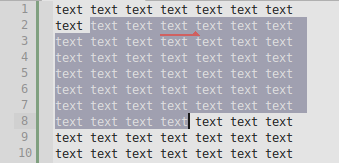](</File:cudatext-find-markers.png>) | |
| 1568 | + | ||
| 1569 | + | 3) Second click on the "Search" sidebar button toggles dialog between Find and Replace modes. | |
| 1570 | + | ||
| 1571 | + | 4) The "Replace all" action has one important feature: when find/replace options | |
| 1572 | + | ||
| 1573 | + | * regex | |
| 1574 | + | * whole words only | |
| 1575 | + | * in selection only | |
| 1576 | + | * allowed syntax elements | |
| 1577 | + | * confirm replaces | |
| 1578 | + | * preserve case on replacement | |
| 1579 | + | ||
| 1580 | + | are all Off - app uses big optimization, making it a lot faster on huge lines. For example, replace of "\r\n" with linebreak char in huge line of length 20M with 900K occurrences: time without optimization in older CudaText versions: 15 mins --> now with optimization: 7 seconds. | |
| 1581 | + | ||
| 1582 | + | # "Go to line" and other "Go to" dialogs | |
| 1583 | + | ||
| 1584 | + | **Dialog "Go to line"** (item in the "Search" menu) allows to enter text in formats: | |
| 1585 | + | ||
| 1586 | + | * 10 (decimal number): Jump to given line number (to line start). | |
| 1587 | + | * 10:10 (two decimal numbers): Jump to given line and column numbers. | |
| 1588 | + | * 10% (decimal with trailing "%"): Jump to percents of total line count (to line start). | |
| 1589 | + | * d100 (decimal with leading "d"): Jump to absolute decimal offset. | |
| 1590 | + | * xFF00 (hex number with leading "x"): Jump to absolute hex offset. | |
| 1591 | + | * value with leading/trailing "+": Extend selection to this position. For example: if caret is at the 2:2 and you enter "4:10+", editor makes selection from 2:2 to 4:10. Entering "4+" makes selection until start of line 4. | |
| 1592 | + | ||
| 1593 | + | Also it is possible to call "Go to line" dialog by clicking the statusbar's "caret information" cell (it is the first cell by default). | |
| 1594 | + | ||
| 1595 | + | **Other "Go to" dialogs.** | |
| 1596 | + | ||
| 1597 | + | 1) Menu item "Search / Go to bookmark". Shows list of all bookmarks, in all opened documents, allows to jump to chosen bookmark. | |
| 1598 | + | ||
| 1599 | + | 2) Project Manager plugin. Menu item "Plugins / Project Manager / Go to file". Shows list of all files in the current project, allows to jump to chosen file in the Project treeview. If option is enabled in the Project Manager, command will also open the chosen file in the editor. | |
| 1600 | + | ||
| 1601 | + | 3) In the "Command Palette" dialog, enter #-char, and tooltip will appear in the Command Palette lower part. It tells how to call via Command Palette: | |
| 1602 | + | ||
| 1603 | + | * List of all opened documents with filenames. | |
| 1604 | + | * List of recently opened filenames. | |
| 1605 | + | ||
| 1606 | + | 4) Plugin CudaExt. Gives the command "Code Tree: Symbols list". It shows dialog with list of all symbols from the code-tree for the current document. Note: option "lexer_folding_max_lines" limits the count of document lines, for which code-tree is created. Plugin CudaExt gives 2 additional commands for symbols list: "... (only 1 up level)", "... (only 2 up level)" - they only show symbols from 1-2 top levels of the code-tree. | |
| 1607 | + | ||
| 1608 | + | # Sessions | |
| 1609 | + | ||
| 1610 | + | "Session" is a set of opened documents, with properties of each document. CudaText sessions are stored in JSON files with ".cuda-session" extension. Default session file name is "history session.json" in the "settings" folder. CudaText shows name of current session in its window title like "filename.txt {session_name} - CudaText". | |
| 1611 | + | ||
| 1612 | + | CudaText has options: | |
| 1613 | + | ||
| 1614 | + | * "ui_reopen_session": Save last session on closing, and restore it on start. | |
| 1615 | + | * "ui_reopen_session_cmdline": Allow to restore last session even if some file/folder was passed in the command line (or from the Windows Shell Extension). Note, this gives weird behaviour: N program instances will reopen the same last session + passed command-line file. So this option is mainly for the single instance mode. | |
| 1616 | + | * "ui_auto_save_session": On program closing, save current session without asking. | |
| 1617 | + | ||
| 1618 | + | If some session is opened, program stores document states, on program closing, to session file. If no session is opened, program stores document states to "history files.json" in the "settings" folder. | |
| 1619 | + | ||
| 1620 | + | Session file contains data: | |
| 1621 | + | ||
| 1622 | + | * List of named documents (file names), and unnamed documents | |
| 1623 | + | * For each document: | |
| 1624 | + | * kind of the document: text editor / picture viewer / text viewer (and viewer mode: text/binary/hex/unicode) | |
| 1625 | + | * text of the document, if document is modified | |
| 1626 | + | * undo/redo data, if document is modified | |
| 1627 | + | * read-only state | |
| 1628 | + | * first caret position | |
| 1629 | + | * encoding | |
| 1630 | + | * word-wrap mode | |
| 1631 | + | * lexer | |
| 1632 | + | * bookmarks | |
| 1633 | + | * index of top visible line | |
| 1634 | + | * tab size and "tab as spaces" state | |
| 1635 | + | * minimap and micromap visible state | |
| 1636 | + | * ruler visible state | |
| 1637 | + | * non-printable characters visible state | |
| 1638 | + | * line numbers visible state | |
| 1639 | + | * scale factor | |
| 1640 | + | * list of folded ranges (if lexer supports folding) | |
| 1641 | + | * color of ui-tab (if not default) | |
| 1642 | + | * tab title (if not default) | |
| 1643 | + | * modified state | |
| 1644 | + | * code-tree filter string and history of last filters | |
| 1645 | + | * splitting to 2 editors: on/off, vertical/horizontal, percents of size | |
| 1646 | + | * column of vertical "margin" line, if it's not default | |
| 1647 | + | * For each modified document: date of modification, full document text | |
| 1648 | + | * Last input of "Go to" dialog for each ui-tab | |
| 1649 | + | * Layout: | |
| 1650 | + | * Layout/sizes of side panel and bottom panel | |
| 1651 | + | * Layout/sizes of editor groups | |
| 1652 | + | * Index of active editor group and active tab in each group | |
| 1653 | + | ||
| 1654 | + | Plugin "Session Manager" is present in Addon Manager, it gives commands to control sessions: open session file, save session, show list of recent sessions, etc. Session Manager also supports files from SynWrite, with .synw-session extension. | |
| 1655 | + | ||
| 1656 | + | # Char map | |
| 1657 | + | ||
| 1658 | + | Dialog "Char map" can be called from the "Edit" top menu. It has 2 modes: | |
| 1659 | + | ||
| 1660 | + | * ANSI: Shows ANSI char codes from 0 to 255 (codes 128..255 map to different Unicode codes, this depends on active OS locale). | |
| 1661 | + | * Unicode: Shows almost all Unicode code points, they are divided to groups. Change active group using combobox at the bottom. | |
| 1662 | + | ||
| 1663 | + | Click any cell in the grid to insert this char at caret position. Or select a cell with arrow keys and press Enter. | |
| 1664 | + | ||
| 1665 | + | [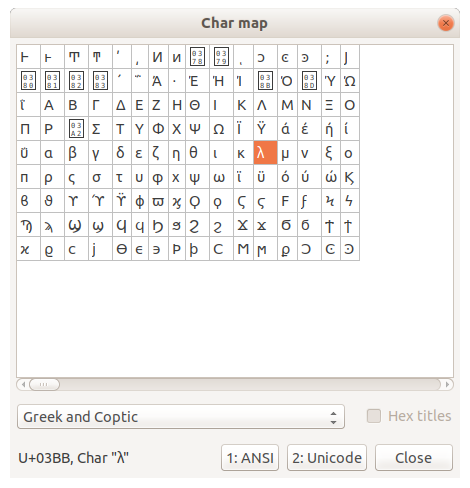](</File:cudatext-charmap.png>) | |
| 1666 | + | ||
| 1667 | + | # Tab switcher | |
| 1668 | + | ||
| 1669 | + | CudaText has option "ui_tab_switcher_dialog", which activates modern tab switcher for Ctrl+Tab hotkey. This is dialog which allows to switch tab using visit history. For example: press Ctrl, Tab, Tab, Tab, release Ctrl: this goes 3 steps back in the visit history. Visit history is updated on tabs activation (activated tab moves to the top of history). | |
| 1670 | + | ||
| 1671 | + | Dialog lists documents from all tab-groups, with prefixes: "[3-1] /home/user/filename.cpp" for 1st tab in 3rd group. | |
| 1672 | + | ||
| 1673 | + | [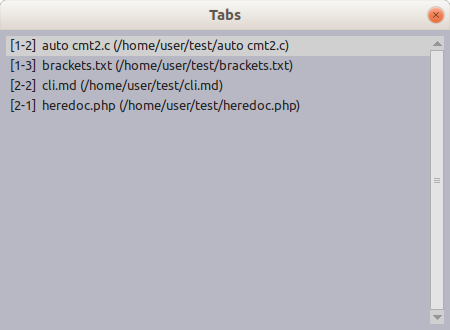](</File:cudatext-tab-switcher.png>) | |
| 1674 | + | ||
| 1675 | + | Alternative way is plugin CudaExt. Plugin gives the command "Choose tab to switch to". You need to assign hotkey Ctrl+Tab to this command (hotkey will be removed from built-in tab switcher). Plugin's dialog is richer than CudaText's dialog: it allows to switch to Console/Output/Validate panels, it allows to cancel the operation. | |
| 1676 | + | ||
| 1677 | + | * When plugin's switcher is called with pressed Ctrl-key, it shows the dialog. | |
| 1678 | + | * When plugin's switcher is called without Ctrl-key pressed, it immediately switches to previous tab. | |
| 1679 | + | ||
| 1680 | + | [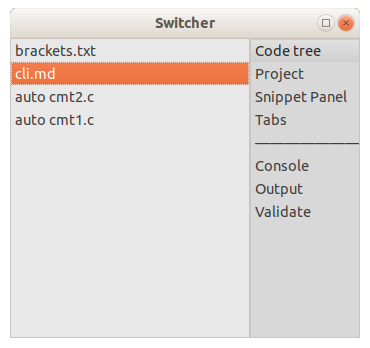](</File:cudatext-tab-switcher-cudaext.png>) | |
| 1681 | + | ||
| 1682 | + | Command Palette has several commands to switch current ui-tab: | |
| 1683 | + | ||
| 1684 | + | * "ui: switch tab, to next": If option "ui_tab_switcher_dialog" is true, command shows menu-like dialog with suggestion to activate recent tab (using visit history). If option is off, command just activates the next ui-tab ignoring the visit history. | |
| 1685 | + | * "ui: switch tab, to previous": If option "ui_tab_switcher_dialog" is true, the same as above. If option is off, command just activates the previous ui-tab ignoring the visit history. | |
| 1686 | + | * "ui: switch tab, simply to next": Activates the next ui-tab, ignoring the visit history. (It considers only visual order of ui-tabs). | |
| 1687 | + | * "ui: switch tab, simply to previous": Like above but in reverse order. | |
| 1688 | + | * "ui: switch tab, to recent": Activates the ui-tab previously activated in visit history. | |
| 1689 | + | ||
| 1690 | + | # Minimap | |
| 1691 | + | ||
| 1692 | + | Minimap is wide vertical bar near editor's right side (it can be shown on the left side too, by option). To show it: | |
| 1693 | + | ||
| 1694 | + | * Set the option "minimap_show" (show permamently) | |
| 1695 | + | * Use menu item "View / Toggle minimap" (show temporary, for the current document only) | |
| 1696 | + | ||
| 1697 | + | If you drag mouse over minimap, editor will scroll entirely from top to bottom, even for huge documents (mimics Sublime Text behaviour). Text in minimap is painted by pixels, not by font rendering. Minimap is scaled according to CudaText UI, but can be scaled separately too (option "minimap_scale"). Screenshot shows 2 windows with different minimap scale. | |
| 1698 | + | ||
| 1699 | + | [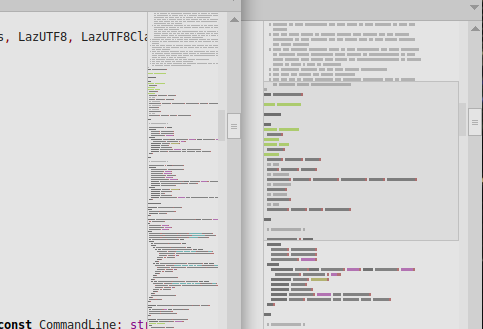](</File:cudatext-minimap.png>) | |
| 1700 | + | ||
| 1701 | + | CudaText UI-theme doesn't have separate color for minimap slider. CudaText calculates the color of slider (when slider is hovered by mouse): if text background color is light - slider color is darker by 5-10% (there is no option); if text background color is dark - slider color is lighter by 5-10%. | |
| 1702 | + | ||
| 1703 | + | Feature: for document line(s) affected by selection(s), minimap lines have additional full-width background coloring. This feature cannot be turned off yet. | |
| 1704 | + | ||
| 1705 | + | Feature: minimap rendering time is limited by 40 msec (no option for this yet). For rather slow CPU and maximized app window, the entire minimap rendering can take more time, so bottom minimap lines won't be colored at all. | |
| 1706 | + | ||
| 1707 | + | # Micromap | |
| 1708 | + | ||
| 1709 | + | Micromap is thin vertical bar near editor's right side. It is not scrollable, it shows overview of entire document from top to bottom. To show it: | |
| 1710 | + | ||
| 1711 | + | * set option "micromap_show": to show micromap permanently for all documents. | |
| 1712 | + | * use menu item "View / Toggle micromap": to show micromap for the current document only. | |
| 1713 | + | ||
| 1714 | + | Micromap has several thin columns (from column 1 to column 3, but this can be changed by plugins) for different categories of marks. It shows: | |
| 1715 | + | ||
| 1716 | + | * full-width single mark: 'thumb', ie current visible area of editor. | |
| 1717 | + | * on column 1 (leftmost): #Line_states marks. | |
| 1718 | + | * on column 2: | |
| 1719 | + | * marks from plugin Spell Checker (default color: reddish); | |
| 1720 | + | * marks from plugin Highlight Occurrences (default color: blue); mark with UI-theme color "editor, line states, changed" means that it is "Highlight Occurrences" mark which corresponds to the current caret position (only for the first caret); | |
| 1721 | + | * marks for bookmarks; these marks re-use UI-theme color "editor, line states, added". | |
| 1722 | + | * on column 3: marks for selection(s), useful for example when command "Find / Select all" makes many selections. | |
| 1723 | + | ||
| 1724 | + | [](</File:cudatext-micromap_.png>) | |
| 1725 | + | ||
| 1726 | + | Plugins can place marks on micromap, e.g. plugin "Highlight Occurrences" places marks for highlighted fragments, plugin "Spell Checker" places marks for misspelled words. | |
| 1727 | + | ||
| 1728 | + | Micromap can be rendered directly on the vertical scrollbar (when scrollbar is application-painted). To use that, you need 2 options: | |
| 1729 | + | ||
| 1730 | + | * `"scrollbar_themed": true` | |
| 1731 | + | * `"micromap_on_scrollbar": true` | |
| 1732 | + | ||
| 1733 | + | Picture shows micromap on the scrollbar: [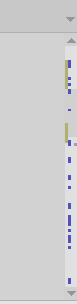](</File:cudatext-micromap-on-scrollbar.png>) | |
| 1734 | + | ||
| 1735 | + | Micromap visible state is not restored from history for files, which have line count bigger than value of option "wrap_enabled_max_lines" (default is 60K lines). | |
| 1736 | + | ||
| 1737 | + | In rather big documents (e.g. 2000+ lines), micromap renders the horizontal line near the bottom. What is this line? This line denotes the maximal position which you can click. Space below that line is 'reserved' for the micromap 'thumb'. 'Thumb' height is limited by 16 pixels, so last 16 pixels are reserved to render the 'thumb' nicely, when you scroll to the very bottom. | |
| 1738 | + | ||
| 1739 | + | # Paste with middle-button-click | |
| 1740 | + | ||
| 1741 | + | To paste like in Linux/Unix, with middle-click, you need: | |
| 1742 | + | ||
| 1743 | + | * Set option "mouse_middle_click" to value 2 (in the user.json). | |
| 1744 | + | * Set option "auto_copy_clp". Option supports pasting to usual editors (inside UI-tabs) and also to one-line input fields (Find/Replace, Console, Code-Tree filter). | |
| 1745 | + | ||
| 1746 | + | # Full-screen mode | |
| 1747 | + | ||
| 1748 | + | There are two menu items in the View menu: | |
| 1749 | + | ||
| 1750 | + | * Toggle **Full-screen**. This maximizes app window (in a special way, OS-dependent, even OS taskbar hides), and also, optionally, turns off some UI elements: toolbar, statusbar, sidebar, side panels (Tree, Project, FTP), bottom panels (Console) etc. Option "ui_fullscreen" has set of chars, each char for one UI element to hide. E.g. option value "tp" hides 2 UI elements ("t" for toolbar, "p" for side panels). | |
| 1751 | + | * Toggle **Distraction-free**. Like full-screen, but also all UI elements hide (gutter, statusbar, toolbar, sidebar, side panels). No option currently to configure which elements hide. | |
| 1752 | + | ||
| 1753 | + | Notes: | |
| 1754 | + | ||
| 1755 | + | * In the Distraction-free mode, app uses option "centering_for_distraction_free" to center the text visually. If you want this centering w/o Distraction-free mode, use the option "centering_width". | |
| 1756 | + | * On macOS full-screen modes hide the top menu bar. To show it w/o returning back, just move the mouse cursor to the top of the screen and hold there for few seconds. | |
| 1757 | + | ||
| 1758 | + | # Python integration | |
| 1759 | + | ||
| 1760 | + | ## Python on Windows | |
| 1761 | + | ||
| 1762 | + | On Windows, Python engine (2022/10: currently it is 3.8) is preinstalled. CudaText finds files "python3*.dll" in its folder, and uses file with the latest version number. No options exist to change this. | |
| 1763 | + | ||
| 1764 | + | You can use different Python version. From CudaText's Addon Manager, install appropriate package, e.g. "Windows_Python37_64bit", and restart the program. | |
| 1765 | + | ||
| 1766 | + | Python engine requires Visual C++ Redistributable for Visual Studio 2015 (32-bit or 64-bit, same as CudaText). Download it from Microsoft site. | |
| 1767 | + | ||
| 1768 | + | So, files needed for Python 3.8 are: | |
| 1769 | + | ||
| 1770 | + | * "python38.zip" | |
| 1771 | + | * "python3.dll" | |
| 1772 | + | * "python38.dll" | |
| 1773 | + | * "python38dlls" - folder with about 18 *.pyd files | |
| 1774 | + | * "vcruntime140*.dll" - Microsoft runtime | |
| 1775 | + | ||
| 1776 | + | File "python3.dll" without exact version: this file is sometimes needed for Python plugins to work property. For example, file is needed for plugin FTP with SFTP support (plugin crashes and shows errors in the Console if "python3.dll" is absent). Almost each package "Windows_Python3x_xxxx" contains this file. | |
| 1777 | + | ||
| 1778 | + | Note for Windows 7. You also need the Update for Universal C Runtime in Windows (KB2999226). Download it from the Microsoft site. | |
| 1779 | + | ||
| 1780 | + | ## Python on Windows XP | |
| 1781 | + | ||
| 1782 | + | Install the package "Windows Python34 32bit". Download it from [SourceForce folder addons/packages](<https://sourceforge.net/projects/cudatext/files/addons/packages/>), and unzip to CudaText folder. | |
| 1783 | + | ||
| 1784 | + | No options are needed to configure this older Python, but you need to delete all newer Pythons from CudaText folder: | |
| 1785 | + | ||
| 1786 | + | * python*.dll: must be deleted | |
| 1787 | + | * python*.zip: can be left as is | |
| 1788 | + | * files *.pyd: can be left as is | |
| 1789 | + | ||
| 1790 | + | Proper old version of "requests" is now included in the "Windows Python34 32bit". But if you miss it somehow, do additional steps: | |
| 1791 | + | ||
| 1792 | + | * New versions of "requests" lib don't work, ie Addons Manager crashes. So you need to downgrade the "requests" lib. Get old version 2.5.x from <https://pypi.org/project/requests/#history> and update the folder "py/sys/requests". | |
| 1793 | + | * After you downgrade the "requests", you may get Addons Manager errors about HTTPS certificate. To fix that, replace outdated file "py\sys\requests\cacert.pem" with the new one from "py\sys\certifi\cacert.pem". | |
| 1794 | + | ||
| 1795 | + | ## Python on Linux, BSD, Solaris | |
| 1796 | + | ||
| 1797 | + | Linux/*BSD/Solaris version uses Python library from OS. Install Python 3.x (usually already installed). Instruction, if Python library was not automatically used: | |
| 1798 | + | ||
| 1799 | + | * Open file manager, go to /usr | |
| 1800 | + | * Search for "libpython3.*so*" | |
| 1801 | + | ||
| 1802 | + | Or use the terminal command: | |
| 1803 | + | ``` | |
| 1804 | + | $ find /usr -name 'libpython3.*so*' 2>/dev/null | |
| 1805 | + | ``` | |
| 1806 | + | ||
| 1807 | + | * If not found, install Python 3.x, and search again. | |
| 1808 | + | * Set option "pylib__linux" ("pylib__freebsd", "pylib__solaris") in the "user.json" config, to one of the found filenames. Write option to the "user.json" or course, not "default.json". | |
| 1809 | + | ||
| 1810 | + | Typical value for Ubuntu: | |
| 1811 | + | ``` | |
| 1812 | + | "pylib__linux" : "/usr/lib/x86_64-linux-gnu/libpython3.8.so.1.0", | |
| 1813 | + | ``` | |
| 1814 | + | ||
| 1815 | + | Typical value for Solaris 11.4 x86: | |
| 1816 | + | ``` | |
| 1817 | + | "pylib__solaris" : "/usr/lib/amd64/libpython3.5m.so", | |
| 1818 | + | ``` | |
| 1819 | + | ||
| 1820 | + | ## Python on macOS | |
| 1821 | + | ||
| 1822 | + | On macOS you must install Python 3, from official site python.org. Versions 3.6...3.12 are OK. CudaText will detect this Python. CudaText has option "pylib__mac" with such default value (actual version number is auto-detected): | |
| 1823 | + | ``` | |
| 1824 | + | "pylib__mac": "/Library/Frameworks/Python.framework/Versions/3.5/lib/libpython3.5.dylib", | |
| 1825 | + | ``` | |
| 1826 | + | ||
| 1827 | + | macOS 15 and newer: some users report that the above path was changed to: | |
| 1828 | + | ``` | |
| 1829 | + | "pylib__mac": "/Library/Developer/CommandLineTools/Library/Frameworks/Python3.framework/Versions/3.9/lib/libpython3.9.dylib", | |
| 1830 | + | ``` | |
| 1831 | + | ||
| 1832 | + | If you use Homebrew to install Python on MacOS, CudaText cannot detect it, so you need to write to the "user.json" option "pylib__mac" by hands. Example: | |
| 1833 | + | ``` | |
| 1834 | + | "pylib__mac": "/usr/local/Cellar/python@3.9/3.9.1_3/Frameworks/Python.framework/Versions/3.9/lib/libpython3.9.dylib", | |
| 1835 | + | ``` | |
| 1836 | + | ||
| 1837 | + | If you use "virtualenv" from Anaconda with isolated Python, CudaText cannot detect it, so you need to write to the "user.json" option "pylib__mac" by hands. Example: | |
| 1838 | + | ``` | |
| 1839 | + | "pylib__mac": "/miniconda2/envs/py3/lib/libpython3.7m.dylib", | |
| 1840 | + | ``` | |
| 1841 | + | ||
| 1842 | + | Note: Please remember to change your version in the variable string to match the version you have installed. | |
| 1843 | + | ||
| 1844 | + | # Line states | |
| 1845 | + | ||
| 1846 | + | In the gutter bar, you can see colored thin bars next to line numbers: greenish, yellowish. It is line states. They show state of lines: | |
| 1847 | + | ||
| 1848 | + | * normal: they have no special color on gutter | |
| 1849 | + | * changed: edited since last saving | |
| 1850 | + | * added: newly inserted lines | |
| 1851 | + | * saved: previously changed/added but saved on last saving | |
| 1852 | + | ||
| 1853 | + | [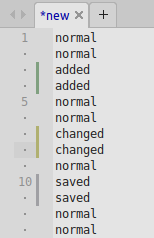](</File:cudatext-line-states_.png>) | |
| 1854 | + | ||
| 1855 | + | Line states help to see which lines were edited since the last opening of a file / last saving of a file. CudaExt plugin gives few commands for line states: | |
| 1856 | + | ||
| 1857 | + | * "Jump: to next/previous changed lines" | |
| 1858 | + | * "Jump: to next/previous working lines" | |
| 1859 | + | * "Jump: to next/previous saved lines" | |
| 1860 | + | ||
| 1861 | + | # How to change icons | |
| 1862 | + | ||
| 1863 | + | Screenshot shows 3 icon sets at once: | |
| 1864 | + | ||
| 1865 | + | * on the main toolbar (horizontal) | |
| 1866 | + | * on the sidebar (vertical) | |
| 1867 | + | * on the Project Manager toolbar (horizontal, below "Project" text) | |
| 1868 | + | ||
| 1869 | + | [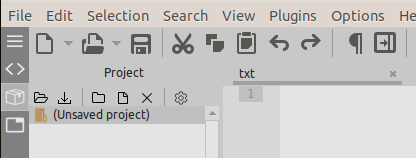](</File:cudatext_all_icons.png>) | |
| 1870 | + | ||
| 1871 | + | **Icons on the main toolbar** | |
| 1872 | + | ||
| 1873 | + | To change them: | |
| 1874 | + | ||
| 1875 | + | * (Optional) Install add-on(s) of kind "toolbar theme" (each add-on gives additional icon set or several sets). | |
| 1876 | + | * Change option "ui_toolbar_theme" in user.json. Option value is some subfolder in data/toolbaricons. | |
| 1877 | + | * Restart CudaText. | |
| 1878 | + | ||
| 1879 | + | Note that plugin "Options Editor Lite" makes it easy - for options "ui_toolbar_theme"/"ui_sidebar_theme"/"ui_tree_theme" it shows the combobox dropdown, which is easy to change. | |
| 1880 | + | ||
| 1881 | + | **Icons on the sidebar** | |
| 1882 | + | ||
| 1883 | + | To change them: | |
| 1884 | + | ||
| 1885 | + | * (Optional) Install add-on(s) of kind "sidebar theme". | |
| 1886 | + | * Change option "ui_sidebar_theme" in user.json. Option value is some subfolder in data/sideicons. | |
| 1887 | + | * Restart CudaText. | |
| 1888 | + | ||
| 1889 | + | **Icons on the Project Manager toolbar** | |
| 1890 | + | ||
| 1891 | + | To change them: | |
| 1892 | + | ||
| 1893 | + | * (Optional) Install add-on(s) of kind "proj toolbar theme". | |
| 1894 | + | * Change option in the dialog: "Options / Settings-plugins / Project Manager / Config". | |
| 1895 | + | * Restart CudaText. | |
| 1896 | + | ||
| 1897 | + | **Icons in the Project Manager file list** | |
| 1898 | + | ||
| 1899 | + | [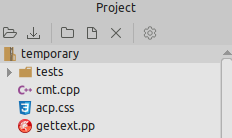](</File:cudatext-project-icons.png>) | |
| 1900 | + | ||
| 1901 | + | To change them: | |
| 1902 | + | ||
| 1903 | + | * Install add-on(s) of kind "file type icons". | |
| 1904 | + | * Change option in the dialog: "Options / Settings-plugins / Project Manager / Config". | |
| 1905 | + | * Restart CudaText. | |
| 1906 | + | ||
| 1907 | + | **Icons on UI-tab titles** | |
| 1908 | + | ||
| 1909 | + | [](</File:cudatext-tab-icons.png>) | |
| 1910 | + | ||
| 1911 | + | You must install plugin "Tab Icons" from Addons Manager. It will show icons on UI-tabs (only for known file types). Plugin also allows to set custom icons for UI-tabs. Use right-click menu over UI-tab, and menu item "Set tab icon...". This shows menu with predefined custom icons, shipped with "Tab Icons" plugin. You can add *.png 16x16 icons there too, folder is "(CudaText)/data/tabsicons" (create folder if needed). | |
| 1912 | + | ||
| 1913 | + | **Icons in the Code-Tree panel** | |
| 1914 | + | ||
| 1915 | + | [](</File:atsynedit_tree.png>) | |
| 1916 | + | ||
| 1917 | + | To change them: | |
| 1918 | + | ||
| 1919 | + | * Install add-on(s) of kind "codetreeicons" (each add-on gives additional icon set). | |
| 1920 | + | * Change option "ui_tree_theme" in user.json. Option value is some subfolder in data/codetreeicons. | |
| 1921 | + | * Restart CudaText. | |
| 1922 | + | ||
| 1923 | + | # Toolbar | |
| 1924 | + | ||
| 1925 | + | CudaText has toolbar on the top, which can be shown by menu item "View / Toggle toolbar". | |
| 1926 | + | ||
| 1927 | + | [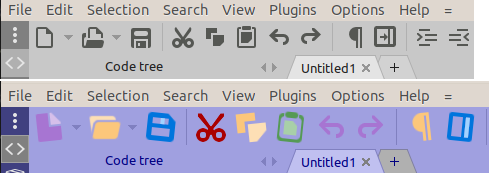](</File:cudatext-toolbar.png>) | |
| 1928 | + | ||
| 1929 | + | To customize it, install plugin "Config Toolbar" from Addon Manager. Plugin gives command (menu "Plugins / Config Toolbar / Customize buttons") to customize toolbar contents: simple buttons, buttons with dropdown menus, separators, icons for buttons. | |
| 1930 | + | ||
| 1931 | + | Plugin also gives command "Hide standard buttons" which allows to hide default CudaText buttons from toolbar. This command shows input box for space-separated indexes of buttons. What are these indexes? Indexes are 0-based numbers of all toolbar items: first button (New File) is index 0, next item (dropdown near New File) is index 1, next item (Open File) is index 2, etc (all separators also have index). So for example, to hide 3rd + 10th items, enter "2 9" into that input box. | |
| 1932 | + | ||
| 1933 | + | # Configurable statusbar | |
| 1934 | + | ||
| 1935 | + | Statusbar is fully configurable: you can change order/visibility of cells, width and alignment of cells. Option "ui_statusbar_panels" configures set of cells. Predefined cells are: | |
| 1936 | + | ||
| 1937 | + | * **Carets info**. Click on it shows Go To dialog. | |
| 1938 | + | * **Encoding name**. Click on it shows menu to change encoding of document. | |
| 1939 | + | * **Line-ends characters**. Click on it shows menu to change line-ends in entire document. | |
| 1940 | + | * **Lexer name**. Click on it shows lexers menu. | |
| 1941 | + | * **Tab-char size**. Shows "Tab: 4" if Tabulation-key inserts tab-char, or "Spaces: 4" if Tabulation-key inserts spaces. Click on it shows menu: | |
| 1942 | + | * To change tabulation size (for the active document). | |
| 1943 | + | * To change mode "Tabulation-key inserts spaces". | |
| 1944 | + | * 2 items for actions "Convert indentation to spaces", "Convert indentation to tabs" like in Sublime Text. | |
| 1945 | + | * **Text insert/overwrite mode** , toggled by Ins-key. Shows "Ins" or "Ovr". | |
| 1946 | + | * **Mouse selection mode** : "-" for normal mode, "||" for column mode (mouse dragging makes column selection even without Alt+ key). | |
| 1947 | + | * **Message** from program or plugins (usually it's last auto-sized cell). | |
| 1948 | + | * **Word-wrapping mode**. Cell is hidden by default. Shows one of possible 3 modes: | |
| 1949 | + | * No wrapping. | |
| 1950 | + | * Wrapping at window edge. | |
| 1951 | + | * Wrapping at fixed margin (set it by "margin" option). | |
| 1952 | + | * **Font zoom value** in percents. Cell is hidden by default. | |
| 1953 | + | ||
| 1954 | + | The cell "carets info" shows value of one of options: | |
| 1955 | + | ||
| 1956 | + | * **"ui_statusbar_no_sel"** : Used when there is no selection | |
| 1957 | + | * **"ui_statusbar_small_sel"** : Used when there is single-line selection | |
| 1958 | + | * **"ui_statusbar_str_sel"** : Used when selection is multi-line | |
| 1959 | + | * **"ui_statusbar_col_sel"** : Used for column-selection mode | |
| 1960 | + | * **"ui_statusbar_carets"** : Used when 2 or more carets are placed | |
| 1961 | + | ||
| 1962 | + | In the above "ui_statusbar_" options, macros are supported: | |
| 1963 | + | ||
| 1964 | + | * {y}: line index of first caret | |
| 1965 | + | * {y2}: line index of last caret | |
| 1966 | + | * {yb}: line index of first selection beginning | |
| 1967 | + | * {ye}: line index of first selection ending | |
| 1968 | + | * {x}: column index of first caret, tab-chars counted as 1 | |
| 1969 | + | * {xx}: column index of last caret, tab-chars expanded | |
| 1970 | + | * {count}: total number of lines | |
| 1971 | + | * {carets}: total number of carets | |
| 1972 | + | * {sel}: number of lines affected by selection(s) | |
| 1973 | + | * {selchars}: number of selected characters, for all kinds of selections | |
| 1974 | + | * {cols}: number of columns in column selection | |
| 1975 | + | * {char}: character at first caret (empty if no char) | |
| 1976 | + | * {char_dec}: character at first caret - decimal code (empty if no char) | |
| 1977 | + | * {char_hex}: character at first caret - 2...4-digit hex code (empty if no char) | |
| 1978 | + | * {char_hex4}: character at first caret - 4-digit hex code (empty if no char) | |
| 1979 | + | * {_ln}: localized string "Ln" | |
| 1980 | + | * {_col}: localized string "Col" | |
| 1981 | + | * {_sel}: localized string "sel" | |
| 1982 | + | * {_linesel}: localized string "lines sel" | |
| 1983 | + | * {_carets}: localized string "carets" | |
| 1984 | + | ||
| 1985 | + | An option exists to change the delay of messages in the statusbar. | |
| 1986 | + | ||
| 1987 | + | This is not used in the main statusbar, but plugin API allows to colorize statusbar cells (used by Vim Mode plugin), and to show icons there. | |
| 1988 | + | ||
| 1989 | + | # Text/Hex viewer | |
| 1990 | + | ||
| 1991 | + | CudaText has internal file viewer, for files on unlimited size. Viewer is based on different component: not ATSynEdit but ATBinHex. Viewer loads into memory only visible portion of file, so viewer is fast for files of any size. To activate the viewer for normal small text files, use these Command Palette commands: | |
| 1992 | + | ||
| 1993 | + | * file: open file, in text viewer | |
| 1994 | + | * file: open file, in hex viewer | |
| 1995 | + | * file: open file, in unicode viewer | |
| 1996 | + | * plugin: Cuda-Ext: File: Show in hex viewer (this command is from CudaExt plugin) | |
| 1997 | + | ||
| 1998 | + | Viewer component supports several modes: | |
| 1999 | + | ||
| 2000 | + | * Text mode: 1-byte encoding, variable line length | |
| 2001 | + | * Binary mode: 1-byte encoding, fixed width (line breaks are ignored) | |
| 2002 | + | * Hex mode: 1-byte encoding, fixed width | |
| 2003 | + | * Unicode mode: like Text, but in UTF-16 encoding | |
| 2004 | + | * Unicode/Hex mode: like Hex, but in UTF-16 encoding | |
| 2005 | + | ||
| 2006 | + | Combined screenshot shows the different modes in action: Text, Binary, Hex, Unicode. | |
| 2007 | + | ||
| 2008 | + | [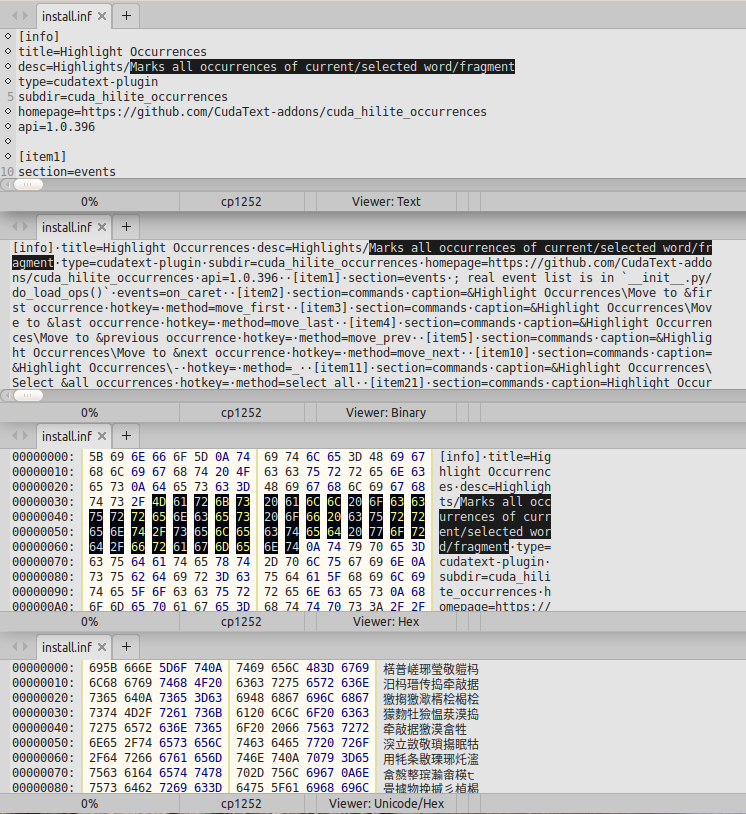](</File:cudatext-viewer-modes.png>) | |
| 2009 | + | ||
| 2010 | + | CudaText suggests to use viewer for files of too big size (bigger than option "ui_max_size_open"). And for files with binary contents. | |
| 2011 | + | ||
| 2012 | + | [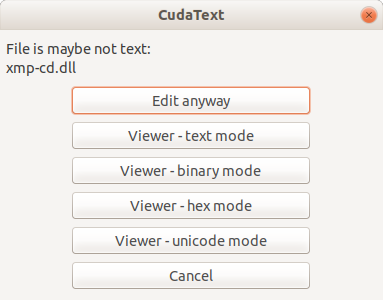](</File:cudatext-viewer-asking.png>) | |
| 2013 | + | ||
| 2014 | + | Viewer has only limited search support, ie not all Find-dialog options are enabled, when file viewer is active. Viewer allows to use "Go to" dialog. In the "Go to" dialog, you can enter "2000" to jump to hex offset 0x2000 (in hex mode, rounded to 16 bytes). If you enter "50%", viewer will jump to the middle. Viewer supports selection of block by mouse, and hotkeys Ctrl+A (Select all), Ctrl+C (Copy to clipboard). Viewer supports double-click to select whole word. | |
| 2015 | + | ||
| 2016 | + | In viewer mode, you can click statusbar fields: | |
| 2017 | + | ||
| 2018 | + | * Encoding field. You can change viewer encoding only in non-Unicode modes. | |
| 2019 | + | * Mode field, to change view mode: Text, Binary, Hex, Unciode, Unicode/Hex. | |
| 2020 | + | ||
| 2021 | + | **Q: How to open file in viewer?** | |
| 2022 | + | ||
| 2023 | + | A1: If file is too big, CudaText suggests to use viewer automatically - see screenshot of the helper dialog above. If file is not too big, you can switch from the editor to viewer. You need the plugin CudaExt which gives the Command Palette command: **"Cuda-Ext: File: Show in hex viewer"**. After that, you can change viewer-mode via statusbar click: Text / Binary / Hex / etc. To switch back to the editor, use Command Palette command: **"Cuda-Ext: File: Show in text editor"**. | |
| 2024 | + | ||
| 2025 | + | A2: Start CudaText without any files, and call Command Palette item **"file: open file, in text viewer"**. It shows the Open File dialog and then loads file directly into viewer. Again, you can change viewer-mode via statusbar click: Text / Binary / Hex / etc. | |
| 2026 | + | ||
| 2027 | + | A3: Start CudaText from Terminal (console) like this: | |
| 2028 | + | ``` | |
| 2029 | + | cudatext -z=text FileName | |
| 2030 | + | cudatext -z=binary FileName | |
| 2031 | + | cudatext -z=hex FileName | |
| 2032 | + | ``` | |
| 2033 | + | ||
| 2034 | + | # Picture file viewer | |
| 2035 | + | ||
| 2036 | + | CudaText has the emdedded picture file viewer. Picture mode is activated for files with several known extensions: | |
| 2037 | + | ||
| 2038 | + | * BMP | |
| 2039 | + | * PNG | |
| 2040 | + | * JPEG, JPG | |
| 2041 | + | * GIF | |
| 2042 | + | * ICO (Windows icon) | |
| 2043 | + | * WEBP, it requires libwebp library: on Windows it is file libwebp32.dll / libwebp64.dll in the CudaText folder; on Linux/Unix it is file libwebp.so.6 in system folder | |
| 2044 | + | * PSD (Photoshop image) | |
| 2045 | + | * TGA (Targa) | |
| 2046 | + | * CUR (Windows cursor) | |
| 2047 | + | ||
| 2048 | + | Viewer supports zooming of an image: | |
| 2049 | + | ||
| 2050 | + | * use Ctrl + mouse wheel | |
| 2051 | + | * click the statusbar cell with the zoom value, and choose one of predefined zoom values: 33%, 50%, 100%, 150%, 200%, 500%, 1000%, 1500%. | |
| 2052 | + | ||
| 2053 | + | While picture is zoomed so that it's bigger than the current window, you can drag the picture by mouse. | |
| 2054 | + | ||
| 2055 | + | While picture viewer is active, Find/Replace dialog is disabled. | |
| 2056 | + | ||
| 2057 | + | # Pair brackets | |
| 2058 | + | ||
| 2059 | + | CudaText has built-in pair bracket finder. Bracket finder can highlight pair brackets, when there is only single caret, and no selection is placed. It finds symbols "()[]{}<>" (configurable per lexer via lexer-specific configs). Bracket finder respects lexer context: it skips symbols inside syntax "comments" and syntax "strings". If caret is placed not directly on/after a bracket, program will find nearest surrounding brackets. | |
| 2060 | + | ||
| 2061 | + | (Long time ago, plugin "Bracket Helper" was needed for this feature, later it was removed from add-ons.) | |
| 2062 | + | ||
| 2063 | + | There are several options: | |
| 2064 | + | ||
| 2065 | + | * "bracket_highlight" | |
| 2066 | + | * "bracket_symbols" (includes only symbols ()[]{} by default, but you can enable symbols <> for example in HTML lexer specific config) | |
| 2067 | + | * "bracket_distance" | |
| 2068 | + | * "auto_close_brackets" | |
| 2069 | + | ||
| 2070 | + | There are several commands in the Command Palette: | |
| 2071 | + | ||
| 2072 | + | * brackets: pair highlight: on | |
| 2073 | + | * brackets: pair highlight: off | |
| 2074 | + | * brackets: pair highlight: toggle | |
| 2075 | + | * brackets: jump to pair | |
| 2076 | + | * brackets: select to pair | |
| 2077 | + | * brackets: select to pair, inside (it makes selection smaller by 2 characters) | |
| 2078 | + | ||
| 2079 | + | ## Brackets auto-pairing logic | |
| 2080 | + | ||
| 2081 | + | Auto-pairing of brackets is controlled by the option "auto_close_brackets". Option supports auto-pairing of brackets and some other chars (quotes, tilde etc). | |
| 2082 | + | ||
| 2083 | + | **For single caret** | |
| 2084 | + | ||
| 2085 | + | * If selection is present, and opening bracket is typed, CudaText encloses the selection into 2 paired chars, like "(selection)". | |
| 2086 | + | * If there is no selection, and char is typed (not only bracket-char, but any char from the option), CudaText inserts 2 paired chars like "()", moving the caret inside that pair. Incorrect contexts for the pairing are: | |
| 2087 | + | * Context "\|" - caret is after backslash. | |
| 2088 | + | * Context "|w" - char after caret is not one of :;.,=>. | |
| 2089 | + | * Context "w|" - quote-char (single quote, double quote, backtick) is typed after a word-char. | |
| 2090 | + | * If there is no selection, and closing bracket is typed, CudaText may ignore this char or not, it depends on context: | |
| 2091 | + | * Context "f(|)" - app ignores closing bracket and only moves caret righter. | |
| 2092 | + | * Context "f(text|)" - new closing bracket is added. | |
| 2093 | + | ||
| 2094 | + | **For multi-carets** | |
| 2095 | + | ||
| 2096 | + | CudaText first looks at contexts of all carets. If at least one caret has "not suitable" context, app does not do the pairing, for all carets. So pairing is performed for all or nothing. | |
| 2097 | + | ||
| 2098 | + | For caret with selection, context is considered as OK. And typed char will enclose the selection for that caret. | |
| 2099 | + | ||
| 2100 | + | ## Auto-deletion of pair brackets | |
| 2101 | + | ||
| 2102 | + | BackSpace key supports deletion of both brackets at once. Only for bracket chars listed in the "bracket_symbols" option. It is supported when all carets have the 'good situation', ie this (caret is shown by "|"): | |
| 2103 | + | ``` | |
| 2104 | + | (|) | |
| 2105 | + | [|] | |
| 2106 | + | {|} | |
| 2107 | + | ``` | |
| 2108 | + | ||
| 2109 | + | or this, with additional spaces: | |
| 2110 | + | ``` | |
| 2111 | + | (| ) | |
| 2112 | + | [| ] | |
| 2113 | + | {| } | |
| 2114 | + | ``` | |
| 2115 | + | ||
| 2116 | + | When all carets have this 'good situation', BackSpace deletes both brackets at once. When at least one caret does not have the 'good situation', BackSpace performs usual deletion of single character on the left. | |
| 2117 | + | ||
| 2118 | + | # Word jump commands | |
| 2119 | + | ||
| 2120 | + | CudaText provides several word-jump commands, see them in the Command Palette by entering "go to word": | |
| 2121 | + | ||
| 2122 | + | * go to word next | |
| 2123 | + | * go to word next + select | |
| 2124 | + | * go to word next, simple | |
| 2125 | + | * go to word next, simple + select | |
| 2126 | + | * go to word previous | |
| 2127 | + | * go to word previous + select | |
| 2128 | + | * go to word previous, simple | |
| 2129 | + | * go to word previous, simple + select | |
| 2130 | + | * go to word end | |
| 2131 | + | * go to word end + select | |
| 2132 | + | ||
| 2133 | + | "Go to word next" vs "Go to word end"? | |
| 2134 | + | ||
| 2135 | + | * "...next" - jumps to the next word start (left word boundary). | |
| 2136 | + | * "...end" - jumps to the end of the current word (right word boundary), and after that it jumps to the next word end too. | |
| 2137 | + | ||
| 2138 | + | For example, Windows 7 Notepad performs "...next" on pressing Ctrl+Right, while Sublime Text 3 performs "...end" on pressing Ctrl+Right. To configure Ctrl+Right (and Shift+Ctrl+Right) behaviour, re-assign this hotkey from one command to another - to reassign it, press F9 in the Command Palette dialog. | |
| 2139 | + | ||
| 2140 | + | "Go to word next" vs "Go to word next, simple"? | |
| 2141 | + | ||
| 2142 | + | * "..., simple" command performs simplified jump, it treats all alpha-numerical characters and symbols (#$%^&@ etc) as one group, so it makes single jump over "test@#some!" string. | |
| 2143 | + | * "Go to word next" treats alpha-numericals and symbols as different char groups, and stops at the beginning of each group. | |
| 2144 | + | ||
| 2145 | + | Plugin CudaExt provides such related commands: | |
| 2146 | + | ||
| 2147 | + | * Cuda-Ext: Jump: Left into CamelCase/snake_case | |
| 2148 | + | * Cuda-Ext: Jump: Right into CamelCase/snake_case | |
| 2149 | + | ||
| 2150 | + | # Sorting and finding duplicate lines | |
| 2151 | + | ||
| 2152 | + | CudaText has two sorting methods. | |
| 2153 | + | ||
| 2154 | + | **Method 1: Plugin "Sort"**. It supports Undo for its commands. It works not fast and takes lot of memory on sorting. It cannot sort some huge files, because it reads document contents from Pascal memory buffer to Python memory buffers. | |
| 2155 | + | ||
| 2156 | + | Commands in the menu "Plugins / Sort" and in the Command Palette: | |
| 2157 | + | ||
| 2158 | + | * Sort ascending | |
| 2159 | + | * Sort descending | |
| 2160 | + | * Sort ascending, ignore case | |
| 2161 | + | * Sort descending, ignore case | |
| 2162 | + | * Sort dialog... (shows all sorting options in dialog) | |
| 2163 | + | * Reverse lines | |
| 2164 | + | * Shuffle lines | |
| 2165 | + | * Remove duplicate lines | |
| 2166 | + | * Remove duplicate lines, but keep blanks | |
| 2167 | + | * Remove duplicate lines + origins | |
| 2168 | + | * Remove adjacent duplicate lines (ie nearest repeated lines) | |
| 2169 | + | * Extract duplicate lines (put duplicate lines to a new document) | |
| 2170 | + | * Extract duplicate lines, ignore case | |
| 2171 | + | * Extract unique lines | |
| 2172 | + | * Remove blank lines | |
| 2173 | + | * Remove adjacent blank lines | |
| 2174 | + | * Ini file: sort sections and keys | |
| 2175 | + | * Ini file: sort sections, but not keys | |
| 2176 | + | * Sort e-mail list by domain (lines should be valid email addresses to sort them by domain) | |
| 2177 | + | ||
| 2178 | + | The advantage of "Sort" plugin is that is has additional commands (for duplicate lines, for ini files, for e-mails). | |
| 2179 | + | ||
| 2180 | + | Plugin has config file, you can edit it via menu item "Options / Settings-plugins / Sort". In the section [sort] you can change option "allow_sort_all_when_none_selected" to 0 or 1 to disable/enable sorting of entire document, if nothing is selected. If selection exists (single selection), plugin handles only selected lines. | |
| 2181 | + | ||
| 2182 | + | **Method 2: Pascal-based sorting commands** , which are named in the Command Palette like "(without undo) sort...". They clear current Undo (ie user cannot undo sorting operation), but they are optimized for speed and memory. Commands don't read document contents into additional buffers, they sort lines in-place (changing pointers only). So these commands work with any files which CudaText can load. | |
| 2183 | + | ||
| 2184 | + | Commands in the Command Palette are: | |
| 2185 | + | ||
| 2186 | + | * (without undo) sort ascending | |
| 2187 | + | * (without undo) sort ascending, ignore case | |
| 2188 | + | * (without undo) sort descending | |
| 2189 | + | * (without undo) sort descending, ignore case | |
| 2190 | + | * (without undo) delete all blank lines | |
| 2191 | + | * (without undo) delete adjacent blank lines | |
| 2192 | + | * (without undo) delete all duplicate lines | |
| 2193 | + | * (without undo) delete all duplicate lines, keep blanks | |
| 2194 | + | * (without undo) delete adjacent duplicate lines | |
| 2195 | + | * (without undo) reverse lines | |
| 2196 | + | * (without undo) shuffle lines | |
| 2197 | + | ||
| 2198 | + | These built-in commands handle only the range of selected lines, if selection exists (only first selection is handled). | |
| 2199 | + | ||
| 2200 | + | # Markers | |
| 2201 | + | ||
| 2202 | + | "Markers" are text positions which are shown with red (color in default theme) triangles below them. CudaText gives such commands in the Command Palette: | |
| 2203 | + | ||
| 2204 | + | * "markers: drop marker at caret": Adds a marker on current caret position. | |
| 2205 | + | * "markers: go to last marker (don't delete)": Moves caret to the last placed marker without deleting it. | |
| 2206 | + | * "markers: collect last marker (delete)": Moves caret to the last placed marker and deletes it. | |
| 2207 | + | * "markers: remove all": Removes all markers in the current document. | |
| 2208 | + | * "markers: swap caret and last marker": Moves caret to the last placed marker, deletes this marker, and adds marker on the previous caret position. Command is to jump to the last marker, second command call jumps back, 3rd command call jumps back, etc. | |
| 2209 | + | * "markers: select to last marker": Makes text selection from caret position to the position of last placed marker. | |
| 2210 | + | * "markers: delete to last marker": Deletes text from caret position to the position of last placed marker. | |
| 2211 | + | ||
| 2212 | + | Markers are utilized by the Snippets plugin. | |
| 2213 | + | ||
| 2214 | + | [](</File:cudatext-markers-html.png>) | |
| 2215 | + | ||
| 2216 | + | Snippets plugin finds tab-stops in the inserting snippet text, and places markers for them. After markers are placed by Snippets plugin, Tab-key works in special way - it runs command "collect last marker", ie it jumps to the next marker ("next" by the order of tab-stop: 1, 2, 3... tab-stop 0 is the last). When user collects all markers by Tab-key, this special mode deactivates and Tab-key works as usual again. Command "markers: remove all" also deactivates that mode. | |
| 2217 | + | ||
| 2218 | + | Note about command "Add next occurrence of selected word". This command finds next occurrence, and adds marker (with underline) for the last added selection. This marker is special: it's intended only for this command, and it's auto-removed on a) "Cancel carets" command, b) any text changing, c) mouse click. The reason for this marker is to support "wrapped" search: command runs "wrapped" search when it reaches the document end. | |
| 2219 | + | ||
| 2220 | + | # Dialog "Save tabs" | |
| 2221 | + | ||
| 2222 | + | Dialog "Save tabs?" shows on CudaText closing, if at least one document is modified and not saved to disk. Dialog lists all modified file-tabs (usually one file per one file-tab, but it's allowed to have 2 files in a single file-tab). Checkmarks (all checked by default) are used to check/uncheck file-tabs which will be saved on pressing "Save" button. For untitled documents to be saved, program will show "Save as" prompts. Button "Don't save" closes dialog and program, losing modifications. Button "Cancel" closes the dialog, but not the program. | |
| 2223 | + | ||
| 2224 | + | CudaText has the option "ui_reopen_session". When it is true, dialog "Save tabs?" shows additional button: "Don't save / Keep in session", which doesn't save disk files, but stores modified documents to active "session" file. Program will read it on start. | |
| 2225 | + | ||
| 2226 | + | Also CudaText gives the command "dialog: save tabs" in the Command Palette. It shows the same dialog, the difference is that buttons do not close the program. | |
| 2227 | + | ||
| 2228 | + | # Hex display of special chars | |
| 2229 | + | ||
| 2230 | + | Editor shows some characters in a "hex form", like "x2000" for character U+2000. For codes below 0x100, hex form is shorter, like "x01" for character U+0001. If single-byte encoding is used (e.g. cp437), then only the short hex form is used. Hex form is rendered with different font color. | |
| 2231 | + | ||
| 2232 | + | [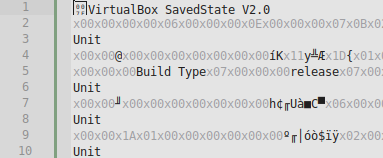](</File:cudatext-hex-chars.png>) | |
| 2233 | + | ||
| 2234 | + | Special characters which are always rendered in the hex form (this is not configurable): | |
| 2235 | + | ||
| 2236 | + | * U+0000...U+001F, except Tab-char U+0009 | |
| 2237 | + | * U+2000...U+200F: white spaces + specials | |
| 2238 | + | * U+2028...U+202F: white spaces + specials | |
| 2239 | + | * U+2066...U+2069 | |
| 2240 | + | * U+0085 | |
| 2241 | + | * U+061C | |
| 2242 | + | * U+FEFF | |
| 2243 | + | ||
| 2244 | + | # Tabs features | |
| 2245 | + | ||
| 2246 | + | Control of UI tabs is named ATTabs, and has many features: | |
| 2247 | + | ||
| 2248 | + | * Pseudo-tab "+" at the end. Option "ui_tab_show_plus". | |
| 2249 | + | * Scrolling arrows (on the left by default), to scroll tabs when there are lot of them and they don't fit. Thin scrolling indicator auto-appears on the top (default color is red). | |
| 2250 | + | * Drop-down arrow (on the right by default), to show menu of all tabs in the current group. | |
| 2251 | + | * Tabs can be placed on all 4 sides: top, bottom, left, right. Option "ui_tab_position". | |
| 2252 | + | ||
| 2253 | + | [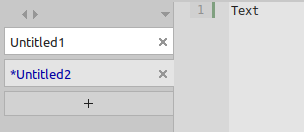](</File:cudatext-tabs-left_.png>) | |
| 2254 | + | ||
| 2255 | + | * Layout of "arrows" is customizable. Option "ui_tab_button_layout". Button "+" is available, to replace "+" pseudo-tab, this button is always visible (pseudo-tab can be scrolled away). Button "x" is available, to close the current tab. Screenshot shows the layout with all possible buttons placed on the left. | |
| 2256 | + | ||
| 2257 | + | [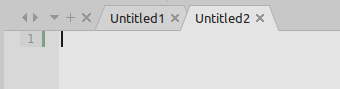](</File:cudatext-tabs-layout.png>) | |
| 2258 | + | ||
| 2259 | + | * Tabs can be multi-line. In multi-line mode, tabs-control changes its own height. But this height is limited by 2/3 of the window height. Option "ui_tab_multiline". | |
| 2260 | + | ||
| 2261 | + | [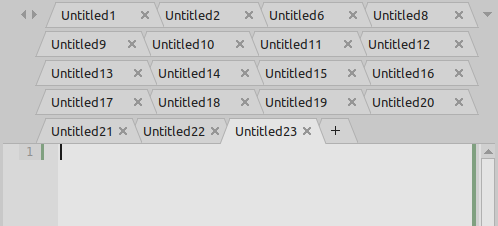](</File:cudatext-tabs-multiline.png>) | |
| 2262 | + | ||
| 2263 | + | * Tabs can have fixed or variable width. "Variable width" means that tabs are auto-stretched to fit the longer title. Option "ui_tab_variable_width". Minimal/maximal width of fixed tabs is customizable. | |
| 2264 | + | ||
| 2265 | + | * Tabs can be shaped/bordered, or can be flat. Option "ui_tab_flat". Flat tabs are painted with additional colored underline for the active document. | |
| 2266 | + | ||
| 2267 | + | [](</File:cudatext-tabs-flat.png>) | |
| 2268 | + | ||
| 2269 | + | * Tabs can be dragged by mouse: inside original group or to another groups (to show another groups use "Split" top menu item). And can be moved to specified group index using tab context menu items "Move tab to group n". | |
| 2270 | + | * Program can be used without tabs at all. Options "ui_tab_show" and "ui_tab_disabled". | |
| 2271 | + | ||
| 2272 | + | * Tabs can be colored, by calling tab's context menu, and "Set tab color..." menu item. Internally, it calls plugin cuda_palette to choose the color, then color is applied. Plugin dialog has several modes (even simplest mode named "60 colors" is enough). By default, only thin line at the edge of tabs is colored, but you can colorize the entire tab using CudaText option "ui_tab_fullcolor". Coloring is saved to session (tab color is usual property of editor). | |
| 2273 | + | ||
| 2274 | + | [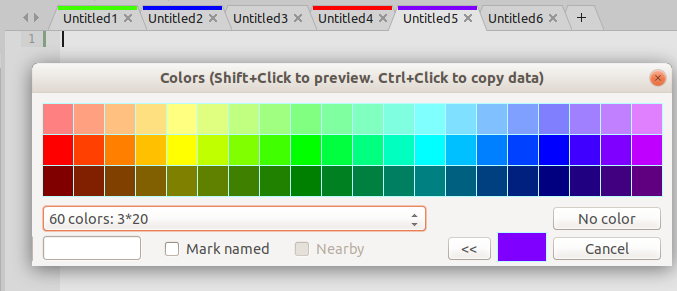](</File:cudatext-tab-colors.png>) | |
| 2275 | + | ||
| 2276 | + | * Tabs can have file-type icons, if plugin "Tab Icons" is installed (icons are preinstalled already, they are used by Project Manager). Plugin also allows to assign icons from additional set of 16x16 PNG files. | |
| 2277 | + | ||
| 2278 | + | [](</File:cudatext-tab-icons.png>) | |
| 2279 | + | ||
| 2280 | + | * Tabs can show "path suffix" when there are several tabs for the same base filename. In the example picture, we have opened files "t.txt" from 3 different folders, and tabs show that folders after a bullet-char. Feature can show "path suffix" for up to 4 folder levels. | |
| 2281 | + | ||
| 2282 | + | [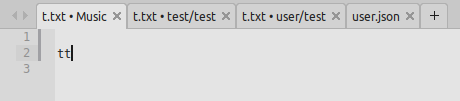](</File:cudatext-tabs-path-suffix.png>) | |
| 2283 | + | ||
| 2284 | + | * When too many tabs are opened, so that they don't fit by width/height: | |
| 2285 | + | * the left/right "arrow" icons become working, they scroll the tabs-control; | |
| 2286 | + | * the reddish "scroll marker" appears at the edge of the tab-control. Picture shows 2 windows with the scroll marker: one with single-line tabs, another is with multi-line tabs. | |
| 2287 | + | ||
| 2288 | + | [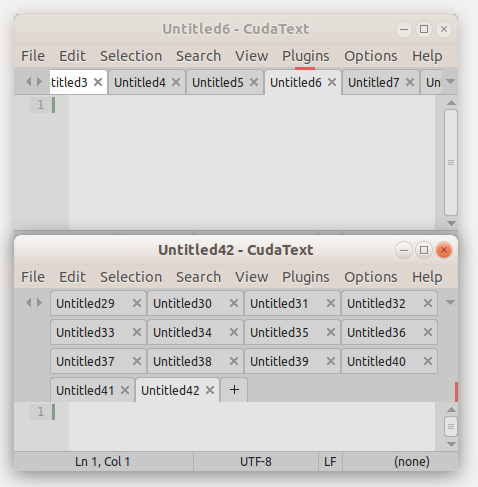](</File:cudatext-tabs-red-marker.png>) | |
| 2289 | + | ||
| 2290 | + | * Tabs can be made "pinned" using tab's context menu item "Pinned". Pinned tab caption renders with a "!" prefix char. Commands "Close all tabs" and "Close other tabs" skip pinned tabs. Closing of a pinned tab shows additional confirmation like "Tab is pinned... Are you sure you want to close it?". | |
| 2291 | + | ||
| 2292 | + | # Activating internet links | |
| 2293 | + | ||
| 2294 | + | CudaText allows to activate internet links (URLs) and e-mails (e-mail can be with the '[mailto:'](<mailto:'>) and without it). This feature needs that links are automatically underlined in the editor. After the double-click on an underlined link, editor shows small button over the link (button with caption "Open link" or "Send e-mail"), and clicking on this temporary button activates the link. | |
| 2295 | + | ||
| 2296 | + | [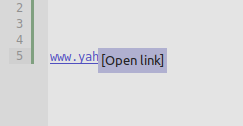](</File:cudatext-click-link.png>) | |
| 2297 | + | ||
| 2298 | + | This works with the default values of 2 options: | |
| 2299 | + | ||
| 2300 | + | * "links_regex": it must include RegEx, which detects and underlines links | |
| 2301 | + | * "mouse_click_links": it gives choices: | |
| 2302 | + | * don't activate links by clicks | |
| 2303 | + | * activate by single click | |
| 2304 | + | * activate by double click | |
| 2305 | + | ||
| 2306 | + | # HTML color codes underlining | |
| 2307 | + | ||
| 2308 | + | CudaText can colorize HTML color codes, which have these forms: | |
| 2309 | + | ||
| 2310 | + | * #abc | |
| 2311 | + | * #abc0 | |
| 2312 | + | * #aabbcc | |
| 2313 | + | * #aabbcc00 | |
| 2314 | + | * rgb(100, 200, 100) | |
| 2315 | + | * rgba(100, 200, 100, 0.5) | |
| 2316 | + | * hsl(0, 100%, 50%) | |
| 2317 | + | * hsla(0, 100%, 50%, 0.5) | |
| 2318 | + | ||
| 2319 | + | Two options configure this feature: | |
| 2320 | + | ||
| 2321 | + | * "underline_color_files": Specifies which file extensions are supported by the feature. | |
| 2322 | + | * "underline_color_size": Specifies the size of colored block in the editor area. It can be simple underline below the color code, or a background highlighting. Background highlighting can be in 2 variants: for entire text, for the fragment inside brackets. | |
| 2323 | + | ||
| 2324 | + | Screenshot shows all 3 variants in different CudaText windows: | |
| 2325 | + | ||
| 2326 | + | [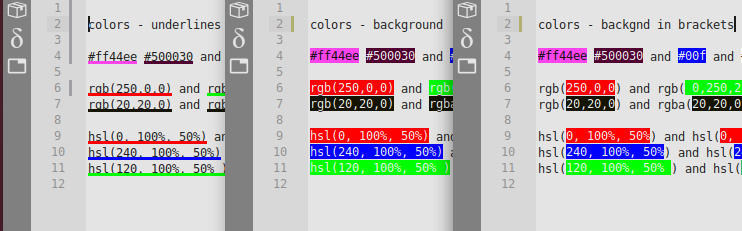](</File:cudatext-color-underline.png>) | |
| 2327 | + | ||
| 2328 | + | # UI scaling | |
| 2329 | + | ||
| 2330 | + | UI can be scaled by these options: | |
| 2331 | + | ||
| 2332 | + | * "ui_scale" (needs suffix for OS): it scales the sizes of UI controls only. | |
| 2333 | + | * "ui_scale_font" (needs suffix for OS): it scales fonts sizes only (both editor text font and UI font). | |
| 2334 | + | ||
| 2335 | + | Auto-detection of current OS scale is implemented for Windows only. And you can ignore the Windows scale auto-detection, by setting the above options. | |
| 2336 | + | ||
| 2337 | + | Additional options are: | |
| 2338 | + | ||
| 2339 | + | * "ui_tab_scale": it scales UI-tabs font, independent from other options. | |
| 2340 | + | * "minimap_scale": it scales minimap only, independant from other options. | |
| 2341 | + | * "unprinted_symbols_scale": it scales graphics rendered for non-printable stuff: spaces, tabs, EOL text markers. | |
| 2342 | + | ||
| 2343 | + | If you scale UI, you may want to scale the icons as well. But icons are PNG images and cannot be resized, so the solution here is additional icon sets. In the menu "Plugins / Addons Manager / Install" you will find several categories of icon sets: | |
| 2344 | + | ||
| 2345 | + | * category "sidebartheme" - configured by option "ui_sidebar_theme" | |
| 2346 | + | * category "toolbartheme" - configured by option "ui_toolbar_theme" | |
| 2347 | + | * category "codetreeicons" - configured by option "ui_tree_theme" | |
| 2348 | + | * category "projtoolbaricons" - configured by dialog of Project Manager | |
| 2349 | + | * category "filetypeicons" - configured by dialog of Project Manager | |
| 2350 | + | ||
| 2351 | + | # Themed top menu | |
| 2352 | + | ||
| 2353 | + | Top menu (together with some context menus and menu from the "hamburger" icon) can be themed. Only on Windows. This needs the option `"ui_menu_themed":true` (it's 'true' by default). When option is on, menu font/background/selection/checkmarks become colored from other CudaText UI theme colors. Also, option "ui_menu_themed_font_size" allows to change the font size. | |
| 2354 | + | ||
| 2355 | + | You can also set colors of menu elements directly; dialog "Options / Themes / Settings - theme - ui" provides theme items for this. For example, to set the font-color of the top menu, change the color of element "top menu, font" in the dialog. | |
| 2356 | + | ||
| 2357 | + | [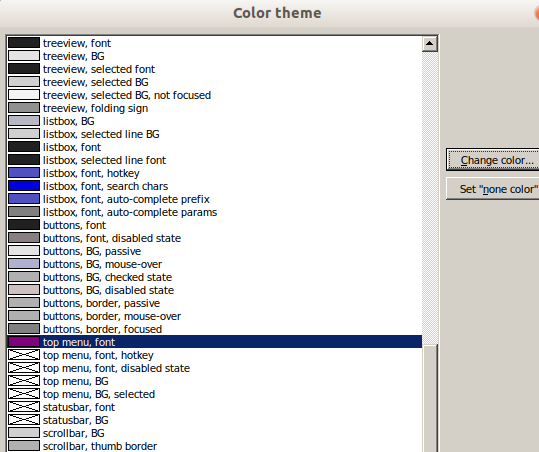](</File:cudatext-menu-colorsetup.png>) | |
| 2358 | + | ||
| 2359 | + | By default, elements "top menu, ...." in the dialog have the "none" color (crossed rectangles), it means that actual colors are taken from other UI-theme elements: | |
| 2360 | + | ||
| 2361 | + | * "top menu, font" - falls back to element "tabs, font" | |
| 2362 | + | * "top menu, font, hotkey" - falls back to element "top menu, font" and then to element "tabs, font, modified tab" | |
| 2363 | + | * "top menu, font, disabled state" - falls back to element "tabs, passive tab border" | |
| 2364 | + | * "top menu, BG" - falls back to element "tabs, active tab BG" | |
| 2365 | + | * "top menu, BG, selected" - falls back to element "tabs, mouse-over tab BG" | |
| 2366 | + | ||
| 2367 | + | # Margins | |
| 2368 | + | ||
| 2369 | + | CudaText gives 2 options to render vertical lines in specified columns: | |
| 2370 | + | ||
| 2371 | + | * "margin": Integer value, column of "normal margin" vertical line. This margin is used also by the word-wrapping, then "wrap_mode" option is 2 or 3. It is also used by CudaExt plugin's action(s) ("Re-wrap lines by margin"). | |
| 2372 | + | * "margin_string": String of space-separated numbers, it makes vertical lines appear at additional columns. | |
| 2373 | + | ||
| 2374 | + | The plugin "Column Marks" adds more features: | |
| 2375 | + | ||
| 2376 | + | * Commands to set the "normal margin" and/or "additional margins" via prompt dialog. Plugin can save entered value to the user.json config. | |
| 2377 | + | * Commands to move the caret though all margin columns (normal + additional), to the left/right. | |
| 2378 | + | ||
| 2379 | + | # Add-ons | |
| 2380 | + | ||
| 2381 | + | ## How to disable plugins | |
| 2382 | + | ||
| 2383 | + | If file "plugin_disabled" (contents is ignored) exists in the plugin's folder (near install.inf), then plugin will be ignored. | |
| 2384 | + | ||
| 2385 | + | ## Entire plugins list | |
| 2386 | + | ||
| 2387 | + | See the [GitHub repository](<https://github.com/halfbrained/cudatext_plugins_list>) with the readme and links about almost all published plugins. You can make Pull-Request there, if needed. | |
| 2388 | + | ||
| 2389 | + | ## Kinds of add-ons | |
| 2390 | + | ||
| 2391 | + | **plugins** | |
| 2392 | + | ||
| 2393 | + | Extensions with Python code. They add events and/or commands. Commands can be called then via "Plugins" top menu, but only if plugin's install.inf file doesn't hide menu items in "Plugins". In any case, all commands can be called via Command Palette dialog. | |
| 2394 | + | ||
| 2395 | + | **lexers** | |
| 2396 | + | ||
| 2397 | + | Syntax highlighting files. For ex, Arduino lexer adds item "Arduino" to the lexer menu. Some addons can add 2 or more lexers, for ex "HTML nnnnnn" addons often add 2 lexers: one is visible in the lexer menu, another one is hidden (it supports embedded blocks). | |
| 2398 | + | ||
| 2399 | + | **linters** | |
| 2400 | + | ||
| 2401 | + | Sub-plugins for CudaLint plugin. Each supports some lexer (or several similar lexers). To use them, install CudaLint plugin, open your work file, and call CudaLint commands: it calls appropriate linter and shows colored bookmarks on error/warning lines. | |
| 2402 | + | ||
| 2403 | + | **formatters** | |
| 2404 | + | ||
| 2405 | + | Sub-plugins for CudaFormatter plugin. Each supports one or several lexers and can reformat source code for these lexers. Examples: Python ReIndent, JS Sort Imports, AStyle Format. | |
| 2406 | + | ||
| 2407 | + | **tree helpers** | |
| 2408 | + | ||
| 2409 | + | Plugins which show Code-Tree structure and/or folding, for some lexers. For the following lexers tree-helpers are built-in (ie written in Pascal): Ini (lite lexer "Ini files ^"), Markdown, MediaWiki, reStructuredText, WikidPad, Textile. | |
| 2410 | + | ||
| 2411 | + | **snippets_ct** | |
| 2412 | + | ||
| 2413 | + | Collections of text fragments, for "Snippets" plugin (which is required to use snippets). See details in the [[CudaText plugins|CudaText_plugins#Snippets]]. | |
| 2414 | + | ||
| 2415 | + | **translations** | |
| 2416 | + | ||
| 2417 | + | CudaText UI translations. For ex, JP translation changes all menuitems + dialogs to JP language. Dialogs of plugins are not affected. | |
| 2418 | + | ||
| 2419 | + | **plugintranslation** | |
| 2420 | + | ||
| 2421 | + | Translation of plugin strings to different languages. This includes translation of strings from Python code, and strings from "install.inf" files. | |
| 2422 | + | ||
| 2423 | + | **themes** | |
| 2424 | + | ||
| 2425 | + | UI/syntax themes for the "Options / Themes / Select color theme..." dialog. "UI" themes change colors of CudaText interface. "Syntax" themes change colors of text in syntax highlighted files. | |
| 2426 | + | ||
| 2427 | + | **Icons** | |
| 2428 | + | ||
| 2429 | + | **sidebar themes** | |
| 2430 | + | ||
| 2431 | + | Icon sets for the sidebar (vertical row of buttons on the left side). | |
| 2432 | + | ||
| 2433 | + | **toolbar themes** | |
| 2434 | + | ||
| 2435 | + | Icon sets for the main toolbar (horizontal row of buttons on the top). | |
| 2436 | + | ||
| 2437 | + | **toolbar x icons** | |
| 2438 | + | ||
| 2439 | + | Icon sets for plugin "Config Toolbar", for user-added buttons. | |
| 2440 | + | ||
| 2441 | + | **file type icons** | |
| 2442 | + | ||
| 2443 | + | Icon sets for the file list of "Project Manager" plugin. Usually these are repackaged icons for VS Code editor. | |
| 2444 | + | ||
| 2445 | + | **proj toolbar icons** | |
| 2446 | + | ||
| 2447 | + | Icon sets for the toolbar of "Project Manager" plugin. | |
| 2448 | + | ||
| 2449 | + | **code-tree icons** | |
| 2450 | + | ||
| 2451 | + | Icon sets for the Code-Tree (icons are visible in the Code-Tree with some lexers, e.g. C#). | |
| 2452 | + | ||
| 2453 | + | **build systems** | |
| 2454 | + | ||
| 2455 | + | Configuration files for different external tools, for the Runner plugin. Runner plugin supports build-systems for Sublime Text 3 (only JSON configs, without support for additional Python codes). | |
| 2456 | + | ||
| 2457 | + | **packages** | |
| 2458 | + | ||
| 2459 | + | Packages with possible binary files, which will be unpacked to the CudaText installation folder. For the date 2021.08, these are only Python engines, for CudaText Windows build. | |
| 2371 | 2460 | ||
| 2372 | 2461 | ## How to install add-ons offline | |
| 2373 | 2462 | ||
| 2374 | 2463 | Usually users install add-ons online, using "Plugins / Addons Manager / Install" command. But for some users online method is not available. How to install add-ons offline: | |
| 2375 | 2464 | ||
| 2376 | 2465 | * Download all add-ons in one zip file from this SourceForge page: <https://sourceforge.net/projects/cudatext/files/addons_all/> . Unpack this zip file to some folder. | |
| 2377 | 2466 | * You will find there individual add-ons, like "plugin.xxxx.zip", "lexer.yyyy.zip", "linter.zzzz.zip" etc. | |
| 2378 | 2467 | * To install individual add-on, just open its zip file in CudaText "File / Open file" dialog. CudaText will handle zip archive and suggest to install add-on from it. | |
| 2379 | 2468 | ||
| 2380 | 2469 | # Color themes | |
| 2381 | 2470 | ||
| 2382 | 2471 | ## Color themes introduction | |
| 2383 | 2472 | ||
| 2384 | 2473 | There are two kinds of themes: | |
| 2385 | 2474 | ||
| 2386 | 2475 | * UI themes, file extension .cuda-theme-ui | |
| 2387 | 2476 | * Syntax themes, file extension .cuda-theme-syntax | |
| 2388 | 2477 | ||
| 2389 | 2478 | 2 dialogs allow to customize these 2 kinds of themes: | |
| 2390 | 2479 | ||
| 2391 | 2480 | * "Options / Themes / Settings - theme - ui..." | |
| 2392 | 2481 | * "Options / Themes / Settings - theme - syntax..." | |
| 2393 | 2482 | ||
| 2394 | 2483 | And 3rd dialog allows to switch the currently active theme: | |
| 2395 | 2484 | ||
| 2396 | 2485 | * "Options / Themes / Select color theme..." | |
| 2397 | 2486 | ||
| 2398 | 2487 | How to use customization dialogs, steps: | |
| 2399 | 2488 | ||
| 2400 | 2489 | * Call dialog: "Options / Themes / Settings - theme - xxxx..." | |
| 2401 | 2490 | * For UI themes: customize colors in dialog | |
| 2402 | 2491 | * For syntax themes: customize lexer-styles in dialog | |
| 2403 | 2492 | * For syntax themes: test theme at least on JavaScript/HTML/CSS/C/Pascal/Ini/Markdown lexers. On what files to test: | |
| 2404 | 2493 | * You can use sample codes in the "Options / Lexers / Lexer properties" dialog. | |
| 2405 | 2494 | * You can use sample files from <https://github.com/Alexey-T/lexer_tests/tree/master/test_CudaText_color_themes> | |
| 2406 | 2495 | * New theme files are saved in the subfolder "data/themes" | |
| 2407 | 2496 | ||
| 2408 | 2497 | Don't configure custom lexer styles in the "Options / Lexers / Lexer properties" dialog, if option "ui_lexer_themes" is on (usually it's on), because syntax-theme will override all your colors from that dialog. You can configure colors there, if option is off. | |
| 2409 | 2498 | ||
| 2410 | 2499 | ## UI theme items with none-values | |
| 2411 | 2500 | ||
| 2412 | 2501 | The following UI theme items allow "none" values, it means that JSON theme-file stores the empty string for them, and plugin API returns COLOR_NONE value for them. | |
| 2413 | 2502 | ||
| 2414 | 2503 | * EdCurLineBg2 / 'editor, current line BG': when "none", it falls back to EdCurLineBg | |
| 2415 | 2504 | * EdBlockStapleActive / 'editor, block staples, for caret': when "none", it falls back to EdBlockStaple | |
| 2416 | 2505 | * OtherTextFont / 'single-line inputs, font': when "none", it falls back to EdTextFont | |
| 2417 | 2506 | * OtherTextBg / 'single-line inputs, BG': when "none", it falls back to EdTextBg | |
| 2418 | 2507 | * TabFontActive / 'tabs, font, active tab': when "none", it falls back to TabFont | |
| 2419 | 2508 | * TabCloseBg / 'tabs, close button BG': when "none", X-icon background is not painted | |
| 2420 | 2509 | * StatusFont / 'statusbar, font': when "none", it falls back to ButtonFont | |
| 2421 | 2510 | * StatusBg / 'statusbar, BG': when "none", it falls back to TabBg | |
| 2422 | 2511 | ||
| 2423 | 2512 | And the following items, which colorize the main menu - they are used only on Windows: | |
| 2424 | 2513 | ||
| 2425 | 2514 | * MenuFont / 'top menu, font': when "none", it falls back to TabFont | |
| 2426 | 2515 | * MenuFontHotkey / 'top menu, font, hotkey': when "none", it falls back to MenuFont, then to TabFontMod | |
| 2427 | 2516 | * MenuFontDisabled / 'top menu, font, disabled state': when "none", it falls back to TabBorderPassive | |
| 2428 | 2517 | * MenuBg / 'top menu, BG': when "none", it falls back to TabBg | |
| 2429 | 2518 | * MenuSelBg / 'top menu, BG, selected': when "none", it falls back to TabOver | |
| 2430 | 2519 | ||
| 2431 | 2520 | ## How to create theme package | |
| 2432 | 2521 | ||
| 2433 | 2522 | * If your theme files need some sort of 'suffix' (e.g. "dark", "light", "alternative"), put these suffixes into round brackets, after space-char, in the filename. For example, name the file "brackets (dark).cuda-theme-ui" instead of "brackets-dark.cuda-theme-ui". This is required by Addons Manager plugin, which will need to find the add-on package for your theme. | |
| 2434 | 2523 | ||
| 2435 | 2524 | * Create such file "install.inf" in UTF-8 encoding (without BOM): | |
| 2436 | 2525 | ||
| 2437 | 2526 | ``` | |
| 2438 | 2527 | [info] | |
| 2439 | 2528 | title=MyName UI theme (by AuthorName) | |
| 2440 | 2529 | type=cudatext-data | |
| 2441 | 2530 | subdir=themes | |
| 2442 | 2531 | homepage=https://github.com/nnnn/pppp | |
| 2443 | 2532 | ``` | |
| 2444 | 2533 | ||
| 2445 | 2534 | * Make zip file "theme.MyName.zip" with files "MyTheme.cuda-theme-nnnnn" and "install.inf". | |
| 2446 | 2535 | * Test zip file: open zip file in CudaText, confirm installation. | |
| 2447 | 2536 | * Publish file at forum or <https://github.com/Alexey-T/CudaText/issues> | |
| 2448 | 2537 | ||
| 2449 | 2538 | ## Meaning of UI-theme elements | |
| 2450 | 2539 | ||
| 2451 | 2540 | * "editor, font" - Color of editor font, when no lexer is active. To deactivate lexer in current editor ui-tab: click statusbar cell with lexer name, call item "(none)" in the menu. | |
| 2452 | 2541 | ||
| 2453 | 2542 | * "editor, disabled state, font/BG" - Editor is shown as disabled when Replace dialog runs 'Replace all' action, with option "Confirm on replace" (when the confirmation message is shown, editor is disabled). Too see the "..., font" color applied, deactivate the editor lexer. | |
| 2454 | 2543 | ||
| 2455 | 2544 | * "editor, current line BG, other wrapped parts" - Color is used for long wrapped lines, when options `"show_cur_line":true` and `"show_cur_line_minimal":false`. Color is used for background of non-current wrapped line parts, belonging to the caret's line. By default color is 'none', so program falls back to "current line BG" for other wrapped parts. | |
| 2456 | 2545 | ||
| 2457 | 2546 | * "editor, horizontal folding line" - This line is painted below the folded block, when option `"fold_style":4`, and you fold (collapse) some folding-range (with some lexer active). | |
| 2458 | 2547 | ||
| 2459 | 2548 | * "editor, marked range BG" - Color is shown for marked range. To set marked range e.g. from line 5 to 10, enter in the Console: | |
| 2460 | 2549 | ``` | |
| 2461 | 2550 | ed.set_prop(PROP_MARKED_RANGE, '5,10') | |
| 2462 | 2551 | ``` | |
| 2463 | 2552 | ||
| 2464 | 2553 | . | |
| 2465 | 2554 | ||
| 2466 | 2555 | * "editor, markers" - Color of "markers" feature. To see markers, call Command Palette's command "drop marker at caret". | |
| 2467 | 2556 | ||
| 2468 | 2557 | * "editor, minimap, tooltip border" - Border rectangle, painted over a) tooltip which is shown for mouse-over-folded-block with option `"fold_tooltip_show":true`, b) tooltip which is shown for mouse-over-minimap with option `"minimap_tooltip_show":true`. | |
| 2469 | 2558 | ||
| 2470 | 2559 | * "editor, wrapped line indent vert-lines" - Vertical line is painted on the left side of the wrapped part, if you have long wrapped line, and this line begins with e.g. 10 spaces. | |
| 2471 | 2560 | ||
| 2472 | 2561 | * "statusbar alt" - Color is used on alternative statusbar. Too see this statusbar, enter in the Console input field: | |
| 2473 | 2562 | ``` | |
| 2474 | 2563 | msg_status_alt('d'*100, 8) | |
| 2475 | 2564 | ``` | |
| 2476 | 2565 | ||
| 2477 | 2566 | . | |
| 2478 | 2567 | ||
| 2479 | 2568 | * "search progressbar" - To see it, call Replace dialog, with RegEx option on, with Confirmation option on (2 options in the Replace dialog), and do the mass replacement of RegEx "." with "www". | |
| 2480 | 2569 | ||
| 2481 | 2570 | * "side-toolbar, button badges font/BG" - Color of text badges. To see a badge on sidebar, write to Console input field: | |
| 2482 | 2571 | ``` | |
| 2483 | 2572 | print("ERROR: aaa") | |
| 2484 | 2573 | ``` | |
| 2485 | 2574 | ||
| 2486 | 2575 | . The line "ERROR: aaa" will appear in the Console log, and sidebar will show badge "1", meaning you have 1 error line. | |
| 2487 | 2576 | ||
| 2488 | 2577 | * "listbox, ..." - Colors of Command Palette dialog, Go To dialog, and similar menu-like dialogs. | |
| 2489 | 2578 | ||
| 2490 | 2579 | * "listbox, ..., auto-complete..." - Colors of auto-completion listbox. To see the auto-completion listbox, activate e.g. Pascal lexer, write the incomplete word "Wr" and press Ctrl+Space to call auto-completion. Listbox has 3 columns, 3rd column is shown not for all items. | |
| 2491 | 2580 | ||
| 2492 | 2581 | * "splitters, main" - Color is shown on (vertical) splitter near sidebar and above (horizontal) splitter near bottom panel. | |
| 2493 | 2582 | ||
| 2494 | 2583 | * "splitters, groups" - Color is shown on splitters between groups (vertical and horizontal). To see these splitters, activate e.g. 2 or 3 groups using "Split" top menu item. | |
| 2495 | 2584 | ||
| 2496 | 2585 | ## Meaning of syntax-theme elements | |
| 2497 | 2586 | ||
| 2498 | 2587 | * Id: Normal id (identifier) or text. | |
| 2499 | 2588 | * Id1: Used for various id kinds, e.g. when id has mixed-casing like "SomeClassName". | |
| 2500 | 2589 | * Id2: Used for standard type names like "int"/"bool"/"float" and sometimes for constants like "true"/"false"/"null". | |
| 2501 | 2590 | * Id3: Used for CSS measurement units like "px" and class/function modifiers like "public"/"private". | |
| 2502 | 2591 | * Id4: Used not often, for some special kinds of identifiers. | |
| 2503 | 2592 | * IdKeyword: Used for syntax keywords like "for"/"if"/"class". | |
| 2504 | 2593 | * IdVar: Variables, e.g. "$name" in PHP and Bash. | |
| 2505 | 2594 | * IdBad: Incorrect/misslepped id. | |
| 2506 | 2595 | * String: String literals. | |
| 2507 | 2596 | * String2: String literals, used e.g. for RegEx constants. | |
| 2508 | 2597 | * String3: String literals, one more kind, rarely used. | |
| 2509 | 2598 | * Symbol: Non-word symbols, ie brackets/punctuation/operators. | |
| 2510 | 2599 | * Symbol2: Non-word symbols, used when syntax needs another style for e.g. assignment/math operators. | |
| 2511 | 2600 | * SymbolBad: Incorrect non-word symbols. | |
| 2512 | 2601 | * Comment: Comments. | |
| 2513 | 2602 | * Comment2: Comments, used when syntax needs another style of comments, e.g. shebang in Bash. | |
| 2514 | 2603 | * CommentDoc: Documentation comments, ie comments which are parsed by special tools. | |
| 2515 | 2604 | * Number: Numbers: decimal, hex, octal, binary, floating point. | |
| 2516 | 2605 | * Label: Used e.g. in Python for function/class names after "def"/"class". Used for "GoTo labels" if a language supports such a thing. | |
| 2517 | 2606 | * Color: Color constants, like #RRGGBB in HTML/CSS. | |
| 2518 | 2607 | * IncludeBG#, SectionBG#: Styles which have background color set, and foreground color unset (none). Used to highlight function blocks, sub-lexer blocks, parts of a file, etc. | |
| 2519 | 2608 | * BracketBG: Style with background+foreground colors. Used to highlight paired brackets, begin/end keywords, repeat/until keywords (when "dynamic highlighting" option is on) etc. | |
| 2520 | 2609 | * CurBlockBG: Style with background color set, foreground color unset. Used to highlight block under caret, when "dynamic highlighting" option is on. | |
| 2521 | 2610 | * SeparLine: Frame color for Find/Replace dialog's "Highlight all" ("Hi") results. | |
| 2522 | 2611 | * TagBound: HTML tags: angled brackets. | |
| 2523 | 2612 | * TagId: HTML tags: tag names. | |
| 2524 | 2613 | * TagIdBad: HTML tags: incorrect tag names. | |
| 2525 | 2614 | * TagProp: HTML tags: properties/attributes of tags, before "=" char. | |
| 2526 | 2615 | * TagPropBad: HTML tags: incorrect props/attributes of tags. | |
| 2527 | 2616 | * TagInclude: Tags used for inclusion of sub-lexer blocks. Used e.g. in PHP, <? ?>. | |
| 2528 | 2617 | * LightBG#: Styles with bright background color, and normal foreground. Used e.g. in Diff to highlight deleted (LightBG1) / changed (LightBG2) / added (LightBG3) text blocks. Also used by Git_Status plugin to mark "Git changed" lines on the editor gutter. | |
| 2529 | 2618 | ||
| 2530 | 2619 | # Tech topics | |
| 2531 | 2620 | ||
| 2532 | 2621 | ## Encoding detection | |
| 2533 | 2622 | ||
| 2534 | 2623 | Encoding detection works by this pseudo-code: | |
| 2535 | 2624 | ``` | |
| 2536 | 2625 | // Corresponding source code is in repository ATSynEdit, file atstrings_load.inc, | |
| 2537 | 2626 | // procedure DoDetectStreamEncoding and | |
| 2538 | 2627 | // procedure TATStrings.DoLoadFromStream | |
| 2539 | 2628 | ||
| 2540 | 2629 | if file_has_signature(UTF8) then | |
| 2541 | 2630 | return(UTF8) | |
| 2542 | 2631 | ||
| 2543 | 2632 | if file_has_signature(UTF32_LE) then | |
| 2544 | 2633 | return(UTF32_LE) | |
| 2545 | 2634 | ||
| 2546 | 2635 | if file_has_signature(UTF32_BE) then | |
| 2547 | 2636 | return(UTF32_BE) | |
| 2548 | 2637 | ||
| 2549 | 2638 | if file_has_signature(UTF16_LE) then | |
| 2550 | 2639 | return(UTF16_LE) | |
| 2551 | 2640 | ||
| 2552 | 2641 | if file_has_signature(UTF16_BE) then | |
| 2553 | 2642 | return(UTF16_BE) | |
| 2554 | 2643 | ||
| 2555 | 2644 | if file_size > 50M then | |
| 2556 | 2645 | return(UTF8) | |
| 2557 | 2646 | ||
| 2558 | 2647 | if encoding_saved_to_history_file(enc) then | |
| 2559 | 2648 | // function changes the "enc" param | |
| 2560 | 2649 | return(enc) | |
| 2561 | 2650 | ||
| 2562 | 2651 | enc = UTF8 | |
| 2563 | 2652 | ||
| 2564 | 2653 | detect = file_detect_utf8_content | |
| 2565 | 2654 | // it can get 3 values: | |
| 2566 | 2655 | // UTF8_ASCII: only ASCII chars present | |
| 2567 | 2656 | // UTF8_OK: correct UTF8, non-ASCII, chars present | |
| 2568 | 2657 | // UTF8_BROKEN: broken UTF8 chars present | |
| 2569 | 2658 | if detect == UTF8_OK then | |
| 2570 | 2659 | return(UTF8) | |
| 2571 | 2660 | if detect == UTF8_BROKEN then | |
| 2572 | 2661 | enc = fallback_encoding // from option "fallback_encoding" | |
| 2573 | 2662 | ||
| 2574 | 2663 | if file_detect_by_python_standard(detect) then | |
| 2575 | 2664 | // it returns detected encoding in "detect" param | |
| 2576 | 2665 | return(detect) | |
| 2577 | 2666 | ||
| 2578 | 2667 | if file_detect_by_xml_signature(detect) then | |
| 2579 | 2668 | // it returns detected encoding in "detect" param | |
| 2580 | 2669 | return(detect) | |
| 2581 | 2670 | ||
| 2582 | 2671 | if file_detect_utf16_content(detect) then | |
| 2583 | 2672 | // it returns detected encoding in "detect" param | |
| 2584 | 2673 | return(detect) | |
| 2585 | 2674 | ||
| 2586 | 2675 | return(enc) | |
| 2587 | 2676 | ``` | |
| 2588 | 2677 | ||
| 2589 | 2678 | UTF-8 content detection works by first 8K of file. UTF-16 content detection works by first 5K of file. If encoding was detected as UTF8, the file loader checks the content again (the entire file size now) for UTF8 chars correctness, and if it finds "not correct UTF8 chars", encoding will be changed to ANSI. | |
| 2590 | 2679 | ||
| 2591 | 2680 | ANSI maps to one of real codepages, it depends on current Windows locale. On non-Windows OS, ANSI maps to cp1252. | |
| 2592 | 2681 | ||
| 2593 | 2682 | What is "file_detect_by_python_standard"? It is detection [by this standard](<https://docs.python.org/3/reference/lexical_analysis.html#encoding-declarations>). Encoding name is searched by RegEx in the first 1-2 lines of file, if they are comment lines. Comments of these kinds are supported: // # ; --. For simplicity, comment chars are skipped, ignoring current lexer, so it works for all files and all lexers. | |
| 2594 | 2683 | ||
| 2595 | 2684 | What is "file_detect_by_xml_signature"? It is detection by signature, in the first file line, like this: | |
| 2596 | 2685 | ``` | |
| 2597 | 2686 | <?xml version="1.0" encoding="ISO-8859-9"?> | |
| 2598 | 2687 | ``` | |
| 2599 | 2688 | ||
| 2600 | 2689 | ## Reduced functionality for big files | |
| 2601 | 2690 | ||
| 2602 | 2691 | CudaText has the following optimizations for big files and huge lines: | |
| 2603 | 2692 | ||
| 2604 | 2693 | * CudaText refuses to load files >500Mb. See the option `"ui_max_size_open":500` (in Mbytes). Program allows to open such files in built-in viewer (without editing). | |
| 2605 | 2694 | ||
| 2606 | 2695 | * Word-wrap mode is automatically turned off, when total lines count in document is huge. See the option `"wrap_enabled_max_lines":60000`. When word-wrap mode is off, editor's work is much faster. | |
| 2607 | 2696 | ||
| 2608 | 2697 | * Program refuses to activate "normal" lexer for big files >2Mb. See the option `"ui_max_size_lexer":2` (in Mbytes). Note that "lite" lexers with suffix "^" are still enabled for big files. | |
| 2609 | 2698 | ||
| 2610 | 2699 | * If file is loaded in "normal" lexer, but count of lines is big, program disables finding of fold-ranges. Syntax coloring works, but folding doesn't work. See the option `"lexer_folding_max_lines"`. | |
| 2611 | 2700 | ||
| 2612 | 2701 | * If file is loaded in "normal" lexer, dynamic highlightings are disabled in big files. See the option `"dynamic_highlight"`. | |
| 2613 | 2702 | ||
| 2614 | 2703 | * For any files, when too many multi-carets are placed, program disables/clears the Undo-information for editing. See the option `"undo_max_carets"`. | |
| 2615 | 2704 | ||
| 2616 | 2705 | ## CJK text is rendered bad on huge lines | |
| 2617 | 2706 | ||
| 2618 | 2707 | [](</File:cudatext-cjk-len1024.png>) | |
| 2619 | 2708 | ||
| 2620 | 2709 | On lines longer than 4K chars, CJK text is rendered not nicely - full-width chars are rendered as half-width chars, so they overlap. This is internal limitation of CudaText. There is no option for this. This is limitation for non-wrapped lines. When you turn word-wrap on, all wrapped parts will be rendered correctly. | |
| 2621 | 2710 | ||
| 2622 | 2711 | Maximal length of this limit can be changed in the source code. Find this line in the file "atsynedit/atsynedit/atstringproc.pas": | |
| 2623 | 2712 | ``` | |
| 2624 | 2713 | ATEditorMaxFixedArray = 4*1024; | |
| 2625 | 2714 | ``` | |
| 2626 | 2715 | ||
| 2627 | 2716 | ## How to open files in a new window instead of a new tab | |
| 2628 | 2717 | ||
| 2629 | 2718 | Option "ui_one_instance" controls it, so change it to 'false' (without quotes, in "user.json"). This option is here for several years already, but people are asking this question again and again (forum, GitHub, Linux sites). Seems the term "instance" is not known very good, people cannot find this option easily. | |
| 2630 | 2719 | ||
| 2631 | 2720 | ## How to compile CudaText | |
| 2632 | 2721 | ||
| 2633 | 2722 | First, install FPC and Lazarus: | |
| 2634 | 2723 | ||
| 2635 | 2724 | * [download FpcUpDeluxe](<https://github.com/newpascal/fpcupdeluxe/releases>). On Windows, you must unlock .exe file in the Windows Explorer dialog. | |
| 2636 | 2725 | * in FpcUpDeluxe, choose FPC last release, install it first. | |
| 2637 | 2726 | * in FpcUpDeluxe, choose Lazarus (last release or Git 'main'), install it next. | |
| 2638 | 2727 | ||
| 2639 | 2728 | **Classic way to compile** | |
| 2640 | 2729 | ||
| 2641 | 2730 | * download GitHub repos: | |
| 2642 | 2731 | * <https://github.com/bgrabitmap/bgrabitmap> (install first) | |
| 2643 | 2732 | * <https://github.com/Alexey-T/Python-for-Lazarus> | |
| 2644 | 2733 | * <https://github.com/Alexey-T/ATFlatControls> | |
| 2645 | 2734 | * <https://github.com/Alexey-T/EncConv> | |
| 2646 | 2735 | * <https://github.com/Alexey-T/ATSynEdit> (install after ATFlatControls and EncConv) | |
| 2647 | 2736 | * <https://github.com/Alexey-T/EControl> (install after ATSynEdit) | |
| 2648 | 2737 | * <https://github.com/Alexey-T/ATSynEdit_Ex> (install after EControl) | |
| 2649 | 2738 | * <https://github.com/Alexey-T/ATSynEdit_Cmp> | |
| 2650 | 2739 | * <https://github.com/Alexey-T/ATBinHex-Lazarus> | |
| 2651 | 2740 | * <https://github.com/Alexey-T/Emmet-Pascal> | |
| 2652 | 2741 | * <https://github.com/Alexey-T/CudaText> (no package here, only project) | |
| 2653 | 2742 | ||
| 2654 | 2743 | * install .lpk packages into Lazarus (find all .lpk files, open them in IDE, install from Packages dialog) | |
| 2655 | 2744 | * in the Lazarus component palette, you should see: | |
| 2656 | 2745 | * "AT Controls" tab: TATButton, TATButtonsToolbar, TATListbox, TATScroll, TATSynEdit, TATLabelLink, TATGauge | |
| 2657 | 2746 | * "Python" tab: several items | |
| 2658 | 2747 | * in Lazarus, open "cudatext.lpi" project, compile it | |
| 2659 | 2748 | ||
| 2660 | 2749 | **CudaText_up way to compile** | |
| 2661 | 2750 | ||
| 2662 | 2751 | There is [Linux script CudaText_up](<https://github.com/Alexey-T/CudaText_up>) \- it downloads sources to ~/cudatext_up, then calls Lazarus to compile them. You can use it with FPC cross-compilers, installed from FpcUpDeluxe, script will compile CudaText for any of available platforms. Without cross-compilers, script makes CudaText only for the current platform. It puts result to ~/cudatext_up/bin. | |
| 2663 | 2752 | ||
| 2664 | 2753 | ### Linux error on ATSynEdit compiling | |
| 2665 | 2754 | ||
| 2666 | 2755 | You may get this error: | |
| 2667 | 2756 | ``` | |
| 2668 | 2757 | atsynedit_adapter_gtk2ime.pas(131,5) Error: (5000) Identifier not found "IM_Context_Set_Cursor_Pos" | |
| 2669 | 2758 | ``` | |
| 2670 | 2759 | ||
| 2671 | 2760 | To avoid this error, open IDE dialog "Tools / Configure 'Build Lazarus'", and there enable the define: | |
| 2672 | 2761 | ``` | |
| 2673 | 2762 | WITH_GTK2_IM | |
| 2674 | 2763 | ``` | |
| 2675 | 2764 | ||
| 2676 | 2765 | To enable the define, press the "Edit Defines" button in the dialog, small memo-dialog will open. Write there "WITH_GTK2_IM", press OK, word will appear in the "Configure 'Build Lazarus'" dialog. Place the checkmark near this word. After enabling the define, recompile the IDE: "Tools / Build Lazarus with profile". | |
| 2677 | 2766 | ||
| 2678 | 2767 | [](</File:atsynedit_ide_defines.png> "Enable these IDE defines") | |
| 2679 | 2768 | ||
| 2680 | 2769 | ### CudaText_up on Windows | |
| 2681 | 2770 | ||
| 2682 | 2771 | Few tricks are required to build CudaText via CudaText_up. Retrieve <https://github.com/Alexey-T/CudaText_up> using "git clone". Use Git Bash to run the cudaup.sh: | |
| 2683 | 2772 | ``` | |
| 2684 | 2773 | cd /C/Prj/Pas/CudaText_up | |
| 2685 | 2774 | ./cudaup.sh | |
| 2686 | 2775 | ``` | |
| 2687 | 2776 | ||
| 2688 | 2777 | The command "./cudaup.sh --get" did not succeed from the first attempt, because Git under Windows downloads text files with CRLF line endings, whereas the cudaup.sh expects the files "cudaup.packets" and "cudaup.repos" to have LF line endings. So open these two files in text editor and change the line endings to LF. After that, "./cudaup.sh --get" succeded. Then run | |
| 2689 | 2778 | ``` | |
| 2690 | 2779 | ./cudaup.sh --lazdir /C/fpcupdeluxe/lazarus --packs | |
| 2691 | 2780 | ``` | |
| 2692 | 2781 | ||
| 2693 | 2782 | specifying the path where FpcUpDeluxe was previously installed. Finally run | |
| 2694 | 2783 | ``` | |
| 2695 | 2784 | ./cudaup.sh --lazdir /C/fpcupdeluxe/lazarus --make --os win64 | |
| 2696 | 2785 | ``` | |
| 2697 | 2786 | ||
| 2698 | 2787 | where the part "--os win64" was absolutely essential because without it the project tried to be compiled under Linux (that obviously failed on a Windows machine). | |
| 2699 | 2788 | ||
| 2700 | 2789 | ## How to install plugins from GitHub | |
| 2701 | 2790 | ||
| 2702 | 2791 | First, you need to know GitHub repository (repo) URL of plugin. For example, <https://github.com/kvichans/cuda_find_in_files> . If you have plugin already, then you can see this URL in the plugin's install.inf (line "homepage="). | |
| 2703 | 2792 | ||
| 2704 | 2793 | Next, call CudaText menu item "Plugins / Addons Manager / Install from GitHub". Enter URL in the suggested dialog. Addons Manager will install latest version from GitHub. Addons Manager supports all branch names ("master", "main" and others), it will show menu of branch names if there are several branches in the repo. The repo must have correct file "install.inf" in the root, otherwise Addons Manager may not detect the plugin in the repo. | |
| 2705 | 2794 | ||
| 2706 | 2795 | After you entered the URL, Addons Manager shows messagebox: | |
| 2707 | 2796 | ``` | |
| 2708 | 2797 | GitHub repository can be cloned (using "git clone") or can be downloaded as zip file. If you clone, Addon Manager's Update dialog will update add-on using "git pull", which is recommended. | |
| 2709 | 2798 | Buttons: Cancel / Download as zip / Clone repo. | |
| 2710 | 2799 | ``` | |
| 2711 | 2800 | ||
| 2712 | 2801 | Better to choose "Clone repo" here, this will allow to update plugin directly from GitHub. Choosing the "Download as zip" is ok, but you cannot update plugin from GitHub, you can update plugin only from the released versions from SF.net. | |
| 2713 | 2802 | ||
| 2714 | 2803 | ## How to simply install many add-ons | |
| 2715 | 2804 | ||
| 2716 | 2805 | * In the dialog "File / Open file", you can multi-select files in list - with Ctrl+click (on Windows) or Shift+arrows. | |
| 2717 | 2806 | * Use command "Plugins / Addons Manager / Download all", which saves all addons zip files to some folder. When done, install many addons from this folder using "File / Open file" multi-selection. | |
| 2718 | 2807 | * There is [this page](<https://sourceforge.net/projects/cudatext/files/addons_all/>) with zipped collection of all addons, but it is updated not often. | |
| 2719 | 2808 | ||
| 2720 | 2809 | ## How to make translation | |
| 2721 | 2810 | ||
| 2722 | 2811 | Translation template file is in the folder "data/lang". The template file cannot be activated from "Options / Translations". How to prepare the translation zip package: | |
| 2723 | 2812 | ||
| 2724 | 2813 | * make the file "nn_NN.ini" (UTF-8 with BOM) | |
| 2725 | 2814 | * use standard locale names in filename, e.g. ru_RU pt_PT ja_JP (this is needed for plugins which use Python translation API) | |
| 2726 | 2815 | * write your contacts in the first commented lines. Comments must begin with ";" at line start. Also you can add other comments. | |
| 2727 | 2816 | * to set accelerator-chars for menus/dialogs, use "&" char (e.g. "Open &file"). If needed "&" char as is, duplicate it as "&&". | |
| 2728 | 2817 | * note: Linux Ubuntu font is about 1.3 times wider, than on Windows | |
| 2729 | 2818 | ||
| 2730 | 2819 | * make the file "install.inf" with such text: | |
| 2731 | 2820 | ||
| 2732 | 2821 | ``` | |
| 2733 | 2822 | [info] | |
| 2734 | 2823 | title=LangName translation (by AuthorName) | |
| 2735 | 2824 | type=cudatext-data | |
| 2736 | 2825 | subdir=lang | |
| 2737 | 2826 | ``` | |
| 2738 | 2827 | ||
| 2739 | 2828 | * make the zip file "translation.nn_NN.zip", it must contain files nn_NN.ini, install.inf | |
| 2740 | 2829 | * test this zip file: open it in CudaText via "File / Open", and check it's installed | |
| 2741 | 2830 | * publish this zip file, at CudaText forum or at GitHub issues <https://github.com/Alexey-T/CudaText/issues> | |
| 2742 | 2831 | * if package is OK, it will be at SourceForge downloads, and in Addon Manager | |
| 2743 | 2832 | ||
| 2744 | 2833 | ## How to make translation of Plugins menu | |
| 2745 | 2834 | ||
| 2746 | 2835 | CudaText supports translation of Plugins menu items. For example, you have plugin with module cuda_nnn, which has "install.inf" with such menu items: | |
| 2747 | 2836 | ``` | |
| 2748 | 2837 | [item1] | |
| 2749 | 2838 | ... | |
| 2750 | 2839 | caption=MyPlugin\ItemOne | |
| 2751 | 2840 | ... | |
| 2752 | 2841 | [item2] | |
| 2753 | 2842 | ... | |
| 2754 | 2843 | caption=MyPlugin\SubMenu\ItemTwo | |
| 2755 | 2844 | ... | |
| 2756 | 2845 | ``` | |
| 2757 | 2846 | ||
| 2758 | 2847 | Then you need to create files like "ru_RU.ini" in the folder "data/langmenu/cuda_nnn". Create folder "langmenu" inside "data" if it's absent. Files must be in UTF-8 no BOM encoding. They must have section "menu". All items in the ini-file are optional. | |
| 2759 | 2848 | ``` | |
| 2760 | 2849 | [menu] | |
| 2761 | 2850 | MyPlugin=local name | |
| 2762 | 2851 | ItemOne=local name of item | |
| 2763 | 2852 | ItemTwo=local name of item | |
| 2764 | 2853 | SubMenu=local name of menu | |
| 2765 | 2854 | ``` | |
| 2766 | 2855 | ||
| 2767 | 2856 | To distribute those translation(s), make zip file like "langmenu.MyPlugin.zip", which must have "install.inf" and folder "cuda_nnn" (you can put more folders, for several plugins, if you want so). "install.inf" contents: | |
| 2768 | 2857 | ``` | |
| 2769 | 2858 | [info] | |
| 2770 | 2859 | title=Translation of menu items of MyPlugin | |
| 2771 | 2860 | type=cudatext-data | |
| 2772 | 2861 | subdir=langmenu | |
| 2773 | 2862 | ``` | |
| 2774 | 2863 | ||
| 2775 | 2864 | Look at example ZIP packages [at SourceForge page](<https://sourceforge.net/projects/cudatext/files/addons/plugintranslation/>). | |
| 2776 | 2865 | ||
| 2777 | 2866 | ## How to copy word under caret to clipboard | |
| 2778 | 2867 | ||
| 2779 | 2868 | A1: Install "Macros" plugin. In its dialog start recording a macro, and call these commands using "Command Palette": | |
| 2780 | 2869 | ||
| 2781 | 2870 | * command "selection: select words at carets" | |
| 2782 | 2871 | * command "clipboard: copy" | |
| 2783 | 2872 | * command "selection: cancel selection" | |
| 2784 | 2873 | ||
| 2785 | 2874 | Then assign a hotkey to this macro (in the "Command Palette", find your new macro and press F9). | |
| 2786 | 2875 | ||
| 2787 | 2876 | A2: Plugin "CudaExt" has commands: | |
| 2788 | 2877 | ||
| 2789 | 2878 | * plugin: CudaExt: Copy word or [expression] or 'expression' without selection | |
| 2790 | 2879 | * plugin: CudaExt: Replace word or [expression] or 'expression' with clip | |
| 2791 | 2880 | ||
| 2792 | 2881 | It's good to use these commands with hotkeys Alt+Left and Alt+Right (assign it in the "Command Palette"). | |
| 2793 | 2882 | ||
| 2794 | 2883 | ## Linux: In Qt5 version, text is shifting on selection | |
| 2795 | 2884 | ||
| 2796 | 2885 | Q1: After some typing, the caret get unaligned with the text. It sort of creeps into the text, making it both tricky to read and tricky to edit. | |
| 2797 | 2886 | ||
| 2798 | 2887 | Q2: When I select text that is inside a string literal (for example), the beginning of the selection gets a space before it, shifting the selected text to the right. As I select more the text continues to squish around. | |
| 2799 | 2888 | ||
| 2800 | 2889 | A: That's the issue specific to (Linux) Qt5 version. It's fixable by the option "renderer_tweaks__linux", its default value is: | |
| 2801 | 2890 | ``` | |
| 2802 | 2891 | "renderer_tweaks__linux": "ws", | |
| 2803 | 2892 | ``` | |
| 2804 | 2893 | ||
| 2805 | 2894 | Description of this option in the default config: | |
| 2806 | 2895 | ``` | |
| 2807 | 2896 | //Value is a string of several chars: | |
| 2808 | 2897 | // if 'w' in value: Use simplified calculation of average character width. | |
| 2809 | 2898 | // On Windows, 'w' is good. | |
| 2810 | 2899 | // On macOS, 'w' is bad. | |
| 2811 | 2900 | // On GTK2, 'w' is not needed. | |
| 2812 | 2901 | // On Qt5, 'w' gives various results, it depends on Desktop Environment. | |
| 2813 | 2902 | // if 'o' in value: Calculate 'offsets' for individual characters, ie use slower API to render. | |
| 2814 | 2903 | // On Windows, 'offsets' don't decrease rendering speed. | |
| 2815 | 2904 | // On macOS, 'offsets' decrease (2x) rendering speed. | |
| 2816 | 2905 | // On GTK2 and Qt5, 'offsets' decrease rendering speed. | |
| 2817 | 2906 | ``` | |
| 2818 | 2907 | ||
| 2819 | 2908 | Try this: | |
| 2820 | 2909 | ||
| 2821 | 2910 | * Remove "w" char from this option, ie | |
| 2822 | 2911 | ||
| 2823 | 2912 | ``` | |
| 2824 | 2913 | "renderer_tweaks__linux" : "s", | |
| 2825 | 2914 | ``` | |
| 2826 | 2915 | ||
| 2827 | 2916 | * Add "o" char to this option, ie | |
| 2828 | 2917 | ||
| 2829 | 2918 | ``` | |
| 2830 | 2919 | "renderer_tweaks__linux" : "wso", | |
| 2831 | 2920 | ``` | |
| 2832 | 2921 | ||
| 2833 | 2922 | Do it in the user.json config, of course. Then restart the editor. | |
| 2834 | 2923 | ||
| 2835 | 2924 | On macOS, changing the option "renderer_tweaks__mac" is usually not needed - default value works good. But in Qt5 version, CudaText cannot detect Desktop Environment settings, so default value is wrong sometimes. | |
| 2836 | 2925 | ||
| 2837 | 2926 | ## Linux: How to reinstall missed files | |
| 2838 | 2927 | ||
| 2839 | 2928 | Sometimes it's needed to reinstall missed files, e.g. when you have deleted some lexers from "Lexer library" dialog. Simple re-run of .deb installer works, but it will not reinstall deleted data-files. Why? App has copy of its data-files in ~/.config/cudatext (see the topic about location of data+settings dirs). Binary (not deb installer!) makes this copy - only when binary version is not equal to the version stored to settings/packages.ini, "app" section. After you delete that "app" section, and run the binary (not deb installer), binary will refresh files from /usr/share/... to ~/.config/cudatext/... | |
| 2840 | 2929 | ||
| 2841 | 2930 | ## Linux: Difference between gtk2/qt5 versions | |
| 2842 | 2931 | ||
| 2843 | 2932 | Versions for gtk2/qt5/etc are compiled for different widget-sets, all functions are the same. | |
| 2844 | 2933 | ||
| 2845 | 2934 | * Different widget-sets make different look of native UI controls (e.g. buttons - but only native buttons, note that Find/Replace dialog has not native buttons), native scrollbars, native File-Open/Save dialogs. | |
| 2846 | 2935 | * Different widget-sets need different value of "ui_buffered*" option. So one value of "ui_buffered__linux" is OK for gtk2, while may be worse for qt5. | |
| 2847 | 2936 | ||
| 2848 | 2937 | So far, different widget-sets are supported for Linux only. | |
| 2849 | 2938 | ||
| 2850 | 2939 | ## Linux: Keyboard input problems | |
| 2851 | 2940 | ||
| 2852 | 2941 | 1) Keyboard input is duplicated. | |
| 2853 | 2942 | ||
| 2854 | 2943 | This is known problem, related to some Input Methods (IM) in Linux. To see what is your active IM, open Terminal and enter: | |
| 2855 | 2944 | ``` | |
| 2856 | 2945 | echo $GTK_IM_MODULE | |
| 2857 | 2946 | ``` | |
| 2858 | 2947 | ||
| 2859 | 2948 | Known IMs with problems: scim, xim. To fix: change IM from e.g. "XIM" to "none" in the Language Support settings, then chars should not duplicate. | |
| 2860 | 2949 | ||
| 2861 | 2950 | 2) Keyboard input misses accent chars. | |
| 2862 | 2951 | ||
| 2863 | 2952 | On some systems, national keyboards (e.g. French) may miss entering of accent chars. This can be solved by changing the Input Method (IM) in the system. [See here](<https://forum.endeavouros.com/t/ibus-and-qt-applications/15125>) for example. | |
| 2864 | 2953 | ||
| 2865 | 2954 | In short: | |
| 2866 | 2955 | ||
| 2867 | 2956 | * Install "ibus" package | |
| 2868 | 2957 | * In the OS environment file, set 2 variables (for 2 builds of CudaText, gtk2 and qt5): | |
| 2869 | 2958 | * GTK_IM_MODULE=ibus | |
| 2870 | 2959 | * QT_IM_MODULE=ibus | |
| 2871 | 2960 | ||
| 2872 | 2961 | ## Unix: Program takes 25 seconds to start | |
| 2873 | 2962 | ||
| 2874 | 2963 | Q1: CudaText takes exactly 25 seconds to start-up. (In fact a few ms more than that). I am sure the problem is at my end, but cannot place it. It is waiting for something and is timing out. | |
| 2875 | 2964 | ||
| 2876 | 2965 | Q2: On Debian 12 with Mate desktop I got an empty window and it would have content only after I moved the mouse: even if I waited more then 3 minutes without moving the mouse or pressing a key, the content would appear just after moving the mouse. | |
| 2877 | 2966 | ||
| 2878 | 2967 | A: Setting the following environment variable solves the issue: | |
| 2879 | 2968 | ``` | |
| 2880 | 2969 | IBUS_USE_PORTAL="1" | |
| 2881 | 2970 | ``` | |
| 2882 | 2971 | ||
| 2883 | 2972 | ## Unix: Program takes 60 seconds to start | |
| 2884 | 2973 | ||
| 2885 | 2974 | Q: When I open any Lazarus/GTK2 application, I get a blank window that will timeout after 60 sec and the application will appear then. If I kill this blank window, the application lauches directly and the CRITICAL output resulting from my kill is always the same: | |
| 2886 | 2975 | ``` | |
| 2887 | 2976 | (app_name:1299276): Gtk-CRITICAL **: 19:03:24.607: IA__gtk_widget_hide: assertion 'GTK_IS_WIDGET (widget)' failed | |
| 2888 | 2977 | (app_name:1299276): Gtk-CRITICAL **: 19:03:24.607: IA__gtk_widget_destroy: assertion 'GTK_IS_WIDGET (widget)' failed | |
| 2889 | 2978 | ``` | |
| 2890 | 2979 | ||
| 2891 | 2980 | If I wait for the timeout there is no output and everything works fine. This issue appeared to me when I tried to use CudaText. | |
| 2892 | 2981 | ||
| 2893 | 2982 | A: Start the application with "-disableaccurateframe" parameter. | |
| 2894 | 2983 | ||
| 2895 | 2984 | ## Linux: Installation | |
| 2896 | 2985 | ||
| 2897 | 2986 | **.deb package.** To support .deb package installation, program performs copying of its files, from .deb installation folder to the settings folder. Ie, when binary "cudatext" (it can be in any folder, e.g. in /usr/bin) starts, it checks, if "data/lexlib" exists near the binary, and if not, it copies folders "py", "data", "settings_default" from .deb installation folder to "~/.config/cudatext" (default location of settings, it can be changed by command line option). Program does this not always, it reads the "settings/packages.ini", and checks there [app] "ver" value. If value not equals to the binary's hardcoded version, program does that copying. So copying occurs once, after .deb package was upgraded. | |
| 2898 | 2987 | ||
| 2899 | 2988 | **.xz package.** It is intended that user just unpacks this archive, to subdirectory of home-directory, and then runs binary "cudatext" from there. This is simpler way. But additional way is also possible - you can "install" the program, so that "cudatext" will be runnable from Terminal. The "installation" is: | |
| 2900 | 2989 | ||
| 2901 | 2990 | * unpack CudaText .xz archive to some temp folder | |
| 2902 | 2991 | * copy file "cudatext" to /usr/bin | |
| 2903 | 2992 | * copy folders "py", "data", "settings_default" to "~/.config/cudatext" | |
| 2904 | 2993 | * delete mentioned temp folder | |
| 2905 | 2994 | ||
| 2906 | 2995 | When you run "cudatext" (from /usr/bin), settings folder "~/.config/cudatext/settings" will be created automatically. | |
| 2907 | 2996 | ||
| 2908 | 2997 | Note, that you must download proper package for the proper architecture (x64, ARM, AArch64) and proper OS. Sometimes users download Solaris package on Linux, so "cudatext" file cannot be run. | |
| 2909 | 2998 | ||
| 2910 | 2999 | ## Linux: Arch Linux packages | |
| 2911 | 3000 | ||
| 2912 | 3001 | The GTK2 and Qt5 binaries can also be installed via the AUR if you are on an Arch Linux based system: | |
| 2913 | 3002 | ||
| 2914 | 3003 | * <https://aur.archlinux.org/packages/cudatext-gtk2-bin/> | |
| 2915 | 3004 | * <https://aur.archlinux.org/packages/cudatext-qt5-bin/> | |
| 2916 | 3005 | ||
| 2917 | 3006 | ## Linux: Qt5 and Qt6 builds | |
| 2918 | 3007 | ||
| 2919 | 3008 | **Qt5** | |
| 2920 | 3009 | ||
| 2921 | 3010 | For Linux Qt5 version, library libQt5Pas is required, release 1.2.15 or newer. Get it from [releases on this page](<https://github.com/davidbannon/libqt5pas/releases>). | |
| 2922 | 3011 | ||
| 2923 | 3012 | Page contains 2 packages: libqt5pas and libqt5pas-dev, you only need first of them (2nd one is required if you want to compile the app). | |
| 2924 | 3013 | ||
| 2925 | 3014 | In the GutHub page, press the link like "Show all 22 asserts" and there you will see files: | |
| 2926 | 3015 | ||
| 2927 | 3016 | * libqt5pas1_2.15-1_amd64.deb - deb package. | |
| 2928 | 3017 | * libqt5pas_1_2_15-1_amd64.tar.gz - compressed .so files. You can put .so files near the binary "cudatext" and run the editor with such command: | |
| 2929 | 3018 | ||
| 2930 | 3019 | ``` | |
| 2931 | 3020 | LD_LIBRARY_PATH=. ./cudatext | |
| 2932 | 3021 | ``` | |
| 2933 | 3022 | ||
| 2934 | 3023 | Some package managers have Qt5Pas package. On Ubuntu: "libqt5pas-dev", on Manjaro: "qt5pas". At the end of 2023 year, these packages are outdated. CudaText crashes with them on closing file-save dialog, with error in Terminal: | |
| 2935 | 3024 | ``` | |
| 2936 | 3025 | symbol lookup error: /home/user/cudatext/cudatext: undefined symbol: QTimer_singleShot3 | |
| 2937 | 3026 | ``` | |
| 2938 | 3027 | ||
| 2939 | 3028 | **Qt6** | |
| 2940 | 3029 | ||
| 2941 | 3030 | For Linux Qt6 version, library libQt6Pas is required, release 6.2.2 or newer. Get it from [releases on this page](<https://github.com/davidbannon/libqt6pas/releases>). | |
| 2942 | 3031 | ||
| 2943 | 3032 | Page contains 2 packages: libqt6pas6 and libqt6pas6-dev, you only need first of them (2nd one is required if you want to compile the app). | |
| 2944 | 3033 | ||
| 2945 | 3034 | ## Linux: Fedora packages | |
| 2946 | 3035 | ||
| 2947 | 3036 | To install CudaText on Fedora Linux, make sure you have the DNF core plugins installed on your system. Then, run this command: | |
| 2948 | 3037 | ``` | |
| 2949 | 3038 | dnf copr enable -y zliced13/YACR | |
| 2950 | 3039 | ``` | |
| 2951 | 3040 | ||
| 2952 | 3041 | Afterwards, you can finally install CudaText with this command: | |
| 2953 | 3042 | ``` | |
| 2954 | 3043 | dnf install -y cudatext | |
| 2955 | 3044 | ``` | |
| 2956 | 3045 | ||
| 2957 | 3046 | In this command, replace package name "cudatext" with one of available names: | |
| 2958 | 3047 | ||
| 2959 | 3048 | * cudatext-gtk2 | |
| 2960 | 3049 | * cudatext-gtk2-aarch64 | |
| 2961 | 3050 | * cudatext-qt5 | |
| 2962 | 3051 | * cudatext-qt5-aarch64 | |
| 2963 | 3052 | * cudatext-qt6 | |
| 2964 | 3053 | * cudatext (copy of cudatext-qt6) | |
| 2965 | 3054 | * cudatext-aarch64 (copy of cudatext-qt5-aarch64) | |
| 2966 | 3055 | ||
| 2967 | 3056 | The *.spec files for all of these packages: <https://github.com/kris3713/YACR/tree/master/packages/cudatext> | |
| 2968 | 3057 | ||
| 2969 | 3058 | ## Linux: App cannot run with GLIBC error | |
| 2970 | 3059 | ||
| 2971 | 3060 | Some Linux distros may show such error: | |
| 2972 | 3061 | ``` | |
| 2973 | 3062 | ./cudatext: /lib64/libc.so.6: version `GLIBC_2.34' not found (required by ./cudatext) | |
| 2974 | 3063 | ``` | |
| 2975 | 3064 | ||
| 2976 | 3065 | This is reported for CudaText builds made by author on 2nd PC with newer GLIBC version. If app was compiled with newer GLIBC, OS with older GLIBC cannot run the app. | |
| 2977 | 3066 | ||
| 2978 | 3067 | To 'fix' this, install FreePascal/Lazarus and compile CudaText from sources on your PC. Better use fpcUpDeluxe tool, which allows 2-clicks installation of FreePascal with Lazarus. | |
| 2979 | 3068 | ||
| 2980 | 3069 | ## FreeBSD: App cannot run | |
| 2981 | 3070 | ||
| 2982 | 3071 | If you run app in Terminal, you'll see an error about missing .so file. Reason of this error: FreeBSD version was compiled on Linux with different .so files. To fix error, run command in Terminal: | |
| 2983 | 3072 | ``` | |
| 2984 | 3073 | $ sudo ln -s /usr/local/lib/libiconv.so.2 /usr/local/lib/libiconv.so.3 | |
| 2985 | 3074 | ``` | |
| 2986 | 3075 | ||
| 2987 | 3076 | ## macOS: App cannot run | |
| 2988 | 3077 | ||
| 2989 | 3078 | There is known issue, when macOS AArch64 version (ie ARM 64-bit version) cannot be run. The following command clears the extended attributes from the bundle, and it can be run: | |
| 2990 | 3079 | ``` | |
| 2991 | 3080 | xattr -cr /Applications/CudaText.app/ | |
| 2992 | 3081 | ``` | |
| 2993 | 3082 | ||
| 2994 | 3083 | (Adjust the file path, if you put the application bundle to a different place.) | |
| 2995 | 3084 | ||
| 2996 | 3085 | Also note, that our application bundle is not digitally signed. So to run it (the first time you do it), you should right-click the application bundle, and choose "Open" menu item, and confirm that you trust the vendor. | |
| 2997 | 3086 | ||
| 2998 | 3087 | ## Can app save files to system directories | |
| 2999 | 3088 | ||
| 3000 | 3089 | Under Windows OS, app runs XCOPY command to save files to write-protected folders. XCOPY runs with elevated priviledges. Note: to save for example 'hosts' file on Windows 64-bit, you must use 64-bit version of CudaText. | |
| 3001 | 3090 | ||
| 3002 | 3091 | Under Linux OS (but not under *BSD/Solaris), CudaText can save files even to system write-protected folders. It runs "pkexec" program for this purpose, and "pkexec" shows GUI confirmation to get admin rights. "pkexec" runs "/bin/cp" to copy file from temp folder to the write-protected folder. | |
| 3003 | 3092 | ||
| 3004 | 3093 | For example, open some file from write-protected folder on Linux. CudaText detects file permissions, so it should open file in read-only mode. Then, from "Command Palette", call "toggle read-only mode". Then you can edit the file. Edit it and save it - CudaText will try to save it via "pkexec". | |
| 3005 | 3094 | ||
| 3006 | 3095 | ## How to select extra symbols by double-click | |
| 3007 | 3096 | ||
| 3008 | 3097 | Some languages consider special symbols as word-chars. For example, in PHP, "$" symbol is part of a variable name, so double-click should select "$" together with other word-chars. Follow these steps to add extra symbols (e.g. "$") to word-chars. | |
| 3009 | 3098 | ||
| 3010 | 3099 | * Open new file-tab, activate your lexer (click the lexer cell in the statusbar). | |
| 3011 | 3100 | * Call menu item "Plugins / Options Editor Lite". | |
| 3012 | 3101 | * In the "Options Editor Lite" dialog: | |
| 3013 | 3102 | * Focus listbox item of the option "nonword_chars", read description about this option in the bottom. | |
| 3014 | 3103 | * Click the combobox field near "Scope", and choose dropdown item "Lexer: LexerName". It is needed for option to go to the lexer-specific config. | |
| 3015 | 3104 | * Edit the value of the option "nonword_chars". | |
| 3016 | 3105 | * Press Enter-key in the input field, to apply the option (lexer-specific option). | |
| 3017 | 3106 | * Close "Options Editor Lite" by "OK" button. | |
| 3018 | 3107 | ||
| 3019 | 3108 | What does this procedure do? It creates/modifies file "settings/lexer LexerName.json" to be like this: | |
| 3020 | 3109 | ``` | |
| 3021 | 3110 | { | |
| 3022 | 3111 | "nonword_chars": "-+*=/\\()[]{}<>\"'.,:;~?!@#%^&|`" | |
| 3023 | 3112 | } | |
| 3024 | 3113 | ``` | |
| 3025 | 3114 | ||
| 3026 | 3115 | ## How to upgrade but keep all the settings | |
| 3027 | 3116 | ||
| 3028 | 3117 | * Q: CudaText for Windows. How can I upgrade but keep all the settings the way I have configured them - including themes, icon sets, etc (basic settings I could just copy the settings file over - but I'm not sure what to do for the icons and the rest...) | |
| 3029 | 3118 | ||
| 3030 | 3119 | * A: Copy all files from the zip package, overwriting old files. All user settings are located in "settings" (which is absent in the zip package) and "data" (in different files). If you did not modify CudaText preinstalled files, you will not loose any settings. | |
| 3031 | 3120 | ||
| 3032 | 3121 | ## How to customize top menu and context menu | |
| 3033 | 3122 | ||
| 3034 | 3123 | See the page [[CudaText plugins|CudaText_plugins#Configure_Menu]]. | |
| 3035 | 3124 | ||
| 3036 | 3125 | ## How to help the author to reproduce a bug | |
| 3037 | 3126 | ||
| 3038 | 3127 | Bugs are often cannot be reproduced on author's PC because of different "user config", "lexer-specific configs", plugins configs. To help the author, make the ZIP file with CudaText folder, add your test file(s) there too, and send this ZIP to e-mail support(@)uvviewsoft.com . | |
| 3039 | 3128 | ||
| 3040 | 3129 | What CudaText folder to pack? | |
| 3041 | 3130 | ||
| 3042 | 3131 | * On Windows: the folder where you copied the program. Exclude files EXE DLL PYD ZIP from ZIP. | |
| 3043 | 3132 | * On macOS: ~/Library/Application Support/CudaText. | |
| 3044 | 3133 | * On Linux, other Unixes: ~/.config/cudatext, or $XDG_CONFIG_HOME/cudatext if this OS variable is set. | |
| 3045 | 3134 | ||
| 3046 | 3135 | Make the bug reproducible on your CudaText folder on your test file(s). Put your test file(s) in ZIP too. If needed to reproduce the bug, create the session using Session Manager plugin (bug may be visible only with some session). Put session file in ZIP too (usually it's already in the "settings" subfolder). | |
| 3047 | 3136 | ||
| 3048 | 3137 | ## Behaviour of column selection | |
| 3049 | 3138 | ||
| 3050 | 3139 | CudaText gives two modes of column selection, which have differences when you select over wrapped lines, or lines with full-width characters. This is controlled by the option "carets_primitive_column_sel". | |
| 3051 | 3140 | ||
| 3052 | 3141 | * Value "true": "pritimive mode" which behaves much like Sublime Text. In this mode editor places multi-selections over visual rectangle of characters. In this mode, one line can have 6 chars selected, and another line can have 8 chars selected. This depends on visual positions of chars in those lines. | |
| 3053 | 3142 | ||
| 3054 | 3143 | * Value "false": in this mode, all affected lines have the same number of selected chars. But when full-width chars (e.g. CJK) are present in text, selection may look weird. Here is an example picture where starting lines are ASCII and ending lines have full-width chars. | |
| 3055 | 3144 | ||
| 3056 | 3145 | [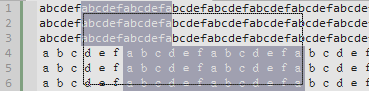](</File:cudatext-column-sel-cjk.png>) | |
| 3057 | 3146 | ||
| 3058 | 3147 | It is not a bug. In this example, user selected column block from column 7 (at line 1) until column 20 (at line 6), so column block takes columns 7...20 from all lines. On first ASCII lines, columns 7...20 take different visual area, than columns on last lines. When you copy/paste that block to another program, block may look differently. But that block contains equal number of chars on each line. | |
| 3059 | 3148 | ||
| 3060 | 3149 | Even more weird look happens when user selects column block over word-wrapped lines. | |
| 3061 | 3150 | ||
| 3062 | 3151 | [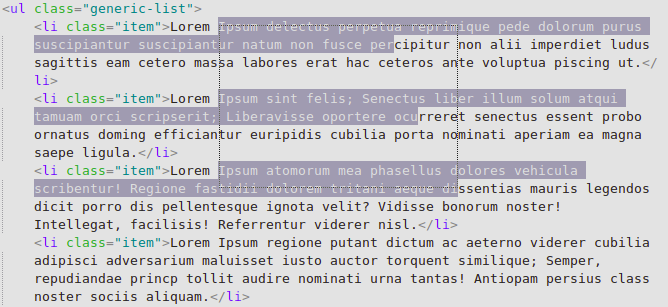](</File:cudatext-column-sel-weird.png>) | |
| 3063 | 3152 | ||
| 3064 | 3153 | Here is the program's logic in all these cases (with full-width characters and with word-wrapped lines). Program calculates (line1, column1) text position of column block left-top edge. Then program calculates (line2, column2) text position of column block right-bottom edge. Then program selects characters in range column1...column2 in all those affected lines line1...line2. And this program logic produces so weird look in word-wrapped mode. | |
| 3065 | 3154 | ||
| 3066 | 3155 | ## How to replace from/to text containing line-breaks | |
| 3067 | 3156 | ||
| 3068 | 3157 | There are several ways to perform it: | |
| 3069 | 3158 | ||
| 3070 | 3159 | 1\. The simplest way: set multi-line mode in the Find/Replace dialog, using "+" button. Input fields will become tall and multi-line. To enter line-breaks there, press Ctrl+Enter. | |
| 3071 | 3160 | ||
| 3072 | 3161 | 2\. Use plugin CudaExt: | |
| 3073 | 3162 | ||
| 3074 | 3163 | * Select fragment in editor (can contain line-breaks), "what to replace" . | |
| 3075 | 3164 | * Copy to clipboard the fragment (can contain line-breaks), which will be "replacement". | |
| 3076 | 3165 | * Call command in CudaExt plugin: "Replace all occurrences of selected string with clipbrd". | |
| 3077 | 3166 | ||
| 3078 | 3167 | 3\. Search for selected editor text (can contain line-breaks) using command "find current selection, next". | |
| 3079 | 3168 | ||
| 3080 | 3169 | 4\. Copy fragment (can contain line-breaks) which you need to find, to clipboard. Call command in CudaExt plugin: "Find clipbrd: next". | |
| 3081 | 3170 | ||
| 3082 | 3171 | ## How to create macros and call them via toolbar | |
| 3083 | 3172 | ||
| 3084 | 3173 | Q: I've used Boxer Editor for over a decade. Its strength is you can create macros that can be assigned to buttons that you can place onto the toolbar. I don’t know of any other text editors that can do that. ? | |
| 3085 | 3174 | ||
| 3086 | 3175 | This can be done in CudaText like this: | |
| 3087 | 3176 | ||
| 3088 | 3177 | * Install plugin "Macros". Restart CudaText. | |
| 3089 | 3178 | * Use new menu "Macros" in the top menu, to record some macro(s). This will create command(s) "plugin: Macros: ..." in the Command Palette. | |
| 3090 | 3179 | * Install plugin "Config Toolbar". | |
| 3091 | 3180 | * Call config dialog via "Plugins / Config Toolbar / Configure buttons". In that dialog, add a button. In the button properties, choose your recorded macro command ("Choose command" button). This will add toolbar button for your macro. Customize this button as you wish (any icon, caption, tooltip). | |
| 3092 | 3181 | ||
| 3093 | 3182 | ## How command "Paste and indent" works | |
| 3094 | 3183 | ||
| 3095 | 3184 | Command "Edit / Paste and indent" should mimic the Sublime Text command with the same name. How it works? For single line clipboard text, it does the same as usual "Paste". For multi-line clipboard text (let's name it "block"), it aligns all lines of the "block", so that lines 2,3,4,... of the "block" will have the same indentation as the first "block" line. If lines had different indents in the clipboard, **relative indents** will be kept. | |
| 3096 | 3185 | ||
| 3097 | 3186 | Example: clipboard "block" is: | |
| 3098 | 3187 | ``` | |
| 3099 | 3188 | aaaaaaaaaaaaaaaa | |
| 3100 | 3189 | aaaaaaaaaaaaaaaa | |
| 3101 | 3190 | bbbbbbbbbbbbbb | |
| 3102 | 3191 | bbbbbbbbbbbbbb | |
| 3103 | 3192 | cccccccccccc | |
| 3104 | 3193 | cccccccccccc | |
| 3105 | 3194 | dddddddddddddddd | |
| 3106 | 3195 | ``` | |
| 3107 | 3196 | ||
| 3108 | 3197 | And caret ("|" symbol) is located here: | |
| 3109 | 3198 | ``` | |
| 3110 | 3199 | some file text | |
| 3111 | 3200 | some file text | |
| 3112 | 3201 | | | |
| 3113 | 3202 | ``` | |
| 3114 | 3203 | ||
| 3115 | 3204 | "Paste and indent" with such caret position will give this: | |
| 3116 | 3205 | ``` | |
| 3117 | 3206 | some file text | |
| 3118 | 3207 | some file text | |
| 3119 | 3208 | aaaaaaaaaaaaaaaa | |
| 3120 | 3209 | aaaaaaaaaaaaaaaa | |
| 3121 | 3210 | bbbbbbbbbbbbbb | |
| 3122 | 3211 | bbbbbbbbbbbbbb | |
| 3123 | 3212 | cccccccccccc | |
| 3124 | 3213 | cccccccccccc | |
| 3125 | 3214 | dddddddddddddddd | |
| 3126 | 3215 | ``` | |
| 3127 | 3216 | ||
| 3128 | 3217 | ## Why XML document is not fully highlighted by XML lexer | |
| 3129 | 3218 | ||
| 3130 | 3219 | Sometimes, you can see the poor syntax highlighting in XML documents. It is poorer than the "normal" highlighting in the "Lexer properties" dialog. | |
| 3131 | 3220 | ||
| 3132 | 3221 | What is the reason? The reason is the blocking option | |
| 3133 | 3222 | ``` | |
| 3134 | 3223 | "lexer_folding_max_lines": 10000 | |
| 3135 | 3224 | ``` | |
| 3136 | 3225 | ||
| 3137 | 3226 | You load the big XML document, with line count > 10k, and option blocks the "folding" in this document. It causes the lexer to miss folding ranges, and part of the syntax highlight depends on that (the angled brackets are still highlighted). You need to adjust that option to a bigger value. | |
| 3138 | 3227 | ||
| 3139 | 3228 | Also note that CudaText has the "lite" lexer "XML ^", which is activated for too big XML files. The blocking option is: | |
| 3140 | 3229 | ``` | |
| 3141 | 3230 | "ui_max_size_lexer": 2 | |
| 3142 | 3231 | ``` | |
| 3143 | 3232 | ||
| 3144 | 3233 | With the active "lite" lexer (when statusbar shows "XML ^"), syntax highlight is also not very rich, and there is no folding. | |
| 3145 | 3234 | ||
| 3146 | 3235 | ## How to check the rendering speed | |
| 3147 | 3236 | ||
| 3148 | 3237 | There is hidden option in user.json: | |
| 3149 | 3238 | ``` | |
| 3150 | 3239 | "log_timing": true | |
| 3151 | 3240 | ``` | |
| 3152 | 3241 | ||
| 3153 | 3242 | It shows the additional label in the editor corner, with red font. Label shows the time of the last rendered frame in milliseconds. Label also shows the counter of rendered frames, so developers can check if editor does redundant repaints. Label also shows 3 moving graphs: | |
| 3154 | 3243 | ||
| 3155 | 3244 | * red color: total time of rendering | |
| 3156 | 3245 | * blue color: time spent on TextOut/ExtTextOut Lazarus API | |
| 3157 | 3246 | * green color: time spent on minimap rendering | |
| 3158 | 3247 | ||
| 3159 | 3248 | For text editing commands (e.g. typing of text), counter may increase by 3 on each command. Why? 3rd repaint is from `"bracket_highlight":true` (occurs in IdleTimer after a small delay), 2nd repaint is from lexer parser - parser makes the repaint when full document is parsed or the current screen is parsed. 1st repaint is the main immediate repaint. | |
| 3160 | 3249 | ||
| 3161 | 3250 | For caret moving commands, counter may increase by 2 on each command. 2nd repaint is from `"bracket_highlight":true`. 2nd repaint may occur also from the auto-showing of the horizontal scrollbar. | |
| 3162 | 3251 | ||
| 3163 | 3252 | ## How to force file saving to append extension .cfg to filename | |
| 3164 | 3253 | ||
| 3165 | 3254 | Q: I'm looking for a way for newly created files to be auto-saved with a predefined extension. In my case, it is ".cfg". When I open a new blank tab and then "Save As", I want my file to be saved with a specific extension type, if I write it out in the textbox. As an example, I could write out "Test-File-001.json" and the file would be named like this. If I DON'T specify an extension type I want the file extension to automatically be ".cfg". In this second use-case, I would simply write out "Test-File-001" (without an extension type) and CudaText would save my file as "Test-File-001.cfg". | |
| 3166 | 3255 | ||
| 3167 | 3256 | A: This can be solved with an fake lexer. Create file "Cfg.lcf" in the folder "data/lexlib" with such contents: | |
| 3168 | 3257 | ``` | |
| 3169 | 3258 | object SyntAnal21: TLibSyntAnalyzer | |
| 3170 | 3259 | Extentions = 'cfg' | |
| 3171 | 3260 | LexerName = 'Cfg' | |
| 3172 | 3261 | end | |
| 3173 | 3262 | ``` | |
| 3174 | 3263 | ||
| 3175 | 3264 | Then set the option in user.json: | |
| 3176 | 3265 | ``` | |
| 3177 | 3266 | "newdoc_lexer": "Cfg", | |
| 3178 | 3267 | ``` | |
| 3179 | 3268 | ||
| 3180 | 3269 | ## How to open big files in text viewer, without confirmation dialog | |
| 3181 | 3270 | ||
| 3182 | 3271 | Q: I want to open too big files (e.g. size bigger than 10Mb) using internal text viewer, without asking each time about it. | |
| 3183 | 3272 | ||
| 3184 | 3273 | A: Here is primitive plugin. Adjust the size limit in the Python code. | |
| 3185 | 3274 | ||
| 3186 | 3275 | File `py/cuda_big_to_viewer/install.inf` | |
| 3187 | 3276 | ``` | |
| 3188 | 3277 | [info] | |
| 3189 | 3278 | title=Big Files to Viewer | |
| 3190 | 3279 | desc=(Fill the description) | |
| 3191 | 3280 | type=cudatext-plugin | |
| 3192 | 3281 | subdir=cuda_big_to_viewer | |
| 3193 | 3282 | homepage=(Fill the GitHub repo URL) | |
| 3194 | 3283 | ||
| 3195 | 3284 | [item1] | |
| 3196 | 3285 | section=events | |
| 3197 | 3286 | events=on_open_pre | |
| 3198 | 3287 | ``` | |
| 3199 | 3288 | ||
| 3200 | 3289 | File `py/cuda_big_to_viewer/__init__.py` | |
| 3201 | 3290 | ``` | |
| 3202 | 3291 | import os | |
| 3203 | 3292 | from cudatext import * | |
| 3204 | 3293 | ||
| 3205 | 3294 | BIG_SIZE_IN_MB = 10 | |
| 3206 | 3295 | ||
| 3207 | 3296 | class Command: | |
| 3208 | 3297 | ||
| 3209 | 3298 | def on_open_pre(self, ed_self, filename): | |
| 3210 | 3299 | nsize = os.path.getsize(filename) | |
| 3211 | 3300 | if nsize>=BIG_SIZE_IN_MB*1024*1024: | |
| 3212 | 3301 | file_open(filename, options='/view-text') | |
| 3213 | 3302 | print('Forced viewer for file: '+filename) | |
| 3214 | 3303 | return False | |
| 3215 | 3304 | ``` | |
| 3216 | 3305 | ||
| 3217 | 3306 | ## Windows: Auto-completion doesn't work on Chinese system | |
| 3218 | 3307 | ||
| 3219 | 3308 | Some users have a problem activating auto-completion by Ctrl+Space (default hotkey) on CJK systems. | |
| 3220 | 3309 | ||
| 3221 | 3310 | Grok AI knows the reason: The reason Ctrl+Space doesn't trigger auto-completion in CudaText (when editing an HTML file) while Microsoft Pinyin IME is active is a classic and very annoying conflict that's existed in Windows for many years. When the Microsoft Pinyin IME (the default Chinese input method for Simplified Chinese) is active (i.e. the input mode shows Chinese/中), Windows steals the Ctrl+Space keystroke at a very low system level and uses it as the default hotkey to toggle between Chinese and English input modes (中 ↔ 英 / A). This happens before the keystroke ever reaches CudaText → CudaText never sees Ctrl+Space → auto-completion (which uses Ctrl+Space by default) doesn't open. | |
| 3222 | 3311 | ||
| 3223 | 3312 | **Quick summary — why this happens especially often with Chinese users** | |
| 3224 | 3313 | ||
| 3225 | 3314 | * Many editors/IDEs use Ctrl+Space for completion (VS Code, IntelliJ, Eclipse, CudaText, etc.) | |
| 3226 | 3315 | * Microsoft kept Ctrl+Space as default toggle for Chinese IME for historical compatibility. | |
| 3227 | 3316 | * Even if you disable or change the hotkey in Language Settings → Advanced keyboard settings, it often silently reverts or doesn't fully apply (very well-known Windows bug). | |
| 3228 | 3317 | ||
| 3229 | 3318 | **How to solve it (most reliable methods in 2025–2026)** | |
| 3230 | 3319 | ||
| 3231 | 3320 | Pick one (usually the first or second works best): | |
| 3232 | 3321 | ||
| 3233 | 3322 | 1\. **Best quick fix** — just switch IME to English mode before using completion | |
| 3234 | 3323 | ||
| 3235 | 3324 | While Microsoft Pinyin is active, press Shift (single press) or Ctrl+Shift → IME switches to English (shows A/英) → Ctrl+Space in CudaText starts working normally again. | |
| 3236 | 3325 | ||
| 3237 | 3326 | 2\. **Disable "old version" compatibility mode** (surprisingly fixes it for many people in recent Windows versions) | |
| 3238 | 3327 | ||
| 3239 | 3328 | Settings → Time & Language → Language & region → Chinese → Options → Microsoft Pinyin → General → Turn OFF the option "Use previous version of Microsoft Pinyin". | |
| 3240 | 3329 | ||
| 3241 | 3330 | Many users report that this alone makes Ctrl+Space stop being stolen. | |
| 3242 | 3331 | ||
| 3243 | 3332 | 3\. **Change or disable the toggle hotkey** (the official way, but often unreliable) | |
| 3244 | 3333 | ||
| 3245 | 3334 | Settings → Time & Language → Typing → Advanced keyboard settings → Input language hot keys → Change "Between input languages" or "Chinese (Simplified, China) - Microsoft Pinyin" toggle → Set it to something else (e.g. Ctrl+Shift+Z or none) → Log out and log back in (very important — changes usually don't apply immediately). | |
| 3246 | 3335 | ||
| 3247 | 3336 | ## Windows: Substitute another font for missing font characters | |
| 3248 | 3337 | ||
| 3249 | 3338 | In many fonts, many Unicode characters are missing. This gives problem on Windows 10/11: these characters will be omitted in the rendered result, because CudaText uses GDI rendering system. | |
| 3250 | 3339 | ||
| 3251 | 3340 | But solution for Windows 10/11 exists. User can specify "fallback" fonts. Run "regedit.exe", navigate to the registry folder: | |
| 3252 | 3341 | ``` | |
| 3253 | 3342 | HKEY_LOCAL_MACHINE\SOFTWARE\Microsoft\Windows NT\CurrentVersion\FontLink\SystemLink | |
| 3254 | 3343 | ``` | |
| 3255 | 3344 | ||
| 3256 | 3345 | and modify the key there. For example, if you miss CJK chars, and you use font "Consolas", create registry key "Consolas", and set fallback for it: | |
| 3257 | 3346 | ``` | |
| 3258 | 3347 | msyh.ttc,Microsoft YaHei UI | |
| 3259 | 3348 | ``` | |
| 3260 | 3349 | ||
| 3261 | 3350 | This way, when font "Consolas" renders missing words, it fallbacks to "Microsoft Yahei" font. | |
| 3262 | 3351 | ||
| 3263 | 3352 | Full info about this registry feature: <https://learn.microsoft.com/en-us/globalization/fonts-layout/fonts> | |
| 3264 | 3353 | ||
| 3265 | 3354 | # Troubleshooting the Windows shell extension for CudaText | |
| 3266 | 3355 | ||
| 3267 | 3356 | There may be rare cases where CudaText's menu item shows up in Windows Explorer context menu but the entry's icon is missing and an error message states that the provided file name was not found. | |
| 3268 | 3357 | ||
| 3269 | 3358 | ## File sets information | |
| 3270 | 3359 | ||
| 3271 | 3360 | If you download a 32 bit version of CudaText, you will notice that there are two sets of files belonging to the shell extension. | |
| 3272 | 3361 | ||
| 3273 | 3362 | Set 1 consists of these files: | |
| 3274 | 3363 | ||
| 3275 | 3364 | * CudaText_shell32.dll | |
| 3276 | 3365 | * install_shell32.cmd | |
| 3277 | 3366 | * uninstall_shell32.cmd | |
| 3278 | 3367 | ||
| 3279 | 3368 | Set 2 consists of these files: | |
| 3280 | 3369 | ||
| 3281 | 3370 | * CudaText_shell64.dll | |
| 3282 | 3371 | * install_shell64.cmd | |
| 3283 | 3372 | * uninstall_shell64.cmd | |
| 3284 | 3373 | ||
| 3285 | 3374 | Since 32 bit versions of CudaText can be run on both 32 bit and 64 bit versions of Windows, two sets of files are needed. Use set 1 if you run CudaText on a 32 bit version and set 2 if you run it on a 64 bit version of Windows. | |
| 3286 | 3375 | ||
| 3287 | 3376 | The download package of CudaText 64 bit contains only set 2 since this version can only be run on a 64 bit version of Windows. | |
| 3288 | 3377 | ||
| 3289 | 3378 | **Please note:** It is _not_ possible to install the 32 bit version of the shell extension on 64 bit Windows or vice versa. | |
| 3290 | 3379 | ||
| 3291 | 3380 | ## Common information | |
| 3292 | 3381 | ||
| 3293 | 3382 | The context menu item works for all types of files, folders, disk drives, desktop links to these items, the desktop background and the background of an Explorer window showing a folder's content. Other kinds of right-clicked items don't show the context menu item. | |
| 3294 | 3383 | ||
| 3295 | 3384 | The context menu entry's icon is extracted from the file "cudatext.exe", the absence of the icon indicates that "cudatext.exe" wasn't found by the shell extension. That's also the reason for the error message mentioned above. | |
| 3296 | 3385 | ||
| 3297 | 3386 | ## Fixing installation error | |
| 3298 | 3387 | ||
| 3299 | 3388 | **Please note:** In the following only the 64 bit version of the shell extension running on 64 bit Windows is dealt with. If you want to install the 32 bit shell extension on 32 bit Windows you have to select the appropriate file names. | |
| 3300 | 3389 | ||
| 3301 | 3390 | In case a suitable item has been right-clicked and the icon is missing from the context menu item, it is possible to install the shell extension manually. To do that please follow the steps below. | |
| 3302 | 3391 | ||
| 3303 | 3392 | At first ensure that all the files | |
| 3304 | 3393 | ||
| 3305 | 3394 | * cudatext.exe | |
| 3306 | 3395 | * CudaText_shell64.dll | |
| 3307 | 3396 | * install_shell64.cmd | |
| 3308 | 3397 | * uninstall_shell64.cmd | |
| 3309 | 3398 | ||
| 3310 | 3399 | are stored in the same folder. | |
| 3311 | 3400 | ||
| 3312 | 3401 | Start a Windows console with administrative permissions. If you don't know how to do that search the internet to learn it. | |
| 3313 | 3402 | ||
| 3314 | 3403 | Use the "CD" command to navigate to the folder where the above files are stored (it should be your CudaText folder). You should end up with a command prompt that looks for example like this: | |
| 3315 | 3404 | ``` | |
| 3316 | 3405 | C:\cudatext> | |
| 3317 | 3406 | ``` | |
| 3318 | 3407 | ||
| 3319 | 3408 | Type the following command into your console window and hit Enter: | |
| 3320 | 3409 | ``` | |
| 3321 | 3410 | regsvr32 /u "<Path-to-CudaText-folder>\cudatext_shell64.dll" | |
| 3322 | 3411 | ``` | |
| 3323 | 3412 | ||
| 3324 | 3413 | This uninstalls the failing shell extension. You should see a confirmation message that indicates a successful deregistration of the DLL. | |
| 3325 | 3414 | ||
| 3326 | 3415 | Close all programs and log off or restart Windows. Login in again and ensure that the CudaText context menu item has disappeared. | |
| 3327 | 3416 | ||
| 3328 | 3417 | Start a Windows console with administrative permissions again and use the "CD" command to navigate to your CudaText folder (the folder where the above files are stored). | |
| 3329 | 3418 | ||
| 3330 | 3419 | Type the following command into your console window and hit Enter: | |
| 3331 | 3420 | ``` | |
| 3332 | 3421 | regsvr32 "<Path-to-CudaText-folder>\cudatext_shell64.dll" | |
| 3333 | 3422 | ``` | |
| 3334 | 3423 | ||
| 3335 | 3424 | You should see a confirmation message that indicates a successful registration of the DLL. Check the Explorer context menu to see if there is a CudaText menu item that has an icon. Right click for example a *.txt file and select "Open with CudaText" from the context menu. | |
| 3336 | 3425 | *[LSP]: Language Server Protocol | |
| 3337 | 3426 | *[PCRE]: Perl Compatible Regular Expressions | |
| 3338 | 3427 | *[ABAP]: Advanced Business Application Programming | |
| 3339 | 3428 | *[Adept]: Automatic Differentiation using Expression Templates | |
| 3340 | 3429 | *[AMPL]: A Mathematical Programming Language | |
| 3341 | 3430 | *[ANTLR]: ANother Tool for Language Recognition | |
| 3342 | 3431 | *[APDL]: Ansys Parametric Design Language | |
| 3343 | 3432 | ||
| 3344 | 3433 | --- | |
| 3345 | 3434 | *From the Free Pascal wiki, page "CudaText", as the Internet Archive kept it on 2026-03-22, last changed on 2026-02-21. Copyright stays with the author who wrote it, according to the old wiki's [[Licensing]] page. If you have concerns about this material, [message the admin](/wiki-contact).* |