

Code Signing for macOS: what changed
Revision 1 to 2. Removed lines have a minus sign; added lines have a plus sign.
| Old | New | Line | |
|---|---|---|---|
| 1 | 1 | > **Note:** For Apple Notarization requirements for kernel extensions and applications from Mojave 10.14.5 onwards (for kernel extensions from 7 April 2019 and for developers whose first use of their code signing certificate occurred from 7 April 2019) and for all software from Catalina 10.15 onwards that is not distributed via the App Store, see [[Notarization for macOS 10.14.5+]] | |
| 2 | 2 | ||
| 3 | 3 | ## Introduction | |
| 4 | 4 | ||
| 5 | 5 | **[[Code signing]]** ensures both authenticity and integrity of executables that have been downloaded from wide area networks like the Internet. The discussion below applies equally to App Store distribution and distribution outside the App Store. | |
| 6 | 6 | ||
| 7 | 7 | Code signing is required in [[Portal:iOS|iOS]]. On [[Portal:Mac|macOS]] 10.7 and later, it enables programs downloaded from the Internet to be opened without any warnings (if they are signed with an Apple-issued certificate) and it is required when using certain functionality (eg APIs used by debuggers; note that in this case a self-signed certificate that is marked as "trusted" suffices). This functionality is performed by Apple's Gatekeeper software. | |
| 8 | 8 | ||
| 9 | 9 | ## The evolution of Gatekeeper | |
| 10 | 10 | ||
| 11 | 11 | Gatekeeper, first introduced in Mountain Lion (10.8, 2012), is a Mac security feature that was designed to protect Apple computers from malicious software. Gatekeeper checks applications against the list of apps that Apple has approved for its App Store or have been code signed by developers who have Apple-issued certificates where the application is not offered through the app store. It does not perform any safety checks by itself, other than that the application wasn't changed since the developer signed it, nor does it offer any guarantees about the developer other than that they are paying Apple \$US 99 per year (aka an "Identified Developer"). | |
| 12 | 12 | ||
| 13 | 13 | The original Gatekeeper options introduced in Mountain Lion, accessed from Preferences \> Security and Privacy \> General, were: | |
| 14 | 14 | ||
| 15 | 15 | - App Store | |
| 16 | 16 | - App Store and Identified Developers | |
| 17 | 17 | - Anywhere | |
| 18 | 18 | ||
| 19 | 19 | By choosing the **Anywhere** option, the user was once able to entirely disable Gatekeeper. The default setting only allowed the launching of applications from the App Store or from a developer who had signed their application with an Apple-issued certificate. | |
| 20 | 20 | ||
| 21 | 21 | When macOS Sierra was released in 2016, Apple made some important changes to Gatekeeper and limited the the Gatekeeper options to: | |
| 22 | 22 | ||
| 23 | 23 | - App Store | |
| 24 | 24 | - App Store and Identified Developers | |
| 25 | 25 | ||
| 26 | 26 | However, you can restore the missing Gatekeeper *Anywhere*' option in Preferences by opening a terminal and executing the command: | |
| 27 | 27 | ||
| 28 | 28 | $ sudo spctl --master-disable | |
| 29 | 29 | ||
| 30 | 30 | which still works up to and including macOS Catalina. The better, as in more secure, alternative was to instead bypass Gatekeeper by opening the application from the right-click context menu or by control clicking on the application. This still triggered the alert dialog but it now contained an **Open** button to successfully launch the application. This method of bypassing Gatekeeper still works in macOS Catalina, except that on Catalina you need to launch the application a second time with the control-click or right-click to successfully bypass Gatekeeper - the first time you launch the application Gatekeeper cannot be bypassed whether you control-click or right-click or not. | |
| 31 | 31 | ||
| 32 | 32 | ### Big Sur and later on Apple M1 ARM64 processors | |
| 33 | 33 | ||
| 34 | 34 | And then Apple changed the game. | |
| 35 | 35 | ||
| 36 | 36 | When Big Sur is running on an Apple M1 (ARM64) processor, **all native ARM64 code must be signed or the operating system prevents its execution**; and this new Gatekeeper requirement cannot be bypassed by users. Developers can bypass it by running the following command in an Applications \> Utilities \> Terminal window: | |
| 37 | 37 | ||
| 38 | 38 | `spctl developer-mode enable-terminal` | |
| 39 | 39 | ||
| 40 | 40 | and then going to System Preferences \> Security & Privacy \> Privacy, scrolling down until you see an entry for "Developer Tools", authenticate and then tick the checkbox next to Terminal. | |
| 41 | 41 | ||
| 42 | 42 | Intel executables being run under Big Sur on an Apple M1 processor via Rosetta 2 can still be run even though they are unsigned using the control-click or right-click method to bypass Gatekeeper. | |
| 43 | 43 | ||
| 44 | 44 | For more details, see: [[macOS Big Sur changes for developers|Big Sur changes for developers: Code signing - Intel vs M1]]. | |
| 45 | 45 | ||
| 46 | 46 | ## Gatekeeper Dialogs | |
| 47 | 47 | ||
| 48 | - | ||
| 48 | + | 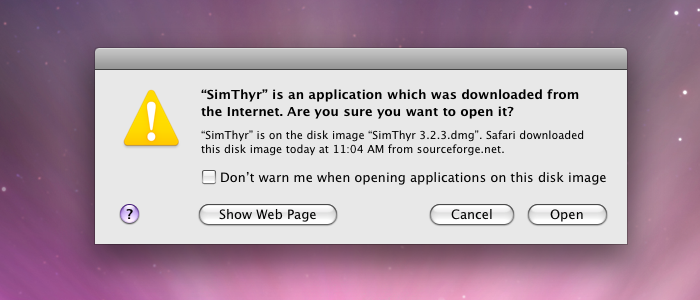 | |
| 49 | + | ||
| 50 | + | Simple warning after opening a downloaded application in Leopard. | |
| 51 | + | ||
| 52 | + | 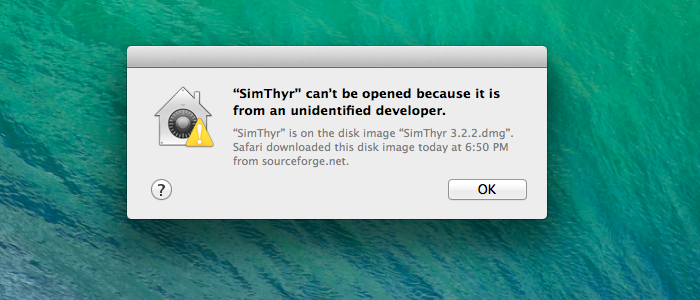 | |
| 53 | + | ||
| 54 | + | Default settings are more strict in Mavericks, where they prevent downloaded unsigned apps from being started via double-clicking. | |
| 55 | + | ||
| 56 | + | 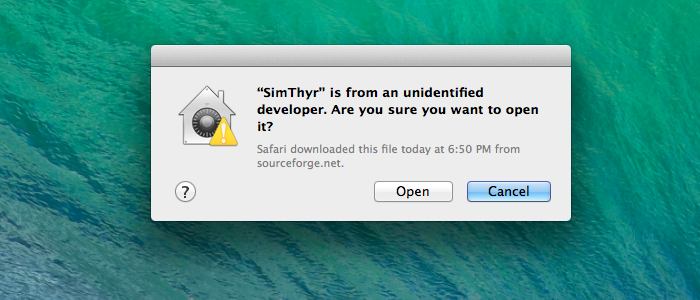 | |
| 57 | + | ||
| 58 | + | If the application is launched via context menu in Mavericks a simple warning is displayed similar to that of earlier versions. | |
| 59 | + | ||
| 60 | + | 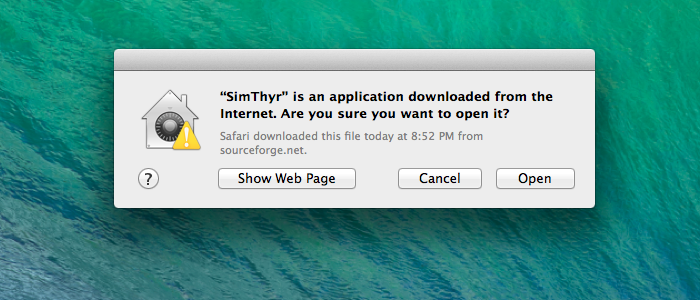 | |
| 61 | + | ||
| 62 | + | Gatekeeper shows a simplified warning, if a code-signed app has been downloaded and launched for the first time. In subsequent launches the program is starts immediately. | |
| 63 | + | ||
| 64 | + | 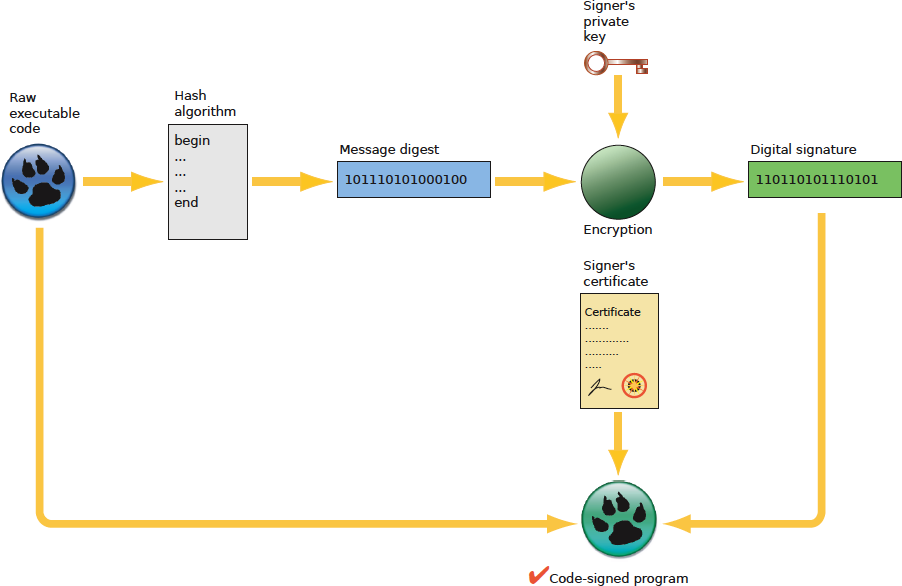 | |
| 65 | + | ||
| 66 | + | Overview of code-signing a program written with Lazarus and Free Pascal | |
| 49 | 67 | ||
| 50 | 68 | ## Overview | |
| 51 | 69 | ||
| 52 | 70 | The basic steps to sign an application that has been written with Lazarus and/or Free Pascal are: | |
| 53 | 71 | ||
| 54 | 72 | 1. Obtain a Developer ID from Apple and install it in your system's key chain. | |
| 55 | 73 | 2. Note the alphanumeric key of your Developer ID (aka TeamIdentifier). | |
| 56 | 74 | 3. Sign your application with the *codesign* command. | |
| 57 | 75 | 4. Sign your installer pkg with the *productsign* command. | |
| 58 | 76 | ||
| 59 | 77 | It is **not possible** to use certificates from third-party providers like Comodo because they will not pass Gatekeeper which requires an Apple developer issued certificate. Also note that you cannot sign Windows applications with the Apple developer certificate (this time you do need a third-party Comodo etc certificate). | |
| 60 | 78 | ||
| 61 | 79 | A macOS application distributed outside the Mac App Store will generally have 3–4 separate layers of signing: | |
| 62 | 80 | ||
| 63 | 81 | - The application itself will be code signed using an application certificate. | |
| 64 | 82 | - If the application has an installer, the package file will be signed using an installer certificate. | |
| 65 | 83 | - The disk image containing the application or installer will be signed using an application certificate. | |
| 66 | 84 | - The disk image will [[Notarization for macOS 10.14.5+|notarized]], and then the ticket generated by the notary service will be [[Notarization for macOS 10.14.5+|stapled]] to it. | |
| 67 | 85 | ||
| 68 | 86 | ## Gatekeeper requirements | |
| 69 | 87 | ||
| 70 | 88 | - Your application should be standalone with no unacceptable external dependencies. The only acceptable external dependencies are system libraries. All other dependencies should be copied to your MyApp.app bundle folder. Gatekeeper rejects any application that has non-system external dependencies. | |
| 71 | 89 | ||
| 72 | 90 | - All binary files inside MyApp.app should be code signed. | |
| 73 | 91 | ||
| 74 | 92 | - All binary files should be located in standard locations inside the MyApp.app bundle folder. Refer to the table below. | |
| 75 | 93 | ||
| 76 | 94 | | Location | Description | | |
| 77 | 95 | |----|----| | |
| 78 | 96 | | Contents | Top content directory of the bundle | | |
| 79 | 97 | | Contents/MacOS | Main executable; helper apps and tools | | |
| 80 | 98 | | Contents/Frameworks | Frameworks, dylibs | | |
| 81 | 99 | | Contents/PlugIns | Plug-ins, both loadable and extensions | | |
| 82 | 100 | | Contents/XPCServices | XPC services | | |
| 83 | 101 | | Contents/Helpers | Helper apps and tools | | |
| 84 | 102 | | Contents/Library/Automator | Automator actions | | |
| 85 | 103 | | Contents/Library/Spotlight | Spotlight importers | | |
| 86 | 104 | | Contents/Library/LoginItems | Installable login items | | |
| 87 | 105 | | Contents/Library/LaunchServices | Privileged helper tools installed by the ServiceManagement framework | | |
| 88 | 106 | ||
| 89 | 107 | Standard locations for code inside a bundle | |
| 90 | 108 | ||
| 91 | 109 | Note: No non-binary files should ever be located in the folders specified in the table above. | |
| 92 | 110 | ||
| 93 | 111 | ## Using codesign to sign your application | |
| 94 | 112 | ||
| 95 | 113 | **1.** Sign your application with: | |
| 96 | 114 | ||
| 97 | 115 | ``` bash | |
| 98 | 116 | codesign -f -o runtime --timestamp -s "Developer ID Application: YOUR NAME (TEAM_ID)" /path/to/bundle.app | |
| 99 | 117 | ``` | |
| 100 | 118 | ||
| 101 | 119 | **2.** Display basic information about the result of the signing process: | |
| 102 | 120 | ||
| 103 | 121 | ``` bash | |
| 104 | 122 | codesign -dv -r- /path/to/bundle.app | |
| 105 | 123 | ``` | |
| 106 | 124 | ||
| 107 | 125 | If your application was successfully signed this command will return information similar to this: | |
| 108 | 126 | ||
| 109 | 127 | Executable=/Users/apple/Desktop/your.app/Contents/MacOS/yourappname | |
| 110 | 128 | Identifier=org.yourdomain.yourappname | |
| 111 | 129 | Format=app bundle with Mach-O thin (x86_64) | |
| 112 | 130 | CodeDirectory v=20500 size=101470 flags=0x10000(runtime) hashes=3164+3 location=embedded | |
| 113 | 131 | Signature size=9063 | |
| 114 | 132 | Timestamp=7 Dec 2019 at 18:36:08 | |
| 115 | 133 | Info.plist entries=16 | |
| 116 | 134 | TeamIdentifier=<10 alpha numeric digits> | |
| 117 | 135 | Runtime Version=10.14.0 | |
| 118 | 136 | Sealed Resources version=2 rules=13 files=45 | |
| 119 | 137 | designated => identifier "org.yourdomain.yourappname" and anchor apple generic and certificate 1[field.1.2.840.113635.100.6.2.6] /* exists */ and certificate leaf[field.1.2.840.113635.100.6.1.13] /* exists */ and certificate leaf[subject.OU] = <10 alpha numeric digits> | |
| 120 | 138 | ||
| 121 | 139 | **3.** Verify your signature: | |
| 122 | 140 | ||
| 123 | 141 | ``` bash | |
| 124 | 142 | codesign -vv /path/to/bundle.app | |
| 125 | 143 | ``` | |
| 126 | 144 | ||
| 127 | 145 | If your app was successfully signed this command will return the strings "valid on disk" and "satisfies its Designated Requirement", respectively, after the path to your application. | |
| 128 | 146 | ||
| 129 | 147 | ## Using productsign to sign your pkg installer | |
| 130 | 148 | ||
| 131 | 149 | **1.** Sign your installer pkg file with: | |
| 132 | 150 | ||
| 133 | 151 | ``` bash | |
| 134 | 152 | productsign --timestamp --sign "Developer ID Installer: YOUR NAME (TEAM_ID)" /path/to/unsigned.pkg /path/to/signed.pkg | |
| 135 | 153 | ``` | |
| 136 | 154 | ||
| 137 | 155 | **2.** Verify your signature with: | |
| 138 | 156 | ||
| 139 | 157 | ``` bash | |
| 140 | 158 | spctl -vv --assess --type install /path/to/your.pkg | |
| 141 | 159 | ``` | |
| 142 | 160 | ||
| 143 | 161 | which should yield information similar to this if it was successful: | |
| 144 | 162 | ||
| 145 | 163 | your.pkg: accepted | |
| 146 | 164 | source=Developer ID | |
| 147 | 165 | origin=Developer ID Installer: YOUR NAME (<10 alpha numeric digits>) | |
| 148 | 166 | ||
| 149 | 167 | ## Using codesign to sign your disk image | |
| 150 | 168 | ||
| 151 | 169 | Beginning in macOS 10.11.5, you can apply a code signature to read-only, compressed disk images that you use to distribute content. In this case you do not need to separately sign your application. | |
| 152 | 170 | ||
| 153 | 171 | **1.** Sign your disk image with: | |
| 154 | 172 | ||
| 155 | 173 | ``` bash | |
| 156 | 174 | codesign -f -o runtime --timestamp -s "Developer ID Application: YOUR NAME (TEAM_ID)" /path/to/YourImage.dmg | |
| 157 | 175 | ``` | |
| 158 | 176 | ||
| 159 | 177 | **2.** Verify your signature with: | |
| 160 | 178 | ||
| 161 | 179 | ``` bash | |
| 162 | 180 | spctl -a -t open --context context:primary-signature -vv /path/to/YourImage.dmg | |
| 163 | 181 | ``` | |
| 164 | 182 | ||
| 165 | 183 | which should yield information similar to this if it was successful: | |
| 166 | 184 | ||
| 167 | 185 | YourImage.dmg: accepted | |
| 168 | 186 | source=Developer ID | |
| 169 | 187 | origin=Developer ID Application: YOUR NAME (<10 alpha numeric digits>) | |
| 170 | 188 | ||
| 171 | 189 | **After 3 February 2020 Apple is fully enforcing notarization** for macOS 10.14.5+ (Mojave) with the consequence that the above verification of your disk image will now return information similar to this: | |
| 172 | 190 | ||
| 173 | 191 | YourImage.dmg: rejected | |
| 174 | 192 | source=Unnotarized Developer ID | |
| 175 | 193 | origin=Developer ID Application: YOUR NAME (<10 alpha numeric digits>) | |
| 176 | 194 | ||
| 177 | 195 | See [[Notarization for macOS 10.14.5+]] for more details. | |
| 178 | 196 | ||
| 179 | 197 | ## Updating a signed file | |
| 180 | 198 | ||
| 181 | 199 | Whenever you update a signed file, create a new file. Do not copy a new signed file over an old signed file. | |
| 182 | 200 | ||
| 183 | 201 | Specifically, the code signing information (code directory hash) is hung off the vnode within the kernel, and modifying the file behind that cache will cause problems. You need a new vnode, which means a new file, that is, a new inode. Documented in WWDC 2019 Session 703 All About Notarization - see [slide 65 (PDF)](https://devstreaming-cdn.apple.com/videos/wwdc/2019/703yqvyjv9mi5ur6/703/703_all_about_notarization.pdf). | |
| 184 | 202 | ||
| 185 | 203 | ## Ad hoc signing | |
| 186 | 204 | ||
| 187 | 205 | This is especially important on ARM64 M1 Apple processors which require all native code to be validly signed (if only ad hoc) or the operating system will not execute it, instead killing it on launch. To ad hoc sign an application: | |
| 188 | 206 | ||
| 189 | 207 | ` codesign --force --deep -s - lazarus.app` | |
| 190 | 208 | ||
| 191 | 209 | or to ad hoc sign an executable file: | |
| 192 | 210 | ||
| 193 | 211 | ` codesign --force -s - lazarus` | |
| 194 | 212 | ||
| 195 | 213 | A single dash/hyphen on its own for the identity makes it an ad hoc signature with no certificate. | |
| 196 | 214 | ||
| 197 | 215 | You can check the validity of an ad hoc signed executable with: | |
| 198 | 216 | ||
| 199 | 217 | ` codesign -dv -r- lazarus` | |
| 200 | 218 | ||
| 201 | 219 | which should produce output similar to the below: | |
| 202 | 220 | ||
| 203 | 221 | `Executable=/Users/trev/lazarus-src/lazarus`\ | |
| 204 | 222 | `Identifier=lazarus`\ | |
| 205 | 223 | `Format=Mach-O thin (arm64)`\ | |
| 206 | 224 | `CodeDirectory v=20400 size=336137 flags=0x2(adhoc) hashes=10498+2 location=embedded`\ | |
| 207 | 225 | `Signature=adhoc`\ | |
| 208 | 226 | `Info.plist=not bound`\ | |
| 209 | 227 | `TeamIdentifier=not set`\ | |
| 210 | 228 | `Sealed Resources=none`\ | |
| 211 | 229 | `# designated => cdhash H"2e6f474452344d6fa42feee3db14a05c14d595a3"` | |
| 212 | 230 | ||
| 213 | 231 | In cases where you have compiled the executable yourself, the macOS linker will ad hoc sign the executable for you in which case you need do nothing. You can check the validity with the command above in which case the CodeDirectory output line will indicate that the linker signed the executable with an ad hoc signature as follows:: | |
| 214 | 232 | ||
| 215 | 233 | ` CodeDirectory v=20400 size=336032 flags=0x20002(adhoc,linker-signed) hashes=10498+0 location=embedded` | |
| 216 | 234 | ||
| 217 | 235 | ## Code signing an x86_64 binary on an aarch64 machine | |
| 218 | 236 | ||
| 219 | 237 | ## How to install certificates on a second computer | |
| 220 | 238 | ||
| 221 | 239 | There are two ways to do this: | |
| 222 | 240 | ||
| 223 | 241 | 1. using the Keychain Access application; and | |
| 224 | 242 | 2. using Xcode. | |
| 225 | 243 | ||
| 226 | 244 | ### Using the Keychain Access application | |
| 227 | 245 | ||
| 228 | 246 | - On the first computer which has the certificates, open the Keychain Access application and create a new keychain. Now select your existing login keychain, and then My Certificates. Your certificates should be shown on the right. There should be a disclosure arrow on the left side, and selecting that should reveal your private key. Select each certificate, and copy and paste (do not drag or you'll remove it from your login keychain) it into your new keychain. | |
| 229 | 247 | ||
| 230 | 248 | - Copy the newly created keychain from your first computer to your second computer, open it with the Keychain Access application and copy/paste/drag the certificate to your second computer's login keychain. | |
| 231 | 249 | ||
| 232 | 250 | ### Using Xcode | |
| 233 | 251 | ||
| 234 | 252 | - On the first computer which has the certificates, open Xcode and go to Preferences \> Accounts, select your account, select the gear symbol in the bottom left, choose Export Apple ID and Code Signing Assets, and then save the file. | |
| 235 | 253 | ||
| 236 | 254 | - Copy the developer profile file you saved on your first computer to the second computer, open Xcode, go to Preferences \> Accounts, select your account, select the gear symbol in the bottom left, and then choose Import Apple ID and Code Signing Assets. | |
| 237 | 255 | ||
| 238 | 256 | ## How to check what certificates are installed | |
| 239 | 257 | ||
| 240 | 258 | Once you have created or imported the certificates on your computer, you can check for their presence by opening an Applications \> Utilities \> Terminal and executing the following command: | |
| 241 | 259 | ||
| 242 | 260 | `$ security find-identity -p basic -v` | |
| 243 | 261 | ||
| 244 | 262 | This command will list all available certificates on this computer. Make sure that you can see the presence of the *Developer ID Application* and *Developer ID Installer* certificates. If you are a member of more than one team, you may see multiple certificates for each team. | |
| 245 | 263 | ||
| 246 | 264 | You can identify the certificates by the hexadecimal number or by the descriptive name, eg "Developer ID Application: Your Name (AB123456DE)" | |
| 247 | 265 | ||
| 248 | 266 | The ten character alpha-numeric code at the end of your name is your Developer Team ID. If you are a member of multiple developer teams, you will have multiple certificates and the team ID will help you distinguish them. | |
| 249 | 267 | ||
| 250 | 268 | ## See also | |
| 251 | 269 | ||
| 252 | 270 | - [[macOS Big Sur changes for developers|Code signing: Intel vs Apple Silicon]] | |
| 253 | 271 | - [[Apple Developer Certificates]] | |
| 254 | 272 | - [[Notarization for macOS 10.14.5+]] | |
| 255 | 273 | - [[Hardened runtime for macOS]] | |
| 256 | 274 | - [[Sandboxing for macOS]] | |
| 257 | 275 | - [[Signing and Notarization FAQ]] | |
| 258 | 276 | - [[macOS Gatekeeper Debugging Tips]] | |
| 259 | 277 | ||
| 260 | 278 | ## External links | |
| 261 | 279 | ||
| 262 | 280 | - [Apple Developer portal](https://developer.apple.com/) | |
| 263 | 281 | - [Apple: Code Signing Overview](https://developer.apple.com/support/technical/code-signing/) | |
| 264 | 282 | - [Apple: Code Signing Guide](https://developer.apple.com/library/mac/documentation/Security/Conceptual/CodeSigningGuide/) | |
| 265 | 283 | - [Apple: TN2206 - macOS Code Signing In Depth](https://developer.apple.com/library/archive/technotes/tn2206/_index.html) | |
| 266 | 284 | - [Apple: Code signing x86_64 binaries on aarch64](https://developer.apple.com/forums/thread/673323). | |
| 267 | 285 | ||
| 268 | 286 | --- | |
| 269 | 287 | *From the Free Pascal wiki, page "Code Signing for macOS", as it stood on 2022-02-13 after a change by Trev, out of the wiki's dump of 2024-05-26. Copyright stays with the author who wrote it, according to the old wiki's [[Licensing]] page. If you have concerns about this material, [message the admin](/wiki-contact).* |