

Carbon Interface: what changed
Revision 1 to 2. Removed lines have a minus sign; added lines have a plus sign.
| Old | New | Line | |
|---|---|---|---|
| 1 | 1 | *(macOS only)* | |
| 2 | 2 | ||
| 3 | 3 | ## Introduction | |
| 4 | 4 | ||
| 5 | 5 | > **Warning:** With the release of macOS 10.15 Catalina in October 2019, Apple has removed all support for the 32 bit Carbon framework from the operating system in favour of the [[Cocoa Interface|64 bit Cocoa framework]]. The last versions of macOS and Xcode which had the necessary Apple files to compile 32 bit applications was Mojave 10.14.x and Xcode 11.3.1.\ | |
| 6 | 6 | > \ | |
| 7 | 7 | > Carbon development has been discontinued. The [[Cocoa Interface]] is now the default interface for macOS. Patches however are still accepted to fix compilation when Carbon breaks. There are no core Lazarus developers that still use the Carbon interface. The information below may be outdated. | |
| 8 | 8 | ||
| 9 | 9 | Carbon is a macOS native API which descends from the old Mac OS APIs and is available since Puma 10.0. One thing to note, however, is that Apple has restricted Carbon to 32 bit applications only. To write 64 bit applications one should use the Lazarus [[Cocoa Interface]] | |
| 10 | 10 | ||
| 11 | 11 | ## See also | |
| 12 | 12 | ||
| 13 | 13 | - [[macOS Programming Tips]] | |
| 14 | 14 | - [[Carbon interface FAQ]] - A list of frequently asked questions about Carbon interface | |
| 15 | 15 | - [[Carbon interface internals]] - If you want to help improving the Carbon interface | |
| 16 | 16 | ||
| 17 | 17 | ## What you need | |
| 18 | 18 | ||
| 19 | 19 | The Carbon widgetset is now the default [[Widgetset|widgetset]] under macOS. For installation instructions see [[Installing Lazarus on macOS]]. | |
| 20 | 20 | ||
| 21 | 21 | ## Getting a "carbonproof" Lazarus | |
| 22 | 22 | ||
| 23 | - | ||
| 24 | - | ||
| 25 | - | ||
| 26 | - | ||
| 23 | + | 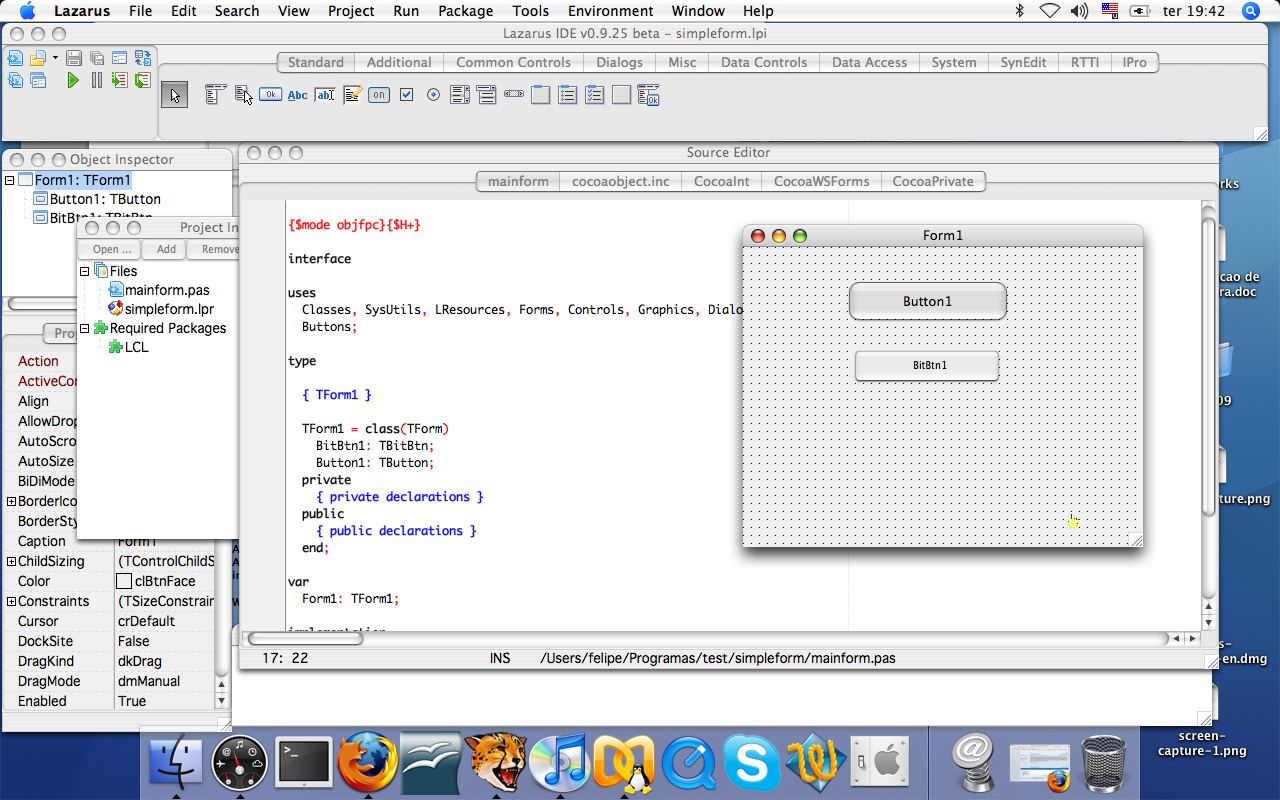 | |
| 27 | 24 | ||
| 28 | 25 | > **Note:** If you installed even a vaguely recent Lazarus version, you can skip this and the next section since Lazarus installers since 0.9.25 include both the Carbon widgetset source and compiled units for the Carbon widgetset. | |
| 29 | 26 | ||
| 30 | 27 | - macOS includes a command line svn client if you have installed the [[Xcode]] command line tools. If you want a GUI SVN for macOS: Install the SVN client using [fink](http://www.finkproject.org/). SVN clients with a GUI (graphical user interface) are available from [Versiontracker](http://www.versiontracker.com/macosx/). | |
| 31 | 28 | ||
| 32 | 29 | - Then follow [[Installing Lazarus on macOS]]. | |
| 33 | 30 | ||
| 34 | 31 | - Start Lazarus. The IDE will start with a new project and an empty form. Save this project under a name of your choice. In the following examples we assume this to be /Users/\<yourUsername\>/pascal/test/project1.lpi | |
| 35 | 32 | ||
| 36 | 33 | ### Compiling Carbon interface via Makefile | |
| 37 | 34 | ||
| 38 | 35 | Since 0.9.25 carbon is the default widgetset for macOS, so the below is not needed anymore. | |
| 39 | 36 | ||
| 40 | 37 | If your are still using a Lazarus below 0.9.25, you have to type this in Terminal.app: | |
| 41 | 38 | ||
| 42 | 39 | `make lcl LCL_PLATFORM=carbon` | |
| 43 | 40 | ||
| 44 | 41 | ### Compiling the Lazarus IDE with the Carbon interface via Makefile | |
| 45 | 42 | ||
| 46 | 43 | This requires Lazarus 0.9.25 or later. | |
| 47 | 44 | ||
| 48 | 45 | Type in Terminal.app: | |
| 49 | 46 | ||
| 50 | 47 | `make all LCL_PLATFORM=carbon OPT="-k-framework -kCarbon -k-framework -kOpenGL"` | |
| 51 | 48 | ||
| 52 | 49 | On Leopard (Leopard 10.5.x) you should type: | |
| 53 | 50 | ||
| 54 | 51 | `make all LCL_PLATFORM=carbon OPT="-k-framework -kCarbon -k-framework -kOpenGL -k'-dylib_file' \`\ | |
| 55 | 52 | ` -k'/System/Library/Frameworks/OpenGL.framework/Versions/A/Libraries/libGL.dylib:/System/Library/Frameworks/OpenGL.framework/Versions/A/Libraries/libGL.dylib'"` | |
| 56 | 53 | ||
| 57 | 54 | As stated on Apple's developer pages: <http://developer.apple.com/qa/qa2007/qa1567.html> | |
| 58 | 55 | ||
| 59 | 56 | **Important notes about the Carbon IDE** | |
| 60 | 57 | ||
| 61 | 58 | - You must run Lazarus via lazarus.app. | |
| 62 | 59 | ||
| 63 | 60 | - Make sure your editor is using a mono-font. You can check that on the Editor Options dialog. The "Monaco" font is a good suggestion. | |
| 64 | 61 | ||
| 65 | 62 | ### Error ATSUFindFontFromName | |
| 66 | 63 | ||
| 67 | 64 | if you're getting an error | |
| 68 | 65 | ||
| 69 | 66 | `carbonproc.pp(563,13) Error: Identifier not found "ATSUFindFontFromName"` | |
| 70 | 67 | ||
| 71 | 68 | when compiling a project for macOS using FPC 3.0.4 you need: | |
| 72 | 69 | ||
| 73 | 70 | - either set CPU target explicitly to i386. (FPC 3.0.4 compiles to x86_64 for Darwin target by default. This is done due Apple stopping support for 32-bit target) | |
| 74 | 71 | ||
| 75 | 72 | :*You either set the target in Project options (by switching it from default to i386) | |
| 76 | 73 | ||
| 77 | 74 | :*or if you compiling from command-line (i.e building an IDE) set up the following parameter to make command | |
| 78 | 75 | ||
| 79 | 76 | `CPU_TARGET=i386` | |
| 80 | 77 | ||
| 81 | 78 | - either set LCL target (widgetset) to "[[Cocoa Interface|Cocoa]]" | |
| 82 | 79 | ||
| 83 | 80 | ## Compiling the Carbon interface via Lazarus | |
| 84 | 81 | ||
| 85 | 82 | We now assume your Lazarus directory is located at /Users/\<yourUsername\>/pascal/lazarus/ | |
| 86 | 83 | ||
| 87 | 84 | - Start Lazarus. | |
| 88 | 85 | - Set Tools -\> Options -\> Environment -\> Files -\> Lazarus Directory to /Users/\<yourUsername\>/pascal/lazarus/ | |
| 89 | 86 | - Set Tools -\> Configure "Build Lazarus"\> to | |
| 90 | 87 | ||
| 91 | - | ||
| 92 | - | ||
| 93 | - | ||
| 94 | - | ||
| 88 | + | 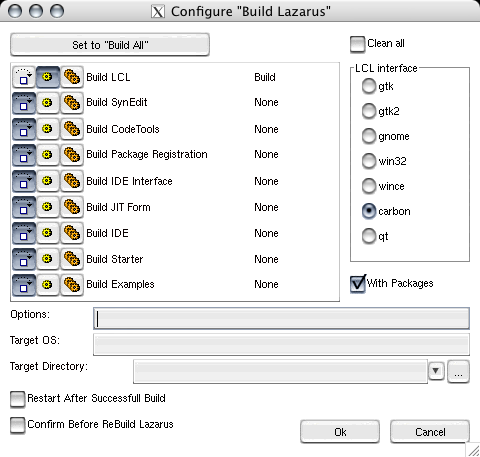 | |
| 95 | 89 | ||
| 96 | 90 | For 0.9.24 add this to your 'Options': | |
| 97 | 91 | ||
| 98 | 92 | -k-framework -kCarbon -k-framework -kOpenGL | |
| 99 | 93 | ||
| 100 | 94 | This will prevent unresolved symbols (Carbon-symbols like _ActivateWindow) while linking lazarus. | |
| 101 | 95 | ||
| 102 | 96 | - Tools\>Build Lazarus -- This will compile the Carbon Interface and put the .ppu files into /Users/\<yourUsername\>/pascal/lazarus/lcl/units/powerpc-darwin and /Users/\<yourUsername\>/pascal/lazarus/lcl/units/powerpc-darwin/carbon | |
| 103 | 97 | ||
| 104 | 98 | ## Your first native Carbon app | |
| 105 | 99 | ||
| 106 | 100 | ### Compiler Options | |
| 107 | 101 | ||
| 108 | 102 | Set Project \> Compiler Options \> Paths \> LCL Widget Type to *carbon* | |
| 109 | 103 | ||
| 110 | 104 | You should now be able to compile the project without errors. It will create an executable *project1*, but you cannot focus it. The reason is that macOS expects some hidden resource files. | |
| 111 | 105 | ||
| 112 | 106 | **Note for Leopard 10.5:** As discussed in [this](http://www.lazarus.freepascal.org/index.php?name=PNphpBB2&file=viewtopic&t=5174&start=0&postdays=0&postorder=asc&highlight=) forum topic, on Leopard you have to add the following linker parameters to your project: | |
| 113 | 107 | ||
| 114 | 108 | `-dylib_file '/System/Library/Frameworks/OpenGL.framework/Versions/A/Libraries/libGL.dylib:/System/Library/Frameworks/OpenGL.framework/Versions/A/Libraries/libGL.dylib'` | |
| 115 | 109 | ||
| 116 | 110 | (This parameter is located at Project \> Compiler Options \> Linker \> Pass additional options to the linker) | |
| 117 | 111 | ||
| 118 | 112 | ## Creating the Apple resource files | |
| 119 | 113 | ||
| 120 | 114 | > **Note:** Since 0.9.25 Lazarus can create application bundles without compiling this tool on your own. The corresponding button is at Project \> Project Options... \> Create Application Bundle | |
| 121 | 115 | ||
| 122 | 116 | The command line tool: | |
| 123 | 117 | ||
| 124 | 118 | Open /Users/\<yourUserName\>/pascal/lazarus/components/macfiles/examples/createmacapplication.lpi in the IDE. Compile. | |
| 125 | 119 | ||
| 126 | 120 | Open a Terminal of your choice. Type: | |
| 127 | 121 | ||
| 128 | 122 | cd /Users/<yourUserName>/pascal/project1/ | |
| 129 | 123 | /Users/<yourUserName>/pascal/lazarus/components/macfiles/examples/createmacapplication project1 | |
| 130 | 124 | ln -s ../../../project1 project1.app/Contents/MacOS/project1 | |
| 131 | 125 | ||
| 132 | 126 | Now you can start the program from IDE (checked option [[IDE Window: Project Options|Use Application Bundle for running and debugging (darwin only)]]) or via its Finder icon or in the native macOS Terminal via "open project1.app" | |
| 133 | 127 | ||
| 134 | 128 | Tip: There is also a script that creates an app bundle for a GTK executable at [[macOS Programming Tips]]. You can modify it to use with a Carbon executable (take out the 4 instructions that start the executable with X11). A slightly improved version of this script for Carbon apps is also available for downloading from [here](http://web.fastermac.net/~MacPgmr/Lazarus/). | |
| 135 | 129 | ||
| 136 | 130 | ### Application Bundle | |
| 137 | 131 | ||
| 138 | 132 | See [[Application Bundle]]. | |
| 139 | 133 | ||
| 140 | 134 | #### Hiding a macOS app from the Dock | |
| 141 | 135 | ||
| 142 | 136 | For information on how to hide a macOS application from the Dock, refer to the article [[Hiding a macOS app from the Dock]]. | |
| 143 | 137 | ||
| 144 | 138 | ## Cross-compiling Intel to PowerPC | |
| 145 | 139 | ||
| 146 | 140 | With 0.9.26 Lazarus comes with precompiled units for both architectures Intel and PowerPC. Since there are still a lot of Mac PowerPC users, you might want to build an application for both archs, or even create a universal binary. | |
| 147 | 141 | ||
| 148 | 142 | ### IDE Environment configuration | |
| 149 | 143 | ||
| 150 | 144 | Before you're able to cross-compile, you must make sure, that the IDE Environment compiler settings are correct. Open Environment-\>Files, check out "Complier path" setting. | |
| 151 | 145 | ||
| 152 | 146 | If you need to cross-compile an application or LCL (using Lazarus), you should define "fpc" binary as a compiler. fpc binary will select the proper compiler (ppc386 or ppcppc), depending on your current target selected. | |
| 153 | 147 | ||
| 154 | - | ||
| 155 | - | ||
| 156 | - | ||
| 157 | - | ||
| 148 | + | 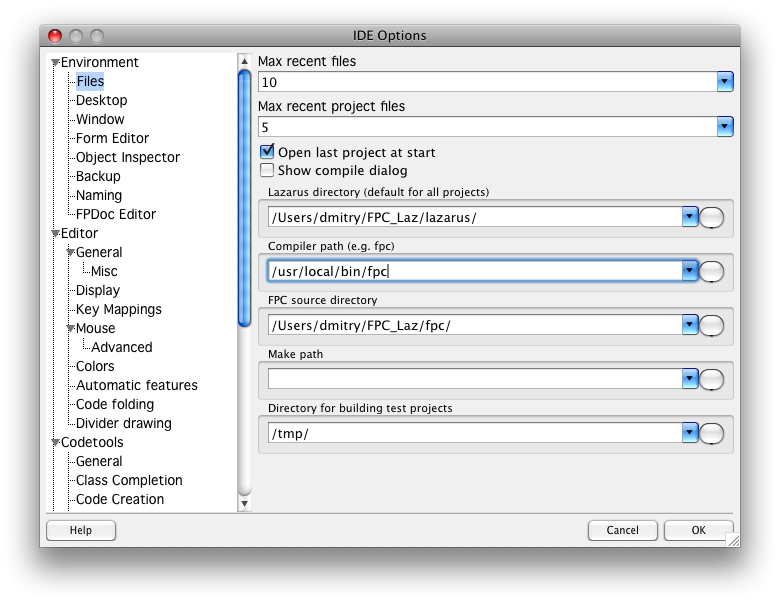 | |
| 158 | 149 | ||
| 159 | 150 | Of course, you specify the necessary compiler manually (ppc386 - for Intel, ppcppc - for PowerPC), but using "fpc" is more correct and easier | |
| 160 | 151 | ||
| 161 | 152 | ### Project configuration | |
| 162 | 153 | ||
| 163 | 154 | If you are using an Intel Mac and want to compile an application for PowerPC, you need to do the following | |
| 164 | 155 | ||
| 165 | 156 | - Go to projects *Compiler options*-\>*Code* | |
| 166 | 157 | - Select *powerpc* for Target CPU family. | |
| 167 | 158 | ||
| 168 | 159 | Rebuild the application (if you have compiled an intel application it will be overwritten with powerpc app). | |
| 169 | 160 | ||
| 170 | 161 | ### Define binary architecture | |
| 171 | 162 | ||
| 172 | 163 | If you are not sure about the target CPU of the binary, you can use the command-line tool "lipo" to check it. Example: | |
| 173 | 164 | ||
| 174 | 165 | `$ lipo -info project1. `\ | |
| 175 | 166 | `Non-fat file: project1 is architecture: ppc` | |
| 176 | 167 | ||
| 177 | 168 | ### Getting PowerPC units | |
| 178 | 169 | ||
| 179 | 170 | If you have Lazarus and FPC installed from .dmg file provided at Lazarus sourceforge, then you already should have all necessary units for PowerPC compilation. | |
| 180 | 171 | ||
| 181 | 172 | If you don't use the provided .dmg files (i.e. using svn version), you might need to rebuild LCL units for powerpc target as well. | |
| 182 | 173 | ||
| 183 | 174 | Open Tools -\> Configure "Build Lazarus" -\> Advanced Build Options. | |
| 184 | 175 | ||
| 185 | 176 | - Type *powerpc* into Target CPU field. | |
| 186 | 177 | - Select all components, except for IDE and Samples (since there's no need to rebuild them) for building. | |
| 187 | 178 | - It's recommended that you check 'Clean all' as well. | |
| 188 | 179 | ||
| 189 | - | ||
| 190 | - | ||
| 191 | - | ||
| 192 | - | ||
| 180 | + | 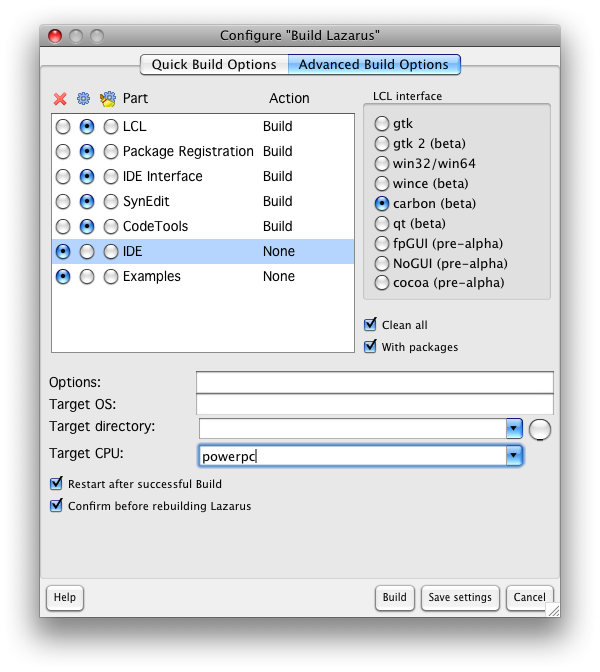 | |
| 193 | 181 | ||
| 194 | 182 | Press Build and wait for building process to complete. After that you need to recompile your project, making sure that the project's compiler project is configured for powerpc. | |
| 195 | 183 | ||
| 196 | 184 | LCL building might fail if you don't have RTL/FCL units compiled for the powerpc arch. You'll need RTL/FCL sources to compile them. | |
| 197 | 185 | ||
| 198 | 186 | - Go to the rtl/fcl sources directory (the one where 'rtl' and 'packages' directories are contained') | |
| 199 | 187 | - Run the following line from the terminal | |
| 200 | 188 | ||
| 201 | 189 | (making and installing rtl/fcl files tries to write into /usr/local dir, that might need root access. using sudo might be required) | |
| 202 | 190 | ||
| 203 | 191 | `make clean all install CPU_TARGET=powerpc ` | |
| 204 | 192 | ||
| 205 | 193 | - Wait for the make process to complete, then rebuild the LCL and your project again. | |
| 206 | 194 | ||
| 207 | 195 | ## Creating Universal binaries | |
| 208 | 196 | ||
| 209 | 197 | Lazarus will create an application tuned for a single CPU, for macOS this is either a PowerPC or Intel CPU. You may want to distribute your application as a 'Universal Binary', allowing users that may have either a PowerPC or Intel computer to use the program. To do this, you need to compile two versions of your application: one with PowerPC as the target CPU and one as Intel. Next, you need to stitch these two executables together using the macOS program "lipo" (installed with the other macOS developer tools required by Lazarus). For example, consider two versions of the application 'myprogram'. One in the 'ppc' folder compiled for PowerPC and one in the 'intel' folder compiled for Intel CPUs. You can then combine these two to a univeral application by running this command: | |
| 210 | 198 | ||
| 211 | 199 | ` lipo -create ./ppc/myproj ./intel/myproj -output ./myproj` | |
| 212 | 200 | ||
| 213 | 201 | Now, copy the newly created application myproj inside your .app folder. | |
| 214 | 202 | ||
| 215 | 203 | ## Cocoa controls in Carbon applications | |
| 216 | 204 | ||
| 217 | 205 | Carbon is considered a legacy API by Apple. This means that newer features and controls in macOS might not be available using Carbon API. Though it doesn't mean, that they cannot be used in Carbon application. It just requires additional work to access them. In C it means using Obj-C, but since Obj-C is not available in Pascal. In Lazarus you have to use the [[PasCocoa]] library. | |
| 218 | 206 | ||
| 219 | 207 | The following capabilities require Cocoa: | |
| 220 | 208 | ||
| 221 | 209 | - [[TTrayIcon]] | |
| 222 | 210 | ||
| 223 | 211 | To configure Cocoa support in Lazarus, complete the following steps depending on your Lazarus version: | |
| 224 | 212 | ||
| 225 | 213 | ### Lazarus 0.9.29 or later | |
| 226 | 214 | ||
| 227 | 215 | In these versions PasCocoa is already installed and configured and LCL-Carbon is compiled with Cocoa support by default, you just need to complete this steps: | |
| 228 | 216 | ||
| 229 | 217 | 1\) If you have previously configured PasCocoa in your /etc/fpc.cfg file, remove this configuration now | |
| 230 | 218 | ||
| 231 | 219 | 2\) Build LCL-Carbon if not already built | |
| 232 | 220 | ||
| 233 | 221 | ### Lazarus 0.9.28 or earlier | |
| 234 | 222 | ||
| 235 | 223 | 1\) Download and configure FPC for the PasCocoa library. | |
| 236 | 224 | ||
| 237 | 225 | You'll find the instruction [here](http://wiki.lazarus.freepascal.org/Cocoa_Interface#Compiling_the_Cocoa_Interfaces). You only have to to download PasCocoa and configure your fpc.cfg file, as described. (You don't need to compile the PasCocoa samples or the Cocoa widgetset). | |
| 238 | 226 | ||
| 239 | 227 | 2\) Now you need to recompile Carbon LCL with Cocoa support enabled. | |
| 240 | 228 | ||
| 241 | 229 | Open Tools -\> Configure "Build Lazarus"...-\>Advanced Build Options | |
| 242 | 230 | ||
| 243 | 231 | Select LCL for Build+Clean Add "-dCarbonUseCocoa" to Options. | |
| 244 | 232 | ||
| 245 | - | ||
| 246 | - | ||
| 247 | - | ||
| 248 | - | ||
| 233 | + | 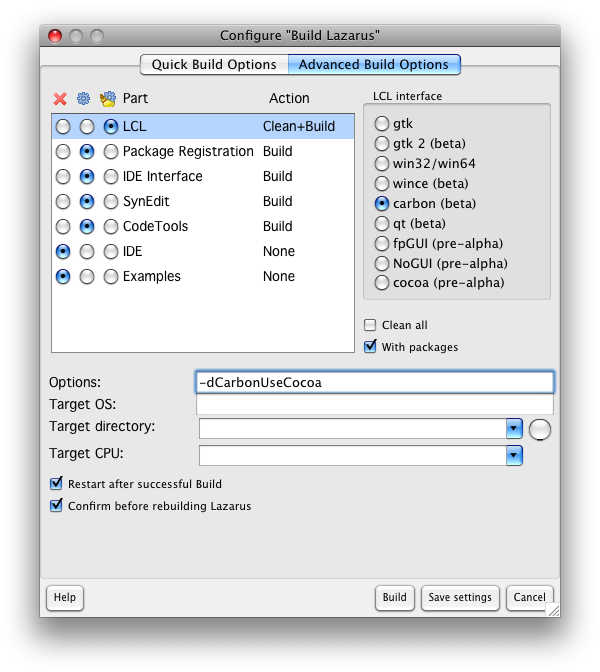 | |
| 249 | 234 | ||
| 250 | 235 | After that click build | |
| 251 | 236 | ||
| 252 | 237 | This should rebuild the LCL only. If you finished step 1 (downloading PasCocoa) successfully, then the LCL should compile with no problems. | |
| 253 | 238 | ||
| 254 | 239 | After the LCL is rebuilt, you need to rebuild your project. | |
| 255 | 240 | ||
| 256 | 241 | Don't forget, if you need Cocoa controls for CPU other than your Mac, you'll need to rebuild the LCL, specifying the proper CPU target. | |
| 257 | 242 | ||
| 258 | 243 | --- | |
| 259 | 244 | *From the Free Pascal wiki, page "Carbon Interface", as it stood on 2023-11-13 after a change by Bart, out of the wiki's dump of 2024-05-26. Copyright stays with the author who wrote it, according to the old wiki's [[Licensing]] page. If you have concerns about this material, [message the admin](/wiki-contact).* |