

BGRAButton Gallery
Overview
This is a gallery of creations with BGRAButton. See BGRAControls article for more information.
Some of those examples can be found in testbgracontrols project in BGRAControls package.
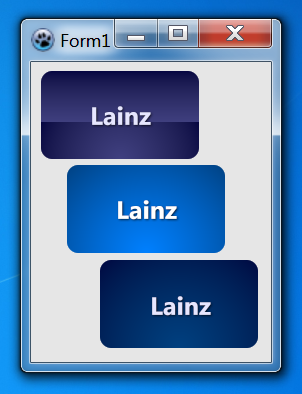
You need BGRABitmapTypes unit to run this code.
Add a new BGRAButton, go OnPaint event and add this code:
procedure TForm1.FormCreate(Sender: TObject);
begin
  Self.Color:=RGBToColor(230,230,230);
  // Lainz Button
  with BGRAButton1 do begin
    RoundX:=12;
    RoundY:=12;
    TextShadowOffsetX:=1;
    TextShadowOffsetY:=1;
    TextShadowRadius:=2;
    // Normal
    with BodyNormal do begin
      BorderStyle:=bboNone;
      Font.Color:=RGBToColor(230,230,255);
      Font.Style:=[fsBold];
      Gradient1.EndColor:=RGBToColor(64,64,128);
      Gradient1.StartColor:=RGBToColor(0,0,64);
      Gradient1EndPercent:=60;
      // Gradient2
      with Gradient2 do begin
        EndColor:=RGBToColor(0,0,64);
        GradientType:=gtRadial;
        Point1XPercent:=50;
        Point1YPercent:=100;
        Point2YPercent:=0;
        StartColor:=RGBToColor(64,64,128);
      end;
    end;
    // Hover
    with BodyHover do begin
      BorderStyle:=bboNone;
      Font.Color:=RGBToColor(255,255,255);
      Font.Style:=[fsBold];
      Gradient1EndPercent:=100;
      // Gradient1
      with Gradient1 do begin
        EndColor:=RGBToColor(0,64,128);
        GradientType:=gtRadial;
        Point1XPercent:=50;
        Point1YPercent:=100;
        Point2YPercent:=0;
        StartColor:=RGBToColor(0,128,255);
      end;
    end;
    // Clicked
    with BodyClicked do begin
      BorderStyle:=bboNone;
      Font.Color:=RGBToColor(230,230,255);
      Font.Style:=[fsBold];
      Gradient1EndPercent:=100;
      // Gradient1
      with Gradient1 do begin
        EndColor:=RGBToColor(0,0,64);
        GradientType:=gtRadial;
        Point1XPercent:=50;
        Point1YPercent:=100;
        Point2YPercent:=0;
        StartColor:=RGBToColor(0,64,128);
      end;
    end;
  end;
end;
Tips
Those are some tips and how-to's.
Sphere
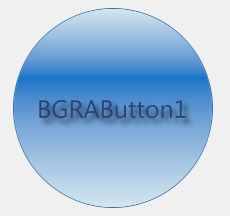
To create a sphere you need to set Width & Height to the same value and RoundX & RoundY a half of Width & a half of Height. Use this code to obtain a sphere like in the previous image:
BGRAButton1.Width:=200;
BGRAButton1.Height:=200;
BGRAButton.RoundX:=100;
BGRAButton.RoundY:=100;
Or do it in this way:
// Square
  with BGRAButton1 do begin
    Width:= 200;
    Height:= Width;
  end;

  // Sphere
  with BGRAButton1 do begin
    RoundX:= Round(Width div 2);
    RoundY:= Round(Height div 2);
  end;
Only one state
If you only want a solid button just with the state BodyNormal you must set to true the property StaticButton.
BGRAButton1.StaticButton:=True;Button very slow
If the button is very slow you can disable TextShadow to improve speed.
BGRAButton1.TextShadow:=False;And you can improve speed using Single gradient button or Single color button.
Single gradient button
You can use just only one gradient if you want.
BGRAButton1.Gradient1EndPercent:=100; // if you want to use only Gradient1
BGRAButton1.Gradient1EndPercent:=0; // if you want to use only Gradient2
Single color button
Changing the Style of the button you can display just a single color as background.
BGRAButton1.BodyNormal.Style:=bbsColor;How to avoid flickering
The button will flicker if you are running Windows without themes (classic). To avoid this enable DoubleBuffered OnCreate event of each Form.
procedure TForm1.FormCreate(Sender: TObject);
begin
  Self.DoubleBuffered:=True;
end;
Using as Label
The easy way is set to true the property StaticButton.
BGRAButton1.StaticButton:=True;Then set BodyNormal.Style to bbsClear and BodyNormal.BorderStyle to bboNone.
Like Web
Those are like websites, web apps.
Facebook Menu
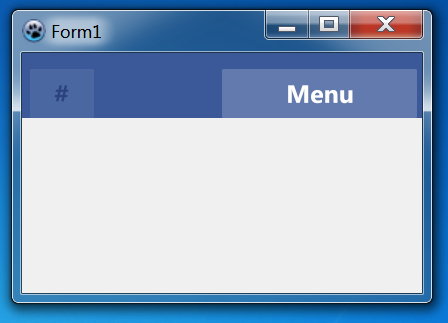
Like Facebook Menu (2011), add a BGRAPanel with 2 BGRAButton inside, then go OnCreate event of Form1 and add this code:
procedure TForm1.FormCreate(Sender: TObject);
begin
  // Panel
  with BGRAPanel1 do begin
    BackgroundStyle:=bpsColor;
    BevelOuter:=bvNone;
    //Color:=RGBToColor(98,122,173); // Light Background
    Color:=RGBToColor(59,89,152);  // Dark Background
  end;
  // Light Menu
  with BGRAButton1 do begin
    TextShadow:=False;
    // Normal
    with BodyNormal do begin
      BorderColor:=RGBToColor(98,122,173);
      Color:=RGBToColor(98,122,173);
      Font.Color:=clWhite;
      Font.Style:=[fsBold];
      Style:=bbsColor;
    end;
    // Hover
    with BodyHover do begin
      BorderColor:=RGBToColor(109,134,183);
      Color:=RGBToColor(109,134,183);
      Font.Color:=clWhite;
      Font.Style:=[fsBold];
      Style:=bbsColor;
    end;
    // Clicked
    with BodyClicked do begin
      BorderColor:=clBlack;
      Color:=clWhite;
      Font.Color:=clBlack;
      Font.Style:=[fsBold];
      Style:=bbsColor;
    end;
  end;
  // Dark Menu
  with BGRAButton2 do begin
    TextShadow:=False;
    // Normal
    with BodyNormal do begin
      BorderColor:=RGBToColor(59,89,152);
      Color:=RGBToColor(59,89,152);
      Font.Color:=RGBToColor(42,66,128);
      Font.Style:=[fsBold];
      Style:=bbsColor;
    end;
    // Hover
    with BodyHover do begin
      BorderColor:=RGBToColor(75,103,161);
      Color:=RGBToColor(75,103,161);
      Font.Color:=RGBToColor(42,66,128);
      Font.Style:=[fsBold];
      Style:=bbsColor;
    end;
    // Clicked
    with BodyClicked do begin
      BorderColor:=clBlack;
      Color:=clWhite;
      Font.Color:=RGBToColor(42,66,128);
      Font.Style:=[fsBold];
      Style:=bbsColor;
    end;
  end;
end;
You can set Clicked properties same as Hover for standard buttons (not menu's).
Google Menu
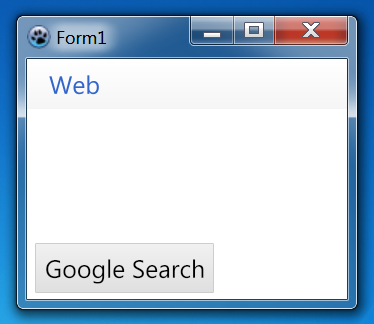
Like Google Menu (2011), add a BGRAPanel with a BGRAButton inside and another BGRAButton in the Form, then go OnCreate event of Form1 and add this code:
procedure TForm1.FormCreate(Sender: TObject);
begin
  // Background
  Self.Color:=clWhite;
  // Panel
  with BGRAPanel1 do begin
    BevelOuter:=bvNone;
    Gradient.StartColor:=clWhite;
    Gradient.EndColor:=RGBToColor(245,245,245);
  end;
  // Menu Button
  with BGRAButton1 do begin
    TextShadow:=False;
    // Normal
    with BodyNormal do begin
      BorderStyle:=bboNone;
      Font.Color:=RGBToColor(51,102,204);
      Style:=bbsClear;
    end;
    // Hover
    with BodyHover do begin
      BorderStyle:=bboNone;
      Gradient1.StartColor:=RGBToColor(227,234,248);
      Gradient1.EndColor:=RGBToColor(223,229,242);
      Font.Color:=RGBToColor(51,102,204);
      Gradient1EndPercent:=100;
    end;
    // Clicked
    with BodyClicked do begin
      BorderStyle:=bboNone;
      Gradient1.StartColor:=RGBToColor(227,234,248);
      Gradient1.EndColor:=RGBToColor(223,229,242);
      Font.Color:=RGBToColor(51,102,204);
      Gradient1EndPercent:=100;
    end;
  end;
  // Button
  with BGRAButton2 do begin
    TextShadow:=False;
    // Normal
    with BodyNormal do begin
      BorderColor:=RGBToColor(205,205,205);
      Gradient1.StartColor:=RGBToColor(241,241,241);
      Gradient1.EndColor:=RGBToColor(223,223,223);
      Font.Color:=clBlack;
      Gradient1EndPercent:=100;
    end;
    // Hover
    with BodyHover do begin
      BorderColor:=RGBToColor(205,205,205);
      Gradient1.StartColor:=RGBToColor(241,241,241);
      Gradient1.EndColor:=RGBToColor(223,223,223);
      Font.Color:=clBlack;
      Gradient1EndPercent:=100;
    end;
    // Clicked
    with BodyClicked do begin
      BorderColor:=RGBToColor(204,204,204);
      Color:=RGBToColor(204,204,204);
      Font.Color:=clBlack;
      Style:=bbsColor;
    end;
  end;
end;
Like Windows Controls
Those are like Windows Controls.
Windows 7 Button
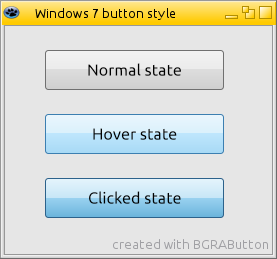
Like Windows 7 button, add a BGRAButton, then go OnCreate event of Form1 and add this code:
procedure TForm1.FormCreate(Sender: TObject);
begin
  // Button
  with BGRAButton1 do begin
    TextShadow:=False;
    RoundX:=3;
    RoundY:=3;
    // Normal
    with BodyNormal do begin
      Font.Color:=clBlack;
      Gradient1EndPercent:=50;
      BorderColor:=RGBToColor(112,112,112);
      Gradient1.StartColor:=RGBToColor(242,242,242);
      Gradient1.EndColor:=RGBToColor(235,235,235);
      Gradient2.StartColor:=RGBToColor(221,221,221);
      Gradient2.EndColor:=RGBToColor(207,207,207);
    end;
    // Hover
    with BodyHover do begin
      Font.Color:=clBlack;
      Gradient1EndPercent:=50;
      BorderColor:=RGBToColor(60,127,177);
      Gradient1.StartColor:=RGBToColor(234,246,253);
      Gradient1.EndColor:=RGBToColor(217,240,252);
      Gradient2.StartColor:=RGBToColor(190,230,253);
      Gradient2.EndColor:=RGBToColor(167,217,245);
    end;
    // Clicked
    with BodyClicked do begin
      Font.Color:=clBlack;
      Gradient1EndPercent:=55;
      BorderColor:=RGBToColor(44,98,139);
      Gradient1.StartColor:=RGBToColor(229,244,252);
      Gradient1.EndColor:=RGBToColor(196,229,246);
      Gradient2.StartColor:=RGBToColor(152,209,239);
      Gradient2.EndColor:=RGBToColor(104,179,219);
    end;
  end;
end;
Windows 7 Explorer ToolBar
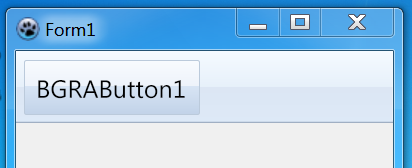
Like Windows 7 explorer toolbar button, add a BGRAVirtualScreen with a BGRAButton inside, then go OnCreate event of Form1 and add this code:
procedure TForm1.FormCreate(Sender: TObject);
begin
  // Button
  with BGRAButton1 do begin
    TextShadow:=False;
    RoundX:=2;
    RoundY:=2;
    // Normal
    with BodyNormal do begin
      Font.Color:=clBlack;
      BorderStyle:=bboNone;
      Style:=bbsClear;
    end;
    // Hover
    with BodyHover do begin
      Font.Color:=clBlack;
      Gradient1EndPercent:=50;
      BorderColor:=RGBToColor(187,202,219);
      Gradient1.StartColor:=RGBToColor(248,251,254);
      Gradient1.EndColor:=RGBToColor(237,242,250);
      Gradient2.StartColor:=RGBToColor(215,228,244);
      Gradient2.EndColor:=RGBToColor(193,210,232);
    end;
    // Clicked
    with BodyClicked do begin
      Font.Color:=clBlack;
      Gradient1EndPercent:=55;
      BorderColor:=RGBToColor(187,202,219);
      Gradient1.StartColor:=RGBToColor(226,236,245);
      Gradient1.EndColor:=RGBToColor(216,228,241);
      Gradient2.StartColor:=RGBToColor(207,219,236);
      Gradient2.EndColor:=RGBToColor(207,220,237);
    end;
  end;
end;
Go to OnRedraw of BGRAVirtualScreen and add this code:
procedure TForm1.BGRAVirtualScreen1Redraw(Sender: TObject; Bitmap: TBGRABitmap);
var
  gradBitmap: TBGRABitmap;
begin
  with BGRAVirtualScreen1 do begin
    gradBitmap:= DoubleGradientAlphaFill(ClientRect,BGRA(245,250,255,255),BGRA(230,240,250,255),
    BGRA(220,230,244,255),BGRA(221,233,247,255),gdVertical,gdVertical,gdVertical,0.50);
  end;
  with Bitmap do begin
    PutImage(0,0,gradBitmap,dmSet);
    gradBitmap.Free;
    Rectangle(0,0,Width,Height-2,BGRA(255,255,255,100),dmDrawWithTransparency);
    SetHorizLine(0,Height-1,Width-1,BGRA(160,175,195,255));
    SetHorizLine(0,Height-2,Width-1,BGRA(205,218,234,255));
  end;
end;
Office 2010 Button
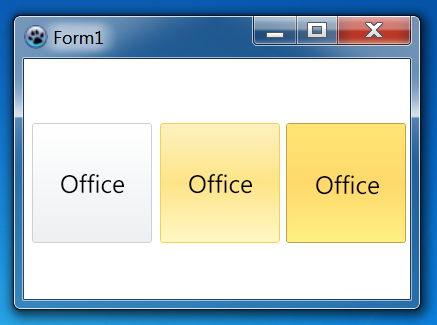
Like Office 2010 button, add a BGRAButton, then go OnCreate event of Form1 and add this code:
procedure TForm1.FormCreate(Sender: TObject);
begin
  Self.Color:=clWhite;
  // Button
  with BGRAButton1 do begin
    RoundX:=3;
    RoundY:=3;
    TextShadow:=False;
    // Normal
    with BodyNormal do begin
      BorderColor:=RGBToColor(207,208,210);
      Font.Color:=clBlack;
      Gradient1.StartColor:=RGBToColor(255,255,255);
      Gradient1.EndColor:=RGBToColor(237,239,241);
      Gradient1EndPercent:=100;
    end;
    // Hover
    with BodyHover do begin
      BorderColor:=RGBToColor(244,210,81);
      Font.Color:=clBlack;
      Gradient1.StartColor:=RGBToColor(254,241,189);
      Gradient1.EndColor:=RGBToColor(254,228,134);
      Gradient1EndPercent:=50;
      Gradient2.StartColor:=RGBToColor(254,228,134);
      Gradient2.EndColor:=RGBToColor(254,248,196);
    end;
    // Clicked
    with BodyClicked do begin
      BorderColor:=RGBToColor(194,161,63);
      Font.Color:=clBlack;
      Gradient1.StartColor:=RGBToColor(255,229,117);
      Gradient1.EndColor:=RGBToColor(255,216,107);
      Gradient1EndPercent:=50;
      Gradient2.StartColor:=RGBToColor(255,216,107);
      Gradient2.EndColor:=RGBToColor(255,239,129);
    end;
  end;
end;
Like Mac Controls
Those are like Mac Controls.
macOS Lion Button
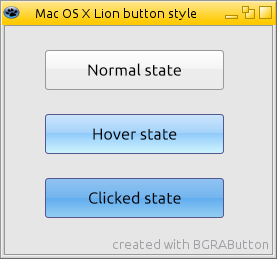
Like macOS Lion button, add a BGRAButton, then go OnCreate event of Form1 and add this code:
procedure TForm1.FormCreate(Sender: TObject);
begin
  // Button
  with BGRAButton1 do begin
    TextShadow:=False;
    RoundX:=3;
    RoundY:=3;
    // Normal
    with BodyNormal do begin
      Font.Color:=clBlack;
      Gradient1EndPercent:=50;
      BorderColor:=RGBToColor(154,154,154);
      Gradient1.StartColor:=RGBToColor(255,255,255);
      Gradient1.EndColor:=RGBToColor(243,243,243);
      Gradient2.StartColor:=RGBToColor(236,236,236);
      Gradient2.EndColor:=RGBToColor(235,235,235);
    end;
    // Hover
    with BodyHover do begin
      Font.Color:=clBlack;
      Gradient1EndPercent:=50;
      BorderColor:=RGBToColor(86,87,143);
      Gradient1.StartColor:=RGBToColor(204,229,252);
      Gradient1.EndColor:=RGBToColor(161,209,249);
      Gradient2.StartColor:=RGBToColor(143,202,251);
      Gradient2.EndColor:=RGBToColor(207,245,253);
    end;
    // Clicked
    with BodyClicked do begin
      Font.Color:=clBlack;
      Gradient1EndPercent:=55;
      BorderColor:=RGBToColor(86,87,143);
      Gradient1.StartColor:=RGBToColor(144,195,241);
      Gradient1.EndColor:=RGBToColor(113,180,239);
      Gradient2.StartColor:=RGBToColor(97,173,240);
      Gradient2.EndColor:=RGBToColor(147,206,241);
    end;
  end;
end;
Other
Other stuff.
Lazarus Custom Drawn
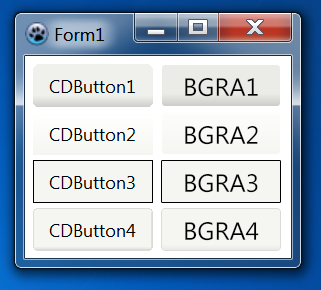
dsAndroid, dsGrad, dsWinCE, dsXPTaskBar
Like Lazarus Custom Drawn Controls. Add 4 BGRAButton, then go OnCreate event of Form1 and add this code:
procedure TForm1.FormCreate(Sender: TObject);
begin
  // dsAndroid
  with BGRAButton1 do begin
    TextShadow:=False;
    RoundX:=4;
    RoundY:=4;
    with BodyNormal do begin
      BorderStyle:=bboNone;
      Font.Color:=clBlack;
      Gradient1EndPercent:=100;
      Gradient1.EndColor:=RGBToColor(202,202,198);
      Gradient1.StartColor:=RGBToColor(235,235,231);
      Gradient1.Point1YPercent:=70;
    end;
    with BodyHover do begin
      BorderStyle:=bboNone;
      Font.Color:=clBlack;
      Gradient1EndPercent:=100;
      Gradient1.EndColor:=RGBToColor(202,202,198);
      Gradient1.StartColor:=RGBToColor(235,235,231);
      Gradient1.Point1YPercent:=70;
    end;
    with BodyClicked do begin
      Color:=RGBToColor(227,227,224);
      BorderColor:=RGBToColor(172,172,170);
      Font.Color:=clBlack;
      Style:=bbsColor;
    end;
  end;

  // dsGrad
  with BGRAButton2 do begin
    TextShadow:=False;
    RoundX:=4;
    RoundY:=4;
    with BodyNormal do begin
      BorderStyle:=bboNone;
      Font.Color:=clBlack;
      Gradient1EndPercent:=100;
      Gradient1.EndColor:=RGBToColor(245,245,241);
      Gradient1.StartColor:=RGBToColor(253,253,253);
    end;
    with BodyHover do begin
      BorderStyle:=bboNone;
      Font.Color:=clBlack;
      Gradient1EndPercent:=100;
      Gradient1.EndColor:=RGBToColor(245,245,241);
      Gradient1.StartColor:=RGBToColor(253,253,253);
    end;
    with BodyClicked do begin
      Color:=RGBToColor(227,227,224);
      BorderColor:=RGBToColor(172,172,170);
      Font.Color:=clBlack;
      Style:=bbsColor;
    end;
  end;

  // dsWinCE
  with BGRAButton3 do begin
    TextShadow:=False;
    with BodyNormal do begin
      Color:=RGBToColor(245,245,241);
      BorderColor:=clBlack;
      Font.Color:=clBlack;
      Style:=bbsColor;
    end;
    with BodyHover do begin
      Color:=RGBToColor(245,245,241);
      BorderColor:=clBlack;
      Font.Color:=clBlack;
      Style:=bbsColor;
    end;
    with BodyClicked do begin
      Color:=RGBToColor(220,220,216);
      BorderColor:=clBlack;
      Font.Color:=clBlack;
      Style:=bbsColor;
    end;
  end;

  // dsXPTaskBar
  with BGRAButton4 do begin
    TextShadow:=False;
    RoundX:=4;
    RoundY:=4;
    with BodyNormal do begin
      BorderColor:=RGBToColor(219,219,215);
      Font.Color:=clBlack;
      Gradient1EndPercent:=100;
      Gradient1.EndColor:=RGBToColor(232,232,228);
      Gradient1.StartColor:=RGBToColor(245,245,241);
      Gradient1.Point1YPercent:=85;
    end;
    with BodyHover do begin
      BorderColor:=RGBToColor(219,219,215);
      Font.Color:=clBlack;
      Gradient1EndPercent:=100;
      Gradient1.EndColor:=RGBToColor(232,232,228);
      Gradient1.StartColor:=RGBToColor(245,245,241);
      Gradient1.Point1YPercent:=85;
    end;
    with BodyClicked do begin
      Color:=RGBToColor(227,227,224);
      BorderColor:=RGBToColor(172,172,170);
      Font.Color:=clBlack;
      Style:=bbsColor;
    end;
  end;
end;
Flash Player Setup
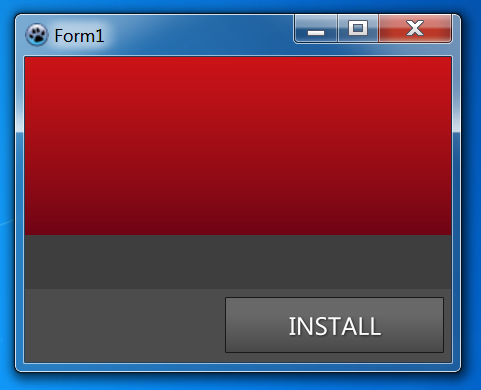
Like Flash Player Setup, add 2 BGRAPanel, the first with a BGRAButton inside, then go OnPaint event of Form1 and add this code:
procedure TForm1.FormCreate(Sender: TObject);
begin
  // Background
  Self.Color:=RGBToColor(62,62,62);

  // Panel
  with BGRAPanel2 do begin
    BevelOuter:=bvNone;
    With Gradient do begin
      StartColor:=RGBToColor(203,19,23);
      EndColor:=RGBToColor(110,3,20);
    end;
  end;

  // Bottom Panel
  with BGRAPanel1 do begin
    BevelOuter:=bvNone;
    BackGroundStyle:=bpsColor;
    Color:=RGBToColor(76,76,76);
  end;

  // Button
  with BGRAButton1 do begin
    TextShadowOffSetX:=1;
    TextShadowOffSetY:=1;
    TextShadowRadius:=2;
    // Normal
    with BodyNormal do begin
      BorderColor:=RGBToColor(24,24,24);
      Font.Color:=clWhite;
      with Gradient1 do begin
        StartColor:=RGBToColor(104,104,104);
        EndColor:=RGBToColor(104,104,104);
      end;
      with Gradient2 do begin
        StartColor:=RGBToColor(103,103,103);
        EndColor:=RGBToColor(71,71,71);
      end;
    end;
    // Hover
    with BodyHover do begin
      BorderColor:=RGBToColor(24,24,24);
      Font.Color:=clWhite;
      with Gradient1 do begin
        StartColor:=RGBToColor(118,118,118);
        EndColor:=RGBToColor(118,118,118);
      end;
      with Gradient2 do begin
        StartColor:=RGBToColor(117,117,117);
        EndColor:=RGBToColor(81,81,81);
      end;
    end;
    // Clicked
    with BodyClicked do begin
      BorderColor:=RGBToColor(24,24,24);
      Font.Color:=clWhite;
      with Gradient1 do begin
        StartColor:=RGBToColor(92,92,92);
        EndColor:=RGBToColor(92,92,92);
      end;
      with Gradient2 do begin
        StartColor:=RGBToColor(91,91,91);
        EndColor:=RGBToColor(62,62,62);
      end;
    end;
  end;

end;
From the Free Pascal wiki, page "BGRAButton Gallery", as it stood on 2020-02-07 after a change by Trev, out of the wiki's dump of 2024-05-26. Copyright stays with the author who wrote it, according to the old wiki's Licensing page. If you have concerns about this material, message the admin.
Edited on wiki.freepascal.org by 6 people, 2011–2020
From the official wiki's backup of 26 May 2024: who edited this page there, and when. Edits made there after that date were not recorded, and the earlier versions are not shown here; the main page says why.
| When | Who | What changed |
|---|---|---|
| Lainz | New page: == Overview == This is a gallery of creations with BGRAButton. See BGRAControls article for more information. == Like Windows Controls == Those are like Windows Controls. === Windo... | |
| Lainz | ||
| Lainz | ||
| Lainz | ||
| Lainz | Mac OS X Lion Button: Improved Hover state | |
| Lainz | ||
| Lainz | Like Google 2011: Fix Hover Font Color | |
| Lainz | Like Google 2011: Fix Clicked Font Color (minor) | |
| Lainz | ||
| Lainz | Like Office 2010 Button: minor (minor) | |
| Lainz | ||
| Lainz | ||
| Lainz | Tips | |
| Lainz | Button very slow | |
| Lainz | Tips (minor) | |
| Lainz | Tips (minor) | |
| Lainz | Tips | |
| Lainz | Sphere (minor) | |
| Lainz | ||
| Lainz | How to avoid flickering (minor) | |
| Lainz | How to avoid flickering (minor) | |
| Lainz | ||
| Lainz | Lazarus Custom Drawn (minor) | |
| Lainz | Tips: missing ';' (minor) | |
| Lainz | Other | |
| Lainz | Tips: Using as Label (minor) | |
| Lainz | Windows 7 Explorer ToolBar: Added BGRAVirtualScreen | |
| Lainz | Flash Player Setup (minor) | |
| Lainz | (minor) | |
| Ggeldenhuys | Overview: - fixed source code example syntax highlighting problem | |
| Ggeldenhuys | Sphere: - fixed source code example syntax highlighting problem | |
| Ggeldenhuys | Only one state: - fixed source code example syntax highlighting problem | |
| Ggeldenhuys | Button very slow: - fixed source code example syntax highlighting problem | |
| Ggeldenhuys | Single gradient button: - fixed source code example syntax highlighting problem | |
| Ggeldenhuys | Single color button: - fixed source code example syntax highlighting problem | |
| Ggeldenhuys | How to avoid flickering: - fixed source code example syntax highlighting problem | |
| Ggeldenhuys | Using as Label: - fixed source code example syntax highlighting problem | |
| Ggeldenhuys | Facebook Menu: - fixed source code example syntax highlighting problem | |
| Ggeldenhuys | Google Menu: - fixed source code example syntax highlighting problem | |
| Ggeldenhuys | Windows 7 Button: - fixed source code example syntax highlighting problem | |
| Ggeldenhuys | Windows 7 Explorer ToolBar: - fixed source code example syntax highlighting problem | |
| Ggeldenhuys | Office 2010 Button: - fixed source code example syntax highlighting problem | |
| Ggeldenhuys | Mac OS X Lion Button: - fixed source code example syntax highlighting problem | |
| Ggeldenhuys | Lazarus Custom Drawn: - fixed source code example syntax highlighting problem | |
| Ggeldenhuys | Flash Player Setup: - fixed source code example syntax highlighting problem | |
| Vincent | Text replace - "delphi>" to "syntaxhighlight>" (minor) | |
| Swen | Sphere (minor) | |
| Jwdietrich | ||
| Trev | Fixed syntax highlighting (minor) |
Talk about this page
Nobody has opened a bench for this page yet. Sign in to open one.