

BGRABitmap tutorial 12: what changed
Revision 1 to 2. Removed lines have a minus sign; added lines have a plus sign.
| Old | New | Line | |
|---|---|---|---|
| 1 | 1 | This tutorial shows how to use the text functions. For advanced features, see [[BGRABitmap tutorial Font rendering|font renderers]]. | |
| 2 | 2 | ||
| 3 | 3 | ### Create a new project | |
| 4 | 4 | ||
| 5 | 5 | Create a new project and add a reference to [[BGRABitmap]], the same way as in [[BGRABitmap tutorial|the first tutorial]]. | |
| 6 | 6 | ||
| 7 | 7 | ### Simple text | |
| 8 | 8 | ||
| 9 | 9 | You can draw a simple text like this: | |
| 10 | 10 | ||
| 11 | 11 | ``` pascal | |
| 12 | 12 | procedure TForm1.FormPaint(Sender: TObject); | |
| 13 | 13 | var | |
| 14 | 14 | image: TBGRABitmap; | |
| 15 | 15 | c: TBGRAPixel; | |
| 16 | 16 | begin | |
| 17 | 17 | image := TBGRABitmap.Create(ClientWidth,ClientHeight, ColorToBGRA(ColorToRGB(clBtnFace)) ); | |
| 18 | 18 | c := ColorToBGRA(ColorToRGB(clBtnText)); //retrieve default text color | |
| 19 | 19 | ||
| 20 | 20 | image.FontHeight := 30; | |
| 21 | 21 | image.FontAntialias := true; | |
| 22 | 22 | image.FontStyle := [fsBold]; | |
| 23 | 23 | image.TextOut (5, 5, 'Hello world', c); | |
| 24 | 24 | image.SetPixel (5, 5, c); | |
| 25 | 25 | ||
| 26 | 26 | image.free; | |
| 27 | 27 | end; | |
| 28 | 28 | ``` | |
| 29 | 29 | ||
| 30 | 30 | Here the font size is set to 30 pixels, with antialiasing. Using font antialiasing is slower but more beautiful. | |
| 31 | 31 | ||
| 32 | 32 | The upper-left corner of the text is at (5,5). This origin is shown with a SetPixel. | |
| 33 | 33 | ||
| 34 | - | ||
| 35 | - | ||
| 36 | - | ||
| 37 | - | ||
| 34 | + | 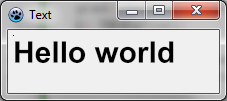 | |
| 38 | 35 | ||
| 39 | 36 | #### Using alignment | |
| 40 | 37 | ||
| 41 | 38 | Just replace the TextOut and SetPixel lines by: | |
| 42 | 39 | ||
| 43 | 40 | ``` pascal | |
| 44 | 41 | image.TextOut(ClientWidth-5,5,'Hello world',c,taRightJustify); | |
| 45 | 42 | image.SetPixel(ClientWidth-5,5,c); | |
| 46 | 43 | ``` | |
| 47 | 44 | ||
| 48 | 45 | Now the origin is on the right side of the form, and the text is aligned to the right. | |
| 49 | 46 | ||
| 50 | - | ||
| 51 | - | ||
| 52 | - | ||
| 53 | - | ||
| 47 | + |  | |
| 54 | 48 | ||
| 55 | 49 | ### Rotated text | |
| 56 | 50 | ||
| 57 | 51 | It is also simple to draw rotated text. To do this use TextOutAngle or set FontOrientation property: | |
| 58 | 52 | ||
| 59 | 53 | ``` pascal | |
| 60 | 54 | image.TextOutAngle(30,5,-450,'Hello world',c, taLeftJustify); | |
| 61 | 55 | image.SetPixel(30,5,c); | |
| 62 | 56 | ``` | |
| 63 | 57 | ||
| 64 | 58 | The angle is in tenth of degrees and positive value means counter clock wise. | |
| 65 | 59 | ||
| 66 | - | ||
| 67 | - | ||
| 68 | - | ||
| 69 | - | ||
| 60 | + | 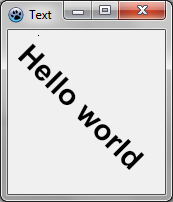 | |
| 70 | 61 | ||
| 71 | 62 | Notice where the text origin is (the added pixel). | |
| 72 | 63 | ||
| 73 | 64 | ### Word wrapped text | |
| 74 | 65 | ||
| 75 | 66 | There is an easy to use version of TextRect: | |
| 76 | 67 | ||
| 77 | 68 | ``` pascal | |
| 78 | 69 | image.TextRect(rect(5,5,ClientWidth-5,ClientHeight-5),'This is a text that should be word wrapped',taCenter,tlCenter,c); | |
| 79 | 70 | image.Rectangle(rect(5,5,ClientWidth-5,ClientHeight-5),c,dmSet); | |
| 80 | 71 | ``` | |
| 81 | 72 | ||
| 82 | 73 | Parameters are: | |
| 83 | 74 | ||
| 84 | 75 | - the bounding rectangle | |
| 85 | 76 | - the text | |
| 86 | 77 | - horizontal alignment | |
| 87 | 78 | - vertical alignment | |
| 88 | 79 | - color | |
| 89 | 80 | ||
| 90 | - | ||
| 91 | - | ||
| 92 | - | ||
| 93 | - | ||
| 81 | + | 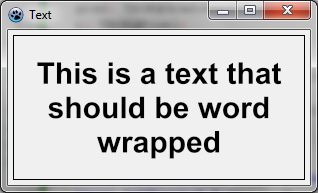 | |
| 94 | 82 | ||
| 95 | 83 | ### Text with shadow | |
| 96 | 84 | ||
| 97 | 85 | You can make a text shadow with a blur effect: | |
| 98 | 86 | ||
| 99 | 87 | ``` pascal | |
| 100 | 88 | var | |
| 101 | 89 | image,txt: TBGRABitmap; | |
| 102 | 90 | grad: TBGRAGradientScanner; | |
| 103 | 91 | c: TBGRAPixel; | |
| 104 | 92 | begin | |
| 105 | 93 | image := TBGRABitmap.Create(ClientWidth,ClientHeight, ColorToBGRA(ColorToRGB(clBtnFace)) ); | |
| 106 | 94 | c := ColorToBGRA(ColorToRGB(clBtnText)); | |
| 107 | 95 | ||
| 108 | 96 | txt := TextShadow(ClientWidth,ClientHeight,'Hello world',30,c,BGRABlack,5,5,5); | |
| 109 | 97 | image.PutImage(0,0,txt,dmDrawWithTransparency); | |
| 110 | 98 | txt.Free; | |
| 111 | 99 | ||
| 112 | 100 | image.Draw(Canvas,0,0,True); | |
| 113 | 101 | image.free; | |
| 114 | 102 | end; | |
| 115 | 103 | ``` | |
| 116 | 104 | ||
| 117 | 105 | The procedure TextShadow creates a bitmap that contains the text with a shadow. The parameters are: | |
| 118 | 106 | ||
| 119 | 107 | - The size of the bitmap | |
| 120 | 108 | - The text | |
| 121 | 109 | - Font height | |
| 122 | 110 | - Font color | |
| 123 | 111 | - Shadow color | |
| 124 | 112 | - Shadow offset and blur size | |
| 125 | 113 | ||
| 126 | 114 | Do not forget to free the bitmap after using it. | |
| 127 | 115 | ||
| 128 | - | ||
| 129 | - | ||
| 130 | - | ||
| 131 | - | ||
| 116 | + | 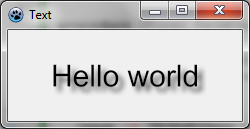 | |
| 132 | 117 | ||
| 133 | 118 | ### Text with gradient | |
| 134 | 119 | ||
| 135 | 120 | Like other drawing functions, you can supply a gradient or a texture to fill the text with. Here is an example: | |
| 136 | 121 | ||
| 137 | 122 | ``` pascal | |
| 138 | 123 | uses BGRAGradientScanner; | |
| 139 | 124 | ||
| 140 | 125 | var | |
| 141 | 126 | image: TBGRABitmap; | |
| 142 | 127 | grad: TBGRAGradientScanner; | |
| 143 | 128 | begin | |
| 144 | 129 | image := TBGRABitmap.Create(ClientWidth,ClientHeight, ColorToBGRA(ColorToRGB(clBtnFace)) ); | |
| 145 | 130 | ||
| 146 | 131 | grad := TBGRAGradientScanner.Create(BGRA(255,255,0),BGRA(255,0,0),gtLinear,PointF(0,0),PointF(0,35),True,True); | |
| 147 | 132 | image.FontHeight := 30; | |
| 148 | 133 | image.FontAntialias := true; | |
| 149 | 134 | image.FontStyle := [fsBold]; | |
| 150 | 135 | image.TextOut(6,6,'Hello world',BGRABlack); //draw a black border | |
| 151 | 136 | image.TextOut(5,5,'Hello world',grad); //draw gradient text | |
| 152 | 137 | grad.free; | |
| 153 | 138 | ||
| 154 | 139 | image.Draw(Canvas,0,0,True); | |
| 155 | 140 | image.free; | |
| 156 | 141 | end; | |
| 157 | 142 | ``` | |
| 158 | 143 | ||
| 159 | 144 | First a horizontal sine gradient is created, with color yellow and red. It is then used as a texture. | |
| 160 | 145 | ||
| 161 | - | ||
| 162 | - | ||
| 163 | - | ||
| 164 | - | ||
| 146 | + | 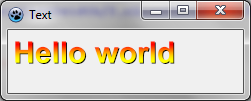 | |
| 165 | 147 | ||
| 166 | 148 | [[BGRABitmap tutorial 11|Previous tutorial (combining transformations)]] [[BGRABitmap tutorial 13|Next tutorial (coordinate system)]] | |
| 167 | 149 | ||
| 168 | 150 | --- | |
| 169 | 151 | *From the Free Pascal wiki, page "BGRABitmap tutorial 12", as it stood on 2023-01-22 after a change by Crore, out of the wiki's dump of 2024-05-26. Copyright stays with the author who wrote it, according to the old wiki's [[Licensing]] page. If you have concerns about this material, [message the admin](/wiki-contact).* | |
| 170 | 152 | Category: BGRABitmap | |
| 171 | 153 | Category: Graphics |