

BGRABitmap tutorial 11/fr: what changed
Revision 1 to 2. Removed lines have a minus sign; added lines have a plus sign.
| Old | New | Line | |
|---|---|---|---|
| 1 | 1 | Ce tutoriel montre comment combiner les transformations. | |
| 2 | 2 | ||
| 3 | 3 | ### Transformation affine d'un dégradé radial | |
| 4 | 4 | ||
| 5 | 5 | Voici une transformation affine appliquée à un dégradé de la même façon qu'avec les textures : | |
| 6 | 6 | ||
| 7 | 7 | ``` pascal | |
| 8 | 8 | uses BGRAGradientScanner, BGRATransform; | |
| 9 | 9 | ||
| 10 | 10 | procedure TForm1.FormPaint(Sender: TObject); | |
| 11 | 11 | var image: TBGRABitmap; | |
| 12 | 12 | grad: TBGRAGradientScanner; | |
| 13 | 13 | affine: TBGRAAffineScannerTransform; | |
| 14 | 14 | begin | |
| 15 | 15 | image := TBGRABitmap.Create(ClientWidth,ClientHeight, BGRABlack ); | |
| 16 | 16 | ||
| 17 | 17 | grad := TBGRAGradientScanner.Create(BGRA(0,0,255),BGRAWhite,gtRadial,PointF(0,0),PointF(1,0),True,True); | |
| 18 | 18 | ||
| 19 | 19 | affine := TBGRAAffineScannerTransform.Create(grad); | |
| 20 | 20 | affine.Scale(150,80); | |
| 21 | 21 | affine.RotateDeg(-30); | |
| 22 | 22 | affine.Translate(ClientWidth/2, ClientHeight/2); | |
| 23 | 23 | ||
| 24 | 24 | image.Fill(affine); | |
| 25 | 25 | ||
| 26 | 26 | affine.free; | |
| 27 | 27 | grad.free; | |
| 28 | 28 | ||
| 29 | 29 | image.Draw(Canvas,0,0,True); | |
| 30 | 30 | image.free; | |
| 31 | 31 | end; | |
| 32 | 32 | ``` | |
| 33 | 33 | ||
| 34 | 34 | Le dégradé de base est radial, centré à l'origine (0,0) et de rayon 1. | |
| 35 | 35 | ||
| 36 | 36 | La transformation affine effectue les actions suivantes : | |
| 37 | 37 | ||
| 38 | 38 | - étirer le dégradé à une taille de 150x80 ; | |
| 39 | 39 | - tourner de 30 degrés dans le sens inverse des aiguilles d'une montre ; | |
| 40 | 40 | - centrer sur la fenêtre. | |
| 41 | 41 | ||
| 42 | 42 | L'instruction *Fill* dessine le résultat sur l'image. | |
| 43 | 43 | ||
| 44 | 44 | ### Exécution du programme | |
| 45 | 45 | ||
| 46 | 46 | Vous devriez obtenir une ellipse avec un dégradé bleu et blanc. | |
| 47 | 47 | ||
| 48 | - | ||
| 49 | - | ||
| 50 | - | ||
| 51 | - | ||
| 48 | + | 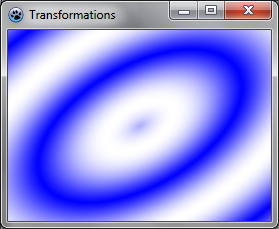 | |
| 52 | 49 | ||
| 53 | 50 | ### Combiner avec un twirl | |
| 54 | 51 | ||
| 55 | 52 | Vous pouvez ajouter une autre transformation comme cela : | |
| 56 | 53 | ||
| 57 | 54 | ``` pascal | |
| 58 | 55 | var image: TBGRABitmap; | |
| 59 | 56 | grad: TBGRAGradientScanner; | |
| 60 | 57 | affine: TBGRAAffineScannerTransform; | |
| 61 | 58 | twirl: TBGRATwirlScanner; | |
| 62 | 59 | begin | |
| 63 | 60 | image := TBGRABitmap.Create(ClientWidth,ClientHeight, BGRABlack ); | |
| 64 | 61 | ||
| 65 | 62 | grad := TBGRAGradientScanner.Create(BGRA(0,0,255),BGRAWhite,gtRadial,PointF(0,0),PointF(1,0),True,True); | |
| 66 | 63 | ||
| 67 | 64 | affine := TBGRAAffineScannerTransform.Create(grad); | |
| 68 | 65 | affine.Scale(150,80); | |
| 69 | 66 | affine.RotateDeg(-30); | |
| 70 | 67 | affine.Translate(ClientWidth/2, ClientHeight/2); | |
| 71 | 68 | ||
| 72 | 69 | twirl := TBGRATwirlScanner.Create(affine,Point(ClientWidth div 2, ClientHeight div 2),100); | |
| 73 | 70 | image.Fill(twirl); | |
| 74 | 71 | twirl.Free; | |
| 75 | 72 | ||
| 76 | 73 | affine.free; | |
| 77 | 74 | grad.free; | |
| 78 | 75 | ||
| 79 | 76 | image.Draw(Canvas,0,0,True); | |
| 80 | 77 | image.free; | |
| 81 | 78 | end; | |
| 82 | 79 | ``` | |
| 83 | 80 | ||
| 84 | 81 | Ici, vous créez une transformation de twirl et l'appliquez à la précédente. | |
| 85 | 82 | ||
| 86 | 83 | ### Exécution du programme | |
| 87 | 84 | ||
| 88 | 85 | A présent, le centre du dégradé est tourbillonnant. | |
| 89 | 86 | ||
| 90 | - | ||
| 91 | - | ||
| 92 | - | ||
| 93 | - | ||
| 87 | + | 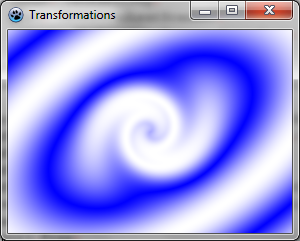 | |
| 94 | 88 | ||
| 95 | 89 | ### Utiliser un scanner personnalisé | |
| 96 | 90 | ||
| 97 | 91 | Vous pouvez avoir besoin de créer votre propre générateur de dégradés. Voici par exemple un dégradé multiplicateur : | |
| 98 | 92 | ||
| 99 | 93 | ``` pascal | |
| 100 | 94 | type | |
| 101 | 95 | { TBGRAMultiplyScanner } | |
| 102 | 96 | ||
| 103 | 97 | TBGRAMultiplyScanner = class(TBGRACustomScanner) | |
| 104 | 98 | function ScanAt(X, Y: Single): TBGRAPixel; override; | |
| 105 | 99 | end; | |
| 106 | 100 | ||
| 107 | 101 | { TBGRAMultiplyScanner } | |
| 108 | 102 | ||
| 109 | 103 | function TBGRAMultiplyScanner.ScanAt(X, Y: Single): TBGRAPixel; | |
| 110 | 104 | function cycle512(value: integer): integer; inline; | |
| 111 | 105 | begin | |
| 112 | 106 | result := value and 511; | |
| 113 | 107 | if result >= 256 then result := 511-result; | |
| 114 | 108 | end; | |
| 115 | 109 | ||
| 116 | 110 | var | |
| 117 | 111 | mul: integer; | |
| 118 | 112 | begin | |
| 119 | 113 | mul := cycle512(round(x*y)); | |
| 120 | 114 | result := BGRA(mul,mul,mul,255); | |
| 121 | 115 | end; | |
| 122 | 116 | ``` | |
| 123 | 117 | ||
| 124 | 118 | Il est dérivé de *TBGRACustomScanner* afin d'être utilisé pour le remplissage, et la fonction *ScanAt* est remplacée (*override*). Elle calcule le produit des deux coordonnées et fait un cycle de 512 (de 0 à 255 puis de 255 à 0). | |
| 125 | 119 | ||
| 126 | 120 | Dessinez-le à l'écran avec une simple transformation affine : | |
| 127 | 121 | ||
| 128 | 122 | ``` pascal | |
| 129 | 123 | var image: TBGRABitmap; | |
| 130 | 124 | grad: TBGRAMultiplyScanner; | |
| 131 | 125 | affine: TBGRAAffineScannerTransform; | |
| 132 | 126 | begin | |
| 133 | 127 | image := TBGRABitmap.Create(ClientWidth,ClientHeight, BGRABlack ); | |
| 134 | 128 | ||
| 135 | 129 | grad := TBGRAMultiplyScanner.Create; | |
| 136 | 130 | affine := TBGRAAffineScannerTransform.Create(grad); | |
| 137 | 131 | affine.Scale(6,4); | |
| 138 | 132 | affine.Translate(ClientWidth/2, ClientHeight/2); | |
| 139 | 133 | image.Fill(affine); | |
| 140 | 134 | affine.free; | |
| 141 | 135 | grad.free; | |
| 142 | 136 | ||
| 143 | 137 | image.Draw(Canvas,0,0,True); | |
| 144 | 138 | image.free; | |
| 145 | 139 | end; | |
| 146 | 140 | ``` | |
| 147 | 141 | ||
| 148 | 142 | ### Exécution du programme | |
| 149 | 143 | ||
| 150 | 144 | Le résultat devrait ressembler à cela : | |
| 151 | 145 | ||
| 152 | - | ||
| 153 | - | ||
| 154 | - | ||
| 155 | - | ||
| 146 | + | 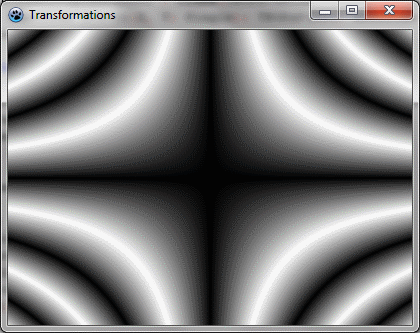 | |
| 156 | 147 | ||
| 157 | 148 | ### Rendons l'ensemble joli | |
| 158 | 149 | ||
| 159 | 150 | Ajoutez des couleurs en modifiant la procédure *ScanAt* du dégradé multiplicateur : | |
| 160 | 151 | ||
| 161 | 152 | ``` pascal | |
| 162 | 153 | var | |
| 163 | 154 | mul: integer; | |
| 164 | 155 | begin | |
| 165 | 156 | mul := round(x*y); | |
| 166 | 157 | result := BGRA(cycle512(round(x*10)),cycle512(mul),cycle512(round(y*10)),255); | |
| 167 | 158 | end; | |
| 168 | 159 | ``` | |
| 169 | 160 | ||
| 170 | 161 | Les intensités rouge et bleue sont définies avec un cycle des positions x et y. | |
| 171 | 162 | ||
| 172 | 163 | Enfin, ajoutez une rotation : | |
| 173 | 164 | ||
| 174 | 165 | ``` pascal | |
| 175 | 166 | affine := TBGRAAffineScannerTransform.Create(grad); | |
| 176 | 167 | affine.Scale(6,4); | |
| 177 | 168 | affine.RotateDeg(-30); | |
| 178 | 169 | affine.Translate(ClientWidth/2, ClientHeight/2); | |
| 179 | 170 | ``` | |
| 180 | 171 | ||
| 181 | - | ||
| 182 | - | ||
| 183 | - | ||
| 184 | - | ||
| 172 | + | 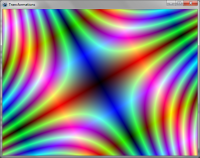 | |
| 185 | 173 | ||
| 186 | 174 | [[BGRABitmap tutorial 10/fr|Tutoriel précédent (plaquage de texture)]] [[BGRABitmap tutorial 12/fr|Tutoriel suivant (fonctions texte)]] | |
| 187 | 175 | ||
| 188 | 176 | --- | |
| 189 | 177 | *From the Free Pascal wiki, page "BGRABitmap tutorial 11/fr", as it stood on 2020-02-09 after a change by Trev, out of the wiki's dump of 2024-05-26. Copyright stays with the author who wrote it, according to the old wiki's [[Licensing]] page. If you have concerns about this material, [message the admin](/wiki-contact).* |