

BGRABitmap and OpenGL: what changed
Revision 1 to 2. Removed lines have a minus sign; added lines have a plus sign.
| Old | New | Line | |
|---|---|---|---|
| 1 | 1 | [[BGRABitmap]] allows to draw with [[OpenGL]] and so to benefit from hardware acceleration. | |
| 2 | 2 | ||
| 3 | 3 | ### OpenGL surface | |
| 4 | 4 | ||
| 5 | 5 | You will need an OpenGL surface. The package LazOpenGLContext in the directory components\opengl of lazarus supplies this surface. It is necessary to add some code to handle it properly. The control TBGLVirtualScreen is here to make it easy for you. Note that it relies on LazOpenGLContext so you will need to install this package anyway. | |
| 6 | 6 | ||
| 7 | 7 | The installation of the package on Linux can be problematic. See below the Linux note before installing the package. | |
| 8 | 8 | ||
| 9 | 9 | #### TBGLVirtualScreen | |
| 10 | 10 | ||
| 11 | 11 | The package BGLControls in the archive of [[BGRABitmap]] contains the component TBGLVirtualScreen that supplies an easy-to-use OpenGL surface via [TBGLContext](https://bgrabitmap.github.io/doc/BGRAOpenGL.TBGLContext.html) class. It is recommended to install it as well. | |
| 12 | 12 | ||
| 13 | 13 | It appears in the component toolbar, in the OpenGL tab. You just need to put it on the form and to redefine the Redraw event. For example to draw a red rectangle: | |
| 14 | 14 | ||
| 15 | 15 | ``` pascal | |
| 16 | 16 | uses | |
| 17 | 17 | BGRABitmapTypes; | |
| 18 | 18 | ||
| 19 | 19 | procedure TForm1.BGLVirtualScreen1Redraw(Sender: TObject; BGLContext: TBGLContext); | |
| 20 | 20 | begin | |
| 21 | 21 | BGLContext.Canvas.FillRect(10, 10, 100, 100, CSSRed); | |
| 22 | 22 | end; | |
| 23 | 23 | ``` | |
| 24 | 24 | ||
| 25 | 25 | #### Using only TOpenGLControl | |
| 26 | 26 | ||
| 27 | 27 | In the tab OpenGL you will find TOpenGLControl. Add it to the form and set the property `AutoResizeViewPort` to **`true`**. | |
| 28 | 28 | ||
| 29 | 29 | In the Paint event: | |
| 30 | 30 | ||
| 31 | 31 | ``` pascal | |
| 32 | 32 | uses BGRAOpenGL, BGRABitmapTypes; | |
| 33 | 33 | ||
| 34 | 34 | procedure TForm1.OpenGLControl1Paint(Sender: TObject); | |
| 35 | 35 | begin | |
| 36 | 36 | BGLViewPort(OpenGLControl1.Width, OpenGLControl1.Height, BGRAWhite); | |
| 37 | 37 | ||
| 38 | 38 | // do you drawing here | |
| 39 | 39 | BGLCanvas.FillRect(10, 10, 100, 100, CSSRed); | |
| 40 | 40 | ||
| 41 | 41 | OpenGLControl1.SwapBuffers; | |
| 42 | 42 | end; | |
| 43 | 43 | ``` | |
| 44 | 44 | ||
| 45 | 45 | You will get: | |
| 46 | 46 | ||
| 47 | - | ||
| 48 | - | ||
| 49 | - | ||
| 50 | - | ||
| 47 | + | 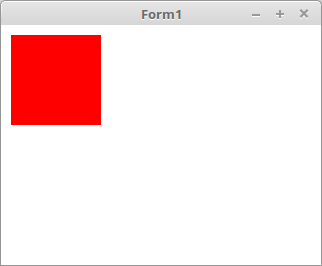 | |
| 51 | 48 | ||
| 52 | 49 | #### Note on Linux | |
| 53 | 50 | ||
| 54 | 51 | On Linux, it is possible that the [[OpenGL]] library be missing, which prevents the final compilation linking step. To solve the problem, do the following:Pour résoudre le problème, effectuez: | |
| 55 | 52 | ||
| 56 | 53 | ``` bash | |
| 57 | 54 | #install library | |
| 58 | 55 | sudo apt-get install libgl-dev | |
| 59 | 56 | #in some cases, add a link to the library (for 64bits processors) | |
| 60 | 57 | sudo ln -s /usr/lib/x86_64-linux-gnu/mesa/libGL.so.1 /usr/lib/libGL.so | |
| 61 | 58 | sudo ln -s /usr/lib/x86_64-linux-gnu/libglib-2.0.so /usr/lib/libglib-2.0.so | |
| 62 | 59 | sudo ln -s /usr/lib/x86_64-linux-gnu/llibgthread-2.0.so /usr/lib/libgthread-2.0.so | |
| 63 | 60 | sudo ln -s /usr/lib/x86_64-linux-gnu/libgmodule-2.0.so /usr/lib/libgmodule-2.0.so | |
| 64 | 61 | sudo ln -s /usr/lib/x86_64-linux-gnu/libgobject-2.0.so /usr/lib/libgobject-2.0.so | |
| 65 | 62 | ``` | |
| 66 | 63 | ||
| 67 | 64 | After checking the package to install, clicking Yes directly may not work. Instead you can go to Tools and configure Lazarus build. Check the option to do a full clean compilation. From there compile the IDE. | |
| 68 | 65 | ||
| 69 | 66 | When recompiling Lazarus, the program may be stuck on the slashscreen. In that case, terminate the process with the system monitor. | |
| 70 | 67 | ||
| 71 | 68 | ### Textures | |
| 72 | 69 | ||
| 73 | 70 | [[OpenGL]] uses its own memory to store images. Moreover it is necessary to be in the right OpenGL context. So load images within the OnPaint event or use LoadTextures and UnloadTextures events of TBGLVirtualScreen. You can also use the fonction UseContext. | |
| 74 | 71 | ||
| 75 | 72 | Textures are stored in a IBGLTexture variable. You can load a texture directly from a file: | |
| 76 | 73 | ||
| 77 | 74 | ``` pascal | |
| 78 | 75 | uses | |
| 79 | 76 | BGRAOpenGL; | |
| 80 | 77 | ||
| 81 | 78 | var | |
| 82 | 79 | tex: IBGLTexture; | |
| 83 | 80 | ||
| 84 | 81 | begin | |
| 85 | 82 | tex := BGLTexture(path); | |
| 86 | 83 | ... | |
| 87 | 84 | ``` | |
| 88 | 85 | ||
| 89 | 86 | To free it, simply do: | |
| 90 | 87 | ||
| 91 | 88 | ``` pascal | |
| 92 | 89 | tex := nil; | |
| 93 | 90 | ``` | |
| 94 | 91 | ||
| 95 | 92 | ### Creating textures | |
| 96 | 93 | ||
| 97 | 94 | Instead of using TBGRABitmap class, use [TBGLBitmap class](https://bgrabitmap.github.io/doc/BGRAOpenGL.TBGLBitmap.html) of [BGRAOpenGL unit](https://bgrabitmap.github.io/doc/BGRAOpenGL.html). It is similar in all respect except that it has a Texture property that can be used with OpenGL functions. | |
| 98 | 95 | ||
| 99 | 96 | Finally, if you have finished your drawing and will not modify it anymore, you can free the TBGLBitmap object and retrieve the texture with MakeTextureAndFree function. | |
| 100 | 97 | ||
| 101 | 98 | ``` pascal | |
| 102 | 99 | uses | |
| 103 | 100 | BGRAOpenGL, BGRABitmapTypes; | |
| 104 | 101 | ||
| 105 | 102 | var | |
| 106 | 103 | bmp: TBGLBitmap; | |
| 107 | 104 | tex: IBGLTexture; | |
| 108 | 105 | ||
| 109 | 106 | begin | |
| 110 | 107 | bmp := TBGLBitmap.Create(path); | |
| 111 | 108 | bmp.Rectangle(0, 0, bmp.Width, bmp.Height, CSSRed, dmSet); | |
| 112 | 109 | tex := bmp.MakeTextureAndFree; | |
| 113 | 110 | ... | |
| 114 | 111 | ``` | |
| 115 | 112 | ||
| 116 | 113 | ### Examples | |
| 117 | 114 | ||
| 118 | 115 | You will find examples in the directory test/test4lcl_opengl[1](https://github.com/bgrabitmap/bgrabitmap/tree/master/test/test4lcl_opengl). | |
| 119 | 116 | ||
| 120 | 117 | #### Probability | |
| 121 | 118 | ||
| 122 | 119 | There is also a demo called probability[2](https://github.com/bgrabitmap/bgracontest/tree/master/2015/probability) in BGRAContext 2015 repository. | |
| 123 | 120 | ||
| 124 | - | ||
| 125 | - | ||
| 126 | - | ||
| 127 | - | ||
| 121 | + | 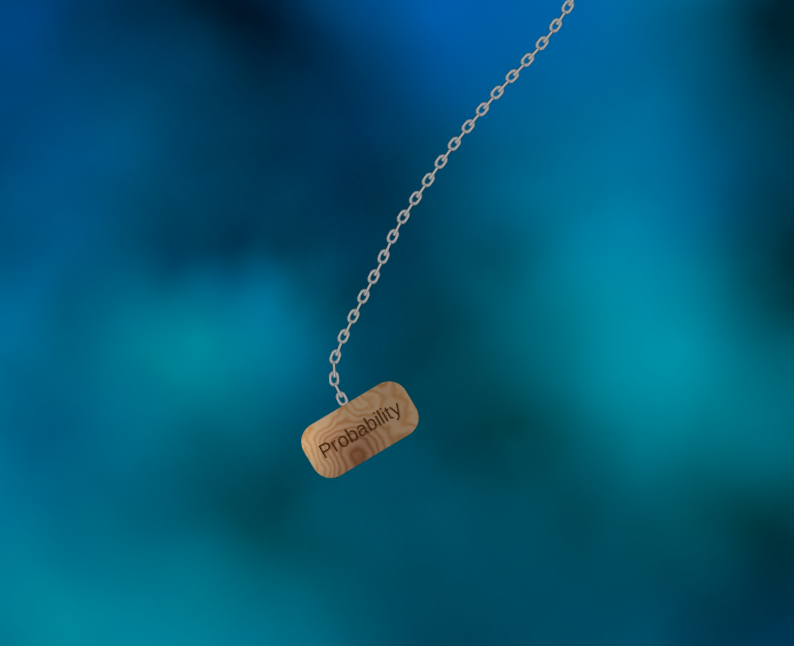 | |
| 128 | 122 | ||
| 129 | 123 | --- | |
| 130 | 124 | *From the Free Pascal wiki, page "BGRABitmap and OpenGL", as it stood on 2024-04-03 after a change by Circular, out of the wiki's dump of 2024-05-26. Copyright stays with the author who wrote it, according to the old wiki's [[Licensing]] page. If you have concerns about this material, [message the admin](/wiki-contact).* |