

BGRABitmap: what changed
Revision 0 to 1. Removed lines have a minus sign; added lines have a plus sign.
Title: BGRABitmap
| Old | New | Line | |
|---|---|---|---|
| 1 | + | ## Description | |
| 2 | + | ||
| 3 | + | **BGRABitmap** is a set of units designed to modify and create images with transparency (alpha channel). Direct pixel access allows fast image processing. The library has been tested on Windows, Ubuntu and macOS, with widgetsets win32, gtk1, gtk2, Carbon (32 bit) and Cocoa (64 bit). | |
| 4 | + | ||
| 5 | + | The main class is [[TBGRABitmap class|TBGRABitmap]], which is derived from [[fcl-image|TFPCustomImage]]. There is also [TBGRAPtrBitmap class](https://bgrabitmap.github.io/doc/BGRADefaultBitmap.TBGRAPtrBitmap.html) which allows to edit BGRA data that are already allocated. This format consists of 4 bytes for each pixel (blue, green, red and alpha in that order on Windows). | |
| 6 | + | ||
| 7 | + | The image can be rendered on a regular Canvas or on an [[BGRABitmap and OpenGL|OpenGL surface]]. | |
| 8 | + | ||
| 9 | + | As of version 10, additional bitmap types are available: | |
| 10 | + | ||
| 11 | + | - [[TBGRABitmap class|TBGRABitmap]]: sRGB, 8 bit per channel. | |
| 12 | + | - [TGrayscaleMask](https://bgrabitmap.github.io/doc/BGRAGrayscaleMask.TGrayscaleMask.html): linear 8 bit grayscale. It now has drawing functions, so you can prepare a mask in 8 bit per pixel, avoiding to consume memory. | |
| 13 | + | - [TExpandedBitmap](https://bgrabitmap.github.io/doc/ExpandedBitmap.TExpandedBitmap.html): linear RGB, 16 bit per channel. It has more precision than [[TBGRABitmap class|TBGRABitmap]] and is linear, so that dmLinearBlend and dmDrawWithTransparency are equivalent. | |
| 14 | + | - [TLinearRGBABitmap](https://bgrabitmap.github.io/doc/LinearRGBABitmap.TLinearRGBABitmap.html): linear RGB, 32 bit per channel (single precision float). It has even more precision. Not really recommended though as it uses a lot of memory. | |
| 15 | + | - [TWordXYZABitmap](https://bgrabitmap.github.io/doc/WordXYZABitmap.TWordXYZABitmap.html): [[BGRABitmap XYZ|XYZ]], 16 bit per channel. Can store any real and reflect color with great precision. | |
| 16 | + | - [TXYZABitmap](https://bgrabitmap.github.io/doc/XYZABitmap.TXYZABitmap.html): [[BGRABitmap XYZ|XYZ]], 32 bit per channel (single precision float). It has even more precision and also a wider range, so that it can store fluorescent colors and light sources that would otherwise saturate. | |
| 17 | + | ||
| 18 | + | ## Additional packages | |
| 19 | + | ||
| 20 | + | Some package use BGRABitmap to provide controls with nice graphics: | |
| 21 | + | ||
| 22 | + | - BGLControls: provides TBGLVirtualScreen to draw on an OpenGL surface. This package is in BGRABitmap archive. | |
| 23 | + | - [[BGRAControls]]: lablels wth shadows, beautiful buttons, shapes, etc. | |
| 24 | + | - [[uE Controls]]: gauges, LEDs, etc. | |
| 25 | + | - [[Material Design]]: Google material design guidelines based UI components. | |
| 26 | + | - BGRAControlsFX[1](https://forum.lazarus.freepascal.org/index.php?topic=34534.0): controls rendering on OpenGL surface | |
| 27 | + | ||
| 28 | + | Some examples in the test folder use BGRAControls and BGLControls. You may need to install them to open these projects within Lazarus. See [[Install Packages]]. | |
| 29 | + | ||
| 30 | + | ### NoGUI, NoLCL | |
| 31 | + | ||
| 32 | + | BGRABitmap package has additional .lpk packages: | |
| 33 | + | ||
| 34 | + | - bgrabitmappack4nogui.lpk: it is in fact related to the LCL, but without graphic user interface (no GUI). So one can use for example LazFreeType with it. | |
| 35 | + | ||
| 36 | + | - bgrabitmappack4nolcl.lpk: it is completely independent from the LCL. There is no more font rendering (neither system rendering nor from TrueType files). Though with another program that has the LCL, you could prepare a TBGRAVectorizedFont, compute necessary glyphs, save it to a file with SaveGlyphsToFile. Then in the program without LCL, load the file with LoadGlyphsFromFile. Note that MSEgui provides system rendering of fonts, so this incorporated into an MSEgui program, you have the usual font rendering: [GitHub issue](https://github.com/bgrabitmap/bgrabitmap/issues/139#issuecomment-1672184739). | |
| 37 | + | ||
| 38 | + | ## Using BGRABitmap | |
| 39 | + | ||
| 40 | + | ### Tutorial | |
| 41 | + | ||
| 42 | + | - [[BGRABitmap tutorial|A series of tutorials to learn step by step]] | |
| 43 | + | - [How to convert an application from TCanvas to BGRABitmap](http://www.youtube.com/watch?v=HGYSLgtYx-U) | |
| 44 | + | - [[BGRABitmap tutorial TAChart|Using BGRABitmap to render a TAChart]] | |
| 45 | + | - [[BGRABitmap AggPas|A series of projects demonstrating advanced capabilities similar to AggPas]] | |
| 46 | + | - Examples in [GitHub](https://github.com/bgrabitmap) | |
| 47 | + | ||
| 48 | + | ### Overview | |
| 49 | + | ||
| 50 | + | Functions have long names in order to be understandable. Almost everything is accessible as a function or using a property of the [[TBGRABitmap class|TBGRABitmap]] object. For example, you can use CanvasBGRA to have some canvas similar to TCanvas (with opacity and antialiasing) and Canvas2D to have the same features as the [HTML canvas](https://developer.mozilla.org/en/HTML:Canvas). | |
| 51 | + | ||
| 52 | + | Some special features require the use of units, but you may not need them : | |
| 53 | + | ||
| 54 | + | - [TBGRAMultishapeFiller](https://bgrabitmap.github.io/doc/BGRAPolygon.TBGRAMultishapeFiller.html) to have an antialiased junctions of polygons is in BGRAPolygon | |
| 55 | + | - [TBGRATextEffect](https://bgrabitmap.github.io/doc/BGRATextFX.TBGRATextEffect.html) is in BGRATextFX | |
| 56 | + | - 2D transformations are in [BGRATransform unit](https://bgrabitmap.github.io/doc/BGRATransform.html) | |
| 57 | + | - [TBGRAScene3D](https://bgrabitmap.github.io/doc/BGRAScene3D.TBGRAScene3D.html) is in BGRAScene3D | |
| 58 | + | - If you need to have layers, BGRALayers provides [TBGRALayeredBitmap](https://bgrabitmap.github.io/doc/BGRALayers.TBGRALayeredBitmap.html) | |
| 59 | + | ||
| 60 | + | Double-buffering is not really part of BGRABitmap, because it is more about how to handle forms. To do double-buffering, you can use TBGRAVirtualScreen which is in the [[BGRAControls]] package. Apart from that, double-buffering in BGRABitmap works like any double-buffering. You need to have a bitmap where you store your drawing and that you display with a single Draw instruction. | |
| 61 | + | ||
| 62 | + | ### BGRABitmapTypes unit reference | |
| 63 | + | ||
| 64 | + | - [[BGRABitmap Pixel types|Pixel types and functions]]: *TBGRAPixel*, *THSLAPixel*... | |
| 65 | + | - [[BGRABitmap Types imported from Graphics|Types imported from Graphics]]: *TColor*, pen style... | |
| 66 | + | - [[BGRABitmap Color definitions|Color definitions]]: *VGAColors*, *CSSColors*... | |
| 67 | + | - [[BGRABitmap Geometry types|Geometry types]]: *TPointF*, Bezier curves, *TArcDef*... | |
| 68 | + | - [[BGRABitmap Miscellaneous types|Miscellaneous types]]: font, image format, resampling... | |
| 69 | + | - [[TBGRACustomBitmap and IBGRAScanner]]: the base class for *TBGRABitmap* and scanners | |
| 70 | + | ||
| 71 | + | ### Installation | |
| 72 | + | ||
| 73 | + | After unpacking a checkout, BGRA often does not compile in Linux. Try using the IDE Macro | |
| 74 | + | ||
| 75 | + | ` LCLWidgetType:=gtk2` | |
| 76 | + | ||
| 77 | + | in such cases. Still some other part may not compile. | |
| 78 | + | ||
| 79 | + | See [[BGRA Installation on Linux]] for step-by-step installation instructions. | |
| 80 | + | ||
| 81 | + | ### Simple example | |
| 82 | + | ||
| 83 | + | Create a project and open bgrabitmappackage.lpk with Lazarus. In the package window, click on "Use \> Add to Project". Then in the source code of the main file (main form or main program), add to uses clause BGRABitmap units. You may need to add BGRAGraphics unit as well if you use certain types that are inherited from the LCL. | |
| 84 | + | ||
| 85 | + | ``` pascal | |
| 86 | + | Uses | |
| 87 | + | Classes, SysUtils, BGRABitmap, BGRABitmapTypes; | |
| 88 | + | ``` | |
| 89 | + | ||
| 90 | + | The unit BGRABitmapTypes contains common definitions, but one can declare only BGRABitmap in order to load and show a bitmap. Then, the first step is to create a [[TBGRABitmap class|TBGRABitmap]] object: | |
| 91 | + | ||
| 92 | + | ``` pascal | |
| 93 | + | var | |
| 94 | + | bmp: TBGRABitmap; | |
| 95 | + | begin | |
| 96 | + | bmp := TBGRABitmap.Create(100, 100, BGRABlack); // creates a 100x100 pixels image with black background | |
| 97 | + | ||
| 98 | + | bmp.FillRect(20, 20, 60, 60, BGRAWhite, dmSet); // draws a white square without transparency | |
| 99 | + | bmp.FillRect(40, 40, 80, 80, BGRA(0, 0, 255, 128), dmDrawWithTransparency); // draws a transparent blue square | |
| 100 | + | ... | |
| 101 | + | end; | |
| 102 | + | ``` | |
| 103 | + | ||
| 104 | + | Finally to show the bitmap: | |
| 105 | + | ||
| 106 | + | ``` pascal | |
| 107 | + | procedure TFMain.FormPaint(Sender: TObject); | |
| 108 | + | begin | |
| 109 | + | bmp.Draw(Canvas, 0, 0, True); // draw the bitmap in opaque mode (faster) | |
| 110 | + | end; | |
| 111 | + | ``` | |
| 112 | + | ||
| 113 | + | See a full source code in [[BGRABitmap tutorial 1|tutorial 1]]. | |
| 114 | + | ||
| 115 | + | ## Notions | |
| 116 | + | ||
| 117 | + | Pixels in a bitmap with transparency are stored with 4 values, here 4 bytes in the order Blue, Green, Red, Alpha. The last channel defines the level of opacity (0 signifies transparent, 255 signifies opaque), other channels define color and luminosity. | |
| 118 | + | ||
| 119 | + | There are basically two drawing modes. The first consists in replacing the content of the pixel information, the second consists in blending the pixel already here with the new one, which is called alpha blending. | |
| 120 | + | ||
| 121 | + | BGRABitmap functions propose 4 modes: | |
| 122 | + | ||
| 123 | + | - dmSet : replaces the four bytes of the drawn pixel, transparency not handled | |
| 124 | + | - dmDrawWithTransparency : draws with alphablending and with gamma correction (see below) | |
| 125 | + | - dmFastBlend or dmLinearBlend : draws with alphablending but without gamma correction (faster but entails color distortions with low intensities). | |
| 126 | + | - dmXor : apply Xor to each component including alpha (if you want to invert color but keep alpha, use BGRA(255,255,255,0) ) | |
| 127 | + | ||
| 128 | + | ## Integrated drawing functions | |
| 129 | + | ||
| 130 | + | - draw/erase pixels | |
| 131 | + | - draw a line with or without antialiasing | |
| 132 | + | - floating point coordinates | |
| 133 | + | - floating point pen width | |
| 134 | + | - rectangle (frame or fill) | |
| 135 | + | - ellipse and polygons with antialiasing | |
| 136 | + | - spline computation (rounded curve) | |
| 137 | + | - simple fill (Floodfill) or progressive fill | |
| 138 | + | - color gradient rendering (linear, radial...) | |
| 139 | + | - round rectangles | |
| 140 | + | - texts with transparency | |
| 141 | + | ||
| 142 | + | ## Drawing with the Canvas | |
| 143 | + | ||
| 144 | + | It is possible to draw with a *Canvas* object, with usual functions but without antialiasing. Opacity of drawing is defined by the *CanvasOpacity* property. This way is slower because it needs image transformations. If you can, use CanvasBGRA instead, which allows transparency and antialiasing while having the same function names as with TCanvas. | |
| 145 | + | ||
| 146 | + | ## Direct access to pixels | |
| 147 | + | ||
| 148 | + | To access pixels, there are two properties, *Data* and *Scanline*. The first gives a pointer to the first pixel of the image, and the second gives a pointer to the first pixel of a given line. | |
| 149 | + | ||
| 150 | + | ``` pascal | |
| 151 | + | var | |
| 152 | + | bmp: TBGRABitmap; | |
| 153 | + | p: PBGRAPixel; | |
| 154 | + | n: integer; | |
| 155 | + | ||
| 156 | + | begin | |
| 157 | + | bmp := TBGRABitmap.Create('image.png'); | |
| 158 | + | p := bmp.Data; | |
| 159 | + | for n := bmp.NbPixels-1 downto 0 do | |
| 160 | + | begin | |
| 161 | + | p^.red := not p^.red; // invert red channel | |
| 162 | + | inc(p); | |
| 163 | + | end; | |
| 164 | + | bmp.InvalidateBitmap; // note that we have accessed pixels directly | |
| 165 | + | bmp.Draw(Canvas, 0, 0, True); | |
| 166 | + | bmp.Free; | |
| 167 | + | end; | |
| 168 | + | ``` | |
| 169 | + | ||
| 170 | + | It is necessary to call the function *InvalidateBitmap* to rebuild the image in a next call to *Draw* for example. Notice that the line order can be reverse, depending on the *LineOrder* property. | |
| 171 | + | ||
| 172 | + | See also the comparison between [[Fast direct pixel access|direct pixel access methods]]. | |
| 173 | + | ||
| 174 | + | ### InvalidateBitmap | |
| 175 | + | ||
| 176 | + | Basically, BGRABitmap can store an image that may not be drawable as such, not a bitmap object of the system. In order to keep track of changes, the function InvalidateBitmap is called whenever pixel data is modified. So when the bitmap object is requested, the library knows that it needs to be rebuilt. | |
| 177 | + | ||
| 178 | + | To sum up, the only time a regular user would call this function is after modifying pixels pointed to by Data / ScanLine directly and before drawing the bitmap or requesting the bitmap object. | |
| 179 | + | ||
| 180 | + | ## Image manipulation | |
| 181 | + | ||
| 182 | + | Available filters (prefixed with Filter) : | |
| 183 | + | ||
| 184 | + | - Radial blur : non directional blur | |
| 185 | + | - Motion blur : directional blur | |
| 186 | + | - Custom blur : blur according to a mask | |
| 187 | + | ||
| 188 | + | - Median : computes the median of colors around each pixel, which softens corners | |
| 189 | + | - Pixelate : simplifies the image with rectangles of the same color | |
| 190 | + | - Smooth : soften whole image, complementary to Sharpen | |
| 191 | + | - Sharpen : makes contours more accute, complementary to Smooth | |
| 192 | + | ||
| 193 | + | - Contour : draws contours on a white background (like a pencil drawing) | |
| 194 | + | - Emboss : draws contours with shadow | |
| 195 | + | - EmbossHighlight : draws contours of a selection defined with grayscale | |
| 196 | + | ||
| 197 | + | - Grayscale : converts colors to grayscale with gamma correction | |
| 198 | + | - Normalize : uses whole range of color luminosity | |
| 199 | + | ||
| 200 | + | - Rotate : rotation of the image around a point | |
| 201 | + | - Sphere : distorts the image to make it look like projected on a sphere | |
| 202 | + | - Twirl : distorts the image with a twirl effect | |
| 203 | + | - Cylinder : distorts the image to make it look like projected on a cylinder | |
| 204 | + | - Plane : computes a high precision projection on a horizontal plane. This is quite slow. | |
| 205 | + | - SmartZoom3 : resizes the image x3 and detects borders, to have a useful zoom with ancient games sprites | |
| 206 | + | ||
| 207 | + | Some functions are not prefixed with Filter, because they do not return a newly allocated image. They modify the image in-place : | |
| 208 | + | ||
| 209 | + | - VerticalFlip : flips the image vertically | |
| 210 | + | - HorizontalFlip : flips the image horizontally | |
| 211 | + | - Negative : inverse of colors | |
| 212 | + | - LinearNegative : inverse without gamma correction | |
| 213 | + | - SwapRedBlue : swap red and blue channels (to convert between BGRA and RGBA) | |
| 214 | + | - ConvertToLinearRGB : to convert from sRGB to RGB. Note the format used by BGRABitmap is sRGB when using dmDrawWithTransparency and RGB when using dmLinearBlend. | |
| 215 | + | - ConvertFromLinearRGB : convert from RGB to sRGB. | |
| 216 | + | ||
| 217 | + | ## Images combination | |
| 218 | + | ||
| 219 | + | [PutImage](https://bgrabitmap.github.io/doc/BGRABitmapTypes.TBGRACustomBitmap.html#PutImage-integer-integer-TBitmap-TDrawMode-byte-) is the basic image drawing function and [BlendImage](https://bgrabitmap.github.io/doc/BGRABitmapTypes.TBGRACustomBitmap.html#BlendImage-integer-integer-TBGRACustomBitmap-TBlendOperation-) allows to combine images, like layers of image editing softwares. Available modes are the following: | |
| 220 | + | ||
| 221 | + | - LinearBlend : simple superimposition without gamma correction (equivalent to dmFastBlend) | |
| 222 | + | - Transparent : superimposition with gamma correction | |
| 223 | + | - Multiply : multiplication of color values (with gamma correction) | |
| 224 | + | - LinearMultiply : multiplication of color values (without gamma correction) | |
| 225 | + | - Additive : addition of color values (with gamma correction) | |
| 226 | + | - LinearAdd : addition of color values (without gamma correction) | |
| 227 | + | - Difference : difference of color values (with gamma correction) | |
| 228 | + | - LinearDifference : difference of color values (without gamma correction) | |
| 229 | + | - Negation : makes common colors disappear (with gamma correction) | |
| 230 | + | - LinearNegation : makes common colors disappear (without gamma correction) | |
| 231 | + | - Reflect, Glow : for light effects | |
| 232 | + | - ColorBurn, ColorDodge, Overlay, Screen : misc. filters | |
| 233 | + | - Lighten : keeps the lightest color values | |
| 234 | + | - Darken : keeps the darkest color values | |
| 235 | + | - Xor : exclusive or of color values | |
| 236 | + | ||
| 237 | + | These modes can be used in TBGRALayeredBitmap, which makes it easier because BlendImage only provides the basic blending operations. | |
| 238 | + | ||
| 239 | + | ## Screenshots | |
| 240 | + | ||
| 241 | + | 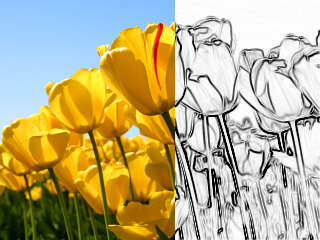 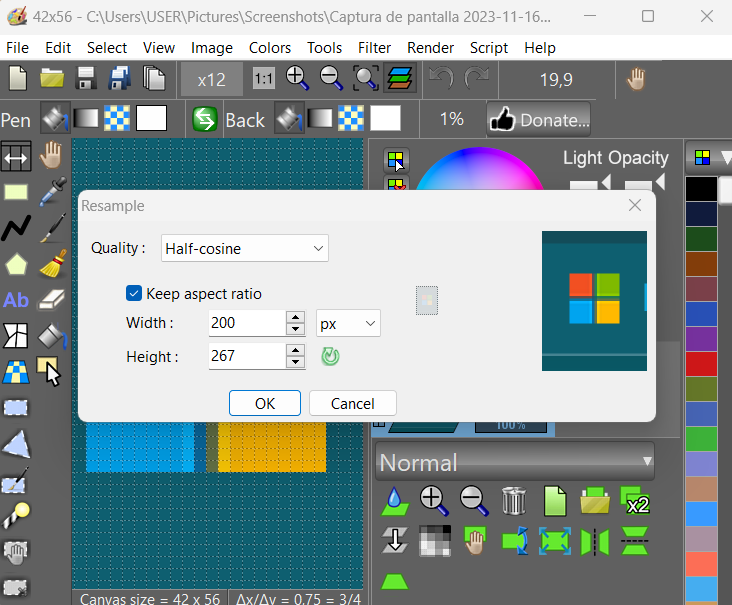 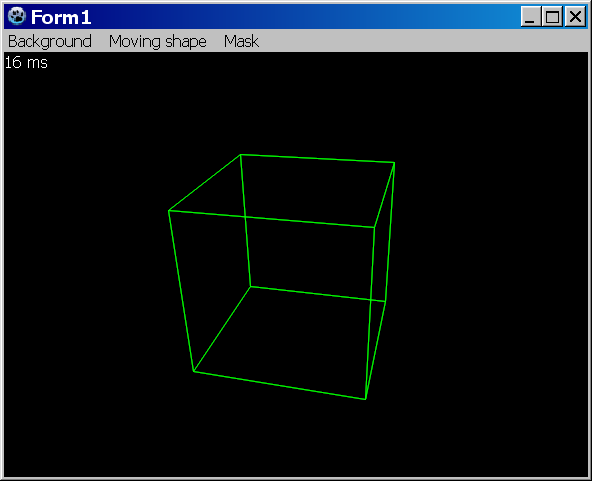 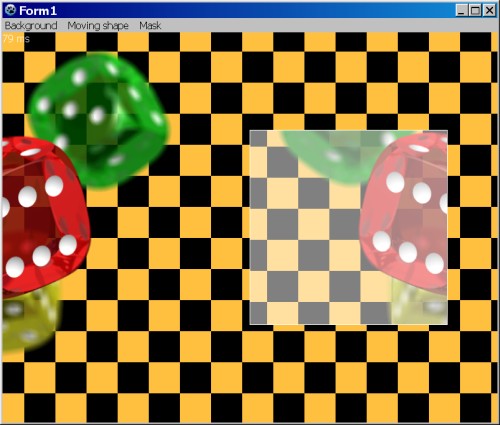 | |
| 242 | + | ||
| 243 | + | ## Licence | |
| 244 | + | ||
| 245 | + | modified LGPL | |
| 246 | + | ||
| 247 | + | Author: [Juliette ELSASS](http://johann-elsass.net) ([Facebook](http://www.facebook.com/johann.elsass.1)) | |
| 248 | + | ||
| 249 | + | ## Download | |
| 250 | + | ||
| 251 | + | Latest version: <https://github.com/bgrabitmap/bgrabitmap/releases> | |
| 252 | + | ||
| 253 | + | Sourceforge with [[LazPaint]]: <http://sourceforge.net/projects/lazpaint/files/src/> | |
| 254 | + | ||
| 255 | + | GitHub: <https://github.com/bgrabitmap/> | |
| 256 | + | ||
| 257 | + | ## See also | |
| 258 | + | ||
| 259 | + | - [[Developing with Graphics]] | |
| 260 | + | ||
| 261 | + | --- | |
| 262 | + | *From the Free Pascal wiki, page "BGRABitmap", as it stood on 2024-04-03 after a change by Circular, out of the wiki's dump of 2024-05-26. Copyright stays with the author who wrote it, according to the old wiki's [[Licensing]] page. If you have concerns about this material, [message the admin](/wiki-contact).* | |
| 263 | + | Category: BGRABitmap | |
| 264 | + | Category: Components | |
| 265 | + | Category: Graphics |