

Anchor Sides: what changed
Revision 1 to 2. Removed lines have a minus sign; added lines have a plus sign.
| Old | New | Line | |
|---|---|---|---|
| 1 | 1 | There are some new [[Property|properties]] and [[Method|methods]] for automatic layout of controls. You can now setup controls to keep a certain distance to other controls, or center relative to other controls. See below for examples. | |
| 2 | 2 | ||
| 3 | 3 | Each of the four sides of a control (Left, Top, Right, Bottom) can now be anchored/bound to a side of another control. For example you can now anchor the left side of [[TEdit]] to the right side of a [[TLabel]]. Everytime the Label is moved or resized the Edit's left side will follow, which normally results in moving the Edit parallel to the Label. | |
| 4 | 4 | ||
| 5 | 5 | ## Example 1 | |
| 6 | 6 | ||
| 7 | 7 | `+--------+ +-------+`\ | |
| 8 | 8 | `| Label1 | | Edit1 |`\ | |
| 9 | 9 | `+--------+ | |`\ | |
| 10 | 10 | ` +-------+` | |
| 11 | 11 | ||
| 12 | 12 | ### In code | |
| 13 | 13 | ||
| 14 | 14 | ``` Pascal | |
| 15 | 15 | Edit1.AnchorSide[akLeft].Side := asrRight; | |
| 16 | 16 | Edit1.AnchorSide[akLeft].Control := Label1; | |
| 17 | 17 | Edit1.Anchors := Edit1.Anchors + [akLeft]; | |
| 18 | 18 | ``` | |
| 19 | 19 | ||
| 20 | 20 | You can define the distance with the BorderSpacing properties: | |
| 21 | 21 | ||
| 22 | 22 | ``` Pascal | |
| 23 | 23 | Edit1.BorderSpacing.Left := 10; | |
| 24 | 24 | ``` | |
| 25 | 25 | ||
| 26 | 26 | The same can be done with the method: | |
| 27 | 27 | ||
| 28 | 28 | ``` Pascal | |
| 29 | 29 | Edit1.AnchorToNeighbour(akLeft, 10, Label1); | |
| 30 | 30 | ``` | |
| 31 | 31 | ||
| 32 | 32 | ### Notes | |
| 33 | 33 | ||
| 34 | 34 | The Edit1.Left will follow Label1.Left+Label1.Width, not the other way around. That means, moving Label1 will move Edit1. But moving Edit1 will be undone by the [[LCL]]. If you also anchor the right side of Label1 to the left side of Edit1, you created a circle, and this can result together with some other autosize properties in a loop. This is ignored by the LCL or automagically repaired when the Parent.AutoSize is [[True|true]]. | |
| 35 | 35 | ||
| 36 | 36 | ### Via the Anchor Editor | |
| 37 | 37 | ||
| 38 | 38 | The anchor editor is a floating window that is available via the menu **View / Anchor Editor** or via the button on the **Anchors** property in the object inspector. | |
| 39 | 39 | ||
| 40 | - | ||
| 41 | - | ||
| 42 | - | ||
| 43 | - | ||
| 40 | + | 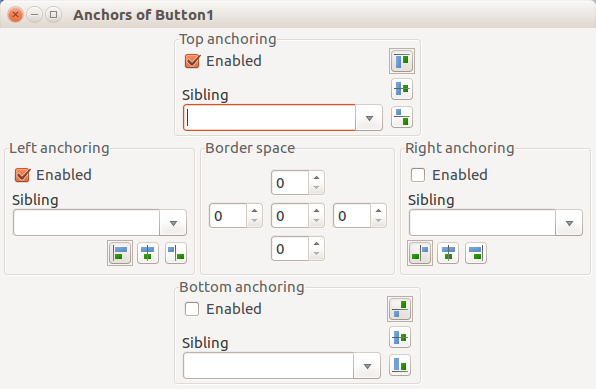 | |
| 44 | 41 | ||
| 45 | 42 | ## Example 2 | |
| 46 | 43 | ||
| 47 | 44 | You can anchor the Edit's top side to follow the Label's top side: | |
| 48 | 45 | ||
| 49 | 46 | +--------+ +-------+ | |
| 50 | 47 | | Label1 | | Edit1 | | |
| 51 | 48 | +--------+ | | | |
| 52 | 49 | +-------+ | |
| 53 | 50 | ||
| 54 | 51 | ``` Pascal | |
| 55 | 52 | Edit1.AnchorSide[akTop].Side := asrTop; | |
| 56 | 53 | Edit1.AnchorSide[akTop].Control := Label1; | |
| 57 | 54 | Edit1.Anchors := Edit1.Anchors + [akTop]; | |
| 58 | 55 | ``` | |
| 59 | 56 | ||
| 60 | 57 | The same can be done with the method: | |
| 61 | 58 | ||
| 62 | 59 | ``` Pascal | |
| 63 | 60 | Edit1.AnchorParallel(akTop,0,Label1); | |
| 64 | 61 | ``` | |
| 65 | 62 | ||
| 66 | 63 | ## Example 3 | |
| 67 | 64 | ||
| 68 | 65 | Centering a Label vertically to an Edit: | |
| 69 | 66 | ||
| 70 | 67 | +-------+ | |
| 71 | 68 | +--------+ | | | |
| 72 | 69 | | Label1 | | Edit1 | | |
| 73 | 70 | +--------+ | | | |
| 74 | 71 | +-------+ | |
| 75 | 72 | ||
| 76 | 73 | ``` Pascal | |
| 77 | 74 | Edit1.AnchorSide[akTop].Side := asrCenter; | |
| 78 | 75 | Edit1.AnchorSide[akTop].Control := Label1; | |
| 79 | 76 | Edit1.Anchors := Edit1.Anchors + [akTop] - [akBottom]; | |
| 80 | 77 | ``` | |
| 81 | 78 | ||
| 82 | 79 | The same can be done with the method: | |
| 83 | 80 | ||
| 84 | 81 | ``` Pascal | |
| 85 | 82 | Edit1.AnchorVerticalCenterTo(Label1); | |
| 86 | 83 | ``` | |
| 87 | 84 | ||
| 88 | 85 | Obviously anchoring the bottom side of Edit1 does not make sense when centering. | |
| 89 | 86 | ||
| 90 | 87 | ## Example 4 | |
| 91 | 88 | ||
| 92 | 89 | Using a [[TSplitter]] with the AnchorEditor between two panels: the left panel should behave as if it had `Align=alLeft`, the right panel should behave as if it had `Align=alClient`. | |
| 93 | 90 | ||
| 94 | 91 | - Do not use the `Align` properties of the panels and of the splitter. They must be set to `alNone`. This is important for the splitter for which the default value is `alLeft`. | |
| 95 | 92 | - In the anchor editor do the following adjustments: | |
| 96 | 93 | - Anchor the top and bottom sides of the panels and the splitter to the corresponding sides of the form. | |
| 97 | 94 | - Select the first panel and anchor its left side to the left side of the form and its right side to the left side of the splitter. | |
| 98 | 95 | - Select the second panel and anchor its right side to the right side of the form and its left side to the right side of the splitter. | |
| 99 | 96 | - The left and right sides of the splitter must not be anchored (as seen from the splitter itself) because this would fix the position of the splitter and make it not movable. | |
| 100 | 97 | ||
| 101 | 98 | The same effect can be achieved by this code: | |
| 102 | 99 | ||
| 103 | 100 | ``` pascal | |
| 104 | 101 | procedure TForm1.FormCreate(Sender: TObject); | |
| 105 | 102 | begin | |
| 106 | 103 | with Panel1 do | |
| 107 | 104 | begin | |
| 108 | 105 | AnchorSideTop.Control := Self; | |
| 109 | 106 | AnchorSideBottom.Control := Self; | |
| 110 | 107 | AnchorSideBottom.Side := asrBottom; | |
| 111 | 108 | AnchorSideLeft.Control := Self; | |
| 112 | 109 | AnchorSideRight.Control := Splitter1; | |
| 113 | 110 | Anchors := [akLeft, akRight, akTop, akBottom]; | |
| 114 | 111 | end; | |
| 115 | 112 | with Panel2 do | |
| 116 | 113 | begin | |
| 117 | 114 | AnchorSideTop.Control := Self; | |
| 118 | 115 | AnchorSideBottom.Control := Self; | |
| 119 | 116 | AnchorSideBottom.Side := asrBottom; | |
| 120 | 117 | AnchorSideLeft.Control := Splitter1; | |
| 121 | 118 | AnchorSideLeft.Side := asrBottom; | |
| 122 | 119 | AnchorSideRight.Control := self; | |
| 123 | 120 | AnchorSideRight.Side := asrBottom; | |
| 124 | 121 | Anchors := [akLeft, akRight, akTop, akBottom]; | |
| 125 | 122 | end; | |
| 126 | 123 | with Splitter1 do | |
| 127 | 124 | begin | |
| 128 | 125 | AnchorSideTop.Control := Self; | |
| 129 | 126 | Splitter1.AnchorSideBottom.Control := Self; | |
| 130 | 127 | AnchorSideBottom.Side := asrBottom; | |
| 131 | 128 | Anchors := [akTop, akBottom]; | |
| 132 | 129 | end; | |
| 133 | 130 | end; | |
| 134 | 131 | ``` | |
| 135 | 132 | ||
| 136 | 133 | ## New property | |
| 137 | 134 | ||
| 138 | 135 | ``` Pascal | |
| 139 | 136 | property AnchorSide[Kind: TAnchorKind]: TAnchorSide read GetAnchorSide; | |
| 140 | 137 | ``` | |
| 141 | 138 | ||
| 142 | 139 | This is not published in the [[IDE Window: Object Inspector|object inspector]]. You can edit it in the designer via the [[IDE Window: Anchor Editor|anchor editor]] (Menu: View -\> View anchor editor, or click on button of 'Anchors' property). | |
| 143 | 140 | ||
| 144 | 141 | ## New methods to easily configure common layouts | |
| 145 | 142 | ||
| 146 | 143 | ``` Pascal | |
| 147 | 144 | procedure AnchorToNeighbour(Side: TAnchorKind; Space: integer; Sibling: TControl); | |
| 148 | 145 | procedure AnchorParallel(Side: TAnchorKind; Space: integer; Sibling: TControl); | |
| 149 | 146 | procedure AnchorHorizontalCenterTo(Sibling: TControl); | |
| 150 | 147 | procedure AnchorVerticalCenterTo(Sibling: TControl); | |
| 151 | 148 | procedure AnchorAsAlign(TheAlign: TAlign; Space: Integer); | |
| 152 | 149 | ``` | |
| 153 | 150 | ||
| 154 | 151 | AnchorVerticalCenterTo works with Parent too. Then it will center on the client area, that means the center of the control is at *ClientHeight div 2*. | |
| 155 | 152 | ||
| 156 | 153 | Center anchoring is not yet fully supported when computing the size of the parent. For example when you put a label center anchored into a [[TGroupBox|Groupbox1]] and set Groupbox1.AutoSize to true then Groupbox1 height will shrink leaving no space for the label. The solution is to center to a control that is not centered. For example center a Label1 to a [[TComboBox|ComboBox]] and use for the ComboBox the default anchors (Anchors=\[akLeft,akTop\]). | |
| 157 | 154 | ||
| 158 | 155 | ## Anchoring to invisible controls | |
| 159 | 156 | ||
| 160 | 157 | Anchoring to invisible controls works intuitively. For example: The below controls A, B, C are anchored (C.Left to B.Right and B.Left to A.Right): | |
| 161 | 158 | ||
| 162 | 159 | ` +---+ +---+ +---+`\ | |
| 163 | 160 | ` | A | | B | | C |`\ | |
| 164 | 161 | ` +---+ +---+ +---+` | |
| 165 | 162 | ||
| 166 | 163 | If B is hidden (Visible:=[[False|false]]) then C.Left will skip B and use the right of A, resulting in | |
| 167 | 164 | ||
| 168 | 165 | ` +---+ +---+`\ | |
| 169 | 166 | ` | A | | C |`\ | |
| 170 | 167 | ` +---+ +---+` | |
| 171 | 168 | ||
| 172 | 169 | ## Circular references | |
| 173 | 170 | ||
| 174 | 171 | You can build circular references by anchoring two sides to each other, which creates an impossible anchoring. The LCL notices that, but will not raise an exception, because it can be a temporary circle. For example: A row of buttons. Button1 is left of Button2, Button2 is left of Button3. Now the order is changed to: Button3, Button1, Button2. If the reanchoring is started with Button3, a circle is created temporarily and is fixed when the reordering is completed. The LCL detects circles and will not move the Button. Circles are not the only anomaly. | |
| 175 | 172 | ||
| 176 | 173 | There is one exception to this rule. If the Parent.AutoSize is true, then the LCL will automatically break circles on autosize and writes a warning via [[DebugLn|debugln]] (windows: --debug-log.txt, linux, et al: stdout). Which anchor is broken depends on the order of controls and the sides. So, temporary circles are still allowed with AutoSize=true if you enclose the change in | |
| 177 | 174 | ||
| 178 | 175 | ``` Pascal | |
| 179 | 176 | Parent.DisableAutosizing; | |
| 180 | 177 | try | |
| 181 | 178 | // change anchors, aligns, bounds... | |
| 182 | 179 | finally | |
| 183 | 180 | Parent.EnableAutosizing; | |
| 184 | 181 | end; | |
| 185 | 182 | ``` | |
| 186 | 183 | ||
| 187 | 184 | The AutoSize algorithm does not only break circles, but fixes Align/AnchorSide inconsistencies too. | |
| 188 | 185 | ||
| 189 | 186 | Eventually it would be good to add some hints in the designer or a tool to list the circles and inconsistencies. | |
| 190 | 187 | ||
| 191 | 188 | ## See also | |
| 192 | 189 | ||
| 193 | 190 | - [[Autosize / Layout]] | |
| 194 | 191 | - [[Example: Anchors. How to reliably align dynamically created controls under changing visibility]] | |
| 195 | 192 | ||
| 196 | 193 | --- | |
| 197 | 194 | *From the Free Pascal wiki, page "Anchor Sides", as it stood on 2021-10-11 after a change by Kai Burghardt, out of the wiki's dump of 2024-05-26. Copyright stays with the author who wrote it, according to the old wiki's [[Licensing]] page. If you have concerns about this material, [message the admin](/wiki-contact).* |