

Anchor Docking: what changed
Revision 0 to 1. Removed lines have a minus sign; added lines have a plus sign.
Title: Anchor Docking
| Old | New | Line | |
|---|---|---|---|
| 1 | + | About docking in general see [[Docking]]. | |
| 2 | + | ||
| 3 | + | ## Overview | |
| 4 | + | ||
| 5 | + | Docking allows you to combine forms, or to treat controls as forms. You use the mouse to drag and dock forms together or undock (split) them. The basic dragging, docking and undocking functionality is provided by the LCL. But you need a docking manager to add splitters and grab zones, and to save and restore layouts. | |
| 6 | + | ||
| 7 | + | Anchor docking has been implemented since version 0.9.29 in the package *anchordocking.lpk* for use in your own Lazarus applications, and *AnchorDockingDsgn.lpk* if you wish to make the Lazarus IDE windows dockable. It is easy to use, and provides many features and options not available in earlier docking packages. | |
| 8 | + | ||
| 9 | + | You will find a code example at: components/anchordocking/miniide/miniide1.lpi | |
| 10 | + | ||
| 11 | + | This means that the earlier TLazDockingManager and unit LDockCtrl are obsolete and now deprecated. | |
| 12 | + | ||
| 13 | + | ### Features | |
| 14 | + | ||
| 15 | + | - **Drag and dock**: Headers are added that can be dragged to dock controls with the mouse. Preview rectangles will show where and how a control is docked. | |
| 16 | + | - **Any layout**: By using the LCL's anchors almost any layout is possible. You can dock to left, right, top, bottom, inside or outside or as page like in a TPageControl. You can enlarge docked controls via the popup menu. No need to undock your whole layout. | |
| 17 | + | - **What you see is how it is structured**: There are no hidden panels to align controls in rows and columns. Anchor docking makes sure forms do not overlap. | |
| 18 | + | - **Splitters** are automatically inserted between docked forms to allow resizing. | |
| 19 | + | - **Page docking**. Forms can be docked not only left/right/above/below, but in pages too. A TPageControl is automatically created for native look and feel. A page can contain arbitrary docked forms too, including paged docked forms, allowing nested pages and layouts. When a page is undocked the pagecontrol is automatically removed. You can drag and drop the tabs or use the popup menu to move pages. | |
| 20 | + | - **Easy use**: With one line of code you can make a form or control dockable. Just give them unique names. | |
| 21 | + | - Not only forms, but any **TWinControl** can be made dockable. | |
| 22 | + | - Can **save/load layouts**. The layout information is stored for each dockable control and old layout files will still work even when the application gets more dockable controls or some are removed. The information is stored in the abstract class LCL TConfigStorage. So you can use for example TXMLConfigStorage to store layouts in xml files or you can write your own storage to store it wherever you want. | |
| 23 | + | - Each docked form is put into a docksite providing an optional **header**. The header shows the caption of the docked form and contains a close button. You can *drag the header* to drag the form and undock it or to dock it at another position. The header can be at any of the four sides and moves by default automatically to the smaller side to save space. You can customize this. The header shows a customizable hint allowing to read long captions. | |
| 24 | + | - When a docksite is resized the *child sites are automatically scaled*. You can turn this off. | |
| 25 | + | - **Preserve size of forms**. For instance when docking a form to a left side of a site the width of the docked form is kept. The same for the other sides and the same for undocking. | |
| 26 | + | - **Flickerless**: The restore tries to reuse existing sites and splitters to reduce creation and flickering of forms and to preserve the Z order of forms. This allows to quickly switch between layouts. | |
| 27 | + | - **Header popup menu**: | |
| 28 | + | - lock/unlock (disable dragging) | |
| 29 | + | - header position (auto, left, top, right, bottom), this is saved/restored with the layout | |
| 30 | + | - merge (for example after moving a dock page into a layout) | |
| 31 | + | - undock (needed if no place to undock on screen) | |
| 32 | + | - enlarge side to left, top, right, bottom | |
| 33 | + | - close | |
| 34 | + | - options | |
| 35 | + | - **Page popup menu**: | |
| 36 | + | - lock/unlock (disable dragging) | |
| 37 | + | - undock (needed if no place to undock on screen) | |
| 38 | + | - tab position for pagecontrol (top,bottom, left, right), this is saved/restored with the layout | |
| 39 | + | - move page to the left, right, leftmost, rightmost | |
| 40 | + | - close | |
| 41 | + | - options | |
| 42 | + | - Forms can be made dock sites. Then they can dock at one side. But they can not be docked itself. | |
| 43 | + | - close button automatically saves a layout | |
| 44 | + | - Powerful functions to alter the layout. You can use D&D to move a form and you can undock and dock in one move. There are functions to enlarge forms and shrinking others. These functions are available via the header popup menu as well. See below. | |
| 45 | + | - There is an IDE package which makes the Lazarus IDE dockable. It is called anchordockingdsgn.lpk. Make sure you only install one docking package. Do not install the easydockmgr at the same time! | |
| 46 | + | ||
| 47 | + | ### ToDos | |
| 48 | + | ||
| 49 | + | - Design time package: Add all layout files to menu | |
| 50 | + | - simple way to make forms dockable at designtime (that means without writing any code) | |
| 51 | + | - minimize button and Hide | |
| 52 | + | - on show again: restore a default layout | |
| 53 | + | - close button for pages | |
| 54 | + | - Implement automatic menu merging in the LCL (when two forms with main menus are docked). | |
| 55 | + | ||
| 56 | + | ## Usage I. (Add docking support to the Lazarus IDE) | |
| 57 | + | ||
| 58 | + | If you don't like the default "separate windows" look of the Lazarus IDE and prefer a single window (e.g., like RAD Studio™), you can install a package called **[[AnchorDockingDsgn]]** (lazarus/components/anchordocking/design/anchordockingdsgn.lpk). This package makes the IDE windows dockable. | |
| 59 | + | ||
| 60 | + | ### Important to macOS users | |
| 61 | + | ||
| 62 | + | Before Lazarus 3.0, there are many bugs related to docking. | |
| 63 | + | ||
| 64 | + | If "anchordockingdsgn" has been installed before Lazarus 3.0, the wrong configuration may be saved and needs to be reset first. | |
| 65 | + | ||
| 66 | + | The configuration is saved in environmentoptions.xml, which usually located in ~/.lazarus | |
| 67 | + | ||
| 68 | + | Close the IDE, locate environmentoptions.xml, delete the content between \<AnchorDocking\> and \</AnchorDocking\>, and the initial setting of anchordockingdsgn will be automatically set when the IDE is started again. | |
| 69 | + | ||
| 70 | + | ### Installation | |
| 71 | + | ||
| 72 | + | Uninstall any other docking managers (e.g., easydockmgrdsgn). From the Lazarus menu bar pick "Package" - "Install/Uninstall Packages" and install the "anchordockingdsgn" package. | |
| 73 | + | ||
| 74 | + | After you have successfully installed the package and restarted the IDE, the IDE starts with a default docked layout like shown below. Note that AnchorDocking headers and splitters have been added to all dockable windows of the IDE. In case the headers don't get visible, see the section "Options" below on how to enable/disable them. | |
| 75 | + | ||
| 76 | + | <figure> | |
| 77 | + | <img src="2021-12-02_10_21_07-Debian_10.8_Buster_-_VMware_Workstation.png" title="2021-12-02_10_21_07-Debian_10.8_Buster_-_VMware_Workstation.png" width="1333" /> | |
| 78 | + | <figcaption>2021-12-02_10_21_07-Debian_10.8_Buster_-_VMware_Workstation.png</figcaption> | |
| 79 | + | </figure> | |
| 80 | + | ||
| 81 | + | You can change the layout by grabbing a dockable window by the Anchordocking header and drag and dock it anywhere else, or resize docked windows via splitters added to the window borders. You can right-click on the headers too for other options, for example, to change the look of the headers, as shown farther down below. | |
| 82 | + | ||
| 83 | + | You can save the layout via the menu item **Tools / Save window layout as default**. This saves to ~/.lazarus/anchordocklayout.xml and restores it when the IDE starts up. | |
| 84 | + | ||
| 85 | + | You can also save the layout to a file and load them later. | |
| 86 | + | ||
| 87 | + | Since Lazarus 1.1 you can pass a command line parameter | |
| 88 | + | ||
| 89 | + | `./lazarus --anchordocklayout=<filename>` | |
| 90 | + | ||
| 91 | + | The look (like the headers) can be further tweaked by right-clicking on them. | |
| 92 | + | ||
| 93 | + | <figure> | |
| 94 | + | <img src="docking_headers.gif" title="docking_headers.gif" /> | |
| 95 | + | <figcaption>docking_headers.gif</figcaption> | |
| 96 | + | </figure> | |
| 97 | + | ||
| 98 | + | ### Options | |
| 99 | + | ||
| 100 | + | After the successful installation of the AnchorDockingDsgn package, an additional configuration menu is added to the Lazarus options dialog ("Tools" - "Options" - "Environment") | |
| 101 | + | ||
| 102 | + | <figure> | |
| 103 | + | <img src="anchordocking_options.png" title="anchordocking_options.png" /> | |
| 104 | + | <figcaption>anchordocking_options.png</figcaption> | |
| 105 | + | </figure> | |
| 106 | + | ||
| 107 | + | #### Scale on resize | |
| 108 | + | ||
| 109 | + | When resizing a window, all docked forms inside are scaled by the same percentage. | |
| 110 | + | ||
| 111 | + | #### Show headers | |
| 112 | + | ||
| 113 | + | To dock/undock a window, you need to enable this option. | |
| 114 | + | ||
| 115 | + | #### Flatten headers | |
| 116 | + | ||
| 117 | + | No 3d frame in headers. | |
| 118 | + | ||
| 119 | + | #### Header align top/left | |
| 120 | + | ||
| 121 | + | Headers are automatically put at top or left depending on these two values: | |
| 122 | + | ||
| 123 | + | - Move header to top, when (width/height)*100\<=HeaderAlignTop, default 80 | |
| 124 | + | - Move header to left, when (width/height)*100\>=HeaderAlignLeft, default 120 | |
| 125 | + | - Otherwise keep the header at the current position. | |
| 126 | + | ||
| 127 | + | Which means the header is by default put at the smaller side of a docked control. When the control is resized, the header switches to the smaller side. | |
| 128 | + | ||
| 129 | + | #### Allow dock sites to be minimized | |
| 130 | + | ||
| 131 | + | A extra minimize button is added, so a site can be minimized. Then sites next to it get more space. If needed, the minimized site then can easy be opened. | |
| 132 | + | ||
| 133 | + | #### Multine Tabs | |
| 134 | + | ||
| 135 | + | Feature added in Lazarus 2.2. If a OS support multiline tabs (like Windows), if there are no many tabs, they are shown in multiple lines. | |
| 136 | + | ||
| 137 | + | #### Floating windows on top | |
| 138 | + | ||
| 139 | + | Feature added in Lazarus 2.2. If there are undocked windows shown, show these on top of main window. In a own application, there can be set DockMaster.MainDockForm, then all floating windows are shown on top of it. If MainDockForm is not set, Application.MainForm is used. | |
| 140 | + | ||
| 141 | + | ## Usage II. (Add docking support to your own applications) | |
| 142 | + | ||
| 143 | + | ### Quick start | |
| 144 | + | ||
| 145 | + | Add the package **AnchorDocking** to the required packages in the project inspector. | |
| 146 | + | ||
| 147 | + | Then add the unit **AnchorDocking** to the uses section of your main unit (the unit with your main form). | |
| 148 | + | ||
| 149 | + | Add to the FormCreate of your main form: | |
| 150 | + | ||
| 151 | + | ``` pascal | |
| 152 | + | DockMaster.MakeDockSite(Self,[akBottom],admrpChild); | |
| 153 | + | ``` | |
| 154 | + | ||
| 155 | + | For the other dockable forms replace all calls of *Show* and *ShowOnTop* with | |
| 156 | + | ||
| 157 | + | ``` pascal | |
| 158 | + | DockMaster.MakeDockable(Form1,true,true); | |
| 159 | + | ``` | |
| 160 | + | ||
| 161 | + | For the other dockable forms replace all calls of *Visible:=true* with | |
| 162 | + | ||
| 163 | + | ``` pascal | |
| 164 | + | DockMaster.MakeDockable(Form1,true); | |
| 165 | + | ``` | |
| 166 | + | ||
| 167 | + | Remove or comment all *Hide*, *Visible:=false*, *WindowState:=* calls. | |
| 168 | + | ||
| 169 | + | ### Prerequisites | |
| 170 | + | ||
| 171 | + | - Your project must use the package *AnchorDocking*. | |
| 172 | + | - All dockable forms must be shown with MakeDockable or MakeDockSite. Do not use *Show*, *BringToFront*, *ShowOnTop*, *Visible:=true*. Of course you can have some non dockable forms, like hints or splashscreens. | |
| 173 | + | - All dockable forms must be free resizable, that means no constraints, no BorderStyle bsDialog. | |
| 174 | + | - No other docking system. AnchorDocking is incompatible with EasyDockMgr. | |
| 175 | + | ||
| 176 | + | ### Making forms dockable | |
| 177 | + | ||
| 178 | + | There are two ways to make a form dockable. You can use **DockMaster.MakeDockable** to wrap a form into a dock site. Then your form can dock and be docked completely free. You will use that for the biggest part of your forms, except for the MainForm, because this is only supported for the MainForm on gtk2 and qt. The second way is to use **DockMaster.MakeDockSite**. The form can dock other sites, but can not be docked itself. You might want to use *MakeDockSite* for the *MainForm*. For most other forms you probably want to use this: | |
| 179 | + | ||
| 180 | + | ``` pascal | |
| 181 | + | // shows YourForm | |
| 182 | + | // if not already done, wrap the form into a dock site | |
| 183 | + | DockMaster.MakeDockable(YourForm); | |
| 184 | + | ``` | |
| 185 | + | ||
| 186 | + | Here are some examples how a form looks like that was made dockable with **DockMaster.MakeDockable**: | |
| 187 | + | ||
| 188 | + | 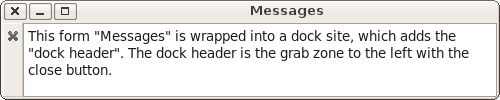 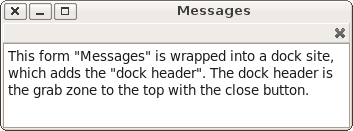 | |
| 189 | + | ||
| 190 | + | The header position is normally done automatically and the user can with a right click put it to any of the four sides. | |
| 191 | + | ||
| 192 | + | ### Example: miniide1 | |
| 193 | + | ||
| 194 | + | The example can be found in *lazarus/components/anchordocking/miniide/miniide1.lpi*. It has a *mainform* in unit *unit1.pas* with a main menu which works as a docksite and several forms that are dockable. | |
| 195 | + | ||
| 196 | + | <figure> | |
| 197 | + | <img src="Anchordocking_miniide1.png" title="Anchordocking_miniide1.png" /> | |
| 198 | + | <figcaption>Anchordocking_miniide1.png</figcaption> | |
| 199 | + | </figure> | |
| 200 | + | ||
| 201 | + | ### Making the main form a dock site | |
| 202 | + | ||
| 203 | + | In the TMainIDE.FormCreate the main form **MainIDE** is turned into a docksite: | |
| 204 | + | ||
| 205 | + | ``` pascal | |
| 206 | + | DockMaster.MakeDockSite(Self,[akBottom],admrpChild); | |
| 207 | + | ``` | |
| 208 | + | ||
| 209 | + | The parameter *\[akBottom\]* allows to dock other sites at the bottom of MainIDE. The parameter *admrpChild* tells the DockMaster that when the MainIDE is enlarged the extra space is distributed to the docked sites. | |
| 210 | + | ||
| 211 | + | When the user docks a site to the bottom of MainIDE the site is put onto MainIDE (Site.Parent:=MainIDE) with Site.Align=alBottom. The other controls on MainIDE must be compatible to this. MainIDE for example has a BtnPanel with Align=alLeft and a TNoteBook with Align=alClient. See [[Autosize / Layout|here]] how Align works. | |
| 212 | + | ||
| 213 | + | The DockMaster adds automatically a splitter: | |
| 214 | + | ||
| 215 | + | <figure> | |
| 216 | + | <img src="Anchordocking_miniide_dockedse1.png" title="Anchordocking_miniide_dockedse1.png" /> | |
| 217 | + | <figcaption>Anchordocking_miniide_dockedse1.png</figcaption> | |
| 218 | + | </figure> | |
| 219 | + | ||
| 220 | + | As soon as a dockable form is docked its caption is shown in the dock header. | |
| 221 | + | ||
| 222 | + | #### Requirements for a custom dock site | |
| 223 | + | ||
| 224 | + | As long as nothing is docked into a custom dock site, your form can do everything as a normal form. But when a site is docked to it, some properties and methods need special care: | |
| 225 | + | ||
| 226 | + | - AutoSize=true may result in an endless loop. Disable it or override DoAutoSize/CalculatePreferredSize and take special care. | |
| 227 | + | - Constraints: The DockMaster clears the maximum Constraints and will restore them on undock. | |
| 228 | + | - Child controls anchored to the aligned site may overlap. See [[Autosize / Layout|here]] how Align works. | |
| 229 | + | - ChildSizing: The spacing properties like LeftRightSpacing, TopBottomSpacing may interfere with the docking layout. | |
| 230 | + | ||
| 231 | + | ### Procedure to create all other forms by name | |
| 232 | + | ||
| 233 | + | The MainIDE sets the **DockMaster.OnCreateControl** event, to enable the DockMaster to create forms by name. This is needed to restore layouts. | |
| 234 | + | ||
| 235 | + | ``` pascal | |
| 236 | + | DockMaster.OnCreateControl:=@DockMasterCreateControl; | |
| 237 | + | ``` | |
| 238 | + | ||
| 239 | + | ``` pascal | |
| 240 | + | procedure TMainIDE.DockMasterCreateControl(Sender: TObject; aName: string; var | |
| 241 | + | AControl: TControl; DoDisableAutoSizing: boolean); | |
| 242 | + | ||
| 243 | + | procedure CreateForm(Caption: string; NewBounds: TRect); | |
| 244 | + | begin | |
| 245 | + | AControl:=CreateSimpleForm(aName,Caption,NewBounds,DoDisableAutoSizing); | |
| 246 | + | end; | |
| 247 | + | ||
| 248 | + | begin | |
| 249 | + | // first check if the form already exists | |
| 250 | + | // the LCL Screen has a list of all existing forms. | |
| 251 | + | // Note: Remember that the LCL allows as form names only standard | |
| 252 | + | // pascal identifiers and compares them case insensitive | |
| 253 | + | AControl:=Screen.FindForm(aName); | |
| 254 | + | if AControl<>nil then begin | |
| 255 | + | // if it already exists, just disable autosizing if requested | |
| 256 | + | if DoDisableAutoSizing then | |
| 257 | + | AControl.DisableAutoSizing; | |
| 258 | + | exit; | |
| 259 | + | end; | |
| 260 | + | // if the form does not yet exist, create it | |
| 261 | + | if aName='CodeExplorer' then | |
| 262 | + | CreateForm('Code Explorer',Bounds(700,230,100,250)) | |
| 263 | + | ... | |
| 264 | + | else if aName='DebugOutput' then | |
| 265 | + | CreateForm('Debug Output',Bounds(400,400,350,150)); | |
| 266 | + | end; | |
| 267 | + | ``` | |
| 268 | + | ||
| 269 | + | Creating a form can be as simple as this: | |
| 270 | + | ||
| 271 | + | ``` pascal | |
| 272 | + | MyForm:=TMyForm.Create(Self); | |
| 273 | + | if DoDisableAutoSizing then | |
| 274 | + | MyForm.DisableAutoSizing; | |
| 275 | + | ``` | |
| 276 | + | ||
| 277 | + | But of course you can put there all kind of initialization code. | |
| 278 | + | ||
| 279 | + | The *DisableAutoSizing* reduces flickering. Make sure your forms **Visible** property is set to **false**. | |
| 280 | + | ||
| 281 | + | Remember to call **DisableAutoSizing** for the form if the parameter **DoDisableAutoSizing** is set to *true*, because *Disable-* and *EnableAutosizing* calls must be balanced. If you miss the *DisableAutosizing*, the LCL will raise an exception later: | |
| 282 | + | ||
| 283 | + | `TControl.EnableAutoSizing SourceEditor1:TSimpleForm: missing DisableAutoSizing` | |
| 284 | + | ||
| 285 | + | <figure> | |
| 286 | + | <img src="MissingDisableAutoSizing.png" title="MissingDisableAutoSizing.png" /> | |
| 287 | + | <figcaption>MissingDisableAutoSizing.png</figcaption> | |
| 288 | + | </figure> | |
| 289 | + | ||
| 290 | + | If you call **DisableAutoSizing** too much, your forms will not appear and/or not resize properly as the LCL is waiting for the *EnableAutoSizing* call that never comes. | |
| 291 | + | ||
| 292 | + | ### Showing forms | |
| 293 | + | ||
| 294 | + | When a form should be shown, you have probably used something like *'MyForm.Show*. Instead you should now use | |
| 295 | + | ||
| 296 | + | ``` pascal | |
| 297 | + | DockMaster.MakeDockable(MyForm); | |
| 298 | + | ``` | |
| 299 | + | ||
| 300 | + | This will wrap MyForm in a dock site and show it. It is clever enough to figure out if the form is already wrapped in a dock site. | |
| 301 | + | ||
| 302 | + | If you set the **DockMaster.OnCreateControl** event you can use this: | |
| 303 | + | ||
| 304 | + | ``` pascal | |
| 305 | + | DockMaster.ShowControl('MyForm',true); | |
| 306 | + | ``` | |
| 307 | + | ||
| 308 | + | ### Docking manually, via code | |
| 309 | + | ||
| 310 | + | Use the procedure **DockMaster.ManualDock** to dock a site to or into another. | |
| 311 | + | ||
| 312 | + | ``` pascal | |
| 313 | + | procedure ManualDock(SrcSite, TargetSite: TAnchorDockHostSite; Align: TAlign; TargetControl: TControl = nil); | |
| 314 | + | ``` | |
| 315 | + | ||
| 316 | + | - **SrcSite** is the site to be docked. If SrcSite was docked it will be undocked first. | |
| 317 | + | - **TargetSite** is the site where SrcSite will be docked into or docked as neighbor. | |
| 318 | + | - **TargetControl** specifies if docking as neighbor (=nil), as inside neighbor (=TargetSide) or in front of a page (=a TAnchorDockPage). | |
| 319 | + | ||
| 320 | + | ### Undocking manually, via code | |
| 321 | + | ||
| 322 | + | Use the procedure **DockMaster.ManualFloat** to undock a site from its neighbors and create a flotaing top level form. The embedded control stays embedded into a TAnchorDockHostSite. | |
| 323 | + | ||
| 324 | + | ``` pascal | |
| 325 | + | procedure ManualFloat(AControl: TControl); | |
| 326 | + | ``` | |
| 327 | + | ||
| 328 | + | You can give as parameter a TAnchorDockHostSite or a control embedded into a TAnchorDockHostSite (for example a form made dockable with MakeDockable). The site will be put at the same screen location. | |
| 329 | + | ||
| 330 | + | ### Save layout | |
| 331 | + | ||
| 332 | + | The DockMaster allows to save the current layout to a TConfigStorage. The miniide example uses the xml version: | |
| 333 | + | ||
| 334 | + | ``` pascal | |
| 335 | + | procedure TMainIDE.SaveLayout(Filename: string); | |
| 336 | + | var | |
| 337 | + | XMLConfig: TXMLConfigStorage; | |
| 338 | + | begin | |
| 339 | + | try | |
| 340 | + | // create a new xml config file | |
| 341 | + | XMLConfig:=TXMLConfigStorage.Create(Filename,false); | |
| 342 | + | try | |
| 343 | + | // save the current layout of all forms | |
| 344 | + | DockMaster.SaveLayoutToConfig(XMLConfig); | |
| 345 | + | XMLConfig.WriteToDisk; | |
| 346 | + | finally | |
| 347 | + | XMLConfig.Free; | |
| 348 | + | end; | |
| 349 | + | except | |
| 350 | + | on E: Exception do begin | |
| 351 | + | MessageDlg('Error', | |
| 352 | + | 'Error saving layout to file '+Filename+':'#13+E.Message,mtError, | |
| 353 | + | [mbCancel],0); | |
| 354 | + | end; | |
| 355 | + | end; | |
| 356 | + | end; | |
| 357 | + | ``` | |
| 358 | + | ||
| 359 | + | ### Load layout | |
| 360 | + | ||
| 361 | + | ``` pascal | |
| 362 | + | procedure TMainIDE.LoadLayout(Filename: string); | |
| 363 | + | var | |
| 364 | + | XMLConfig: TXMLConfigStorage; | |
| 365 | + | begin | |
| 366 | + | try | |
| 367 | + | // load the xml config file | |
| 368 | + | XMLConfig:=TXMLConfigStorage.Create(Filename,True); | |
| 369 | + | try | |
| 370 | + | // restore the layout | |
| 371 | + | // this will close unneeded forms and call OnCreateControl for all needed | |
| 372 | + | DockMaster.LoadLayoutFromConfig(XMLConfig); | |
| 373 | + | finally | |
| 374 | + | XMLConfig.Free; | |
| 375 | + | end; | |
| 376 | + | except | |
| 377 | + | on E: Exception do begin | |
| 378 | + | MessageDlg('Error', | |
| 379 | + | 'Error loading layout from file '+Filename+':'#13+E.Message,mtError, | |
| 380 | + | [mbCancel],0); | |
| 381 | + | end; | |
| 382 | + | end; | |
| 383 | + | end; | |
| 384 | + | ``` | |
| 385 | + | ||
| 386 | + | ### Enlarge/Shrink | |
| 387 | + | ||
| 388 | + | The anchor docking manager can enlarge/shrink docked neighbors. This is done via the popup menu of the dock header or in code with the function **DockMaster.ManualEnlarge**: | |
| 389 | + | ||
| 390 | + | ``` pascal | |
| 391 | + | function ManualEnlarge(Site: TAnchorDockHostSite; Side: TAnchorKind; OnlyCheckIfPossible: boolean): boolean; | |
| 392 | + | ``` | |
| 393 | + | ||
| 394 | + | Site is a child site, Side the side of Site to expand. If you only want to test if enlarge is possible set OnlyCheckIfPossible to true. | |
| 395 | + | ||
| 396 | + | ### Enlarge one, shrink another | |
| 397 | + | ||
| 398 | + | Shrink neighbor *Object Inspector*, enlarge *Messages*: Right click on the header of *Messages* and click on **Enlarge right side**. Two splitters are resized. | |
| 399 | + | ||
| 400 | + | 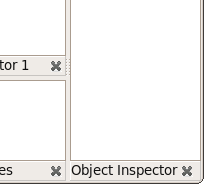 enlarging *Messages* to the right side: 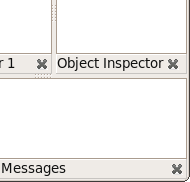 | |
| 401 | + | ||
| 402 | + | ### Enlarge one, shrink many | |
| 403 | + | ||
| 404 | + | Shrink splitter at one side, enlarge both neighbor splitters, rotate the splitter behind, enlarge Control, shrink controls at rotate splitter. Right click on header of *Source Editor 1* then click on **Enlarge bottom side**. | |
| 405 | + | ||
| 406 | + | 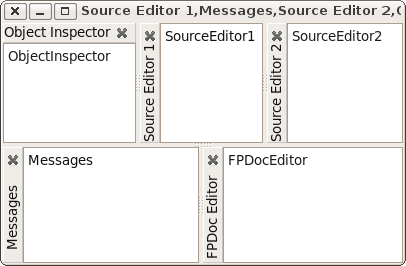 becomes 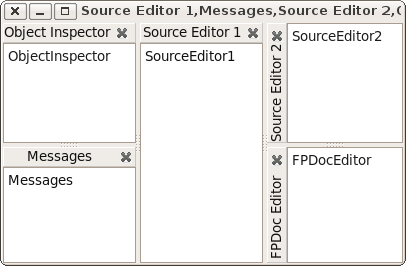 | |
| 407 | + | ||
| 408 | + | ### General docking options | |
| 409 | + | ||
| 410 | + | The AnchorDocking package provides a dialog to setup some of the properties of the DockMaster. The dialog is in the unit AnchorDockOptionsDlg and you can use it simply: | |
| 411 | + | ||
| 412 | + | ``` pascal | |
| 413 | + | uses ... AnchorDockOptionsDlg; | |
| 414 | + | ... | |
| 415 | + | procedure TMainIDE.FormCreate(Sender: TObject); | |
| 416 | + | ... | |
| 417 | + | begin | |
| 418 | + | ... | |
| 419 | + | DockMaster.OnShowOptions:=@ShowAnchorDockOptions; | |
| 420 | + | ... | |
| 421 | + | end; | |
| 422 | + | ``` | |
| 423 | + | ||
| 424 | + | This will add a new menu item to the popup menus of the dock headers and pages called *Docking options*. | |
| 425 | + | ||
| 426 | + | ## Why use Anchors instead of Align? | |
| 427 | + | ||
| 428 | + | Anchors allow to create any possible rectangular layout. Align is limited. Align with Panels can theoretically create a lot of layouts, but still not all. And some operations like enlarge/shrink are more complicated using Align/Panels than using Anchors. Align works good for a few forms, but the more forms are docked, the more the disadvantages of Align become visible. | |
| 429 | + | ||
| 430 | + | ### Layouts that can be created with Align | |
| 431 | + | ||
| 432 | + | Align can only create the following layouts: | |
| 433 | + | ||
| 434 | + | <figure> | |
| 435 | + | <img src="Anchordocking_align_layout1.png" title="Anchordocking_align_layout1.png" /> | |
| 436 | + | <figcaption>Anchordocking_align_layout1.png</figcaption> | |
| 437 | + | </figure> | |
| 438 | + | ||
| 439 | + | The alTop controls are always at the top, filling the whole horizontal width. That's because the LCL first aligns all controls with alTop, then all alBottom, then alLeft, then alRight and finally alClient. | |
| 440 | + | ||
| 441 | + | ### Layouts that can be created with Align and Panels | |
| 442 | + | ||
| 443 | + | It is possible to nest Align layouts by using hidden panels. Then any layout that can be recursively splitted in halves can be created. Then you can create for example: | |
| 444 | + | ||
| 445 | + | <figure> | |
| 446 | + | <img src="Anchordocking_align_panels_layout1.png" title="Anchordocking_align_panels_layout1.png" /> | |
| 447 | + | <figcaption>Anchordocking_align_panels_layout1.png</figcaption> | |
| 448 | + | </figure> | |
| 449 | + | ||
| 450 | + | This requires only one hidden panel. | |
| 451 | + | ||
| 452 | + | ### Changing Layouts | |
| 453 | + | ||
| 454 | + | Now the user wants to enlarge the *FPDocEditor* horizontally (and shrink *CodeExplorer*). With the *AnchorDocking* you can simply right click on the *FPDocEditor* header and click **Enlarge right side**. | |
| 455 | + | ||
| 456 | + | <figure> | |
| 457 | + | <img src="Anchordocking_align_panels_layout2.png" title="Anchordocking_align_panels_layout2.png" /> | |
| 458 | + | <figcaption>Anchordocking_align_panels_layout2.png</figcaption> | |
| 459 | + | </figure> | |
| 460 | + | ||
| 461 | + | Other docking engines need at least 2 panels. One for *SrcEditor*,*Messages*,*FPDocEdit*,*CodeExpl* and one for *SrcEdit* and *Messages*. Most docking layouters do not even provide a simple way to change the layout in this way. An algorithm to allow this layout change, must analyze the whole structure as if there were no panels and must reparent a lot of things. Basically the algorithm must do the same as the anchor docking algorithm, but with the extra work of translating the layout into Align plus hidden panels. | |
| 462 | + | ||
| 463 | + | ### Layouts that are impossible with Align and Panels | |
| 464 | + | ||
| 465 | + | Now the user wants to enlarge *SourceEditor1* horizontally (and shrink *ObjectInspector*): | |
| 466 | + | ||
| 467 | + | <figure> | |
| 468 | + | <img src="Anchordocking_impossible_with_align_panels1.png" title="Anchordocking_impossible_with_align_panels1.png" /> | |
| 469 | + | <figcaption>Anchordocking_impossible_with_align_panels1.png</figcaption> | |
| 470 | + | </figure> | |
| 471 | + | ||
| 472 | + | This layout is impossible with Align and panels, because you can not cut it in two halves. The same with | |
| 473 | + | ||
| 474 | + | <figure> | |
| 475 | + | <img src="Anchordocking_impossible_with_align_panels2.png" title="Anchordocking_impossible_with_align_panels2.png" /> | |
| 476 | + | <figcaption>Anchordocking_impossible_with_align_panels2.png</figcaption> | |
| 477 | + | </figure> | |
| 478 | + | ||
| 479 | + | ### Conclusion | |
| 480 | + | ||
| 481 | + | Align with hidden panels allows you to easily create a simple docking manager that works well for a few forms, but it will always limit the user. Align is useful for row and column layouts, not for tables. Anchor docking works even for complex forms. | |
| 482 | + | ||
| 483 | + | ## Old/deprecated anchor docking | |
| 484 | + | ||
| 485 | + | ### Create a TLazDockingManager | |
| 486 | + | ||
| 487 | + | ``` pascal | |
| 488 | + | DockingManager:=TLazDockingManager.Create(Self); | |
| 489 | + | ``` | |
| 490 | + | ||
| 491 | + | The Self as parameter is only used as Owner. That means, when the mainform is freed, the DockingManager is freed too. You can use *nil* and free the DockingManager yourself. | |
| 492 | + | ||
| 493 | + | ### Optional: Loading a configuration | |
| 494 | + | ||
| 495 | + | You can load the user configuration from disk. | |
| 496 | + | ||
| 497 | + | ``` pascal | |
| 498 | + | Config:=TXMLConfigStorage.Create('config.xml',true); | |
| 499 | + | DockingManager.LoadFromConfig(Config); | |
| 500 | + | Config.Free; | |
| 501 | + | ``` | |
| 502 | + | ||
| 503 | + | This loads the file *config.xml*. The config can be created by the SaveToConfig function. See below. | |
| 504 | + | ||
| 505 | + | ### Make a form/control dockable | |
| 506 | + | ||
| 507 | + | Create a TLazControlDocker for each form/control that should be dockable | |
| 508 | + | ||
| 509 | + | ``` pascal | |
| 510 | + | ControlDocker1:=TLazControlDocker.Create(Self); | |
| 511 | + | ControlDocker1.Name:='DockerForm1'; | |
| 512 | + | ControlDocker1.Manager:=DockingManager; | |
| 513 | + | ``` | |
| 514 | + | ||
| 515 | + | ### Optional: Saving the user configuration to disk | |
| 516 | + | ||
| 517 | + | When the program is closed you can save the user configuration to disk | |
| 518 | + | ||
| 519 | + | ``` pascal | |
| 520 | + | Config:=TXMLConfigStorage.Create('config.xml',true); | |
| 521 | + | DockingManager.SaveToConfig(Config); | |
| 522 | + | Config.WriteToDisk; | |
| 523 | + | Config.Free; | |
| 524 | + | ``` | |
| 525 | + | ||
| 526 | + | ## See also | |
| 527 | + | ||
| 528 | + | - [[AnchorDockingDsgn]] AnchorDocking in the Lazarus IDE | |
| 529 | + | - [[Anchor Docking Step by step example|Anchor Docking: A Step by step example]] | |
| 530 | + | - [[Docking]] in general | |
| 531 | + | - [[EasyDockingManager]] - an alternative docking implementation with a simpler layout engine and fewer options. | |
| 532 | + | ||
| 533 | + | --- | |
| 534 | + | *From the Free Pascal wiki, page "Anchor Docking", as it stood on 2024-01-27 after a change by Rich2014, out of the wiki's dump of 2024-05-26. Copyright stays with the author who wrote it, according to the old wiki's [[Licensing]] page. If you have concerns about this material, [message the admin](/wiki-contact).* | |
| 535 | + | Category: Docking | |
| 536 | + | Category: Lazarus IDE plugins |